Desktop widget that shows your Claude usage limits, reset times and peak hours.
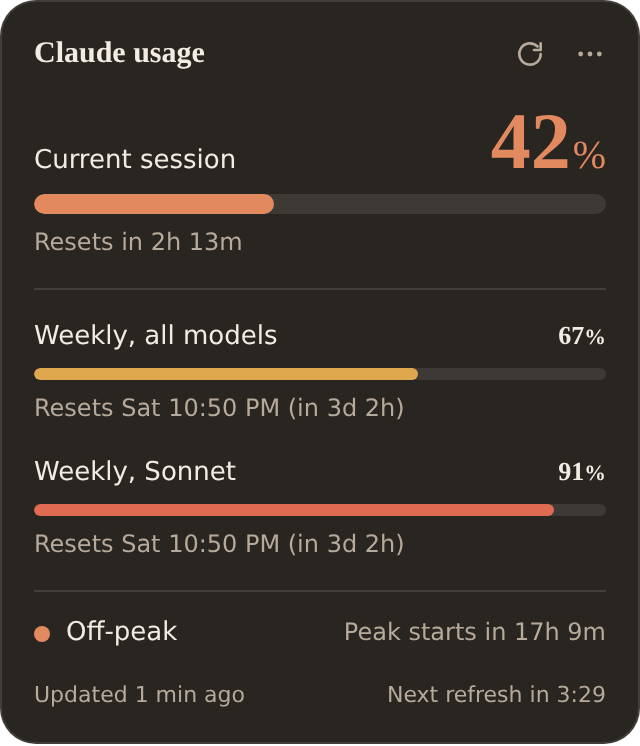
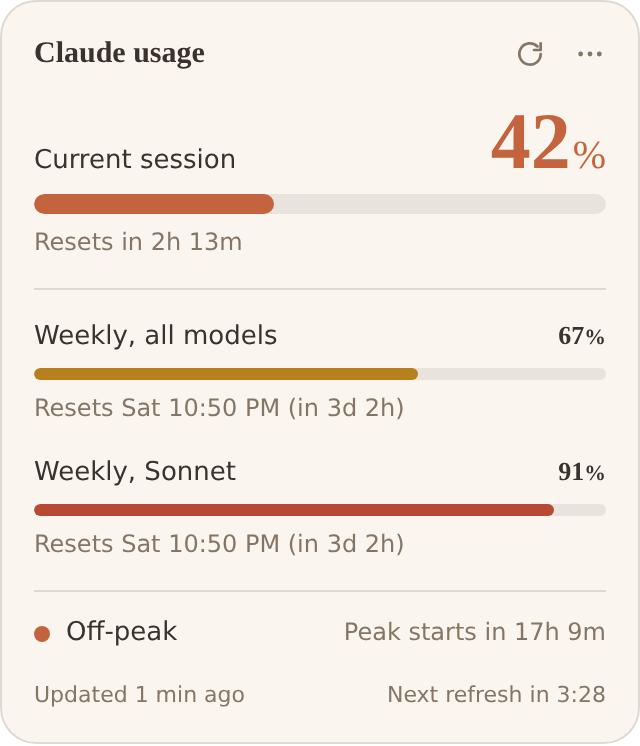
See the codeA small Windows desktop widget that shows how much of your Claude plan you have used, when each limit resets, and whether Claude's peak hours are on right now.

It shows usage for paid plans: Pro, Max, Team and Enterprise. The widget shows whichever limits claude.ai reports for your account: the 5-hour session, the weekly limit, and any per-model weekly limits. claude.ai doesn't currently report usage figures for Free accounts, so on the Free plan there are no bars to show; the widget still shows peak hours.
If this saves you a few trips to Settings → Usage, a ⭐ on the repo would mean a lot. It helps other people find it.
Not affiliated with or endorsed by Anthropic. "Claude" is a trademark of Anthropic.
Bars turn amber and then red as you get close to a limit. Your claude.ai chats, the Claude desktop app and Claude Code all draw from the same limits, so these numbers cover all of them.
Recommended: get it from the Microsoft Store. It installs in one click, updates automatically, and doesn't show any security warnings.
Or download the installer from Releases. Windows may show "Windows protected your PC", because the installer isn't signed; click More info, then Run anyway.
Works on Windows 10 and 11. A macOS version is in progress.
The widget sits on your desktop, like a large desktop icon: above the wallpaper, and behind every app window. Open windows cover it, and pressing Win+D (Show desktop) brings it into view. It doesn't appear in the taskbar or in Alt+Tab.
⋯ button on the widget, or right-click the tray icon, for Refresh now, Settings, Hide widget and Quit. Clicking the tray icon hides or shows the widget.The widget sizes itself to your account: it's exactly as tall as its content and just as wide, so it's a square with even spacing on every plan. Accounts with more limits get a bigger square.
Open Settings from the ⋯ menu or the tray icon:
Want to restyle it beyond that? Settings → Appearance → Custom CSS → Open CSS file opens your own theme.css, which loads after the built-in styles. Save it and the widget updates within a second. Most changes only need a variable, for example:
:root {
  --bg: rgba(30, 20, 45, 0.92);   /* panel background */
  --ok: #7dd3fc;                  /* bar colour under 60% */
  --warn: #fbbf24;                /* bar colour from 60% */
  --danger: #fb7185;              /* bar colour from 85% */
  --radius: 22px;                 /* corner rounding */
}
You can also restyle any element, for example .peak { display: none; }. To go back to the default look, empty the file.
Found a bug or have an idea? Open an issue. The code is MIT-licensed, so you're also free to take it and make it your own.
Found a security problem? Please report it privately, as described in SECURITY.md.
Thanks for checking it out! Bugs and ideas are always welcome.
Desktop widget that shows your Claude usage limits, reset times and peak hours.
See the codeA small Windows desktop widget that shows how much of your Claude plan you have used, when each limit resets, and whether Claude's peak hours are on right now.
It shows usage for paid plans: Pro, Max, Team and Enterprise. The widget shows whichever limits claude.ai reports for your account: the 5-hour session, the weekly limit, and any per-model weekly limits. claude.ai doesn't currently report usage figures for Free accounts, so on the Free plan there are no bars to show; the widget still shows peak hours.
If this saves you a few trips to Settings → Usage, a ⭐ on the repo would mean a lot. It helps other people find it.
Not affiliated with or endorsed by Anthropic. "Claude" is a trademark of Anthropic.
Bars turn amber and then red as you get close to a limit. Your claude.ai chats, the Claude desktop app and Claude Code all draw from the same limits, so these numbers cover all of them.
Recommended: get it from the Microsoft Store. It installs in one click, updates automatically, and doesn't show any security warnings.
Or download the installer from Releases. Windows may show "Windows protected your PC", because the installer isn't signed; click More info, then Run anyway.
Works on Windows 10 and 11. A macOS version is in progress.
The widget sits on your desktop, like a large desktop icon: above the wallpaper, and behind every app window. Open windows cover it, and pressing Win+D (Show desktop) brings it into view. It doesn't appear in the taskbar or in Alt+Tab.
⋯ button on the widget, or right-click the tray icon, for Refresh now, Settings, Hide widget and Quit. Clicking the tray icon hides or shows the widget.The widget sizes itself to your account: it's exactly as tall as its content and just as wide, so it's a square with even spacing on every plan. Accounts with more limits get a bigger square.
Open Settings from the ⋯ menu or the tray icon:
Want to restyle it beyond that? Settings → Appearance → Custom CSS → Open CSS file opens your own theme.css, which loads after the built-in styles. Save it and the widget updates within a second. Most changes only need a variable, for example:
:root {
  --bg: rgba(30, 20, 45, 0.92);   /* panel background */
  --ok: #7dd3fc;                  /* bar colour under 60% */
  --warn: #fbbf24;                /* bar colour from 60% */
  --danger: #fb7185;              /* bar colour from 85% */
  --radius: 22px;                 /* corner rounding */
}
You can also restyle any element, for example .peak { display: none; }. To go back to the default look, empty the file.
Found a bug or have an idea? Open an issue. The code is MIT-licensed, so you're also free to take it and make it your own.
Found a security problem? Please report it privately, as described in SECURITY.md.
Thanks for checking it out! Bugs and ideas are always welcome.



