
A floating desktop meter for Codex 5-hour and weekly usage limits. macOS and Windows.
JavaScript
0
5 commits
updated Oct 2, 2026
See what people are saying
README
Codex Meter

Keep your Codex 5-hour and weekly limits visible without opening the usage page.
Codex Meter is a small desktop app for macOS and Windows. It reads the signed-in account through the local Codex CLI and shows how much of each usage window is left.
Download the latest release · Report a bug
Two views
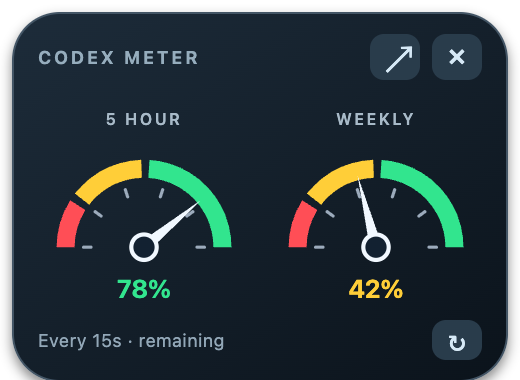
Mini meter stays on top of other windows. Drag it anywhere; click ↗ to open the detailed view or × to hide it in the tray.
Detailed view and low-quota example
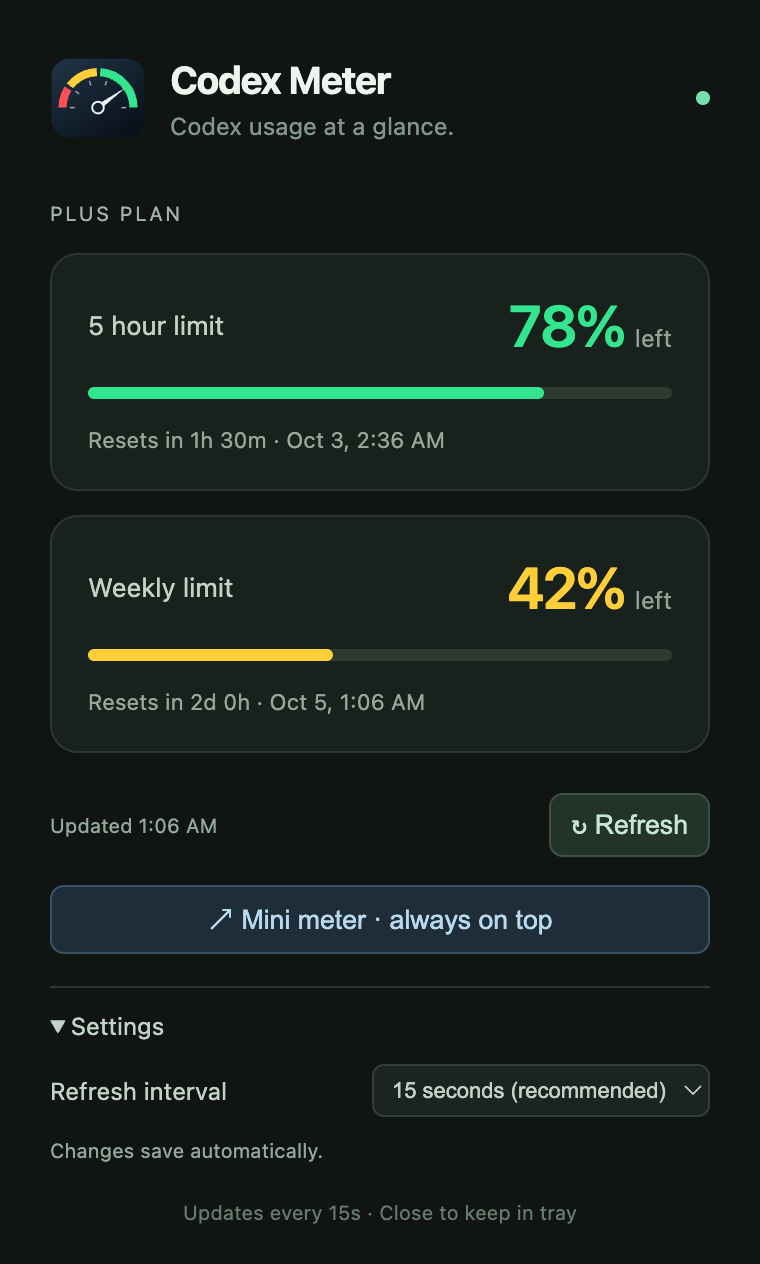
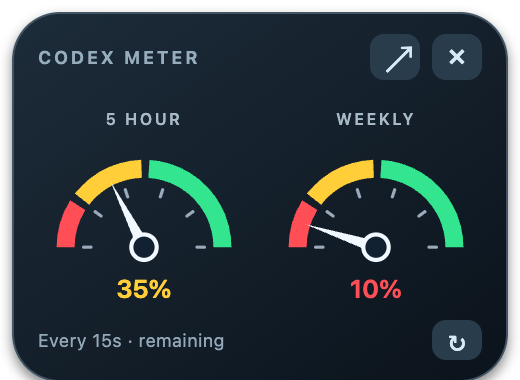
Screenshots show example quotas. The two windows share the same account data and refresh setting.
Install
Choose the download for your computer from Releases.
| Platform | Download | Install |
|---|---|---|
| Intel Mac | …-mac-x64.zip | Unzip; move Codex Meter.app to Applications |
| Apple Silicon Mac (M series) | …-mac-arm64.zip | Unzip; move Codex Meter.app to Applications |
| Windows 64-bit | …-win-x64.exe | Run the installer |
Builds are unsigned; Mac builds are not notarized. Your OS may ask you to allow the app. Only proceed if you trust the source. Do not disable Gatekeeper or SmartScreen globally. Releases include SHA-256 checksums.
Setup
- Install Codex and sign in with your ChatGPT account. An existing desktop/CLI session may be reused when it shares the same credential configuration.
- Open Codex Meter. It detects common CLI and macOS desktop app locations, including native binaries installed through npm on Windows.
- If usage is unavailable, run
codex loginand click Refresh. If detection fails, right-click the menu bar/system tray icon and select Choose Codex executable….
The executable must be codex or codex.exe. Windows codex.cmd is a launcher, so choose the underlying native binary if auto-detection misses it. Windows and WSL credentials are separate; this version uses the native Windows session. API-key-only sessions do not expose ChatGPT plan quotas.
For a custom install, set CODEX_METER_BIN to the executable's absolute path. CODEX_HOME is inherited by the Codex child process.
Usage
- Mini meter switches to the floating view. Its position and the selected view survive restarts.
- Refresh interval is available in Settings and the tray menu: 1, 5, 10, 15, or 30 seconds; 1, 2, or 5 minutes; or manual only. The default is 15 seconds. Changes apply immediately.
- Refresh requests current usage. Scheduled requests never overlap. Manual-only mode still refreshes on launch and after waking from sleep.
- Quota selector appears when Codex reports multiple usage buckets. The selection is shared across both views.
- Detailed window always on top and Launch at login are in the tray menu. The mini window is always on top.
- Closing a window keeps the app in the tray. Choose Quit to exit.
The gauges show remaining quota, not consumed quota:
| Remaining | Colour |
|---|---|
| 51–100% | Green |
| 20–50% | Yellow |
| 0–19% | Red |
Thresholds use the rounded percentage shown on screen. The tray icon follows the lower available 5-hour/weekly value. Missing values show —. A failed refresh keeps the last snapshot and marks it stale; reaching a reset time does not invent a new quota value.
How it works
MacBook Touch Bar
On Macs with a Touch Bar, Codex Meter displays 5h …% left and Weekly …% left in green, yellow, or red, plus Refresh and Mini/Details buttons. It uses the same quota selection and refresh interval as the widget and marks failed reads as stale.
Touch Bar support is enabled by default on macOS. Toggle Settings → Show on Touch Bar or Touch Bar · when app is focused in the tray menu. This preference survives restarts. Macs without Touch Bar hardware continue to use the desktop widget normally.
The native controls belong to Codex Meter's focused window. Switching to another app gives that app control of the Touch Bar; an always-on-top mini window does not keep these controls visible when it loses focus. This version does not replace the system Control Strip. See the Electron Touch Bar API.

The screenshot was captured from a Touch Bar on Intel macOS using sample quotas. Native control creation, updates, and the preference toggle are also covered by the macOS desktop smoke test. Physical touch interactions and other MacBook models still need on-device validation.
Local usage connection
Electron provides the windows and tray. Each refresh starts codex app-server, initializes its stdio connection, requests account/rateLimits/read, and closes the process. No inference requests are made. Short polling intervals start more processes and network requests; 15 seconds is a reasonable default.
The widget does not read or copy auth tokens. Codex handles its own credentials and network connection. Codex Meter has no analytics or usage-history database. It saves the refresh interval, executable preference, view, mini-window position, selected quota bucket, and always-on-top preference locally.
This is an independent project, not an OpenAI product. It is a floating desktop window, not a WidgetKit or Windows Widgets extension. Account access depends on the installed Codex version and credential configuration.
Development
Requires Node.js 22 or later.
git clone https://github.com/dedsec1911/codex-meter.git
cd codex-meter
npm ci
npm start
npm test                  # Protocol, quota boundaries, discovery, and scheduling
npm run test:desktop      # Window switching and settings with sample quotas
npm run check:live        # Read limits from your real local Codex session
The desktop test needs a graphical session; it never needs account credentials. check:live prints normalized quota data only. Regenerate logo PNGs after editing the gauge design with npm run icons.
Build on the corresponding OS:
npm run dist -- --mac --x64 --publish never
npm run dist -- --mac --arm64 --publish never
npm run dist -- --win --x64 --publish never
GitHub Actions runs tests and builds on Intel macOS, Apple Silicon macOS, and Windows. Version tags publish the three packages and checksums only after every build succeeds. CI checks use sample data; real-account integration has been checked on Intel macOS.
Support the project
If you like Codex Meter, you can buy me a coffee to support its development and maintenance. Thanks for helping keep the project going.
License
Similar repos


Languages
JavaScript
84.4%
CSS
9.1%
HTML
6.5%
A floating desktop meter for Codex 5-hour and weekly usage limits. macOS and Windows.
JavaScript
0
5 commits
updated Oct 2, 2026
See what people are saying
README
Codex Meter
Keep your Codex 5-hour and weekly limits visible without opening the usage page.
Codex Meter is a small desktop app for macOS and Windows. It reads the signed-in account through the local Codex CLI and shows how much of each usage window is left.
Download the latest release · Report a bug
Two views
Mini meter stays on top of other windows. Drag it anywhere; click ↗ to open the detailed view or × to hide it in the tray.
Detailed view and low-quota example
Screenshots show example quotas. The two windows share the same account data and refresh setting.
Install
Choose the download for your computer from Releases.
| Platform | Download | Install |
|---|---|---|
| Intel Mac | …-mac-x64.zip | Unzip; move Codex Meter.app to Applications |
| Apple Silicon Mac (M series) | …-mac-arm64.zip | Unzip; move Codex Meter.app to Applications |
| Windows 64-bit | …-win-x64.exe | Run the installer |
Builds are unsigned; Mac builds are not notarized. Your OS may ask you to allow the app. Only proceed if you trust the source. Do not disable Gatekeeper or SmartScreen globally. Releases include SHA-256 checksums.
Setup
- Install Codex and sign in with your ChatGPT account. An existing desktop/CLI session may be reused when it shares the same credential configuration.
- Open Codex Meter. It detects common CLI and macOS desktop app locations, including native binaries installed through npm on Windows.
- If usage is unavailable, run
codex loginand click Refresh. If detection fails, right-click the menu bar/system tray icon and select Choose Codex executable….
The executable must be codex or codex.exe. Windows codex.cmd is a launcher, so choose the underlying native binary if auto-detection misses it. Windows and WSL credentials are separate; this version uses the native Windows session. API-key-only sessions do not expose ChatGPT plan quotas.
For a custom install, set CODEX_METER_BIN to the executable's absolute path. CODEX_HOME is inherited by the Codex child process.
Usage
- Mini meter switches to the floating view. Its position and the selected view survive restarts.
- Refresh interval is available in Settings and the tray menu: 1, 5, 10, 15, or 30 seconds; 1, 2, or 5 minutes; or manual only. The default is 15 seconds. Changes apply immediately.
- Refresh requests current usage. Scheduled requests never overlap. Manual-only mode still refreshes on launch and after waking from sleep.
- Quota selector appears when Codex reports multiple usage buckets. The selection is shared across both views.
- Detailed window always on top and Launch at login are in the tray menu. The mini window is always on top.
- Closing a window keeps the app in the tray. Choose Quit to exit.
The gauges show remaining quota, not consumed quota:
| Remaining | Colour |
|---|---|
| 51–100% | Green |
| 20–50% | Yellow |
| 0–19% | Red |
Thresholds use the rounded percentage shown on screen. The tray icon follows the lower available 5-hour/weekly value. Missing values show —. A failed refresh keeps the last snapshot and marks it stale; reaching a reset time does not invent a new quota value.
How it works
MacBook Touch Bar
On Macs with a Touch Bar, Codex Meter displays 5h …% left and Weekly …% left in green, yellow, or red, plus Refresh and Mini/Details buttons. It uses the same quota selection and refresh interval as the widget and marks failed reads as stale.
Touch Bar support is enabled by default on macOS. Toggle Settings → Show on Touch Bar or Touch Bar · when app is focused in the tray menu. This preference survives restarts. Macs without Touch Bar hardware continue to use the desktop widget normally.
The native controls belong to Codex Meter's focused window. Switching to another app gives that app control of the Touch Bar; an always-on-top mini window does not keep these controls visible when it loses focus. This version does not replace the system Control Strip. See the Electron Touch Bar API.
The screenshot was captured from a Touch Bar on Intel macOS using sample quotas. Native control creation, updates, and the preference toggle are also covered by the macOS desktop smoke test. Physical touch interactions and other MacBook models still need on-device validation.
Local usage connection
Electron provides the windows and tray. Each refresh starts codex app-server, initializes its stdio connection, requests account/rateLimits/read, and closes the process. No inference requests are made. Short polling intervals start more processes and network requests; 15 seconds is a reasonable default.
The widget does not read or copy auth tokens. Codex handles its own credentials and network connection. Codex Meter has no analytics or usage-history database. It saves the refresh interval, executable preference, view, mini-window position, selected quota bucket, and always-on-top preference locally.
This is an independent project, not an OpenAI product. It is a floating desktop window, not a WidgetKit or Windows Widgets extension. Account access depends on the installed Codex version and credential configuration.
Development
Requires Node.js 22 or later.
git clone https://github.com/dedsec1911/codex-meter.git
cd codex-meter
npm ci
npm start
npm test                  # Protocol, quota boundaries, discovery, and scheduling
npm run test:desktop      # Window switching and settings with sample quotas
npm run check:live        # Read limits from your real local Codex session
The desktop test needs a graphical session; it never needs account credentials. check:live prints normalized quota data only. Regenerate logo PNGs after editing the gauge design with npm run icons.
Build on the corresponding OS:
npm run dist -- --mac --x64 --publish never
npm run dist -- --mac --arm64 --publish never
npm run dist -- --win --x64 --publish never
GitHub Actions runs tests and builds on Intel macOS, Apple Silicon macOS, and Windows. Version tags publish the three packages and checksums only after every build succeeds. CI checks use sample data; real-account integration has been checked on Intel macOS.
Support the project
If you like Codex Meter, you can buy me a coffee to support its development and maintenance. Thanks for helping keep the project going.
License
Similar repos
Languages
JavaScript
84.4%
CSS
9.1%
HTML
6.5%