







A Commodore 64 desktop for Linux -- Alpine, Debian, Ubuntu, Arch, Fedora ...: the light-blue border around the blue screen, the power-on banner,
READY. and a blinking cursor, chunky 8-colour sprite icons, a CRT filter with scanlines and rounded corners -- and a
desktop you can type on: shell commands run right there, and anything else goes to a real C64 BASIC.
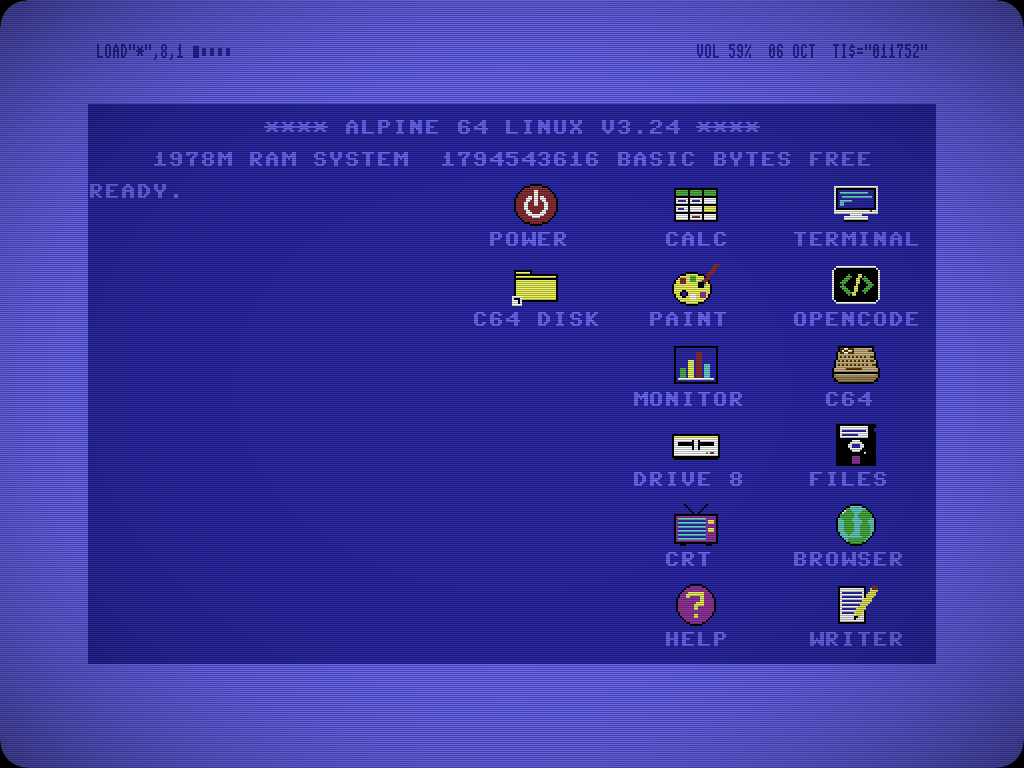
Click the desktop and type. A line goes, in this order, to the desktop itself (LOAD"TERMINAL",8,1, POKE 53280,2,
SYS 64738, CD, CLS ...), then to your shell (ls, cat, df print right there; htop, mc, vim get a
terminal window), and everything else to a real C64 BASIC running in VICE, out of sight. Programs that draw open
the C64 SCREEN (the same C64 in VICE's window; Alt+D fullscreen, its X sends it back). The BASIC program is kept as
C64.SAV on the desktop and comes back after a reboot.

Paste (ctrl+v): copied text is typed at the prompt, so a BASIC listing from a web page goes straight in. Copied files land on the desktop.

The desktop is a folder, ~/.c64pine/Desktop: apps, folders and files as 24x21 sprite icons. Drag to move, drop onto
a folder to put things inside, right-click for NEW FOLDER, NEW TEXT FILE, RENAME, CHANGE ICON ... Folders open as
folder windows with the same icons, one window per folder, classic Mac style.

The icons are plain PNG sprites in the C64 colours. Draw your own in the built-in icon editor (or any paint program): the desktop and the system icon theme follow.

Openbox with a C64 theme. Super+arrows tile: left / right half of the blue screen, again for half of the whole screen; up maximizes; Alt+F is fullscreen.

Five virtual desktops (Alt+1..5, Alt+Shift+1..5 sends a window). A window can be pinned from its title bar: on top and on every desktop. Handy for a video in the corner.


The bar lives in the top border and moves out of the way of windows: LOAD"*",8,1 finds and starts programs
(type to search), then the desktops, one button per window, battery and power settings, volume, and the TI$
clock with a calendar.
Right-click the desktop (or Super+F12 anywhere) for the desktop menu: PROGRAMS, CAPTURE, COLOURS, WALLPAPER and the DESKTOPS with their open windows.
The menu, its PROGRAMS list and the LOAD"*",8,1 finder are one plain text file, arranged with the MENUS app
(move, add, remove, submenus).

Five presets: C64, C128, VIC-20, SX-64 and PET green on black (or POKE 53280 / 53281 / 646 for any C64 colour).
They recolour the desktop, the window theme, menus, terminals, GTK apps, mpv, zathura and nsxiv.
PCManFM, AbiWord, Gnumeric, cmus (music), mpv (video), nsxiv (pictures), zathura (PDF), st with the
power-on banner and a READY. prompt, and vfetch with the Commodore logo.
Double-click a .d64, .t64, .prg, .c64, .tap or .crt and the C64 loads and runs it in the C64 SCREEN; closing that window ends it. The arrow keys are joystick 1 (fire = right Ctrl). Folders with C64 software open as a cover view: cover in C64 colours, screenshot, year, author and description from Wikipedia / Wikidata; RUN, SEARCH, SCRAPE, or SET your own.
Any picture, or a folder of them as a slideshow, shown in the blue screen as 320x200 in the 16 C64 colours, dithered (or not), under the scanlines; the border can take the picture's colour.

Scanlines, vignette and rounded tube corners over the whole screen (picom), or only on the desktop. Alt+F12 switches it.
nmtui), bluetooth (+ audio), brightness keys, suspend on lid close, touchpad tapping,
external screens.make-installer-iso: builds a bootable installer ISO of your system as it is (desktop, icons, files included).F1 shows the full cheat sheet (c64pine/config/help-openbox.txt). How much the hidden C64 costs (and when it costs
nothing): docs/PERFORMANCE.md.
curl -fsSL https://raw.githubusercontent.com/zdanee/c64pine/main/get.sh | sh
(or from a clone: git clone https://github.com/zdanee/c64pine && c64pine/installer/c64pine-install)
Run it as your normal user. It is a blue C64-screen installer in the terminal that shows everything before it does
anything: what it found (system, package manager, login screen, your other desktops, sound), which parts you want,
and the full plan -- every package, every file outside your home -- then asks. It needs sudo or doas for the
packages and the login-screen entry, and asks for the password once.
~/.c64pine (programs, settings, icons, its own Desktop and C64
disk). Your ~/.config, shell files, desktop and other sessions are not touched; inside C64pine your files are
where they always were. To find its folders from your other desktops, the first session puts links in your home
folder: ~/C64pine-Desktop, ~/C64pine-C64Disk, ~/C64pine-Screenshots, ~/C64pine-Recordings (delete
any you don't want; they don't come back).startx ~/.c64pine/bin/c64-session). Log out to go
back to your usual desktop. Replacing the login screen with the C64 one (LightDM) is an opt-in part.~/.c64pine/bin/c64pine uninstall removes the login-screen entry, every recorded file, the home-folder links, and the packages
it installed -- never one that something else needs -- and keeps the files you made in it (~/c64pine-files).
On the test systems below the package list afterwards was exactly what it was before.~/.c64pine/opt: VICE on Debian/Ubuntu (theirs
comes without the C64 ROMs) and on Fedora (not packaged), cmus and nsxiv on Fedora. The compilers it needed are
removed again at the end.c64pine info shows what is installed, c64pine update installs the newest version over it (your changed
settings stay).| tested on (with Xfce + LightDM) | packages | built from source |
|---|---|---|
| Debian 13 | apt | VICE |
| Arch Linux | pacman | -- |
| Fedora 43 | dnf | VICE, cmus, nsxiv |
Ubuntu/Mint (apt) and Alpine (apk) use the same paths; openSUSE, Void and others: the installer lists what is needed and checks it, you install those packages yourself. C64pine is an X11 session: on a Wayland desktop it is simply another entry at the login screen.
Download c64pine-*-x86_64.iso from the releases, write it to a USB stick (dd if=c64pine-*.iso of=/dev/sdX bs=4M conv=fsync on Linux, Rufus in "DD image" mode on Windows; Ventoy is known not to work on at least one machine),
boot it (legacy BIOS or UEFI, Secure Boot off), log in as root (no password) and run c64-install. The same blue
screens ask for the disk, computer name, user, password, keyboard layout, time zone and whether the desktop starts at
once or the C64 login screen asks, then it installs (MBR, EFI partition + ext4, swap file, GRUB for BIOS and UEFI;
offline, a few minutes).
c64pine-live-*-x86_64.iso boots straight into the desktop from a USB stick or CD (nothing is written to the disk;
changes are lost at power-off). The INSTALL icon (or c64-install in a terminal) installs it like the installer ISO.
Write it with dd / Rufus "DD image" too: booting it through Ventoy failed on at least one machine.
c64pine/ | what becomes ~/.c64pine: bin/ (the session, bar, scripts), config/ (Openbox, themes, apps), data/ (sprites, icon theme, themes), Desktop/ |
c64desk/ | the desktop program: main.c (window, CRT filter, bar placement), items.c (icons, drag & drop), ui.c (menus), console.c (the command line, shell jobs), vice.c (BASIC via VICE's binary monitor), editor.c (icon editor), wallpaper.c (the wallpaper engine; stb_image.h reads the pictures) |
greeter/ | c64pine-greeter: the C64 login screen for LightDM |
installer/ | c64pine-install (install / update / uninstall on any distribution), tui.sh (the blue screens, POSIX sh), packages.list (what is needed, per package manager), src/ (source builds) |
get.sh | the curl ... | sh bootstrap: downloads this repository and starts the installer |
patches/ | vfetch: the Commodore logo |
fonts/ | Pet Me 64 (Kreative Software, see fonts/FreeLicense.txt) |
system/ | the login-screen session entry, the root helper c64-sys, make-installer-iso and what it puts on the ISO: the installer (install.sh), laptop.sh (image conversion), hardware.sh (laptop extras), the laptop help |
GPL-3.0 (LICENSE) for C64pine's own code and art. The fonts and the programs it builds or installs have their own
licences: see CREDITS.md. Unofficial fan project; "Commodore" is a trademark of its owner.
A Commodore 64 desktop for Linux -- Alpine, Debian, Ubuntu, Arch, Fedora ...: the light-blue border around the blue screen, the power-on banner,
READY. and a blinking cursor, chunky 8-colour sprite icons, a CRT filter with scanlines and rounded corners -- and a
desktop you can type on: shell commands run right there, and anything else goes to a real C64 BASIC.
Click the desktop and type. A line goes, in this order, to the desktop itself (LOAD"TERMINAL",8,1, POKE 53280,2,
SYS 64738, CD, CLS ...), then to your shell (ls, cat, df print right there; htop, mc, vim get a
terminal window), and everything else to a real C64 BASIC running in VICE, out of sight. Programs that draw open
the C64 SCREEN (the same C64 in VICE's window; Alt+D fullscreen, its X sends it back). The BASIC program is kept as
C64.SAV on the desktop and comes back after a reboot.
Paste (ctrl+v): copied text is typed at the prompt, so a BASIC listing from a web page goes straight in. Copied files land on the desktop.
The desktop is a folder, ~/.c64pine/Desktop: apps, folders and files as 24x21 sprite icons. Drag to move, drop onto
a folder to put things inside, right-click for NEW FOLDER, NEW TEXT FILE, RENAME, CHANGE ICON ... Folders open as
folder windows with the same icons, one window per folder, classic Mac style.
The icons are plain PNG sprites in the C64 colours. Draw your own in the built-in icon editor (or any paint program): the desktop and the system icon theme follow.
Openbox with a C64 theme. Super+arrows tile: left / right half of the blue screen, again for half of the whole screen; up maximizes; Alt+F is fullscreen.
Five virtual desktops (Alt+1..5, Alt+Shift+1..5 sends a window). A window can be pinned from its title bar: on top and on every desktop. Handy for a video in the corner.
The bar lives in the top border and moves out of the way of windows: LOAD"*",8,1 finds and starts programs
(type to search), then the desktops, one button per window, battery and power settings, volume, and the TI$
clock with a calendar.
Right-click the desktop (or Super+F12 anywhere) for the desktop menu: PROGRAMS, CAPTURE, COLOURS, WALLPAPER and the DESKTOPS with their open windows.
The menu, its PROGRAMS list and the LOAD"*",8,1 finder are one plain text file, arranged with the MENUS app
(move, add, remove, submenus).
Five presets: C64, C128, VIC-20, SX-64 and PET green on black (or POKE 53280 / 53281 / 646 for any C64 colour).
They recolour the desktop, the window theme, menus, terminals, GTK apps, mpv, zathura and nsxiv.
PCManFM, AbiWord, Gnumeric, cmus (music), mpv (video), nsxiv (pictures), zathura (PDF), st with the
power-on banner and a READY. prompt, and vfetch with the Commodore logo.
Double-click a .d64, .t64, .prg, .c64, .tap or .crt and the C64 loads and runs it in the C64 SCREEN; closing that window ends it. The arrow keys are joystick 1 (fire = right Ctrl). Folders with C64 software open as a cover view: cover in C64 colours, screenshot, year, author and description from Wikipedia / Wikidata; RUN, SEARCH, SCRAPE, or SET your own.
Any picture, or a folder of them as a slideshow, shown in the blue screen as 320x200 in the 16 C64 colours, dithered (or not), under the scanlines; the border can take the picture's colour.
Scanlines, vignette and rounded tube corners over the whole screen (picom), or only on the desktop. Alt+F12 switches it.
nmtui), bluetooth (+ audio), brightness keys, suspend on lid close, touchpad tapping,
external screens.make-installer-iso: builds a bootable installer ISO of your system as it is (desktop, icons, files included).F1 shows the full cheat sheet (c64pine/config/help-openbox.txt). How much the hidden C64 costs (and when it costs
nothing): docs/PERFORMANCE.md.
curl -fsSL https://raw.githubusercontent.com/zdanee/c64pine/main/get.sh | sh
(or from a clone: git clone https://github.com/zdanee/c64pine && c64pine/installer/c64pine-install)
Run it as your normal user. It is a blue C64-screen installer in the terminal that shows everything before it does
anything: what it found (system, package manager, login screen, your other desktops, sound), which parts you want,
and the full plan -- every package, every file outside your home -- then asks. It needs sudo or doas for the
packages and the login-screen entry, and asks for the password once.
~/.c64pine (programs, settings, icons, its own Desktop and C64
disk). Your ~/.config, shell files, desktop and other sessions are not touched; inside C64pine your files are
where they always were. To find its folders from your other desktops, the first session puts links in your home
folder: ~/C64pine-Desktop, ~/C64pine-C64Disk, ~/C64pine-Screenshots, ~/C64pine-Recordings (delete
any you don't want; they don't come back).startx ~/.c64pine/bin/c64-session). Log out to go
back to your usual desktop. Replacing the login screen with the C64 one (LightDM) is an opt-in part.~/.c64pine/bin/c64pine uninstall removes the login-screen entry, every recorded file, the home-folder links, and the packages
it installed -- never one that something else needs -- and keeps the files you made in it (~/c64pine-files).
On the test systems below the package list afterwards was exactly what it was before.~/.c64pine/opt: VICE on Debian/Ubuntu (theirs
comes without the C64 ROMs) and on Fedora (not packaged), cmus and nsxiv on Fedora. The compilers it needed are
removed again at the end.c64pine info shows what is installed, c64pine update installs the newest version over it (your changed
settings stay).| tested on (with Xfce + LightDM) | packages | built from source |
|---|---|---|
| Debian 13 | apt | VICE |
| Arch Linux | pacman | -- |
| Fedora 43 | dnf | VICE, cmus, nsxiv |
Ubuntu/Mint (apt) and Alpine (apk) use the same paths; openSUSE, Void and others: the installer lists what is needed and checks it, you install those packages yourself. C64pine is an X11 session: on a Wayland desktop it is simply another entry at the login screen.
Download c64pine-*-x86_64.iso from the releases, write it to a USB stick (dd if=c64pine-*.iso of=/dev/sdX bs=4M conv=fsync on Linux, Rufus in "DD image" mode on Windows; Ventoy is known not to work on at least one machine),
boot it (legacy BIOS or UEFI, Secure Boot off), log in as root (no password) and run c64-install. The same blue
screens ask for the disk, computer name, user, password, keyboard layout, time zone and whether the desktop starts at
once or the C64 login screen asks, then it installs (MBR, EFI partition + ext4, swap file, GRUB for BIOS and UEFI;
offline, a few minutes).
c64pine-live-*-x86_64.iso boots straight into the desktop from a USB stick or CD (nothing is written to the disk;
changes are lost at power-off). The INSTALL icon (or c64-install in a terminal) installs it like the installer ISO.
Write it with dd / Rufus "DD image" too: booting it through Ventoy failed on at least one machine.
c64pine/ | what becomes ~/.c64pine: bin/ (the session, bar, scripts), config/ (Openbox, themes, apps), data/ (sprites, icon theme, themes), Desktop/ |
c64desk/ | the desktop program: main.c (window, CRT filter, bar placement), items.c (icons, drag & drop), ui.c (menus), console.c (the command line, shell jobs), vice.c (BASIC via VICE's binary monitor), editor.c (icon editor), wallpaper.c (the wallpaper engine; stb_image.h reads the pictures) |
greeter/ | c64pine-greeter: the C64 login screen for LightDM |
installer/ | c64pine-install (install / update / uninstall on any distribution), tui.sh (the blue screens, POSIX sh), packages.list (what is needed, per package manager), src/ (source builds) |
get.sh | the curl ... | sh bootstrap: downloads this repository and starts the installer |
patches/ | vfetch: the Commodore logo |
fonts/ | Pet Me 64 (Kreative Software, see fonts/FreeLicense.txt) |
system/ | the login-screen session entry, the root helper c64-sys, make-installer-iso and what it puts on the ISO: the installer (install.sh), laptop.sh (image conversion), hardware.sh (laptop extras), the laptop help |
GPL-3.0 (LICENSE) for C64pine's own code and art. The fonts and the programs it builds or installs have their own
licences: see CREDITS.md. Unofficial fan project; "Commodore" is a trademark of its owner.



