A sport app to "Elevate" your training experience and goals! Track your fitness and progressions over time. Analyse deeper your activities. And more...
See the code
Screenshots • Desktop App • Web Extension (For Strava) • Development
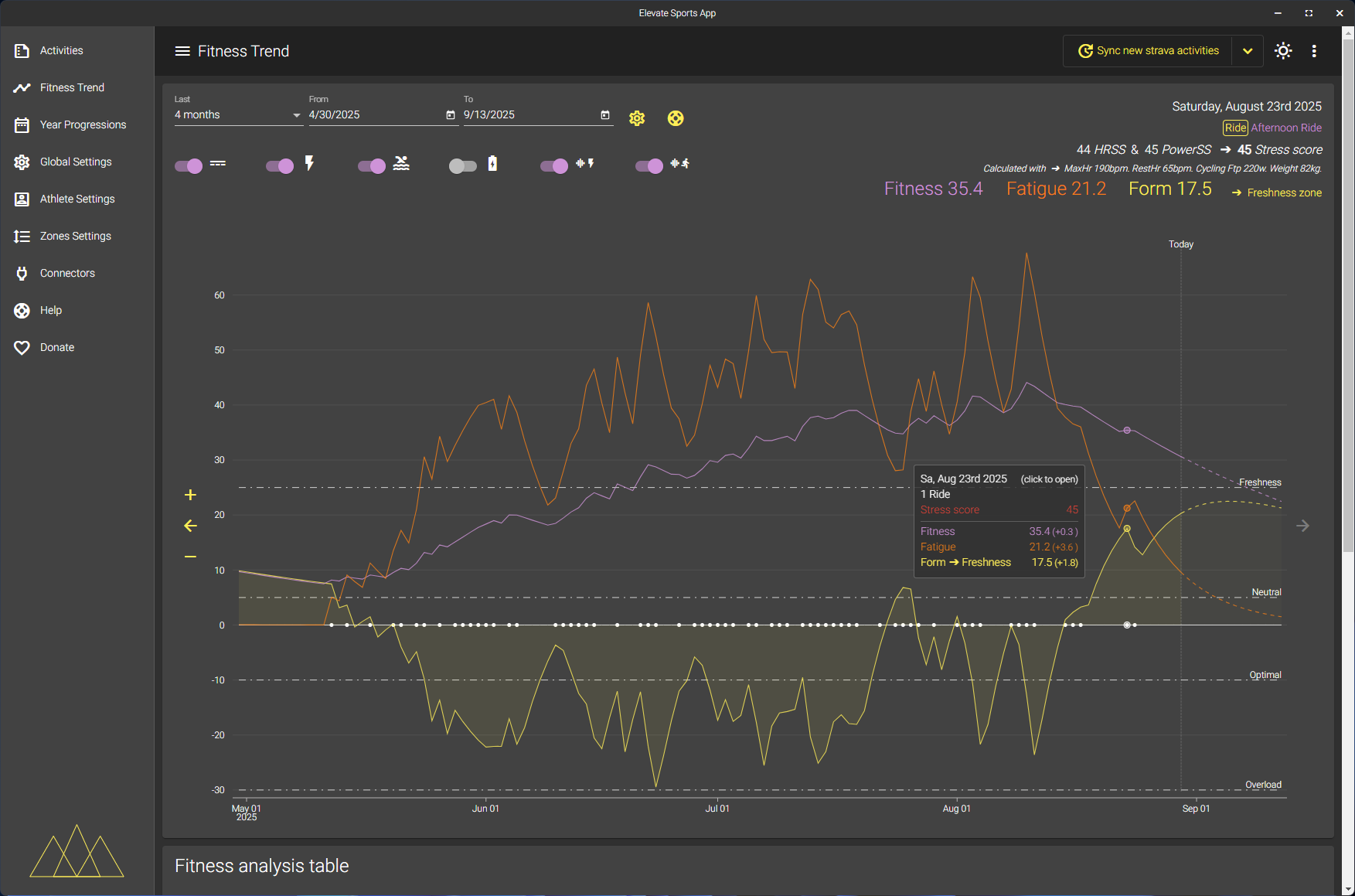
Track your long-term fitness trend and performance improvements visually.
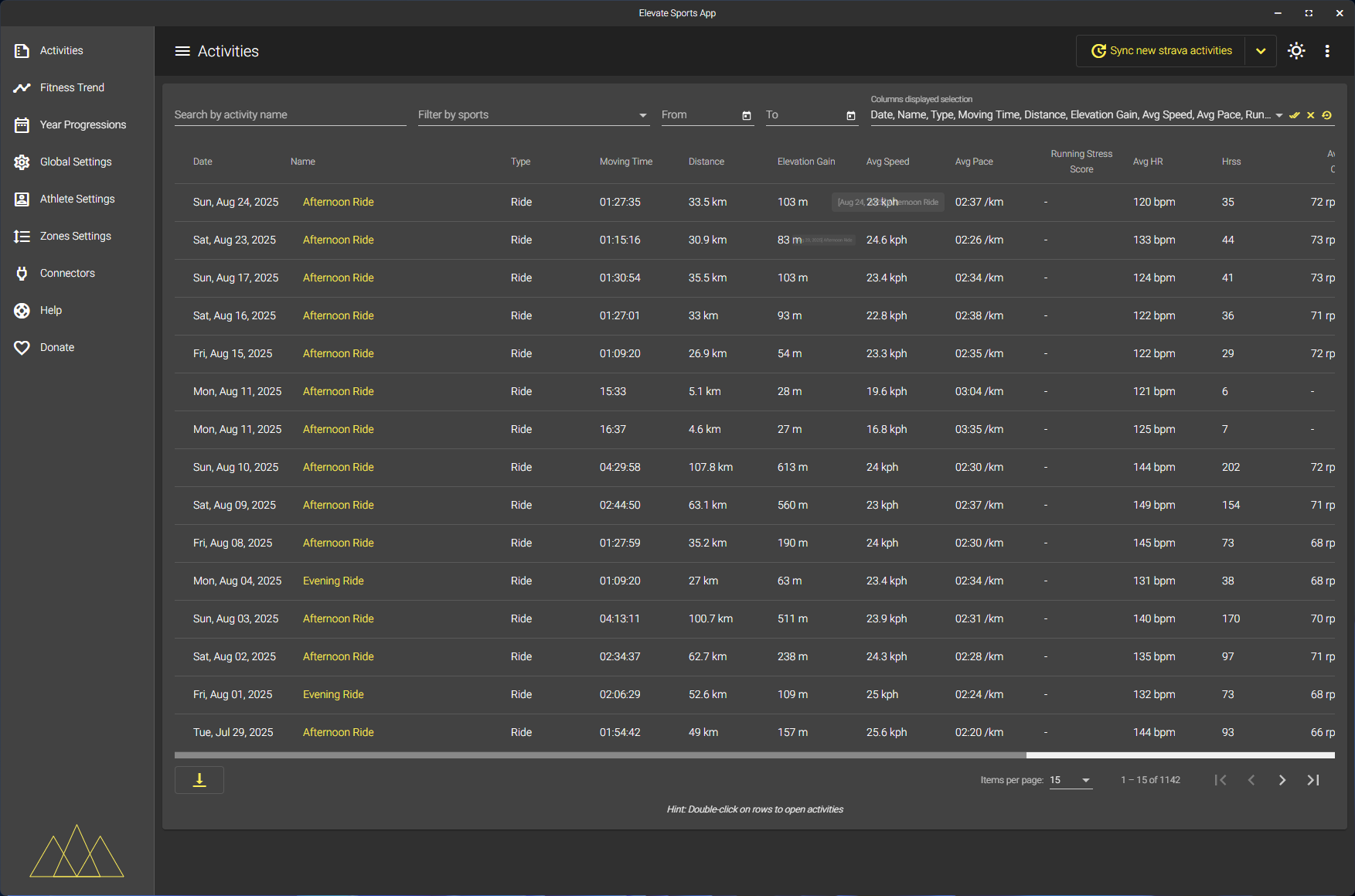
Browse and filter your recorded rides with summary statistics for each activity.
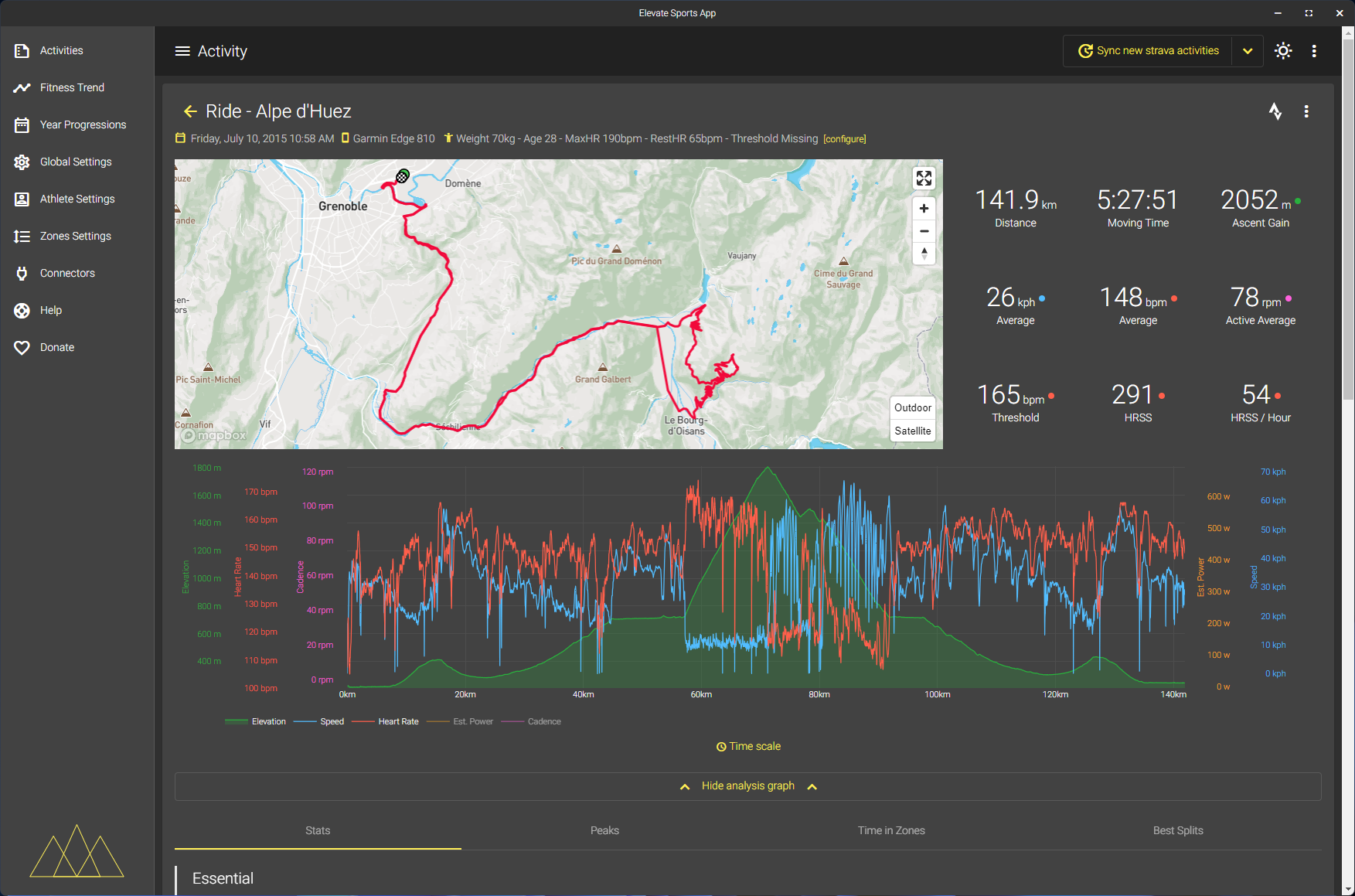
Review in-depth ride details including map and core metrics for every session.
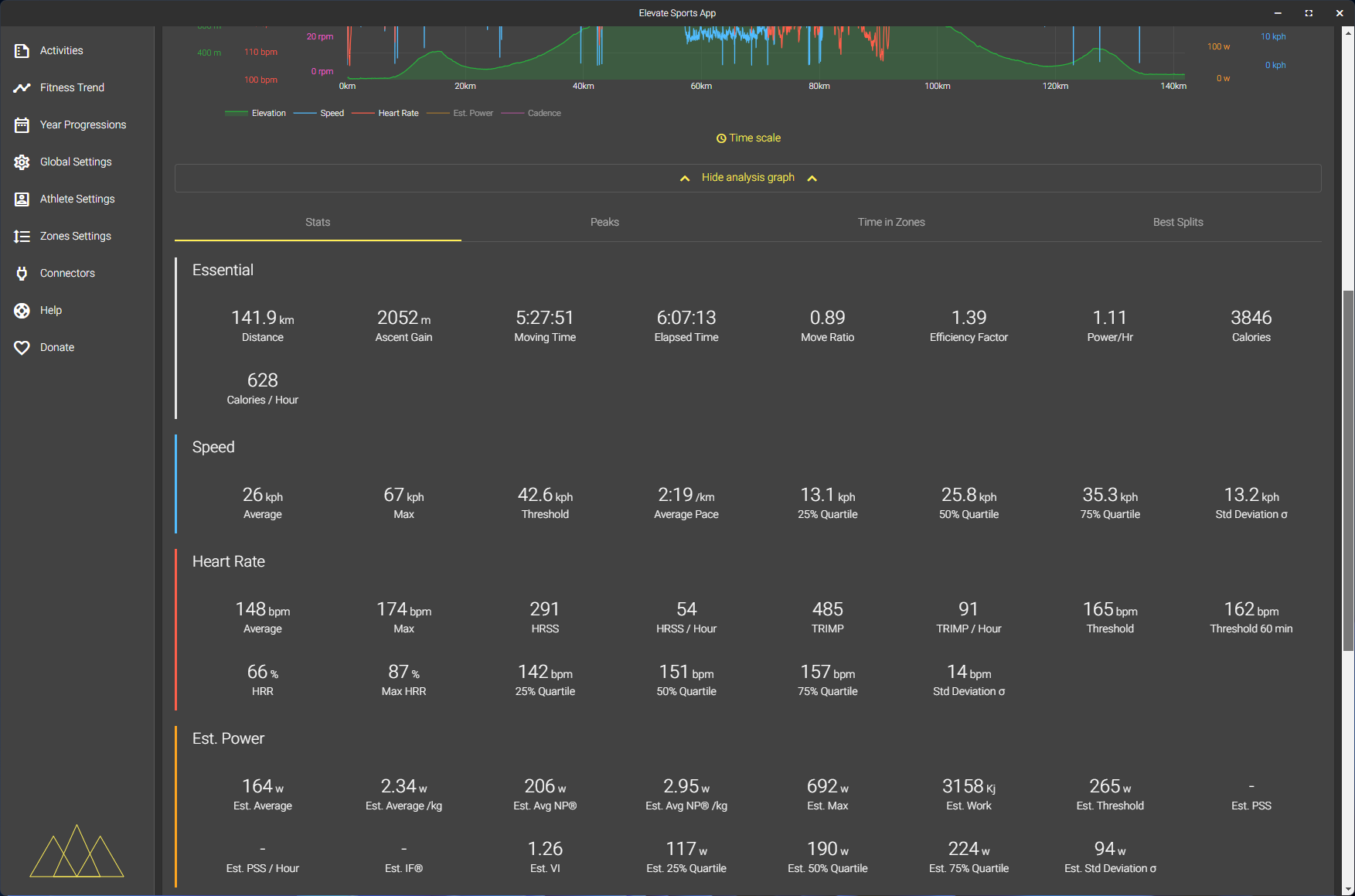
View essential ride stats including averages and highlight metrics for each activity.
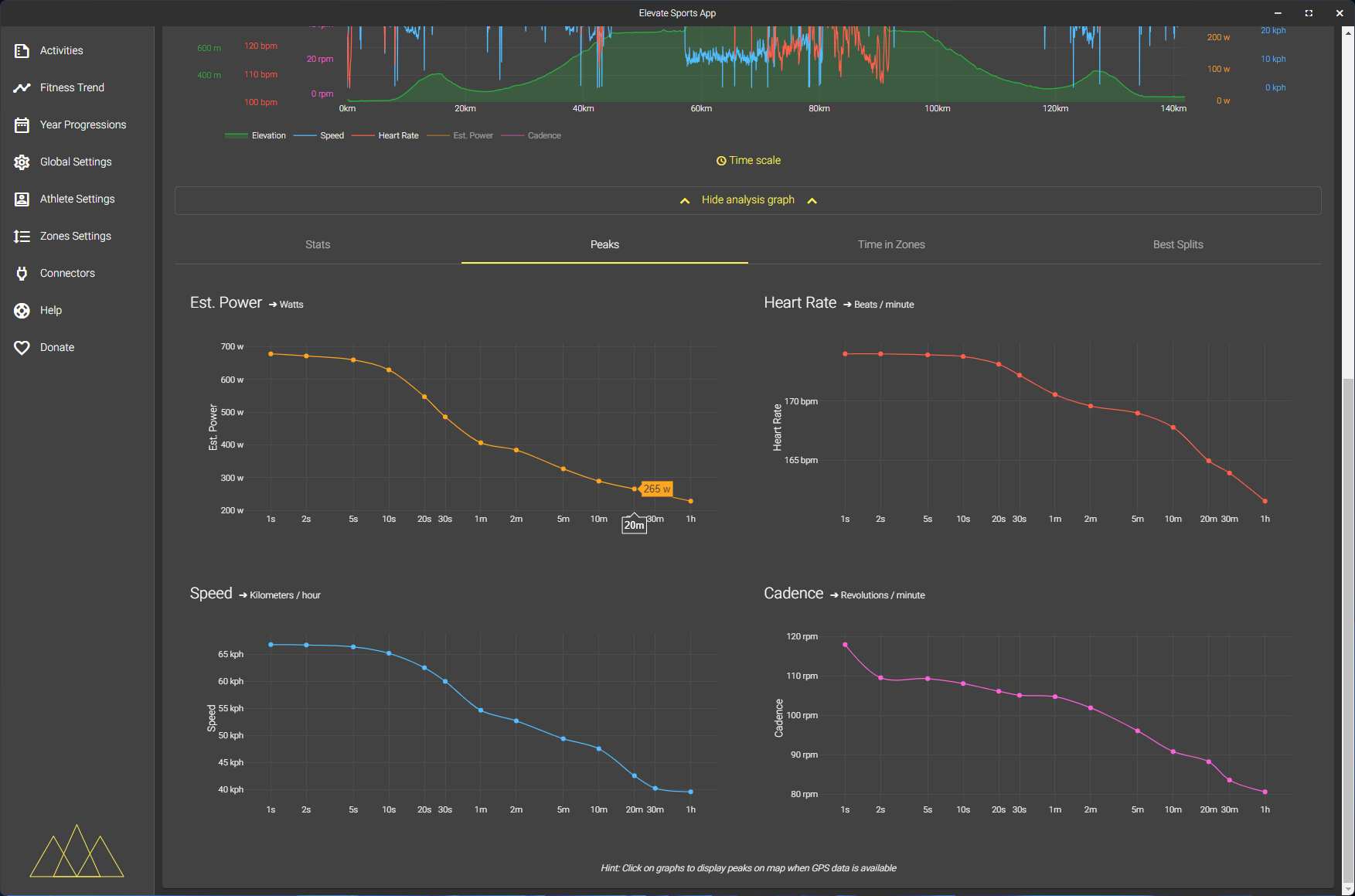
See peak values for power, heart rate, speed, and cadence across your ride.
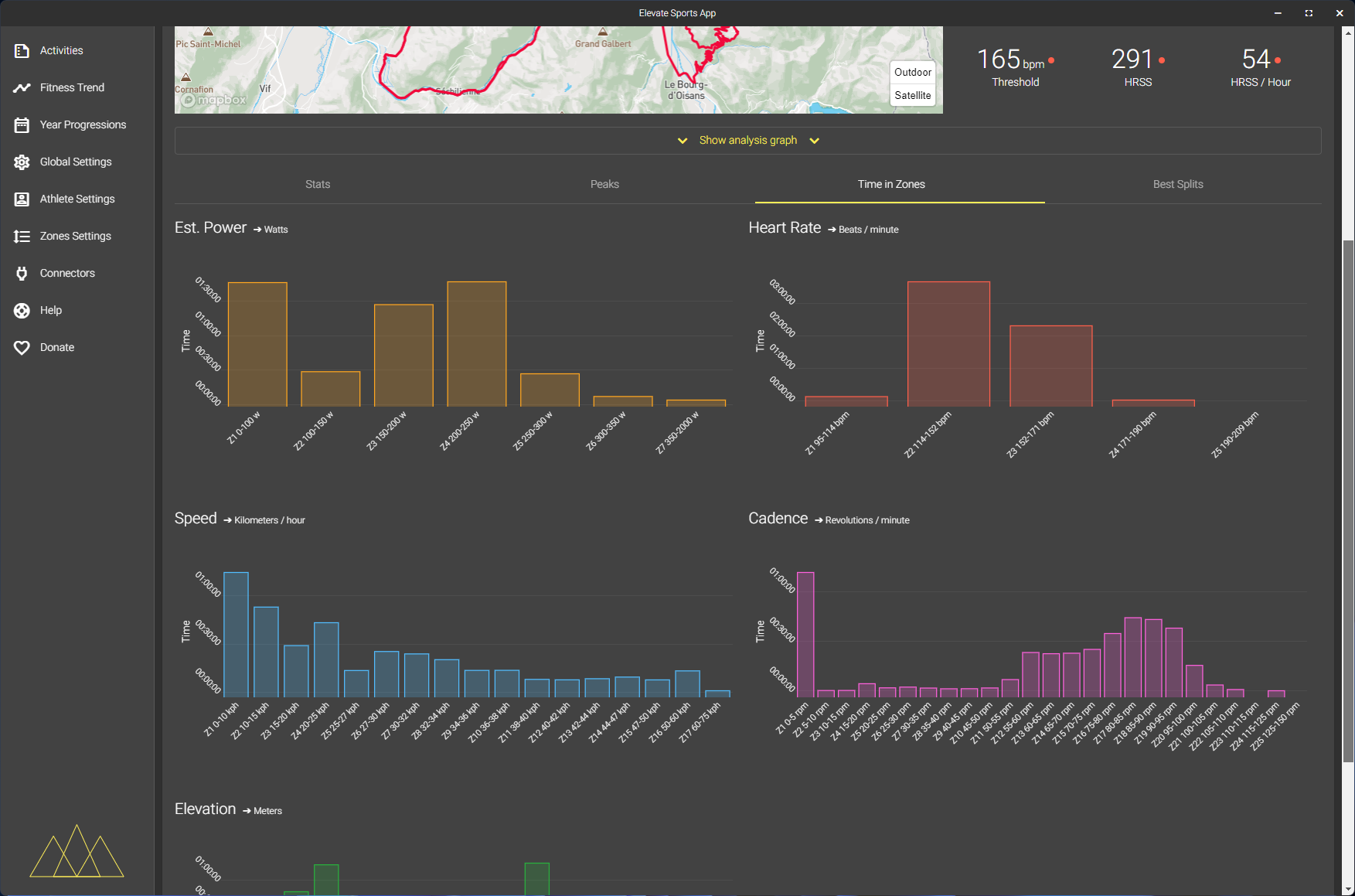
Explore how much time was spent in various heart rate, power, and cadence zones during a ride.
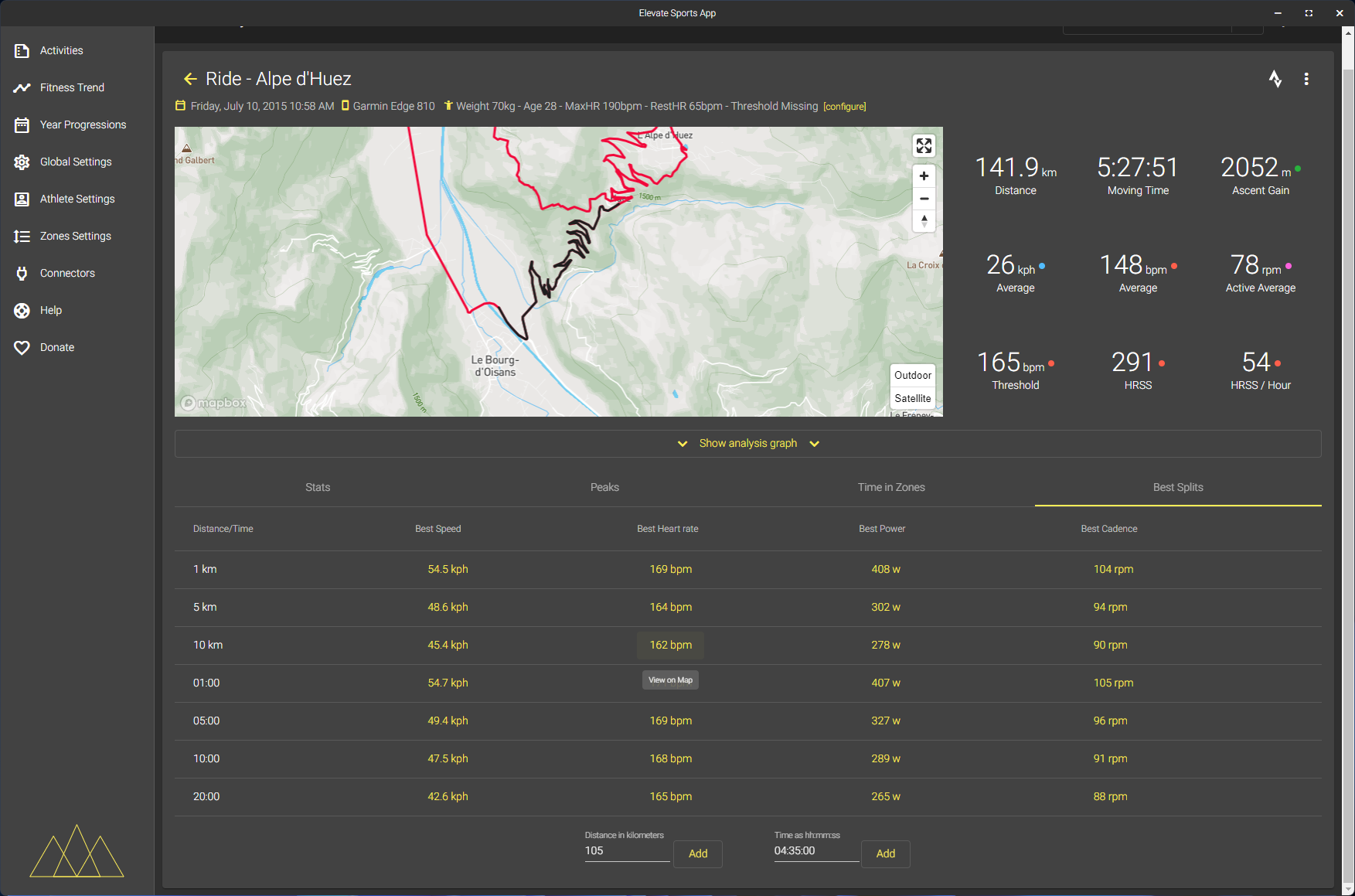
Analyze best splits and key segment statistics like fastest speeds and highest cadence.
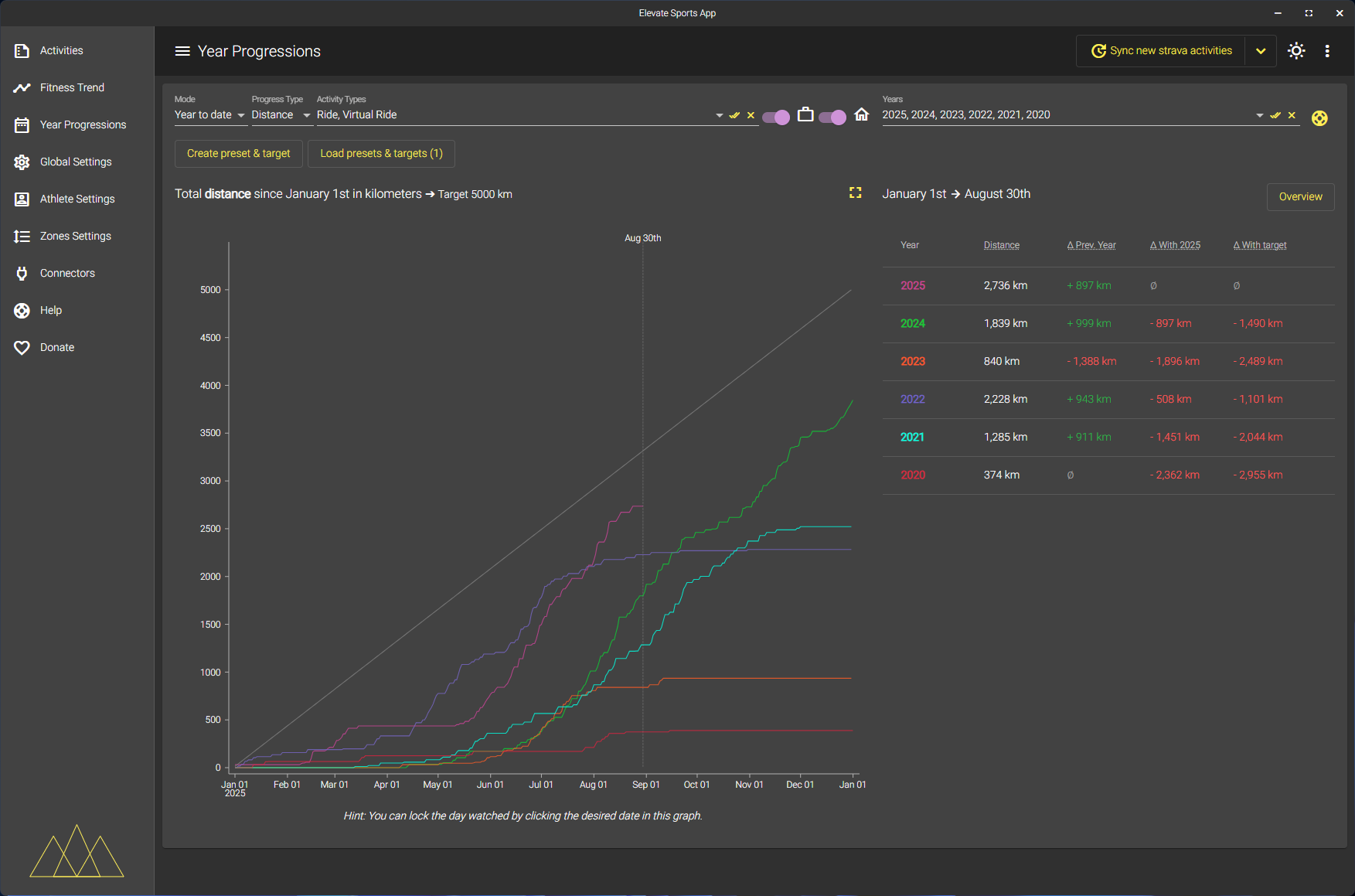
Monitor your yearly progression with cumulative activity and training volume charts.
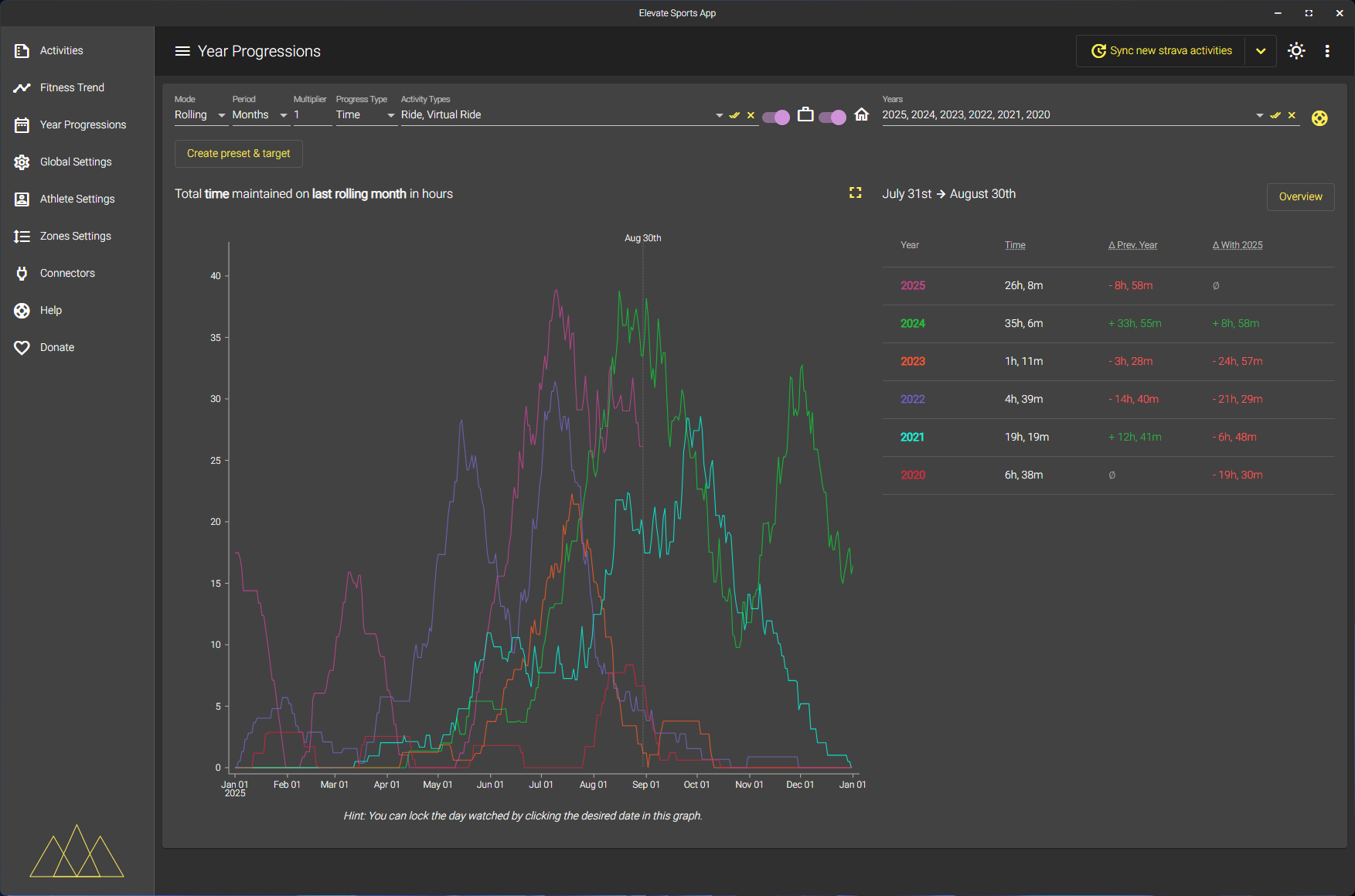
Visualize rolling training volume and track period-over-period improvements.
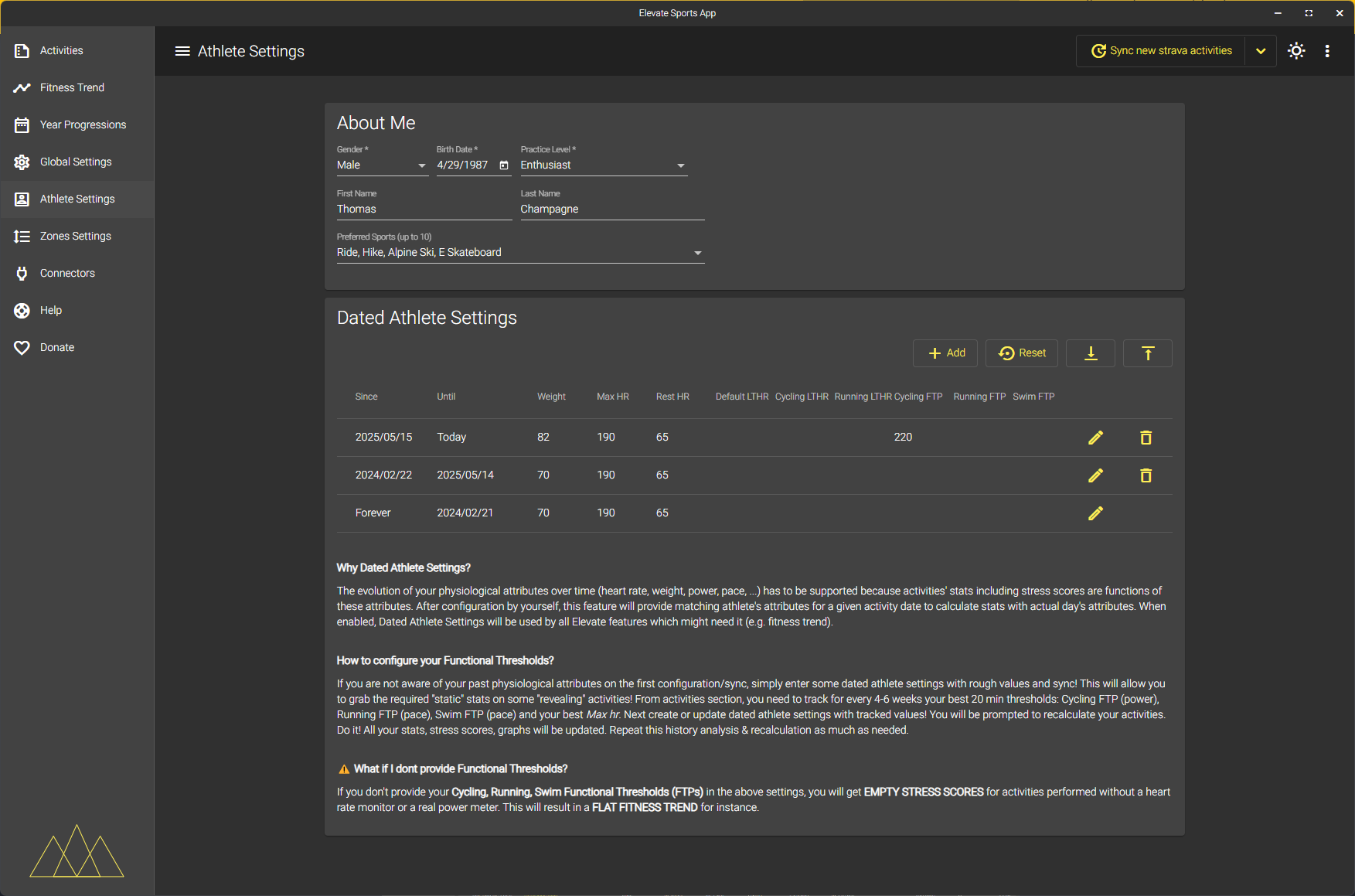
Adjust personal data, physical metrics, and measurement preferences over time.
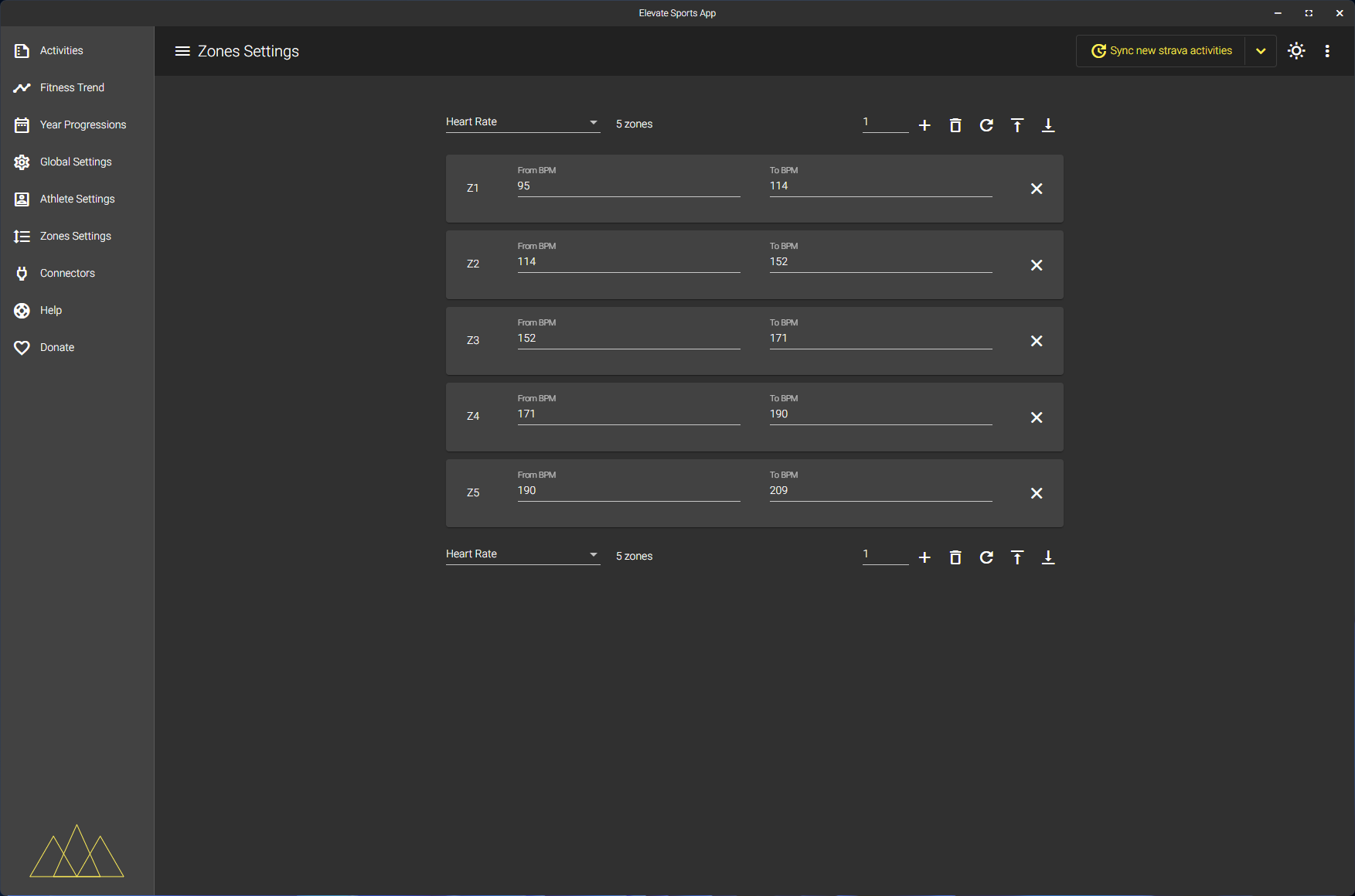
Customize your training zones for heart rate, power, and cadence.
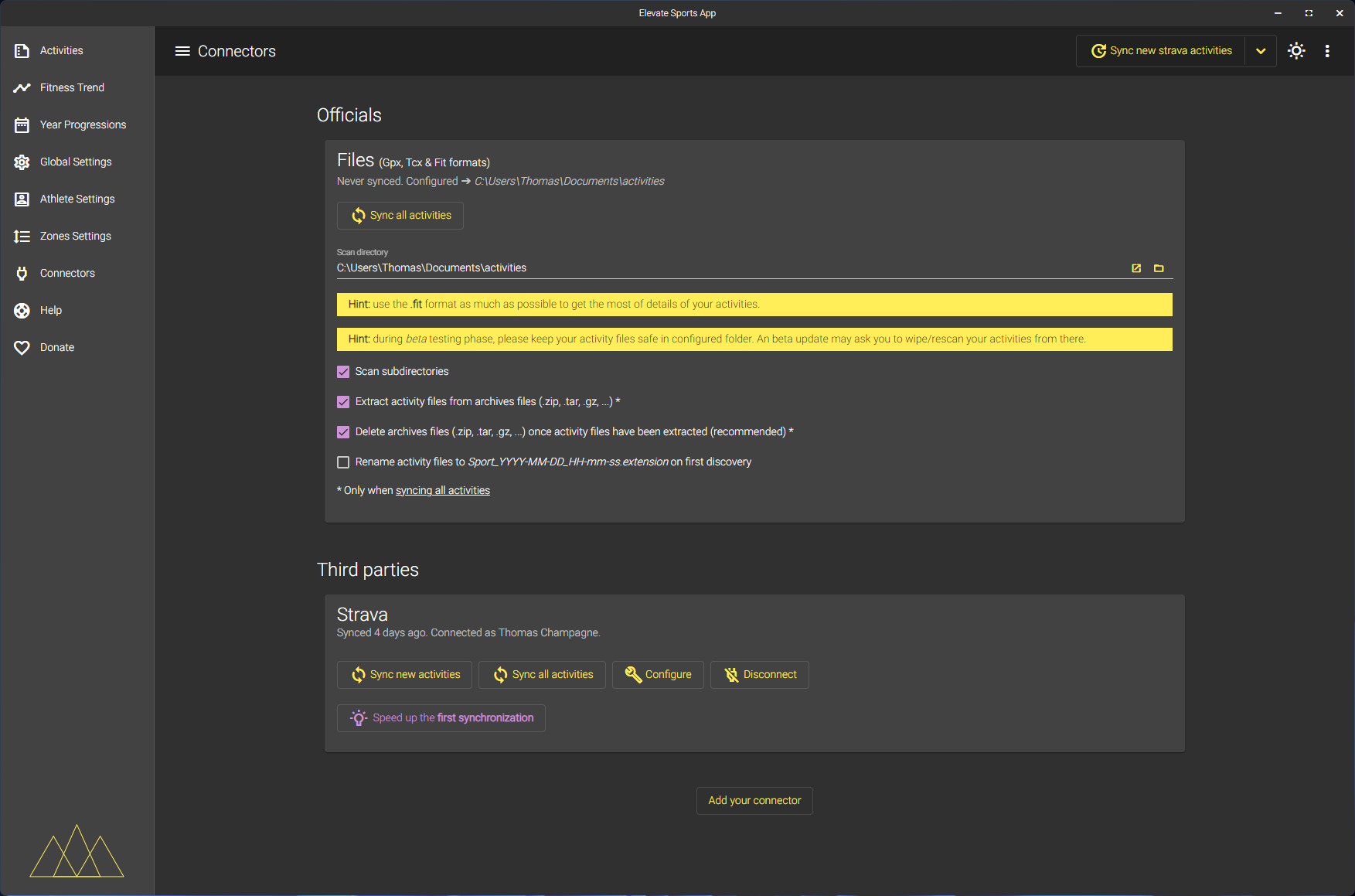
Manage integrations with external services and sync activities easily.
Go to chapter Environment setup.
Go to Chrome Web Store
Go to chapter Environment setup.
This section covers the environment setup to develop and build both desktop app and web extension.
The solution is cut in 3 folders/projects: the appcore, the desktop & webextension
Contains the Elevate App shared and loaded by both desktop and webextensionprojects. Appcore contains core features like fitness trend, year progressions, athlete settings...
The Appcore main technology stack is:
Holds the container behaviour to provide a cross-platform desktop app under Windows, Linux & MacOS. It contains desktop specific features like connectors synchronization (to fetch athlete activities from external).
The Desktop main technology stack is:
electron-updater).Contains the web extension behaviour that acts directly on strava.com website. This includes extended stats on activities & segments efforts, best splits, etc...
You will need to install NodeJS (v15+) to build both desktop and chrome web extension.
git clone https://github.com/thomaschampagne/elevate.git
or
git clone [email protected]:thomaschampagne/elevate.git
The new mono-repo including the desktop app and the web extension is on develop-new branch at the moment. So checkout/track this branch to build the desktop app:
cd ./elevate
git checkout --track origin/develop-new
Then install npm dependencies:
npm install
Run solution tests (appcore + desktop + webextension):
npm test
(Should be executed with success for any pull request submission).
All commands displayed in this section will be executed in ./desktop/ folder. So:
cd ./desktop/
npm start
This npm task will create a
./desktop/distoutput folder and re-compile bothappcoreanddesktopprojects on any code changes
To open the desktop app, open another terminal, then run:
npm run launch:dev:app
npm test
First switch to desktop directory with cd desktop/
Build Windows x64 .exe:
npm run build:publish:windows
Build Linux x64 .deb:
npm run build:publish:linux
Build MacOS x64 .dmg :
npm run build:publish:macos
Output installers will be located in
./desktop/package/The build targets are defined in./desktop/package.json(buildkey section). See https://www.electron.build for more info.
(Optional) To sign the production installers read the how to sign appendix
(Optional) To publish the production installers on github read the how to publish on github appendix
Clean outputs:
npm run clean
To develop the web extension, you need a Chrome based browser such as Chrome, Chromium, Edge (from 2020), Brave, Opera, Vivaldi, Yandex, ...
All commands displayed in this section will be executed in ./webextension/ folder. So:
cd ./webextension/
npm start
This npm task will create a
./webextension/distoutput folder and re-compile bothappcoreandwebextensionprojects on any code changes
To load the web extension into your chrome based browser:
chrome://extensions, then enter.Developer Mode checkbox.Load Unpacked Extension button, then choose ./webextension/dist directory (this is where you have the manifest.json file)Run unit tests
npm test
You can package the extension with the following command
npm run package
Output release will be located in
./webextension/package/
npm run clean
@TODO
Create docker your image from Dockerfile
docker build . -t elevate-chrome-builder
Run a docker production build through a container. Replace /path/to/your/directory/ with a folder on your host to fetch the packaged build when done.
docker run --rm --name elevate-chrome-build -v /path/to/your/directory/:/package elevate-chrome-builder
Register your new migration in below file
./appcore/src/app/desktop/migration/desktop-registered-migrations.ts
Tip: to emulate a version upgrade, you may downgrade the version property inside ipc.storage.json file (user app data folder)
code_sign.cnf openssl config:[req]
distinguished_name = req_distinguished_name
x509_extensions = v3_req
prompt = no
[req_distinguished_name]
countryName = FR
stateOrProvinceName = Rhone Alpes
localityName = Grenoble
organizationName = Elevate
commonName = Elevate Sports App
emailAddress = [email protected]
[v3_req]
basicConstraints = CA:FALSE
keyUsage = critical,digitalSignature
extendedKeyUsage = critical,codeSigning
passphraseopenssl req -x509 -newkey rsa:4096 -sha256 -keyout code_sign.key -out code_sign.crt -days 3650 -config code_sign.cnf
.pxf file from the private key and certificate previously generated. .pxf file will be used to sign app under windows.openssl pkcs12 -export -legacy -name "elevate-sports-app" -out code_sign.pfx -inkey code_sign.key -in code_sign.crt
.pxf file to base64base64 code_sign.pfx -w 0
electron-builder.env file under ./desktop/ folder, and add following keys:CSC_LINK=
CSC_KEY_PASSWORD=
Assign the base64 previously generated to the key CSC_LINK
Assign the passphrase previously used to the key CSC_KEY_PASSWORD
Then run packaging for windows:
npm run package:windows
Generate a github personal access token at https://github.com/settings/tokens/new
Tick write:packages scope. The repo and read:packages scopes should be automatically ticked too. Leave them ticked.
Enter a Note for your token, then click Generate token. Keep this token safe. If lost you will have to re-generate one.
Create/edit electron-builder.env file under ./desktop/ folder, and add following key:
GH_TOKEN=
Assign the generated token to the key GH_TOKEN.
Open ./desktop/package.json file and go to the key build.publish.
Edit the owner and repo variables to match with your target github repository.
Note: To publish a new version on github, a github draft release has to exist on the remote target repo.
The github draft release value should match the version value of ./desktop/package.json file.
New version must be compliant with semver convention and higher than previous version if exists.
You can use this semver compare tool that your new version is higher than your previous one.
Open https://github.com/your_owner/your_repo/releases and click Draft a new release.
Enter the semver version to draft and click Save draft.
Note: You may already pushed a git tag matching your version. If not, the git tag will be created on publish.
npm run publish:win
or
npm run publish:mac
Open https://github.com/your_owner/your_repo/releases/edit/your_version: Some files should have been uploaded on the github draft release.
You can update the uploaded files draft with a new packaging process. Once ready, click Publish release: users will receive the update.
Create a browsers.karma.conf.js file in webextension folder.
To run unit test in a headless chromium instead of chrome, inject below javascript code:
module.exports = {
    browsers: [
        "HeadlessChrome"
    ],
    customLaunchers: {
        HeadlessChrome: {
            base: "Chromium",
            flags: [
                "--no-sandbox",
                // See https://chromium.googlesource.com/chromium/src/+/lkgr/headless/README.md
                "--headless",
                "--disable-gpu",
                // Without a remote debugging port, Google Chrome exits immediately.
                " --remote-debugging-port=9222"
            ]
        }
    }
};
This works in development build only
DEBUG_EST_VS_REAL_WATTS and set it to true83 followers · starred Apr 2018
277 followers · starred Feb 2022
160 followers · starred Jan 2019
174 followers · starred Dec 2017
A sport app to "Elevate" your training experience and goals! Track your fitness and progressions over time. Analyse deeper your activities. And more...
See the code
Screenshots • Desktop App • Web Extension (For Strava) • Development
Track your long-term fitness trend and performance improvements visually.
Browse and filter your recorded rides with summary statistics for each activity.
Review in-depth ride details including map and core metrics for every session.
View essential ride stats including averages and highlight metrics for each activity.
See peak values for power, heart rate, speed, and cadence across your ride.
Explore how much time was spent in various heart rate, power, and cadence zones during a ride.
Analyze best splits and key segment statistics like fastest speeds and highest cadence.
Monitor your yearly progression with cumulative activity and training volume charts.
Visualize rolling training volume and track period-over-period improvements.
Adjust personal data, physical metrics, and measurement preferences over time.
Customize your training zones for heart rate, power, and cadence.
Manage integrations with external services and sync activities easily.
Go to chapter Environment setup.
Go to Chrome Web Store
Go to chapter Environment setup.
This section covers the environment setup to develop and build both desktop app and web extension.
The solution is cut in 3 folders/projects: the appcore, the desktop & webextension
Contains the Elevate App shared and loaded by both desktop and webextensionprojects. Appcore contains core features like fitness trend, year progressions, athlete settings...
The Appcore main technology stack is:
Holds the container behaviour to provide a cross-platform desktop app under Windows, Linux & MacOS. It contains desktop specific features like connectors synchronization (to fetch athlete activities from external).
The Desktop main technology stack is:
electron-updater).Contains the web extension behaviour that acts directly on strava.com website. This includes extended stats on activities & segments efforts, best splits, etc...
You will need to install NodeJS (v15+) to build both desktop and chrome web extension.
git clone https://github.com/thomaschampagne/elevate.git
or
git clone [email protected]:thomaschampagne/elevate.git
The new mono-repo including the desktop app and the web extension is on develop-new branch at the moment. So checkout/track this branch to build the desktop app:
cd ./elevate
git checkout --track origin/develop-new
Then install npm dependencies:
npm install
Run solution tests (appcore + desktop + webextension):
npm test
(Should be executed with success for any pull request submission).
All commands displayed in this section will be executed in ./desktop/ folder. So:
cd ./desktop/
npm start
This npm task will create a
./desktop/distoutput folder and re-compile bothappcoreanddesktopprojects on any code changes
To open the desktop app, open another terminal, then run:
npm run launch:dev:app
npm test
First switch to desktop directory with cd desktop/
Build Windows x64 .exe:
npm run build:publish:windows
Build Linux x64 .deb:
npm run build:publish:linux
Build MacOS x64 .dmg :
npm run build:publish:macos
Output installers will be located in
./desktop/package/The build targets are defined in./desktop/package.json(buildkey section). See https://www.electron.build for more info.
(Optional) To sign the production installers read the how to sign appendix
(Optional) To publish the production installers on github read the how to publish on github appendix
Clean outputs:
npm run clean
To develop the web extension, you need a Chrome based browser such as Chrome, Chromium, Edge (from 2020), Brave, Opera, Vivaldi, Yandex, ...
All commands displayed in this section will be executed in ./webextension/ folder. So:
cd ./webextension/
npm start
This npm task will create a
./webextension/distoutput folder and re-compile bothappcoreandwebextensionprojects on any code changes
To load the web extension into your chrome based browser:
chrome://extensions, then enter.Developer Mode checkbox.Load Unpacked Extension button, then choose ./webextension/dist directory (this is where you have the manifest.json file)Run unit tests
npm test
You can package the extension with the following command
npm run package
Output release will be located in
./webextension/package/
npm run clean
@TODO
Create docker your image from Dockerfile
docker build . -t elevate-chrome-builder
Run a docker production build through a container. Replace /path/to/your/directory/ with a folder on your host to fetch the packaged build when done.
docker run --rm --name elevate-chrome-build -v /path/to/your/directory/:/package elevate-chrome-builder
Register your new migration in below file
./appcore/src/app/desktop/migration/desktop-registered-migrations.ts
Tip: to emulate a version upgrade, you may downgrade the version property inside ipc.storage.json file (user app data folder)
code_sign.cnf openssl config:[req]
distinguished_name = req_distinguished_name
x509_extensions = v3_req
prompt = no
[req_distinguished_name]
countryName = FR
stateOrProvinceName = Rhone Alpes
localityName = Grenoble
organizationName = Elevate
commonName = Elevate Sports App
emailAddress = [email protected]
[v3_req]
basicConstraints = CA:FALSE
keyUsage = critical,digitalSignature
extendedKeyUsage = critical,codeSigning
passphraseopenssl req -x509 -newkey rsa:4096 -sha256 -keyout code_sign.key -out code_sign.crt -days 3650 -config code_sign.cnf
.pxf file from the private key and certificate previously generated. .pxf file will be used to sign app under windows.openssl pkcs12 -export -legacy -name "elevate-sports-app" -out code_sign.pfx -inkey code_sign.key -in code_sign.crt
.pxf file to base64base64 code_sign.pfx -w 0
electron-builder.env file under ./desktop/ folder, and add following keys:CSC_LINK=
CSC_KEY_PASSWORD=
Assign the base64 previously generated to the key CSC_LINK
Assign the passphrase previously used to the key CSC_KEY_PASSWORD
Then run packaging for windows:
npm run package:windows
Generate a github personal access token at https://github.com/settings/tokens/new
Tick write:packages scope. The repo and read:packages scopes should be automatically ticked too. Leave them ticked.
Enter a Note for your token, then click Generate token. Keep this token safe. If lost you will have to re-generate one.
Create/edit electron-builder.env file under ./desktop/ folder, and add following key:
GH_TOKEN=
Assign the generated token to the key GH_TOKEN.
Open ./desktop/package.json file and go to the key build.publish.
Edit the owner and repo variables to match with your target github repository.
Note: To publish a new version on github, a github draft release has to exist on the remote target repo.
The github draft release value should match the version value of ./desktop/package.json file.
New version must be compliant with semver convention and higher than previous version if exists.
You can use this semver compare tool that your new version is higher than your previous one.
Open https://github.com/your_owner/your_repo/releases and click Draft a new release.
Enter the semver version to draft and click Save draft.
Note: You may already pushed a git tag matching your version. If not, the git tag will be created on publish.
npm run publish:win
or
npm run publish:mac
Open https://github.com/your_owner/your_repo/releases/edit/your_version: Some files should have been uploaded on the github draft release.
You can update the uploaded files draft with a new packaging process. Once ready, click Publish release: users will receive the update.
Create a browsers.karma.conf.js file in webextension folder.
To run unit test in a headless chromium instead of chrome, inject below javascript code:
module.exports = {
    browsers: [
        "HeadlessChrome"
    ],
    customLaunchers: {
        HeadlessChrome: {
            base: "Chromium",
            flags: [
                "--no-sandbox",
                // See https://chromium.googlesource.com/chromium/src/+/lkgr/headless/README.md
                "--headless",
                "--disable-gpu",
                // Without a remote debugging port, Google Chrome exits immediately.
                " --remote-debugging-port=9222"
            ]
        }
    }
};
This works in development build only
DEBUG_EST_VS_REAL_WATTS and set it to true83 followers · starred Apr 2018
277 followers · starred Feb 2022
160 followers · starred Jan 2019
174 followers · starred Dec 2017