
Turn messy photo libraries into curated collections. SnapZap intelligently detects duplicates, blurry photos, and inappropriate content, then exports only the keepers. Completely offline. Zero cloud. Totally safe
C#
1
63 commits
updated Jul 31, 2026
README

SnapZap
Your personal photo assistant. Tired of duplicates and blurry shots cluttering your library? SnapZap finds them all, flags what you don't want, then exports the clean results for Plex or backup. Offline, free, and always in your control.
No cloud, no subscriptions, no paid dependencies. Two promises hold throughout:
- Your original folder is never touched unless you explicitly ask — an export in Move mode, or the opt-in "also recycle what I didn't pick" box.
- Nothing is ever hard-deleted. Deleting goes to the Recycle Bin, and every batch is reversible from History.
See CHANGELOG.md for what's new in each release.
Contents
Using SnapZap Install and run · The screen · Scanning · Duplicates · Reviewing duplicates · Explicit content · Filtering · Selecting · Exporting · Deleting · Hiding photos · Setup · Shortcuts · Data locations · Troubleshooting
Building it From source · Windows app · Windows installer · macOS installer · Tests · Project layout · Development note
What it does
- Duplicates — three kinds, all detected in-process with no external tool: byte-identical files (by checksum), the same shot resized/re-encoded/rotated, and bursts of the same scene seconds apart. Bursts are grouped for review but deliberately excluded from bulk selection — they're different photographs, not copies.
- Explicit content — a single 0–1 score per image (Falconsai ViT via ONNX), sorted into four bands. Needs one optional model download; everything else works without it.
- Blur — variance-of-Laplacian sharpness score.
- Dates — capture date and camera from EXIF; browse and export by year/month.
- Review — windowed thumbnail grid (smooth at tens of thousands of photos), faceted filters, single / range / smart selection, and full keyboard triage.
- Export — copy · move · hardlink, into
date/mirror/flatstructure, with pre-flight, hash-verification, collision-safe naming, resume, and a written manifest. - Delete — recycles to the OS bin with a one-click undo and a full history panel.
- Hide — tuck a selection of photos inside an ordinary carrier image, with optional passphrase encryption, and pull them back out later.
Using SnapZap
Install and run
Download SnapZap-setup.exe (~47 MB) and run it. It installs for your user only, so there is
no administrator prompt, and it puts SnapZap in the Start Menu. There is no .NET runtime to
install and no account to create.
SnapZap opens in its own window. Everything happens on your computer; nothing is uploaded anywhere. Close the window when you're done — that's the whole session.
Windows may warn that the publisher is unknown, because the download isn't code-signed yet. More info → Run anyway, or build it yourself from source and skip the question entirely.
(Prefer to build it yourself? See Building from source.)
Why an installer, if nothing needs installing
Because SnapZap is a folder, not a file. SnapZap.App.exe serves its own stylesheet and scripts
from the wwwroot directory beside it, and moving the executable away from that directory
doesn't produce an error — it produces an app that opens and renders a grey, unstyled page that
doesn't respond to anything. The installer removes the opportunity to take it apart.
If you'd rather not use it, the published folder runs as-is from anywhere. Keep it intact:
SnapZap.App.exe
wwwroot/                          ← required, and not optional-looking enough
appsettings.json
models/nsfw.onnx                  (optional — enables explicit-content scoring)
models/preprocessor_config.json
The one optional add-on
Explicit-content scoring needs a machine-learning model (~328 MB) that isn't bundled with the app. Everything else works without it — scanning, all three kinds of duplicate detection, blur, dates, export, and delete are built in and need no download.
If the model isn't installed, SnapZap says so once at startup, marks the Setup gear with a badge, and greys out Run under Content review.
If you installed SnapZap: run the installer again and tick Explicit-content scoring model. It downloads the file, verifies its checksum, and puts it in place. Your catalogue and settings are untouched.
If you're working from a source checkout:
scripts\install-deps.bat                        Windows
scripts/install-deps.sh                         macOS / Linux
It downloads from a pinned URL, verifies the SHA-256 before putting anything in place, and skips work that's already done. To install beside an already-published folder rather than into the repo:
scripts\install-deps.bat --dest artifacts\win-x64
Then open Setup (the gear, top right) and press Check again — no restart needed.
| Add-on | Unlocks | Size | Source |
|---|---|---|---|
models/nsfw.onnx + preprocessor_config.json | Explicit-content scoring | 328 MB | Falconsai ViT, Apache-2.0, via a pinned ONNX conversion |
The screen
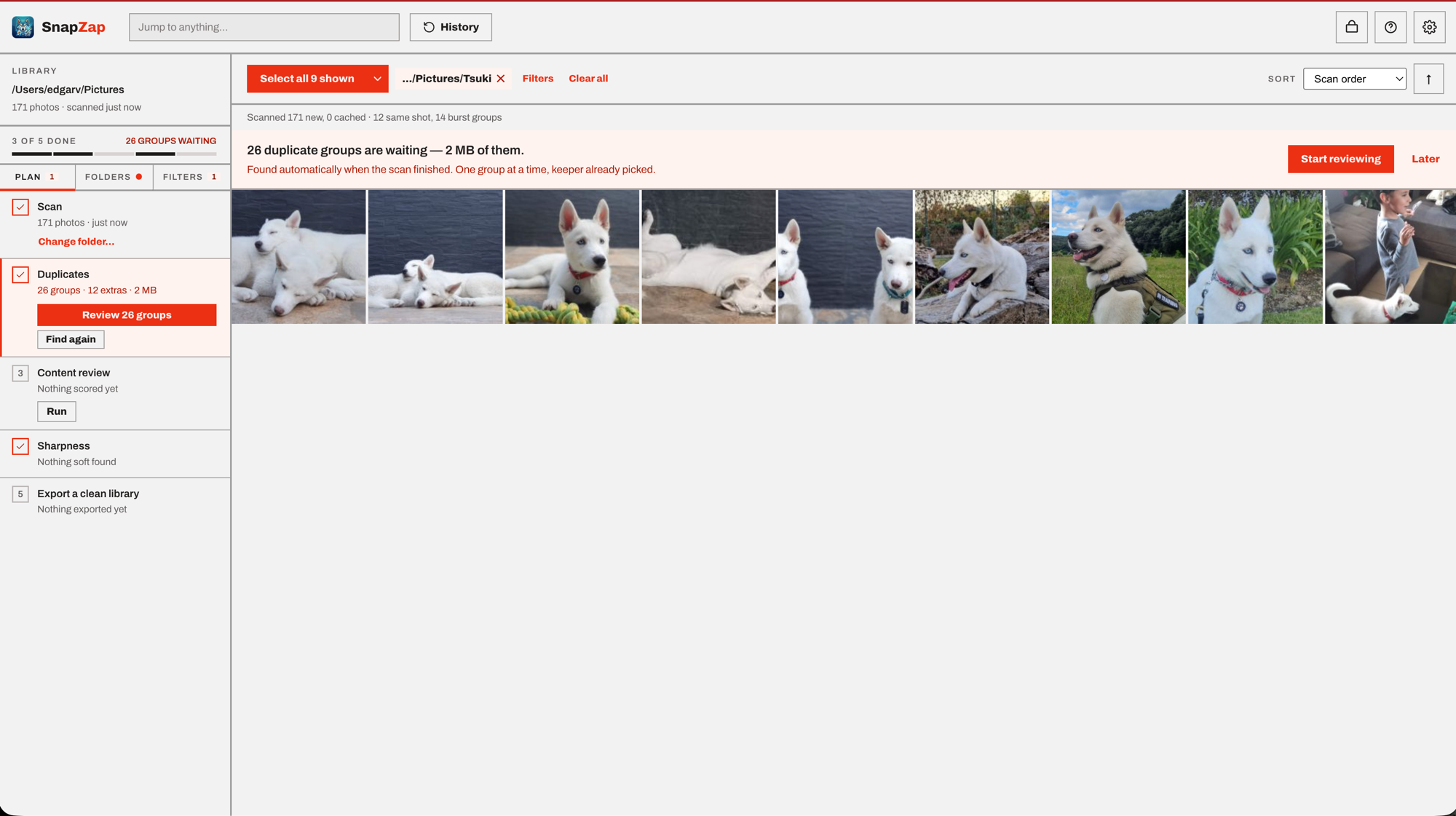
| Area | What's there |
|---|---|
| Top bar | Jump to anything (search by filename or folder), History, and icons for Extract hidden images, Help and Setup. |
| Rail | The library summary and a progress strip ("3 of 5 done"), above three tabs: Plan (what's done, what's next, and the button to run each step), Folders (the folder tree), and Filters (duplicates, explicit content, sharpness, folder, year). |
| Grid header | Select all N shown (with a menu for a few other scopes), the active filter as a clearable chip, and the sort control. |
| Bottom | The selection bar — appears once you've picked at least one photo, and carries Invert, Clear, Delete…, Hide in Image… and Export…. |
Scanning a folder
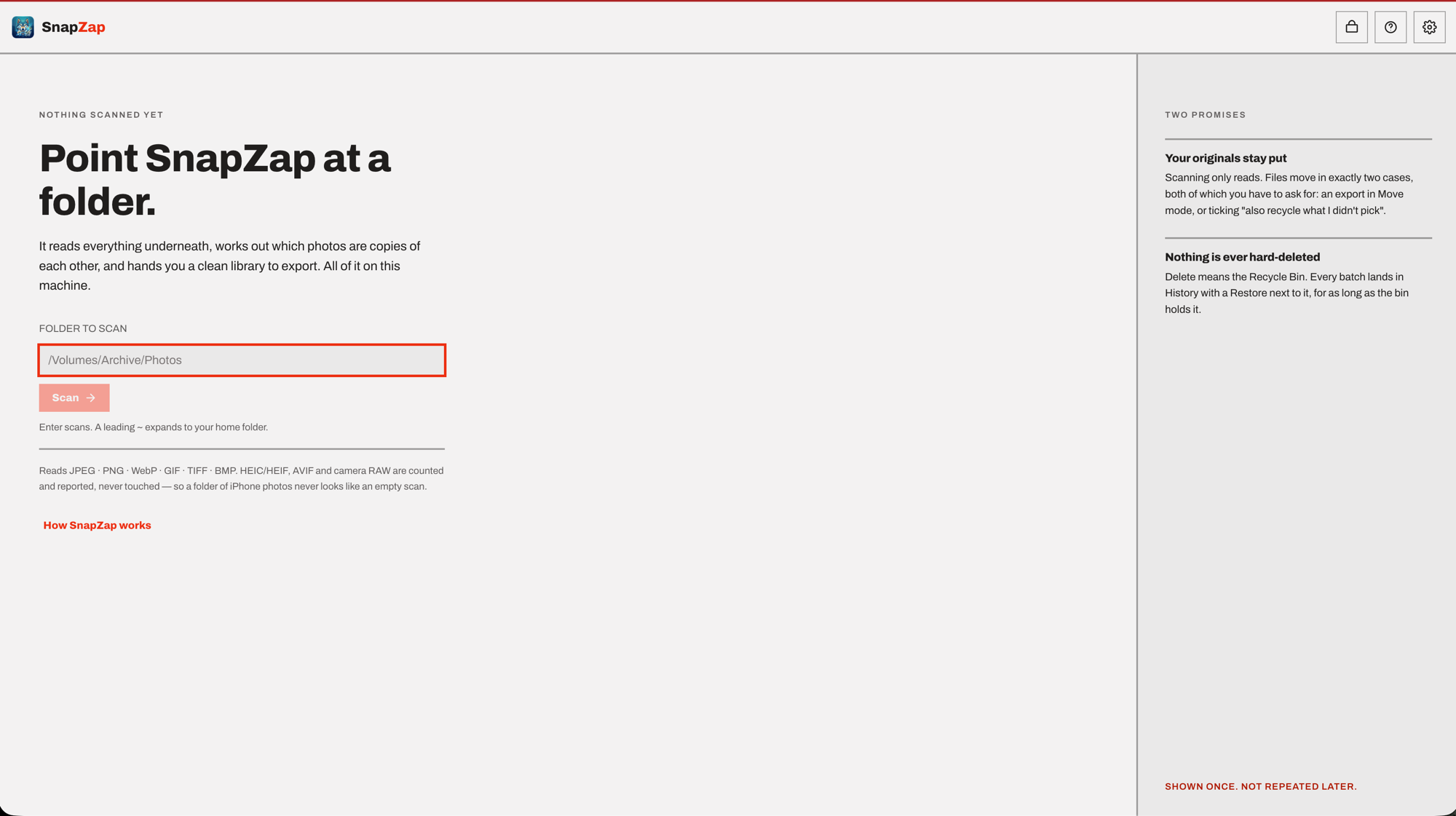
The first time, type or paste a folder path and press Scan (or just hit Enter).
A leading ~ expands to your home folder. Once a library is loaded, Change folder… under
the Scan step in the Plan tab does the same thing for a different folder.
SnapZap walks the folder and everything beneath it, recording for each photo a checksum, the dimensions, the capture date and camera from EXIF, a sharpness score, a visual fingerprint, and a thumbnail. A progress bar shows a running count, and Stop is always available — everything analysed so far is kept.
Readable: .jpg .jpeg .png .webp .gif .bmp .tif .tiff
Not readable yet: HEIC/HEIF and AVIF (modern phone formats) and camera RAW (.cr2, .cr3,
.nef, .arw, .dng, .orf, .rw2, .raf, .srw, .pef). These are counted and
reported, never touched — expand the note above the grid for the breakdown by format. This
matters because a folder of iPhone HEICs would otherwise just look like an empty scan.
Re-scanning is fast. A file whose path, size and modification time are unchanged is reused from the catalogue rather than re-read, so scanning the same 40,000-photo library again is close to instant. Files that have left the folder are dropped from the catalogue, and the status line says how many.
Finding duplicates
Runs automatically the moment a scan finishes — no button to press, no internet connection, no extra download. The Plan tab's Duplicates step shows Review N groups once they're ready, and a Find again button to re-run it later (after changing a setting in Setup → Duplicates, say).
SnapZap looks for three kinds, and the difference matters:
| Kind | What it means | Safe to bulk-delete? |
|---|---|---|
| Identical | Byte-for-byte the same file, in two places. Found by checksum. | Yes |
| Same shot | One photograph, resized, re-saved, converted or rotated. | Yes |
| Burst | Different photographs of the same scene, seconds apart. | No — review by hand |
That last row is the important one. A burst of five frames is five different photographs, not five copies of one. SnapZap groups them so you can look at them, but deliberately leaves them out of the Extras bulk-select — sweeping them into a delete would throw away real photos. For a burst, you pick the keeper yourself.
When it finishes the status line reports each kind — "12 identical, 40 same shot, 6 burst groups". Anything that limited the search (photos with no fingerprint yet, a detector switched off) is appended rather than hidden, so "0 groups" and "0 groups, but half the library has no signature" never look the same.
Cards in the grid pick up a badge: ✓ for the copy being kept, ▣ for an extra copy. Hover either for the group number and kind.
Tuning it
Setup → Duplicates:
- Identical files — always on. A duplicate finder that can't find identical files isn't one.
- The same shot at another size — on by default.
- Also match rotated copies — on by default, slightly slower.
- How different they may look — default 20 of 272. Lower is stricter; raise it to catch more, but past a point it starts calling two different photos the same one.
- Bursts — always on, no switch. The window is tunable: frames within N seconds, default 3 s.
Burst detection needs an EXIF capture time. Photos without one are skipped by it, so a burst with no timestamps isn't protected from bulk selection.
Changes save immediately. Press Find again under the Duplicates step (Plan tab) to apply them.
Not detected: crops and reframes. A cropped photo is a different image as far as the fingerprint is concerned. That's a known limit, not a bug.
Reviewing duplicates
Press Review N groups (Plan tab, or the banner above the grid). This is the good way to work through them: one group at a time, copies side by side, with the facts that decide which survives.
Whatever is identical across the group is greyed out — it can't help you choose. Whatever differs stays bright, and a strict winner (largest resolution, biggest file) is highlighted. The subtitle names what to compare on: "different resolutions", "different file sizes", "identical copies — choose by location".
Click a copy to make it the keeper. The others become extras.
| Control | Does |
|---|---|
| ‹ › or ← → | Move between groups |
| 1–9 | Pick that copy as the keeper |
| Compare full size | Full resolution, panes panning together, zoom Fit / 100% / 200% / 400% |
| Select all N extras | Select every extra copy across the library, and close |
| Esc | Close |
Nothing is deleted here. It only decides which copy survives an export or delete you run afterwards.
Scoring explicit content
Press Run under Content review (Plan tab, or the same facet in the Filters tab) — needs the optional model, see above.
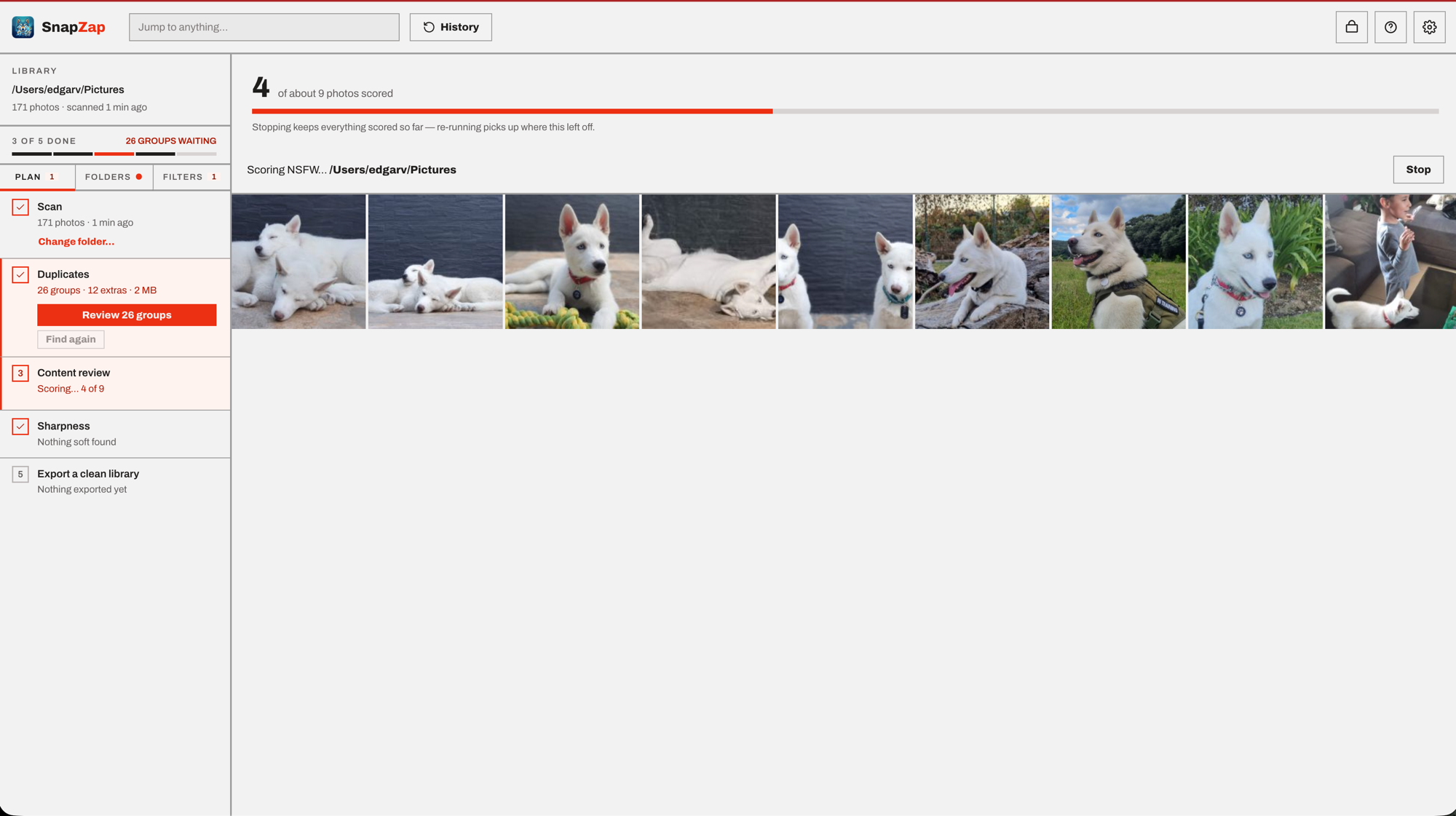
While it runs, a live counter and progress bar sit above the grid — the same N of about M treatment scanning gets — and the Plan tab's own Content review step tracks the count too. Stop is always safe: everything scored so far is kept, and re-running picks up where it left off.
Every photo gets one score from 0.00 to 1.00 and lands in a band:
| Band | Score | Meaning |
|---|---|---|
| Likely explicit | 0.85 and up | The model is fairly confident |
| Not sure | 0.20 – 0.85 | The pile actually worth looking at |
| Looks clean | below 0.20 | |
| Not checked yet | — | Never scored |
This is a guess, not a verdict. The model is right often enough to be useful and wrong often enough that you should look before acting — which is what "Not sure" is for. It's deliberately small, so it stays a review queue rather than a category.
Flagged photos get a shield badge; hover it for the score and the threshold.
Browsing, filtering and sorting
The Folders tab
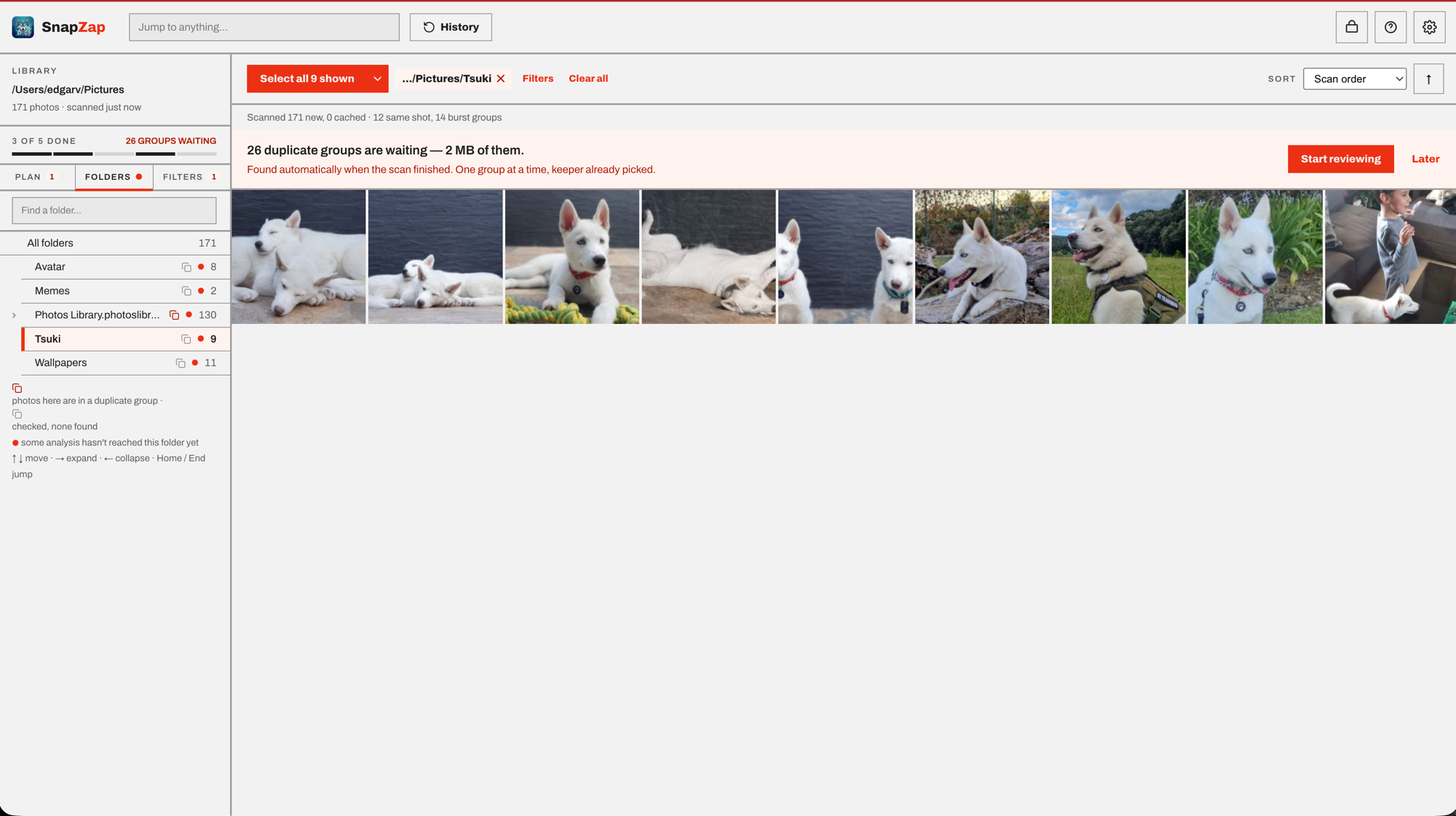
The rail's Folders tab mirrors the folder you scanned. Click a folder to show only its photos, or All folders to go back — the choice shows up as a clearable chip in the grid header, same as any other filter. Selecting a folder includes everything beneath it by default. Find a folder…, at the top of the tab, filters the tree by name as you type.
Each row shows its photo count, plus two markers: ⧉ means photos here are in duplicate groups (greyed ⧉ means checked, none found), and a small dot means some analysis hasn't reached this folder yet — hover the row to see which step.
Keyboard: ↑ ↓ move, → expands, ← collapses, Home / End jump.
The Filters tab
Each facet shows a live count next to every option.
| Facet | Options |
|---|---|
| Duplicates | Any · Extra copies only · Keepers only · Burst frames |
| Content review | Any · Likely explicit · Not sure · Looks clean · Not checked yet |
| Blurrier than | Slider, 0–300. At 0 it's off. Photos at or below the value read as soft. |
| Folder | Read-only here — set it from the Folders tab; the ✕ clears it |
| Year | Any year found in your photos' EXIF |
Under Folder, once one is set: Include subfolders, on by default. Off, the folder matches exactly — so Select all N shown picks up that directory and nothing beneath it.
Clear all, at the top of the tab (and next to the active filter chip in the grid header), resets everything.
Jump to anything
The search box in the top bar matches by filename or folder, live, against the whole library — not just what the current filters show. Pick a result to open it straight in the preview.
Sorting
Above the grid: Scan order · Date taken · Name · File size · Sharpness · Explicit content, with an arrow to flip direction. Picking a sort also picks the direction most people want from it — choosing "Explicit content" puts the highest scores first, not the tamest.
The summary line
Live: how many photos are shown of how many total, how many duplicate extras exist and how much space they'd reclaim, how many haven't been checked for explicit content, and how many are selected.
Selecting photos
Selection is how you tell SnapZap what to export or delete. Nothing acts on your photos until something is selected.
By hand — click to select or deselect, shift-click to select the range from the last photo you clicked, double-click to open the preview.
By command — Select all N shown, at the top of the grid, picks everything the current filters show (Ctrl+A). Its own chevron opens a menu for a few other scopes:
| Command | Selects |
|---|---|
| All shown | Everything the current filters show (Ctrl+A) |
| Flagged | Photos the model called likely explicit |
| Not sure | Photos the model was unsure about |
| Keepers | The one copy being kept from each duplicate group |
For Extras — every extra copy, identical and same-shot only, never burst frames — narrow the Filters tab's Duplicates facet to Extra copies only, then Select all N shown. The facet shows how much space they'd reclaim.
Once something is selected, Invert and Clear appear in the bar at the bottom of the grid, next to the count (Ctrl+D also clears).
Commands that can't do anything stay visible but greyed, and say why — "Nothing scored yet — press Run", "Only burst frames left — those are separate shots, so review them by hand".
Two SnapZap windows on the same library share one selection. A command like Extras replaces the selection rather than adding to it, so a press in one window changes what the other is about to act on.
The preview
Press Enter or double-click a photo.
- ← → step through photos in the order shown on screen
- X selects or deselects
- I toggles the details panel — filename, folder, dimensions, size, capture date, camera, explicit-content band and score, focus score, duplicate-group membership
- Esc or a click on the background closes it
Exporting
The main event: write the photos you picked into a clean destination folder. Select some photos, then press Export… in the bottom bar.
Destination — the full path where the clean library goes, starting from the root of the drive. Relative paths are rejected, because one would quietly resolve somewhere inside the folder you're cleaning.
Transfer mode
| Mode | What happens |
|---|---|
| Copy (safest) | Originals stay exactly where they are. The default. |
| Move (verify, then remove source) | Written, hash-verified against the original, and only then is the source removed. |
| Hardlink (zero-copy, same drive) | A second name for the same data — instant and free, but destination and source must share a drive. |
Structure
| Structure | Layout |
|---|---|
| By date | YYYY/YYYY-MM/ from the capture date. The default. |
| Mirror source tree | Keeps your existing folder layout. Needs a folder scanned this session. |
| Flat | Everything in one folder, with collision-safe renaming. |
Also recycle what you didn't pick — an opt-in tick box that sends every photo you didn't select to the Recycle Bin, but only after the export is written and verified. Two things to be clear about: filters don't limit it (it covers the whole catalogue, not just what's on screen), and it's reversible from History. Ticking it opens a confirmation naming the exact count and total size.
Check destination
Press Check destination before exporting. You get how many photos and bytes will be written, free space at the destination and whether that's enough, whether hardlinks are available on that pair of drives, and an example of the folder structure.
Export stays disabled until this check passes. Change anything — destination, mode, structure — and the check is invalidated, so the button can never be armed for a plan nobody verified. If free space can't be read the export isn't blocked, but SnapZap says plainly that nothing has confirmed it will fit.
While it runs, and after
Progress shows the phase, the count and the current file. Stop is always available: everything already copied is verified and complete, and re-running resumes where it left off rather than starting over.
When it's done you get a one-line summary — exported, already there, failed, recycled — and the path to a manifest (a CSV recording exactly what went where). In Move mode it also says how many originals were removed from the source, and that it's undoable from History.
Deleting and undo
Select photos and press Delete… in the bottom bar. A confirmation names the exact count and total size. Confirming moves them to the Recycle Bin — not a hard delete. A toast appears:
Recycled 128 photos to the Recycle Bin. [Undo]
Undo puts them straight back. If the toast has gone, everything is still in History.
History
The History button lists every batch SnapZap has recycled or moved, newest first, with its timestamp and photo count. Each row has Restore, which puts the files back where they came from. Three kinds of entry appear:
- Deleted — a normal delete
- Recycled during export — the "also recycle what I didn't pick" option
- Moved out by export — an export in Move mode. These were relocated, not binned, so looking for them in the Recycle Bin would be looking in the wrong place.
You can also restore from the Recycle Bin's own right-click menu in Explorer.
Hiding and recovering photos
Select photos and press Hide in Image…. They're zipped in memory and appended to the end of an ordinary carrier photo you pick — the carrier still opens normally in any viewer; nothing about it looks unusual unless someone knows to look.
- Carrier image — any photo, in or out of your scanned library.
- Output path — defaults to the carrier's own name with
-hiddenappended, next to it; edit it to write somewhere else. - Passphrase — optional. Without one, the attached zip opens in any ordinary zip tool (7-Zip, WinRAR, Explorer's own "Extract All") with no need for SnapZap at all. With one, it's AES-GCM encrypted and only SnapZap (with the right passphrase) can read it back.
Extract Hidden Images…, the icon in the top bar, reverses it: pick the file someone sent you (it doesn't need to be part of your library) and, if it was encrypted, the passphrase, and the original photos are written back out to a folder you choose.
Sharing the output file matters: send it as-is. Anything that re-saves or re-encodes an image — most messaging apps, social platforms, some cloud photo services — strips whatever was appended to the end of the file, hidden data included.
Setup
The gear icon, top right. A badge on it means something optional isn't installed.
Add-on status — whether the explicit-content model was found, and which copy is in use. Drop a file in and press Check again; no restart needed. Detection uses the same lookup the feature itself performs, so "Ready" here can never disagree with what actually happens at run time.
Duplicates — what "finding duplicates" checks; see Tuning it.
Catalogue — how many photos have been analysed, and how much space the database and thumbnails take. The catalogue spans every folder you've ever scanned, because that's what makes re-scanning fast, even though only the current folder is ever shown.
Forget everything… discards all of it: hashes, scores, dates, keeper decisions, thumbnails. No photo is deleted or moved — a scan rebuilds all of it, and anything already in the Recycle Bin stays restorable from History.
Keyboard shortcuts
Press the ? icon in the top right for this list in the app.
In the grid
| Key | Action |
|---|---|
| ↑ ↓ ← → | Move between photos |
| X or Space | Select / deselect |
| Shift+X | Extend the selection to here |
| Enter | Open the preview |
| Home / End | First / last photo |
| Ctrl+A | Select everything shown |
| Ctrl+D | Clear the selection |
The grid is a single tab stop — Tab reaches it and moves on, and the arrows move within it.
In the preview — ← → previous / next · X select · I details · Esc close
In Review duplicates — ← → previous / next group · 1–9 pick a keeper · Esc close
Everywhere — Enter scans when focus is in the folder box · Esc closes the open dialog, preview or menu
Ctrl+A and Ctrl+D are deliberately ignored while a dialog is open, so a stray keypress can't re-aim a delete confirmation already on screen. (On macOS these are ⌘+A / ⌘+D, and the app shows them that way.)
Where SnapZap keeps its data
Everything SnapZap writes lives in %LOCALAPPDATA%\SnapZap — deliberately outside the
folder you scan, so the app never writes into your photo library. (On macOS,
~/Library/Application Support/SnapZap.)
| File | What |
|---|---|
catalog.db | The catalogue: hashes, scores, dates, fingerprints, keeper decisions |
thumbs/ | Generated thumbnails |
manifests/ | The CSV written by each export |
settings.json | App preferences, such as whether you've dismissed the add-on prompt |
Deleting catalog.db resets SnapZap to a clean state; Setup → Forget everything does the
same from inside the app.
Troubleshooting
"No photos in <folder>" — either the folder holds no readable images, or it's a folder of folders and you meant to point at one of them. If there's a note above the grid about unreadable formats, that's your answer.
My iPhone photos don't show up. They're probably HEIC, which SnapZap can't decode yet (nor AVIF or camera RAW). They're counted and reported above the grid, and left completely untouched. Converting to JPEG makes them visible.
The filters show nothing. The empty-state message names the reason. The common one: an explicit-content filter over a library nothing has scored matches nothing, because every photo is still "Not checked". Press Run under Content review, or clear the filter.
"Run" is greyed out under Content review. The model isn't installed — see the optional add-on.
Where's the "Find duplicates" button? There isn't one to press the first time — duplicate detection runs automatically the moment a scan finishes. To re-run it later, use Find again under the Duplicates step in the Plan tab.
Export won't let me press the button. Press Check destination first. If you've changed the destination, mode or structure since the last check, check again — the button deliberately disarms so it can never run an unverified plan.
"Enter a full path, starting from the root of the drive." Relative destinations are
rejected, because they'd resolve somewhere unexpected — possibly inside the folder you're
cleaning. Use something like D:\Photos\Clean.
Mirror structure won't export. Mirror keeps your existing folder layout, so it needs a source folder scanned in this session. Scan the source again, or choose By date or Flat.
I deleted the wrong photos. Open History and press Restore on the batch, or use the Recycle Bin's own restore in Explorer. Nothing SnapZap deletes is ever hard-deleted.
A burst got grouped as duplicates. Intended — they're grouped for review, and not picked up by Extras, so a bulk delete won't touch them. Use Review duplicates to choose frames, or widen the burst window in Setup if one burst is being split across groups.
Scanning is slow the first time. The first scan analyses every photo; later ones reuse the catalogue and are close to instant. Stop is safe at any point — the work done so far is kept.
Building it
Building from source
| Needed for | Tool | Notes |
|---|---|---|
| Everything | .NET 10 SDK | The only requirement for building and running the app |
| The Windows installer | Inno Setup 6.3+ | Windows only. winget install --id JRSoftware.InnoSetup |
| Regenerating the icons | Python 3 + Pillow | pip install pillow. The icons are committed; you only need this if you change the artwork |
The app itself cross-builds from macOS to win-x64. Only packaging the installer needs a real
Windows machine, because Inno Setup's compiler is a Windows binary.
Run in development
dotnet run --project src/SnapZap.App
On Windows this opens SnapZap's own window; elsewhere it opens your default browser. The URL is
printed to the console either way. dotnet run uses the port in
src/SnapZap.App/Properties/launchSettings.json (5228); a published build takes a free port
from the OS instead, so two copies can't collide.
Environment knobs:
PC_NSFW_MODEL=/path/to/nsfw.onnx— location of the model (default:models/nsfw.onnxbeside the binary)PC_NO_WINDOW=1— use the browser instead of the embedded window, which gets you real devtools. Windows only; everywhere else the browser is already the host.PC_NO_BROWSER=1— run the server and nothing else: no window, no browser. What the automated tests use.ASPNETCORE_URLS=http://127.0.0.1:5099— pin the port instead of taking a random one.
The Windows app
From Windows or macOS:
dotnet publish src/SnapZap.App -c Release -r win-x64 --self-contained \
  -p:PublishSingleFile=true -p:IncludeNativeLibrariesForSelfExtract=true \
  -o artifacts/win-x64
Produces artifacts/win-x64/ — SnapZap.App.exe plus wwwroot/, ~157 MB in total, needing no
.NET install. ReadyToRun is on for this RID (scoped in the .csproj), which trades size for a
faster cold start.
The executable is not the deliverable — the folder is. PublishSingleFile bundles the
runtime and the app's own assemblies into the .exe; it does not bundle wwwroot, and it
can't be made to. app.css, interop.js and Blazor's _framework/blazor.web.js all live
there. Ship them together or ship something broken.
The publish step asserts that those three and favicon.ico are present, and fails the build if
any is missing. That check exists because their absence doesn't break anything visibly — the app
starts, serves a 200 for every page, and renders an unstyled page that ignores every click.
The optional model is deliberately not copied into the publish output, so the folder stays
the same size whether or not you installed it locally. To include it:
scripts\install-deps.bat --dest artifacts\win-x64.
The Windows installer
Windows only — Inno Setup's compiler is a Windows binary, so this is the one step that can't be done from the dev Mac. Install it once:
winget install --id JRSoftware.InnoSetup
Then, from the repo root:
scripts\build-installer.bat
That's the whole thing. The script publishes win-x64, checks the output is complete, and runs
the Inno Setup compiler over installer/SnapZap.iss, leaving:
artifacts\installer\SnapZap-1.2.0-setup.exe ~47 MB
The version in the filename is read out of the built executable, not written twice — bump
<Version> in src/SnapZap.App/SnapZap.App.csproj and the installer follows. Compression is
LZMA2/max, which is why 157 MB of publish output becomes a 47 MB download.
| Flag | Effect |
|---|---|
| (none) | Publish, verify, package. Use this. |
--no-build | Package whatever is already in artifacts\win-x64. Faster when iterating on the .iss alone; it still refuses to package a folder missing SnapZap.App.exe or blazor.web.js. |
The script finds ISCC.exe in the usual per-user and per-machine install locations, or on
PATH. If it can't, it says so and prints the winget command rather than failing obscurely.
Requires Inno Setup 6.3 or newer. The script uses ArchitecturesAllowed=x64compatible (6.3),
the built-in download page (6.1) and GetSHA256OfFile (6.1). An older compiler will fail with a
parse error on the first of these, not a helpful message.
What the installer does
- Installs per-user into
%LOCALAPPDATA%\Programs\SnapZap— no UAC prompt, because SnapZap has no service, driver or shared component to justify one. - Registers in Apps & features, adds a Start Menu entry, and offers an optional desktop shortcut.
- Offers the NSFW model as an optional component. Picking it downloads ~328 MB from the same
pinned revision
scripts/install-deps.shuses and verifies the SHA-256 before installing it; a mismatch or a failed download leaves SnapZap fully working without it, never a failed install. - Installs the Microsoft Edge WebView2 runtime if it's somehow absent. It ships with Edge, so this almost never fires — but without it SnapZap falls back to a browser tab.
- On uninstall, asks once, interactively, whether to also delete the catalogue and
thumbnails in
%LOCALAPPDATA%\SnapZap. A silent uninstall never deletes them. Your photos are not stored there and are never touched by any of this.
Not done yet: signing
The installer is unsigned, so Windows SmartScreen warns about an unknown publisher on download.
Fixing that needs an Authenticode certificate and a signing step over both SnapZap.App.exe and
the setup executable. Tracked in ROADMAP.md P2.6.
The icons
Committed, so no build step runs this. Regenerate after changing the artwork in
assets/icon/snapzap-source.png:
pip install pillow
python scripts/make-icons.py
Everything downstream comes from that one file, so the artwork can't drift between places:
| Output | Used as |
|---|---|
assets/icon/snapzap.png | The 1024px master, and what everything below is resized from |
assets/icon/snapzap-256.png | The image at the top of this README |
src/SnapZap.App/wwwroot/favicon.ico | The .exe icon (<ApplicationIcon>), the app window's icon, and the browser favicon |
src/SnapZap.App/wwwroot/snapzap.png | The mark beside the SnapZap wordmark in the app's own top bar |
All four are committed, and the publish step checks the two in wwwroot are present. Sizes at
or below 48px in the .ico are cropped in on the wolf's face rather than downscaled whole — at
24px the full tile is an unreadable smear.
macOS
macOS is the development platform, but the app runs there too. Publish framework-dependent and RID-specific:
dotnet publish src/SnapZap.App -c Release -r osx-arm64 --self-contained false -o artifacts/mac
dotnet artifacts/mac/SnapZap.App.dll
For a double-clickable SnapZap.app, run scripts/build-installer-mac.sh
(see The macOS installer), which wraps that output in a bundle whose
Contents/MacOS/SnapZap is a shell script running dotnet SnapZap.App.dll rather than the
publish's own apphost. Two things make that necessary:
- Don't use
--self-containedorPublishSingleFileon macOS. The published apphost is ad-hoc signed and unnotarized, and endpoint security on managed Macs SIGKILLs it at launch (exit 137, no output, no crash report) — verified for both self-contained and framework-dependent apphosts. Running the DLL throughdotnetavoids this becausedotnetitself is Microsoft's signed, notarized binary. - Resolve
dotnetby absolute path in the launcher. Finder hands GUI apps a minimalPATHthat excludes/usr/local/share/dotnet, so a baredotnetworks from a terminal but not from a double-click.installer-mac/find-dotnet.shis the shared lookup, checked by both the launcher and the installer's postinstall warning.
The macOS installer
macOS only, obviously — pkgbuild/productbuild are Apple's own command-line tools, already
on every Mac. From the repo root:
scripts/build-installer-mac.sh
That publishes osx-arm64, assembles SnapZap.app, and packages it as a product .pkg via
productbuild, leaving:
artifacts/installer-mac/SnapZap-1.2.0.pkg
The version in the filename is read out of SnapZap.App.csproj, not written twice.
| Flag | Effect |
|---|---|
| (none) | Publish, assemble, package. Use this. |
--no-build | Package whatever is already in artifacts/mac. Faster when iterating on the installer scripts alone. |
What the installer does — and where it differs from Windows
- Installs
SnapZap.appinto/Applicationsand offers the NSFW model as an optional component, same pins asscripts/install-deps.sh; picking it downloads during install and verifies the SHA-256, same as the Windows installer's model component. - Runs a postinstall check for the .NET 10 runtime and shows an alert if it's missing — the closest macOS equivalent of the Windows installer's WebView2 check, but it can only warn. There's no bundled runtime installer to fall back to, because the app can't be self-contained here (see above); the machine needs .NET 10 already installed.
- Has no uninstaller. A
.pkgdoesn't register one the way Inno Setup does. Removing SnapZap is dragging/Applications/SnapZap.appto the Trash; the catalogue and thumbnails in~/Library/Application Support/SnapZapare left behind either way, same as the app itself. - Is unsigned and unnotarized, so Gatekeeper flags it as being from an unidentified developer on any Mac other than the one that built it — fine for this machine or handing to a few people, not a public download. Fixing that needs an Apple Developer ID and a notarization step, not yet done.
Building the model yourself
If you'd rather build the .onnx from the original PyTorch weights than trust a prebuilt
conversion, scripts/export-nsfw-model.sh does that. It needs Python and downloads ~2 GB of
torch/transformers into a throwaway venv; the result is equivalent.
Validate the model's scores against your own labeled images before trusting them:
PC_NSFW_MODEL="$PWD/models/nsfw.onnx" \
PC_NSFW_FIXTURES=/path/to/fixtures \   # fixtures/nsfw/*.jpg and fixtures/sfw/*.jpg
dotnet test --filter Category=NsfwModelValidation
Tests
dotnet test
The suite runs on macOS or Windows. Two tests are gated on assets that can't live in the repo
and skip unless you provide them: the ONNX plumbing test (PC_TEST_ONNX) and the real-model
score validation (PC_NSFW_MODEL + PC_NSFW_FIXTURES).
Project layout
| Path | What |
|---|---|
src/SnapZap.Core | Portable logic: scan, hash, dedup, NSFW, blur/EXIF, export, delete, platform interfaces |
src/SnapZap.App | ASP.NET Core host + Blazor Server UI (Components, Services, wwwroot) |
tests/SnapZap.Tests | xUnit suite |
scripts/install-deps.{sh,bat} | One-command install of the optional model |
scripts/export-nsfw-model.sh | Build the ONNX model from PyTorch weights yourself (rarely needed) |
scripts/make-icons.py | Rebuild the icon set (favicon + .exe icon) from assets/icon/snapzap-source.png |
docs/DESIGN.md | Architecture, decisions, safety invariants |
docs/DEDUP-V2.md | How the three duplicate detectors work, and why |
docs/ROADMAP.md | Current status + prioritized next steps |
docs/BLAZOR-MIGRATION.md | The SPA → Blazor Server migration (completed) |
docs/WINDOWS-VERIFY.md | Checklist for the four Windows-only code paths |
Development note
Developed on macOS, shipped for Windows. ~90% of the code is portable and tested locally; the four Windows-only paths (Recycle Bin, hardlinks, DirectML GPU, native window host) are behind interfaces with macOS dev implementations and must be verified on Windows hardware — see WINDOWS-VERIFY.md.
Similar repos


Turn messy photo libraries into curated collections. SnapZap intelligently detects duplicates, blurry photos, and inappropriate content, then exports only the keepers. Completely offline. Zero cloud. Totally safe
C#
1
63 commits
updated Jul 31, 2026
README
SnapZap
Your personal photo assistant. Tired of duplicates and blurry shots cluttering your library? SnapZap finds them all, flags what you don't want, then exports the clean results for Plex or backup. Offline, free, and always in your control.
No cloud, no subscriptions, no paid dependencies. Two promises hold throughout:
- Your original folder is never touched unless you explicitly ask — an export in Move mode, or the opt-in "also recycle what I didn't pick" box.
- Nothing is ever hard-deleted. Deleting goes to the Recycle Bin, and every batch is reversible from History.
See CHANGELOG.md for what's new in each release.
Contents
Using SnapZap Install and run · The screen · Scanning · Duplicates · Reviewing duplicates · Explicit content · Filtering · Selecting · Exporting · Deleting · Hiding photos · Setup · Shortcuts · Data locations · Troubleshooting
Building it From source · Windows app · Windows installer · macOS installer · Tests · Project layout · Development note
What it does
- Duplicates — three kinds, all detected in-process with no external tool: byte-identical files (by checksum), the same shot resized/re-encoded/rotated, and bursts of the same scene seconds apart. Bursts are grouped for review but deliberately excluded from bulk selection — they're different photographs, not copies.
- Explicit content — a single 0–1 score per image (Falconsai ViT via ONNX), sorted into four bands. Needs one optional model download; everything else works without it.
- Blur — variance-of-Laplacian sharpness score.
- Dates — capture date and camera from EXIF; browse and export by year/month.
- Review — windowed thumbnail grid (smooth at tens of thousands of photos), faceted filters, single / range / smart selection, and full keyboard triage.
- Export — copy · move · hardlink, into
date/mirror/flatstructure, with pre-flight, hash-verification, collision-safe naming, resume, and a written manifest. - Delete — recycles to the OS bin with a one-click undo and a full history panel.
- Hide — tuck a selection of photos inside an ordinary carrier image, with optional passphrase encryption, and pull them back out later.
Using SnapZap
Install and run
Download SnapZap-setup.exe (~47 MB) and run it. It installs for your user only, so there is
no administrator prompt, and it puts SnapZap in the Start Menu. There is no .NET runtime to
install and no account to create.
SnapZap opens in its own window. Everything happens on your computer; nothing is uploaded anywhere. Close the window when you're done — that's the whole session.
Windows may warn that the publisher is unknown, because the download isn't code-signed yet. More info → Run anyway, or build it yourself from source and skip the question entirely.
(Prefer to build it yourself? See Building from source.)
Why an installer, if nothing needs installing
Because SnapZap is a folder, not a file. SnapZap.App.exe serves its own stylesheet and scripts
from the wwwroot directory beside it, and moving the executable away from that directory
doesn't produce an error — it produces an app that opens and renders a grey, unstyled page that
doesn't respond to anything. The installer removes the opportunity to take it apart.
If you'd rather not use it, the published folder runs as-is from anywhere. Keep it intact:
SnapZap.App.exe
wwwroot/                          ← required, and not optional-looking enough
appsettings.json
models/nsfw.onnx                  (optional — enables explicit-content scoring)
models/preprocessor_config.json
The one optional add-on
Explicit-content scoring needs a machine-learning model (~328 MB) that isn't bundled with the app. Everything else works without it — scanning, all three kinds of duplicate detection, blur, dates, export, and delete are built in and need no download.
If the model isn't installed, SnapZap says so once at startup, marks the Setup gear with a badge, and greys out Run under Content review.
If you installed SnapZap: run the installer again and tick Explicit-content scoring model. It downloads the file, verifies its checksum, and puts it in place. Your catalogue and settings are untouched.
If you're working from a source checkout:
scripts\install-deps.bat                        Windows
scripts/install-deps.sh                         macOS / Linux
It downloads from a pinned URL, verifies the SHA-256 before putting anything in place, and skips work that's already done. To install beside an already-published folder rather than into the repo:
scripts\install-deps.bat --dest artifacts\win-x64
Then open Setup (the gear, top right) and press Check again — no restart needed.
| Add-on | Unlocks | Size | Source |
|---|---|---|---|
models/nsfw.onnx + preprocessor_config.json | Explicit-content scoring | 328 MB | Falconsai ViT, Apache-2.0, via a pinned ONNX conversion |
The screen
| Area | What's there |
|---|---|
| Top bar | Jump to anything (search by filename or folder), History, and icons for Extract hidden images, Help and Setup. |
| Rail | The library summary and a progress strip ("3 of 5 done"), above three tabs: Plan (what's done, what's next, and the button to run each step), Folders (the folder tree), and Filters (duplicates, explicit content, sharpness, folder, year). |
| Grid header | Select all N shown (with a menu for a few other scopes), the active filter as a clearable chip, and the sort control. |
| Bottom | The selection bar — appears once you've picked at least one photo, and carries Invert, Clear, Delete…, Hide in Image… and Export…. |
Scanning a folder
The first time, type or paste a folder path and press Scan (or just hit Enter).
A leading ~ expands to your home folder. Once a library is loaded, Change folder… under
the Scan step in the Plan tab does the same thing for a different folder.
SnapZap walks the folder and everything beneath it, recording for each photo a checksum, the dimensions, the capture date and camera from EXIF, a sharpness score, a visual fingerprint, and a thumbnail. A progress bar shows a running count, and Stop is always available — everything analysed so far is kept.
Readable: .jpg .jpeg .png .webp .gif .bmp .tif .tiff
Not readable yet: HEIC/HEIF and AVIF (modern phone formats) and camera RAW (.cr2, .cr3,
.nef, .arw, .dng, .orf, .rw2, .raf, .srw, .pef). These are counted and
reported, never touched — expand the note above the grid for the breakdown by format. This
matters because a folder of iPhone HEICs would otherwise just look like an empty scan.
Re-scanning is fast. A file whose path, size and modification time are unchanged is reused from the catalogue rather than re-read, so scanning the same 40,000-photo library again is close to instant. Files that have left the folder are dropped from the catalogue, and the status line says how many.
Finding duplicates
Runs automatically the moment a scan finishes — no button to press, no internet connection, no extra download. The Plan tab's Duplicates step shows Review N groups once they're ready, and a Find again button to re-run it later (after changing a setting in Setup → Duplicates, say).
SnapZap looks for three kinds, and the difference matters:
| Kind | What it means | Safe to bulk-delete? |
|---|---|---|
| Identical | Byte-for-byte the same file, in two places. Found by checksum. | Yes |
| Same shot | One photograph, resized, re-saved, converted or rotated. | Yes |
| Burst | Different photographs of the same scene, seconds apart. | No — review by hand |
That last row is the important one. A burst of five frames is five different photographs, not five copies of one. SnapZap groups them so you can look at them, but deliberately leaves them out of the Extras bulk-select — sweeping them into a delete would throw away real photos. For a burst, you pick the keeper yourself.
When it finishes the status line reports each kind — "12 identical, 40 same shot, 6 burst groups". Anything that limited the search (photos with no fingerprint yet, a detector switched off) is appended rather than hidden, so "0 groups" and "0 groups, but half the library has no signature" never look the same.
Cards in the grid pick up a badge: ✓ for the copy being kept, ▣ for an extra copy. Hover either for the group number and kind.
Tuning it
Setup → Duplicates:
- Identical files — always on. A duplicate finder that can't find identical files isn't one.
- The same shot at another size — on by default.
- Also match rotated copies — on by default, slightly slower.
- How different they may look — default 20 of 272. Lower is stricter; raise it to catch more, but past a point it starts calling two different photos the same one.
- Bursts — always on, no switch. The window is tunable: frames within N seconds, default 3 s.
Burst detection needs an EXIF capture time. Photos without one are skipped by it, so a burst with no timestamps isn't protected from bulk selection.
Changes save immediately. Press Find again under the Duplicates step (Plan tab) to apply them.
Not detected: crops and reframes. A cropped photo is a different image as far as the fingerprint is concerned. That's a known limit, not a bug.
Reviewing duplicates
Press Review N groups (Plan tab, or the banner above the grid). This is the good way to work through them: one group at a time, copies side by side, with the facts that decide which survives.
Whatever is identical across the group is greyed out — it can't help you choose. Whatever differs stays bright, and a strict winner (largest resolution, biggest file) is highlighted. The subtitle names what to compare on: "different resolutions", "different file sizes", "identical copies — choose by location".
Click a copy to make it the keeper. The others become extras.
| Control | Does |
|---|---|
| ‹ › or ← → | Move between groups |
| 1–9 | Pick that copy as the keeper |
| Compare full size | Full resolution, panes panning together, zoom Fit / 100% / 200% / 400% |
| Select all N extras | Select every extra copy across the library, and close |
| Esc | Close |
Nothing is deleted here. It only decides which copy survives an export or delete you run afterwards.
Scoring explicit content
Press Run under Content review (Plan tab, or the same facet in the Filters tab) — needs the optional model, see above.
While it runs, a live counter and progress bar sit above the grid — the same N of about M treatment scanning gets — and the Plan tab's own Content review step tracks the count too. Stop is always safe: everything scored so far is kept, and re-running picks up where it left off.
Every photo gets one score from 0.00 to 1.00 and lands in a band:
| Band | Score | Meaning |
|---|---|---|
| Likely explicit | 0.85 and up | The model is fairly confident |
| Not sure | 0.20 – 0.85 | The pile actually worth looking at |
| Looks clean | below 0.20 | |
| Not checked yet | — | Never scored |
This is a guess, not a verdict. The model is right often enough to be useful and wrong often enough that you should look before acting — which is what "Not sure" is for. It's deliberately small, so it stays a review queue rather than a category.
Flagged photos get a shield badge; hover it for the score and the threshold.
Browsing, filtering and sorting
The Folders tab
The rail's Folders tab mirrors the folder you scanned. Click a folder to show only its photos, or All folders to go back — the choice shows up as a clearable chip in the grid header, same as any other filter. Selecting a folder includes everything beneath it by default. Find a folder…, at the top of the tab, filters the tree by name as you type.
Each row shows its photo count, plus two markers: ⧉ means photos here are in duplicate groups (greyed ⧉ means checked, none found), and a small dot means some analysis hasn't reached this folder yet — hover the row to see which step.
Keyboard: ↑ ↓ move, → expands, ← collapses, Home / End jump.
The Filters tab
Each facet shows a live count next to every option.
| Facet | Options |
|---|---|
| Duplicates | Any · Extra copies only · Keepers only · Burst frames |
| Content review | Any · Likely explicit · Not sure · Looks clean · Not checked yet |
| Blurrier than | Slider, 0–300. At 0 it's off. Photos at or below the value read as soft. |
| Folder | Read-only here — set it from the Folders tab; the ✕ clears it |
| Year | Any year found in your photos' EXIF |
Under Folder, once one is set: Include subfolders, on by default. Off, the folder matches exactly — so Select all N shown picks up that directory and nothing beneath it.
Clear all, at the top of the tab (and next to the active filter chip in the grid header), resets everything.
Jump to anything
The search box in the top bar matches by filename or folder, live, against the whole library — not just what the current filters show. Pick a result to open it straight in the preview.
Sorting
Above the grid: Scan order · Date taken · Name · File size · Sharpness · Explicit content, with an arrow to flip direction. Picking a sort also picks the direction most people want from it — choosing "Explicit content" puts the highest scores first, not the tamest.
The summary line
Live: how many photos are shown of how many total, how many duplicate extras exist and how much space they'd reclaim, how many haven't been checked for explicit content, and how many are selected.
Selecting photos
Selection is how you tell SnapZap what to export or delete. Nothing acts on your photos until something is selected.
By hand — click to select or deselect, shift-click to select the range from the last photo you clicked, double-click to open the preview.
By command — Select all N shown, at the top of the grid, picks everything the current filters show (Ctrl+A). Its own chevron opens a menu for a few other scopes:
| Command | Selects |
|---|---|
| All shown | Everything the current filters show (Ctrl+A) |
| Flagged | Photos the model called likely explicit |
| Not sure | Photos the model was unsure about |
| Keepers | The one copy being kept from each duplicate group |
For Extras — every extra copy, identical and same-shot only, never burst frames — narrow the Filters tab's Duplicates facet to Extra copies only, then Select all N shown. The facet shows how much space they'd reclaim.
Once something is selected, Invert and Clear appear in the bar at the bottom of the grid, next to the count (Ctrl+D also clears).
Commands that can't do anything stay visible but greyed, and say why — "Nothing scored yet — press Run", "Only burst frames left — those are separate shots, so review them by hand".
Two SnapZap windows on the same library share one selection. A command like Extras replaces the selection rather than adding to it, so a press in one window changes what the other is about to act on.
The preview
Press Enter or double-click a photo.
- ← → step through photos in the order shown on screen
- X selects or deselects
- I toggles the details panel — filename, folder, dimensions, size, capture date, camera, explicit-content band and score, focus score, duplicate-group membership
- Esc or a click on the background closes it
Exporting
The main event: write the photos you picked into a clean destination folder. Select some photos, then press Export… in the bottom bar.
Destination — the full path where the clean library goes, starting from the root of the drive. Relative paths are rejected, because one would quietly resolve somewhere inside the folder you're cleaning.
Transfer mode
| Mode | What happens |
|---|---|
| Copy (safest) | Originals stay exactly where they are. The default. |
| Move (verify, then remove source) | Written, hash-verified against the original, and only then is the source removed. |
| Hardlink (zero-copy, same drive) | A second name for the same data — instant and free, but destination and source must share a drive. |
Structure
| Structure | Layout |
|---|---|
| By date | YYYY/YYYY-MM/ from the capture date. The default. |
| Mirror source tree | Keeps your existing folder layout. Needs a folder scanned this session. |
| Flat | Everything in one folder, with collision-safe renaming. |
Also recycle what you didn't pick — an opt-in tick box that sends every photo you didn't select to the Recycle Bin, but only after the export is written and verified. Two things to be clear about: filters don't limit it (it covers the whole catalogue, not just what's on screen), and it's reversible from History. Ticking it opens a confirmation naming the exact count and total size.
Check destination
Press Check destination before exporting. You get how many photos and bytes will be written, free space at the destination and whether that's enough, whether hardlinks are available on that pair of drives, and an example of the folder structure.
Export stays disabled until this check passes. Change anything — destination, mode, structure — and the check is invalidated, so the button can never be armed for a plan nobody verified. If free space can't be read the export isn't blocked, but SnapZap says plainly that nothing has confirmed it will fit.
While it runs, and after
Progress shows the phase, the count and the current file. Stop is always available: everything already copied is verified and complete, and re-running resumes where it left off rather than starting over.
When it's done you get a one-line summary — exported, already there, failed, recycled — and the path to a manifest (a CSV recording exactly what went where). In Move mode it also says how many originals were removed from the source, and that it's undoable from History.
Deleting and undo
Select photos and press Delete… in the bottom bar. A confirmation names the exact count and total size. Confirming moves them to the Recycle Bin — not a hard delete. A toast appears:
Recycled 128 photos to the Recycle Bin. [Undo]
Undo puts them straight back. If the toast has gone, everything is still in History.
History
The History button lists every batch SnapZap has recycled or moved, newest first, with its timestamp and photo count. Each row has Restore, which puts the files back where they came from. Three kinds of entry appear:
- Deleted — a normal delete
- Recycled during export — the "also recycle what I didn't pick" option
- Moved out by export — an export in Move mode. These were relocated, not binned, so looking for them in the Recycle Bin would be looking in the wrong place.
You can also restore from the Recycle Bin's own right-click menu in Explorer.
Hiding and recovering photos
Select photos and press Hide in Image…. They're zipped in memory and appended to the end of an ordinary carrier photo you pick — the carrier still opens normally in any viewer; nothing about it looks unusual unless someone knows to look.
- Carrier image — any photo, in or out of your scanned library.
- Output path — defaults to the carrier's own name with
-hiddenappended, next to it; edit it to write somewhere else. - Passphrase — optional. Without one, the attached zip opens in any ordinary zip tool (7-Zip, WinRAR, Explorer's own "Extract All") with no need for SnapZap at all. With one, it's AES-GCM encrypted and only SnapZap (with the right passphrase) can read it back.
Extract Hidden Images…, the icon in the top bar, reverses it: pick the file someone sent you (it doesn't need to be part of your library) and, if it was encrypted, the passphrase, and the original photos are written back out to a folder you choose.
Sharing the output file matters: send it as-is. Anything that re-saves or re-encodes an image — most messaging apps, social platforms, some cloud photo services — strips whatever was appended to the end of the file, hidden data included.
Setup
The gear icon, top right. A badge on it means something optional isn't installed.
Add-on status — whether the explicit-content model was found, and which copy is in use. Drop a file in and press Check again; no restart needed. Detection uses the same lookup the feature itself performs, so "Ready" here can never disagree with what actually happens at run time.
Duplicates — what "finding duplicates" checks; see Tuning it.
Catalogue — how many photos have been analysed, and how much space the database and thumbnails take. The catalogue spans every folder you've ever scanned, because that's what makes re-scanning fast, even though only the current folder is ever shown.
Forget everything… discards all of it: hashes, scores, dates, keeper decisions, thumbnails. No photo is deleted or moved — a scan rebuilds all of it, and anything already in the Recycle Bin stays restorable from History.
Keyboard shortcuts
Press the ? icon in the top right for this list in the app.
In the grid
| Key | Action |
|---|---|
| ↑ ↓ ← → | Move between photos |
| X or Space | Select / deselect |
| Shift+X | Extend the selection to here |
| Enter | Open the preview |
| Home / End | First / last photo |
| Ctrl+A | Select everything shown |
| Ctrl+D | Clear the selection |
The grid is a single tab stop — Tab reaches it and moves on, and the arrows move within it.
In the preview — ← → previous / next · X select · I details · Esc close
In Review duplicates — ← → previous / next group · 1–9 pick a keeper · Esc close
Everywhere — Enter scans when focus is in the folder box · Esc closes the open dialog, preview or menu
Ctrl+A and Ctrl+D are deliberately ignored while a dialog is open, so a stray keypress can't re-aim a delete confirmation already on screen. (On macOS these are ⌘+A / ⌘+D, and the app shows them that way.)
Where SnapZap keeps its data
Everything SnapZap writes lives in %LOCALAPPDATA%\SnapZap — deliberately outside the
folder you scan, so the app never writes into your photo library. (On macOS,
~/Library/Application Support/SnapZap.)
| File | What |
|---|---|
catalog.db | The catalogue: hashes, scores, dates, fingerprints, keeper decisions |
thumbs/ | Generated thumbnails |
manifests/ | The CSV written by each export |
settings.json | App preferences, such as whether you've dismissed the add-on prompt |
Deleting catalog.db resets SnapZap to a clean state; Setup → Forget everything does the
same from inside the app.
Troubleshooting
"No photos in <folder>" — either the folder holds no readable images, or it's a folder of folders and you meant to point at one of them. If there's a note above the grid about unreadable formats, that's your answer.
My iPhone photos don't show up. They're probably HEIC, which SnapZap can't decode yet (nor AVIF or camera RAW). They're counted and reported above the grid, and left completely untouched. Converting to JPEG makes them visible.
The filters show nothing. The empty-state message names the reason. The common one: an explicit-content filter over a library nothing has scored matches nothing, because every photo is still "Not checked". Press Run under Content review, or clear the filter.
"Run" is greyed out under Content review. The model isn't installed — see the optional add-on.
Where's the "Find duplicates" button? There isn't one to press the first time — duplicate detection runs automatically the moment a scan finishes. To re-run it later, use Find again under the Duplicates step in the Plan tab.
Export won't let me press the button. Press Check destination first. If you've changed the destination, mode or structure since the last check, check again — the button deliberately disarms so it can never run an unverified plan.
"Enter a full path, starting from the root of the drive." Relative destinations are
rejected, because they'd resolve somewhere unexpected — possibly inside the folder you're
cleaning. Use something like D:\Photos\Clean.
Mirror structure won't export. Mirror keeps your existing folder layout, so it needs a source folder scanned in this session. Scan the source again, or choose By date or Flat.
I deleted the wrong photos. Open History and press Restore on the batch, or use the Recycle Bin's own restore in Explorer. Nothing SnapZap deletes is ever hard-deleted.
A burst got grouped as duplicates. Intended — they're grouped for review, and not picked up by Extras, so a bulk delete won't touch them. Use Review duplicates to choose frames, or widen the burst window in Setup if one burst is being split across groups.
Scanning is slow the first time. The first scan analyses every photo; later ones reuse the catalogue and are close to instant. Stop is safe at any point — the work done so far is kept.
Building it
Building from source
| Needed for | Tool | Notes |
|---|---|---|
| Everything | .NET 10 SDK | The only requirement for building and running the app |
| The Windows installer | Inno Setup 6.3+ | Windows only. winget install --id JRSoftware.InnoSetup |
| Regenerating the icons | Python 3 + Pillow | pip install pillow. The icons are committed; you only need this if you change the artwork |
The app itself cross-builds from macOS to win-x64. Only packaging the installer needs a real
Windows machine, because Inno Setup's compiler is a Windows binary.
Run in development
dotnet run --project src/SnapZap.App
On Windows this opens SnapZap's own window; elsewhere it opens your default browser. The URL is
printed to the console either way. dotnet run uses the port in
src/SnapZap.App/Properties/launchSettings.json (5228); a published build takes a free port
from the OS instead, so two copies can't collide.
Environment knobs:
PC_NSFW_MODEL=/path/to/nsfw.onnx— location of the model (default:models/nsfw.onnxbeside the binary)PC_NO_WINDOW=1— use the browser instead of the embedded window, which gets you real devtools. Windows only; everywhere else the browser is already the host.PC_NO_BROWSER=1— run the server and nothing else: no window, no browser. What the automated tests use.ASPNETCORE_URLS=http://127.0.0.1:5099— pin the port instead of taking a random one.
The Windows app
From Windows or macOS:
dotnet publish src/SnapZap.App -c Release -r win-x64 --self-contained \
  -p:PublishSingleFile=true -p:IncludeNativeLibrariesForSelfExtract=true \
  -o artifacts/win-x64
Produces artifacts/win-x64/ — SnapZap.App.exe plus wwwroot/, ~157 MB in total, needing no
.NET install. ReadyToRun is on for this RID (scoped in the .csproj), which trades size for a
faster cold start.
The executable is not the deliverable — the folder is. PublishSingleFile bundles the
runtime and the app's own assemblies into the .exe; it does not bundle wwwroot, and it
can't be made to. app.css, interop.js and Blazor's _framework/blazor.web.js all live
there. Ship them together or ship something broken.
The publish step asserts that those three and favicon.ico are present, and fails the build if
any is missing. That check exists because their absence doesn't break anything visibly — the app
starts, serves a 200 for every page, and renders an unstyled page that ignores every click.
The optional model is deliberately not copied into the publish output, so the folder stays
the same size whether or not you installed it locally. To include it:
scripts\install-deps.bat --dest artifacts\win-x64.
The Windows installer
Windows only — Inno Setup's compiler is a Windows binary, so this is the one step that can't be done from the dev Mac. Install it once:
winget install --id JRSoftware.InnoSetup
Then, from the repo root:
scripts\build-installer.bat
That's the whole thing. The script publishes win-x64, checks the output is complete, and runs
the Inno Setup compiler over installer/SnapZap.iss, leaving:
artifacts\installer\SnapZap-1.2.0-setup.exe ~47 MB
The version in the filename is read out of the built executable, not written twice — bump
<Version> in src/SnapZap.App/SnapZap.App.csproj and the installer follows. Compression is
LZMA2/max, which is why 157 MB of publish output becomes a 47 MB download.
| Flag | Effect |
|---|---|
| (none) | Publish, verify, package. Use this. |
--no-build | Package whatever is already in artifacts\win-x64. Faster when iterating on the .iss alone; it still refuses to package a folder missing SnapZap.App.exe or blazor.web.js. |
The script finds ISCC.exe in the usual per-user and per-machine install locations, or on
PATH. If it can't, it says so and prints the winget command rather than failing obscurely.
Requires Inno Setup 6.3 or newer. The script uses ArchitecturesAllowed=x64compatible (6.3),
the built-in download page (6.1) and GetSHA256OfFile (6.1). An older compiler will fail with a
parse error on the first of these, not a helpful message.
What the installer does
- Installs per-user into
%LOCALAPPDATA%\Programs\SnapZap— no UAC prompt, because SnapZap has no service, driver or shared component to justify one. - Registers in Apps & features, adds a Start Menu entry, and offers an optional desktop shortcut.
- Offers the NSFW model as an optional component. Picking it downloads ~328 MB from the same
pinned revision
scripts/install-deps.shuses and verifies the SHA-256 before installing it; a mismatch or a failed download leaves SnapZap fully working without it, never a failed install. - Installs the Microsoft Edge WebView2 runtime if it's somehow absent. It ships with Edge, so this almost never fires — but without it SnapZap falls back to a browser tab.
- On uninstall, asks once, interactively, whether to also delete the catalogue and
thumbnails in
%LOCALAPPDATA%\SnapZap. A silent uninstall never deletes them. Your photos are not stored there and are never touched by any of this.
Not done yet: signing
The installer is unsigned, so Windows SmartScreen warns about an unknown publisher on download.
Fixing that needs an Authenticode certificate and a signing step over both SnapZap.App.exe and
the setup executable. Tracked in ROADMAP.md P2.6.
The icons
Committed, so no build step runs this. Regenerate after changing the artwork in
assets/icon/snapzap-source.png:
pip install pillow
python scripts/make-icons.py
Everything downstream comes from that one file, so the artwork can't drift between places:
| Output | Used as |
|---|---|
assets/icon/snapzap.png | The 1024px master, and what everything below is resized from |
assets/icon/snapzap-256.png | The image at the top of this README |
src/SnapZap.App/wwwroot/favicon.ico | The .exe icon (<ApplicationIcon>), the app window's icon, and the browser favicon |
src/SnapZap.App/wwwroot/snapzap.png | The mark beside the SnapZap wordmark in the app's own top bar |
All four are committed, and the publish step checks the two in wwwroot are present. Sizes at
or below 48px in the .ico are cropped in on the wolf's face rather than downscaled whole — at
24px the full tile is an unreadable smear.
macOS
macOS is the development platform, but the app runs there too. Publish framework-dependent and RID-specific:
dotnet publish src/SnapZap.App -c Release -r osx-arm64 --self-contained false -o artifacts/mac
dotnet artifacts/mac/SnapZap.App.dll
For a double-clickable SnapZap.app, run scripts/build-installer-mac.sh
(see The macOS installer), which wraps that output in a bundle whose
Contents/MacOS/SnapZap is a shell script running dotnet SnapZap.App.dll rather than the
publish's own apphost. Two things make that necessary:
- Don't use
--self-containedorPublishSingleFileon macOS. The published apphost is ad-hoc signed and unnotarized, and endpoint security on managed Macs SIGKILLs it at launch (exit 137, no output, no crash report) — verified for both self-contained and framework-dependent apphosts. Running the DLL throughdotnetavoids this becausedotnetitself is Microsoft's signed, notarized binary. - Resolve
dotnetby absolute path in the launcher. Finder hands GUI apps a minimalPATHthat excludes/usr/local/share/dotnet, so a baredotnetworks from a terminal but not from a double-click.installer-mac/find-dotnet.shis the shared lookup, checked by both the launcher and the installer's postinstall warning.
The macOS installer
macOS only, obviously — pkgbuild/productbuild are Apple's own command-line tools, already
on every Mac. From the repo root:
scripts/build-installer-mac.sh
That publishes osx-arm64, assembles SnapZap.app, and packages it as a product .pkg via
productbuild, leaving:
artifacts/installer-mac/SnapZap-1.2.0.pkg
The version in the filename is read out of SnapZap.App.csproj, not written twice.
| Flag | Effect |
|---|---|
| (none) | Publish, assemble, package. Use this. |
--no-build | Package whatever is already in artifacts/mac. Faster when iterating on the installer scripts alone. |
What the installer does — and where it differs from Windows
- Installs
SnapZap.appinto/Applicationsand offers the NSFW model as an optional component, same pins asscripts/install-deps.sh; picking it downloads during install and verifies the SHA-256, same as the Windows installer's model component. - Runs a postinstall check for the .NET 10 runtime and shows an alert if it's missing — the closest macOS equivalent of the Windows installer's WebView2 check, but it can only warn. There's no bundled runtime installer to fall back to, because the app can't be self-contained here (see above); the machine needs .NET 10 already installed.
- Has no uninstaller. A
.pkgdoesn't register one the way Inno Setup does. Removing SnapZap is dragging/Applications/SnapZap.appto the Trash; the catalogue and thumbnails in~/Library/Application Support/SnapZapare left behind either way, same as the app itself. - Is unsigned and unnotarized, so Gatekeeper flags it as being from an unidentified developer on any Mac other than the one that built it — fine for this machine or handing to a few people, not a public download. Fixing that needs an Apple Developer ID and a notarization step, not yet done.
Building the model yourself
If you'd rather build the .onnx from the original PyTorch weights than trust a prebuilt
conversion, scripts/export-nsfw-model.sh does that. It needs Python and downloads ~2 GB of
torch/transformers into a throwaway venv; the result is equivalent.
Validate the model's scores against your own labeled images before trusting them:
PC_NSFW_MODEL="$PWD/models/nsfw.onnx" \
PC_NSFW_FIXTURES=/path/to/fixtures \   # fixtures/nsfw/*.jpg and fixtures/sfw/*.jpg
dotnet test --filter Category=NsfwModelValidation
Tests
dotnet test
The suite runs on macOS or Windows. Two tests are gated on assets that can't live in the repo
and skip unless you provide them: the ONNX plumbing test (PC_TEST_ONNX) and the real-model
score validation (PC_NSFW_MODEL + PC_NSFW_FIXTURES).
Project layout
| Path | What |
|---|---|
src/SnapZap.Core | Portable logic: scan, hash, dedup, NSFW, blur/EXIF, export, delete, platform interfaces |
src/SnapZap.App | ASP.NET Core host + Blazor Server UI (Components, Services, wwwroot) |
tests/SnapZap.Tests | xUnit suite |
scripts/install-deps.{sh,bat} | One-command install of the optional model |
scripts/export-nsfw-model.sh | Build the ONNX model from PyTorch weights yourself (rarely needed) |
scripts/make-icons.py | Rebuild the icon set (favicon + .exe icon) from assets/icon/snapzap-source.png |
docs/DESIGN.md | Architecture, decisions, safety invariants |
docs/DEDUP-V2.md | How the three duplicate detectors work, and why |
docs/ROADMAP.md | Current status + prioritized next steps |
docs/BLAZOR-MIGRATION.md | The SPA → Blazor Server migration (completed) |
docs/WINDOWS-VERIFY.md | Checklist for the four Windows-only code paths |
Development note
Developed on macOS, shipped for Windows. ~90% of the code is portable and tested locally; the four Windows-only paths (Recycle Bin, hardlinks, DirectML GPU, native window host) are behind interfaces with macOS dev implementations and must be verified on Windows hardware — see WINDOWS-VERIFY.md.