
Review a folder of photos one at a time and collect the ones you keep.
See the codeSee what people are saying
README

PhotoTriage
Review a folder of photos one at a time, and collect the ones you keep.
The site is at https://laiqiands.github.io/phototriage/, built from site/ on every release.
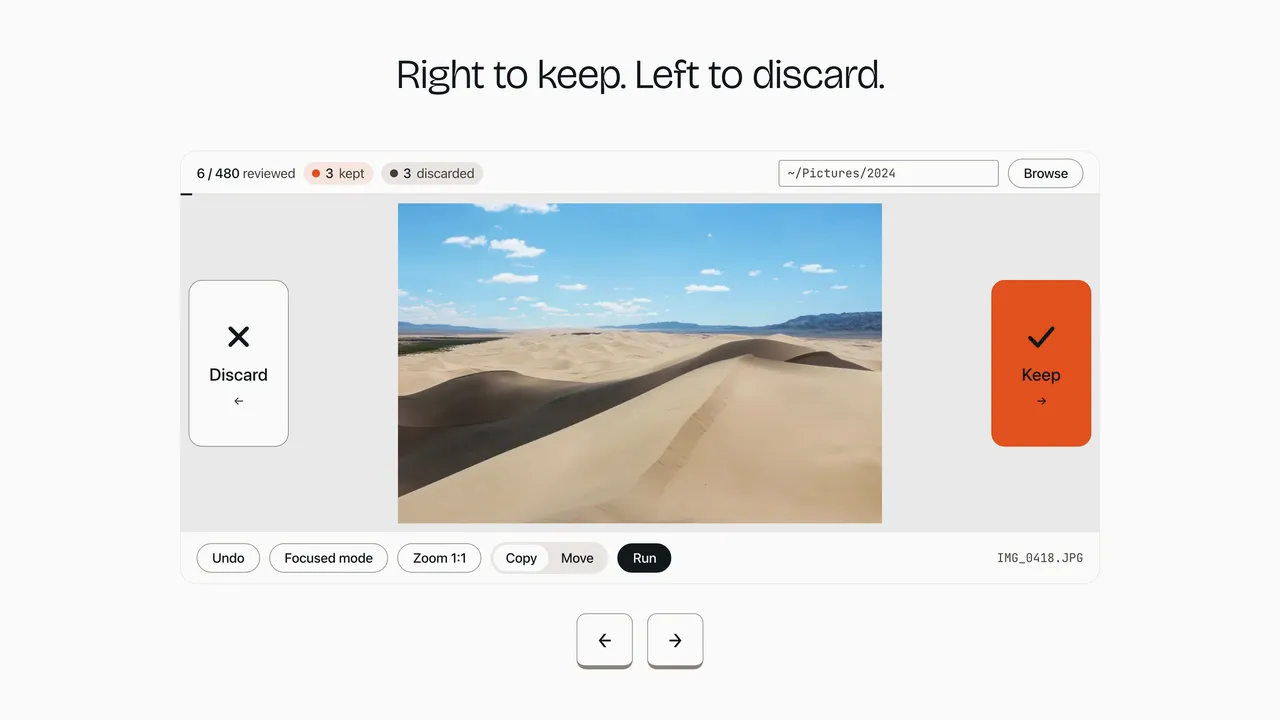
The picture opens a 32 second video of the review, with music. The interface in the video is drawn for the video, it is not a screen recording.
A shoot leaves you with hundreds of files and no quick way to separate the good ones. A file manager makes you open, compare and drag. This app shows one image at a time, takes one decision per image, and then puts the kept images into a folder of their own. A RAW original travels with the image it belongs to, unless you turn that off.
Everything runs on your machine.
The server listens on 127.0.0.1 only, so no image and no folder name leaves the computer.
What the app never does
- It never deletes a file.
- It never touches a discarded image. A discarded image stays in the source folder.
- In copy mode it leaves the source folder complete, so you can check the result before you change anything.
- It never overwrites a file in the destination.
A name that is already taken becomes
name_1, thenname_2, and so on. - It never serves an image from outside the source folder, not even through a symbolic link.
- It never listens on a public address.
The host is fixed to
127.0.0.1and no option changes it.
Install
You need Python 3.12 or later. uv installs Python, the app and its two dependencies, FastAPI and uvicorn:
git clone https://github.com/LaiqianDS/phototriage.git
cd phototriage
uv sync
Quickstart
uv run phototriage ~/Pictures/2024
Open http://127.0.0.1:8000.
Press the right arrow to keep the image on screen, the left arrow to discard it.
When the queue is empty, choose copy or move and press the run button.
The kept images are then in ~/Pictures/2024_keep.
Stop the server with Ctrl-C.
Your decisions are already on disk.
The interface
The window is one screen that does not scroll. The photo takes the middle of it, and the controls take the four edges.
The photo. It is shown as large as the room the controls leave, and centred in it. That room is measured rather than guessed, so no part of an image is ever hidden behind the interface. A photo smaller than the space is shown at its own size instead of being enlarged, and a rotated photo is shown the right way up.
The two bars. A top bar runs along the top of the window and a bottom bar along the bottom. They fade out after about two and a half seconds without input, and come back as soon as you move the mouse, press a key or move the focus. They are held open while a dialog is open, while the cursor is in a field, and while a message is on the status line. A bar you reached with the keyboard stays up as long as it holds the focus ring. When your system asks for reduced motion, the bars do not fade at all. The photo does not grow when they fade, because their room stays reserved.
The edges. Discard and keep are two large buttons on the left and right edges of the window, on the sides the arrow keys point to. They never fade.
Focused mode.
F gives the photo the whole window.
The bars go, along with the room reserved for them, the photo loses its rounded corners, and the browser goes fullscreen when it is allowed to.
Three things are left: the progress line, now along the top edge of the window, the two verdict buttons reduced to their icons on the left and right edges, and one pill carrying the file name, the counters and any message.
Nothing of the interface is painted over the photo, not even a tint along an edge to name the verdict on that side, because a colour next to the image changes the colour you read in it and judging colour is half of what the review is for.
The pill fades and comes back exactly like the bars, and the two verdicts never fade, exactly like the buttons they replace.
Escape leaves, and so does the pill Leave focused mode in the top right corner, and whatever way out of fullscreen your browser offers.
The arrow keys and U work unchanged.
The source folder, the settings and the run button stay behind, because they belong to before the review and after it, not to the photo in front of you.
The button Focused mode in the bottom bar enters it as well.
F and the button do nothing when there is no photo on screen.
A button you pressed to enter or leave hands the focus back to the page, so Space zooms straight after instead of pressing a button that is no longer on screen.
Zoom.
Space shows the photo at one image pixel per screen pixel, and Space again puts it back inside the window.
Fitted to the window a soft photo still looks sharp, because the browser is scaling it down, so this is the view that answers whether a photo is really sharp.
Drag it with the mouse to move around the frame, or pan with the trackpad or the wheel.
On a screen of double density, such as a Retina display, the photo is drawn at half of its width in pixels.
That is what one image pixel per screen pixel means there, and it is what stops the browser enlarging the image and adding a softness the file does not have.
A photo already smaller than that is never shrunk by the zoom.
The zoom is undone as soon as the photo changes, so every decision starts from the whole frame.
It works inside focused mode and outside it, and leaving focused mode leaves it as it was.
Outside focused mode the button Zoom 1:1 in the bottom bar does the same, and it reads as pressed while the zoom is on.
Inside focused mode the bars are gone, so Space is the only way.
The dialogs.
The browse button and the settings button each open a dialog over the whole window.
Escape closes either one, as does its own close button.
The theme. The theme button in the top bar switches between light and dark, and the icon on it shows the theme in use. Until you press it, the interface follows the system appearance and keeps following it when the system changes. From the first press your choice wins, and the browser remembers it. The theme is a browser preference and is not part of the state file, so another browser starts from the system appearance again.
The controls are:
| Control | Where | What it does |
|---|---|---|
| Counters | Top bar | Images reviewed out of the total (reviewed), kept (kept) and discarded (discarded), with a progress bar along the edge of the bar. |
Source field (Source) | Top bar | Opens the folder you type, when you press Enter or leave the field. |
Browse button (Browse) | Top bar | Opens the folder browser. |
| Theme button | Top bar | Switches between light and dark. It carries no text, and it is named after the theme it switches to: Switch to dark theme or Switch to light theme. |
Settings button (Settings) | Top bar | Opens the settings dialog. |
Discard button (Discard) | Left edge | Marks the current image as discarded and moves on. |
Keep button (Keep) | Right edge | Marks the current image as kept and moves on. |
Undo button (Undo) | Bottom bar | Cancels the most recent decision. |
Focused mode button (Focused mode) | Bottom bar | Enters focused mode, like F. |
Zoom button (Zoom 1:1) | Bottom bar | Shows the photo at one image pixel per screen pixel, and back, like Space. Pressed while the zoom is on. |
Exit button (Leave focused mode) | Top right corner, in focused mode only | Leaves focused mode, like Escape. It fades with the pill. |
Mode control (On run) | Bottom bar | Copy the kept images (Copy), or move them (Move). |
Run button (Run) | Bottom bar | Asks you to confirm, naming how many files would go, their size and the destination, then transfers the kept images there. |
| File name | Bottom bar | The name of the image on screen. |
| Status line | Bottom bar | The result of the last action, the error it ran into, or how far a run in flight has gone. |
Subfolder switch (Search subfolders) | Settings dialog | Whether the review reaches into the folders inside the source. Off by default. |
RAW switch (Move RAW files with the image) | Settings dialog | Whether a RAW original travels with the image that shares its name. On by default. |
Video switch (Move videos with the image) | Settings dialog | Whether a video travels with the image that shares its name. Off by default. |
Destination field (Destination folder) | Settings dialog | Sets where the kept images will go. |
A control that has nothing to act on is disabled. Keep, discard, the focused mode button and the zoom button are disabled when there is no image to review, undo when no decision has been taken, the run button when nothing is kept, and the destination field until a source folder is open.
The review workflow
- Choose the source folder.
Type its path in the source field (
Source), or press the browse button (Browse) and walk the disk. The browser starts at the folder in the source field, or at your home folder when that field is empty.Up one leveltakes you up, and a folder name takes you into it. It reports how many images are in the folder you are looking at, which tells you that you are in the right place before you open it. That count is of the images directly inside it, even when the subfolder switch is on, because counting the whole tree under every folder you pass through would make walking the disk slow.Use this folderopens the folder you are looking at, andCancelleaves the review as it was. - Check the destination.
It lives in the settings dialog, behind the settings button (
Settings) in the top bar, because it is configuration rather than review. It is filled in for you and you can edit it. The same dialog holds the subfolder switch and the RAW switch. See Where the kept images go, Which files are reviewed and RAW pairing. - Review the images. One image is on screen at a time, as large as the window allows, and its file name is in the bottom bar. The counters in the top bar show how many images you have reviewed out of the total, how many you kept, and how many you discarded. The next image is loaded in the background while you look at the current one.
- Run the transfer.
When every image has a decision, the app says
Review finished.in place of the photo. ChooseCopyorMove, press the run button (Run), and confirm. The question names what the run would take, such asCopy 312 files (8.4 GB) to /home/you/Pictures/2024_keep?, counting RAW files and videos that travel with a kept image. In copy mode that is what a first run would copy; files the destination already holds are skipped afterwards and reported on the status line. While the run goes on, the status line says how far it has got:Copying 120 of 312 (3.2 GB of 8.4 GB). It then reports how many files it transferred and where they went. Reloading the page during a run does not stop it: the new page shows how far it has got, and saysThe transfer has finished.at the end. A second press of the run button, in this window or another, is refused while a run is in flight. You do not have to reach the end of the queue first: the run button transfers whatever is kept so far.
Nothing is transferred until you press the run button. Until then, a decision is only a line in a file.
Keyboard shortcuts
| Key | Action |
|---|---|
| Left arrow | Discard the current image |
| Right arrow | Keep the current image |
U | Undo the most recent decision |
F | Enter focused mode, when there is a photo on screen |
Space | Zoom to one image pixel per screen pixel, and back, when there is a photo on screen |
Escape | Leave focused mode |
U and F work in either case.
Shortcuts are ignored while the folder browser or the settings dialog is open, and while the focus is in a text field or on the copy and move control.
There the arrow keys move between Copy and Move instead.
Space is also left alone while the focus is on a button, where it presses that button.
There are no other shortcuts.
One action runs at a time. A key pressed while the previous decision is still in flight is dropped rather than queued, so a burst of keystrokes cannot decide the same image twice.
Which files are reviewed
Files directly inside the source folder are reviewed. Subfolders are not searched until you ask for it.
Searching subfolders.
Open the settings dialog with the settings button (Settings) and turn on the switch Search subfolders.
The queue then holds every image in the tree under the source folder, which is what a camera or a phone that imports one folder per day leaves you with.
An image inside a subfolder is named by its path, 2024-08-30/IMG_1.jpg, and that name is what you see in the bottom bar.
An image directly inside the source folder keeps the name it always had, so turning the switch on adds images to a review without disturbing the decisions already in it.
Folders whose name starts with a dot are left out, like they are in the folder browser. A folder that is a symbolic link is not followed, so a link pointing back at a folder above it cannot make the queue run for ever. The switch is off when you first start the app, because a picture library opened with it on becomes one queue of everything you own.
Like the RAW switch, the choice is global rather than a property of one folder, and it is saved with your decisions. A state file written before this option existed reads as "off", so an upgrade never adds images to a review by itself.
These extensions count as reviewable images: .jpg, .jpeg, .png, .webp, .gif, .bmp and .tiff.
Case does not matter, so IMG_1.JPG is reviewed like img_1.jpg.
Nothing else is part of the queue. A video file is never reviewed, whatever you decide about the images around it. It can still travel with a kept image that shares its name, which is what the video switch is for. See Videos.
The queue is sorted by name, ignoring case, so a camera that numbers its files gives you the images in the order you took them. With the subfolder switch on the name includes the folder, so the queue walks one folder at a time, in order, rather than interleaving the days. The folder is read again on every action, so an image you add or remove while the app runs is picked up without a restart.
Copy or move
The kept images are transferred when you press the run button. The mode control decides what happens to the source folder.
Copy (Copy) leaves the source folder complete.
Use it when you want to check the result before you change anything.
Move (Move) takes the kept images out of the source folder.
What stays behind is exactly what you discarded.
The counters are read from the source folder, so after a move they count only the files that are still there.
Seeing the total drop and the kept count fall to zero means the move worked.
You review Pictures/2024:
Pictures/
└── 2024/
    ├── IMG_01.jpg    you discard this one
    ├── IMG_02.jpg    you keep this one
    └── IMG_02.CR2    the RAW original of IMG_02
After a run in copy mode:
Pictures/
├── 2024/             unchanged
│   ├── IMG_01.jpg
│   ├── IMG_02.jpg
│   └── IMG_02.CR2
└── 2024_keep/        created for you
    ├── IMG_02.jpg
    └── IMG_02.CR2
After a run in move mode:
Pictures/
├── 2024/             only the discarded images are left
│   └── IMG_01.jpg
└── 2024_keep/        created for you
    ├── IMG_02.jpg
    └── IMG_02.CR2
IMG_01.jpg is never copied, moved or deleted in either mode.
It is discarded, which here means "left alone".
You can run the transfer more than once.
In copy mode the kept count does not change, so the run button stays enabled after a successful run.
A second run copies only what is not in the destination yet, such as the images you kept since the first one.
A file is taken as already there when the destination holds one with the same name, or a numbered variant of it such as IMG_02_1.jpg, and exactly the same bytes.
The status line then says how many were already there: 0 files in /home/you/Pictures/2024_keep, 2 already there.
In move mode there is nothing left to transfer the second time, and the run button is disabled once the kept count reaches zero.
A file that fails, because it cannot be read or the disk is full, does not stop the run.
The other files are still transferred, and the status line counts the failures.
A copy cut short is removed from the destination, so a half-written file never sits there under the name of a photo.
Only a destination that cannot be created stops the run before it starts: Could not create the destination: ....
RAW pairing
By default a kept image takes its RAW originals with it.
A RAW file is paired with an image when both have the same stem, so IMG_0042.CR2 follows IMG_0042.JPG.
Case is ignored in the extension, and one stem can have several RAW files.
These extensions count as RAW: .cr2, .cr3, .nef, .arw, .raf, .dng, .rw2, .orf, .srw, .pef and .raw.
Two points follow from pairing by stem:
- A RAW file with no kept image of the same stem is never transferred. It stays in the source folder, like a discarded image. A folder of RAW files alone has nothing to review, because a RAW file is not shown in the viewer.
- If you keep both
IMG_1.jpgandIMG_1.png, the sharedIMG_1.CR2is transferred once, not twice.
Turning it off.
Open the settings dialog with the settings button (Settings) and turn off the switch Move RAW files with the image.
The next run then transfers the kept images alone, and every RAW file stays in the source folder.
The switch is on when you first start the app.
The choice is global, not a property of one folder. It applies to every review, and switching source folders does not change it. It is saved with your decisions in the state file, so it survives a restart. A state file written before this option existed reads as "on".
Turning the switch off changes nothing that has already been transferred. It changes what the next run does.
Videos
A video is never reviewed. It cannot be shown in the viewer, and it is not part of the queue.
It can travel with a kept image that shares its name, the way a phone writes IMG_0042.MOV beside IMG_0042.HEIC for a live photo.
Open the settings dialog with the settings button (Settings) and turn on the switch Move videos with the image.
These extensions count as video: .mov, .mp4, .m4v, .avi, .mts and .m2ts.
Pairing works exactly like it does for RAW files, by name and inside one folder, so IMG_0042.MOV follows IMG_0042.JPG and MVI_0042.MOV follows nothing at all.
The switch is off when you first start the app, and a state file written before it existed reads as off. That is the opposite of the RAW switch, on purpose. A RAW file is the original of the photo beside it, so leaving it behind is almost always a mistake. A video of the same name is sometimes the other half of a live photo and sometimes an unrelated clip, and turning it on for you would mean the next run in move mode takes files out of your source folder that the last one left alone.
Like the other two, the choice is global rather than a property of one folder, and it is saved with your decisions.
Where the kept images go
The destination is a sibling of the source folder with a _keep suffix.
Reviewing ~/Pictures/2024 collects into ~/Pictures/2024_keep.
A sibling gives every source folder its own destination, so reviewing several folders never mixes the results.
A kept image from a subfolder takes that subfolder with it: 2024-08-30/IMG_1.jpg arrives as 2024-08-30/IMG_1.jpg inside the destination.
Emptying the tree into one folder would put the IMG_1.jpg of two different days on one name, where the second becomes IMG_1_1.jpg and no longer says which day it came from.
In move mode that reading cannot be recovered afterwards, because the folder it came from is the only place it was written down.
Type another path in the destination field (Destination folder), in the settings dialog, to change it.
The path must be absolute.
A relative path is refused, because resolving it against the folder the server was started from would scatter your images somewhere you never named.
~ is expanded, so ~/Selection is accepted.
Clear the field to go back to the default.
Unlike the RAW switch, the destination belongs to one source folder. Each folder you review keeps the destination you last gave it.
The destination folder does not have to exist. It is created when you press the run button, together with any parent folder it needs.
The destination may be a folder inside the source, such as ~/Pictures/2024/best.
It is then left out of the review: with the subfolder switch on, the queue does not reach into it, so a copy run never puts its own copies back in front of you and the counters do not grow with your own work.
Decisions are saved as you go
Every decision is written to disk as soon as you take it. There is nothing to save by hand, and closing the browser or stopping the server loses nothing.
Decisions live in one JSON file, by default ~/.phototriage/state.json.
The file holds one review per source folder, the folder you opened last, and the three switches.
So you can review several folders, switch between them, close the app, and resume each one where you left it.
Starting the app without a folder argument reopens the last folder you reviewed.
Inside a review, a decision is stored under the name of the image, not under its position in the queue. Adding or removing images between runs therefore does not shift the queue. An image you already decided about stays decided. A decision about an image that is no longer in the folder is kept in the file, and is skipped when the transfer runs.
Nothing is written inside your photo folders, except the transferred files themselves.
The file carries a schema version. When the app finds a version it does not know, it starts with an empty store, and the next decision you take overwrites the file. An upgrade that changes the format therefore costs you the decisions you had not run yet. Run your pending transfers before you upgrade.
Command line
phototriage [source] [--state-file PATH] [--port N]
| Argument | Default | What it does |
|---|---|---|
source | the last folder reviewed | Folder of images to open at startup. ~ is expanded and a relative path is resolved against the current folder. If the path is not a folder, the app starts with nothing open and waits for you to choose. |
--state-file PATH | ~/.phototriage/state.json | Where the decisions are saved. The folder is created if it does not exist. |
--port N | 8000 | Port to listen on. |
-h, --help | Print this list and exit. |
The host is always 127.0.0.1.
There is no option to change it.
Known limits
These are real. They are written down so that you do not meet them by surprise.
- A transfer is not all or nothing.
A file that cannot be copied or moved is skipped and the run carries on, so a failure leaves part of the selection in the destination and part of it behind.
The status line gives the count and the reason for the first failed file only, in red:
2 files in /home/you/Pictures/2024_keep. 1 failed. IMG_03.jpg: Permission denied. Running again retries the files that failed and does not transfer again what already arrived. - A decision can be undone, not changed. There is no way to rewrite the verdict of a named image. Undo removes the most recent decision, so correcting an older one means undoing everything taken after it.
- The zoom lasts one photo, and inside focused mode it has no button.
It is undone as soon as the photo changes, so checking the sharpness of a burst means pressing
Spaceagain on every frame. In focused mode the bottom bar is gone, so a pointer alone cannot zoom there. - A video is never reviewed.
It has no place in the queue, so a clip is only ever transferred as the companion of a kept image of the same name, and only with the video switch on.
A clip named on its own, like
MVI_0042.MOV, stays where it is whatever you do. - Two browser windows share one review. The server holds a single active review, so choosing a folder in one window changes what the other one shows. A verdict from a window that still shows a photo the other one has decided is refused, and that window then shows the photo that is next. Undo removes the most recent decision, whichever window took it.
- Two servers sharing one state file overwrite each other.
Each save writes the whole file, so the last one wins.
Give a second instance its own
--state-file.
Troubleshooting
The app says That folder has no images.
Only files directly inside the folder are reviewed unless you ask for more, so if the images are one level down, in a folder per day, turn on Search subfolders in the settings dialog.
Check the extension as well: a file type outside the list in Which files are reviewed is not part of the queue.
A folder that holds only RAW files looks empty, because a RAW file is transferred with an image and is never reviewed on its own.
The status line says This page is from another version. Reload it., or [object Object].
The page was loaded before the app was upgraded and restarted, so it still runs the old script, and the server refuses what that script sends.
Reload the page.
The refused request recorded nothing.
The message is part of the page's own script, so a page loaded from 0.4.1 or earlier shows [object Object] instead.
After an upgrade to 0.4.1, that is what a page left open shows on every verdict.
Permission denied on a folder.
The folder browser reports No access to ... for a folder your user account cannot read, and lets you go back up.
Choosing such a folder as the source is refused with the same message.
The folder is not recorded, so the review you had open stays open and a restart is unaffected.
Port already in use.
The server prints [Errno 48] error while attempting to bind on address ('127.0.0.1', 8000): [errno 48] address already in use and exits with status 3.
Another program holds the port, or an earlier run of this app is still open in a terminal.
Use another port with --port 8123, and open http://127.0.0.1:8123.
I want to keep my decisions somewhere else.
Pass --state-file:
uv run phototriage --state-file ~/Documents/culling.json
Every run that should see those decisions needs the same option, because the app never merges two state files. A second state file is also the way to start from a clean slate without losing the decisions you already have.
My decisions are gone.
The app starts with an empty store when the state file is missing, unreadable, or written by a version of the app with a different schema.
It never stops on a damaged file, because that would leave you unable to review anything.
Check that you are not passing a different --state-file than usual, and see the note about upgrades in Decisions are saved as you go.
The destination field refuses my path.
It answers Usa una ruta absoluta when the path does not start at the root.
Type the full path, or use ~.
The RAW files did not travel with the images.
Check the switch Move RAW files with the image in the settings dialog.
Check the names as well: a RAW file is paired by stem, so IMG_0042.CR2 follows IMG_0042.JPG but IMG_42.CR2 does not.
The photo is suddenly much larger than the window.
Space shows it at one image pixel per screen pixel.
Drag it to look around the frame, and press Space again to fit it back in the window.
Taking any decision fits it back as well.
The bars disappeared. They fade after about two and a half seconds without input. Move the mouse or press a key and they come back.
Documentation
- docs/architecture.md: the modules, the flow of a request, and why the design is what it is.
- docs/api.md: the complete HTTP reference.
- ROADMAP.md: what is planned next, and what is deliberately not.
- CHANGELOG.md: what changed in each version.
- CONTRIBUTING.md: how to set up and test the project, and how branches work.
License
MIT. See LICENSE.
Similar repos


Review a folder of photos one at a time and collect the ones you keep.
See the codeSee what people are saying
README
PhotoTriage
Review a folder of photos one at a time, and collect the ones you keep.
The site is at https://laiqiands.github.io/phototriage/, built from site/ on every release.
The picture opens a 32 second video of the review, with music. The interface in the video is drawn for the video, it is not a screen recording.
A shoot leaves you with hundreds of files and no quick way to separate the good ones. A file manager makes you open, compare and drag. This app shows one image at a time, takes one decision per image, and then puts the kept images into a folder of their own. A RAW original travels with the image it belongs to, unless you turn that off.
Everything runs on your machine.
The server listens on 127.0.0.1 only, so no image and no folder name leaves the computer.
What the app never does
- It never deletes a file.
- It never touches a discarded image. A discarded image stays in the source folder.
- In copy mode it leaves the source folder complete, so you can check the result before you change anything.
- It never overwrites a file in the destination.
A name that is already taken becomes
name_1, thenname_2, and so on. - It never serves an image from outside the source folder, not even through a symbolic link.
- It never listens on a public address.
The host is fixed to
127.0.0.1and no option changes it.
Install
You need Python 3.12 or later. uv installs Python, the app and its two dependencies, FastAPI and uvicorn:
git clone https://github.com/LaiqianDS/phototriage.git
cd phototriage
uv sync
Quickstart
uv run phototriage ~/Pictures/2024
Open http://127.0.0.1:8000.
Press the right arrow to keep the image on screen, the left arrow to discard it.
When the queue is empty, choose copy or move and press the run button.
The kept images are then in ~/Pictures/2024_keep.
Stop the server with Ctrl-C.
Your decisions are already on disk.
The interface
The window is one screen that does not scroll. The photo takes the middle of it, and the controls take the four edges.
The photo. It is shown as large as the room the controls leave, and centred in it. That room is measured rather than guessed, so no part of an image is ever hidden behind the interface. A photo smaller than the space is shown at its own size instead of being enlarged, and a rotated photo is shown the right way up.
The two bars. A top bar runs along the top of the window and a bottom bar along the bottom. They fade out after about two and a half seconds without input, and come back as soon as you move the mouse, press a key or move the focus. They are held open while a dialog is open, while the cursor is in a field, and while a message is on the status line. A bar you reached with the keyboard stays up as long as it holds the focus ring. When your system asks for reduced motion, the bars do not fade at all. The photo does not grow when they fade, because their room stays reserved.
The edges. Discard and keep are two large buttons on the left and right edges of the window, on the sides the arrow keys point to. They never fade.
Focused mode.
F gives the photo the whole window.
The bars go, along with the room reserved for them, the photo loses its rounded corners, and the browser goes fullscreen when it is allowed to.
Three things are left: the progress line, now along the top edge of the window, the two verdict buttons reduced to their icons on the left and right edges, and one pill carrying the file name, the counters and any message.
Nothing of the interface is painted over the photo, not even a tint along an edge to name the verdict on that side, because a colour next to the image changes the colour you read in it and judging colour is half of what the review is for.
The pill fades and comes back exactly like the bars, and the two verdicts never fade, exactly like the buttons they replace.
Escape leaves, and so does the pill Leave focused mode in the top right corner, and whatever way out of fullscreen your browser offers.
The arrow keys and U work unchanged.
The source folder, the settings and the run button stay behind, because they belong to before the review and after it, not to the photo in front of you.
The button Focused mode in the bottom bar enters it as well.
F and the button do nothing when there is no photo on screen.
A button you pressed to enter or leave hands the focus back to the page, so Space zooms straight after instead of pressing a button that is no longer on screen.
Zoom.
Space shows the photo at one image pixel per screen pixel, and Space again puts it back inside the window.
Fitted to the window a soft photo still looks sharp, because the browser is scaling it down, so this is the view that answers whether a photo is really sharp.
Drag it with the mouse to move around the frame, or pan with the trackpad or the wheel.
On a screen of double density, such as a Retina display, the photo is drawn at half of its width in pixels.
That is what one image pixel per screen pixel means there, and it is what stops the browser enlarging the image and adding a softness the file does not have.
A photo already smaller than that is never shrunk by the zoom.
The zoom is undone as soon as the photo changes, so every decision starts from the whole frame.
It works inside focused mode and outside it, and leaving focused mode leaves it as it was.
Outside focused mode the button Zoom 1:1 in the bottom bar does the same, and it reads as pressed while the zoom is on.
Inside focused mode the bars are gone, so Space is the only way.
The dialogs.
The browse button and the settings button each open a dialog over the whole window.
Escape closes either one, as does its own close button.
The theme. The theme button in the top bar switches between light and dark, and the icon on it shows the theme in use. Until you press it, the interface follows the system appearance and keeps following it when the system changes. From the first press your choice wins, and the browser remembers it. The theme is a browser preference and is not part of the state file, so another browser starts from the system appearance again.
The controls are:
| Control | Where | What it does |
|---|---|---|
| Counters | Top bar | Images reviewed out of the total (reviewed), kept (kept) and discarded (discarded), with a progress bar along the edge of the bar. |
Source field (Source) | Top bar | Opens the folder you type, when you press Enter or leave the field. |
Browse button (Browse) | Top bar | Opens the folder browser. |
| Theme button | Top bar | Switches between light and dark. It carries no text, and it is named after the theme it switches to: Switch to dark theme or Switch to light theme. |
Settings button (Settings) | Top bar | Opens the settings dialog. |
Discard button (Discard) | Left edge | Marks the current image as discarded and moves on. |
Keep button (Keep) | Right edge | Marks the current image as kept and moves on. |
Undo button (Undo) | Bottom bar | Cancels the most recent decision. |
Focused mode button (Focused mode) | Bottom bar | Enters focused mode, like F. |
Zoom button (Zoom 1:1) | Bottom bar | Shows the photo at one image pixel per screen pixel, and back, like Space. Pressed while the zoom is on. |
Exit button (Leave focused mode) | Top right corner, in focused mode only | Leaves focused mode, like Escape. It fades with the pill. |
Mode control (On run) | Bottom bar | Copy the kept images (Copy), or move them (Move). |
Run button (Run) | Bottom bar | Asks you to confirm, naming how many files would go, their size and the destination, then transfers the kept images there. |
| File name | Bottom bar | The name of the image on screen. |
| Status line | Bottom bar | The result of the last action, the error it ran into, or how far a run in flight has gone. |
Subfolder switch (Search subfolders) | Settings dialog | Whether the review reaches into the folders inside the source. Off by default. |
RAW switch (Move RAW files with the image) | Settings dialog | Whether a RAW original travels with the image that shares its name. On by default. |
Video switch (Move videos with the image) | Settings dialog | Whether a video travels with the image that shares its name. Off by default. |
Destination field (Destination folder) | Settings dialog | Sets where the kept images will go. |
A control that has nothing to act on is disabled. Keep, discard, the focused mode button and the zoom button are disabled when there is no image to review, undo when no decision has been taken, the run button when nothing is kept, and the destination field until a source folder is open.
The review workflow
- Choose the source folder.
Type its path in the source field (
Source), or press the browse button (Browse) and walk the disk. The browser starts at the folder in the source field, or at your home folder when that field is empty.Up one leveltakes you up, and a folder name takes you into it. It reports how many images are in the folder you are looking at, which tells you that you are in the right place before you open it. That count is of the images directly inside it, even when the subfolder switch is on, because counting the whole tree under every folder you pass through would make walking the disk slow.Use this folderopens the folder you are looking at, andCancelleaves the review as it was. - Check the destination.
It lives in the settings dialog, behind the settings button (
Settings) in the top bar, because it is configuration rather than review. It is filled in for you and you can edit it. The same dialog holds the subfolder switch and the RAW switch. See Where the kept images go, Which files are reviewed and RAW pairing. - Review the images. One image is on screen at a time, as large as the window allows, and its file name is in the bottom bar. The counters in the top bar show how many images you have reviewed out of the total, how many you kept, and how many you discarded. The next image is loaded in the background while you look at the current one.
- Run the transfer.
When every image has a decision, the app says
Review finished.in place of the photo. ChooseCopyorMove, press the run button (Run), and confirm. The question names what the run would take, such asCopy 312 files (8.4 GB) to /home/you/Pictures/2024_keep?, counting RAW files and videos that travel with a kept image. In copy mode that is what a first run would copy; files the destination already holds are skipped afterwards and reported on the status line. While the run goes on, the status line says how far it has got:Copying 120 of 312 (3.2 GB of 8.4 GB). It then reports how many files it transferred and where they went. Reloading the page during a run does not stop it: the new page shows how far it has got, and saysThe transfer has finished.at the end. A second press of the run button, in this window or another, is refused while a run is in flight. You do not have to reach the end of the queue first: the run button transfers whatever is kept so far.
Nothing is transferred until you press the run button. Until then, a decision is only a line in a file.
Keyboard shortcuts
| Key | Action |
|---|---|
| Left arrow | Discard the current image |
| Right arrow | Keep the current image |
U | Undo the most recent decision |
F | Enter focused mode, when there is a photo on screen |
Space | Zoom to one image pixel per screen pixel, and back, when there is a photo on screen |
Escape | Leave focused mode |
U and F work in either case.
Shortcuts are ignored while the folder browser or the settings dialog is open, and while the focus is in a text field or on the copy and move control.
There the arrow keys move between Copy and Move instead.
Space is also left alone while the focus is on a button, where it presses that button.
There are no other shortcuts.
One action runs at a time. A key pressed while the previous decision is still in flight is dropped rather than queued, so a burst of keystrokes cannot decide the same image twice.
Which files are reviewed
Files directly inside the source folder are reviewed. Subfolders are not searched until you ask for it.
Searching subfolders.
Open the settings dialog with the settings button (Settings) and turn on the switch Search subfolders.
The queue then holds every image in the tree under the source folder, which is what a camera or a phone that imports one folder per day leaves you with.
An image inside a subfolder is named by its path, 2024-08-30/IMG_1.jpg, and that name is what you see in the bottom bar.
An image directly inside the source folder keeps the name it always had, so turning the switch on adds images to a review without disturbing the decisions already in it.
Folders whose name starts with a dot are left out, like they are in the folder browser. A folder that is a symbolic link is not followed, so a link pointing back at a folder above it cannot make the queue run for ever. The switch is off when you first start the app, because a picture library opened with it on becomes one queue of everything you own.
Like the RAW switch, the choice is global rather than a property of one folder, and it is saved with your decisions. A state file written before this option existed reads as "off", so an upgrade never adds images to a review by itself.
These extensions count as reviewable images: .jpg, .jpeg, .png, .webp, .gif, .bmp and .tiff.
Case does not matter, so IMG_1.JPG is reviewed like img_1.jpg.
Nothing else is part of the queue. A video file is never reviewed, whatever you decide about the images around it. It can still travel with a kept image that shares its name, which is what the video switch is for. See Videos.
The queue is sorted by name, ignoring case, so a camera that numbers its files gives you the images in the order you took them. With the subfolder switch on the name includes the folder, so the queue walks one folder at a time, in order, rather than interleaving the days. The folder is read again on every action, so an image you add or remove while the app runs is picked up without a restart.
Copy or move
The kept images are transferred when you press the run button. The mode control decides what happens to the source folder.
Copy (Copy) leaves the source folder complete.
Use it when you want to check the result before you change anything.
Move (Move) takes the kept images out of the source folder.
What stays behind is exactly what you discarded.
The counters are read from the source folder, so after a move they count only the files that are still there.
Seeing the total drop and the kept count fall to zero means the move worked.
You review Pictures/2024:
Pictures/
└── 2024/
    ├── IMG_01.jpg    you discard this one
    ├── IMG_02.jpg    you keep this one
    └── IMG_02.CR2    the RAW original of IMG_02
After a run in copy mode:
Pictures/
├── 2024/             unchanged
│   ├── IMG_01.jpg
│   ├── IMG_02.jpg
│   └── IMG_02.CR2
└── 2024_keep/        created for you
    ├── IMG_02.jpg
    └── IMG_02.CR2
After a run in move mode:
Pictures/
├── 2024/             only the discarded images are left
│   └── IMG_01.jpg
└── 2024_keep/        created for you
    ├── IMG_02.jpg
    └── IMG_02.CR2
IMG_01.jpg is never copied, moved or deleted in either mode.
It is discarded, which here means "left alone".
You can run the transfer more than once.
In copy mode the kept count does not change, so the run button stays enabled after a successful run.
A second run copies only what is not in the destination yet, such as the images you kept since the first one.
A file is taken as already there when the destination holds one with the same name, or a numbered variant of it such as IMG_02_1.jpg, and exactly the same bytes.
The status line then says how many were already there: 0 files in /home/you/Pictures/2024_keep, 2 already there.
In move mode there is nothing left to transfer the second time, and the run button is disabled once the kept count reaches zero.
A file that fails, because it cannot be read or the disk is full, does not stop the run.
The other files are still transferred, and the status line counts the failures.
A copy cut short is removed from the destination, so a half-written file never sits there under the name of a photo.
Only a destination that cannot be created stops the run before it starts: Could not create the destination: ....
RAW pairing
By default a kept image takes its RAW originals with it.
A RAW file is paired with an image when both have the same stem, so IMG_0042.CR2 follows IMG_0042.JPG.
Case is ignored in the extension, and one stem can have several RAW files.
These extensions count as RAW: .cr2, .cr3, .nef, .arw, .raf, .dng, .rw2, .orf, .srw, .pef and .raw.
Two points follow from pairing by stem:
- A RAW file with no kept image of the same stem is never transferred. It stays in the source folder, like a discarded image. A folder of RAW files alone has nothing to review, because a RAW file is not shown in the viewer.
- If you keep both
IMG_1.jpgandIMG_1.png, the sharedIMG_1.CR2is transferred once, not twice.
Turning it off.
Open the settings dialog with the settings button (Settings) and turn off the switch Move RAW files with the image.
The next run then transfers the kept images alone, and every RAW file stays in the source folder.
The switch is on when you first start the app.
The choice is global, not a property of one folder. It applies to every review, and switching source folders does not change it. It is saved with your decisions in the state file, so it survives a restart. A state file written before this option existed reads as "on".
Turning the switch off changes nothing that has already been transferred. It changes what the next run does.
Videos
A video is never reviewed. It cannot be shown in the viewer, and it is not part of the queue.
It can travel with a kept image that shares its name, the way a phone writes IMG_0042.MOV beside IMG_0042.HEIC for a live photo.
Open the settings dialog with the settings button (Settings) and turn on the switch Move videos with the image.
These extensions count as video: .mov, .mp4, .m4v, .avi, .mts and .m2ts.
Pairing works exactly like it does for RAW files, by name and inside one folder, so IMG_0042.MOV follows IMG_0042.JPG and MVI_0042.MOV follows nothing at all.
The switch is off when you first start the app, and a state file written before it existed reads as off. That is the opposite of the RAW switch, on purpose. A RAW file is the original of the photo beside it, so leaving it behind is almost always a mistake. A video of the same name is sometimes the other half of a live photo and sometimes an unrelated clip, and turning it on for you would mean the next run in move mode takes files out of your source folder that the last one left alone.
Like the other two, the choice is global rather than a property of one folder, and it is saved with your decisions.
Where the kept images go
The destination is a sibling of the source folder with a _keep suffix.
Reviewing ~/Pictures/2024 collects into ~/Pictures/2024_keep.
A sibling gives every source folder its own destination, so reviewing several folders never mixes the results.
A kept image from a subfolder takes that subfolder with it: 2024-08-30/IMG_1.jpg arrives as 2024-08-30/IMG_1.jpg inside the destination.
Emptying the tree into one folder would put the IMG_1.jpg of two different days on one name, where the second becomes IMG_1_1.jpg and no longer says which day it came from.
In move mode that reading cannot be recovered afterwards, because the folder it came from is the only place it was written down.
Type another path in the destination field (Destination folder), in the settings dialog, to change it.
The path must be absolute.
A relative path is refused, because resolving it against the folder the server was started from would scatter your images somewhere you never named.
~ is expanded, so ~/Selection is accepted.
Clear the field to go back to the default.
Unlike the RAW switch, the destination belongs to one source folder. Each folder you review keeps the destination you last gave it.
The destination folder does not have to exist. It is created when you press the run button, together with any parent folder it needs.
The destination may be a folder inside the source, such as ~/Pictures/2024/best.
It is then left out of the review: with the subfolder switch on, the queue does not reach into it, so a copy run never puts its own copies back in front of you and the counters do not grow with your own work.
Decisions are saved as you go
Every decision is written to disk as soon as you take it. There is nothing to save by hand, and closing the browser or stopping the server loses nothing.
Decisions live in one JSON file, by default ~/.phototriage/state.json.
The file holds one review per source folder, the folder you opened last, and the three switches.
So you can review several folders, switch between them, close the app, and resume each one where you left it.
Starting the app without a folder argument reopens the last folder you reviewed.
Inside a review, a decision is stored under the name of the image, not under its position in the queue. Adding or removing images between runs therefore does not shift the queue. An image you already decided about stays decided. A decision about an image that is no longer in the folder is kept in the file, and is skipped when the transfer runs.
Nothing is written inside your photo folders, except the transferred files themselves.
The file carries a schema version. When the app finds a version it does not know, it starts with an empty store, and the next decision you take overwrites the file. An upgrade that changes the format therefore costs you the decisions you had not run yet. Run your pending transfers before you upgrade.
Command line
phototriage [source] [--state-file PATH] [--port N]
| Argument | Default | What it does |
|---|---|---|
source | the last folder reviewed | Folder of images to open at startup. ~ is expanded and a relative path is resolved against the current folder. If the path is not a folder, the app starts with nothing open and waits for you to choose. |
--state-file PATH | ~/.phototriage/state.json | Where the decisions are saved. The folder is created if it does not exist. |
--port N | 8000 | Port to listen on. |
-h, --help | Print this list and exit. |
The host is always 127.0.0.1.
There is no option to change it.
Known limits
These are real. They are written down so that you do not meet them by surprise.
- A transfer is not all or nothing.
A file that cannot be copied or moved is skipped and the run carries on, so a failure leaves part of the selection in the destination and part of it behind.
The status line gives the count and the reason for the first failed file only, in red:
2 files in /home/you/Pictures/2024_keep. 1 failed. IMG_03.jpg: Permission denied. Running again retries the files that failed and does not transfer again what already arrived. - A decision can be undone, not changed. There is no way to rewrite the verdict of a named image. Undo removes the most recent decision, so correcting an older one means undoing everything taken after it.
- The zoom lasts one photo, and inside focused mode it has no button.
It is undone as soon as the photo changes, so checking the sharpness of a burst means pressing
Spaceagain on every frame. In focused mode the bottom bar is gone, so a pointer alone cannot zoom there. - A video is never reviewed.
It has no place in the queue, so a clip is only ever transferred as the companion of a kept image of the same name, and only with the video switch on.
A clip named on its own, like
MVI_0042.MOV, stays where it is whatever you do. - Two browser windows share one review. The server holds a single active review, so choosing a folder in one window changes what the other one shows. A verdict from a window that still shows a photo the other one has decided is refused, and that window then shows the photo that is next. Undo removes the most recent decision, whichever window took it.
- Two servers sharing one state file overwrite each other.
Each save writes the whole file, so the last one wins.
Give a second instance its own
--state-file.
Troubleshooting
The app says That folder has no images.
Only files directly inside the folder are reviewed unless you ask for more, so if the images are one level down, in a folder per day, turn on Search subfolders in the settings dialog.
Check the extension as well: a file type outside the list in Which files are reviewed is not part of the queue.
A folder that holds only RAW files looks empty, because a RAW file is transferred with an image and is never reviewed on its own.
The status line says This page is from another version. Reload it., or [object Object].
The page was loaded before the app was upgraded and restarted, so it still runs the old script, and the server refuses what that script sends.
Reload the page.
The refused request recorded nothing.
The message is part of the page's own script, so a page loaded from 0.4.1 or earlier shows [object Object] instead.
After an upgrade to 0.4.1, that is what a page left open shows on every verdict.
Permission denied on a folder.
The folder browser reports No access to ... for a folder your user account cannot read, and lets you go back up.
Choosing such a folder as the source is refused with the same message.
The folder is not recorded, so the review you had open stays open and a restart is unaffected.
Port already in use.
The server prints [Errno 48] error while attempting to bind on address ('127.0.0.1', 8000): [errno 48] address already in use and exits with status 3.
Another program holds the port, or an earlier run of this app is still open in a terminal.
Use another port with --port 8123, and open http://127.0.0.1:8123.
I want to keep my decisions somewhere else.
Pass --state-file:
uv run phototriage --state-file ~/Documents/culling.json
Every run that should see those decisions needs the same option, because the app never merges two state files. A second state file is also the way to start from a clean slate without losing the decisions you already have.
My decisions are gone.
The app starts with an empty store when the state file is missing, unreadable, or written by a version of the app with a different schema.
It never stops on a damaged file, because that would leave you unable to review anything.
Check that you are not passing a different --state-file than usual, and see the note about upgrades in Decisions are saved as you go.
The destination field refuses my path.
It answers Usa una ruta absoluta when the path does not start at the root.
Type the full path, or use ~.
The RAW files did not travel with the images.
Check the switch Move RAW files with the image in the settings dialog.
Check the names as well: a RAW file is paired by stem, so IMG_0042.CR2 follows IMG_0042.JPG but IMG_42.CR2 does not.
The photo is suddenly much larger than the window.
Space shows it at one image pixel per screen pixel.
Drag it to look around the frame, and press Space again to fit it back in the window.
Taking any decision fits it back as well.
The bars disappeared. They fade after about two and a half seconds without input. Move the mouse or press a key and they come back.
Documentation
- docs/architecture.md: the modules, the flow of a request, and why the design is what it is.
- docs/api.md: the complete HTTP reference.
- ROADMAP.md: what is planned next, and what is deliberately not.
- CHANGELOG.md: what changed in each version.
- CONTRIBUTING.md: how to set up and test the project, and how branches work.
License
MIT. See LICENSE.