Keeps a lid-closed Windows laptop awake while Claude Code or Codex works, then restores your power settings and sleeps.
See the code



Close a Windows laptop and it goes to sleep, and whatever Claude Code or Codex was doing stops with it. Nightcrew keeps the laptop working with the lid shut for as long as an agent is busy, then lets it sleep the way it normally would.
https://github.com/user-attachments/assets/200be945-4714-42fb-981e-1815e68ddf0e
nightcrew.exe from Releases.%LOCALAPPDATA%\Programs\Nightcrew,
and run it. A lantern appears in the tray, the panel opens once so you can
find it, and Nightcrew starts with Windows from then on.The exe isn't code-signed, so the first run shows "Windows protected your PC".
Click More info, then Run anyway. With Smart App Control on, Windows
may block it outright. To check the download, compare its hash with the
nightcrew.exe.sha256 file on the release, or verify its GitHub build
attestation:
Get-FileHash .\nightcrew.exe
gh attestation verify .\nightcrew.exe -R leikauskas/nightcrew
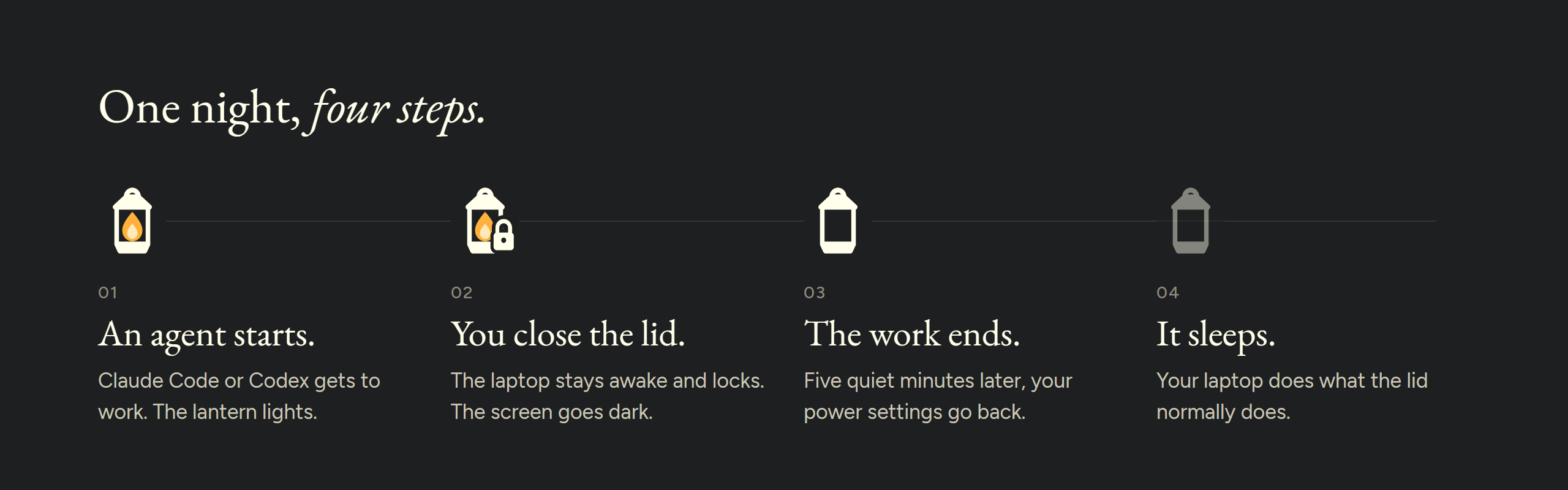
~\.claude\sessions\<pid>.json (busy, idle or waiting), so a long, quiet
command still counts. That's the only file it opens in ~\.claude:
session transcripts are watched for size only, and the login .key files
are never touched. Nightcrew has no network code. The lantern lights up.Safety limits. With the lid closed, Nightcrew stops early and hibernates at 20% battery or after 8 untouched hours, even mid-task. You can change both.
Your settings always come back: when the work ends, when you pause or quit, when you sign out, and on the next start after a crash. If Nightcrew is killed, a watchdog task restores them within 5 minutes. If your organization locks the power settings, Nightcrew stays idle and tells you so.
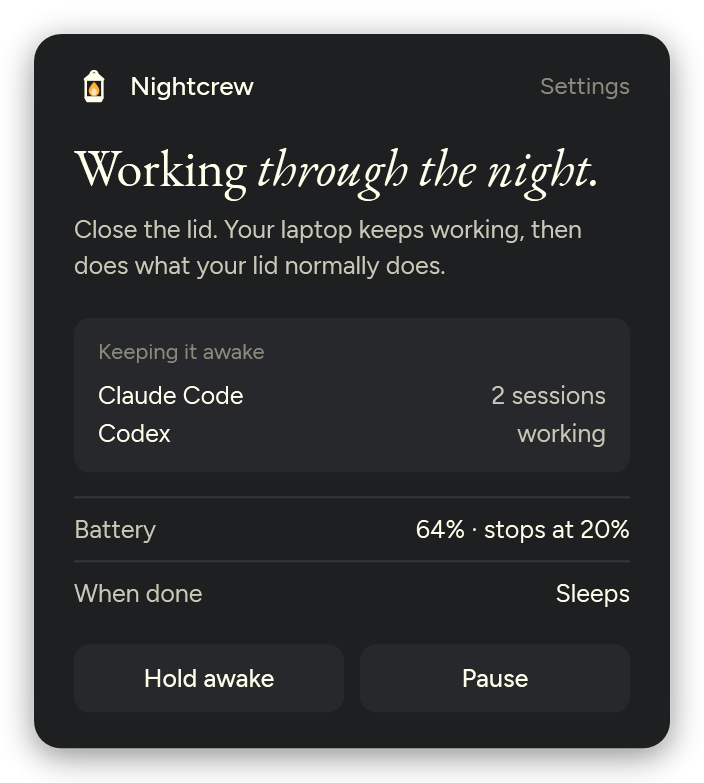
Click the lantern to see what's keeping the laptop awake, your battery, and what happens when the work is done.
nightcrew.exe again opens the panel.Nightcrew knows Claude Code and Codex. Any other agent is covered when it uses
the GPU, or with Hold awake. To teach Nightcrew about another agent, quit
Nightcrew, edit %LOCALAPPDATA%\Nightcrew\settings.json, and start it again:
AgentProcessNames, so programs it starts count as
agent toolsSelfCpuAgentNames too if the agent works in its own process*.jsonl session files to TranscriptRootsA key you leave out keeps its default. The log, nightcrew.log, is in the
same folder. To see what Nightcrew would do without letting it change
anything, quit Nightcrew, run .\nightcrew.exe --dry-run in its folder and
read the log.
| Key | Default | Meaning |
|---|---|---|
GraceMinutes | 5 | How long work stays live after the last sign of work |
BatteryFloorPercent | 20 | Hibernate at this charge with the lid closed on battery; 0 = off |
LidClosedCapHours | 8 | Hibernate after this long with the lid closed and no input. While working, the battery sleep timer is this plus an hour. 0 = off (timer Never) |
AwayMinutes | 5 | Minutes without input before the lid action runs, before lid-closed time counts toward the limit, before the lock when work starts with the lid closed, and before apps go into Efficiency mode |
LockOnLidClose | true | Lock the PC when the lid closes |
StartAtLogin | true | Start Nightcrew when you sign in |
DryRun | false | Log what Nightcrew would do without doing it |
TranscriptRoots | Claude Code and Codex folders | Where session files are watched |
IgnorePathContains | claude-mem-observer | Session files whose path contains this are ignored |
AgentProcessNames | claude, codex | Agent processes; programs they start count as agent tools |
SelfCpuAgentNames | codex | Agents whose own CPU use counts |
SelfCpuPercent | 2 | CPU threshold for those agents, % of one core |
ToolCpuPercent | 10 | CPU threshold for agent tools, % of one core |
GpuPercent | 30 | GPU engine threshold, % |
SampleSeconds | 10 | Seconds between checks |
Mark | lantern | The tray mark: lantern or moon |
EfficiencyWhileAway | true | Put apps the agents don't need into Efficiency mode while you're away |
LeaveAlone | none | Process names never put into Efficiency mode (Settings > Keep at full speed) |
LeaveAloneLabels | none | The names Settings shows for LeaveAlone entries |
ConnectorHostNames | chrome-native-host, extension-host | Browser connector helpers; their browser is left alone |
StayAwakeForApprovals | true | With the lid closed, a Claude Code session waiting for you counts as work |
ClaudeSessionsDir | %USERPROFILE%\.claude\sessions | Where Claude Code keeps its session status files |
Quit Nightcrew: right-click the lantern, then Quit Nightcrew. That puts your settings back. Replace the exe with the new one, then start it.
From a script, run Start-Process .\nightcrew.exe -ArgumentList '--exit' -Wait
in its folder. PowerShell doesn't wait for .\nightcrew.exe --exit on its own.
Quit Nightcrew (right-click the lantern, then Quit Nightcrew), then run
.\nightcrew.exe --uninstall in its folder. That puts your settings back,
takes any app out of Efficiency mode, and removes the startup entry and the
watchdog task. Then delete the exe, and %LOCALAPPDATA%\Nightcrew if you want
the settings and log gone too. Don't only delete the exe: the watchdog task
would stay behind.
Keeps a lid-closed Windows laptop awake while Claude Code or Codex works, then restores your power settings and sleeps.
See the code
Close a Windows laptop and it goes to sleep, and whatever Claude Code or Codex was doing stops with it. Nightcrew keeps the laptop working with the lid shut for as long as an agent is busy, then lets it sleep the way it normally would.
https://github.com/user-attachments/assets/200be945-4714-42fb-981e-1815e68ddf0e
nightcrew.exe from Releases.%LOCALAPPDATA%\Programs\Nightcrew,
and run it. A lantern appears in the tray, the panel opens once so you can
find it, and Nightcrew starts with Windows from then on.The exe isn't code-signed, so the first run shows "Windows protected your PC".
Click More info, then Run anyway. With Smart App Control on, Windows
may block it outright. To check the download, compare its hash with the
nightcrew.exe.sha256 file on the release, or verify its GitHub build
attestation:
Get-FileHash .\nightcrew.exe
gh attestation verify .\nightcrew.exe -R leikauskas/nightcrew
~\.claude\sessions\<pid>.json (busy, idle or waiting), so a long, quiet
command still counts. That's the only file it opens in ~\.claude:
session transcripts are watched for size only, and the login .key files
are never touched. Nightcrew has no network code. The lantern lights up.Safety limits. With the lid closed, Nightcrew stops early and hibernates at 20% battery or after 8 untouched hours, even mid-task. You can change both.
Your settings always come back: when the work ends, when you pause or quit, when you sign out, and on the next start after a crash. If Nightcrew is killed, a watchdog task restores them within 5 minutes. If your organization locks the power settings, Nightcrew stays idle and tells you so.
Click the lantern to see what's keeping the laptop awake, your battery, and what happens when the work is done.
nightcrew.exe again opens the panel.Nightcrew knows Claude Code and Codex. Any other agent is covered when it uses
the GPU, or with Hold awake. To teach Nightcrew about another agent, quit
Nightcrew, edit %LOCALAPPDATA%\Nightcrew\settings.json, and start it again:
AgentProcessNames, so programs it starts count as
agent toolsSelfCpuAgentNames too if the agent works in its own process*.jsonl session files to TranscriptRootsA key you leave out keeps its default. The log, nightcrew.log, is in the
same folder. To see what Nightcrew would do without letting it change
anything, quit Nightcrew, run .\nightcrew.exe --dry-run in its folder and
read the log.
| Key | Default | Meaning |
|---|---|---|
GraceMinutes | 5 | How long work stays live after the last sign of work |
BatteryFloorPercent | 20 | Hibernate at this charge with the lid closed on battery; 0 = off |
LidClosedCapHours | 8 | Hibernate after this long with the lid closed and no input. While working, the battery sleep timer is this plus an hour. 0 = off (timer Never) |
AwayMinutes | 5 | Minutes without input before the lid action runs, before lid-closed time counts toward the limit, before the lock when work starts with the lid closed, and before apps go into Efficiency mode |
LockOnLidClose | true | Lock the PC when the lid closes |
StartAtLogin | true | Start Nightcrew when you sign in |
DryRun | false | Log what Nightcrew would do without doing it |
TranscriptRoots | Claude Code and Codex folders | Where session files are watched |
IgnorePathContains | claude-mem-observer | Session files whose path contains this are ignored |
AgentProcessNames | claude, codex | Agent processes; programs they start count as agent tools |
SelfCpuAgentNames | codex | Agents whose own CPU use counts |
SelfCpuPercent | 2 | CPU threshold for those agents, % of one core |
ToolCpuPercent | 10 | CPU threshold for agent tools, % of one core |
GpuPercent | 30 | GPU engine threshold, % |
SampleSeconds | 10 | Seconds between checks |
Mark | lantern | The tray mark: lantern or moon |
EfficiencyWhileAway | true | Put apps the agents don't need into Efficiency mode while you're away |
LeaveAlone | none | Process names never put into Efficiency mode (Settings > Keep at full speed) |
LeaveAloneLabels | none | The names Settings shows for LeaveAlone entries |
ConnectorHostNames | chrome-native-host, extension-host | Browser connector helpers; their browser is left alone |
StayAwakeForApprovals | true | With the lid closed, a Claude Code session waiting for you counts as work |
ClaudeSessionsDir | %USERPROFILE%\.claude\sessions | Where Claude Code keeps its session status files |
Quit Nightcrew: right-click the lantern, then Quit Nightcrew. That puts your settings back. Replace the exe with the new one, then start it.
From a script, run Start-Process .\nightcrew.exe -ArgumentList '--exit' -Wait
in its folder. PowerShell doesn't wait for .\nightcrew.exe --exit on its own.
Quit Nightcrew (right-click the lantern, then Quit Nightcrew), then run
.\nightcrew.exe --uninstall in its folder. That puts your settings back,
takes any app out of Efficiency mode, and removes the startup entry and the
watchdog task. Then delete the exe, and %LOCALAPPDATA%\Nightcrew if you want
the settings and log gone too. Don't only delete the exe: the watchdog task
would stay behind.



