A tiny macOS app that turns Caps Lock into a physical keep-awake switch for closed-lid MacBook work.
See the code



Current version: 4.2.5
日本語 README · 简体中文 README · 한국어 README
Capsomnia is a small macOS menu bar app that turns Caps Lock into a physical keep-awake switch for closed-lid MacBook work.
Turn Caps Lock on when local work should keep running. Turn Caps Lock off when you want normal sleep behavior back.
It is useful for AI agents, mobile access, and other long-running or remote work.
Capsomnia does not collect telemetry or require an account. Network use is limited to an optional daily update check that reads GitHub's public release information (off switch in Advanced Settings), downloading installers from GitHub when you choose to update or install CLI & Skill, and local gateway probes when "Keep hotspot connected" is enabled. Capsomnia sends no telemetry, identifiers, or personal data.
When “Use Computer Use and similar tools” is enabled, an optional “Lock when lid opens” checkbox appears beneath it. It is off by default and locks the Mac after a closed-to-open lid transition is detected while Capsomnia is on. The settings header indicator shows confirmed ON in glowing green, OFF in gray, and failure or unknown state in red. Lid-open locking is detected after opening; it does not guarantee that screen contents are never briefly visible.
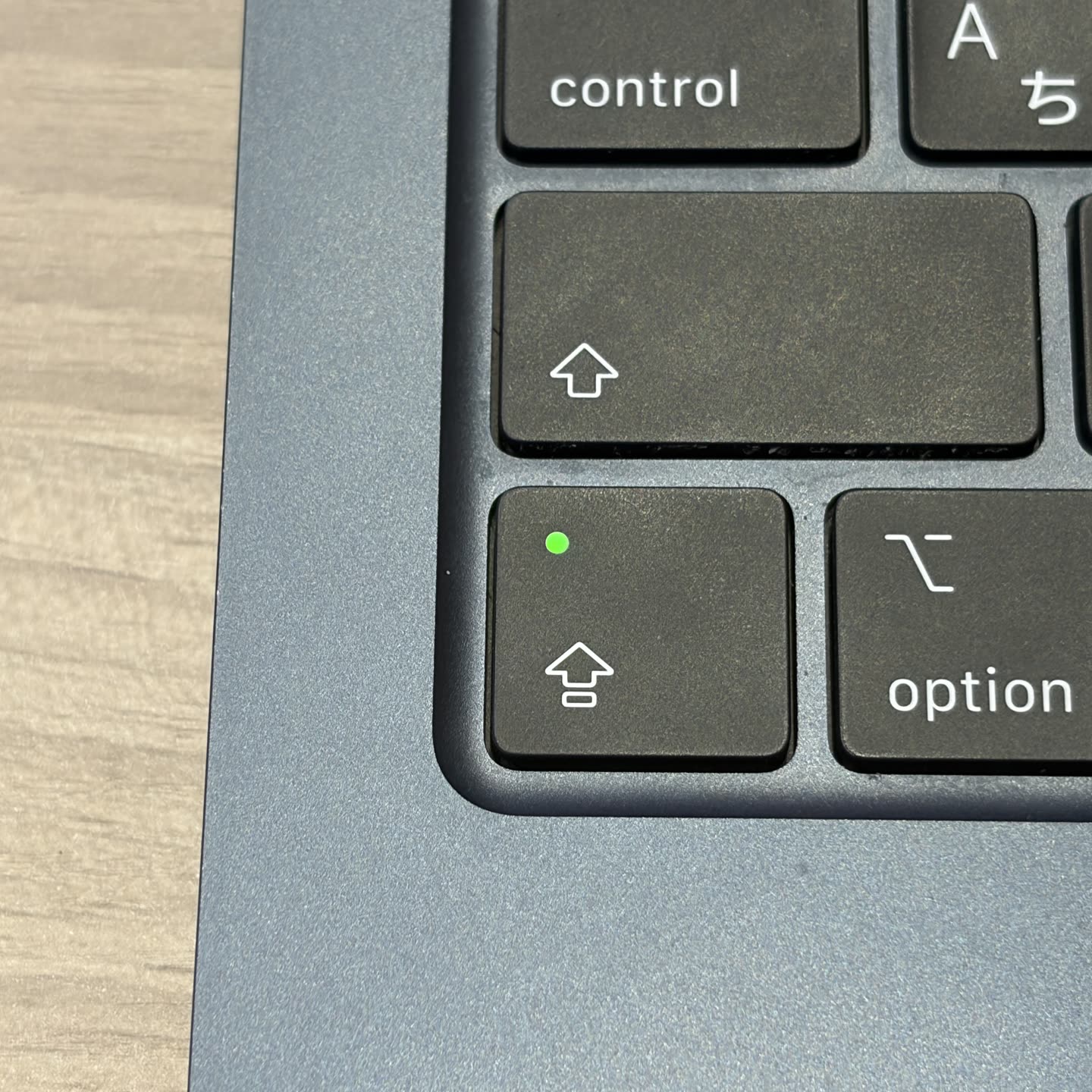
When this tiny light is on, your Mac stays awake.
Requirements:
Install the signed package:
Capsomnia.pkg from GitHub Releases.Release packages are signed with Developer ID and notarized by Apple. The package installs Capsomnia.app in /Applications, installs the signed native privileged sleep-control helper, adds a narrow sudoers rule, and starts the LaunchAgent. Capsomnia opens after installation and starts automatically at login afterward.
The package build and install scripts are public in scripts/build-pkg.sh and scripts/notarize-pkg.sh.
In Advanced Settings → Download Capsomnia CLI & Skill, confirm Install in the dialog to add both tools.
Capsomnia downloads the package and installs it after macOS authentication,
then shows a completion dialog. There are no agent or folder choices. The app's own package
contains only the app and its helper; Capsomnia-Tools.pkg, published in the cpsm
repository, adds the optional tools.
capsomnia
Skill. Requires this app; one-shot timers and explicit off include sleep.macready Skill. Does not require the app.The app downloads the signed and notarized Tools package from the cpsm GitHub release.
Skills are shared in ~/.agents/skills/, with automatic Claude Code links.
Normal CLI usage stays local. Distribution and compatibility.
Developer source installation supports Apple silicon Macs on macOS 14 or later and Intel Macs on macOS 13.5 or later. It requires Swift 5.9 or later, included with Xcode 15 or later:
git clone https://github.com/fuji-mak/Capsomnia.git
cd Capsomnia
./scripts/install.sh
The source installer builds Capsomnia.app locally, places it in ~/Applications/, installs the restricted helper and sudoers rule, and starts a user LaunchAgent. The signed and notarized release package remains Apple silicon-only and requires macOS 14 or later.
Capsomnia is useful for long-running local jobs, AI coding agents, SSH sessions, builds, downloads, and unattended scripts.
Advanced Settings includes an optional "Keep hotspot connected" switch, off by default. While Capsomnia is on, it sends one small probe per minute to a recognized hotspot gateway, including iPhone Personal Hotspot, to help prevent idle disconnections. The probes stay on the local network and may slightly increase the phone's battery use. This does not automatically reconnect a lost hotspot connection.
On first launch, Capsomnia explains how the Caps Lock switch works and lets you choose:
"Open at login" is enabled by default and does not appear in initial setup. Open Capsomnia again later to use the two day-to-day controls directly: the opt-in "Keep display awake" setting and the optional auto-off timer. "Keep display awake" is off by default, so closing the lid normally puts the display to sleep. The timer is also off by default. Each time Capsomnia is enabled, the selected duration starts from the beginning; the restart button resets the current countdown. Advanced Settings contains the less frequently changed menu bar, all-caps prevention, language, login, lid-closed Caps Lock guard, and global shortcut options, plus an optional "Hide the Caps Lock indicator" toggle. This uses an undocumented system-wide macOS feature flag, may affect other text-cursor indicators, and takes effect after restarting the Mac. Capsomnia shows a reminder until the restart happens. It saves the previous target value before changing it and restores that value when the toggle is turned off or Capsomnia is uninstalled. "Show menu bar icon" remains independent when "Prevent all-caps typing" is enabled. If the icon is hidden, a red dot appears temporarily when an error occurs.
The menu bar menu keeps the same day-to-day controls close at hand: choose Off or a timer preset, see the remaining time while it runs, open the custom timer editor, and toggle "Keep display awake" without opening Settings. Menu bar visibility and language remain in Settings.
macOS Accessibility permission is required only when "Prevent all-caps typing" is enabled. Capsomnia installs a local Core Graphics event filter that removes only the Caps Lock modifier from keyboard events; it does not store keyboard input or send it anywhere. If permission is missing or the filter stops, the menu bar dot turns red and the app retries capitalization prevention. Awake mode and the running timer continue independently, including normal ON/OFF controls and timer expiry. Caps Lock may affect typing until the filter recovers. When this setting is disabled, Accessibility permission is not required and Capsomnia only checks the local Caps Lock state every 250 milliseconds.
You can open Capsomnia from /Applications/Capsomnia.app after package installation, from ~/Applications/Capsomnia.app after source installation, or from the menu bar item while it is visible.
caffeinate?caffeinate is useful for preventing idle sleep while your Mac is open. Closing a MacBook lid is different: normal caffeinate assertions do not reliably keep local jobs running in closed-lid use.
Capsomnia keeps work running in closed-lid use the same way it would while the lid is open. The yellow-green Caps Lock light makes that state visible.
For package installs, download and run the latest package from GitHub Releases.
For source installs, update from an existing clone:
cd Capsomnia
git pull
./scripts/install.sh
The install script overwrites the app bundle, helper, sudoers rule, and LaunchAgent with the current version.
For package installs:
/Applications/Capsomnia.app/Contents/Resources/uninstall.sh
For source installs:
~/Applications/Capsomnia.app/Contents/Resources/uninstall.sh
From a source clone, this is equivalent:
./scripts/uninstall.sh
The uninstaller unloads the LaunchAgent, stops Capsomnia, removes Capsomnia.app from /Applications or ~/Applications, removes the helper and sudoers rule, restores normal sleep behavior, and restores the Caps Lock indicator setting captured before Capsomnia changed it. Administrator authentication may be required.
Capsomnia's menu bar app does not run as root. System sleep settings require elevated privileges, so Capsomnia uses a small fixed native helper through passwordless sudo. The helper is a compiled executable and does not invoke a shell or load shell startup files.
Package-installed app files, the helper, and the system LaunchAgent are owned by root:wheel. The packaged helper is also signed with the same Developer ID as the app. Capsomnia verifies the actual SleepDisabled state after every change and every ten seconds afterward. If the helper cannot apply a change, the state cannot be verified, or the setting drifts, the menu bar dot turns red and Capsomnia retries after five seconds instead of showing the requested state as active. The red error dot appears temporarily even if the menu bar icon is normally hidden.
When "Prevent all-caps typing" is disabled, Capsomnia does not request Input Monitoring or inspect keyboard events. When it is enabled, a local active Core Graphics event filter uses Accessibility permission only to remove .maskAlphaShift and suppress the Caps Lock modifier-change event. It does not log event contents, persist them, or send them over the network. Capsomnia still reads the physical Caps Lock state every 250 milliseconds to control sleep.
macOS may show "Taketo Fujimaki" instead of "Capsomnia" for an existing cached background-item registration. This is the LaunchAgent that starts Capsomnia at login and restarts it after crashes. Disabling it can stop automatic startup and crash recovery.
If Capsomnia is force-killed while crash recovery is disabled or unavailable, the last system sleep setting can remain active. Use the manual recovery command below to restore normal sleep behavior.
The app invokes these privileged commands:
sudo -n /Library/PrivilegedHelperTools/capsomnia-pmset on
sudo -n /Library/PrivilegedHelperTools/capsomnia-pmset off
sudo -n /Library/PrivilegedHelperTools/capsomnia-pmset display-sleep
sudo -n /Library/PrivilegedHelperTools/capsomnia-pmset indicator-hide
sudo -n /Library/PrivilegedHelperTools/capsomnia-pmset indicator-show
sudo -n /Library/PrivilegedHelperTools/capsomnia-pmset indicator-restore
The sudoers rule is limited to those six exact commands. The helper only accepts on, off, display-sleep, indicator-hide, indicator-show, and indicator-restore. The first three only call:
/usr/bin/pmset -a disablesleep 1
/usr/bin/pmset -a disablesleep 0
/usr/bin/pmset displaysleepnow
The indicator modes only edit the fixed file /Library/Preferences/FeatureFlags/Domain/UIKit.plist. Hiding saves the original presence and value of redesigned_text_cursor.Enabled in a root-owned 0600 backup before writing the override. Showing restores it, while uninstall-only indicator-restore does nothing when Capsomnia has no backup. Unrelated flags are preserved, and unreadable or malformed plist data causes the operation to fail without replacing or deleting the file. This is an undocumented macOS feature flag and may affect other text-cursor indicators.
After an auto-off timer has successfully turned Caps Lock off and confirmed SleepDisabled=0, the app rechecks that the lid is closed before running /usr/bin/pmset sleepnow directly as the current user. This immediate sleep request does not use sudo and does not expand the helper or sudoers permissions.
Logs are written to:
~/Library/Logs/Capsomnia/
Check whether sleep is disabled:
pmset -g | grep SleepDisabled
Restore normal sleep manually:
sudo pmset -a disablesleep 0
Restart the LaunchAgent:
launchctl bootout "gui/$(id -u)" /Library/LaunchAgents/com.github.fuji-mak.capsomnia.plist
launchctl bootstrap "gui/$(id -u)" /Library/LaunchAgents/com.github.fuji-mak.capsomnia.plist
For source installs, use $HOME/Library/LaunchAgents/com.github.fuji-mak.capsomnia.plist instead.
Capsomnia's LaunchAgent restarts the app after a crash or other unsuccessful exit. On startup, Capsomnia reads the current Caps Lock state and reapplies the matching sleep setting. Normal Quit still exits cleanly and does not restart the app.
Check the helper permissions:
sudo -n -l /Library/PrivilegedHelperTools/capsomnia-pmset on \
  /Library/PrivilegedHelperTools/capsomnia-pmset off \
  /Library/PrivilegedHelperTools/capsomnia-pmset display-sleep \
  /Library/PrivilegedHelperTools/capsomnia-pmset indicator-hide \
  /Library/PrivilegedHelperTools/capsomnia-pmset indicator-show \
  /Library/PrivilegedHelperTools/capsomnia-pmset indicator-restore
If the helper permission check fails, run ./scripts/install.sh again. Capsomnia checks the Caps Lock state every 250 milliseconds, so the menu bar dot may update by up to roughly a quarter second after the physical LED changes.
Capsomnia 1.0.0 is the first stable public release. See CHANGELOG.md for release history and SECURITY.md for vulnerability reporting.
MIT
1,273 followers · starred Sep 2026
757 followers · starred Jul 2026
921 followers · starred Jul 2026
5,155 followers · starred Jul 2026
A tiny macOS app that turns Caps Lock into a physical keep-awake switch for closed-lid MacBook work.
See the code
Current version: 4.2.5
日本語 README · 简体中文 README · 한국어 README
Capsomnia is a small macOS menu bar app that turns Caps Lock into a physical keep-awake switch for closed-lid MacBook work.
Turn Caps Lock on when local work should keep running. Turn Caps Lock off when you want normal sleep behavior back.
It is useful for AI agents, mobile access, and other long-running or remote work.
Capsomnia does not collect telemetry or require an account. Network use is limited to an optional daily update check that reads GitHub's public release information (off switch in Advanced Settings), downloading installers from GitHub when you choose to update or install CLI & Skill, and local gateway probes when "Keep hotspot connected" is enabled. Capsomnia sends no telemetry, identifiers, or personal data.
When “Use Computer Use and similar tools” is enabled, an optional “Lock when lid opens” checkbox appears beneath it. It is off by default and locks the Mac after a closed-to-open lid transition is detected while Capsomnia is on. The settings header indicator shows confirmed ON in glowing green, OFF in gray, and failure or unknown state in red. Lid-open locking is detected after opening; it does not guarantee that screen contents are never briefly visible.
When this tiny light is on, your Mac stays awake.
Requirements:
Install the signed package:
Capsomnia.pkg from GitHub Releases.Release packages are signed with Developer ID and notarized by Apple. The package installs Capsomnia.app in /Applications, installs the signed native privileged sleep-control helper, adds a narrow sudoers rule, and starts the LaunchAgent. Capsomnia opens after installation and starts automatically at login afterward.
The package build and install scripts are public in scripts/build-pkg.sh and scripts/notarize-pkg.sh.
In Advanced Settings → Download Capsomnia CLI & Skill, confirm Install in the dialog to add both tools.
Capsomnia downloads the package and installs it after macOS authentication,
then shows a completion dialog. There are no agent or folder choices. The app's own package
contains only the app and its helper; Capsomnia-Tools.pkg, published in the cpsm
repository, adds the optional tools.
capsomnia
Skill. Requires this app; one-shot timers and explicit off include sleep.macready Skill. Does not require the app.The app downloads the signed and notarized Tools package from the cpsm GitHub release.
Skills are shared in ~/.agents/skills/, with automatic Claude Code links.
Normal CLI usage stays local. Distribution and compatibility.
Developer source installation supports Apple silicon Macs on macOS 14 or later and Intel Macs on macOS 13.5 or later. It requires Swift 5.9 or later, included with Xcode 15 or later:
git clone https://github.com/fuji-mak/Capsomnia.git
cd Capsomnia
./scripts/install.sh
The source installer builds Capsomnia.app locally, places it in ~/Applications/, installs the restricted helper and sudoers rule, and starts a user LaunchAgent. The signed and notarized release package remains Apple silicon-only and requires macOS 14 or later.
Capsomnia is useful for long-running local jobs, AI coding agents, SSH sessions, builds, downloads, and unattended scripts.
Advanced Settings includes an optional "Keep hotspot connected" switch, off by default. While Capsomnia is on, it sends one small probe per minute to a recognized hotspot gateway, including iPhone Personal Hotspot, to help prevent idle disconnections. The probes stay on the local network and may slightly increase the phone's battery use. This does not automatically reconnect a lost hotspot connection.
On first launch, Capsomnia explains how the Caps Lock switch works and lets you choose:
"Open at login" is enabled by default and does not appear in initial setup. Open Capsomnia again later to use the two day-to-day controls directly: the opt-in "Keep display awake" setting and the optional auto-off timer. "Keep display awake" is off by default, so closing the lid normally puts the display to sleep. The timer is also off by default. Each time Capsomnia is enabled, the selected duration starts from the beginning; the restart button resets the current countdown. Advanced Settings contains the less frequently changed menu bar, all-caps prevention, language, login, lid-closed Caps Lock guard, and global shortcut options, plus an optional "Hide the Caps Lock indicator" toggle. This uses an undocumented system-wide macOS feature flag, may affect other text-cursor indicators, and takes effect after restarting the Mac. Capsomnia shows a reminder until the restart happens. It saves the previous target value before changing it and restores that value when the toggle is turned off or Capsomnia is uninstalled. "Show menu bar icon" remains independent when "Prevent all-caps typing" is enabled. If the icon is hidden, a red dot appears temporarily when an error occurs.
The menu bar menu keeps the same day-to-day controls close at hand: choose Off or a timer preset, see the remaining time while it runs, open the custom timer editor, and toggle "Keep display awake" without opening Settings. Menu bar visibility and language remain in Settings.
macOS Accessibility permission is required only when "Prevent all-caps typing" is enabled. Capsomnia installs a local Core Graphics event filter that removes only the Caps Lock modifier from keyboard events; it does not store keyboard input or send it anywhere. If permission is missing or the filter stops, the menu bar dot turns red and the app retries capitalization prevention. Awake mode and the running timer continue independently, including normal ON/OFF controls and timer expiry. Caps Lock may affect typing until the filter recovers. When this setting is disabled, Accessibility permission is not required and Capsomnia only checks the local Caps Lock state every 250 milliseconds.
You can open Capsomnia from /Applications/Capsomnia.app after package installation, from ~/Applications/Capsomnia.app after source installation, or from the menu bar item while it is visible.
caffeinate?caffeinate is useful for preventing idle sleep while your Mac is open. Closing a MacBook lid is different: normal caffeinate assertions do not reliably keep local jobs running in closed-lid use.
Capsomnia keeps work running in closed-lid use the same way it would while the lid is open. The yellow-green Caps Lock light makes that state visible.
For package installs, download and run the latest package from GitHub Releases.
For source installs, update from an existing clone:
cd Capsomnia
git pull
./scripts/install.sh
The install script overwrites the app bundle, helper, sudoers rule, and LaunchAgent with the current version.
For package installs:
/Applications/Capsomnia.app/Contents/Resources/uninstall.sh
For source installs:
~/Applications/Capsomnia.app/Contents/Resources/uninstall.sh
From a source clone, this is equivalent:
./scripts/uninstall.sh
The uninstaller unloads the LaunchAgent, stops Capsomnia, removes Capsomnia.app from /Applications or ~/Applications, removes the helper and sudoers rule, restores normal sleep behavior, and restores the Caps Lock indicator setting captured before Capsomnia changed it. Administrator authentication may be required.
Capsomnia's menu bar app does not run as root. System sleep settings require elevated privileges, so Capsomnia uses a small fixed native helper through passwordless sudo. The helper is a compiled executable and does not invoke a shell or load shell startup files.
Package-installed app files, the helper, and the system LaunchAgent are owned by root:wheel. The packaged helper is also signed with the same Developer ID as the app. Capsomnia verifies the actual SleepDisabled state after every change and every ten seconds afterward. If the helper cannot apply a change, the state cannot be verified, or the setting drifts, the menu bar dot turns red and Capsomnia retries after five seconds instead of showing the requested state as active. The red error dot appears temporarily even if the menu bar icon is normally hidden.
When "Prevent all-caps typing" is disabled, Capsomnia does not request Input Monitoring or inspect keyboard events. When it is enabled, a local active Core Graphics event filter uses Accessibility permission only to remove .maskAlphaShift and suppress the Caps Lock modifier-change event. It does not log event contents, persist them, or send them over the network. Capsomnia still reads the physical Caps Lock state every 250 milliseconds to control sleep.
macOS may show "Taketo Fujimaki" instead of "Capsomnia" for an existing cached background-item registration. This is the LaunchAgent that starts Capsomnia at login and restarts it after crashes. Disabling it can stop automatic startup and crash recovery.
If Capsomnia is force-killed while crash recovery is disabled or unavailable, the last system sleep setting can remain active. Use the manual recovery command below to restore normal sleep behavior.
The app invokes these privileged commands:
sudo -n /Library/PrivilegedHelperTools/capsomnia-pmset on
sudo -n /Library/PrivilegedHelperTools/capsomnia-pmset off
sudo -n /Library/PrivilegedHelperTools/capsomnia-pmset display-sleep
sudo -n /Library/PrivilegedHelperTools/capsomnia-pmset indicator-hide
sudo -n /Library/PrivilegedHelperTools/capsomnia-pmset indicator-show
sudo -n /Library/PrivilegedHelperTools/capsomnia-pmset indicator-restore
The sudoers rule is limited to those six exact commands. The helper only accepts on, off, display-sleep, indicator-hide, indicator-show, and indicator-restore. The first three only call:
/usr/bin/pmset -a disablesleep 1
/usr/bin/pmset -a disablesleep 0
/usr/bin/pmset displaysleepnow
The indicator modes only edit the fixed file /Library/Preferences/FeatureFlags/Domain/UIKit.plist. Hiding saves the original presence and value of redesigned_text_cursor.Enabled in a root-owned 0600 backup before writing the override. Showing restores it, while uninstall-only indicator-restore does nothing when Capsomnia has no backup. Unrelated flags are preserved, and unreadable or malformed plist data causes the operation to fail without replacing or deleting the file. This is an undocumented macOS feature flag and may affect other text-cursor indicators.
After an auto-off timer has successfully turned Caps Lock off and confirmed SleepDisabled=0, the app rechecks that the lid is closed before running /usr/bin/pmset sleepnow directly as the current user. This immediate sleep request does not use sudo and does not expand the helper or sudoers permissions.
Logs are written to:
~/Library/Logs/Capsomnia/
Check whether sleep is disabled:
pmset -g | grep SleepDisabled
Restore normal sleep manually:
sudo pmset -a disablesleep 0
Restart the LaunchAgent:
launchctl bootout "gui/$(id -u)" /Library/LaunchAgents/com.github.fuji-mak.capsomnia.plist
launchctl bootstrap "gui/$(id -u)" /Library/LaunchAgents/com.github.fuji-mak.capsomnia.plist
For source installs, use $HOME/Library/LaunchAgents/com.github.fuji-mak.capsomnia.plist instead.
Capsomnia's LaunchAgent restarts the app after a crash or other unsuccessful exit. On startup, Capsomnia reads the current Caps Lock state and reapplies the matching sleep setting. Normal Quit still exits cleanly and does not restart the app.
Check the helper permissions:
sudo -n -l /Library/PrivilegedHelperTools/capsomnia-pmset on \
  /Library/PrivilegedHelperTools/capsomnia-pmset off \
  /Library/PrivilegedHelperTools/capsomnia-pmset display-sleep \
  /Library/PrivilegedHelperTools/capsomnia-pmset indicator-hide \
  /Library/PrivilegedHelperTools/capsomnia-pmset indicator-show \
  /Library/PrivilegedHelperTools/capsomnia-pmset indicator-restore
If the helper permission check fails, run ./scripts/install.sh again. Capsomnia checks the Caps Lock state every 250 milliseconds, so the menu bar dot may update by up to roughly a quarter second after the physical LED changes.
Capsomnia 1.0.0 is the first stable public release. See CHANGELOG.md for release history and SECURITY.md for vulnerability reporting.
MIT
1,273 followers · starred Sep 2026
757 followers · starred Jul 2026
921 followers · starred Jul 2026
5,155 followers · starred Jul 2026



