
Disable spotlight indexing on external drives when connected.
Swift
13
69 commits
updated Sep 30, 2026
See what people are saying
README
Spotlight Off
Automatically disables Spotlight indexing on external drives the moment they're connected.




What it does
Every time you plug in an external drive, macOS quietly starts building a Spotlight index on it — consuming disk space and I/O you didn't ask for. Spotlight Off sits in your menu bar and takes care of it automatically.
- 🔌 Detects any external drive the moment it's mounted
- 🔍 Checks whether Spotlight indexing is currently enabled
- 🚫 Disables it instantly using
mdutil— no password prompt required - 🔁 Catches drives already connected when it starts, not just new ones
- ✅ Remembers exceptions — re-enable Spotlight on a drive and it stays on
- 🧹 Cleans up — optionally removes the old Spotlight index to free space, removes
._and.DS_Storeclutter, and can stop Finder writing.DS_Storefiles on external drives - 🧾 Logs every action in a colour-coded activity log (saved to
~/Library/Logs/Spotlight Off), filterable to failures only - 🔔 Notifies you with a macOS notification (respects Focus) or a subtle pop-up when a drive is processed
- 🚀 Launches at login so it's always running in the background
- 👋 Setup checklist shows live status for the one required permission (and the app warns you if it's ever missing), plus a Help tab explaining indexing, the cleanup actions and troubleshooting
Works with APFS, HFS+, and exFAT volumes — external drives, USB card readers, and SD cards in the MacBook's built-in SD card slot. Disk images (.dmg files) and Time Machine volumes are automatically ignored.
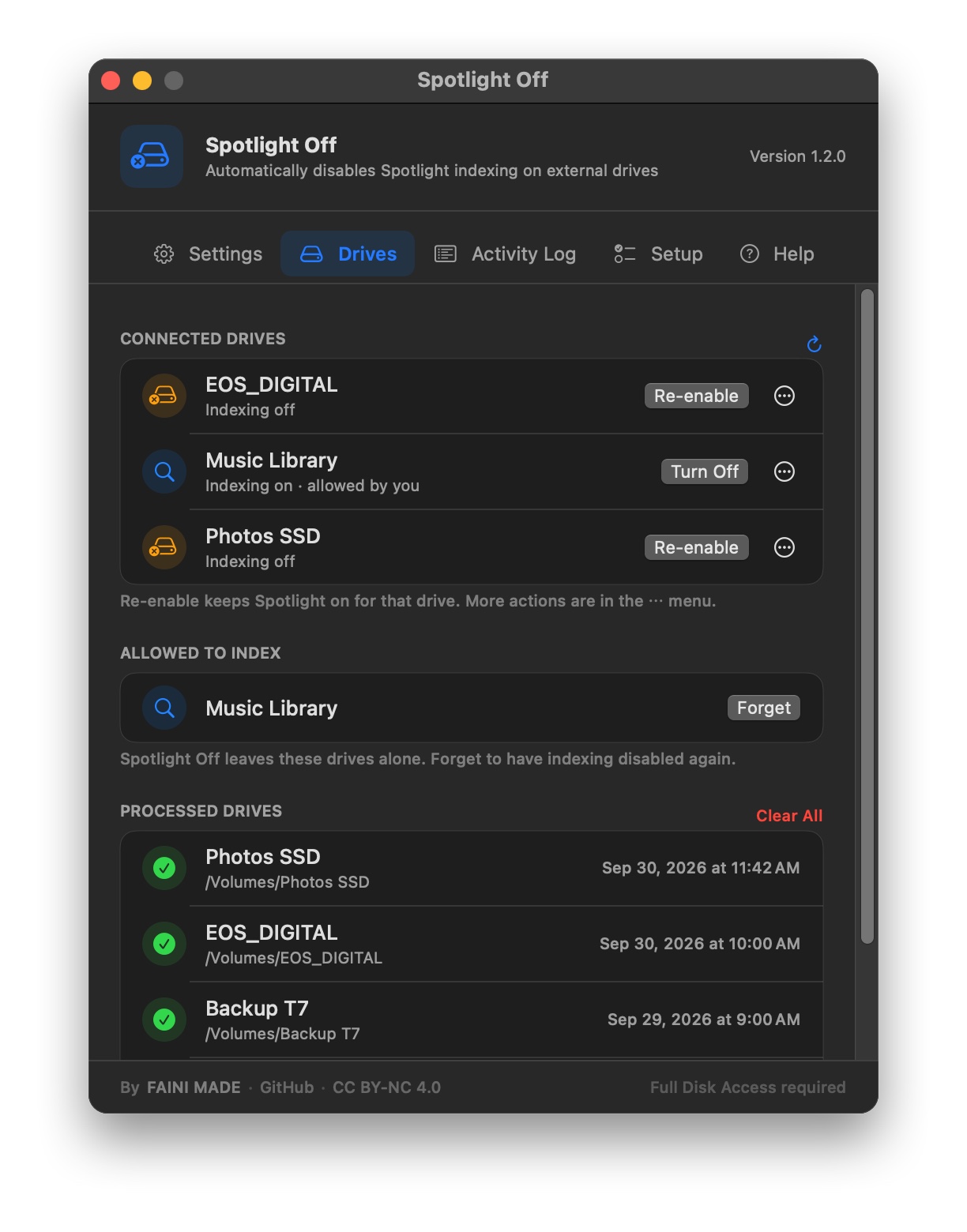
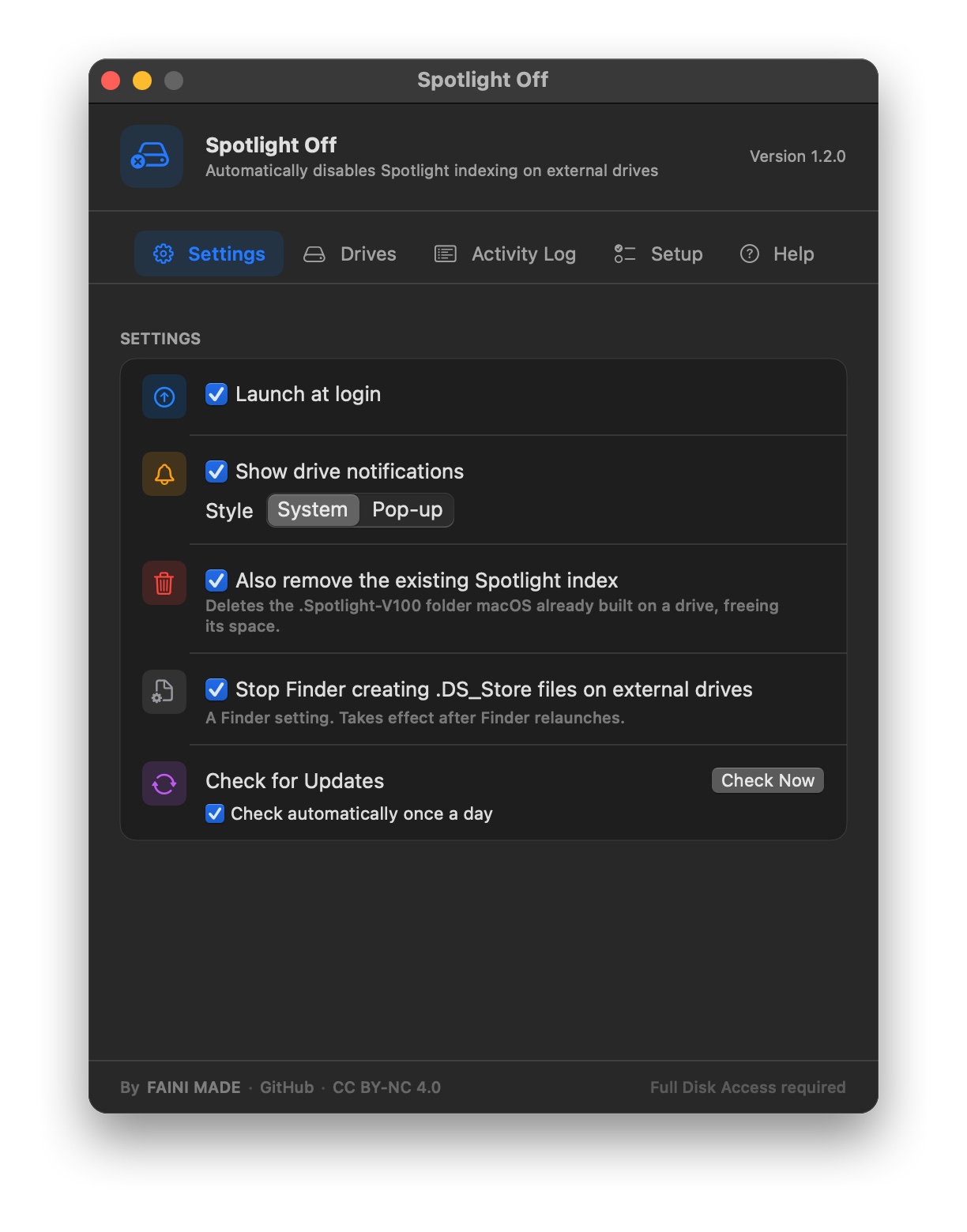
Screenshot
Installation
- Download the latest release from the Releases page
- Move Spotlight Off.app to your
/Applicationsfolder - Launch it — the icon will appear in your menu bar
- On first launch the settings window opens on the Setup tab, which walks you through the one required permission
- Optionally enable Launch at Login in the settings window
First-time setup
Spotlight Off only needs one permission: Full Disk Access.
Full Disk Access
Open System Settings → Privacy & Security → Full Disk Access and make sure Spotlight Off is toggled on. That's it — no admin password prompt, no additional tools needed.
Full Disk Access is what allows
mdutilto disable Spotlight indexing without requiring root. Once granted, drives are processed automatically and silently every time they connect.
You can return to the checklist any time via the menu bar icon → History & Settings… → Setup
Usage
| Action | How |
|---|---|
| See connected and recently processed drives | Click the menu bar icon |
| Act on a connected drive | Menu bar icon → the drive's name, or the … menu next to it in settings |
| Open full history & settings | Click History & Settings… or press ⌘, |
| Reopen the setup checklist | Setup tab in the settings window |
| Learn how it works / troubleshoot | Help tab in the settings window |
| Turn Spotlight back on for a drive (and keep it on) | Click Re-enable in the Drives tab |
| Free the space used by an old Spotlight index | Remove Spotlight Index… in a drive's menu, or turn on Also remove the existing Spotlight index |
Remove ._ and .DS_Store files from a drive | Remove macOS Clutter… in a drive's menu |
Stop Finder writing .DS_Store files on external drives | Toggle in the Settings tab, then relaunch Finder |
| Let the app manage a re-enabled drive again | Click Forget under Allowed to Index |
| Remove a history entry | Hover over it in the list and click the ✕ button |
| Clear all history | Click Clear All in the Drives tab |
| Enable launch at login | Toggle in the Settings tab |
| View activity log | Click the Activity Log tab in the settings window |
| Copy or open the activity log | Click Copy or Log File in the Activity Log tab |
| Quit | Click Quit Spotlight Off in the menu |
How it works
When a volume mounts (or is already mounted when the app starts), Spotlight Off:
- Ignores disk images, Time Machine volumes, and internal (non-removable) or virtual volumes, plus any drive you've re-enabled indexing on
- Reads the volume's metadata flags to confirm it's a local, non-root volume that's either external or removable (the built-in SD card reader reports cards as internal but removable)
- Waits 4 seconds for the volume to fully initialise
- Runs
mdutil -sto check whether indexing is currently enabled - If enabled, runs
mdutil -i offdirectly — no shell, no escalation - Optionally deletes the
.Spotlight-V100index folder macOS already built on the drive - Records the result in the activity log and persistent history
Full Disk Access grants mdutil the permissions it needs to disable indexing without requiring root. History is stored locally in UserDefaults and the activity log in ~/Library/Logs/Spotlight Off/activity.log. The only network request the app makes is a check for updates against the GitHub Releases API — about once a day, or when you click Check Now. It sends nothing about you or your drives, and you can turn automatic checks off in settings.
Requirements
- macOS 14 Sonoma or later
- Full Disk Access (granted once in System Settings)
Building from source
git clone https://github.com/titleunknown/Spotlight-Off.git
cd Spotlight-Off
open "Spotlight Off.xcodeproj"
Set your deployment target to macOS 14.0, select your development team in Signing & Capabilities, then build and run.
Support development
Spotlight Off is free and open source. If it saves you time, consider buying me a coffee ☕



License
Spotlight Off is licensed under CC BY-NC 4.0. Free for personal and non-commercial use. For commercial licensing contact fainimade.com.
Significant stargazers

31 followers · starred Apr 2026
Similar repos


Languages
Swift
100.0%
Disable spotlight indexing on external drives when connected.
Swift
13
69 commits
updated Sep 30, 2026
See what people are saying
README
Spotlight Off
Automatically disables Spotlight indexing on external drives the moment they're connected.
What it does
Every time you plug in an external drive, macOS quietly starts building a Spotlight index on it — consuming disk space and I/O you didn't ask for. Spotlight Off sits in your menu bar and takes care of it automatically.
- 🔌 Detects any external drive the moment it's mounted
- 🔍 Checks whether Spotlight indexing is currently enabled
- 🚫 Disables it instantly using
mdutil— no password prompt required - 🔁 Catches drives already connected when it starts, not just new ones
- ✅ Remembers exceptions — re-enable Spotlight on a drive and it stays on
- 🧹 Cleans up — optionally removes the old Spotlight index to free space, removes
._and.DS_Storeclutter, and can stop Finder writing.DS_Storefiles on external drives - 🧾 Logs every action in a colour-coded activity log (saved to
~/Library/Logs/Spotlight Off), filterable to failures only - 🔔 Notifies you with a macOS notification (respects Focus) or a subtle pop-up when a drive is processed
- 🚀 Launches at login so it's always running in the background
- 👋 Setup checklist shows live status for the one required permission (and the app warns you if it's ever missing), plus a Help tab explaining indexing, the cleanup actions and troubleshooting
Works with APFS, HFS+, and exFAT volumes — external drives, USB card readers, and SD cards in the MacBook's built-in SD card slot. Disk images (.dmg files) and Time Machine volumes are automatically ignored.
Screenshot
Installation
- Download the latest release from the Releases page
- Move Spotlight Off.app to your
/Applicationsfolder - Launch it — the icon will appear in your menu bar
- On first launch the settings window opens on the Setup tab, which walks you through the one required permission
- Optionally enable Launch at Login in the settings window
First-time setup
Spotlight Off only needs one permission: Full Disk Access.
Full Disk Access
Open System Settings → Privacy & Security → Full Disk Access and make sure Spotlight Off is toggled on. That's it — no admin password prompt, no additional tools needed.
Full Disk Access is what allows
mdutilto disable Spotlight indexing without requiring root. Once granted, drives are processed automatically and silently every time they connect.
You can return to the checklist any time via the menu bar icon → History & Settings… → Setup
Usage
| Action | How |
|---|---|
| See connected and recently processed drives | Click the menu bar icon |
| Act on a connected drive | Menu bar icon → the drive's name, or the … menu next to it in settings |
| Open full history & settings | Click History & Settings… or press ⌘, |
| Reopen the setup checklist | Setup tab in the settings window |
| Learn how it works / troubleshoot | Help tab in the settings window |
| Turn Spotlight back on for a drive (and keep it on) | Click Re-enable in the Drives tab |
| Free the space used by an old Spotlight index | Remove Spotlight Index… in a drive's menu, or turn on Also remove the existing Spotlight index |
Remove ._ and .DS_Store files from a drive | Remove macOS Clutter… in a drive's menu |
Stop Finder writing .DS_Store files on external drives | Toggle in the Settings tab, then relaunch Finder |
| Let the app manage a re-enabled drive again | Click Forget under Allowed to Index |
| Remove a history entry | Hover over it in the list and click the ✕ button |
| Clear all history | Click Clear All in the Drives tab |
| Enable launch at login | Toggle in the Settings tab |
| View activity log | Click the Activity Log tab in the settings window |
| Copy or open the activity log | Click Copy or Log File in the Activity Log tab |
| Quit | Click Quit Spotlight Off in the menu |
How it works
When a volume mounts (or is already mounted when the app starts), Spotlight Off:
- Ignores disk images, Time Machine volumes, and internal (non-removable) or virtual volumes, plus any drive you've re-enabled indexing on
- Reads the volume's metadata flags to confirm it's a local, non-root volume that's either external or removable (the built-in SD card reader reports cards as internal but removable)
- Waits 4 seconds for the volume to fully initialise
- Runs
mdutil -sto check whether indexing is currently enabled - If enabled, runs
mdutil -i offdirectly — no shell, no escalation - Optionally deletes the
.Spotlight-V100index folder macOS already built on the drive - Records the result in the activity log and persistent history
Full Disk Access grants mdutil the permissions it needs to disable indexing without requiring root. History is stored locally in UserDefaults and the activity log in ~/Library/Logs/Spotlight Off/activity.log. The only network request the app makes is a check for updates against the GitHub Releases API — about once a day, or when you click Check Now. It sends nothing about you or your drives, and you can turn automatic checks off in settings.
Requirements
- macOS 14 Sonoma or later
- Full Disk Access (granted once in System Settings)
Building from source
git clone https://github.com/titleunknown/Spotlight-Off.git
cd Spotlight-Off
open "Spotlight Off.xcodeproj"
Set your deployment target to macOS 14.0, select your development team in Signing & Capabilities, then build and run.
Support development
Spotlight Off is free and open source. If it saves you time, consider buying me a coffee ☕
License
Spotlight Off is licensed under CC BY-NC 4.0. Free for personal and non-commercial use. For commercial licensing contact fainimade.com.
Similar repos
Significant stargazers
31 followers · starred Apr 2026
Languages
Swift
100.0%