
Free up your Mac, safely. Clears the cache and junk it piles up on its own. Open source, and everything goes to the Trash, so nothing is ever lost.
See the codeREADME

Purge
Free up your Mac. Safely.
Clear out the cache and junk your Mac collects on its own.
Open source, trash-by-default.


Download · Install guide · Build from source · Security
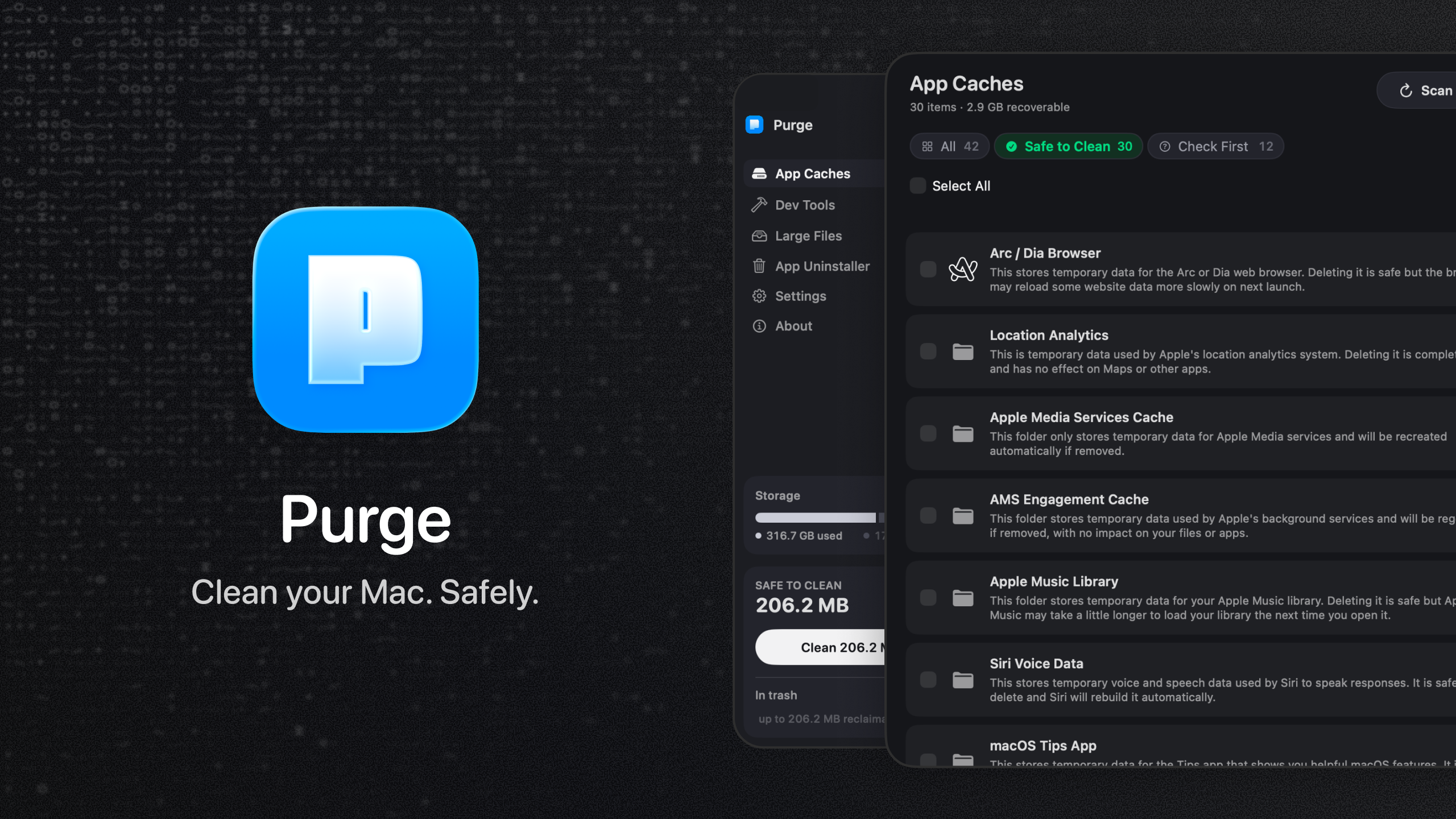
Your Mac quietly fills up with cache and junk you never see and never asked for. Purge finds it, marks what is safe, and clears it in one click.
[!NOTE] Nothing is ever deleted permanently. Everything moves to the Trash, so anything can come back.
You do not need to understand any of it to use it. But if you ever want to check, every item carries a plain-English explanation and a safety label, so nothing gets touched that you cannot see and verify first.
Features
App Caches
Scans ~/Library/Caches, sandbox container caches, and common system junk:
- Per-app cache folders with friendly names, brand icons, and a plain-English explanation if you want to read it
- System Junk like application logs, crash reports, macOS installers, font cache
- Large media caches from creative apps like Premiere Pro and After Effects
- Duplicate cache locations for the same app merged into a single row
- Results stream in as they are found
Dev Tools
Three sections in one view:
- Global dev tool caches: Xcode (Derived Data, Archives, DeviceSupport), Homebrew, npm, pnpm, Yarn, CocoaPods, Gradle, Flutter, Docker Desktop, VS Code, Cursor, JetBrains, Cargo, Terraform, and more
- iOS Simulators: unused simulator runtimes grouped together (booted simulators are skipped)
- Developer projects:
node_modules, Python virtual environments, Rusttarget, Flutter build output, XcodePods, Android.gradle, and other artifacts grouped by project
In Settings → Developer Projects, choose Consider stale after (1 month to 2 years, or Show all) to control which project folders appear.
Large Files
Find space-hogging personal files without digging through folders:
- Scans Documents, Desktop, Downloads, Movies, Music, and Pictures
- Skips managed libraries (Photos, iMovie, Music, and similar), hidden folders, and project folders like
node_modules,Pods,DerivedDataand build output. Deleting a single file out of a dependency tree only breaks the install, so those belong in Dev Tools, which removes them a folder at a time - Search filters the list as you type, matching the file name, the folder it sits in, and its source label
- Filter by size (5 MB to 1 GB) and last used (any time up to over 1 year ago)
- Category chips for videos, audio, images, PDFs, archives, documents, AI models, and other files
- Duplicates: a byte-for-byte scan finds identical copies, groups them together, and shows how much you'd reclaim by keeping one. A Duplicates chip gathers them in one place. Keep one of each clears a whole tab of duplicates in one go. It suggests a copy to keep per set and marks the rest for Trash, and you can move the keeper to a different copy before anything is deleted. Nothing is removed until you review and confirm
- Sort by size, date, or name; select files and review before deleting
- Quick Look preview and Reveal in Finder from each row
- Deletions move files to Trash, so nothing is permanently erased
Large Files is separate from cache cleanup: these are your personal files, not rebuildable caches.
Local AI models
Models you downloaded with Ollama or LM Studio are often the largest files on a Mac and are easy to forget. They appear in Large Files under the AI Models category, one row per model, named the way you installed it. Purge understands Ollama's content-addressed storage, so a model's size counts only the bytes that would actually be reclaimed rather than blobs shared with another model.
App Uninstaller
Dragging an app to the Trash leaves most of it behind: caches, preferences, containers, saved state, logs, and login helpers pile up on disk. The Uninstaller removes the app and those leftovers in one pass.
- Lists the apps you installed in Applications and ~/Applications, skipping system apps and Purge itself. Each tile shows what an uninstall would free: the app bundle plus its removable leftovers
- Select one or more apps, then review a per-app sheet that lists every item with its path and size and a safety label
- Matching is strict, so uninstalling one app can't sweep in files shared across a vendor's apps. Exact bundle-id and app-group matches arrive checked; looser name-only matches arrive unchecked for you to confirm
- A running app is asked to quit first, and only gracefully. If it won't, it's left installed and the rest of the batch still goes through
- Everything confirmed moves to Trash through the same delete engine as the rest of Purge, so it can all come back
Safety labels
Purge assigns a safety label to every item it recognizes:
| Label | Meaning |
|---|---|
| ✅ Safe to Clean | Known cache or rebuildable artifact, safe to remove |
| ⚠️ Check First | May be safe, but could cause inconvenience |
Filter with All, Safe to Clean, or Check First (⌘1–⌘3). Sort by size, date modified, or name.
Unidentified folders are left out of the list entirely. Purge only shows what it knows about.
The labels and explanations are there to be checked, not read cover to cover. Clean the safe items in one click and move on, or open the reasoning behind any single row first. Either way is fine.
Cleaning
- Clean: one-click cleanup from the sidebar. The button names the exact amount it will move, and only touches Safe to Clean items, with git and lockfile checks
- Clean Selected: pick specific rows, review in a confirmation sheet, then delete
- Clean Safe Files: same safe cleanup from the menu bar
- Scheduled cleaning: in Settings → Cleaning Schedule, enable Run automatic cleaning and choose How often (weekly, monthly, every 3 months, or a Custom interval you set in days, weeks, or months). Purge sends a local reminder and cleans safe items when you open the app, so the cleanup keeps happening without you thinking about it
- All deletions move items to Trash, not permanent removal
Settings
- Appearance: Light, Dark, or System
- Cleaning Schedule: automatic safe cleanup with a frequency, the next-clean date, and a summary of the last clean
- Developer Projects: stale-project threshold for developer artifact scanning
- Excluded from scans: folders you've told Purge to leave alone, each with its current size. Right-click any scan result and choose Exclude from scans to add one. Excluding only ever narrows what Purge looks at
- Cleaning History: every automatic and manual clean, with the space freed and the item count. Open one to see what was moved to the Trash and what was skipped
More
- First-run onboarding: welcome, permissions (Full Disk Access and optional login item), first scan, results review, and a safe clean walkthrough
- Menu bar companion: recoverable space at a glance, quick open, and scan/clean actions
- Disk summary: sidebar shows used/free space and how much is safe to recover
- In-app updates: the About screen checks for, downloads, and installs new versions
Keyboard shortcuts
| Shortcut | Action |
|---|---|
| ⌘R | Scan — rescan App Caches and Dev Tools |
| ⇧⌘R | Scan All — the same rescan, from any tab |
| ⌘1–⌘3 | Filter by All, Safe to Clean, or Check First |
Download

Installation
There are two ways to install Purge: with Homebrew if you live in the terminal, or by downloading the app directly. Both land in the same place.
Install with Homebrew
brew install --cask jithin-sabu/tap/purge
This taps the repo and installs Purge in one step, and Homebrew verifies the download's checksum for you automatically.
Install manually
The steps below walk through the direct download.
Step 1: Download
Click the download link above and download the .dmg.
Step 2: Verify your download (optional but recommended)
[!TIP] Since Purge deletes files, verifying the checksum confirms your download is byte-for-byte the one that was published, with nothing altered in transit.
Each release includes a matching .dmg.sha256 checksum file. Download both the .dmg and its .dmg.sha256 file into the same folder, then in Terminal:
cd ~/Downloads
shasum -a 256 -c Purgev*.dmg.sha256
A result ending in OK means the file matches the published release.
Step 3: Install
Open the .dmg and drag Purge to your Applications folder.
Step 4: Open Purge
Double-click Purge to open it. Purge is notarized by Apple, so it opens normally with no extra steps.
Step 5: Grant Full Disk Access
Purge needs Full Disk Access to scan your cache folders.
- Click Open Privacy Settings inside the app
- Find Purge in the list
- Turn on the toggle next to Purge
- Come back to the app and click I've granted access
Updating
Purge updates itself in place. Once a day it checks for a new version, and when one is available the update window appears with the release notes. Choose Install Update and Purge downloads it, verifies its signature, installs it, and relaunches. You don't need to visit the release page or drag anything.
Nothing is ever installed without your confirmation. You can also check whenever you like from the About screen, and if you'd rather Purge didn't check on its own, turn off Check for updates automatically in Settings → Updates.
Updates are delivered through Sparkle, the standard update framework for Mac apps outside the App Store. Each update is signed with a key that lives only on the developer's machine, and Purge refuses any download that doesn't carry a matching signature.
Updating with Homebrew
If you installed through Homebrew, you can update from the terminal instead:
brew upgrade --cask purge
Either route is fine. Your settings, cleaning schedule, and history are kept whichever way you update; they live separately from the app. You won't need to grant Full Disk Access again either, since the permission stays with Purge.
You can also browse past versions on the releases page anytime.
Build from source
Prefer to build Purge yourself instead of downloading the release? Here is how.
Prerequisites
- macOS 13.0 or later
- Xcode 16 or later (from the Mac App Store). The project format and its default-actor-isolation build setting need Xcode 16; earlier versions won't open it
- Node.js 18+ and npm, only needed if you want to regenerate brand icons
Dependencies are resolved by Swift Package Manager when you first build. The only one is Sparkle, which handles in-app updates.
Step 1: Clone the repo
git clone https://github.com/jithin-sabu/purge-app.git
cd purge-app
Step 2: Build and run
Open the project in Xcode and run:
open purge.xcodeproj
Then select the purge scheme and press ⌘R.
Or build straight from the command line:
# Build a Debug app
xcodebuild -project purge.xcodeproj -scheme purge -configuration Debug build

# Build a Release app
xcodebuild -project purge.xcodeproj -scheme purge -configuration Release build
The built Purge.app is written under Xcode's DerivedData folder (the build output ends with its path).
Optional: regenerate brand icons
The app cache icons are generated from simple-icons. To rebuild them:
npm install
npm run generate:icons
Running the tests
xcodebuild test -project purge.xcodeproj -scheme purge -destination 'platform=macOS' CODE_SIGN_IDENTITY="" CODE_SIGNING_REQUIRED=NO CODE_SIGNING_ALLOWED=NO
The signing flags matter: without a development certificate on the machine, the test build fails before a single test runs. Continuous integration builds the same way.
Requirements
- macOS 13.0 or later
- Full Disk Access permission
- Xcode command-line tools (optional, for full iOS Simulator listing)
Privacy
Purge runs entirely on your Mac. Scans, explanations, manual overrides, and cleanup history stay in local Application Support. Nothing is uploaded.
The one time Purge talks to the network is the update check: once a day it fetches a small XML file from GitHub to see whether a newer version is available. It sends nothing about you or your Mac, and you can turn it off in Settings → Updates.
Purge never reads or sends file contents.
Security
Purge deletes files, so safety is the point. A few things worth knowing:
- Trash by default: Nothing is permanently deleted. Items move to the macOS Trash and can be restored until you empty it.
- Allowlist-based deletion: Only paths that match an explicit safety allowlist are ever eligible for cleanup. Anything Purge does not recognize is never touched.
- You choose what goes: Purge shows what is reclaimable and you decide what to clear.
- Open source: The full deletion logic, including the allowlist, is in this repo for you to read or build from source yourself.
- Notarized by Apple: The app is signed and notarized, so macOS can verify it hasn't been tampered with since release.
- Signed updates: In-app updates are verified against a signing key before they are installed. An update that isn't signed by that key is refused, so a compromised download can't become a compromised install.
Found a safety gap or a path that could be deleted when it shouldn't be? Please report it. See SECURITY.md for how.
Contributing
Bug reports, safety findings, and pull requests are welcome. CONTRIBUTING.md covers how to set up the project and what makes a change easy to review. Anything touching the safety allowlist, the never-delete protections, or the scanning logic gets extra scrutiny and takes longer to review, which is deliberate.
Security issues are the exception: report those privately through SECURITY.md rather than opening an issue.
License
Purge is released under the MIT License. You are free to use, read, modify, and distribute it.
Support
Purge is free. If it saved you some disk space, you can chip in toward the running costs from the About screen inside the app, or directly at Buy Me a Coffee.

Jithin Sabu


Contributors


Similar repos


Languages
Swift
99.3%
Free up your Mac, safely. Clears the cache and junk it piles up on its own. Open source, and everything goes to the Trash, so nothing is ever lost.
See the codeREADME
Purge
Free up your Mac. Safely.
Clear out the cache and junk your Mac collects on its own.
Open source, trash-by-default.
Download · Install guide · Build from source · Security
Your Mac quietly fills up with cache and junk you never see and never asked for. Purge finds it, marks what is safe, and clears it in one click.
[!NOTE] Nothing is ever deleted permanently. Everything moves to the Trash, so anything can come back.
You do not need to understand any of it to use it. But if you ever want to check, every item carries a plain-English explanation and a safety label, so nothing gets touched that you cannot see and verify first.
Features
App Caches
Scans ~/Library/Caches, sandbox container caches, and common system junk:
- Per-app cache folders with friendly names, brand icons, and a plain-English explanation if you want to read it
- System Junk like application logs, crash reports, macOS installers, font cache
- Large media caches from creative apps like Premiere Pro and After Effects
- Duplicate cache locations for the same app merged into a single row
- Results stream in as they are found
Dev Tools
Three sections in one view:
- Global dev tool caches: Xcode (Derived Data, Archives, DeviceSupport), Homebrew, npm, pnpm, Yarn, CocoaPods, Gradle, Flutter, Docker Desktop, VS Code, Cursor, JetBrains, Cargo, Terraform, and more
- iOS Simulators: unused simulator runtimes grouped together (booted simulators are skipped)
- Developer projects:
node_modules, Python virtual environments, Rusttarget, Flutter build output, XcodePods, Android.gradle, and other artifacts grouped by project
In Settings → Developer Projects, choose Consider stale after (1 month to 2 years, or Show all) to control which project folders appear.
Large Files
Find space-hogging personal files without digging through folders:
- Scans Documents, Desktop, Downloads, Movies, Music, and Pictures
- Skips managed libraries (Photos, iMovie, Music, and similar), hidden folders, and project folders like
node_modules,Pods,DerivedDataand build output. Deleting a single file out of a dependency tree only breaks the install, so those belong in Dev Tools, which removes them a folder at a time - Search filters the list as you type, matching the file name, the folder it sits in, and its source label
- Filter by size (5 MB to 1 GB) and last used (any time up to over 1 year ago)
- Category chips for videos, audio, images, PDFs, archives, documents, AI models, and other files
- Duplicates: a byte-for-byte scan finds identical copies, groups them together, and shows how much you'd reclaim by keeping one. A Duplicates chip gathers them in one place. Keep one of each clears a whole tab of duplicates in one go. It suggests a copy to keep per set and marks the rest for Trash, and you can move the keeper to a different copy before anything is deleted. Nothing is removed until you review and confirm
- Sort by size, date, or name; select files and review before deleting
- Quick Look preview and Reveal in Finder from each row
- Deletions move files to Trash, so nothing is permanently erased
Large Files is separate from cache cleanup: these are your personal files, not rebuildable caches.
Local AI models
Models you downloaded with Ollama or LM Studio are often the largest files on a Mac and are easy to forget. They appear in Large Files under the AI Models category, one row per model, named the way you installed it. Purge understands Ollama's content-addressed storage, so a model's size counts only the bytes that would actually be reclaimed rather than blobs shared with another model.
App Uninstaller
Dragging an app to the Trash leaves most of it behind: caches, preferences, containers, saved state, logs, and login helpers pile up on disk. The Uninstaller removes the app and those leftovers in one pass.
- Lists the apps you installed in Applications and ~/Applications, skipping system apps and Purge itself. Each tile shows what an uninstall would free: the app bundle plus its removable leftovers
- Select one or more apps, then review a per-app sheet that lists every item with its path and size and a safety label
- Matching is strict, so uninstalling one app can't sweep in files shared across a vendor's apps. Exact bundle-id and app-group matches arrive checked; looser name-only matches arrive unchecked for you to confirm
- A running app is asked to quit first, and only gracefully. If it won't, it's left installed and the rest of the batch still goes through
- Everything confirmed moves to Trash through the same delete engine as the rest of Purge, so it can all come back
Safety labels
Purge assigns a safety label to every item it recognizes:
| Label | Meaning |
|---|---|
| ✅ Safe to Clean | Known cache or rebuildable artifact, safe to remove |
| ⚠️ Check First | May be safe, but could cause inconvenience |
Filter with All, Safe to Clean, or Check First (⌘1–⌘3). Sort by size, date modified, or name.
Unidentified folders are left out of the list entirely. Purge only shows what it knows about.
The labels and explanations are there to be checked, not read cover to cover. Clean the safe items in one click and move on, or open the reasoning behind any single row first. Either way is fine.
Cleaning
- Clean: one-click cleanup from the sidebar. The button names the exact amount it will move, and only touches Safe to Clean items, with git and lockfile checks
- Clean Selected: pick specific rows, review in a confirmation sheet, then delete
- Clean Safe Files: same safe cleanup from the menu bar
- Scheduled cleaning: in Settings → Cleaning Schedule, enable Run automatic cleaning and choose How often (weekly, monthly, every 3 months, or a Custom interval you set in days, weeks, or months). Purge sends a local reminder and cleans safe items when you open the app, so the cleanup keeps happening without you thinking about it
- All deletions move items to Trash, not permanent removal
Settings
- Appearance: Light, Dark, or System
- Cleaning Schedule: automatic safe cleanup with a frequency, the next-clean date, and a summary of the last clean
- Developer Projects: stale-project threshold for developer artifact scanning
- Excluded from scans: folders you've told Purge to leave alone, each with its current size. Right-click any scan result and choose Exclude from scans to add one. Excluding only ever narrows what Purge looks at
- Cleaning History: every automatic and manual clean, with the space freed and the item count. Open one to see what was moved to the Trash and what was skipped
More
- First-run onboarding: welcome, permissions (Full Disk Access and optional login item), first scan, results review, and a safe clean walkthrough
- Menu bar companion: recoverable space at a glance, quick open, and scan/clean actions
- Disk summary: sidebar shows used/free space and how much is safe to recover
- In-app updates: the About screen checks for, downloads, and installs new versions
Keyboard shortcuts
| Shortcut | Action |
|---|---|
| ⌘R | Scan — rescan App Caches and Dev Tools |
| ⇧⌘R | Scan All — the same rescan, from any tab |
| ⌘1–⌘3 | Filter by All, Safe to Clean, or Check First |
Download
Installation
There are two ways to install Purge: with Homebrew if you live in the terminal, or by downloading the app directly. Both land in the same place.
Install with Homebrew
brew install --cask jithin-sabu/tap/purge
This taps the repo and installs Purge in one step, and Homebrew verifies the download's checksum for you automatically.
Install manually
The steps below walk through the direct download.
Step 1: Download
Click the download link above and download the .dmg.
Step 2: Verify your download (optional but recommended)
[!TIP] Since Purge deletes files, verifying the checksum confirms your download is byte-for-byte the one that was published, with nothing altered in transit.
Each release includes a matching .dmg.sha256 checksum file. Download both the .dmg and its .dmg.sha256 file into the same folder, then in Terminal:
cd ~/Downloads
shasum -a 256 -c Purgev*.dmg.sha256
A result ending in OK means the file matches the published release.
Step 3: Install
Open the .dmg and drag Purge to your Applications folder.
Step 4: Open Purge
Double-click Purge to open it. Purge is notarized by Apple, so it opens normally with no extra steps.
Step 5: Grant Full Disk Access
Purge needs Full Disk Access to scan your cache folders.
- Click Open Privacy Settings inside the app
- Find Purge in the list
- Turn on the toggle next to Purge
- Come back to the app and click I've granted access
Updating
Purge updates itself in place. Once a day it checks for a new version, and when one is available the update window appears with the release notes. Choose Install Update and Purge downloads it, verifies its signature, installs it, and relaunches. You don't need to visit the release page or drag anything.
Nothing is ever installed without your confirmation. You can also check whenever you like from the About screen, and if you'd rather Purge didn't check on its own, turn off Check for updates automatically in Settings → Updates.
Updates are delivered through Sparkle, the standard update framework for Mac apps outside the App Store. Each update is signed with a key that lives only on the developer's machine, and Purge refuses any download that doesn't carry a matching signature.
Updating with Homebrew
If you installed through Homebrew, you can update from the terminal instead:
brew upgrade --cask purge
Either route is fine. Your settings, cleaning schedule, and history are kept whichever way you update; they live separately from the app. You won't need to grant Full Disk Access again either, since the permission stays with Purge.
You can also browse past versions on the releases page anytime.
Build from source
Prefer to build Purge yourself instead of downloading the release? Here is how.
Prerequisites
- macOS 13.0 or later
- Xcode 16 or later (from the Mac App Store). The project format and its default-actor-isolation build setting need Xcode 16; earlier versions won't open it
- Node.js 18+ and npm, only needed if you want to regenerate brand icons
Dependencies are resolved by Swift Package Manager when you first build. The only one is Sparkle, which handles in-app updates.
Step 1: Clone the repo
git clone https://github.com/jithin-sabu/purge-app.git
cd purge-app
Step 2: Build and run
Open the project in Xcode and run:
open purge.xcodeproj
Then select the purge scheme and press ⌘R.
Or build straight from the command line:
# Build a Debug app
xcodebuild -project purge.xcodeproj -scheme purge -configuration Debug build

# Build a Release app
xcodebuild -project purge.xcodeproj -scheme purge -configuration Release build
The built Purge.app is written under Xcode's DerivedData folder (the build output ends with its path).
Optional: regenerate brand icons
The app cache icons are generated from simple-icons. To rebuild them:
npm install
npm run generate:icons
Running the tests
xcodebuild test -project purge.xcodeproj -scheme purge -destination 'platform=macOS' CODE_SIGN_IDENTITY="" CODE_SIGNING_REQUIRED=NO CODE_SIGNING_ALLOWED=NO
The signing flags matter: without a development certificate on the machine, the test build fails before a single test runs. Continuous integration builds the same way.
Requirements
- macOS 13.0 or later
- Full Disk Access permission
- Xcode command-line tools (optional, for full iOS Simulator listing)
Privacy
Purge runs entirely on your Mac. Scans, explanations, manual overrides, and cleanup history stay in local Application Support. Nothing is uploaded.
The one time Purge talks to the network is the update check: once a day it fetches a small XML file from GitHub to see whether a newer version is available. It sends nothing about you or your Mac, and you can turn it off in Settings → Updates.
Purge never reads or sends file contents.
Security
Purge deletes files, so safety is the point. A few things worth knowing:
- Trash by default: Nothing is permanently deleted. Items move to the macOS Trash and can be restored until you empty it.
- Allowlist-based deletion: Only paths that match an explicit safety allowlist are ever eligible for cleanup. Anything Purge does not recognize is never touched.
- You choose what goes: Purge shows what is reclaimable and you decide what to clear.
- Open source: The full deletion logic, including the allowlist, is in this repo for you to read or build from source yourself.
- Notarized by Apple: The app is signed and notarized, so macOS can verify it hasn't been tampered with since release.
- Signed updates: In-app updates are verified against a signing key before they are installed. An update that isn't signed by that key is refused, so a compromised download can't become a compromised install.
Found a safety gap or a path that could be deleted when it shouldn't be? Please report it. See SECURITY.md for how.
Contributing
Bug reports, safety findings, and pull requests are welcome. CONTRIBUTING.md covers how to set up the project and what makes a change easy to review. Anything touching the safety allowlist, the never-delete protections, or the scanning logic gets extra scrutiny and takes longer to review, which is deliberate.
Security issues are the exception: report those privately through SECURITY.md rather than opening an issue.
License
Purge is released under the MIT License. You are free to use, read, modify, and distribute it.
Support
Purge is free. If it saved you some disk space, you can chip in toward the running costs from the About screen inside the app, or directly at Buy Me a Coffee.
Jithin Sabu
Similar repos
Contributors
Languages
Swift
99.3%