
App Switcher for MacOS: Switch between Windows from different apps.
Swift
2
16 commits
updated Oct 6, 2026
See what people are saying
README
AltTab
A tiny macOS menu-bar app that switches between windows, not apps.

Cmd+Tab activates a whole app, so every window of that app jumps forward and buries what you were looking at. Option+Tab brings back just the one window you were in before. Hold Option to pick any window from a list that you can pin, number and filter.
macOS 13 or later · Apple Silicon and Intel · install steps · all releases

Install
- Click Download for macOS above (or pick a version from Releases), open the DMG, and drag
AltTab.apponto theApplicationsshortcut. - The release builds are not notarized, so macOS blocks the first launch. Open System Settings → Privacy & Security and click Open Anyway, or run:
xattr -dr com.apple.quarantine /Applications/AltTab.app - Launch it and grant Accessibility when asked (System Settings → Privacy & Security → Accessibility). The menu-bar label reads
AltTab ⚠︎until the permission is active, then justAltTab.
Turn on Launch at Login from the menu-bar menu or Preferences.
Features
- Previous window in one tap: Option+Tab jumps to the last window you used. Only that window comes forward, so multi-window apps like Sublime Text, Chrome or Terminal don't flood the screen.
- Focus history: the list is ordered by the windows you actually used most recently, not by stacking order. It stays correct after a Cmd+Tab brings a whole app forward.
- Pins: keep favourite windows at the top. Drag to reorder them.
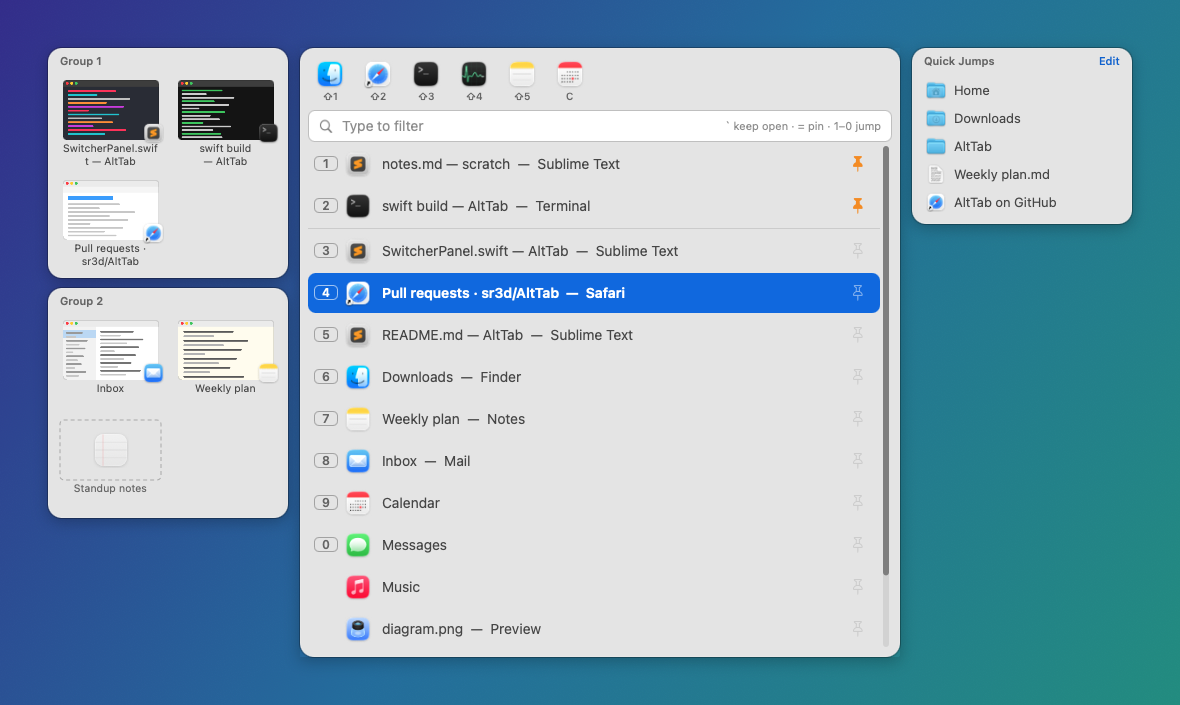
- Window groups: drag the windows you're working with out of the list into a group. Groups sit as boxes beside the list, showing a preview of each window with its app icon, and one click switches to that exact window. They show with both the window list and the Cmd+Tab app list; dragging an app in adds its most recent window. The list itself doesn't change.
- Number keys: press 1–9 or 0 to jump straight to a row. Pinned windows get the first numbers.
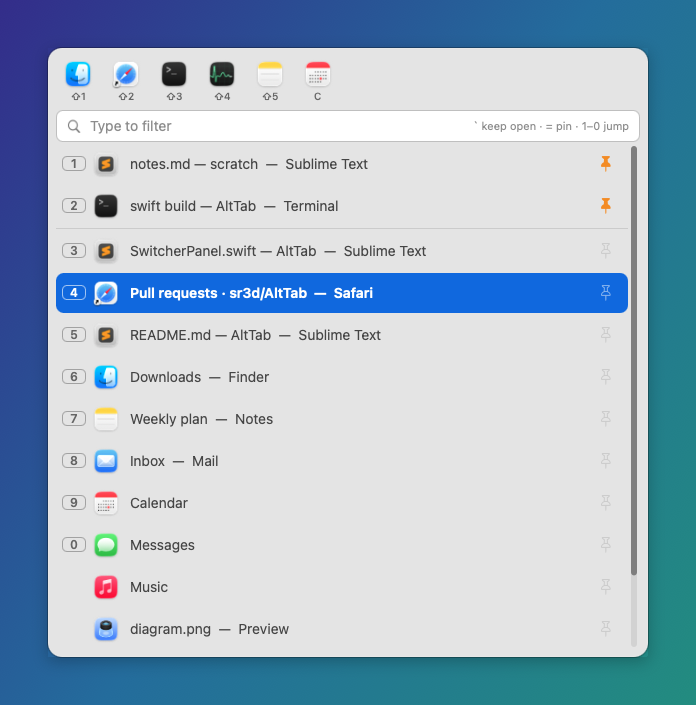
- Quick Launch: keep the apps you use all the time (Finder, Slack, Activity Monitor…) as icons at the top of the switcher, and open one with Shift+1–9, 0 or a key you pick: Cmd+Tab, then C for Calendar.
- Quick Jumps: bookmarks for the folders, files and web pages you open all the time, in a box to the right of the list. One click opens a folder in Finder, a file in its app or a URL in your browser. Add them in Preferences (or click Edit in the box to go straight there) by dragging them in from Finder (or links from a browser) or with +.
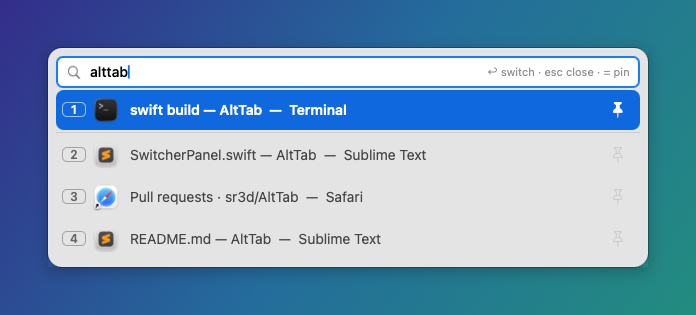
- Quick filter: start typing to narrow the list by window title or app name.
- Keyboard or mouse: arrow keys, Tab/Shift+Tab, hover, the scroll wheel and clicks all work. Long lists get a scrollbar you can drag.
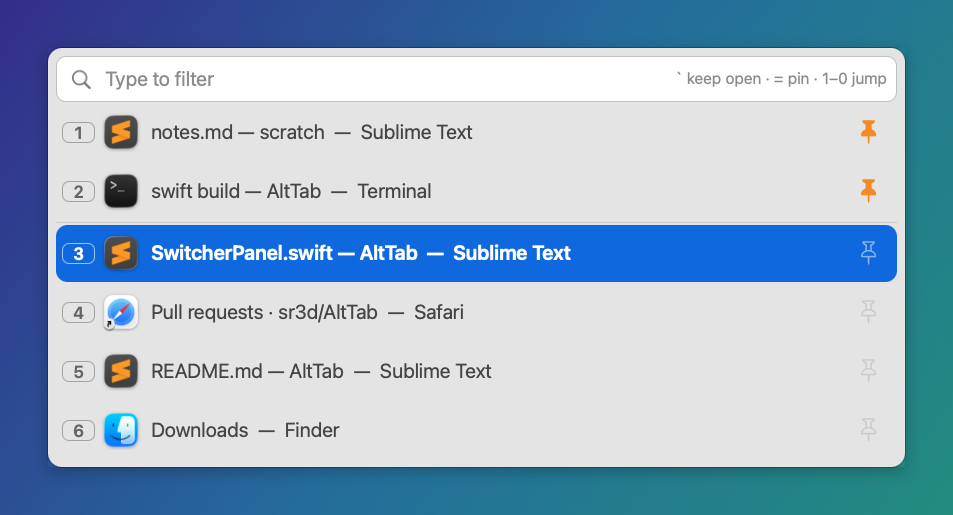
- Adjustable size: set the font size in Preferences; the whole panel scales with it.
- Multiple displays: the switcher appears on every screen by default, or only on the one with the mouse pointer if you turn that off in Preferences.
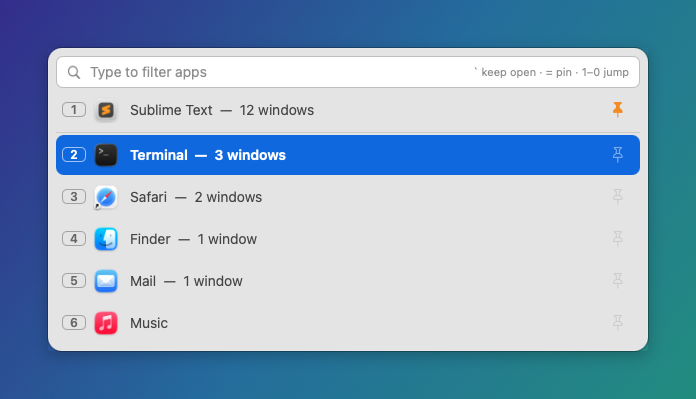
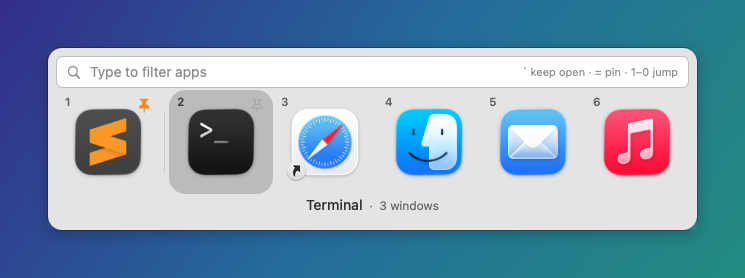
- Optional Cmd+Tab takeover: replace the macOS app switcher with AltTab. Cmd+Tab can open the window list (default) or an app list that has the same pins, numbers, filter and mouse support. Option+Tab takes the other one, so with Cmd+Tab on windows, Option+Tab switches apps.
| Filter | Larger font | Cmd+Tab app list |
|---|---|---|
 |  |  |
Usage
| Keys | Action |
|---|---|
| Option+Tab (tap) | switch to the previous window |
| Option held + Tab | open the list; release Option to switch |
| Cmd+Tab (if enabled in Preferences) | the same, listing windows (default) or running apps, as chosen in Preferences |
| Option+Tab with Cmd+Tab listing windows | the same, listing running apps instead (Option+Tab keeps listing windows when Cmd+Tab lists apps) |
While the list is open:
| Keys / mouse | Action |
|---|---|
| Tab / → / ↓ · Shift+Tab / ← / ↑ | move the selection |
| 1–9, 0 | jump straight to that row |
| Shift+1–9, 0, the app's own key (e.g. C) or click an icon in the top bar | open that Quick Launch app |
| Shift+Tab / ↑ on the first row | move to the filter bar; again to the Quick Launch icons (Return opens the one selected) |
= or click 📌 | pin / unpin the window |
| drag a pinned row | reorder pins |
| drag a row onto a group box (or onto + New group, shown while dragging) | add the window to that group |
| click a window in a group box · hover it and click × | switch to that window · take it out of the group |
| click an item in Quick Jumps | open that folder, file or URL |
` or click the filter bar | keep the list open after releasing Option |
| type letters | filter (every word must match the title or app name); Backspace edits |
| hover / scroll wheel | select the row under the mouse / step through rows |
| Return or click a row | switch to that window |
| Esc | clear the filter, or close the list if the filter is empty |
| click outside (when kept open) | close |
Any mouse use in the list also keeps it open, so letting go of Option doesn't switch mid-click.
Scope and limits:
- The list covers visible windows on the current Space. Minimized windows, hidden apps and other Spaces aren't listed.
- Pins last until AltTab quits. Groups are saved, so they survive quitting, updating AltTab and restarting the Mac. A window is in one group at a time. When a grouped window closes (or after a restart), it stays in its group dimmed, and reconnects when a window of the same app with the same title is open again. Click a dimmed one to open its app; × removes it.
- Window previews in groups need Screen Recording permission (System Settings → Privacy & Security), which AltTab asks for the first time you make a group. Without it, groups show app icons instead.
- Focus history starts when AltTab launches; before that, the list uses stacking order.
- While another app has Secure Keyboard Entry on (a focused password field in a browser, or Terminal's Secure Keyboard Entry), macOS hides keystrokes from AltTab, so Option+Tab and Cmd+Tab do nothing. The menu-bar item then shows a red ✕, and the menu names the app holding it; click that entry to bring the app forward so you can leave the field or quit it.
Preferences
Menu bar → AltTab → Preferences… (⌘,) or About AltTab
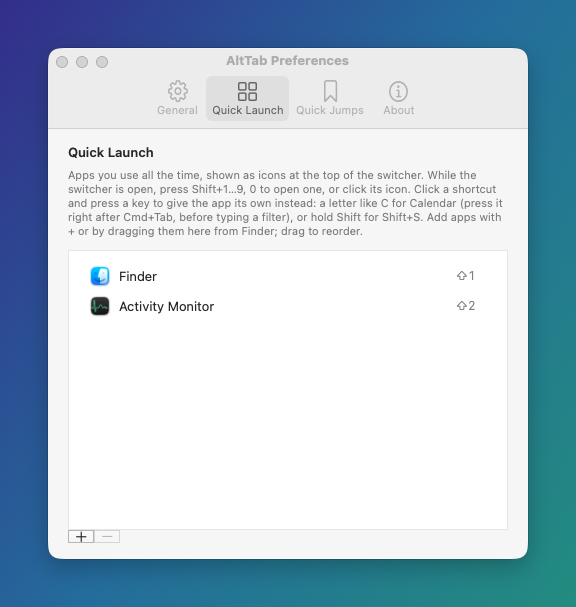
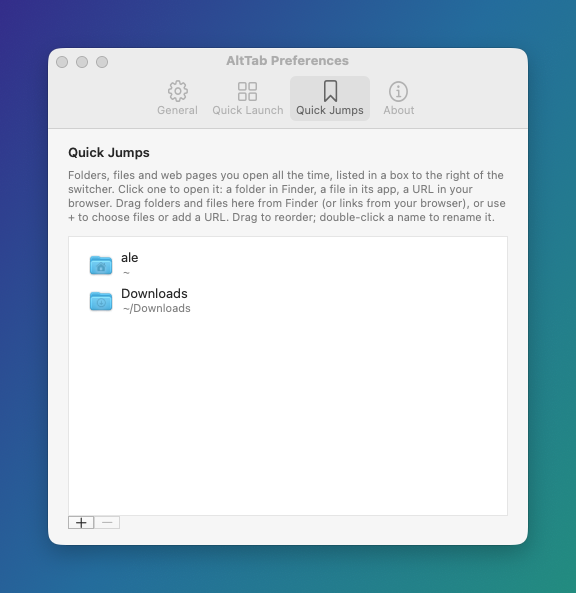
| General | Quick Launch | Quick Jumps | About |
|---|---|---|---|
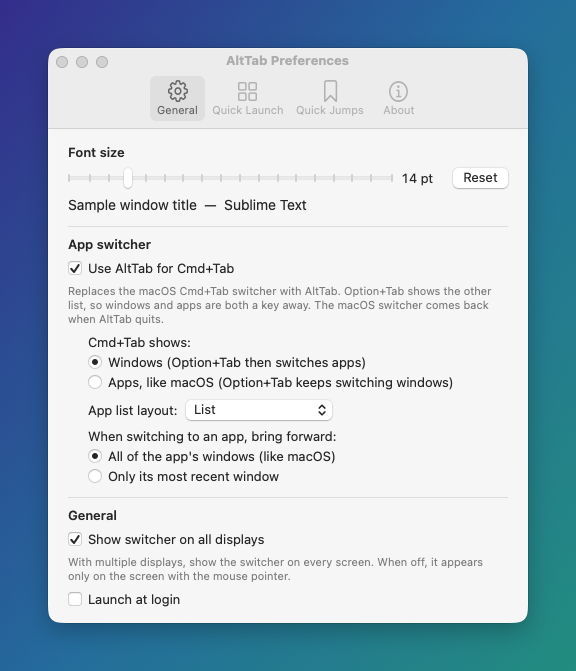 |  |  |  |
- Font size: 11–28 pt (default 14). Rows, icons, the filter bar and the panel width all scale with it.
- Use AltTab for Cmd+Tab: Cmd+Tab (and Cmd+Shift+Tab) open AltTab. Choose what it shows: Windows (default) or Apps (running apps, ordered by most recent use). Option+Tab shows the other one: with Cmd+Tab on Windows, Option+Tab becomes the app switcher; with Cmd+Tab on Apps, Option+Tab stays the window switcher. For the app list, pick the layout: a List (default) or Icons, a horizontal strip of app icons like the macOS switcher. Also choose whether switching to an app brings all of its windows forward (like macOS) or only its most recent window. To hear Cmd+Tab, AltTab turns off the macOS switcher while it runs. It turns it back on when AltTab quits, is killed, or crashes, and again on the next launch.
- Show switcher on all displays: on (default) shows the panel on every connected screen, and you can use any of them. Off shows it only on the screen with the mouse pointer.
- Launch at login.
- Quick Jumps tab: the folders, files and URLs in the box to the right of the switcher (Home and Downloads to start with). Drag folders and files in from Finder, or links from a browser; + chooses files and folders or adds a URL (with an optional name). Remove with − or Delete, drag to reorder, double-click a name to rename it. A file that's been moved or deleted shows dimmed.
- Quick Launch tab: the apps in the bar at the top of the switcher (Finder and Activity Monitor to start with). Add with + or by dragging apps in from Finder, remove with − or Delete, drag to reorder. The first ten get Shift+1–9, 0. Click an app's shortcut and press a key to give it its own: a letter (C for Calendar, Z for Zoom), or hold Shift for Shift+a letter or digit (⇧S for Slack). C and ⇧C are separate keys, so they can open different apps. Delete puts it back. A letter key opens its app only as the first key after Cmd+Tab/Option+Tab; once you're typing a filter (or after Shift+Tab to the filter bar, or in keep-open mode) letters type as usual, and so does a letter no app uses.
Build from source
Requires macOS 13+ and Swift 5.9+. The Command Line Tools are enough; Xcode is only needed for universal (arm64 + x86_64) builds.
./scripts/build-app.sh --open      # build, sign, install to ~/Applications, launch
./scripts/build-app.sh --no-install
ALTTAB_UNIVERSAL=1 ./scripts/build-app.sh --no-install   # needs Xcode
./scripts/make-dmg.sh              # build, then package build/AltTab-<version>.dmg and .zip
Signing: macOS ties the Accessibility grant to the code signature. The script signs with an identity named AltTab Dev if one exists, otherwise with your first Apple Development certificate. Either one stays the same across rebuilds, so the grant sticks. If neither exists, the script falls back to an ad-hoc signature, and you'd have to re-grant Accessibility after every build. To create a stable identity for free: Keychain Access → Certificate Assistant → Create a Certificate… (Name AltTab Dev, Type Code Signing). If the grant gets stuck, run tccutil reset Accessibility com.sr3d.AltTab and relaunch.
CI: both workflows run scripts/make-dmg.sh to build a universal, ad-hoc-signed app and package it as a DMG and a zip. build.yml runs on every push to main and every pull request, and uploads them as a workflow artifact. release.yml runs when a v* tag is pushed, and publishes a GitHub Release with both files attached. GitHub builds everything on its own macOS machines.
Releasing: either run ./release from an up-to-date main, or open the Actions tab → Make New Release → Run workflow. Both bump the version in Resources/Info.plist, point the README's Download button at the new AltTab-X.Y.Z.dmg, commit, tag vX.Y.Z and push; GitHub then builds and publishes the release.
./release            # 0.1.0 -> 0.1.1
./release minor      # 0.1.0 -> 0.2.0 (also: major, or an exact version like 1.4.2)
To rebuild the files for an existing tag, run Release by hand from the Actions tab and enter the tag.
Developer tools:
swift run FocusSpikelists on-screen windows;swift run FocusSpike <title>focuses one..build/debug/AltTab --screenshots docsregenerates the README screenshots. It renders the real panel with made-up window titles.swift scripts/make-icon.swiftregenerates the app icon.- Debug logging:
defaults write com.sr3d.AltTab debug -bool true   # then relaunch
log stream --predicate 'subsystem == "com.sr3d.AltTab"'
How it works
| File | Role |
|---|---|
Sources/AltTab/HotkeyTap.swift | CGEventTap for Option+Tab (and Cmd+Tab when enabled) and the keys used while the list is open. Keys are swallowed so they never reach the app underneath. |
Sources/AltTab/NativeCommandTab.swift | Turns the macOS Cmd+Tab switcher off or on (CGSSetSymbolicHotKeyEnabled), and restores it on quit, on kill signals and after crashes. |
Sources/AltTab/WindowTracker.swift | Builds the focus history from an AXObserver per app plus workspace activation events. It also keeps a background cache of each app's windows: some apps take seconds to answer Accessibility queries, so a keypress never waits on them. |
Sources/AltTab/Switcher.swift | List state: ordering, pins, filter, number keys, stay-open mode |
Sources/AltTab/QuickLaunch.swift, QuickLaunchEditor.swift | Quick Launch apps (stored by path and bundle ID) and their Preferences list |
Sources/AltTab/SwitcherPanel.swift | The non-activating HUD panel and its mouse handling, plus the group boxes and Quick Jumps windows beside it |
Sources/AltTab/QuickJumps.swift, QuickJumpsEditor.swift | Quick Jumps bookmarks (stored as URLs) and their Preferences list |
Sources/AltTab/WindowGroups.swift | Window groups: members, pruning closed windows, cached previews |
Sources/AltTabCore/WindowThumbnail.swift | Window previews (CGWindowListCreateImage, resolved at runtime) and the Screen Recording permission check |
Sources/AltTabCore/WindowList.swift | On-screen windows (CGWindowListCopyWindowInfo), matched to Accessibility windows via _AXUIElementGetWindow |
Sources/AltTabCore/WindowFocuser.swift | Brings exactly one window forward: _SLPSSetFrontProcessWithOptions + a synthetic make-key event + an AX raise |
Sources/AltTabCore/PrivateAPIs.swift | Private SkyLight calls, loaded with dlopen. If a symbol is missing, focusing falls back to public APIs. |
Raising one window without bringing its whole app forward isn't possible with public APIs alone. The technique comes from yabai and Hammerspoon, as refined by alt-tab-macos. This project is a separate, much smaller app and isn't affiliated with alt-tab-macos.
Why there's no "always on top" pin
macOS doesn't let one app change the window level of another app's window. yabai can do it by injecting code into the Dock, but that requires partially disabling System Integrity Protection. The only SIP-safe workaround is a live ScreenCaptureKit mirror in a floating panel, which is view-only and needs Screen Recording permission.
License
Similar repos


App Switcher for MacOS: Switch between Windows from different apps.
Swift
2
16 commits
updated Oct 6, 2026
See what people are saying
README
AltTab
A tiny macOS menu-bar app that switches between windows, not apps.
Cmd+Tab activates a whole app, so every window of that app jumps forward and buries what you were looking at. Option+Tab brings back just the one window you were in before. Hold Option to pick any window from a list that you can pin, number and filter.
macOS 13 or later · Apple Silicon and Intel · install steps · all releases
Install
- Click Download for macOS above (or pick a version from Releases), open the DMG, and drag
AltTab.apponto theApplicationsshortcut. - The release builds are not notarized, so macOS blocks the first launch. Open System Settings → Privacy & Security and click Open Anyway, or run:
xattr -dr com.apple.quarantine /Applications/AltTab.app - Launch it and grant Accessibility when asked (System Settings → Privacy & Security → Accessibility). The menu-bar label reads
AltTab ⚠︎until the permission is active, then justAltTab.
Turn on Launch at Login from the menu-bar menu or Preferences.
Features
- Previous window in one tap: Option+Tab jumps to the last window you used. Only that window comes forward, so multi-window apps like Sublime Text, Chrome or Terminal don't flood the screen.
- Focus history: the list is ordered by the windows you actually used most recently, not by stacking order. It stays correct after a Cmd+Tab brings a whole app forward.
- Pins: keep favourite windows at the top. Drag to reorder them.
- Window groups: drag the windows you're working with out of the list into a group. Groups sit as boxes beside the list, showing a preview of each window with its app icon, and one click switches to that exact window. They show with both the window list and the Cmd+Tab app list; dragging an app in adds its most recent window. The list itself doesn't change.
- Number keys: press 1–9 or 0 to jump straight to a row. Pinned windows get the first numbers.
- Quick Launch: keep the apps you use all the time (Finder, Slack, Activity Monitor…) as icons at the top of the switcher, and open one with Shift+1–9, 0 or a key you pick: Cmd+Tab, then C for Calendar.
- Quick Jumps: bookmarks for the folders, files and web pages you open all the time, in a box to the right of the list. One click opens a folder in Finder, a file in its app or a URL in your browser. Add them in Preferences (or click Edit in the box to go straight there) by dragging them in from Finder (or links from a browser) or with +.
- Quick filter: start typing to narrow the list by window title or app name.
- Keyboard or mouse: arrow keys, Tab/Shift+Tab, hover, the scroll wheel and clicks all work. Long lists get a scrollbar you can drag.
- Adjustable size: set the font size in Preferences; the whole panel scales with it.
- Multiple displays: the switcher appears on every screen by default, or only on the one with the mouse pointer if you turn that off in Preferences.
- Optional Cmd+Tab takeover: replace the macOS app switcher with AltTab. Cmd+Tab can open the window list (default) or an app list that has the same pins, numbers, filter and mouse support. Option+Tab takes the other one, so with Cmd+Tab on windows, Option+Tab switches apps.
| Filter | Larger font | Cmd+Tab app list |
|---|---|---|
| | |
Usage
| Keys | Action |
|---|---|
| Option+Tab (tap) | switch to the previous window |
| Option held + Tab | open the list; release Option to switch |
| Cmd+Tab (if enabled in Preferences) | the same, listing windows (default) or running apps, as chosen in Preferences |
| Option+Tab with Cmd+Tab listing windows | the same, listing running apps instead (Option+Tab keeps listing windows when Cmd+Tab lists apps) |
While the list is open:
| Keys / mouse | Action |
|---|---|
| Tab / → / ↓ · Shift+Tab / ← / ↑ | move the selection |
| 1–9, 0 | jump straight to that row |
| Shift+1–9, 0, the app's own key (e.g. C) or click an icon in the top bar | open that Quick Launch app |
| Shift+Tab / ↑ on the first row | move to the filter bar; again to the Quick Launch icons (Return opens the one selected) |
= or click 📌 | pin / unpin the window |
| drag a pinned row | reorder pins |
| drag a row onto a group box (or onto + New group, shown while dragging) | add the window to that group |
| click a window in a group box · hover it and click × | switch to that window · take it out of the group |
| click an item in Quick Jumps | open that folder, file or URL |
` or click the filter bar | keep the list open after releasing Option |
| type letters | filter (every word must match the title or app name); Backspace edits |
| hover / scroll wheel | select the row under the mouse / step through rows |
| Return or click a row | switch to that window |
| Esc | clear the filter, or close the list if the filter is empty |
| click outside (when kept open) | close |
Any mouse use in the list also keeps it open, so letting go of Option doesn't switch mid-click.
Scope and limits:
- The list covers visible windows on the current Space. Minimized windows, hidden apps and other Spaces aren't listed.
- Pins last until AltTab quits. Groups are saved, so they survive quitting, updating AltTab and restarting the Mac. A window is in one group at a time. When a grouped window closes (or after a restart), it stays in its group dimmed, and reconnects when a window of the same app with the same title is open again. Click a dimmed one to open its app; × removes it.
- Window previews in groups need Screen Recording permission (System Settings → Privacy & Security), which AltTab asks for the first time you make a group. Without it, groups show app icons instead.
- Focus history starts when AltTab launches; before that, the list uses stacking order.
- While another app has Secure Keyboard Entry on (a focused password field in a browser, or Terminal's Secure Keyboard Entry), macOS hides keystrokes from AltTab, so Option+Tab and Cmd+Tab do nothing. The menu-bar item then shows a red ✕, and the menu names the app holding it; click that entry to bring the app forward so you can leave the field or quit it.
Preferences
Menu bar → AltTab → Preferences… (⌘,) or About AltTab
| General | Quick Launch | Quick Jumps | About |
|---|---|---|---|
| | | |
- Font size: 11–28 pt (default 14). Rows, icons, the filter bar and the panel width all scale with it.
- Use AltTab for Cmd+Tab: Cmd+Tab (and Cmd+Shift+Tab) open AltTab. Choose what it shows: Windows (default) or Apps (running apps, ordered by most recent use). Option+Tab shows the other one: with Cmd+Tab on Windows, Option+Tab becomes the app switcher; with Cmd+Tab on Apps, Option+Tab stays the window switcher. For the app list, pick the layout: a List (default) or Icons, a horizontal strip of app icons like the macOS switcher. Also choose whether switching to an app brings all of its windows forward (like macOS) or only its most recent window. To hear Cmd+Tab, AltTab turns off the macOS switcher while it runs. It turns it back on when AltTab quits, is killed, or crashes, and again on the next launch.
- Show switcher on all displays: on (default) shows the panel on every connected screen, and you can use any of them. Off shows it only on the screen with the mouse pointer.
- Launch at login.
- Quick Jumps tab: the folders, files and URLs in the box to the right of the switcher (Home and Downloads to start with). Drag folders and files in from Finder, or links from a browser; + chooses files and folders or adds a URL (with an optional name). Remove with − or Delete, drag to reorder, double-click a name to rename it. A file that's been moved or deleted shows dimmed.
- Quick Launch tab: the apps in the bar at the top of the switcher (Finder and Activity Monitor to start with). Add with + or by dragging apps in from Finder, remove with − or Delete, drag to reorder. The first ten get Shift+1–9, 0. Click an app's shortcut and press a key to give it its own: a letter (C for Calendar, Z for Zoom), or hold Shift for Shift+a letter or digit (⇧S for Slack). C and ⇧C are separate keys, so they can open different apps. Delete puts it back. A letter key opens its app only as the first key after Cmd+Tab/Option+Tab; once you're typing a filter (or after Shift+Tab to the filter bar, or in keep-open mode) letters type as usual, and so does a letter no app uses.
Build from source
Requires macOS 13+ and Swift 5.9+. The Command Line Tools are enough; Xcode is only needed for universal (arm64 + x86_64) builds.
./scripts/build-app.sh --open      # build, sign, install to ~/Applications, launch
./scripts/build-app.sh --no-install
ALTTAB_UNIVERSAL=1 ./scripts/build-app.sh --no-install   # needs Xcode
./scripts/make-dmg.sh              # build, then package build/AltTab-<version>.dmg and .zip
Signing: macOS ties the Accessibility grant to the code signature. The script signs with an identity named AltTab Dev if one exists, otherwise with your first Apple Development certificate. Either one stays the same across rebuilds, so the grant sticks. If neither exists, the script falls back to an ad-hoc signature, and you'd have to re-grant Accessibility after every build. To create a stable identity for free: Keychain Access → Certificate Assistant → Create a Certificate… (Name AltTab Dev, Type Code Signing). If the grant gets stuck, run tccutil reset Accessibility com.sr3d.AltTab and relaunch.
CI: both workflows run scripts/make-dmg.sh to build a universal, ad-hoc-signed app and package it as a DMG and a zip. build.yml runs on every push to main and every pull request, and uploads them as a workflow artifact. release.yml runs when a v* tag is pushed, and publishes a GitHub Release with both files attached. GitHub builds everything on its own macOS machines.
Releasing: either run ./release from an up-to-date main, or open the Actions tab → Make New Release → Run workflow. Both bump the version in Resources/Info.plist, point the README's Download button at the new AltTab-X.Y.Z.dmg, commit, tag vX.Y.Z and push; GitHub then builds and publishes the release.
./release            # 0.1.0 -> 0.1.1
./release minor      # 0.1.0 -> 0.2.0 (also: major, or an exact version like 1.4.2)
To rebuild the files for an existing tag, run Release by hand from the Actions tab and enter the tag.
Developer tools:
swift run FocusSpikelists on-screen windows;swift run FocusSpike <title>focuses one..build/debug/AltTab --screenshots docsregenerates the README screenshots. It renders the real panel with made-up window titles.swift scripts/make-icon.swiftregenerates the app icon.- Debug logging:
defaults write com.sr3d.AltTab debug -bool true   # then relaunch
log stream --predicate 'subsystem == "com.sr3d.AltTab"'
How it works
| File | Role |
|---|---|
Sources/AltTab/HotkeyTap.swift | CGEventTap for Option+Tab (and Cmd+Tab when enabled) and the keys used while the list is open. Keys are swallowed so they never reach the app underneath. |
Sources/AltTab/NativeCommandTab.swift | Turns the macOS Cmd+Tab switcher off or on (CGSSetSymbolicHotKeyEnabled), and restores it on quit, on kill signals and after crashes. |
Sources/AltTab/WindowTracker.swift | Builds the focus history from an AXObserver per app plus workspace activation events. It also keeps a background cache of each app's windows: some apps take seconds to answer Accessibility queries, so a keypress never waits on them. |
Sources/AltTab/Switcher.swift | List state: ordering, pins, filter, number keys, stay-open mode |
Sources/AltTab/QuickLaunch.swift, QuickLaunchEditor.swift | Quick Launch apps (stored by path and bundle ID) and their Preferences list |
Sources/AltTab/SwitcherPanel.swift | The non-activating HUD panel and its mouse handling, plus the group boxes and Quick Jumps windows beside it |
Sources/AltTab/QuickJumps.swift, QuickJumpsEditor.swift | Quick Jumps bookmarks (stored as URLs) and their Preferences list |
Sources/AltTab/WindowGroups.swift | Window groups: members, pruning closed windows, cached previews |
Sources/AltTabCore/WindowThumbnail.swift | Window previews (CGWindowListCreateImage, resolved at runtime) and the Screen Recording permission check |
Sources/AltTabCore/WindowList.swift | On-screen windows (CGWindowListCopyWindowInfo), matched to Accessibility windows via _AXUIElementGetWindow |
Sources/AltTabCore/WindowFocuser.swift | Brings exactly one window forward: _SLPSSetFrontProcessWithOptions + a synthetic make-key event + an AX raise |
Sources/AltTabCore/PrivateAPIs.swift | Private SkyLight calls, loaded with dlopen. If a symbol is missing, focusing falls back to public APIs. |
Raising one window without bringing its whole app forward isn't possible with public APIs alone. The technique comes from yabai and Hammerspoon, as refined by alt-tab-macos. This project is a separate, much smaller app and isn't affiliated with alt-tab-macos.
Why there's no "always on top" pin
macOS doesn't let one app change the window level of another app's window. yabai can do it by injecting code into the Dock, but that requires partially disabling System Integrity Protection. The only SIP-safe workaround is a live ScreenCaptureKit mirror in a floating panel, which is view-only and needs Screen Recording permission.