
Native macOS menu bar switcher for Antigravity IDE workspaces with instant ⌘1–⌘9 keyboard shortcuts.
Swift
1
7 commits
updated Sep 21, 2026
See what people are saying (1)
README
Antigravity Spaces
Workspaces, within reach.





Working across 15–20 active projects in Antigravity made switching windows a constant papercut. The built-in Command Palette (Cmd + Shift + P ➔ Switch Window) requires too much typing when you just want to jump somewhere instantly. Right-clicking the Antigravity Dock icon becomes a crowded, unreadable wall of text once you have that many workspaces open, and hunting through Mission Control with dozens of identical dark windows wastes focus.
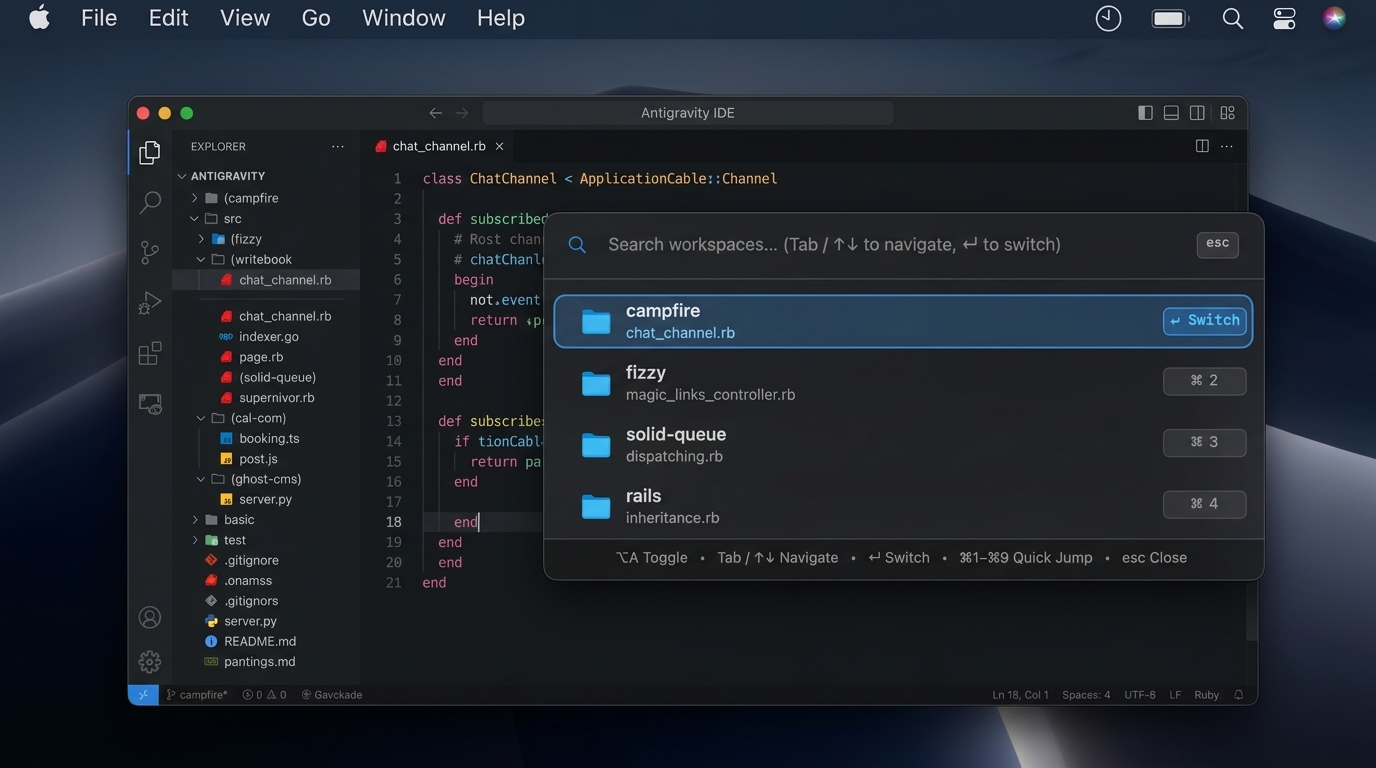
Antigravity Spaces solves this with a lightweight, native macOS floating HUD switcher. Hit ⌥A from anywhere, type two characters, press Enter or ⌘1–⌘9, and you're already in your code.
Overview
Switching between open projects shouldn't interrupt your concentration. Antigravity Spaces automatically identifies every running Antigravity IDE workspace, formats project hierarchies into clean titles, and gives you a Spotlight-style Floating Gaussian Blur HUD Switcher summoned globally via ⌥A (Option + A) or the menu bar.
Filter 20+ active workspaces in milliseconds by project name or active file, jump via ⌘1 through ⌘9, or navigate with arrow keys and Tab. No windows hidden behind desktops. No hunting through Mission Control. Just your workspaces, organized and immediately available.
Keyboard Shortcuts & Navigation
| Key / Shortcut | Action |
|---|---|
⌥A (Option + A) | Global Summon: Toggles the floating HUD switcher instantly from any desktop, space, or full-screen app |
↑ / ↓ | Navigate up and down through workspaces |
Tab / ⇧Tab | Cycle forward and backward through the workspace list |
↵ Enter | Switch immediately to the selected workspace and bring window to front |
⌘1 – ⌘9 | Instant quick-jump directly to workspace slots 1 through 9 |
| Type anything | Real-time live filtering by project name (e.g. camp, solid) or active open file (e.g. chat_channel.rb) |
Esc | Dismiss the HUD (or click anywhere outside) |
Left Click A↗ | Toggle the floating HUD switcher from the macOS menu bar |
Right Click A↗ | Open menu bar options: status, quick space list, and Quit Spaces (⌘Q) |
Highlights
- Floating Frosted Glass HUD. Raycast/Spotlight-style floating panel with hardware-accelerated macOS Gaussian blur and vibrancy.
- Global Shortcut (
⌥A). Summon the switcher instantly from any space, desktop, or full-screen application without lifting your hands from the keyboard. - Real-Time Fuzzy Search. Type project or file names to filter dozens of open repositories in milliseconds.
- Instant Keyboard Navigation. Switch fluidly with
⌘1through⌘9, cycle withTab/⇧Tabor↑/↓, and press↵ Enter. - Hybrid Menu Bar. Keep your menu bar glyph (
A↗) for quick glances or click to toggle the HUD. - Zero External Dependencies. Built in 100% native Swift with AppKit and CoreGraphics. Operates with a memory footprint under 12 MB and 0% idle CPU.
- Private by Default. Completely local execution. No telemetry, no network calls, and no analytics.
Installation
Automated Setup
Clone the repository and run the setup script:
git clone https://github.com/ApollosWave/antigravity-spaces.git
cd antigravity-spaces
./install.sh
The installer compiles the native Swift binary, installs it to ~/.local/bin/antigravity-spaces (with aspaces alias), and configures a lightweight macOS launchd service so the switcher is available whenever you log in.
Build from Source
Build and launch the application directly using Make:
git clone https://github.com/ApollosWave/antigravity-spaces.git
cd antigravity-spaces

# Compile and start immediately
make run

# Or install and configure launch on login
make autostart
System Permissions
Because Antigravity Spaces coordinates window focus across applications, macOS requires standard Accessibility access (if using iTerm or other terminals):
- When launched for the first time, macOS will display an Accessibility permission request.
- Select Open System Settings (or navigate to System Settings > Privacy & Security > Accessibility).
- Enable access for antigravity-spaces.
[!NOTE] The official macOS Terminal app does not require any system or Accessibility permissions.
Command Reference
| Target | Description |
|---|---|
make build | Compiles the standalone Swift binary with optimizations (-O) |
make run | Starts the application process in the background |
make stop | Gracefully terminates the running process |
make autostart | Installs to ~/.local/bin and activates the login service |
make uninstall | Removes the binary and unloads the launch agent |
Requirements
- macOS Monterey (12.0) or later
- Swift 5.9 or later (included with Xcode Command Line Tools)
- Antigravity IDE
License
MIT License. Designed and maintained by ApollosWave LLC.
Contributors

7 commits
Similar repos


Languages
Swift
90.0%
Makefile
5.9%
Shell
4.1%
Native macOS menu bar switcher for Antigravity IDE workspaces with instant ⌘1–⌘9 keyboard shortcuts.
Swift
1
7 commits
updated Sep 21, 2026
See what people are saying (1)
README
Antigravity Spaces
Workspaces, within reach.
Working across 15–20 active projects in Antigravity made switching windows a constant papercut. The built-in Command Palette (Cmd + Shift + P ➔ Switch Window) requires too much typing when you just want to jump somewhere instantly. Right-clicking the Antigravity Dock icon becomes a crowded, unreadable wall of text once you have that many workspaces open, and hunting through Mission Control with dozens of identical dark windows wastes focus.
Antigravity Spaces solves this with a lightweight, native macOS floating HUD switcher. Hit ⌥A from anywhere, type two characters, press Enter or ⌘1–⌘9, and you're already in your code.
Overview
Switching between open projects shouldn't interrupt your concentration. Antigravity Spaces automatically identifies every running Antigravity IDE workspace, formats project hierarchies into clean titles, and gives you a Spotlight-style Floating Gaussian Blur HUD Switcher summoned globally via ⌥A (Option + A) or the menu bar.
Filter 20+ active workspaces in milliseconds by project name or active file, jump via ⌘1 through ⌘9, or navigate with arrow keys and Tab. No windows hidden behind desktops. No hunting through Mission Control. Just your workspaces, organized and immediately available.
Keyboard Shortcuts & Navigation
| Key / Shortcut | Action |
|---|---|
⌥A (Option + A) | Global Summon: Toggles the floating HUD switcher instantly from any desktop, space, or full-screen app |
↑ / ↓ | Navigate up and down through workspaces |
Tab / ⇧Tab | Cycle forward and backward through the workspace list |
↵ Enter | Switch immediately to the selected workspace and bring window to front |
⌘1 – ⌘9 | Instant quick-jump directly to workspace slots 1 through 9 |
| Type anything | Real-time live filtering by project name (e.g. camp, solid) or active open file (e.g. chat_channel.rb) |
Esc | Dismiss the HUD (or click anywhere outside) |
Left Click A↗ | Toggle the floating HUD switcher from the macOS menu bar |
Right Click A↗ | Open menu bar options: status, quick space list, and Quit Spaces (⌘Q) |
Highlights
- Floating Frosted Glass HUD. Raycast/Spotlight-style floating panel with hardware-accelerated macOS Gaussian blur and vibrancy.
- Global Shortcut (
⌥A). Summon the switcher instantly from any space, desktop, or full-screen application without lifting your hands from the keyboard. - Real-Time Fuzzy Search. Type project or file names to filter dozens of open repositories in milliseconds.
- Instant Keyboard Navigation. Switch fluidly with
⌘1through⌘9, cycle withTab/⇧Tabor↑/↓, and press↵ Enter. - Hybrid Menu Bar. Keep your menu bar glyph (
A↗) for quick glances or click to toggle the HUD. - Zero External Dependencies. Built in 100% native Swift with AppKit and CoreGraphics. Operates with a memory footprint under 12 MB and 0% idle CPU.
- Private by Default. Completely local execution. No telemetry, no network calls, and no analytics.
Installation
Automated Setup
Clone the repository and run the setup script:
git clone https://github.com/ApollosWave/antigravity-spaces.git
cd antigravity-spaces
./install.sh
The installer compiles the native Swift binary, installs it to ~/.local/bin/antigravity-spaces (with aspaces alias), and configures a lightweight macOS launchd service so the switcher is available whenever you log in.
Build from Source
Build and launch the application directly using Make:
git clone https://github.com/ApollosWave/antigravity-spaces.git
cd antigravity-spaces

# Compile and start immediately
make run

# Or install and configure launch on login
make autostart
System Permissions
Because Antigravity Spaces coordinates window focus across applications, macOS requires standard Accessibility access (if using iTerm or other terminals):
- When launched for the first time, macOS will display an Accessibility permission request.
- Select Open System Settings (or navigate to System Settings > Privacy & Security > Accessibility).
- Enable access for antigravity-spaces.
[!NOTE] The official macOS Terminal app does not require any system or Accessibility permissions.
Command Reference
| Target | Description |
|---|---|
make build | Compiles the standalone Swift binary with optimizations (-O) |
make run | Starts the application process in the background |
make stop | Gracefully terminates the running process |
make autostart | Installs to ~/.local/bin and activates the login service |
make uninstall | Removes the binary and unloads the launch agent |
Requirements
- macOS Monterey (12.0) or later
- Swift 5.9 or later (included with Xcode Command Line Tools)
- Antigravity IDE
License
MIT License. Designed and maintained by ApollosWave LLC.
Similar repos
Contributors
7 commits
Languages
Swift
90.0%
Makefile
5.9%
Shell
4.1%