Lightning-fast cross-platform command-palette overlay for launching dev repositories (Tauri v2 + Svelte)
Rust
0
203 commits
updated Oct 15, 2026
A command palette for every repo you own — one that reads each project and hands you its actual scripts, builds, and sub-packages.
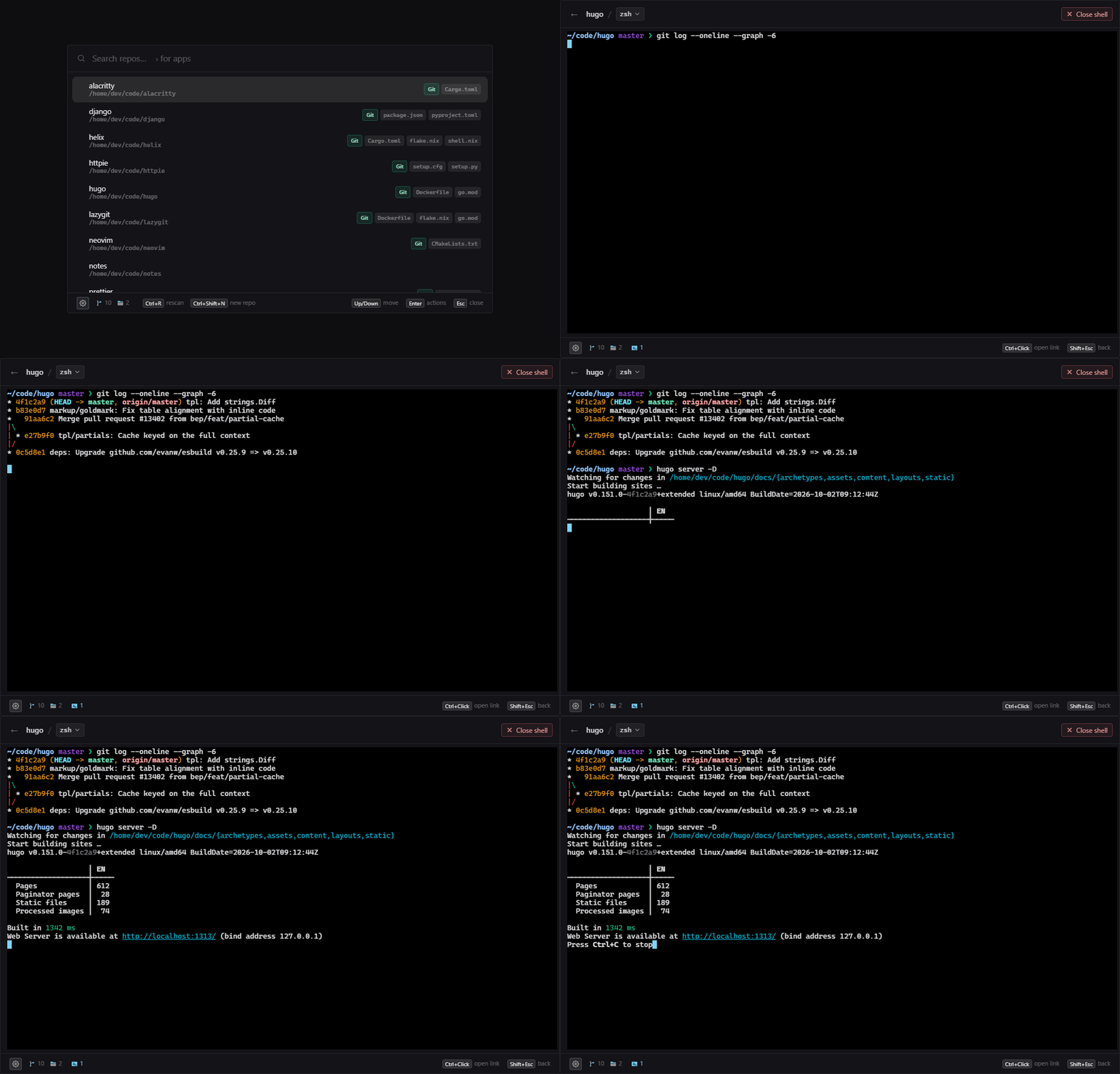
Press a global shortcut from anywhere and a fuzzy-searchable list of every
repository under your code folders appears. Type a few letters, hit Enter, and
that repo's action menu is up: open it in your editor or terminal, run one of
its scripts, or drop into a shell right inside the overlay.
Most launchers stop at "open the folder." dev-prompt opens the action menu it
built by inspecting the project: the exact package.json scripts it defines
(run through the right package manager), cargo test, the .sln opened in
Visual Studio, docker compose up, a jump straight into the packages/api
sub-project. No file manager, no cd, no remembering whether it's npm run dev
or pnpm start.
It adapts to your machine — actions for tools you haven't installed simply don't appear — and the entire editor-and-toolchain brain is a YAML file you can extend in a few lines. It looks after the repos themselves too: create one with version control already set up, put an existing folder under version control, or move one to the Recycle Bin after it checks what would be lost. Appears instantly, vanishes the moment it loses focus, never touches your taskbar.
Cross-platform, built with Tauri v2 (Rust) + Svelte 5 + Tailwind CSS — a small single binary with no runtime dependencies beyond the system WebView. Website: seraphx2.github.io/dev-prompt.
Ctrl/Cmd+Backslash (rebindable via a click-to-record field in Settings)..gitignore, collapses nested repos, caches the result for instant startup and
refreshes in the background when stale. A folder watcher keeps the list
current while the app runs: a repo you clone or delete appears or goes on its
own.packages/*-style sub-projects) for .sln / .csproj,
package.json scripts, Cargo.toml, go.mod / go.work, Python
(pyproject.toml / requirements.txt, uv / poetry), docker-compose, and more.default_config.yaml (markers, program resolution, rules,
universal actions). A hand-edited rules.yaml layers your own on top.Ctrl+R in the action menu) opens
your own shell (pwsh, bash, zsh, fish, nu, …) right in the overlay, at the
repo. It keeps running when you hide the overlay, so a dev server stays up and
the hotkey brings you straight back to it. Every running shell is one $ (or
a footer click) away, to jump into or close.Ctrl+Shift+N) creates a folder
with Git, Jujutsu, Mercurial, Breezy or Darcs set up; Set up version
control… does the same for a folder that has none; Move to Recycle Bin
checks for unpushed commits and uncommitted work first, and offers Undo.> to search your installed applications instead of
repos (Start Menu, Store and installed programs on Windows; .desktop
entries on Linux), most-used first.Ctrl+,) or the tray icon.docs/releasing.md.Windows — grab dev-prompt_<version>_x64-setup.exe (or the portable zip)
from the latest release.
Linux — a signed package repo covers apt / dnf / pacman / Flatpak
(docs/linux-distribution/); updates then
ride your normal apt / dnf / pacman -Syu / flatpak update. Or take the
.AppImage from the release and run it directly.
curl -fsSL https://seraphx2.github.io/dev-prompt/dev-prompt.asc \
  | sudo gpg --dearmor -o /usr/share/keyrings/dev-prompt.gpg
echo "deb [signed-by=/usr/share/keyrings/dev-prompt.gpg] https://seraphx2.github.io/dev-prompt/deb stable main" \
  | sudo tee /etc/apt/sources.list.d/dev-prompt.list
sudo apt update && sudo apt install dev-prompt
sudo tee /etc/yum.repos.d/dev-prompt.repo <<'EOF'
[dev-prompt]
name=dev-prompt
baseurl=https://seraphx2.github.io/dev-prompt/rpm
enabled=1
gpgcheck=1
gpgkey=https://seraphx2.github.io/dev-prompt/dev-prompt.asc
EOF
sudo dnf install dev-prompt
curl -fsSL https://seraphx2.github.io/dev-prompt/dev-prompt.asc | sudo pacman-key --add -
sudo pacman-key --lsign-key E3C07CD21A9A9BA5
sudo tee -a /etc/pacman.conf <<'EOF'

[dev-prompt]
SigLevel = Required
Server = https://seraphx2.github.io/dev-prompt/arch
EOF
sudo pacman -Sy dev-prompt
# one-time: the GNOME runtime comes from Flathub
flatpak remote-add --if-not-exists flathub https://flathub.org/repo/flathub.flatpakrepo

flatpak remote-add --if-not-exists --user dev-prompt \
  https://seraphx2.github.io/dev-prompt/dev-prompt.flatpakrepo
flatpak install --user dev-prompt io.github.seraphx2.devprompt
Or open
io.github.seraphx2.devprompt.flatpakref
in your software centre for a one-click install. This is a self-hosted remote,
not Flathub — see docs/linux-distribution/phase-4-flatpak.md.
First run creates two files in your OS config directory (%APPDATA%\dev-prompt\
or ~/.config/dev-prompt/):
config.yaml — your settings (hotkey, roots, scan depth, cache lifetime).
Managed entirely by the Settings screen; you don't normally touch it.rules.yaml — overrides for the rule engine: extra markers, programs,
rules, and universal actions layered over the bundled defaults. Hand-edited
(Settings ▸ Active rules ▸ Open rules file), ships as a commented scaffold.Settings reference: docs/configuration.md. The rule
engine — merge rules, every field, and worked examples (pin an editor path, add a
build rule, disable a built-in, change the Enter action) —
docs/rules-engine.md; the canonical schema with inline
docs is src-tauri/src/default_config.yaml.
The discovered repo list is cached at <OS cache dir>/dev-prompt/repos.json; the
installed-app list (> scope) is cached alongside it at
<OS cache dir>/dev-prompt/apps.json.
markers entry
or matches any rule's match glob (.git, *.sln, package.json,
Cargo.toml, pom.xml, Gemfile, …). Every folder directly inside a root
is listed too, marker or not (Settings ▸ Repos ▸ "List every folder directly
inside a root"), unless it only holds other repos. While the app runs, the roots
are watched, so repos created, deleted or moved in show up within a second
or so.default_config.yaml maps manifests to actions. requires: [bin]
hides a rule unless the binary is on PATH; needs: [key] hides an action
unless that program resolves. Nothing errors when a tool is missing — it just
doesn't appear.| Status | |
|---|---|
| Windows 10/11 | Built, packaged (NSIS installer + portable zip), and tested. Acrylic blur + rounded corners, Windows Terminal integration, Visual Studio / Rider detection. |
| Linux | Same codebase, compiles. Built and packaged (deb / rpm / AppImage + a signed apt/dnf/pacman repo and a self-hosted Flatpak) by the release workflow; AppImage installs auto-update, everything else updates through its package manager. Hotkey works on X11; Wayland needs the XDG global-shortcuts portal (tray-click fallback otherwise). The > app launcher reads freedesktop .desktop entries (theme icons, gtk-launch). Terminal-command actions need per-emulator working-dir flags (in progress) — plain "open a terminal" works. Panel is translucent but unblurred (no compositor backing yet), so it paints a little more solid than on Windows. On Wayland the overlay is a layer-shell surface, kept centred by the compositor (KDE, Sway, Hyprland, …), when gtk-layer-shell is installed (the packages recommend it; the Flatpak bundles it); GNOME, which lacks layer shell, places it as a regular window. |
Windows and Linux are the only supported targets — see CLAUDE.md.
The architecture is still platform-neutral where it costs nothing — program
paths and OS quirks are isolated in the programs config (any / windows /
linux candidate lists) and a handful of #[cfg] blocks. The remaining
cross-platform work is tracked in
docs/future-work.md.
| Tool | Notes |
|---|---|
Node.js 22+ (.nvmrc pins 24; CI builds on 24) | frontend build (npm) |
| Rust (stable, 1.77+) | https://rustup.rs |
| Platform toolchain | Windows: MSVC Build Tools ("Desktop development with C++") + WebView2 (preinstalled on Win 11). Linux: webkit2gtk-4.1, libayatana-appindicator3, librsvg2, standard build tools. |
npm install
npm run tauri dev
Starts Vite on :1420 and launches the overlay (hidden until you press the hotkey). The tray icon appears immediately.
npm run tauri build
Produces a Windows NSIS installer, or the Linux deb / rpm / AppImage
bundles, depending on the host OS. The release workflow builds both — see
docs/releasing.md, which also has a recipe for
smoke-testing a Linux bundle locally.
dev-prompt is meant to sit in the background and be summoned by its hotkey, so turn on Settings ▸ General ▸ Start at login — then the hotkey is live from every boot and the app is never a window you have to find. (On Flatpak your desktop asks permission the first time; on the AppImage there's no autostart hook, so add one via your desktop's session settings.)
Repo list
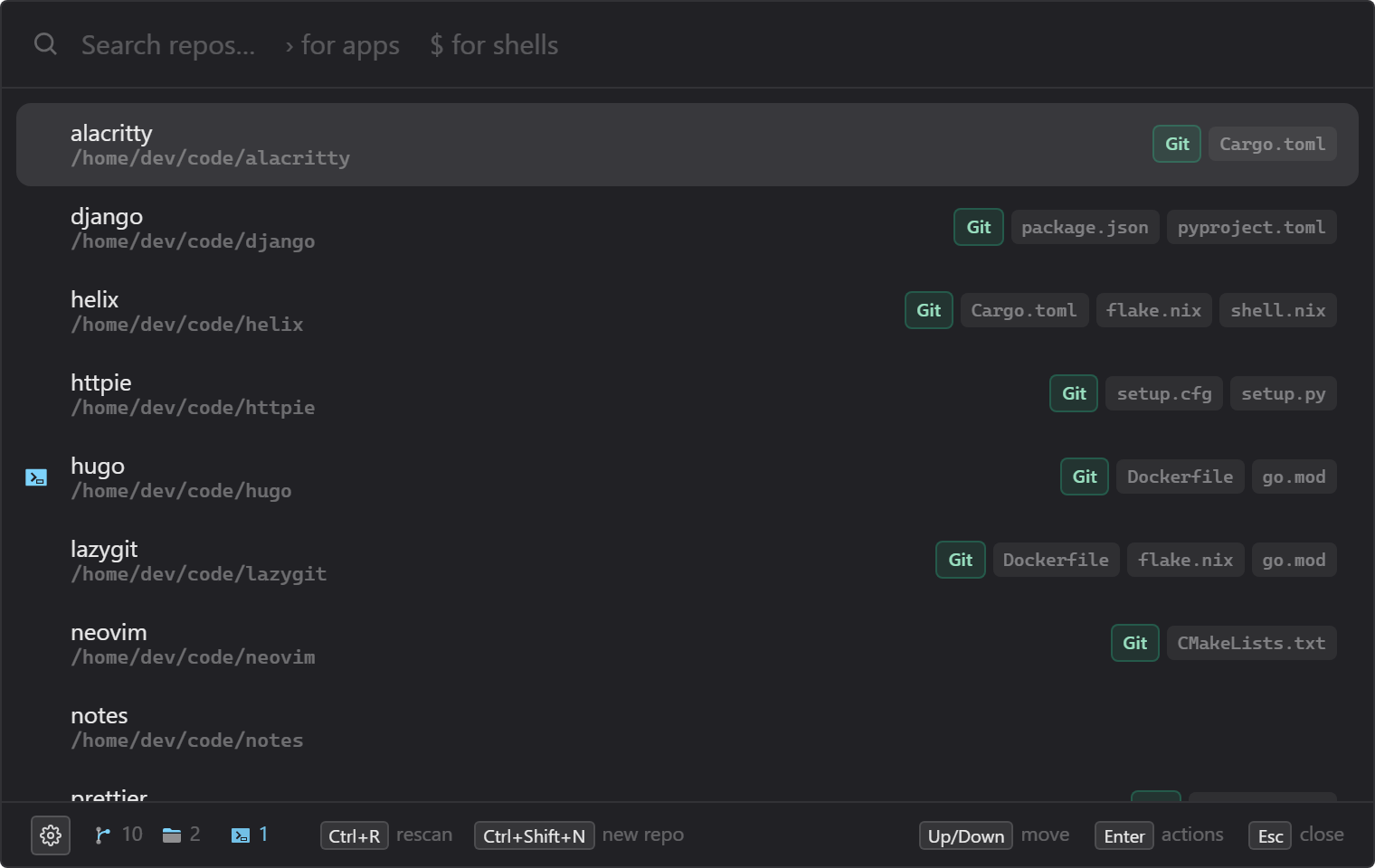
| Key | Action |
|---|---|
| type | fuzzy-filter repos |
Up / Down | move selection |
Enter | open the action menu for the selected repo |
> | search installed apps instead (see below) |
$ | list the running shells (see below) |
Ctrl+R | force a rescan |
Ctrl+Shift+N | create a new repository (see below) |
Delete | clear the query |
Ctrl+, | open Settings |
Esc / click away | hide the overlay |
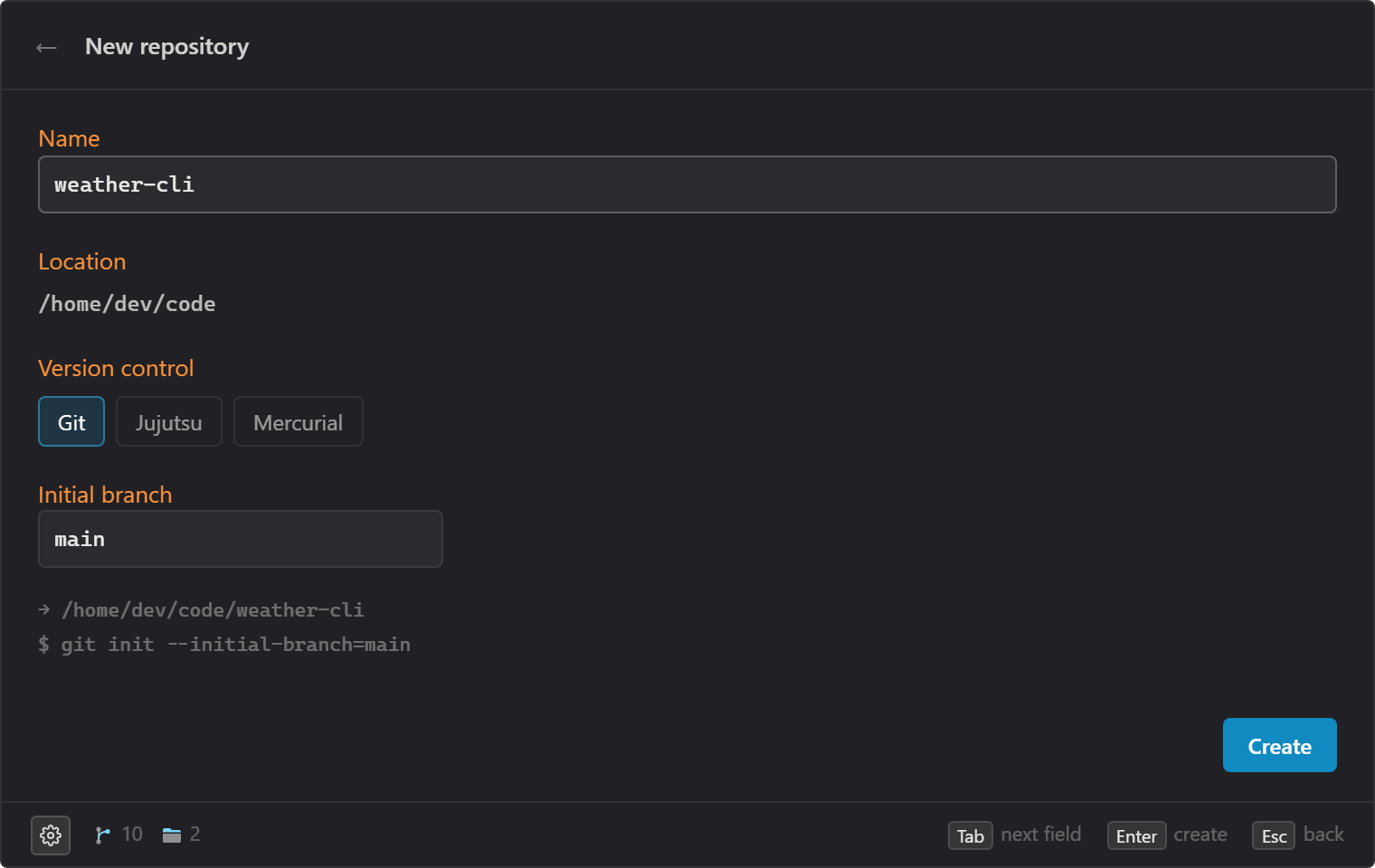
New repository (Ctrl+Shift+N) creates a folder in one of your roots and
sets up version control in it — Git, Jujutsu, Mercurial, Breezy or Darcs,
whichever are installed — then opens its action menu. Pick a name, a root (if
you have more than one) and a tool; Tab moves between fields, Enter
creates, Esc goes back. If setup fails, the error is shown and the folder is
removed again. No remotes are set up; do that from your terminal or editor.
A folder that isn't under version control yet (notes, documents, a project you haven't set up) shows up without a badge, and its action menu offers Set up version control… — the same form, for that folder. If setup fails, only what it added is removed; nothing already in the folder is touched. Subversion isn't offered — see docs/rules-engine.md for why, and how to add it anyway.
Action menu
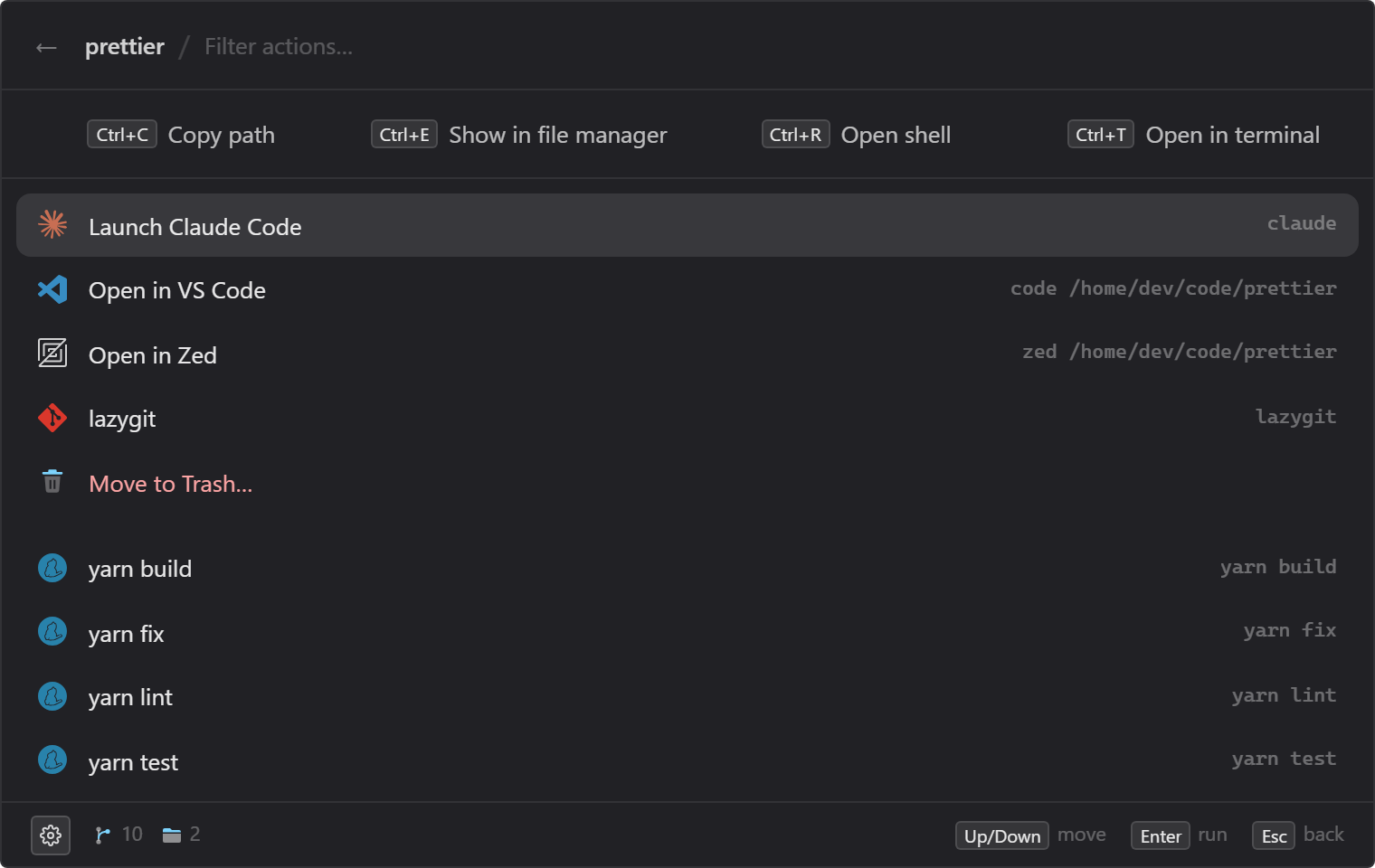
| Key | Action |
|---|---|
| type | filter actions (reaches into sub-projects) |
Enter | run the selected action, or drill into a sub-project |
Tab | drill into the selected sub-project |
Ctrl+T | open in your terminal app |
Ctrl+E | show in your file manager |
Ctrl+C | copy the path |
Ctrl+R | open a shell in the overlay (see below) |
Esc | step back one level (sub-project → menu → repo list) |
The four quick actions also sit as buttons along the top of the menu.
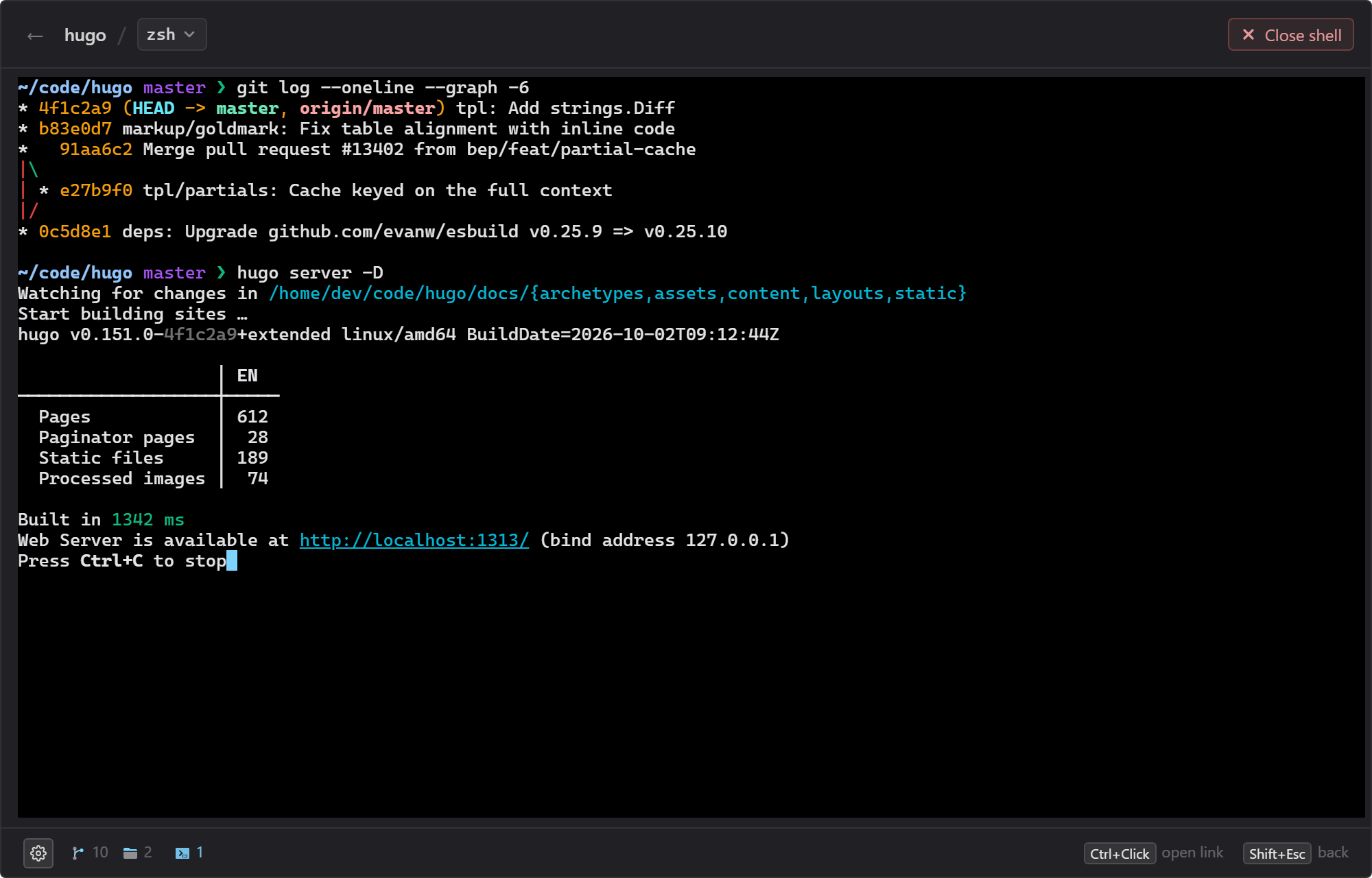
Open shell (Ctrl+R in the action menu, or a repo's right-click menu)
opens a shell inside the overlay, in that repo — your own shell, with your
profile, prompt, history and tab completion. It's a full terminal: colours,
vim, fzf, progress bars and Ctrl+C all work. The overlay grows while it's
open.
| Key | Action |
|---|---|
everything, Esc too | goes to the shell |
Shift+Esc / mouse back | step back to the action menu (the shell keeps running) |
| the hotkey | hide the overlay; press it again to come back to the shell |
Ctrl+C with a selection | copy (Ctrl+Shift+C always copies) |
Ctrl+V / Ctrl+Shift+V | paste |
Ctrl+click a link | open it in your browser |
Each folder gets one shell. Leave it and it keeps running — a blue terminal
icon to the left of the repo's name says so — and Open shell goes back to it. The shell's name in
the header switches to another shell (Settings ▸ Tools ▸ Shell sets the
default); Close shell stops it and whatever it's running, like closing a terminal
tab. Typing exit closes it too. If it exits with an error, the output stays
up: Enter starts it again. Settings ▸ Tools also sets its font — pick a
Nerd Font if your prompt uses icons.
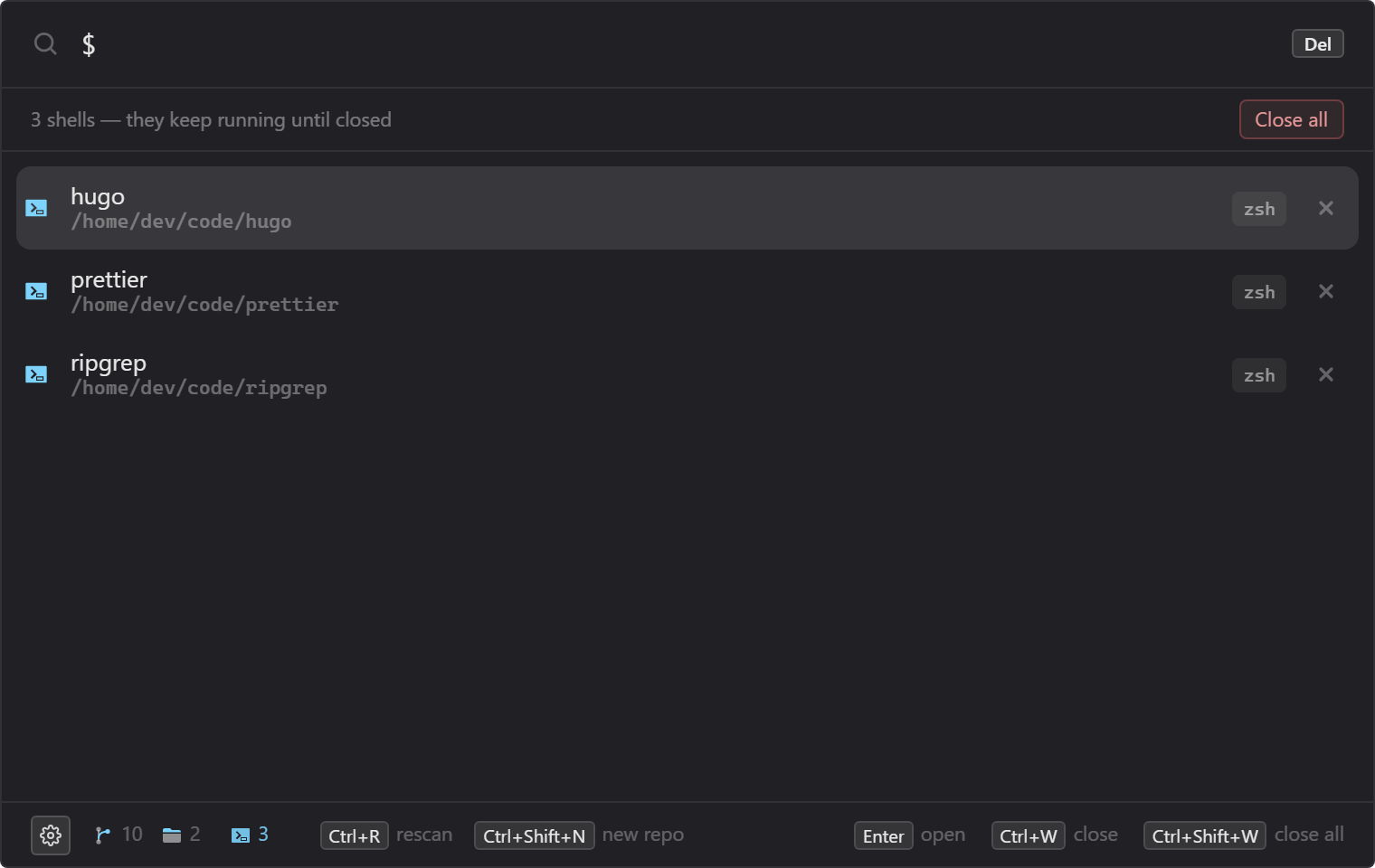
Running shells — while any are open, a terminal icon with a count sits in
the footer. Click it, or type $ in the search box, for a list of every shell
across all your repos:
| Key | Action |
|---|---|
type after $ | filter by repo name or folder |
Enter / click | go into that shell |
Ctrl+W / its ✕ | close that shell |
Ctrl+Shift+W / Close all | close every shell |
A repo's right-click menu has Close shell while one runs there, and the tray icon's Close all shells clears them without opening the overlay.
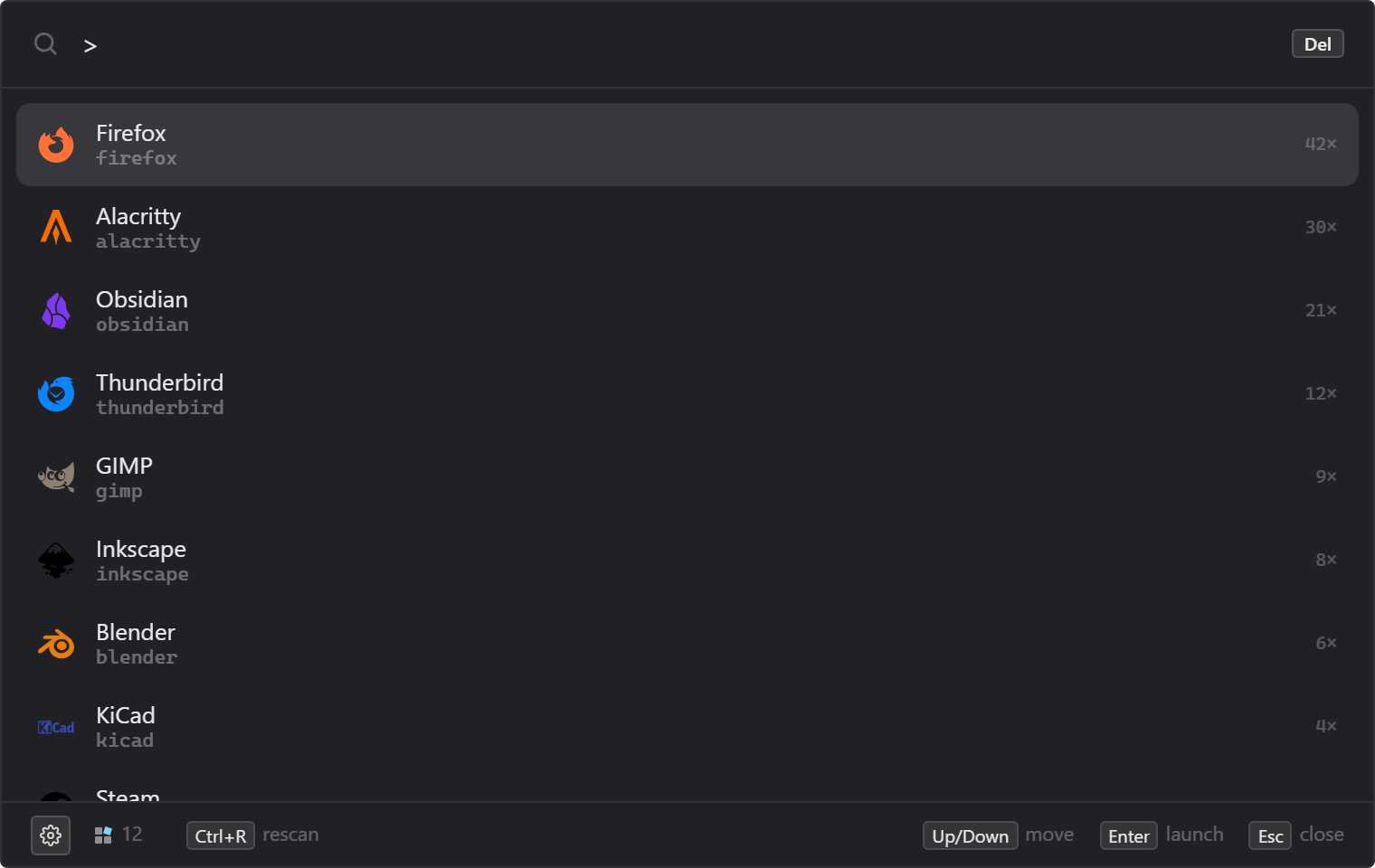
Apps — a leading > in the search box swaps the repo list for your
installed applications: type to filter, Enter launches, most-used first. A
second hotkey (Settings ▸ General) opens straight into it. Settings ▸ Apps adds
folders to index or turns the whole scope off.
Right-click works where it's useful, styled like the rest of the app:
> — launch it, show its folder, copy its path;Anywhere else right-click does nothing — the browser's own Back / Reload / Print menu never shows. (In a dev build, Shift+right-click still opens it, for Inspect.)
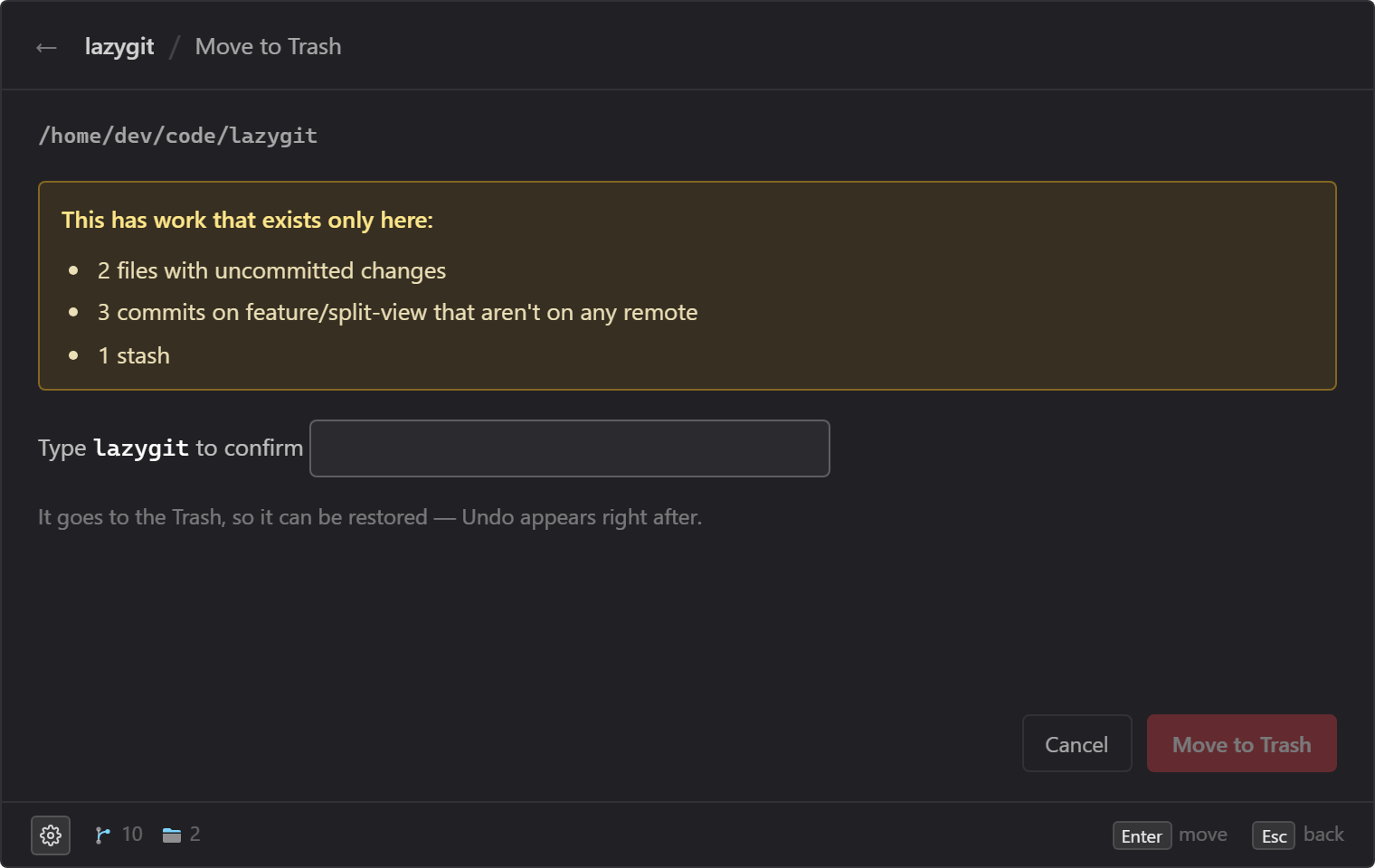
Move to Recycle Bin (Trash on Linux) — from a repo's right-click menu or
its action menu — never deletes outright: the folder goes to the bin, Undo
(Ctrl+Z) appears right after, and on Windows a folder too big for the bin
gets Windows' own "permanently delete?" prompt rather than vanishing. First it
checks what exists nowhere else: uncommitted changes, commits on no remote,
stashes / shelves, repos nested inside, or no version control at all. A clean
repo whose commits are all on a remote is one click; anything else lists what's
at risk and asks you to type the folder's name. Git, Mercurial and Jujutsu are
checked fully offline; for Subversion, Breezy, Darcs and Fossil only local
changes can be checked without contacting the remote, so those always ask for
the name. Your root folders themselves are never offered.
The mouse back / forward buttons work throughout: back == Esc for the
current screen, forward == open the action menu on the repo list, or drill
into a sub-project from within it.
Manual GitHub Actions workflow computes a CalVer version, builds, and publishes a
release with the installer, a portable zip, and signed updater artifacts. Full
details — versioning, the draft/prerelease toggles, the one-time signing-key
setup — in docs/releasing.md.
Issues and PRs welcome. Adding support for an editor or build tool is usually
just data in default_config.yaml — no Rust. See
CONTRIBUTING.md.
src/                        Svelte frontend (overlay UI)
  App.svelte                repo / app / shell lists, action menu, screens, window-level keys
  lib/ipc.ts                typed wrappers over Tauri commands + events
  lib/fuzzy.ts              fzf-style scorer
  lib/shells.svelte.ts      built-in shell sessions (xterm.js), one per folder
  lib/shellKeys.ts          which keys go to the shell and which to the app
  lib/updater.ts            auto-update check / install
  lib/components/           SearchInput, ResultList, AppList, ShellList, ActionMenu,
                            Shell, NewRepo, RemoveFolder, ContextMenu, …
  lib/components/settings/  the Settings shell (sidebar + autosave) and one
                            component per page
src-tauri/                  Rust backend
  src/config.rs             config schema, load/merge, path expansion
  src/default_config.yaml   bundled markers / programs / rules / universal
  src/scan.rs               directory walk -> Vec<Repo>, discovery globset
  src/watch.rs              folder watcher: rescans when repos come or go
  src/inspect.rs            per-repo context (projects, manifests, compose)
  src/rules.rs              rule engine: program resolver, templates, providers
  src/cache.rs              repos.json / apps.json read/write, staleness, merge
  src/index.rs              nucleo fuzzy ranking
  src/apps.rs               installed-app discovery for the > scope
  src/app_watch.rs          app watcher: Start Menu / registry / .desktop changes
  src/provision.rs          New repository / Set up version control
  src/removal.rs            Move to Recycle Bin: the at-risk check, Undo
  src/pty.rs                built-in shell: the user's shell in a pseudo-terminal
  src/launch.rs             detached process spawning
  src/layer.rs              Wayland: the overlay as a centred layer-shell surface
  src/commands.rs           #[tauri::command] surface + shared state
  src/lib.rs                plugin wiring, window setup, hotkey, tray
  src/rules_template.yaml    scaffold written to the user's rules.yaml
scripts/version.mjs         CalVer generator for releases
packaging/                  Linux packaging: .desktop / AppStream, PKGBUILDs,
                            Flatpak manifest, the apt/rpm/pacman repo builder,
                            and the website (packaging/site/)
.github/workflows/          CI, release, the package repo, dev sync
docs/                       configuration.md, rules-engine.md, releasing.md, future-work.md
cd src-tauri && cargo test    # config merge/expansion, discovery,
                              # nested-repo collapse, cache staleness,
                              # rule evaluation, fuzzy ranking, the watchers
                              # against real OS events, shell sessions in a
                              # real pseudo-terminal
npm run test                  # frontend logic (fuzzy, hotkeys, shell keys,
                              # settings model)
npm run check                 # svelte-check (types)
MIT — see LICENSE.
The Windows installer is unsigned, so SmartScreen shows a warning on first run —
More info ▸ Run anyway. Updater artifacts are minisign-signed (public key in
src-tauri/tauri.conf.json); the app verifies every update before applying it.
Lightning-fast cross-platform command-palette overlay for launching dev repositories (Tauri v2 + Svelte)
Rust
0
203 commits
updated Oct 15, 2026
A command palette for every repo you own — one that reads each project and hands you its actual scripts, builds, and sub-packages.
Press a global shortcut from anywhere and a fuzzy-searchable list of every
repository under your code folders appears. Type a few letters, hit Enter, and
that repo's action menu is up: open it in your editor or terminal, run one of
its scripts, or drop into a shell right inside the overlay.
Most launchers stop at "open the folder." dev-prompt opens the action menu it
built by inspecting the project: the exact package.json scripts it defines
(run through the right package manager), cargo test, the .sln opened in
Visual Studio, docker compose up, a jump straight into the packages/api
sub-project. No file manager, no cd, no remembering whether it's npm run dev
or pnpm start.
It adapts to your machine — actions for tools you haven't installed simply don't appear — and the entire editor-and-toolchain brain is a YAML file you can extend in a few lines. It looks after the repos themselves too: create one with version control already set up, put an existing folder under version control, or move one to the Recycle Bin after it checks what would be lost. Appears instantly, vanishes the moment it loses focus, never touches your taskbar.
Cross-platform, built with Tauri v2 (Rust) + Svelte 5 + Tailwind CSS — a small single binary with no runtime dependencies beyond the system WebView. Website: seraphx2.github.io/dev-prompt.
Ctrl/Cmd+Backslash (rebindable via a click-to-record field in Settings)..gitignore, collapses nested repos, caches the result for instant startup and
refreshes in the background when stale. A folder watcher keeps the list
current while the app runs: a repo you clone or delete appears or goes on its
own.packages/*-style sub-projects) for .sln / .csproj,
package.json scripts, Cargo.toml, go.mod / go.work, Python
(pyproject.toml / requirements.txt, uv / poetry), docker-compose, and more.default_config.yaml (markers, program resolution, rules,
universal actions). A hand-edited rules.yaml layers your own on top.Ctrl+R in the action menu) opens
your own shell (pwsh, bash, zsh, fish, nu, …) right in the overlay, at the
repo. It keeps running when you hide the overlay, so a dev server stays up and
the hotkey brings you straight back to it. Every running shell is one $ (or
a footer click) away, to jump into or close.Ctrl+Shift+N) creates a folder
with Git, Jujutsu, Mercurial, Breezy or Darcs set up; Set up version
control… does the same for a folder that has none; Move to Recycle Bin
checks for unpushed commits and uncommitted work first, and offers Undo.> to search your installed applications instead of
repos (Start Menu, Store and installed programs on Windows; .desktop
entries on Linux), most-used first.Ctrl+,) or the tray icon.docs/releasing.md.Windows — grab dev-prompt_<version>_x64-setup.exe (or the portable zip)
from the latest release.
Linux — a signed package repo covers apt / dnf / pacman / Flatpak
(docs/linux-distribution/); updates then
ride your normal apt / dnf / pacman -Syu / flatpak update. Or take the
.AppImage from the release and run it directly.
curl -fsSL https://seraphx2.github.io/dev-prompt/dev-prompt.asc \
  | sudo gpg --dearmor -o /usr/share/keyrings/dev-prompt.gpg
echo "deb [signed-by=/usr/share/keyrings/dev-prompt.gpg] https://seraphx2.github.io/dev-prompt/deb stable main" \
  | sudo tee /etc/apt/sources.list.d/dev-prompt.list
sudo apt update && sudo apt install dev-prompt
sudo tee /etc/yum.repos.d/dev-prompt.repo <<'EOF'
[dev-prompt]
name=dev-prompt
baseurl=https://seraphx2.github.io/dev-prompt/rpm
enabled=1
gpgcheck=1
gpgkey=https://seraphx2.github.io/dev-prompt/dev-prompt.asc
EOF
sudo dnf install dev-prompt
curl -fsSL https://seraphx2.github.io/dev-prompt/dev-prompt.asc | sudo pacman-key --add -
sudo pacman-key --lsign-key E3C07CD21A9A9BA5
sudo tee -a /etc/pacman.conf <<'EOF'

[dev-prompt]
SigLevel = Required
Server = https://seraphx2.github.io/dev-prompt/arch
EOF
sudo pacman -Sy dev-prompt
# one-time: the GNOME runtime comes from Flathub
flatpak remote-add --if-not-exists flathub https://flathub.org/repo/flathub.flatpakrepo

flatpak remote-add --if-not-exists --user dev-prompt \
  https://seraphx2.github.io/dev-prompt/dev-prompt.flatpakrepo
flatpak install --user dev-prompt io.github.seraphx2.devprompt
Or open
io.github.seraphx2.devprompt.flatpakref
in your software centre for a one-click install. This is a self-hosted remote,
not Flathub — see docs/linux-distribution/phase-4-flatpak.md.
First run creates two files in your OS config directory (%APPDATA%\dev-prompt\
or ~/.config/dev-prompt/):
config.yaml — your settings (hotkey, roots, scan depth, cache lifetime).
Managed entirely by the Settings screen; you don't normally touch it.rules.yaml — overrides for the rule engine: extra markers, programs,
rules, and universal actions layered over the bundled defaults. Hand-edited
(Settings ▸ Active rules ▸ Open rules file), ships as a commented scaffold.Settings reference: docs/configuration.md. The rule
engine — merge rules, every field, and worked examples (pin an editor path, add a
build rule, disable a built-in, change the Enter action) —
docs/rules-engine.md; the canonical schema with inline
docs is src-tauri/src/default_config.yaml.
The discovered repo list is cached at <OS cache dir>/dev-prompt/repos.json; the
installed-app list (> scope) is cached alongside it at
<OS cache dir>/dev-prompt/apps.json.
markers entry
or matches any rule's match glob (.git, *.sln, package.json,
Cargo.toml, pom.xml, Gemfile, …). Every folder directly inside a root
is listed too, marker or not (Settings ▸ Repos ▸ "List every folder directly
inside a root"), unless it only holds other repos. While the app runs, the roots
are watched, so repos created, deleted or moved in show up within a second
or so.default_config.yaml maps manifests to actions. requires: [bin]
hides a rule unless the binary is on PATH; needs: [key] hides an action
unless that program resolves. Nothing errors when a tool is missing — it just
doesn't appear.| Status | |
|---|---|
| Windows 10/11 | Built, packaged (NSIS installer + portable zip), and tested. Acrylic blur + rounded corners, Windows Terminal integration, Visual Studio / Rider detection. |
| Linux | Same codebase, compiles. Built and packaged (deb / rpm / AppImage + a signed apt/dnf/pacman repo and a self-hosted Flatpak) by the release workflow; AppImage installs auto-update, everything else updates through its package manager. Hotkey works on X11; Wayland needs the XDG global-shortcuts portal (tray-click fallback otherwise). The > app launcher reads freedesktop .desktop entries (theme icons, gtk-launch). Terminal-command actions need per-emulator working-dir flags (in progress) — plain "open a terminal" works. Panel is translucent but unblurred (no compositor backing yet), so it paints a little more solid than on Windows. On Wayland the overlay is a layer-shell surface, kept centred by the compositor (KDE, Sway, Hyprland, …), when gtk-layer-shell is installed (the packages recommend it; the Flatpak bundles it); GNOME, which lacks layer shell, places it as a regular window. |
Windows and Linux are the only supported targets — see CLAUDE.md.
The architecture is still platform-neutral where it costs nothing — program
paths and OS quirks are isolated in the programs config (any / windows /
linux candidate lists) and a handful of #[cfg] blocks. The remaining
cross-platform work is tracked in
docs/future-work.md.
| Tool | Notes |
|---|---|
Node.js 22+ (.nvmrc pins 24; CI builds on 24) | frontend build (npm) |
| Rust (stable, 1.77+) | https://rustup.rs |
| Platform toolchain | Windows: MSVC Build Tools ("Desktop development with C++") + WebView2 (preinstalled on Win 11). Linux: webkit2gtk-4.1, libayatana-appindicator3, librsvg2, standard build tools. |
npm install
npm run tauri dev
Starts Vite on :1420 and launches the overlay (hidden until you press the hotkey). The tray icon appears immediately.
npm run tauri build
Produces a Windows NSIS installer, or the Linux deb / rpm / AppImage
bundles, depending on the host OS. The release workflow builds both — see
docs/releasing.md, which also has a recipe for
smoke-testing a Linux bundle locally.
dev-prompt is meant to sit in the background and be summoned by its hotkey, so turn on Settings ▸ General ▸ Start at login — then the hotkey is live from every boot and the app is never a window you have to find. (On Flatpak your desktop asks permission the first time; on the AppImage there's no autostart hook, so add one via your desktop's session settings.)
Repo list
| Key | Action |
|---|---|
| type | fuzzy-filter repos |
Up / Down | move selection |
Enter | open the action menu for the selected repo |
> | search installed apps instead (see below) |
$ | list the running shells (see below) |
Ctrl+R | force a rescan |
Ctrl+Shift+N | create a new repository (see below) |
Delete | clear the query |
Ctrl+, | open Settings |
Esc / click away | hide the overlay |
New repository (Ctrl+Shift+N) creates a folder in one of your roots and
sets up version control in it — Git, Jujutsu, Mercurial, Breezy or Darcs,
whichever are installed — then opens its action menu. Pick a name, a root (if
you have more than one) and a tool; Tab moves between fields, Enter
creates, Esc goes back. If setup fails, the error is shown and the folder is
removed again. No remotes are set up; do that from your terminal or editor.
A folder that isn't under version control yet (notes, documents, a project you haven't set up) shows up without a badge, and its action menu offers Set up version control… — the same form, for that folder. If setup fails, only what it added is removed; nothing already in the folder is touched. Subversion isn't offered — see docs/rules-engine.md for why, and how to add it anyway.
Action menu
| Key | Action |
|---|---|
| type | filter actions (reaches into sub-projects) |
Enter | run the selected action, or drill into a sub-project |
Tab | drill into the selected sub-project |
Ctrl+T | open in your terminal app |
Ctrl+E | show in your file manager |
Ctrl+C | copy the path |
Ctrl+R | open a shell in the overlay (see below) |
Esc | step back one level (sub-project → menu → repo list) |
The four quick actions also sit as buttons along the top of the menu.
Open shell (Ctrl+R in the action menu, or a repo's right-click menu)
opens a shell inside the overlay, in that repo — your own shell, with your
profile, prompt, history and tab completion. It's a full terminal: colours,
vim, fzf, progress bars and Ctrl+C all work. The overlay grows while it's
open.
| Key | Action |
|---|---|
everything, Esc too | goes to the shell |
Shift+Esc / mouse back | step back to the action menu (the shell keeps running) |
| the hotkey | hide the overlay; press it again to come back to the shell |
Ctrl+C with a selection | copy (Ctrl+Shift+C always copies) |
Ctrl+V / Ctrl+Shift+V | paste |
Ctrl+click a link | open it in your browser |
Each folder gets one shell. Leave it and it keeps running — a blue terminal
icon to the left of the repo's name says so — and Open shell goes back to it. The shell's name in
the header switches to another shell (Settings ▸ Tools ▸ Shell sets the
default); Close shell stops it and whatever it's running, like closing a terminal
tab. Typing exit closes it too. If it exits with an error, the output stays
up: Enter starts it again. Settings ▸ Tools also sets its font — pick a
Nerd Font if your prompt uses icons.
Running shells — while any are open, a terminal icon with a count sits in
the footer. Click it, or type $ in the search box, for a list of every shell
across all your repos:
| Key | Action |
|---|---|
type after $ | filter by repo name or folder |
Enter / click | go into that shell |
Ctrl+W / its ✕ | close that shell |
Ctrl+Shift+W / Close all | close every shell |
A repo's right-click menu has Close shell while one runs there, and the tray icon's Close all shells clears them without opening the overlay.
Apps — a leading > in the search box swaps the repo list for your
installed applications: type to filter, Enter launches, most-used first. A
second hotkey (Settings ▸ General) opens straight into it. Settings ▸ Apps adds
folders to index or turns the whole scope off.
Right-click works where it's useful, styled like the rest of the app:
> — launch it, show its folder, copy its path;Anywhere else right-click does nothing — the browser's own Back / Reload / Print menu never shows. (In a dev build, Shift+right-click still opens it, for Inspect.)
Move to Recycle Bin (Trash on Linux) — from a repo's right-click menu or
its action menu — never deletes outright: the folder goes to the bin, Undo
(Ctrl+Z) appears right after, and on Windows a folder too big for the bin
gets Windows' own "permanently delete?" prompt rather than vanishing. First it
checks what exists nowhere else: uncommitted changes, commits on no remote,
stashes / shelves, repos nested inside, or no version control at all. A clean
repo whose commits are all on a remote is one click; anything else lists what's
at risk and asks you to type the folder's name. Git, Mercurial and Jujutsu are
checked fully offline; for Subversion, Breezy, Darcs and Fossil only local
changes can be checked without contacting the remote, so those always ask for
the name. Your root folders themselves are never offered.
The mouse back / forward buttons work throughout: back == Esc for the
current screen, forward == open the action menu on the repo list, or drill
into a sub-project from within it.
Manual GitHub Actions workflow computes a CalVer version, builds, and publishes a
release with the installer, a portable zip, and signed updater artifacts. Full
details — versioning, the draft/prerelease toggles, the one-time signing-key
setup — in docs/releasing.md.
Issues and PRs welcome. Adding support for an editor or build tool is usually
just data in default_config.yaml — no Rust. See
CONTRIBUTING.md.
src/                        Svelte frontend (overlay UI)
  App.svelte                repo / app / shell lists, action menu, screens, window-level keys
  lib/ipc.ts                typed wrappers over Tauri commands + events
  lib/fuzzy.ts              fzf-style scorer
  lib/shells.svelte.ts      built-in shell sessions (xterm.js), one per folder
  lib/shellKeys.ts          which keys go to the shell and which to the app
  lib/updater.ts            auto-update check / install
  lib/components/           SearchInput, ResultList, AppList, ShellList, ActionMenu,
                            Shell, NewRepo, RemoveFolder, ContextMenu, …
  lib/components/settings/  the Settings shell (sidebar + autosave) and one
                            component per page
src-tauri/                  Rust backend
  src/config.rs             config schema, load/merge, path expansion
  src/default_config.yaml   bundled markers / programs / rules / universal
  src/scan.rs               directory walk -> Vec<Repo>, discovery globset
  src/watch.rs              folder watcher: rescans when repos come or go
  src/inspect.rs            per-repo context (projects, manifests, compose)
  src/rules.rs              rule engine: program resolver, templates, providers
  src/cache.rs              repos.json / apps.json read/write, staleness, merge
  src/index.rs              nucleo fuzzy ranking
  src/apps.rs               installed-app discovery for the > scope
  src/app_watch.rs          app watcher: Start Menu / registry / .desktop changes
  src/provision.rs          New repository / Set up version control
  src/removal.rs            Move to Recycle Bin: the at-risk check, Undo
  src/pty.rs                built-in shell: the user's shell in a pseudo-terminal
  src/launch.rs             detached process spawning
  src/layer.rs              Wayland: the overlay as a centred layer-shell surface
  src/commands.rs           #[tauri::command] surface + shared state
  src/lib.rs                plugin wiring, window setup, hotkey, tray
  src/rules_template.yaml    scaffold written to the user's rules.yaml
scripts/version.mjs         CalVer generator for releases
packaging/                  Linux packaging: .desktop / AppStream, PKGBUILDs,
                            Flatpak manifest, the apt/rpm/pacman repo builder,
                            and the website (packaging/site/)
.github/workflows/          CI, release, the package repo, dev sync
docs/                       configuration.md, rules-engine.md, releasing.md, future-work.md
cd src-tauri && cargo test    # config merge/expansion, discovery,
                              # nested-repo collapse, cache staleness,
                              # rule evaluation, fuzzy ranking, the watchers
                              # against real OS events, shell sessions in a
                              # real pseudo-terminal
npm run test                  # frontend logic (fuzzy, hotkeys, shell keys,
                              # settings model)
npm run check                 # svelte-check (types)
MIT — see LICENSE.
The Windows installer is unsigned, so SmartScreen shows a warning on first run —
More info ▸ Run anyway. Updater artifacts are minisign-signed (public key in
src-tauri/tauri.conf.json); the app verifies every update before applying it.



