
See what people are saying
README
Oxide Terminal
A native terminal emulator for macOS and Linux, written entirely in Rust.
Rust is iron oxide. It's a whole thing.
Website · Docs · Changelog · Compare · Discord


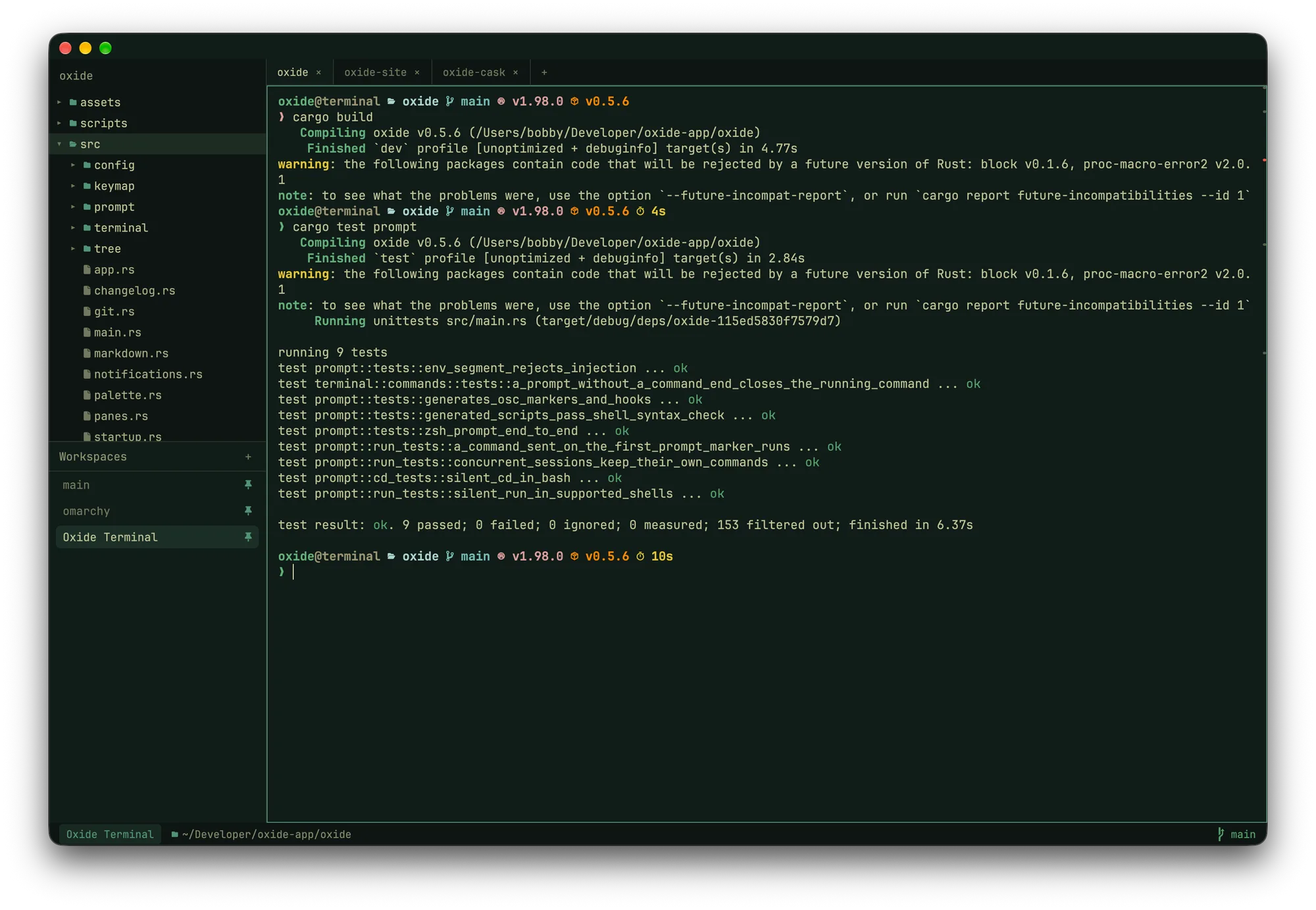
Oxide is a GPU-rendered terminal built on GPUI (Zed's UI framework) and
alacritty_terminal (Alacritty's PTY + VT parser),
with a file-tree drawer you drive like vim and a status bar that knows where your shell is.
The things you'd normally bolt on — a file tree, tmux-style workspaces, a powerline prompt,
a vim copy mode — are built in, and all of it is configured in one TOML file that reloads
when you save. No account, no AI, no telemetry: the only thing Oxide asks the network is
whether GitHub has a newer release.
Install
macOS
brew install --cask oxide-terminal/tap/oxide-terminal
Or grab the DMG from the latest release and drag Oxide to Applications. Builds are Developer ID signed and notarized, so there's no right-click-to-open dance, and Oxide keeps itself up to date afterwards — it checks on launch and every six hours, or on demand via Oxide → Check for Updates…
Linux (Wayland or X11, x86_64)
# Arch and derivatives: a pacman package from the PKGBUILD in this repo
# (an AUR package will follow once AUR registration reopens)
git clone https://github.com/oxide-terminal/oxide.git
cd oxide/packaging/aur/oxide-terminal-bin && makepkg -si

# any distro: the release tarball
tar xzf oxide-<version>-linux-x86_64.tar.gz
cd oxide-<version>-linux-x86_64 && ./install.sh        # into ~/.local, no root
The tarball is on the same release page.
install.sh puts oxide on your PATH and adds the launcher entry and icon;
--prefix /usr/local (with sudo) installs system-wide, --uninstall removes it.
Installed copies announce a newer release in the top-right corner; git pull and
makepkg -si again, or a fresh tarball, does the update.
- macOS 12 or later, Apple Silicon or Intel; or Linux with a Vulkan driver
(any GPU from the last decade — Mesa's
vulkan-radeon/vulkan-intel, ornvidia-utils) andnotify-send(libnotify) for desktop notifications. - No font to install — JetBrainsMono Nerd Font Mono is bundled. Set
font.familyto use your own. - zsh or bash for the built-in prompt and shell integration. Other shells run fine and keep their own prompt.
Oxide never writes to your dotfiles. Full instructions are in the install docs.
A closer look
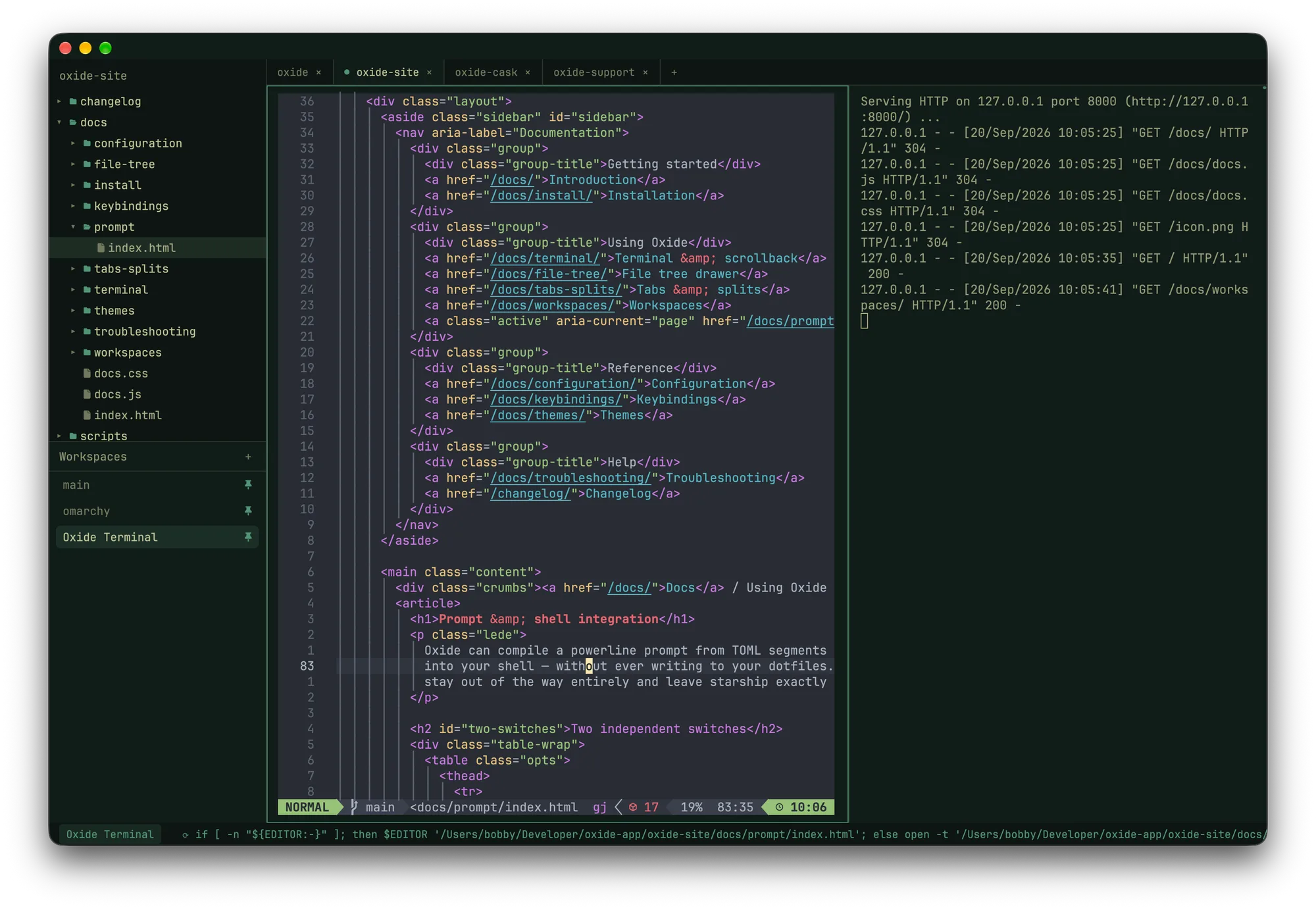 Splits — a file opened from the tree in $EDITOR, a dev server beside it. | 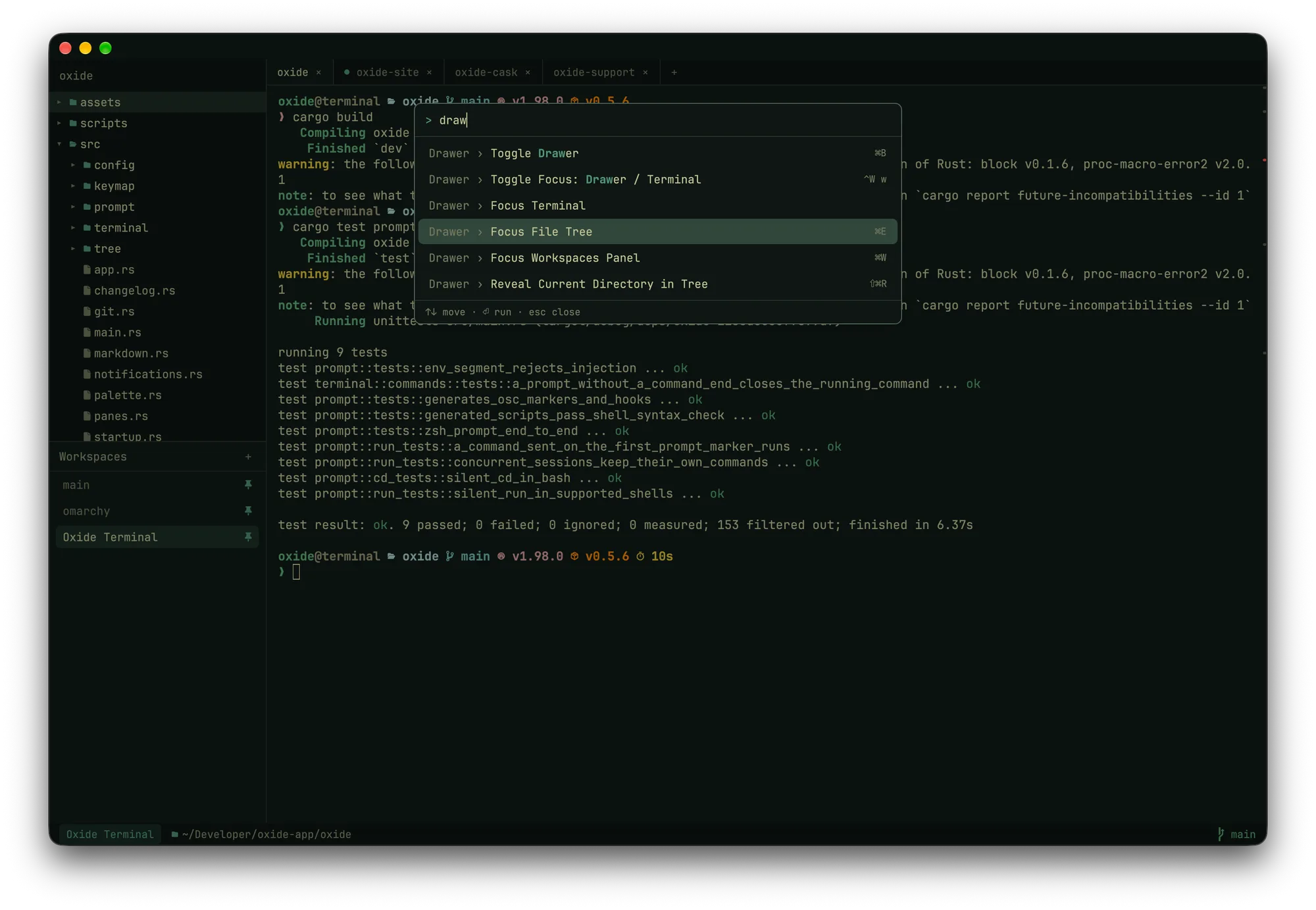 Command palette ( cmd-shift-p) — every action, fuzzy-searchable, with its binding. |
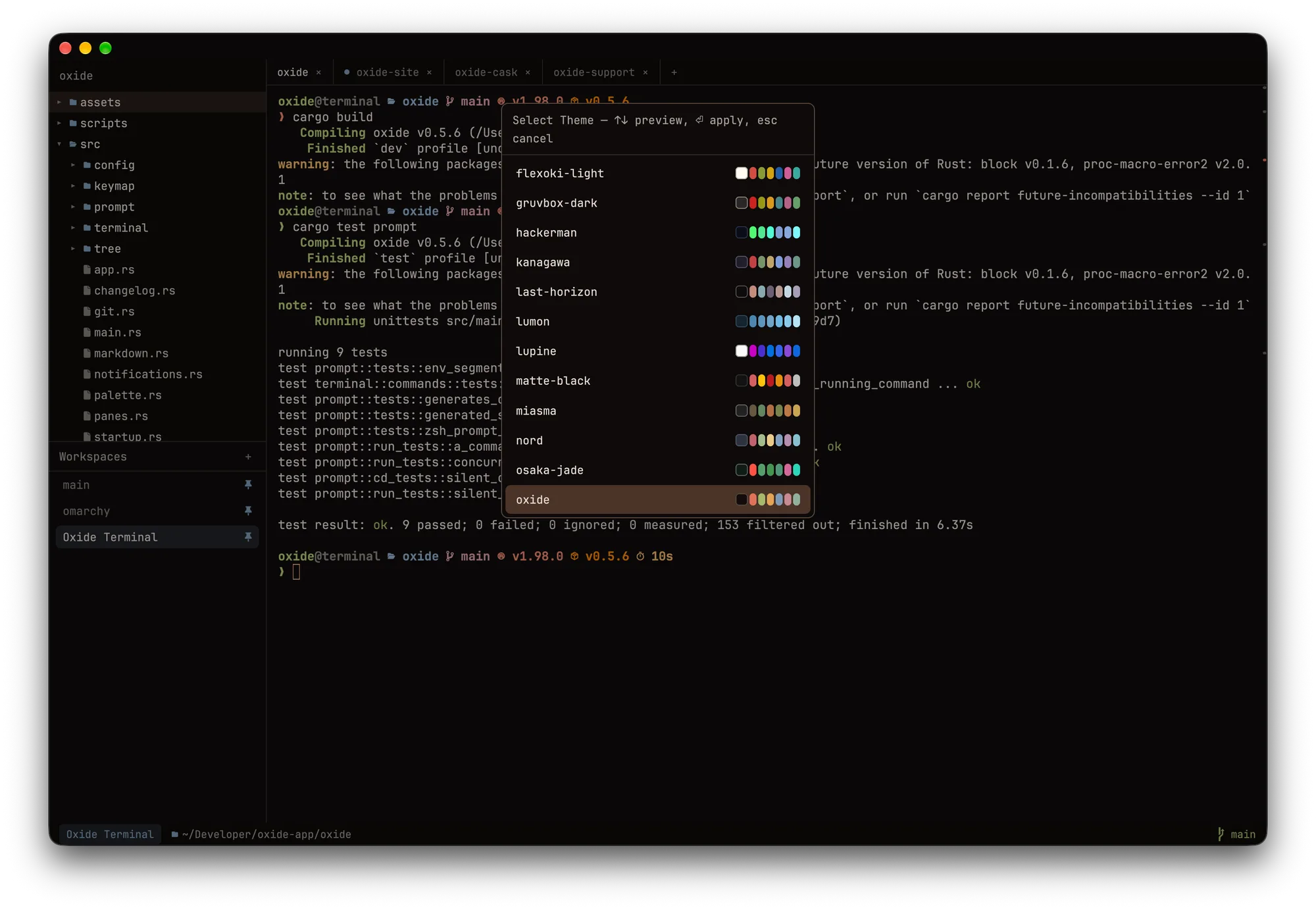 Theme picker ( cmd-alt-t) — repaints the whole window as you move through it. | 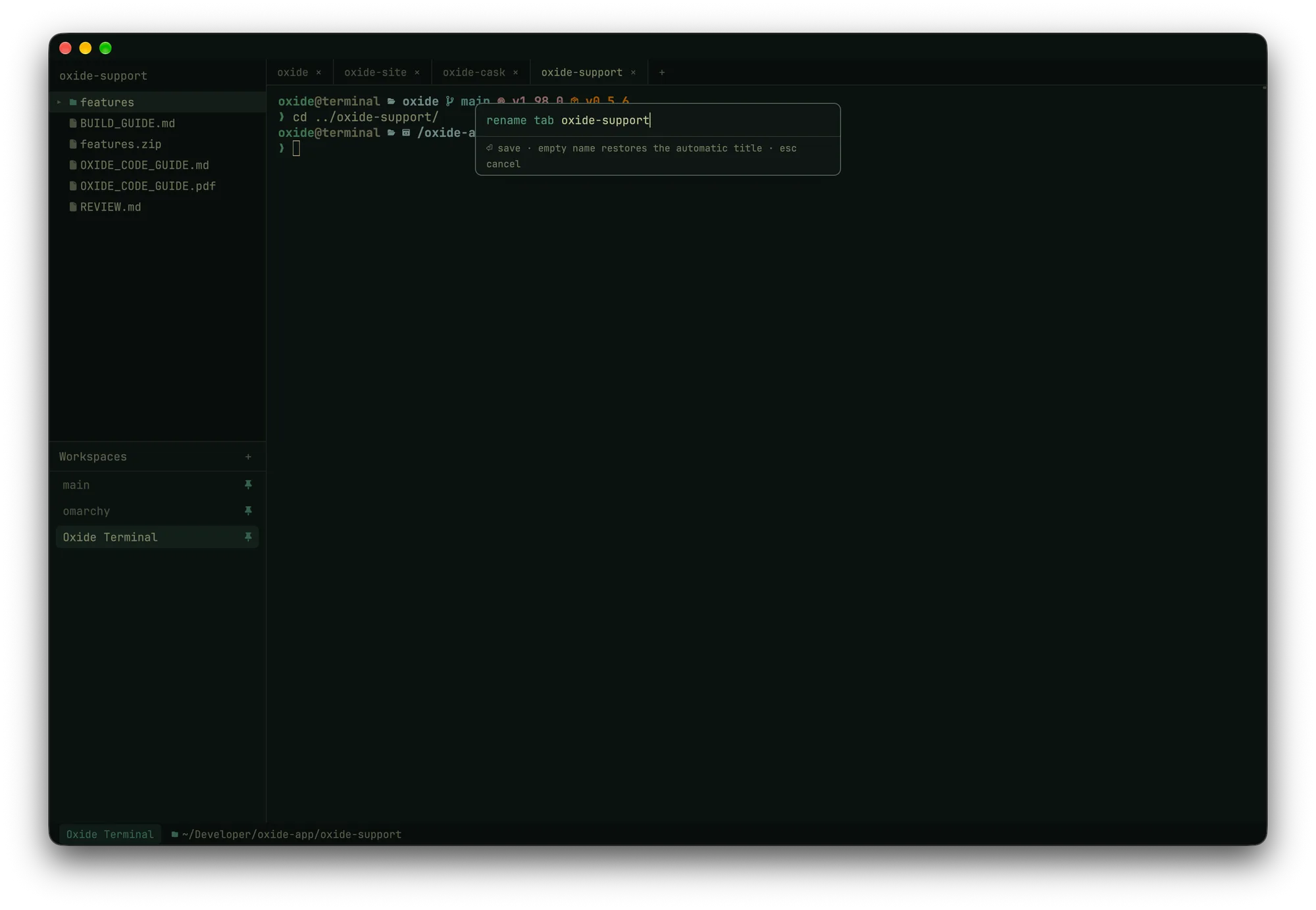 Rename a tab with ctrl-w , or a double-click; an empty name restores the automatic title. |
Features
The short tour. Every feature has a page in the docs.
- Real terminal — full VT emulation via Alacritty's parser: truecolor, wide glyphs and combining marks, bracketed paste, mouse reporting (SGR), alternate-screen scrolling, OSC 8 hyperlinks, OSC 52 clipboard. vim, htop, and tmux just work.
- File tree drawer — follows the focused pane, so switching splits re-roots it to
that shell's directory. Modeless vim navigation (
j/k/gg/G, nvim-tree styleh/l), type-to-filter with/, and file operations:aadd,rrename,mmove,ddelete (to Trash). Dims gitignored files, watches the filesystem, and follows the shell'scdautomatically. - The tree/terminal seam —
yinserts the selected path at the prompt, quoted and relative;cmd-clickapath:line:colin output to open it in$EDITORat that line (nvim, VS Code, emacs, Sublime, Helix dialects built in); rows are coloured by git status;cmd-pfuzzy-finds any file under the root;cmd-shift-rreveals the shell's directory; right-click a row to re-root, copy, or reveal in Finder / your file manager — or, on a.mdfile, preview it rendered in a new tab (tables, highlighted code with click-to-copy); drag rows or drop files onto a pane. - Scrollback search —
cmd-f, live,⏎/⇧⏎to walk matches; regex, case-sensitive, and whole-word toggles as clickable chips (cmd-alt-r/c/w), and a malformed regex says so instead of matching nothing. - Copy mode —
ctrl-w [(orcmd-shift-v) turns the scrollback into a vim buffer:hjkl,w b e,0 ^ $,gg G,ctrl-d/u, counts like5j,/and?search withn/N,v/V/ctrl-vvisual selection,yto yank and leave. Nothing typed reaches the shell until youesc. - Prompt jumping —
cmd-↑/cmd-↓hop between previous prompts in scrollback. - SSH awareness — Oxide watches the foreground process: an
sshshowsssh: hostin the status bar, and[[ssh.hosts]]patterns give a host an accent colour on the pane border so a production box is visibly red. The process name also titles the tab (vim,cargo,ssh prod-web). - Command awareness — the shell integration's OSC 133 markers are read straight off the PTY, so Oxide knows what's running, how long it took, and whether it failed: elapsed time in the status bar, activity dots on tabs, a red flash on a background pane that failed, a failure gutter you can click to jump to the command, and desktop notifications for long or failed commands in panes you aren't watching (click to focus the pane).
- Command history —
cmd-rsearches every command run in any pane, with its directory and exit status;⏎inserts it at the prompt,⌘⏎runs it.cmd-shift-ccopies the last command's output. - Status bar — workspace, current tab (number or name,
status_bar.tab), cwd plus git branch, dirty state, and ahead/behind, rendered natively. - Configurable prompt (optional) — compile a powerline prompt from TOML segments
(
cwd,git,exit_status,time,duration, …), injected without touching your dotfiles (ZDOTDIR shim for zsh,--init-filefor bash), with OSC 133 semantic prompt markers. Or setprompt.enabled = falseand keep your starship/p10k prompt as-is. - Themes —
catppuccin-mocha,catppuccin-latte,gruvbox-dark,tokyonight,dracula,nord,solarized-dark, andoxide(rust-toned, naturally), plus the Omarchy set:kanagawa,everforest,osaka-jade,matte-black,hackerman,rose-pine-dawn, and a dozen more — 25 presets in all. Any color individually overridable, includingselection_fg.follow_system = trueswitches between a dark and a light preset with the system appearance (macOS, or the desktop's dark/light preference on Linux). Config reloads live. - Split panes — split in any direction and nest freely; navigation moves by what's
on screen, and
exitorctrl-w qcloses a pane and reclaims its space. Drag a divider or usectrl-w < > - + =to resize. tmux reflexes:ctrl-w zzooms a pane to the full tab,ctrl-w bbroadcasts typing to every pane in the tab (with a red border and a loud status-bar pill),ctrl-w ocloses the others,ctrl-w xswaps with the neighbour.window.inactive_pane_opacitydims the panes you aren't in. - Command palette —
cmd-shift-plists every action with its binding, fuzzy-searchable. - Menus on Linux — a ☰ button in the top-left corner holds the same Oxide / File /
Edit / View / Window / Help menus macOS puts in the menu bar, shortcuts included
(
app::menuopens it from the keyboard). - Configurable keys — a
[keymap]table in config.toml rebinds anything; typos get a toast with a suggestion, and a bare key that would steal from your shell is refused. - Toasts, not dialogs — config errors, update problems, and other notices land as
toasts in the bottom-right corner; click or
×to dismiss. The first launch after an update shows one that opens the changelog in a new tab. - Tabs — a Zed-style in-app tab bar, so tabs work everywhere (including under
tiling window managers).
cmd-topens one in the current directory or~/(window.new_tab_directory);cmd-1..9jump straight to a tab. Double-click orctrl-w ,to rename one (names survive with pinned workspaces), drag tabs to reorder,cmd-shift-treopens the last closed one. Each tab carries its number (tabs.show_numbers), and the whole bar can be hidden — View → Toggle Tab Bar, ortabs.enabled = false— with the status bar still showing which tab you're on. - Workspaces — named sets of tabs and splits, tmux-session style, managed from the
drawer below the file tree (
aadd,rrename,ddelete,ppin);cmd-alt-1..9jump straight to one. Temporary by default; pinned ones survive restarts, restoring layout, tabs, splits, and each pane's directory with fresh shells. - Startup commands — the tmuxinator move: give a pane a command (
ctrl-w r, prefilled with the last thing that ran there) and a pinned workspace re-runs it on restore, once that pane's shell is actually at a prompt.on exitper pane: back to the shell, close the pane, or restart with backoff (and a breaker after five quick exits).ein the workspaces panel edits every pane's command at once;--no-startup-commandsor shift at launch restores the layout without running any. - The details — window size/position persistence,
cmd-clickto open URLs, copy-on-select option, font size at runtime (cmd +/-/0), configurable bell, a[cursor]section (block / bar / underline, blink rate, unfocused look — and vim's per-mode DECSCUSR shapes are honoured), a font fallback list for CJK and emoji, a "2,340 lines above" pill while scrolled up,cmd-kto clear scrollback, and optional dimming of the whole window when another app is frontmost.
Keys
The everyday ones. The full keymap lists every
action id, and a [keymap] table in your config rebinds any of them.
The ctrl-w chords are the same everywhere. Where macOS uses cmd, Linux uses
ctrl-shift (the usual terminal convention — plain ctrl-c stays the shell's) and
alt-1..9 for tabs, because Super belongs to the window manager.
| macOS | Linux | Action |
|---|---|---|
ctrl-w h / ctrl-w l / ctrl-w w | same | focus tree / terminal / toggle |
cmd-b | ctrl-shift-b | toggle the drawer |
ctrl-w t / cmd-shift-e | ctrl-w t / ctrl-shift-e | focus the file tree from anywhere |
cmd-f | ctrl-shift-f | search scrollback (⏎ older, ⇧⏎ newer, esc close; cmd-alt-r / c / w — ctrl-alt-r / c / w on Linux — toggle regex / case / whole word) |
ctrl-w [ / cmd-shift-v | ctrl-w [ | copy mode — vim keys in the scrollback, y yanks, esc leaves |
cmd-k | ctrl-shift-k | clear scrollback |
cmd-↑ / cmd-↓ | ctrl-shift-↑ / ↓ | jump to previous / next prompt |
cmd-r | ctrl-shift-r | command history (⏎ insert, ⌘⏎ / ctrl-⏎ run) |
cmd-p | ctrl-shift-o | fuzzy file finder (⏎ open, ⌘⏎ / ctrl-⏎ insert path, ⌥⏎ reveal) |
cmd-shift-r | ctrl-shift-alt-r | reveal the shell's directory in the tree |
cmd-click | ctrl-click | open a URL, or a path:line in $EDITOR |
cmd-shift-c | ctrl-shift-alt-c | copy the last command's output |
cmd-t / cmd-n | ctrl-shift-t / ctrl-shift-n | new tab / new window |
ctrl-w , / cmd-shift-t | ctrl-w , / ctrl-shift-alt-t | rename tab (double-click works too) / reopen the last closed tab |
ctrl-w r | same | set the pane's startup command (run when its pinned workspace is restored) |
cmd-1..9 | alt-1..9 | jump to tab |
cmd-alt-1..9 | ctrl-alt-1..9 | jump to workspace |
⌃tab ⇧⌘] / ⌃⇧tab ⇧⌘[ | ctrl-tab ctrl-pgdn / ctrl-shift-tab ctrl-pgup | next / previous tab |
ctrl-w p | same | focus the workspaces panel (tab toggles tree ↔ workspaces) |
ctrl-w v / ctrl-w s | same | split right / down (⇧V / ⇧S for left / up) |
cmd-d / cmd-shift-d | — | split right / down |
ctrl-w h j k l | same | move between panes (h from the leftmost focuses the tree) |
cmd-opt-←↓↑→ | — | move between panes |
ctrl-w q / cmd-w | ctrl-w q / ctrl-shift-w | close pane (closes the window when it's the last one) |
ctrl-w < > - + | same | resize the pane by a few cells (ctrl-w = equalises) |
ctrl-w z / ctrl-w b | same | zoom the pane to the full tab / broadcast input to every pane in the tab |
ctrl-w o / ctrl-w x | same | close the other panes / swap the pane with its neighbour |
cmd-shift-p / cmd-alt-t | ctrl-shift-p / ctrl-w shift-t | command palette / theme picker |
cmd-c / cmd-v | ctrl-shift-c / ctrl-shift-v | copy / paste (bracketed); Linux also pastes the primary selection on middle-click |
cmd + / - / 0 | ctrl + / - / 0 | font size |
cmd-q | ctrl-shift-q | quit |
In the tree — bare keys are free; there's no text input to collide with
| Keys | Action |
|---|---|
j k gg G ctrl-d ctrl-u | move |
l / h | expand & descend / collapse & ascend (nvim-tree semantics) |
enter / o | open dir, or file in $EDITOR |
y / Y | insert the path at the prompt (relative / absolute) |
cmd-c (ctrl-shift-c) | copy the path |
cmd-shift-o (ctrl-shift-o) | reveal in Finder / the file manager |
c / - | re-root at selection / at parent (cd's the shell too) |
/ | filter (esc clears) |
a / r / m / d | add (dir/ with trailing slash) / rename / move / delete to Trash |
I / R | toggle hidden / refresh |
esc | dismiss input → clear filter → back to terminal |
In copy mode — ctrl-w [; keys never reach the shell
| Keys | Action |
|---|---|
h j k l, arrows | move the cursor (counts work: 5j) |
w b e / W B E | word motions (punctuation-aware / whitespace) |
0 ^ $ / gg G / H M L | line / buffer / screen positions |
ctrl-d ctrl-u / ctrl-f ctrl-b | half page / full page |
/ ? then n N | search forward / backward, repeat — same bar and toggles as cmd-f |
v V ctrl-v | character / line / block selection |
y / yy / ⏎ | yank the selection (or the line) and leave |
esc / q | clear the selection, then leave |
In the workspaces panel
| Keys | Action |
|---|---|
j / k | move selection |
enter / o | switch to workspace |
a / r / d | add / rename / delete (y confirms) — also on right-click |
p | pin — persist this workspace across restarts |
e | edit every pane's startup command — also on right-click |
esc | dismiss input → back to terminal |
Configuration
~/.config/oxide/config.toml — a fully commented default is generated on first run.
Font, colors, keys, and notifications apply live; [shell] and [prompt] apply to new
sessions. Every option, with defaults →
[font]
family = "JetBrainsMono Nerd Font Mono"
size   = 14.0

[colors]
preset = "oxide"              # or override any color individually
follow_system = true          # ...or switch between preset_dark / preset_light with the system
preset_light  = "catppuccin-latte"

[cursor]
style = "bar"                 # block | bar | underline

[window]
new_tab_directory = "pwd"     # pwd | home
inactive_pane_opacity = 0.8   # dim the panes you aren't in

[[ssh.hosts]]
match  = "*.prod.example.com" # red border while ssh'd into prod
accent = "#f38ba8"

[tree]
follow_cwd = true             # tree re-roots when the shell cd's
open_on_startup = true        # false starts with the drawer hidden (cmd-b shows it)

[status_bar]
enabled  = true
position = "bottom"
tab      = "number"           # number | name — the current-tab chip

[tabs]
enabled      = true           # false hides the tab bar
show_numbers = true           # small position number on each tab

[prompt]
enabled = false               # keep your own prompt (starship, p10k, ...)

[keymap]
"cmd-j" = "pane::split_down"  # keystroke = "action id"; "" unbinds
Build from source
You'll need Rust (2024 edition). On macOS, also full Xcode with the Metal toolchain — GPUI compiles Metal shaders at build time:
sudo xcode-select --switch /Applications/Xcode.app/Contents/Developer
xcodebuild -downloadComponent MetalToolchain   # if the build asks for it
On Linux, the GPUI build dependencies (Arch shown; Debian/Ubuntu equivalents are in
.github/workflows/ci.yml):
sudo pacman -S --needed base-devel fontconfig freetype2 libxkbcommon libxkbcommon-x11 \
  libxcb wayland vulkan-icd-loader libnotify
git clone https://github.com/oxide-terminal/oxide.git
cd oxide
cargo run                     # development

# macOS
./scripts/bundle.sh           # release build -> target/Oxide.app (ad-hoc signed)
cp -R target/Oxide.app /Applications/
sudo cp scripts/oxide-cli /usr/local/bin/oxide && sudo chmod +x /usr/local/bin/oxide   # optional `oxide [dir]` shim

# Linux
./scripts/linux-package.sh    # release build -> target/oxide-<version>-linux-<arch>.tar.gz
tar xzf target/oxide-*-linux-*.tar.gz -C /tmp && /tmp/oxide-*-linux-*/install.sh
The oxide command takes a directory, -e <command> [args...] to run a
program in the first pane instead of the shell, --app-id <id> for the
window's Wayland app-id / X11 class, and --no-startup-commands. The first
two are what xdg-terminal-exec passes, and the .desktop entry declares
them, so on Linux Oxide can be the default terminal: on Omarchy, put
oxide.desktop first in ~/.config/xdg-terminals.list.
The first build compiles GPUI — expect several minutes. A cargo run binary is a debug
build: fine for poking at a change, but a full-screen program like nvim will feel sluggish
in it (an unoptimised GPUI redraw doesn't fit in a 60 Hz frame; the release build uses a
quarter of the CPU). It also never checks for updates, and on macOS it isn't an app bundle,
so its notifications can't be clicked. Use scripts/bundle.sh / scripts/linux-package.sh
for the real thing. Cutting a release is covered in
RELEASING.md.
Architecture
One binary crate. The PTY reader/parser runs on its own thread
(alacritty_terminal's event loop) and mutates a shared Term behind a mutex;
the GPUI main thread briefly locks it during paint to copy the visible grid out,
then shapes and paints batched text runs directly — no per-cell elements.
Directory scans, git queries, and file watching run on the background pool.
The tree follows cd by polling the PTY's foreground process group cwd
(tcgetpgrp + proc_pidinfo on macOS, /proc/<pid>/cwd on Linux), so it works
with zero shell cooperation. Platform differences are confined to a handful of
cfg sites: the process lookups, notifications (UNUserNotificationCenter /
notify-send), the updater, the keymap tables, and the window chrome.
Known limitations
- No IME / dead-key composition yet (two-stroke accents, CJK input).
- Narrowing a pane past the width of a multi-line bash prompt can scroll the prompt's
first line into scrollback until the next prompt is drawn (
enterbrings it back). - Pinned workspaces restore layout and directories with fresh shells; running
programs can't survive a full quit (tmux only manages it because its server
never exits). Startup commands are the workaround: declare what a pane runs
and it's re-run on restore.
on_exitneeds shell integration with zsh or bash; other shells get the command typed in and nothing more. - Left/right Option can't be distinguished;
option_as_metatreatsleft/rightasboth. - Linux:
bell = "sound"falls back to the visual flash; there's no in-place self-update (the pill opens the release page);window.titlebaris ignored — the compositor owns decorations, and under a compositor without server-side decorations (GNOME) the window has none.
Community
Questions, ideas, or just want to see what's coming? Join the Oxide Terminal Discord. Bugs and feature requests go in issues — Help → Report an Issue in the menu bar (the ☰ menu on Linux), or Report an Issue in the command palette, goes to the same place. Wondering how Oxide stacks up against iTerm2, Ghostty, kitty, WezTerm, Alacritty, or Warp? There's an honest comparison.
If Oxide earns a place in your dock, you can sponsor it on GitHub or buy me a coffee.
License
MIT — see LICENSE.
Oxide builds on GPUI and alacritty_terminal, both Apache-2.0.
Contributors

94 commits
Similar repos


Languages
Rust
97.6%
Shell
1.9%
See what people are saying
README
Oxide Terminal
A native terminal emulator for macOS and Linux, written entirely in Rust.
Rust is iron oxide. It's a whole thing.
Website · Docs · Changelog · Compare · Discord
Oxide is a GPU-rendered terminal built on GPUI (Zed's UI framework) and
alacritty_terminal (Alacritty's PTY + VT parser),
with a file-tree drawer you drive like vim and a status bar that knows where your shell is.
The things you'd normally bolt on — a file tree, tmux-style workspaces, a powerline prompt,
a vim copy mode — are built in, and all of it is configured in one TOML file that reloads
when you save. No account, no AI, no telemetry: the only thing Oxide asks the network is
whether GitHub has a newer release.
Install
macOS
brew install --cask oxide-terminal/tap/oxide-terminal
Or grab the DMG from the latest release and drag Oxide to Applications. Builds are Developer ID signed and notarized, so there's no right-click-to-open dance, and Oxide keeps itself up to date afterwards — it checks on launch and every six hours, or on demand via Oxide → Check for Updates…
Linux (Wayland or X11, x86_64)
# Arch and derivatives: a pacman package from the PKGBUILD in this repo
# (an AUR package will follow once AUR registration reopens)
git clone https://github.com/oxide-terminal/oxide.git
cd oxide/packaging/aur/oxide-terminal-bin && makepkg -si

# any distro: the release tarball
tar xzf oxide-<version>-linux-x86_64.tar.gz
cd oxide-<version>-linux-x86_64 && ./install.sh        # into ~/.local, no root
The tarball is on the same release page.
install.sh puts oxide on your PATH and adds the launcher entry and icon;
--prefix /usr/local (with sudo) installs system-wide, --uninstall removes it.
Installed copies announce a newer release in the top-right corner; git pull and
makepkg -si again, or a fresh tarball, does the update.
- macOS 12 or later, Apple Silicon or Intel; or Linux with a Vulkan driver
(any GPU from the last decade — Mesa's
vulkan-radeon/vulkan-intel, ornvidia-utils) andnotify-send(libnotify) for desktop notifications. - No font to install — JetBrainsMono Nerd Font Mono is bundled. Set
font.familyto use your own. - zsh or bash for the built-in prompt and shell integration. Other shells run fine and keep their own prompt.
Oxide never writes to your dotfiles. Full instructions are in the install docs.
A closer look
Splits — a file opened from the tree in $EDITOR, a dev server beside it. | Command palette ( cmd-shift-p) — every action, fuzzy-searchable, with its binding. |
Theme picker ( cmd-alt-t) — repaints the whole window as you move through it. | Rename a tab with ctrl-w , or a double-click; an empty name restores the automatic title. |
Features
The short tour. Every feature has a page in the docs.
- Real terminal — full VT emulation via Alacritty's parser: truecolor, wide glyphs and combining marks, bracketed paste, mouse reporting (SGR), alternate-screen scrolling, OSC 8 hyperlinks, OSC 52 clipboard. vim, htop, and tmux just work.
- File tree drawer — follows the focused pane, so switching splits re-roots it to
that shell's directory. Modeless vim navigation (
j/k/gg/G, nvim-tree styleh/l), type-to-filter with/, and file operations:aadd,rrename,mmove,ddelete (to Trash). Dims gitignored files, watches the filesystem, and follows the shell'scdautomatically. - The tree/terminal seam —
yinserts the selected path at the prompt, quoted and relative;cmd-clickapath:line:colin output to open it in$EDITORat that line (nvim, VS Code, emacs, Sublime, Helix dialects built in); rows are coloured by git status;cmd-pfuzzy-finds any file under the root;cmd-shift-rreveals the shell's directory; right-click a row to re-root, copy, or reveal in Finder / your file manager — or, on a.mdfile, preview it rendered in a new tab (tables, highlighted code with click-to-copy); drag rows or drop files onto a pane. - Scrollback search —
cmd-f, live,⏎/⇧⏎to walk matches; regex, case-sensitive, and whole-word toggles as clickable chips (cmd-alt-r/c/w), and a malformed regex says so instead of matching nothing. - Copy mode —
ctrl-w [(orcmd-shift-v) turns the scrollback into a vim buffer:hjkl,w b e,0 ^ $,gg G,ctrl-d/u, counts like5j,/and?search withn/N,v/V/ctrl-vvisual selection,yto yank and leave. Nothing typed reaches the shell until youesc. - Prompt jumping —
cmd-↑/cmd-↓hop between previous prompts in scrollback. - SSH awareness — Oxide watches the foreground process: an
sshshowsssh: hostin the status bar, and[[ssh.hosts]]patterns give a host an accent colour on the pane border so a production box is visibly red. The process name also titles the tab (vim,cargo,ssh prod-web). - Command awareness — the shell integration's OSC 133 markers are read straight off the PTY, so Oxide knows what's running, how long it took, and whether it failed: elapsed time in the status bar, activity dots on tabs, a red flash on a background pane that failed, a failure gutter you can click to jump to the command, and desktop notifications for long or failed commands in panes you aren't watching (click to focus the pane).
- Command history —
cmd-rsearches every command run in any pane, with its directory and exit status;⏎inserts it at the prompt,⌘⏎runs it.cmd-shift-ccopies the last command's output. - Status bar — workspace, current tab (number or name,
status_bar.tab), cwd plus git branch, dirty state, and ahead/behind, rendered natively. - Configurable prompt (optional) — compile a powerline prompt from TOML segments
(
cwd,git,exit_status,time,duration, …), injected without touching your dotfiles (ZDOTDIR shim for zsh,--init-filefor bash), with OSC 133 semantic prompt markers. Or setprompt.enabled = falseand keep your starship/p10k prompt as-is. - Themes —
catppuccin-mocha,catppuccin-latte,gruvbox-dark,tokyonight,dracula,nord,solarized-dark, andoxide(rust-toned, naturally), plus the Omarchy set:kanagawa,everforest,osaka-jade,matte-black,hackerman,rose-pine-dawn, and a dozen more — 25 presets in all. Any color individually overridable, includingselection_fg.follow_system = trueswitches between a dark and a light preset with the system appearance (macOS, or the desktop's dark/light preference on Linux). Config reloads live. - Split panes — split in any direction and nest freely; navigation moves by what's
on screen, and
exitorctrl-w qcloses a pane and reclaims its space. Drag a divider or usectrl-w < > - + =to resize. tmux reflexes:ctrl-w zzooms a pane to the full tab,ctrl-w bbroadcasts typing to every pane in the tab (with a red border and a loud status-bar pill),ctrl-w ocloses the others,ctrl-w xswaps with the neighbour.window.inactive_pane_opacitydims the panes you aren't in. - Command palette —
cmd-shift-plists every action with its binding, fuzzy-searchable. - Menus on Linux — a ☰ button in the top-left corner holds the same Oxide / File /
Edit / View / Window / Help menus macOS puts in the menu bar, shortcuts included
(
app::menuopens it from the keyboard). - Configurable keys — a
[keymap]table in config.toml rebinds anything; typos get a toast with a suggestion, and a bare key that would steal from your shell is refused. - Toasts, not dialogs — config errors, update problems, and other notices land as
toasts in the bottom-right corner; click or
×to dismiss. The first launch after an update shows one that opens the changelog in a new tab. - Tabs — a Zed-style in-app tab bar, so tabs work everywhere (including under
tiling window managers).
cmd-topens one in the current directory or~/(window.new_tab_directory);cmd-1..9jump straight to a tab. Double-click orctrl-w ,to rename one (names survive with pinned workspaces), drag tabs to reorder,cmd-shift-treopens the last closed one. Each tab carries its number (tabs.show_numbers), and the whole bar can be hidden — View → Toggle Tab Bar, ortabs.enabled = false— with the status bar still showing which tab you're on. - Workspaces — named sets of tabs and splits, tmux-session style, managed from the
drawer below the file tree (
aadd,rrename,ddelete,ppin);cmd-alt-1..9jump straight to one. Temporary by default; pinned ones survive restarts, restoring layout, tabs, splits, and each pane's directory with fresh shells. - Startup commands — the tmuxinator move: give a pane a command (
ctrl-w r, prefilled with the last thing that ran there) and a pinned workspace re-runs it on restore, once that pane's shell is actually at a prompt.on exitper pane: back to the shell, close the pane, or restart with backoff (and a breaker after five quick exits).ein the workspaces panel edits every pane's command at once;--no-startup-commandsor shift at launch restores the layout without running any. - The details — window size/position persistence,
cmd-clickto open URLs, copy-on-select option, font size at runtime (cmd +/-/0), configurable bell, a[cursor]section (block / bar / underline, blink rate, unfocused look — and vim's per-mode DECSCUSR shapes are honoured), a font fallback list for CJK and emoji, a "2,340 lines above" pill while scrolled up,cmd-kto clear scrollback, and optional dimming of the whole window when another app is frontmost.
Keys
The everyday ones. The full keymap lists every
action id, and a [keymap] table in your config rebinds any of them.
The ctrl-w chords are the same everywhere. Where macOS uses cmd, Linux uses
ctrl-shift (the usual terminal convention — plain ctrl-c stays the shell's) and
alt-1..9 for tabs, because Super belongs to the window manager.
| macOS | Linux | Action |
|---|---|---|
ctrl-w h / ctrl-w l / ctrl-w w | same | focus tree / terminal / toggle |
cmd-b | ctrl-shift-b | toggle the drawer |
ctrl-w t / cmd-shift-e | ctrl-w t / ctrl-shift-e | focus the file tree from anywhere |
cmd-f | ctrl-shift-f | search scrollback (⏎ older, ⇧⏎ newer, esc close; cmd-alt-r / c / w — ctrl-alt-r / c / w on Linux — toggle regex / case / whole word) |
ctrl-w [ / cmd-shift-v | ctrl-w [ | copy mode — vim keys in the scrollback, y yanks, esc leaves |
cmd-k | ctrl-shift-k | clear scrollback |
cmd-↑ / cmd-↓ | ctrl-shift-↑ / ↓ | jump to previous / next prompt |
cmd-r | ctrl-shift-r | command history (⏎ insert, ⌘⏎ / ctrl-⏎ run) |
cmd-p | ctrl-shift-o | fuzzy file finder (⏎ open, ⌘⏎ / ctrl-⏎ insert path, ⌥⏎ reveal) |
cmd-shift-r | ctrl-shift-alt-r | reveal the shell's directory in the tree |
cmd-click | ctrl-click | open a URL, or a path:line in $EDITOR |
cmd-shift-c | ctrl-shift-alt-c | copy the last command's output |
cmd-t / cmd-n | ctrl-shift-t / ctrl-shift-n | new tab / new window |
ctrl-w , / cmd-shift-t | ctrl-w , / ctrl-shift-alt-t | rename tab (double-click works too) / reopen the last closed tab |
ctrl-w r | same | set the pane's startup command (run when its pinned workspace is restored) |
cmd-1..9 | alt-1..9 | jump to tab |
cmd-alt-1..9 | ctrl-alt-1..9 | jump to workspace |
⌃tab ⇧⌘] / ⌃⇧tab ⇧⌘[ | ctrl-tab ctrl-pgdn / ctrl-shift-tab ctrl-pgup | next / previous tab |
ctrl-w p | same | focus the workspaces panel (tab toggles tree ↔ workspaces) |
ctrl-w v / ctrl-w s | same | split right / down (⇧V / ⇧S for left / up) |
cmd-d / cmd-shift-d | — | split right / down |
ctrl-w h j k l | same | move between panes (h from the leftmost focuses the tree) |
cmd-opt-←↓↑→ | — | move between panes |
ctrl-w q / cmd-w | ctrl-w q / ctrl-shift-w | close pane (closes the window when it's the last one) |
ctrl-w < > - + | same | resize the pane by a few cells (ctrl-w = equalises) |
ctrl-w z / ctrl-w b | same | zoom the pane to the full tab / broadcast input to every pane in the tab |
ctrl-w o / ctrl-w x | same | close the other panes / swap the pane with its neighbour |
cmd-shift-p / cmd-alt-t | ctrl-shift-p / ctrl-w shift-t | command palette / theme picker |
cmd-c / cmd-v | ctrl-shift-c / ctrl-shift-v | copy / paste (bracketed); Linux also pastes the primary selection on middle-click |
cmd + / - / 0 | ctrl + / - / 0 | font size |
cmd-q | ctrl-shift-q | quit |
In the tree — bare keys are free; there's no text input to collide with
| Keys | Action |
|---|---|
j k gg G ctrl-d ctrl-u | move |
l / h | expand & descend / collapse & ascend (nvim-tree semantics) |
enter / o | open dir, or file in $EDITOR |
y / Y | insert the path at the prompt (relative / absolute) |
cmd-c (ctrl-shift-c) | copy the path |
cmd-shift-o (ctrl-shift-o) | reveal in Finder / the file manager |
c / - | re-root at selection / at parent (cd's the shell too) |
/ | filter (esc clears) |
a / r / m / d | add (dir/ with trailing slash) / rename / move / delete to Trash |
I / R | toggle hidden / refresh |
esc | dismiss input → clear filter → back to terminal |
In copy mode — ctrl-w [; keys never reach the shell
| Keys | Action |
|---|---|
h j k l, arrows | move the cursor (counts work: 5j) |
w b e / W B E | word motions (punctuation-aware / whitespace) |
0 ^ $ / gg G / H M L | line / buffer / screen positions |
ctrl-d ctrl-u / ctrl-f ctrl-b | half page / full page |
/ ? then n N | search forward / backward, repeat — same bar and toggles as cmd-f |
v V ctrl-v | character / line / block selection |
y / yy / ⏎ | yank the selection (or the line) and leave |
esc / q | clear the selection, then leave |
In the workspaces panel
| Keys | Action |
|---|---|
j / k | move selection |
enter / o | switch to workspace |
a / r / d | add / rename / delete (y confirms) — also on right-click |
p | pin — persist this workspace across restarts |
e | edit every pane's startup command — also on right-click |
esc | dismiss input → back to terminal |
Configuration
~/.config/oxide/config.toml — a fully commented default is generated on first run.
Font, colors, keys, and notifications apply live; [shell] and [prompt] apply to new
sessions. Every option, with defaults →
[font]
family = "JetBrainsMono Nerd Font Mono"
size   = 14.0

[colors]
preset = "oxide"              # or override any color individually
follow_system = true          # ...or switch between preset_dark / preset_light with the system
preset_light  = "catppuccin-latte"

[cursor]
style = "bar"                 # block | bar | underline

[window]
new_tab_directory = "pwd"     # pwd | home
inactive_pane_opacity = 0.8   # dim the panes you aren't in

[[ssh.hosts]]
match  = "*.prod.example.com" # red border while ssh'd into prod
accent = "#f38ba8"

[tree]
follow_cwd = true             # tree re-roots when the shell cd's
open_on_startup = true        # false starts with the drawer hidden (cmd-b shows it)

[status_bar]
enabled  = true
position = "bottom"
tab      = "number"           # number | name — the current-tab chip

[tabs]
enabled      = true           # false hides the tab bar
show_numbers = true           # small position number on each tab

[prompt]
enabled = false               # keep your own prompt (starship, p10k, ...)

[keymap]
"cmd-j" = "pane::split_down"  # keystroke = "action id"; "" unbinds
Build from source
You'll need Rust (2024 edition). On macOS, also full Xcode with the Metal toolchain — GPUI compiles Metal shaders at build time:
sudo xcode-select --switch /Applications/Xcode.app/Contents/Developer
xcodebuild -downloadComponent MetalToolchain   # if the build asks for it
On Linux, the GPUI build dependencies (Arch shown; Debian/Ubuntu equivalents are in
.github/workflows/ci.yml):
sudo pacman -S --needed base-devel fontconfig freetype2 libxkbcommon libxkbcommon-x11 \
  libxcb wayland vulkan-icd-loader libnotify
git clone https://github.com/oxide-terminal/oxide.git
cd oxide
cargo run                     # development

# macOS
./scripts/bundle.sh           # release build -> target/Oxide.app (ad-hoc signed)
cp -R target/Oxide.app /Applications/
sudo cp scripts/oxide-cli /usr/local/bin/oxide && sudo chmod +x /usr/local/bin/oxide   # optional `oxide [dir]` shim

# Linux
./scripts/linux-package.sh    # release build -> target/oxide-<version>-linux-<arch>.tar.gz
tar xzf target/oxide-*-linux-*.tar.gz -C /tmp && /tmp/oxide-*-linux-*/install.sh
The oxide command takes a directory, -e <command> [args...] to run a
program in the first pane instead of the shell, --app-id <id> for the
window's Wayland app-id / X11 class, and --no-startup-commands. The first
two are what xdg-terminal-exec passes, and the .desktop entry declares
them, so on Linux Oxide can be the default terminal: on Omarchy, put
oxide.desktop first in ~/.config/xdg-terminals.list.
The first build compiles GPUI — expect several minutes. A cargo run binary is a debug
build: fine for poking at a change, but a full-screen program like nvim will feel sluggish
in it (an unoptimised GPUI redraw doesn't fit in a 60 Hz frame; the release build uses a
quarter of the CPU). It also never checks for updates, and on macOS it isn't an app bundle,
so its notifications can't be clicked. Use scripts/bundle.sh / scripts/linux-package.sh
for the real thing. Cutting a release is covered in
RELEASING.md.
Architecture
One binary crate. The PTY reader/parser runs on its own thread
(alacritty_terminal's event loop) and mutates a shared Term behind a mutex;
the GPUI main thread briefly locks it during paint to copy the visible grid out,
then shapes and paints batched text runs directly — no per-cell elements.
Directory scans, git queries, and file watching run on the background pool.
The tree follows cd by polling the PTY's foreground process group cwd
(tcgetpgrp + proc_pidinfo on macOS, /proc/<pid>/cwd on Linux), so it works
with zero shell cooperation. Platform differences are confined to a handful of
cfg sites: the process lookups, notifications (UNUserNotificationCenter /
notify-send), the updater, the keymap tables, and the window chrome.
Known limitations
- No IME / dead-key composition yet (two-stroke accents, CJK input).
- Narrowing a pane past the width of a multi-line bash prompt can scroll the prompt's
first line into scrollback until the next prompt is drawn (
enterbrings it back). - Pinned workspaces restore layout and directories with fresh shells; running
programs can't survive a full quit (tmux only manages it because its server
never exits). Startup commands are the workaround: declare what a pane runs
and it's re-run on restore.
on_exitneeds shell integration with zsh or bash; other shells get the command typed in and nothing more. - Left/right Option can't be distinguished;
option_as_metatreatsleft/rightasboth. - Linux:
bell = "sound"falls back to the visual flash; there's no in-place self-update (the pill opens the release page);window.titlebaris ignored — the compositor owns decorations, and under a compositor without server-side decorations (GNOME) the window has none.
Community
Questions, ideas, or just want to see what's coming? Join the Oxide Terminal Discord. Bugs and feature requests go in issues — Help → Report an Issue in the menu bar (the ☰ menu on Linux), or Report an Issue in the command palette, goes to the same place. Wondering how Oxide stacks up against iTerm2, Ghostty, kitty, WezTerm, Alacritty, or Warp? There's an honest comparison.
If Oxide earns a place in your dock, you can sponsor it on GitHub or buy me a coffee.
License
MIT — see LICENSE.
Oxide builds on GPUI and alacritty_terminal, both Apache-2.0.
Similar repos
Contributors
94 commits
Languages
Rust
97.6%
Shell
1.9%