
Cross-platform project launcher: every project on your machine's filesystems (Windows, WSL, macOS), your GitHub repos and your servers in four lanes; a keystroke to an editor, a terminal, tmux or a dev script. Tauri 2 + Rust + React 19.
Rust
1
718 commits
updated Sep 17, 2026
See what people are saying (1)
README

DevGo
Every project on your machine, your GitHub, your servers — one keystroke to where you work.





A launcher for a developer's projects. Point it at the folders that hold them, on every filesystem the machine can see, and it lists every project, finds one in a few keystrokes, and opens it in the editor, terminal or agent you already use. It is not an editor, a terminal or a git client. It opens the door and gets out of the way.
Cross-platform. On Windows that means the local drives and the WSL distros. On a Mac it means the local disk. Linux builds from the same crate but has not been run yet, for lack of time, so treat it as untested. Beside those, the GitHub account you are logged into and the servers in your ssh config get a lane of their own.
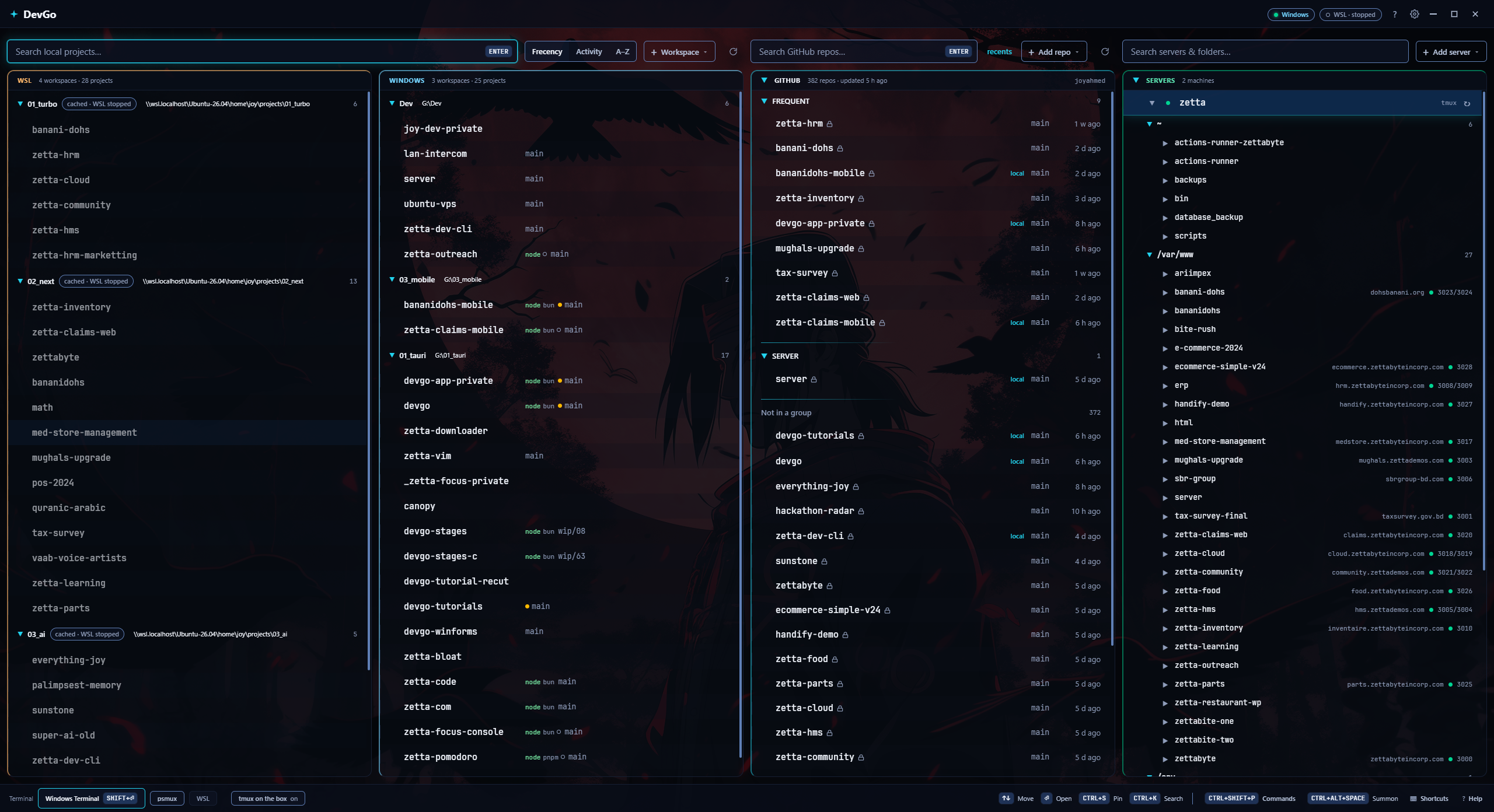
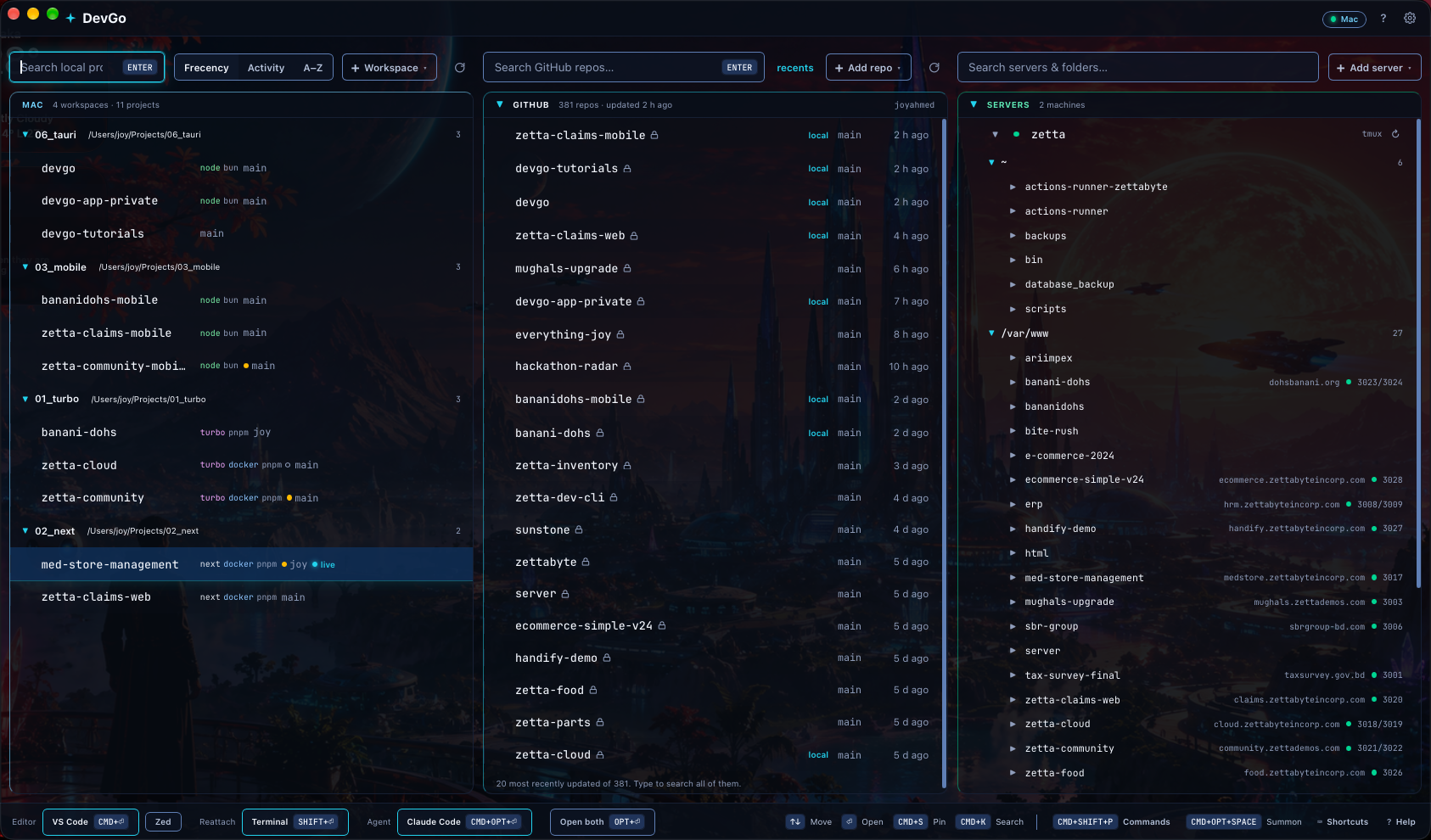
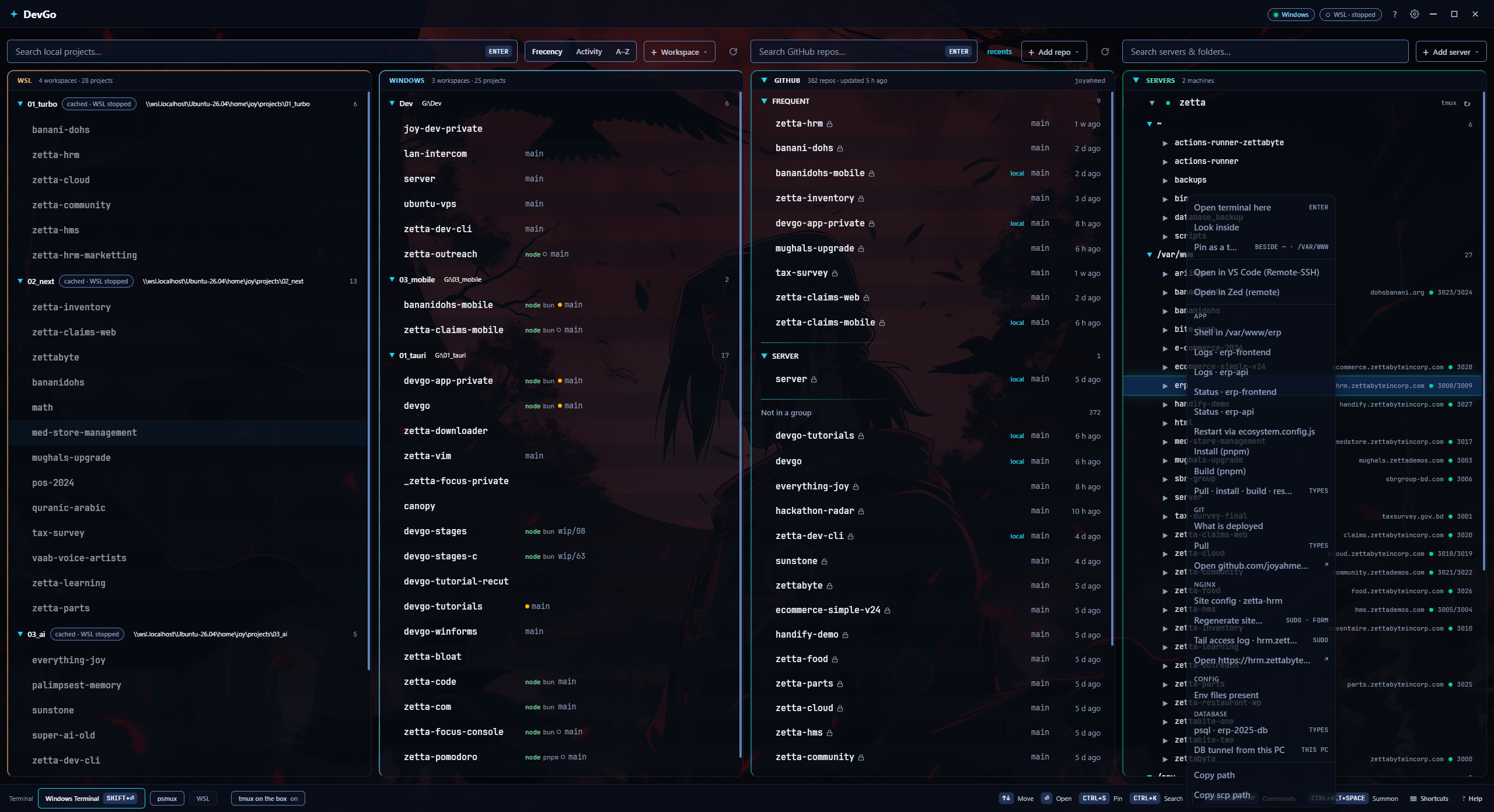
More in docs/screenshots — the palette, a server form, every Settings page.
Tauri 2, Rust on the back, React 19 and Tailwind on the front, bun for the scripts.
🛣️ The four lanes
The window is one row of lanes. From 1900 px they sit side by side; from 1400 they fold into two rows; narrower, they stack.
- Windows (or Mac, Linux): workspaces on the local disk. A workspace is a folder that holds projects. Add one with
Ctrl+N, by scanning the usual roots, or by dropping a folder on the window. Depth 1 lists every immediate child; deeper, a folder is a project only when it carries a marker (package.json,Cargo.toml,.git, …), so a monorepo's apps become rows without every subfolder becoming one. Every row shows what the scanner found: the framework, the package manager, the git branch,recent. - WSL: the same, for workspaces inside a distro (
\\wsl.localhost\<distro>\...). DevGo never boots a stopped distro to read them; the rows show the last list, markedcached · WSL stopped, until you refresh or open one. The title bar chip says what is running and can stop a distro. - GitHub: every repository you own, through
gh. Search it, group it, clone it into a workspace, open any branch's page. - Servers: the machines you ssh into. Enter opens a terminal on one in a tmux session that survives; expand it and it lists its folders and, when the box describes itself, its apps and their actions.
The search box over each lane filters that lane. Ctrl+K puts you in the first one, Ctrl+G in GitHub's. Pin a project with Ctrl+S and it stays at the top; sort by frecency, activity or name.
🚀 Launch targets
A target is a program plus how to hand it a directory. DevGo detects the usual ones on this machine (VS Code, Cursor, Windsurf, Zed, Sublime, the JetBrains IDEs, Windows Terminal, Alacritty, WezTerm; on a Mac Terminal, iTerm2, Ghostty, Kitty as well) and, on Windows, inside each running distro. Add your own in Settings › Editors & Terminals with a template: {path}, {distro}, {linux_path}. A WSL project opens where it lives: VS Code through Remote-WSL, a terminal inside the distro in the project directory.
Three kinds of target, three keys: the editor (Ctrl+Enter), the terminal (Shift+Enter), the agent (Ctrl+Alt+Enter, Claude Code, Codex or Gemini CLI, whichever is installed). Alt+Enter opens editor and terminal together. The footer shows which one each key will use.
With the multiplexer on, a terminal launch opens a named session with the windows you listed: tmux inside the distro for a WSL project, psmux (winget install marlocarlo.psmux) for a Windows one, tmux on a Mac (brew install tmux). Close the terminal, close DevGo, come back: the session is still there and launching again reattaches. Off, a launch is one plain shell.
Run dev script… (Ctrl+Shift+D) reads the project's package.json scripts and runs the one you pick in a terminal that stays open.
🐙 GitHub
The GitHub lane lists every repository you own through the GitHub CLI. It needs gh installed and logged in (gh auth login); DevGo stores no token of its own, and gh auth logout signs out everywhere. The list is fetched when you ask, never on launch or on focus.
- Catalogue: the lane header says how many repos and when the list was last updated. A repo that is already cloned into one of your workspaces carries a
localbadge, and the badge follows the disk: clone one, delete one, the lane knows on the next pass. - Clone:
Clone into…on a row picks a workspace and clones there; the new project appears in its lane as soon as the scan sees it. - Groups: put repos into named groups (
Add to group…) so the ones you touch weekly sit above the rest. The ungrouped rest stays under one line at the bottom. - Branches: the branch chip on a row opens the repo's branches; pick one and it opens on GitHub.
- Traffic:
Traffic (14 days)on a row shows the views, clones and referrers GitHub shows a repository's owner, read throughgh apiwhen you ask and kept for the session; the row then carries the two totals. - Live search, off until you turn it on, is the one place a keystroke reaches the network.
🖥️ Servers
The Servers lane lists the machines you ssh into. Import ~/.ssh/config (every Host becomes a row; the file is never written) or add one by hand. DevGo launches by alias so your config's key and options apply, and stores no password: an alias, a host, a key path. A LocalForward in the config marks the row tunnel and gives it Copy tunnel command (ssh -N <alias>).
Enter opens a terminal on the server in a tmux session that survives, the same promise a WSL project gets. Select a server row and the footer's Terminal group becomes its local hosts: every terminal target (a plain tab running ssh), psmux (a session on this PC whose window runs the ssh, so the next launch reattaches) and WSL (the ssh run from inside your default distro, with the distro's own keys; greyed with the reason when the distro is not running, because DevGo never boots one for a terminal). The remote half is the tmux on the box chip beside them: on, the line attaches a tmux session on the server; off, it is the server's plain login shell. The row menu and the palette list the same hosts; Shift+Enter on a server row is the default terminal. Expand a server (or ↻) and one ssh lists its folders: ~, ~/projects, /var/www and /srv by default, plus any folder you pin as top level.
When the box carries a script at ~/scripts/devgo-inventory.sh, the same call brings back its apps: each /var/www folder shows its domain, a dot for its pm2 processes, and its ports. The server declares its own actions in devgo-actions.json beside that script; right-click the server or an app to run them. An action is typed into a tmux window on the server and the terminal attaches to it. sudo asks there; DevGo never holds it, never runs a script itself, and never reads what came back.
Some actions are forms: New site… asks for the name, the domain, the port, the type (PROXY · STATIC), www and HTTPS, and shows the exact line it composes as you type. Preview runs it with --dry-run so the script prints what it would do and changes nothing; the other button runs it for real.
Teaching a box to describe itself is three files, and server/README.md is the contract: server/devgo-inventory.sh (a bash inventory for a typical Linux box: pm2 and docker processes, nginx sites, git, the lockfile), server/devgo-actions.example.json (the actions above, with placeholders, a local tunnel and the New site… form, to copy and edit) and server/site-new.sh (the script that form calls). The app carries them: right-click the server, Set up this box…, and one ssh puts the ones the box lacks into ~/scripts/ and lists its apps. A file already there that differs is yours and is left alone. Or scp them by hand, chmod +x, press ↻ on the row. Every key of both JSON documents is documented there, with what the app does with it.
📎 Attach
A row with a live session gets Attach here (Ctrl+Shift+A, the row menu, the palette): the session opens in a pane under the lanes, the list still in view above it. The pane is an attach view, not a terminal: what runs in it is the multiplexer client — psmux attach for a Windows project, tmux attach inside the distro for a WSL one, ssh -t … tmux new-session -A for a server — and Detach ends that client while the session keeps running where it was, exactly as it would in a real terminal. Kill the session elsewhere and the pane says detached. One pane at a time; opening another replaces it. Keys typed into the pane are the shell's, Ctrl+L and Ctrl+R included; only the palette and the attach key stay DevGo's. It follows the theme and the transparency knob. DevGo still is not a terminal: the pane has no shell of its own and cannot open one.
⚙️ Settings
Ctrl+, or the gear. One page per concern: Workspaces, Editors & Terminals, tmux / psmux, GitHub, Shortcuts, Scanning, Appearance, Config, Servers, then Help and About.
- Appearance: five themes (DevGo Neon, Matrix, Nord, Dracula, Pure Black), a transparency knob from 0 to 60 percent (it needs the OS transparency effects on, and says so when they are off), text size from 85 to 150 percent (
Ctrl+=,Ctrl+-,Ctrl+0), and whether the footer shows its key hints. - Shortcuts: every key DevGo binds, listed once, read from the same table the handler uses. The summon hotkey (
Ctrl+Alt+Spaceby default) brings the window up from anywhere and can be rebound here. - Config: export your workspaces, targets and settings as one JSON file and import them on another machine. Import is additive; the project cache is not exported because its paths are machine-local.
Everything lives as JSON in the app-data folder (%APPDATA%\app.zetta.devgo on Windows, ~/Library/Application Support/app.zetta.devgo on a Mac). A file that cannot be parsed is backed up as .bak, never overwritten. Help › Reveal in Explorer opens the folder.
Closing the window hides it; the summon hotkey or the tray icon brings it back, and Quit lives in the tray menu and Ctrl+Q. DevGo keeps one instance: launching it again shows the window you already have.
⌨️ Keyboard
Every binding is declared once in src/shortcuts.ts; the handler, the footer hints and Settings › Shortcuts all read that table. On a Mac, Ctrl reads Cmd and Alt reads Opt. The main ones:
| Keys | Does |
|---|---|
Ctrl+Shift+P | Command palette (runs anything DevGo can do) |
Ctrl+K / Ctrl+G | Focus search / focus GitHub search |
Ctrl+L | Clear search |
F5 (or Ctrl+R) | Refresh projects |
↑ ↓ Home End | Move the selection |
→ ← | Expand / collapse a workspace |
Ctrl+Space | Toggle a workspace |
Enter | Open the selected project |
Ctrl+Enter | Open in editor |
Shift+Enter | Open terminal |
Alt+Enter | Open both |
Ctrl+Alt+Enter | Open in agent |
Ctrl+Alt+Shift+Enter | Open in the other agent (the first one that is not the default) |
Ctrl+S | Pin / unpin |
Ctrl+Shift+D | Run dev script… |
Ctrl+Shift+A | Attach the session here / detach |
Ctrl+Shift+G | Open remote in browser |
Ctrl+Shift+E | Reveal in Explorer (Finder) |
Ctrl+Shift+C | Copy Windows path (copy path on a Mac) |
Ctrl+Shift+W | Copy WSL path (Windows only) |
Ctrl+N / Delete | Add / remove a workspace |
Alt+↑ Alt+↓ | Move a workspace up / down |
Ctrl+Alt+E | Reveal the workspace in Explorer (Finder) |
Ctrl+, | Settings |
Ctrl+= Ctrl+- Ctrl+0 | Text bigger / smaller / 100 % |
Ctrl+Q | Quit |
Ctrl+Alt+Space | Summon (global, rebindable) |
📦 Install
Builds are unsigned on both platforms. Download from Releases; each one is built by GitHub Actions from a v* tag (.github/workflows/release.yml), so the installer on the page is the tag's tree, nothing more.
Windows: DevGo_<version>_x64-setup.exe (3 MB) installs per user into %LOCALAPPDATA%\DevGo, no admin. SmartScreen will say the publisher is unknown: More info › Run anyway. WebView2 is already on Windows 10 and 11; the installer fetches it if it is missing.
macOS: DevGo_<version>_aarch64.dmg (3.7 MB). Drag DevGo.app to Applications. On macOS 15+ open it once, then System Settings › Privacy & Security › Open Anyway; older, right-click › Open; if it says "is damaged": xattr -cr /Applications/DevGo.app. Copied straight out of the build tree it needs none of that on the machine that built it.
Optional, for the lanes that want them: gh (GitHub), ssh (Servers), psmux on Windows or tmux in the distro and on the Mac.
From source: Rust stable and bun.
bun install
bun tauri dev      # dev build with hot reload
bun tauri build    # release; the bundles land in src-tauri/target/release/bundle/
bun run build runs the contrast gate, tsc and Vite; cargo test in src-tauri runs the Rust tests. CI runs both on every push and pull request, and the tag build runs them on each platform before it bundles.
🧭 Platform notes
- WSL never boots on launch. Reading a WSL workspace whose distro is off would start the VM, so DevGo does not: it shows the cached list and marks it. Only Refresh and opening a project are allowed to start a distro, because you asked. Runtime detection (which distros exist, whether
wsl.exeis there) runs on the first launch and on Refresh, never on every start. - The Mac's PATH. An app launched from the Dock inherits
launchd's four directories, not your shell's PATH. DevGo asks your login shell for its PATH once and hands it to every child, socode,tmux,ghand the nvm node are found where your terminal finds them. - Nothing runs on the UI thread that can block:
gh,git,sshand the scan are spawned quietly (no console window on Windows) and reported when they return.
🗺️ Next
- Linux. The crate builds for it; a tested Linux build once it has been run there.
- More server actions in the example set, as people ask for them.
Issues are welcome.
📖 Chapters
DevGo was built one chapter at a time, and every chapter is a branch: the tree at NN.name builds and runs exactly as chapter NN leaves it, with the chapter's own text at docs/chapters/NN-name.md beside the code it describes. The full set — 76 chapters, the prerequisites and the Rust and Tauri appendices — is in docs/chapters/.
git checkout NN.name # e.g. git checkout 05.launcher — chapter 05's app, and its text
📜 History
DevGo was not designed from a feature list. It is the layer that grew on top of how I already worked, and it has two roots.
The launcher line. For a long time my "launcher" was a right-click. A few PowerShell scripts put Open Ubuntu here and Open VS Code WSL here on every folder in Explorer, and a profile of shortcuts — dev, build, killdev, runpkg — knew what to do inside a project. It worked until it didn't: a right-click needs you to find the folder first, and a shell function needs you already in it. Neither answers the actual question, which project, and where does it live — on the local disk, in a WSL distro, in a tmux session, in an editor. So in May 2026 I wrote DevGo v1 in C# and WinForms: one window, every project, one keystroke. Two weeks later I started this rewrite in Tauri and Rust, partly to learn Rust properly, partly because the WinForms app could never be the Mac's launcher too.
The servers line. Since 2023 I have run the systems I build. That means the boxes as well as the code: nginx, PM2, ports, Postgres, TLS, backups — first by hand, per site, then, when repeating it had become stupid, as scripts: provision a box, create a site, secure it, back the database up, find which process actually holds a port. That knowledge lived in a terminal and a folder of shell scripts, with nothing above it.
Where they meet. In September 2026 the launcher learned the servers — every host in the ssh config became a row, Enter opened a tmux session on the box, the folders drilled down — and the same week the scripts learned to describe the box back to it: one script that prints the apps, ports and sites as JSON, one file that declares what can be done to them. That contract is in server/, and the app can install it on a box for you. DevGo is the layer above both lines: what you have, where it is, and the door to it.
How it was built. In the open, one feature per commit, one branch per chapter, from 15 September 2026 on. Every chapter builds and runs on its own; the tree at any stage is a working app, and the commit log is the tutorial. Nothing in it was invented for the log — the rebuild compressed a workflow that already existed.
📄 Licence
MIT — see LICENSE.
Contributors

718 commits
Similar repos


Languages
Rust
56.6%
TypeScript
38.4%
Shell
2.2%
PowerShell
1.1%
Cross-platform project launcher: every project on your machine's filesystems (Windows, WSL, macOS), your GitHub repos and your servers in four lanes; a keystroke to an editor, a terminal, tmux or a dev script. Tauri 2 + Rust + React 19.
Rust
1
718 commits
updated Sep 17, 2026
See what people are saying (1)
README
DevGo
Every project on your machine, your GitHub, your servers — one keystroke to where you work.
A launcher for a developer's projects. Point it at the folders that hold them, on every filesystem the machine can see, and it lists every project, finds one in a few keystrokes, and opens it in the editor, terminal or agent you already use. It is not an editor, a terminal or a git client. It opens the door and gets out of the way.
Cross-platform. On Windows that means the local drives and the WSL distros. On a Mac it means the local disk. Linux builds from the same crate but has not been run yet, for lack of time, so treat it as untested. Beside those, the GitHub account you are logged into and the servers in your ssh config get a lane of their own.
More in docs/screenshots — the palette, a server form, every Settings page.
Tauri 2, Rust on the back, React 19 and Tailwind on the front, bun for the scripts.
🛣️ The four lanes
The window is one row of lanes. From 1900 px they sit side by side; from 1400 they fold into two rows; narrower, they stack.
- Windows (or Mac, Linux): workspaces on the local disk. A workspace is a folder that holds projects. Add one with
Ctrl+N, by scanning the usual roots, or by dropping a folder on the window. Depth 1 lists every immediate child; deeper, a folder is a project only when it carries a marker (package.json,Cargo.toml,.git, …), so a monorepo's apps become rows without every subfolder becoming one. Every row shows what the scanner found: the framework, the package manager, the git branch,recent. - WSL: the same, for workspaces inside a distro (
\\wsl.localhost\<distro>\...). DevGo never boots a stopped distro to read them; the rows show the last list, markedcached · WSL stopped, until you refresh or open one. The title bar chip says what is running and can stop a distro. - GitHub: every repository you own, through
gh. Search it, group it, clone it into a workspace, open any branch's page. - Servers: the machines you ssh into. Enter opens a terminal on one in a tmux session that survives; expand it and it lists its folders and, when the box describes itself, its apps and their actions.
The search box over each lane filters that lane. Ctrl+K puts you in the first one, Ctrl+G in GitHub's. Pin a project with Ctrl+S and it stays at the top; sort by frecency, activity or name.
🚀 Launch targets
A target is a program plus how to hand it a directory. DevGo detects the usual ones on this machine (VS Code, Cursor, Windsurf, Zed, Sublime, the JetBrains IDEs, Windows Terminal, Alacritty, WezTerm; on a Mac Terminal, iTerm2, Ghostty, Kitty as well) and, on Windows, inside each running distro. Add your own in Settings › Editors & Terminals with a template: {path}, {distro}, {linux_path}. A WSL project opens where it lives: VS Code through Remote-WSL, a terminal inside the distro in the project directory.
Three kinds of target, three keys: the editor (Ctrl+Enter), the terminal (Shift+Enter), the agent (Ctrl+Alt+Enter, Claude Code, Codex or Gemini CLI, whichever is installed). Alt+Enter opens editor and terminal together. The footer shows which one each key will use.
With the multiplexer on, a terminal launch opens a named session with the windows you listed: tmux inside the distro for a WSL project, psmux (winget install marlocarlo.psmux) for a Windows one, tmux on a Mac (brew install tmux). Close the terminal, close DevGo, come back: the session is still there and launching again reattaches. Off, a launch is one plain shell.
Run dev script… (Ctrl+Shift+D) reads the project's package.json scripts and runs the one you pick in a terminal that stays open.
🐙 GitHub
The GitHub lane lists every repository you own through the GitHub CLI. It needs gh installed and logged in (gh auth login); DevGo stores no token of its own, and gh auth logout signs out everywhere. The list is fetched when you ask, never on launch or on focus.
- Catalogue: the lane header says how many repos and when the list was last updated. A repo that is already cloned into one of your workspaces carries a
localbadge, and the badge follows the disk: clone one, delete one, the lane knows on the next pass. - Clone:
Clone into…on a row picks a workspace and clones there; the new project appears in its lane as soon as the scan sees it. - Groups: put repos into named groups (
Add to group…) so the ones you touch weekly sit above the rest. The ungrouped rest stays under one line at the bottom. - Branches: the branch chip on a row opens the repo's branches; pick one and it opens on GitHub.
- Traffic:
Traffic (14 days)on a row shows the views, clones and referrers GitHub shows a repository's owner, read throughgh apiwhen you ask and kept for the session; the row then carries the two totals. - Live search, off until you turn it on, is the one place a keystroke reaches the network.
🖥️ Servers
The Servers lane lists the machines you ssh into. Import ~/.ssh/config (every Host becomes a row; the file is never written) or add one by hand. DevGo launches by alias so your config's key and options apply, and stores no password: an alias, a host, a key path. A LocalForward in the config marks the row tunnel and gives it Copy tunnel command (ssh -N <alias>).
Enter opens a terminal on the server in a tmux session that survives, the same promise a WSL project gets. Select a server row and the footer's Terminal group becomes its local hosts: every terminal target (a plain tab running ssh), psmux (a session on this PC whose window runs the ssh, so the next launch reattaches) and WSL (the ssh run from inside your default distro, with the distro's own keys; greyed with the reason when the distro is not running, because DevGo never boots one for a terminal). The remote half is the tmux on the box chip beside them: on, the line attaches a tmux session on the server; off, it is the server's plain login shell. The row menu and the palette list the same hosts; Shift+Enter on a server row is the default terminal. Expand a server (or ↻) and one ssh lists its folders: ~, ~/projects, /var/www and /srv by default, plus any folder you pin as top level.
When the box carries a script at ~/scripts/devgo-inventory.sh, the same call brings back its apps: each /var/www folder shows its domain, a dot for its pm2 processes, and its ports. The server declares its own actions in devgo-actions.json beside that script; right-click the server or an app to run them. An action is typed into a tmux window on the server and the terminal attaches to it. sudo asks there; DevGo never holds it, never runs a script itself, and never reads what came back.
Some actions are forms: New site… asks for the name, the domain, the port, the type (PROXY · STATIC), www and HTTPS, and shows the exact line it composes as you type. Preview runs it with --dry-run so the script prints what it would do and changes nothing; the other button runs it for real.
Teaching a box to describe itself is three files, and server/README.md is the contract: server/devgo-inventory.sh (a bash inventory for a typical Linux box: pm2 and docker processes, nginx sites, git, the lockfile), server/devgo-actions.example.json (the actions above, with placeholders, a local tunnel and the New site… form, to copy and edit) and server/site-new.sh (the script that form calls). The app carries them: right-click the server, Set up this box…, and one ssh puts the ones the box lacks into ~/scripts/ and lists its apps. A file already there that differs is yours and is left alone. Or scp them by hand, chmod +x, press ↻ on the row. Every key of both JSON documents is documented there, with what the app does with it.
📎 Attach
A row with a live session gets Attach here (Ctrl+Shift+A, the row menu, the palette): the session opens in a pane under the lanes, the list still in view above it. The pane is an attach view, not a terminal: what runs in it is the multiplexer client — psmux attach for a Windows project, tmux attach inside the distro for a WSL one, ssh -t … tmux new-session -A for a server — and Detach ends that client while the session keeps running where it was, exactly as it would in a real terminal. Kill the session elsewhere and the pane says detached. One pane at a time; opening another replaces it. Keys typed into the pane are the shell's, Ctrl+L and Ctrl+R included; only the palette and the attach key stay DevGo's. It follows the theme and the transparency knob. DevGo still is not a terminal: the pane has no shell of its own and cannot open one.
⚙️ Settings
Ctrl+, or the gear. One page per concern: Workspaces, Editors & Terminals, tmux / psmux, GitHub, Shortcuts, Scanning, Appearance, Config, Servers, then Help and About.
- Appearance: five themes (DevGo Neon, Matrix, Nord, Dracula, Pure Black), a transparency knob from 0 to 60 percent (it needs the OS transparency effects on, and says so when they are off), text size from 85 to 150 percent (
Ctrl+=,Ctrl+-,Ctrl+0), and whether the footer shows its key hints. - Shortcuts: every key DevGo binds, listed once, read from the same table the handler uses. The summon hotkey (
Ctrl+Alt+Spaceby default) brings the window up from anywhere and can be rebound here. - Config: export your workspaces, targets and settings as one JSON file and import them on another machine. Import is additive; the project cache is not exported because its paths are machine-local.
Everything lives as JSON in the app-data folder (%APPDATA%\app.zetta.devgo on Windows, ~/Library/Application Support/app.zetta.devgo on a Mac). A file that cannot be parsed is backed up as .bak, never overwritten. Help › Reveal in Explorer opens the folder.
Closing the window hides it; the summon hotkey or the tray icon brings it back, and Quit lives in the tray menu and Ctrl+Q. DevGo keeps one instance: launching it again shows the window you already have.
⌨️ Keyboard
Every binding is declared once in src/shortcuts.ts; the handler, the footer hints and Settings › Shortcuts all read that table. On a Mac, Ctrl reads Cmd and Alt reads Opt. The main ones:
| Keys | Does |
|---|---|
Ctrl+Shift+P | Command palette (runs anything DevGo can do) |
Ctrl+K / Ctrl+G | Focus search / focus GitHub search |
Ctrl+L | Clear search |
F5 (or Ctrl+R) | Refresh projects |
↑ ↓ Home End | Move the selection |
→ ← | Expand / collapse a workspace |
Ctrl+Space | Toggle a workspace |
Enter | Open the selected project |
Ctrl+Enter | Open in editor |
Shift+Enter | Open terminal |
Alt+Enter | Open both |
Ctrl+Alt+Enter | Open in agent |
Ctrl+Alt+Shift+Enter | Open in the other agent (the first one that is not the default) |
Ctrl+S | Pin / unpin |
Ctrl+Shift+D | Run dev script… |
Ctrl+Shift+A | Attach the session here / detach |
Ctrl+Shift+G | Open remote in browser |
Ctrl+Shift+E | Reveal in Explorer (Finder) |
Ctrl+Shift+C | Copy Windows path (copy path on a Mac) |
Ctrl+Shift+W | Copy WSL path (Windows only) |
Ctrl+N / Delete | Add / remove a workspace |
Alt+↑ Alt+↓ | Move a workspace up / down |
Ctrl+Alt+E | Reveal the workspace in Explorer (Finder) |
Ctrl+, | Settings |
Ctrl+= Ctrl+- Ctrl+0 | Text bigger / smaller / 100 % |
Ctrl+Q | Quit |
Ctrl+Alt+Space | Summon (global, rebindable) |
📦 Install
Builds are unsigned on both platforms. Download from Releases; each one is built by GitHub Actions from a v* tag (.github/workflows/release.yml), so the installer on the page is the tag's tree, nothing more.
Windows: DevGo_<version>_x64-setup.exe (3 MB) installs per user into %LOCALAPPDATA%\DevGo, no admin. SmartScreen will say the publisher is unknown: More info › Run anyway. WebView2 is already on Windows 10 and 11; the installer fetches it if it is missing.
macOS: DevGo_<version>_aarch64.dmg (3.7 MB). Drag DevGo.app to Applications. On macOS 15+ open it once, then System Settings › Privacy & Security › Open Anyway; older, right-click › Open; if it says "is damaged": xattr -cr /Applications/DevGo.app. Copied straight out of the build tree it needs none of that on the machine that built it.
Optional, for the lanes that want them: gh (GitHub), ssh (Servers), psmux on Windows or tmux in the distro and on the Mac.
From source: Rust stable and bun.
bun install
bun tauri dev      # dev build with hot reload
bun tauri build    # release; the bundles land in src-tauri/target/release/bundle/
bun run build runs the contrast gate, tsc and Vite; cargo test in src-tauri runs the Rust tests. CI runs both on every push and pull request, and the tag build runs them on each platform before it bundles.
🧭 Platform notes
- WSL never boots on launch. Reading a WSL workspace whose distro is off would start the VM, so DevGo does not: it shows the cached list and marks it. Only Refresh and opening a project are allowed to start a distro, because you asked. Runtime detection (which distros exist, whether
wsl.exeis there) runs on the first launch and on Refresh, never on every start. - The Mac's PATH. An app launched from the Dock inherits
launchd's four directories, not your shell's PATH. DevGo asks your login shell for its PATH once and hands it to every child, socode,tmux,ghand the nvm node are found where your terminal finds them. - Nothing runs on the UI thread that can block:
gh,git,sshand the scan are spawned quietly (no console window on Windows) and reported when they return.
🗺️ Next
- Linux. The crate builds for it; a tested Linux build once it has been run there.
- More server actions in the example set, as people ask for them.
Issues are welcome.
📖 Chapters
DevGo was built one chapter at a time, and every chapter is a branch: the tree at NN.name builds and runs exactly as chapter NN leaves it, with the chapter's own text at docs/chapters/NN-name.md beside the code it describes. The full set — 76 chapters, the prerequisites and the Rust and Tauri appendices — is in docs/chapters/.
git checkout NN.name # e.g. git checkout 05.launcher — chapter 05's app, and its text
📜 History
DevGo was not designed from a feature list. It is the layer that grew on top of how I already worked, and it has two roots.
The launcher line. For a long time my "launcher" was a right-click. A few PowerShell scripts put Open Ubuntu here and Open VS Code WSL here on every folder in Explorer, and a profile of shortcuts — dev, build, killdev, runpkg — knew what to do inside a project. It worked until it didn't: a right-click needs you to find the folder first, and a shell function needs you already in it. Neither answers the actual question, which project, and where does it live — on the local disk, in a WSL distro, in a tmux session, in an editor. So in May 2026 I wrote DevGo v1 in C# and WinForms: one window, every project, one keystroke. Two weeks later I started this rewrite in Tauri and Rust, partly to learn Rust properly, partly because the WinForms app could never be the Mac's launcher too.
The servers line. Since 2023 I have run the systems I build. That means the boxes as well as the code: nginx, PM2, ports, Postgres, TLS, backups — first by hand, per site, then, when repeating it had become stupid, as scripts: provision a box, create a site, secure it, back the database up, find which process actually holds a port. That knowledge lived in a terminal and a folder of shell scripts, with nothing above it.
Where they meet. In September 2026 the launcher learned the servers — every host in the ssh config became a row, Enter opened a tmux session on the box, the folders drilled down — and the same week the scripts learned to describe the box back to it: one script that prints the apps, ports and sites as JSON, one file that declares what can be done to them. That contract is in server/, and the app can install it on a box for you. DevGo is the layer above both lines: what you have, where it is, and the door to it.
How it was built. In the open, one feature per commit, one branch per chapter, from 15 September 2026 on. Every chapter builds and runs on its own; the tree at any stage is a working app, and the commit log is the tutorial. Nothing in it was invented for the log — the rebuild compressed a workflow that already existed.
📄 Licence
MIT — see LICENSE.
Similar repos
Contributors
718 commits
Languages
Rust
56.6%
TypeScript
38.4%
Shell
2.2%
PowerShell
1.1%