A modern PS5 download manager with a native TV app, phone controls and Orbit Zero for Mac, Windows and Linux.
1,023
104 commits
updated Oct 14, 2026
Orbit runs on your PS5. Browse games, compare their available sources and formats, and download a single file directly to the console or an attached drive. Open the native TV app from your Games row, or pair a phone or computer to manage the same queue over your local network.
Explore 1,598 games: 998 PS5 games and 600 PS4 games, with single-file options from Archive.org, Vikingfile and AkiraBox. Filter by platform, choose your source and save to your preferred drive. New games and corrected links arrive through catalogue updates.
PS4 game browsing requires Orbit Store 1.1.0 with its matching native app, or Orbit Zero 1.1.0. Orbit itself runs on PS5. See PS4 games on PS5 for package download and installation guidance.
Download Orbit · Orbit Zero · Get started · Download guide · Library guide · Appearance guide · Troubleshooting · Bug report format · Report a bug · Request a feature
Official channels: Orbit Store has no official social media accounts. This GitHub repository is our official source for releases, updates and support. Any social media account claiming to officially represent Orbit Store is an impersonator.
Always free. Orbit Store is free to use and will always remain free. We don’t accept donations or payments. Anyone asking for money on our behalf is not affiliated with the project.
Three ways to use Orbit
| Do this | Orbit appears in | What it is |
|---|---|---|
Copy PPSA99177.ffpkg to /data/homebrew/ | Games on your PS5 | The TV app, used with your controller. Needs kstuff and ShadowMountPlus. |
Run orbit_store.elf with your payload manager or ELF loader | Media on your PS5 | The browser version. It only opens while Orbit is running. |
| Install Orbit Zero | Your Mac, Windows or Linux computer | Downloads on your computer and sends the files to your PS5. The PS5 doesn't need internet. |
The Games and Media versions share the same downloads, favourites and service settings, so seeing two Orbit icons on your PS5 is normal. Appearance is saved separately in each app or browser.
For direct console downloads, you need a PS5 that can run homebrew ELF payloads, a payload manager or ELF loader, internet access on the console, and enough writable storage. For downloads through your computer, see Orbit Zero below.
The TV app includes Orbit's download service and can start it through a compatible ELF loader on port 9021. You can also start orbit_store.elf yourself. The Media-tab shortcut opens the browser version while the service is running. After a reboot, start your jailbreak before opening Orbit. See the setup and update guide for installation, updates and phone pairing.
Open Orbit from your Games row and use the controller to browse, explore and choose a download. The native app shares your catalogue, favourites and download queue with the browser version.
Discover previews the 1.3.0 catalogue in the Store interface. Game details and download options show 1.2.0, and Browse shows the native app from 1.1.0. These previews are rendered locally; other screenshots show existing workflows with illustrative storage and download values.
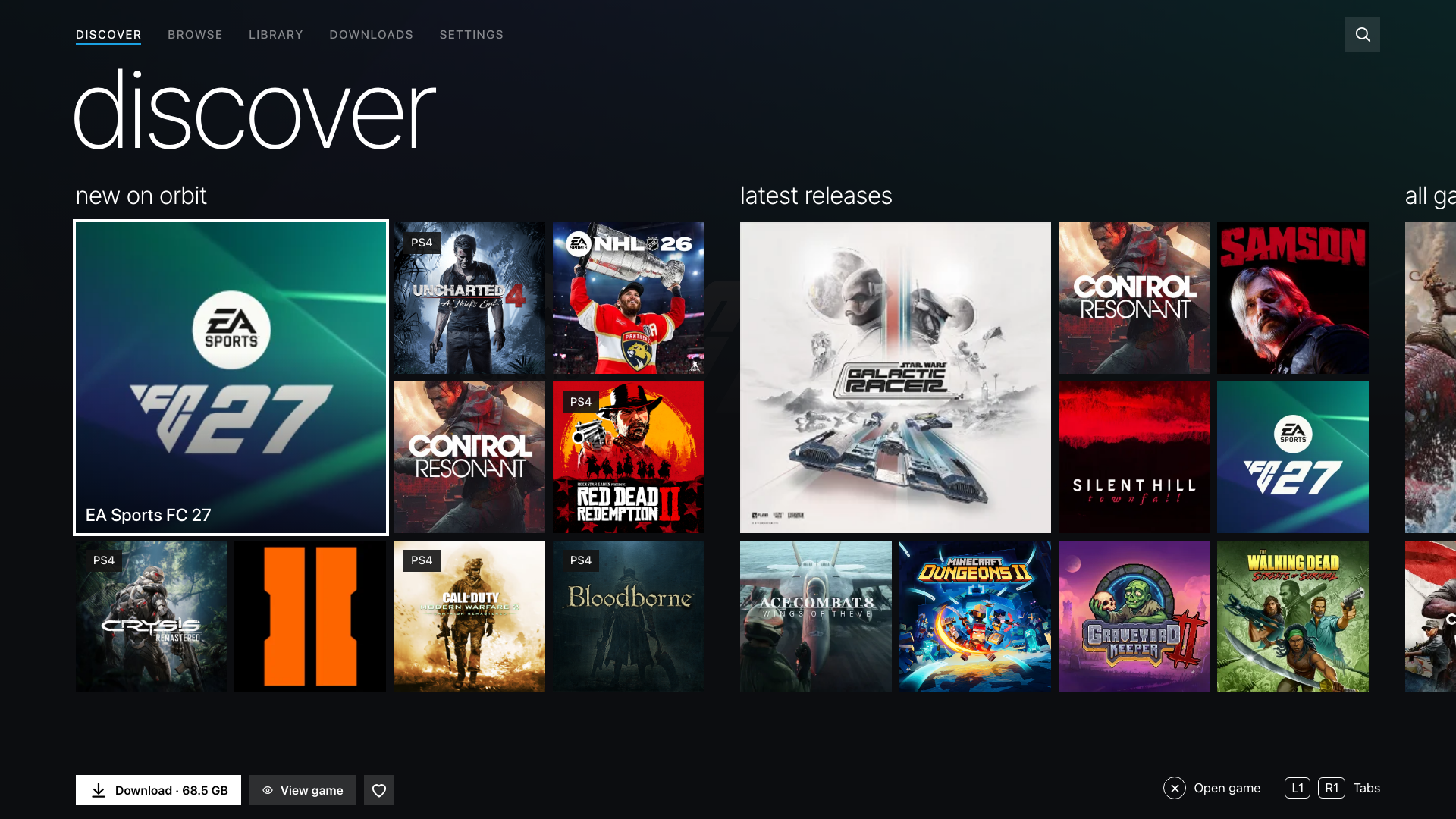
Start with something new. Discover opens first. New on Orbit brings featured picks and recent additions to the first row, followed by Latest releases. Move down to All games to explore a grid that loads more games as you scroll. PS4 and PS5 editions have their own platform labels and download choices.
Store (default)
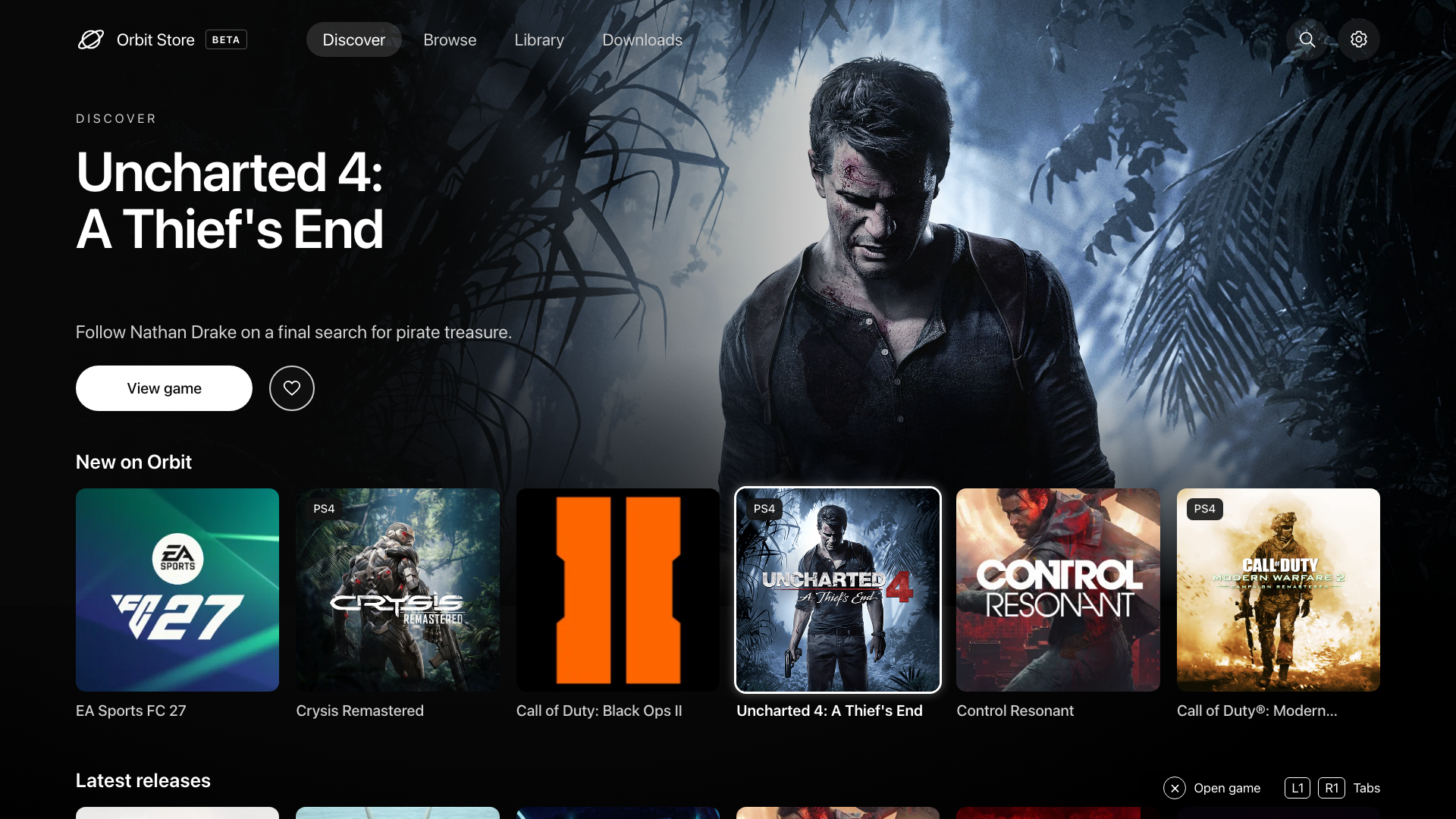
Keep exploring. All games gives each title its own tile. Move through the grid with your controller; more games appear as you keep scrolling.
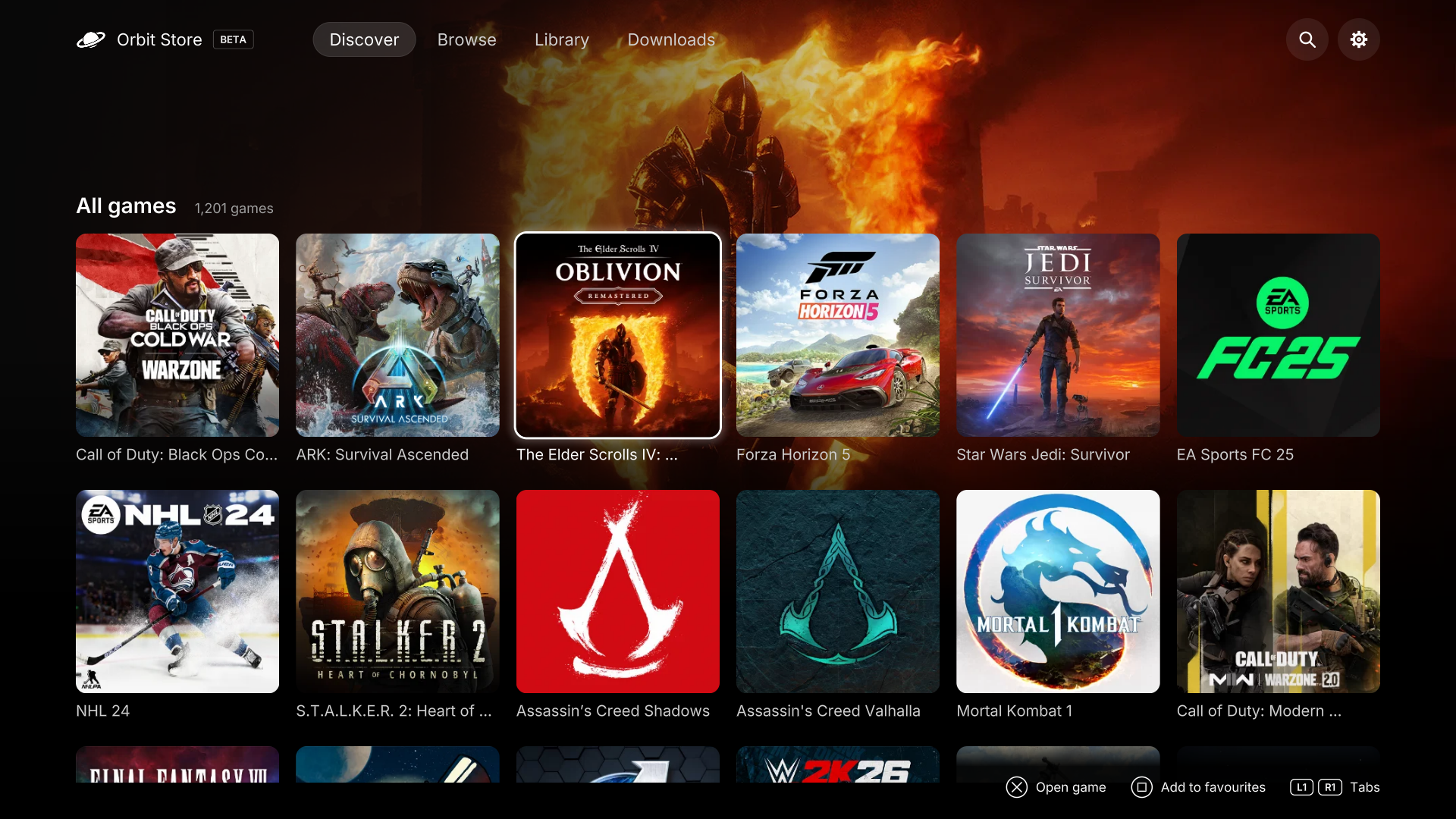
Find your next game. Search by name or title ID, narrow the collection by platform, source, format, region or size, and browse the newest known releases first.
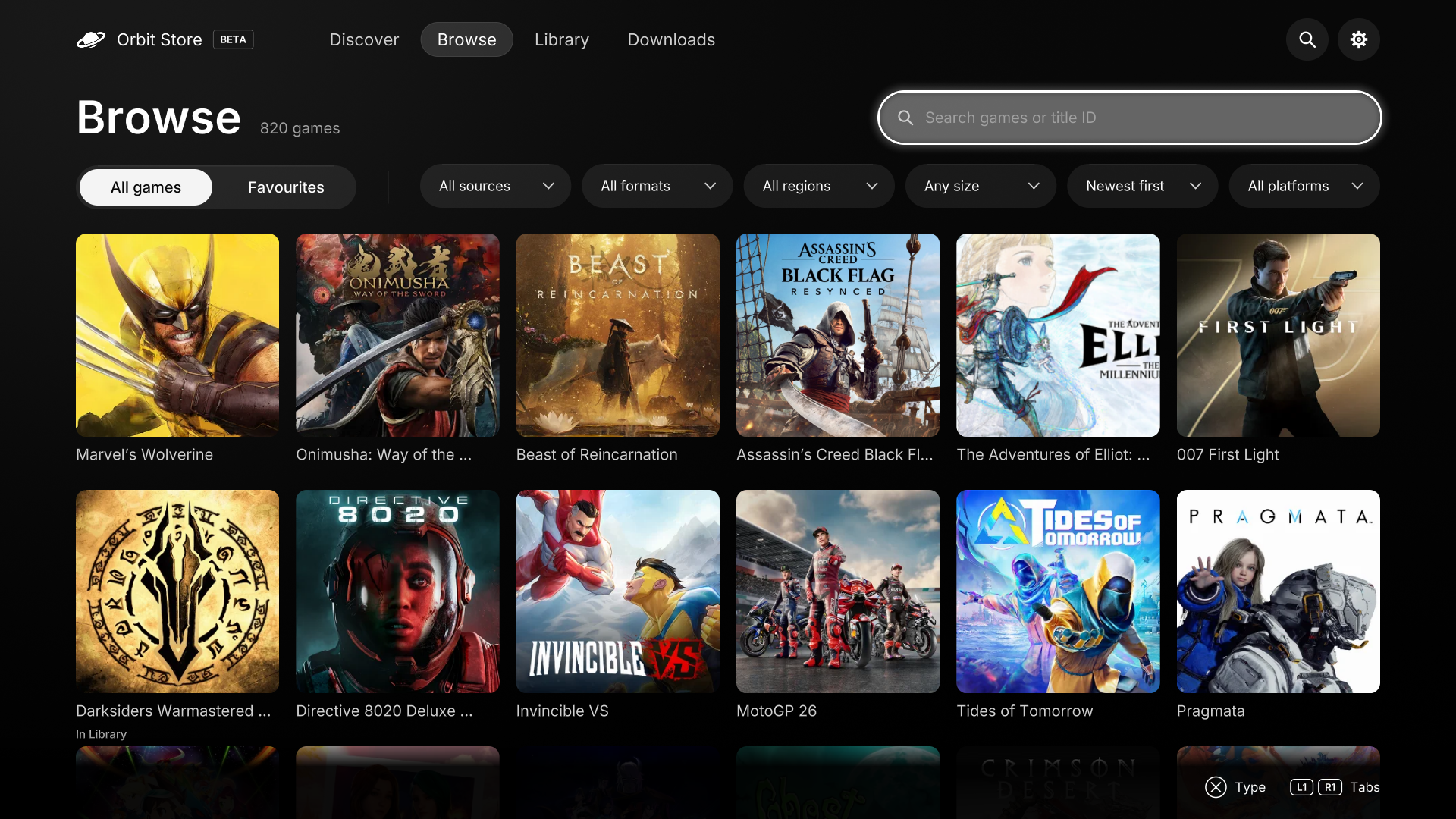
Get to know a game. Read its description, save it to favourites, or open the three-dot menu for more information. The main download button opens your options before anything starts.
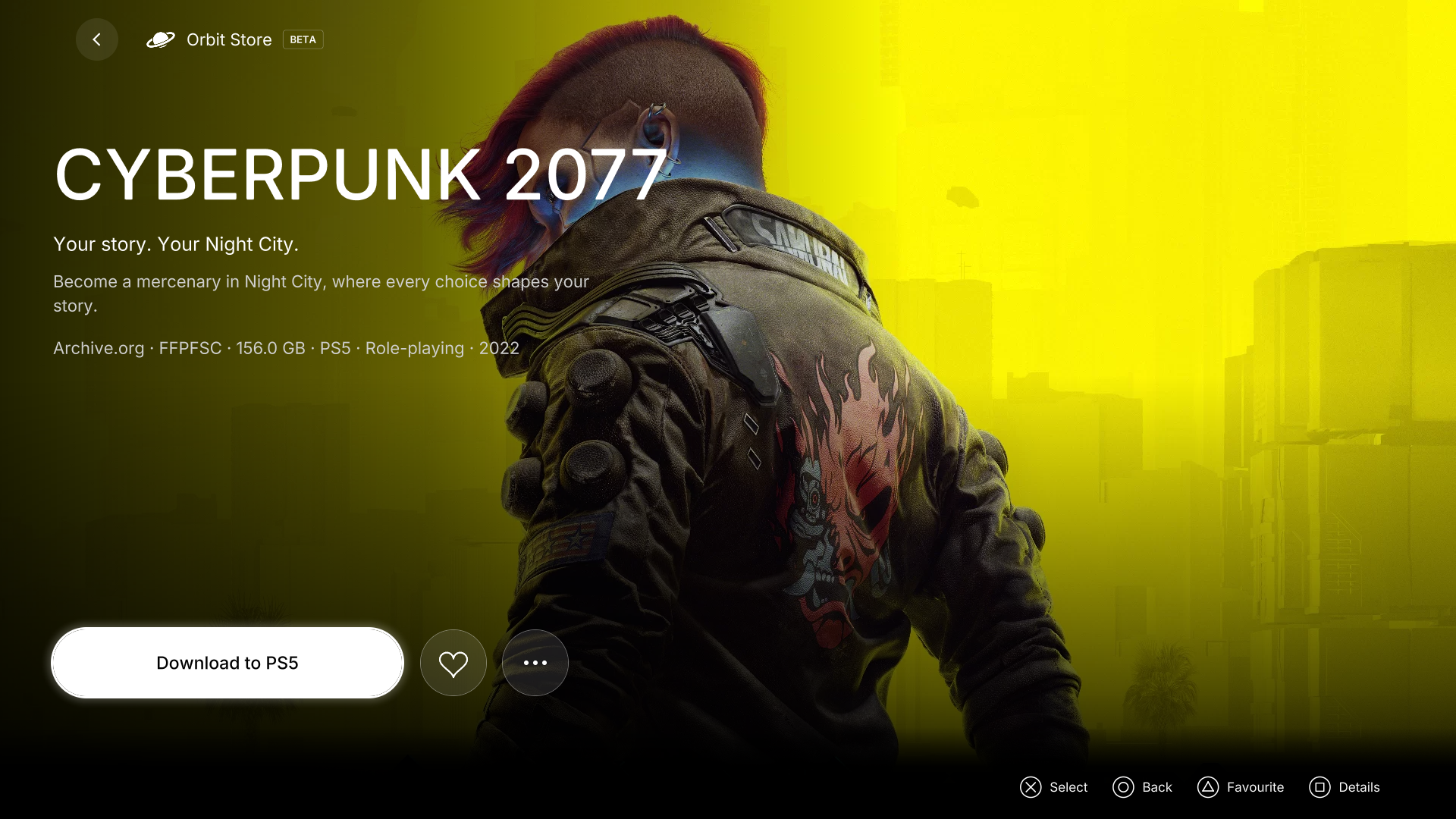
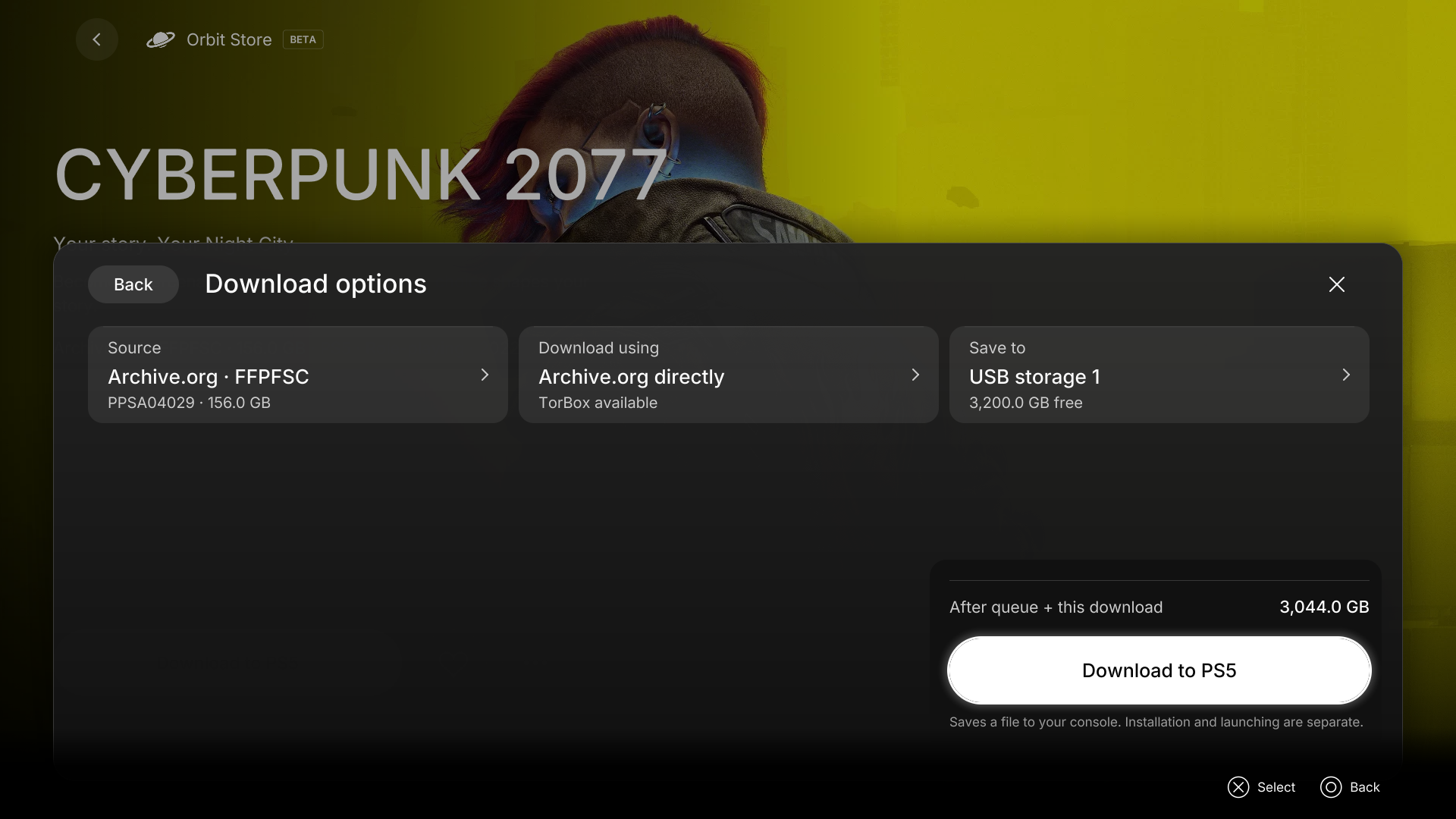
Choose how and where to download. Review the source, format, delivery method and drive together. Direct options download from the TV app; Vikingfile browser options open the provider page on PS5 and keep your choices when you return. See the download guide, including TorBox setup.
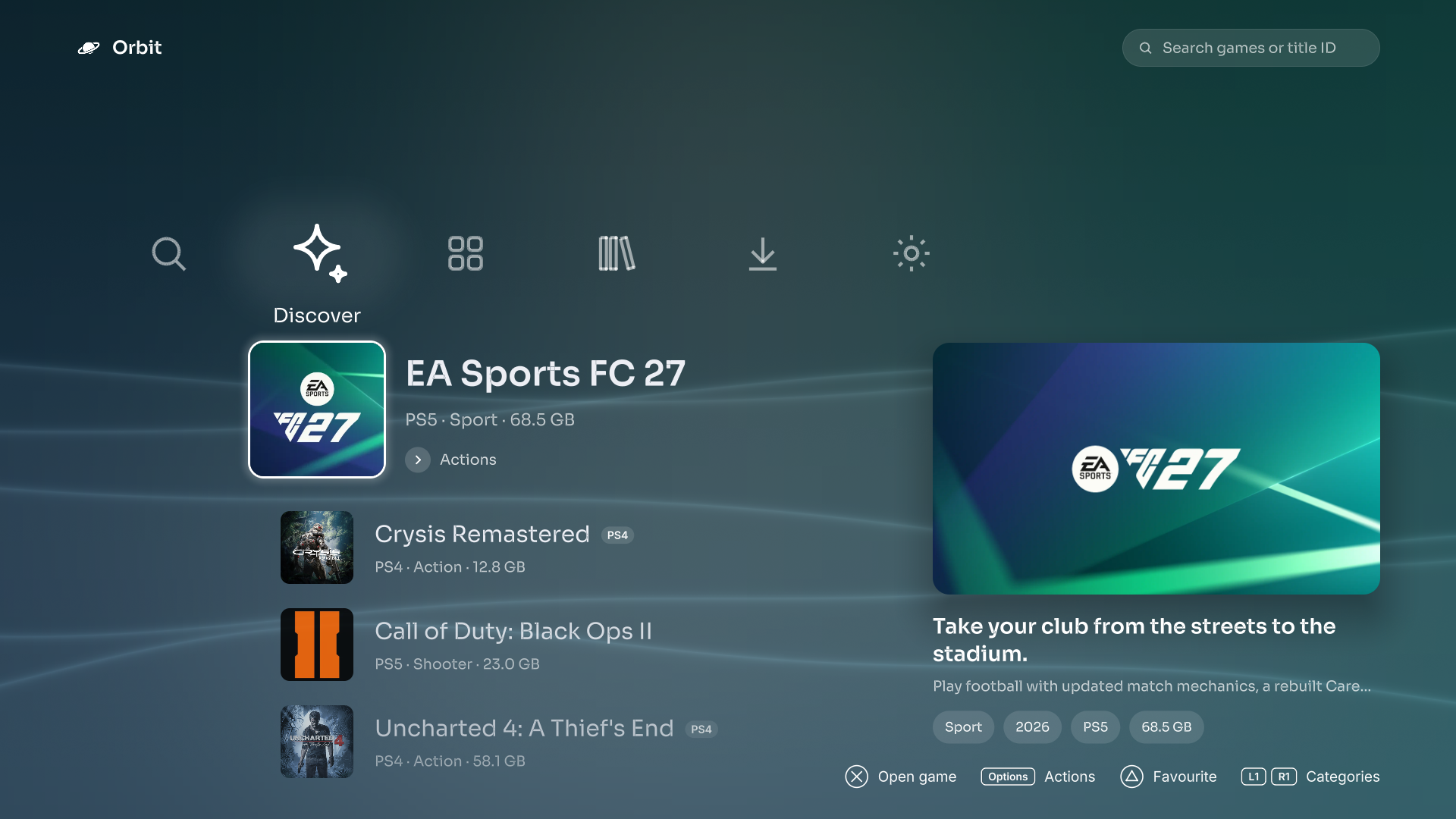
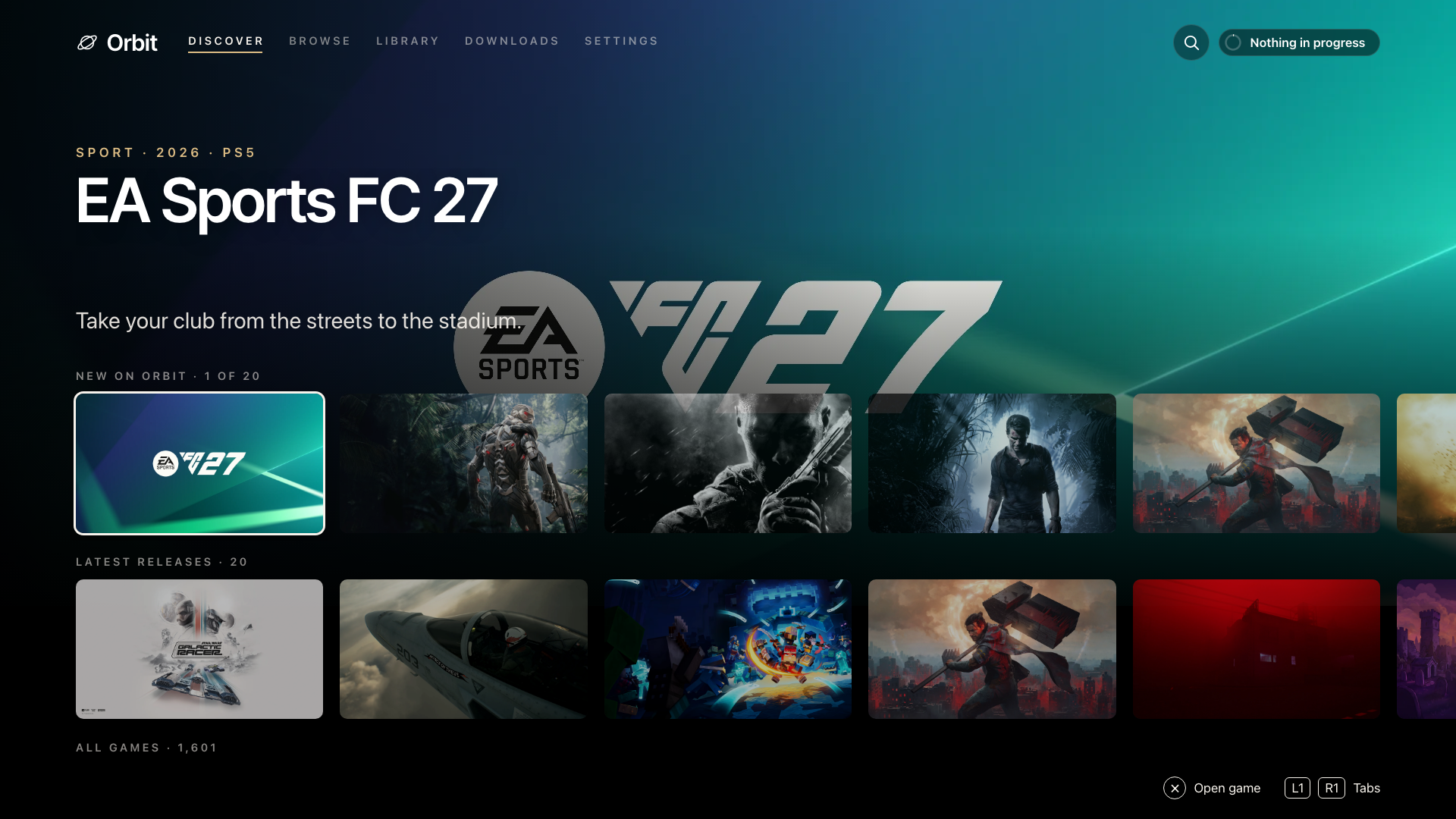
Make Orbit look the way you like. Open Appearance and choose Store, Crossbar, Cinema or Panorama. Confirm your choice to keep it. The interfaces are available in the native PS5 app, browser and Orbit Zero; switching keeps your downloads, favourites and settings. See the appearance guide for the 15-second confirmation, controller shortcuts, motion options and where to find settings in each layout.
Crossbar
Cinema
Panorama
The instructions below use Store’s settings names. In the browser’s Crossbar, Cinema and Panorama interfaces, use the Settings page equivalents.
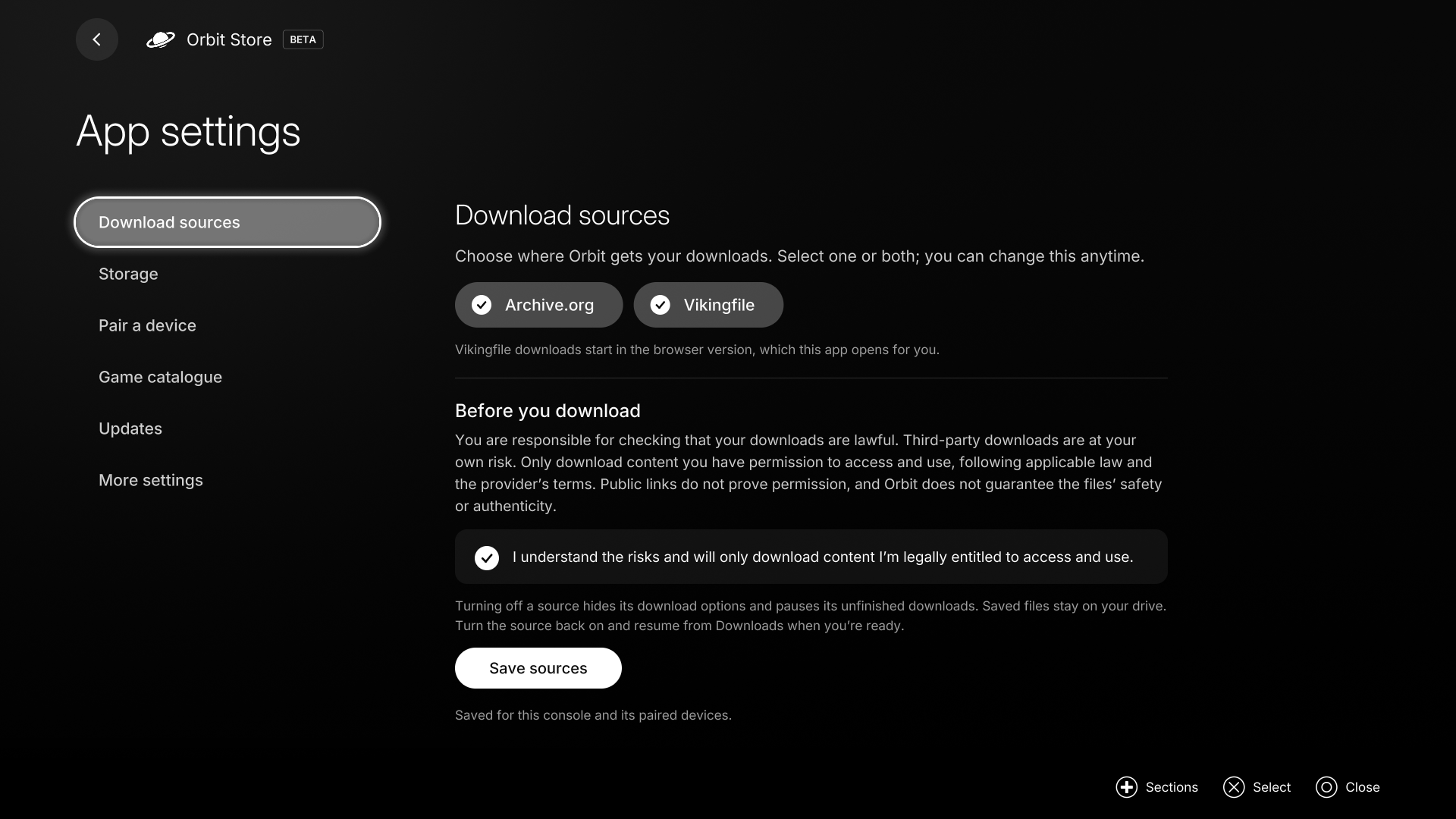
Choose sources, set your default drive, pair a phone and refresh your game catalogue from one place. Updates has separate controls for the TV app and its download service; you choose when to install or restart.
Orbit Store and Orbit Zero support English, German, Spanish, French, Hungarian, Italian, Dutch, Polish, Brazilian Portuguese, Russian and Turkish. The native app follows your PS5’s system language. In the browser version, use App settings → Language in Store, or Settings → Language in the other interfaces, to choose a language for that device, or leave it on Automatic to follow the browser.
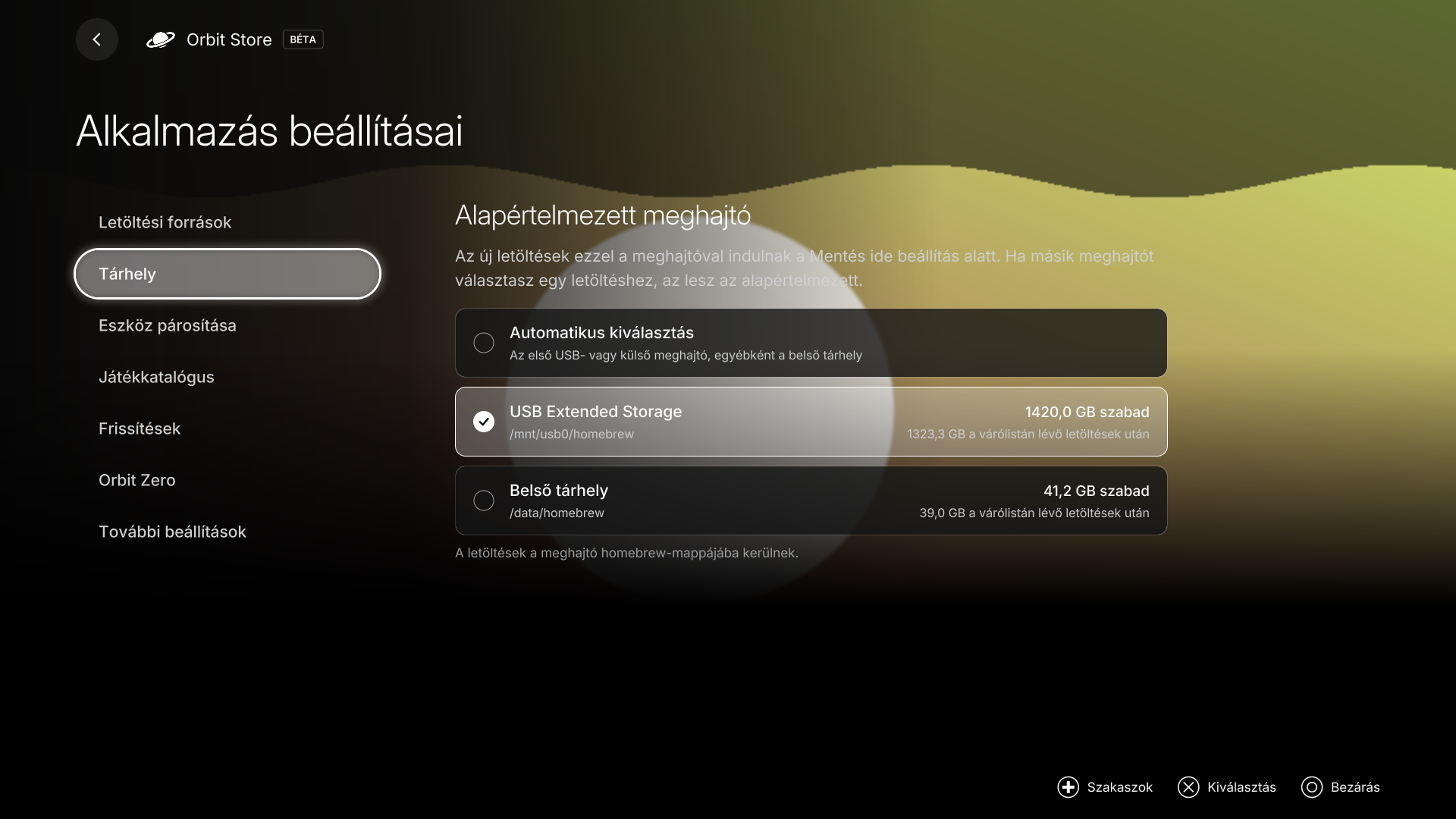
Native app 1.3.2 rendered locally in Hungarian. Storage values are illustrative.
In Orbit Zero’s Store interface, use the globe-shaped Language button in the top bar. In Crossbar, Cinema or Panorama, open Settings → Language. Language settings change Orbit’s menus; each game keeps its own language settings. See language settings for instructions and the browser selector.
Pair a phone on the same network to find a game and choose its download option. Files still go to the PS5’s selected drive. Vikingfile’s provider page and any verification open on the PS5, even when you start from your phone.


Select a screenshot to open it at full size.
For your existing collection, the Library guide explains installed, mounted and on-drive status, plus the actions available through ShadowMount.
Orbit Zero is our desktop companion for Mac, Windows and Linux. Download Orbit Zero, open Console, enter your PS5’s local IP address and choose Start Orbit on PS5.
Download on your computer and transfer to your PS5 over your home network. Uncompressed files can transfer while downloading; archives finish downloading and extracting before their files transfer. Works over your local network: Wi-Fi or Ethernet. Your PS5 does not need internet access. Keep both devices connected to your home network while the computer handles online downloads.
.cache file whose queue entry was removed, then transfer it without downloading it again. See cache recovery.Install on Mac, Windows or Linux · Set up a PS5 without internet
Download and transfer improvements are included as standard. It reconnects to your saved PS5 when reopened, lets you choose the computer download folder, and can clear completed computer copies after successful transfers. Updates checks for new desktop versions and downloads the correct package when you choose.
Explore PS4 and PS5 games with full artwork, featured picks in New on Orbit and a shared favourites list. Browse’s Platform filter lets you choose PS4, PS5 or both. Choose the source and PS5 destination before starting a download.
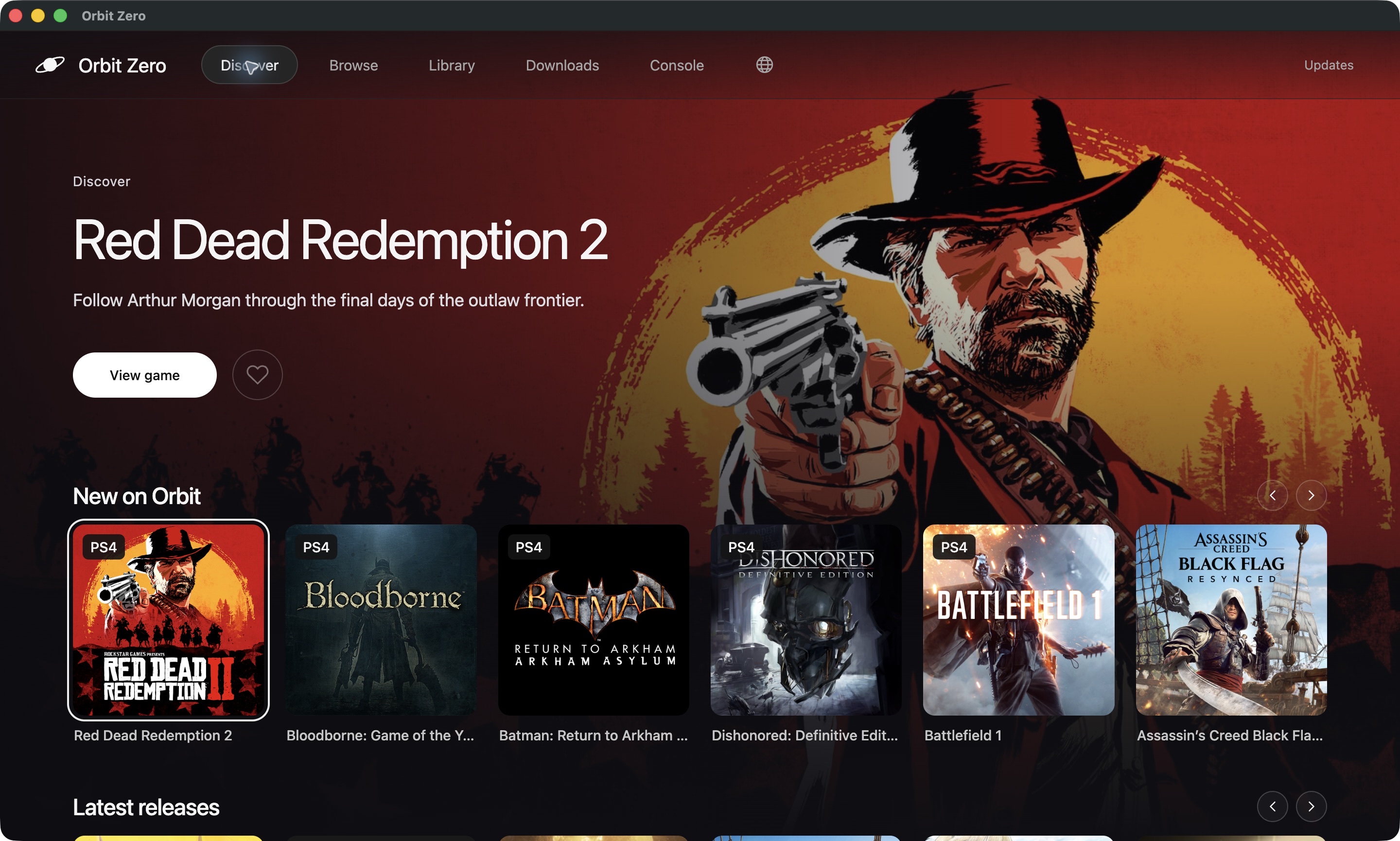
The Console page brings your connection, available storage, download preference and active transfers together. Pair once using Show code on PS5, then manage the connection from your computer.
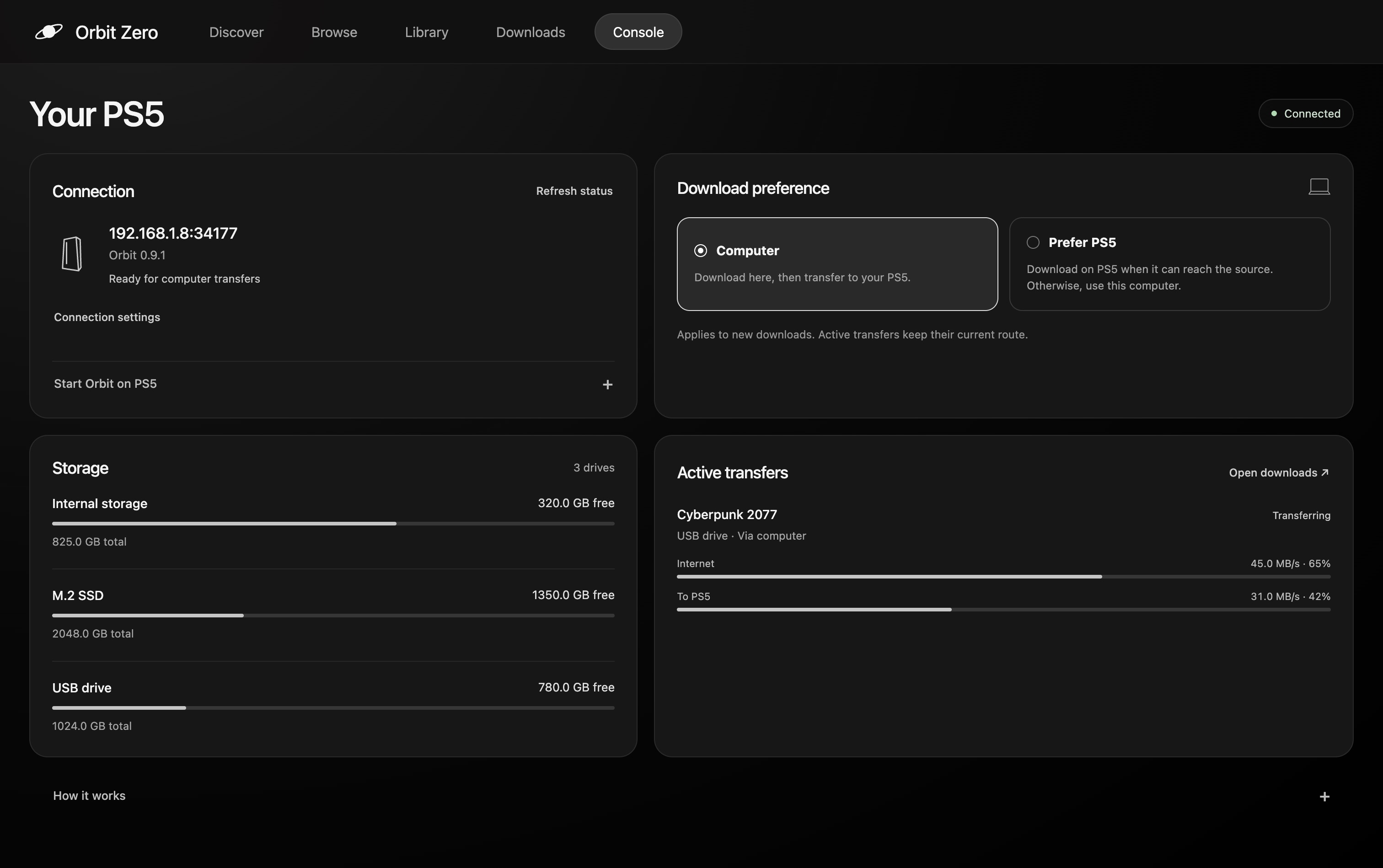
Desktop interface previews. Connection, storage and transfer values are illustrative.
The desktop app supports ARM64 and x64 computers and the same 11 interface languages as Orbit Store. Use Language in Store’s top bar, or Settings → Language in the other interfaces. Choose a language, or System language to follow your computer. Keep Orbit Zero and the PS5 awake while transferring; the computer needs internet to fetch new downloads.
Orbit Store is an experimental beta. Download the latest release. The matching components in release 1.3.5 have these version numbers:
| Component | Version |
|---|---|
Orbit Store download service and browser interface (orbit_store.elf) | 1.3.5 |
Native TV app (PPSA99177.ffpkg) | 1.7.0 |
| Orbit Zero for desktop | 1.3.5 |
The TV app has its own version number; these files belong to the same release. Use matching files when updating. Keep the PS5 awake while downloading or receiving transfers.
Payload-manager setup is opt-in. Choose App settings → Payload managers → Add Orbit to let Orbit add and update a copy. Existing copies stay in place until you choose whether to allow updates. Auto-start is a separate choice, and Orbit leaves your manager's global Autoload switch unchanged.
Compatibility varies by PS5 firmware, loader and ShadowMount version. Library requires a compatible ShadowMount v1 local API, and available actions depend on your setup. If something goes wrong, use the bug report format and include your versions and the error shown. The reported etaHEN payload-toggle issue remains under investigation.
Earlier supported apps continue to receive their PS5-compatible catalogue; a catalogue refresh alone does not add PS4 support to an older app. App updates add features and fixes. Your queued downloads keep the files you originally chose.
The release downloads include:
Orbit Zero for Mac, Windows and Linux, in ARM64 and x64 builds. Follow the desktop installation guide.
PPSA99177.ffpkg, the native TV app, and its checksum.
orbit_store.elf, the download service and browser interface, and its checksum.
The complete source and licence bundle for the PS5 service, browser interface, native TV app and their open-source components, with build instructions.
The ELF and FFPKG each have a matching .sha256 file. Desktop packages use the release’s SHA256SUMS file. Follow the verification commands for PS5 files or desktop packages, then use the installation guide for your app.
To download Orbit through Payload Manager, open Settings → Manage Sources → Add Source and paste:
https://raw.githubusercontent.com/saawant12/orbit-store-ps5/main/payloads.json
Open the Orbit Store source, download Orbit Store (Beta), then run orbit_store.elf. The feed includes its version and SHA-256 checksum using the Payload Manager repository format.
For the browser setup, manager integration and phone pairing steps, follow Getting started. Only download material you have permission to obtain and use.
After a reboot, run your jailbreak as usual. Open the Games-row TV app to start Orbit through your ELF loader, or start the payload manually or through auto-start you have configured. The Media-tab browser shortcut needs Orbit already running. If auto-start does not launch Orbit on your setup, start it manually from your payload manager.
Keep the PS5 awake while downloading. Closing the storefront leaves downloads running. After an Orbit restart, interrupted transfers become paused so you can review and resume them.
Update the service and TV app separately. In the native app, open App settings → Updates for both. In the browser version, App settings → Update / reinstall updates the ELF; App settings → TV app installs or updates the native app. Close the TV app before replacing it. If ShadowMountPlus still opens the old version, restart the console when convenient and run your jailbreak again. Replacing the FFPKG does not switch an already-running Orbit service; stop Orbit deliberately before starting its new copy. The update guide explains both steps.
To restore a deleted Orbit icon, start Orbit through your payload manager. Your paired devices, source choices and download queue stay saved.
Loading an ELF while Orbit is already running saves the replacement for the next start. It does not switch the active session. The notification now explains this; an existing icon is expected and does not need to be removed.
Update the browser service:
/data/orbit-store/orbit_store.elf, or a manager copy you opted to keep in sync, and reopen Orbit. Review and resume your downloads.Stop syncing preserves the existing manager copy and its auto-start settings, but stops updating that copy. If you prefer to keep a manually imported ELF outside sync, replace it yourself when updating or launch the saved path above. Running an old imported ELF starts that older version.
The panel shows Running, Saved for next start, and Latest release separately. Pairing, source choices and the download queue are preserved. Updates are manual; no release is installed just by opening the panel. If a download or copy fails, Orbit reports the error and leaves the running session open for a retry.
For installations from older betas and queue compatibility, see Upgrading an older version. For the desktop app, follow Update Orbit Zero.
New large downloads use up to eight connections when the host supports byte ranges and a strong file identity. Existing partials keep their original layout; other downloads use one connection. Pause, Resume and Cancel apply to the entire download. Speed depends on the host, network and storage.
Open Downloads and choose Active, Finished, Failed or Cancelled. Finished contains only successfully completed downloads; cancelled items have their own view. Move waiting downloads up or down to choose what runs next. Paused items keep their place. A retry countdown tells you when Orbit will try an interrupted download again.
On a cancelled download, Delete download offers to delete the partial file and remove the entry together. If you already deleted the partial file, it still removes the entry; completed files are kept. Reconnect the original destination if Orbit asks for it.
Remove from history keeps files on the drive. Clear finished history and Clear cancelled history also keep files and affect only their own view; cancelled entries with kept partial files remain listed. Use Delete download when you want to remove a cancelled entry and its partial file.
Before queuing a game, check Free now, Unfinished downloads and After queue + this download. Paused and failed downloads count toward the estimate; cancelled ones do not. Other apps can change free space, so Orbit checks again when a download starts.
Files are saved in the selected drive’s homebrew folder. See where downloads are saved for internal, M.2 and USB paths. For computer downloads, see Orbit Zero transfer recovery.
Open Library to see installed games and game files reported on your drives, including their mount and availability status. Search by name, title ID or path and filter by status, location or format. Library works independently of your download-source choices.
Run a compatible ShadowMount with its v1 local HTTP API enabled on the same PS5. Orbit reads that local inventory and shows the actions your ShadowMount version supports. It does not start ShadowMount or change its configuration.
If ShadowMount is absent or its API is incompatible, Library explains what is missing. A disconnected source stays distinguishable from an available one; refreshing does not delete files.
In Browse, combine platform, source, format, region and download-size filters, then choose a sort order. Size sorting uses the smallest option matching your filters. Release date (newest first) is the default. Games without a recorded date appear afterward, alphabetically. Reset filters restores this order.
Open a game's details and choose Add to favourites, or use the favourite shortcut on a selected game in native Browse or Discover: Square in Store, Triangle in Crossbar, Cinema or Panorama. Your favourites are shared between the console and paired devices and stay saved after restarting Orbit. Disabling a source hides its games without forgetting your favourites.
New games appear automatically, without reinstalling or restarting Orbit. To check for additions yourself, open App settings → Game catalogue → Refresh catalogue. Orbit also checks when it starts and every six hours while running.
If your connection drops, you can still browse the last available catalogue. Reconnect to download games or get the latest additions. Your source choices and queued downloads stay as you left them.
In the native TV app, use the D-pad or left stick to move, Cross to select, Circle to go back, and follow the on-screen action hints. In the Store interface, L1/R1 switches tabs and Square adds or removes the selected game from favourites in Browse and Discover. Filters open with Cross; choose with the D-pad and Cross, or close with Circle. In Crossbar, Cinema and Panorama, Triangle toggles favourites instead; section navigation also differs. See the native controller guide. The table below applies to the browser’s Store interface.
| Control | Action |
|---|---|
| D-pad / arrow keys | Move focus |
| Cross / Enter | Select |
| Search: Up / Down | Return to the Browse tab / move to results; with no matches, Down reaches collection controls |
| Search: Left / Right | Move the text cursor |
| Circle / Escape | Back or close details |
| Touch / mouse | Select visible controls |
The catalogue offers single-file FFPFSC, exFAT, PKG, FPKG, ZIP, RAR and 7z options across Archive.org, Vikingfile and AkiraBox. Archive sizes are marked as compressed; the extracted files need additional space.
| Format | What you get | What to do after it's saved |
|---|---|---|
| exFAT | .exfat image | ShadowMountPlus mounts it. Nothing to install. |
| FFPFSC | .ffpfsc image | ShadowMountPlus mounts it. Nothing to install. |
| Game folder | A folder of game files, from an archive | ShadowMountPlus mounts it. Nothing to install. |
| PKG, FPKG | .pkg package | Install it with a package installer. ShadowMountPlus doesn't mount packages, so the game won't appear in Library or on the home screen until it's installed. |
| ZIP, RAR, 7z | Archive | Orbit extracts it after downloading. The label shows what's inside, for example 7z · exFAT; follow that row. |
PS5 FPKGs and firmware (October 2026): PS5 FPKG games currently run only on firmware 11.60 or lower. On 12.xx and 13.xx they may install but won't start, until package support arrives for those firmwares. On those firmwares, choose exFAT or FFPFSC instead.
See which format to pick.
Source choices are saved on the console and shared by paired devices. Turning off a source hides its download options and pauses unfinished downloads without deleting files. A game stays visible if another enabled source offers it. Re-enable a source and resume its downloads when ready. There is no user library import or custom source entry in this version.
On a paired phone, these steps open on the PS5. In Orbit Zero, they open on your computer. See the full provider instructions.
Orbit automatically extracts supported single-file ZIP, RAR and 7z downloads. Orbit Store extracts on the selected PS5 drive; Orbit Zero extracts on your computer before transferring the extracted files to the PS5. Keep enough free space for both the archive and its extracted files.
Delete archives after extracting is on by default. Change it under App settings → Storage in Orbit Store, or Downloads → Download settings in Orbit Zero. It removes the downloaded archive only after successful extraction. In Zero, keeping or removing the extracted computer copy after transfer is a separate Computer cache setting; automatic cache removal is off by default.
For downloads handled by Orbit Store, open Downloads → Finished → Location in the browser or native app to see the saved file or extracted folder path. Moving or deleting the file afterward does not update that history. Orbit Zero download details also show the full PS5 destination path and the computer path while a cached copy remains. See where downloads are saved.
For password-protected archives, Orbit automatically tries the supplied password and these built-in passwords, so you usually don’t need to enter one yourself:
DLPSGAME.COM[DLPSGAME.COM]SuperPSXwww.DLPSGAME.COMdownloadgameps3.comhakoPasswords are case-sensitive. If none works, select Enter archive password on the download, enter the password provided by its source, then choose Retry extraction. Orbit keeps the downloaded archive so you can retry without downloading it again.
Orbit does not directly install game packages, launch games, or download in rest mode. Library actions use ShadowMount; a confirmed scan may register or mount discovered games. “Complete” means the file was saved and passed available validation. Size-only checks are labelled separately from checksum verification.
When reporting a bug, follow the bug report format and open a bug report. Include your setup, the exact error and a diagnostic report when available, and complete the sections relevant to your issue.
Retry-After response.Orbit Store is free software under the GNU General Public License, version 3 or later. Every release includes the complete source for its payload and native TV app, the corresponding sources of their copyleft components, third-party licence notices and rebuild instructions.
Forks are welcome, as long as they share their source under the same licence. BlackBox is built from Orbit's code but is released without its source; see BlackBox is built from Orbit Store's code.
Orbit Store is an independent download-management application. This project does not host, upload, mirror, or bundle the game files referenced by its catalogue. File transfers happen directly between third-party providers and the user's selected device. This repository hosts Orbit's documentation and, when released, Orbit's own application files.
Catalogue entries reference publicly accessible third-party URLs. Publicly accessible does not mean authorised, licensed, or free to redistribute. Use Orbit only for material you have permission to obtain and use, in accordance with applicable law, relevant licences, and the provider's terms. Owning a game does not, by itself, establish permission to obtain any copy found online.
Third-party files are outside this project's control. Their hosts and uploaders control availability and contents. Orbit does not guarantee ownership, authenticity, completeness, safety, compatibility, or continued availability. Download completion, a matching file size, or a matching checksum is a technical result, not a licence or a guarantee that the file is safe to run.
All game names, artwork, trademarks, and other third-party materials belong to their respective owners. Orbit is not affiliated with or endorsed by Sony Interactive Entertainment, PlayStation, game publishers, or download providers. The app does not supply accounts, credentials, purchase entitlements, or permission to bypass access restrictions.
To report an incorrect entry or a rights concern, open an issue with the affected title, URL, and sufficient information to identify the concern. Do not post private personal information. The underlying hosting provider is responsible for files it hosts; Orbit's maintainers can review catalogue references controlled by this project.
453 followers · starred Oct 2026
2,883 followers · starred Oct 2026
26 followers · starred Oct 2026
28 followers · starred Oct 2026
A modern PS5 download manager with a native TV app, phone controls and Orbit Zero for Mac, Windows and Linux.
1,023
104 commits
updated Oct 14, 2026
Orbit runs on your PS5. Browse games, compare their available sources and formats, and download a single file directly to the console or an attached drive. Open the native TV app from your Games row, or pair a phone or computer to manage the same queue over your local network.
Explore 1,598 games: 998 PS5 games and 600 PS4 games, with single-file options from Archive.org, Vikingfile and AkiraBox. Filter by platform, choose your source and save to your preferred drive. New games and corrected links arrive through catalogue updates.
PS4 game browsing requires Orbit Store 1.1.0 with its matching native app, or Orbit Zero 1.1.0. Orbit itself runs on PS5. See PS4 games on PS5 for package download and installation guidance.
Download Orbit · Orbit Zero · Get started · Download guide · Library guide · Appearance guide · Troubleshooting · Bug report format · Report a bug · Request a feature
Official channels: Orbit Store has no official social media accounts. This GitHub repository is our official source for releases, updates and support. Any social media account claiming to officially represent Orbit Store is an impersonator.
Always free. Orbit Store is free to use and will always remain free. We don’t accept donations or payments. Anyone asking for money on our behalf is not affiliated with the project.
Three ways to use Orbit
| Do this | Orbit appears in | What it is |
|---|---|---|
Copy PPSA99177.ffpkg to /data/homebrew/ | Games on your PS5 | The TV app, used with your controller. Needs kstuff and ShadowMountPlus. |
Run orbit_store.elf with your payload manager or ELF loader | Media on your PS5 | The browser version. It only opens while Orbit is running. |
| Install Orbit Zero | Your Mac, Windows or Linux computer | Downloads on your computer and sends the files to your PS5. The PS5 doesn't need internet. |
The Games and Media versions share the same downloads, favourites and service settings, so seeing two Orbit icons on your PS5 is normal. Appearance is saved separately in each app or browser.
For direct console downloads, you need a PS5 that can run homebrew ELF payloads, a payload manager or ELF loader, internet access on the console, and enough writable storage. For downloads through your computer, see Orbit Zero below.
The TV app includes Orbit's download service and can start it through a compatible ELF loader on port 9021. You can also start orbit_store.elf yourself. The Media-tab shortcut opens the browser version while the service is running. After a reboot, start your jailbreak before opening Orbit. See the setup and update guide for installation, updates and phone pairing.
Open Orbit from your Games row and use the controller to browse, explore and choose a download. The native app shares your catalogue, favourites and download queue with the browser version.
Discover previews the 1.3.0 catalogue in the Store interface. Game details and download options show 1.2.0, and Browse shows the native app from 1.1.0. These previews are rendered locally; other screenshots show existing workflows with illustrative storage and download values.
Start with something new. Discover opens first. New on Orbit brings featured picks and recent additions to the first row, followed by Latest releases. Move down to All games to explore a grid that loads more games as you scroll. PS4 and PS5 editions have their own platform labels and download choices.
Store (default)
Keep exploring. All games gives each title its own tile. Move through the grid with your controller; more games appear as you keep scrolling.
Find your next game. Search by name or title ID, narrow the collection by platform, source, format, region or size, and browse the newest known releases first.
Get to know a game. Read its description, save it to favourites, or open the three-dot menu for more information. The main download button opens your options before anything starts.
Choose how and where to download. Review the source, format, delivery method and drive together. Direct options download from the TV app; Vikingfile browser options open the provider page on PS5 and keep your choices when you return. See the download guide, including TorBox setup.
Make Orbit look the way you like. Open Appearance and choose Store, Crossbar, Cinema or Panorama. Confirm your choice to keep it. The interfaces are available in the native PS5 app, browser and Orbit Zero; switching keeps your downloads, favourites and settings. See the appearance guide for the 15-second confirmation, controller shortcuts, motion options and where to find settings in each layout.
Crossbar
Cinema
Panorama
The instructions below use Store’s settings names. In the browser’s Crossbar, Cinema and Panorama interfaces, use the Settings page equivalents.
Choose sources, set your default drive, pair a phone and refresh your game catalogue from one place. Updates has separate controls for the TV app and its download service; you choose when to install or restart.
Orbit Store and Orbit Zero support English, German, Spanish, French, Hungarian, Italian, Dutch, Polish, Brazilian Portuguese, Russian and Turkish. The native app follows your PS5’s system language. In the browser version, use App settings → Language in Store, or Settings → Language in the other interfaces, to choose a language for that device, or leave it on Automatic to follow the browser.
Native app 1.3.2 rendered locally in Hungarian. Storage values are illustrative.
In Orbit Zero’s Store interface, use the globe-shaped Language button in the top bar. In Crossbar, Cinema or Panorama, open Settings → Language. Language settings change Orbit’s menus; each game keeps its own language settings. See language settings for instructions and the browser selector.
Pair a phone on the same network to find a game and choose its download option. Files still go to the PS5’s selected drive. Vikingfile’s provider page and any verification open on the PS5, even when you start from your phone.
Select a screenshot to open it at full size.
For your existing collection, the Library guide explains installed, mounted and on-drive status, plus the actions available through ShadowMount.
Orbit Zero is our desktop companion for Mac, Windows and Linux. Download Orbit Zero, open Console, enter your PS5’s local IP address and choose Start Orbit on PS5.
Download on your computer and transfer to your PS5 over your home network. Uncompressed files can transfer while downloading; archives finish downloading and extracting before their files transfer. Works over your local network: Wi-Fi or Ethernet. Your PS5 does not need internet access. Keep both devices connected to your home network while the computer handles online downloads.
.cache file whose queue entry was removed, then transfer it without downloading it again. See cache recovery.Install on Mac, Windows or Linux · Set up a PS5 without internet
Download and transfer improvements are included as standard. It reconnects to your saved PS5 when reopened, lets you choose the computer download folder, and can clear completed computer copies after successful transfers. Updates checks for new desktop versions and downloads the correct package when you choose.
Explore PS4 and PS5 games with full artwork, featured picks in New on Orbit and a shared favourites list. Browse’s Platform filter lets you choose PS4, PS5 or both. Choose the source and PS5 destination before starting a download.
The Console page brings your connection, available storage, download preference and active transfers together. Pair once using Show code on PS5, then manage the connection from your computer.
Desktop interface previews. Connection, storage and transfer values are illustrative.
The desktop app supports ARM64 and x64 computers and the same 11 interface languages as Orbit Store. Use Language in Store’s top bar, or Settings → Language in the other interfaces. Choose a language, or System language to follow your computer. Keep Orbit Zero and the PS5 awake while transferring; the computer needs internet to fetch new downloads.
Orbit Store is an experimental beta. Download the latest release. The matching components in release 1.3.5 have these version numbers:
| Component | Version |
|---|---|
Orbit Store download service and browser interface (orbit_store.elf) | 1.3.5 |
Native TV app (PPSA99177.ffpkg) | 1.7.0 |
| Orbit Zero for desktop | 1.3.5 |
The TV app has its own version number; these files belong to the same release. Use matching files when updating. Keep the PS5 awake while downloading or receiving transfers.
Payload-manager setup is opt-in. Choose App settings → Payload managers → Add Orbit to let Orbit add and update a copy. Existing copies stay in place until you choose whether to allow updates. Auto-start is a separate choice, and Orbit leaves your manager's global Autoload switch unchanged.
Compatibility varies by PS5 firmware, loader and ShadowMount version. Library requires a compatible ShadowMount v1 local API, and available actions depend on your setup. If something goes wrong, use the bug report format and include your versions and the error shown. The reported etaHEN payload-toggle issue remains under investigation.
Earlier supported apps continue to receive their PS5-compatible catalogue; a catalogue refresh alone does not add PS4 support to an older app. App updates add features and fixes. Your queued downloads keep the files you originally chose.
The release downloads include:
Orbit Zero for Mac, Windows and Linux, in ARM64 and x64 builds. Follow the desktop installation guide.
PPSA99177.ffpkg, the native TV app, and its checksum.
orbit_store.elf, the download service and browser interface, and its checksum.
The complete source and licence bundle for the PS5 service, browser interface, native TV app and their open-source components, with build instructions.
The ELF and FFPKG each have a matching .sha256 file. Desktop packages use the release’s SHA256SUMS file. Follow the verification commands for PS5 files or desktop packages, then use the installation guide for your app.
To download Orbit through Payload Manager, open Settings → Manage Sources → Add Source and paste:
https://raw.githubusercontent.com/saawant12/orbit-store-ps5/main/payloads.json
Open the Orbit Store source, download Orbit Store (Beta), then run orbit_store.elf. The feed includes its version and SHA-256 checksum using the Payload Manager repository format.
For the browser setup, manager integration and phone pairing steps, follow Getting started. Only download material you have permission to obtain and use.
After a reboot, run your jailbreak as usual. Open the Games-row TV app to start Orbit through your ELF loader, or start the payload manually or through auto-start you have configured. The Media-tab browser shortcut needs Orbit already running. If auto-start does not launch Orbit on your setup, start it manually from your payload manager.
Keep the PS5 awake while downloading. Closing the storefront leaves downloads running. After an Orbit restart, interrupted transfers become paused so you can review and resume them.
Update the service and TV app separately. In the native app, open App settings → Updates for both. In the browser version, App settings → Update / reinstall updates the ELF; App settings → TV app installs or updates the native app. Close the TV app before replacing it. If ShadowMountPlus still opens the old version, restart the console when convenient and run your jailbreak again. Replacing the FFPKG does not switch an already-running Orbit service; stop Orbit deliberately before starting its new copy. The update guide explains both steps.
To restore a deleted Orbit icon, start Orbit through your payload manager. Your paired devices, source choices and download queue stay saved.
Loading an ELF while Orbit is already running saves the replacement for the next start. It does not switch the active session. The notification now explains this; an existing icon is expected and does not need to be removed.
Update the browser service:
/data/orbit-store/orbit_store.elf, or a manager copy you opted to keep in sync, and reopen Orbit. Review and resume your downloads.Stop syncing preserves the existing manager copy and its auto-start settings, but stops updating that copy. If you prefer to keep a manually imported ELF outside sync, replace it yourself when updating or launch the saved path above. Running an old imported ELF starts that older version.
The panel shows Running, Saved for next start, and Latest release separately. Pairing, source choices and the download queue are preserved. Updates are manual; no release is installed just by opening the panel. If a download or copy fails, Orbit reports the error and leaves the running session open for a retry.
For installations from older betas and queue compatibility, see Upgrading an older version. For the desktop app, follow Update Orbit Zero.
New large downloads use up to eight connections when the host supports byte ranges and a strong file identity. Existing partials keep their original layout; other downloads use one connection. Pause, Resume and Cancel apply to the entire download. Speed depends on the host, network and storage.
Open Downloads and choose Active, Finished, Failed or Cancelled. Finished contains only successfully completed downloads; cancelled items have their own view. Move waiting downloads up or down to choose what runs next. Paused items keep their place. A retry countdown tells you when Orbit will try an interrupted download again.
On a cancelled download, Delete download offers to delete the partial file and remove the entry together. If you already deleted the partial file, it still removes the entry; completed files are kept. Reconnect the original destination if Orbit asks for it.
Remove from history keeps files on the drive. Clear finished history and Clear cancelled history also keep files and affect only their own view; cancelled entries with kept partial files remain listed. Use Delete download when you want to remove a cancelled entry and its partial file.
Before queuing a game, check Free now, Unfinished downloads and After queue + this download. Paused and failed downloads count toward the estimate; cancelled ones do not. Other apps can change free space, so Orbit checks again when a download starts.
Files are saved in the selected drive’s homebrew folder. See where downloads are saved for internal, M.2 and USB paths. For computer downloads, see Orbit Zero transfer recovery.
Open Library to see installed games and game files reported on your drives, including their mount and availability status. Search by name, title ID or path and filter by status, location or format. Library works independently of your download-source choices.
Run a compatible ShadowMount with its v1 local HTTP API enabled on the same PS5. Orbit reads that local inventory and shows the actions your ShadowMount version supports. It does not start ShadowMount or change its configuration.
If ShadowMount is absent or its API is incompatible, Library explains what is missing. A disconnected source stays distinguishable from an available one; refreshing does not delete files.
In Browse, combine platform, source, format, region and download-size filters, then choose a sort order. Size sorting uses the smallest option matching your filters. Release date (newest first) is the default. Games without a recorded date appear afterward, alphabetically. Reset filters restores this order.
Open a game's details and choose Add to favourites, or use the favourite shortcut on a selected game in native Browse or Discover: Square in Store, Triangle in Crossbar, Cinema or Panorama. Your favourites are shared between the console and paired devices and stay saved after restarting Orbit. Disabling a source hides its games without forgetting your favourites.
New games appear automatically, without reinstalling or restarting Orbit. To check for additions yourself, open App settings → Game catalogue → Refresh catalogue. Orbit also checks when it starts and every six hours while running.
If your connection drops, you can still browse the last available catalogue. Reconnect to download games or get the latest additions. Your source choices and queued downloads stay as you left them.
In the native TV app, use the D-pad or left stick to move, Cross to select, Circle to go back, and follow the on-screen action hints. In the Store interface, L1/R1 switches tabs and Square adds or removes the selected game from favourites in Browse and Discover. Filters open with Cross; choose with the D-pad and Cross, or close with Circle. In Crossbar, Cinema and Panorama, Triangle toggles favourites instead; section navigation also differs. See the native controller guide. The table below applies to the browser’s Store interface.
| Control | Action |
|---|---|
| D-pad / arrow keys | Move focus |
| Cross / Enter | Select |
| Search: Up / Down | Return to the Browse tab / move to results; with no matches, Down reaches collection controls |
| Search: Left / Right | Move the text cursor |
| Circle / Escape | Back or close details |
| Touch / mouse | Select visible controls |
The catalogue offers single-file FFPFSC, exFAT, PKG, FPKG, ZIP, RAR and 7z options across Archive.org, Vikingfile and AkiraBox. Archive sizes are marked as compressed; the extracted files need additional space.
| Format | What you get | What to do after it's saved |
|---|---|---|
| exFAT | .exfat image | ShadowMountPlus mounts it. Nothing to install. |
| FFPFSC | .ffpfsc image | ShadowMountPlus mounts it. Nothing to install. |
| Game folder | A folder of game files, from an archive | ShadowMountPlus mounts it. Nothing to install. |
| PKG, FPKG | .pkg package | Install it with a package installer. ShadowMountPlus doesn't mount packages, so the game won't appear in Library or on the home screen until it's installed. |
| ZIP, RAR, 7z | Archive | Orbit extracts it after downloading. The label shows what's inside, for example 7z · exFAT; follow that row. |
PS5 FPKGs and firmware (October 2026): PS5 FPKG games currently run only on firmware 11.60 or lower. On 12.xx and 13.xx they may install but won't start, until package support arrives for those firmwares. On those firmwares, choose exFAT or FFPFSC instead.
See which format to pick.
Source choices are saved on the console and shared by paired devices. Turning off a source hides its download options and pauses unfinished downloads without deleting files. A game stays visible if another enabled source offers it. Re-enable a source and resume its downloads when ready. There is no user library import or custom source entry in this version.
On a paired phone, these steps open on the PS5. In Orbit Zero, they open on your computer. See the full provider instructions.
Orbit automatically extracts supported single-file ZIP, RAR and 7z downloads. Orbit Store extracts on the selected PS5 drive; Orbit Zero extracts on your computer before transferring the extracted files to the PS5. Keep enough free space for both the archive and its extracted files.
Delete archives after extracting is on by default. Change it under App settings → Storage in Orbit Store, or Downloads → Download settings in Orbit Zero. It removes the downloaded archive only after successful extraction. In Zero, keeping or removing the extracted computer copy after transfer is a separate Computer cache setting; automatic cache removal is off by default.
For downloads handled by Orbit Store, open Downloads → Finished → Location in the browser or native app to see the saved file or extracted folder path. Moving or deleting the file afterward does not update that history. Orbit Zero download details also show the full PS5 destination path and the computer path while a cached copy remains. See where downloads are saved.
For password-protected archives, Orbit automatically tries the supplied password and these built-in passwords, so you usually don’t need to enter one yourself:
DLPSGAME.COM[DLPSGAME.COM]SuperPSXwww.DLPSGAME.COMdownloadgameps3.comhakoPasswords are case-sensitive. If none works, select Enter archive password on the download, enter the password provided by its source, then choose Retry extraction. Orbit keeps the downloaded archive so you can retry without downloading it again.
Orbit does not directly install game packages, launch games, or download in rest mode. Library actions use ShadowMount; a confirmed scan may register or mount discovered games. “Complete” means the file was saved and passed available validation. Size-only checks are labelled separately from checksum verification.
When reporting a bug, follow the bug report format and open a bug report. Include your setup, the exact error and a diagnostic report when available, and complete the sections relevant to your issue.
Retry-After response.Orbit Store is free software under the GNU General Public License, version 3 or later. Every release includes the complete source for its payload and native TV app, the corresponding sources of their copyleft components, third-party licence notices and rebuild instructions.
Forks are welcome, as long as they share their source under the same licence. BlackBox is built from Orbit's code but is released without its source; see BlackBox is built from Orbit Store's code.
Orbit Store is an independent download-management application. This project does not host, upload, mirror, or bundle the game files referenced by its catalogue. File transfers happen directly between third-party providers and the user's selected device. This repository hosts Orbit's documentation and, when released, Orbit's own application files.
Catalogue entries reference publicly accessible third-party URLs. Publicly accessible does not mean authorised, licensed, or free to redistribute. Use Orbit only for material you have permission to obtain and use, in accordance with applicable law, relevant licences, and the provider's terms. Owning a game does not, by itself, establish permission to obtain any copy found online.
Third-party files are outside this project's control. Their hosts and uploaders control availability and contents. Orbit does not guarantee ownership, authenticity, completeness, safety, compatibility, or continued availability. Download completion, a matching file size, or a matching checksum is a technical result, not a licence or a guarantee that the file is safe to run.
All game names, artwork, trademarks, and other third-party materials belong to their respective owners. Orbit is not affiliated with or endorsed by Sony Interactive Entertainment, PlayStation, game publishers, or download providers. The app does not supply accounts, credentials, purchase entitlements, or permission to bypass access restrictions.
To report an incorrect entry or a rights concern, open an issue with the affected title, URL, and sufficient information to identify the concern. Do not post private personal information. The underlying hosting provider is responsible for files it hosts; Orbit's maintainers can review catalogue references controlled by this project.
453 followers · starred Oct 2026
2,883 followers · starred Oct 2026
26 followers · starred Oct 2026
28 followers · starred Oct 2026



