Android Auto and CarPlay for GM EV AAOS head units with cluster/HUD support and EV range in Maps
Kotlin
152
808 commits
updated Oct 18, 2026

Bring Android Auto and Apple CarPlay to Android Automotive OS head units.
Phone projection on the car's existing screen. No SBC, dongle, or additional projection hardware.
OpenAutoLink runs on the vehicle's Android Automotive OS (AAOS) head unit. Android Automotive is the car's operating system; Android Auto and Apple CarPlay are the phone-projection experiences that OAL receives. OAL does not replace the car's operating system.
Android Auto and CarPlay share one app, with independent connection settings. USB CarPlay is supported alongside wireless and USB Android Auto. Wireless CarPlay remains available for development but is not working in the maintainer's vehicle.
Releases · Installation · Android Auto setup · CarPlay setup · Compatibility · Troubleshooting · XDA discussion


[!IMPORTANT] To use OpenAutoLink, build the app and publish it through your own Google Play Console developer account. Locked GM vehicles require Google Play delivery; APK sideloading is not supported.
CarPlay requires compatible accessory authentication files that you are authorized to use. These are not included in the public build; building the app alone does not enable CarPlay.
As I publish changes, you’ll need to pull the latest source, rebuild, and publish your own updates.
| Phone / mode | Connection | Companion needed? | Notes |
|---|---|---|---|
| Android Auto, wireless | Bluetooth + car Wi-Fi (WPP) | Yes, for GM wireless | Use WPP for Android Auto 17.4+ |
| Android Auto, USB | USB cable | No | GM shows two USB access prompts on every connection, even with the choice saved |
| CarPlay, USB | USB cable; iPhone unpaired from vehicle Bluetooth | No iPhone companion | Music and calls use USB; authentication identity and USB/VPN consent required; two GM USB access prompts on every connection |
| CarPlay, wireless | Bluetooth + Wi-Fi | No iPhone companion | Available for development; not working in the maintainer's vehicle |
| CarPlay, shared Wi-Fi | Existing Wi-Fi network | No iPhone companion | Advanced wireless network configuration; not a USB requirement |
Check the source revision and release notes for your installed build. USB hot-plug handoff is implemented, but current vehicle validation is still pending.
To use OpenAutoLink, build the app and publish it through your own Google Play Console developer account. Locked GM vehicles require Google Play delivery; APK sideloading is not supported.
CarPlay requires compatible accessory authentication files that you are authorized to use. These are not included in the public build; building the app alone does not enable CarPlay.
As I publish changes, you’ll need to pull the latest source, rebuild, and publish your own updates.
Follow the build guide and installation guide. See CarPlay authentication for the separate file requirement. Preserve your application ID and signing setup for later updates. The car itself needs internet-connected Wi-Fi or its data service; an OnStar data plan is not required.
The car APK on GitHub Releases is for AAOS systems/emulators that permit APK installation. It cannot be sideloaded onto a locked GM production head unit.
You do not need an OnStar data subscription to install or use OAL. Without a vehicle data plan, connect the car itself to a Wi-Fi network with working internet, such as your home Wi-Fi, to download OAL through Google Play. A local car hotspot used for wireless Android Auto is not, by itself, an internet connection for the car.
Keep your car's apps updated—not just OAL. Like your phone, the car has a Play Store and apps that receive regular updates. Without an OnStar data plan, give the car itself internet access regularly:
Enable automatic app updates in the car's Play Store and check for pending updates occasionally. Downloads depend on Play Store settings, connection quality and vehicle software; simply saving a Wi-Fi network does not guarantee updates while the car is off. This is routine care for all the car's Play Store apps, not an OAL-only requirement.
OAL's phone-projection connection does not require a paid OnStar data plan. Online navigation, music and other phone-app services still need their own internet connection, normally your phone's mobile data.
For wireless Android Auto, install openautolink-companion-vX.Y.Z.apk from the matching release, grant its requested permissions, and configure the paired car. USB Android Auto does not need the companion.
No OAL iPhone companion is required. For USB, connect a data-capable cable and leave the iPhone unpaired from vehicle Bluetooth to avoid GM Bluetooth competing with CarPlay and constantly pausing media. Music and calls work over USB; car Wi-Fi fields are not required for wired startup. For wireless, pair through the car's system Bluetooth settings and configure the wireless fields below. USB Trust approval is separate from Bluetooth pairing. Supply the required CarPlay authentication files separately.
Install the car APK only if the platform permits it. Bluetooth, networking, audio and vehicle integration vary by platform. Reports from Polestar and other non-GM AAOS vehicles without built-in phone projection are welcome.
For Android Auto 17.4 or newer:
The companion is required for wireless Android Auto. GM chooses which nearby paired phone connects first. See the WPP guide for detailed setup and migration instructions.
Select USB under Android Auto connection for normal wired use, then connect a data-capable cable. No companion is needed. Accept both GM USB access prompts every time, even with the choice saved. You can also leave normal AA mode set to Wireless and use the temporary USB switch below.
Every USB connection shows two system access prompts, even if you check “Always open OpenAutoLink” or save the choice. Tap OK on both prompts each time. This applies to both USB Android Auto and USB CarPlay on GM head units. It is a longstanding GM infotainment bug; OAL cannot fix or bypass it.
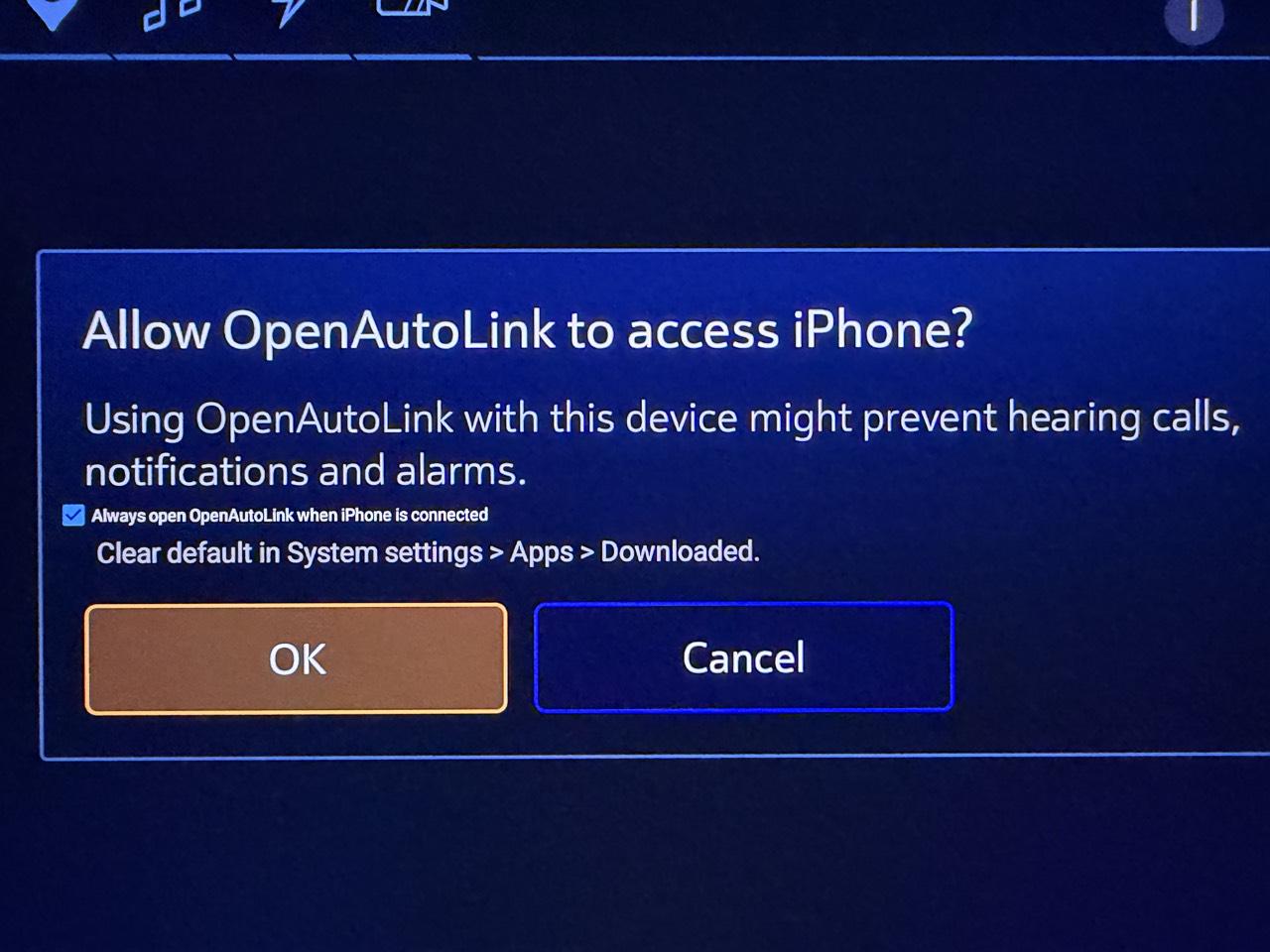
Example of one GM USB access prompt, shown for an iPhone with “Always open OpenAutoLink” already checked. Expect two prompts on every USB connection; USB Android Auto has the same limitation.
These GM USB access prompts are separate from OAL's Switch / Stay here choice, the iPhone's Trust prompt and CarPlay's local VPN consent. This warning is for GM wired connections, not wireless projection.
For example, keep Android Auto connection → Wireless and CarPlay connection → USB. Both phone protocols are available in the same app; using CarPlay does not disable wireless Android Auto or change its saved mode.
This handoff is implemented for both phone protocols; successful end-to-end switching in the vehicle is still being validated.
If text or maps look soft, try 1440p as the recommended manual quality setting: in OAL → Settings → Video → Android Auto, turn Auto (Recommended) off so it reads Manual, select Video Codec → H.265 / HEVC, then AA Resolution → 1440p (2560×1440) and tap Save & Reconnect. Keep GAL / PDK protocol version → 6.0 for the verified modern HEVC path.
4K (3840×2160) is an optional higher-detail setting if your phone and head-unit decoder support it. It costs more bandwidth and processing; return to 1440p if it stutters or fails to connect. Auto does not guarantee a particular negotiated resolution, and a blurry image alone does not prove the stream is 1080p. These codec controls apply to Android Auto, not CarPlay.
Keep the vehicle parked while configuring. Disconnect the iPhone from any other OAL receiver before connecting it to the car.
If you previously turned off iPhone projection, OAL retains that choice. Only in that case, turn Enable iPhone projection back on in the same settings page and save. There is no separate enablement step for normal setup.
Music and calls work over USB without vehicle Bluetooth. The maintainer confirmed music playback plus both outgoing and incoming CarPlay calls on the 2024 Chevrolet Blazer EV with the iPhone disconnected from vehicle Bluetooth. This is a setup correction, not a requirement to turn off the car's entire Bluetooth adapter. Do not apply it to wireless Android Auto: keep that Android phone's required Bluetooth pairing and Phone calls profile enabled.
USB CarPlay does not require Bluetooth pairing or Wi-Fi setup. The VPN permission is used locally for the USB connection—not an Internet VPN service. Another active VPN can conflict. USB access and permission support vary by head unit.
Wireless CarPlay is still in development and is not working in the maintainer's vehicle. Use USB for now. Advanced wireless configuration is covered in the network guide.
Public GitHub APKs and source builds omit the CarPlay authentication files and require your own compatible files. OAL is not an Apple-certified CarPlay product. Never publish authentication files or signing keys. See the authentication and build policy for requirements, provenance and redistribution limitations.
Configure these while parked in OAL → Settings → Display. Android Auto and CarPlay have separate scaling controls; changing one does not change the other. Select Save & Reconnect after adjusting them to apply the settings to the next projection session.
Under Android Auto → AA Display Density (DPI):
Under CarPlay → CarPlay UI scale:
UI scale is not video resolution. Use Video settings for image detail and Fit to window for CarPlay's standard-tier canvas fit. Use Display → Calibrate safe controls to move CarPlay controls away from curved screen edges; changing UI size does not replace safe-area calibration. Neither protocol's scaling control changes the vehicle's native apps or OAL's own settings UI.
For USB CarPlay, leave the iPhone unpaired from vehicle Bluetooth: incoming and outgoing calls work over USB, and avoiding the Bluetooth connection prevents repeated music pauses. The native Bluetooth Phone-app settings below are not required for that Bluetooth-free CarPlay setup.
For Android Auto, or when managing native GM call-screen behavior, use these vehicle settings to stop GM's native Phone app from covering the projected incoming-call and in-call controls on the center display:
Incoming-call alerts stay in the instrument cluster, and the native active-call screen no longer takes over the center display. Answer and manage calls from Android Auto or CarPlay instead.
These are Phone-app display settings, not Bluetooth profile settings. For Android Auto, leave the paired phone's Bluetooth Phone calls profile enabled: the vehicle's hands-free system carries microphone and speaker audio, and disabling it can also break wireless WPP startup. See Phone calls for Android Auto audio routing, verification and troubleshooting.
Android Auto community reports are linked below. Compatibility varies with vehicle software, phone and connection mode.
| Vehicle | AAOS | Android Auto reports |
|---|---|---|
| 2024 Chevrolet Blazer EV | 12L | Maintainer daily driver |
| 2025–2026 Chevrolet Equinox EV | 14 reported | Successful owner report, alongside earlier build/setup issue reports |
| 2027 Chevrolet Bolt | — | Independent demonstration and owner report |
| Other GM AAOS EVs | Varies | Additional owner reports welcome |
| Non-GM AAOS | Varies | Additional owner reports welcome; platform integration varies |
See compatibility notes for vehicle-specific information.
CarPlay Dashboard combines navigation and playback controls on the Blazer EV's wide display.
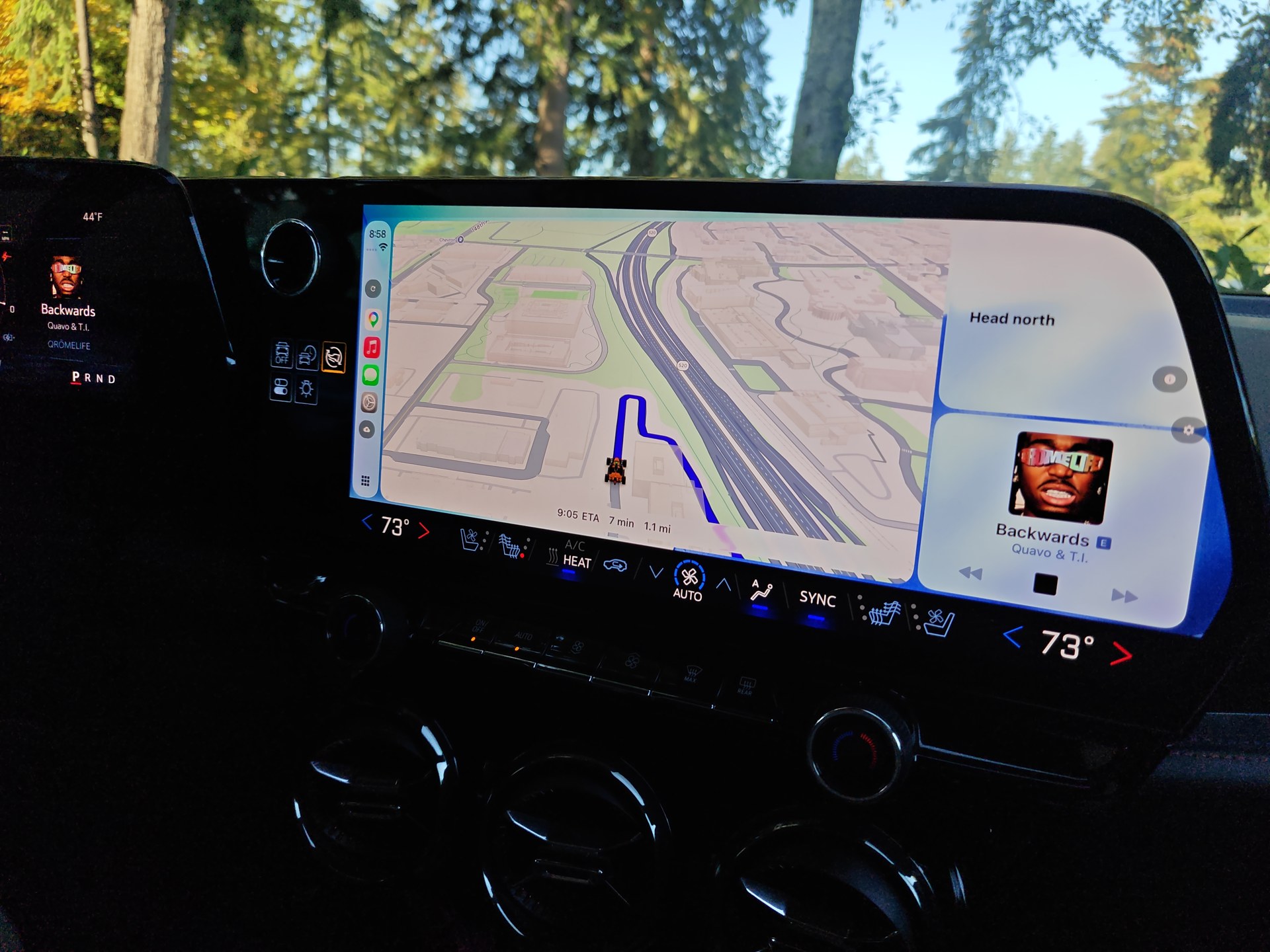
Fullscreen CarPlay, with the vehicle's top system bar hidden.
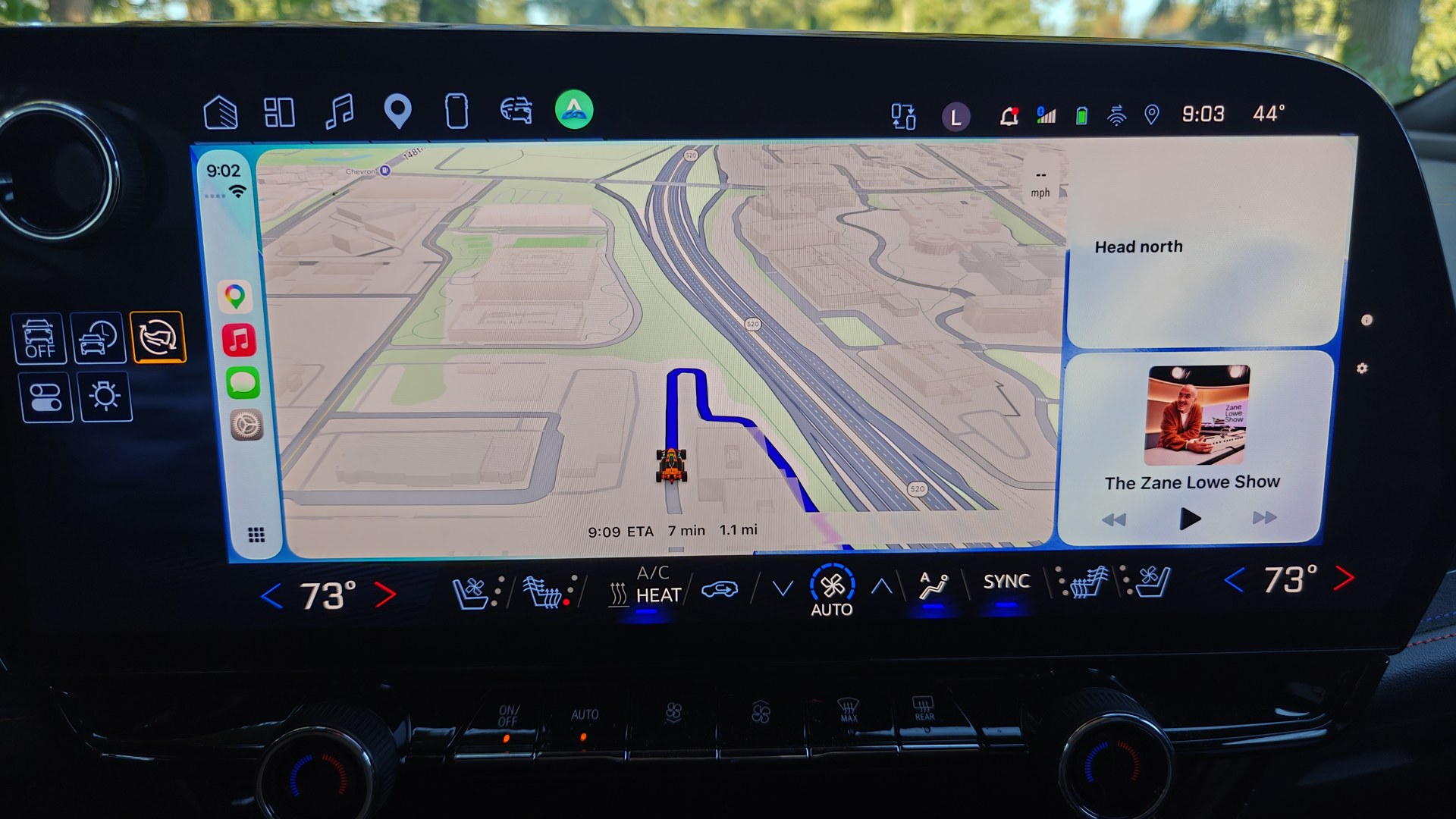
CarPlay with the vehicle's top system bar visible. Climate controls remain accessible below in both views.
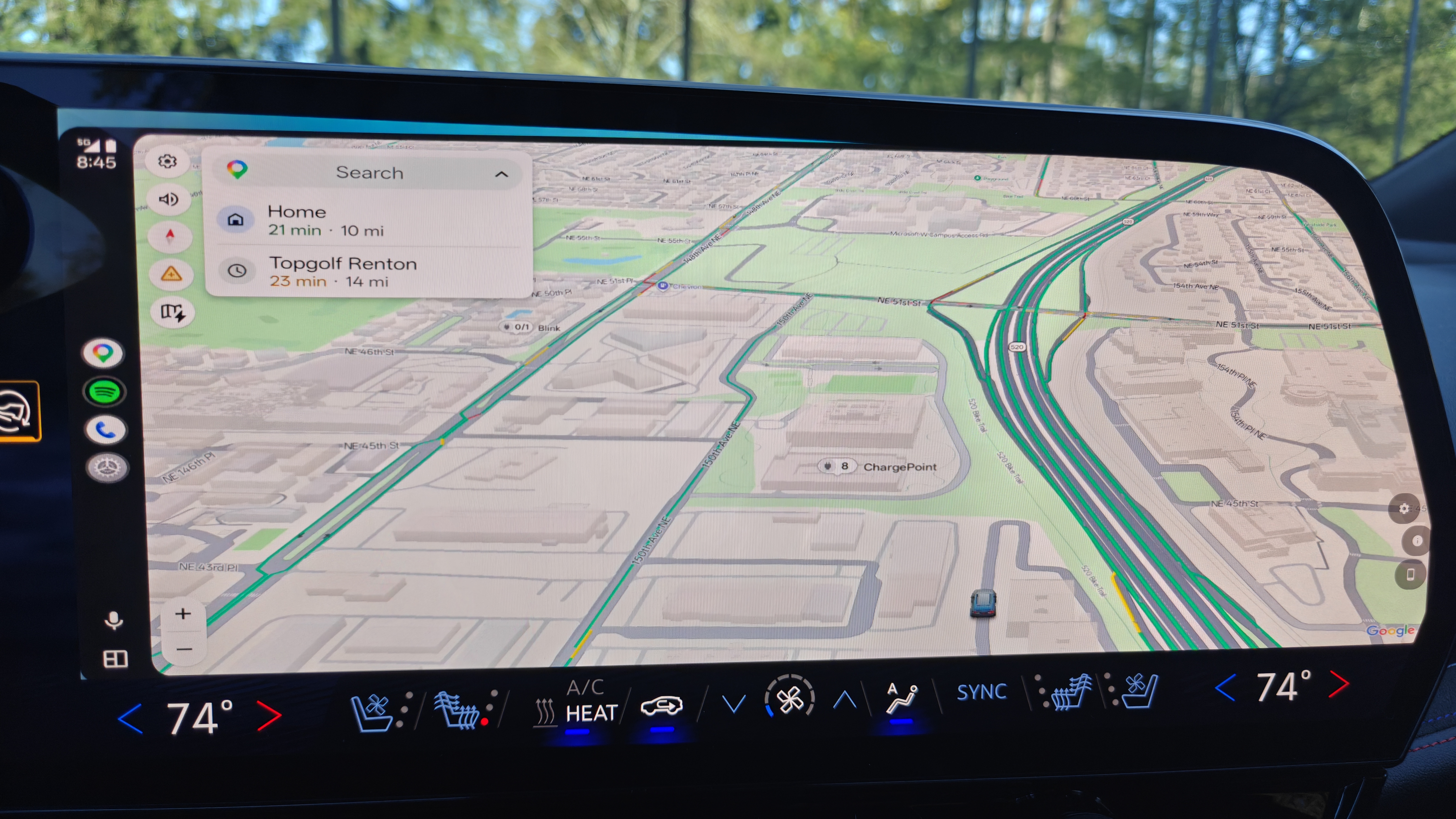
Android Auto on the Blazer EV.
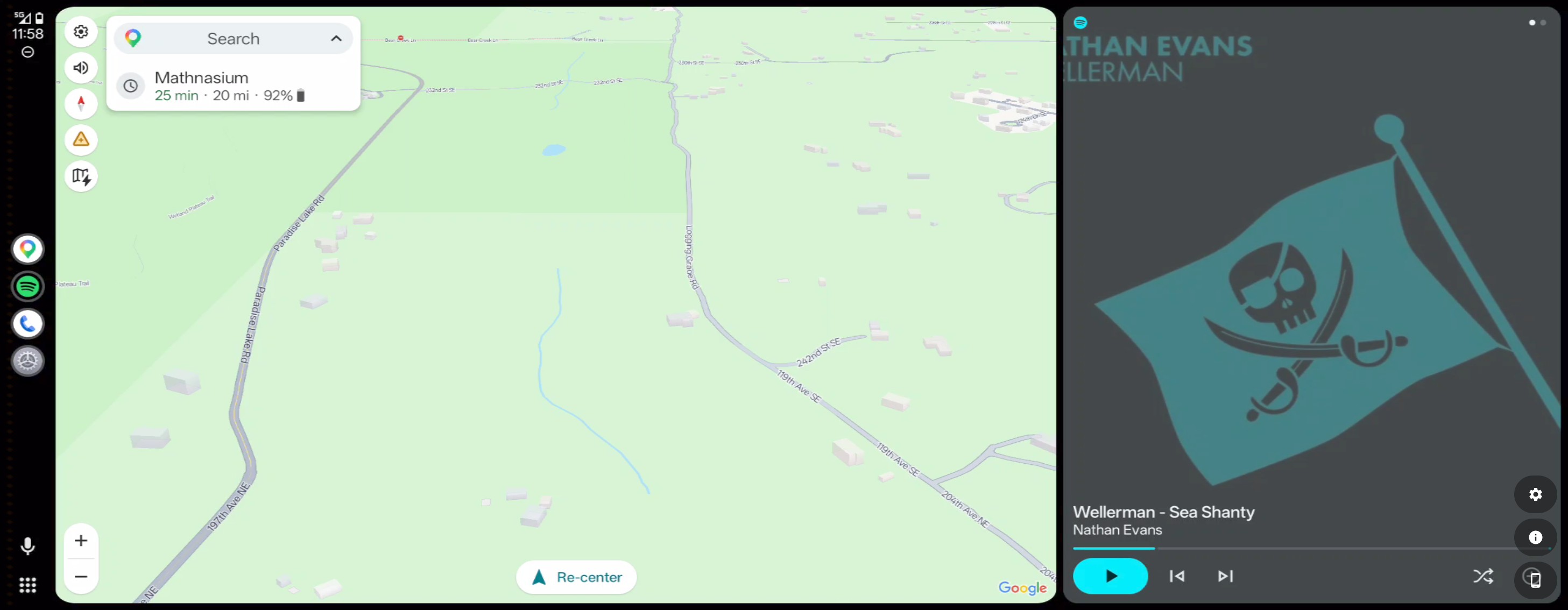
Real vehicle battery data forwarded into Android Auto's Google Maps.
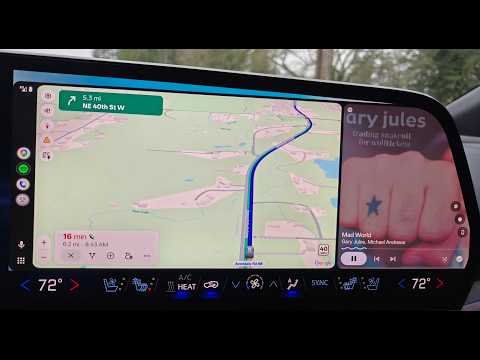
The walkthrough's original wireless setup predates Android Auto 17.4. Use the WPP guide, not the video's historical connection instructions.
Why does OAL ask to “record audio”? Android uses that permission wording for any microphone access—even live passthrough. OAL needs it to pass the car's microphone to your phone through CarPlay or Android Auto for supported voice features.
OAL does not save microphone recordings or upload microphone audio to the developer or any external server. Audio is passed live to your connected phone, not kept as a recording. Your phone handles voice services under its own privacy settings.
Optional diagnostic-log uploads and EV-profile downloads are separate; see the privacy policy.
Enable OAL file logging before reproducing a problem, then use the configured log-upload control. Each app uploads only its own logs: the car upload does not collect companion or iPhone logs. Consecutive uploads can contain overlapping sessions.
Include:
Never post passwords, accessory credentials, upload invitation tokens or account emails. Logs/screenshots may contain private identifiers, location or media; use the configured private upload route rather than a public raw dump. See Troubleshooting and Privacy policy.
User guides:
Developer guides:
Use GitHub issues for reproducible defects and XDA for setup and owner reports. Include exact builds, reproduction steps and logs.
Reports from Polestar and other non-GM AAOS vehicles are especially welcome, from both Android and iPhone owners. Follow the build and installation guidance. Public GitHub builds omit private CarPlay authentication assets; see the build policy before choosing that installation route.
OpenAutoLink is licensed under the GNU General Public License v3.0. Retain the attribution and license notices for included/adapted components. Source availability does not confer rights to redistribute private accessory authentication assets.
59 followers · starred Apr 2026
Android Auto and CarPlay for GM EV AAOS head units with cluster/HUD support and EV range in Maps
Kotlin
152
808 commits
updated Oct 18, 2026
Bring Android Auto and Apple CarPlay to Android Automotive OS head units.
Phone projection on the car's existing screen. No SBC, dongle, or additional projection hardware.
OpenAutoLink runs on the vehicle's Android Automotive OS (AAOS) head unit. Android Automotive is the car's operating system; Android Auto and Apple CarPlay are the phone-projection experiences that OAL receives. OAL does not replace the car's operating system.
Android Auto and CarPlay share one app, with independent connection settings. USB CarPlay is supported alongside wireless and USB Android Auto. Wireless CarPlay remains available for development but is not working in the maintainer's vehicle.
Releases · Installation · Android Auto setup · CarPlay setup · Compatibility · Troubleshooting · XDA discussion
[!IMPORTANT] To use OpenAutoLink, build the app and publish it through your own Google Play Console developer account. Locked GM vehicles require Google Play delivery; APK sideloading is not supported.
CarPlay requires compatible accessory authentication files that you are authorized to use. These are not included in the public build; building the app alone does not enable CarPlay.
As I publish changes, you’ll need to pull the latest source, rebuild, and publish your own updates.
| Phone / mode | Connection | Companion needed? | Notes |
|---|---|---|---|
| Android Auto, wireless | Bluetooth + car Wi-Fi (WPP) | Yes, for GM wireless | Use WPP for Android Auto 17.4+ |
| Android Auto, USB | USB cable | No | GM shows two USB access prompts on every connection, even with the choice saved |
| CarPlay, USB | USB cable; iPhone unpaired from vehicle Bluetooth | No iPhone companion | Music and calls use USB; authentication identity and USB/VPN consent required; two GM USB access prompts on every connection |
| CarPlay, wireless | Bluetooth + Wi-Fi | No iPhone companion | Available for development; not working in the maintainer's vehicle |
| CarPlay, shared Wi-Fi | Existing Wi-Fi network | No iPhone companion | Advanced wireless network configuration; not a USB requirement |
Check the source revision and release notes for your installed build. USB hot-plug handoff is implemented, but current vehicle validation is still pending.
To use OpenAutoLink, build the app and publish it through your own Google Play Console developer account. Locked GM vehicles require Google Play delivery; APK sideloading is not supported.
CarPlay requires compatible accessory authentication files that you are authorized to use. These are not included in the public build; building the app alone does not enable CarPlay.
As I publish changes, you’ll need to pull the latest source, rebuild, and publish your own updates.
Follow the build guide and installation guide. See CarPlay authentication for the separate file requirement. Preserve your application ID and signing setup for later updates. The car itself needs internet-connected Wi-Fi or its data service; an OnStar data plan is not required.
The car APK on GitHub Releases is for AAOS systems/emulators that permit APK installation. It cannot be sideloaded onto a locked GM production head unit.
You do not need an OnStar data subscription to install or use OAL. Without a vehicle data plan, connect the car itself to a Wi-Fi network with working internet, such as your home Wi-Fi, to download OAL through Google Play. A local car hotspot used for wireless Android Auto is not, by itself, an internet connection for the car.
Keep your car's apps updated—not just OAL. Like your phone, the car has a Play Store and apps that receive regular updates. Without an OnStar data plan, give the car itself internet access regularly:
Enable automatic app updates in the car's Play Store and check for pending updates occasionally. Downloads depend on Play Store settings, connection quality and vehicle software; simply saving a Wi-Fi network does not guarantee updates while the car is off. This is routine care for all the car's Play Store apps, not an OAL-only requirement.
OAL's phone-projection connection does not require a paid OnStar data plan. Online navigation, music and other phone-app services still need their own internet connection, normally your phone's mobile data.
For wireless Android Auto, install openautolink-companion-vX.Y.Z.apk from the matching release, grant its requested permissions, and configure the paired car. USB Android Auto does not need the companion.
No OAL iPhone companion is required. For USB, connect a data-capable cable and leave the iPhone unpaired from vehicle Bluetooth to avoid GM Bluetooth competing with CarPlay and constantly pausing media. Music and calls work over USB; car Wi-Fi fields are not required for wired startup. For wireless, pair through the car's system Bluetooth settings and configure the wireless fields below. USB Trust approval is separate from Bluetooth pairing. Supply the required CarPlay authentication files separately.
Install the car APK only if the platform permits it. Bluetooth, networking, audio and vehicle integration vary by platform. Reports from Polestar and other non-GM AAOS vehicles without built-in phone projection are welcome.
For Android Auto 17.4 or newer:
The companion is required for wireless Android Auto. GM chooses which nearby paired phone connects first. See the WPP guide for detailed setup and migration instructions.
Select USB under Android Auto connection for normal wired use, then connect a data-capable cable. No companion is needed. Accept both GM USB access prompts every time, even with the choice saved. You can also leave normal AA mode set to Wireless and use the temporary USB switch below.
Every USB connection shows two system access prompts, even if you check “Always open OpenAutoLink” or save the choice. Tap OK on both prompts each time. This applies to both USB Android Auto and USB CarPlay on GM head units. It is a longstanding GM infotainment bug; OAL cannot fix or bypass it.
Example of one GM USB access prompt, shown for an iPhone with “Always open OpenAutoLink” already checked. Expect two prompts on every USB connection; USB Android Auto has the same limitation.
These GM USB access prompts are separate from OAL's Switch / Stay here choice, the iPhone's Trust prompt and CarPlay's local VPN consent. This warning is for GM wired connections, not wireless projection.
For example, keep Android Auto connection → Wireless and CarPlay connection → USB. Both phone protocols are available in the same app; using CarPlay does not disable wireless Android Auto or change its saved mode.
This handoff is implemented for both phone protocols; successful end-to-end switching in the vehicle is still being validated.
If text or maps look soft, try 1440p as the recommended manual quality setting: in OAL → Settings → Video → Android Auto, turn Auto (Recommended) off so it reads Manual, select Video Codec → H.265 / HEVC, then AA Resolution → 1440p (2560×1440) and tap Save & Reconnect. Keep GAL / PDK protocol version → 6.0 for the verified modern HEVC path.
4K (3840×2160) is an optional higher-detail setting if your phone and head-unit decoder support it. It costs more bandwidth and processing; return to 1440p if it stutters or fails to connect. Auto does not guarantee a particular negotiated resolution, and a blurry image alone does not prove the stream is 1080p. These codec controls apply to Android Auto, not CarPlay.
Keep the vehicle parked while configuring. Disconnect the iPhone from any other OAL receiver before connecting it to the car.
If you previously turned off iPhone projection, OAL retains that choice. Only in that case, turn Enable iPhone projection back on in the same settings page and save. There is no separate enablement step for normal setup.
Music and calls work over USB without vehicle Bluetooth. The maintainer confirmed music playback plus both outgoing and incoming CarPlay calls on the 2024 Chevrolet Blazer EV with the iPhone disconnected from vehicle Bluetooth. This is a setup correction, not a requirement to turn off the car's entire Bluetooth adapter. Do not apply it to wireless Android Auto: keep that Android phone's required Bluetooth pairing and Phone calls profile enabled.
USB CarPlay does not require Bluetooth pairing or Wi-Fi setup. The VPN permission is used locally for the USB connection—not an Internet VPN service. Another active VPN can conflict. USB access and permission support vary by head unit.
Wireless CarPlay is still in development and is not working in the maintainer's vehicle. Use USB for now. Advanced wireless configuration is covered in the network guide.
Public GitHub APKs and source builds omit the CarPlay authentication files and require your own compatible files. OAL is not an Apple-certified CarPlay product. Never publish authentication files or signing keys. See the authentication and build policy for requirements, provenance and redistribution limitations.
Configure these while parked in OAL → Settings → Display. Android Auto and CarPlay have separate scaling controls; changing one does not change the other. Select Save & Reconnect after adjusting them to apply the settings to the next projection session.
Under Android Auto → AA Display Density (DPI):
Under CarPlay → CarPlay UI scale:
UI scale is not video resolution. Use Video settings for image detail and Fit to window for CarPlay's standard-tier canvas fit. Use Display → Calibrate safe controls to move CarPlay controls away from curved screen edges; changing UI size does not replace safe-area calibration. Neither protocol's scaling control changes the vehicle's native apps or OAL's own settings UI.
For USB CarPlay, leave the iPhone unpaired from vehicle Bluetooth: incoming and outgoing calls work over USB, and avoiding the Bluetooth connection prevents repeated music pauses. The native Bluetooth Phone-app settings below are not required for that Bluetooth-free CarPlay setup.
For Android Auto, or when managing native GM call-screen behavior, use these vehicle settings to stop GM's native Phone app from covering the projected incoming-call and in-call controls on the center display:
Incoming-call alerts stay in the instrument cluster, and the native active-call screen no longer takes over the center display. Answer and manage calls from Android Auto or CarPlay instead.
These are Phone-app display settings, not Bluetooth profile settings. For Android Auto, leave the paired phone's Bluetooth Phone calls profile enabled: the vehicle's hands-free system carries microphone and speaker audio, and disabling it can also break wireless WPP startup. See Phone calls for Android Auto audio routing, verification and troubleshooting.
Android Auto community reports are linked below. Compatibility varies with vehicle software, phone and connection mode.
| Vehicle | AAOS | Android Auto reports |
|---|---|---|
| 2024 Chevrolet Blazer EV | 12L | Maintainer daily driver |
| 2025–2026 Chevrolet Equinox EV | 14 reported | Successful owner report, alongside earlier build/setup issue reports |
| 2027 Chevrolet Bolt | — | Independent demonstration and owner report |
| Other GM AAOS EVs | Varies | Additional owner reports welcome |
| Non-GM AAOS | Varies | Additional owner reports welcome; platform integration varies |
See compatibility notes for vehicle-specific information.
CarPlay Dashboard combines navigation and playback controls on the Blazer EV's wide display.
Fullscreen CarPlay, with the vehicle's top system bar hidden.
CarPlay with the vehicle's top system bar visible. Climate controls remain accessible below in both views.
Android Auto on the Blazer EV.
Real vehicle battery data forwarded into Android Auto's Google Maps.
The walkthrough's original wireless setup predates Android Auto 17.4. Use the WPP guide, not the video's historical connection instructions.
Why does OAL ask to “record audio”? Android uses that permission wording for any microphone access—even live passthrough. OAL needs it to pass the car's microphone to your phone through CarPlay or Android Auto for supported voice features.
OAL does not save microphone recordings or upload microphone audio to the developer or any external server. Audio is passed live to your connected phone, not kept as a recording. Your phone handles voice services under its own privacy settings.
Optional diagnostic-log uploads and EV-profile downloads are separate; see the privacy policy.
Enable OAL file logging before reproducing a problem, then use the configured log-upload control. Each app uploads only its own logs: the car upload does not collect companion or iPhone logs. Consecutive uploads can contain overlapping sessions.
Include:
Never post passwords, accessory credentials, upload invitation tokens or account emails. Logs/screenshots may contain private identifiers, location or media; use the configured private upload route rather than a public raw dump. See Troubleshooting and Privacy policy.
User guides:
Developer guides:
Use GitHub issues for reproducible defects and XDA for setup and owner reports. Include exact builds, reproduction steps and logs.
Reports from Polestar and other non-GM AAOS vehicles are especially welcome, from both Android and iPhone owners. Follow the build and installation guidance. Public GitHub builds omit private CarPlay authentication assets; see the build policy before choosing that installation route.
OpenAutoLink is licensed under the GNU General Public License v3.0. Retain the attribution and license notices for included/adapted components. Source availability does not confer rights to redistribute private accessory authentication assets.
59 followers · starred Apr 2026



