Free CorridorKey GUI. Turn Corridor Digital's AI keyer into a full desktop app: real-time viewer, job queue, EXR/ProRes/PNG-alpha export. Windows, macOS, Linux. Built by EZSCAPE.
See the code






Latest release: v2.1.5: Matte quality fix. AI alpha mattes no longer trace a thin dark band around the subject on high-resolution footage (#179), and alpha is now clamped to the valid range after upscaling so premultiplied output stays clean. See the full changelog.
A full desktop GUI for Niko Pueringer's CorridorKey — the AI chroma keyer by Corridor Digital that physically unmixes foreground from background, preserving hair, motion blur, and translucency.
This GUI replaces the CLI drag-and-drop workflow with a complete desktop application while preserving 100% backward compatibility (python main.py --cli still runs the original wizard).
Official site, install guide, and downloads: ezcorridorkey.com
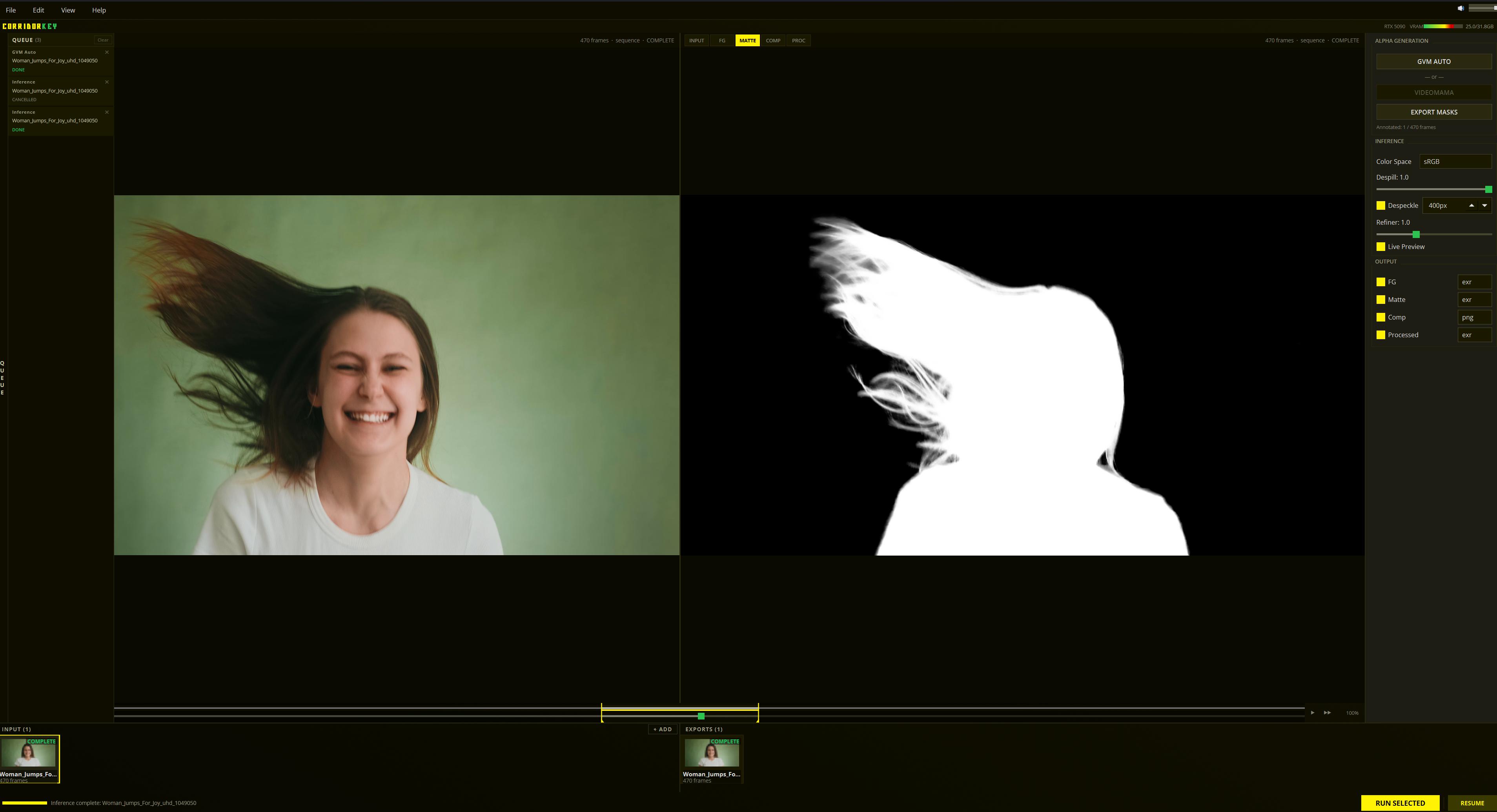
| Capability | CLI (Upstream) | GUI (This Project) |
|---|---|---|
| Import clips | Drag onto .bat file | Drag-drop into app, or File > Import |
| Configure inference | Terminal prompts | Sliders, dropdowns, checkboxes |
| Monitor progress | Terminal text output | Progress bars, frame counter, ETA |
| Preview results | Open output folder manually | Real-time dual viewer (input vs output) |
| Job management | One clip at a time | Queue with batch processing + full pipeline mode |
| GPU monitoring | None | Live VRAM meter in brand bar |
| Keyboard shortcuts | None | 20+ hotkeys |
| Sound feedback | None | 7 context-aware sound effects |
| Session persistence | None | Recent projects, auto-save |
| Paint / masking | Manual external tool | Built-in brush for masks + chroma key holdout |
| Alpha generators | None | GVM, BiRefNet, VideoMaMa, MatAnyone2, Chroma Key, Apple Vision (macOS) |
| Apple Silicon | MPS only | MLX acceleration (auto-detected) |
Prefer video? Watch the step-by-step tutorial by the app's creator:

Don't want to deal with Python, git, or the command line? A full Windows installer and portable exe are available. Mac users can grab the v2.0.0 macOS .pkg while the native Mac app is in production. Entirely optional and free, donations help support active development.
The installer includes everything — Python runtime, AI models, GPU libraries — no setup required. Just install and run.
1-install.1-install.batchmod +x 1-install.sh && ./1-install.sh2-start.bat (Windows) or ./2-start.sh (macOS/Linux).Prerequisites:
What the installer does:
.venv virtual environment in the project folderUpdating:
3-update.bat (Windows) or run ./3-update.sh (macOS/Linux). This pulls the latest code via git, or downloads a ZIP if git isn't available.Note: The update ZIP on GitHub Releases (
EZ-CorridorKey-windows-x64.zip) is for Windows Desktop App Installer users only. It patches an existing installation. CLI users should continue using3-update.bat/3-update.sh.
For Linux users or remote/cloud setups, EZ-CorridorKey can run inside Docker with browser-based access via noVNC. See docker/README.md for setup instructions. The native install above is recommended for Windows and macOS.
Windows:
☼ Open Settings > Apps > Installed Apps
☼ Find EZ-CorridorKey and click Uninstall
☼ This removes the application and Start Menu shortcut
☼ Your projects and downloaded models are stored in %APPDATA%\EZ-CorridorKey\. Delete that folder to remove all user data.
macOS:
☼ Drag /Applications/EZ-CorridorKey.app to the Trash
☼ Your projects, preferences, and downloaded models are stored in ~/Library/Application Support/EZ-CorridorKey/. Delete that folder to remove all user data.
☼ Delete the cloned repository folder (e.g. EZ-CorridorKey/). This includes the .venv virtual environment, downloaded models, and all project data inside Projects/.
☼ If you created a desktop shortcut during install, delete it manually.
☼ No system-level files are modified by the CLI install. Nothing else to clean up.
Some optional models (BiRefNet, SAM2) are downloaded via Hugging Face Hub and cached outside the project folder. To reclaim that disk space:
☼ Windows: %USERPROFILE%\.cache\huggingface\hub\
☼ macOS / Linux: ~/.cache/huggingface/hub/
This cache is shared across all applications that use Hugging Face. If you use other AI tools, only delete the specific model folders (e.g. models--ZhengPeng7--BiRefNet, models--facebook--sam2.1-hiera-base-plus) rather than the entire hub/ directory.
+--------------------------------------------------------------------+
| File | Edit | View | Help                             Volume ---->-|
| CORRIDORKEY                                        RTX 5090  ## 4GB|
+------+------------------------+---------------------+--------------+
|      |      241 frames - RAW | IN|FG|MATTE[COMP]PROC| ALPHA GEN    |
|  Q   |                       |                      |  GVM/BIREFNET|
|  U   +-----------------------+----------------------+  MATANYONE2  |
|      |                       |                      |  VIDEOMAMA   |
|  E   |                       |                      |  EXPORT MASK |
|  U   |                       |                      |--------------+
|  E   |   INPUT viewer        |   OUTPUT viewer      | INFERENCE    |
|      |   (left image)        |   (right image)      |  Color Space |
|      |                       |                      |  Despill     |
| tab  |                       |                      |  Despeckle   |
|      |                       |                      |  Refiner     |
|      |                       |                      |  Live Preview|
|      |                       |                      |--------------+
|      |                       |                      | OUTPUT       |
|      |                       |                      |  FG          |
|      |                       |                      |  Matte       |
|      |                       |                      |  Comp        |
|      |                    SCRUBBER                  |  Processed   |
|------+<<-<-------In=====================Out----->->>+--------------|
|INPUT (3)               + ADD | EXPORTS (2)                         |
| +-----+ +-----+ +-----+      | +-----+ +-----+                     |
| |thumb| |thumb| |thumb|      | |thumb| |thumb| ..                  |
| +-----+ +-----+ +-----+      | +-----+ +-----+                     |
+--------------------------------------------------------------------+
|  Status Bar                                         [RUN INFERENCE]|
+--------------------------------------------------------------------+
Drop a video file onto the welcome screen (or File > Import Clips > Import Video). The video is automatically extracted to a high-quality image sequence:
This two-pass approach preserves full floating-point precision from the video decoder — no 8-bit quantization, no banding. Even 8-bit source video benefits because FFmpeg's internal YUV→RGB conversion stays in float, avoiding rounding errors that accumulate in integer pipelines. The DWAB-compressed EXR frames are typically comparable in size to PNG while retaining 16-bit half-float dynamic range.
The recompression runs in a separate process so the UI stays fully responsive during extraction.
Companion hints: files with "alphahint" or "maskhint" anywhere in the filename (case insensitive) are automatically paired with the matching clip as alpha or mask hints instead of being imported as separate clips. Works for video imports and frame sequence folders alike.
Your clip starts in RAW state (gray badge). You need an alpha hint before running inference.
Option A — Chroma Key (manual, no AI model): Click CHROMA KEY in the parameter panel. Color-difference keyer for green or blue screen footage. Press E to activate the eyedropper, then drag across the screen to sample a range of colors. Adjust Key Strength, Clip Black, and Clip White to refine the matte. Click GENERATE to produce the alpha hint.
Option B — One-click alpha generators:
Option C — MatAnyone2 / VideoMaMa: These models need a mask hint. Two ways to provide one:
C1. Paint + Track (from scratch):
C2. Import mask (bring your own):
Option D — Import Alpha (bring your own): If you already have alpha mattes from another tool (Rotobrush, Silhouette, Resolve, Nuke, etc.), click IMPORT ALPHA in the parameter panel and choose either an image folder or a matte video file.
AlphaHint/*.png frames so they follow the same downstream path as image-sequence hintsAlphaHint/ folder and the clip advances to READY stateYou can re-import at any time — if the clip already has alpha hints, you'll be asked whether to overwrite them.
Your clip is now READY (yellow badge). Adjust parameters as needed, then click RUN INFERENCE (or Ctrl+R).
Two ways to run a batch:
From the I/O tray: select multiple clips (Ctrl+click or Shift+click), then click RUN PIPELINE in the status bar.
From a folder: File > Batch Pipeline opens a dialog for processing an entire folder of clips. Pick the folder, choose which alpha generation model to use (GVM, BiRefNet, VideoMaMa, MatAnyone2), and run everything autonomously. Per-clip overrides let you mix models in one batch. Live progress bars and checkmarks track each clip's status. Image sequence subfolders are detected and can be mixed with videos in the same batch.
For tray-selected clips, the system automatically:
The entire pipeline is cancellable (Esc) and checkpointable — if interrupted, restarting picks up where each clip left off.
Switch between view modes to inspect results:
Outputs are written to the project's Output/ subdirectories during inference (configurable — see Custom Output Directory).
Viewable and rebindable in-app via Edit > Hotkeys.
| Shortcut | Action |
|---|---|
| Ctrl+R | Run inference on selected clip |
| Ctrl+Shift+R | Run all ready clips (batch) |
| Esc | Stop / cancel current job |
| Ctrl+S | Save session |
| Ctrl+O | Open project |
| Ctrl+M | Toggle mute (sound on/off) |
| Home | Return to welcome screen |
| Del | Remove selected clips |
| Q | Toggle queue panel |
| Ctrl+, | Toggle Preferences |
| F12 | Toggle debug console |
| Shortcut | Action |
|---|---|
| F1–F7 | View modes: INPUT, MASK, ALPHA, FG, MATTE, COMP, PROC |
| A | Toggle A/B wipe comparison |
| Ctrl + scroll wheel | Zoom in/out toward cursor (0.25x to 8.0x) |
| Shift + scroll wheel | Horizontal pan (left/right) |
| Left-click + drag | Pan the image (paint, eyedropper, and wipe tools take priority) |
| Middle-click + drag | Pan the image |
| Double-click | Reset zoom to 100% |
Pan and zoom are tandem: both viewers always show the same region, and double-click reset applies to both.
| Shortcut | Action |
|---|---|
| Space | Play / Pause |
| I | Set in-point marker |
| O | Set out-point marker |
| Alt+I | Clear in/out range |
| Shortcut | Action |
|---|---|
| 1 | Foreground paint brush (green). In chroma key mode, paints holdout mask (force opaque) |
| 2 | Background paint brush (red). In chroma key mode, paints holdout mask (force transparent) |
| C | Cycle foreground brush color (green / blue) |
| E | Eyedropper (pick screen color for chroma key) |
| ` | Toggle chroma key mode |
| Shift + drag up/down | Resize brush |
| Alt + left-drag | Draw straight line |
| Ctrl+Z | Undo last stroke on current frame |
| Ctrl+C | Clear all paint strokes |
The view mode bar at the top of each viewport switches what the right viewer displays:
| Mode | Source | What You See |
|---|---|---|
| INPUT | Input/ or Frames/ | Original unprocessed footage |
| MASK | Paint strokes | Foreground (green/blue) and background (red) paint masks |
| ALPHA | AlphaHint/ | Alpha hint used as input to inference |
| FG | Output/FG/ | Foreground with green spill removed |
| MATTE | Output/Matte/ | Alpha matte (white = opaque, black = transparent) |
| COMP | Output/Comp/ | Final key composited over checkerboard |
| PROCESSED | Output/Processed/ | Production RGBA — straight linear for Resolve/compositing |
| Control | Range | Default | Description |
|---|---|---|---|
| BG Color | Auto, Green, Blue | Auto | Screen type for inference. Auto detects from the frame |
| Color Space | sRGB, Linear | sRGB | How CorridorKey interprets the input before inference |
| Despill Strength | 0.0 – 1.0 | 1.0 | Green spill removal intensity |
| Despeckle | 0 – 999999 px | ON, 400 px | Removes isolated artifacts smaller than threshold |
| Garbage Matte | 1 – 500 px | OFF, 20 px | Dilates the alpha hint and zeroes everything outside it |
| Refiner Scale | 0.0 – 3.0 | 1.0 | Edge refinement. 0 = disabled |
| Live Preview | — | ON | Reprocess current frame when parameters change |
Color Space behavior
Middle-click any slider to reset it to default.
Each output channel can be individually enabled and set to EXR or PNG:
| Output | Default | Format | Description |
|---|---|---|---|
| FG | ON | EXR | Foreground RGB with spill removed |
| Matte | ON | EXR | Single-channel alpha |
| Comp | ON | PNG | Key over checkerboard (for review) |
| Processed | ON | EXR | Full RGBA straight linear (for Resolve and compositing) |
| Color | State | Meaning |
|---|---|---|
| Orange | EXTRACTING | Video being extracted to image sequence |
| Gray | RAW | Frames loaded, no alpha hint yet |
| Blue | MASKED | Paint masks created (ready for VideoMaMa) |
| Yellow | READY | Alpha hint available, ready for inference |
| Green | COMPLETE | Inference finished, outputs available |
| Red | ERROR | Processing failed — can retry |
The scrubber below the dual viewer provides:
Each imported clip creates a project folder:
Projects/
  260301_093000_Woman_Jumps/
    Source/              # Original video
    Frames/              # Extracted EXR DWAB half-float image sequence
    AlphaHint/           # Generated alpha hints
    Output/
      FG/                # Foreground EXR/PNG
      Matte/             # Alpha matte EXR/PNG
      Comp/              # Checkerboard composite PNG
      Processed/         # Production RGBA EXR
    project.json         # Metadata and settings
Access via Edit > Preferences.
| Setting | Default | Description |
|---|---|---|
| Show tooltips | ON | Helpful tooltips on all controls |
| UI sounds | ON | Sound effects for actions |
| Copy source videos | ON | Copy imports into project folder (OFF = reference in place) |
| Loop playback | ON | Loop within in/out range during playback |
| Default output directory | (inside project) | Global output location — outputs go to <dir>/<Project>/<Clip>/ |
| FFmpeg path | (auto-detected) | Browse for a custom FFmpeg binary if auto-detection fails |
By default, inference output is written to Output/ inside each clip folder. You can redirect output at three levels:
Priority: per-clip > per-project > global preference > default.
When using a non-default directory, outputs are organized as <dir>/<ProjectName>/<ClipName>/FG/, Matte/, etc. to prevent collisions between projects. The per-project setting persists to project.json.
# GUI mode (default)
python main.py

# CLI mode (original terminal wizard)
python main.py --cli

# Verbose logging
python main.py --log-level DEBUG
Logs are written to logs/backend/YYMMDD_HHMMSS_corridorkey.log.
| Minimum | Recommended | Comfortable | |
|---|---|---|---|
| VRAM | 8 GB | 12 GB | 16 GB+ |
| GPU | NVIDIA (CUDA) | Ampere+ (RTX 30xx) | Ada/Blackwell (RTX 40xx/50xx) |
| Mode | VRAM usage | 4K speed | How it works |
|---|---|---|---|
| Speed (≥12 GB) | ~8.7 GB | ~1.5s/frame | Full-frame refiner, full torch.compile |
| Low-VRAM (<12 GB) | ~2.5 GB | ~1.6s/frame | 512×512 tiled refiner, selective compile |
Mode is auto-detected from available VRAM. Override with CORRIDORKEY_OPT_MODE=speed|lowvram|auto.
Applies to v2.0.0 and source installs. 2.1.5 is a Windows-only patch, so there is no macOS update this release; source installs can still update with
3-update.sh.
| Minimum | Recommended | |
|---|---|---|
| Chip | M1 (8 GB) | M1 Pro+ (16 GB+) |
| Backend | MPS (PyTorch) | MLX (built-in, auto-detected) |
CorridorKey inference auto-selects the fastest available backend: the built-in MLX engine (roughly 2x faster than MPS, runs in float16) when its .mlx.safetensors checkpoints are present, otherwise PyTorch MPS. Both green and blue MLX checkpoints download through the setup wizard. Override with CORRIDORKEY_BACKEND=torch|mlx|auto.
Alpha generators (SAM2, GVM, VideoMaMa, MatAnyone2) always run on PyTorch MPS — no MLX ports exist for these models. For best Mac experience, import pre-made alpha mattes from After Effects, DaVinci Resolve, or Nuke.
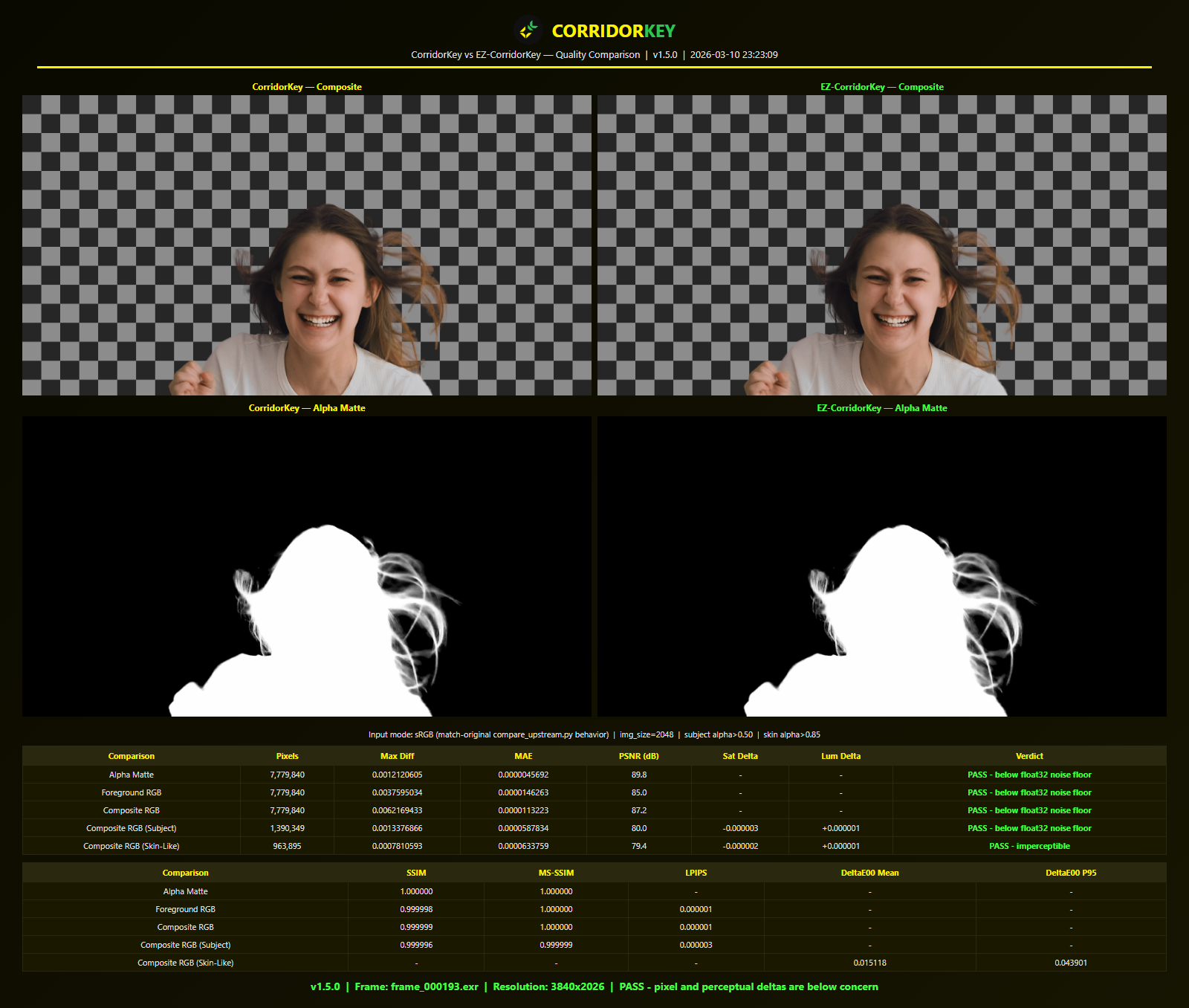
EZ-CorridorKey's optimizations (Hiera FlashAttention, TF32 tensor cores, torch.compile, tiled refiner) produce output identical to upstream CorridorKey within float32 noise floor — verified across PSNR, SSIM, MS-SSIM, LPIPS, and DeltaE 2000.
The only official sources for EZ-CorridorKey are:
☼ GitHub: github.com/edenaion/EZ-CorridorKey/releases ☼ Gumroad: edenaion.gumroad.com
Any other site hosting EZ-CorridorKey downloads is unverified and potentially malware. Do not download from third-party mirrors, repackaging sites, or file-sharing links. If you see EZ-CorridorKey hosted elsewhere, please report it in GitHub Issues or in the EZSCAPE Discord.
☼ Windows: The installer (.exe) is signed via Azure Trusted Signing. Windows SmartScreen shows EZscape Ventures LLC as the verified publisher. ☼ macOS: The .pkg is code-signed and Apple-notarized under Developer ID: Edward Zisk (UX6RDC39ZW). Gatekeeper verifies it on first launch.
Starting with v1.10.0, every GitHub release ships a signed manifest (manifest.json + manifest.json.sig). When the in-app updater downloads a new version, it verifies the Ed25519 signature and SHA-256 hash before applying the update. If either check fails, the update is rejected and the user is warned.
This means even if the GitHub account were compromised, the attacker could not push a malicious update to installed users without also possessing the offline signing key.
The verification code is open source: backend/update_verify.py.
Each release includes a SHA256SUMS.txt file listing the SHA-256 hash of every release artifact. Use it to confirm your download is genuine and not corrupted. Put SHA256SUMS.txt in the same folder as the file you downloaded, then follow the steps for your system.
Windows (PowerShell):
# In the download folder (Shift + right-click > "Open PowerShell window here")
Get-FileHash .\EZ-CorridorKey-2.1.0-Windows-x64-Setup.exe -Algorithm SHA256
# Open SHA256SUMS.txt, find the line ending in that filename, compare the hash.
# The two strings must match exactly. If they differ, do not run the file, download it again.
macOS (Terminal):
cd ~/Downloads   # wherever you saved the files
shasum -a 256 -c SHA256SUMS.txt --ignore-missing
# Expect: EZ-CorridorKey-2.0.0-macOS-arm64.dmg: OK
# If it says FAILED, the file is corrupted or tampered with, download it again.
Linux:
cd ~/Downloads
sha256sum -c SHA256SUMS.txt --ignore-missing
# Expect OK next to each file you downloaded.
All commits to main are signed with an Ed25519 SSH key. Branch protection enforces signed commits, pull request reviews, and blocks force pushes and branch deletion.
Independent scans:
Third-party models: The core CorridorKey checkpoint (
CorridorKey.pth) is the only model we can vouch for. Optional models (SAM2, GVM, VideoMaMa, MatAnyone2, BiRefNet) are downloaded from their respective authors' repositories -- use them at your own discretion.
EZ-CorridorKey sends no telemetry by default. No usage analytics, no tracking, ever.
Two things can send data, both under your control:
☼ Report Issue: when you file a report from the Help menu, the diagnostic summary you see in the dialog can also be sent directly to the developer. A visible checkbox controls it per report. ☼ Crash reporting: an optional toggle in Preferences > Privacy, off by default. When you enable it, crash details are sent automatically.
What a report contains: crash details, GPU/driver info, OS and app version. What it never contains: your media, file names, projects, or personal info. File paths are anonymized before sending.
EZ-CorridorKey supports translation into any language. All UI strings are extracted into standard Qt .ts files that translators can edit with Qt Linguist (free) or any text editor.
How to add your language:
ui/translations/corridorkey_en.ts to your language code (e.g. corridorkey_fr.ts for French)pyside6-lrelease ui/translations/corridorkey_fr.ts.ts and .qm filesFull instructions with examples are in ui/translations/TRANSLATING.md.
Current languages: English plus German, Spanish, French, Hindi, Indonesian, Italian, Japanese, Korean, Polish, Portuguese (Brazil), Russian, Turkish, Ukrainian, Vietnamese, Chinese (Simplified), and Chinese (Traditional, Taiwan). Pick yours in Edit > Preferences. Want to see your language here or improve upon a translation? PRs welcome.
EZ-CorridorKey is a labor of love — built and maintained by one man from Brooklyn for the VFX community. If this tool saves you time on a project, consider paying it forward:



Need GPU compute for inference? RunPod offers on-demand cloud GPUs — great for batch processing large shoots without tying up your local machine. Using my referral link will enable me to build more tools for all!

This project wraps Niko Pueringer's CorridorKey, licensed under CC BY-NC-SA 4.0.
GUI/SFX/Workflow/QA/Maintenance by Ed Zisk.
If you use or build on this project, please star this repo and credit the contributors.
(top 24 of 30)
2,247 followers · starred Apr 2026
2,230 followers · starred Mar 2026
692 followers · starred May 2026
2,139 followers · starred Mar 2026
Free CorridorKey GUI. Turn Corridor Digital's AI keyer into a full desktop app: real-time viewer, job queue, EXR/ProRes/PNG-alpha export. Windows, macOS, Linux. Built by EZSCAPE.
See the code
Latest release: v2.1.5: Matte quality fix. AI alpha mattes no longer trace a thin dark band around the subject on high-resolution footage (#179), and alpha is now clamped to the valid range after upscaling so premultiplied output stays clean. See the full changelog.
A full desktop GUI for Niko Pueringer's CorridorKey — the AI chroma keyer by Corridor Digital that physically unmixes foreground from background, preserving hair, motion blur, and translucency.
This GUI replaces the CLI drag-and-drop workflow with a complete desktop application while preserving 100% backward compatibility (python main.py --cli still runs the original wizard).
Official site, install guide, and downloads: ezcorridorkey.com
| Capability | CLI (Upstream) | GUI (This Project) |
|---|---|---|
| Import clips | Drag onto .bat file | Drag-drop into app, or File > Import |
| Configure inference | Terminal prompts | Sliders, dropdowns, checkboxes |
| Monitor progress | Terminal text output | Progress bars, frame counter, ETA |
| Preview results | Open output folder manually | Real-time dual viewer (input vs output) |
| Job management | One clip at a time | Queue with batch processing + full pipeline mode |
| GPU monitoring | None | Live VRAM meter in brand bar |
| Keyboard shortcuts | None | 20+ hotkeys |
| Sound feedback | None | 7 context-aware sound effects |
| Session persistence | None | Recent projects, auto-save |
| Paint / masking | Manual external tool | Built-in brush for masks + chroma key holdout |
| Alpha generators | None | GVM, BiRefNet, VideoMaMa, MatAnyone2, Chroma Key, Apple Vision (macOS) |
| Apple Silicon | MPS only | MLX acceleration (auto-detected) |
Prefer video? Watch the step-by-step tutorial by the app's creator:
Don't want to deal with Python, git, or the command line? A full Windows installer and portable exe are available. Mac users can grab the v2.0.0 macOS .pkg while the native Mac app is in production. Entirely optional and free, donations help support active development.
The installer includes everything — Python runtime, AI models, GPU libraries — no setup required. Just install and run.
1-install.1-install.batchmod +x 1-install.sh && ./1-install.sh2-start.bat (Windows) or ./2-start.sh (macOS/Linux).Prerequisites:
What the installer does:
.venv virtual environment in the project folderUpdating:
3-update.bat (Windows) or run ./3-update.sh (macOS/Linux). This pulls the latest code via git, or downloads a ZIP if git isn't available.Note: The update ZIP on GitHub Releases (
EZ-CorridorKey-windows-x64.zip) is for Windows Desktop App Installer users only. It patches an existing installation. CLI users should continue using3-update.bat/3-update.sh.
For Linux users or remote/cloud setups, EZ-CorridorKey can run inside Docker with browser-based access via noVNC. See docker/README.md for setup instructions. The native install above is recommended for Windows and macOS.
Windows:
☼ Open Settings > Apps > Installed Apps
☼ Find EZ-CorridorKey and click Uninstall
☼ This removes the application and Start Menu shortcut
☼ Your projects and downloaded models are stored in %APPDATA%\EZ-CorridorKey\. Delete that folder to remove all user data.
macOS:
☼ Drag /Applications/EZ-CorridorKey.app to the Trash
☼ Your projects, preferences, and downloaded models are stored in ~/Library/Application Support/EZ-CorridorKey/. Delete that folder to remove all user data.
☼ Delete the cloned repository folder (e.g. EZ-CorridorKey/). This includes the .venv virtual environment, downloaded models, and all project data inside Projects/.
☼ If you created a desktop shortcut during install, delete it manually.
☼ No system-level files are modified by the CLI install. Nothing else to clean up.
Some optional models (BiRefNet, SAM2) are downloaded via Hugging Face Hub and cached outside the project folder. To reclaim that disk space:
☼ Windows: %USERPROFILE%\.cache\huggingface\hub\
☼ macOS / Linux: ~/.cache/huggingface/hub/
This cache is shared across all applications that use Hugging Face. If you use other AI tools, only delete the specific model folders (e.g. models--ZhengPeng7--BiRefNet, models--facebook--sam2.1-hiera-base-plus) rather than the entire hub/ directory.
+--------------------------------------------------------------------+
| File | Edit | View | Help                             Volume ---->-|
| CORRIDORKEY                                        RTX 5090  ## 4GB|
+------+------------------------+---------------------+--------------+
|      |      241 frames - RAW | IN|FG|MATTE[COMP]PROC| ALPHA GEN    |
|  Q   |                       |                      |  GVM/BIREFNET|
|  U   +-----------------------+----------------------+  MATANYONE2  |
|      |                       |                      |  VIDEOMAMA   |
|  E   |                       |                      |  EXPORT MASK |
|  U   |                       |                      |--------------+
|  E   |   INPUT viewer        |   OUTPUT viewer      | INFERENCE    |
|      |   (left image)        |   (right image)      |  Color Space |
|      |                       |                      |  Despill     |
| tab  |                       |                      |  Despeckle   |
|      |                       |                      |  Refiner     |
|      |                       |                      |  Live Preview|
|      |                       |                      |--------------+
|      |                       |                      | OUTPUT       |
|      |                       |                      |  FG          |
|      |                       |                      |  Matte       |
|      |                       |                      |  Comp        |
|      |                    SCRUBBER                  |  Processed   |
|------+<<-<-------In=====================Out----->->>+--------------|
|INPUT (3)               + ADD | EXPORTS (2)                         |
| +-----+ +-----+ +-----+      | +-----+ +-----+                     |
| |thumb| |thumb| |thumb|      | |thumb| |thumb| ..                  |
| +-----+ +-----+ +-----+      | +-----+ +-----+                     |
+--------------------------------------------------------------------+
|  Status Bar                                         [RUN INFERENCE]|
+--------------------------------------------------------------------+
Drop a video file onto the welcome screen (or File > Import Clips > Import Video). The video is automatically extracted to a high-quality image sequence:
This two-pass approach preserves full floating-point precision from the video decoder — no 8-bit quantization, no banding. Even 8-bit source video benefits because FFmpeg's internal YUV→RGB conversion stays in float, avoiding rounding errors that accumulate in integer pipelines. The DWAB-compressed EXR frames are typically comparable in size to PNG while retaining 16-bit half-float dynamic range.
The recompression runs in a separate process so the UI stays fully responsive during extraction.
Companion hints: files with "alphahint" or "maskhint" anywhere in the filename (case insensitive) are automatically paired with the matching clip as alpha or mask hints instead of being imported as separate clips. Works for video imports and frame sequence folders alike.
Your clip starts in RAW state (gray badge). You need an alpha hint before running inference.
Option A — Chroma Key (manual, no AI model): Click CHROMA KEY in the parameter panel. Color-difference keyer for green or blue screen footage. Press E to activate the eyedropper, then drag across the screen to sample a range of colors. Adjust Key Strength, Clip Black, and Clip White to refine the matte. Click GENERATE to produce the alpha hint.
Option B — One-click alpha generators:
Option C — MatAnyone2 / VideoMaMa: These models need a mask hint. Two ways to provide one:
C1. Paint + Track (from scratch):
C2. Import mask (bring your own):
Option D — Import Alpha (bring your own): If you already have alpha mattes from another tool (Rotobrush, Silhouette, Resolve, Nuke, etc.), click IMPORT ALPHA in the parameter panel and choose either an image folder or a matte video file.
AlphaHint/*.png frames so they follow the same downstream path as image-sequence hintsAlphaHint/ folder and the clip advances to READY stateYou can re-import at any time — if the clip already has alpha hints, you'll be asked whether to overwrite them.
Your clip is now READY (yellow badge). Adjust parameters as needed, then click RUN INFERENCE (or Ctrl+R).
Two ways to run a batch:
From the I/O tray: select multiple clips (Ctrl+click or Shift+click), then click RUN PIPELINE in the status bar.
From a folder: File > Batch Pipeline opens a dialog for processing an entire folder of clips. Pick the folder, choose which alpha generation model to use (GVM, BiRefNet, VideoMaMa, MatAnyone2), and run everything autonomously. Per-clip overrides let you mix models in one batch. Live progress bars and checkmarks track each clip's status. Image sequence subfolders are detected and can be mixed with videos in the same batch.
For tray-selected clips, the system automatically:
The entire pipeline is cancellable (Esc) and checkpointable — if interrupted, restarting picks up where each clip left off.
Switch between view modes to inspect results:
Outputs are written to the project's Output/ subdirectories during inference (configurable — see Custom Output Directory).
Viewable and rebindable in-app via Edit > Hotkeys.
| Shortcut | Action |
|---|---|
| Ctrl+R | Run inference on selected clip |
| Ctrl+Shift+R | Run all ready clips (batch) |
| Esc | Stop / cancel current job |
| Ctrl+S | Save session |
| Ctrl+O | Open project |
| Ctrl+M | Toggle mute (sound on/off) |
| Home | Return to welcome screen |
| Del | Remove selected clips |
| Q | Toggle queue panel |
| Ctrl+, | Toggle Preferences |
| F12 | Toggle debug console |
| Shortcut | Action |
|---|---|
| F1–F7 | View modes: INPUT, MASK, ALPHA, FG, MATTE, COMP, PROC |
| A | Toggle A/B wipe comparison |
| Ctrl + scroll wheel | Zoom in/out toward cursor (0.25x to 8.0x) |
| Shift + scroll wheel | Horizontal pan (left/right) |
| Left-click + drag | Pan the image (paint, eyedropper, and wipe tools take priority) |
| Middle-click + drag | Pan the image |
| Double-click | Reset zoom to 100% |
Pan and zoom are tandem: both viewers always show the same region, and double-click reset applies to both.
| Shortcut | Action |
|---|---|
| Space | Play / Pause |
| I | Set in-point marker |
| O | Set out-point marker |
| Alt+I | Clear in/out range |
| Shortcut | Action |
|---|---|
| 1 | Foreground paint brush (green). In chroma key mode, paints holdout mask (force opaque) |
| 2 | Background paint brush (red). In chroma key mode, paints holdout mask (force transparent) |
| C | Cycle foreground brush color (green / blue) |
| E | Eyedropper (pick screen color for chroma key) |
| ` | Toggle chroma key mode |
| Shift + drag up/down | Resize brush |
| Alt + left-drag | Draw straight line |
| Ctrl+Z | Undo last stroke on current frame |
| Ctrl+C | Clear all paint strokes |
The view mode bar at the top of each viewport switches what the right viewer displays:
| Mode | Source | What You See |
|---|---|---|
| INPUT | Input/ or Frames/ | Original unprocessed footage |
| MASK | Paint strokes | Foreground (green/blue) and background (red) paint masks |
| ALPHA | AlphaHint/ | Alpha hint used as input to inference |
| FG | Output/FG/ | Foreground with green spill removed |
| MATTE | Output/Matte/ | Alpha matte (white = opaque, black = transparent) |
| COMP | Output/Comp/ | Final key composited over checkerboard |
| PROCESSED | Output/Processed/ | Production RGBA — straight linear for Resolve/compositing |
| Control | Range | Default | Description |
|---|---|---|---|
| BG Color | Auto, Green, Blue | Auto | Screen type for inference. Auto detects from the frame |
| Color Space | sRGB, Linear | sRGB | How CorridorKey interprets the input before inference |
| Despill Strength | 0.0 – 1.0 | 1.0 | Green spill removal intensity |
| Despeckle | 0 – 999999 px | ON, 400 px | Removes isolated artifacts smaller than threshold |
| Garbage Matte | 1 – 500 px | OFF, 20 px | Dilates the alpha hint and zeroes everything outside it |
| Refiner Scale | 0.0 – 3.0 | 1.0 | Edge refinement. 0 = disabled |
| Live Preview | — | ON | Reprocess current frame when parameters change |
Color Space behavior
Middle-click any slider to reset it to default.
Each output channel can be individually enabled and set to EXR or PNG:
| Output | Default | Format | Description |
|---|---|---|---|
| FG | ON | EXR | Foreground RGB with spill removed |
| Matte | ON | EXR | Single-channel alpha |
| Comp | ON | PNG | Key over checkerboard (for review) |
| Processed | ON | EXR | Full RGBA straight linear (for Resolve and compositing) |
| Color | State | Meaning |
|---|---|---|
| Orange | EXTRACTING | Video being extracted to image sequence |
| Gray | RAW | Frames loaded, no alpha hint yet |
| Blue | MASKED | Paint masks created (ready for VideoMaMa) |
| Yellow | READY | Alpha hint available, ready for inference |
| Green | COMPLETE | Inference finished, outputs available |
| Red | ERROR | Processing failed — can retry |
The scrubber below the dual viewer provides:
Each imported clip creates a project folder:
Projects/
  260301_093000_Woman_Jumps/
    Source/              # Original video
    Frames/              # Extracted EXR DWAB half-float image sequence
    AlphaHint/           # Generated alpha hints
    Output/
      FG/                # Foreground EXR/PNG
      Matte/             # Alpha matte EXR/PNG
      Comp/              # Checkerboard composite PNG
      Processed/         # Production RGBA EXR
    project.json         # Metadata and settings
Access via Edit > Preferences.
| Setting | Default | Description |
|---|---|---|
| Show tooltips | ON | Helpful tooltips on all controls |
| UI sounds | ON | Sound effects for actions |
| Copy source videos | ON | Copy imports into project folder (OFF = reference in place) |
| Loop playback | ON | Loop within in/out range during playback |
| Default output directory | (inside project) | Global output location — outputs go to <dir>/<Project>/<Clip>/ |
| FFmpeg path | (auto-detected) | Browse for a custom FFmpeg binary if auto-detection fails |
By default, inference output is written to Output/ inside each clip folder. You can redirect output at three levels:
Priority: per-clip > per-project > global preference > default.
When using a non-default directory, outputs are organized as <dir>/<ProjectName>/<ClipName>/FG/, Matte/, etc. to prevent collisions between projects. The per-project setting persists to project.json.
# GUI mode (default)
python main.py

# CLI mode (original terminal wizard)
python main.py --cli

# Verbose logging
python main.py --log-level DEBUG
Logs are written to logs/backend/YYMMDD_HHMMSS_corridorkey.log.
| Minimum | Recommended | Comfortable | |
|---|---|---|---|
| VRAM | 8 GB | 12 GB | 16 GB+ |
| GPU | NVIDIA (CUDA) | Ampere+ (RTX 30xx) | Ada/Blackwell (RTX 40xx/50xx) |
| Mode | VRAM usage | 4K speed | How it works |
|---|---|---|---|
| Speed (≥12 GB) | ~8.7 GB | ~1.5s/frame | Full-frame refiner, full torch.compile |
| Low-VRAM (<12 GB) | ~2.5 GB | ~1.6s/frame | 512×512 tiled refiner, selective compile |
Mode is auto-detected from available VRAM. Override with CORRIDORKEY_OPT_MODE=speed|lowvram|auto.
Applies to v2.0.0 and source installs. 2.1.5 is a Windows-only patch, so there is no macOS update this release; source installs can still update with
3-update.sh.
| Minimum | Recommended | |
|---|---|---|
| Chip | M1 (8 GB) | M1 Pro+ (16 GB+) |
| Backend | MPS (PyTorch) | MLX (built-in, auto-detected) |
CorridorKey inference auto-selects the fastest available backend: the built-in MLX engine (roughly 2x faster than MPS, runs in float16) when its .mlx.safetensors checkpoints are present, otherwise PyTorch MPS. Both green and blue MLX checkpoints download through the setup wizard. Override with CORRIDORKEY_BACKEND=torch|mlx|auto.
Alpha generators (SAM2, GVM, VideoMaMa, MatAnyone2) always run on PyTorch MPS — no MLX ports exist for these models. For best Mac experience, import pre-made alpha mattes from After Effects, DaVinci Resolve, or Nuke.
EZ-CorridorKey's optimizations (Hiera FlashAttention, TF32 tensor cores, torch.compile, tiled refiner) produce output identical to upstream CorridorKey within float32 noise floor — verified across PSNR, SSIM, MS-SSIM, LPIPS, and DeltaE 2000.
The only official sources for EZ-CorridorKey are:
☼ GitHub: github.com/edenaion/EZ-CorridorKey/releases ☼ Gumroad: edenaion.gumroad.com
Any other site hosting EZ-CorridorKey downloads is unverified and potentially malware. Do not download from third-party mirrors, repackaging sites, or file-sharing links. If you see EZ-CorridorKey hosted elsewhere, please report it in GitHub Issues or in the EZSCAPE Discord.
☼ Windows: The installer (.exe) is signed via Azure Trusted Signing. Windows SmartScreen shows EZscape Ventures LLC as the verified publisher. ☼ macOS: The .pkg is code-signed and Apple-notarized under Developer ID: Edward Zisk (UX6RDC39ZW). Gatekeeper verifies it on first launch.
Starting with v1.10.0, every GitHub release ships a signed manifest (manifest.json + manifest.json.sig). When the in-app updater downloads a new version, it verifies the Ed25519 signature and SHA-256 hash before applying the update. If either check fails, the update is rejected and the user is warned.
This means even if the GitHub account were compromised, the attacker could not push a malicious update to installed users without also possessing the offline signing key.
The verification code is open source: backend/update_verify.py.
Each release includes a SHA256SUMS.txt file listing the SHA-256 hash of every release artifact. Use it to confirm your download is genuine and not corrupted. Put SHA256SUMS.txt in the same folder as the file you downloaded, then follow the steps for your system.
Windows (PowerShell):
# In the download folder (Shift + right-click > "Open PowerShell window here")
Get-FileHash .\EZ-CorridorKey-2.1.0-Windows-x64-Setup.exe -Algorithm SHA256
# Open SHA256SUMS.txt, find the line ending in that filename, compare the hash.
# The two strings must match exactly. If they differ, do not run the file, download it again.
macOS (Terminal):
cd ~/Downloads   # wherever you saved the files
shasum -a 256 -c SHA256SUMS.txt --ignore-missing
# Expect: EZ-CorridorKey-2.0.0-macOS-arm64.dmg: OK
# If it says FAILED, the file is corrupted or tampered with, download it again.
Linux:
cd ~/Downloads
sha256sum -c SHA256SUMS.txt --ignore-missing
# Expect OK next to each file you downloaded.
All commits to main are signed with an Ed25519 SSH key. Branch protection enforces signed commits, pull request reviews, and blocks force pushes and branch deletion.
Independent scans:
Third-party models: The core CorridorKey checkpoint (
CorridorKey.pth) is the only model we can vouch for. Optional models (SAM2, GVM, VideoMaMa, MatAnyone2, BiRefNet) are downloaded from their respective authors' repositories -- use them at your own discretion.
EZ-CorridorKey sends no telemetry by default. No usage analytics, no tracking, ever.
Two things can send data, both under your control:
☼ Report Issue: when you file a report from the Help menu, the diagnostic summary you see in the dialog can also be sent directly to the developer. A visible checkbox controls it per report. ☼ Crash reporting: an optional toggle in Preferences > Privacy, off by default. When you enable it, crash details are sent automatically.
What a report contains: crash details, GPU/driver info, OS and app version. What it never contains: your media, file names, projects, or personal info. File paths are anonymized before sending.
EZ-CorridorKey supports translation into any language. All UI strings are extracted into standard Qt .ts files that translators can edit with Qt Linguist (free) or any text editor.
How to add your language:
ui/translations/corridorkey_en.ts to your language code (e.g. corridorkey_fr.ts for French)pyside6-lrelease ui/translations/corridorkey_fr.ts.ts and .qm filesFull instructions with examples are in ui/translations/TRANSLATING.md.
Current languages: English plus German, Spanish, French, Hindi, Indonesian, Italian, Japanese, Korean, Polish, Portuguese (Brazil), Russian, Turkish, Ukrainian, Vietnamese, Chinese (Simplified), and Chinese (Traditional, Taiwan). Pick yours in Edit > Preferences. Want to see your language here or improve upon a translation? PRs welcome.
EZ-CorridorKey is a labor of love — built and maintained by one man from Brooklyn for the VFX community. If this tool saves you time on a project, consider paying it forward:
Need GPU compute for inference? RunPod offers on-demand cloud GPUs — great for batch processing large shoots without tying up your local machine. Using my referral link will enable me to build more tools for all!
This project wraps Niko Pueringer's CorridorKey, licensed under CC BY-NC-SA 4.0.
GUI/SFX/Workflow/QA/Maintenance by Ed Zisk.
If you use or build on this project, please star this repo and credit the contributors.
(top 24 of 30)
2,247 followers · starred Apr 2026
2,230 followers · starred Mar 2026
692 followers · starred May 2026
2,139 followers · starred Mar 2026