
README

Morpheus Unity SDK
Creating Smart Agent NPCs & DeAi Game Dev Tools!
Introduction
Decentralized AI and Smart Agents can bring transformative potential to game development, enabling persistent, autonomous NPCs that can interact meaningfully with players and manage game assets, in a trustless manner without any centralized companies collecting user data. These agents, equipped with blockchain-enabled crypto wallets, allow for dynamic interactions and economically rich game worlds where players can experience genuine asset ownership, trade, and carry items across different games. And that is why the Gnome Labs team is excited to contribute to the Morpheus ecosystem, empowering developers to integrate decentralized language models and Smart Agent NPCs into their games. Our work with the Morpheus Unity3D SDK supports this vision by making it easier for game creators to build immersive, player-driven worlds that combine advanced AI, blockchain technology, and innovative storytelling.
Objectives
- Easily integrate decentralized LLM inference into video games through the Morpheus router / Morpheus Lumerin Node system
- Integrate Smart Agent functionality so that video games and metaverses can have Smart NPCs with access to crypto wallets
- Explore further novel use cases of Smart Agents and decentralized AI in the Unity3D game engine
Project Timelines
Please note: This project is currently on hiatus pending the completion of the Morpheus DeAI router. Once completed, we will map out a timeline for this UnitySDK.
We're starting this project by building upon the existing LLMUnity project, which already provides a foundational framework for integrating language models into Unity games. LLMUnity’s existing architecture for handling prompts and responses offers an ideal starting point, and the information below outlines what comes within the LLMUnity project.
LLM for Unity enables seamless integration of Large Language Models (LLMs) within the Unity engine.
It allows to create intelligent characters that your players can interact with for an immersive experience.
The package also features a Retrieval-Augmented Generation (RAG) system that allows to performs semantic search across your data, which can be used to enhance the character's knowledge.
LLM for Unity is built on top of the awesome llama.cpp library.
At a glance
- 💻 Cross-platform! Windows, Linux, macOS and Android
- 🏠 Runs locally without internet access. No data ever leave the game!
- ⚡ Blazing fast inference on CPU and GPU (Nvidia, AMD, Apple Metal)
- 🤗 Supports all major LLM models
- 🔧 Easy to setup, call with a single line of code
- 💰 Free to use for both personal and commercial purposes
🧪 Tested on Unity: 2021 LTS, 2022 LTS, 2023
Setup
Method 1: Install using the asset store
- Open the LLM for Unity asset page and click
Add to My Assets - Open the Package Manager in Unity:
Window > Package Manager - Select the
Packages: My Assetsoption from the drop-down - Select the
LLM for Unitypackage, clickDownloadand thenImport
Method 2: Install using the GitHub repo:
- Open the Package Manager in Unity:
Window > Package Manager - Click the
+button and selectAdd package from git URL - Use the repository URL
https://github.com/undreamai/LLMUnity.gitand clickAdd
How to use
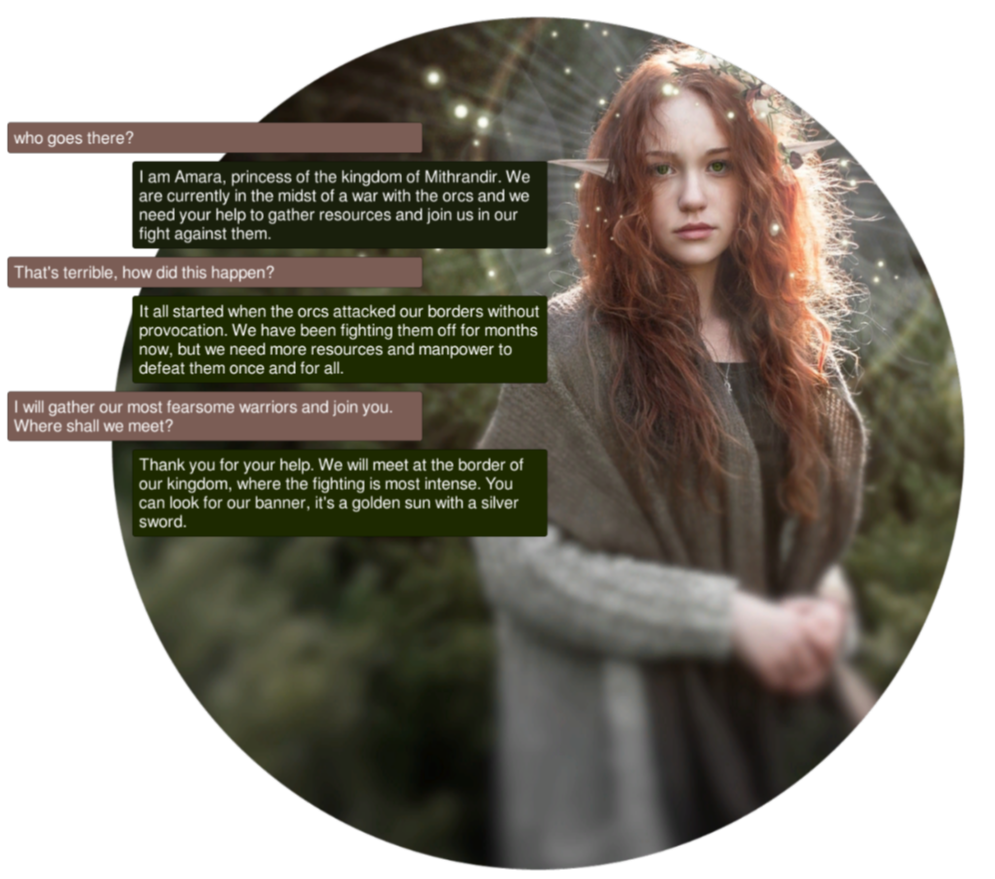
First you will setup the LLM for your game 🏎:
- Create an empty GameObject.
In the GameObject Inspector clickAdd Componentand select the LLM script. - Download one of the default models with the
Download Modelbutton (~GBs).
Or load your own .gguf model with theLoad modelbutton (see LLM model management).
Then you can setup each of your characters as follows 🙋♀️:
- Create an empty GameObject for the character.
In the GameObject Inspector clickAdd Componentand select the LLMCharacter script. - Define the role of your AI in the
Prompt. You can define the name of the AI (AI Name) and the player (Player Name). - (Optional) Select the LLM constructed above in the
LLMfield if you have more than one LLM GameObjects.
You can also adjust the LLM and character settings according to your preference (see Options).
In your script you can then use it as follows 🦄:
using LLMUnity;

public class MyScript {
  public LLMCharacter llmCharacter;

  void HandleReply(string reply){
    // do something with the reply from the model
    Debug.Log(reply);
  }

  void Game(){
    // your game function
    ...
    string message = "Hello bot!";
    _ = llmCharacter.Chat(message, HandleReply);
    ...
  }
}
You can also specify a function to call when the model reply has been completed.
This is useful if the Stream option is enabled for continuous output from the model (default behaviour):
  void ReplyCompleted(){
    // do something when the reply from the model is complete
    Debug.Log("The AI replied");
  }

  void Game(){
    // your game function
    ...
    string message = "Hello bot!";
    _ = llmCharacter.Chat(message, HandleReply, ReplyCompleted);
    ...
  }
To stop the chat without waiting for its completion you can use:
llmCharacter.CancelRequests();
- Finally, in the Inspector of the GameObject of your script, select the LLMCharacter GameObject created above as the llmCharacter property.
That's all ✨!
You can also:
Build a mobile app on Android
To build an Android app you need to specify the IL2CPP scripting backend and the ARM64 as the target architecture in the player settings.
These settings can be accessed from the Edit > Project Settings menu within the Player > Other Settings section.
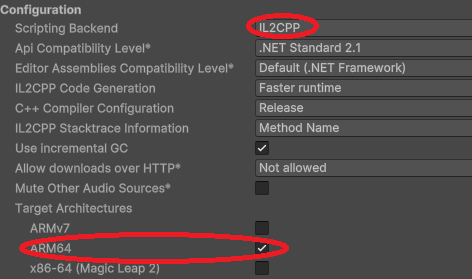
It is also a good idea to enable the Download on Build option in the LLM GameObject to download the model on launch in order to keep the app size small.
Save / Load your chat history
To automatically save / load your chat history, you can specify the Save parameter of the LLMCharacter to the filename (or relative path) of your choice.
The file is saved in the persistentDataPath folder of Unity.
This also saves the state of the LLM which means that the previously cached prompt does not need to be recomputed.
To manually save your chat history, you can use:
llmCharacter.Save("filename");
and to load the history:
llmCharacter.Load("filename");
where filename the filename or relative path of your choice.
Process the prompt at the beginning of your app for faster initial processing time
  void WarmupCompleted(){
    // do something when the warmup is complete
    Debug.Log("The AI is nice and ready");
  }

  void Game(){
    // your game function
    ...
    _ = llmCharacter.Warmup(WarmupCompleted);
    ...
  }
Decide whether or not to add the message to the chat/prompt history
The last argument of the Chat function is a boolean that specifies whether to add the message to the history (default: true):
  void Game(){
    // your game function
    ...
    string message = "Hello bot!";
    _ = llmCharacter.Chat(message, HandleReply, ReplyCompleted, false);
    ...
  }
Use pure text completion
  void Game(){
    // your game function
    ...
    string message = "The cat is away";
    _ = llmCharacter.Complete(message, HandleReply, ReplyCompleted);
    ...
  }
Wait for the reply before proceeding to the next lines of code
For this you can use the async/await functionality:
  async void Game(){
    // your game function
    ...
    string message = "Hello bot!";
    string reply = await llmCharacter.Chat(message, HandleReply, ReplyCompleted);
    Debug.Log(reply);
    ...
  }
Add a LLM / LLMCharacter component programmatically
using UnityEngine;
using LLMUnity;

public class MyScript : MonoBehaviour
{
    LLM llm;
    LLMCharacter llmCharacter;

    async void Start()
    {
        // disable gameObject so that theAwake is not called immediately
        gameObject.SetActive(false);

        // Add an LLM object
        llm = gameObject.AddComponent<LLM>();
        // set the model using the filename of the model.
        // The model needs to be added to the LLM model manager (see LLM model management) by loading or downloading it.
        // Otherwise the model file can be copied directly inside the StreamingAssets folder.
        llm.SetModel("Phi-3-mini-4k-instruct-q4.gguf");
        // optional: you can also set loras in a similar fashion and set their weights (if needed)
        llm.AddLora("my-lora.gguf");
        llm.SetLoraWeight(0.5f);
        // optional: you can set the chat template of the model if it is not correctly identified
        // You can find a list of chat templates in the ChatTemplate.templates.Keys
        llm.SetTemplate("phi-3");
        // optional: set number of threads
        llm.numThreads = -1;
        // optional: enable GPU by setting the number of model layers to offload to it
        llm.numGPULayers = 10;

        // Add an LLMCharacter object
        llmCharacter = gameObject.AddComponent<LLMCharacter>();
        // set the LLM object that handles the model
        llmCharacter.llm = llm;
        // set the character prompt
        llmCharacter.SetPrompt("A chat between a curious human and an artificial intelligence assistant.");
        // set the AI and player name
        llmCharacter.AIName = "AI";
        llmCharacter.playerName = "Human";
        // optional: set streaming to false to get the complete result in one go
        // llmCharacter.stream = true;
        // optional: set a save path
        // llmCharacter.save = "AICharacter1";
        // optional: enable the save cache to avoid recomputation when loading a save file (requires ~100 MB)
        // llmCharacter.saveCache = true;
        // optional: set a grammar
        // await llmCharacter.SetGrammar("json.gbnf");

        // re-enable gameObject
        gameObject.SetActive(true);
    }
}
Use a remote server
You can use a remote server to carry out the processing and implement characters that interact with it.
Create the server
To create the server:
- Create a project with a GameObject using the
LLMscript as described above - Enable the
Remoteoption of theLLMand optionally configure the server parameters: port, API key, SSL certificate, SSL key - Build and run to start the server
Alternatively you can use a server binary for easier deployment:
- Run the above scene from the Editor and copy the command from the Debug messages (starting with "Server command:")
- Download the server binaries and DLLs and extract them into the same folder
- Find the architecture you are interested in from the folder above e.g. for Windows and CUDA use the
windows-cuda-cu12.2.0.
You can also check the architecture that works for your system from the Debug messages (starting with "Using architecture"). - From command line change directory to the architecture folder selected and start the server by running the command copied from above.
Create the characters
Create a second project with the game characters using the LLMCharacter script as described above.
Enable the Remote option and configure the host with the IP address (starting with "http://") and port of the server.
Compute embeddings using a LLM
The Embeddings function can be used to obtain the emdeddings of a phrase:
List<float> embeddings = await llmCharacter.Embeddings("hi, how are you?");
A detailed documentation on function level can be found here.
Semantic search with a Retrieval-Augmented Generation (RAG) system
LLM for Unity implements a super-fast similarity search functionality with a Retrieval-Augmented Generation (RAG) system.
It is based on the LLM functionality, and the Approximate Nearest Neighbors (ANN) search from the usearch library.
Semantic search works as follows.
Building the data You provide text inputs (a phrase, paragraph, document) to add to the data.
Each input is split into chunks (optional) and encoded into embeddings with a LLM.
Searching You can then search for a query text input.
The input is again encoded and the most similar text inputs or chunks in the data are retrieved.
To use semantic serch:
- create a GameObject for the LLM as described above. Download one of the provided RAG models or load your own (good options can be found at the MTEB leaderboard).
- create an empty GameObject. In the GameObject Inspector click
Add Componentand select theRAGscript. - In the Search Type dropdown of the RAG select your preferred search method.
SimpleSearchis a simple brute-force search, whileDBSearchis a fast ANN method that should be preferred in most cases. - In the Chunking Type dropdown of the RAG you can select a method for splitting the inputs into chunks. This is useful to have a more consistent meaning within each data part. Chunking methods for splitting according to tokens, words and sentences are provided.
Alternatively, you can create the RAG from code (where llm is your LLM):
  RAG rag = gameObject.AddComponent<RAG>();
  rag.Init(SearchMethods.DBSearch, ChunkingMethods.SentenceSplitter, llm);
In your script you can then use it as follows :unicorn::
using LLMUnity;

public class MyScript : MonoBehaviour
{
  RAG rag;

  async void Game(){
    ...
    string[] inputs = new string[]{
      "Hi! I'm a search system.",
      "the weather is nice. I like it.",
      "I'm a RAG system"
    };
    // add the inputs to the RAG
    foreach (string input in inputs) await rag.Add(input);
    // get the 2 most similar inputs and their distance (dissimilarity) to the search query
    (string[] results, float[] distances) = await rag.Search("hello!", 2);
    // to get the most similar text parts (chnuks) you can enable the returnChunks option
    rag.ReturnChunks(true);
    (results, distances) = await rag.Search("hello!", 2);
    ...
  }
}
You can save the RAG state (stored in the Assets/StreamingAssets folder):
rag.Save("rag.zip");
and load it from disk:
await rag.Load("rag.zip");
You can use the RAG to feed relevant data to the LLM based on a user message:
  string message = "How is the weather?";
  (string[] similarPhrases, float[] distances) = await rag.Search(message, 3);

  string prompt = "Answer the user query based on the provided data.\n\n";
  prompt += $"User query: {message}\n\n";
  prompt += $"Data:\n";
  foreach (string similarPhrase in similarPhrases) prompt += $"\n- {similarPhrase}";

  _ = llmCharacter.Chat(prompt, HandleReply, ReplyCompleted);
The RAG sample includes an example RAG implementation as well as an example RAG-LLM integration.
That's all :sparkles:!
LLM model management
LLM for Unity uses a model manager that allows to load or download LLMs and ship them directly in your game.
The model manager can be found as part of the LLM GameObject:
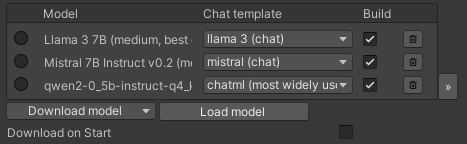
You can download models with the Download model button.
LLM for Unity includes different state of the art models built-in for different model sizes, quantised with the Q4_K_M method.
Alternative models can be downloaded from HuggingFace in the .gguf format.
You can download a model locally and load it with the Load model button, or copy the URL in the Download model > Custom URL field to directly download it.
If a HuggingFace model does not provide a gguf file, it can be converted to gguf with this online converter.
The chat template used for constructing the prompts is determined automatically from the model (if a relevant entry exists) or the model name.
If incorrecly identified, you can select another template from the chat template dropdown.
Models added in the model manager are copied to the game during the building process.
You can omit a model from being built in by deselecting the "Build" checkbox.
To remove the model (but not delete it from disk) you can click the bin button.
The the path and URL (if downloaded) of each added model is diplayed in the expanded view of the model manager access with the >> button:

You can create lighter builds by selecting the Download on Build option.
Using this option the models will be downloaded the first time the game starts instead of copied in the build.
If you have loaded a model locally you need to set its URL through the expanded view, otherwise it will be copied in the build.
Examples
The Samples~ folder contains several examples of interaction 🤖:
- SimpleInteraction: Demonstrates a simple interaction with an AI character
- MultipleCharacters: Demonstrates a simple interaction using multiple AI characters
- RAG: RAG sample. Includes an example using the RAG to feed information to a LLM
- ChatBot: Demonstrates interaction between a player and a AI with a UI similar to a messaging app (see image below)
- KnowledgeBaseGame: Simple detective game using a knowledge base to provide information to the LLM based on google/mysteryofthreebots
- AndroidDemo: Example Android app with an initial screen with model download progress
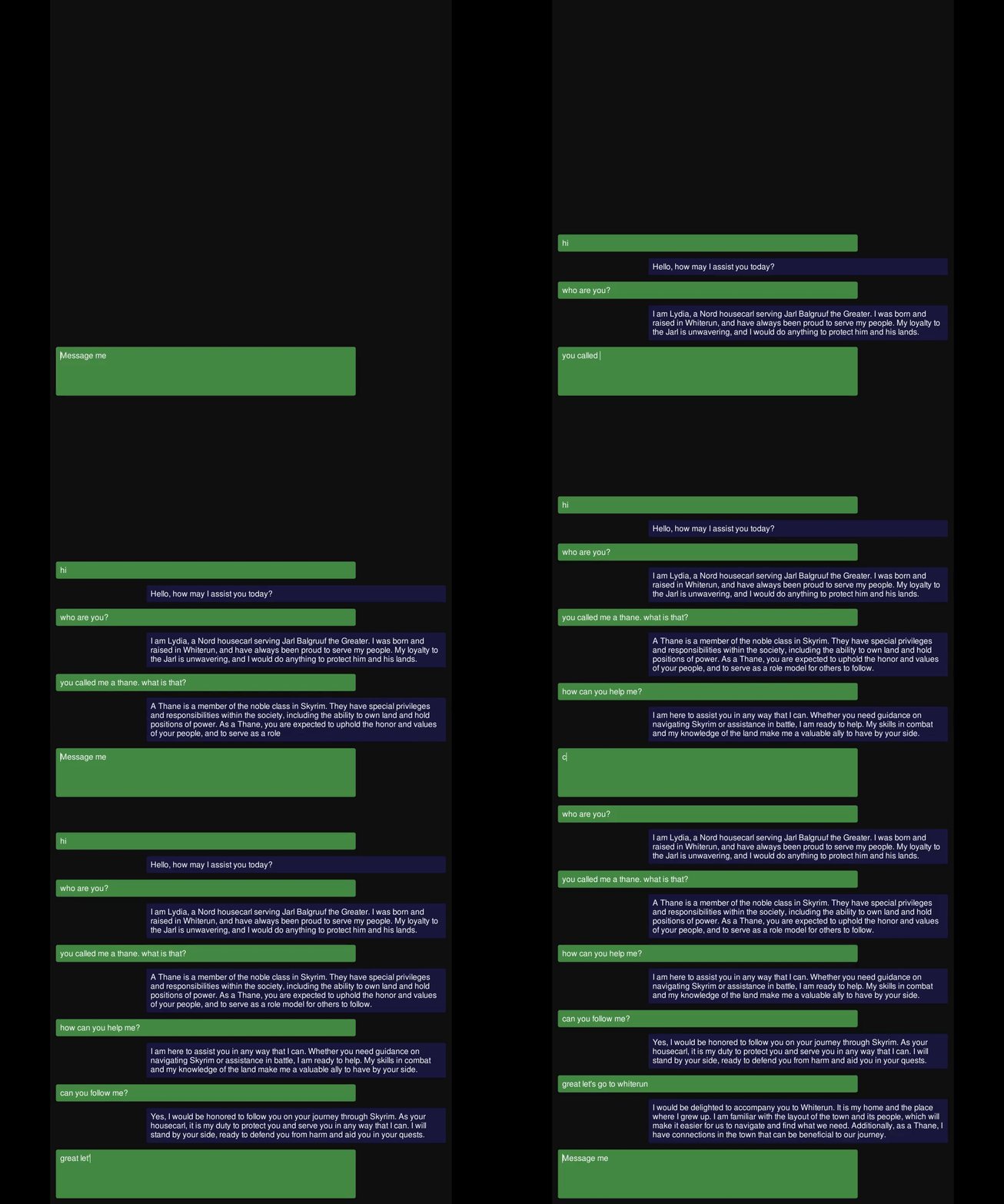
To install a sample:
- Open the Package Manager:
Window > Package Manager - Select the
LLM for UnityPackage. From theSamplesTab, clickImportnext to the sample you want to install.
The samples can be run with the Scene.unity scene they contain inside their folder.
In the scene, select the LLM GameObject and click the Download Model button to download a default model or Load model to load your own model (see LLM model management).
Save the scene, run and enjoy!
Options
LLM Settings
Show/Hide Advanced OptionsToggle to show/hide advanced options from belowLog Levelselect how verbose the log messages areUse extrasselect to install and allow the use of extra features (flash attention and IQ quants)
💻 Setup Settings
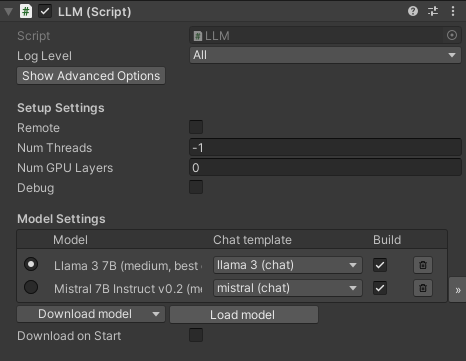
-
Remoteselect to provide remote access to the LLM -
Portport to run the LLM server (ifRemoteis set) -
Num Threadsnumber of threads to use (default: -1 = all) -
Num GPU Layersnumber of model layers to offload to the GPU. If set to 0 the GPU is not used. Use a large number i.e. >30 to utilise the GPU as much as possible. Note that higher values of context size will use more VRAM. If the user's GPU is not supported, the LLM will fall back to the CPU -
Debugselect to log the output of the model in the Unity Editor -
Advanced options
-
If you want to retain as much context for the LLM and don't need all the characters present at the same time, you can set this number and specify the slot for each LLMCharacter object.Parallel Promptsnumber of prompts / slots that can happen in parallel (default: -1 = number of LLMCharacter objects). Note that the context size is divided among the slots.
e.g. Setting
Parallel Promptsto 1 and slot 0 for all LLMCharacter objects will use the full context, but the entire prompt will need to be computed (no caching) whenever a LLMCharacter object is used for chat.Dont Destroy On Loadselect to not destroy the LLM GameObject when loading a new Scene
-
Server Security Settings
-
API keyAPI key to use to allow access to requests from LLMCharacter objects (ifRemoteis set) -
Advanced options
Load SSL certificateallows to load a SSL certificate for end-to-end encryption of requests (ifRemoteis set). Requires SSL key as well.Load SSL keyallows to load a SSL key for end-to-end encryption of requests (ifRemoteis set). Requires SSL certificate as well.SSL certificate paththe SSL certificate used for end-to-end encryption of requests (ifRemoteis set).SSL key paththe SSL key used for end-to-end encryption of requests (ifRemoteis set).
🤗 Model Settings
-
Download modelclick to download one of the default models -
Load modelclick to load your own model in .gguf format -
Download on Startenable to downloaded the LLM models the first time the game starts. Alternatively the LLM models wil be copied directly in the build -
This is the number of tokens the model can take as input when generating responses. Higher values use more RAM or VRAM (if using GPU).Context Sizesize of the prompt context (0 = context size of the model) -
Advanced options
Download loraclick to download a LoRA model in .gguf formatLoad loraclick to load a LoRA model in .gguf formatBatch Sizebatch size for prompt processing (default: 512)Modelthe path of the model being used (relative to the Assets/StreamingAssets folder)Chat Templatethe chat template being used for the LLMLorathe path of the LoRAs being used (relative to the Assets/StreamingAssets folder)Lora Weightsthe weights of the LoRAs being usedFlash Attentionclick to use flash attention in the model (ifUse extrasis enabled)
🗨️ Chat Settings
-
Advanced options
-
Base Prompta common base prompt to use across all LLMCharacter objects using the LLM
LLMCharacter Settings
Show/Hide Advanced OptionsToggle to show/hide advanced options from belowLog Levelselect how verbose the log messages areUse extrasselect to install and allow the use of extra features (flash attention and IQ quants)
💻 Setup Settings
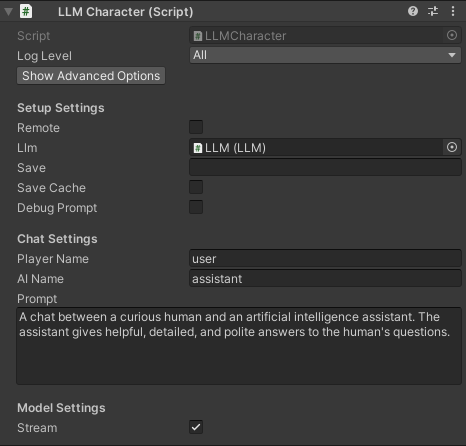
Remotewhether the LLM used is remote or localLLMthe LLM GameObject (ifRemoteis not set)Hortip of the LLM server (ifRemoteis set)Portport of the LLM server (ifRemoteis set)Num Retriesnumber of HTTP request retries from the LLM server (ifRemoteis set)API keyAPI key of the LLM server (ifRemoteis set)-
If set, the chat history and LLM state (if save cache is enabled) is automatically saved to file specified.Savesave filename or relative path
The chat history is saved with a json suffix and the LLM state with a cache suffix.
Both files are saved in the [persistentDataPath folder of Unity](https://docs.unity3d.com/ScriptReference/Application-persistentDataPath.html). Save Cacheselect to save the LLM state along with the chat history. The LLM state is typically around 100MB+.Debug Promptselect to log the constructed prompts in the Unity Editor
🗨️ Chat Settings
Player Namethe name of the playerAI Namethe name of the AIPromptdescription of the AI role
🤗 Model Settings
-
Streamselect to receive the reply from the model as it is produced (recommended!).
If it is not selected, the full reply from the model is received in one go -
This is the maximum amount of tokens the model will maximum predict. When N tokens are reached the model will stop generating. This means words / sentences might not get finished if this is too low.Num Predictmaximum number of tokens to predict (default: 256, -1 = infinity, -2 = until context filled) -
Advanced options
Load grammarclick to load a grammar in .gbnf formatGrammarthe path of the grammar being used (relative to the Assets/StreamingAssets folder)-
Saves the prompt while it is being created by the chat to avoid reprocessing the entire prompt every timeCache Promptsave the ongoing prompt from the chat (default: true) Slotslot of the server to use for computation. Value can be set from 0 toParallel Prompts-1 (default: -1 = new slot for each character)Seedseed for reproducibility. For random results every time use -1-
The temperature setting adjusts how random the generated responses are. Turning it up makes the generated choices more varied and unpredictable. Turning it down makes the generated responses more predictable and focused on the most likely options.TemperatureLLM temperature, lower values give more deterministic answers (default: 0.2) -
The top k value controls the top k most probable tokens at each step of generation. This value can help fine tune the output and make this adhere to specific patterns or constraints.Top Ktop-k sampling (default: 40, 0 = disabled) -
The top p value controls the cumulative probability of generated tokens. The model will generate tokens until this theshold (p) is reached. By lowering this value you can shorten output & encourage / discourage more diverse outputs.Top Ptop-p sampling (default: 0.9, 1.0 = disabled) -
The probability is defined relative to the probability of the most likely token.Min Pminimum probability for a token to be used (default: 0.05) -
The penalty is applied to repeated tokens.Repeat Penaltycontrol the repetition of token sequences in the generated text (default: 1.1) -
Positive values penalize new tokens based on whether they appear in the text so far, increasing the model's likelihood to talk about new topics.Presence Penaltyrepeated token presence penalty (default: 0.0, 0.0 = disabled) -
Positive values penalize new tokens based on their existing frequency in the text so far, decreasing the model's likelihood to repeat the same line verbatim.Frequency Penaltyrepeated token frequency penalty (default: 0.0, 0.0 = disabled) Tfs_z: enable tail free sampling with parameter z (default: 1.0, 1.0 = disabled).Typical P: enable locally typical sampling with parameter p (default: 1.0, 1.0 = disabled).Repeat Last N: last N tokens to consider for penalizing repetition (default: 64, 0 = disabled, -1 = ctx-size).Penalize Nl: penalize newline tokens when applying the repeat penalty (default: true).Penalty Prompt: prompt for the purpose of the penalty evaluation. Can be eithernull, a string or an array of numbers representing tokens (default:null= use originalprompt).Mirostat: enable Mirostat sampling, controlling perplexity during text generation (default: 0, 0 = disabled, 1 = Mirostat, 2 = Mirostat 2.0).Mirostat Tau: set the Mirostat target entropy, parameter tau (default: 5.0).Mirostat Eta: set the Mirostat learning rate, parameter eta (default: 0.1).N Probs: if greater than 0, the response also contains the probabilities of top N tokens for each generated token (default: 0)Ignore Eos: enable to ignore end of stream tokens and continue generating (default: false).
Similar repos


Languages
C#
100.0%
README
Morpheus Unity SDK
Creating Smart Agent NPCs & DeAi Game Dev Tools!
Introduction
Decentralized AI and Smart Agents can bring transformative potential to game development, enabling persistent, autonomous NPCs that can interact meaningfully with players and manage game assets, in a trustless manner without any centralized companies collecting user data. These agents, equipped with blockchain-enabled crypto wallets, allow for dynamic interactions and economically rich game worlds where players can experience genuine asset ownership, trade, and carry items across different games. And that is why the Gnome Labs team is excited to contribute to the Morpheus ecosystem, empowering developers to integrate decentralized language models and Smart Agent NPCs into their games. Our work with the Morpheus Unity3D SDK supports this vision by making it easier for game creators to build immersive, player-driven worlds that combine advanced AI, blockchain technology, and innovative storytelling.
Objectives
- Easily integrate decentralized LLM inference into video games through the Morpheus router / Morpheus Lumerin Node system
- Integrate Smart Agent functionality so that video games and metaverses can have Smart NPCs with access to crypto wallets
- Explore further novel use cases of Smart Agents and decentralized AI in the Unity3D game engine
Project Timelines
Please note: This project is currently on hiatus pending the completion of the Morpheus DeAI router. Once completed, we will map out a timeline for this UnitySDK.
We're starting this project by building upon the existing LLMUnity project, which already provides a foundational framework for integrating language models into Unity games. LLMUnity’s existing architecture for handling prompts and responses offers an ideal starting point, and the information below outlines what comes within the LLMUnity project.
LLM for Unity enables seamless integration of Large Language Models (LLMs) within the Unity engine.
It allows to create intelligent characters that your players can interact with for an immersive experience.
The package also features a Retrieval-Augmented Generation (RAG) system that allows to performs semantic search across your data, which can be used to enhance the character's knowledge.
LLM for Unity is built on top of the awesome llama.cpp library.
At a glance
- 💻 Cross-platform! Windows, Linux, macOS and Android
- 🏠 Runs locally without internet access. No data ever leave the game!
- ⚡ Blazing fast inference on CPU and GPU (Nvidia, AMD, Apple Metal)
- 🤗 Supports all major LLM models
- 🔧 Easy to setup, call with a single line of code
- 💰 Free to use for both personal and commercial purposes
🧪 Tested on Unity: 2021 LTS, 2022 LTS, 2023
Setup
Method 1: Install using the asset store
- Open the LLM for Unity asset page and click
Add to My Assets - Open the Package Manager in Unity:
Window > Package Manager - Select the
Packages: My Assetsoption from the drop-down - Select the
LLM for Unitypackage, clickDownloadand thenImport
Method 2: Install using the GitHub repo:
- Open the Package Manager in Unity:
Window > Package Manager - Click the
+button and selectAdd package from git URL - Use the repository URL
https://github.com/undreamai/LLMUnity.gitand clickAdd
How to use
First you will setup the LLM for your game 🏎:
- Create an empty GameObject.
In the GameObject Inspector clickAdd Componentand select the LLM script. - Download one of the default models with the
Download Modelbutton (~GBs).
Or load your own .gguf model with theLoad modelbutton (see LLM model management).
Then you can setup each of your characters as follows 🙋♀️:
- Create an empty GameObject for the character.
In the GameObject Inspector clickAdd Componentand select the LLMCharacter script. - Define the role of your AI in the
Prompt. You can define the name of the AI (AI Name) and the player (Player Name). - (Optional) Select the LLM constructed above in the
LLMfield if you have more than one LLM GameObjects.
You can also adjust the LLM and character settings according to your preference (see Options).
In your script you can then use it as follows 🦄:
using LLMUnity;

public class MyScript {
  public LLMCharacter llmCharacter;

  void HandleReply(string reply){
    // do something with the reply from the model
    Debug.Log(reply);
  }

  void Game(){
    // your game function
    ...
    string message = "Hello bot!";
    _ = llmCharacter.Chat(message, HandleReply);
    ...
  }
}
You can also specify a function to call when the model reply has been completed.
This is useful if the Stream option is enabled for continuous output from the model (default behaviour):
  void ReplyCompleted(){
    // do something when the reply from the model is complete
    Debug.Log("The AI replied");
  }

  void Game(){
    // your game function
    ...
    string message = "Hello bot!";
    _ = llmCharacter.Chat(message, HandleReply, ReplyCompleted);
    ...
  }
To stop the chat without waiting for its completion you can use:
llmCharacter.CancelRequests();
- Finally, in the Inspector of the GameObject of your script, select the LLMCharacter GameObject created above as the llmCharacter property.
That's all ✨!
You can also:
Build a mobile app on Android
To build an Android app you need to specify the IL2CPP scripting backend and the ARM64 as the target architecture in the player settings.
These settings can be accessed from the Edit > Project Settings menu within the Player > Other Settings section.
It is also a good idea to enable the Download on Build option in the LLM GameObject to download the model on launch in order to keep the app size small.
Save / Load your chat history
To automatically save / load your chat history, you can specify the Save parameter of the LLMCharacter to the filename (or relative path) of your choice.
The file is saved in the persistentDataPath folder of Unity.
This also saves the state of the LLM which means that the previously cached prompt does not need to be recomputed.
To manually save your chat history, you can use:
llmCharacter.Save("filename");
and to load the history:
llmCharacter.Load("filename");
where filename the filename or relative path of your choice.
Process the prompt at the beginning of your app for faster initial processing time
  void WarmupCompleted(){
    // do something when the warmup is complete
    Debug.Log("The AI is nice and ready");
  }

  void Game(){
    // your game function
    ...
    _ = llmCharacter.Warmup(WarmupCompleted);
    ...
  }
Decide whether or not to add the message to the chat/prompt history
The last argument of the Chat function is a boolean that specifies whether to add the message to the history (default: true):
  void Game(){
    // your game function
    ...
    string message = "Hello bot!";
    _ = llmCharacter.Chat(message, HandleReply, ReplyCompleted, false);
    ...
  }
Use pure text completion
  void Game(){
    // your game function
    ...
    string message = "The cat is away";
    _ = llmCharacter.Complete(message, HandleReply, ReplyCompleted);
    ...
  }
Wait for the reply before proceeding to the next lines of code
For this you can use the async/await functionality:
  async void Game(){
    // your game function
    ...
    string message = "Hello bot!";
    string reply = await llmCharacter.Chat(message, HandleReply, ReplyCompleted);
    Debug.Log(reply);
    ...
  }
Add a LLM / LLMCharacter component programmatically
using UnityEngine;
using LLMUnity;

public class MyScript : MonoBehaviour
{
    LLM llm;
    LLMCharacter llmCharacter;

    async void Start()
    {
        // disable gameObject so that theAwake is not called immediately
        gameObject.SetActive(false);

        // Add an LLM object
        llm = gameObject.AddComponent<LLM>();
        // set the model using the filename of the model.
        // The model needs to be added to the LLM model manager (see LLM model management) by loading or downloading it.
        // Otherwise the model file can be copied directly inside the StreamingAssets folder.
        llm.SetModel("Phi-3-mini-4k-instruct-q4.gguf");
        // optional: you can also set loras in a similar fashion and set their weights (if needed)
        llm.AddLora("my-lora.gguf");
        llm.SetLoraWeight(0.5f);
        // optional: you can set the chat template of the model if it is not correctly identified
        // You can find a list of chat templates in the ChatTemplate.templates.Keys
        llm.SetTemplate("phi-3");
        // optional: set number of threads
        llm.numThreads = -1;
        // optional: enable GPU by setting the number of model layers to offload to it
        llm.numGPULayers = 10;

        // Add an LLMCharacter object
        llmCharacter = gameObject.AddComponent<LLMCharacter>();
        // set the LLM object that handles the model
        llmCharacter.llm = llm;
        // set the character prompt
        llmCharacter.SetPrompt("A chat between a curious human and an artificial intelligence assistant.");
        // set the AI and player name
        llmCharacter.AIName = "AI";
        llmCharacter.playerName = "Human";
        // optional: set streaming to false to get the complete result in one go
        // llmCharacter.stream = true;
        // optional: set a save path
        // llmCharacter.save = "AICharacter1";
        // optional: enable the save cache to avoid recomputation when loading a save file (requires ~100 MB)
        // llmCharacter.saveCache = true;
        // optional: set a grammar
        // await llmCharacter.SetGrammar("json.gbnf");

        // re-enable gameObject
        gameObject.SetActive(true);
    }
}
Use a remote server
You can use a remote server to carry out the processing and implement characters that interact with it.
Create the server
To create the server:
- Create a project with a GameObject using the
LLMscript as described above - Enable the
Remoteoption of theLLMand optionally configure the server parameters: port, API key, SSL certificate, SSL key - Build and run to start the server
Alternatively you can use a server binary for easier deployment:
- Run the above scene from the Editor and copy the command from the Debug messages (starting with "Server command:")
- Download the server binaries and DLLs and extract them into the same folder
- Find the architecture you are interested in from the folder above e.g. for Windows and CUDA use the
windows-cuda-cu12.2.0.
You can also check the architecture that works for your system from the Debug messages (starting with "Using architecture"). - From command line change directory to the architecture folder selected and start the server by running the command copied from above.
Create the characters
Create a second project with the game characters using the LLMCharacter script as described above.
Enable the Remote option and configure the host with the IP address (starting with "http://") and port of the server.
Compute embeddings using a LLM
The Embeddings function can be used to obtain the emdeddings of a phrase:
List<float> embeddings = await llmCharacter.Embeddings("hi, how are you?");
A detailed documentation on function level can be found here.
Semantic search with a Retrieval-Augmented Generation (RAG) system
LLM for Unity implements a super-fast similarity search functionality with a Retrieval-Augmented Generation (RAG) system.
It is based on the LLM functionality, and the Approximate Nearest Neighbors (ANN) search from the usearch library.
Semantic search works as follows.
Building the data You provide text inputs (a phrase, paragraph, document) to add to the data.
Each input is split into chunks (optional) and encoded into embeddings with a LLM.
Searching You can then search for a query text input.
The input is again encoded and the most similar text inputs or chunks in the data are retrieved.
To use semantic serch:
- create a GameObject for the LLM as described above. Download one of the provided RAG models or load your own (good options can be found at the MTEB leaderboard).
- create an empty GameObject. In the GameObject Inspector click
Add Componentand select theRAGscript. - In the Search Type dropdown of the RAG select your preferred search method.
SimpleSearchis a simple brute-force search, whileDBSearchis a fast ANN method that should be preferred in most cases. - In the Chunking Type dropdown of the RAG you can select a method for splitting the inputs into chunks. This is useful to have a more consistent meaning within each data part. Chunking methods for splitting according to tokens, words and sentences are provided.
Alternatively, you can create the RAG from code (where llm is your LLM):
  RAG rag = gameObject.AddComponent<RAG>();
  rag.Init(SearchMethods.DBSearch, ChunkingMethods.SentenceSplitter, llm);
In your script you can then use it as follows :unicorn::
using LLMUnity;

public class MyScript : MonoBehaviour
{
  RAG rag;

  async void Game(){
    ...
    string[] inputs = new string[]{
      "Hi! I'm a search system.",
      "the weather is nice. I like it.",
      "I'm a RAG system"
    };
    // add the inputs to the RAG
    foreach (string input in inputs) await rag.Add(input);
    // get the 2 most similar inputs and their distance (dissimilarity) to the search query
    (string[] results, float[] distances) = await rag.Search("hello!", 2);
    // to get the most similar text parts (chnuks) you can enable the returnChunks option
    rag.ReturnChunks(true);
    (results, distances) = await rag.Search("hello!", 2);
    ...
  }
}
You can save the RAG state (stored in the Assets/StreamingAssets folder):
rag.Save("rag.zip");
and load it from disk:
await rag.Load("rag.zip");
You can use the RAG to feed relevant data to the LLM based on a user message:
  string message = "How is the weather?";
  (string[] similarPhrases, float[] distances) = await rag.Search(message, 3);

  string prompt = "Answer the user query based on the provided data.\n\n";
  prompt += $"User query: {message}\n\n";
  prompt += $"Data:\n";
  foreach (string similarPhrase in similarPhrases) prompt += $"\n- {similarPhrase}";

  _ = llmCharacter.Chat(prompt, HandleReply, ReplyCompleted);
The RAG sample includes an example RAG implementation as well as an example RAG-LLM integration.
That's all :sparkles:!
LLM model management
LLM for Unity uses a model manager that allows to load or download LLMs and ship them directly in your game.
The model manager can be found as part of the LLM GameObject:
You can download models with the Download model button.
LLM for Unity includes different state of the art models built-in for different model sizes, quantised with the Q4_K_M method.
Alternative models can be downloaded from HuggingFace in the .gguf format.
You can download a model locally and load it with the Load model button, or copy the URL in the Download model > Custom URL field to directly download it.
If a HuggingFace model does not provide a gguf file, it can be converted to gguf with this online converter.
The chat template used for constructing the prompts is determined automatically from the model (if a relevant entry exists) or the model name.
If incorrecly identified, you can select another template from the chat template dropdown.
Models added in the model manager are copied to the game during the building process.
You can omit a model from being built in by deselecting the "Build" checkbox.
To remove the model (but not delete it from disk) you can click the bin button.
The the path and URL (if downloaded) of each added model is diplayed in the expanded view of the model manager access with the >> button:
You can create lighter builds by selecting the Download on Build option.
Using this option the models will be downloaded the first time the game starts instead of copied in the build.
If you have loaded a model locally you need to set its URL through the expanded view, otherwise it will be copied in the build.
Examples
The Samples~ folder contains several examples of interaction 🤖:
- SimpleInteraction: Demonstrates a simple interaction with an AI character
- MultipleCharacters: Demonstrates a simple interaction using multiple AI characters
- RAG: RAG sample. Includes an example using the RAG to feed information to a LLM
- ChatBot: Demonstrates interaction between a player and a AI with a UI similar to a messaging app (see image below)
- KnowledgeBaseGame: Simple detective game using a knowledge base to provide information to the LLM based on google/mysteryofthreebots
- AndroidDemo: Example Android app with an initial screen with model download progress
To install a sample:
- Open the Package Manager:
Window > Package Manager - Select the
LLM for UnityPackage. From theSamplesTab, clickImportnext to the sample you want to install.
The samples can be run with the Scene.unity scene they contain inside their folder.
In the scene, select the LLM GameObject and click the Download Model button to download a default model or Load model to load your own model (see LLM model management).
Save the scene, run and enjoy!
Options
LLM Settings
Show/Hide Advanced OptionsToggle to show/hide advanced options from belowLog Levelselect how verbose the log messages areUse extrasselect to install and allow the use of extra features (flash attention and IQ quants)
💻 Setup Settings
-
Remoteselect to provide remote access to the LLM -
Portport to run the LLM server (ifRemoteis set) -
Num Threadsnumber of threads to use (default: -1 = all) -
Num GPU Layersnumber of model layers to offload to the GPU. If set to 0 the GPU is not used. Use a large number i.e. >30 to utilise the GPU as much as possible. Note that higher values of context size will use more VRAM. If the user's GPU is not supported, the LLM will fall back to the CPU -
Debugselect to log the output of the model in the Unity Editor -
Advanced options
-
If you want to retain as much context for the LLM and don't need all the characters present at the same time, you can set this number and specify the slot for each LLMCharacter object.Parallel Promptsnumber of prompts / slots that can happen in parallel (default: -1 = number of LLMCharacter objects). Note that the context size is divided among the slots.
e.g. Setting
Parallel Promptsto 1 and slot 0 for all LLMCharacter objects will use the full context, but the entire prompt will need to be computed (no caching) whenever a LLMCharacter object is used for chat.Dont Destroy On Loadselect to not destroy the LLM GameObject when loading a new Scene
-
Server Security Settings
-
API keyAPI key to use to allow access to requests from LLMCharacter objects (ifRemoteis set) -
Advanced options
Load SSL certificateallows to load a SSL certificate for end-to-end encryption of requests (ifRemoteis set). Requires SSL key as well.Load SSL keyallows to load a SSL key for end-to-end encryption of requests (ifRemoteis set). Requires SSL certificate as well.SSL certificate paththe SSL certificate used for end-to-end encryption of requests (ifRemoteis set).SSL key paththe SSL key used for end-to-end encryption of requests (ifRemoteis set).
🤗 Model Settings
-
Download modelclick to download one of the default models -
Load modelclick to load your own model in .gguf format -
Download on Startenable to downloaded the LLM models the first time the game starts. Alternatively the LLM models wil be copied directly in the build -
This is the number of tokens the model can take as input when generating responses. Higher values use more RAM or VRAM (if using GPU).Context Sizesize of the prompt context (0 = context size of the model) -
Advanced options
Download loraclick to download a LoRA model in .gguf formatLoad loraclick to load a LoRA model in .gguf formatBatch Sizebatch size for prompt processing (default: 512)Modelthe path of the model being used (relative to the Assets/StreamingAssets folder)Chat Templatethe chat template being used for the LLMLorathe path of the LoRAs being used (relative to the Assets/StreamingAssets folder)Lora Weightsthe weights of the LoRAs being usedFlash Attentionclick to use flash attention in the model (ifUse extrasis enabled)
🗨️ Chat Settings
-
Advanced options
-
Base Prompta common base prompt to use across all LLMCharacter objects using the LLM
LLMCharacter Settings
Show/Hide Advanced OptionsToggle to show/hide advanced options from belowLog Levelselect how verbose the log messages areUse extrasselect to install and allow the use of extra features (flash attention and IQ quants)
💻 Setup Settings
Remotewhether the LLM used is remote or localLLMthe LLM GameObject (ifRemoteis not set)Hortip of the LLM server (ifRemoteis set)Portport of the LLM server (ifRemoteis set)Num Retriesnumber of HTTP request retries from the LLM server (ifRemoteis set)API keyAPI key of the LLM server (ifRemoteis set)-
If set, the chat history and LLM state (if save cache is enabled) is automatically saved to file specified.Savesave filename or relative path
The chat history is saved with a json suffix and the LLM state with a cache suffix.
Both files are saved in the [persistentDataPath folder of Unity](https://docs.unity3d.com/ScriptReference/Application-persistentDataPath.html). Save Cacheselect to save the LLM state along with the chat history. The LLM state is typically around 100MB+.Debug Promptselect to log the constructed prompts in the Unity Editor
🗨️ Chat Settings
Player Namethe name of the playerAI Namethe name of the AIPromptdescription of the AI role
🤗 Model Settings
-
Streamselect to receive the reply from the model as it is produced (recommended!).
If it is not selected, the full reply from the model is received in one go -
This is the maximum amount of tokens the model will maximum predict. When N tokens are reached the model will stop generating. This means words / sentences might not get finished if this is too low.Num Predictmaximum number of tokens to predict (default: 256, -1 = infinity, -2 = until context filled) -
Advanced options
Load grammarclick to load a grammar in .gbnf formatGrammarthe path of the grammar being used (relative to the Assets/StreamingAssets folder)-
Saves the prompt while it is being created by the chat to avoid reprocessing the entire prompt every timeCache Promptsave the ongoing prompt from the chat (default: true) Slotslot of the server to use for computation. Value can be set from 0 toParallel Prompts-1 (default: -1 = new slot for each character)Seedseed for reproducibility. For random results every time use -1-
The temperature setting adjusts how random the generated responses are. Turning it up makes the generated choices more varied and unpredictable. Turning it down makes the generated responses more predictable and focused on the most likely options.TemperatureLLM temperature, lower values give more deterministic answers (default: 0.2) -
The top k value controls the top k most probable tokens at each step of generation. This value can help fine tune the output and make this adhere to specific patterns or constraints.Top Ktop-k sampling (default: 40, 0 = disabled) -
The top p value controls the cumulative probability of generated tokens. The model will generate tokens until this theshold (p) is reached. By lowering this value you can shorten output & encourage / discourage more diverse outputs.Top Ptop-p sampling (default: 0.9, 1.0 = disabled) -
The probability is defined relative to the probability of the most likely token.Min Pminimum probability for a token to be used (default: 0.05) -
The penalty is applied to repeated tokens.Repeat Penaltycontrol the repetition of token sequences in the generated text (default: 1.1) -
Positive values penalize new tokens based on whether they appear in the text so far, increasing the model's likelihood to talk about new topics.Presence Penaltyrepeated token presence penalty (default: 0.0, 0.0 = disabled) -
Positive values penalize new tokens based on their existing frequency in the text so far, decreasing the model's likelihood to repeat the same line verbatim.Frequency Penaltyrepeated token frequency penalty (default: 0.0, 0.0 = disabled) Tfs_z: enable tail free sampling with parameter z (default: 1.0, 1.0 = disabled).Typical P: enable locally typical sampling with parameter p (default: 1.0, 1.0 = disabled).Repeat Last N: last N tokens to consider for penalizing repetition (default: 64, 0 = disabled, -1 = ctx-size).Penalize Nl: penalize newline tokens when applying the repeat penalty (default: true).Penalty Prompt: prompt for the purpose of the penalty evaluation. Can be eithernull, a string or an array of numbers representing tokens (default:null= use originalprompt).Mirostat: enable Mirostat sampling, controlling perplexity during text generation (default: 0, 0 = disabled, 1 = Mirostat, 2 = Mirostat 2.0).Mirostat Tau: set the Mirostat target entropy, parameter tau (default: 5.0).Mirostat Eta: set the Mirostat learning rate, parameter eta (default: 0.1).N Probs: if greater than 0, the response also contains the probabilities of top N tokens for each generated token (default: 0)Ignore Eos: enable to ignore end of stream tokens and continue generating (default: false).
Similar repos
Languages
C#
100.0%