
Create characters in Unity with LLMs!
See the codeREADME

Create characters in Unity with LLMs!



LLM for Unity enables seamless integration of Large Language Models (LLMs) within the Unity engine.
It allows to create intelligent AI characters that players can interact with for an immersive experience.
The package includes a Retrieval-Augmented Generation (RAG) system for semantic search across your data, which can be used to enhance the character's knowledge.
The LLM backend, LlamaLib, is built on top of the awesome llama.cpp library and provided as a standalone C++/C# library.
At a glance • How to help • Games / Projects using LLM for Unity • Setup • Quick start • Advanced usage • RAG • LLM model management • Examples • LicenseAt a glance
- 💻 Runs anywhere: PC, mobile or VR!
- ⚡ Blazing fast inference on CPU and GPU (Nvidia, AMD, Apple Metal)
- 🏠 Runs locally without internet access. No data ever leave your game!
- 📡 Supports remote server setup
- 🤗 Supports all major LLM models
- 🔍 Advanced RAG System (ANN search)
- 🔧 Easy to setup, call with a single line of code
- 💰 Free to use for both personal and commercial purposes
🧪 Tested on Unity: 2021 LTS, 2022 LTS, 2023, Unity 6
🚦 Upcoming Releases
Business inquiries
For business inquiries you can reach out at hello@undream.ai.
How to help
- ⭐ Star the repo, leave a review and spread the word about the project!
- Join us at Discord and say hi.
- Contribute by submitting feature requests, bugs or even your own PR.
this work or buy me a
to allow even cooler features!
Games / Projects using LLM for Unity
- Verbal Verdict
- I, Chatbot: AISYLUM
- Nameless Souls of the Void
- Murder in Aisle 4
- Finicky Food Delivery AI
- AI Emotional Girlfriend
- Case Closed
- MaiMai AI Agent System
- Claria Chat
- Endless Casual Drive
- Dating App Simulator
- Virtual Reality Mock Interview
- Velesio AI server
- Dungeon Chat
- Tomonaka Desk
- Digital Humans
- CakeMix
- HeyWaifu
- Love and Lie
- Psycho Simulator
- False Flame
- CielChan: Anime Desktop AI Companion
Contact hello@undream.ai to add your project!
Setup
Method 1: Install using the asset store
- Open the LLM for Unity asset page and click
Add to My Assets - Open the Package Manager in Unity:
Window > Package Manager - Select the
Packages: My Assetsoption from the drop-down - Select the
LLM for Unitypackage, clickDownloadand thenImport
Method 2: Install using the GitHub repo:
- Open the Package Manager in Unity:
Window > Package Manager - Click the
+button and selectAdd package from git URL - Use the repository URL
https://github.com/undreamai/LLMUnity.gitand clickAdd
Quick start
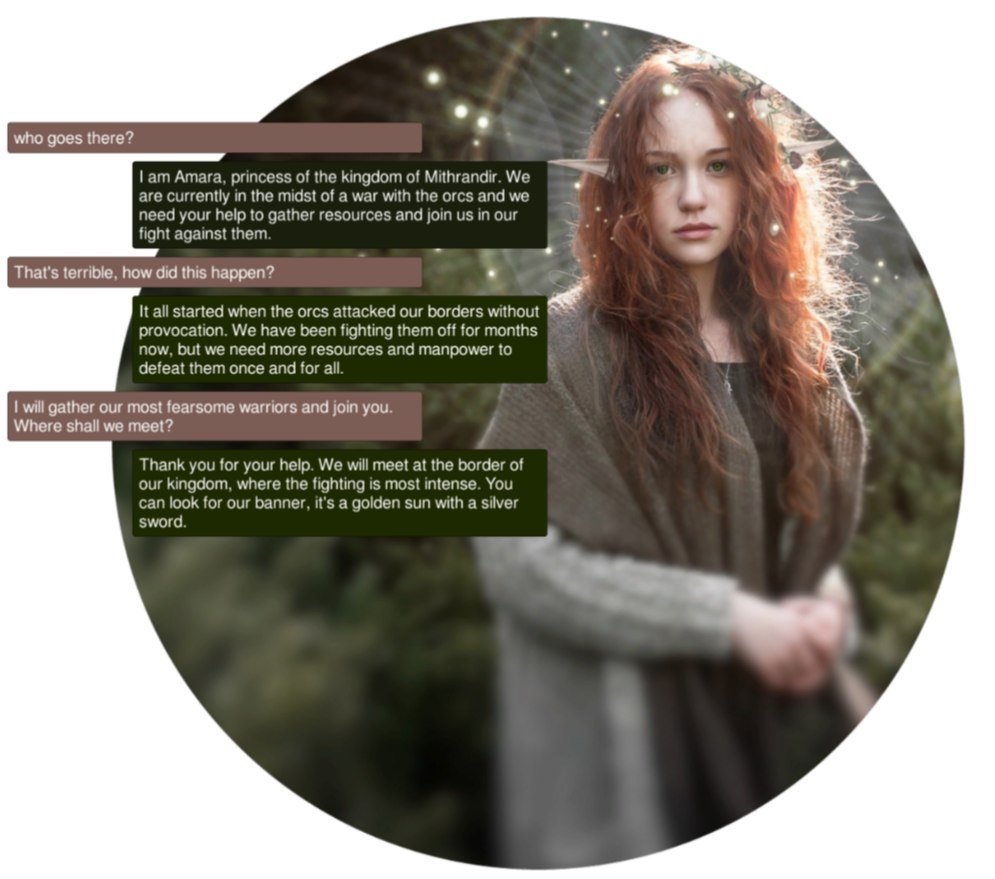
1. Setup the LLM
First you will setup the LLM for your game:
- Create an empty GameObject.
In the GameObject Inspector clickAdd Componentand select theLLMscript. - Download one of the default models with the
Download Modelbutton (~GBs).
Or load your own .gguf model with theLoad modelbutton (see LLM model management).
2. Create an AI Character
Then you can setup each of your characters as follows:
- Create an empty GameObject for the character.
In the GameObject Inspector clickAdd Componentand select theLLMAgentscript. - Define the role of your AI in the
System Prompt. - (Optional) Select the LLM constructed above in the
LLMfield if you have more than one LLM GameObjects.
3. Use in Your Script
In your script you can then use it as follows:
using LLMUnity;

public class MyScript {
  public LLMAgent llmAgent;

  void HandleReply(string replySoFar){
    // do something with the reply from the model as it is being produced
    Debug.Log(replySoFar);
  }

  void Game(){
    // handle the response as it is being produced
    ...
    _ = llmAgent.Chat("Hello bot!", HandleReply);
    ...
  }

  async void GameAsync(){
    // or handle the entire response in one go
    ...
    string reply = await llmAgent.Chat("Hello bot!");
    Debug.Log(reply);
    ...
  }
}
You can also specify a function to call when the model reply has been completed:
  void ReplyCompleted(){
    // do something when the reply from the model is complete
    Debug.Log("The AI has finished replying");
  }

  void Game(){
    // your game function
    ...
    _ = llmAgent.Chat("Hello bot!", HandleReply, ReplyCompleted);
    ...
  }
To stop the chat without waiting for its completion you can use:
llmAgent.CancelRequests();
- Finally, in the Inspector of the GameObject of your script, select the LLMAgent GameObject created above as the llmAgent property.
That's it! Your AI character is ready to chat! ✨
Advanced usage
Build a mobile app
For mobile apps you can use models with up to 1-2 billion parameters ("Tiny models" in the LLM model manager).
Larger models will typically not work due to the limited mobile hardware.
iOS iOS can be built with the default player settings.
Android
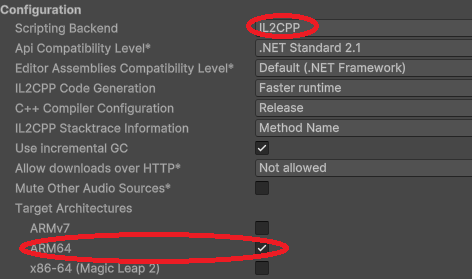
On Android you need to specify the IL2CPP scripting backend and the ARM64 as the target architecture in the player settings.
These settings can be accessed from the Edit > Project Settings menu within the Player > Other Settings section.
Since mobile app sizes are typically small, you can download the LLM model the first time the app launches.
This functionality is enabled with the Download on Build option.
In your project you can wait until the model download is complete with:
await LLM.WaitUntilModelSetup();
You can also receive calls the download progress during the model download:
await LLM.WaitUntilModelSetup(SetProgress);

void SetProgress(float progress){
  string progressPercent = ((int)(progress * 100)).ToString() + "%";
  Debug.Log($"Download progress: {progressPercent}");
}
This is useful to present e.g. a progress bar. The MobileDemo demonstrates an example application for Android / iOS.
Restrict the output of the LLM / Function calling / Grammar
To restrict the output of the LLM you can use a grammar, read more here.
The grammar can edited directly in the Grammar field of the LLMAgent or saved in a gbnf / json schema file and loaded with the Load Grammar button (Advanced options).
For instance to receive replies in json format you can use the json.gbnf grammar.
Alternatively you can set the grammar directly in your script:
llmAgent.grammar = "your grammar here";
For function calling you can define similarly a grammar that allows only the function names as output, and then call the respective function.
You can look into the FunctionCalling sample for an example implementation.
Access / Save / Load your chat history
The chat history of a `LLMAgent` is retained in the `chat` variable that is a list of `ChatMessage` objects.The ChatMessage is a class that defines the `role` of the message and the `content`.
The list contains alternating messages with the player prompt and the AI reply.
You can modify the chat history and then set it to your LLMAgent GameObject: ``` c# List newChat = new List(); ... llmAgent.chat = newChat; ```
To add new messages you can do:
_ = llmAgent.AddUserMessage("your user message");
_ = llmAgent.AddAssistantMessage("your assistant reply");
To automatically save / load your chat history, you can specify the Save parameter of the LLMAgent to the filename (or relative path) of your choice.
The chat history is saved in the persistentDataPath folder of Unity as a json object.
To manually save your chat history, you can use:
_ = llmAgent.SaveHistory();
and to load the history:
_ = llmAgent.Loadistory();
Process the prompt at the beginning of your app for faster initial processing time
  void WarmupCompleted(){
    // do something when the warmup is complete
    Debug.Log("The AI is nice and ready");
  }

  void Game(){
    // your game function
    ...
    _ = llmAgent.Warmup(WarmupCompleted);
    ...
  }
Decide whether or not to add the message to the chat/prompt history
The last argument of the Chat function is a boolean that specifies whether to add the message to the history (default: true):
  void Game(){
    // your game function
    ...
    string message = "Hello bot!";
    _ = llmAgent.Chat(message, HandleReply, ReplyCompleted, false);
    ...
  }
Use pure text completion
  void Game(){
    // your game function
    ...
    string message = "The cat is away";
    _ = llmAgent.Completion(message, HandleReply, ReplyCompleted);
    ...
  }
Add a LLM / LLMAgent component programmatically
using UnityEngine;
using LLMUnity;

public class MyScript : MonoBehaviour
{
    LLM llm;
    LLMAgent llmAgent;

    async void Start()
    {
        // disable gameObject so that theAwake is not called immediately
        gameObject.SetActive(false);

        // Add an LLM object
        llm = gameObject.AddComponent<LLM>();
        // set the model using the filename of the model.
        // The model needs to be added to the LLM model manager (see LLM model management) by loading or downloading it.
        // Otherwise the model file can be copied directly inside the StreamingAssets folder.
        llm.model = "Qwen3-4B-Q4_K_M.gguf";
        // optional: you can also set loras in a similar fashion and set their weights (if needed)
        llm.AddLora("my-lora.gguf");
        llm.AddLora("my-lora-2.gguf", 0.5f);
        // optional: set number of threads
        llm.numThreads = -1;
        // optional: enable GPU by setting the number of model layers to offload to it
        llm.numGPULayers = 10;

        // Add an LLMAgent object
        llmAgent = gameObject.AddComponent<LLMAgent>();
        // set the LLM object that handles the model
        llmAgent.llm = llm;
        // set the character prompt
        llmAgent.systemPrompt = "A chat between a curious human and an artificial intelligence assistant.";
        // set the AI and player name
        llmAgent.assistantRole = "AI";
        llmAgent.userRole = "Human";
        // optional: set a save path
        llmAgent.save = "AICharacter1.json";
        // optional: set a grammar
        llmAgent.grammar = "your grammar here";

        // re-enable gameObject
        gameObject.SetActive(true);
    }
}
Use a remote server
You can use a remote server to carry out the processing and implement characters that interact with it.
Create the server
To create the server:
- Create a project with a GameObject using the
LLMscript as described above - Enable the
Remoteoption of theLLMand optionally configure the server port and API key - Enable 'Allow Downloads Over HTTP' in the project settings
- Build and run to start the server
Alternatively you can use a server binary for easier deployment:
- Run the above scene from the Editor and copy the command from the Debug messages (starting with "Deploy server command:")
- Download and extract the LlamaLib binaries
- From command line change directory to the
serversfolder selected and start the server by running the command copied from above.
Create the characters
Create a second project with the game characters using the LLMAgent script as described above.
Enable the Remote option and configure the host with the IP address (starting with "http://") and port / API key of the server.
Compute embeddings using a LLM
The Embeddings function can be used to obtain the emdeddings of a phrase:
List<float> embeddings = await llmAgent.Embeddings("hi, how are you?");
A detailed documentation on function level can be found here:

Semantic search with a RAG system
LLM for Unity implements a super-fast similarity search functionality with a Retrieval-Augmented Generation (RAG) system.
It is based on the LLM embeddings, and the Approximate Nearest Neighbors (ANN) search from the usearch library.
Semantic search works as follows.
Building the data You provide text inputs (a phrase, paragraph, document) to add to the data.
Each input is split into chunks (optional) and encoded into embeddings with a LLM.
Searching You can then search for a query text input.
The input is again encoded and the most similar text inputs or chunks in the data are retrieved.
To use semantic serch:
- create a GameObject for the LLM as described above. Download one of the provided RAG models or load your own (good options can be found at the MTEB leaderboard).
- create an empty GameObject. In the GameObject Inspector click
Add Componentand select theRAGscript. - In the Search Type dropdown of the RAG select your preferred search method.
SimpleSearchis a simple brute-force search, whileDBSearchis a fast ANN method that should be preferred in most cases. - In the Chunking Type dropdown of the RAG you can select a method for splitting the inputs into chunks. This is useful to have a more consistent meaning within each data part. Chunking methods for splitting according to tokens, words and sentences are provided.
Alternatively, you can create the RAG from code (where llm is your LLM):
  RAG rag = gameObject.AddComponent<RAG>();
  rag.Init(SearchMethods.DBSearch, ChunkingMethods.SentenceSplitter, llm);
In your script you can then use it as follows :unicorn::
using LLMUnity;

public class MyScript : MonoBehaviour
{
  RAG rag;

  async void Game(){
    ...
    string[] inputs = new string[]{
      "Hi! I'm a search system.",
      "the weather is nice. I like it.",
      "I'm a RAG system"
    };
    // add the inputs to the RAG
    foreach (string input in inputs) await rag.Add(input);
    // get the 2 most similar inputs and their distance (dissimilarity) to the search query
    (string[] results, float[] distances) = await rag.Search("hello!", 2);
    // to get the most similar text parts (chunks), instead of full input, you can enable the returnChunks option
    rag.ReturnChunks(true);
    (results, distances) = await rag.Search("hello!", 2);
    ...
  }
}
You can also add / search text inputs for groups of data e.g. for a specific character or scene:
    // add the inputs to the RAG for a group of data e.g. an orc character
    foreach (string input in inputs) await rag.Add(input, "orc");
    // get the 2 most similar inputs for the group of data e.g. the orc character
    (string[] results, float[] distances) = await rag.Search("how do you feel?", 2, "orc");
...

You can save the RAG state (stored in the `Assets/StreamingAssets` folder):
``` c#
rag.Save("rag.zip");
and load it from disk:
await rag.Load("rag.zip");
You can use the RAG to feed relevant data to the LLM based on a user message:
  string message = "How is the weather?";
  (string[] similarPhrases, float[] distances) = await rag.Search(message, 3);

  string prompt = "Answer the user query based on the provided data.\n\n";
  prompt += $"User query: {message}\n\n";
  prompt += $"Data:\n";
  foreach (string similarPhrase in similarPhrases) prompt += $"\n- {similarPhrase}";

  _ = llmAgent.Chat(prompt, HandleReply, ReplyCompleted);
The RAG sample includes an example RAG implementation as well as an example RAG-LLM integration.
That's all :sparkles:!
LLM model management
LLM for Unity includes a built-in model manager for easy model handling.
The model manager allows to load or download LLMs and can be found as part of the LLM GameObject:
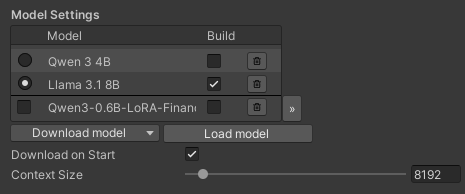
You can download models with the Download model button.
LLM for Unity includes different state of the art models built-in for different model sizes, quantised with the Q4_K_M method.
Alternative models can be downloaded from HuggingFace in .gguf format.
You can download a model locally and load it with the Load model button, or copy the URL in the Download model > Custom URL field to directly download it.
If a HuggingFace model does not provide a gguf file, it can be converted to gguf with this online converter.
Models added in the model manager are copied to the game during the building process.
You can omit a model by deselecting the "Build" checkbox.
To remove the model (but not delete it from disk) you can click the bin button.
The path and URL of models can be diplayed in the expanded view of the model manager with the `>>` button:
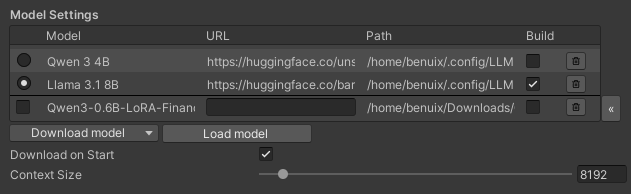
You can create lighter builds by selecting the Download on Build option.
The models will be downloaded the first time the game starts instead of bundled in the build.
If you have loaded a model locally you need to set its URL through the expanded view, otherwise it will be copied in the build.
❕ Before using any model make sure you check their license ❕
Examples
The Samples~ folder contains several examples of interaction 🤖:
- SimpleInteraction: Simple interaction with an AI character
- MultipleCharacters: Simple interaction using multiple AI characters
- FunctionCalling: Function calling sample with structured output from the LLM
- RAG: Semantic search using a Retrieval Augmented Generation (RAG) system. Includes example using a RAG to feed information to a LLM
- MobileDemo: Example mobile app for Android / iOS with an initial screen displaying the model download progress
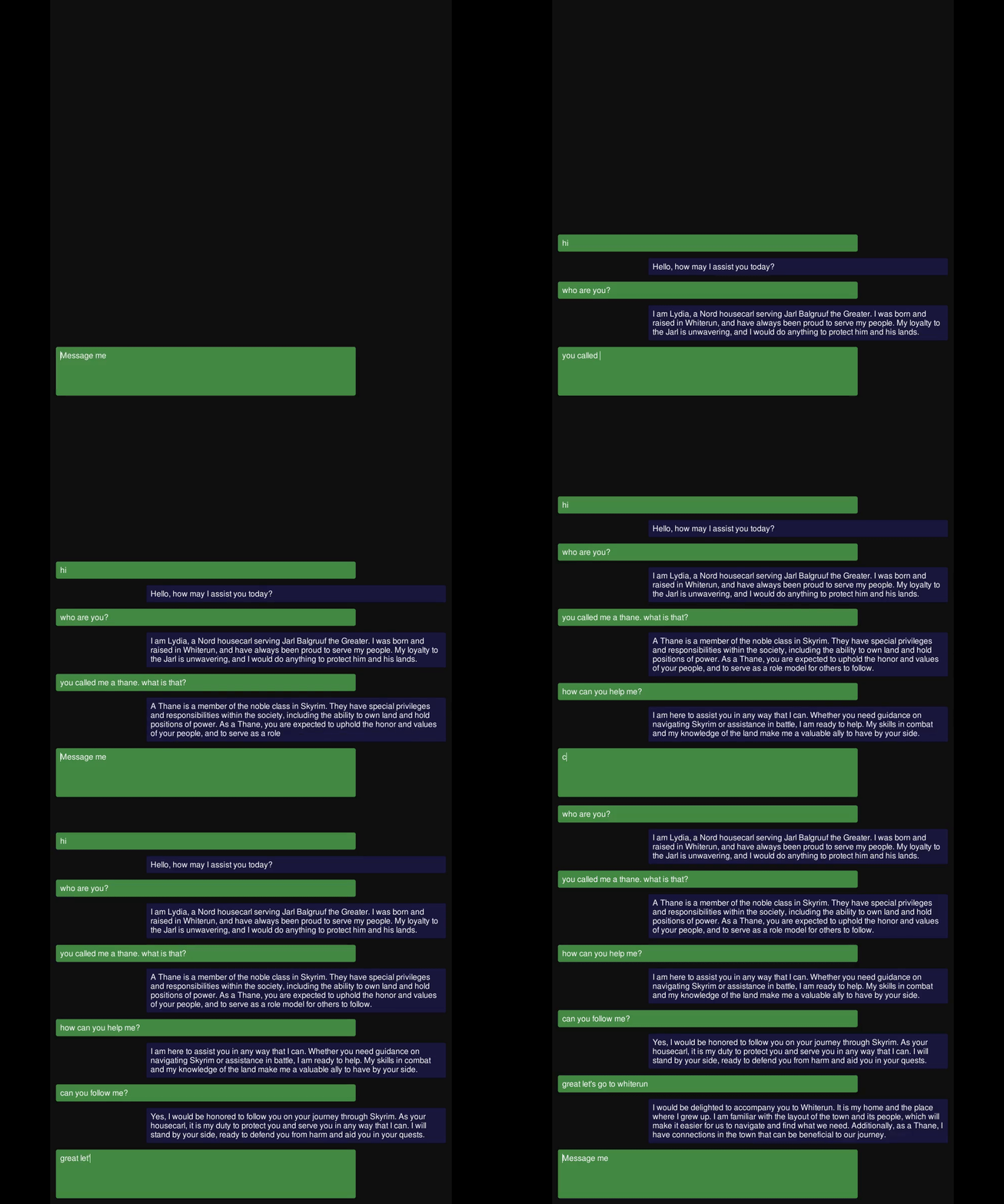
- ChatBot: Interaction between a player and a AI with a UI similar to a messaging app (see image below)
- KnowledgeBaseGame: Simple detective game using a knowledge base to provide information to the LLM based on google/mysteryofthreebots
To install a sample:
- Open the Package Manager:
Window > Package Manager - Select the
LLM for UnityPackage. From theSamplesTab, clickImportnext to the sample you want to install.
The samples can be run with the Scene.unity scene they contain inside their folder.
In the scene, select the LLM GameObject and specify the LLM of your choice (see LLM model management).
Save the scene, run and enjoy!
License
The license of LLM for Unity is Apache 2.0 (LICENSE.md) and uses third-party software with MIT and Apache licenses. Some models included in the asset define their own license terms, please review them before using each model. Third-party licenses can be found in the (Third Party Notices.md).
Significant stargazers

12,069 followers · starred Mar 2024

216 followers · starred Aug 2026

3 followers · starred Apr 2025

250 followers · starred May 2026
Similar repos


Languages
C#
100.0%
Create characters in Unity with LLMs!
See the codeREADME
Create characters in Unity with LLMs!
LLM for Unity enables seamless integration of Large Language Models (LLMs) within the Unity engine.
It allows to create intelligent AI characters that players can interact with for an immersive experience.
The package includes a Retrieval-Augmented Generation (RAG) system for semantic search across your data, which can be used to enhance the character's knowledge.
The LLM backend, LlamaLib, is built on top of the awesome llama.cpp library and provided as a standalone C++/C# library.
At a glance • How to help • Games / Projects using LLM for Unity • Setup • Quick start • Advanced usage • RAG • LLM model management • Examples • LicenseAt a glance
- 💻 Runs anywhere: PC, mobile or VR!
- ⚡ Blazing fast inference on CPU and GPU (Nvidia, AMD, Apple Metal)
- 🏠 Runs locally without internet access. No data ever leave your game!
- 📡 Supports remote server setup
- 🤗 Supports all major LLM models
- 🔍 Advanced RAG System (ANN search)
- 🔧 Easy to setup, call with a single line of code
- 💰 Free to use for both personal and commercial purposes
🧪 Tested on Unity: 2021 LTS, 2022 LTS, 2023, Unity 6
🚦 Upcoming Releases
Business inquiries
For business inquiries you can reach out at hello@undream.ai.
How to help
- ⭐ Star the repo, leave a review and spread the word about the project!
- Join us at Discord and say hi.
- Contribute by submitting feature requests, bugs or even your own PR.
Games / Projects using LLM for Unity
- Verbal Verdict
- I, Chatbot: AISYLUM
- Nameless Souls of the Void
- Murder in Aisle 4
- Finicky Food Delivery AI
- AI Emotional Girlfriend
- Case Closed
- MaiMai AI Agent System
- Claria Chat
- Endless Casual Drive
- Dating App Simulator
- Virtual Reality Mock Interview
- Velesio AI server
- Dungeon Chat
- Tomonaka Desk
- Digital Humans
- CakeMix
- HeyWaifu
- Love and Lie
- Psycho Simulator
- False Flame
- CielChan: Anime Desktop AI Companion
Contact hello@undream.ai to add your project!
Setup
Method 1: Install using the asset store
- Open the LLM for Unity asset page and click
Add to My Assets - Open the Package Manager in Unity:
Window > Package Manager - Select the
Packages: My Assetsoption from the drop-down - Select the
LLM for Unitypackage, clickDownloadand thenImport
Method 2: Install using the GitHub repo:
- Open the Package Manager in Unity:
Window > Package Manager - Click the
+button and selectAdd package from git URL - Use the repository URL
https://github.com/undreamai/LLMUnity.gitand clickAdd
Quick start
1. Setup the LLM
First you will setup the LLM for your game:
- Create an empty GameObject.
In the GameObject Inspector clickAdd Componentand select theLLMscript. - Download one of the default models with the
Download Modelbutton (~GBs).
Or load your own .gguf model with theLoad modelbutton (see LLM model management).
2. Create an AI Character
Then you can setup each of your characters as follows:
- Create an empty GameObject for the character.
In the GameObject Inspector clickAdd Componentand select theLLMAgentscript. - Define the role of your AI in the
System Prompt. - (Optional) Select the LLM constructed above in the
LLMfield if you have more than one LLM GameObjects.
3. Use in Your Script
In your script you can then use it as follows:
using LLMUnity;

public class MyScript {
  public LLMAgent llmAgent;

  void HandleReply(string replySoFar){
    // do something with the reply from the model as it is being produced
    Debug.Log(replySoFar);
  }

  void Game(){
    // handle the response as it is being produced
    ...
    _ = llmAgent.Chat("Hello bot!", HandleReply);
    ...
  }

  async void GameAsync(){
    // or handle the entire response in one go
    ...
    string reply = await llmAgent.Chat("Hello bot!");
    Debug.Log(reply);
    ...
  }
}
You can also specify a function to call when the model reply has been completed:
  void ReplyCompleted(){
    // do something when the reply from the model is complete
    Debug.Log("The AI has finished replying");
  }

  void Game(){
    // your game function
    ...
    _ = llmAgent.Chat("Hello bot!", HandleReply, ReplyCompleted);
    ...
  }
To stop the chat without waiting for its completion you can use:
llmAgent.CancelRequests();
- Finally, in the Inspector of the GameObject of your script, select the LLMAgent GameObject created above as the llmAgent property.
That's it! Your AI character is ready to chat! ✨
Advanced usage
Build a mobile app
For mobile apps you can use models with up to 1-2 billion parameters ("Tiny models" in the LLM model manager).
Larger models will typically not work due to the limited mobile hardware.
iOS iOS can be built with the default player settings.
Android
On Android you need to specify the IL2CPP scripting backend and the ARM64 as the target architecture in the player settings.
These settings can be accessed from the Edit > Project Settings menu within the Player > Other Settings section.
Since mobile app sizes are typically small, you can download the LLM model the first time the app launches.
This functionality is enabled with the Download on Build option.
In your project you can wait until the model download is complete with:
await LLM.WaitUntilModelSetup();
You can also receive calls the download progress during the model download:
await LLM.WaitUntilModelSetup(SetProgress);

void SetProgress(float progress){
  string progressPercent = ((int)(progress * 100)).ToString() + "%";
  Debug.Log($"Download progress: {progressPercent}");
}
This is useful to present e.g. a progress bar. The MobileDemo demonstrates an example application for Android / iOS.
Restrict the output of the LLM / Function calling / Grammar
To restrict the output of the LLM you can use a grammar, read more here.
The grammar can edited directly in the Grammar field of the LLMAgent or saved in a gbnf / json schema file and loaded with the Load Grammar button (Advanced options).
For instance to receive replies in json format you can use the json.gbnf grammar.
Alternatively you can set the grammar directly in your script:
llmAgent.grammar = "your grammar here";
For function calling you can define similarly a grammar that allows only the function names as output, and then call the respective function.
You can look into the FunctionCalling sample for an example implementation.
Access / Save / Load your chat history
The chat history of a `LLMAgent` is retained in the `chat` variable that is a list of `ChatMessage` objects.The ChatMessage is a class that defines the `role` of the message and the `content`.
The list contains alternating messages with the player prompt and the AI reply.
You can modify the chat history and then set it to your LLMAgent GameObject: ``` c# List newChat = new List(); ... llmAgent.chat = newChat; ```
To add new messages you can do:
_ = llmAgent.AddUserMessage("your user message");
_ = llmAgent.AddAssistantMessage("your assistant reply");
To automatically save / load your chat history, you can specify the Save parameter of the LLMAgent to the filename (or relative path) of your choice.
The chat history is saved in the persistentDataPath folder of Unity as a json object.
To manually save your chat history, you can use:
_ = llmAgent.SaveHistory();
and to load the history:
_ = llmAgent.Loadistory();
Process the prompt at the beginning of your app for faster initial processing time
  void WarmupCompleted(){
    // do something when the warmup is complete
    Debug.Log("The AI is nice and ready");
  }

  void Game(){
    // your game function
    ...
    _ = llmAgent.Warmup(WarmupCompleted);
    ...
  }
Decide whether or not to add the message to the chat/prompt history
The last argument of the Chat function is a boolean that specifies whether to add the message to the history (default: true):
  void Game(){
    // your game function
    ...
    string message = "Hello bot!";
    _ = llmAgent.Chat(message, HandleReply, ReplyCompleted, false);
    ...
  }
Use pure text completion
  void Game(){
    // your game function
    ...
    string message = "The cat is away";
    _ = llmAgent.Completion(message, HandleReply, ReplyCompleted);
    ...
  }
Add a LLM / LLMAgent component programmatically
using UnityEngine;
using LLMUnity;

public class MyScript : MonoBehaviour
{
    LLM llm;
    LLMAgent llmAgent;

    async void Start()
    {
        // disable gameObject so that theAwake is not called immediately
        gameObject.SetActive(false);

        // Add an LLM object
        llm = gameObject.AddComponent<LLM>();
        // set the model using the filename of the model.
        // The model needs to be added to the LLM model manager (see LLM model management) by loading or downloading it.
        // Otherwise the model file can be copied directly inside the StreamingAssets folder.
        llm.model = "Qwen3-4B-Q4_K_M.gguf";
        // optional: you can also set loras in a similar fashion and set their weights (if needed)
        llm.AddLora("my-lora.gguf");
        llm.AddLora("my-lora-2.gguf", 0.5f);
        // optional: set number of threads
        llm.numThreads = -1;
        // optional: enable GPU by setting the number of model layers to offload to it
        llm.numGPULayers = 10;

        // Add an LLMAgent object
        llmAgent = gameObject.AddComponent<LLMAgent>();
        // set the LLM object that handles the model
        llmAgent.llm = llm;
        // set the character prompt
        llmAgent.systemPrompt = "A chat between a curious human and an artificial intelligence assistant.";
        // set the AI and player name
        llmAgent.assistantRole = "AI";
        llmAgent.userRole = "Human";
        // optional: set a save path
        llmAgent.save = "AICharacter1.json";
        // optional: set a grammar
        llmAgent.grammar = "your grammar here";

        // re-enable gameObject
        gameObject.SetActive(true);
    }
}
Use a remote server
You can use a remote server to carry out the processing and implement characters that interact with it.
Create the server
To create the server:
- Create a project with a GameObject using the
LLMscript as described above - Enable the
Remoteoption of theLLMand optionally configure the server port and API key - Enable 'Allow Downloads Over HTTP' in the project settings
- Build and run to start the server
Alternatively you can use a server binary for easier deployment:
- Run the above scene from the Editor and copy the command from the Debug messages (starting with "Deploy server command:")
- Download and extract the LlamaLib binaries
- From command line change directory to the
serversfolder selected and start the server by running the command copied from above.
Create the characters
Create a second project with the game characters using the LLMAgent script as described above.
Enable the Remote option and configure the host with the IP address (starting with "http://") and port / API key of the server.
Compute embeddings using a LLM
The Embeddings function can be used to obtain the emdeddings of a phrase:
List<float> embeddings = await llmAgent.Embeddings("hi, how are you?");
A detailed documentation on function level can be found here:
Semantic search with a RAG system
LLM for Unity implements a super-fast similarity search functionality with a Retrieval-Augmented Generation (RAG) system.
It is based on the LLM embeddings, and the Approximate Nearest Neighbors (ANN) search from the usearch library.
Semantic search works as follows.
Building the data You provide text inputs (a phrase, paragraph, document) to add to the data.
Each input is split into chunks (optional) and encoded into embeddings with a LLM.
Searching You can then search for a query text input.
The input is again encoded and the most similar text inputs or chunks in the data are retrieved.
To use semantic serch:
- create a GameObject for the LLM as described above. Download one of the provided RAG models or load your own (good options can be found at the MTEB leaderboard).
- create an empty GameObject. In the GameObject Inspector click
Add Componentand select theRAGscript. - In the Search Type dropdown of the RAG select your preferred search method.
SimpleSearchis a simple brute-force search, whileDBSearchis a fast ANN method that should be preferred in most cases. - In the Chunking Type dropdown of the RAG you can select a method for splitting the inputs into chunks. This is useful to have a more consistent meaning within each data part. Chunking methods for splitting according to tokens, words and sentences are provided.
Alternatively, you can create the RAG from code (where llm is your LLM):
  RAG rag = gameObject.AddComponent<RAG>();
  rag.Init(SearchMethods.DBSearch, ChunkingMethods.SentenceSplitter, llm);
In your script you can then use it as follows :unicorn::
using LLMUnity;

public class MyScript : MonoBehaviour
{
  RAG rag;

  async void Game(){
    ...
    string[] inputs = new string[]{
      "Hi! I'm a search system.",
      "the weather is nice. I like it.",
      "I'm a RAG system"
    };
    // add the inputs to the RAG
    foreach (string input in inputs) await rag.Add(input);
    // get the 2 most similar inputs and their distance (dissimilarity) to the search query
    (string[] results, float[] distances) = await rag.Search("hello!", 2);
    // to get the most similar text parts (chunks), instead of full input, you can enable the returnChunks option
    rag.ReturnChunks(true);
    (results, distances) = await rag.Search("hello!", 2);
    ...
  }
}
You can also add / search text inputs for groups of data e.g. for a specific character or scene:
    // add the inputs to the RAG for a group of data e.g. an orc character
    foreach (string input in inputs) await rag.Add(input, "orc");
    // get the 2 most similar inputs for the group of data e.g. the orc character
    (string[] results, float[] distances) = await rag.Search("how do you feel?", 2, "orc");
...

You can save the RAG state (stored in the `Assets/StreamingAssets` folder):
``` c#
rag.Save("rag.zip");
and load it from disk:
await rag.Load("rag.zip");
You can use the RAG to feed relevant data to the LLM based on a user message:
  string message = "How is the weather?";
  (string[] similarPhrases, float[] distances) = await rag.Search(message, 3);

  string prompt = "Answer the user query based on the provided data.\n\n";
  prompt += $"User query: {message}\n\n";
  prompt += $"Data:\n";
  foreach (string similarPhrase in similarPhrases) prompt += $"\n- {similarPhrase}";

  _ = llmAgent.Chat(prompt, HandleReply, ReplyCompleted);
The RAG sample includes an example RAG implementation as well as an example RAG-LLM integration.
That's all :sparkles:!
LLM model management
LLM for Unity includes a built-in model manager for easy model handling.
The model manager allows to load or download LLMs and can be found as part of the LLM GameObject:
You can download models with the Download model button.
LLM for Unity includes different state of the art models built-in for different model sizes, quantised with the Q4_K_M method.
Alternative models can be downloaded from HuggingFace in .gguf format.
You can download a model locally and load it with the Load model button, or copy the URL in the Download model > Custom URL field to directly download it.
If a HuggingFace model does not provide a gguf file, it can be converted to gguf with this online converter.
Models added in the model manager are copied to the game during the building process.
You can omit a model by deselecting the "Build" checkbox.
To remove the model (but not delete it from disk) you can click the bin button.
The path and URL of models can be diplayed in the expanded view of the model manager with the `>>` button:
You can create lighter builds by selecting the Download on Build option.
The models will be downloaded the first time the game starts instead of bundled in the build.
If you have loaded a model locally you need to set its URL through the expanded view, otherwise it will be copied in the build.
❕ Before using any model make sure you check their license ❕
Examples
The Samples~ folder contains several examples of interaction 🤖:
- SimpleInteraction: Simple interaction with an AI character
- MultipleCharacters: Simple interaction using multiple AI characters
- FunctionCalling: Function calling sample with structured output from the LLM
- RAG: Semantic search using a Retrieval Augmented Generation (RAG) system. Includes example using a RAG to feed information to a LLM
- MobileDemo: Example mobile app for Android / iOS with an initial screen displaying the model download progress
- ChatBot: Interaction between a player and a AI with a UI similar to a messaging app (see image below)
- KnowledgeBaseGame: Simple detective game using a knowledge base to provide information to the LLM based on google/mysteryofthreebots
To install a sample:
- Open the Package Manager:
Window > Package Manager - Select the
LLM for UnityPackage. From theSamplesTab, clickImportnext to the sample you want to install.
The samples can be run with the Scene.unity scene they contain inside their folder.
In the scene, select the LLM GameObject and specify the LLM of your choice (see LLM model management).
Save the scene, run and enjoy!
License
The license of LLM for Unity is Apache 2.0 (LICENSE.md) and uses third-party software with MIT and Apache licenses. Some models included in the asset define their own license terms, please review them before using each model. Third-party licenses can be found in the (Third Party Notices.md).
Similar repos
Significant stargazers
12,069 followers · starred Mar 2024
216 followers · starred Aug 2026
3 followers · starred Apr 2025
250 followers · starred May 2026
Languages
C#
100.0%