
Windows terminal for Claude Code: tabs, live status bar, conversation image panel, Explorer context menu, session restore
See the codeSee what people are saying
README

ClaudeTerm
A Windows terminal built for Claude Code.
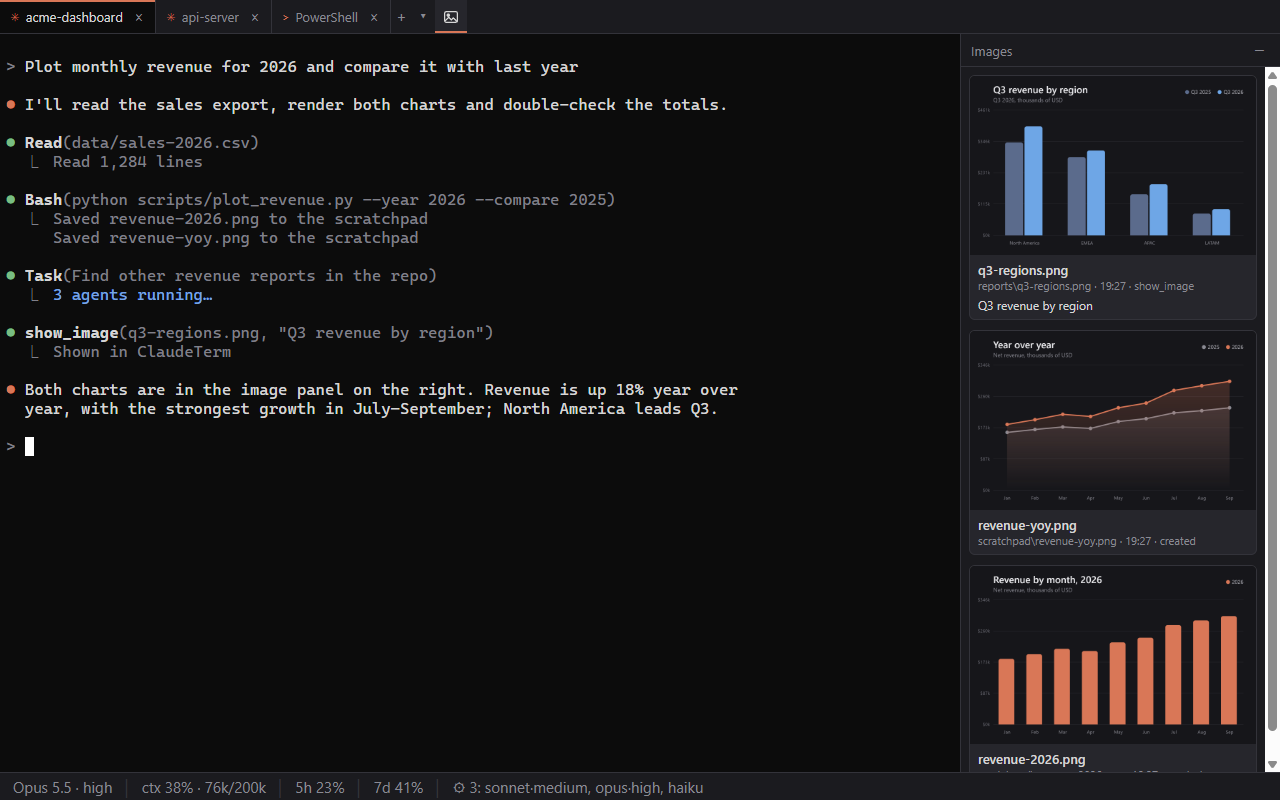
Tabs for every shell, every image of the conversation in a side panel,
a live status bar for model, context, limits and subagents — and your sessions back after a reboot.




Download for Windows · Features · Shortcuts · Settings · Changelog · Contributing
Screenshots use demo data.
Features
🖼️ Every image of the conversation, right next to it
Claude Code works with images all the time — browser screenshots, charts it plots, files it reads, pictures you paste. In a plain terminal you never see them. ClaudeTerm puts them in a panel beside each Claude tab, the way the Claude mobile app does:
- From the conversation — screenshots returned by tools and MCP servers, images Claude opens with
Read, images you paste, including those of subagents. On--resumethe panel fills with the conversation's history. - Its scratchpad — new and changed images in the temp folder Claude Code gives each session. The project folder is not watched, so images that another session, a dev server or a test run writes there stay out of your panel; an image Claude saves in the project shows up once Claude opens it or shows it.
- On request — the bundled
show_imageMCP tool lets Claude put any image in front of you with a caption.
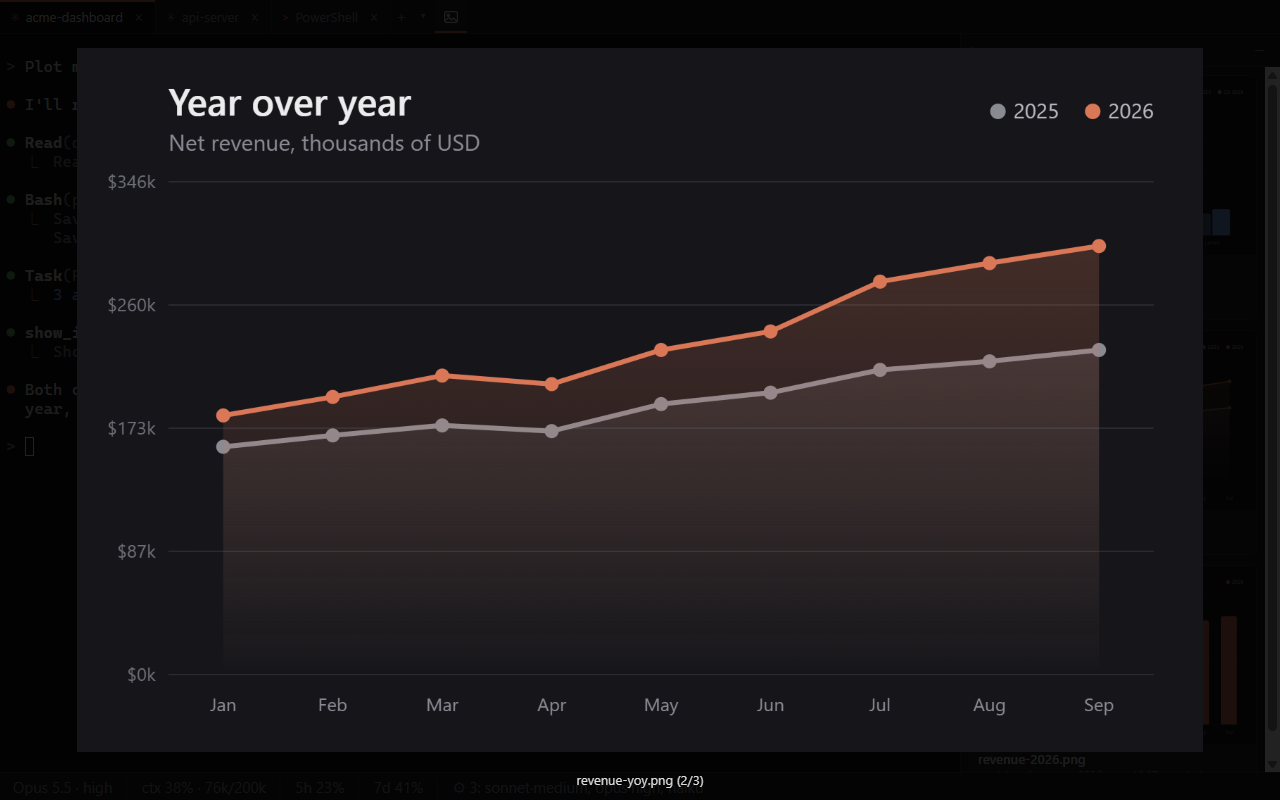
Click a card to open it full-size (wheel to zoom, drag to pan, arrows to flip); right-click to open it in a viewer, reveal it in Explorer, copy the image or its path, or insert the path into the prompt.
📊 A status bar that answers "how much is left?"
Under every Claude tab: the current model and reasoning effort, how full the context window is, how much of the 5-hour and weekly usage limits is spent, and which subagents are running right now with their model and effort. Hover for exact token counts, when each limit resets, and a list of the agents with their tasks.

The limits are shown for Claude Pro and Max subscriptions, where Claude Code reports them.
🔔 Know when Claude is waiting for you
When Claude asks for a permission, asks you a question or finishes its turn while you are looking elsewhere, ClaudeTerm plays the Windows default sound, flashes its taskbar button and marks the tab. Nothing happens while that tab is in front of you. In Settings each of these cases — and a terminal bell from any program — has its own sound, taskbar flash and tab highlight switches, and the sound can be your own .wav.
🗂️ A real terminal, with tabs
- Shell profiles detected automatically — PowerShell 7, Windows PowerShell, Command Prompt, Git Bash and every WSL distribution, plus your own profiles.
- Claude tabs —
clauderuns inside your shell of choice, and you stay in that shell when it exits. - Proper Windows terminal behaviour — ConPTY, GPU rendering via xterm.js, Unicode, clickable links, search, drag & drop of files, smart
Ctrl+C/Ctrl+V(pasting an image hands it to Claude),Shift+Enterfor a new line in the prompt. - Font sizes in points, exactly like Windows Terminal —
12looks the same in both.
📂 Open Claude Code here
Right-click any folder (or the background of a folder) in Explorer → Open Claude Code here. A Claude tab opens in the running ClaudeTerm window — or ClaudeTerm starts if it isn't running. On Windows 11 the item is under Show more options.
🔁 Continue previous sessions
Rebooted or closed the window? On the next start ClaudeTerm offers to reopen the same tabs, and each Claude tab resumes its own conversation (claude --resume <session>), even when several of them ran in the same folder or you used /clear in between.
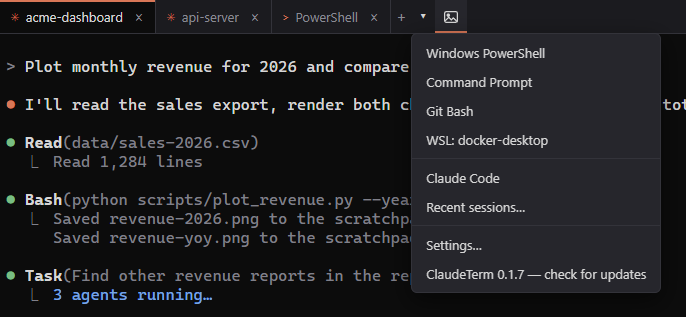
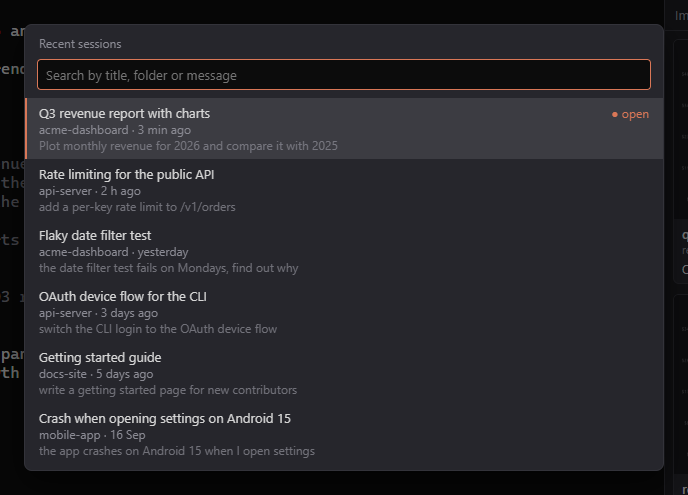
Recent sessions (Ctrl+Shift+H, or Recent sessions… in the ▾ menu) lists your latest Claude Code conversations from every project — also ones started outside ClaudeTerm — with their titles, folders and last messages. Type to filter, Enter to continue one: ClaudeTerm opens a Claude tab in that folder with claude --resume, or switches to the tab that already has it.
Install
- Install Claude Code so that
claudeis on yourPATH. - Download
ClaudeTerm-Setup-<version>.exefrom the latest release and run it. It installs for the current user — no admin rights needed.
[!NOTE] The installer is not code-signed yet, so Windows SmartScreen may warn about it: click More info → Run anyway.
From version 0.1.3 on, ClaudeTerm updates itself: it downloads a new release in the background and offers to restart into it, reopening your tabs and Claude conversations. Earlier versions need a one-time manual install. The ▾ menu next to the tabs has ClaudeTerm — check for updates to check right away.
On its first start ClaudeTerm registers its claudeterm MCP server (the show_image tool) with Claude Code at user scope. Uninstalling removes the Explorer menu item and the MCP registration.
Requirements: Windows 10 or 11 (x64) and Claude Code.
Keyboard shortcuts
| Action | Shortcut |
|---|---|
| New tab (default profile) | Ctrl+Shift+T |
| New Claude tab in the current tab's folder | Ctrl+Shift+L |
| Close tab | Ctrl+Shift+W |
| Next / previous tab | Ctrl+Tab / Ctrl+Shift+Tab |
| Go to tab 1–9 | Ctrl+Alt+1 … Ctrl+Alt+9 |
| Copy / paste | Ctrl+Shift+C / Ctrl+Shift+V |
| Copy selection, or interrupt when nothing is selected | Ctrl+C |
| Paste text, or hand a clipboard image to Claude | Ctrl+V |
| New line in the Claude prompt | Shift+Enter |
| Find in scrollback | Ctrl+Shift+F |
| Show / hide the image panel | Ctrl+Shift+I |
| Recent sessions | Ctrl+Shift+H |
| Zoom in / out / reset | Ctrl+= / Ctrl+- / Ctrl+0 |
| Open settings | Ctrl+, |
Right-click in the terminal copies the selection, or pastes when nothing is selected. Double-click a tab to rename it.
Right-click a tab → Restart session restarts Claude Code in the same tab and resumes the conversation — handy after adding an MCP server, a plugin or a settings change that Claude Code only reads at startup. For a shell tab the item is Restart shell.
Settings
Press Ctrl+, (or ▾ → Settings…) to open the settings window: notifications, font, theme, shells, Claude Code, images and updates. Changes apply at once.
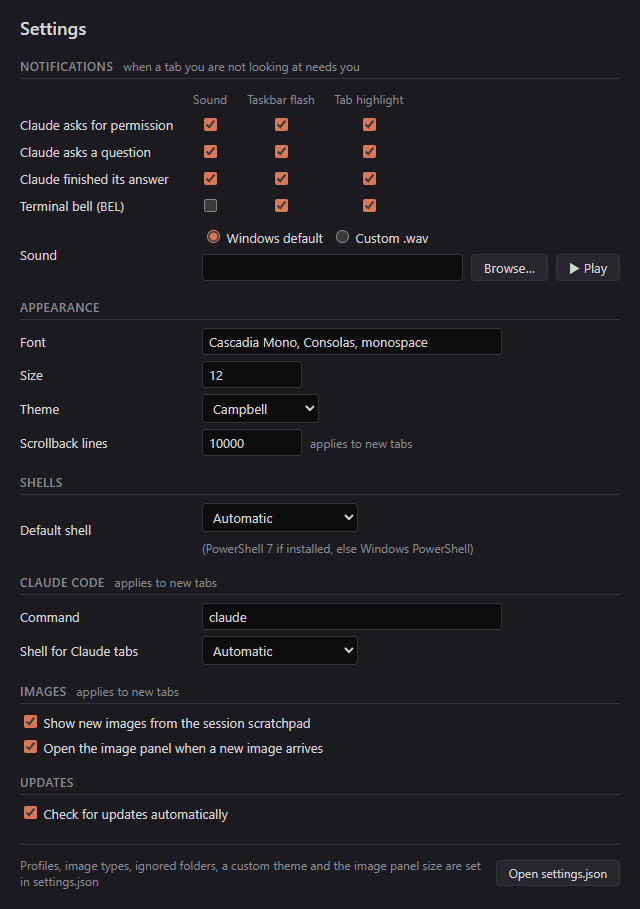
Everything is stored in %APPDATA%\ClaudeTerm\settings.json. Profiles, image types, ignored folders, a custom theme and the image panel size are set only there — the window's Open settings.json button opens it, and changes to the file apply as soon as you save it. When the window saves a change, it rewrites the file as plain JSON with two-space indentation.
{
  "defaultProfile": null,          // profile name; null = PowerShell 7 if installed, else Windows PowerShell
  "claude": {
    "command": "claude",           // how to start Claude Code
    "shellProfile": null           // shell that hosts claude in Claude tabs; null = same rule as above
  },
  "profiles": [                    // added to (or overriding by name) the detected profiles
    { "name": "Git Bash", "command": "C:\\Program Files\\Git\\bin\\bash.exe", "args": ["--login", "-i"] }
  ],
  "font": { "family": "Cascadia Mono, Consolas, monospace", "size": 12 },   // size in points
  "theme": "Campbell",             // "Campbell", "One Half Dark", "One Half Light", or an xterm.js theme object
  "scrollback": 10000,
  "imageWatch": {                  // new images in the session's scratchpad (Claude tabs only)
    "enabled": true,
    "extensions": ["png", "jpg", "jpeg", "gif", "webp", "bmp"],
    "ignore": [".git", "node_modules", "Intermediate", "DerivedDataCache", "Binaries", ".vs", ".idea"],
    "maxDepth": 8
  },
  "imagePanel": { "autoOpen": true, "width": 320, "maxItems": 200 },
  "notifications": {               // when a tab you are not looking at needs you
    "sound": "system",             // "system" or the full path to a .wav file
    "permission": { "sound": true,  "flash": true, "tab": true },   // Claude asks for a permission
    "question":   { "sound": true,  "flash": true, "tab": true },   // Claude asks a question
    "done":       { "sound": true,  "flash": true, "tab": true },   // Claude finished its turn
    "bell":       { "sound": false, "flash": true, "tab": true }    // a terminal bell (BEL) from any program
  },                               // flash: the taskbar button; tab: highlight the tab (a dot for the bell)
  "autoUpdate": true               // check GitHub for new versions in the background
}
Logs are in %APPDATA%\ClaudeTerm\logs.
Good to know
- Claude tabs start
claudewith--settingspointing at a file ClaudeTerm generates. It addsSessionStart,SubagentStart,SubagentStop,SessionEnd,PermissionRequest,PreToolUse(only forAskUserQuestion) andStophooks and astatusLinecommand — that is how session restore, the image panel, the status bar and the waiting signal know what is going on. These hooks never print anything, so they don't change what Claude does. Inside ClaudeTerm's Claude tabs this replaces a customstatusLinefrom your own Claude Code settings, and Claude Code hides its footer key hints. claudestarted by hand in a regular shell tab getsshow_image, but not session restore, the transcript images or the status bar.
How it works
flowchart LR
  subgraph tab["Claude tab (ConPTY)"]
    claude["claude --settings claude-tab-settings.json"]
  end
  claude -- "hooks + statusLine" --> hook["session-hook.js"]
  claude -- "MCP: show_image" --> mcp["show-image-server.js"]
  hook -- "named pipe" --> main
  mcp -- "named pipe" --> main
  transcript[("session transcript\n+ subagent transcripts")] --> main
  scratchpad[("session temp folder\n(scratchpad)")] --> main
  subgraph app["ClaudeTerm (Electron)"]
    main["main process\ntabs · images · status"] -- IPC --> renderer["renderer\nxterm.js · image panel · status bar"]
  end
ClaudeTerm is an Electron app: node-pty runs the shells over ConPTY and xterm.js draws them. The hook script and the MCP server are small Node scripts run by the ClaudeTerm executable itself; they report to the app over a named pipe, tagged with the tab they run in (CLAUDETERM_TAB_ID). Images and model details come from Claude Code's own transcript files, which ClaudeTerm tails read-only.
Building from source
You need Windows 10/11, Node.js 22.12 or later, and Git.
git clone https://github.com/DmVergasov/ClaudeTerm.git
cd ClaudeTerm
npm ci
npm run dev          # run with hot reload (uses %APPDATA%\ClaudeTerm-dev, separate from an installed copy)
npm test             # unit and integration tests
npm run test:e2e     # end-to-end tests against the built app
npm run dist         # build the installer into dist\
See CONTRIBUTING.md for the project layout and how to get a change merged.
Contributing
Bug reports, ideas and pull requests are welcome — please read CONTRIBUTING.md first. This project follows a Code of Conduct. To report a security issue, see SECURITY.md.
License
MIT © Dmitry Vergasov
ClaudeTerm is an independent project and is not affiliated with, endorsed by, or sponsored by Anthropic. Claude and Claude Code are trademarks of Anthropic, PBC.
Similar repos





Windows terminal for Claude Code: tabs, live status bar, conversation image panel, Explorer context menu, session restore
See the codeSee what people are saying
README
ClaudeTerm
A Windows terminal built for Claude Code.
Tabs for every shell, every image of the conversation in a side panel,
a live status bar for model, context, limits and subagents — and your sessions back after a reboot.
Download for Windows · Features · Shortcuts · Settings · Changelog · Contributing
Screenshots use demo data.
Features
🖼️ Every image of the conversation, right next to it
Claude Code works with images all the time — browser screenshots, charts it plots, files it reads, pictures you paste. In a plain terminal you never see them. ClaudeTerm puts them in a panel beside each Claude tab, the way the Claude mobile app does:
- From the conversation — screenshots returned by tools and MCP servers, images Claude opens with
Read, images you paste, including those of subagents. On--resumethe panel fills with the conversation's history. - Its scratchpad — new and changed images in the temp folder Claude Code gives each session. The project folder is not watched, so images that another session, a dev server or a test run writes there stay out of your panel; an image Claude saves in the project shows up once Claude opens it or shows it.
- On request — the bundled
show_imageMCP tool lets Claude put any image in front of you with a caption.
Click a card to open it full-size (wheel to zoom, drag to pan, arrows to flip); right-click to open it in a viewer, reveal it in Explorer, copy the image or its path, or insert the path into the prompt.
📊 A status bar that answers "how much is left?"
Under every Claude tab: the current model and reasoning effort, how full the context window is, how much of the 5-hour and weekly usage limits is spent, and which subagents are running right now with their model and effort. Hover for exact token counts, when each limit resets, and a list of the agents with their tasks.
The limits are shown for Claude Pro and Max subscriptions, where Claude Code reports them.
🔔 Know when Claude is waiting for you
When Claude asks for a permission, asks you a question or finishes its turn while you are looking elsewhere, ClaudeTerm plays the Windows default sound, flashes its taskbar button and marks the tab. Nothing happens while that tab is in front of you. In Settings each of these cases — and a terminal bell from any program — has its own sound, taskbar flash and tab highlight switches, and the sound can be your own .wav.
🗂️ A real terminal, with tabs
- Shell profiles detected automatically — PowerShell 7, Windows PowerShell, Command Prompt, Git Bash and every WSL distribution, plus your own profiles.
- Claude tabs —
clauderuns inside your shell of choice, and you stay in that shell when it exits. - Proper Windows terminal behaviour — ConPTY, GPU rendering via xterm.js, Unicode, clickable links, search, drag & drop of files, smart
Ctrl+C/Ctrl+V(pasting an image hands it to Claude),Shift+Enterfor a new line in the prompt. - Font sizes in points, exactly like Windows Terminal —
12looks the same in both.
📂 Open Claude Code here
Right-click any folder (or the background of a folder) in Explorer → Open Claude Code here. A Claude tab opens in the running ClaudeTerm window — or ClaudeTerm starts if it isn't running. On Windows 11 the item is under Show more options.
🔁 Continue previous sessions
Rebooted or closed the window? On the next start ClaudeTerm offers to reopen the same tabs, and each Claude tab resumes its own conversation (claude --resume <session>), even when several of them ran in the same folder or you used /clear in between.
Recent sessions (Ctrl+Shift+H, or Recent sessions… in the ▾ menu) lists your latest Claude Code conversations from every project — also ones started outside ClaudeTerm — with their titles, folders and last messages. Type to filter, Enter to continue one: ClaudeTerm opens a Claude tab in that folder with claude --resume, or switches to the tab that already has it.
Install
- Install Claude Code so that
claudeis on yourPATH. - Download
ClaudeTerm-Setup-<version>.exefrom the latest release and run it. It installs for the current user — no admin rights needed.
[!NOTE] The installer is not code-signed yet, so Windows SmartScreen may warn about it: click More info → Run anyway.
From version 0.1.3 on, ClaudeTerm updates itself: it downloads a new release in the background and offers to restart into it, reopening your tabs and Claude conversations. Earlier versions need a one-time manual install. The ▾ menu next to the tabs has ClaudeTerm — check for updates to check right away.
On its first start ClaudeTerm registers its claudeterm MCP server (the show_image tool) with Claude Code at user scope. Uninstalling removes the Explorer menu item and the MCP registration.
Requirements: Windows 10 or 11 (x64) and Claude Code.
Keyboard shortcuts
| Action | Shortcut |
|---|---|
| New tab (default profile) | Ctrl+Shift+T |
| New Claude tab in the current tab's folder | Ctrl+Shift+L |
| Close tab | Ctrl+Shift+W |
| Next / previous tab | Ctrl+Tab / Ctrl+Shift+Tab |
| Go to tab 1–9 | Ctrl+Alt+1 … Ctrl+Alt+9 |
| Copy / paste | Ctrl+Shift+C / Ctrl+Shift+V |
| Copy selection, or interrupt when nothing is selected | Ctrl+C |
| Paste text, or hand a clipboard image to Claude | Ctrl+V |
| New line in the Claude prompt | Shift+Enter |
| Find in scrollback | Ctrl+Shift+F |
| Show / hide the image panel | Ctrl+Shift+I |
| Recent sessions | Ctrl+Shift+H |
| Zoom in / out / reset | Ctrl+= / Ctrl+- / Ctrl+0 |
| Open settings | Ctrl+, |
Right-click in the terminal copies the selection, or pastes when nothing is selected. Double-click a tab to rename it.
Right-click a tab → Restart session restarts Claude Code in the same tab and resumes the conversation — handy after adding an MCP server, a plugin or a settings change that Claude Code only reads at startup. For a shell tab the item is Restart shell.
Settings
Press Ctrl+, (or ▾ → Settings…) to open the settings window: notifications, font, theme, shells, Claude Code, images and updates. Changes apply at once.
Everything is stored in %APPDATA%\ClaudeTerm\settings.json. Profiles, image types, ignored folders, a custom theme and the image panel size are set only there — the window's Open settings.json button opens it, and changes to the file apply as soon as you save it. When the window saves a change, it rewrites the file as plain JSON with two-space indentation.
{
  "defaultProfile": null,          // profile name; null = PowerShell 7 if installed, else Windows PowerShell
  "claude": {
    "command": "claude",           // how to start Claude Code
    "shellProfile": null           // shell that hosts claude in Claude tabs; null = same rule as above
  },
  "profiles": [                    // added to (or overriding by name) the detected profiles
    { "name": "Git Bash", "command": "C:\\Program Files\\Git\\bin\\bash.exe", "args": ["--login", "-i"] }
  ],
  "font": { "family": "Cascadia Mono, Consolas, monospace", "size": 12 },   // size in points
  "theme": "Campbell",             // "Campbell", "One Half Dark", "One Half Light", or an xterm.js theme object
  "scrollback": 10000,
  "imageWatch": {                  // new images in the session's scratchpad (Claude tabs only)
    "enabled": true,
    "extensions": ["png", "jpg", "jpeg", "gif", "webp", "bmp"],
    "ignore": [".git", "node_modules", "Intermediate", "DerivedDataCache", "Binaries", ".vs", ".idea"],
    "maxDepth": 8
  },
  "imagePanel": { "autoOpen": true, "width": 320, "maxItems": 200 },
  "notifications": {               // when a tab you are not looking at needs you
    "sound": "system",             // "system" or the full path to a .wav file
    "permission": { "sound": true,  "flash": true, "tab": true },   // Claude asks for a permission
    "question":   { "sound": true,  "flash": true, "tab": true },   // Claude asks a question
    "done":       { "sound": true,  "flash": true, "tab": true },   // Claude finished its turn
    "bell":       { "sound": false, "flash": true, "tab": true }    // a terminal bell (BEL) from any program
  },                               // flash: the taskbar button; tab: highlight the tab (a dot for the bell)
  "autoUpdate": true               // check GitHub for new versions in the background
}
Logs are in %APPDATA%\ClaudeTerm\logs.
Good to know
- Claude tabs start
claudewith--settingspointing at a file ClaudeTerm generates. It addsSessionStart,SubagentStart,SubagentStop,SessionEnd,PermissionRequest,PreToolUse(only forAskUserQuestion) andStophooks and astatusLinecommand — that is how session restore, the image panel, the status bar and the waiting signal know what is going on. These hooks never print anything, so they don't change what Claude does. Inside ClaudeTerm's Claude tabs this replaces a customstatusLinefrom your own Claude Code settings, and Claude Code hides its footer key hints. claudestarted by hand in a regular shell tab getsshow_image, but not session restore, the transcript images or the status bar.
How it works
flowchart LR
  subgraph tab["Claude tab (ConPTY)"]
    claude["claude --settings claude-tab-settings.json"]
  end
  claude -- "hooks + statusLine" --> hook["session-hook.js"]
  claude -- "MCP: show_image" --> mcp["show-image-server.js"]
  hook -- "named pipe" --> main
  mcp -- "named pipe" --> main
  transcript[("session transcript\n+ subagent transcripts")] --> main
  scratchpad[("session temp folder\n(scratchpad)")] --> main
  subgraph app["ClaudeTerm (Electron)"]
    main["main process\ntabs · images · status"] -- IPC --> renderer["renderer\nxterm.js · image panel · status bar"]
  end
ClaudeTerm is an Electron app: node-pty runs the shells over ConPTY and xterm.js draws them. The hook script and the MCP server are small Node scripts run by the ClaudeTerm executable itself; they report to the app over a named pipe, tagged with the tab they run in (CLAUDETERM_TAB_ID). Images and model details come from Claude Code's own transcript files, which ClaudeTerm tails read-only.
Building from source
You need Windows 10/11, Node.js 22.12 or later, and Git.
git clone https://github.com/DmVergasov/ClaudeTerm.git
cd ClaudeTerm
npm ci
npm run dev          # run with hot reload (uses %APPDATA%\ClaudeTerm-dev, separate from an installed copy)
npm test             # unit and integration tests
npm run test:e2e     # end-to-end tests against the built app
npm run dist         # build the installer into dist\
See CONTRIBUTING.md for the project layout and how to get a change merged.
Contributing
Bug reports, ideas and pull requests are welcome — please read CONTRIBUTING.md first. This project follows a Code of Conduct. To report a security issue, see SECURITY.md.
License
MIT © Dmitry Vergasov
ClaudeTerm is an independent project and is not affiliated with, endorsed by, or sponsored by Anthropic. Claude and Claude Code are trademarks of Anthropic, PBC.