Runtime Inspector and Hierarchy solution for Unity for debugging and runtime editing purposes
C#
2,168
106 commits
updated Aug 30, 2026
Available on Asset Store: https://assetstore.unity.com/packages/tools/gui/runtime-inspector-hierarchy-111349
Forum Thread: https://forum.unity.com/threads/runtime-inspector-and-hierarchy-open-source.501220/
Discord: https://discord.gg/UJJt549AaV
This is a simple yet powerful runtime Inspector and Hierarchy solution for Unity 3D that should work on pretty much any platform that Unity supports, including mobile platforms.
Runtime Inspector & Hierarchy is licensed under the MIT License (Asset Store version is governed by the Asset Store EULA). Please note that this asset uses an external asset which is licensed under the BSD 3-Clause License.
There are 5 ways to install this plugin:
https://github.com/yasirkula/UnityRuntimeInspector.gitopenupm add com.yasirkula.runtimeinspectorAdd ENABLE_INPUT_SYSTEM compiler directive to Player Settings/Scripting Define Symbols (these symbols are platform specific, so if you change the active platform later, you'll have to add the compiler directive again).
Remove Unity.InputSystem assembly from RuntimeInspector.Runtime Assembly Definition File's Assembly Definition References list.
You can connect the inspector to the hierarchy so that whenever the selection in the hierarchy changes, inspector inspects the newly selected object. To do this, assign the inspector to the Connected Inspector property of the hierarchy.
You can also connect the hierarchy to the inspector so that whenever an object reference in the inspector is highlighted, the selection in hierarchy is updated. To do this, assign the hierarchy to the Connected Hierarchy property of the inspector.
Note that these connections are one-directional, meaning that assigning the inspector to the hierarchy will not automatically assign the hierarchy to the inspector or vice versa. Also note that the inspector and the hierarchy are not singletons and therefore, you can have several instances of them in your scene at a time with different configurations.
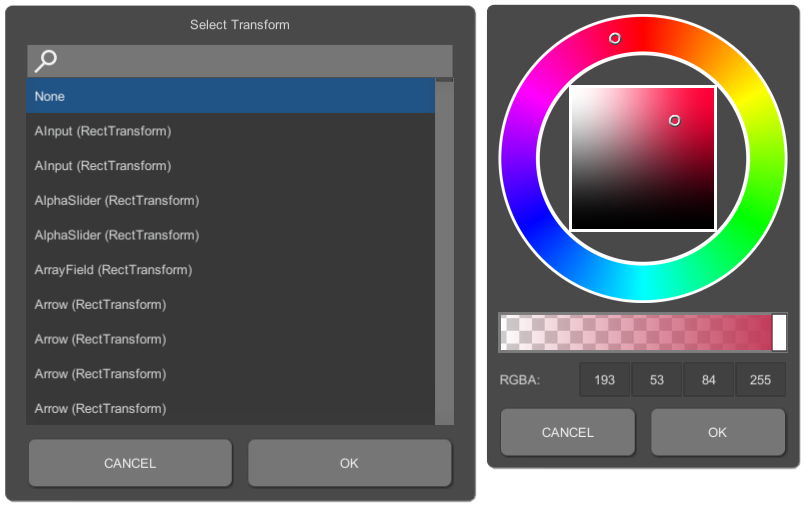
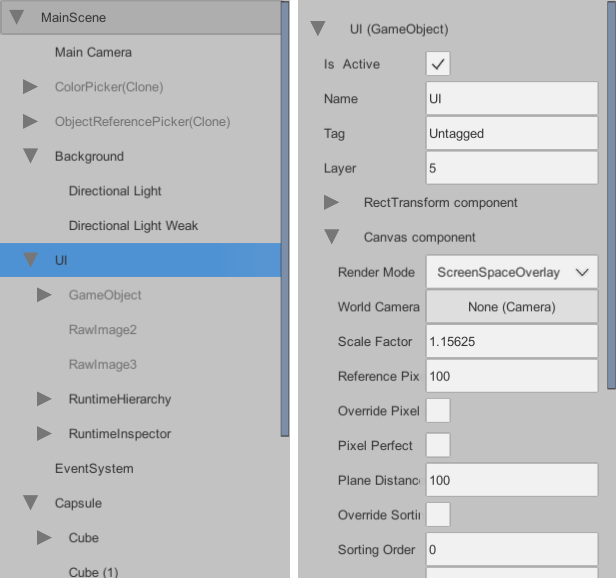
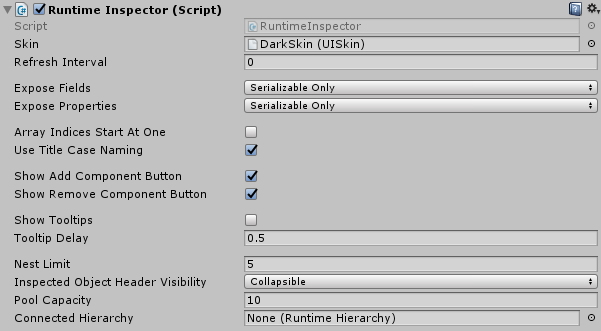
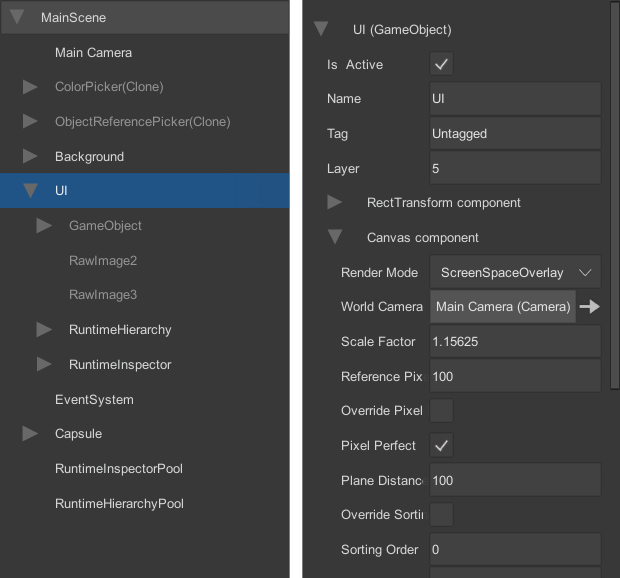
RuntimeInspector works similar to the editor Inspector. It can expose commonly used Unity types out-of-the-box, as well as custom classes and structs that are marked with System.Serializable attribute. 1-dimensional arrays and generic Lists are also supported.
While changing the inspector's settings, you are advised not to touch InternalSettings; instead create a separate Settings asset and add it to the Settings array of the inspector. Otherwise, when InternalSettings is changed in an update, your settings might get overridden.
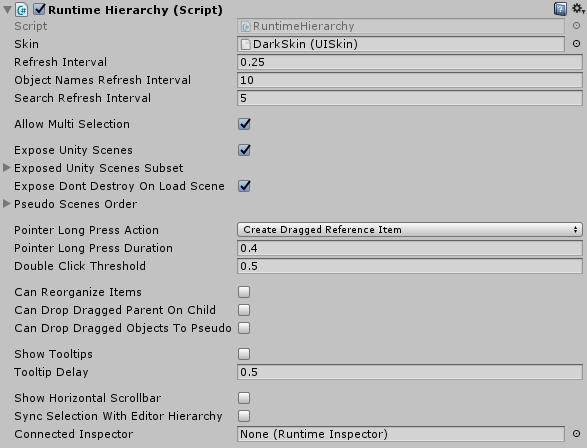
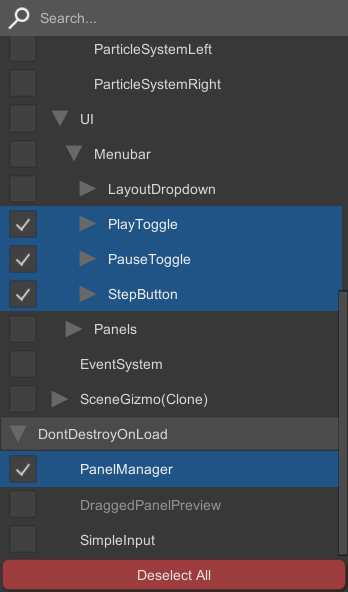
RuntimeHierarchy simply exposes the objects in your scenes to the user interface. In addition to exposing the currently active Unity scenes in the hierarchy, you can also expose a specific set of objects under what is called a pseudo-scene in the hierarchy. Pseudo-scenes can help you categorize the objects in your scene. Adding/removing objects to/from pseudo-scenes is only possible via the scripting API and helper components.
Additional settings for Can Reorganize Items can be found at the RuntimeHierarchy/ScrollView/Viewport object:

Values of the variables that are mentioned in E.1 and E.2 sections can be tweaked at runtime via their corresponding properties. Any changes to these properties will be reflected to UI immediately. Here, you will find some interesting things that you can do with the inspector and the hierarchy via scripting:
public void Inspect( object obj );
public void StopInspect();
InspectedObject property of the inspector// SelectOptions is an enum flag meaning that it can take multiple values with | (OR) operator. These values are:
// - Additive: new selection will be appended to the current selection instead of replacing it
// - FocusOnSelection: scroll view will be snapped to the selected object(s)
// - ForceRevealSelection: normally, when selection changes, the new selection will be fully explored in the hierarchy (i.e. all of the parents of the selection will be
// expanded to reveal the selection). This doesn't automatically happen if selection doesn't change. When this flag is set, however, the selected objects will be fully
// revealed/explored even if the selection doesn't change
public bool Select( Transform selection, SelectOptions selectOptions = SelectOptions.None ); // Selects the specified Transform. Returns true when the selection is changed successfully
public bool Select( IList<Transform> selection, SelectOptions selectOptions = SelectOptions.None ); // Selects the specified Transform(s)
public void Deselect(); // Deselects all Transforms
public void Deselect( Transform deselection ); // Deselects only the specified Transform
public void Deselect( IList<Transform> deselection ); // Deselects only the specified Transform(s)
public bool IsSelected( Transform transform ); // Returns true if the selection includes the Transform
CurrentSelection propertyMultiSelectionToggleSelectionMode propertyRefresh() function on the inspector and/or the hierarchy to refresh them manuallyIsLocked propertyOnSelectionChanged event of the hierarchy to get notified when the selection has changedOnInspectedObjectChanging delegate of the inspector to get notified when the inspected object is about to change and, if you prefer, change the inspected object altogether. For example, if you want to inspect only objects that have a Renderer component attached, you can use the following function:private object OnlyInspectObjectsWithRenderer( object previousInspectedObject, object newInspectedObject )
{
GameObject go = newInspectedObject as GameObject;
if( go != null && go.GetComponent<Renderer>() != null )
return newInspectedObject;
// Don't inspect objects without a Renderer component
return null;
}
ComponentFilter delegate of the inspector to filter the list of visible components of a GameObject in the inspector (e.g. hide some components)runtimeInspector.ComponentFilter = ( GameObject gameObject, List<Component> components ) =>
{
// Simply remove the undesired Components from the 'components' list
};
GameObjectFilter delegate of the hierarchy to hide some objects from the hierarchy (or, you can add those objects to RuntimeInspectorUtils.IgnoredTransformsInHierarchy and they will be hidden from all hierarchies; just make sure to remove them from this HashSet before they are destroyed)runtimeHierarchy.GameObjectFilter = ( Transform obj ) =>
{
if( obj.CompareTag( "Main Camera" ) )
return false; // Hide Main Camera from hierarchy
return true;
};
OnItemDoubleClicked event of the hierarchy to get notified when an object in the hierarchy is double clickedButtonVisibility.InitializedObjects can appear only when the inspected object is not null whereas buttons with ButtonVisibility.UninitializedObjects can appear only when the inspected object is null. You can use ButtonVisibility.InitializedObjects | ButtonVisibility.UninitializedObjects to always show the button in the inspectorRuntimeInspectorUtils.ExposedExtensionMethodsHolder = typeof( TheScriptThatContainsTheExtensionsMethods );You can use the following functions to add object(s) to pseudo-scenes in the hierarchy:
public void AddToPseudoScene( string scene, Transform transform );
public void AddToPseudoScene( string scene, IEnumerable<Transform> transforms );
These functions will create the relevant pseudo-scenes automatically if they do not exist.
You can use the following functions to remove object(s) from pseudo-scenes in the hierarchy:
public void RemoveFromPseudoScene( string scene, Transform transform, bool deleteSceneIfEmpty );
public void RemoveFromPseudoScene( string scene, IEnumerable<Transform> transforms, bool deleteSceneIfEmpty );
You can use the following functions to create or delete a pseudo-scene manually:
public void CreatePseudoScene( string scene, Transform rootTransform = null );
public void DeletePseudoScene( string scene );
public void DeleteAllPseudoScenes();
The optional rootTransform parameter of CreatePseudoScene acts similar to PseudoSceneSourceTransform with the following differences:
This helper component allows you to add an object's children to a pseudo-scene in the hierarchy. When a child is added to or removed from the object, this component refreshes the pseudo-scene automatically. If HideOnDisable is enabled, the object's children are removed from the pseudo-scene when the object is disabled.
You can access the built-in color picker via ColorPicker.Instance and then present it with the following function:
public void Show( ColorWheelControl.OnColorChangedDelegate onColorChanged, ColorWheelControl.OnColorChangedDelegate onColorConfirmed, Color initialColor, Canvas referenceCanvas );
ColorWheelControl.OnColorChangedDelegate takes a Color32 parameterYou can change the color picker's visual appearance by assigning a UISkin to its Skin property.
You can access the built-in object reference picker via ObjectReferencePicker.Instance and then present it with the following function:
public void Show( ReferenceCallback onReferenceChanged, ReferenceCallback onSelectionConfirmed, NameGetter referenceNameGetter, NameGetter referenceDisplayNameGetter, object[] references, object initialReference, bool includeNullReference, string title, Canvas referenceCanvas );
ReferenceCallback takes an object parameterNameGetter takes an object parameter and returns that object's name as string. The passed function will be used to sort the references list and compare the references' names with the search stringYou can change the object reference picker's visual appearance by assigning a UISkin to its Skin property.
In section E.2, it is mentioned that you can drag&drop objects from the hierarchy to the variables in the inspector to assign these objects to those variables. However, you are not limited with just hierarchy. There are two helper components that you can use to create dragged reference items for other objects:
private Object CreateDraggedReferenceItemForNPCsOnly( RaycastHit hit )
{
	if( hit.collider.gameObject.CompareTag( "NPC" ) )
		return hit.collider.gameObject;

	// Non-NPC objects can't create dragged reference items
	return null;
}
You can also use your own scripts to create dragged reference items by calling the following functions in the RuntimeInspectorUtils class:
public static DraggedReferenceItem CreateDraggedReferenceItem( Object reference, PointerEventData draggingPointer, UISkin skin = null );
public static DraggedReferenceItem CreateDraggedReferenceItem( Object[] references, PointerEventData draggingPointer, UISkin skin = null, Canvas referenceCanvas = null );
NOTE: if you just want to hide some fields/properties from the RuntimeInspector, simply use Settings asset's Hidden Variables list (mentioned in section E.1).
You can introduce your own custom drawers to RuntimeInspector. These drawers will then be used to draw inspected objects' properties in RuntimeInspector. If no custom drawer is specified for a type, built-in ObjectField will be used to draw all properties of that type. There are 2 ways to create custom drawers:
To have a standardized visual appearance across all the drawers, there are some common variables for each drawer:
Each drawer has access to the following properties:
There are some special functions on drawers that are invoked on certain circumstances:
Custom drawers that extend ExpandableInspectorField have access to the following properties:
ExpandableInspectorField has the following special functions:
Sub-drawers of an ExpandableInspectorField should be stored in the protected List<InspectorField> elements variable as ExpandableInspectorField uses this list to compare the number of sub-drawers with the Length property. When Refresh() is called, sub-drawers in this list are refreshed automatically and when ClearElements() is called, sub-drawers in this list are cleared automatically.
You can create sub-drawers using the RuntimeInspector.CreateDrawerForType( Type type, Transform drawerParent, int depth, bool drawObjectsAsFields = true ) function. If no drawer is found that can expose this type, the function returns null. Here, for ExpandableInspectorFields, the drawerParent parameter should be set as the drawArea variable of the ExpandableInspectorField. If the drawObjectsAsFields parameter is set to true and if the type extends UnityEngine.Object, Reference Drawers are searched for a drawer that supports this type. Otherwise Standard Drawers are searched.
After creating sub-drawers, ExpandableInspectorFields must bind their sub-drawers to their corresponding variables manually. This is done via the following BindTo functions of the InspectorField class:
BindTo( InspectorField parent, MemberInfo variable, string variableName = null ): binds the object to a MemberInfo (it can be received via reflection). Here, parent parameter should be set to this ExpandableInspectorField. If variableName is set to null, its value is fetched directly from the MemberInfo parameterBindTo( Type variableType, string variableName, Getter getter, Setter setter, MemberInfo variable = null ): this one allows you to define your own getter and setter functions for this sub-drawer. For example, ArrayField uses this function because there is no direct MemberInfo to access an element of an array. With this method, you can use custom functions instead of MemberInfos to get/set the values of the bound objects (ArrayField uses Array.GetValue for its elements' getter function and Array.SetValue for its elements' setter function)There are also some helper functions in ExpandableInspectorField to easily create sub-drawers without having to call CreateDrawerForType or BindTo manually:
InspectorField CreateDrawerForComponent( Component component, string variableName = null ): creates a Standard Drawer for a componentInspectorField CreateDrawerForVariable( MemberInfo variable, string variableName = null ): creates a drawer for the variable that the MemberInfo stores. This variable must be declared inside inspected object's class/struct or one of its base classesInspectorField CreateDrawer( Type variableType, string variableName, Getter getter, Setter setter, bool drawObjectsAsFields = true ): similar to the BindTo function with the Getter and Setter parameters, allows you to use custom functions to get and set the value of the object that the sub-drawer is bound toDrawers that extend ObjectReferenceField class have access to the void OnReferenceChanged( Object reference ) function that is called when the reference assigned to that drawer is changed.
PointerEventListener: this is a simple helper component that invokes PointerDown event when its UI GameObject is pressed, PointerUp event when it is released and PointerClick event when it is clicked
BoundInputField: most of the built-in drawers use this component for their input fields. This helper component allows you to validate the input as it is entered and also get notified when the input is submitted. It has the following properties and functions:
bool OnValueChangedDelegate( BoundInputField source, string input ). A function that is registered to this event should parse the input and return true if the input is valid, false otherwiseTo create drawers without having to create a prefab for it, you can declara a class/struct that extends IRuntimeInspectorCustomEditor and has one or more RuntimeInspectorCustomEditor attributes.
RuntimeInspectorCustomEditor attribute has the following properties:
IRuntimeInspectorCustomEditor has the following functions:
Inside GenerateElements function, you can call parent parameter's CreateDrawerForComponent, CreateDrawerForVariable and CreateDrawer functions to create sub-drawers. In addition to these, you can also call the following helper functions of ObjectField:
void CreateDrawersForVariables( params string[] variables ): creates drawers for the specified variables of the inspected object. If no specific variables are provided, drawers will be created for all exposed variables of the inspected objectvoid CreateDrawersForVariablesExcluding( params string[] variablesToExclude ): creates drawers for all exposed variables of the inspected object except the variables specified in variablesToExclude list. If no variables are excluded, drawers will be created for all exposed variables of the inspected objectHere are some example custom drawers:
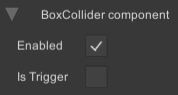
// Custom drawer for Collider type and the types that derive from it
[RuntimeInspectorCustomEditor( typeof( Collider ), true )]
public class ColliderEditor : IRuntimeInspectorCustomEditor
{
	public void GenerateElements( ObjectField parent )
	{
		// Exposes only "enabled" and "isTrigger" properties of Colliders
		// Note that we could achieve the same thing by modifying the "Hidden Variables" and "Exposed Variables" lists of RuntimeInspector's Settings asset
		parent.CreateDrawersForVariables( "enabled", "isTrigger" );
	}

	public void Refresh() { }
	public void Cleanup() { }
}
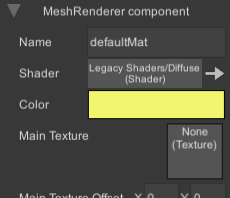
// Custom drawer for MeshRenderer type (but not the types that derive from it)
[RuntimeInspectorCustomEditor( typeof( MeshRenderer ), false )]
public class MeshRendererEditor : IRuntimeInspectorCustomEditor
{
	public void GenerateElements( ObjectField parent )
	{
		// Get the MeshRenderer object we are inspecting
		MeshRenderer renderer = (MeshRenderer) parent.Value;

		// Instead of exposing the MeshRenderer's properties, expose its sharedMaterial's properties
		ExpandableInspectorField materialField = (ExpandableInspectorField) parent.CreateDrawer( typeof( Material ), "", () => renderer.sharedMaterial, ( value ) => renderer.sharedMaterial = (Material) value, false );

		// The drawer for materials is, by default, an ExpandableInspectorField. We don't want to draw its collapsible header in this example
		materialField.HeaderVisibility = RuntimeInspector.HeaderVisibility.Hidden;
	}

	public void Refresh() { }
	public void Cleanup() { }
}
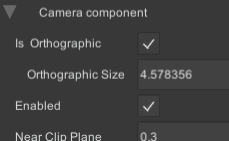
// Custom drawer for Camera type (but not the types that derive from it)
[RuntimeInspectorCustomEditor( typeof( Camera ), false )]
public class CameraEditor : IRuntimeInspectorCustomEditor
{
	// Some of the sub-drawers that are created inside GenerateElements
	private BoolField isOrthographicField;
	private NumberField orthographicSizeField, fieldOfViewField;

	public void GenerateElements( ObjectField parent )
	{
		// Create sub-drawers for the Camera's "orthographic", "orthographicSize" and "fieldOfView" properties and store them in variables
		isOrthographicField = (BoolField) parent.CreateDrawerForVariable( typeof( Camera ).GetProperty( "orthographic", BindingFlags.Public | BindingFlags.Instance ), "Is Orthographic" );
		orthographicSizeField = (NumberField) parent.CreateDrawerForVariable( typeof( Camera ).GetProperty( "orthographicSize", BindingFlags.Public | BindingFlags.Instance ) );
		fieldOfViewField = (NumberField) parent.CreateDrawerForVariable( typeof( Camera ).GetProperty( "fieldOfView", BindingFlags.Public | BindingFlags.Instance ) );

		// Add additional indentation for "orthographicSize" and "fieldOfView" sub-drawers
		orthographicSizeField.Depth++;
		fieldOfViewField.Depth++;

		// Create sub-drawers for the rest of the exposed properties of the Camera
		parent.CreateDrawersForVariablesExcluding( "orthographic", "orthographicSize", "fieldOfView" );
	}

	public void Refresh()
	{
		// Check if Camera is currently using orthographic projection
		bool isOrthographicCamera = (bool) isOrthographicField.Value;

		// Show either "orthographicSize" sub-drawer or "fieldOfView" sub-drawer depending on camera's current projection type
		// (Here, we're first checking if the sub-drawer is already active/inactive via 'activeSelf' for optimization purposes because GameObject.SetActive
		// causes considerable GC allocations and unfortunately doesn't automatically check if GameObject is already active/inactive, at least on some Unity versions)
		if( orthographicSizeField.gameObject.activeSelf != isOrthographicCamera )
			orthographicSizeField.gameObject.SetActive( isOrthographicCamera );
		if( fieldOfViewField.gameObject.activeSelf == isOrthographicCamera )
			fieldOfViewField.gameObject.SetActive( !isOrthographicCamera );
	}

	public void Cleanup() { }
}
2,617 followers · starred Aug 2023
22 followers · starred Aug 2023
6 followers · starred Sep 2026
27 followers · starred Nov 2022
Runtime Inspector and Hierarchy solution for Unity for debugging and runtime editing purposes
C#
2,168
106 commits
updated Aug 30, 2026
Available on Asset Store: https://assetstore.unity.com/packages/tools/gui/runtime-inspector-hierarchy-111349
Forum Thread: https://forum.unity.com/threads/runtime-inspector-and-hierarchy-open-source.501220/
Discord: https://discord.gg/UJJt549AaV
This is a simple yet powerful runtime Inspector and Hierarchy solution for Unity 3D that should work on pretty much any platform that Unity supports, including mobile platforms.
Runtime Inspector & Hierarchy is licensed under the MIT License (Asset Store version is governed by the Asset Store EULA). Please note that this asset uses an external asset which is licensed under the BSD 3-Clause License.
There are 5 ways to install this plugin:
https://github.com/yasirkula/UnityRuntimeInspector.gitopenupm add com.yasirkula.runtimeinspectorAdd ENABLE_INPUT_SYSTEM compiler directive to Player Settings/Scripting Define Symbols (these symbols are platform specific, so if you change the active platform later, you'll have to add the compiler directive again).
Remove Unity.InputSystem assembly from RuntimeInspector.Runtime Assembly Definition File's Assembly Definition References list.
You can connect the inspector to the hierarchy so that whenever the selection in the hierarchy changes, inspector inspects the newly selected object. To do this, assign the inspector to the Connected Inspector property of the hierarchy.
You can also connect the hierarchy to the inspector so that whenever an object reference in the inspector is highlighted, the selection in hierarchy is updated. To do this, assign the hierarchy to the Connected Hierarchy property of the inspector.
Note that these connections are one-directional, meaning that assigning the inspector to the hierarchy will not automatically assign the hierarchy to the inspector or vice versa. Also note that the inspector and the hierarchy are not singletons and therefore, you can have several instances of them in your scene at a time with different configurations.
RuntimeInspector works similar to the editor Inspector. It can expose commonly used Unity types out-of-the-box, as well as custom classes and structs that are marked with System.Serializable attribute. 1-dimensional arrays and generic Lists are also supported.
While changing the inspector's settings, you are advised not to touch InternalSettings; instead create a separate Settings asset and add it to the Settings array of the inspector. Otherwise, when InternalSettings is changed in an update, your settings might get overridden.
RuntimeHierarchy simply exposes the objects in your scenes to the user interface. In addition to exposing the currently active Unity scenes in the hierarchy, you can also expose a specific set of objects under what is called a pseudo-scene in the hierarchy. Pseudo-scenes can help you categorize the objects in your scene. Adding/removing objects to/from pseudo-scenes is only possible via the scripting API and helper components.
Additional settings for Can Reorganize Items can be found at the RuntimeHierarchy/ScrollView/Viewport object:
Values of the variables that are mentioned in E.1 and E.2 sections can be tweaked at runtime via their corresponding properties. Any changes to these properties will be reflected to UI immediately. Here, you will find some interesting things that you can do with the inspector and the hierarchy via scripting:
public void Inspect( object obj );
public void StopInspect();
InspectedObject property of the inspector// SelectOptions is an enum flag meaning that it can take multiple values with | (OR) operator. These values are:
// - Additive: new selection will be appended to the current selection instead of replacing it
// - FocusOnSelection: scroll view will be snapped to the selected object(s)
// - ForceRevealSelection: normally, when selection changes, the new selection will be fully explored in the hierarchy (i.e. all of the parents of the selection will be
// expanded to reveal the selection). This doesn't automatically happen if selection doesn't change. When this flag is set, however, the selected objects will be fully
// revealed/explored even if the selection doesn't change
public bool Select( Transform selection, SelectOptions selectOptions = SelectOptions.None ); // Selects the specified Transform. Returns true when the selection is changed successfully
public bool Select( IList<Transform> selection, SelectOptions selectOptions = SelectOptions.None ); // Selects the specified Transform(s)
public void Deselect(); // Deselects all Transforms
public void Deselect( Transform deselection ); // Deselects only the specified Transform
public void Deselect( IList<Transform> deselection ); // Deselects only the specified Transform(s)
public bool IsSelected( Transform transform ); // Returns true if the selection includes the Transform
CurrentSelection propertyMultiSelectionToggleSelectionMode propertyRefresh() function on the inspector and/or the hierarchy to refresh them manuallyIsLocked propertyOnSelectionChanged event of the hierarchy to get notified when the selection has changedOnInspectedObjectChanging delegate of the inspector to get notified when the inspected object is about to change and, if you prefer, change the inspected object altogether. For example, if you want to inspect only objects that have a Renderer component attached, you can use the following function:private object OnlyInspectObjectsWithRenderer( object previousInspectedObject, object newInspectedObject )
{
GameObject go = newInspectedObject as GameObject;
if( go != null && go.GetComponent<Renderer>() != null )
return newInspectedObject;
// Don't inspect objects without a Renderer component
return null;
}
ComponentFilter delegate of the inspector to filter the list of visible components of a GameObject in the inspector (e.g. hide some components)runtimeInspector.ComponentFilter = ( GameObject gameObject, List<Component> components ) =>
{
// Simply remove the undesired Components from the 'components' list
};
GameObjectFilter delegate of the hierarchy to hide some objects from the hierarchy (or, you can add those objects to RuntimeInspectorUtils.IgnoredTransformsInHierarchy and they will be hidden from all hierarchies; just make sure to remove them from this HashSet before they are destroyed)runtimeHierarchy.GameObjectFilter = ( Transform obj ) =>
{
if( obj.CompareTag( "Main Camera" ) )
return false; // Hide Main Camera from hierarchy
return true;
};
OnItemDoubleClicked event of the hierarchy to get notified when an object in the hierarchy is double clickedButtonVisibility.InitializedObjects can appear only when the inspected object is not null whereas buttons with ButtonVisibility.UninitializedObjects can appear only when the inspected object is null. You can use ButtonVisibility.InitializedObjects | ButtonVisibility.UninitializedObjects to always show the button in the inspectorRuntimeInspectorUtils.ExposedExtensionMethodsHolder = typeof( TheScriptThatContainsTheExtensionsMethods );You can use the following functions to add object(s) to pseudo-scenes in the hierarchy:
public void AddToPseudoScene( string scene, Transform transform );
public void AddToPseudoScene( string scene, IEnumerable<Transform> transforms );
These functions will create the relevant pseudo-scenes automatically if they do not exist.
You can use the following functions to remove object(s) from pseudo-scenes in the hierarchy:
public void RemoveFromPseudoScene( string scene, Transform transform, bool deleteSceneIfEmpty );
public void RemoveFromPseudoScene( string scene, IEnumerable<Transform> transforms, bool deleteSceneIfEmpty );
You can use the following functions to create or delete a pseudo-scene manually:
public void CreatePseudoScene( string scene, Transform rootTransform = null );
public void DeletePseudoScene( string scene );
public void DeleteAllPseudoScenes();
The optional rootTransform parameter of CreatePseudoScene acts similar to PseudoSceneSourceTransform with the following differences:
This helper component allows you to add an object's children to a pseudo-scene in the hierarchy. When a child is added to or removed from the object, this component refreshes the pseudo-scene automatically. If HideOnDisable is enabled, the object's children are removed from the pseudo-scene when the object is disabled.
You can access the built-in color picker via ColorPicker.Instance and then present it with the following function:
public void Show( ColorWheelControl.OnColorChangedDelegate onColorChanged, ColorWheelControl.OnColorChangedDelegate onColorConfirmed, Color initialColor, Canvas referenceCanvas );
ColorWheelControl.OnColorChangedDelegate takes a Color32 parameterYou can change the color picker's visual appearance by assigning a UISkin to its Skin property.
You can access the built-in object reference picker via ObjectReferencePicker.Instance and then present it with the following function:
public void Show( ReferenceCallback onReferenceChanged, ReferenceCallback onSelectionConfirmed, NameGetter referenceNameGetter, NameGetter referenceDisplayNameGetter, object[] references, object initialReference, bool includeNullReference, string title, Canvas referenceCanvas );
ReferenceCallback takes an object parameterNameGetter takes an object parameter and returns that object's name as string. The passed function will be used to sort the references list and compare the references' names with the search stringYou can change the object reference picker's visual appearance by assigning a UISkin to its Skin property.
In section E.2, it is mentioned that you can drag&drop objects from the hierarchy to the variables in the inspector to assign these objects to those variables. However, you are not limited with just hierarchy. There are two helper components that you can use to create dragged reference items for other objects:
private Object CreateDraggedReferenceItemForNPCsOnly( RaycastHit hit )
{
	if( hit.collider.gameObject.CompareTag( "NPC" ) )
		return hit.collider.gameObject;

	// Non-NPC objects can't create dragged reference items
	return null;
}
You can also use your own scripts to create dragged reference items by calling the following functions in the RuntimeInspectorUtils class:
public static DraggedReferenceItem CreateDraggedReferenceItem( Object reference, PointerEventData draggingPointer, UISkin skin = null );
public static DraggedReferenceItem CreateDraggedReferenceItem( Object[] references, PointerEventData draggingPointer, UISkin skin = null, Canvas referenceCanvas = null );
NOTE: if you just want to hide some fields/properties from the RuntimeInspector, simply use Settings asset's Hidden Variables list (mentioned in section E.1).
You can introduce your own custom drawers to RuntimeInspector. These drawers will then be used to draw inspected objects' properties in RuntimeInspector. If no custom drawer is specified for a type, built-in ObjectField will be used to draw all properties of that type. There are 2 ways to create custom drawers:
To have a standardized visual appearance across all the drawers, there are some common variables for each drawer:
Each drawer has access to the following properties:
There are some special functions on drawers that are invoked on certain circumstances:
Custom drawers that extend ExpandableInspectorField have access to the following properties:
ExpandableInspectorField has the following special functions:
Sub-drawers of an ExpandableInspectorField should be stored in the protected List<InspectorField> elements variable as ExpandableInspectorField uses this list to compare the number of sub-drawers with the Length property. When Refresh() is called, sub-drawers in this list are refreshed automatically and when ClearElements() is called, sub-drawers in this list are cleared automatically.
You can create sub-drawers using the RuntimeInspector.CreateDrawerForType( Type type, Transform drawerParent, int depth, bool drawObjectsAsFields = true ) function. If no drawer is found that can expose this type, the function returns null. Here, for ExpandableInspectorFields, the drawerParent parameter should be set as the drawArea variable of the ExpandableInspectorField. If the drawObjectsAsFields parameter is set to true and if the type extends UnityEngine.Object, Reference Drawers are searched for a drawer that supports this type. Otherwise Standard Drawers are searched.
After creating sub-drawers, ExpandableInspectorFields must bind their sub-drawers to their corresponding variables manually. This is done via the following BindTo functions of the InspectorField class:
BindTo( InspectorField parent, MemberInfo variable, string variableName = null ): binds the object to a MemberInfo (it can be received via reflection). Here, parent parameter should be set to this ExpandableInspectorField. If variableName is set to null, its value is fetched directly from the MemberInfo parameterBindTo( Type variableType, string variableName, Getter getter, Setter setter, MemberInfo variable = null ): this one allows you to define your own getter and setter functions for this sub-drawer. For example, ArrayField uses this function because there is no direct MemberInfo to access an element of an array. With this method, you can use custom functions instead of MemberInfos to get/set the values of the bound objects (ArrayField uses Array.GetValue for its elements' getter function and Array.SetValue for its elements' setter function)There are also some helper functions in ExpandableInspectorField to easily create sub-drawers without having to call CreateDrawerForType or BindTo manually:
InspectorField CreateDrawerForComponent( Component component, string variableName = null ): creates a Standard Drawer for a componentInspectorField CreateDrawerForVariable( MemberInfo variable, string variableName = null ): creates a drawer for the variable that the MemberInfo stores. This variable must be declared inside inspected object's class/struct or one of its base classesInspectorField CreateDrawer( Type variableType, string variableName, Getter getter, Setter setter, bool drawObjectsAsFields = true ): similar to the BindTo function with the Getter and Setter parameters, allows you to use custom functions to get and set the value of the object that the sub-drawer is bound toDrawers that extend ObjectReferenceField class have access to the void OnReferenceChanged( Object reference ) function that is called when the reference assigned to that drawer is changed.
PointerEventListener: this is a simple helper component that invokes PointerDown event when its UI GameObject is pressed, PointerUp event when it is released and PointerClick event when it is clicked
BoundInputField: most of the built-in drawers use this component for their input fields. This helper component allows you to validate the input as it is entered and also get notified when the input is submitted. It has the following properties and functions:
bool OnValueChangedDelegate( BoundInputField source, string input ). A function that is registered to this event should parse the input and return true if the input is valid, false otherwiseTo create drawers without having to create a prefab for it, you can declara a class/struct that extends IRuntimeInspectorCustomEditor and has one or more RuntimeInspectorCustomEditor attributes.
RuntimeInspectorCustomEditor attribute has the following properties:
IRuntimeInspectorCustomEditor has the following functions:
Inside GenerateElements function, you can call parent parameter's CreateDrawerForComponent, CreateDrawerForVariable and CreateDrawer functions to create sub-drawers. In addition to these, you can also call the following helper functions of ObjectField:
void CreateDrawersForVariables( params string[] variables ): creates drawers for the specified variables of the inspected object. If no specific variables are provided, drawers will be created for all exposed variables of the inspected objectvoid CreateDrawersForVariablesExcluding( params string[] variablesToExclude ): creates drawers for all exposed variables of the inspected object except the variables specified in variablesToExclude list. If no variables are excluded, drawers will be created for all exposed variables of the inspected objectHere are some example custom drawers:
// Custom drawer for Collider type and the types that derive from it
[RuntimeInspectorCustomEditor( typeof( Collider ), true )]
public class ColliderEditor : IRuntimeInspectorCustomEditor
{
	public void GenerateElements( ObjectField parent )
	{
		// Exposes only "enabled" and "isTrigger" properties of Colliders
		// Note that we could achieve the same thing by modifying the "Hidden Variables" and "Exposed Variables" lists of RuntimeInspector's Settings asset
		parent.CreateDrawersForVariables( "enabled", "isTrigger" );
	}

	public void Refresh() { }
	public void Cleanup() { }
}
// Custom drawer for MeshRenderer type (but not the types that derive from it)
[RuntimeInspectorCustomEditor( typeof( MeshRenderer ), false )]
public class MeshRendererEditor : IRuntimeInspectorCustomEditor
{
	public void GenerateElements( ObjectField parent )
	{
		// Get the MeshRenderer object we are inspecting
		MeshRenderer renderer = (MeshRenderer) parent.Value;

		// Instead of exposing the MeshRenderer's properties, expose its sharedMaterial's properties
		ExpandableInspectorField materialField = (ExpandableInspectorField) parent.CreateDrawer( typeof( Material ), "", () => renderer.sharedMaterial, ( value ) => renderer.sharedMaterial = (Material) value, false );

		// The drawer for materials is, by default, an ExpandableInspectorField. We don't want to draw its collapsible header in this example
		materialField.HeaderVisibility = RuntimeInspector.HeaderVisibility.Hidden;
	}

	public void Refresh() { }
	public void Cleanup() { }
}
// Custom drawer for Camera type (but not the types that derive from it)
[RuntimeInspectorCustomEditor( typeof( Camera ), false )]
public class CameraEditor : IRuntimeInspectorCustomEditor
{
	// Some of the sub-drawers that are created inside GenerateElements
	private BoolField isOrthographicField;
	private NumberField orthographicSizeField, fieldOfViewField;

	public void GenerateElements( ObjectField parent )
	{
		// Create sub-drawers for the Camera's "orthographic", "orthographicSize" and "fieldOfView" properties and store them in variables
		isOrthographicField = (BoolField) parent.CreateDrawerForVariable( typeof( Camera ).GetProperty( "orthographic", BindingFlags.Public | BindingFlags.Instance ), "Is Orthographic" );
		orthographicSizeField = (NumberField) parent.CreateDrawerForVariable( typeof( Camera ).GetProperty( "orthographicSize", BindingFlags.Public | BindingFlags.Instance ) );
		fieldOfViewField = (NumberField) parent.CreateDrawerForVariable( typeof( Camera ).GetProperty( "fieldOfView", BindingFlags.Public | BindingFlags.Instance ) );

		// Add additional indentation for "orthographicSize" and "fieldOfView" sub-drawers
		orthographicSizeField.Depth++;
		fieldOfViewField.Depth++;

		// Create sub-drawers for the rest of the exposed properties of the Camera
		parent.CreateDrawersForVariablesExcluding( "orthographic", "orthographicSize", "fieldOfView" );
	}

	public void Refresh()
	{
		// Check if Camera is currently using orthographic projection
		bool isOrthographicCamera = (bool) isOrthographicField.Value;

		// Show either "orthographicSize" sub-drawer or "fieldOfView" sub-drawer depending on camera's current projection type
		// (Here, we're first checking if the sub-drawer is already active/inactive via 'activeSelf' for optimization purposes because GameObject.SetActive
		// causes considerable GC allocations and unfortunately doesn't automatically check if GameObject is already active/inactive, at least on some Unity versions)
		if( orthographicSizeField.gameObject.activeSelf != isOrthographicCamera )
			orthographicSizeField.gameObject.SetActive( isOrthographicCamera );
		if( fieldOfViewField.gameObject.activeSelf == isOrthographicCamera )
			fieldOfViewField.gameObject.SetActive( !isOrthographicCamera );
	}

	public void Cleanup() { }
}
2,617 followers · starred Aug 2023
22 followers · starred Aug 2023
6 followers · starred Sep 2026
27 followers · starred Nov 2022



