Private, offline voice dictation for Windows: Whisper + local Qwen AI cleanup, types into any app. No admin rights, no cloud.
Python
2
1 commits
updated Oct 12, 2026
Private, offline voice dictation for Windows. Tap a key, talk, and clean text appears wherever your cursor is.




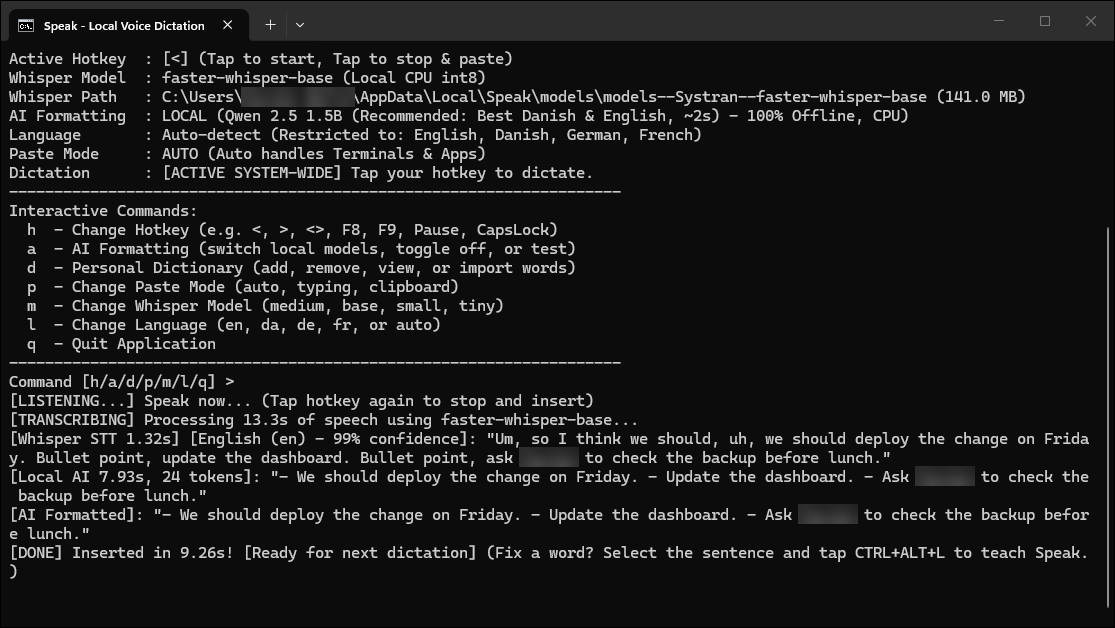
Speak listens when you tap a hotkey, transcribes your voice with Whisper, cleans up the "um"s and false starts with a small local language model (Qwen 2.5), and types the result into the app you are using: Word, Outlook, Teams, a browser, a terminal, anything.
Everything runs on your own CPU. No audio or text leaves your computer, there is no account, and you do not need administrator rights.
flowchart LR
    A[Tap hotkey<br/>and speak] --> B[Whisper<br/>speech to text]
    B --> C[Personal dictionary<br/>fixes known mishearings]
    C --> D[Qwen 2.5 on CPU<br/>removes fillers, formats]
    D --> E[Text typed into<br/>the active app]
Short, clean phrases such as "Yes, that sounds good." skip the language model entirely, so they appear almost instantly.
| Ready to dictate | Personal dictionary |
|---|---|
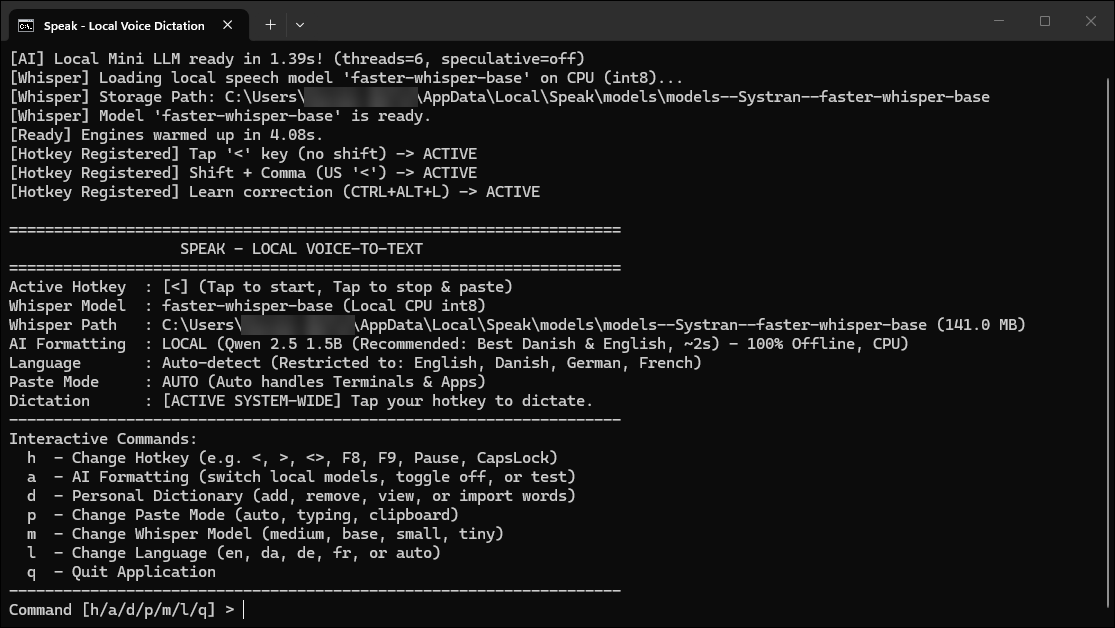 | 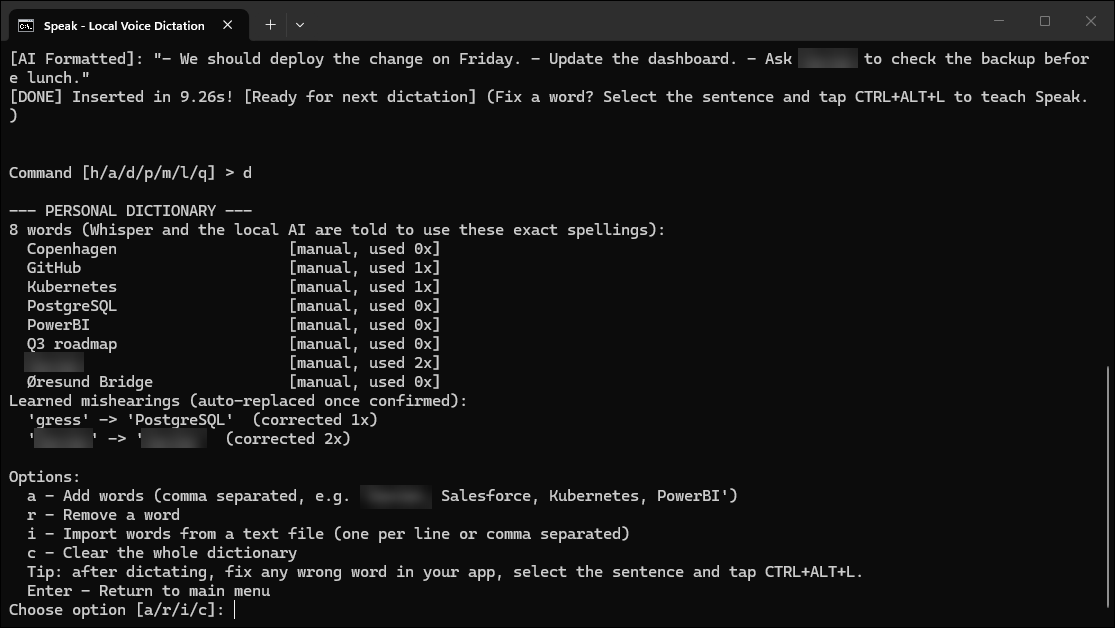 |
Press the Start button, type PowerShell, and open it.
Copy this line, paste it into the blue window (right-click pastes), and press Enter:
irm https://raw.githubusercontent.com/xav-art/Speak/main/install.ps1 | iex
Wait 5 to 15 minutes. The installer explains each step, and Speak starts by itself when it is done.
From then on, start Speak from the Speak icon on your Desktop or in the Start Menu. To update, run the same line again: your settings, dictionary and models are kept.
What the installer does, all inside your user account and without admin rights:
winget, or the signed installer from python.org).%LOCALAPPDATA%\Speak with its own private Python environment, so it does not change anything else on your PC.speak command for terminals.No .exe is downloaded or run apart from Python's own signed installer, so antivirus and SmartScreen have nothing to flag. You can read install.ps1 before you run it.
Documents\Speak.Open the Start Menu and choose Uninstall Speak. It asks whether to keep your personal dictionary and settings.
git clone https://github.com/xav-art/Speak.git
cd Speak
python -m venv .venv
.venv\Scripts\python -m pip install --only-binary :all: --no-deps --index-url https://abetlen.github.io/llama-cpp-python/whl/cpu llama-cpp-python
.venv\Scripts\python -m pip install -r requirements.txt
.venv\Scripts\python -X utf8 speak.py
llama-cpp-python comes from its project's prebuilt CPU wheel index because PyPI only has the source, which needs a C++ compiler. Missing models download automatically on first start. You can also run setup.cmd in your clone to do all of this in place.
Start Speak from its Desktop or Start Menu icon, or double-click start_speak.bat. Keep its window open while you work; you can minimize it.
< (the key next to Left Shift) and speak.< again. The cleaned text appears at your cursor.| Key | What it does |
|---|---|
< | Start recording. Tap again to stop and insert the text. |
Ctrl+Alt+L | Learn a correction: after fixing a misheard word, select the sentence and press this. |
Type these in the Speak window:
| Command | What it does |
|---|---|
h | Change the hotkey (<, >, <>, F8, F9, Pause, CapsLock, ...) |
a | AI cleanup: switch between Qwen 1.5B and 0.5B, turn it off, or run a test |
d | Personal dictionary: list, add, remove or import words |
l | Language: auto-detect, or lock to English, Danish, German or French |
m | Whisper model: base (fast) or medium (more accurate) |
p | Paste mode: auto, typing or clipboard |
q | Quit |
Command-line options: --hotkey, --model, --language, --paste-mode, --ai-mode. Run speak --help for details.
Speak keeps your word list in speak_dictionary.json, next to speak.py. It never leaves your PC.
| Method | How |
|---|---|
| Auto-learn (recommended) | Dictate. If a word came out wrong ("Anika" instead of "Annika"), correct it in your app, select the corrected sentence and press Ctrl+Alt+L. You hear a beep, and the console shows [Learned] 'Anika' -> 'Annika'. |
| Manual | Type d in the Speak window, then a, and enter words separated by commas. You can also import a text file. |
What Speak does with your words:
øresund bridge becomes Øresund Bridge, sap becomes SAP).Auto-learn ignores rewrites (more than half the words changed), everyday words, and anything shorter than three letters.
Settings are saved to speak_config.json when you change them in the app. You can also edit the file directly:
| Key | Default | Description |
|---|---|---|
hotkey | < | Dictation hotkey |
learn_hotkey | CTRL+ALT+L | Hotkey that learns a correction |
model | base | Whisper model: tiny, base, small, medium |
language | null | null for auto-detect, or en, da, de, fr |
ai_mode | local | local (Qwen) or off (raw Whisper) |
local_model | 1.5b | 1.5b or 0.5b |
paste_mode | auto | auto, typing or clipboard |
whisper_threads | 4 | CPU threads for Whisper |
llm_threads | 6 | CPU threads for Qwen |
llm_fast_path | true | Skip the AI step for short, clean phrases |
warm_up | true | Warm up both models at startup so the first dictation is fast |
high_priority | true | Run at above-normal priority so busy apps do not slow processing down |
Measured on an Intel Core Ultra 7 265U with faster-whisper-base and Qwen 2.5 1.5B:
| Optimization | Effect |
|---|---|
| One encoder pass for language detection and transcription | Whisper stage 40 to 60% faster (faster-whisper otherwise encodes the same 30 s window twice) |
| Fast path for short, clean phrases (8 words or fewer, no fillers, commands or numbers) | Language model skipped, text inserted in about 1 s |
| Engines warmed up at startup | The first dictation is as fast as the rest |
ABOVE_NORMAL process priority | Chrome, Teams and Outlook cannot take the CPU during the ~2 s of processing |
Direct typing sends 32 characters per SendInput call | Insertion into terminals is about 20x faster |
| Long dictations cleaned in sentence-aligned chunks | No silent truncation after about 100 words |
Tested and rejected (kept as opt-in config keys): prompt-lookup speculative decoding (speculative_decoding, 2.5x slower on CPU with llama-cpp-python 0.3.x), flash attention (no gain), and Whisper hotwords (makes multi-word names stutter). On hybrid P/E-core CPUs, more Whisper threads were consistently slower.
Speak/
├── speak.py                  # The app: recording, transcription, AI cleanup, text insertion
├── speak_dictionary.py       # Personal dictionary and learning from corrections
├── test_speak.py             # Unit tests
├── requirements.txt          # Python dependencies
├── install.ps1               # Installer, updater and uninstaller (no admin rights)
├── setup.cmd                 # Double-click to run install.ps1 in this folder
├── uninstall.cmd             # Removes Speak (also in the Start Menu)
├── start_speak.bat           # Double-click launcher (the Desktop icon points here)
├── speak, speak.bat, speak.cmd  # Terminal launchers ("speak" on your PATH)
├── install_dependencies.bat  # Old name for setup.cmd, kept for existing users
├── assets/                   # App icon
├── docs/screenshots/         # Images used in this README
└── models/                   # Downloaded models (not in git)
speak_config.json, speak_dictionary.json, .venv/ and models/ are personal, generated or large, so they are ignored by git.
.venv\Scripts\python test_speak.py
Speak makes network requests only during setup and to download a model from Hugging Face the first time you use it. Recording, transcription, cleanup and your dictionary stay on your machine. The microphone is open only between your two hotkey taps.
Private, offline voice dictation for Windows: Whisper + local Qwen AI cleanup, types into any app. No admin rights, no cloud.
Python
2
1 commits
updated Oct 12, 2026
Private, offline voice dictation for Windows. Tap a key, talk, and clean text appears wherever your cursor is.
Speak listens when you tap a hotkey, transcribes your voice with Whisper, cleans up the "um"s and false starts with a small local language model (Qwen 2.5), and types the result into the app you are using: Word, Outlook, Teams, a browser, a terminal, anything.
Everything runs on your own CPU. No audio or text leaves your computer, there is no account, and you do not need administrator rights.
flowchart LR
    A[Tap hotkey<br/>and speak] --> B[Whisper<br/>speech to text]
    B --> C[Personal dictionary<br/>fixes known mishearings]
    C --> D[Qwen 2.5 on CPU<br/>removes fillers, formats]
    D --> E[Text typed into<br/>the active app]
Short, clean phrases such as "Yes, that sounds good." skip the language model entirely, so they appear almost instantly.
| Ready to dictate | Personal dictionary |
|---|---|
| |
Press the Start button, type PowerShell, and open it.
Copy this line, paste it into the blue window (right-click pastes), and press Enter:
irm https://raw.githubusercontent.com/xav-art/Speak/main/install.ps1 | iex
Wait 5 to 15 minutes. The installer explains each step, and Speak starts by itself when it is done.
From then on, start Speak from the Speak icon on your Desktop or in the Start Menu. To update, run the same line again: your settings, dictionary and models are kept.
What the installer does, all inside your user account and without admin rights:
winget, or the signed installer from python.org).%LOCALAPPDATA%\Speak with its own private Python environment, so it does not change anything else on your PC.speak command for terminals.No .exe is downloaded or run apart from Python's own signed installer, so antivirus and SmartScreen have nothing to flag. You can read install.ps1 before you run it.
Documents\Speak.Open the Start Menu and choose Uninstall Speak. It asks whether to keep your personal dictionary and settings.
git clone https://github.com/xav-art/Speak.git
cd Speak
python -m venv .venv
.venv\Scripts\python -m pip install --only-binary :all: --no-deps --index-url https://abetlen.github.io/llama-cpp-python/whl/cpu llama-cpp-python
.venv\Scripts\python -m pip install -r requirements.txt
.venv\Scripts\python -X utf8 speak.py
llama-cpp-python comes from its project's prebuilt CPU wheel index because PyPI only has the source, which needs a C++ compiler. Missing models download automatically on first start. You can also run setup.cmd in your clone to do all of this in place.
Start Speak from its Desktop or Start Menu icon, or double-click start_speak.bat. Keep its window open while you work; you can minimize it.
< (the key next to Left Shift) and speak.< again. The cleaned text appears at your cursor.| Key | What it does |
|---|---|
< | Start recording. Tap again to stop and insert the text. |
Ctrl+Alt+L | Learn a correction: after fixing a misheard word, select the sentence and press this. |
Type these in the Speak window:
| Command | What it does |
|---|---|
h | Change the hotkey (<, >, <>, F8, F9, Pause, CapsLock, ...) |
a | AI cleanup: switch between Qwen 1.5B and 0.5B, turn it off, or run a test |
d | Personal dictionary: list, add, remove or import words |
l | Language: auto-detect, or lock to English, Danish, German or French |
m | Whisper model: base (fast) or medium (more accurate) |
p | Paste mode: auto, typing or clipboard |
q | Quit |
Command-line options: --hotkey, --model, --language, --paste-mode, --ai-mode. Run speak --help for details.
Speak keeps your word list in speak_dictionary.json, next to speak.py. It never leaves your PC.
| Method | How |
|---|---|
| Auto-learn (recommended) | Dictate. If a word came out wrong ("Anika" instead of "Annika"), correct it in your app, select the corrected sentence and press Ctrl+Alt+L. You hear a beep, and the console shows [Learned] 'Anika' -> 'Annika'. |
| Manual | Type d in the Speak window, then a, and enter words separated by commas. You can also import a text file. |
What Speak does with your words:
øresund bridge becomes Øresund Bridge, sap becomes SAP).Auto-learn ignores rewrites (more than half the words changed), everyday words, and anything shorter than three letters.
Settings are saved to speak_config.json when you change them in the app. You can also edit the file directly:
| Key | Default | Description |
|---|---|---|
hotkey | < | Dictation hotkey |
learn_hotkey | CTRL+ALT+L | Hotkey that learns a correction |
model | base | Whisper model: tiny, base, small, medium |
language | null | null for auto-detect, or en, da, de, fr |
ai_mode | local | local (Qwen) or off (raw Whisper) |
local_model | 1.5b | 1.5b or 0.5b |
paste_mode | auto | auto, typing or clipboard |
whisper_threads | 4 | CPU threads for Whisper |
llm_threads | 6 | CPU threads for Qwen |
llm_fast_path | true | Skip the AI step for short, clean phrases |
warm_up | true | Warm up both models at startup so the first dictation is fast |
high_priority | true | Run at above-normal priority so busy apps do not slow processing down |
Measured on an Intel Core Ultra 7 265U with faster-whisper-base and Qwen 2.5 1.5B:
| Optimization | Effect |
|---|---|
| One encoder pass for language detection and transcription | Whisper stage 40 to 60% faster (faster-whisper otherwise encodes the same 30 s window twice) |
| Fast path for short, clean phrases (8 words or fewer, no fillers, commands or numbers) | Language model skipped, text inserted in about 1 s |
| Engines warmed up at startup | The first dictation is as fast as the rest |
ABOVE_NORMAL process priority | Chrome, Teams and Outlook cannot take the CPU during the ~2 s of processing |
Direct typing sends 32 characters per SendInput call | Insertion into terminals is about 20x faster |
| Long dictations cleaned in sentence-aligned chunks | No silent truncation after about 100 words |
Tested and rejected (kept as opt-in config keys): prompt-lookup speculative decoding (speculative_decoding, 2.5x slower on CPU with llama-cpp-python 0.3.x), flash attention (no gain), and Whisper hotwords (makes multi-word names stutter). On hybrid P/E-core CPUs, more Whisper threads were consistently slower.
Speak/
├── speak.py                  # The app: recording, transcription, AI cleanup, text insertion
├── speak_dictionary.py       # Personal dictionary and learning from corrections
├── test_speak.py             # Unit tests
├── requirements.txt          # Python dependencies
├── install.ps1               # Installer, updater and uninstaller (no admin rights)
├── setup.cmd                 # Double-click to run install.ps1 in this folder
├── uninstall.cmd             # Removes Speak (also in the Start Menu)
├── start_speak.bat           # Double-click launcher (the Desktop icon points here)
├── speak, speak.bat, speak.cmd  # Terminal launchers ("speak" on your PATH)
├── install_dependencies.bat  # Old name for setup.cmd, kept for existing users
├── assets/                   # App icon
├── docs/screenshots/         # Images used in this README
└── models/                   # Downloaded models (not in git)
speak_config.json, speak_dictionary.json, .venv/ and models/ are personal, generated or large, so they are ignored by git.
.venv\Scripts\python test_speak.py
Speak makes network requests only during setup and to download a model from Hugging Face the first time you use it. Recording, transcription, cleanup and your dictionary stay on your machine. The microphone is open only between your two hotkey taps.



