📦 A macOS utility to seamlessly migrate applications to external storage and reclaim local disk space.【一款 macOS 工具,无缝迁移应用到外部存储并自动建立链接,释放宝贵的本地空间】
See the code
Move big apps out. Make room for what matters.
Move apps and data to an external drive. Open them as usual.
English|简体中文|Official Website|Documentation|DeepWiki








Keep your Mac's internal storage free for what you are working on. AppPorts is a free, open-source macOS app that moves large applications, app data, and tool directories to external storage.
After migration, the full application lives on the external drive while a lightweight Stub Portal stays on your Mac. It keeps the familiar icon without a shortcut arrow. With the drive connected, you can continue opening apps from Finder, the Dock, or the system's app launcher. The migration method depends on the app, macOS version, and storage conditions.
Apps are only part of the picture. WeChat chat history, photos, videos, received files, and other suitable container data can move through APFS mount migration: the app reads from its original path, and its original signature stays intact. Suitable ordinary data folders, developer tool directories, and custom folders use symbolic links.
If an official download of AppPorts shows a “damaged” warning on first launch, Gatekeeper may be blocking an unsigned or unnotarized build. After confirming the source is trustworthy and moving AppPorts into Applications, remove its quarantine attribute and try again:
xattr -rd com.apple.quarantine /Applications/AppPorts.app
If a different app stops opening after migration, check the drive connection, data mount status, and signature first. For problems caused by older re-signing methods, follow the macOS 27 upgrade and repair guide.
| Readiness Check | Main Interface |
|---|---|
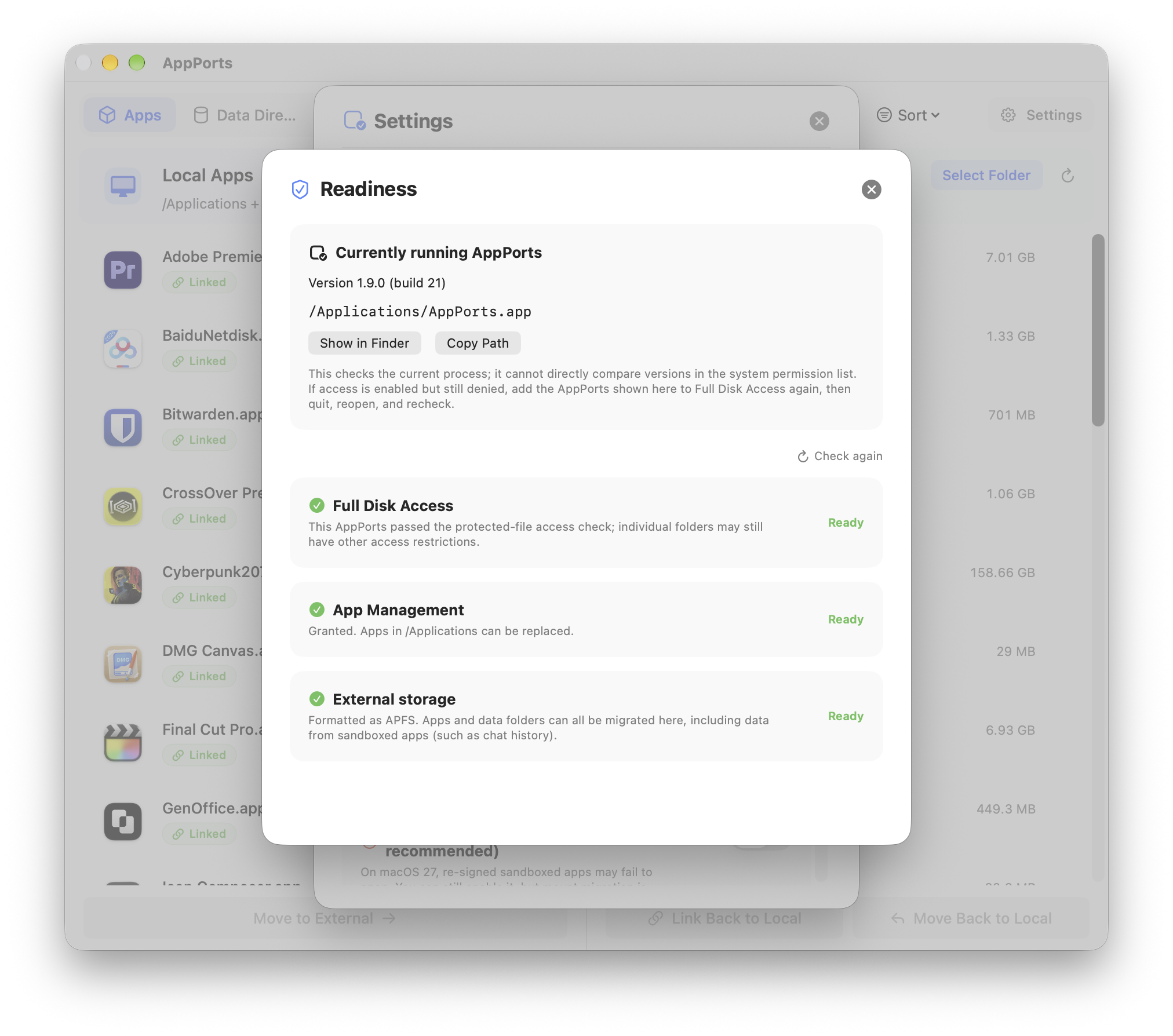 | 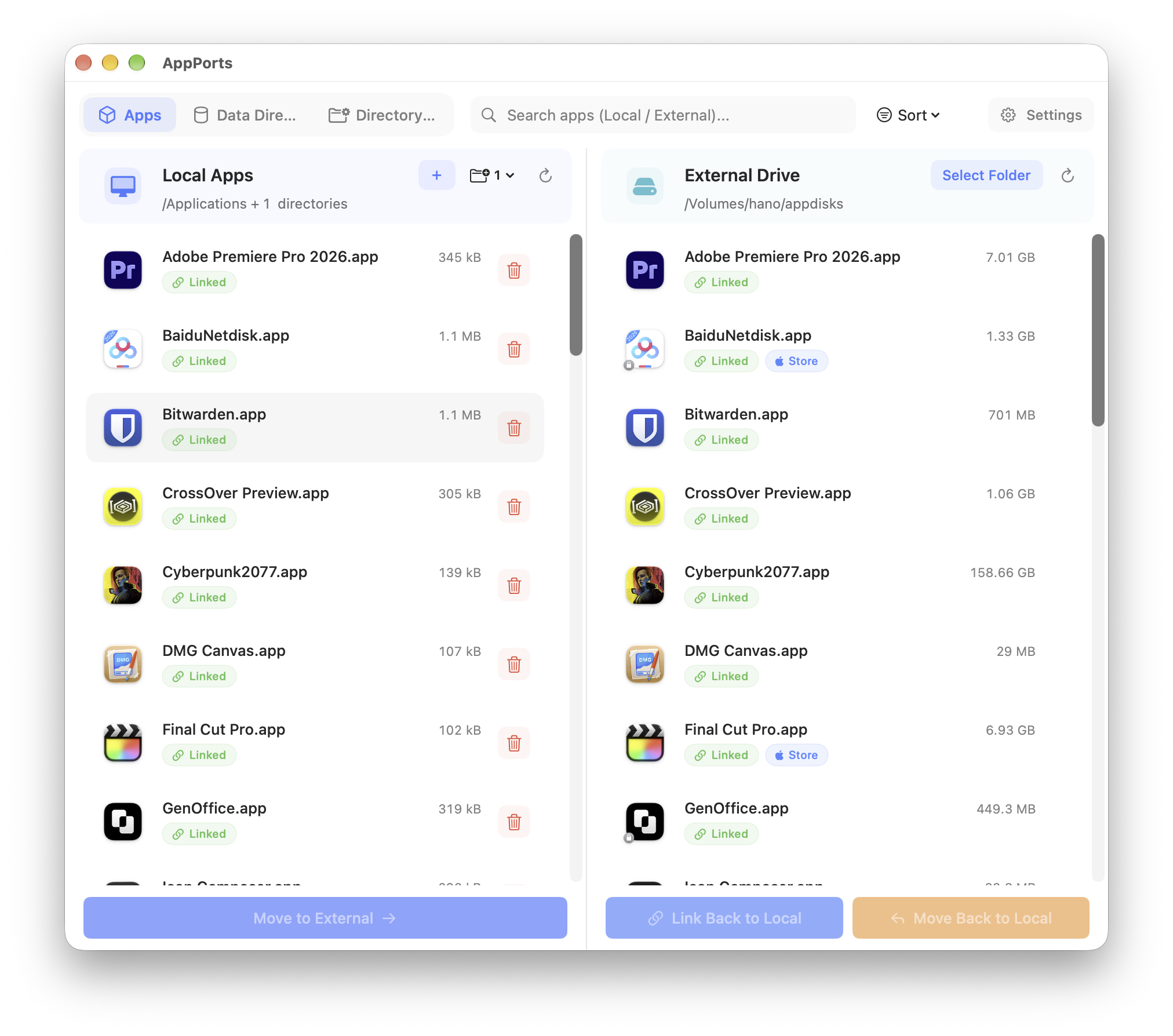 |
| App Data | Language Switching (Chinese UI) |
|---|---|
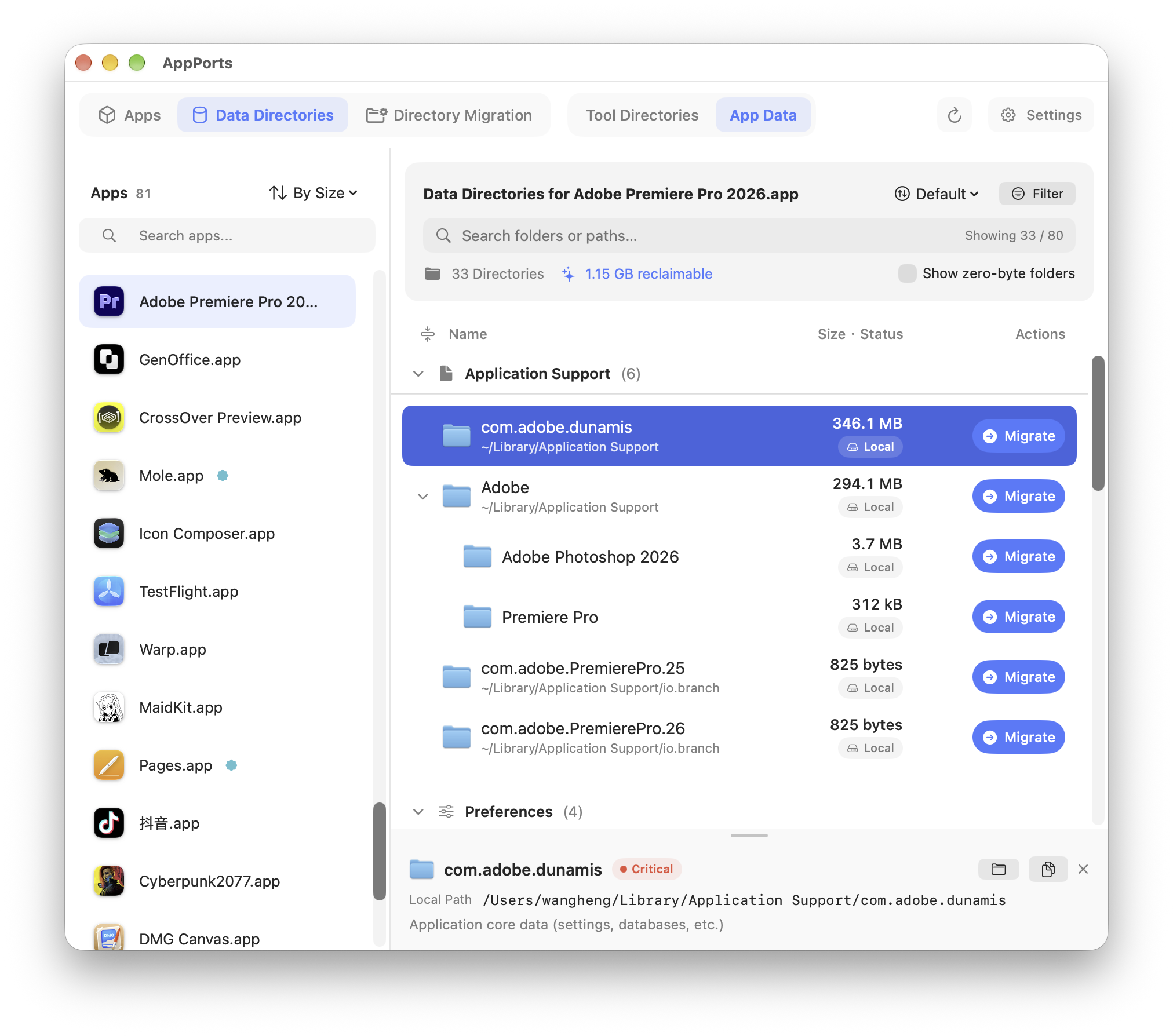 | 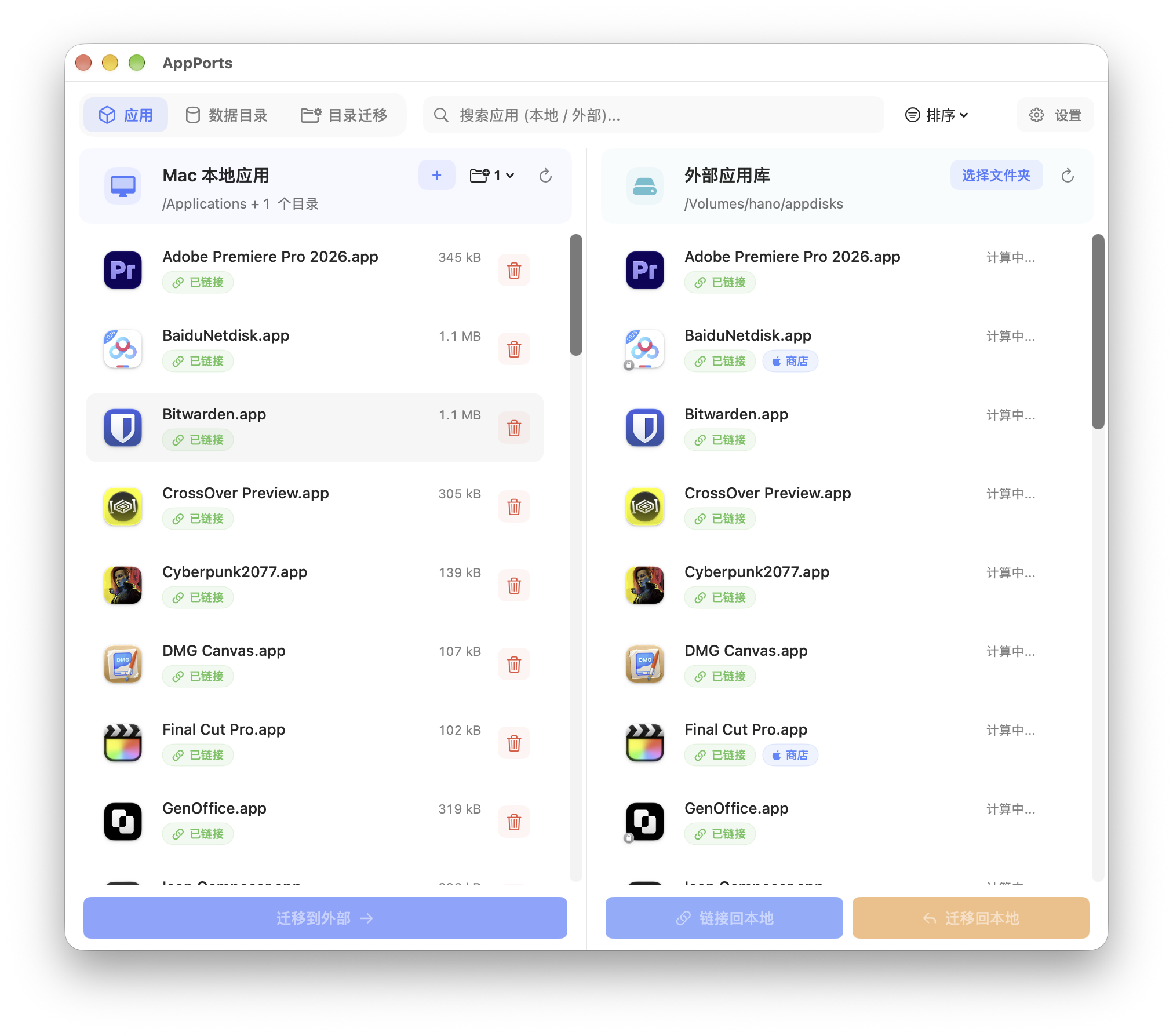 |
~/.npm and folders you select yourself.Move the storage. Keep the familiar experience. AppPorts uses a Stub Portal to retain a lightweight local launcher, with migration status, update protection, signature checks, and restoration in one interface. Manage apps and their data separately to free space where you need it.
| Feature | AppPorts (Stub Portal) | Traditional Symlink |
|---|---|---|
| Finder Icon | ✅ Familiar icon, no shortcut arrow | Usually displays a shortcut arrow |
| Launchpad | Keeps a local app entry the system can index | Depends on system indexing |
| App Menu (macOS 26) | Uses a local .app launcher | Depends on how the system recognizes links |
| Auto-Update Protection | Lock option for suitable apps | Requires manual maintenance |
| Signature Management | Built-in checks, backup, and recovery | Requires separate handling |
| Orphaned Link Detection | Automatically flags unavailable targets | Requires manual path checks |
Container data uses APFS mount migration; suitable ordinary directories retain symbolic links. Background components, permissions, and update mechanisms can affect compatibility. See limitations.
AppPorts selects a migration method based on the app type, update behavior, and data directory:
| App Type | Strategy | Default | Notes |
|---|---|---|---|
| Native Mac apps | Stub Portal | ✅ Enabled | Lightweight local entry, full app in external library |
| Self-updating apps (Sparkle, Electron, etc.) | Stub Portal + lock where applicable | Based on detection and migration options | Unlock before updating; local file locks are skipped on network volumes |
| iPhone/iPad apps | iOS Stub Portal | ✅ Available automatically on macOS 15.1+; setting on older systems | Extracts the icon; running the app still depends on hardware, OS, and app support |
| Mac App Store apps | Integrates with native external installation | ✅ Available automatically on macOS 15.1+; setting on older systems | Configure native installation in App Store; older systems may require migrating again after updates |
| App suites (folders containing multiple apps) | Folder mirror | ✅ Enabled | Internal apps use launchers; other contents link to external copies |
| Container data (Containers / Group Containers) | APFS mount migration | ✅ Default method | Currently requires unencrypted external APFS storage; preserves paths and signatures |
| Ordinary data, tool directories, and custom folders | Symbolic links | Where suitable | Original paths link to external data |
| System apps | Blocked | ❌ | Protected from migration |
| Running apps | Blocked | ❌ | Quit the app first |
| Already linked apps | Duplicate linking blocked | ❌ | Check status or restore locally |
Classic data migration mode is off by default. It retains older container symlink and sandboxed-app re-signing behavior, with compatibility depending on the app and macOS version. APFS mount migration is the recommended default; keep container data locally if the drive does not meet its requirements.
Before upgrading to macOS 27, update and open AppPorts once so it can update any installed background re-signing script. On macOS 27 and later, login re-signing is disabled and old tasks are cleaned up; retry from Settings if cleanup fails. For affected apps, follow the repair guide: restore container data migrated through older symbolic links first, then restore the original signature or reinstall from an official source. Updating AppPorts does not automatically convert old migrations or restore replaced signatures.
Download the latest AppPorts.dmg from the official website or Releases.
Move AppPorts into Applications, open it, and follow the setup checks. Connect your drive, choose an external app library, and quit the app you intend to move before starting migration. Mount migration requires a stable application path; do not run it directly from a DMG or temporary location.
Keep the drive connected while using migrated apps and data. Allow removable-volume access when macOS requests it. Quit related apps before unmounting or ejecting the drive, and back up important data beforehand. See the quick start guide.
Use the readiness checks to configure Full Disk Access for protected app data. macOS may request app management, Finder automation, or administrator authorization depending on the operation.
+, add the copy of AppPorts you are currently running, and enable it.(The in-app guide opens Settings directly. Readiness checks show the running app's version and path; individual directories may still have other access restrictions even after the check passes.)
git clone https://github.com/wzh4869/AppPorts.git
Open the project with Xcode and build.
We welcome Issues and Pull Requests! If you find translation errors or have suggestions for new features, please let us know.
AppPorts is completely free, open source and free of ads. It is maintained by a single developer in his spare time and generates no revenue. If it has freed up tens of gigabytes on your disk, you are welcome to scan the QR code and buy the author a coffee — any amount is welcome, and even the smallest one means a lot.

Thanks to the following sponsors (this list is kept in sync with sponsors.json in the repository root):
LazyMount-Mac: Easily expand Mac storage space — Automatically mount SMB shares and cloud storage at startup, no manual operation required.
The perfect companion for AppPorts. LazyMount connects the storage, AppPorts handles the applications.
- 🎮 Game Libraries — Store Steam/Epic games on a NAS, play them like local installs
- 💾 Time Machine Backups — Back up to a remote server automatically
- 🎬 Media Libraries — Access your movie/music collection stored on a home server
- 📁 Project Archives — Keep large files on cheaper storage, access them on-demand
- ☁️ Cloud Storage — Mount Google Drive, Dropbox, or any rclone-supported service as a local folder
This project is open-source under the Apache License 2.0.
See the Privacy Policy.
618 followers · starred Feb 2026
1,056 followers · starred Jan 2026
11 followers · starred Mar 2026
9 followers · starred Feb 2026
📦 A macOS utility to seamlessly migrate applications to external storage and reclaim local disk space.【一款 macOS 工具,无缝迁移应用到外部存储并自动建立链接,释放宝贵的本地空间】
See the code
Move big apps out. Make room for what matters.
Move apps and data to an external drive. Open them as usual.
English|简体中文|Official Website|Documentation|DeepWiki
Keep your Mac's internal storage free for what you are working on. AppPorts is a free, open-source macOS app that moves large applications, app data, and tool directories to external storage.
After migration, the full application lives on the external drive while a lightweight Stub Portal stays on your Mac. It keeps the familiar icon without a shortcut arrow. With the drive connected, you can continue opening apps from Finder, the Dock, or the system's app launcher. The migration method depends on the app, macOS version, and storage conditions.
Apps are only part of the picture. WeChat chat history, photos, videos, received files, and other suitable container data can move through APFS mount migration: the app reads from its original path, and its original signature stays intact. Suitable ordinary data folders, developer tool directories, and custom folders use symbolic links.
If an official download of AppPorts shows a “damaged” warning on first launch, Gatekeeper may be blocking an unsigned or unnotarized build. After confirming the source is trustworthy and moving AppPorts into Applications, remove its quarantine attribute and try again:
xattr -rd com.apple.quarantine /Applications/AppPorts.app
If a different app stops opening after migration, check the drive connection, data mount status, and signature first. For problems caused by older re-signing methods, follow the macOS 27 upgrade and repair guide.
| Readiness Check | Main Interface |
|---|---|
| |
| App Data | Language Switching (Chinese UI) |
|---|---|
| |
~/.npm and folders you select yourself.Move the storage. Keep the familiar experience. AppPorts uses a Stub Portal to retain a lightweight local launcher, with migration status, update protection, signature checks, and restoration in one interface. Manage apps and their data separately to free space where you need it.
| Feature | AppPorts (Stub Portal) | Traditional Symlink |
|---|---|---|
| Finder Icon | ✅ Familiar icon, no shortcut arrow | Usually displays a shortcut arrow |
| Launchpad | Keeps a local app entry the system can index | Depends on system indexing |
| App Menu (macOS 26) | Uses a local .app launcher | Depends on how the system recognizes links |
| Auto-Update Protection | Lock option for suitable apps | Requires manual maintenance |
| Signature Management | Built-in checks, backup, and recovery | Requires separate handling |
| Orphaned Link Detection | Automatically flags unavailable targets | Requires manual path checks |
Container data uses APFS mount migration; suitable ordinary directories retain symbolic links. Background components, permissions, and update mechanisms can affect compatibility. See limitations.
AppPorts selects a migration method based on the app type, update behavior, and data directory:
| App Type | Strategy | Default | Notes |
|---|---|---|---|
| Native Mac apps | Stub Portal | ✅ Enabled | Lightweight local entry, full app in external library |
| Self-updating apps (Sparkle, Electron, etc.) | Stub Portal + lock where applicable | Based on detection and migration options | Unlock before updating; local file locks are skipped on network volumes |
| iPhone/iPad apps | iOS Stub Portal | ✅ Available automatically on macOS 15.1+; setting on older systems | Extracts the icon; running the app still depends on hardware, OS, and app support |
| Mac App Store apps | Integrates with native external installation | ✅ Available automatically on macOS 15.1+; setting on older systems | Configure native installation in App Store; older systems may require migrating again after updates |
| App suites (folders containing multiple apps) | Folder mirror | ✅ Enabled | Internal apps use launchers; other contents link to external copies |
| Container data (Containers / Group Containers) | APFS mount migration | ✅ Default method | Currently requires unencrypted external APFS storage; preserves paths and signatures |
| Ordinary data, tool directories, and custom folders | Symbolic links | Where suitable | Original paths link to external data |
| System apps | Blocked | ❌ | Protected from migration |
| Running apps | Blocked | ❌ | Quit the app first |
| Already linked apps | Duplicate linking blocked | ❌ | Check status or restore locally |
Classic data migration mode is off by default. It retains older container symlink and sandboxed-app re-signing behavior, with compatibility depending on the app and macOS version. APFS mount migration is the recommended default; keep container data locally if the drive does not meet its requirements.
Before upgrading to macOS 27, update and open AppPorts once so it can update any installed background re-signing script. On macOS 27 and later, login re-signing is disabled and old tasks are cleaned up; retry from Settings if cleanup fails. For affected apps, follow the repair guide: restore container data migrated through older symbolic links first, then restore the original signature or reinstall from an official source. Updating AppPorts does not automatically convert old migrations or restore replaced signatures.
Download the latest AppPorts.dmg from the official website or Releases.
Move AppPorts into Applications, open it, and follow the setup checks. Connect your drive, choose an external app library, and quit the app you intend to move before starting migration. Mount migration requires a stable application path; do not run it directly from a DMG or temporary location.
Keep the drive connected while using migrated apps and data. Allow removable-volume access when macOS requests it. Quit related apps before unmounting or ejecting the drive, and back up important data beforehand. See the quick start guide.
Use the readiness checks to configure Full Disk Access for protected app data. macOS may request app management, Finder automation, or administrator authorization depending on the operation.
+, add the copy of AppPorts you are currently running, and enable it.(The in-app guide opens Settings directly. Readiness checks show the running app's version and path; individual directories may still have other access restrictions even after the check passes.)
git clone https://github.com/wzh4869/AppPorts.git
Open the project with Xcode and build.
We welcome Issues and Pull Requests! If you find translation errors or have suggestions for new features, please let us know.
AppPorts is completely free, open source and free of ads. It is maintained by a single developer in his spare time and generates no revenue. If it has freed up tens of gigabytes on your disk, you are welcome to scan the QR code and buy the author a coffee — any amount is welcome, and even the smallest one means a lot.
Thanks to the following sponsors (this list is kept in sync with sponsors.json in the repository root):
LazyMount-Mac: Easily expand Mac storage space — Automatically mount SMB shares and cloud storage at startup, no manual operation required.
The perfect companion for AppPorts. LazyMount connects the storage, AppPorts handles the applications.
- 🎮 Game Libraries — Store Steam/Epic games on a NAS, play them like local installs
- 💾 Time Machine Backups — Back up to a remote server automatically
- 🎬 Media Libraries — Access your movie/music collection stored on a home server
- 📁 Project Archives — Keep large files on cheaper storage, access them on-demand
- ☁️ Cloud Storage — Mount Google Drive, Dropbox, or any rclone-supported service as a local folder
This project is open-source under the Apache License 2.0.
See the Privacy Policy.
618 followers · starred Feb 2026
1,056 followers · starred Jan 2026
11 followers · starred Mar 2026
9 followers · starred Feb 2026