A command line C# REPL with syntax highlighting – explore the language, libraries and nuget packages interactively.
See the code
A cross-platform command line REPL for the rapid experimentation and exploration of C#. It supports intellisense, installing NuGet packages, and referencing local .NET projects and assemblies.
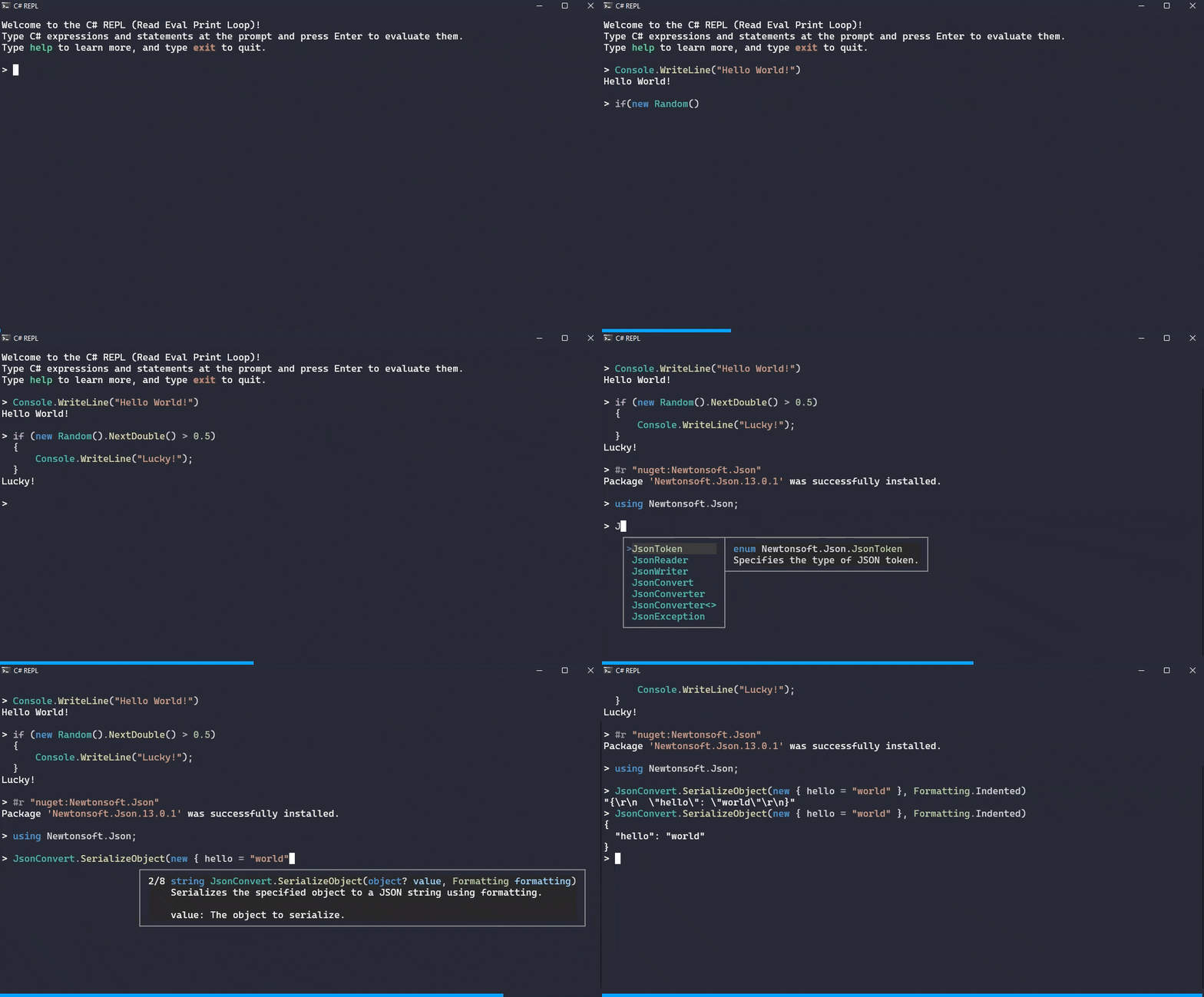
(click to view animation)
C# REPL provides the following features:
C# REPL is a .NET 10 global tool, and runs on Windows, Mac OS, and Linux. It can be installed from NuGet via:
dotnet tool install -g csharprepl
If you're running on Mac OS Catalina (10.15) or later, make sure you follow any additional directions printed to the screen. You may need to update your PATH variable in order to use .NET global tools.
After installation is complete, run csharprepl to begin. You can update C# REPL by running dotnet tool update -g csharprepl.
The default theme uses the same colors as Visual Studio dark mode, and custom themes can be created using a theme.json file. Additionally, your terminal's colors can be used by supplying the --useTerminalPaletteTheme command line option. To completely disable colors, set the NO_COLOR environment variable.
Type some C# into the prompt and press Enter to run it. The result, if any, will be printed:
> Console.WriteLine("Hello World")
Hello World

> DateTime.Now.AddDays(8)
[6/7/2021 5:13:00 PM]
To evaluate multiple lines of code, use Shift+Enter to insert a newline:
> var x = 5;
  var y = 8;
  x * y
40
Additionally, if the statement is not a "complete statement" a newline will automatically be inserted when Enter is pressed. For example, in the below code, the first line is not a syntactically complete statement, so when we press enter we'll go down to a new line:
> if (x == 5)
  | // caret position, after we press Enter on Line 1
Finally, pressing Ctrl+Enter will show a "detailed view" of the result. For example, for the DateTime.Now expression below, on the first line we pressed Enter, and on the second line we pressed Ctrl+Enter to view more detailed output:
> DateTime.Now // Pressing Enter shows a reasonable representation
[5/30/2021 5:13:00 PM]

> DateTime.Now // Pressing Ctrl+Enter shows a detailed representation
[5/30/2021 5:13:00 PM] {
  Date: [5/30/2021 12:00:00 AM],
  Day: 30,
  DayOfWeek: Sunday,
  DayOfYear: 150,
  Hour: 17,
  InternalKind: 9223372036854775808,
  InternalTicks: 637579915804530992,
  Kind: Local,
  Millisecond: 453,
  Minute: 13,
  Month: 5,
  Second: 0,
  Ticks: 637579915804530992,
  TimeOfDay: [17:13:00.4530992],
  Year: 2021,
  _dateData: 9860951952659306800
}
A note on semicolons: C# expressions do not require semicolons, but statements do. If a statement is missing a required semicolon, a newline will be added instead of trying to run the syntatically incomplete statement; simply type the semicolon to complete the statement.
> var now = DateTime.Now; // assignment statement, semicolon required

> DateTime.Now.AddDays(8) // expression, we don't need a semicolon
[6/7/2021 5:03:05 PM]
When you're done with your session, you can type exit or press Ctrl+D to exit.
Use the #r command to add assembly or nuget references.
#r "AssemblyName" or #r "path/to/assembly.dll"#r "path/to/project.csproj". Solution files (.sln and .slnx) can also be referenced.#r "nuget: PackageName" to install the latest version of a package, or #r "nuget: PackageName, 13.0.5" to install a specific version (13.0.5 in this case).
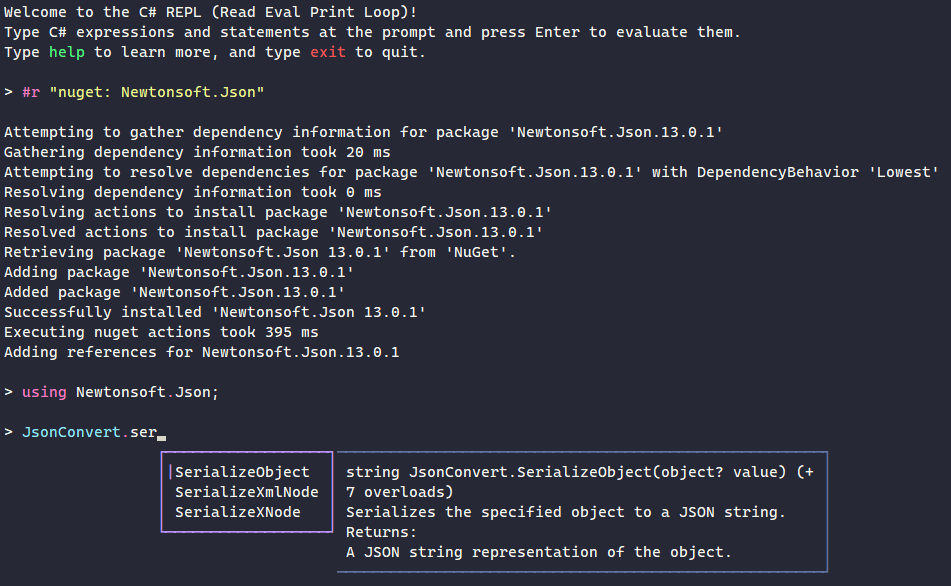
To run ASP.NET applications inside the REPL, start the csharprepl application with the --framework parameter, specifying the Microsoft.AspNetCore.App shared framework. Then, use the above #r command to reference the application DLL. See Configuring CSharpRepl for more details.
csharprepl --framework Microsoft.AspNetCore.App
Use the #load directive to run a C# script file (.csx), e.g. #load "path/to/script.csx". This is handy for initializing a session, as any references, namespaces, and variables the script defines remain available afterwards.
In addition to the normal REPL, which evaluates code in csharprepl's own process, csharprepl can attach to other .NET applications and evaluate expressions inside them, reading and writing live application state (e.g. statics and services resolved from DI).
[!WARNING] Connecting to a connector-enabled process is equivalent to running arbitrary code inside it, with its privileges. This is a development and diagnostics tool; never enable the connector on a production process.
CSharpRepl injects a real Roslyn scripting engine into the target application, so you can run unconstrained C# in that application. This is not a debugger; breakpoints, stepping, and non-cooperative attach are not supported.
The target's source does not need to be modified, but the application must "opt in" by running from a shell with two special environment variables that allow CSharpRepl to inject the REPL:
csharprepl connect init # this autodetects your shell, or pass e.g. --shell pwsh
Set the environment variables from the previous step, and launch your app in that shell. You should NOT set these as permanent environment variables on your machine. Only set them in the shell where you plan to launch the target application.
Attach to the application by its process ID:
csharprepl connect list   # lists available processes to attach to, with their process ID.
csharprepl connect 1234   # attaches to a process with process ID e.g. 1234
This will start the REPL in the target application. Some things you can try:
MyApp.Program.SomeStatic (read and write).services.GetRequiredService<T>() or the shorthand Get<T>(). The connector captures the application's root service provider via .NET's hosting hooks.Type exit (or press Ctrl+D) to detach. The target application will keep running, and you can reconnect to it later.
While connected to a process, you can also replace live methods in that process. Define a method matching the target's signature. Instance methods take the instance as the first parameter:
> decimal half(MyApp.OrderService svc, int qty, decimal unit) => qty * unit * 0.5m;
Then run the following (with the fully qualified target method name) to replace the original method:
#replace MyApp.OrderService.CalculatePrice with half
To wrap a method instead of replacing it, define a method whose first parameter is an orig delegate that calls the original:
> decimal logged(Func<MyApp.OrderService, int, decimal, decimal> orig, MyApp.OrderService svc, int qty, decimal unit)
  {
      var price = orig(svc, qty, unit);
      Console.WriteLine($"CalculatePrice({qty}, {unit}) = {price}");
      return price;
  }

> #wrap MyApp.OrderService.CalculatePrice with logged
To undo a modification, use #patches to list active patches and #revert <id> or #revert all to undo them.
Patches take effect immediately and persist in the target until reverted or the process exits. Patching is done via the excellent MonoMod library
Requirements and limitations:
net10.0 targets only. The connector and the target must both be on .NET 10.See the Injected Hook documentation for information on how this works under the hood.
C# REPL can suggest completions using an AI model. Press Ctrl+Alt+Space at the caret to request a completion; the generated code streams directly into the prompt at the caret as it arrives. Suggestions are generated from the code you've typed in the current session, so they're aware of the variables, methods, and types you've already defined.
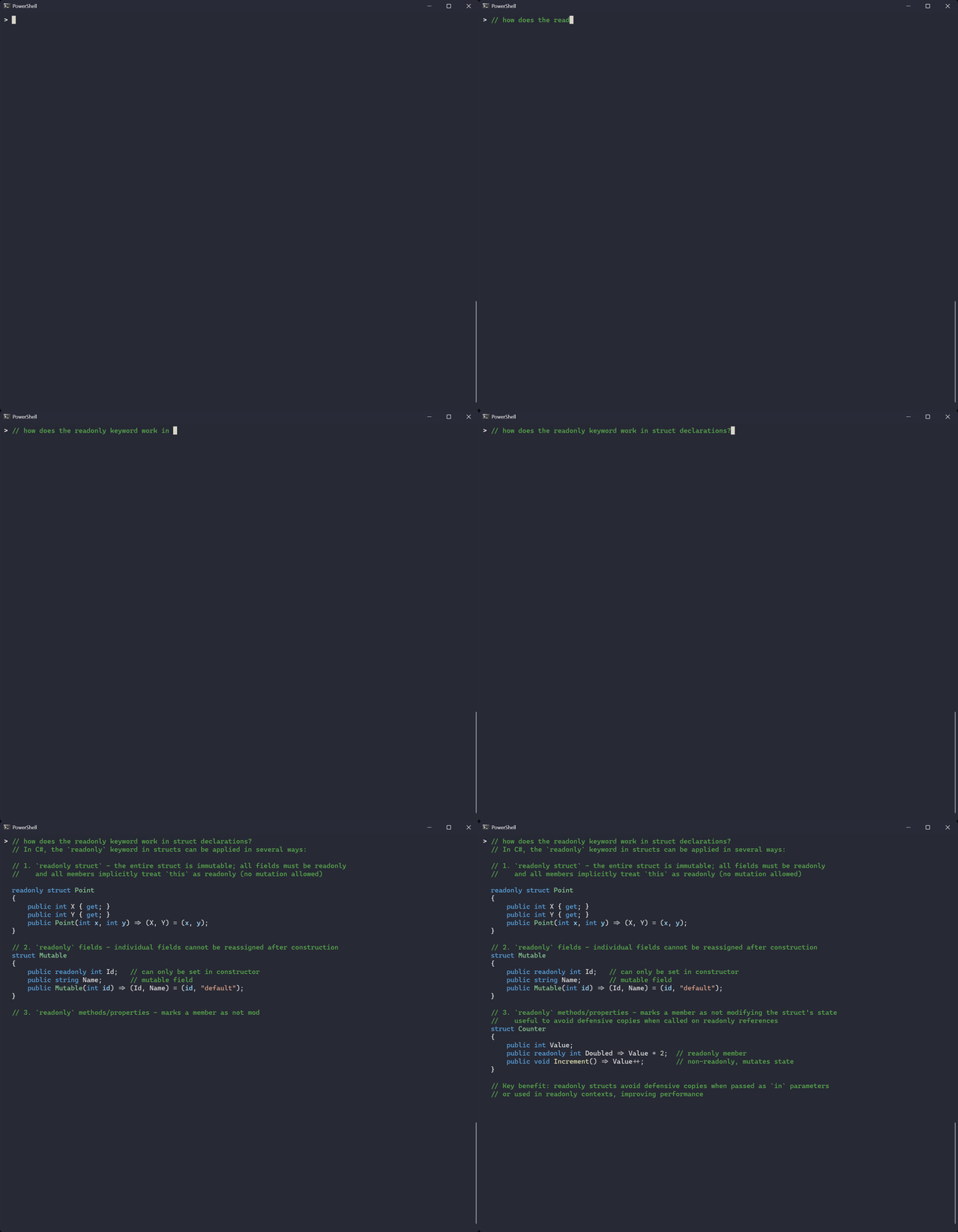
This works with OpenAI, Anthropic, Gemini, Grok, DeepSeek, Mistral/Codestral, or any other OpenAI-compatible provider (bring your own API key). Use the --aiProvider option and related settings to choose and/or configure a provider; see Configuring CSharpRepl for details.
CSharpRepl aims for a similar editing experience as Visual Studio (e.g. for text navigation, selection and keyboard shortcuts).
exit - Exit the REPLclear - Clear screen--aiProvider)foreach/using/lock expansions, etc.) are shown explicitly.
Many readline/emacs-style alternatives are also available, e.g. Ctrl+B / Ctrl+F to move by character, Alt+B / Alt+F to move by word, and Ctrl+P / Ctrl+N for previous/next lines.
The C# REPL supports both command line options as well as a configuration file. See the Configuring CSharpRepl wiki page for more information.
Run csharprepl --help to see the available command line configuration options, and run csharprepl --configure to get started with the configuration file.
If you have dotnet-suggest enabled, all options can be tab-completed, including values provided to --framework and .NET namespaces provided to --using.
C# REPL is a standalone software application, but it can be useful to integrate it with other developer tools:
To add C# REPL as a menu entry in Windows Terminal, add the following profile to Windows Terminal's settings.json configuration file (under the JSON property profiles.list):
{
    "name": "C# REPL",
    "commandline": "csharprepl"
},
To get the exact colors shown in the screenshots in this README, install the Windows Terminal Dracula theme.
To use the C# REPL with Visual Studio Code, simply run the csharprepl command in the Visual Studio Code terminal. To send commands to the REPL, use the built-in Terminal: Run Selected Text In Active Terminal command from the Command Palette (workbench.action.terminal.runSelectedText).
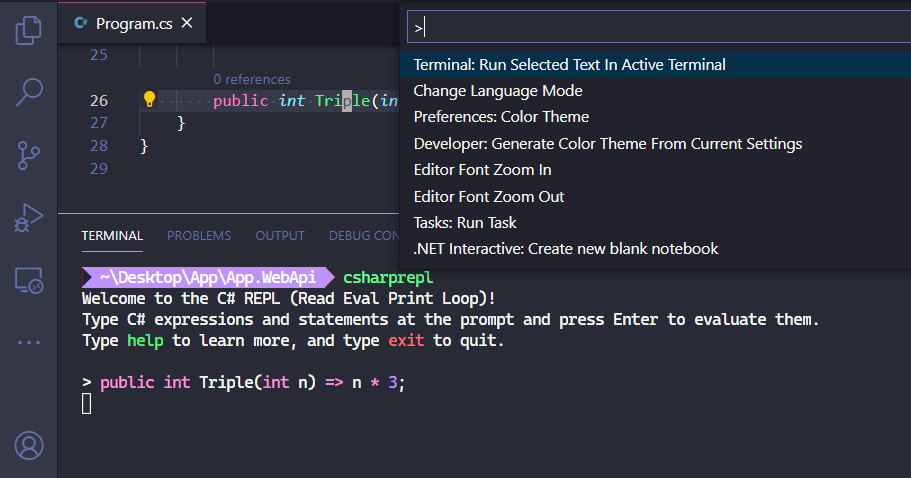
To add the C# REPL to the Windows Start Menu for quick access, you can run the following PowerShell command, which will start C# REPL in Windows Terminal:
$shell = New-Object -ComObject WScript.Shell
$shortcut = $shell.CreateShortcut("$env:appdata\Microsoft\Windows\Start Menu\Programs\csharprepl.lnk")
$shortcut.TargetPath = "wt.exe"
$shortcut.Arguments = "-w 0 nt csharprepl.exe"
$shortcut.Save()
You may also wish to add a shorter alias for C# REPL, which can be done by creating a .cmd file somewhere on your path. For example, put the following contents in C:\Users\username\.dotnet\tools\csr.cmd:
wt -w 0 nt csharprepl
This will allow you to launch C# REPL by running csr from anywhere that accepts Windows commands, like the Window Run dialog.
You may wish to add a shorter alias for C# REPL, which can be done by adding the following to your ~/.bashrc:
alias cs=csharprepl
This project is far from being the first REPL for C#. Here are some other projects; if this project doesn't suit you, another one might!
Visual Studio's C# Interactive pane is full-featured (it has syntax highlighting and intellisense) and is part of Visual Studio. This deep integration with Visual Studio is both a benefit from a workflow perspective, and a drawback as it's not cross-platform. The C# Interactive pane supports navigating to source code (default F12), which will open that source in the containing Visual Studio window, yet no NuGet packages. It starts in .NET Framework mode but also supports .NET Core via #reset core. Subjectively, it does not follow typical command line keybindings, so can feel a bit foreign.
csi.exe ships with C# and is a command line REPL. It's great because it's a cross platform REPL that comes out of the box, but it doesn't support syntax highlighting, autocompletion, or .NET Core.
dotnet script allows you to run C# scripts from the command line. It has a REPL built-in, but the predominant focus seems to be as a script runner. It's a great tool, though, and has a strong community following.
dotnet interactive is a tool from Microsoft that creates a Jupyter notebook for C#, runnable through Visual Studio Code. It also provides a general framework useful for running REPLs.
Thanks for the interest! Check out CONTRIBUTING.md for more info.
(top 24 of 34)
51 followers · starred Sep 2021
2,959 followers · starred May 2021
116 followers · starred Sep 2023
140 followers · starred Sep 2023
A command line C# REPL with syntax highlighting – explore the language, libraries and nuget packages interactively.
See the codeA cross-platform command line REPL for the rapid experimentation and exploration of C#. It supports intellisense, installing NuGet packages, and referencing local .NET projects and assemblies.
(click to view animation)
C# REPL provides the following features:
C# REPL is a .NET 10 global tool, and runs on Windows, Mac OS, and Linux. It can be installed from NuGet via:
dotnet tool install -g csharprepl
If you're running on Mac OS Catalina (10.15) or later, make sure you follow any additional directions printed to the screen. You may need to update your PATH variable in order to use .NET global tools.
After installation is complete, run csharprepl to begin. You can update C# REPL by running dotnet tool update -g csharprepl.
The default theme uses the same colors as Visual Studio dark mode, and custom themes can be created using a theme.json file. Additionally, your terminal's colors can be used by supplying the --useTerminalPaletteTheme command line option. To completely disable colors, set the NO_COLOR environment variable.
Type some C# into the prompt and press Enter to run it. The result, if any, will be printed:
> Console.WriteLine("Hello World")
Hello World

> DateTime.Now.AddDays(8)
[6/7/2021 5:13:00 PM]
To evaluate multiple lines of code, use Shift+Enter to insert a newline:
> var x = 5;
  var y = 8;
  x * y
40
Additionally, if the statement is not a "complete statement" a newline will automatically be inserted when Enter is pressed. For example, in the below code, the first line is not a syntactically complete statement, so when we press enter we'll go down to a new line:
> if (x == 5)
  | // caret position, after we press Enter on Line 1
Finally, pressing Ctrl+Enter will show a "detailed view" of the result. For example, for the DateTime.Now expression below, on the first line we pressed Enter, and on the second line we pressed Ctrl+Enter to view more detailed output:
> DateTime.Now // Pressing Enter shows a reasonable representation
[5/30/2021 5:13:00 PM]

> DateTime.Now // Pressing Ctrl+Enter shows a detailed representation
[5/30/2021 5:13:00 PM] {
  Date: [5/30/2021 12:00:00 AM],
  Day: 30,
  DayOfWeek: Sunday,
  DayOfYear: 150,
  Hour: 17,
  InternalKind: 9223372036854775808,
  InternalTicks: 637579915804530992,
  Kind: Local,
  Millisecond: 453,
  Minute: 13,
  Month: 5,
  Second: 0,
  Ticks: 637579915804530992,
  TimeOfDay: [17:13:00.4530992],
  Year: 2021,
  _dateData: 9860951952659306800
}
A note on semicolons: C# expressions do not require semicolons, but statements do. If a statement is missing a required semicolon, a newline will be added instead of trying to run the syntatically incomplete statement; simply type the semicolon to complete the statement.
> var now = DateTime.Now; // assignment statement, semicolon required

> DateTime.Now.AddDays(8) // expression, we don't need a semicolon
[6/7/2021 5:03:05 PM]
When you're done with your session, you can type exit or press Ctrl+D to exit.
Use the #r command to add assembly or nuget references.
#r "AssemblyName" or #r "path/to/assembly.dll"#r "path/to/project.csproj". Solution files (.sln and .slnx) can also be referenced.#r "nuget: PackageName" to install the latest version of a package, or #r "nuget: PackageName, 13.0.5" to install a specific version (13.0.5 in this case).
To run ASP.NET applications inside the REPL, start the csharprepl application with the --framework parameter, specifying the Microsoft.AspNetCore.App shared framework. Then, use the above #r command to reference the application DLL. See Configuring CSharpRepl for more details.
csharprepl --framework Microsoft.AspNetCore.App
Use the #load directive to run a C# script file (.csx), e.g. #load "path/to/script.csx". This is handy for initializing a session, as any references, namespaces, and variables the script defines remain available afterwards.
In addition to the normal REPL, which evaluates code in csharprepl's own process, csharprepl can attach to other .NET applications and evaluate expressions inside them, reading and writing live application state (e.g. statics and services resolved from DI).
[!WARNING] Connecting to a connector-enabled process is equivalent to running arbitrary code inside it, with its privileges. This is a development and diagnostics tool; never enable the connector on a production process.
CSharpRepl injects a real Roslyn scripting engine into the target application, so you can run unconstrained C# in that application. This is not a debugger; breakpoints, stepping, and non-cooperative attach are not supported.
The target's source does not need to be modified, but the application must "opt in" by running from a shell with two special environment variables that allow CSharpRepl to inject the REPL:
csharprepl connect init # this autodetects your shell, or pass e.g. --shell pwsh
Set the environment variables from the previous step, and launch your app in that shell. You should NOT set these as permanent environment variables on your machine. Only set them in the shell where you plan to launch the target application.
Attach to the application by its process ID:
csharprepl connect list   # lists available processes to attach to, with their process ID.
csharprepl connect 1234   # attaches to a process with process ID e.g. 1234
This will start the REPL in the target application. Some things you can try:
MyApp.Program.SomeStatic (read and write).services.GetRequiredService<T>() or the shorthand Get<T>(). The connector captures the application's root service provider via .NET's hosting hooks.Type exit (or press Ctrl+D) to detach. The target application will keep running, and you can reconnect to it later.
While connected to a process, you can also replace live methods in that process. Define a method matching the target's signature. Instance methods take the instance as the first parameter:
> decimal half(MyApp.OrderService svc, int qty, decimal unit) => qty * unit * 0.5m;
Then run the following (with the fully qualified target method name) to replace the original method:
#replace MyApp.OrderService.CalculatePrice with half
To wrap a method instead of replacing it, define a method whose first parameter is an orig delegate that calls the original:
> decimal logged(Func<MyApp.OrderService, int, decimal, decimal> orig, MyApp.OrderService svc, int qty, decimal unit)
  {
      var price = orig(svc, qty, unit);
      Console.WriteLine($"CalculatePrice({qty}, {unit}) = {price}");
      return price;
  }

> #wrap MyApp.OrderService.CalculatePrice with logged
To undo a modification, use #patches to list active patches and #revert <id> or #revert all to undo them.
Patches take effect immediately and persist in the target until reverted or the process exits. Patching is done via the excellent MonoMod library
Requirements and limitations:
net10.0 targets only. The connector and the target must both be on .NET 10.See the Injected Hook documentation for information on how this works under the hood.
C# REPL can suggest completions using an AI model. Press Ctrl+Alt+Space at the caret to request a completion; the generated code streams directly into the prompt at the caret as it arrives. Suggestions are generated from the code you've typed in the current session, so they're aware of the variables, methods, and types you've already defined.
This works with OpenAI, Anthropic, Gemini, Grok, DeepSeek, Mistral/Codestral, or any other OpenAI-compatible provider (bring your own API key). Use the --aiProvider option and related settings to choose and/or configure a provider; see Configuring CSharpRepl for details.
CSharpRepl aims for a similar editing experience as Visual Studio (e.g. for text navigation, selection and keyboard shortcuts).
exit - Exit the REPLclear - Clear screen--aiProvider)foreach/using/lock expansions, etc.) are shown explicitly.
Many readline/emacs-style alternatives are also available, e.g. Ctrl+B / Ctrl+F to move by character, Alt+B / Alt+F to move by word, and Ctrl+P / Ctrl+N for previous/next lines.
The C# REPL supports both command line options as well as a configuration file. See the Configuring CSharpRepl wiki page for more information.
Run csharprepl --help to see the available command line configuration options, and run csharprepl --configure to get started with the configuration file.
If you have dotnet-suggest enabled, all options can be tab-completed, including values provided to --framework and .NET namespaces provided to --using.
C# REPL is a standalone software application, but it can be useful to integrate it with other developer tools:
To add C# REPL as a menu entry in Windows Terminal, add the following profile to Windows Terminal's settings.json configuration file (under the JSON property profiles.list):
{
    "name": "C# REPL",
    "commandline": "csharprepl"
},
To get the exact colors shown in the screenshots in this README, install the Windows Terminal Dracula theme.
To use the C# REPL with Visual Studio Code, simply run the csharprepl command in the Visual Studio Code terminal. To send commands to the REPL, use the built-in Terminal: Run Selected Text In Active Terminal command from the Command Palette (workbench.action.terminal.runSelectedText).
To add the C# REPL to the Windows Start Menu for quick access, you can run the following PowerShell command, which will start C# REPL in Windows Terminal:
$shell = New-Object -ComObject WScript.Shell
$shortcut = $shell.CreateShortcut("$env:appdata\Microsoft\Windows\Start Menu\Programs\csharprepl.lnk")
$shortcut.TargetPath = "wt.exe"
$shortcut.Arguments = "-w 0 nt csharprepl.exe"
$shortcut.Save()
You may also wish to add a shorter alias for C# REPL, which can be done by creating a .cmd file somewhere on your path. For example, put the following contents in C:\Users\username\.dotnet\tools\csr.cmd:
wt -w 0 nt csharprepl
This will allow you to launch C# REPL by running csr from anywhere that accepts Windows commands, like the Window Run dialog.
You may wish to add a shorter alias for C# REPL, which can be done by adding the following to your ~/.bashrc:
alias cs=csharprepl
This project is far from being the first REPL for C#. Here are some other projects; if this project doesn't suit you, another one might!
Visual Studio's C# Interactive pane is full-featured (it has syntax highlighting and intellisense) and is part of Visual Studio. This deep integration with Visual Studio is both a benefit from a workflow perspective, and a drawback as it's not cross-platform. The C# Interactive pane supports navigating to source code (default F12), which will open that source in the containing Visual Studio window, yet no NuGet packages. It starts in .NET Framework mode but also supports .NET Core via #reset core. Subjectively, it does not follow typical command line keybindings, so can feel a bit foreign.
csi.exe ships with C# and is a command line REPL. It's great because it's a cross platform REPL that comes out of the box, but it doesn't support syntax highlighting, autocompletion, or .NET Core.
dotnet script allows you to run C# scripts from the command line. It has a REPL built-in, but the predominant focus seems to be as a script runner. It's a great tool, though, and has a strong community following.
dotnet interactive is a tool from Microsoft that creates a Jupyter notebook for C#, runnable through Visual Studio Code. It also provides a general framework useful for running REPLs.
Thanks for the interest! Check out CONTRIBUTING.md for more info.
(top 24 of 34)
51 followers · starred Sep 2021
2,959 followers · starred May 2021
116 followers · starred Sep 2023
140 followers · starred Sep 2023