
See what people are saying
README
Veda: The Agentic-Native Operating System
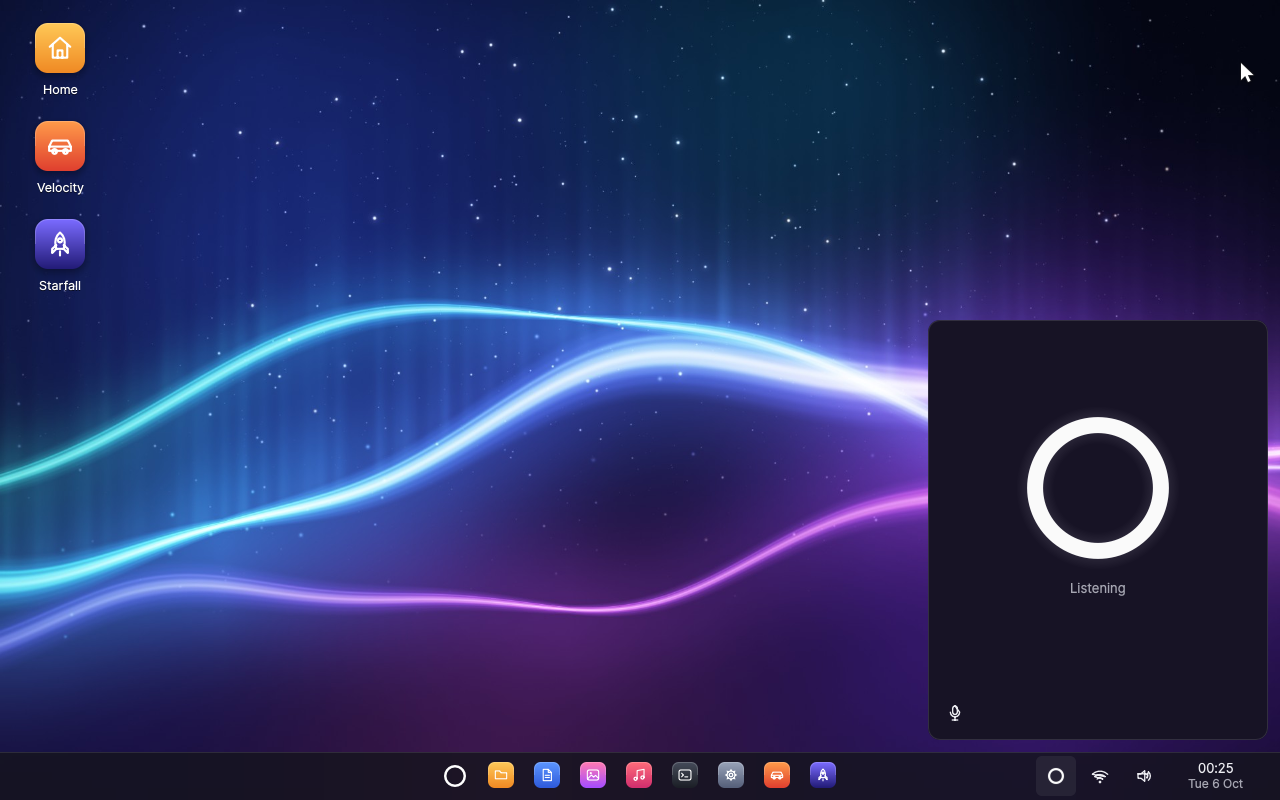
Veda is an operating system with an AI agent built into it — not an assistant added to a desktop, but a part of the system that every application is made to work with. You talk to it the way you would talk to someone in the room — "Hey Veda, switch my wallpaper to the dunes" — and it does the work through the same operations as your keyboard and mouse, in any application, and asks you before anything that is hard to undo.
Everything is written from scratch in Rust and lives in this repository: the UEFI bootloader, a capability-based microkernel, the drivers, the system services, the window system, the toolkit and the applications. A few mature crates provide the TCP/IP engine, TLS and cryptography (smoltcp, rustls, RustCrypto). Veda runs on x86-64 PCs, in QEMU and VirtualBox.
Why agentic-native
Operating systems were designed for a person at a keyboard. An assistant added to one later usually has to read the screen, imitate clicks or make do with the few applications that offer an API, and the system has no say in what it does. Veda turns this around: the agent is a first-class user of the system, and the system is built so that its work is reliable, visible and safe.
- The agent is part of the system. It is a system service, started at boot and restarted if it fails, present as a small ring on the taskbar and asleep until you call it — by its name, with a click on the ring or with Super+Space.
- Every application speaks to it natively. Agent support is part of the application platform: an application describes its actions, with typed parameters and a risk level, reports what it shows as structured state, and carries out actions through the same code as the keyboard and mouse — so the window shows the result exactly as if you had done it. No screen scraping, no simulated clicks. The built-in applications offer more than 70 actions between them, from writing in a document to starting a race.
- The system holds the agent to your consent. Every action is
routine, sensitive or destructive. Routine actions just happen; the
others wait for your OK. The agent service enforces this, not the
language model: the call is held until you answer, only the desktop
shell can answer (the system knows each program by the identity
initattaches to its connections), and nothing the agent reads in a document or an application can approve anything. - It works from real context. Every conversation starts with what the agent needs to help: the time, the windows on the screen, every application's actions, what you have told it about yourself and how your last conversation ended. While it works it reads the applications' state, so it acts on what is really there.
- Your memory stays yours. It remembers what you tell it plainly — your name, the people in your life, how you like things done — never its own guesses. That memory is kept on your computer, and Settings shows all of it and forgets any of it.
- Voice comes first. Conversations happen in real time: interrupt the agent and it stops and listens. The audio system is built for it — echo cancellation and an echo gate so that the agent never hears itself, and other sound turned down while it talks with you. While it sleeps, a voice detector on the computer listens for speech, so that nothing leaves the computer while nobody speaks.
- The intelligence is a setting. Speech recognition, the language model and the voice come from Deepgram's Voice Agent platform, with the audio opted out of Deepgram's model improvement; the model, the voice and even the agent's name are chosen in Settings.
How the agent works
 ┌───────────────────────────────────────────────────────────────────────┐
 │ You: voice, keyboard, mouse                                           │
 ├───────────────────────────────────┬───────────────────────────────────┤
 │ Agent service                     │ Desktop shell                     │
 │  conversation (Deepgram Voice     │  the ring and the agent's window  │
 │  Agent) · name listener · memory  │  consent requests · notifications │
 │  worker: functions and consent    │                                   │
 ├───────────────────────────────────┴───────────────────────────────────┤
 │ Applications: actions · state · invoke (the agentapp protocol)        │
 ├───────────────────────────────────────────────────────────────────────┤
 │ Services: windows · files · audio · network · Wi-Fi · launcher        │
 ├───────────────────────────────────────────────────────────────────────┤
 │ vkernel: capabilities · IPC · isolation · scheduling                  │
 └───────────────────────────────────────────────────────────────────────┘
- Listening. Asleep, the agent runs a voice detector on the computer. When someone speaks, the speech goes to a recogniser that knows the agent's name; a sentence that calls it ("Hey Veda, …", "…, Veda?") wakes it, and what was said with the name is the first thing it hears.
- Conversation. Waking opens a Deepgram Voice Agent session with the agent's instructions, the context above and its functions. Deepgram takes care of turn-taking, the language model and the voice; Veda's audio service carries the sound both ways.
- Action. The model calls the agent's own functions — windows, files,
volume, Wi-Fi, wallpaper, notifications, timers and reminders, memory,
the system and its running programs — and, through
use_appandread_app, every application's actions and state. The agent service runs each call and answers with a structured result. - Consent. A call that needs your OK is held and shown in the agent's window (or as a notification while the window is closed), saying exactly what will happen and to what. Allow it and it runs; decline it, or let it expire, and it does not. Sensitive actions can be allowed for good; destructive ones are asked about every time.
The agent describes the design in full: the protocols, the voice pipeline, consent, memory and how the agent is tested.
The operating system
- Microkernel.
vkernelonly does isolation, scheduling, memory and IPC: capability handles with rights, channels that carry handles, VMOs, events, futexes, interrupt objects. SMP with x2APIC, tickless timers and XSAVE. Drivers, the file system, the window system and the agent are user-space processes, supervised byinit: if the window system crashes, it is restarted and the desktop comes back on its own. - Desktop. A startup sequence that carries the boot splash on without
a seam (a breathing light around the ring, the name and tagline rising
in, a startup sound) and dissolves it into the desktop once that is
ready; a compositing window manager with server-side decorations,
shadows, animations, window snapping and an Alt+Tab switcher with live
thumbnails; a shell with wallpaper, desktop icons, a taskbar, a
searchable start menu, a calendar and notifications; the
vuitoolkit (widgets, menus, dialogs, vector icons, anti-aliased text with the Inter and JetBrains Mono fonts), whose applications are agent-compatible. - Networking and Wi-Fi. A user-space network service (IPv4 and IPv6,
DHCP, DNS, routing, TCP, UDP, ICMP) and a Wi-Fi service that scans,
joins WPA2, WPA3 and open networks with management frame protection,
remembers networks, reconnects and roams on its own. Drivers only move
frames. Applications, the agent among them, get TLS 1.3 and 1.2 (HTTPS,
secure WebSockets) from
vtls, with certificates checked against the Mozilla roots. Under QEMU a simulated Wi-Fi environment provides access points bridged to the Internet. See Networking. - Audio. A mixing audio service with echo-cancelled capture and ducking, built for the agent's conversations as much as for music.
- Storage. virtio-blk and AHCI (SATA) drivers and a file system service that keeps the home directory on its own disk with crash-safe snapshots, so your files survive restarts. The agent's memory and key live in a private directory that only the agent can open.
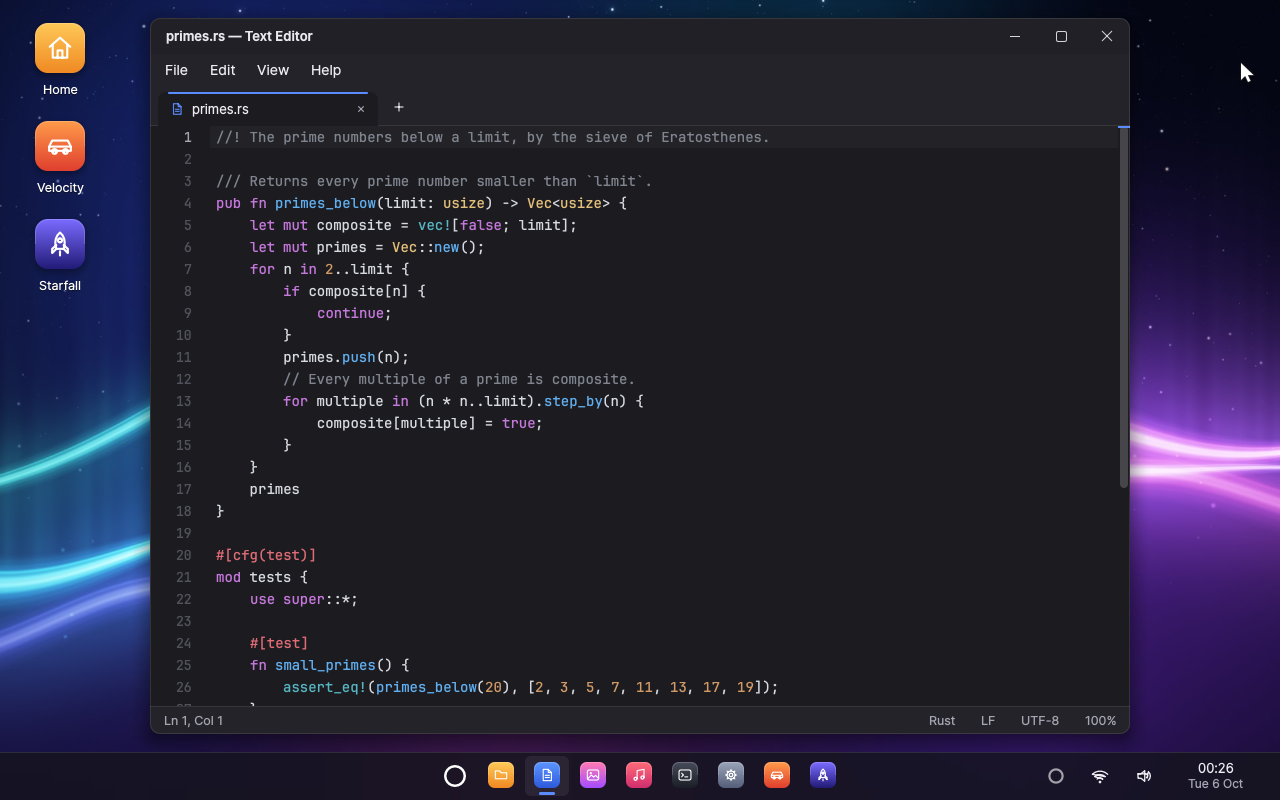
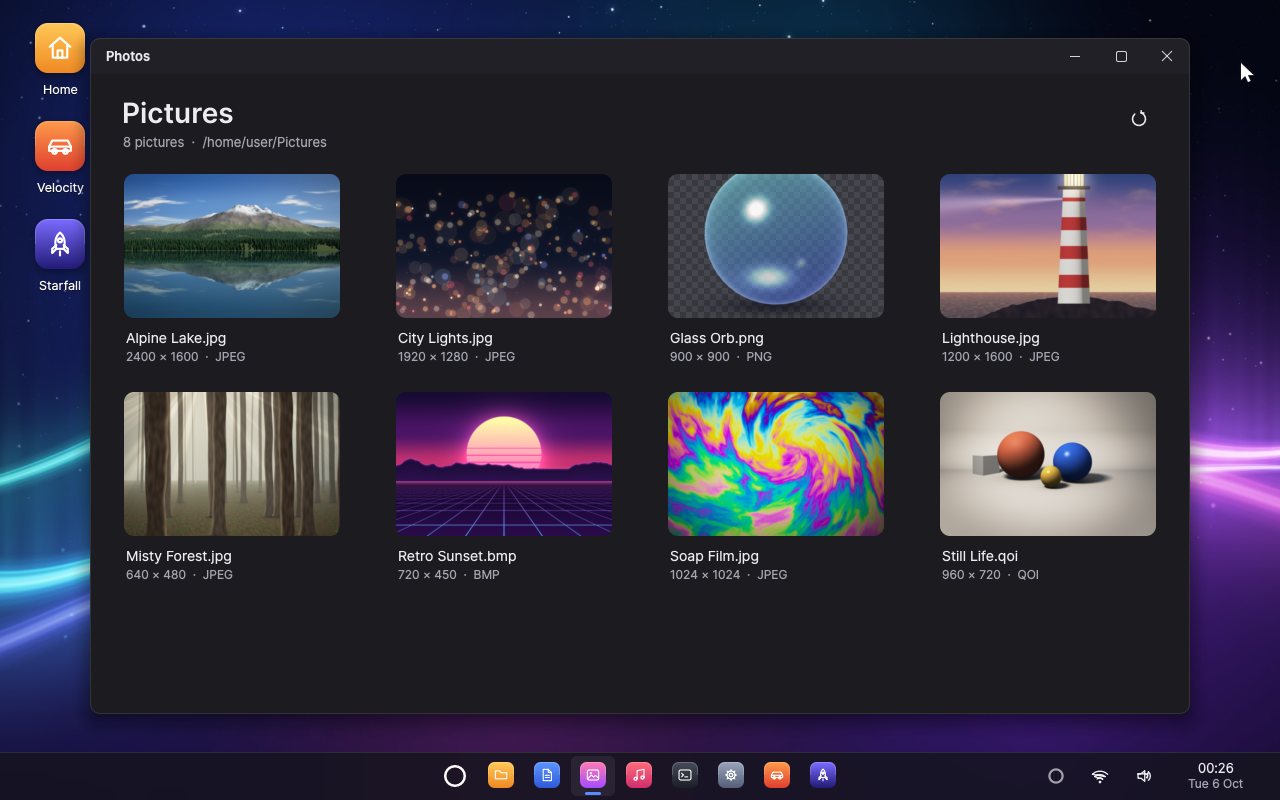
- Applications. Text Editor, Photos, Music, Files, Terminal, Task
Manager, Settings and About, and two 3D games, Velocity (racing) and
Starfall (a space shooter), rendered by the
v3dsoftware 3D engine. - 3D graphics. OpenGL ES 3.0 with GLSL ES 1.00 and 3.00 (
vgl,vglsl), every call checked as the specification requires. It renders on the host's GPU through QEMU's 3D virtio-gpu, or with a multi-threaded software renderer where there is none. Prism shows it off: a reflective knot, shadow-mapped crystals drawn with instancing, and a fountain of sparks simulated with transform feedback, at 55 frames a second under QEMU. - Tooling. One command builds a bootable disk image and runs it in QEMU or VirtualBox; scripted, headless runs drive the GUI and the agent and check screenshots and logs.
Screenshots
 |  |
|---|---|
| Text Editor | Photos |
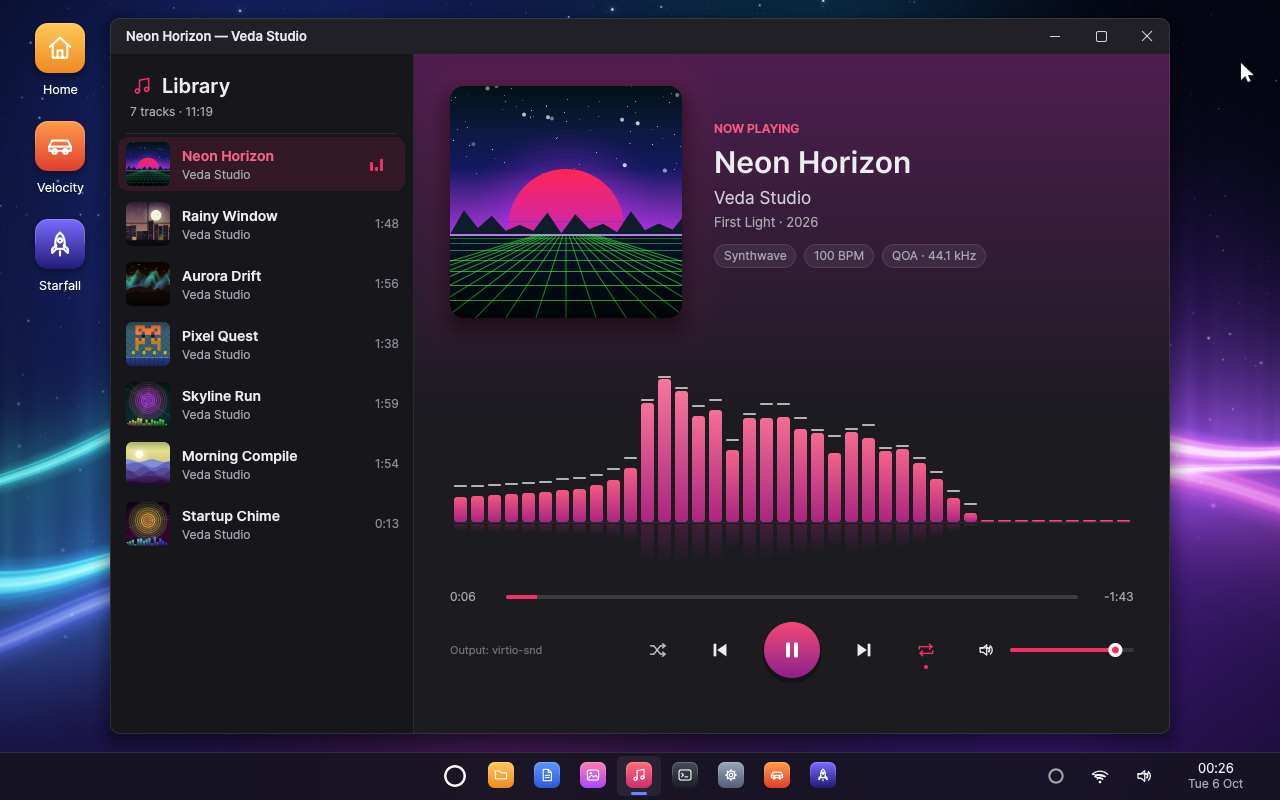 | 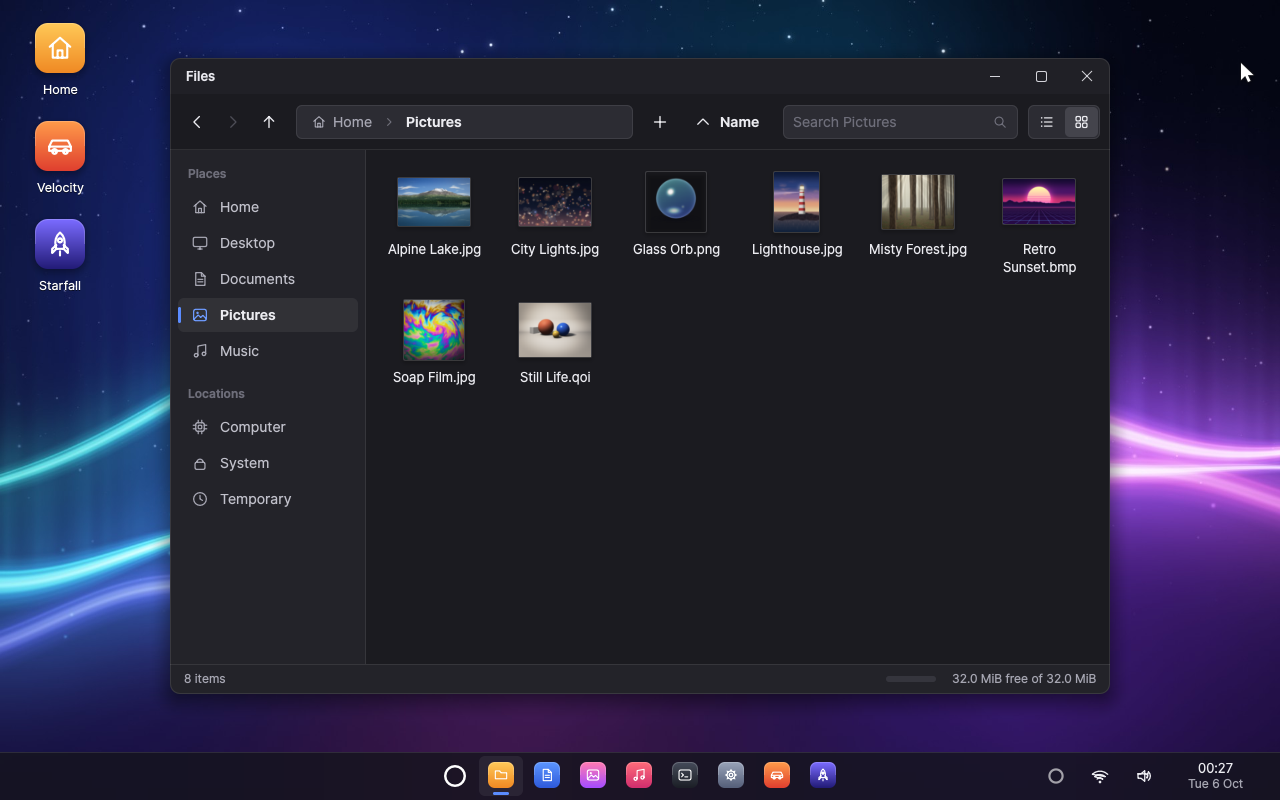 |
| Music | Files |
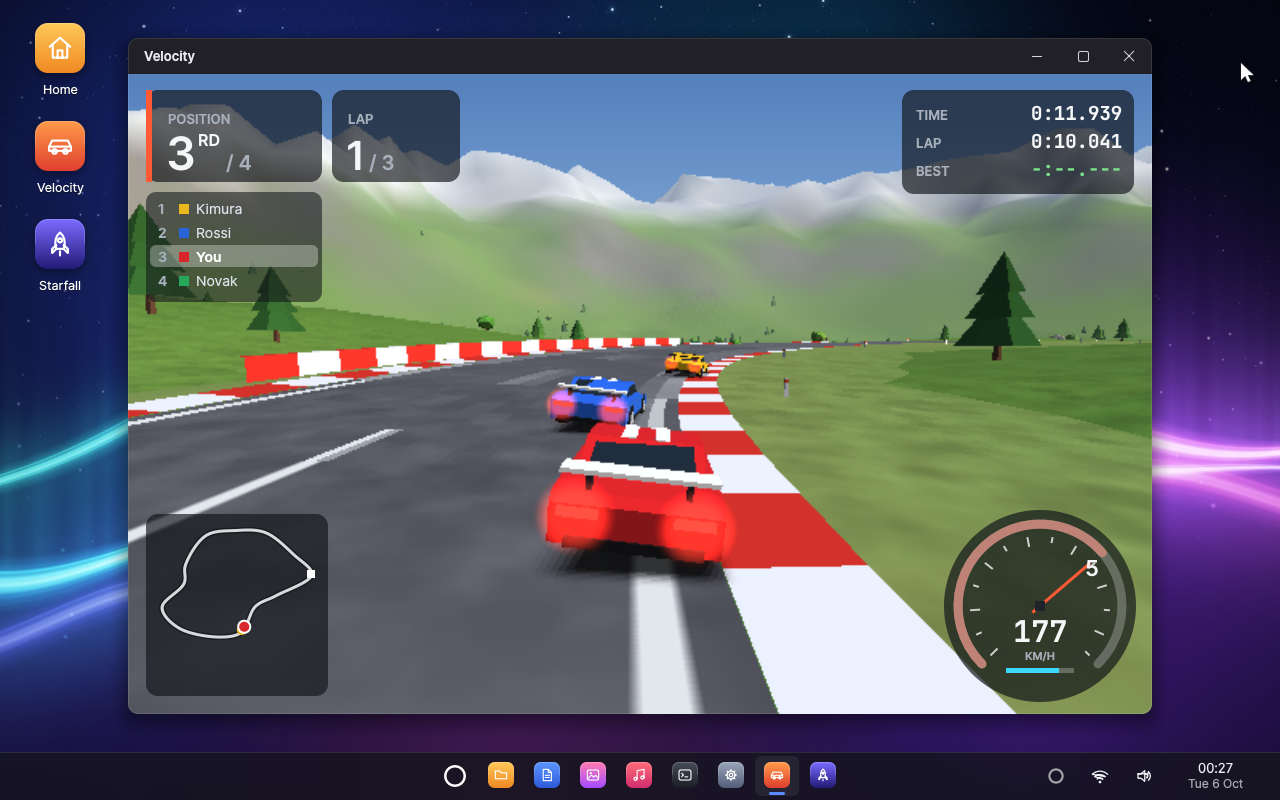 | 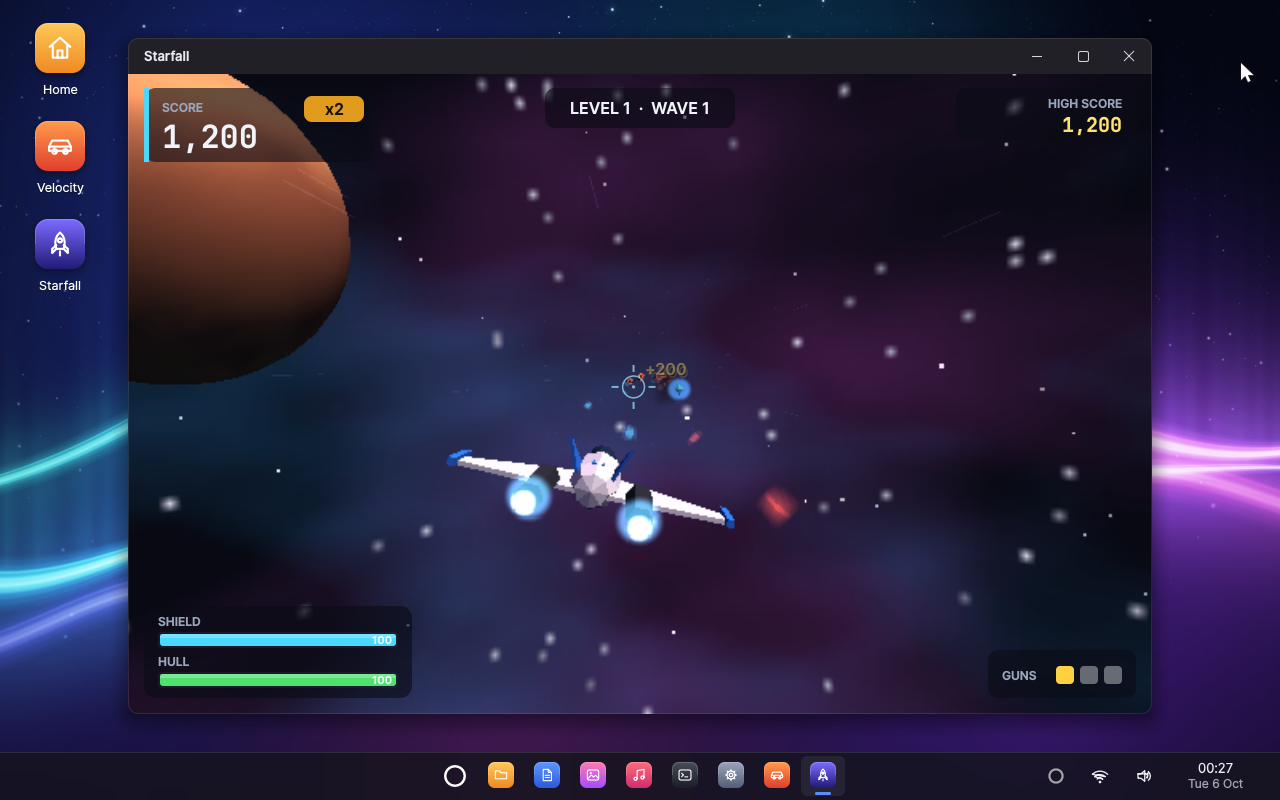 |
| Velocity | Starfall |
All screenshots are taken in QEMU by cargo xtask script docs/screenshots.vts
(the agent talking to the stand-in for Deepgram).
Veda also runs in VirtualBox (see below).
Quick start
Requirements
- Windows 10 or 11, x64. (User-space programs are PE executables linked by the Microsoft linker.)
- Rust (stable).
rust-toolchain.tomlmakes rustup install the extrax86_64-unknown-uefitarget on first use. - The Microsoft linker that Rust uses on Windows: Visual Studio 2022 or the
Visual Studio Build Tools with the MSVC build tools (
link.exe). The Rust installer offers to set these up. - QEMU for Windows, which includes the OVMF UEFI firmware, and/or VirtualBox 7.1 or newer (no Extension Pack needed).
- For the agent: a Deepgram API key, entered in Veda's Settings.
Check the environment:
cargo xtask doctor
Build and run
cargo xtask run
This builds every component, writes the disk image
target/veda/veda.img and boots it in a QEMU window. The first build
takes one to two minutes on a recent PC (it also renders the sample pictures
and music); later builds are incremental. Useful options:
cargo xtask run --resolution 1920x1080 --smp 4 --memory 2048
cargo xtask run --cmdline "run=editor"
--cmdline "run=NAME" starts /system/bin/NAME.exe after boot. The
machine is on QEMU's NAT through a wired card by default; for Wi-Fi:
cargo xtask run --net wifi
This also starts airsim, a simulated Wi-Fi environment whose networks
("Veda Home", "Veda WPA3", ...; password veda-wifi) lead to the
Internet. --net both adds the wired card. See cargo xtask help for all
commands and options.
VirtualBox
Every command takes --vm virtualbox to use VirtualBox instead of QEMU,
with the same options:
cargo xtask run --vm virtualbox
xtask creates (and on every run updates) a VirtualBox machine named "Veda" whose disks are the same images QEMU uses, so builds need no conversion and the home directory is shared between the two. VirtualBox uses the CPU's hardware virtualization (QEMU on Windows emulates the CPU in software). The machine is closer to a real PC: SATA disks, an Intel PRO/1000 network card, PS/2 keyboard and mouse, AC'97 sound with the host's speakers and microphone (Windows must allow VirtualBox to use the microphone, in Settings → Privacy). Click into the window to use the mouse; the right Ctrl key releases it.
On a high-DPI display the window enlarges the screen as QEMU's does, by the
whole part of the display scaling (2x at 250%), or less if the window
would not fit on the screen. --scale sets the factor (--scale 2.5
matches other programs at 250%; whole numbers look sharpest) and
--resolution gives Veda a larger desktop:
cargo xtask run --vm virtualbox --resolution 1600x1000 --scale 2
To put Veda on your real network (your router's DHCP and DNS, the real Internet) through the host's network adapter, Wi-Fi included:
cargo xtask run --vm virtualbox --net bridged
shot, script and test work with --vm virtualbox too; scripts that
need QEMU (the simulated Wi-Fi) are skipped.
A real PC, from a USB stick
cargo xtask iso
writes target/veda/veda.iso, a live system. Write it to a USB stick with
Rufus (partition scheme GPT, target system UEFI, ISO
mode), or as it is with any image writer, and start the PC from the stick
(usually from the firmware's boot menu: F12, F11 or Esc at power-on) in
UEFI mode with Secure Boot off, as Veda's loader is not signed. Veda runs
from memory and leaves the PC alone: no disk driver starts, so it never
reads or writes the PC's disks or the systems installed on them, and its
home directory lasts until the PC is turned off. To try the stick in QEMU
first:
cargo xtask run --live
On real hardware the desktop appears in the screen mode the firmware provides (1920x1080, or the largest below it). USB keyboards, mice and hubs work on the USB 3 (xHCI) controllers that PCs have had since about 2012, as do PS/2 keyboards and mice; other USB devices, the stick included, are left alone. Sound plays on HD Audio, the sound hardware of nearly every PC since 2005: through the speakers, or the headphones when they are plugged in, and the line outputs, with the microphone (built in, or on a jack when one is plugged in) for the agent. Built-in microphones wired to an audio DSP rather than to the codec, as in many recent laptops, stay silent; HDMI and DisplayPort audio need a graphics driver, which Veda does not have yet; and few PCs have network hardware Veda supports. To try USB input or HD Audio in QEMU:
cargo xtask run --input usb
cargo xtask run --sound hda
Talking to Veda
- Open Settings → Agent and add your Deepgram API key. The agent's name, voice, language model, listening and memory are on the same page.
- Say "Hey Veda", click the small ring at the right of the taskbar or press Super+Space.
- Talk naturally, ask follow-up questions, interrupt whenever you like, and say goodbye when you are done. It goes back to sleep and listens for its name.
Veda hears you through your PC's microphone and answers through its speakers, under QEMU and VirtualBox alike.
Things to ask:
- "Switch my wallpaper to the dunes."
- "Play Neon Horizon."
- "Write a shopping list with eggs, milk and coffee."
- "Show me the lighthouse photo, full screen."
- "Remind me to stretch in twenty minutes."
- "What's using the most memory?"
- "Start a race in Velocity."
- "Delete the City Lights photo" — and see it ask you first.
- "What do you know about me?"
Using the desktop
- Click the logo (the ring in the middle of the taskbar) or tap the Super key for the start menu; type to search for an application.
- Click a taskbar button to open, focus or minimise an application; middle-click opens another window. Click the clock for the calendar.
- Double-click desktop icons. Right-click the desktop to change the wallpaper.
- Drag a window to the top of the screen to maximise it, or to a side to fill that half (or use Super+Left/Right/Up/Down). Super+D shows the desktop, Alt+Tab switches windows and Alt+F4 closes the active one.
- The speaker icon on the taskbar opens the volume control (scroll over it to change the volume). The network icon next to it shows the Wi-Fi signal and opens the list of networks to join.
Your files live in /home/user, kept on target/veda/home.img across
restarts and rebuilds (--fresh-home starts over).
Applications
Every application is agent-compatible: what you can do with the mouse and keyboard, the agent can do too, through the application's own actions.
| Application | What it does | What the agent can do |
|---|---|---|
| Text Editor | Tabs, syntax highlighting (Rust, C, TOML, Markdown), find and replace, word wrap, line numbers, zoom, unlimited undo, open/save dialogs. | Create, open, read and write documents; find and replace, select, undo, save; save under another name or discard changes (with your OK). |
| Photos | A thumbnail library of ~/Pictures and a viewer with zoom, pan, rotation, full screen, slideshows, details and "set as wallpaper"; PNG, JPEG (including progressive), BMP and QOI. | Show any picture, zoom, rotate, go full screen, run a slideshow, show details, set a picture as the wallpaper. |
| Music | A library of ~/Music, now playing with cover art and a live spectrum visualiser, seeking, shuffle and repeat; plays QOA and WAV through the audio service. | Play a song by its name, pause, stop, skip, seek, shuffle, repeat, set the volume. |
| Files | Places sidebar, breadcrumbs, list and icon views with thumbnails, search, copy/cut/paste, rename, delete, new folders and documents, properties, free space. | Open folders and files, search, show properties, make folders; copy, move and rename (with your OK); delete (asked every time). |
| Terminal | A command shell with about fifty built-in commands for files, processes, the network (wifi, ifconfig, ping, nslookup, curl, ...) and the system, history and tab completion. | Run a command (with your OK), read its output, interrupt it. |
| Task Manager | Processes with CPU and memory use, "end task", and live performance graphs. | List processes, show and read the performance graphs, end a program (asked every time). |
| Settings | Wallpaper gallery, the agent (Deepgram key, name, voice, language and speech models, listening, memory, permissions), network and Wi-Fi (connection, networks in range, saved networks, interfaces, diagnostics), display information and system details. | Open a page, change the agent's voice and speaking rate; rename the agent or change its language model (with your OK). Never the key. |
| Velocity | An arcade 3D racing game against computer opponents on a procedurally generated circuit. | Start, pause, resume or restart a race; change the track, laps or opponents. |
| Starfall | A 3D space shooter through asteroid fields and enemy waves. | Start, pause, resume or restart a game. |
The games are drawn by v3d, a multi-threaded fixed-point software 3D
renderer, and Prism by OpenGL ES. Beyond the applications, the agent's
own functions cover windows, files, sound, Wi-Fi, the wallpaper,
notifications, timers and reminders, its memory and the system.
Building agent-compatible applications
Agent support is part of the vui application platform. An application
describes what it can do, reports what it shows and performs actions;
vui::run registers it with the agent service and answers the agent
between frames:
use vui::agent::{self, Action, AppAgentInfo, Risk, Value, arg_path, arg_str, object, show_path};

impl vui::App for Notes {
    fn update(&mut self, ui: &mut vui::Ui) { /* ... */ }

    fn agent_info(&self) -> Option<AppAgentInfo> {
        Some(agent::info(
            "A notes app: one note per file in ~/Notes.",
            vec![
                Action::new("add_line", "Adds a line at the end of the note shown")
                    .param("text", "string", "The line", true)
                    .build(),
                Action::new("delete_note", "Deletes a note for good")
                    .param("path", "string", "The note's file, such as ~/Notes/Ideas.txt", true)
                    .risk(Risk::Destructive)
                    .build(),
            ],
        ))
    }

    fn agent_state(&self) -> Value {
        object! { "note" => self.title.as_str(), "lines" => self.lines.len() }
    }

    fn agent_invoke(&mut self, action: &str, args: &Value) -> Result<Value, String> {
        match action {
            "add_line" => { self.append(arg_str(args, "text")?); Ok(object! { "lines" => self.lines.len() }) }
            "delete_note" => {
                let path = arg_path(args, "path")?;
                self.delete(&path).map_err(|e| format!("{} could not be deleted: {e}", show_path(&path)))?;
                Ok(object! { "deleted" => show_path(&path) })
            }
            other => Err(format!("Notes has no action called {other}")),
        }
    }
}
Actions are written for a language model (short imperative descriptions, units and defaults spelled out), declare their risk, name their targets explicitly and go through the same code as the keyboard and mouse. The consent, the memory and the conversation are the system's job, not the application's. See Making an application agent-compatible.
Testing
cargo xtask test
runs the host unit tests of the libraries (the agent's protocol, tools,
prompt, memory, wake word and echo gate, the kernel ABI, heap, IPC,
service protocols, math, rasterizer, fonts, image codecs, 2D graphics,
text editing, paths and file types, audio, build tool) and then boots Veda
headless with the systest integration tests (IPC, threads, file system,
launcher, crash reports and recovery of the window system after it is
killed), failing on any panic.
The agent is tested end to end against a stand-in for Deepgram that runs
on the host (tests/agent/): conversations, function calls, interruptions,
echo, consent in the window and in notifications, waking by name over
music, every application's actions and restarts — deterministic, offline
and free. tests/real/agent-*.vts talk to the real Deepgram with the key
in DEEPGRAM_API_KEY, with a synthetic voice speaking into a virtual
microphone.
Networking has its own host tests (the 802.11 protocol and cryptography
against published test vectors, station against access point, TCP/IP stacks
over a simulated cable, the Wi-Fi simulator, TLS handshakes against a
rustls server and real certificate chains), and nettest checks DNS,
TCP, HTTP, HTTPS and ping from inside Veda.
GUI automation scripts in tests/ui/ click through the desktop and
applications, check the log and save screenshots. The Wi-Fi scripts join
networks through the desktop and break the simulated network in many ways
(access point gone, disconnection, outages, the radio or the Wi-Fi service
vanishing) to check that Veda recovers by itself. Run them all, the
agent's included, with the unit and integration tests, or one at a time:
cargo xtask test --ui
cargo xtask script tests/agent/wake-name.vts
cargo xtask shot --wait 20
(shot boots headless and saves target/veda/screen.png.)
The serial console (kernel log plus every program's output) is saved to
target/veda/serial.log.
Repository layout
| Path | Contents |
|---|---|
services/agent/ | the agent: conversations, the name listener, functions, consent, memory |
lib/agent/ | the agent's logic: Deepgram protocol, functions, instructions, wake word, echo gate, memory, configuration |
boot/ | vboot, the UEFI bootloader |
kernel/ | vkernel, the microkernel |
lib/ | shared libraries: abi (system call ABI), rt (runtime), ipc (message codec and protocol macros), proto (service protocols, the agent's included), gfx/raster/font/image (2D graphics), ui (toolkit and its agent support), v3d (3D engine), glsl and gl (the GLSL ES compiler and OpenGL ES 3.0), net and tls (networking and TLS for applications), web (HTTP and WebSocket), json, audio (mixing, echo cancellation, voice detection, synthesis), usb (descriptors, HID reports, xHCI structures), hda (HD Audio codecs and their routes), text, math, ... |
services/ | init (service registry, launcher, process identity), vfs, devmgr (PCI), compositor, audio, agent, netd (network), wlan (Wi-Fi) |
drivers/ | ps2, virtio-input, xhci (USB 3 controllers: hubs, keyboards, mice), virtio-blk, ahci (SATA), hda (Intel HD Audio), virtio-snd, ac97 (AC'97 sound), virtio-net, e1000 (Intel PRO/1000), vwifi (the virtual Wi-Fi radio), virtio-gpu (3D on the host's GPU) |
apps/ | the desktop shell (the agent's ring, window and consent requests) and the applications, including racer (Velocity) and starfall |
tests/ | the agent's scripts (agent/, and real/ for the real services), systest and nettest (in-system tests), GUI automation scripts |
tools/ | host programs generating wallpapers, sample pictures and music at build time, and airsim (the simulated Wi-Fi environment) |
third_party/ | vendored crates with Veda patches (smoltcp) |
xtask/ | the build system: cross-compilation, disk image, QEMU and VirtualBox, automation, the stand-in for Deepgram |
assets/ | fonts, application manifests, and firmware for laptop speaker amplifiers |
docs/ | documentation, the README's screenshots, and the icon and social preview (docs/icon/) |
Documentation
- The agent: the voice agent, its functions, consent and memory, and how applications become agent-compatible.
- Architecture: how the system fits together.
- Networking: the network and Wi-Fi services, the simulated Wi-Fi environment, security and tests.
- Developing: build commands, the system image, writing applications, performance notes.
- Coding conventions.
License
Copyright © 2026 Vahid Mohammadi.
Veda is free software: you can redistribute it and/or modify it under the terms of the GNU General Public License, version 3, as published by the Free Software Foundation (see LICENSE). It is distributed in the hope that it will be useful, but WITHOUT ANY WARRANTY; without even the implied warranty of MERCHANTABILITY or FITNESS FOR A PARTICULAR PURPOSE.
The bundled fonts (Inter, Lato, JetBrains Mono) are under the SIL Open
Font License 1.1; see assets/fonts/. The firmware in
assets/firmware/cirrus/ is Cirrus Logic's, from the Linux firmware
collection: it runs on the speaker amplifiers' own DSP, not in Veda, and is
redistributed unmodified under Cirrus Logic's licence (LICENSE.cirrus
there), for use only with their devices. Vendored third-party code keeps
its own license; see third_party/.
Similar repos


See what people are saying
README
Veda: The Agentic-Native Operating System
Veda is an operating system with an AI agent built into it — not an assistant added to a desktop, but a part of the system that every application is made to work with. You talk to it the way you would talk to someone in the room — "Hey Veda, switch my wallpaper to the dunes" — and it does the work through the same operations as your keyboard and mouse, in any application, and asks you before anything that is hard to undo.
Everything is written from scratch in Rust and lives in this repository: the UEFI bootloader, a capability-based microkernel, the drivers, the system services, the window system, the toolkit and the applications. A few mature crates provide the TCP/IP engine, TLS and cryptography (smoltcp, rustls, RustCrypto). Veda runs on x86-64 PCs, in QEMU and VirtualBox.
Why agentic-native
Operating systems were designed for a person at a keyboard. An assistant added to one later usually has to read the screen, imitate clicks or make do with the few applications that offer an API, and the system has no say in what it does. Veda turns this around: the agent is a first-class user of the system, and the system is built so that its work is reliable, visible and safe.
- The agent is part of the system. It is a system service, started at boot and restarted if it fails, present as a small ring on the taskbar and asleep until you call it — by its name, with a click on the ring or with Super+Space.
- Every application speaks to it natively. Agent support is part of the application platform: an application describes its actions, with typed parameters and a risk level, reports what it shows as structured state, and carries out actions through the same code as the keyboard and mouse — so the window shows the result exactly as if you had done it. No screen scraping, no simulated clicks. The built-in applications offer more than 70 actions between them, from writing in a document to starting a race.
- The system holds the agent to your consent. Every action is
routine, sensitive or destructive. Routine actions just happen; the
others wait for your OK. The agent service enforces this, not the
language model: the call is held until you answer, only the desktop
shell can answer (the system knows each program by the identity
initattaches to its connections), and nothing the agent reads in a document or an application can approve anything. - It works from real context. Every conversation starts with what the agent needs to help: the time, the windows on the screen, every application's actions, what you have told it about yourself and how your last conversation ended. While it works it reads the applications' state, so it acts on what is really there.
- Your memory stays yours. It remembers what you tell it plainly — your name, the people in your life, how you like things done — never its own guesses. That memory is kept on your computer, and Settings shows all of it and forgets any of it.
- Voice comes first. Conversations happen in real time: interrupt the agent and it stops and listens. The audio system is built for it — echo cancellation and an echo gate so that the agent never hears itself, and other sound turned down while it talks with you. While it sleeps, a voice detector on the computer listens for speech, so that nothing leaves the computer while nobody speaks.
- The intelligence is a setting. Speech recognition, the language model and the voice come from Deepgram's Voice Agent platform, with the audio opted out of Deepgram's model improvement; the model, the voice and even the agent's name are chosen in Settings.
How the agent works
 ┌───────────────────────────────────────────────────────────────────────┐
 │ You: voice, keyboard, mouse                                           │
 ├───────────────────────────────────┬───────────────────────────────────┤
 │ Agent service                     │ Desktop shell                     │
 │  conversation (Deepgram Voice     │  the ring and the agent's window  │
 │  Agent) · name listener · memory  │  consent requests · notifications │
 │  worker: functions and consent    │                                   │
 ├───────────────────────────────────┴───────────────────────────────────┤
 │ Applications: actions · state · invoke (the agentapp protocol)        │
 ├───────────────────────────────────────────────────────────────────────┤
 │ Services: windows · files · audio · network · Wi-Fi · launcher        │
 ├───────────────────────────────────────────────────────────────────────┤
 │ vkernel: capabilities · IPC · isolation · scheduling                  │
 └───────────────────────────────────────────────────────────────────────┘
- Listening. Asleep, the agent runs a voice detector on the computer. When someone speaks, the speech goes to a recogniser that knows the agent's name; a sentence that calls it ("Hey Veda, …", "…, Veda?") wakes it, and what was said with the name is the first thing it hears.
- Conversation. Waking opens a Deepgram Voice Agent session with the agent's instructions, the context above and its functions. Deepgram takes care of turn-taking, the language model and the voice; Veda's audio service carries the sound both ways.
- Action. The model calls the agent's own functions — windows, files,
volume, Wi-Fi, wallpaper, notifications, timers and reminders, memory,
the system and its running programs — and, through
use_appandread_app, every application's actions and state. The agent service runs each call and answers with a structured result. - Consent. A call that needs your OK is held and shown in the agent's window (or as a notification while the window is closed), saying exactly what will happen and to what. Allow it and it runs; decline it, or let it expire, and it does not. Sensitive actions can be allowed for good; destructive ones are asked about every time.
The agent describes the design in full: the protocols, the voice pipeline, consent, memory and how the agent is tested.
The operating system
- Microkernel.
vkernelonly does isolation, scheduling, memory and IPC: capability handles with rights, channels that carry handles, VMOs, events, futexes, interrupt objects. SMP with x2APIC, tickless timers and XSAVE. Drivers, the file system, the window system and the agent are user-space processes, supervised byinit: if the window system crashes, it is restarted and the desktop comes back on its own. - Desktop. A startup sequence that carries the boot splash on without
a seam (a breathing light around the ring, the name and tagline rising
in, a startup sound) and dissolves it into the desktop once that is
ready; a compositing window manager with server-side decorations,
shadows, animations, window snapping and an Alt+Tab switcher with live
thumbnails; a shell with wallpaper, desktop icons, a taskbar, a
searchable start menu, a calendar and notifications; the
vuitoolkit (widgets, menus, dialogs, vector icons, anti-aliased text with the Inter and JetBrains Mono fonts), whose applications are agent-compatible. - Networking and Wi-Fi. A user-space network service (IPv4 and IPv6,
DHCP, DNS, routing, TCP, UDP, ICMP) and a Wi-Fi service that scans,
joins WPA2, WPA3 and open networks with management frame protection,
remembers networks, reconnects and roams on its own. Drivers only move
frames. Applications, the agent among them, get TLS 1.3 and 1.2 (HTTPS,
secure WebSockets) from
vtls, with certificates checked against the Mozilla roots. Under QEMU a simulated Wi-Fi environment provides access points bridged to the Internet. See Networking. - Audio. A mixing audio service with echo-cancelled capture and ducking, built for the agent's conversations as much as for music.
- Storage. virtio-blk and AHCI (SATA) drivers and a file system service that keeps the home directory on its own disk with crash-safe snapshots, so your files survive restarts. The agent's memory and key live in a private directory that only the agent can open.
- Applications. Text Editor, Photos, Music, Files, Terminal, Task
Manager, Settings and About, and two 3D games, Velocity (racing) and
Starfall (a space shooter), rendered by the
v3dsoftware 3D engine. - 3D graphics. OpenGL ES 3.0 with GLSL ES 1.00 and 3.00 (
vgl,vglsl), every call checked as the specification requires. It renders on the host's GPU through QEMU's 3D virtio-gpu, or with a multi-threaded software renderer where there is none. Prism shows it off: a reflective knot, shadow-mapped crystals drawn with instancing, and a fountain of sparks simulated with transform feedback, at 55 frames a second under QEMU. - Tooling. One command builds a bootable disk image and runs it in QEMU or VirtualBox; scripted, headless runs drive the GUI and the agent and check screenshots and logs.
Screenshots
| |
|---|---|
| Text Editor | Photos |
| |
| Music | Files |
| |
| Velocity | Starfall |
All screenshots are taken in QEMU by cargo xtask script docs/screenshots.vts
(the agent talking to the stand-in for Deepgram).
Veda also runs in VirtualBox (see below).
Quick start
Requirements
- Windows 10 or 11, x64. (User-space programs are PE executables linked by the Microsoft linker.)
- Rust (stable).
rust-toolchain.tomlmakes rustup install the extrax86_64-unknown-uefitarget on first use. - The Microsoft linker that Rust uses on Windows: Visual Studio 2022 or the
Visual Studio Build Tools with the MSVC build tools (
link.exe). The Rust installer offers to set these up. - QEMU for Windows, which includes the OVMF UEFI firmware, and/or VirtualBox 7.1 or newer (no Extension Pack needed).
- For the agent: a Deepgram API key, entered in Veda's Settings.
Check the environment:
cargo xtask doctor
Build and run
cargo xtask run
This builds every component, writes the disk image
target/veda/veda.img and boots it in a QEMU window. The first build
takes one to two minutes on a recent PC (it also renders the sample pictures
and music); later builds are incremental. Useful options:
cargo xtask run --resolution 1920x1080 --smp 4 --memory 2048
cargo xtask run --cmdline "run=editor"
--cmdline "run=NAME" starts /system/bin/NAME.exe after boot. The
machine is on QEMU's NAT through a wired card by default; for Wi-Fi:
cargo xtask run --net wifi
This also starts airsim, a simulated Wi-Fi environment whose networks
("Veda Home", "Veda WPA3", ...; password veda-wifi) lead to the
Internet. --net both adds the wired card. See cargo xtask help for all
commands and options.
VirtualBox
Every command takes --vm virtualbox to use VirtualBox instead of QEMU,
with the same options:
cargo xtask run --vm virtualbox
xtask creates (and on every run updates) a VirtualBox machine named "Veda" whose disks are the same images QEMU uses, so builds need no conversion and the home directory is shared between the two. VirtualBox uses the CPU's hardware virtualization (QEMU on Windows emulates the CPU in software). The machine is closer to a real PC: SATA disks, an Intel PRO/1000 network card, PS/2 keyboard and mouse, AC'97 sound with the host's speakers and microphone (Windows must allow VirtualBox to use the microphone, in Settings → Privacy). Click into the window to use the mouse; the right Ctrl key releases it.
On a high-DPI display the window enlarges the screen as QEMU's does, by the
whole part of the display scaling (2x at 250%), or less if the window
would not fit on the screen. --scale sets the factor (--scale 2.5
matches other programs at 250%; whole numbers look sharpest) and
--resolution gives Veda a larger desktop:
cargo xtask run --vm virtualbox --resolution 1600x1000 --scale 2
To put Veda on your real network (your router's DHCP and DNS, the real Internet) through the host's network adapter, Wi-Fi included:
cargo xtask run --vm virtualbox --net bridged
shot, script and test work with --vm virtualbox too; scripts that
need QEMU (the simulated Wi-Fi) are skipped.
A real PC, from a USB stick
cargo xtask iso
writes target/veda/veda.iso, a live system. Write it to a USB stick with
Rufus (partition scheme GPT, target system UEFI, ISO
mode), or as it is with any image writer, and start the PC from the stick
(usually from the firmware's boot menu: F12, F11 or Esc at power-on) in
UEFI mode with Secure Boot off, as Veda's loader is not signed. Veda runs
from memory and leaves the PC alone: no disk driver starts, so it never
reads or writes the PC's disks or the systems installed on them, and its
home directory lasts until the PC is turned off. To try the stick in QEMU
first:
cargo xtask run --live
On real hardware the desktop appears in the screen mode the firmware provides (1920x1080, or the largest below it). USB keyboards, mice and hubs work on the USB 3 (xHCI) controllers that PCs have had since about 2012, as do PS/2 keyboards and mice; other USB devices, the stick included, are left alone. Sound plays on HD Audio, the sound hardware of nearly every PC since 2005: through the speakers, or the headphones when they are plugged in, and the line outputs, with the microphone (built in, or on a jack when one is plugged in) for the agent. Built-in microphones wired to an audio DSP rather than to the codec, as in many recent laptops, stay silent; HDMI and DisplayPort audio need a graphics driver, which Veda does not have yet; and few PCs have network hardware Veda supports. To try USB input or HD Audio in QEMU:
cargo xtask run --input usb
cargo xtask run --sound hda
Talking to Veda
- Open Settings → Agent and add your Deepgram API key. The agent's name, voice, language model, listening and memory are on the same page.
- Say "Hey Veda", click the small ring at the right of the taskbar or press Super+Space.
- Talk naturally, ask follow-up questions, interrupt whenever you like, and say goodbye when you are done. It goes back to sleep and listens for its name.
Veda hears you through your PC's microphone and answers through its speakers, under QEMU and VirtualBox alike.
Things to ask:
- "Switch my wallpaper to the dunes."
- "Play Neon Horizon."
- "Write a shopping list with eggs, milk and coffee."
- "Show me the lighthouse photo, full screen."
- "Remind me to stretch in twenty minutes."
- "What's using the most memory?"
- "Start a race in Velocity."
- "Delete the City Lights photo" — and see it ask you first.
- "What do you know about me?"
Using the desktop
- Click the logo (the ring in the middle of the taskbar) or tap the Super key for the start menu; type to search for an application.
- Click a taskbar button to open, focus or minimise an application; middle-click opens another window. Click the clock for the calendar.
- Double-click desktop icons. Right-click the desktop to change the wallpaper.
- Drag a window to the top of the screen to maximise it, or to a side to fill that half (or use Super+Left/Right/Up/Down). Super+D shows the desktop, Alt+Tab switches windows and Alt+F4 closes the active one.
- The speaker icon on the taskbar opens the volume control (scroll over it to change the volume). The network icon next to it shows the Wi-Fi signal and opens the list of networks to join.
Your files live in /home/user, kept on target/veda/home.img across
restarts and rebuilds (--fresh-home starts over).
Applications
Every application is agent-compatible: what you can do with the mouse and keyboard, the agent can do too, through the application's own actions.
| Application | What it does | What the agent can do |
|---|---|---|
| Text Editor | Tabs, syntax highlighting (Rust, C, TOML, Markdown), find and replace, word wrap, line numbers, zoom, unlimited undo, open/save dialogs. | Create, open, read and write documents; find and replace, select, undo, save; save under another name or discard changes (with your OK). |
| Photos | A thumbnail library of ~/Pictures and a viewer with zoom, pan, rotation, full screen, slideshows, details and "set as wallpaper"; PNG, JPEG (including progressive), BMP and QOI. | Show any picture, zoom, rotate, go full screen, run a slideshow, show details, set a picture as the wallpaper. |
| Music | A library of ~/Music, now playing with cover art and a live spectrum visualiser, seeking, shuffle and repeat; plays QOA and WAV through the audio service. | Play a song by its name, pause, stop, skip, seek, shuffle, repeat, set the volume. |
| Files | Places sidebar, breadcrumbs, list and icon views with thumbnails, search, copy/cut/paste, rename, delete, new folders and documents, properties, free space. | Open folders and files, search, show properties, make folders; copy, move and rename (with your OK); delete (asked every time). |
| Terminal | A command shell with about fifty built-in commands for files, processes, the network (wifi, ifconfig, ping, nslookup, curl, ...) and the system, history and tab completion. | Run a command (with your OK), read its output, interrupt it. |
| Task Manager | Processes with CPU and memory use, "end task", and live performance graphs. | List processes, show and read the performance graphs, end a program (asked every time). |
| Settings | Wallpaper gallery, the agent (Deepgram key, name, voice, language and speech models, listening, memory, permissions), network and Wi-Fi (connection, networks in range, saved networks, interfaces, diagnostics), display information and system details. | Open a page, change the agent's voice and speaking rate; rename the agent or change its language model (with your OK). Never the key. |
| Velocity | An arcade 3D racing game against computer opponents on a procedurally generated circuit. | Start, pause, resume or restart a race; change the track, laps or opponents. |
| Starfall | A 3D space shooter through asteroid fields and enemy waves. | Start, pause, resume or restart a game. |
The games are drawn by v3d, a multi-threaded fixed-point software 3D
renderer, and Prism by OpenGL ES. Beyond the applications, the agent's
own functions cover windows, files, sound, Wi-Fi, the wallpaper,
notifications, timers and reminders, its memory and the system.
Building agent-compatible applications
Agent support is part of the vui application platform. An application
describes what it can do, reports what it shows and performs actions;
vui::run registers it with the agent service and answers the agent
between frames:
use vui::agent::{self, Action, AppAgentInfo, Risk, Value, arg_path, arg_str, object, show_path};

impl vui::App for Notes {
    fn update(&mut self, ui: &mut vui::Ui) { /* ... */ }

    fn agent_info(&self) -> Option<AppAgentInfo> {
        Some(agent::info(
            "A notes app: one note per file in ~/Notes.",
            vec![
                Action::new("add_line", "Adds a line at the end of the note shown")
                    .param("text", "string", "The line", true)
                    .build(),
                Action::new("delete_note", "Deletes a note for good")
                    .param("path", "string", "The note's file, such as ~/Notes/Ideas.txt", true)
                    .risk(Risk::Destructive)
                    .build(),
            ],
        ))
    }

    fn agent_state(&self) -> Value {
        object! { "note" => self.title.as_str(), "lines" => self.lines.len() }
    }

    fn agent_invoke(&mut self, action: &str, args: &Value) -> Result<Value, String> {
        match action {
            "add_line" => { self.append(arg_str(args, "text")?); Ok(object! { "lines" => self.lines.len() }) }
            "delete_note" => {
                let path = arg_path(args, "path")?;
                self.delete(&path).map_err(|e| format!("{} could not be deleted: {e}", show_path(&path)))?;
                Ok(object! { "deleted" => show_path(&path) })
            }
            other => Err(format!("Notes has no action called {other}")),
        }
    }
}
Actions are written for a language model (short imperative descriptions, units and defaults spelled out), declare their risk, name their targets explicitly and go through the same code as the keyboard and mouse. The consent, the memory and the conversation are the system's job, not the application's. See Making an application agent-compatible.
Testing
cargo xtask test
runs the host unit tests of the libraries (the agent's protocol, tools,
prompt, memory, wake word and echo gate, the kernel ABI, heap, IPC,
service protocols, math, rasterizer, fonts, image codecs, 2D graphics,
text editing, paths and file types, audio, build tool) and then boots Veda
headless with the systest integration tests (IPC, threads, file system,
launcher, crash reports and recovery of the window system after it is
killed), failing on any panic.
The agent is tested end to end against a stand-in for Deepgram that runs
on the host (tests/agent/): conversations, function calls, interruptions,
echo, consent in the window and in notifications, waking by name over
music, every application's actions and restarts — deterministic, offline
and free. tests/real/agent-*.vts talk to the real Deepgram with the key
in DEEPGRAM_API_KEY, with a synthetic voice speaking into a virtual
microphone.
Networking has its own host tests (the 802.11 protocol and cryptography
against published test vectors, station against access point, TCP/IP stacks
over a simulated cable, the Wi-Fi simulator, TLS handshakes against a
rustls server and real certificate chains), and nettest checks DNS,
TCP, HTTP, HTTPS and ping from inside Veda.
GUI automation scripts in tests/ui/ click through the desktop and
applications, check the log and save screenshots. The Wi-Fi scripts join
networks through the desktop and break the simulated network in many ways
(access point gone, disconnection, outages, the radio or the Wi-Fi service
vanishing) to check that Veda recovers by itself. Run them all, the
agent's included, with the unit and integration tests, or one at a time:
cargo xtask test --ui
cargo xtask script tests/agent/wake-name.vts
cargo xtask shot --wait 20
(shot boots headless and saves target/veda/screen.png.)
The serial console (kernel log plus every program's output) is saved to
target/veda/serial.log.
Repository layout
| Path | Contents |
|---|---|
services/agent/ | the agent: conversations, the name listener, functions, consent, memory |
lib/agent/ | the agent's logic: Deepgram protocol, functions, instructions, wake word, echo gate, memory, configuration |
boot/ | vboot, the UEFI bootloader |
kernel/ | vkernel, the microkernel |
lib/ | shared libraries: abi (system call ABI), rt (runtime), ipc (message codec and protocol macros), proto (service protocols, the agent's included), gfx/raster/font/image (2D graphics), ui (toolkit and its agent support), v3d (3D engine), glsl and gl (the GLSL ES compiler and OpenGL ES 3.0), net and tls (networking and TLS for applications), web (HTTP and WebSocket), json, audio (mixing, echo cancellation, voice detection, synthesis), usb (descriptors, HID reports, xHCI structures), hda (HD Audio codecs and their routes), text, math, ... |
services/ | init (service registry, launcher, process identity), vfs, devmgr (PCI), compositor, audio, agent, netd (network), wlan (Wi-Fi) |
drivers/ | ps2, virtio-input, xhci (USB 3 controllers: hubs, keyboards, mice), virtio-blk, ahci (SATA), hda (Intel HD Audio), virtio-snd, ac97 (AC'97 sound), virtio-net, e1000 (Intel PRO/1000), vwifi (the virtual Wi-Fi radio), virtio-gpu (3D on the host's GPU) |
apps/ | the desktop shell (the agent's ring, window and consent requests) and the applications, including racer (Velocity) and starfall |
tests/ | the agent's scripts (agent/, and real/ for the real services), systest and nettest (in-system tests), GUI automation scripts |
tools/ | host programs generating wallpapers, sample pictures and music at build time, and airsim (the simulated Wi-Fi environment) |
third_party/ | vendored crates with Veda patches (smoltcp) |
xtask/ | the build system: cross-compilation, disk image, QEMU and VirtualBox, automation, the stand-in for Deepgram |
assets/ | fonts, application manifests, and firmware for laptop speaker amplifiers |
docs/ | documentation, the README's screenshots, and the icon and social preview (docs/icon/) |
Documentation
- The agent: the voice agent, its functions, consent and memory, and how applications become agent-compatible.
- Architecture: how the system fits together.
- Networking: the network and Wi-Fi services, the simulated Wi-Fi environment, security and tests.
- Developing: build commands, the system image, writing applications, performance notes.
- Coding conventions.
License
Copyright © 2026 Vahid Mohammadi.
Veda is free software: you can redistribute it and/or modify it under the terms of the GNU General Public License, version 3, as published by the Free Software Foundation (see LICENSE). It is distributed in the hope that it will be useful, but WITHOUT ANY WARRANTY; without even the implied warranty of MERCHANTABILITY or FITNESS FOR A PARTICULAR PURPOSE.
The bundled fonts (Inter, Lato, JetBrains Mono) are under the SIL Open
Font License 1.1; see assets/fonts/. The firmware in
assets/firmware/cirrus/ is Cirrus Logic's, from the Linux firmware
collection: it runs on the speaker amplifiers' own DSP, not in Veda, and is
redistributed unmodified under Cirrus Logic's licence (LICENSE.cirrus
there), for use only with their devices. Vendored third-party code keeps
its own license; see third_party/.