Port Kill helps you find and free ports and caches blocking your dev work.
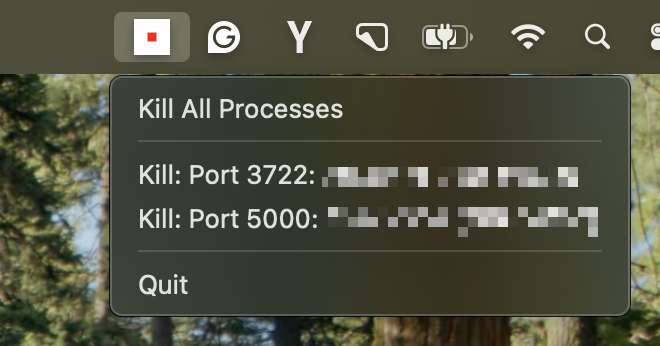
See the codePort Kill helps you find and free ports blocking your dev work, plus manage development caches and orchestrate services. It works on macOS, Linux, and Windows, locally or over SSH with a simple CLI and status bar.
Two Binaries, Full Feature Parity:
port-kill - GUI status bar app (macOS only) + full CLIport-kill-console - Pure CLI version (all platforms)Both binaries support all features including smart restart, service detection, and orchestration.
Join our Discord community for discussions, support, and updates:
# macOS/Linux
curl -fsSL portkill.com/install | bash

# Windows (PowerShell or CMD)
curl -fsSL portkill.com/install-windows -o install-release.bat && install-release.bat
Windows users: After installation, you MUST restart your terminal completely for PATH changes to take effect.
If you get 'port-kill' is not recognized error after installing:
powershell -Command "Invoke-WebRequest -UseBasicParsing -Uri 'https://raw.githubusercontent.com/treadiehq/port-kill/main/diagnose-installation.bat' -OutFile 'diagnose.bat'"; .\diagnose.bat
"%USERPROFILE%\AppData\Local\port-kill\port-kill.exe" --list
See WINDOWS.md for detailed Windows-specific guidance.
# Kill whatever is blocking a port
port-kill 3000

# Kill multiple ports
port-kill 3000 5000

# List ports in use (one-time snapshot)
port-kill --list

# Confirm before killing
port-kill 3000 --safe

# Smart Restart - Kill and automatically restart a process (NEW!)
port-kill --restart 3000

# Show what can be restarted
port-kill --show-restart-history

# Service Detection & Start (NEW!)
port-kill --detect                    # Discover npm scripts, docker-compose, etc.
port-kill --start npm:dev             # Start a detected service

# Guard mode with auto-restart (NEW!)
port-kill --guard 3000 --guard-auto-restart

# Orchestration - Manage multiple services (NEW!)
port-kill --init-config              # Create .port-kill.yaml config
port-kill --up                       # Start all services from config
port-kill --down                     # Stop all services
port-kill --status                   # Check service status
port-kill --restart-service frontend # Restart specific service

# Cache management
port-kill cache --list
port-kill cache --clean --safe-delete
port-kill cache --doctor

# Check for updates
port-kill --check-updates

# Automatically update to latest version
port-kill --self-update
Port Kill now intelligently manages your development server lifecycle:
Automatically restarts processes using their original startup commands:
# Kill and restart a process (saves restart info automatically)
port-kill 3000                    # Kill process on port 3000
port-kill --restart 3000          # Restart it with saved command

# View restart history
port-kill --show-restart-history  # See all restartable ports

# Clear restart info
port-kill --clear-restart 3000    # Remove saved restart info
Automatically discover and start services from your project:
# Discover available services
port-kill --detect

# Found services examples:
#   npm:dev - npm run dev (Node.js)
#   npm:start - npm run start (Node.js)
#   docker:web - Docker Compose service: web
#   python:app.py - Python app: app.py

# Start a discovered service
port-kill --start npm:dev
port-kill --start docker:web
Supported project types:
Keep your services running automatically:
# Guard a port and auto-restart if process dies
port-kill --guard 3000 --guard-auto-restart

# Works with reservations
port-kill --guard-mode --guard-auto-restart \
  --reserve-port 3000 \
  --project-name "my-app" \
  --process-name "npm"
Manage multiple services together with a simple YAML configuration file.
# 1. Create a configuration file
port-kill --init-config

# 2. Edit .port-kill.yaml to define your services
# (see example below)

# 3. Start all services
port-kill --up

# 4. Check status
port-kill --status

# 5. Stop all services
port-kill --down
Create .port-kill.yaml in your project root:
version: "1"

# Global environment variables
env:
  NODE_ENV: development
  DEBUG: "true"

services:
  # Frontend service
  frontend:
    command: npm run dev
    port: 3000
    dir: ./frontend
    startup_delay: 2
    env:
      PORT: "3000"

  # Backend API service
  backend:
    command: npm run start
    port: 8000
    dir: ./backend
    depends_on:
      - database
    env:
      PORT: "8000"
      DATABASE_URL: postgres://localhost:5432/myapp

  # Database service
  database:
    command: docker-compose up database
    port: 5432
    startup_delay: 5
# Initialize configuration
port-kill --init-config

# Start all services (respects dependencies)
port-kill --up

# Stop all running services
port-kill --down

# Restart a specific service
port-kill --restart-service backend

# Check status of all services
port-kill --status

# Use custom config file
port-kill --config-file my-config.yaml --up
Service Fields:
command - Command to run the service (required)port - Port the service runs on (optional)dir - Working directory for the service (optional)env - Service-specific environment variables (optional)depends_on - List of services to start first (optional)startup_delay - Seconds to wait after starting (optional)healthcheck - Command to check service health (optional)Global Fields:
version - Config version (optional)env - Environment variables for all services (optional)services - Map of service definitions (required)Services start in dependency order:
services:
  api:
    command: npm start
    depends_on:
      - database
      - redis

  database:
    command: docker-compose up database

  redis:
    command: redis-server
Start order: database → redis → api
# Positional ports imply clearPort on each
port-kill <port> [<port> ...]

# Smart Restart & Lifecycle (NEW!)
--restart <port>              # Restart process on port using saved command
--show-restart-history        # Show all ports that can be restarted
--clear-restart <port>        # Clear saved restart info for port
--detect                      # Detect available services in current dir
--start <name>                # Start a detected service (e.g., npm:dev)
--guard-auto-restart          # Auto-restart processes in guard mode

# Service Orchestration (NEW!)
--init-config                 # Create sample .port-kill.yaml config
--up                          # Start all services from config
--down                        # Stop all running services
--restart-service <name>      # Restart specific service
--status                      # Show status of all configured services
--config-file <path>          # Use custom config file (default: .port-kill.yaml)

# Thin aliases
--clear <port>          # clearPort(port)
--guard <port>          # guardPort(port)
--allow <name>          # allow only this process name in guard
--kill <pid>            # kill(pid)
--kill-file <path>      # kill processes holding this file
--kill-ext <ext>        # kill processes holding files with this extension
--list-file <pattern>   # list processes by file path/pattern
--list                  # list current ports in use (one-shot)
--safe                  # ask for confirmation before killing
# See what's using common dev ports
./target/release/port-kill-console --console --ports 3000,8000,8080

# Scan port ranges (new!)
./target/release/port-kill-console --console --json --ports '6000-9999'

# Mixed individual ports and ranges
./target/release/port-kill-console --console --ports '3000,6000-6002,8000'

# Free up the usual suspects
./target/release/port-kill-console --reset

# Remote over SSH
./target/release/port-kill-console --remote user@host --ports 3000,8000

# Guard mode (watch + auto-resolve)
./target/release/port-kill-console --guard-mode --auto-resolve

# Security audit (JSON)
./target/release/port-kill-console --audit --json

# Endpoint monitoring (send data to external endpoint)
./target/release/port-kill-console --monitor-endpoint https://api.company.com/port-status
Port Kill now includes comprehensive cache management for development environments:
# List all detected caches
./target/release/port-kill-console cache --list

# List with JSON output
./target/release/port-kill-console cache --list --json

# Clean caches safely (with backup)
./target/release/port-kill-console cache --clean --safe-delete

# System diagnostics
./target/release/port-kill-console cache --doctor --json

# Restore last backup
./target/release/port-kill-console cache --restore-last
# Rust caches (target/, ~/.cargo)
./target/release/port-kill-console cache --list --lang rust

# JavaScript/TypeScript caches (node_modules, .next, .vite, etc.)
./target/release/port-kill-console cache --list --lang js

# Python caches (__pycache__, .venv, .pytest_cache)
./target/release/port-kill-console cache --list --lang py

# Java caches (.gradle, build, ~/.m2)
./target/release/port-kill-console cache --list --lang java
# Analyze NPX packages with per-package details
./target/release/port-kill-console cache --npx --list --json

# Clean stale NPX packages (older than 30 days)
./target/release/port-kill-console cache --npx --clean --stale-days 30

# Dry run to see what would be cleaned
./target/release/port-kill-console cache --npx --dry-run --stale-days 14
# npm, pnpm, yarn caches
./target/release/port-kill-console cache --js-pm --list --json

# Clean JS package manager caches
./target/release/port-kill-console cache --js-pm --clean --safe-delete
# Hugging Face cache
./target/release/port-kill-console cache --hf --list

# PyTorch cache
./target/release/port-kill-console cache --torch --list

# Vercel cache (requires VERCEL_TOKEN env var)
VERCEL_TOKEN=your_token ./target/release/port-kill-console cache --vercel --clean

# Cloudflare cache (requires CLOUDFLARE_TOKEN env var)
CLOUDFLARE_TOKEN=your_token ./target/release/port-kill-console cache --cloudflare --clean
All cache operations are safe by default:
--restore-last to undo the last cleanup--dry-run to preview changes without executing--force to skip confirmations (use with caution)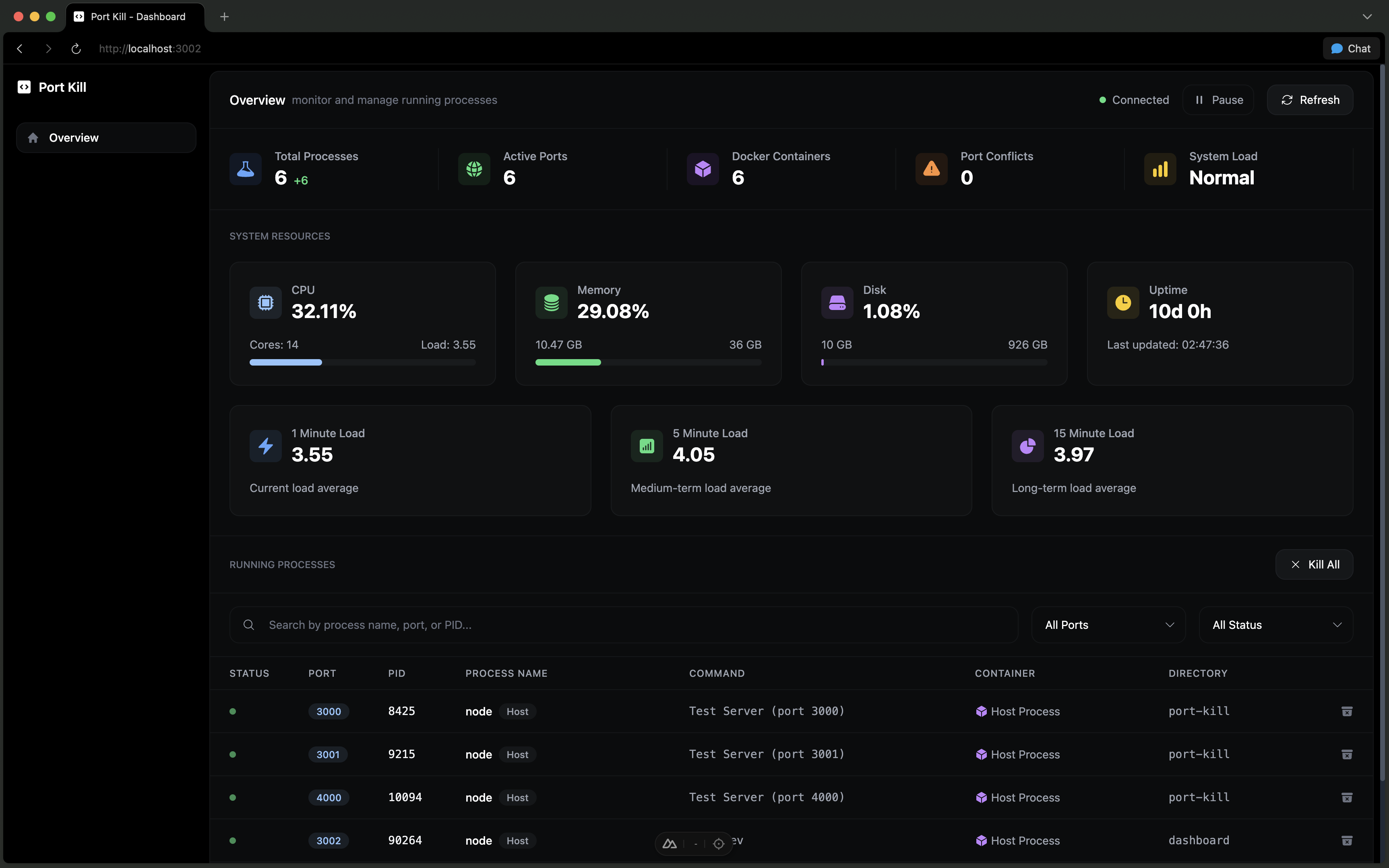
The dashboard provides real-time process monitoring, system resource tracking, history analytics, and security auditing.
Navigate to the dashboard directory:
cd dashboard
Install dependencies (first time only):
npm install
Start the dashboard:
npm run dev
Open in your browser:
http://localhost:3002
The dashboard will automatically connect to port-kill and display:
Quick start script:
# From project root - starts dashboard in one command
./run-dashboard.sh
Or on Windows:
.\run-dashboard.bat
For more details, see the dashboard README.
Check out the full Kill Suite for additional tools and features.
Add npx -y 'https://gitpkg.vercel.app/treadiehq/port-kill/mcp?main' to your MCP config.
Port Management:
list - List processes on portskill - Kill processes on portsreset - Reset common dev portsaudit - Security auditguardStatus - Port guard statusCache Management (NEW!):
cacheList - List all detected cachescacheClean - Clean caches with safe backupcacheRestore - Restore last cache backupcacheDoctor - System diagnosticsFor example for Cursor add to .cursor/mcp.json:
{
   "mcpServers": {
      "port-kill-mcp": {
         "command": "npx",
         "args": ["-y", "https://gitpkg.vercel.app/treadiehq/port-kill/mcp?main"]
      }
   }
}
Notes:
./target/release/port-kill-console or port-kill-console if it is on the PATH. If yours lives elsewhere, set PORT_KILL_BIN=/absolute/path/to/port-kill-console. e.g.{
"mcpServers": {
"port-kill-mcp": {
"command": "npx",
"args": ["-y", "https://gitpkg.vercel.app/treadiehq/port-kill/mcp?main"],
"env": {
"PORT_KILL_BIN": "/absolute/path/to/port-kill-console"
}
}
}
}
See mcp/README.md for more information on port-kill-mcp including how to install from source.
--resetPort Kill supports named presets so you can avoid long --ports lists and reuse common configurations.
Usage:
# List available presets
port-kill --list-presets
port-kill-console --list-presets

# Run with a preset
port-kill --preset dev --console           # macOS app entry also supports console
port-kill-console --preset dev             # pure console binary (all platforms)

# Other examples
port-kill-console --preset system --list   # one-time snapshot with the system preset
port-kill --preset full --json             # JSON output using the full-range preset

# Save a preset from current flags
port-kill --save-preset dev-mine --preset-desc "My dev" --ports 3000,4321,5000,8000,8080,9000
port-kill-console --save-preset dev-mine --preset-desc "My dev" --ports 3000,4321,5000,8000,8080,9000

# Delete a preset
port-kill --delete-preset dev-mine
port-kill-console --delete-preset dev-mine
Custom presets:
~/.port-kill/presets.json and override built-ins when names match--ports 3000,8000,8080 # specific ports
--ports '6000-9999' # port ranges (new!)
--ports '3000,6000-6002,8000' # mixed individual ports and ranges
--start-port 3000 --end-port 9000
--ignore-ports 5353,5000,7000
--ignore-processes Chrome,rapportd
--guard-mode --auto-resolve
--audit --json
--remote user@server
git clone <repository-url>
cd port-kill
./install.sh
Or manually:
./build-macos.sh
./run.sh
git clone <repository-url>
cd port-kill
# Ubuntu/Debian
sudo apt-get install libatk1.0-dev libgdk-pixbuf2.0-dev libgtk-3-dev libappindicator3-dev

# Fedora/RHEL
sudo dnf install atk-devel gdk-pixbuf2-devel gtk3-devel libappindicator-gtk3-devel

# Arch Linux
sudo pacman -S atk gdk-pixbuf2 gtk3 libappindicator-gtk3
./install.sh
Or manually:
./build-linux.sh
./run-linux.sh
git clone <repository-url>
cd port-kill
# Download and run rustup-init.exe from https://rustup.rs/
./install.sh
Or manually:
build-windows.bat
run-windows.bat
Platform-Specific Run Scripts:
./run.sh./run-linux.shrun-windows.batThe application now supports configurable port ranges and specific port monitoring:
# Monitor ports 3000-8080
./run.sh --start-port 3000 --end-port 8080          # macOS
./run-linux.sh --start-port 3000 --end-port 8080    # Linux
run-windows.bat --start-port 3000 --end-port 8080   # Windows

# Monitor ports 8000-9000
./run.sh -s 8000 -e 9000                            # macOS
./run-linux.sh -s 8000 -e 9000                      # Linux
run-windows.bat -s 8000 -e 9000                     # Windows
# Monitor only specific ports (common dev ports)
./run.sh --ports 3000,8000,8080,5000                # macOS
./run-linux.sh --ports 3000,8000,8080,5000          # Linux
run-windows.bat --ports 3000,8000,8080,5000         # Windows

# Monitor React, Node.js, and Python dev servers
./run.sh -p 3000,3001,8000,8080                     # macOS
./run-linux.sh -p 3000,3001,8000,8080               # Linux
run-windows.bat -p 3000,3001,8000,8080              # Windows
# Run in console mode for debugging
./run.sh --console --ports 3000,8000,8080

# Console mode with verbose logging
./run.sh -c -p 3000,8000,8080 -v

# Console mode with PIDs shown
./run.sh --console --show-pid --ports 3000,8000,8080

# Console mode for full-screen mode users (recommended)
./run.sh --console --log-level warn --ports 3000,8000,8080
Port-kill now supports programmable port management through scripting:
# Three Clear Commands for Different Use Cases:

# 1. kill(pid) - Kill process by PID (one-time action)
./port-kill-console --script "kill(1234)"

# 2. clearPort(port) - Kill all processes on a specific port (one-time action)
./port-kill-console --script "clearPort(3000)"

# 3. guardPort(port) - Ongoing protection (kill any process that tries to bind to this port)
./port-kill-console --script "guardPort(3000)" --ports 3000
./port-kill-console --script "guardPort(3000, 'my-dev-server')" --ports 3000

# File-Based Process Management - Kill processes with specific files open!
./port-kill-console --script "killFile('package-lock.json')"
./port-kill-console --script "killFileExt('.lock')"
./port-kill-console --script "guardFile('.env')"

# Advanced example
./port-kill-console --script "log('Starting'); clearPort(3000); onPort(8080, callback)" --ports 3000,8080
See SCRIPTING.md for complete documentation and examples.
This README is intentionally short. For full docs (all features, flags, API, architecture), see DETAILED.md. Windows users: see WINDOWS.md.
This project is licensed under the FSL-1.1-MIT License. See the LICENSE file for details.
(top 24 of 28)
3,424 followers · starred Aug 2025
605 followers · starred Aug 2025
2,116 followers · starred Jan 2026
247 followers · starred Aug 2025
Port Kill helps you find and free ports and caches blocking your dev work.
See the codePort Kill helps you find and free ports blocking your dev work, plus manage development caches and orchestrate services. It works on macOS, Linux, and Windows, locally or over SSH with a simple CLI and status bar.
Two Binaries, Full Feature Parity:
port-kill - GUI status bar app (macOS only) + full CLIport-kill-console - Pure CLI version (all platforms)Both binaries support all features including smart restart, service detection, and orchestration.
Join our Discord community for discussions, support, and updates:
# macOS/Linux
curl -fsSL portkill.com/install | bash

# Windows (PowerShell or CMD)
curl -fsSL portkill.com/install-windows -o install-release.bat && install-release.bat
Windows users: After installation, you MUST restart your terminal completely for PATH changes to take effect.
If you get 'port-kill' is not recognized error after installing:
powershell -Command "Invoke-WebRequest -UseBasicParsing -Uri 'https://raw.githubusercontent.com/treadiehq/port-kill/main/diagnose-installation.bat' -OutFile 'diagnose.bat'"; .\diagnose.bat
"%USERPROFILE%\AppData\Local\port-kill\port-kill.exe" --list
See WINDOWS.md for detailed Windows-specific guidance.
# Kill whatever is blocking a port
port-kill 3000

# Kill multiple ports
port-kill 3000 5000

# List ports in use (one-time snapshot)
port-kill --list

# Confirm before killing
port-kill 3000 --safe

# Smart Restart - Kill and automatically restart a process (NEW!)
port-kill --restart 3000

# Show what can be restarted
port-kill --show-restart-history

# Service Detection & Start (NEW!)
port-kill --detect                    # Discover npm scripts, docker-compose, etc.
port-kill --start npm:dev             # Start a detected service

# Guard mode with auto-restart (NEW!)
port-kill --guard 3000 --guard-auto-restart

# Orchestration - Manage multiple services (NEW!)
port-kill --init-config              # Create .port-kill.yaml config
port-kill --up                       # Start all services from config
port-kill --down                     # Stop all services
port-kill --status                   # Check service status
port-kill --restart-service frontend # Restart specific service

# Cache management
port-kill cache --list
port-kill cache --clean --safe-delete
port-kill cache --doctor

# Check for updates
port-kill --check-updates

# Automatically update to latest version
port-kill --self-update
Port Kill now intelligently manages your development server lifecycle:
Automatically restarts processes using their original startup commands:
# Kill and restart a process (saves restart info automatically)
port-kill 3000                    # Kill process on port 3000
port-kill --restart 3000          # Restart it with saved command

# View restart history
port-kill --show-restart-history  # See all restartable ports

# Clear restart info
port-kill --clear-restart 3000    # Remove saved restart info
Automatically discover and start services from your project:
# Discover available services
port-kill --detect

# Found services examples:
#   npm:dev - npm run dev (Node.js)
#   npm:start - npm run start (Node.js)
#   docker:web - Docker Compose service: web
#   python:app.py - Python app: app.py

# Start a discovered service
port-kill --start npm:dev
port-kill --start docker:web
Supported project types:
Keep your services running automatically:
# Guard a port and auto-restart if process dies
port-kill --guard 3000 --guard-auto-restart

# Works with reservations
port-kill --guard-mode --guard-auto-restart \
  --reserve-port 3000 \
  --project-name "my-app" \
  --process-name "npm"
Manage multiple services together with a simple YAML configuration file.
# 1. Create a configuration file
port-kill --init-config

# 2. Edit .port-kill.yaml to define your services
# (see example below)

# 3. Start all services
port-kill --up

# 4. Check status
port-kill --status

# 5. Stop all services
port-kill --down
Create .port-kill.yaml in your project root:
version: "1"

# Global environment variables
env:
  NODE_ENV: development
  DEBUG: "true"

services:
  # Frontend service
  frontend:
    command: npm run dev
    port: 3000
    dir: ./frontend
    startup_delay: 2
    env:
      PORT: "3000"

  # Backend API service
  backend:
    command: npm run start
    port: 8000
    dir: ./backend
    depends_on:
      - database
    env:
      PORT: "8000"
      DATABASE_URL: postgres://localhost:5432/myapp

  # Database service
  database:
    command: docker-compose up database
    port: 5432
    startup_delay: 5
# Initialize configuration
port-kill --init-config

# Start all services (respects dependencies)
port-kill --up

# Stop all running services
port-kill --down

# Restart a specific service
port-kill --restart-service backend

# Check status of all services
port-kill --status

# Use custom config file
port-kill --config-file my-config.yaml --up
Service Fields:
command - Command to run the service (required)port - Port the service runs on (optional)dir - Working directory for the service (optional)env - Service-specific environment variables (optional)depends_on - List of services to start first (optional)startup_delay - Seconds to wait after starting (optional)healthcheck - Command to check service health (optional)Global Fields:
version - Config version (optional)env - Environment variables for all services (optional)services - Map of service definitions (required)Services start in dependency order:
services:
  api:
    command: npm start
    depends_on:
      - database
      - redis

  database:
    command: docker-compose up database

  redis:
    command: redis-server
Start order: database → redis → api
# Positional ports imply clearPort on each
port-kill <port> [<port> ...]

# Smart Restart & Lifecycle (NEW!)
--restart <port>              # Restart process on port using saved command
--show-restart-history        # Show all ports that can be restarted
--clear-restart <port>        # Clear saved restart info for port
--detect                      # Detect available services in current dir
--start <name>                # Start a detected service (e.g., npm:dev)
--guard-auto-restart          # Auto-restart processes in guard mode

# Service Orchestration (NEW!)
--init-config                 # Create sample .port-kill.yaml config
--up                          # Start all services from config
--down                        # Stop all running services
--restart-service <name>      # Restart specific service
--status                      # Show status of all configured services
--config-file <path>          # Use custom config file (default: .port-kill.yaml)

# Thin aliases
--clear <port>          # clearPort(port)
--guard <port>          # guardPort(port)
--allow <name>          # allow only this process name in guard
--kill <pid>            # kill(pid)
--kill-file <path>      # kill processes holding this file
--kill-ext <ext>        # kill processes holding files with this extension
--list-file <pattern>   # list processes by file path/pattern
--list                  # list current ports in use (one-shot)
--safe                  # ask for confirmation before killing
# See what's using common dev ports
./target/release/port-kill-console --console --ports 3000,8000,8080

# Scan port ranges (new!)
./target/release/port-kill-console --console --json --ports '6000-9999'

# Mixed individual ports and ranges
./target/release/port-kill-console --console --ports '3000,6000-6002,8000'

# Free up the usual suspects
./target/release/port-kill-console --reset

# Remote over SSH
./target/release/port-kill-console --remote user@host --ports 3000,8000

# Guard mode (watch + auto-resolve)
./target/release/port-kill-console --guard-mode --auto-resolve

# Security audit (JSON)
./target/release/port-kill-console --audit --json

# Endpoint monitoring (send data to external endpoint)
./target/release/port-kill-console --monitor-endpoint https://api.company.com/port-status
Port Kill now includes comprehensive cache management for development environments:
# List all detected caches
./target/release/port-kill-console cache --list

# List with JSON output
./target/release/port-kill-console cache --list --json

# Clean caches safely (with backup)
./target/release/port-kill-console cache --clean --safe-delete

# System diagnostics
./target/release/port-kill-console cache --doctor --json

# Restore last backup
./target/release/port-kill-console cache --restore-last
# Rust caches (target/, ~/.cargo)
./target/release/port-kill-console cache --list --lang rust

# JavaScript/TypeScript caches (node_modules, .next, .vite, etc.)
./target/release/port-kill-console cache --list --lang js

# Python caches (__pycache__, .venv, .pytest_cache)
./target/release/port-kill-console cache --list --lang py

# Java caches (.gradle, build, ~/.m2)
./target/release/port-kill-console cache --list --lang java
# Analyze NPX packages with per-package details
./target/release/port-kill-console cache --npx --list --json

# Clean stale NPX packages (older than 30 days)
./target/release/port-kill-console cache --npx --clean --stale-days 30

# Dry run to see what would be cleaned
./target/release/port-kill-console cache --npx --dry-run --stale-days 14
# npm, pnpm, yarn caches
./target/release/port-kill-console cache --js-pm --list --json

# Clean JS package manager caches
./target/release/port-kill-console cache --js-pm --clean --safe-delete
# Hugging Face cache
./target/release/port-kill-console cache --hf --list

# PyTorch cache
./target/release/port-kill-console cache --torch --list

# Vercel cache (requires VERCEL_TOKEN env var)
VERCEL_TOKEN=your_token ./target/release/port-kill-console cache --vercel --clean

# Cloudflare cache (requires CLOUDFLARE_TOKEN env var)
CLOUDFLARE_TOKEN=your_token ./target/release/port-kill-console cache --cloudflare --clean
All cache operations are safe by default:
--restore-last to undo the last cleanup--dry-run to preview changes without executing--force to skip confirmations (use with caution)
The dashboard provides real-time process monitoring, system resource tracking, history analytics, and security auditing.
Navigate to the dashboard directory:
cd dashboard
Install dependencies (first time only):
npm install
Start the dashboard:
npm run dev
Open in your browser:
http://localhost:3002
The dashboard will automatically connect to port-kill and display:
Quick start script:
# From project root - starts dashboard in one command
./run-dashboard.sh
Or on Windows:
.\run-dashboard.bat
For more details, see the dashboard README.
Check out the full Kill Suite for additional tools and features.
Add npx -y 'https://gitpkg.vercel.app/treadiehq/port-kill/mcp?main' to your MCP config.
Port Management:
list - List processes on portskill - Kill processes on portsreset - Reset common dev portsaudit - Security auditguardStatus - Port guard statusCache Management (NEW!):
cacheList - List all detected cachescacheClean - Clean caches with safe backupcacheRestore - Restore last cache backupcacheDoctor - System diagnosticsFor example for Cursor add to .cursor/mcp.json:
{
   "mcpServers": {
      "port-kill-mcp": {
         "command": "npx",
         "args": ["-y", "https://gitpkg.vercel.app/treadiehq/port-kill/mcp?main"]
      }
   }
}
Notes:
./target/release/port-kill-console or port-kill-console if it is on the PATH. If yours lives elsewhere, set PORT_KILL_BIN=/absolute/path/to/port-kill-console. e.g.{
"mcpServers": {
"port-kill-mcp": {
"command": "npx",
"args": ["-y", "https://gitpkg.vercel.app/treadiehq/port-kill/mcp?main"],
"env": {
"PORT_KILL_BIN": "/absolute/path/to/port-kill-console"
}
}
}
}
See mcp/README.md for more information on port-kill-mcp including how to install from source.
--resetPort Kill supports named presets so you can avoid long --ports lists and reuse common configurations.
Usage:
# List available presets
port-kill --list-presets
port-kill-console --list-presets

# Run with a preset
port-kill --preset dev --console           # macOS app entry also supports console
port-kill-console --preset dev             # pure console binary (all platforms)

# Other examples
port-kill-console --preset system --list   # one-time snapshot with the system preset
port-kill --preset full --json             # JSON output using the full-range preset

# Save a preset from current flags
port-kill --save-preset dev-mine --preset-desc "My dev" --ports 3000,4321,5000,8000,8080,9000
port-kill-console --save-preset dev-mine --preset-desc "My dev" --ports 3000,4321,5000,8000,8080,9000

# Delete a preset
port-kill --delete-preset dev-mine
port-kill-console --delete-preset dev-mine
Custom presets:
~/.port-kill/presets.json and override built-ins when names match--ports 3000,8000,8080 # specific ports
--ports '6000-9999' # port ranges (new!)
--ports '3000,6000-6002,8000' # mixed individual ports and ranges
--start-port 3000 --end-port 9000
--ignore-ports 5353,5000,7000
--ignore-processes Chrome,rapportd
--guard-mode --auto-resolve
--audit --json
--remote user@server
git clone <repository-url>
cd port-kill
./install.sh
Or manually:
./build-macos.sh
./run.sh
git clone <repository-url>
cd port-kill
# Ubuntu/Debian
sudo apt-get install libatk1.0-dev libgdk-pixbuf2.0-dev libgtk-3-dev libappindicator3-dev

# Fedora/RHEL
sudo dnf install atk-devel gdk-pixbuf2-devel gtk3-devel libappindicator-gtk3-devel

# Arch Linux
sudo pacman -S atk gdk-pixbuf2 gtk3 libappindicator-gtk3
./install.sh
Or manually:
./build-linux.sh
./run-linux.sh
git clone <repository-url>
cd port-kill
# Download and run rustup-init.exe from https://rustup.rs/
./install.sh
Or manually:
build-windows.bat
run-windows.bat
Platform-Specific Run Scripts:
./run.sh./run-linux.shrun-windows.batThe application now supports configurable port ranges and specific port monitoring:
# Monitor ports 3000-8080
./run.sh --start-port 3000 --end-port 8080          # macOS
./run-linux.sh --start-port 3000 --end-port 8080    # Linux
run-windows.bat --start-port 3000 --end-port 8080   # Windows

# Monitor ports 8000-9000
./run.sh -s 8000 -e 9000                            # macOS
./run-linux.sh -s 8000 -e 9000                      # Linux
run-windows.bat -s 8000 -e 9000                     # Windows
# Monitor only specific ports (common dev ports)
./run.sh --ports 3000,8000,8080,5000                # macOS
./run-linux.sh --ports 3000,8000,8080,5000          # Linux
run-windows.bat --ports 3000,8000,8080,5000         # Windows

# Monitor React, Node.js, and Python dev servers
./run.sh -p 3000,3001,8000,8080                     # macOS
./run-linux.sh -p 3000,3001,8000,8080               # Linux
run-windows.bat -p 3000,3001,8000,8080              # Windows
# Run in console mode for debugging
./run.sh --console --ports 3000,8000,8080

# Console mode with verbose logging
./run.sh -c -p 3000,8000,8080 -v

# Console mode with PIDs shown
./run.sh --console --show-pid --ports 3000,8000,8080

# Console mode for full-screen mode users (recommended)
./run.sh --console --log-level warn --ports 3000,8000,8080
Port-kill now supports programmable port management through scripting:
# Three Clear Commands for Different Use Cases:

# 1. kill(pid) - Kill process by PID (one-time action)
./port-kill-console --script "kill(1234)"

# 2. clearPort(port) - Kill all processes on a specific port (one-time action)
./port-kill-console --script "clearPort(3000)"

# 3. guardPort(port) - Ongoing protection (kill any process that tries to bind to this port)
./port-kill-console --script "guardPort(3000)" --ports 3000
./port-kill-console --script "guardPort(3000, 'my-dev-server')" --ports 3000

# File-Based Process Management - Kill processes with specific files open!
./port-kill-console --script "killFile('package-lock.json')"
./port-kill-console --script "killFileExt('.lock')"
./port-kill-console --script "guardFile('.env')"

# Advanced example
./port-kill-console --script "log('Starting'); clearPort(3000); onPort(8080, callback)" --ports 3000,8080
See SCRIPTING.md for complete documentation and examples.
This README is intentionally short. For full docs (all features, flags, API, architecture), see DETAILED.md. Windows users: see WINDOWS.md.
This project is licensed under the FSL-1.1-MIT License. See the LICENSE file for details.
(top 24 of 28)
3,424 followers · starred Aug 2025
605 followers · starred Aug 2025
2,116 followers · starred Jan 2026
247 followers · starred Aug 2025