Home Assistant Floor Plan Generator Plugin For Sweet Home 3D
Java
1,132
104 commits
updated Oct 17, 2026
This project is a plugin for the Sweet Home 3D interior design application. It allows creating a 3D rendered floor plan panel for Home Assistant that displays your home's current lighting state along with icons for toggling each light, sensors and cameras.
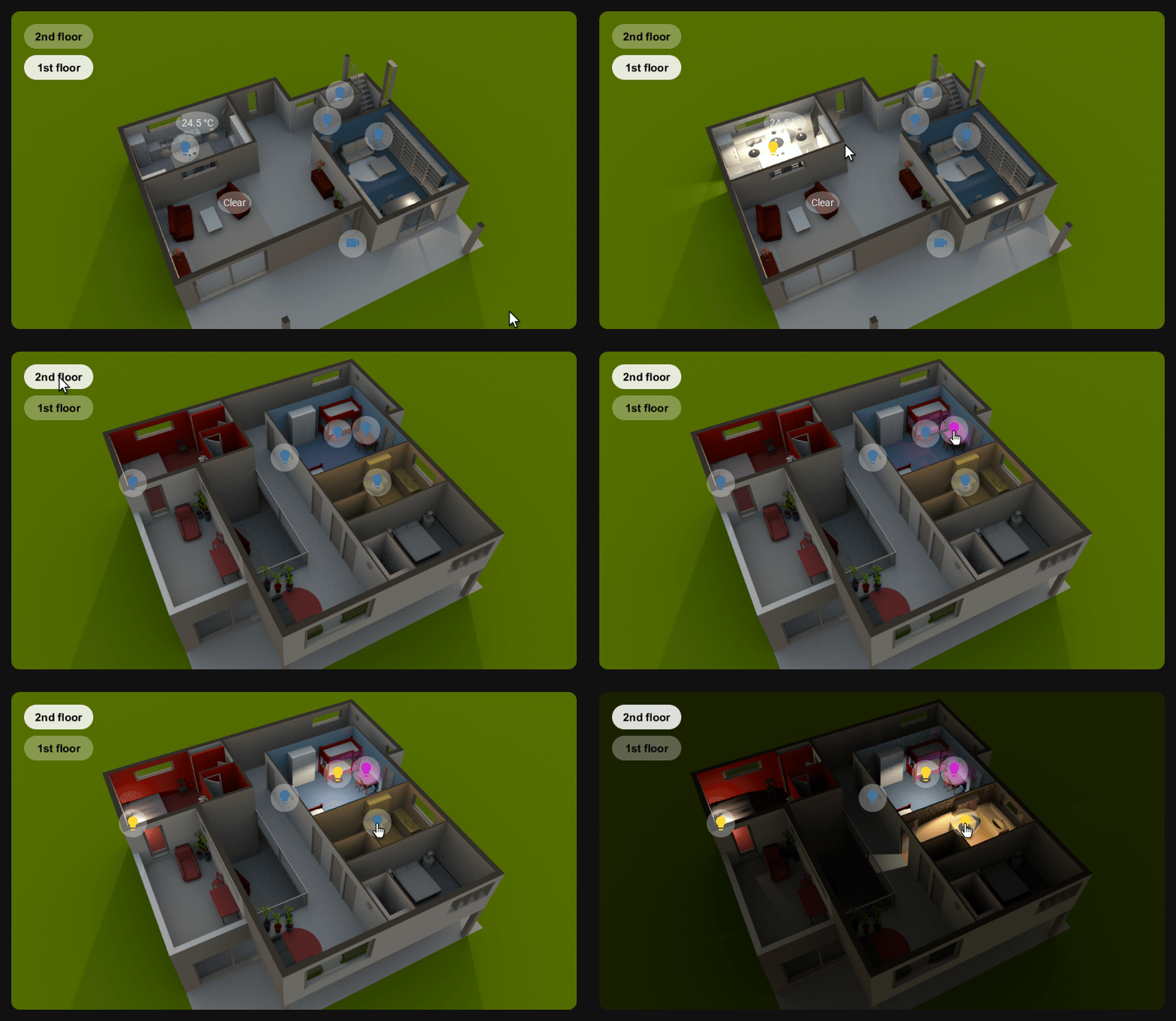
Floor plan: all floors from an aerial view, with buttons for switching between them
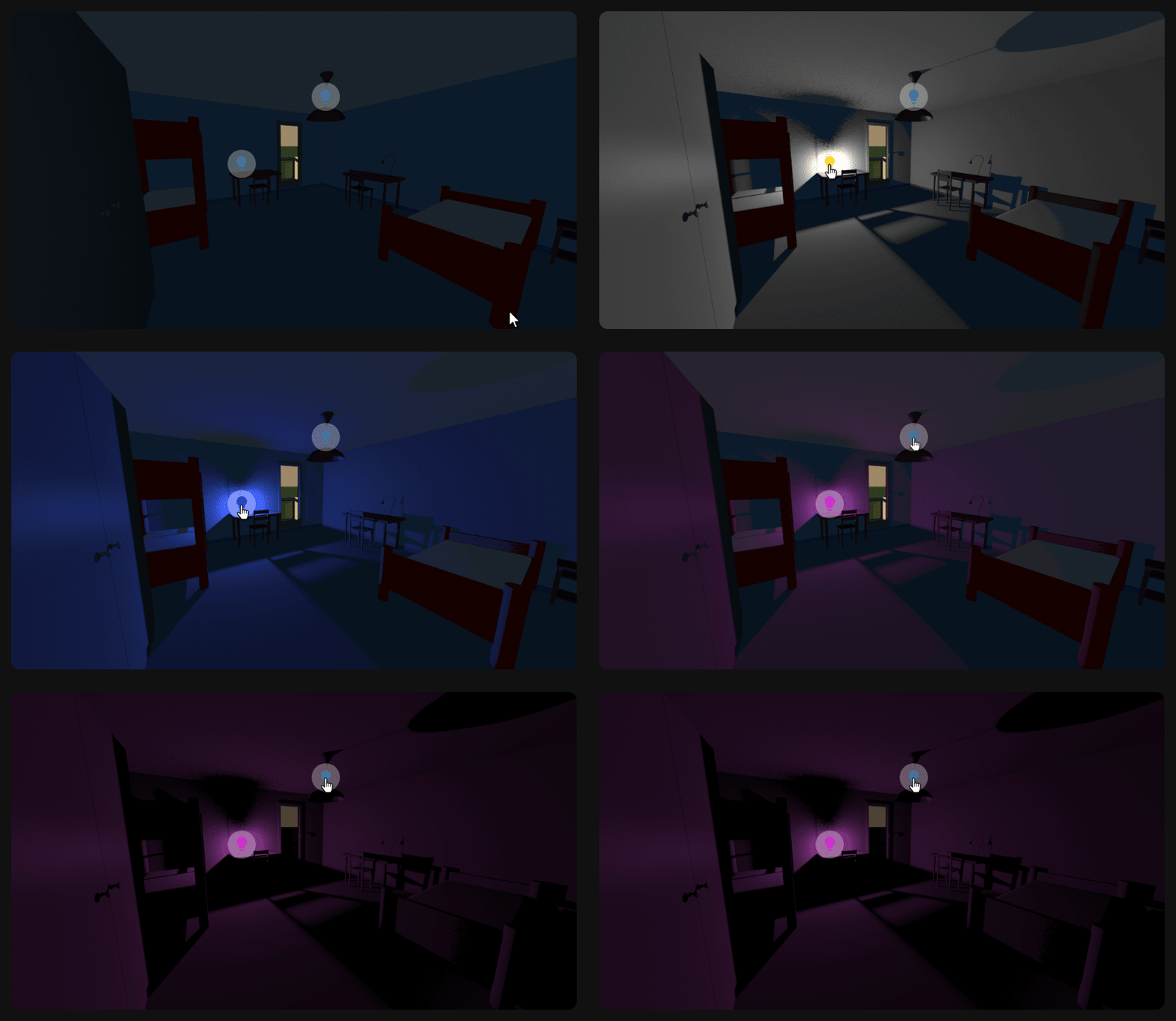
Room view: a single room from the virtual visitor's point of view, with only the entities that are seen from it
This plugin supports 3 modes for rendering the different lights
In this (recommended) mode a base image is generated with all the lights turned off. Then, for each light source, a new image is rendered with only it turned on. The floor plan YAML then instructs the browser how to mix the different lights sources from each render when multiple light sources interact with each other.
This method offers good results with a low number of required images to render.
The floor plan is comprised of one base/background image without any of the lights turned on. Then, for each light, it generates an overlay image where only changed pixels are included and the rest of the image is transparent. This allows for overlaying multiple images, with multiple lights turned on together without the need for different renders for all possible combinations.
In order to get the best results for lights that do interact with each other, i.e., the lights that appear in the same room, will be rendered with all possible combinations. This approach significantly reduces the number of rendered images, compared to all possible combinations of the entire floor.
This mode renders separate images for all possible light combinations on the rendered floor. It requires generating many renders but offers the best quality.
floorplan folder to your Home Assistant pathpicture-elements in Home Assistant and paste the
contents of the generated floorplan.yaml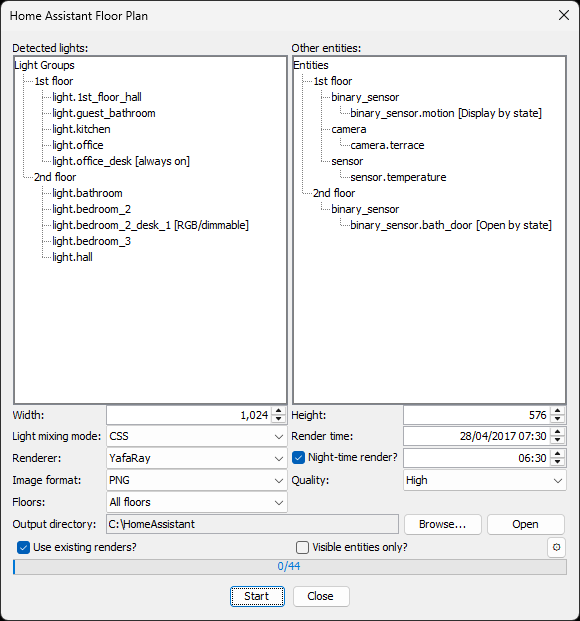
The configuration window displays a list of detected lights grouped according to the room they're located in. Please verify the list matches your expectations.
Width / Height - Configure the required output resolution of the rendered images
Light mixing mode - See Rendering Modes
Render time - The date and time of the rendered image, affects the sun position, intensity and color
Night-time render - Allows setting an additional render to be used during the night. Enabling this requires the Sun integration, which is enabled by default
Renderer - Select which rendering engine to use, YafaRay or SunFlow
Image format - The image file format of the resulting floor plan (PNG or JPEG)
Quality - Choose the rendering quality (low or high)
Floors - Only displayed when the project has multiple levels. Render only the
selected floor or all floors, each in its own directory, e.g.,
floorplan/1st_floor, with buttons for switching between them. Levels
without any entities, e.g., a roof, are skipped
⚠️ Note: Rendering all floors requires installing the state-switch custom Lovelace card
Output directory - The location on your PC where the floor plan images and YAML will be saved
Visible entities only? - Only include entities that are seen from the current camera, i.e., inside the rendered image and not hidden behind walls, floors, ceilings or closed doors. Lights that aren't seen but light up what's seen, e.g., a ceiling light above the camera, are included as well, while other lights are turned off. Useful for rendering a single room from the virtual visitor's point of view, or an aerial view of a specific room or area of the project
The progress bar at the bottom will indicate how many images need to be rendered for the complete floor plan and will progress as they are ready.
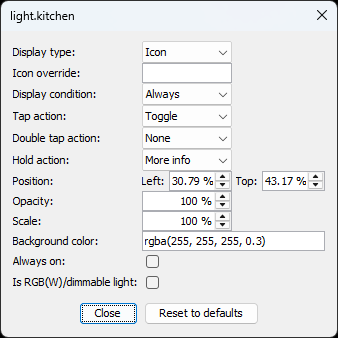
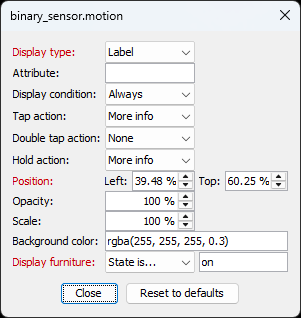
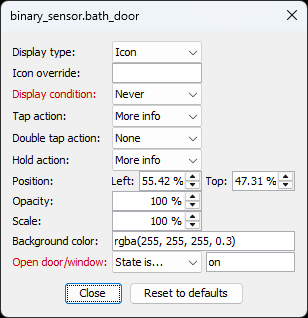
You can also click on any entity from the list to reveal additional settings that allow you to customize the entity according to your needs.
 |  |  |
|---|
[!NOTE] Settings that were modified from their default values are displayed in red
Display type - Configure how the entity is displayed on the floorplan, see Elements
Icon override - Allow overriding the default entity icon
Attribute - Allow specifying the attribute to show for entity label
Display condition - Configure when the entity should be displayed. Entities that are out of the rendered view, e.g., behind the camera, are marked as "Out of view" and aren't displayed by default
Tap action - Define what to do when the entity is tapped/clicked on, see Tap action
Double tap action - Define what to do when the entity is double-tapped/clicked on, see Double tap Action
Hold action - Define what to do when the entity is held/long-pressed, see Hold action
Position - Override the entity's icon/label position
Opacity - Define the opacity of the entity's icon/label
Scale - Define the scale of the entity's icon/label
Background color - Define the background color of the entity's icon/label
Display furniture - Only for furniture, set the entity state conditions for which the piece of furniture is either visible or hidden in the floor plan
Open door/window - Only for door and windows, set the entity state conditions for which the door or window is rendered open or closed in the floor plan
📋 Note: For doors and windows to work, the default state of the model, as it comes when adding it to the floor plan, should be closed. Then, in your design, modify the openings to how you want them to look when opened
Always on - Only for lights, set light as always on removing its icon and it won't be affected by the matching Home Assistant state
Is RGB(W)/dimmable light - Only for lights, set light as an RGB or dimmable light that will change its color and brightness in the floorplan according to the color set in Home Assistant. This requires installing the config-template-card custom Lovelace card
⚠️ Note: RGB/dimmable lights are only supported in the CSS rendering mode
Clicking the cogwheel button at the bottom of the configuration window opens the advanced options, which hold low-level settings most users don't need to change.
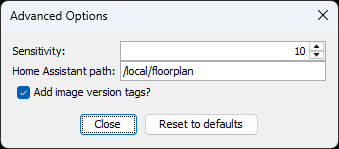
/local/floorplan, which
matches copying the floorplan folder into Home Assistant's www folder?version=<hash> query string, derived from the
image's content, so Home Assistant reloads an image whenever it changes.
Disable it to reference the images by their plain pathThe "Reset to defaults" button restores all settings to their original values.
light.xxx, switch.xxxair_quality.xxxalarm_control_panel.xxxassist_satellite.xxxbinary_sensor.xxxbutton.xxxcamera.xxxclimate.xxxcover.xxxdevice_tracker.xxxfan.xxxhumidifier.xxxinput_boolean.xxxinput_button.xxxlawn_mower.xxxlight.xxxlock.xxxmedia_player.xxxremote.xxxsensor.xxxsiren.xxxswitch.xxxsun.xxxtodo.xxxupdate.xxxvacuum.xxxvalve.xxxwater_header.xxxweather.xxxFor best results, it's suggested to:
When using the "Room overlay" light mixing mode, it's also suggested to:
Where should I copy the generated files and what should I copy?
After the process is complete, copy the floorplan folder and floorplan.yaml
to your Home Assistant path, e.g., /config/www.
How do I select the desired perspective for rendering? Before activating the plugin, set the SH3D project to the specific 3D point of view that you want to be rendered.
How do I change the rendering settings? Prior to activating the plugin, go to "Create photo..." in the SH3D project and adjust the settings there. You do not need to render or save anything; simply make the changes and close the dialog.
Can I work on the SH3D project while rendering? No, do not make any changes or interact with the 3D view while it’s rendering. These actions will be captured by the plugin as it scripts the renders one by one. Start the rendering process and then leave it to complete.
What's the difference between renders and floorplan folders?
The renders directory includes the rendered images as generated by SH3D. The
floorplan directory includes the images you need to copy over to Home Assistant.
With the CSS option, both directories are pretty much the same, except that the
base image (with all the lights turned off) exists only in the floorplan
directory. This is because in this mode, we let the browser to the light
blending and this plugin doesn't need to do anything special.
With the room overlay mode, the renders, again, includes all the images generated by SH3D while the floorplan directory will include the processed images with the transparent background.
The renders directory was created (back when room overlay was the only option) in case one wanted to change any parameters (like the sensitivity) to generate a new floor plan without needing to wait for all the renders from SH3D, which don't change. It's basically a cache of rendered images.
What's the use of Use existing renders option?
Technically this option can work with any mode. You can start with the CSS
mode and generate the least number of needed renders but then decide to switch
to room overlay. When doing so, you already have part of the required renders
and there's no need to generate them again. If you started with room overlay and
switched to CSS, you'll have all of the required images and the whole process
will be done in a few seconds
1,524 followers · starred Oct 2024
270 followers · starred Sep 2026
348 followers · starred May 2024
20 followers · starred Nov 2025
Home Assistant Floor Plan Generator Plugin For Sweet Home 3D
Java
1,132
104 commits
updated Oct 17, 2026
This project is a plugin for the Sweet Home 3D interior design application. It allows creating a 3D rendered floor plan panel for Home Assistant that displays your home's current lighting state along with icons for toggling each light, sensors and cameras.
Floor plan: all floors from an aerial view, with buttons for switching between them
Room view: a single room from the virtual visitor's point of view, with only the entities that are seen from it
This plugin supports 3 modes for rendering the different lights
In this (recommended) mode a base image is generated with all the lights turned off. Then, for each light source, a new image is rendered with only it turned on. The floor plan YAML then instructs the browser how to mix the different lights sources from each render when multiple light sources interact with each other.
This method offers good results with a low number of required images to render.
The floor plan is comprised of one base/background image without any of the lights turned on. Then, for each light, it generates an overlay image where only changed pixels are included and the rest of the image is transparent. This allows for overlaying multiple images, with multiple lights turned on together without the need for different renders for all possible combinations.
In order to get the best results for lights that do interact with each other, i.e., the lights that appear in the same room, will be rendered with all possible combinations. This approach significantly reduces the number of rendered images, compared to all possible combinations of the entire floor.
This mode renders separate images for all possible light combinations on the rendered floor. It requires generating many renders but offers the best quality.
floorplan folder to your Home Assistant pathpicture-elements in Home Assistant and paste the
contents of the generated floorplan.yaml
The configuration window displays a list of detected lights grouped according to the room they're located in. Please verify the list matches your expectations.
Width / Height - Configure the required output resolution of the rendered images
Light mixing mode - See Rendering Modes
Render time - The date and time of the rendered image, affects the sun position, intensity and color
Night-time render - Allows setting an additional render to be used during the night. Enabling this requires the Sun integration, which is enabled by default
Renderer - Select which rendering engine to use, YafaRay or SunFlow
Image format - The image file format of the resulting floor plan (PNG or JPEG)
Quality - Choose the rendering quality (low or high)
Floors - Only displayed when the project has multiple levels. Render only the
selected floor or all floors, each in its own directory, e.g.,
floorplan/1st_floor, with buttons for switching between them. Levels
without any entities, e.g., a roof, are skipped
⚠️ Note: Rendering all floors requires installing the state-switch custom Lovelace card
Output directory - The location on your PC where the floor plan images and YAML will be saved
Visible entities only? - Only include entities that are seen from the current camera, i.e., inside the rendered image and not hidden behind walls, floors, ceilings or closed doors. Lights that aren't seen but light up what's seen, e.g., a ceiling light above the camera, are included as well, while other lights are turned off. Useful for rendering a single room from the virtual visitor's point of view, or an aerial view of a specific room or area of the project
The progress bar at the bottom will indicate how many images need to be rendered for the complete floor plan and will progress as they are ready.
You can also click on any entity from the list to reveal additional settings that allow you to customize the entity according to your needs.
| | |
|---|
[!NOTE] Settings that were modified from their default values are displayed in red
Display type - Configure how the entity is displayed on the floorplan, see Elements
Icon override - Allow overriding the default entity icon
Attribute - Allow specifying the attribute to show for entity label
Display condition - Configure when the entity should be displayed. Entities that are out of the rendered view, e.g., behind the camera, are marked as "Out of view" and aren't displayed by default
Tap action - Define what to do when the entity is tapped/clicked on, see Tap action
Double tap action - Define what to do when the entity is double-tapped/clicked on, see Double tap Action
Hold action - Define what to do when the entity is held/long-pressed, see Hold action
Position - Override the entity's icon/label position
Opacity - Define the opacity of the entity's icon/label
Scale - Define the scale of the entity's icon/label
Background color - Define the background color of the entity's icon/label
Display furniture - Only for furniture, set the entity state conditions for which the piece of furniture is either visible or hidden in the floor plan
Open door/window - Only for door and windows, set the entity state conditions for which the door or window is rendered open or closed in the floor plan
📋 Note: For doors and windows to work, the default state of the model, as it comes when adding it to the floor plan, should be closed. Then, in your design, modify the openings to how you want them to look when opened
Always on - Only for lights, set light as always on removing its icon and it won't be affected by the matching Home Assistant state
Is RGB(W)/dimmable light - Only for lights, set light as an RGB or dimmable light that will change its color and brightness in the floorplan according to the color set in Home Assistant. This requires installing the config-template-card custom Lovelace card
⚠️ Note: RGB/dimmable lights are only supported in the CSS rendering mode
Clicking the cogwheel button at the bottom of the configuration window opens the advanced options, which hold low-level settings most users don't need to change.
/local/floorplan, which
matches copying the floorplan folder into Home Assistant's www folder?version=<hash> query string, derived from the
image's content, so Home Assistant reloads an image whenever it changes.
Disable it to reference the images by their plain pathThe "Reset to defaults" button restores all settings to their original values.
light.xxx, switch.xxxair_quality.xxxalarm_control_panel.xxxassist_satellite.xxxbinary_sensor.xxxbutton.xxxcamera.xxxclimate.xxxcover.xxxdevice_tracker.xxxfan.xxxhumidifier.xxxinput_boolean.xxxinput_button.xxxlawn_mower.xxxlight.xxxlock.xxxmedia_player.xxxremote.xxxsensor.xxxsiren.xxxswitch.xxxsun.xxxtodo.xxxupdate.xxxvacuum.xxxvalve.xxxwater_header.xxxweather.xxxFor best results, it's suggested to:
When using the "Room overlay" light mixing mode, it's also suggested to:
Where should I copy the generated files and what should I copy?
After the process is complete, copy the floorplan folder and floorplan.yaml
to your Home Assistant path, e.g., /config/www.
How do I select the desired perspective for rendering? Before activating the plugin, set the SH3D project to the specific 3D point of view that you want to be rendered.
How do I change the rendering settings? Prior to activating the plugin, go to "Create photo..." in the SH3D project and adjust the settings there. You do not need to render or save anything; simply make the changes and close the dialog.
Can I work on the SH3D project while rendering? No, do not make any changes or interact with the 3D view while it’s rendering. These actions will be captured by the plugin as it scripts the renders one by one. Start the rendering process and then leave it to complete.
What's the difference between renders and floorplan folders?
The renders directory includes the rendered images as generated by SH3D. The
floorplan directory includes the images you need to copy over to Home Assistant.
With the CSS option, both directories are pretty much the same, except that the
base image (with all the lights turned off) exists only in the floorplan
directory. This is because in this mode, we let the browser to the light
blending and this plugin doesn't need to do anything special.
With the room overlay mode, the renders, again, includes all the images generated by SH3D while the floorplan directory will include the processed images with the transparent background.
The renders directory was created (back when room overlay was the only option) in case one wanted to change any parameters (like the sensitivity) to generate a new floor plan without needing to wait for all the renders from SH3D, which don't change. It's basically a cache of rendered images.
What's the use of Use existing renders option?
Technically this option can work with any mode. You can start with the CSS
mode and generate the least number of needed renders but then decide to switch
to room overlay. When doing so, you already have part of the required renders
and there's no need to generate them again. If you started with room overlay and
switched to CSS, you'll have all of the required images and the whole process
will be done in a few seconds
1,524 followers · starred Oct 2024
270 followers · starred Sep 2026
348 followers · starred May 2024
20 followers · starred Nov 2025