Apple's Liquid Glass effect for React.
| Card Example | Button Example |
|---|---|
 |  |
Click here to see it in action!
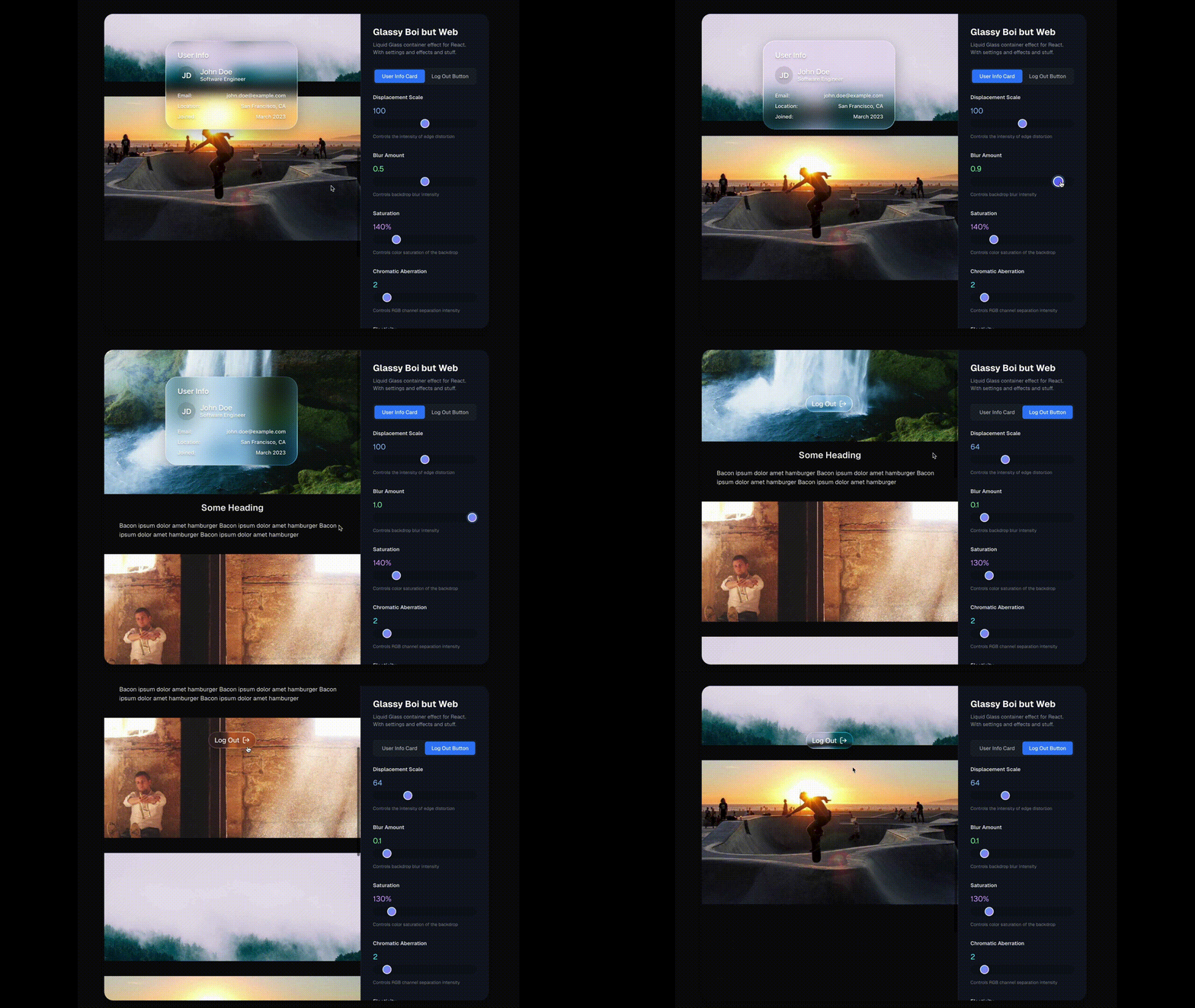
⚠️ NOTE: Safari and Firefox only partially support the effect (displacement will not be visible)
npm install liquid-glass-react
import LiquidGlass from 'liquid-glass-react'

function App() {
  return (
    <LiquidGlass>
      <div className="p-6">
        <h2>Your content here</h2>
        <p>This will have the liquid glass effect</p>
      </div>
    </LiquidGlass>
  )
}
<LiquidGlass
  displacementScale={64}
  blurAmount={0.1}
  saturation={130}
  aberrationIntensity={2}
  elasticity={0.35}
  cornerRadius={100}
  padding="8px 16px"
  onClick={() => console.log('Button clicked!')}
>
  <span className="text-white font-medium">Click Me</span>
</LiquidGlass>
When you want the glass effect to respond to mouse movement over a larger area (like a parent container), use the mouseContainer prop:
function App() {
  const containerRef = useRef<HTMLDivElement>(null)

  return (
    <div ref={containerRef} className="w-full h-screen bg-image">
      <LiquidGlass
        mouseContainer={containerRef}
        elasticity={0.3}
        style={{ position: 'fixed', top: '50%', left: '50%' }}
      >
        <div className="p-6">
          <h2>Glass responds to mouse anywhere in the container</h2>
        </div>
      </LiquidGlass>
    </div>
  )
}
| Prop | Type | Default | Description |
|---|---|---|---|
children | React.ReactNode | - | The content to render inside the glass container |
displacementScale | number | 70 | Controls the intensity of the displacement effect |
blurAmount | number | 0.0625 | Controls the blur/frosting level |
saturation | number | 140 | Controls color saturation of the glass effect |
aberrationIntensity | number | 2 | Controls chromatic aberration intensity |
elasticity | number | 0.15 | Controls the "liquid" elastic feel (0 = rigid, higher = more elastic) |
cornerRadius | number | 999 | Border radius in pixels |
className | string | "" | Additional CSS classes |
padding | string | - | CSS padding value |
style | React.CSSProperties | - | Additional inline styles |
overLight | boolean | false | Whether the glass is over a light background |
onClick | () => void | - | Click handler |
mouseContainer | React.RefObject<HTMLElement | null> | null | null | Container element to track mouse movement on (defaults to the glass component itself) |
mode | "standard" | "polar" | "prominent" | "shader" | "standard" | Refraction mode for different visual effects. shader is the most accurate but not the most stable. |
globalMousePos | { x: number; y: number } | - | Global mouse position coordinates for manual control |
mouseOffset | { x: number; y: number } | - | Mouse position offset for fine-tuning positioning |
(top 24 of 56)
808 followers · starred Jun 2025
6,580 followers · starred Jun 2025
3,489 followers · starred Jun 2025
1,468 followers · starred Jun 2025
Apple's Liquid Glass effect for React.
| Card Example | Button Example |
|---|---|
| |
Click here to see it in action!
⚠️ NOTE: Safari and Firefox only partially support the effect (displacement will not be visible)
npm install liquid-glass-react
import LiquidGlass from 'liquid-glass-react'

function App() {
  return (
    <LiquidGlass>
      <div className="p-6">
        <h2>Your content here</h2>
        <p>This will have the liquid glass effect</p>
      </div>
    </LiquidGlass>
  )
}
<LiquidGlass
  displacementScale={64}
  blurAmount={0.1}
  saturation={130}
  aberrationIntensity={2}
  elasticity={0.35}
  cornerRadius={100}
  padding="8px 16px"
  onClick={() => console.log('Button clicked!')}
>
  <span className="text-white font-medium">Click Me</span>
</LiquidGlass>
When you want the glass effect to respond to mouse movement over a larger area (like a parent container), use the mouseContainer prop:
function App() {
  const containerRef = useRef<HTMLDivElement>(null)

  return (
    <div ref={containerRef} className="w-full h-screen bg-image">
      <LiquidGlass
        mouseContainer={containerRef}
        elasticity={0.3}
        style={{ position: 'fixed', top: '50%', left: '50%' }}
      >
        <div className="p-6">
          <h2>Glass responds to mouse anywhere in the container</h2>
        </div>
      </LiquidGlass>
    </div>
  )
}
| Prop | Type | Default | Description |
|---|---|---|---|
children | React.ReactNode | - | The content to render inside the glass container |
displacementScale | number | 70 | Controls the intensity of the displacement effect |
blurAmount | number | 0.0625 | Controls the blur/frosting level |
saturation | number | 140 | Controls color saturation of the glass effect |
aberrationIntensity | number | 2 | Controls chromatic aberration intensity |
elasticity | number | 0.15 | Controls the "liquid" elastic feel (0 = rigid, higher = more elastic) |
cornerRadius | number | 999 | Border radius in pixels |
className | string | "" | Additional CSS classes |
padding | string | - | CSS padding value |
style | React.CSSProperties | - | Additional inline styles |
overLight | boolean | false | Whether the glass is over a light background |
onClick | () => void | - | Click handler |
mouseContainer | React.RefObject<HTMLElement | null> | null | null | Container element to track mouse movement on (defaults to the glass component itself) |
mode | "standard" | "polar" | "prominent" | "shader" | "standard" | Refraction mode for different visual effects. shader is the most accurate but not the most stable. |
globalMousePos | { x: number; y: number } | - | Global mouse position coordinates for manual control |
mouseOffset | { x: number; y: number } | - | Mouse position offset for fine-tuning positioning |
(top 24 of 56)
808 followers · starred Jun 2025
6,580 followers · starred Jun 2025
3,489 followers · starred Jun 2025
1,468 followers · starred Jun 2025