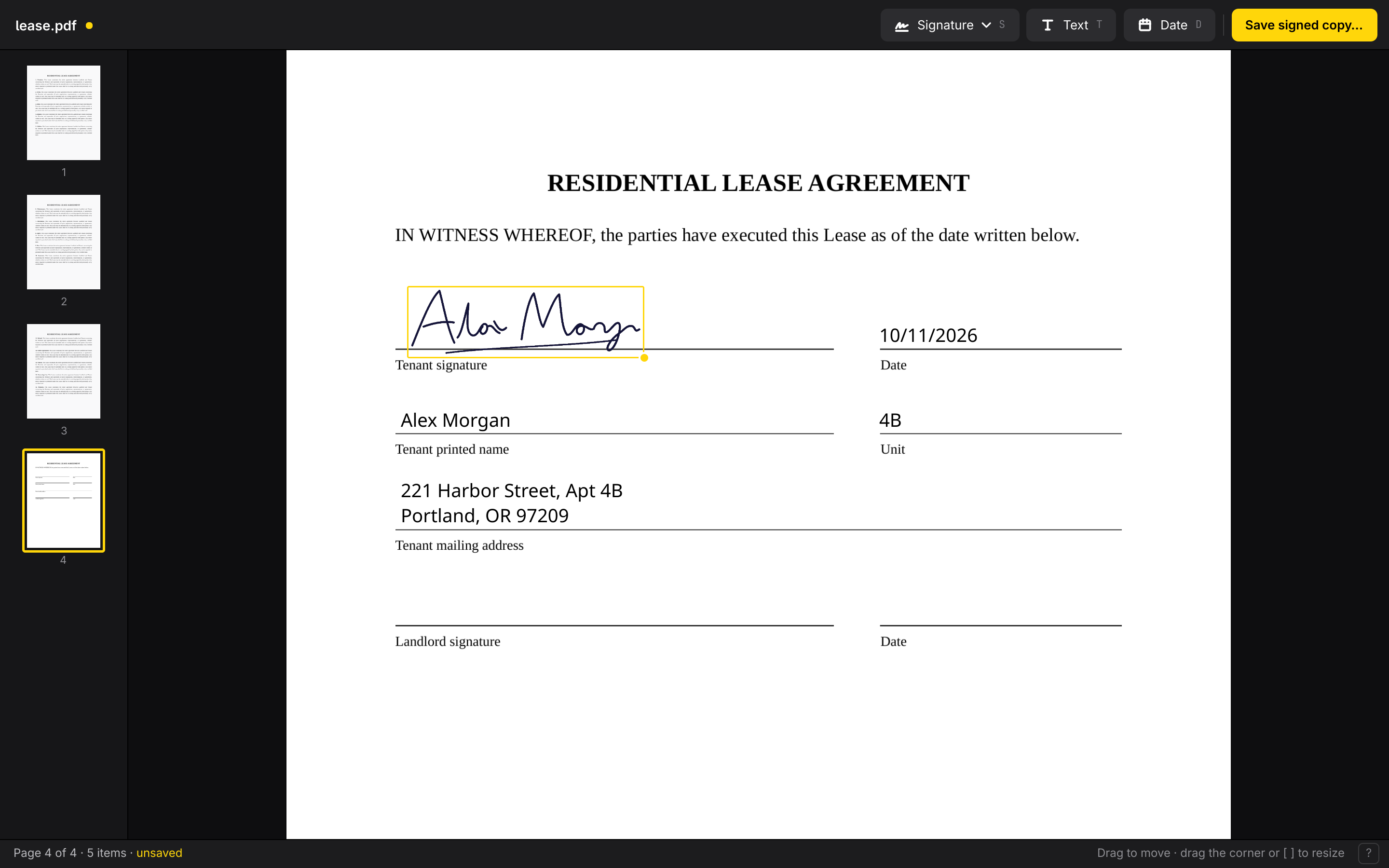
Sign PDFs and fill them in. Open a PDF, drop your signature, a line of text, or today's date anywhere on a page, move and size them, and save a signed copy. Modeled on the signing tools in Apple's Preview, and nothing more. On Omarchy, the interface follows your theme's accent color.
Built with Qt Quick (QML) and the Material style, poppler to show pages, and qpdf to write the signed copy. The C++ side compiles to a single executable with the QML embedded.
<name>-signed.pdf by default.The original PDF is never changed, and Signed won't save over it. The signed copy keeps the original pages exactly as they were — text stays selectable, nothing is re-rendered — with your signatures and text laid on top. Placed items stay editable until you close the PDF, so you can fix something and save again.
Choose Add signature… in the Signature menu, or drop an image on the window. Use a scan or a well-lit photo of your signature on white paper: Signed removes the paper, keeps the ink (blue stays blue), and crops to it. Slide Paper threshold toward More if shadows show up, or toward Less if faint strokes disappear. PNGs that are already transparent are used as they are. Give it a name like "David" or "Initials".
Signatures are saved as PNGs in ~/.local/share/signed/signatures/ (under $XDG_DATA_HOME if set), named after the signature. Deleting one from the menu doesn't affect anything already placed.
| Key | Action |
|---|---|
| Ctrl+O | Open a PDF |
| Ctrl+S | Save a signed copy |
| S | Place the last-used signature |
| Shift+S | Open the signature menu |
| T | Place text |
| D | Place today's date |
| Enter | Edit the selected text |
| Arrows / Shift+Arrows | Nudge the selection 1 pt / 10 pt |
| [ / ] | Make the selection smaller / larger |
| Ctrl+D | Duplicate the selection |
| Delete, Backspace, X | Remove the selection |
| Esc | Deselect / stop editing |
| Page Up / Page Down | Previous / next page |
| Ctrl+= / Ctrl+- / Ctrl+0 | Zoom in / out / fit (or Ctrl+scroll) |
| Ctrl+Z / Ctrl+Shift+Z | Undo / redo |
| Q | Quit (asks first if there's anything unsaved) |
| ? | Show the hotkeys in the app |
Letter keys do nothing while you're typing.
poppler-qt6 and qpdfnoto-fonts (text is set in Noto Sans and embedded in the PDF)xdg-desktop-portal and a portal backend for the file pickerUses Qt's own build tool, qmake6:
./bin/build
./build/signed some.pdf
Run the tests (offscreen) with ./bin/test, and install as an Arch package with ./bin/install.
MIT
169 followers · starred Oct 2026
Sign PDFs and fill them in. Open a PDF, drop your signature, a line of text, or today's date anywhere on a page, move and size them, and save a signed copy. Modeled on the signing tools in Apple's Preview, and nothing more. On Omarchy, the interface follows your theme's accent color.
Built with Qt Quick (QML) and the Material style, poppler to show pages, and qpdf to write the signed copy. The C++ side compiles to a single executable with the QML embedded.
<name>-signed.pdf by default.The original PDF is never changed, and Signed won't save over it. The signed copy keeps the original pages exactly as they were — text stays selectable, nothing is re-rendered — with your signatures and text laid on top. Placed items stay editable until you close the PDF, so you can fix something and save again.
Choose Add signature… in the Signature menu, or drop an image on the window. Use a scan or a well-lit photo of your signature on white paper: Signed removes the paper, keeps the ink (blue stays blue), and crops to it. Slide Paper threshold toward More if shadows show up, or toward Less if faint strokes disappear. PNGs that are already transparent are used as they are. Give it a name like "David" or "Initials".
Signatures are saved as PNGs in ~/.local/share/signed/signatures/ (under $XDG_DATA_HOME if set), named after the signature. Deleting one from the menu doesn't affect anything already placed.
| Key | Action |
|---|---|
| Ctrl+O | Open a PDF |
| Ctrl+S | Save a signed copy |
| S | Place the last-used signature |
| Shift+S | Open the signature menu |
| T | Place text |
| D | Place today's date |
| Enter | Edit the selected text |
| Arrows / Shift+Arrows | Nudge the selection 1 pt / 10 pt |
| [ / ] | Make the selection smaller / larger |
| Ctrl+D | Duplicate the selection |
| Delete, Backspace, X | Remove the selection |
| Esc | Deselect / stop editing |
| Page Up / Page Down | Previous / next page |
| Ctrl+= / Ctrl+- / Ctrl+0 | Zoom in / out / fit (or Ctrl+scroll) |
| Ctrl+Z / Ctrl+Shift+Z | Undo / redo |
| Q | Quit (asks first if there's anything unsaved) |
| ? | Show the hotkeys in the app |
Letter keys do nothing while you're typing.
poppler-qt6 and qpdfnoto-fonts (text is set in Noto Sans and embedded in the PDF)xdg-desktop-portal and a portal backend for the file pickerUses Qt's own build tool, qmake6:
./bin/build
./build/signed some.pdf
Run the tests (offscreen) with ./bin/test, and install as an Arch package with ./bin/install.
MIT
169 followers · starred Oct 2026



