Your macOS screenshots, stacked in the corner of the screen until you've used them. A free, open source menu bar app, reworked from Tendedero.
See the code
Your screenshots, stacked in the corner of the screen until you've used them.
Free and open source, for macOS 14 Sonoma and later.


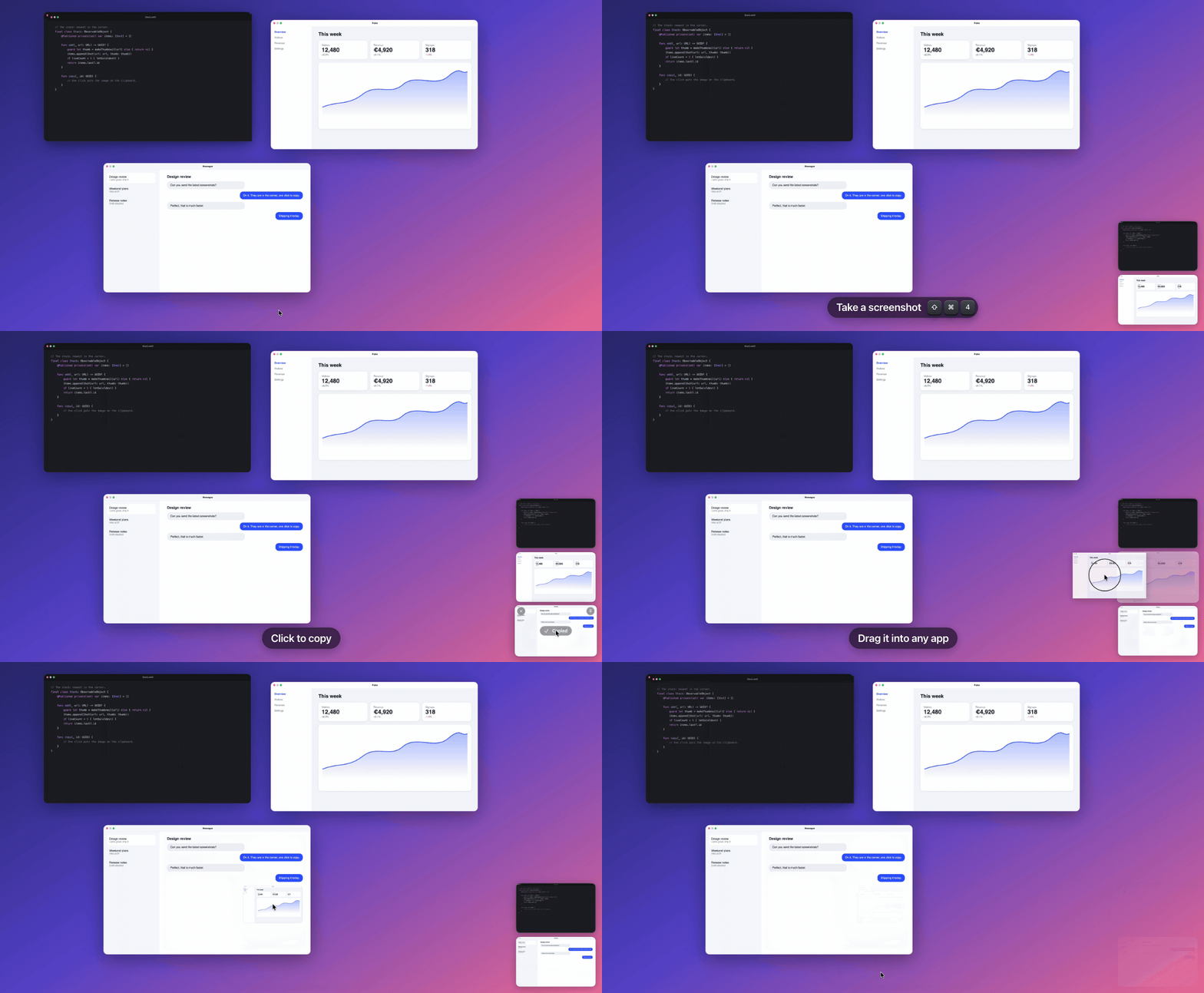
The macOS screenshot preview shows up for a few seconds and vanishes. Take three screenshots in a row and only the newest is still there to grab.
Cornerstack keeps them. Every capture lands in a stack in the bottom right corner, newest closest to the corner, and stays until you drag it somewhere or throw it away. Nothing times out.
| Click | Copy the image. |
| ⌥ click | Copy the file's path, quoted and ready to paste into a terminal. |
| Press and hold | Open it in Markup. Screen recordings open in a trimmer. |
| Double click | Open it in its default app. |
| Force click on a trackpad | Open it in Quick Look. The left and right arrow keys step through the stack; Space or Escape closes it. |
| Drag into an app | Send a copy. It leaves the stack unless it is kept, and the file stays on disk. |
| Drag into a folder | Keep it there. It leaves the stack. |
| Drag to the Trash | Move the file to the Trash. |
| Click the cross | Remove it from the stack. The file stays where it is. |
| Click the pin | Keep the card on the stack. A kept card has no cross; click the pin again to let it go. |
| Right click | Every option, including Keep on stack, Copy Text and Quick Look. |
| ⌥ ⌘ C | Copy the newest card from anywhere, without touching the mouse. |
| ⌥ ⌘ T | Hide the stack for a while, and bring it back. |
| Where captures wait | Until you use them? | Free and open source | Better at | |
|---|---|---|---|---|
| macOS screenshot preview | Bottom right | No, a few seconds | No | Built in |
| Tendedero | A line under the menu bar | Until you remove them | Yes | 11 languages, a notarized download |
| CleanShot X / Shottr | An overlay or an editor window | Yes, or on a timer | No | Capture modes, annotation, OCR, pinning, cloud uploads |
| Dropover / Yoink | A floating shelf | Yes | No | Holding any kind of file |
| Cornerstack | Bottom right, where macOS shows its own preview | Yes, and a drop into an app removes the card | Yes | Showing on the display you captured on, with no network |
.dmg from the latest release, open it and drag Cornerstack to Applications.On macOS 14 Sonoma, right-click the app and choose Open instead. Or skip the prompts from Terminal:
xattr -dr com.apple.quarantine /Applications/Cornerstack.app
Rather not run a downloaded binary at all? Build it yourself, it takes a minute.
git clone https://github.com/nemcaya/cornerstack.git
cd cornerstack
scripts/build-app.sh
open build/Cornerstack.app
You need the Swift toolchain; Xcode is optional. With the Command Line Tools for macOS 27, the script falls back to the macOS 26 SDK installed alongside them, because the newer SDK needs a SwiftUI macro plugin only Xcode ships. Local builds are signed ad hoc, so macOS asks for access to the Desktop again after each rebuild.
scripts/make-dmg.sh builds the disk image for a release. It needs
uv to run dmgbuild.
| Folder | File | Role |
|---|---|---|
App | AppDelegate.swift | Menu bar, shortcuts, showing and hiding the stack |
FullScreen.swift | Knows when a full screen app is up | |
Settings.swift | The Settings window | |
HotKey.swift, ClosureMenuItem.swift, Localization.swift | Small helpers | |
Stack | Stack.swift | What is in the stack, and what you can do with each card |
StackPanel.swift | The transparent column along the right edge of the screen | |
StackView.swift, ShotView.swift, Layout.swift | The stack and its cards | |
GrabArea.swift | Click, long press, drag and drop | |
CaptureFlight.swift | The flight of a new capture, and the fall of a discarded one | |
Thumbnail.swift | Decodes each capture once, for its card and its flight | |
Intake | ScreenshotWatcher.swift | Notices new screenshots |
ClipboardWatcher.swift | Notices images copied to the clipboard | |
Inbox.swift | Takes over the screenshot settings and puts them back | |
Editors | Markup.swift, Trim.swift | Markup for screenshots, trimming for recordings |
QuickLook.swift | Quick Look | |
TextRecognition.swift | Text recognition for Copy Text |
Text lives in Sources/Cornerstack/Resources/<language>.lproj. To add a
language, copy en.lproj, translate the values and run
swift scripts/check-strings.swift. The icon is drawn in code by
scripts/make-icon.swift.
Seeing BridgeShot, the screenshot app by BridgeMind, made me want one of my own. It came with their paid plans, so I made a free, open source one instead.
Cornerstack began as a fork of Tendedero by Alejandro Buján, a lovely app that hangs your screenshots on a line under the menu bar. I wanted the same idea in the place macOS already puts its own screenshot preview, so I reworked how it looks and behaves:
The original idea and most of the groundwork are Alejandro's. If you prefer the line, use Tendedero.
MIT, including Alejandro Buján's original work. The Tendedero name and icon are not covered by it and are not used here, see NOTICE. Cornerstack is an independent project and is not affiliated with Tendedero.
Your macOS screenshots, stacked in the corner of the screen until you've used them. A free, open source menu bar app, reworked from Tendedero.
See the code
Your screenshots, stacked in the corner of the screen until you've used them.
Free and open source, for macOS 14 Sonoma and later.
The macOS screenshot preview shows up for a few seconds and vanishes. Take three screenshots in a row and only the newest is still there to grab.
Cornerstack keeps them. Every capture lands in a stack in the bottom right corner, newest closest to the corner, and stays until you drag it somewhere or throw it away. Nothing times out.
| Click | Copy the image. |
| ⌥ click | Copy the file's path, quoted and ready to paste into a terminal. |
| Press and hold | Open it in Markup. Screen recordings open in a trimmer. |
| Double click | Open it in its default app. |
| Force click on a trackpad | Open it in Quick Look. The left and right arrow keys step through the stack; Space or Escape closes it. |
| Drag into an app | Send a copy. It leaves the stack unless it is kept, and the file stays on disk. |
| Drag into a folder | Keep it there. It leaves the stack. |
| Drag to the Trash | Move the file to the Trash. |
| Click the cross | Remove it from the stack. The file stays where it is. |
| Click the pin | Keep the card on the stack. A kept card has no cross; click the pin again to let it go. |
| Right click | Every option, including Keep on stack, Copy Text and Quick Look. |
| ⌥ ⌘ C | Copy the newest card from anywhere, without touching the mouse. |
| ⌥ ⌘ T | Hide the stack for a while, and bring it back. |
| Where captures wait | Until you use them? | Free and open source | Better at | |
|---|---|---|---|---|
| macOS screenshot preview | Bottom right | No, a few seconds | No | Built in |
| Tendedero | A line under the menu bar | Until you remove them | Yes | 11 languages, a notarized download |
| CleanShot X / Shottr | An overlay or an editor window | Yes, or on a timer | No | Capture modes, annotation, OCR, pinning, cloud uploads |
| Dropover / Yoink | A floating shelf | Yes | No | Holding any kind of file |
| Cornerstack | Bottom right, where macOS shows its own preview | Yes, and a drop into an app removes the card | Yes | Showing on the display you captured on, with no network |
.dmg from the latest release, open it and drag Cornerstack to Applications.On macOS 14 Sonoma, right-click the app and choose Open instead. Or skip the prompts from Terminal:
xattr -dr com.apple.quarantine /Applications/Cornerstack.app
Rather not run a downloaded binary at all? Build it yourself, it takes a minute.
git clone https://github.com/nemcaya/cornerstack.git
cd cornerstack
scripts/build-app.sh
open build/Cornerstack.app
You need the Swift toolchain; Xcode is optional. With the Command Line Tools for macOS 27, the script falls back to the macOS 26 SDK installed alongside them, because the newer SDK needs a SwiftUI macro plugin only Xcode ships. Local builds are signed ad hoc, so macOS asks for access to the Desktop again after each rebuild.
scripts/make-dmg.sh builds the disk image for a release. It needs
uv to run dmgbuild.
| Folder | File | Role |
|---|---|---|
App | AppDelegate.swift | Menu bar, shortcuts, showing and hiding the stack |
FullScreen.swift | Knows when a full screen app is up | |
Settings.swift | The Settings window | |
HotKey.swift, ClosureMenuItem.swift, Localization.swift | Small helpers | |
Stack | Stack.swift | What is in the stack, and what you can do with each card |
StackPanel.swift | The transparent column along the right edge of the screen | |
StackView.swift, ShotView.swift, Layout.swift | The stack and its cards | |
GrabArea.swift | Click, long press, drag and drop | |
CaptureFlight.swift | The flight of a new capture, and the fall of a discarded one | |
Thumbnail.swift | Decodes each capture once, for its card and its flight | |
Intake | ScreenshotWatcher.swift | Notices new screenshots |
ClipboardWatcher.swift | Notices images copied to the clipboard | |
Inbox.swift | Takes over the screenshot settings and puts them back | |
Editors | Markup.swift, Trim.swift | Markup for screenshots, trimming for recordings |
QuickLook.swift | Quick Look | |
TextRecognition.swift | Text recognition for Copy Text |
Text lives in Sources/Cornerstack/Resources/<language>.lproj. To add a
language, copy en.lproj, translate the values and run
swift scripts/check-strings.swift. The icon is drawn in code by
scripts/make-icon.swift.
Seeing BridgeShot, the screenshot app by BridgeMind, made me want one of my own. It came with their paid plans, so I made a free, open source one instead.
Cornerstack began as a fork of Tendedero by Alejandro Buján, a lovely app that hangs your screenshots on a line under the menu bar. I wanted the same idea in the place macOS already puts its own screenshot preview, so I reworked how it looks and behaves:
The original idea and most of the groundwork are Alejandro's. If you prefer the line, use Tendedero.
MIT, including Alejandro Buján's original work. The Tendedero name and icon are not covered by it and are not used here, see NOTICE. Cornerstack is an independent project and is not affiliated with Tendedero.



