
A WinUI 3 desktop app for managing WSL containers, Kubernetes (k3s), and container registries — community project, not a Microsoft product.
C#
157
190 commits
updated Oct 1, 2026
README
WSL Container Desktop
A native WinUI 3 / .NET 10 desktop application for managing WSL containers — the Linux container engine built into the Windows Subsystem for Linux (wslc.exe, generally available since WSL 3.0.1). It looks and feels like Docker Desktop or Podman Desktop, with a Fluent design, live performance metrics, a built-in Kubernetes (k3s) manager, container-registry management (including one-click Azure Container Registry sign-in), optional AI diagnostics and an in-app assistant, and a system-tray presence.





[!NOTE] WSL containers are generally available. Microsoft announced general availability on September 29, 2026 — read WSL containers is now generally available on the Windows Developer Blog, and the WSL containers architecture deep dive. Starting with this release, WSL Container Desktop requires WSL 3.0.1 or later (the GA release); the 2.9.x preview builds are no longer supported. See Getting started.
[!IMPORTANT] This is an independent, community project. It is not a Microsoft product, and it is not affiliated with, endorsed by, or supported by Microsoft. See the Disclaimer below before you build or run it.
Table of contents
- Highlights
- Screenshots
- Getting started
- Feature tour
- Docker Compose compatibility
- Architecture
- Releasing (maintainers)
- Notes on WSL containers
- Disclaimer & no warranty
- License
Highlights
- Full container lifecycle — run, start, stop, restart, kill, remove, prune, logs, exec terminal, attach, export, inspect, and live stats — built on the complete WSL 3.0.1
wslccommand set, including native restart,--mount,--stop-timeout, and network connect/disconnect. - Docker Compose — import a
docker-compose.ymland bring a whole multi-service stack up / down / restart as a unit, with dependency ordering, health/exit gating, and auto-heal. The desktop app acts as the orchestration layer abovewslc— see Docker Compose compatibility for exactly what is and isn't supported. - Images, volumes, networks — pull or push all tags, build, tag, inspect, prune, save/load image archives, import filesystem tarballs, and manage network driver options, all from a clean Fluent UI.
- Templates gallery — a catalog of curated stacks: databases, web tools, Azure emulators (Azurite, Cosmos DB, Service Bus, Event Hubs), developer sandboxes, and multi-service Compose projects. Launch uses sensible defaults; Compose stacks show a compatibility review before deployment. A template can be launched more than once — each repeat gets its own name, ports and volumes — and Remove asks which deployment to remove. A per-card Settings button lets you configure first, and your choices are remembered for next time.
- Image update badges — Check for updates compares your local image digests against the registry and flags out-of-date images with an ↓ Update badge; click it to pull the newer version.
- Endpoints dashboard — every published port across all running containers in one list, with clickable
localhostlinks that open in your browser or copy to the clipboard. - Bulk actions — a Select mode on the Containers, Images, Volumes, and Networks lists lets you multi-select rows and start, stop, or remove many at once.
- Activity feed — a persisted, filterable timeline of engine, container, network, and image events, fed live by
wslc events(start/stop/create/destroy, network connect/disconnect, pull/build, engine up/down) so you can see what happened and when. Live events also refresh the UI immediately instead of waiting for the next poll. - Built-in Kubernetes — install a single-node k3s cluster into WSL and manage nodes, deployments, pods, services, and more, with port-forwarding and "Apply YAML".
- WSL engine control — restart the WSL session or shut it down, check for and install WSL updates (stable channel by default, with optional early-access builds), choose where container storage lives, and see your kernel,
.wslconfiglimits, and installed distributions. - Enterprise-policy aware — honors the Intune / Group Policy controls for WSL containers: explains when your organization has turned WSL containers off, shows the approved-registry allow list, and stops pulls or pushes to registries outside it with a clear message.
- AI assistant & diagnostics (optional, off by default) — an in-app Container AI Assistant that manages containers, Compose, and k3s through approved, permissioned tools, plus one-click Diagnose on any container to explain failures and suggest fixes. Bring your own provider — GitHub Copilot, Azure OpenAI, or any OpenAI-compatible endpoint — or run fully local via Ollama (no account, no API key). Recognized sensitive fields and credential patterns are masked before evidence is shortened; detection is not perfect. Diagnosis suggestions are copy-only; assistant actions follow approval settings, and deleting anything is a capability that is off until you grant it.
- Registry management — add public and private registries, and add an Azure Container Registry with one click using your existing Azure sign-in (no admin keys, tokens refreshed automatically).
- Live everywhere — a background monitor drives per-container performance meters, the tray icon, and the status indicators without you lifting a finger.
- Options explained in place — options whose effect isn't obvious explain what the engine flag does and when to use it: checkboxes, switches and fields (for example All tags, --rm, Stop timeout, Internal network) have an (i) to hover or click, and buttons (for example Restart, Kill, Export filesystem) explain themselves on hover.
- Lives in the tray — minimize to a system-tray icon whose color reflects engine health, with a live running-container count and quick start/stop actions.
- Toast notifications — actionable Windows toasts for pull/build, container-stopped, and engine down/recovered events; user-toggleable and globally mutable.
- Disk-usage & cleanup center — see what images, containers, and volumes consume, what's reclaimable, and prune it all with one click.
Screenshots
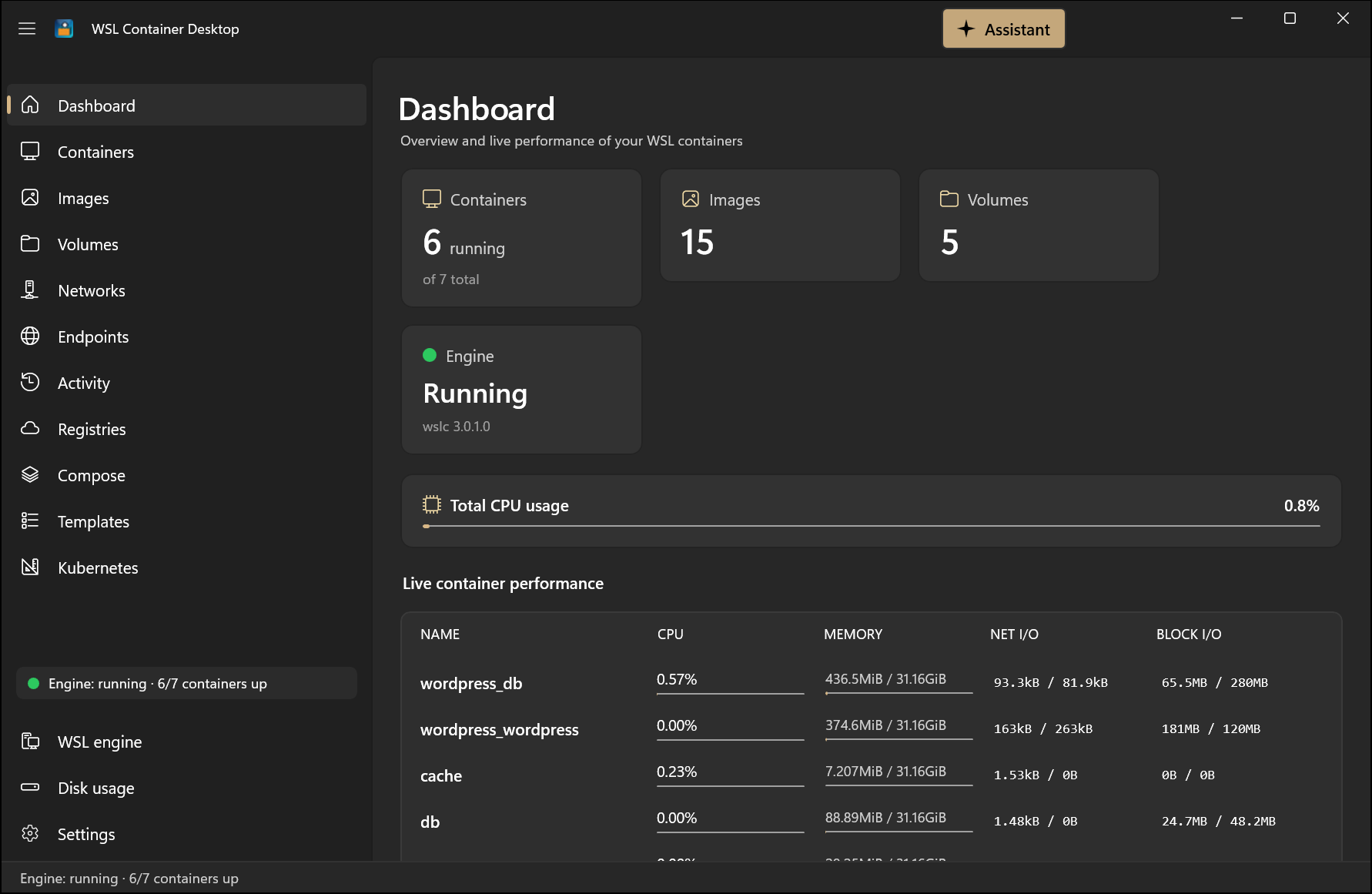
Dashboard — summary cards, a total-CPU meter, and a live per-container performance table.
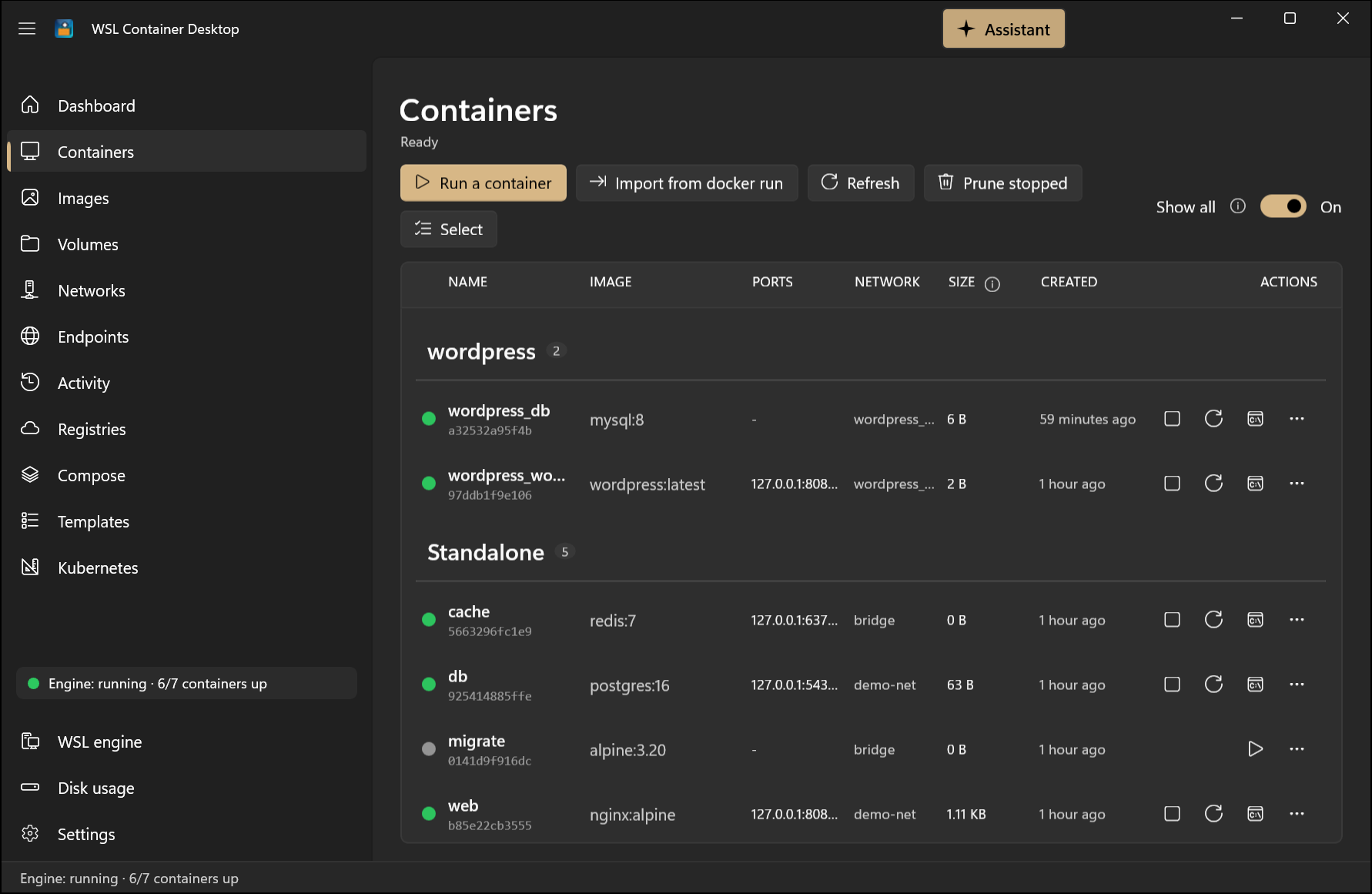
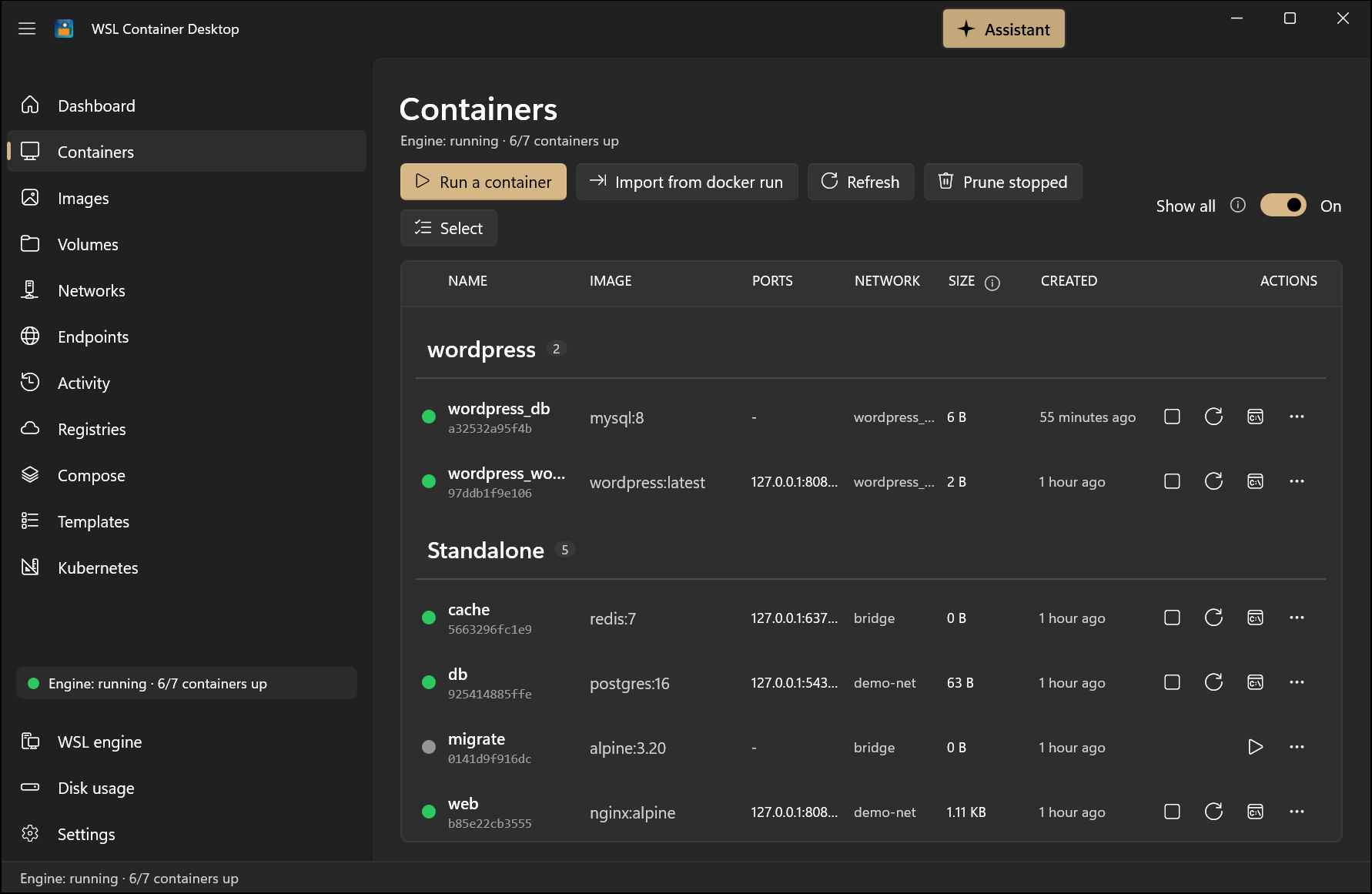 Containers — live, color-coded list with Compose grouping and inline actions; click any row for a full detail view. |
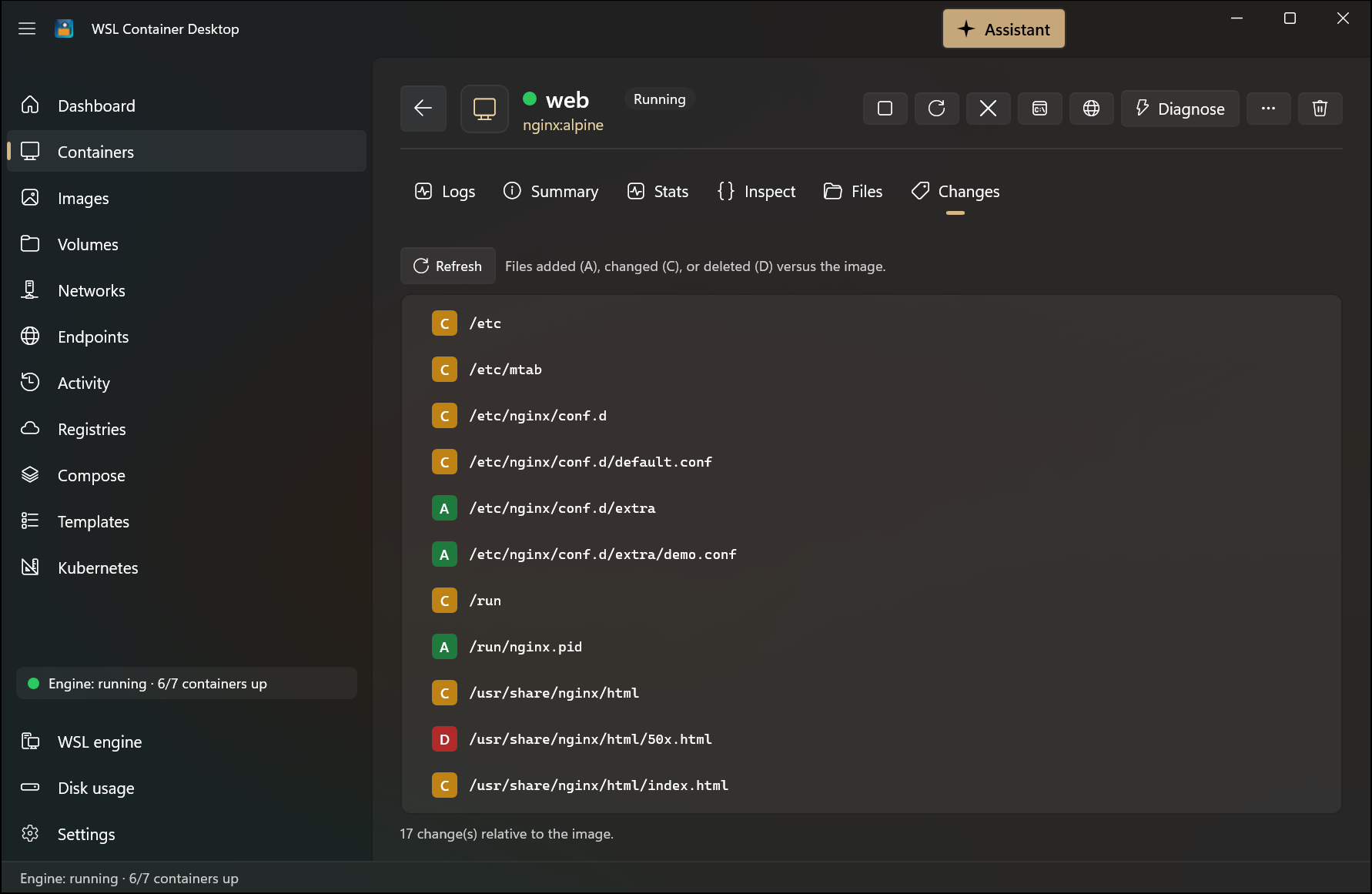 Filesystem changes — a docker diff–style view of every file added, changed, or deleted versus the image.
|
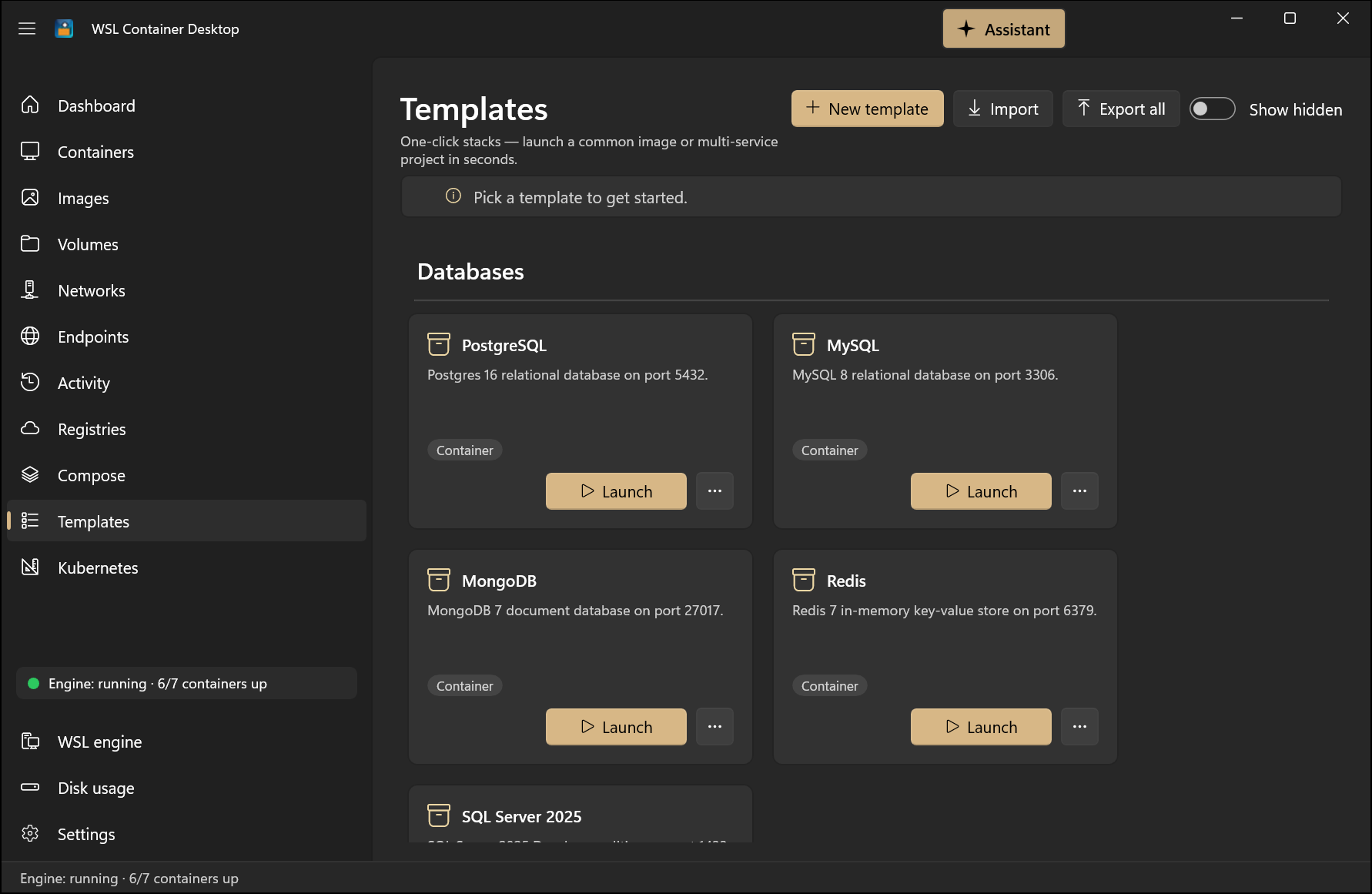 Templates — curated one-click stacks, grouped by category and configurable before launch. |
 Images — pull, build, tag, push, inspect, and prune, with update-available badges. |
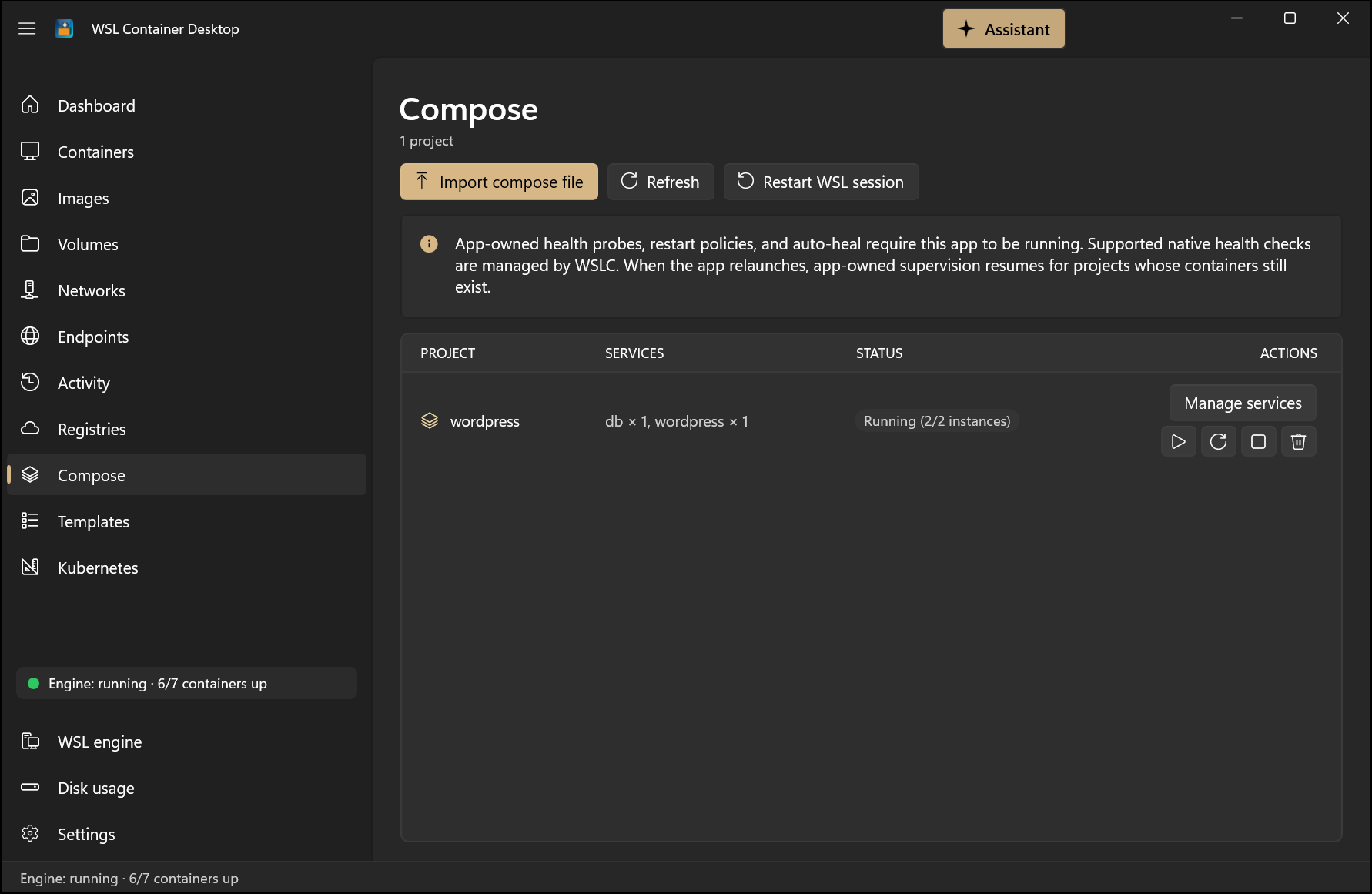 Docker Compose — bring a whole multi-service stack up / down / restart as a unit, with dependency ordering and auto-heal. |
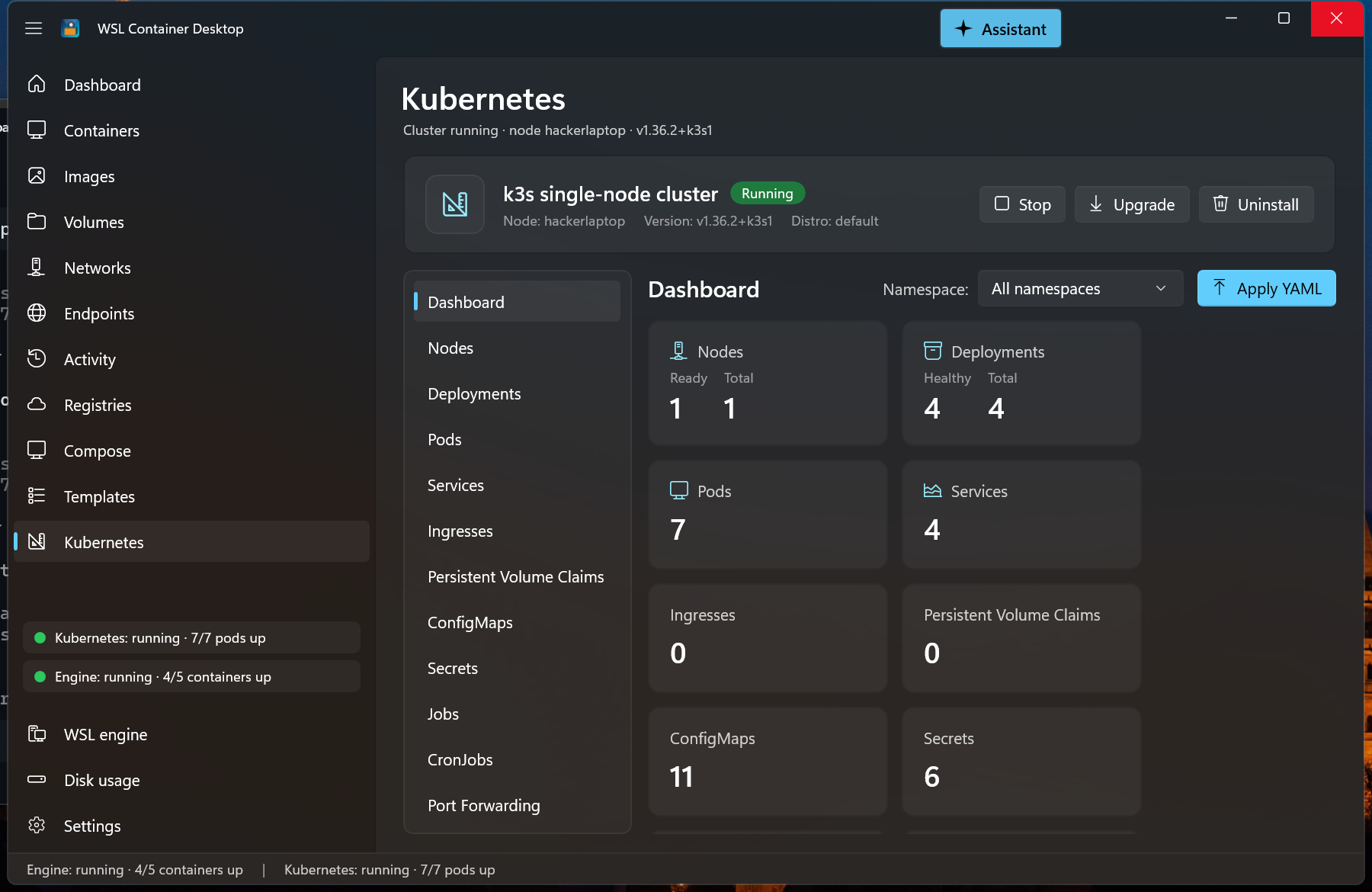 Kubernetes — install and manage a single-node k3s cluster right inside the app, with a metrics dashboard and "Apply YAML". |
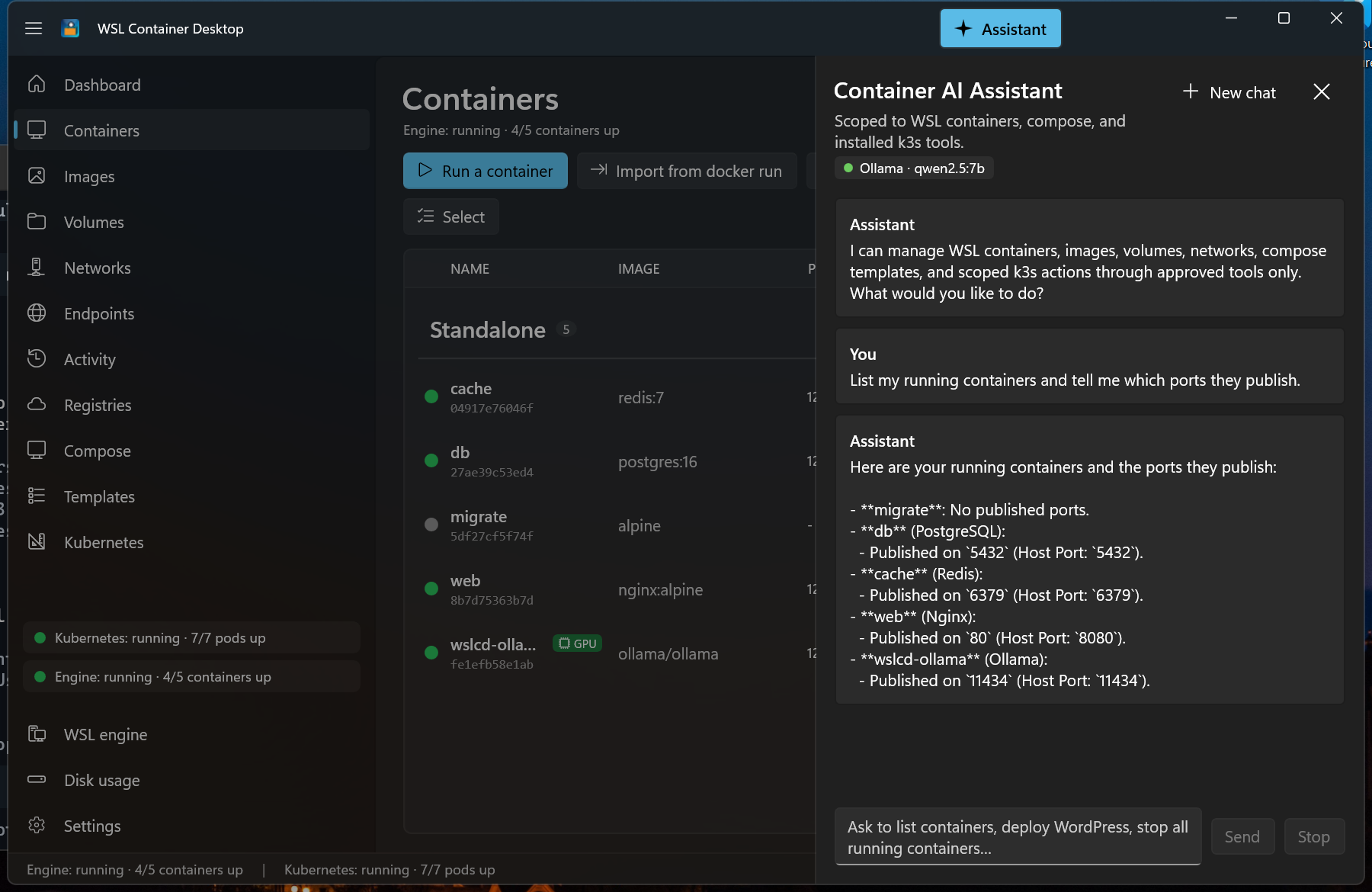 Container AI Assistant (optional) — a permissioned, tool-calling chat that manages containers, Compose, and k3s; shown here answering a question via a fully local Ollama model. |
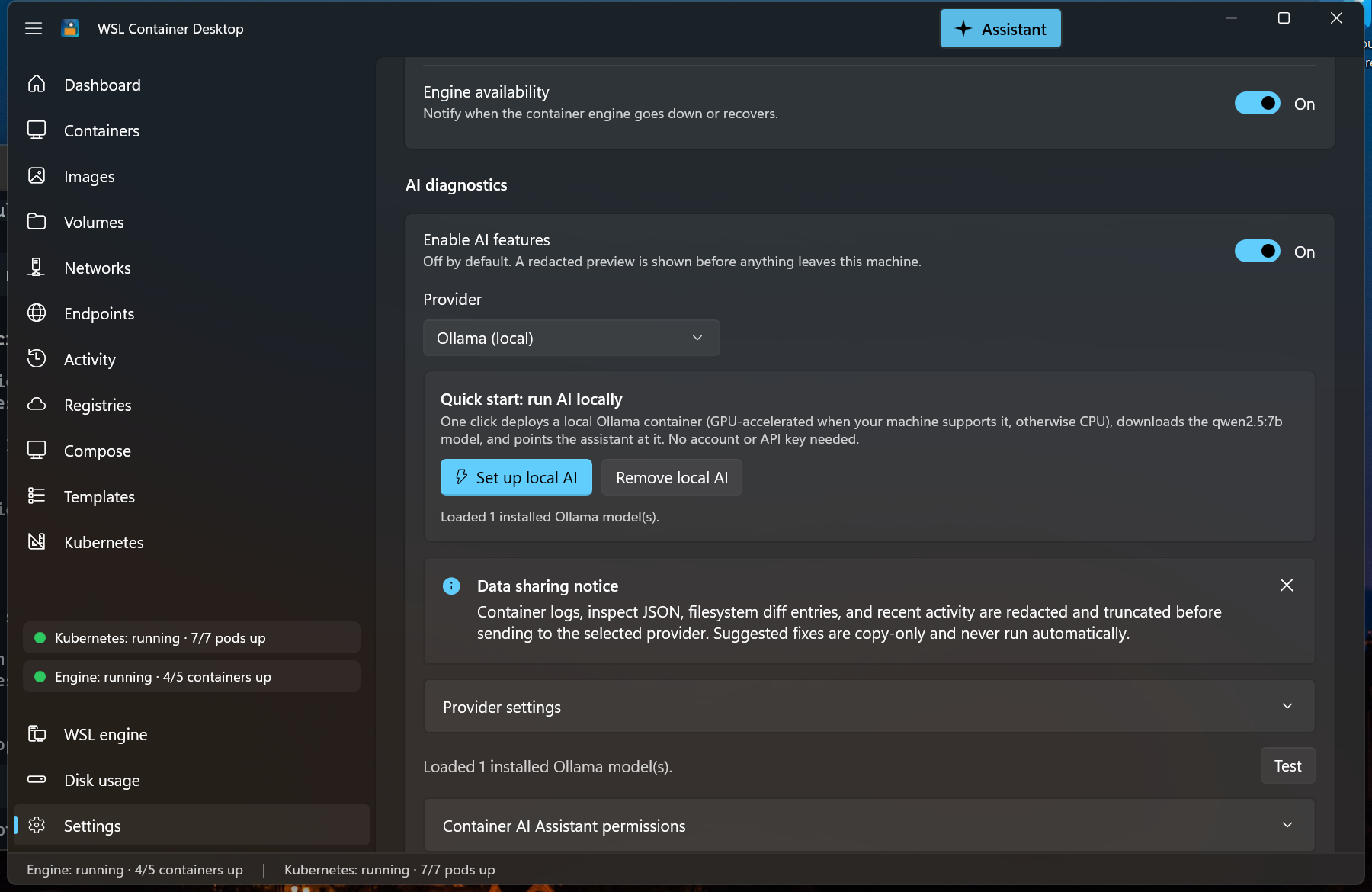 AI settings (opt-in) — choose GitHub Copilot, Ollama, Azure OpenAI, or any OpenAI-compatible endpoint; recognized secrets are masked, but review shared data for unrecognized sensitive content. |
📸 More screenshots — container logs & stats, endpoints, activity, registries, volumes, networks, Kubernetes deployments, disk usage, settings
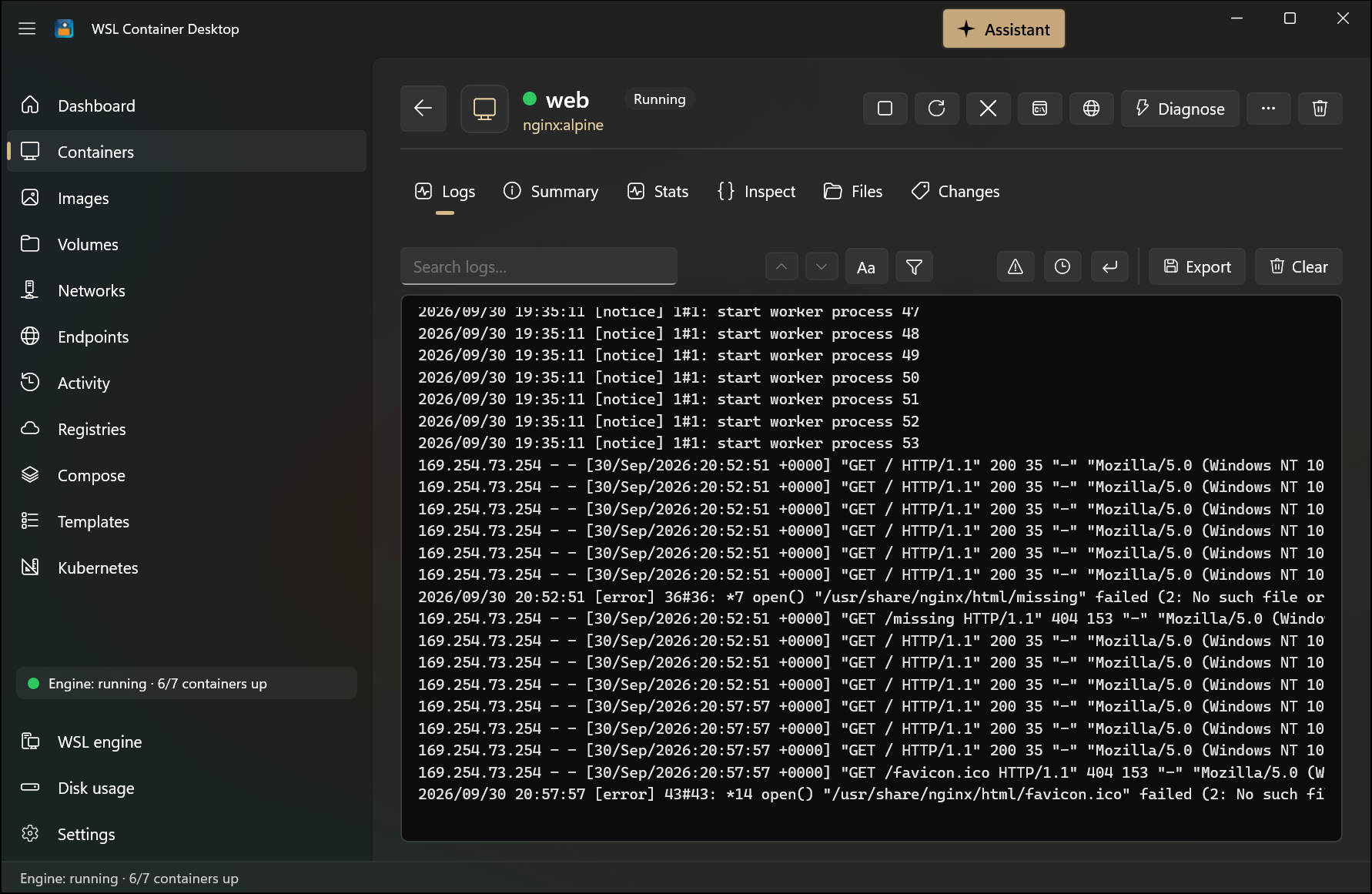 Container logs — live streaming output in the order it was written, with search, filter, error highlighting, timestamps, wrap, and export. |
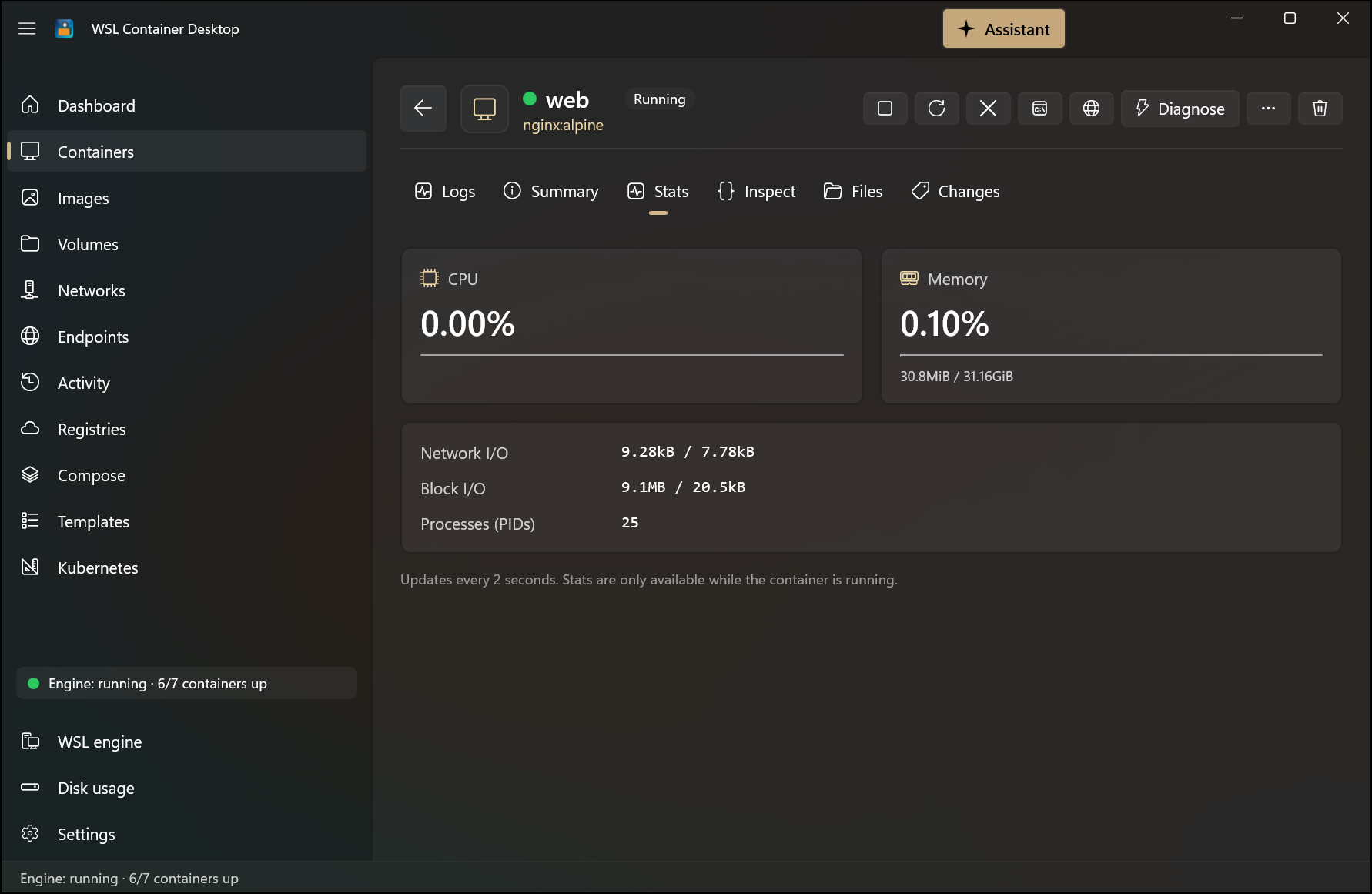 Container stats — live CPU and memory meters plus network I/O, block I/O, and PID count. |
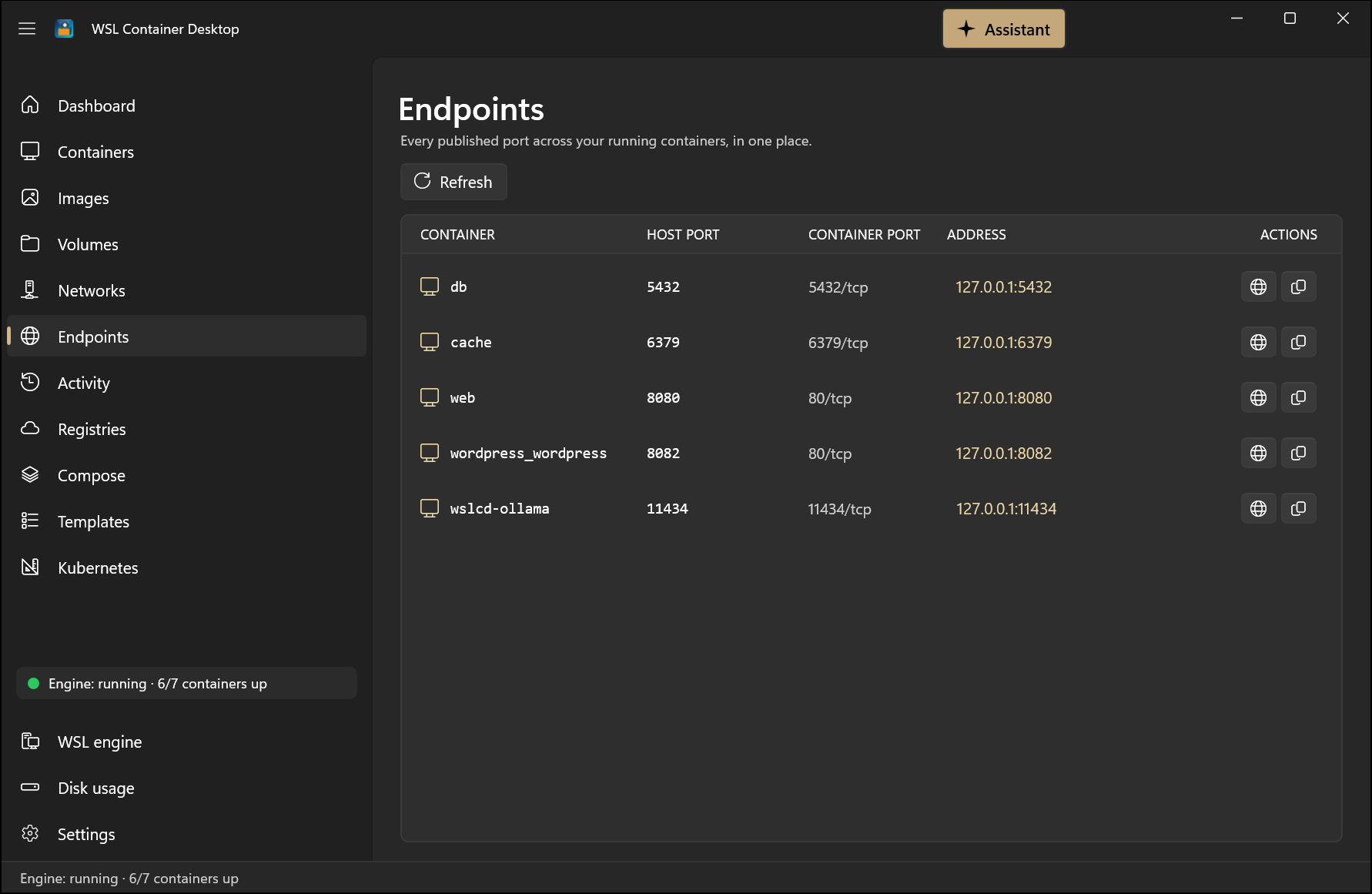 Endpoints — every published port across all running containers, with clickable localhost links.
|
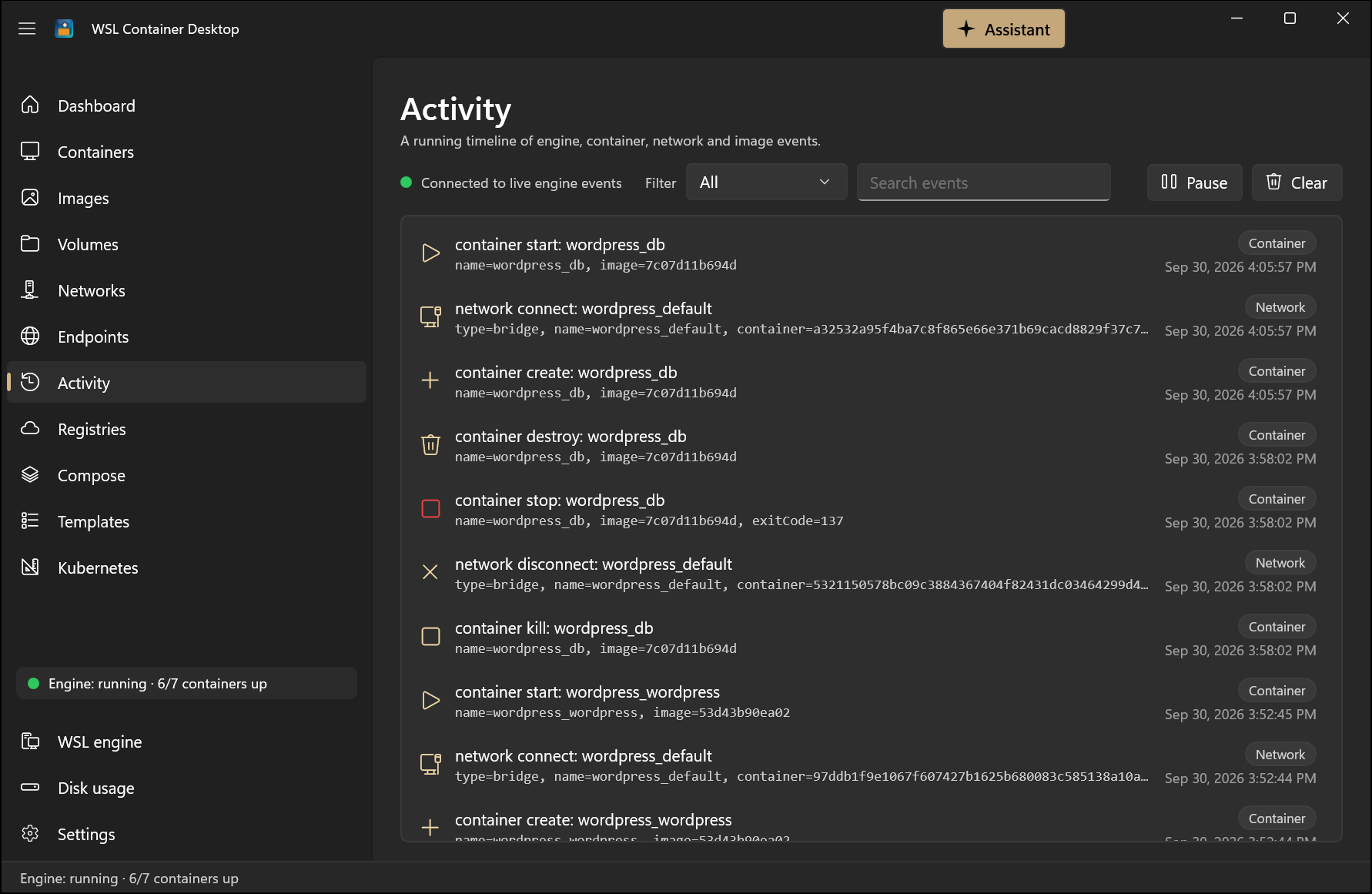 Activity — a persisted, filterable timeline of engine, container, and image events. |
 Registries — manage public and private registries with a live login-status indicator and one-click Add from Azure. |
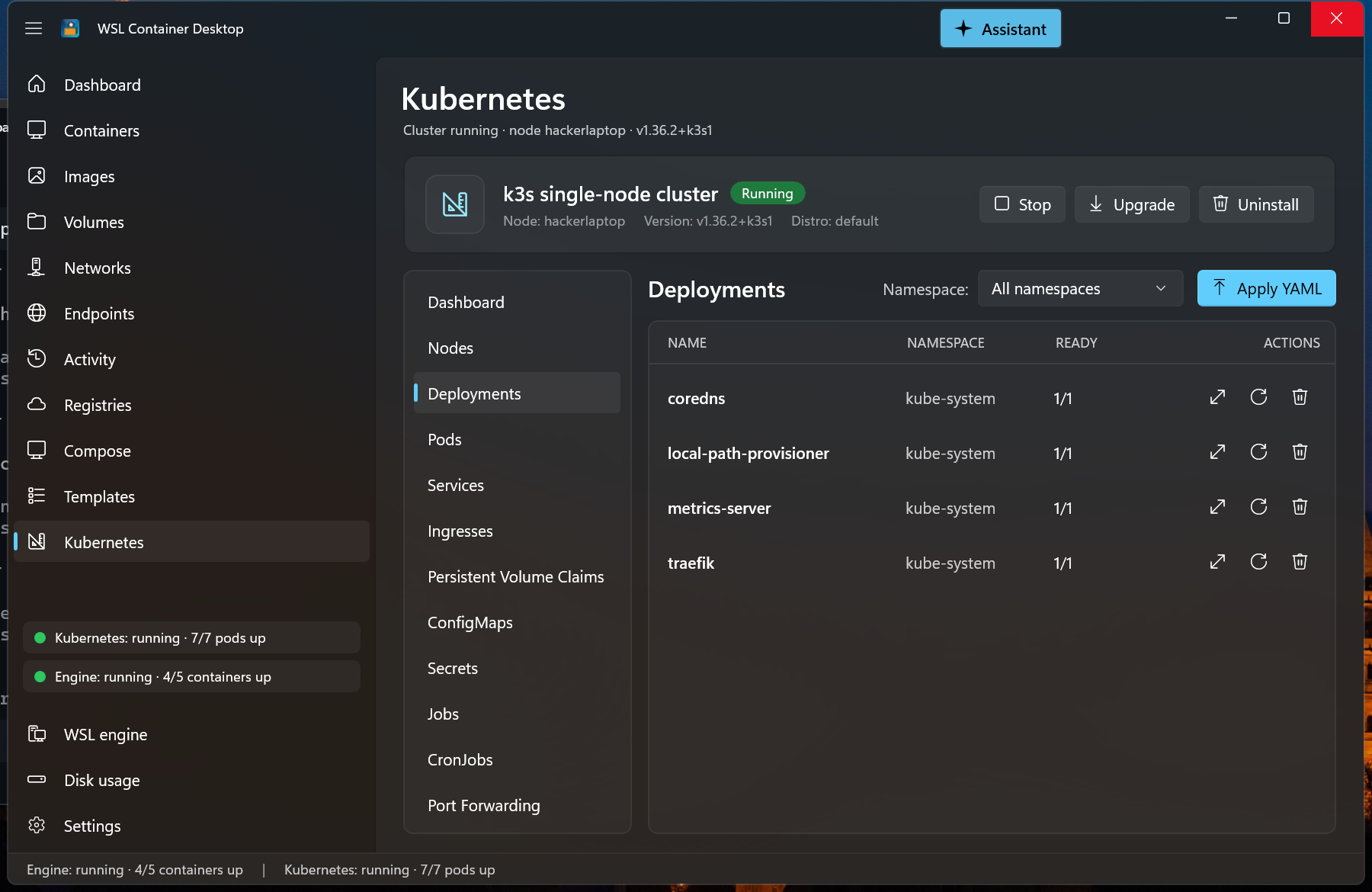 Kubernetes deployments — a Podman-style resource explorer across nodes, deployments, pods, and services. |
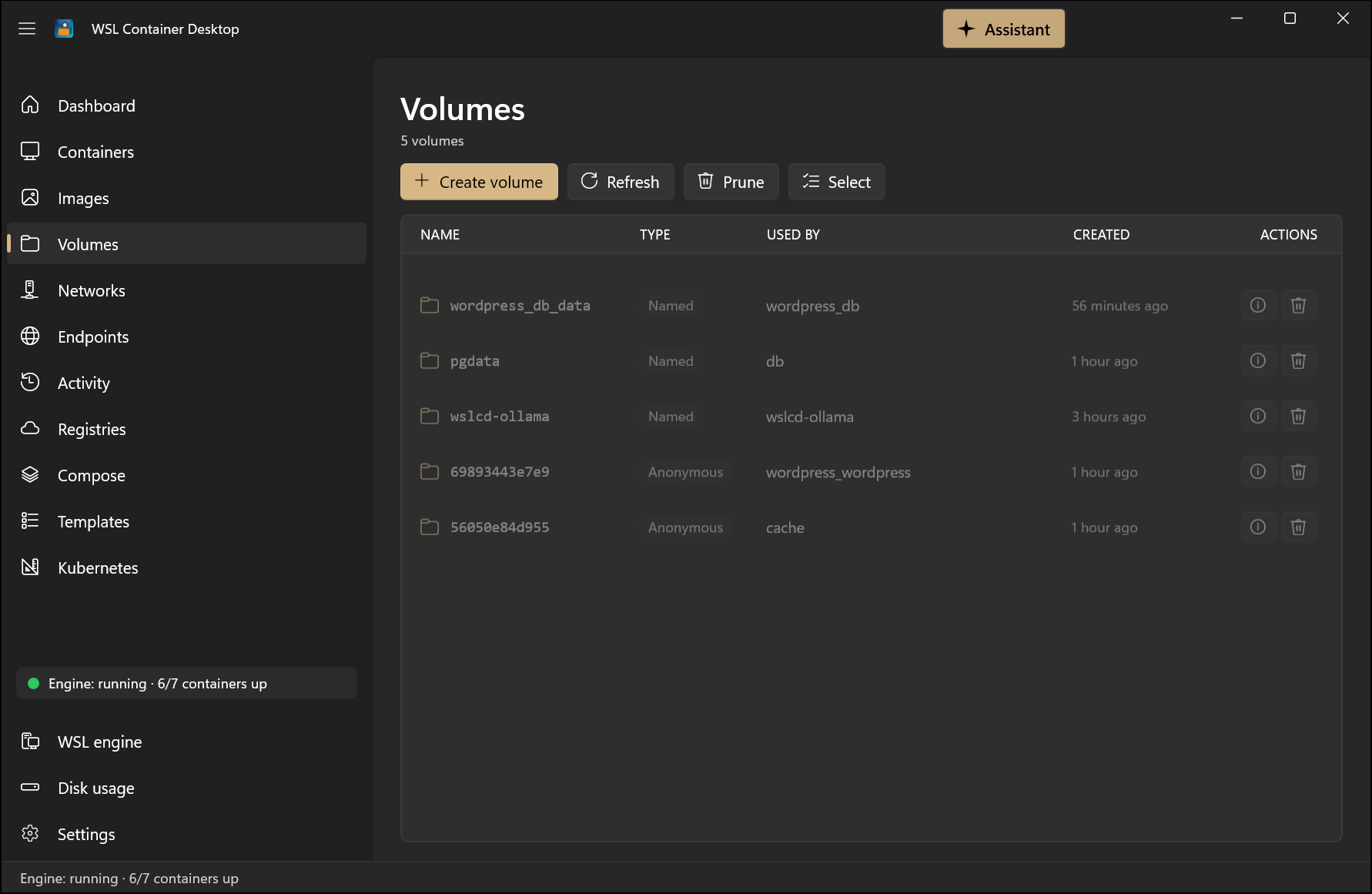
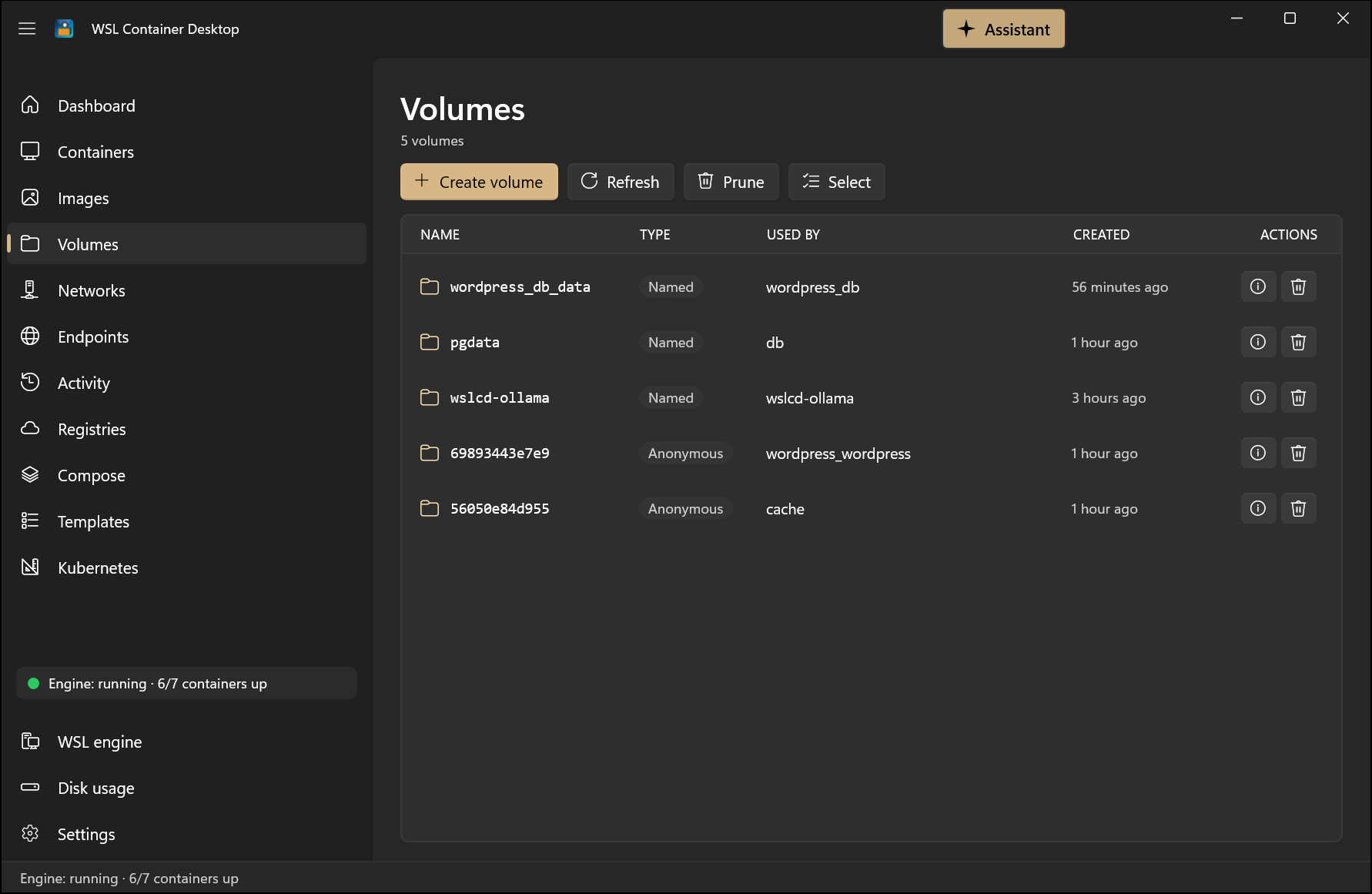 Volumes — named and anonymous volumes with the containers using each; create, inspect, remove, and prune. |
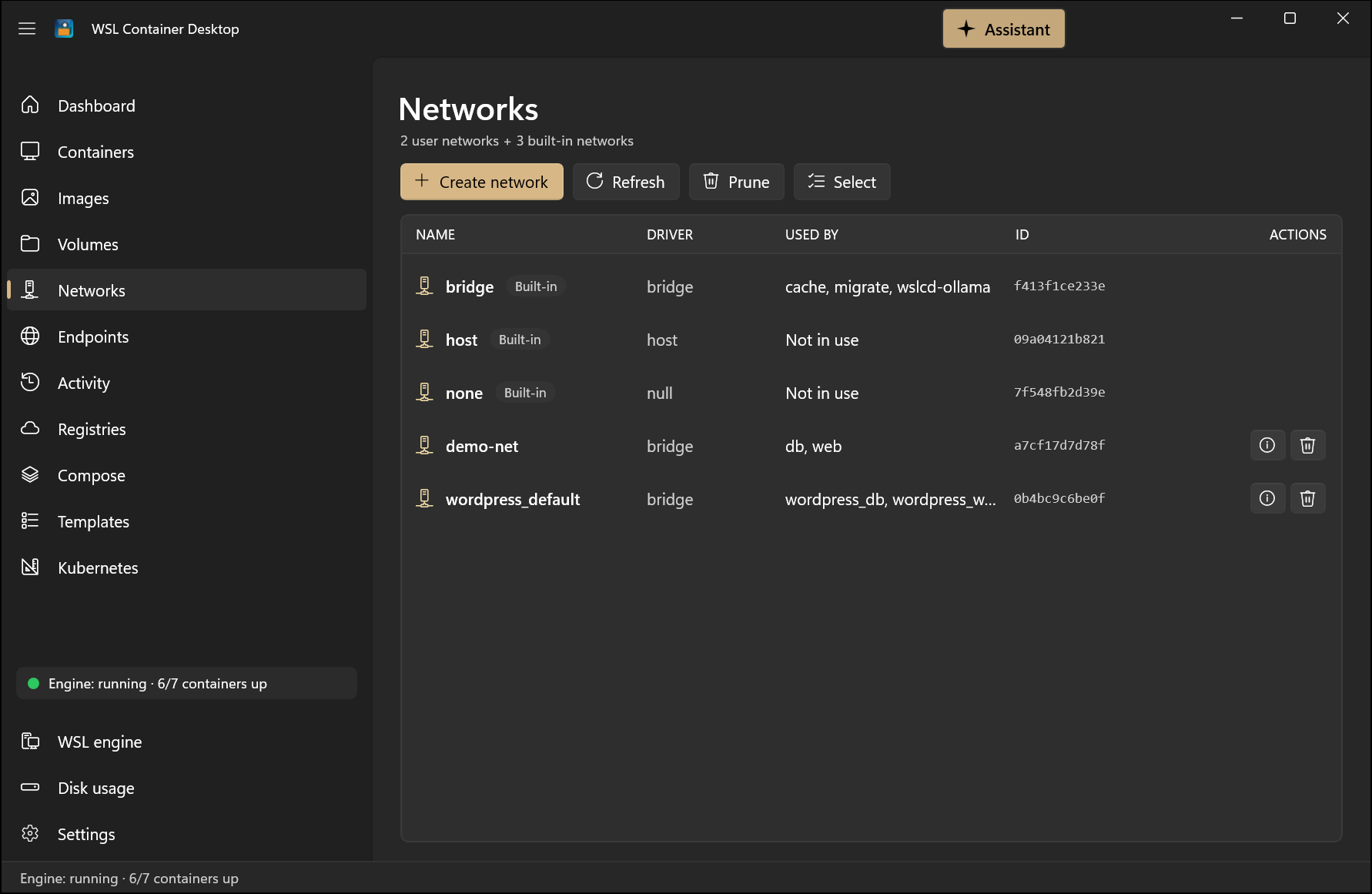 Networks — which containers use each network; list, create, inspect, remove, and prune alongside the built-in bridge, host, and none networks.
|
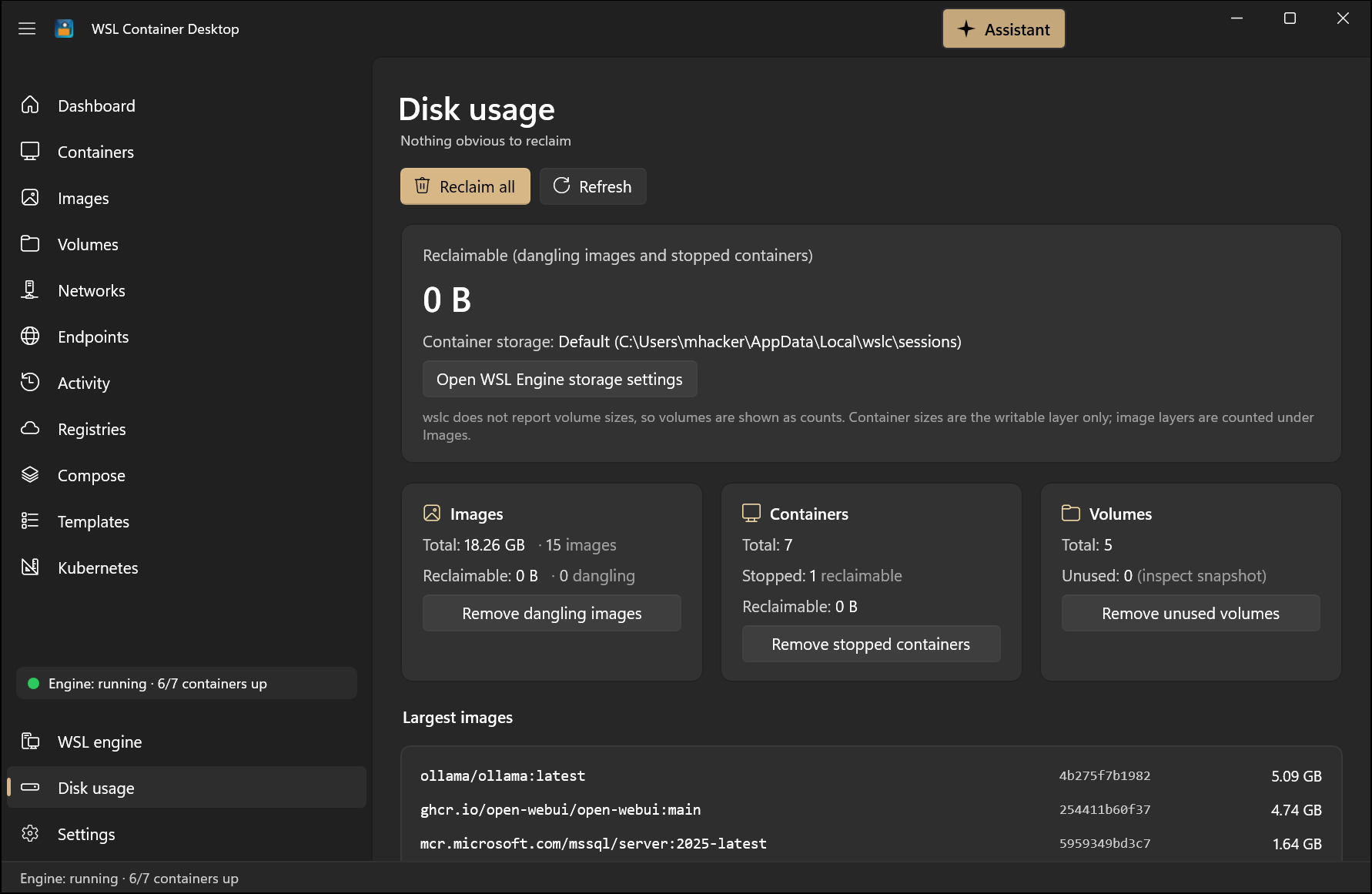 Disk usage — what images, containers, and volumes consume, what's reclaimable, and one-click Reclaim all. |
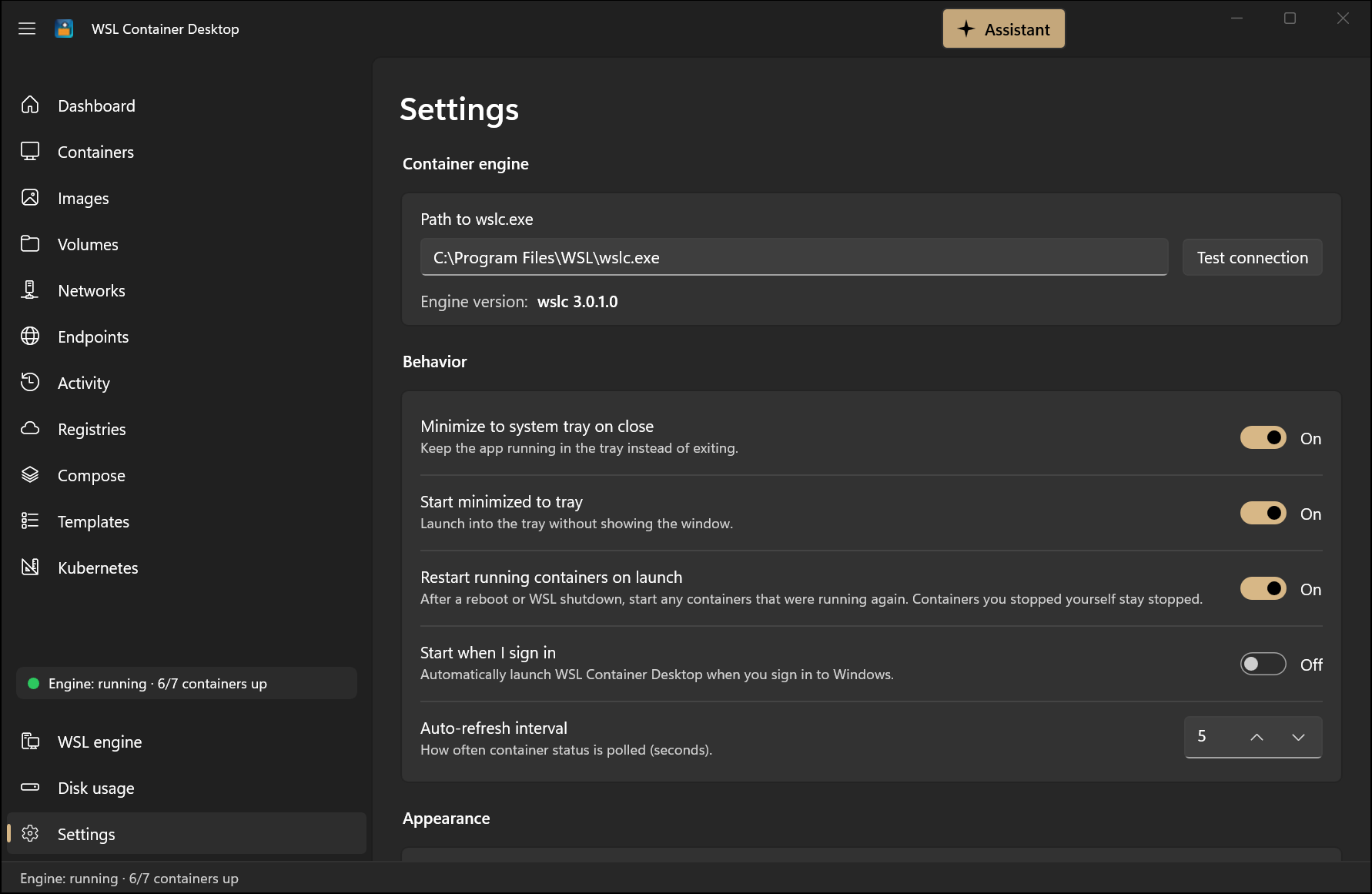 Settings — point at wslc.exe, tune tray/startup behavior, toggle notifications per category, and switch theme.
|
Getting started
[!IMPORTANT] WSL Container Desktop requires WSL 3.0.1 or later — the release in which WSL containers became generally available. The 2.9.x preview builds are no longer supported. Check the installed version:
wsl --versionIf it is older than 3.0.1, update from the regular (stable) channel — the
--pre-releaseflag is no longer needed:wsl --updateWhen the app finds an older WSL, no
wslc.exe, or WSL containers turned off by your organization's policy, it shows a WSL 3.0.1 or later is required screen with Update WSL and Re-check buttons instead of the container pages. Settings, the WSL engine page, About, and Kubernetes stay available.
Option A: Install a release (recommended for users)
Prebuilt, signed packages are published on the Releases page.
Downloaded files are flagged "from the internet" (Mark of the Web), so Windows' default RemoteSigned
execution policy blocks the unsigned Install.ps1 with "…is not digitally signed." The most reliable
install is to run the two underlying steps yourself — interactive commands are not subject to
script-signing policy.
-
Open the latest release and download these assets into the same folder:
WSLContainerDesktop_<version>_x64.msix— the app (self-contained; it bundles the .NET and Windows App SDK runtimes).WSLContainerDesktop-Signing.cer— the publisher certificate.
-
Open that folder, then open an elevated PowerShell (Run as administrator) and
cdinto it. -
Run (adjust the file names to the release you downloaded):
Import-Certificate -FilePath .\WSLContainerDesktop-Signing.cer -CertStoreLocation Cert:\LocalMachine\TrustedPeople Add-AppxPackage -Path .\WSLContainerDesktop_<version>_x64.msix -ForceUpdateFromAnyVersion -
Launch WSL Container Desktop from the Start menu.
The first command trusts the app's self-signed publisher certificate (CN=Michael Hacker) so Windows
accepts the sideloaded package; the second installs (or updates) the app.
Updating. Once installed, the app checks GitHub for a newer release each time it starts. When one is available it shows a bar at the top of the window and a Windows notification; choose Update now and it downloads the release, closes, installs it and reopens. It only installs a package that is a newer build of this app signed with the same certificate as the one you installed. Turn the check off, or check by hand, under Settings → About. You can also still update manually by repeating the steps above with a newer release — it updates in place.
Prefer the bundled Install.ps1 script? Download it too, then run it in a way that bypasses the
script-signing block — either from an elevated PowerShell in the download folder:
powershell -ExecutionPolicy Bypass -File .\Install.ps1
…or strip the Mark of the Web first and then right-click Install.ps1 → Run with PowerShell:
Unblock-File -Path .\*
[!NOTE] The package is self-signed. The steps above trust the included certificate so Windows will accept it; you can inspect the
.cerfirst (right-click → Open). You still need WSL 3.0.1 or later (below) installed for the app to do anything.
Option B: Build from source
1. Prerequisites
| Requirement | Notes |
|---|---|
| Windows 10 or Windows 11 | WSL containers run on both. The package targets Windows 10 version 1809 (build 17763) or later; development and testing happen mainly on Windows 11, so Windows 10 is less tested. |
| WSL 3.0.1 or later | The generally available release that provides wslc.exe (default path: C:\Program Files\WSL\wslc.exe; the container.exe alias next to it is also accepted). Install or update with wsl --update. The 2.9.x preview builds are not supported. |
| .NET 10 SDK | Needed to build and run from source. |
| Windows App SDK tooling | Installed with recent Visual Studio workloads. |
| Azure CLI (optional) | Only for the "Add from Azure" registry feature. |
| AI provider (optional) | Only for the AI assistant & diagnostics (off by default). Use GitHub Copilot CLI (signed in), an Azure OpenAI endpoint + API key, any OpenAI-compatible endpoint (configurable base URL; API key optional for local servers), or run locally with Ollama (Set up Ollama downloads the ollama/ollama:latest image if you don't have it). |
| GPU (optional) | Used automatically where it helps: Ollama setup and the Open WebUI template request GPU access (--gpus all). Requesting GPU access is not by itself proof of acceleration. |
Install or update WSL from an elevated PowerShell prompt:
wsl --update
Confirm WSL is version 3.0.1 or later and the engine is present:
wsl --version
& "C:\Program Files\WSL\wslc.exe" version
2. Get the code
git clone <your-fork-or-repo-url> wslcontainerdesktop
cd wslcontainerdesktop
[!CAUTION] Before you build or run this, review the source code yourself to confirm it is safe and appropriate for your environment. You run it entirely at your own risk — see the Disclaimer.
3. Build & run
From a developer PowerShell prompt:
cd src\WslContainerDesktop
dotnet run -c Debug -p:Platform=x64
Or open WslContainerDesktop.slnx in Visual Studio 2022/2026, select the x64 platform, and press F5.
[!NOTE] Why
dotnet runand not justdotnet build? This is a packaged (MSIX-identity) WinUI app.dotnet runperforms the full pipeline — build, refresh the packaged loose-layout, re-register the package, and launch. A plaindotnet buildupdates the binaries but leaves the registered app pointing at a stale layout, so you would keep launching the previous version.
Fast dev loop
tools\launcher\Build-And-Run.ps1 rebuilds, redeploys, and launches the app in one step. A desktop shortcut named WSL Container Desktop points at it, so you can double-click to run the latest code after making changes.
First run
- Launch the app — the Dashboard shows your engine status and any running containers.
- Head to Images → Pull image to fetch something (e.g.
nginx:alpine). - Go to Containers → Run a container, pick the image, map a port, and click Run.
- (Optional) Open Kubernetes and click Install to spin up a local k3s cluster.
- (Optional) Open Registries to add a private registry or an Azure Container Registry.
- (Optional) Open Settings → AI diagnostics and click Set up Ollama to run AI entirely on your own machine. The first setup downloads the Ollama image (a few GB) and offers to download a model.
Feature tour
Dashboard
- Summary cards: running / total containers, image count, volume count, and engine status with version.
- A Total CPU usage meter across all containers.
- A live performance table of every running container — CPU %, memory, network I/O, and block I/O — refreshing continuously with inline progress bars. Click a row to open that container's detail page.
- Status indicators for the container engine and the Kubernetes cluster, both in the nav footer and the bottom status bar.
Containers
- Live list with color-coded state (green = running) and inline row actions.
- Run a container from a rich dialog: image, name, ports, environment variables, volumes, network,
--rm,-d,-i,--gpus all, a stop timeout (--stop-timeout,-1= wait indefinitely), and a custom command. A registry selector qualifies bare image names. Long-form mounts imported fromdocker run --mount …are passed to the engine as native--mountoptions. - Start, Stop, Restart (native
wslc restart, which also starts a stopped container), Kill, Remove, and Prune stopped. The terminal button opens a new shell in the container. Less common actions are in the ⋯ menu (on the container's page and on each row): Export filesystem… to a tar file, and — while the container is running — Attach to main process…, which connects a terminal to the container's main process instead of a new shell. Attach is confirmed first, because Ctrl+C there usually stops the container. Actions that can't work right now (for example Kill on a stopped container, or opening a port that isn't published) are hidden. - A Size column shows each container's writable layer; hover it to see the virtual size, which also counts the image layers.
- Health & auto-heal — observe native engine health, configure an app-owned command or host-side TCP probe, and choose an independent restart budget. Compose shell checks use native run/create health flags; exec-form
CMDchecks, TCP probes, andstart_interval(not offered by WSL 3.0.1) use app probes. Native health does not imply auto-restart: watchdog restart decisions remain app-owned. Health appears in badges and the tray; desired settings persist, and editing an existing container never silently recreates it. - Click a container for a full-page detail view with tabs:
- Logs — live streaming output with auto-scroll and wrap toggle, optional timestamps (the clock button), plus search (with match count and next/previous navigation), filter to matching lines only, error/warning highlighting, export to a text file, and clear.
- Summary — id, state, image, ports, IP, network, start time, command, env vars, mounts, and writable/root-filesystem size.
- Summary → Networks — the networks the container is attached to (with IP and aliases); Connect to network… with optional aliases and a static IPv4 address, and Disconnect (confirmed only when it would leave the container with no network).
- Stats — live CPU and memory meters plus network I/O, block I/O, and process (PID) count.
- Inspect — full raw JSON.
- Files — browse the container filesystem, preview text files, upload/download via drag-and-drop, and create/rename/delete paths. Transfers use native
wslc container cp, so they work without an in-container shell, including on stopped containers; downloading a symbolic link fetches the file it points to. Browsing, text preview, path editing and filesystem diff need a running container with suitable tools, so for a stopped container the tab explains that and offers Download by path… for a file or folder whose path you know (also in the file list's right-click menu). - Changes — a
docker diffequivalent listing every file added (A), changed (C), or deleted (D) relative to the container's image, so you can see exactly what a running container has written. (Emulated by comparing the container's rootfs against a fresh walk of its image; needs a running container with a shell.)
- Open an interactive terminal (
exec -it) or, when the container publishes a port, open it in the browser.
File downloads and background drag-out staging reject Windows-unsafe filenames, traversal, and existing host symbolic links. Choose a destination below the drive or share root. Opened files remain untrusted; read-only marking does not make their contents safe.
Docker Compose
- Import a
docker-compose.yml(file picker) to create a Compose project — the app parses a large subset of the Compose spec into a service dependency graph. - Apply / Down / Restart, for the whole stack or selected services from Manage services. Repeated up keeps unchanged running containers and selectively recreates changed configuration/images; restart only stop/starts existing containers and does not apply edits. Targeted apply includes required dependencies, with health/exit gating, project-scoped resources and service DNS aliases. Explicit rebuild is available for build-context edits.
- Auto-heal while the app runs — restart policies, app-owned probes and auto-heal need the built-in watchdog. Native health checks are engine-owned and separately observed; health failure thresholds are not restart budgets.
- Down stops and removes the project's containers and networks but preserves volumes; Remove additionally deletes the volumes the project created (like
docker compose down --volumes). - Projects are re-adopted on relaunch, and the importer warns about any unsupported keys before you commit, so you always know what will and won't be honored.
- See Docker Compose compatibility for the full feature matrix.
- See reconciliation semantics for plans, profiles, dependency restart conditions, image policies, preserved storage, and partial-failure behavior.
- Compatibility review before apply — inspect active services, replicas, dependencies, storage, ports, networks, limits, native or app-owned health checks, and app-owned supervision. Supported, approximated, ignored and blocked settings have explanations; blockers cannot be overridden. Cancel changes no workload or saved deployment settings. Confirmation rechecks fresh evidence and rejects stale or expired reviews. See the review and reusable approval API.
- Local scaling — set
scale/deploy.replicasor a saved per-service UI count. Reconciliation preserves unchanged instances and applies ownership-safe scale changes. See the supported scaling subset, including port/name conflicts and replicated dependency behavior.
Dev containers
Starting or rebuilding a single-container dev environment with initializeCommand requires a
separate confirmation showing the workspace and exact commands. These commands run on Windows
with your user permissions, not inside the container. Approval applies only to that operation;
declining stops it before host commands or container changes. Importing a workspace is not approval
to execute its host commands. Compose-backed host initialization remains blocked.
The review visibly escapes backslashes and hidden control/format characters; it is not copy-ready
shell text. Execution uses the original reviewed commands.
Host initialization requires a conventional drive-letter workspace path shorter than 260 characters.
UNC, device and extended-length paths are rejected because CMD can silently use a different working
directory. Workspaces without host initialization commands are unaffected.
Images
- List with repository, tag, ID, size, and age. Copy digest is in each row's ⋯ menu.
- Pull (optionally all tags of a repository), Build (from a Dockerfile + context), Tag, Push (optionally all tags), Inspect, Remove, and Prune.
- Save to file… exports selected images to a
.tarfile, for example to move them to another PC or keep a backup. The Import menu brings images back in; each option describes what it does and which action makes its file, and after a save or export the status line says which option restores it:- Restore saved images… (
wslc load) restores a file made with Save to file… (ordocker save) exactly as it was — same names, tags, layers and start command. - Create image from exported files… (
wslc import) makes a new image from a.tarof files, usually one made with a container's Export filesystem…. Only the files are kept: the new image has no start command, environment variables or ports, so give it a command when you run it. You can name the new image; without a name it is listed as<none>.
- Restore saved images… (
- Check for updates — compares each local image's digest against its registry and flags images that are behind with an ↓ Update badge; click the badge (or use Pull update in the row's ⋯ menu) to pull the newer version. Containers already running from the old version keep using it until you recreate them.
- Run a new container directly from an image.
- Saved run profiles — save an image's ports/env/volumes/network/name/flags as a reusable, named profile, prefill the Run dialog from one, and launch it in one click from the image's ⋯ → Run profile menu. Profiles persist across restarts. (For full multi-service orchestration, use the Docker Compose page instead.)
- Push — choose the registry to push to, then the image's name inside it; the registry you choose always decides where it goes. The dialog checks that you're signed in to that registry (Azure registries are refreshed automatically) and links to the Registries page if you aren't. It starts from the image's own name without the registry it came from, and for Docker Hub adds your username, which Docker Hub requires. Your image on this PC keeps its existing names.
- The Pull dialog includes a registry selector with a live "resolved reference" preview. Build keeps the image on this PC by default; if you have added registries, it can optionally name the image for one of them so it is ready to push.
Volumes
- Create, Inspect, Remove, and Prune.
- Enriched columns: Name (shortened for anonymous volumes), Type (Named vs Anonymous), Used by, and Created.
- Used by includes named and anonymous volumes, stopped containers and shared users when inspect metadata permits. Exact, partial, unknown and estimated usage are distinguished; unknown does not mean unused.
Networks
- List, Create, Inspect, Remove, and Prune, including the default
bridgenetwork. - A Used by column lists the containers attached to each network, including stopped ones that rejoin it when they start. It shows Not in use only when every container could be checked, and Unknown otherwise.
- Create network supports internal (no external access) networks, and under Advanced options a subnet, gateway, and IP range, driver options (
-o key=value), and labels. Networks use thebridgedriver, the only one WSL provides. - Attach or detach individual containers from the Networks section of a container's Summary tab.
Endpoints
- A unified, at-a-glance view of every published port across all running containers in one place, reachable from the Endpoints entry in the navigation pane.
- Each row shows the container, host port, container port/protocol, and a clickable
localhost:<port>address that opens in your browser (for TCP endpoints) or can be copied to the clipboard. - Updates live from the same engine poll as the dashboard and tray.
Activity
- A persisted timeline of engine, container, network, and image events, reachable from the Activity entry in the navigation pane.
- Fed live by
wslc events: container create/start/stop/kill/destroy (with exit codes) and network create/connect/disconnect/destroy arrive as they happen, alongside engine up/down from the background monitor and image pull/build outcomes (successes and failures) recorded directly — independent of your toast-notification settings. When first opened it loads the last hour of engine events so the page isn't empty. - A connection indicator shows whether the live stream is connected; if it drops, the app reconnects automatically without missing events, and the regular background poll keeps everything up to date meanwhile.
- Filter by category (All / Engine / Container / Network / Image) or free text, Pause the live view, and click a container event to open that container. Each entry shows an icon, title, optional detail, a category chip, and an absolute date & time.
- Events persist to disk (a rolling 500-event log) so the timeline survives restarts; Clear empties it.
Bulk actions
- The Containers, Images, Volumes, and Networks lists have a Select toggle that turns on multi-select checkboxes and swaps the toolbar for a bulk-action bar showing the selected count.
- Select several rows and act on them together: Start / Stop / Remove on Containers, and Remove on Images, Volumes, and Networks (built-in networks are skipped). Cancel exits Select mode.
Disk usage
- A holistic disk-usage & cleanup center, reachable from the Disk usage entry at the bottom of the navigation pane (next to Settings), that summarizes how much space images, containers, and volumes consume and how much is reclaimable.
- Lists the largest images, dangling images, and confirmed-unused volumes from the current inventory/inspect snapshot. Missing metadata and estimates are not counted as unused.
- One-click prune for dangling images, stopped containers, and unused volumes — or Reclaim all at once — each with an explicit confirmation and before/after freed-space feedback. Reuses the existing per-resource prune commands.
- Space held by stopped containers is the engine's exact writable-layer size, and the page shows where container storage lives, with a link to change it on the WSL engine page.
Registries
- A managed list of container registries used by the Run / Pull / Build / Push dialogs, with Docker Hub built in as the default.
- Add registry — register any public or private registry by host, with optional sign-in.
- Add from Azure — a guided wizard that verifies the Azure CLI, signs you in, lists your subscriptions and Azure Container Registries, and adds the one you pick. It authenticates using your Azure identity (a short-lived token via
az acr login --expose-token), so no admin username, password, or key is required. - Live login status per registry, with tokens for Azure registries refreshed automatically in the background and just-in-time before an app-initiated pull, run, or push.
- Credentials are handed to the container engine's own credential store — the app never persists your passwords.
- Organization allow lists — when an administrator restricts image sources with the WSL containers registry allow list policy, the page lists the approved registries, and pulls, pushes, runs, template launches, and Compose deployments that reference any other registry stop with an explanation before contacting it. WSL refuses image builds entirely while an allow list is in effect, so Build is disabled with the reason.
Templates
- A gallery of curated one-click stacks, reachable from the Templates entry in the navigation pane, grouped into Databases (PostgreSQL, MySQL, MongoDB, Redis, SQL Server 2025), Web & tools (Nginx, Adminer, MinIO, RabbitMQ), Azure emulators, Developer sandboxes, and multi-service Stacks.
- Launch starts a template immediately with sensible defaults — no dialog. A template can be launched more than once: a repeat deployment takes a free name (
mysql-2), free host ports, and its own named volumes, so it runs alongside the first rather than disturbing it. The card shows how many deployments exist, and Remove deployment asks which one to remove. - A per-card ⚙️ Settings button lets you configure before starting: single-container templates open the full Run a container dialog prefilled; Compose stacks open an editable project name + YAML editor. Saving both starts the template and remembers your configuration, so the next Launch reuses it. Saved configs persist across restarts (
template-configs.json). - Developer sandboxes — keep-alive Python, Node.js, .NET SDK, Java, Go, and Rust environments (latest supported versions) with a persistent
/workspacevolume; open the container's Terminal action for a shell. - Azure emulators — develop against Azure services locally: Azurite (blob/queue/table), the Cosmos DB emulator with its Data Explorer, and the Service Bus and Event Hubs emulators. The two messaging emulators need a SQL Server backend (Event Hubs also needs Azurite), so they deploy as Compose stacks that wait for SQL to pass a real health check before starting. Each comes up with a default namespace and entities, so there is no configuration file to write.
- Compose stacks — templates like WordPress + MySQL and PostgreSQL + pgAdmin resolve a multi-service project and show compatibility review before applying it. Saved template defaults change only after successful reviewed deployment.
- Open WebUI + Ollama — if an Ollama container already exists (for example the one behind the local AI assistant), the template deploys only the web UI and points it at that runtime by network alias; removing the template leaves that runtime alone. Otherwise it deploys its own Ollama, asks which model to download so the chat UI works immediately, and requests GPU passthrough.
Kubernetes
- Install / uninstall a single-node k3s cluster inside a WSL 2 distribution with systemd, with streaming progress. This is the only feature that needs an installed WSL distribution — containers don't. k3s uses WSL's default distribution and remembers it after installing. If that distribution can't host k3s (none installed, WSL 1, or one owned by another tool such as Docker Desktop), the page explains why and offers no Install button.
- Start / Stop the cluster and Upgrade it to the latest stable or a specific version (with a version-skew guard that steps one minor version at a time).
- A metrics dashboard and a Podman-style resource explorer for Nodes, Deployments, Pods, Services, Ingresses, PVCs, ConfigMaps, Secrets, Jobs, and CronJobs.
- Row quick actions (scale, restart, run-now, delete) and a full detail view per object with Summary / Kube (editable YAML you can apply back) / Describe / Logs tabs.
- Apply YAML manifests and port-forward services or pods to
localhost.
WSL engine
- A dedicated WSL engine page for the platform underneath the containers.
- Restart WSL session and Shut down WSL — the quickest recovery when the engine gets into a bad state.
- WSL updates — shows your installed version against the latest available, with Update now. Installing an update needs administrator permission; the app says so up front and, while the update runs, shows how to find the Windows prompt if it only appears as a flashing shield on the taskbar. Updates come from the stable channel, which carries WSL containers since 3.0.1; an Include early-access (pre-release) WSL builds toggle (off by default) opts into preview builds. If you had turned on pre-release updates for the container preview, the app switches you back to the stable channel once; turn it on again if you want it.
- Container storage — where the default session keeps images, containers, and volumes, and how large its disk is. Change location… points
session.storagePathat an empty folder you choose (for example on a larger drive); Reset to default returns to%LOCALAPPDATA%\wslc\sessions. Existing images, containers, and volumes are not moved — they stay in the old location until you delete them — and the session restarts before the new location is used. Under Container session settings, the session's CPU, memory, maximum disk size, default port-binding address, and credential store are shown read-only; Edit settings file openssettings.yamlto change them. - Platform info — WSL version and kernel, plus the memory and processor limits currently in effect from
.wslconfig. - Distributions — every installed distro with its state and version. Having none is fine: WSL containers run in their own VM and don't need a distribution.
AI features (optional — off by default)
AI is entirely opt-in: nothing is enabled, and no data leaves your machine, until you turn it on in Settings → AI diagnostics and pick a provider.
Providers
- Choose your provider — GitHub Copilot (uses your Copilot CLI sign-in), Azure OpenAI, any OpenAI-compatible endpoint, or Ollama for fully local inference. API keys are stored in Windows Credential Manager, never in plain text.
- Any OpenAI-compatible host, local or remote — set the base URL yourself (default
https://api.openai.com/v1) to point at LM Studio (http://localhost:1234/v1), llama.cpp / vLLM (http://localhost:8000/v1), Ollama's OpenAI API, or an internal gateway./chat/completionsis appended automatically, the API key is optional for servers that don't need one, and Refresh lists the models the endpoint actually serves. - Quick start: run AI locally — Set up Ollama creates an app-managed container on
127.0.0.1:11434, offers to download a model if you don't have one, selects it as your provider, and reports what the model actually supports. It manages only its own container and never adopts an unrelated Ollama just because the endpoint answers. Ifollama/ollama:latestisn't on your machine yet, setup downloads it first (a few GB); an image you already have is used as is. Remove Ollama deletes the container, and optionally its model volume.
What it can do
- Diagnose-and-fix — a Diagnose button on any container's detail view gathers its logs, inspect JSON, filesystem-diff entries, and recent activity, redacts and truncates them into a preview you can review first, then asks the model what went wrong and how to fix it. Suggested fixes are copy-only and never run automatically.
- Container AI Assistant — a side-panel chat that can actually do things through a scoped, permissioned toolset: list/run/stop containers, deploy Compose templates, manage saved Compose projects, and take scoped k3s actions. Read-only tools run automatically; anything that changes state prompts for approval (per-tool auto-approve is configurable). Deleting anything is a separate capability that is off by default — until you turn it on, those tools are not offered to the model at all and are refused if called. The assistant appears only once chat and tool support are positively observed, not merely on successful connectivity.
- Deployments never clear the way — when the assistant runs a container or deploys a container template whose name, ports, or volumes are already taken, it steps aside onto free ones instead of stopping or removing what is already running.
- Knows the current date and time — every turn carries this PC's local and UTC clock and time zone, so the assistant can answer "today"/"now" and reason about container ages and uptimes instead of guessing a date from training data.
- Reads live engine evidence — the assistant can query current capability evidence, cached native/app health with freshness, and volume mount users (including stopped containers). Unknown, stale or estimated data is reported as such, never as proof of health or safe deletion.
- Inline feedback — every AI operation reports progress and failures in a banner next to the control you used, with a concise explanation (e.g. "Authentication required — save an API key in Settings") and optional Technical details + Copy details. API keys, tokens, and Authorization headers are stripped before anything is shown or copied.
Guardrails
- Destruction is a capability, not a prompt — Allow the assistant to delete things is off by default. Until it is on, removing containers, volumes, networks or Kubernetes resources and bringing a Compose project down are withheld from the model and refused if called, rather than offered as a button to click. A separate act without asking switch waives approval prompts without granting deletion.
- Mutations always need approval — Compose deployments and saved-project operations require one explicit review even with auto-approve enabled. Reviews expire after ten minutes and are revalidated against live inventory before anything runs. Results distinguish started, reused, skipped, failed and cancelled work rather than reporting blanket success. See the shared review contract.
- Honest outcomes — completed actions are not rolled back on cancel, partial and unknown outcomes stay visible, and truncated evidence marks what was omitted. Failed or cancelled actions may have had partial effect: check current state before retrying.
- Conversation ownership — follow-ups retain sanitized tool calls and outcomes, not just the model's summary. History is bounded and held only in memory. Changing provider, endpoint, or model starts a fresh conversation, so local history is never silently sent to a newly selected cloud destination.
- Capability status is measured, not assumed — Settings reports chat, tool calling, structured JSON, streaming and context observations separately. Unknown means unverified. Test capabilities runs bounded synthetic checks (no container data, no app actions) with a 90-second deadline and a Cancel test button.
[!IMPORTANT] Sanitization is a best-effort rule-based filter, not arbitrary secret detection. Recognized sensitive JSON fields, environment assignments, YAML blocks, auth headers, connection strings, URL credentials, and private-key blocks are masked before truncation — but unlabelled passwords, encoded values, and custom formats can still get through. Review diagnosis previews, and don't paste secrets into chat. Local inference stays local only when the configured endpoint is actually local.
Additional AI details — sanitization limits, retention, and Foundry Local
Assistant chat sends sanitized text and tool evidence during a turn without a separate evidence-preview step; approval settings govern mutations, not data sharing. Logs and configuration are untrusted evidence, not instructions or approval. YAML filtering is conservative and is not a full YAML interpreter.
Raw approved values stay in execution memory and may be passed to workload services. Existing workload configuration (such as saved Compose projects) is not an assistant transcript and is not scrubbed by this boundary, and historical activity already on disk is not retroactively scrubbed. Remote endpoint and provider retention policies still apply. The conversation ceiling starts at 32,768 accounted UTF-8 JSON bytes and is raised when the provider reports a context window, through a deliberately pessimistic conversion (75% of the window at 2.5 bytes per token, capped at 262,144 bytes). A token window is never treated as a byte budget in its own right, and an explicitly byte-accounted observation always wins, because it is measured rather than inferred.
Foundry Local support exists in the codebase but is not currently exposed in the UI — the provider picker offers Copilot, Ollama, Azure OpenAI, and OpenAI-compatible only. See integration scope and prerequisites for what was implemented and what remains unverified.
Notifications
- Windows toast notifications for noteworthy events: image pull/build completed or failed, a container that stopped running (at most one per container per minute, and not for containers you stopped yourself), and the engine going down or recovering.
- Clicking a toast activates the app and opens the relevant page.
- App updates — when a newer release is available, a toast with an Update now button (see Updating).
- User-toggleable in Settings — a master Show notifications switch plus per-category switches (images, containers, engine) — and globally mutable from the tray menu.
System tray
- Minimizes / closes to the tray instead of exiting (configurable). When Windows signs out, shuts down, or installs an app update, the app still closes promptly instead of holding it up.
- Right-click menu: open the app, a live status line, the running-container count, quick start/stop for each container, a Mute notifications toggle, and Quit.
- Tray icon color reflects engine health — green = healthy, amber = a container is unhealthy/degraded, red = engine unreachable or a container is down.
- Balloon notifications when a watched container transitions to unhealthy or down.
Settings
- Path to
wslc.exe(or itscontainer.exealias) with a Test connection button and engine version readout. - Close-to-tray and start-minimized toggles.
- Notification toggles — master switch plus per-category (images, containers, engine).
- Auto-refresh interval.
- AI diagnostics (off by default) — enable AI, choose a provider (GitHub Copilot / Ollama / Azure OpenAI / OpenAI-compatible), set the OpenAI-compatible base URL for a local or self-hosted server, set up or remove an app-managed local Ollama, and configure Container AI Assistant permissions: whether the assistant may delete things at all, whether it may act without asking, and per-tool auto-approve.
- Light / Dark / System theme, applied instantly.
- Updates (About section) — Check for updates when the app starts (on by default) and a Check for updates button.
Docker Compose compatibility
WSL Container Desktop can import a docker-compose.yml and run the whole stack, but it is not a drop-in replacement for the docker compose CLI. Understanding the model below will tell you what to expect.
The versioned configuration corpus records tested subsets and known differences. Its 21 cases compare captured Docker Compose v2.39.4 config output against spec-derived expectations; a few differences remain explicit (unused nested required expressions, duplicate DNS entries, and equivalent mixed short/long port bindings). Configuration comparisons are not runtime certification, and the separate opt-in WSLC runtime harness is not run by normal tests.
Purpose & model — "desktop-as-daemon"
The WSL container engine (wslc) has no built-in Compose command or restart-policy flag in WSL 3.0.1. Microsoft has announced wslc compose as its next focus, but it has not shipped yet. Until it does, WSL Container Desktop acts as the orchestration layer above wslc: it parses the Compose file, resolves dependencies, creates and connects each service to its networks and starts it, then supervises the result.
The single most important consequence:
[!IMPORTANT] App-owned probes, restart policies and auto-heal work only while WSL Container Desktop is running. Native health monitoring is a separate engine feature, not a restart policy: the engine keeps evaluating native health checks without the app, but an actual desktop close/reopen persistence trial has not been performed. Do not rely on this desktop tool for unattended recovery.
This makes it ideal for local development and testing of multi-container apps — spin a stack up, iterate, tear it down — rather than for unattended production hosting.
What works
A large subset of the Compose spec is honored on up:
- Services —
image,build(context/dockerfile/args/target/labels/pull),container_name,command,entrypoint,user,working_dir,hostname,labels. - Networking & storage —
ports(short and long form),volumes(short form as-v, long form as native--mount), top-levelnetworks:/volumes:creation (including networkdriver_opts,internal, andlabels), service DNS aliases,secrets:/configs:(file-backed, best-effort),extra_hosts(best-effort),tmpfs,dns*. Multi-network services are created, connected to every required network, then started; per-network aliases and static IPv4 settings are retained (one IPAM subnet configuration). - Config —
environment,env_file, nested Compose interpolation (default/required/alternative operators, unset versus empty and$$), YAML quoting/anchors/aliases/<<merge keys, folded/literal block scalars and chomping, sibling override merging with!reset/!override, and strict localinclude:/extends:graphs within the subset below. - Resources —
deploy.resources.limits.{cpus,memory},cpus,mem_limit,ulimits,shm_size,stop_signal,stop_grace_period(passed to the engine as--stop-timeout, rounded up to whole seconds). - GPU —
deploy.resources.reservations.devicesentries requesting thegpucapability map to all-GPU passthrough. A narrowercountordevice_idsstill passes all GPUs and warns, because per-device selection isn't available. - Lifecycle —
depends_on(includingcondition: service_healthy/service_completed_successfully),healthcheck,restart:(no/always/on-failure/unless-stopped),profiles:, and projectup/down/restartwith re-adoption on relaunch.
Some of these are best-effort — e.g. secrets/configs are bind-mounted rather than stored in an engine secret store, extra_hosts is applied via exec after start, and restart backoff timing is not byte-for-byte identical to Docker.
Configuration semantics
Merge, interpolation, include/extends, and failure rules in detail
- Exact within the documented subset: mappings merge recursively; ordinary sequences append;
ports merge by host IP/target/published/protocol, mounts and secret/config references by target.
command,entrypoint, andhealthcheck.testreplace rather than append. Mixed list/map environment and label forms merge by key.!resetremoves an attribute;!overridereplaces it. - Interpolation precedence: explicit importer environment entries > process environment >
the selected file's sibling
.env; an empty value still wins. Substitution applies to YAML values (not mapping keys), once per file before merging. Serviceenv_filevalues do not feed interpolation; later files win for container variables, with inlineenvironmentwinning last. An unset optional substitution becomes empty with a value-free warning. - File graphs: includes are independent projects, not override layers; conflicting services,
networks, volumes, secrets or configs reject instead of merging. Identical duplicate definitions
are accepted once, including shared leaves in diamond-shaped includes. Short paths and long-form
pathlists,project_directoryand includeenv_fileare supported for local inputs. Included paths use their project directory; child.envsupplies defaults below the parent's interpolation environment and cannot leak to siblings. Only an explicit include path list loads child override layers. Extends has its own merge rules, detects cycles/missing services, rebases inherited paths to their source file, and does not import that file's top-level resources. - Fail closed: malformed YAML, invalid supported-field shapes, unknown/recursive aliases,
unsupported tags and malformed/unsatisfied required expressions stop import before saving a
project or deploying. Errors identify the variable/location without echoing values or custom
required-error text. Tags on sequence items/document roots and multiple YAML documents are
explicitly unsupported. Required includes, extends files, env files and file-backed
secrets/configs must be readable.
env_file.required: falsepermits absence only; existing unreadable/malformed files still reject. File errors use logical source/key breadcrumbs, not user-controlled paths or contents. Binary secret/config files are accepted without text parsing. - Partial: this is not a complete Compose schema validator or CLI.
.env/env_fileparsing supports simple line-based assignments with outer-quote removal, not full dotenv multiline, escape, inline-comment or interpolation semantics; malformed assignments reject. Remote required inputs, unsupported include/extends forms and env-fileformatoptions reject. There is no CLI--env-file/PWD selection emulation. The saved command representation distinguishes null/empty, but clearing image defaults at engine runtime is not certified. See parser limits, audit and contracts.
What is not supported
Unimplemented Compose options are skipped with import warnings; invalid configuration and unsupported YAML syntax are rejected, not treated as a runnable partial project. CLI limitations below describe advertised help, not proof that hidden functionality is impossible:
- Low-level container options —
cap_add/cap_drop, arbitrarydevices,sysctls,privileged, root-filesystemread_only,init,pid/ipc,mac_address, andloggingdrivers are not offered by WSL 3.0.1. GPU support and read-only volume mounts are separate supported options. - Long-form volume sub-options —
bind.create_host_path,volume.nocopy, andtmpfs.sizeare rejected by WSL 3.0.1's--mount, so they are ignored with an import warning; the rest of a long-form volume entry is passed through as a native--mount. - Swarm — local
scale/deploy.replicasis supported, not Swarm scheduling, placement, replicated jobs, rolling updates or ingress/VIP routing. Onlydeploy.mode: replicatedis accepted. Fixed host ports, explicit container names and unsafe network configurations cannot be multiplied; see scaling limits. - Always-on restart after the app closes — see the model note above.
For the authoritative, line-by-line feature matrix (including exactly how each key is mapped), see the Compose feature support table in docs/ARCHITECTURE.md.
Architecture
MVVM (CommunityToolkit.Mvvm) with dependency injection (Microsoft.Extensions.DependencyInjection).
| Layer | Responsibility |
|---|---|
Services/WslcService | Wraps wslc.exe, parses --format json output into typed models |
Services/KubernetesService | Manages a k3s cluster via wsl.exe -u root (install, resources, port-forward) |
Services/AzureCliService | Discovers and authenticates to Azure Container Registries via az |
Services/RegistryAuthRefresher | Keeps Azure-backed registry logins fresh (background + just-in-time) |
Services/ProcessRunner | Async process execution + interactive console launches |
Services/StatusMonitor | Background poller and single source of truth for engine, Kubernetes, and registry health |
Services/ContainerAssistantService | The AI assistant's tool-calling loop over a pluggable IAiChatProvider (Copilot / Azure OpenAI / OpenAI-compatible / Ollama), with per-tool permissions |
Services/SettingsService | JSON settings persisted under %LOCALAPPDATA% |
Tray/TrayIcon | Win32 Shell_NotifyIcon tray with a GDI+ status-dot icon and popup menu |
ViewModels/* | Observable state and commands |
Views/*, Dialogs/* | WinUI 3 pages and dialogs |
The tray is implemented directly against Win32 (Shell_NotifyIcon, a hidden message window, TrackPopupMenuEx) so it has no third-party UI dependencies and stays compatible with the latest Windows App SDK.
For a deeper contributor-oriented walkthrough — the process-execution strategy, the StatusMonitor model, the k3s status marker protocol, the installer trust model, and coding conventions — see docs/ARCHITECTURE.md.
For deterministic assistant/provider regression coverage, reusable test fixtures,
remaining contract gaps, and opt-in runtime smoke prerequisites, see
docs/AI-CONTRACT-TESTS.md.
Releasing (maintainers)
Releases are cut by manually running the Build & Release (MSIX) workflow:
- Update
CHANGELOG.mdwith the new version's user-facing changes and commit it before cutting the release — the generated release notes link to the changelog at that release's tag. - Go to Actions → Build & Release (MSIX) → Run workflow.
- Enter a version (SemVer
X.Y.Z, e.g.1.2.0). Leave it blank to auto-derive0.1.<run-number>. Optionally tick pre-release. - The workflow stamps the version into the package manifest, builds a self-contained MSIX (x64), signs it with the repository's signing certificate, and publishes a GitHub Release tagged
v<version>with the.msix, the.cer, andInstall.ps1attached.
Versioning: the version you supply becomes the MSIX identity version X.Y.Z.0 and the app's displayed version (read at runtime from the package identity, so it always matches the installed build). Bump it each release — the workflow refuses to reuse an existing tag, and Windows only treats a package as an in-place update when the version increases. The manifest version committed in source is just a placeholder; the release version overrides it at build time.
Signing details and how to rotate the certificate are documented in build/README-signing.md.
Notes on WSL containers
WSL containers became generally available in WSL 3.0.1 — see Microsoft's GA announcement and the architecture deep dive. WSL Container Desktop requires 3.0.1 or later and builds directly on the commands and flags that release provides; it no longer carries compatibility code for the 2.9.x preview builds.
wslc mirrors the Docker CLI, so commands map cleanly (list, images, run, pull, push, logs, exec, stats, volume, network, build, login, restart, events, save, load, …). A few details this app accounts for:
- Empty or ambiguous display-string ports mean unknown, not "no published ports" — read-only inspect enrichment resolves them, including for stopped containers, and caches the result for five minutes. Malformed inventory fails as a whole and surfaces an engine error rather than a successful empty list. Unrecognized container states remain Unknown.
- Inventory reports a container's image as a bare image ID as often as a name, and
imagesreports 12-character short IDs rather than full digests. Mount sources may be a volume name or a host path. The app matches on all of these rather than assuming one shape. prunesubcommands ask for confirmation unless given--force. The app has already asked you, so it always passes--force.volume pruneneeds--allto include named volumes.- The app never waits on the engine for input: prunes and deletes run with standard input closed, so an unexpected confirmation prompt fails with an explanation instead of leaving the page busy forever. Keep STDIN open (-i) therefore requires Run in background (-d), and a Dockerfile path of
-(read from stdin) is refused. wslc eventshas no JSON output; the app parses its Docker-style text lines and skips any it can't read. Events speed up refreshes and feed the Activity page, but are never treated as proof of health.--health-start-interval(Composestart_interval) is not offered by WSL 3.0.1. The app still checks the engine's help for it, so a later WSL that adds it is used natively; until then such checks run as app probes.wslchas no--add-host, restart-policy, or Compose command:extra_hostsis applied after start, and restart policies and Compose orchestration are app-owned (see Docker Compose compatibility).- There is no
pausecommand; Kill serves as a force-stop.
Organization policies. Administrators can manage WSL containers through Intune or Group Policy
(HKLM\Software\Policies\WSL). The app reads these settings but never changes them:
| Policy | What the app does |
|---|---|
Allow WSL containers access (AllowWSLContainer) or WSL itself (AllowWSL) turned off | Shows disabled by your organization on the requirement screen instead of offering an update. |
WSL containers registry allow list (WSLContainerRegistryAllowlist) | Lists the approved registries on the Registries page and stops operations that reference any other registry before contacting it. Builds are disabled while an allow list is in effect, because WSL refuses them. |
Engine policy errors are shown in plain language wherever an operation fails. See the WSL enterprise documentation for how to configure the policies.
Not yet adopted: the Microsoft.WSL.Containers programming API (NuGet) that shipped with GA. The
app continues to drive wslc.exe; the API will be evaluated once the package has been published
long enough to meet this project's dependency-age policy.
⚠️ Disclaimer & no warranty
This project is not a Microsoft product. It is an independent, community-developed application and is not affiliated with, endorsed by, sponsored by, or supported by Microsoft Corporation. "Windows", "WSL", "Azure", and related marks are trademarks of Microsoft; they are used here only to describe interoperability.
There is no support, no guarantee, and no warranty of any kind. This software is provided "AS IS", without warranty of any kind, express or implied, including but not limited to the warranties of merchantability, fitness for a particular purpose, title, and non-infringement.
- You are responsible for reviewing the source code to determine whether it is safe, secure, and suitable for your needs before building, installing, or running it.
- The authors and contributors provide no support and make no guarantees about functionality, security, reliability, or fitness for any purpose.
- The authors and contributors are not responsible or liable for any damages — direct, indirect, incidental, special, consequential, or otherwise — arising from the use, misuse, or inability to use this application, including but not limited to data loss, container or cluster changes, credential handling, or any impact on your systems or cloud resources.
- This application executes commands against your local container engine, your WSL distributions, and — if you use the Azure features — your Azure subscriptions. Understand what it does before you run it, and use it only in environments where you accept that risk.
By building, installing, or running this software, you acknowledge and accept these terms. If you do not accept them, do not use this software.
License
This project is licensed under the GNU General Public License v3.0 — see the LICENSE file for the full text.
In short: you are free to use, study, modify, and share this software. If you distribute it — modified or not — you must make your version's complete source code available under the same GPLv3 terms. This keeps the project and any derivatives open; it prevents anyone from taking the code, making changes, and shipping it as a closed-source or proprietary commercial product. The GPLv3 also includes its own disclaimer of warranty and limitation of liability, which apply in addition to the Disclaimer above.
Similar repos




Languages
C#
99.5%
A WinUI 3 desktop app for managing WSL containers, Kubernetes (k3s), and container registries — community project, not a Microsoft product.
C#
157
190 commits
updated Oct 1, 2026
README
WSL Container Desktop
A native WinUI 3 / .NET 10 desktop application for managing WSL containers — the Linux container engine built into the Windows Subsystem for Linux (wslc.exe, generally available since WSL 3.0.1). It looks and feels like Docker Desktop or Podman Desktop, with a Fluent design, live performance metrics, a built-in Kubernetes (k3s) manager, container-registry management (including one-click Azure Container Registry sign-in), optional AI diagnostics and an in-app assistant, and a system-tray presence.
[!NOTE] WSL containers are generally available. Microsoft announced general availability on September 29, 2026 — read WSL containers is now generally available on the Windows Developer Blog, and the WSL containers architecture deep dive. Starting with this release, WSL Container Desktop requires WSL 3.0.1 or later (the GA release); the 2.9.x preview builds are no longer supported. See Getting started.
[!IMPORTANT] This is an independent, community project. It is not a Microsoft product, and it is not affiliated with, endorsed by, or supported by Microsoft. See the Disclaimer below before you build or run it.
Table of contents
- Highlights
- Screenshots
- Getting started
- Feature tour
- Docker Compose compatibility
- Architecture
- Releasing (maintainers)
- Notes on WSL containers
- Disclaimer & no warranty
- License
Highlights
- Full container lifecycle — run, start, stop, restart, kill, remove, prune, logs, exec terminal, attach, export, inspect, and live stats — built on the complete WSL 3.0.1
wslccommand set, including native restart,--mount,--stop-timeout, and network connect/disconnect. - Docker Compose — import a
docker-compose.ymland bring a whole multi-service stack up / down / restart as a unit, with dependency ordering, health/exit gating, and auto-heal. The desktop app acts as the orchestration layer abovewslc— see Docker Compose compatibility for exactly what is and isn't supported. - Images, volumes, networks — pull or push all tags, build, tag, inspect, prune, save/load image archives, import filesystem tarballs, and manage network driver options, all from a clean Fluent UI.
- Templates gallery — a catalog of curated stacks: databases, web tools, Azure emulators (Azurite, Cosmos DB, Service Bus, Event Hubs), developer sandboxes, and multi-service Compose projects. Launch uses sensible defaults; Compose stacks show a compatibility review before deployment. A template can be launched more than once — each repeat gets its own name, ports and volumes — and Remove asks which deployment to remove. A per-card Settings button lets you configure first, and your choices are remembered for next time.
- Image update badges — Check for updates compares your local image digests against the registry and flags out-of-date images with an ↓ Update badge; click it to pull the newer version.
- Endpoints dashboard — every published port across all running containers in one list, with clickable
localhostlinks that open in your browser or copy to the clipboard. - Bulk actions — a Select mode on the Containers, Images, Volumes, and Networks lists lets you multi-select rows and start, stop, or remove many at once.
- Activity feed — a persisted, filterable timeline of engine, container, network, and image events, fed live by
wslc events(start/stop/create/destroy, network connect/disconnect, pull/build, engine up/down) so you can see what happened and when. Live events also refresh the UI immediately instead of waiting for the next poll. - Built-in Kubernetes — install a single-node k3s cluster into WSL and manage nodes, deployments, pods, services, and more, with port-forwarding and "Apply YAML".
- WSL engine control — restart the WSL session or shut it down, check for and install WSL updates (stable channel by default, with optional early-access builds), choose where container storage lives, and see your kernel,
.wslconfiglimits, and installed distributions. - Enterprise-policy aware — honors the Intune / Group Policy controls for WSL containers: explains when your organization has turned WSL containers off, shows the approved-registry allow list, and stops pulls or pushes to registries outside it with a clear message.
- AI assistant & diagnostics (optional, off by default) — an in-app Container AI Assistant that manages containers, Compose, and k3s through approved, permissioned tools, plus one-click Diagnose on any container to explain failures and suggest fixes. Bring your own provider — GitHub Copilot, Azure OpenAI, or any OpenAI-compatible endpoint — or run fully local via Ollama (no account, no API key). Recognized sensitive fields and credential patterns are masked before evidence is shortened; detection is not perfect. Diagnosis suggestions are copy-only; assistant actions follow approval settings, and deleting anything is a capability that is off until you grant it.
- Registry management — add public and private registries, and add an Azure Container Registry with one click using your existing Azure sign-in (no admin keys, tokens refreshed automatically).
- Live everywhere — a background monitor drives per-container performance meters, the tray icon, and the status indicators without you lifting a finger.
- Options explained in place — options whose effect isn't obvious explain what the engine flag does and when to use it: checkboxes, switches and fields (for example All tags, --rm, Stop timeout, Internal network) have an (i) to hover or click, and buttons (for example Restart, Kill, Export filesystem) explain themselves on hover.
- Lives in the tray — minimize to a system-tray icon whose color reflects engine health, with a live running-container count and quick start/stop actions.
- Toast notifications — actionable Windows toasts for pull/build, container-stopped, and engine down/recovered events; user-toggleable and globally mutable.
- Disk-usage & cleanup center — see what images, containers, and volumes consume, what's reclaimable, and prune it all with one click.
Screenshots
Dashboard — summary cards, a total-CPU meter, and a live per-container performance table.
|
Containers — live, color-coded list with Compose grouping and inline actions; click any row for a full detail view. |
Filesystem changes — a docker diff–style view of every file added, changed, or deleted versus the image.
|
|
Templates — curated one-click stacks, grouped by category and configurable before launch. |
Images — pull, build, tag, push, inspect, and prune, with update-available badges. |
|
Docker Compose — bring a whole multi-service stack up / down / restart as a unit, with dependency ordering and auto-heal. |
Kubernetes — install and manage a single-node k3s cluster right inside the app, with a metrics dashboard and "Apply YAML". |
|
Container AI Assistant (optional) — a permissioned, tool-calling chat that manages containers, Compose, and k3s; shown here answering a question via a fully local Ollama model. |
AI settings (opt-in) — choose GitHub Copilot, Ollama, Azure OpenAI, or any OpenAI-compatible endpoint; recognized secrets are masked, but review shared data for unrecognized sensitive content. |
📸 More screenshots — container logs & stats, endpoints, activity, registries, volumes, networks, Kubernetes deployments, disk usage, settings
|
Container logs — live streaming output in the order it was written, with search, filter, error highlighting, timestamps, wrap, and export. |
Container stats — live CPU and memory meters plus network I/O, block I/O, and PID count. |
|
Endpoints — every published port across all running containers, with clickable localhost links.
|
Activity — a persisted, filterable timeline of engine, container, and image events. |
|
Registries — manage public and private registries with a live login-status indicator and one-click Add from Azure. |
Kubernetes deployments — a Podman-style resource explorer across nodes, deployments, pods, and services. |
|
Volumes — named and anonymous volumes with the containers using each; create, inspect, remove, and prune. |
Networks — which containers use each network; list, create, inspect, remove, and prune alongside the built-in bridge, host, and none networks.
|
|
Disk usage — what images, containers, and volumes consume, what's reclaimable, and one-click Reclaim all. |
Settings — point at wslc.exe, tune tray/startup behavior, toggle notifications per category, and switch theme.
|
Getting started
[!IMPORTANT] WSL Container Desktop requires WSL 3.0.1 or later — the release in which WSL containers became generally available. The 2.9.x preview builds are no longer supported. Check the installed version:
wsl --versionIf it is older than 3.0.1, update from the regular (stable) channel — the
--pre-releaseflag is no longer needed:wsl --updateWhen the app finds an older WSL, no
wslc.exe, or WSL containers turned off by your organization's policy, it shows a WSL 3.0.1 or later is required screen with Update WSL and Re-check buttons instead of the container pages. Settings, the WSL engine page, About, and Kubernetes stay available.
Option A: Install a release (recommended for users)
Prebuilt, signed packages are published on the Releases page.
Downloaded files are flagged "from the internet" (Mark of the Web), so Windows' default RemoteSigned
execution policy blocks the unsigned Install.ps1 with "…is not digitally signed." The most reliable
install is to run the two underlying steps yourself — interactive commands are not subject to
script-signing policy.
-
Open the latest release and download these assets into the same folder:
WSLContainerDesktop_<version>_x64.msix— the app (self-contained; it bundles the .NET and Windows App SDK runtimes).WSLContainerDesktop-Signing.cer— the publisher certificate.
-
Open that folder, then open an elevated PowerShell (Run as administrator) and
cdinto it. -
Run (adjust the file names to the release you downloaded):
Import-Certificate -FilePath .\WSLContainerDesktop-Signing.cer -CertStoreLocation Cert:\LocalMachine\TrustedPeople Add-AppxPackage -Path .\WSLContainerDesktop_<version>_x64.msix -ForceUpdateFromAnyVersion -
Launch WSL Container Desktop from the Start menu.
The first command trusts the app's self-signed publisher certificate (CN=Michael Hacker) so Windows
accepts the sideloaded package; the second installs (or updates) the app.
Updating. Once installed, the app checks GitHub for a newer release each time it starts. When one is available it shows a bar at the top of the window and a Windows notification; choose Update now and it downloads the release, closes, installs it and reopens. It only installs a package that is a newer build of this app signed with the same certificate as the one you installed. Turn the check off, or check by hand, under Settings → About. You can also still update manually by repeating the steps above with a newer release — it updates in place.
Prefer the bundled Install.ps1 script? Download it too, then run it in a way that bypasses the
script-signing block — either from an elevated PowerShell in the download folder:
powershell -ExecutionPolicy Bypass -File .\Install.ps1
…or strip the Mark of the Web first and then right-click Install.ps1 → Run with PowerShell:
Unblock-File -Path .\*
[!NOTE] The package is self-signed. The steps above trust the included certificate so Windows will accept it; you can inspect the
.cerfirst (right-click → Open). You still need WSL 3.0.1 or later (below) installed for the app to do anything.
Option B: Build from source
1. Prerequisites
| Requirement | Notes |
|---|---|
| Windows 10 or Windows 11 | WSL containers run on both. The package targets Windows 10 version 1809 (build 17763) or later; development and testing happen mainly on Windows 11, so Windows 10 is less tested. |
| WSL 3.0.1 or later | The generally available release that provides wslc.exe (default path: C:\Program Files\WSL\wslc.exe; the container.exe alias next to it is also accepted). Install or update with wsl --update. The 2.9.x preview builds are not supported. |
| .NET 10 SDK | Needed to build and run from source. |
| Windows App SDK tooling | Installed with recent Visual Studio workloads. |
| Azure CLI (optional) | Only for the "Add from Azure" registry feature. |
| AI provider (optional) | Only for the AI assistant & diagnostics (off by default). Use GitHub Copilot CLI (signed in), an Azure OpenAI endpoint + API key, any OpenAI-compatible endpoint (configurable base URL; API key optional for local servers), or run locally with Ollama (Set up Ollama downloads the ollama/ollama:latest image if you don't have it). |
| GPU (optional) | Used automatically where it helps: Ollama setup and the Open WebUI template request GPU access (--gpus all). Requesting GPU access is not by itself proof of acceleration. |
Install or update WSL from an elevated PowerShell prompt:
wsl --update
Confirm WSL is version 3.0.1 or later and the engine is present:
wsl --version
& "C:\Program Files\WSL\wslc.exe" version
2. Get the code
git clone <your-fork-or-repo-url> wslcontainerdesktop
cd wslcontainerdesktop
[!CAUTION] Before you build or run this, review the source code yourself to confirm it is safe and appropriate for your environment. You run it entirely at your own risk — see the Disclaimer.
3. Build & run
From a developer PowerShell prompt:
cd src\WslContainerDesktop
dotnet run -c Debug -p:Platform=x64
Or open WslContainerDesktop.slnx in Visual Studio 2022/2026, select the x64 platform, and press F5.
[!NOTE] Why
dotnet runand not justdotnet build? This is a packaged (MSIX-identity) WinUI app.dotnet runperforms the full pipeline — build, refresh the packaged loose-layout, re-register the package, and launch. A plaindotnet buildupdates the binaries but leaves the registered app pointing at a stale layout, so you would keep launching the previous version.
Fast dev loop
tools\launcher\Build-And-Run.ps1 rebuilds, redeploys, and launches the app in one step. A desktop shortcut named WSL Container Desktop points at it, so you can double-click to run the latest code after making changes.
First run
- Launch the app — the Dashboard shows your engine status and any running containers.
- Head to Images → Pull image to fetch something (e.g.
nginx:alpine). - Go to Containers → Run a container, pick the image, map a port, and click Run.
- (Optional) Open Kubernetes and click Install to spin up a local k3s cluster.
- (Optional) Open Registries to add a private registry or an Azure Container Registry.
- (Optional) Open Settings → AI diagnostics and click Set up Ollama to run AI entirely on your own machine. The first setup downloads the Ollama image (a few GB) and offers to download a model.
Feature tour
Dashboard
- Summary cards: running / total containers, image count, volume count, and engine status with version.
- A Total CPU usage meter across all containers.
- A live performance table of every running container — CPU %, memory, network I/O, and block I/O — refreshing continuously with inline progress bars. Click a row to open that container's detail page.
- Status indicators for the container engine and the Kubernetes cluster, both in the nav footer and the bottom status bar.
Containers
- Live list with color-coded state (green = running) and inline row actions.
- Run a container from a rich dialog: image, name, ports, environment variables, volumes, network,
--rm,-d,-i,--gpus all, a stop timeout (--stop-timeout,-1= wait indefinitely), and a custom command. A registry selector qualifies bare image names. Long-form mounts imported fromdocker run --mount …are passed to the engine as native--mountoptions. - Start, Stop, Restart (native
wslc restart, which also starts a stopped container), Kill, Remove, and Prune stopped. The terminal button opens a new shell in the container. Less common actions are in the ⋯ menu (on the container's page and on each row): Export filesystem… to a tar file, and — while the container is running — Attach to main process…, which connects a terminal to the container's main process instead of a new shell. Attach is confirmed first, because Ctrl+C there usually stops the container. Actions that can't work right now (for example Kill on a stopped container, or opening a port that isn't published) are hidden. - A Size column shows each container's writable layer; hover it to see the virtual size, which also counts the image layers.
- Health & auto-heal — observe native engine health, configure an app-owned command or host-side TCP probe, and choose an independent restart budget. Compose shell checks use native run/create health flags; exec-form
CMDchecks, TCP probes, andstart_interval(not offered by WSL 3.0.1) use app probes. Native health does not imply auto-restart: watchdog restart decisions remain app-owned. Health appears in badges and the tray; desired settings persist, and editing an existing container never silently recreates it. - Click a container for a full-page detail view with tabs:
- Logs — live streaming output with auto-scroll and wrap toggle, optional timestamps (the clock button), plus search (with match count and next/previous navigation), filter to matching lines only, error/warning highlighting, export to a text file, and clear.
- Summary — id, state, image, ports, IP, network, start time, command, env vars, mounts, and writable/root-filesystem size.
- Summary → Networks — the networks the container is attached to (with IP and aliases); Connect to network… with optional aliases and a static IPv4 address, and Disconnect (confirmed only when it would leave the container with no network).
- Stats — live CPU and memory meters plus network I/O, block I/O, and process (PID) count.
- Inspect — full raw JSON.
- Files — browse the container filesystem, preview text files, upload/download via drag-and-drop, and create/rename/delete paths. Transfers use native
wslc container cp, so they work without an in-container shell, including on stopped containers; downloading a symbolic link fetches the file it points to. Browsing, text preview, path editing and filesystem diff need a running container with suitable tools, so for a stopped container the tab explains that and offers Download by path… for a file or folder whose path you know (also in the file list's right-click menu). - Changes — a
docker diffequivalent listing every file added (A), changed (C), or deleted (D) relative to the container's image, so you can see exactly what a running container has written. (Emulated by comparing the container's rootfs against a fresh walk of its image; needs a running container with a shell.)
- Open an interactive terminal (
exec -it) or, when the container publishes a port, open it in the browser.
File downloads and background drag-out staging reject Windows-unsafe filenames, traversal, and existing host symbolic links. Choose a destination below the drive or share root. Opened files remain untrusted; read-only marking does not make their contents safe.
Docker Compose
- Import a
docker-compose.yml(file picker) to create a Compose project — the app parses a large subset of the Compose spec into a service dependency graph. - Apply / Down / Restart, for the whole stack or selected services from Manage services. Repeated up keeps unchanged running containers and selectively recreates changed configuration/images; restart only stop/starts existing containers and does not apply edits. Targeted apply includes required dependencies, with health/exit gating, project-scoped resources and service DNS aliases. Explicit rebuild is available for build-context edits.
- Auto-heal while the app runs — restart policies, app-owned probes and auto-heal need the built-in watchdog. Native health checks are engine-owned and separately observed; health failure thresholds are not restart budgets.
- Down stops and removes the project's containers and networks but preserves volumes; Remove additionally deletes the volumes the project created (like
docker compose down --volumes). - Projects are re-adopted on relaunch, and the importer warns about any unsupported keys before you commit, so you always know what will and won't be honored.
- See Docker Compose compatibility for the full feature matrix.
- See reconciliation semantics for plans, profiles, dependency restart conditions, image policies, preserved storage, and partial-failure behavior.
- Compatibility review before apply — inspect active services, replicas, dependencies, storage, ports, networks, limits, native or app-owned health checks, and app-owned supervision. Supported, approximated, ignored and blocked settings have explanations; blockers cannot be overridden. Cancel changes no workload or saved deployment settings. Confirmation rechecks fresh evidence and rejects stale or expired reviews. See the review and reusable approval API.
- Local scaling — set
scale/deploy.replicasor a saved per-service UI count. Reconciliation preserves unchanged instances and applies ownership-safe scale changes. See the supported scaling subset, including port/name conflicts and replicated dependency behavior.
Dev containers
Starting or rebuilding a single-container dev environment with initializeCommand requires a
separate confirmation showing the workspace and exact commands. These commands run on Windows
with your user permissions, not inside the container. Approval applies only to that operation;
declining stops it before host commands or container changes. Importing a workspace is not approval
to execute its host commands. Compose-backed host initialization remains blocked.
The review visibly escapes backslashes and hidden control/format characters; it is not copy-ready
shell text. Execution uses the original reviewed commands.
Host initialization requires a conventional drive-letter workspace path shorter than 260 characters.
UNC, device and extended-length paths are rejected because CMD can silently use a different working
directory. Workspaces without host initialization commands are unaffected.
Images
- List with repository, tag, ID, size, and age. Copy digest is in each row's ⋯ menu.
- Pull (optionally all tags of a repository), Build (from a Dockerfile + context), Tag, Push (optionally all tags), Inspect, Remove, and Prune.
- Save to file… exports selected images to a
.tarfile, for example to move them to another PC or keep a backup. The Import menu brings images back in; each option describes what it does and which action makes its file, and after a save or export the status line says which option restores it:- Restore saved images… (
wslc load) restores a file made with Save to file… (ordocker save) exactly as it was — same names, tags, layers and start command. - Create image from exported files… (
wslc import) makes a new image from a.tarof files, usually one made with a container's Export filesystem…. Only the files are kept: the new image has no start command, environment variables or ports, so give it a command when you run it. You can name the new image; without a name it is listed as<none>.
- Restore saved images… (
- Check for updates — compares each local image's digest against its registry and flags images that are behind with an ↓ Update badge; click the badge (or use Pull update in the row's ⋯ menu) to pull the newer version. Containers already running from the old version keep using it until you recreate them.
- Run a new container directly from an image.
- Saved run profiles — save an image's ports/env/volumes/network/name/flags as a reusable, named profile, prefill the Run dialog from one, and launch it in one click from the image's ⋯ → Run profile menu. Profiles persist across restarts. (For full multi-service orchestration, use the Docker Compose page instead.)
- Push — choose the registry to push to, then the image's name inside it; the registry you choose always decides where it goes. The dialog checks that you're signed in to that registry (Azure registries are refreshed automatically) and links to the Registries page if you aren't. It starts from the image's own name without the registry it came from, and for Docker Hub adds your username, which Docker Hub requires. Your image on this PC keeps its existing names.
- The Pull dialog includes a registry selector with a live "resolved reference" preview. Build keeps the image on this PC by default; if you have added registries, it can optionally name the image for one of them so it is ready to push.
Volumes
- Create, Inspect, Remove, and Prune.
- Enriched columns: Name (shortened for anonymous volumes), Type (Named vs Anonymous), Used by, and Created.
- Used by includes named and anonymous volumes, stopped containers and shared users when inspect metadata permits. Exact, partial, unknown and estimated usage are distinguished; unknown does not mean unused.
Networks
- List, Create, Inspect, Remove, and Prune, including the default
bridgenetwork. - A Used by column lists the containers attached to each network, including stopped ones that rejoin it when they start. It shows Not in use only when every container could be checked, and Unknown otherwise.
- Create network supports internal (no external access) networks, and under Advanced options a subnet, gateway, and IP range, driver options (
-o key=value), and labels. Networks use thebridgedriver, the only one WSL provides. - Attach or detach individual containers from the Networks section of a container's Summary tab.
Endpoints
- A unified, at-a-glance view of every published port across all running containers in one place, reachable from the Endpoints entry in the navigation pane.
- Each row shows the container, host port, container port/protocol, and a clickable
localhost:<port>address that opens in your browser (for TCP endpoints) or can be copied to the clipboard. - Updates live from the same engine poll as the dashboard and tray.
Activity
- A persisted timeline of engine, container, network, and image events, reachable from the Activity entry in the navigation pane.
- Fed live by
wslc events: container create/start/stop/kill/destroy (with exit codes) and network create/connect/disconnect/destroy arrive as they happen, alongside engine up/down from the background monitor and image pull/build outcomes (successes and failures) recorded directly — independent of your toast-notification settings. When first opened it loads the last hour of engine events so the page isn't empty. - A connection indicator shows whether the live stream is connected; if it drops, the app reconnects automatically without missing events, and the regular background poll keeps everything up to date meanwhile.
- Filter by category (All / Engine / Container / Network / Image) or free text, Pause the live view, and click a container event to open that container. Each entry shows an icon, title, optional detail, a category chip, and an absolute date & time.
- Events persist to disk (a rolling 500-event log) so the timeline survives restarts; Clear empties it.
Bulk actions
- The Containers, Images, Volumes, and Networks lists have a Select toggle that turns on multi-select checkboxes and swaps the toolbar for a bulk-action bar showing the selected count.
- Select several rows and act on them together: Start / Stop / Remove on Containers, and Remove on Images, Volumes, and Networks (built-in networks are skipped). Cancel exits Select mode.
Disk usage
- A holistic disk-usage & cleanup center, reachable from the Disk usage entry at the bottom of the navigation pane (next to Settings), that summarizes how much space images, containers, and volumes consume and how much is reclaimable.
- Lists the largest images, dangling images, and confirmed-unused volumes from the current inventory/inspect snapshot. Missing metadata and estimates are not counted as unused.
- One-click prune for dangling images, stopped containers, and unused volumes — or Reclaim all at once — each with an explicit confirmation and before/after freed-space feedback. Reuses the existing per-resource prune commands.
- Space held by stopped containers is the engine's exact writable-layer size, and the page shows where container storage lives, with a link to change it on the WSL engine page.
Registries
- A managed list of container registries used by the Run / Pull / Build / Push dialogs, with Docker Hub built in as the default.
- Add registry — register any public or private registry by host, with optional sign-in.
- Add from Azure — a guided wizard that verifies the Azure CLI, signs you in, lists your subscriptions and Azure Container Registries, and adds the one you pick. It authenticates using your Azure identity (a short-lived token via
az acr login --expose-token), so no admin username, password, or key is required. - Live login status per registry, with tokens for Azure registries refreshed automatically in the background and just-in-time before an app-initiated pull, run, or push.
- Credentials are handed to the container engine's own credential store — the app never persists your passwords.
- Organization allow lists — when an administrator restricts image sources with the WSL containers registry allow list policy, the page lists the approved registries, and pulls, pushes, runs, template launches, and Compose deployments that reference any other registry stop with an explanation before contacting it. WSL refuses image builds entirely while an allow list is in effect, so Build is disabled with the reason.
Templates
- A gallery of curated one-click stacks, reachable from the Templates entry in the navigation pane, grouped into Databases (PostgreSQL, MySQL, MongoDB, Redis, SQL Server 2025), Web & tools (Nginx, Adminer, MinIO, RabbitMQ), Azure emulators, Developer sandboxes, and multi-service Stacks.
- Launch starts a template immediately with sensible defaults — no dialog. A template can be launched more than once: a repeat deployment takes a free name (
mysql-2), free host ports, and its own named volumes, so it runs alongside the first rather than disturbing it. The card shows how many deployments exist, and Remove deployment asks which one to remove. - A per-card ⚙️ Settings button lets you configure before starting: single-container templates open the full Run a container dialog prefilled; Compose stacks open an editable project name + YAML editor. Saving both starts the template and remembers your configuration, so the next Launch reuses it. Saved configs persist across restarts (
template-configs.json). - Developer sandboxes — keep-alive Python, Node.js, .NET SDK, Java, Go, and Rust environments (latest supported versions) with a persistent
/workspacevolume; open the container's Terminal action for a shell. - Azure emulators — develop against Azure services locally: Azurite (blob/queue/table), the Cosmos DB emulator with its Data Explorer, and the Service Bus and Event Hubs emulators. The two messaging emulators need a SQL Server backend (Event Hubs also needs Azurite), so they deploy as Compose stacks that wait for SQL to pass a real health check before starting. Each comes up with a default namespace and entities, so there is no configuration file to write.
- Compose stacks — templates like WordPress + MySQL and PostgreSQL + pgAdmin resolve a multi-service project and show compatibility review before applying it. Saved template defaults change only after successful reviewed deployment.
- Open WebUI + Ollama — if an Ollama container already exists (for example the one behind the local AI assistant), the template deploys only the web UI and points it at that runtime by network alias; removing the template leaves that runtime alone. Otherwise it deploys its own Ollama, asks which model to download so the chat UI works immediately, and requests GPU passthrough.
Kubernetes
- Install / uninstall a single-node k3s cluster inside a WSL 2 distribution with systemd, with streaming progress. This is the only feature that needs an installed WSL distribution — containers don't. k3s uses WSL's default distribution and remembers it after installing. If that distribution can't host k3s (none installed, WSL 1, or one owned by another tool such as Docker Desktop), the page explains why and offers no Install button.
- Start / Stop the cluster and Upgrade it to the latest stable or a specific version (with a version-skew guard that steps one minor version at a time).
- A metrics dashboard and a Podman-style resource explorer for Nodes, Deployments, Pods, Services, Ingresses, PVCs, ConfigMaps, Secrets, Jobs, and CronJobs.
- Row quick actions (scale, restart, run-now, delete) and a full detail view per object with Summary / Kube (editable YAML you can apply back) / Describe / Logs tabs.
- Apply YAML manifests and port-forward services or pods to
localhost.
WSL engine
- A dedicated WSL engine page for the platform underneath the containers.
- Restart WSL session and Shut down WSL — the quickest recovery when the engine gets into a bad state.
- WSL updates — shows your installed version against the latest available, with Update now. Installing an update needs administrator permission; the app says so up front and, while the update runs, shows how to find the Windows prompt if it only appears as a flashing shield on the taskbar. Updates come from the stable channel, which carries WSL containers since 3.0.1; an Include early-access (pre-release) WSL builds toggle (off by default) opts into preview builds. If you had turned on pre-release updates for the container preview, the app switches you back to the stable channel once; turn it on again if you want it.
- Container storage — where the default session keeps images, containers, and volumes, and how large its disk is. Change location… points
session.storagePathat an empty folder you choose (for example on a larger drive); Reset to default returns to%LOCALAPPDATA%\wslc\sessions. Existing images, containers, and volumes are not moved — they stay in the old location until you delete them — and the session restarts before the new location is used. Under Container session settings, the session's CPU, memory, maximum disk size, default port-binding address, and credential store are shown read-only; Edit settings file openssettings.yamlto change them. - Platform info — WSL version and kernel, plus the memory and processor limits currently in effect from
.wslconfig. - Distributions — every installed distro with its state and version. Having none is fine: WSL containers run in their own VM and don't need a distribution.
AI features (optional — off by default)
AI is entirely opt-in: nothing is enabled, and no data leaves your machine, until you turn it on in Settings → AI diagnostics and pick a provider.
Providers
- Choose your provider — GitHub Copilot (uses your Copilot CLI sign-in), Azure OpenAI, any OpenAI-compatible endpoint, or Ollama for fully local inference. API keys are stored in Windows Credential Manager, never in plain text.
- Any OpenAI-compatible host, local or remote — set the base URL yourself (default
https://api.openai.com/v1) to point at LM Studio (http://localhost:1234/v1), llama.cpp / vLLM (http://localhost:8000/v1), Ollama's OpenAI API, or an internal gateway./chat/completionsis appended automatically, the API key is optional for servers that don't need one, and Refresh lists the models the endpoint actually serves. - Quick start: run AI locally — Set up Ollama creates an app-managed container on
127.0.0.1:11434, offers to download a model if you don't have one, selects it as your provider, and reports what the model actually supports. It manages only its own container and never adopts an unrelated Ollama just because the endpoint answers. Ifollama/ollama:latestisn't on your machine yet, setup downloads it first (a few GB); an image you already have is used as is. Remove Ollama deletes the container, and optionally its model volume.
What it can do
- Diagnose-and-fix — a Diagnose button on any container's detail view gathers its logs, inspect JSON, filesystem-diff entries, and recent activity, redacts and truncates them into a preview you can review first, then asks the model what went wrong and how to fix it. Suggested fixes are copy-only and never run automatically.
- Container AI Assistant — a side-panel chat that can actually do things through a scoped, permissioned toolset: list/run/stop containers, deploy Compose templates, manage saved Compose projects, and take scoped k3s actions. Read-only tools run automatically; anything that changes state prompts for approval (per-tool auto-approve is configurable). Deleting anything is a separate capability that is off by default — until you turn it on, those tools are not offered to the model at all and are refused if called. The assistant appears only once chat and tool support are positively observed, not merely on successful connectivity.
- Deployments never clear the way — when the assistant runs a container or deploys a container template whose name, ports, or volumes are already taken, it steps aside onto free ones instead of stopping or removing what is already running.
- Knows the current date and time — every turn carries this PC's local and UTC clock and time zone, so the assistant can answer "today"/"now" and reason about container ages and uptimes instead of guessing a date from training data.
- Reads live engine evidence — the assistant can query current capability evidence, cached native/app health with freshness, and volume mount users (including stopped containers). Unknown, stale or estimated data is reported as such, never as proof of health or safe deletion.
- Inline feedback — every AI operation reports progress and failures in a banner next to the control you used, with a concise explanation (e.g. "Authentication required — save an API key in Settings") and optional Technical details + Copy details. API keys, tokens, and Authorization headers are stripped before anything is shown or copied.
Guardrails
- Destruction is a capability, not a prompt — Allow the assistant to delete things is off by default. Until it is on, removing containers, volumes, networks or Kubernetes resources and bringing a Compose project down are withheld from the model and refused if called, rather than offered as a button to click. A separate act without asking switch waives approval prompts without granting deletion.
- Mutations always need approval — Compose deployments and saved-project operations require one explicit review even with auto-approve enabled. Reviews expire after ten minutes and are revalidated against live inventory before anything runs. Results distinguish started, reused, skipped, failed and cancelled work rather than reporting blanket success. See the shared review contract.
- Honest outcomes — completed actions are not rolled back on cancel, partial and unknown outcomes stay visible, and truncated evidence marks what was omitted. Failed or cancelled actions may have had partial effect: check current state before retrying.
- Conversation ownership — follow-ups retain sanitized tool calls and outcomes, not just the model's summary. History is bounded and held only in memory. Changing provider, endpoint, or model starts a fresh conversation, so local history is never silently sent to a newly selected cloud destination.
- Capability status is measured, not assumed — Settings reports chat, tool calling, structured JSON, streaming and context observations separately. Unknown means unverified. Test capabilities runs bounded synthetic checks (no container data, no app actions) with a 90-second deadline and a Cancel test button.
[!IMPORTANT] Sanitization is a best-effort rule-based filter, not arbitrary secret detection. Recognized sensitive JSON fields, environment assignments, YAML blocks, auth headers, connection strings, URL credentials, and private-key blocks are masked before truncation — but unlabelled passwords, encoded values, and custom formats can still get through. Review diagnosis previews, and don't paste secrets into chat. Local inference stays local only when the configured endpoint is actually local.
Additional AI details — sanitization limits, retention, and Foundry Local
Assistant chat sends sanitized text and tool evidence during a turn without a separate evidence-preview step; approval settings govern mutations, not data sharing. Logs and configuration are untrusted evidence, not instructions or approval. YAML filtering is conservative and is not a full YAML interpreter.
Raw approved values stay in execution memory and may be passed to workload services. Existing workload configuration (such as saved Compose projects) is not an assistant transcript and is not scrubbed by this boundary, and historical activity already on disk is not retroactively scrubbed. Remote endpoint and provider retention policies still apply. The conversation ceiling starts at 32,768 accounted UTF-8 JSON bytes and is raised when the provider reports a context window, through a deliberately pessimistic conversion (75% of the window at 2.5 bytes per token, capped at 262,144 bytes). A token window is never treated as a byte budget in its own right, and an explicitly byte-accounted observation always wins, because it is measured rather than inferred.
Foundry Local support exists in the codebase but is not currently exposed in the UI — the provider picker offers Copilot, Ollama, Azure OpenAI, and OpenAI-compatible only. See integration scope and prerequisites for what was implemented and what remains unverified.
Notifications
- Windows toast notifications for noteworthy events: image pull/build completed or failed, a container that stopped running (at most one per container per minute, and not for containers you stopped yourself), and the engine going down or recovering.
- Clicking a toast activates the app and opens the relevant page.
- App updates — when a newer release is available, a toast with an Update now button (see Updating).
- User-toggleable in Settings — a master Show notifications switch plus per-category switches (images, containers, engine) — and globally mutable from the tray menu.
System tray
- Minimizes / closes to the tray instead of exiting (configurable). When Windows signs out, shuts down, or installs an app update, the app still closes promptly instead of holding it up.
- Right-click menu: open the app, a live status line, the running-container count, quick start/stop for each container, a Mute notifications toggle, and Quit.
- Tray icon color reflects engine health — green = healthy, amber = a container is unhealthy/degraded, red = engine unreachable or a container is down.
- Balloon notifications when a watched container transitions to unhealthy or down.
Settings
- Path to
wslc.exe(or itscontainer.exealias) with a Test connection button and engine version readout. - Close-to-tray and start-minimized toggles.
- Notification toggles — master switch plus per-category (images, containers, engine).
- Auto-refresh interval.
- AI diagnostics (off by default) — enable AI, choose a provider (GitHub Copilot / Ollama / Azure OpenAI / OpenAI-compatible), set the OpenAI-compatible base URL for a local or self-hosted server, set up or remove an app-managed local Ollama, and configure Container AI Assistant permissions: whether the assistant may delete things at all, whether it may act without asking, and per-tool auto-approve.
- Light / Dark / System theme, applied instantly.
- Updates (About section) — Check for updates when the app starts (on by default) and a Check for updates button.
Docker Compose compatibility
WSL Container Desktop can import a docker-compose.yml and run the whole stack, but it is not a drop-in replacement for the docker compose CLI. Understanding the model below will tell you what to expect.
The versioned configuration corpus records tested subsets and known differences. Its 21 cases compare captured Docker Compose v2.39.4 config output against spec-derived expectations; a few differences remain explicit (unused nested required expressions, duplicate DNS entries, and equivalent mixed short/long port bindings). Configuration comparisons are not runtime certification, and the separate opt-in WSLC runtime harness is not run by normal tests.
Purpose & model — "desktop-as-daemon"
The WSL container engine (wslc) has no built-in Compose command or restart-policy flag in WSL 3.0.1. Microsoft has announced wslc compose as its next focus, but it has not shipped yet. Until it does, WSL Container Desktop acts as the orchestration layer above wslc: it parses the Compose file, resolves dependencies, creates and connects each service to its networks and starts it, then supervises the result.
The single most important consequence:
[!IMPORTANT] App-owned probes, restart policies and auto-heal work only while WSL Container Desktop is running. Native health monitoring is a separate engine feature, not a restart policy: the engine keeps evaluating native health checks without the app, but an actual desktop close/reopen persistence trial has not been performed. Do not rely on this desktop tool for unattended recovery.
This makes it ideal for local development and testing of multi-container apps — spin a stack up, iterate, tear it down — rather than for unattended production hosting.
What works
A large subset of the Compose spec is honored on up:
- Services —
image,build(context/dockerfile/args/target/labels/pull),container_name,command,entrypoint,user,working_dir,hostname,labels. - Networking & storage —
ports(short and long form),volumes(short form as-v, long form as native--mount), top-levelnetworks:/volumes:creation (including networkdriver_opts,internal, andlabels), service DNS aliases,secrets:/configs:(file-backed, best-effort),extra_hosts(best-effort),tmpfs,dns*. Multi-network services are created, connected to every required network, then started; per-network aliases and static IPv4 settings are retained (one IPAM subnet configuration). - Config —
environment,env_file, nested Compose interpolation (default/required/alternative operators, unset versus empty and$$), YAML quoting/anchors/aliases/<<merge keys, folded/literal block scalars and chomping, sibling override merging with!reset/!override, and strict localinclude:/extends:graphs within the subset below. - Resources —
deploy.resources.limits.{cpus,memory},cpus,mem_limit,ulimits,shm_size,stop_signal,stop_grace_period(passed to the engine as--stop-timeout, rounded up to whole seconds). - GPU —
deploy.resources.reservations.devicesentries requesting thegpucapability map to all-GPU passthrough. A narrowercountordevice_idsstill passes all GPUs and warns, because per-device selection isn't available. - Lifecycle —
depends_on(includingcondition: service_healthy/service_completed_successfully),healthcheck,restart:(no/always/on-failure/unless-stopped),profiles:, and projectup/down/restartwith re-adoption on relaunch.
Some of these are best-effort — e.g. secrets/configs are bind-mounted rather than stored in an engine secret store, extra_hosts is applied via exec after start, and restart backoff timing is not byte-for-byte identical to Docker.
Configuration semantics
Merge, interpolation, include/extends, and failure rules in detail
- Exact within the documented subset: mappings merge recursively; ordinary sequences append;
ports merge by host IP/target/published/protocol, mounts and secret/config references by target.
command,entrypoint, andhealthcheck.testreplace rather than append. Mixed list/map environment and label forms merge by key.!resetremoves an attribute;!overridereplaces it. - Interpolation precedence: explicit importer environment entries > process environment >
the selected file's sibling
.env; an empty value still wins. Substitution applies to YAML values (not mapping keys), once per file before merging. Serviceenv_filevalues do not feed interpolation; later files win for container variables, with inlineenvironmentwinning last. An unset optional substitution becomes empty with a value-free warning. - File graphs: includes are independent projects, not override layers; conflicting services,
networks, volumes, secrets or configs reject instead of merging. Identical duplicate definitions
are accepted once, including shared leaves in diamond-shaped includes. Short paths and long-form
pathlists,project_directoryand includeenv_fileare supported for local inputs. Included paths use their project directory; child.envsupplies defaults below the parent's interpolation environment and cannot leak to siblings. Only an explicit include path list loads child override layers. Extends has its own merge rules, detects cycles/missing services, rebases inherited paths to their source file, and does not import that file's top-level resources. - Fail closed: malformed YAML, invalid supported-field shapes, unknown/recursive aliases,
unsupported tags and malformed/unsatisfied required expressions stop import before saving a
project or deploying. Errors identify the variable/location without echoing values or custom
required-error text. Tags on sequence items/document roots and multiple YAML documents are
explicitly unsupported. Required includes, extends files, env files and file-backed
secrets/configs must be readable.
env_file.required: falsepermits absence only; existing unreadable/malformed files still reject. File errors use logical source/key breadcrumbs, not user-controlled paths or contents. Binary secret/config files are accepted without text parsing. - Partial: this is not a complete Compose schema validator or CLI.
.env/env_fileparsing supports simple line-based assignments with outer-quote removal, not full dotenv multiline, escape, inline-comment or interpolation semantics; malformed assignments reject. Remote required inputs, unsupported include/extends forms and env-fileformatoptions reject. There is no CLI--env-file/PWD selection emulation. The saved command representation distinguishes null/empty, but clearing image defaults at engine runtime is not certified. See parser limits, audit and contracts.
What is not supported
Unimplemented Compose options are skipped with import warnings; invalid configuration and unsupported YAML syntax are rejected, not treated as a runnable partial project. CLI limitations below describe advertised help, not proof that hidden functionality is impossible:
- Low-level container options —
cap_add/cap_drop, arbitrarydevices,sysctls,privileged, root-filesystemread_only,init,pid/ipc,mac_address, andloggingdrivers are not offered by WSL 3.0.1. GPU support and read-only volume mounts are separate supported options. - Long-form volume sub-options —
bind.create_host_path,volume.nocopy, andtmpfs.sizeare rejected by WSL 3.0.1's--mount, so they are ignored with an import warning; the rest of a long-form volume entry is passed through as a native--mount. - Swarm — local
scale/deploy.replicasis supported, not Swarm scheduling, placement, replicated jobs, rolling updates or ingress/VIP routing. Onlydeploy.mode: replicatedis accepted. Fixed host ports, explicit container names and unsafe network configurations cannot be multiplied; see scaling limits. - Always-on restart after the app closes — see the model note above.
For the authoritative, line-by-line feature matrix (including exactly how each key is mapped), see the Compose feature support table in docs/ARCHITECTURE.md.
Architecture
MVVM (CommunityToolkit.Mvvm) with dependency injection (Microsoft.Extensions.DependencyInjection).
| Layer | Responsibility |
|---|---|
Services/WslcService | Wraps wslc.exe, parses --format json output into typed models |
Services/KubernetesService | Manages a k3s cluster via wsl.exe -u root (install, resources, port-forward) |
Services/AzureCliService | Discovers and authenticates to Azure Container Registries via az |
Services/RegistryAuthRefresher | Keeps Azure-backed registry logins fresh (background + just-in-time) |
Services/ProcessRunner | Async process execution + interactive console launches |
Services/StatusMonitor | Background poller and single source of truth for engine, Kubernetes, and registry health |
Services/ContainerAssistantService | The AI assistant's tool-calling loop over a pluggable IAiChatProvider (Copilot / Azure OpenAI / OpenAI-compatible / Ollama), with per-tool permissions |
Services/SettingsService | JSON settings persisted under %LOCALAPPDATA% |
Tray/TrayIcon | Win32 Shell_NotifyIcon tray with a GDI+ status-dot icon and popup menu |
ViewModels/* | Observable state and commands |
Views/*, Dialogs/* | WinUI 3 pages and dialogs |
The tray is implemented directly against Win32 (Shell_NotifyIcon, a hidden message window, TrackPopupMenuEx) so it has no third-party UI dependencies and stays compatible with the latest Windows App SDK.
For a deeper contributor-oriented walkthrough — the process-execution strategy, the StatusMonitor model, the k3s status marker protocol, the installer trust model, and coding conventions — see docs/ARCHITECTURE.md.
For deterministic assistant/provider regression coverage, reusable test fixtures,
remaining contract gaps, and opt-in runtime smoke prerequisites, see
docs/AI-CONTRACT-TESTS.md.
Releasing (maintainers)
Releases are cut by manually running the Build & Release (MSIX) workflow:
- Update
CHANGELOG.mdwith the new version's user-facing changes and commit it before cutting the release — the generated release notes link to the changelog at that release's tag. - Go to Actions → Build & Release (MSIX) → Run workflow.
- Enter a version (SemVer
X.Y.Z, e.g.1.2.0). Leave it blank to auto-derive0.1.<run-number>. Optionally tick pre-release. - The workflow stamps the version into the package manifest, builds a self-contained MSIX (x64), signs it with the repository's signing certificate, and publishes a GitHub Release tagged
v<version>with the.msix, the.cer, andInstall.ps1attached.
Versioning: the version you supply becomes the MSIX identity version X.Y.Z.0 and the app's displayed version (read at runtime from the package identity, so it always matches the installed build). Bump it each release — the workflow refuses to reuse an existing tag, and Windows only treats a package as an in-place update when the version increases. The manifest version committed in source is just a placeholder; the release version overrides it at build time.
Signing details and how to rotate the certificate are documented in build/README-signing.md.
Notes on WSL containers
WSL containers became generally available in WSL 3.0.1 — see Microsoft's GA announcement and the architecture deep dive. WSL Container Desktop requires 3.0.1 or later and builds directly on the commands and flags that release provides; it no longer carries compatibility code for the 2.9.x preview builds.
wslc mirrors the Docker CLI, so commands map cleanly (list, images, run, pull, push, logs, exec, stats, volume, network, build, login, restart, events, save, load, …). A few details this app accounts for:
- Empty or ambiguous display-string ports mean unknown, not "no published ports" — read-only inspect enrichment resolves them, including for stopped containers, and caches the result for five minutes. Malformed inventory fails as a whole and surfaces an engine error rather than a successful empty list. Unrecognized container states remain Unknown.
- Inventory reports a container's image as a bare image ID as often as a name, and
imagesreports 12-character short IDs rather than full digests. Mount sources may be a volume name or a host path. The app matches on all of these rather than assuming one shape. prunesubcommands ask for confirmation unless given--force. The app has already asked you, so it always passes--force.volume pruneneeds--allto include named volumes.- The app never waits on the engine for input: prunes and deletes run with standard input closed, so an unexpected confirmation prompt fails with an explanation instead of leaving the page busy forever. Keep STDIN open (-i) therefore requires Run in background (-d), and a Dockerfile path of
-(read from stdin) is refused. wslc eventshas no JSON output; the app parses its Docker-style text lines and skips any it can't read. Events speed up refreshes and feed the Activity page, but are never treated as proof of health.--health-start-interval(Composestart_interval) is not offered by WSL 3.0.1. The app still checks the engine's help for it, so a later WSL that adds it is used natively; until then such checks run as app probes.wslchas no--add-host, restart-policy, or Compose command:extra_hostsis applied after start, and restart policies and Compose orchestration are app-owned (see Docker Compose compatibility).- There is no
pausecommand; Kill serves as a force-stop.
Organization policies. Administrators can manage WSL containers through Intune or Group Policy
(HKLM\Software\Policies\WSL). The app reads these settings but never changes them:
| Policy | What the app does |
|---|---|
Allow WSL containers access (AllowWSLContainer) or WSL itself (AllowWSL) turned off | Shows disabled by your organization on the requirement screen instead of offering an update. |
WSL containers registry allow list (WSLContainerRegistryAllowlist) | Lists the approved registries on the Registries page and stops operations that reference any other registry before contacting it. Builds are disabled while an allow list is in effect, because WSL refuses them. |
Engine policy errors are shown in plain language wherever an operation fails. See the WSL enterprise documentation for how to configure the policies.
Not yet adopted: the Microsoft.WSL.Containers programming API (NuGet) that shipped with GA. The
app continues to drive wslc.exe; the API will be evaluated once the package has been published
long enough to meet this project's dependency-age policy.
⚠️ Disclaimer & no warranty
This project is not a Microsoft product. It is an independent, community-developed application and is not affiliated with, endorsed by, sponsored by, or supported by Microsoft Corporation. "Windows", "WSL", "Azure", and related marks are trademarks of Microsoft; they are used here only to describe interoperability.
There is no support, no guarantee, and no warranty of any kind. This software is provided "AS IS", without warranty of any kind, express or implied, including but not limited to the warranties of merchantability, fitness for a particular purpose, title, and non-infringement.
- You are responsible for reviewing the source code to determine whether it is safe, secure, and suitable for your needs before building, installing, or running it.
- The authors and contributors provide no support and make no guarantees about functionality, security, reliability, or fitness for any purpose.
- The authors and contributors are not responsible or liable for any damages — direct, indirect, incidental, special, consequential, or otherwise — arising from the use, misuse, or inability to use this application, including but not limited to data loss, container or cluster changes, credential handling, or any impact on your systems or cloud resources.
- This application executes commands against your local container engine, your WSL distributions, and — if you use the Azure features — your Azure subscriptions. Understand what it does before you run it, and use it only in environments where you accept that risk.
By building, installing, or running this software, you acknowledge and accept these terms. If you do not accept them, do not use this software.
License
This project is licensed under the GNU General Public License v3.0 — see the LICENSE file for the full text.
In short: you are free to use, study, modify, and share this software. If you distribute it — modified or not — you must make your version's complete source code available under the same GPLv3 terms. This keeps the project and any derivatives open; it prevents anyone from taking the code, making changes, and shipping it as a closed-source or proprietary commercial product. The GPLv3 also includes its own disclaimer of warranty and limitation of liability, which apply in addition to the Disclaimer above.
Similar repos
Languages
C#
99.5%