Self-hosted Docker update manager — manual-approval alternative to Watchtower
Python
83
124 commits
updated Oct 16, 2026
English | 简体中文
A lightweight self-hosted web UI for managing Docker container updates — a manual-approval alternative to Watchtower.
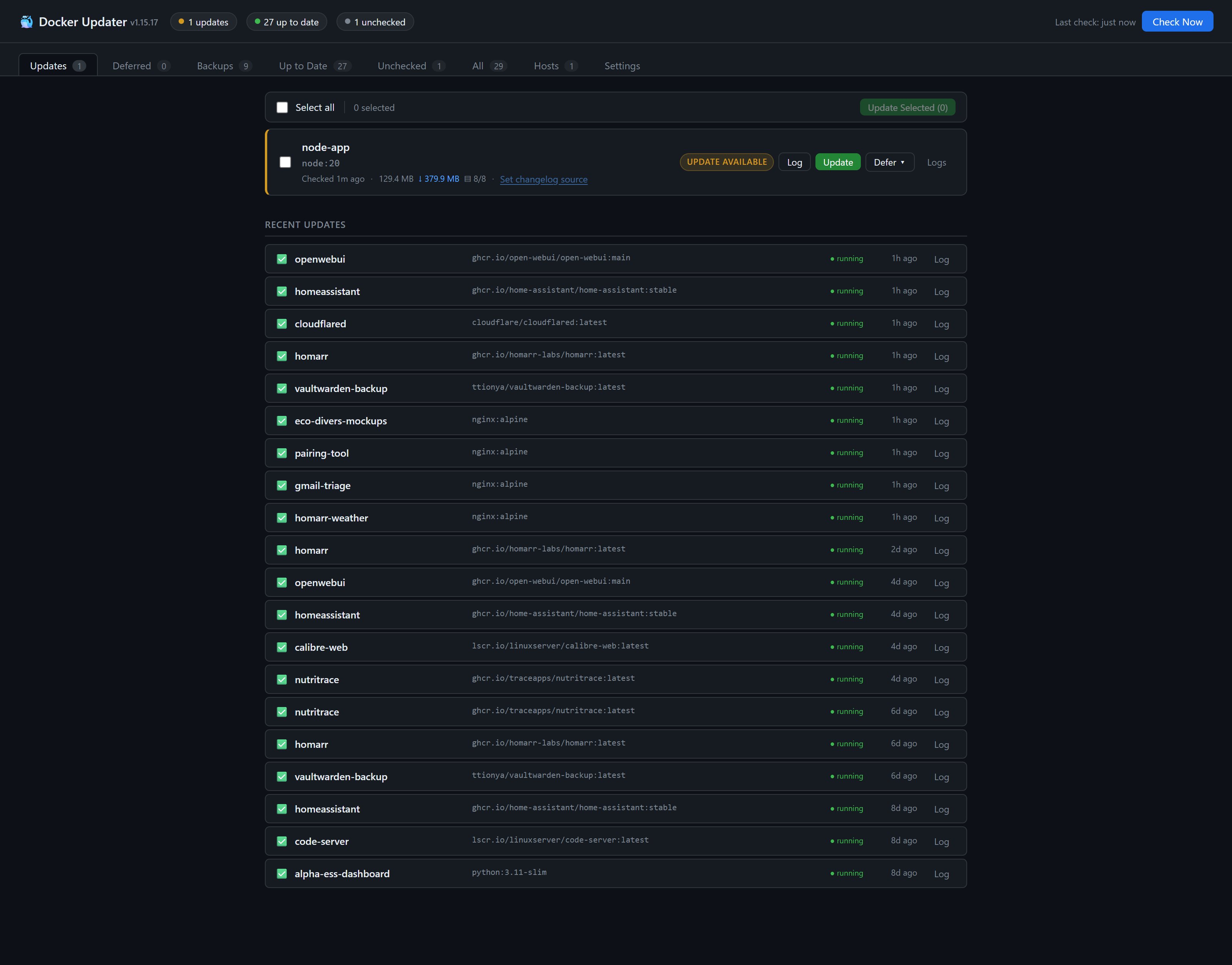
Instead of automatically pulling and restarting containers the moment a new image is published, docker-updater polls your registries on a schedule, shows you what's available, and lets you decide when (or whether) to update each container. Updates are performed with a built-in rollback safety net — the old container is kept and can be automatically restored if the new one fails to start. For additional peace of mind, you can optionally retain a backup of the previous container after a successful update too — so you can roll back even when a new version comes up cleanly but later turns out to have problems. You can also view release changelogs from GitHub before committing to an update.

The dashboard remains open by default for backward compatibility. On public or untrusted networks, set both credentials; setting only one logs a warning and leaves authentication disabled.
| Variable | Description |
|---|---|
AUTH_USERNAME | Dashboard username |
AUTH_PASSWORD | Dashboard password |
FLASK_SECRET_KEY | Optional session-signing key; otherwise generated at /app/data/.secret_key |
For Docker Compose, create .env beside docker-compose.yml:
AUTH_USERNAME=admin
AUTH_PASSWORD='replace-with-a-new-strong-password'
# FLASK_SECRET_KEY='replace-with-a-long-random-value'
A Compose .env file only supplies ${VARIABLE} substitutions; it does not automatically inject every value into the container. Use the complete docker-compose.yml example, which already forwards all three variables. Do not add a second services: or environment: block.
Apply environment changes by recreating the container (restart is not enough):
docker compose config --quiet
docker compose up -d --force-recreate
Verify presence without printing either value, then check the startup log:
docker compose exec docker-updater sh -c '
  test -n "$AUTH_USERNAME" && echo "AUTH_USERNAME: set" || echo "AUTH_USERNAME: missing"
  test -n "$AUTH_PASSWORD" && echo "AUTH_PASSWORD: set" || echo "AUTH_PASSWORD: missing"
'
docker compose logs --tail=100 docker-updater
Successful setup logs [auth] Login required (user='admin'); [auth] Open access means the variables are missing or empty. In Synology's standalone-container UI, enter both variables in the container settings and recreate it because a nearby .env file is not loaded automatically. Paramiko CryptographyDeprecationWarning / TripleDES warnings are unrelated to dashboard authentication.
Use the exact filename .env (not .env.txt), avoid spaces around =, protect it with chmod 600 .env, and never publish its contents. Sessions last 7 days. /webhook/github remains reachable without a login and still relies on GITHUB_WEBHOOK_SECRET. Put the WebUI behind HTTPS when exposing it publicly.
Changing the password does not log existing sessions out. Sessions are signed with
FLASK_SECRET_KEY, not derived from the password, so a session issued before a password change stays valid until it expires (up to 7 days). If you're changing the password because you think it leaked, rotate the signing key at the same time to invalidate every existing session — either set a newFLASK_SECRET_KEY, or deletedata/.secret_keyso a fresh one is generated — then recreate the container.
The WebUI supports English and 简体中文:
zh* → Chinese; all others → English).HEAD + Docker-Content-Digest); the digest compared is the one the container is actually running, so a container left behind by an out-of-band docker pull is still flaggedghcr.io), LinuxServer (lscr.io), and any registry that implements the Bearer token challengeorg.opencontainers.image.source label or hosted on GHCR (ghcr.io); for anything else a Set changelog source… prompt lets you pin a GitHub repo URL, pre-filled with a best guess from the image namedocker logs in a modal, with a running/stopped status pill and a Refresh button; useful for diagnosing why a freshly-updated container isn't behaving● running / ● stopped dot for every row; hover the icon to see the error message without opening the logcom.docker.compose.project label; standalone containers are unaffecteddocker compose restart. Bulk updates within one stack are debounced to a single round; the updated containers, _old backups, docker-updater itself, and any member mid-update are excludedrestarting is treated as a crash loop rather than success, and if the image defines a HEALTHCHECK that hasn't passed yet the old container is held as a backup until it does — then removed automatically, even with backup retention off{name}_old) have their restart policy set to no automatically, so a host reboot never starts both the live container and its backup simultaneously; the original policy is restored on rollback, and reset again if a rollback has to be undone{name}_old backups and {name}_rollingback) are excluded from the update list, registry checks and the dashboardlinux/amd64 and linux/arm64, so it runs on x86 servers and ARM boards (Raspberry Pi, etc.)RepoDigests but still carrying the tag they were built as, so a pulled image that lost its digest isn't mistaken for one/var/run/docker.socklinux/amd64 + linux/arm64) — runs on x86 hosts and ARM boards like the Raspberry Pimkdir docker-updater && cd docker-updater
mkdir -p data
docker run -d \
--name docker-updater \
--restart unless-stopped \
-p 9292:9090 \
-v /var/run/docker.sock:/var/run/docker.sock \
-v $(pwd)/data:/app/data \
-e CHECK_TIME=03:00 \
-e TIMEZONE=Australia/Melbourne \
ghcr.io/liquidguru/docker-updater:latest
Then open http://<your-host>:9292. A green banner will appear showing your auto-generated ntfy topic — subscribe to it in the ntfy app to receive push notifications.
services:
  docker-updater:
    image: ghcr.io/liquidguru/docker-updater:latest
    container_name: docker-updater
    restart: unless-stopped
    ports:
      - "9292:9090"
    volumes:
      - /var/run/docker.sock:/var/run/docker.sock
      - ./data:/app/data
    environment:
      CHECK_TIME: "03:00"
      TIMEZONE: Australia/Melbourne
      NOTIFY_URL: ${NOTIFY_URL:-}
      DOCKER_HOST: unix:///var/run/docker.sock
      # Values are read from the .env file beside this Compose file.
      AUTH_USERNAME: ${AUTH_USERNAME:-}
      AUTH_PASSWORD: ${AUTH_PASSWORD:-}
      FLASK_SECRET_KEY: ${FLASK_SECRET_KEY:-}
      DOCKERHUB_USERNAME: ${DOCKERHUB_USERNAME:-}
      DOCKERHUB_TOKEN: ${DOCKERHUB_TOKEN:-}
Save as docker-compose.yml, create a data/ directory and the optional .env file alongside it, then run docker compose up -d. No clone required.
Port note: The container listens internally on port 9090. The host binding
9292:9090avoids clashing with Prometheus, which commonly uses 9090. Change it to whatever suits your setup.
| Environment variable | Default | Description |
|---|---|---|
CHECK_TIME | 03:00 | Initial default for the check schedule — HH:MM for a daily check, or a full 5-field cron expression (e.g. 0 3 * * 0 for weekly on Sunday, 0 */6 * * * for every 6 hours). Once a schedule is set in the Settings tab it is saved to the data volume and takes precedence over this variable — see Check schedule. |
TIMEZONE | Australia/Melbourne | Timezone for the scheduled check — any tz database name |
NOTIFY_URL | (auto) | Apprise URL for push notifications. If not set, a unique private ntfy.sh topic is generated automatically. |
GITHUB_WEBHOOK_SECRET | (empty) | Secret for verifying GitHub webhook signatures. Required if using the GitHub notifications feature. |
DOCKERHUB_USERNAME | (empty) | Docker Hub username, to authenticate digest checks and raise the rate limit — see Docker Hub rate limits. Needs DOCKERHUB_TOKEN too. |
DOCKERHUB_TOKEN | (empty) | Docker Hub personal access token (not your password). Only ever sent to Docker Hub; never stored in state.json. |
AUTH_USERNAME | (empty) | Dashboard login name; authentication requires this and AUTH_PASSWORD. |
AUTH_PASSWORD | (empty) | Dashboard password; never stored in state.json. |
FLASK_SECRET_KEY | (generated) | Optional session-signing key; persisted as /app/data/.secret_key when omitted. |
DOCKER_HOST | unix:///var/run/docker.sock | Docker socket path |
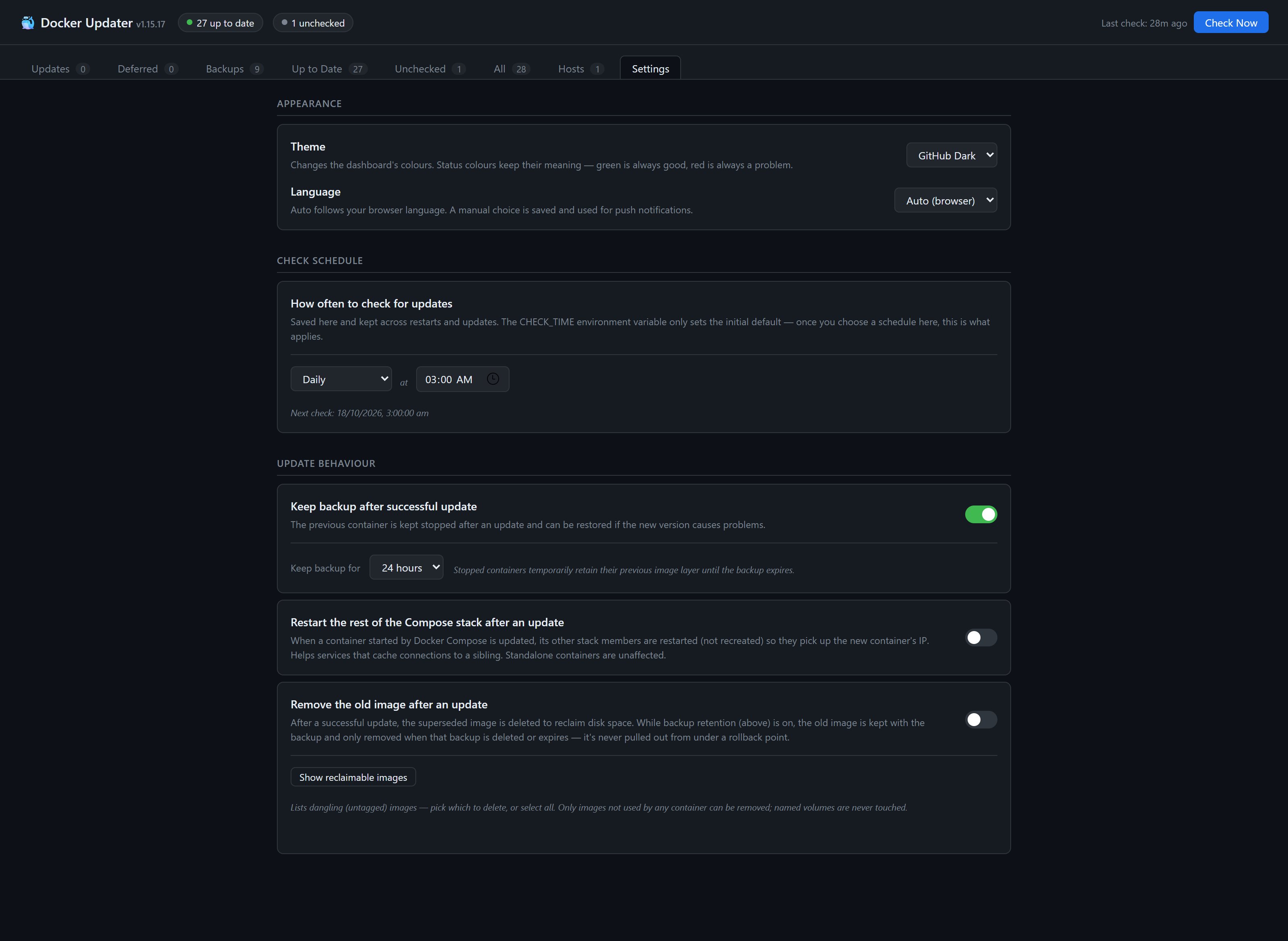
Settings → Appearance offers six themes: GitHub Dark (default), Midnight, Nord, Dracula, Carbon, and Light. Pick one and it applies immediately; it's saved to state.json on your data volume, so it persists across restarts and image updates, and it's rendered server-side so the page never flashes the old theme on load.
Status colours keep their meaning in every theme — green always means good, red always means a problem — and are re-tuned per theme for contrast (Light uses darker greens and reds so they stay legible on a pale background).
Adding your own is easy: each theme is a single [data-theme="..."] block of 11 CSS variables in templates/index.html; every translucent tint across the UI is derived from those via color-mix(). Add the block, then add the name to THEMES in app.py.
Checking for updates costs one manifest request per tracked container, per check. Docker Hub rate limits anonymous requests per IP address — currently 100 per hour — so a large number of containers, a frequent schedule, or several machines behind the same address can exhaust it. When that happens checks start failing rather than reporting updates.
Authenticating raises the limit. Create a personal access token at Docker Hub → Account settings → Personal access tokens (read-only is enough — docker-updater only reads manifests) and set:
DOCKERHUB_USERNAME=your-username
DOCKERHUB_TOKEN=dckr_pat_...
Confirm it took effect in the startup log:
[registry] Docker Hub: authenticating as 'your-username'
[registry] Docker Hub: anonymous ... means the variables didn't reach the container — remember a Compose .env file only provides ${VAR} substitution, so they also need to be listed under environment: (the example compose file already does this).
The remaining allowance is logged after each check, with a warning when it gets low:
[checker] Complete — 2 total update(s). Registry rate limit — registry-1.docker.io: 87/100 left.
Notes:
docker pull is performed by the Docker daemon using its own credentials, so run docker login on the host as well if your pulls are also being limited.How often docker-updater polls the registries is set in the Settings tab — no need to edit your compose file or restart the container.
Presets cover the common cases without any cron knowledge:
minute hour day month weekday), e.g. 0 3 * * 0 for 3am every SundayChanges take effect immediately, and the next scheduled run is shown so you can confirm it applied.
Where the schedule lives. A schedule set in Settings is saved to state.json on your data volume — the same place your history and backup settings live — so it survives container restarts, recreation, and docker-updater updating itself to a new image. CHECK_TIME is only the initial default — it seeds the schedule for a fresh install, and once you save one from the UI, that takes precedence. The startup log reports which is in force:
[scheduler] Check scheduled: '30 4 * * 0' (from settings) Australia/Melbourne (next run: 2026-07-20T04:30:00+10:00)
If a schedule is somehow unparsable it falls back to the 03:00 daily default rather than stopping the container from starting, and an invalid cron entered in Settings is rejected without disturbing the current schedule.
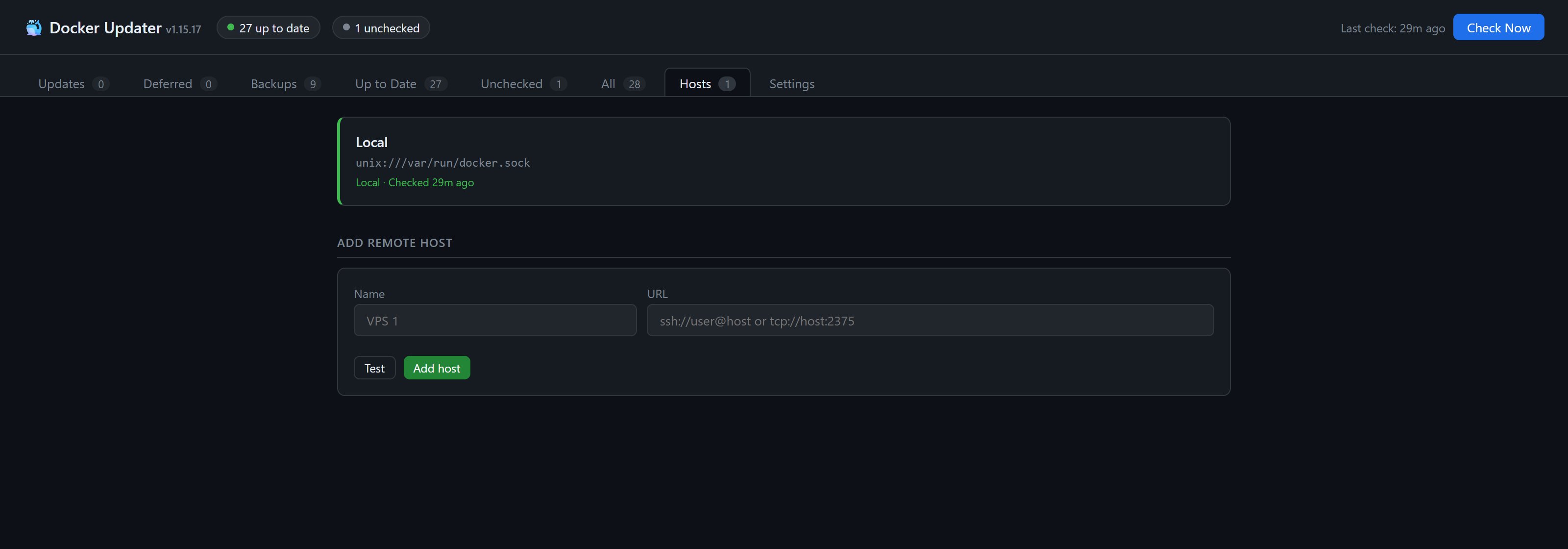
docker-updater can manage containers on multiple Docker hosts from a single dashboard. Click the Hosts tab to add remote hosts.
| URL format | Notes |
|---|---|
ssh://user@host | SSH — uses your system's SSH config/keys |
ssh://user@host:port | SSH on a non-standard port |
tcp://host:2376 | TCP — enable Docker's remote API on the remote host |
ssh-keyscan step needed.All containers from all hosts then appear together in the Updates/Deferred/Up to Date/etc. tabs, each with a small host chip. The Hosts tab shows connection health and last-check time for each host.
Accepted host keys are stored in data/known_hosts inside your data volume, so they survive container restarts and upgrades automatically.
If you prefer to manage SSH keys yourself (e.g. to pin specific keys, or reuse the Host entries and known_hosts from your host machine), you can mount your existing ~/.ssh directory into the container:
volumes:
  - /var/run/docker.sock:/var/run/docker.sock
  - ./data:/app/data
  - ~/.ssh:/root/.ssh:ro   # optional — mounts host SSH config/keys
Your mounted config is never modified. If ~/.ssh/config already exists, docker-updater leaves it exactly as-is and uses it. It only writes a config when there isn't one — the default case, where nothing is mounted.
One consequence worth knowing: SSH then uses whatever UserKnownHostsFile your own config specifies (or ~/.ssh/known_hosts if it specifies none), rather than data/known_hosts. If that path is read-only, host keys accepted via Test Connection can't be saved, and you'll want either an entry for the host in your existing known_hosts already, or this in your config:
Host *
    UserKnownHostsFile /app/data/known_hosts
The startup log states which is in effect:
[ssh] Persistent known_hosts: /app/data/known_hosts     # our config, default case
[ssh] Using the existing /root/.ssh/config as-is (not overwritten).
Push notifications are only sent by the scheduled check when updates are found. Startup scans and manual "Check Now" are always silent — so restarting the container never floods your phone.
If you don't set NOTIFY_URL, docker-updater generates a unique private topic on first run (e.g. ntfy.sh/du-a3f8c12b) and saves it to data/state.json. A green banner appears in the dashboard with a Copy button — just paste that topic into the ntfy app and you're done. Dismiss the banner once you've subscribed.
Why unique topics? ntfy.sh topics are public by default — anyone who knows a topic name can read its messages. docker-updater's auto-generated topics are random strings that aren't published anywhere, keeping your notifications private.
Set NOTIFY_URL to any Apprise-compatible URL:
ntfy://ntfy.sh/my-private-topic
discord://webhookid/webhooktoken
slack://tokenA/tokenB/tokenC
docker-updater can receive GitHub webhook events and forward them as push notifications — new issues, PRs, stars, pushes, and releases across all your repos.
Add GITHUB_WEBHOOK_SECRET to your container with a random secret:
openssl rand -hex 32
Make your docker-updater accessible from the internet (e.g. via a Cloudflare Tunnel or reverse proxy).
Register the webhook on each GitHub repo:
https://your-host/webhook/githubapplication/jsonOr use the GitHub API to register across all your repos at once:
TOKEN="your-github-token"
SECRET="your-webhook-secret"
URL="https://your-host/webhook/github"
curl -s -X POST \
  -H "Authorization: token $TOKEN" \
  -H "Content-Type: application/json" \
  -d "{\"name\":\"web\",\"active\":true,\"events\":[\"issues\",\"pull_request\",\"watch\",\"push\",\"release\",\"issue_comment\"],\"config\":{\"url\":\"$URL\",\"content_type\":\"json\",\"secret\":\"$SECRET\"}}" \
  https://api.github.com/repos/YOUR_USERNAME/REPO_NAME/hooks
| Event | Notification |
|---|---|
| Issue opened | 🐛 New issue — repo |
| Issue closed | ✅ Issue closed — repo |
| PR opened | 🔀 New PR — repo |
| PR merged | ✅ PR merged — repo |
| Star | ⭐ New star — repo |
| Push to main/master | 📦 Push to main — repo |
| Release published | 🚀 New release — repo |
| Issue comment | 💬 Comment — repo |
_old / _rollingback helpers)RepoDigests — read from the image the container is actually running, not from whatever the tag currently points at, so a container that was never recreated after an out-of-band pull is still compared correctlyHEAD request to the registry for the image's manifest, reading the Docker-Content-Digest response header — no image data is transferredRepoDigests at all — an orphaned pull, where the tag moved on and left the old image with neither tag nor digest — it compares image IDs instead, resolving the registry manifest's config digest for the running platform{name}_old (kept as a rollback target)NetworkConnect, preserving static IP assignments, aliases, and iptables setuprestarting counts as a crash loop, not success — and waits for a healthy result if the image defines a HEALTHCHECK_old container — or keeps it for the configured window if backup retention is enabled. If the health check hasn't confirmed yet, the _old container is held until the new one reports healthy and then removed (checked every 15 minutes, on remote hosts too); an unhealthy replacement keeps its backup (see Backup & rollback)_old back, and restarts the previous versionContainer state (update availability, defer decisions, history, backups) is persisted to data/state.json.
GET /api/pulls returns all image pulls currently initiated by this app, including remote-host updates and self-updates. It uses the same session authentication as the other API endpoints (log in first if authentication is enabled). Poll the endpoint while an update runs:
{
  "pulls": [
    {
      "id": "web",
      "image": "nginx:latest",
      "container": "web",
      "host_id": "local",
      "started_at": "2026-10-16T17:00:00Z",
      "progress_bytes": 5242880,
      "total_bytes": 10485760,
      "percent_complete": 50.0,
      "total_estimated": false,
      "phase": "downloading"
    }
  ]
}
progress_bytes sums Docker's latest downloaded-byte count for each layer, without counting repeated events or extraction bytes twice. Cached layers require zero download bytes. Docker only reports a layer's size when that layer starts downloading, and it downloads a few at a time, so its stream can't give a total until the last layer begins — on a large image that is more than half of the transfer. To avoid a blank progress bar, total_bytes starts as the compressed download size the update check already computed from the registry (only the layers your host doesn't have) and total_estimated is true. Once Docker has reported every layer, the stream's own total replaces it and total_estimated becomes false. While it is true, percent_complete never exceeds 99, so an estimate can't claim the download is finished. If there is no estimate — the container hasn't been checked, the registry couldn't be read, or the image is already on the host because another container pulled the same tag first — total_bytes and percent_complete are null until Docker reports every layer (an image that is already current reports none). A fully cached pull may report zero total bytes and 100%, or remain unknown if Docker emits no layer details. 100% means the reported download bytes are complete, not that extraction or container recreation has finished. phase says what is actually happening: starting (Docker hasn't reported any layer yet), downloading (at least one layer is still queued or in flight), extracting (nothing is left to download but layers are still being unpacked) or finishing (every layer is done, or the image was already current). Unpacking a large image can take far longer than downloading it, so on a slow disk an entry can sit at 100% in the extracting phase for minutes.
Pulls appear before the Docker request starts and disappear when the stream finishes, fails, or is cancelled, before container recreation. No active pulls returns {"pulls": []}. IDs are container names on the local host and host_id:container on remote hosts; separate updates of the same image remain separate entries. Tracking is in memory for this app process, is cleared on restart, and does not include pulls initiated by other tools or direct Docker commands. The dashboard's update cards use this same endpoint for their live download status. When several updates run at once, Docker downloads only a few layers at a time across all of them, so some can sit at 0% until a slot frees up — that is queueing, not a hang.
docker-updater keeps a safety net around every update — at two levels.
Before recreating a container, the old one is renamed to {name}_old. If the new container fails to start, docker-updater removes it, renames the old one back, and restarts it. A broken update therefore can't take a service offline — the previous version is restored automatically.
Sometimes a new image starts up perfectly cleanly, and only later do you discover something is actually broken — a regression, a bad release, a changed default, a dropped port. The automatic rollback above can't catch this, because as far as Docker is concerned the container came up fine.
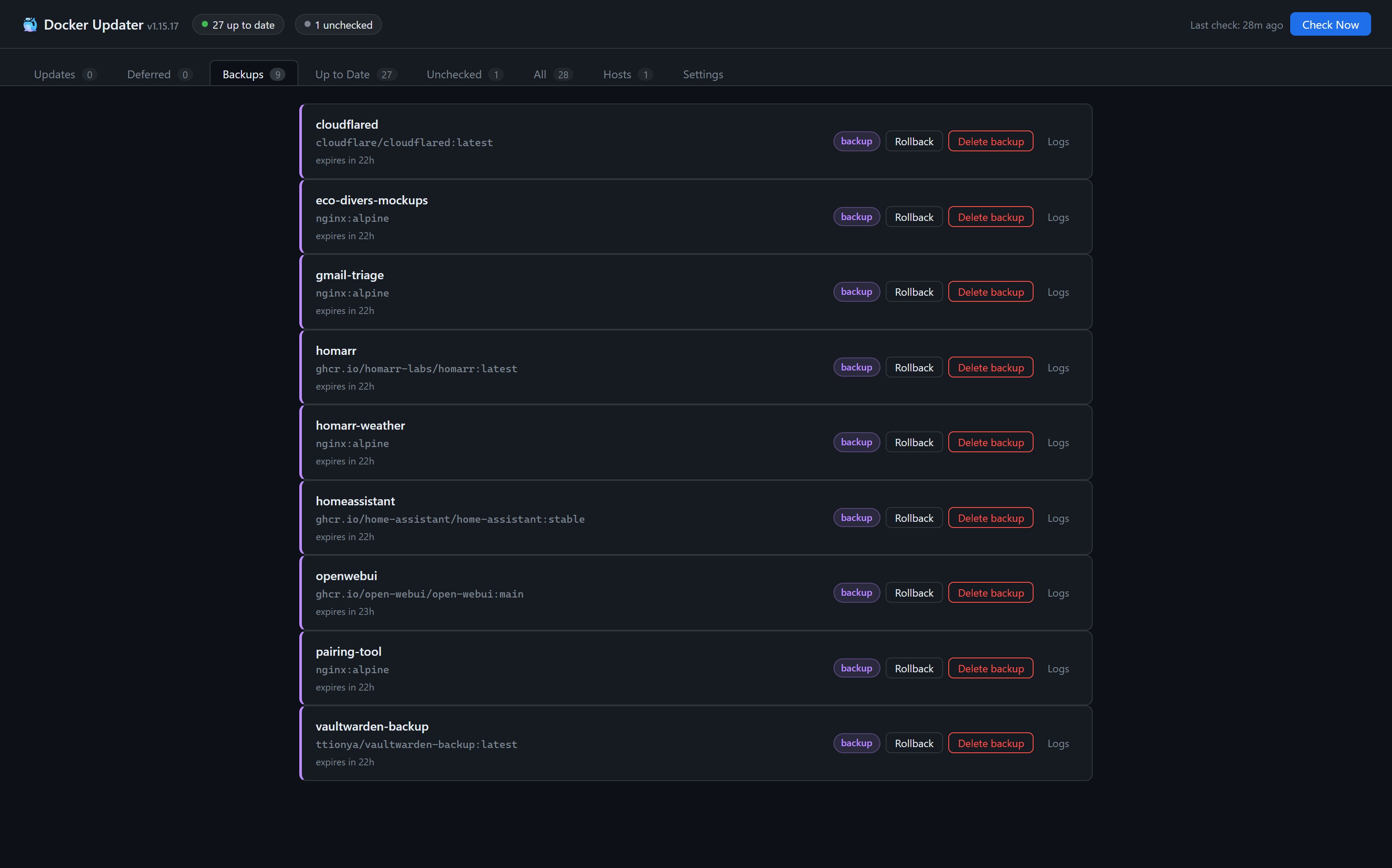
For that extra peace of mind, enable Keep backup after successful update in the Settings tab. When it's on, the previous container is kept (stopped) after a successful update for a configurable window (default 24 hours) instead of being removed. If you hit a problem afterwards, open the Backups tab and click Rollback to instantly restore the previous version — even though the update "succeeded". Finished with a backup early? Delete backup removes it and reclaims the disk space.
Backups are self-managing: each entry is verified against its actual _old container, and expired or orphaned entries are cleaned up automatically — so the Backups tab always reflects what's really there.
Backup containers have their restart policy set to no the moment they are created, so a host reboot never starts both the live container and its backup at the same time (which would cause port conflicts and duplicate processes). The original policy is saved and restored automatically when rolling back.
A rollback swaps the container back to the previous image and configuration. It does not revert anything in the container's volumes or bind mounts — those keep whatever the newer version wrote to them.
That matters for any app that migrates its data on first start. Homarr, Sonarr/Radarr, Immich, Nextcloud and many others upgrade their database schema in place, so a rollback after that can leave the previous version unable to start: it can't read data the newer version has already converted.
The Rollback dialog lists the writable mounts that won't be reverted, so you can see what's at stake before you confirm.
Updates and rollbacks run in a background thread. If docker-updater is restarted while one is in progress (a manual restart, a host reboot, even its own self-update), that thread is killed mid-flight — which could otherwise leave a container half-updated or stopped.
To guard against this, docker-updater reconciles leftovers on every startup.
Leftover {name}_old backup containers (from an interrupted update):
Leftover {name}_rollingback containers (from an interrupted rollback): during a rollback the outgoing container is parked under this name while the backup takes over, so a crash in that window can leave nothing serving the real name. Startup recovery restores the parked container — but only when no container currently holds that name, so it can never fight a container that's already running.
So an interrupted operation self-heals on the next start instead of leaving a service down.
A What's new? button appears on update and deferred cards and fetches the last 5 releases from the GitHub Releases API, rendered inline with basic markdown formatting. It works in three tiers:
org.opencontainers.image.source label pointing to a GitHub repo work automatically. This covers most well-maintained images: Home Assistant, Homarr, Vaultwarden, Calibre-Web, all LinuxServer images, etc.ghcr.io (e.g. ghcr.io/owner/repo:tag) is auto-detected with no configuration, since GHCR names map directly to GitHub repos.owner/image → github.com/owner/image; official images like redis → github.com/redis/redis). Confirm or correct it and save — the What's new? button replaces the prompt immediately and the URL persists in data/state.json.If you want to hack on it or run the latest uncommitted changes:
git clone https://github.com/liquidguru/docker-updater.git
cd docker-updater
mkdir -p data
docker compose up -d   # uses the build: . compose file in the repo
Run the test suite before opening a PR:
python -m unittest discover -s tests -v
node --check static/i18n.js
If you have Watchtower running, stop it after confirming docker-updater is working:
docker stop watchtower
docker rm watchtower
docker-compose.yml is not modified — if you later run docker compose up it will see the new image and behave correctly, but the compose file's image tag won't be changed. Optionally, the other members of the stack can be restarted after an update so they pick up the new container's IP (Settings → Restart the rest of the Compose stack after an update).HostConfig.Binds) and named/--mount volumes (HostConfig.Mounts, where Compose stores them) are reattached on recreation.read-only root, --init, custom shm-size, added groups, and a non-default runtime. If a container relies on any of these, prefer recreating it through Compose after the update, or check it afterwards. (A setting that merely matches the daemon default is unaffected — e.g. on Synology, containers using the default db log driver keep it.)RepoDigests while still carrying the tag they were built as — an image that was pulled and later lost its digest (see below) is not skipped.docker pull — the tag moves on and the container keeps running the old image. Depending on your image store, that leftover image can end up with no tag and no digest. docker-updater falls back to comparing image IDs in that case, so the container is still flagged rather than silently ignored.unhealthy instead, the backup stays so you can roll back.--network host are recreated correctly; the network reconnect step is skipped for these._old container may appear that you didn't ask for. It shows in the Backups tab and expires on the normal schedule.MIT
Developed by liquidguru with assistance from AI coding tools (Claude by Anthropic, and Codex). All changes are reviewed and tested before release; AI-assisted commits are marked with a Co-Authored-By trailer.
Self-hosted Docker update manager — manual-approval alternative to Watchtower
Python
83
124 commits
updated Oct 16, 2026
English | 简体中文
A lightweight self-hosted web UI for managing Docker container updates — a manual-approval alternative to Watchtower.
Instead of automatically pulling and restarting containers the moment a new image is published, docker-updater polls your registries on a schedule, shows you what's available, and lets you decide when (or whether) to update each container. Updates are performed with a built-in rollback safety net — the old container is kept and can be automatically restored if the new one fails to start. For additional peace of mind, you can optionally retain a backup of the previous container after a successful update too — so you can roll back even when a new version comes up cleanly but later turns out to have problems. You can also view release changelogs from GitHub before committing to an update.
The dashboard remains open by default for backward compatibility. On public or untrusted networks, set both credentials; setting only one logs a warning and leaves authentication disabled.
| Variable | Description |
|---|---|
AUTH_USERNAME | Dashboard username |
AUTH_PASSWORD | Dashboard password |
FLASK_SECRET_KEY | Optional session-signing key; otherwise generated at /app/data/.secret_key |
For Docker Compose, create .env beside docker-compose.yml:
AUTH_USERNAME=admin
AUTH_PASSWORD='replace-with-a-new-strong-password'
# FLASK_SECRET_KEY='replace-with-a-long-random-value'
A Compose .env file only supplies ${VARIABLE} substitutions; it does not automatically inject every value into the container. Use the complete docker-compose.yml example, which already forwards all three variables. Do not add a second services: or environment: block.
Apply environment changes by recreating the container (restart is not enough):
docker compose config --quiet
docker compose up -d --force-recreate
Verify presence without printing either value, then check the startup log:
docker compose exec docker-updater sh -c '
  test -n "$AUTH_USERNAME" && echo "AUTH_USERNAME: set" || echo "AUTH_USERNAME: missing"
  test -n "$AUTH_PASSWORD" && echo "AUTH_PASSWORD: set" || echo "AUTH_PASSWORD: missing"
'
docker compose logs --tail=100 docker-updater
Successful setup logs [auth] Login required (user='admin'); [auth] Open access means the variables are missing or empty. In Synology's standalone-container UI, enter both variables in the container settings and recreate it because a nearby .env file is not loaded automatically. Paramiko CryptographyDeprecationWarning / TripleDES warnings are unrelated to dashboard authentication.
Use the exact filename .env (not .env.txt), avoid spaces around =, protect it with chmod 600 .env, and never publish its contents. Sessions last 7 days. /webhook/github remains reachable without a login and still relies on GITHUB_WEBHOOK_SECRET. Put the WebUI behind HTTPS when exposing it publicly.
Changing the password does not log existing sessions out. Sessions are signed with
FLASK_SECRET_KEY, not derived from the password, so a session issued before a password change stays valid until it expires (up to 7 days). If you're changing the password because you think it leaked, rotate the signing key at the same time to invalidate every existing session — either set a newFLASK_SECRET_KEY, or deletedata/.secret_keyso a fresh one is generated — then recreate the container.
The WebUI supports English and 简体中文:
zh* → Chinese; all others → English).HEAD + Docker-Content-Digest); the digest compared is the one the container is actually running, so a container left behind by an out-of-band docker pull is still flaggedghcr.io), LinuxServer (lscr.io), and any registry that implements the Bearer token challengeorg.opencontainers.image.source label or hosted on GHCR (ghcr.io); for anything else a Set changelog source… prompt lets you pin a GitHub repo URL, pre-filled with a best guess from the image namedocker logs in a modal, with a running/stopped status pill and a Refresh button; useful for diagnosing why a freshly-updated container isn't behaving● running / ● stopped dot for every row; hover the icon to see the error message without opening the logcom.docker.compose.project label; standalone containers are unaffecteddocker compose restart. Bulk updates within one stack are debounced to a single round; the updated containers, _old backups, docker-updater itself, and any member mid-update are excludedrestarting is treated as a crash loop rather than success, and if the image defines a HEALTHCHECK that hasn't passed yet the old container is held as a backup until it does — then removed automatically, even with backup retention off{name}_old) have their restart policy set to no automatically, so a host reboot never starts both the live container and its backup simultaneously; the original policy is restored on rollback, and reset again if a rollback has to be undone{name}_old backups and {name}_rollingback) are excluded from the update list, registry checks and the dashboardlinux/amd64 and linux/arm64, so it runs on x86 servers and ARM boards (Raspberry Pi, etc.)RepoDigests but still carrying the tag they were built as, so a pulled image that lost its digest isn't mistaken for one/var/run/docker.socklinux/amd64 + linux/arm64) — runs on x86 hosts and ARM boards like the Raspberry Pimkdir docker-updater && cd docker-updater
mkdir -p data
docker run -d \
--name docker-updater \
--restart unless-stopped \
-p 9292:9090 \
-v /var/run/docker.sock:/var/run/docker.sock \
-v $(pwd)/data:/app/data \
-e CHECK_TIME=03:00 \
-e TIMEZONE=Australia/Melbourne \
ghcr.io/liquidguru/docker-updater:latest
Then open http://<your-host>:9292. A green banner will appear showing your auto-generated ntfy topic — subscribe to it in the ntfy app to receive push notifications.
services:
  docker-updater:
    image: ghcr.io/liquidguru/docker-updater:latest
    container_name: docker-updater
    restart: unless-stopped
    ports:
      - "9292:9090"
    volumes:
      - /var/run/docker.sock:/var/run/docker.sock
      - ./data:/app/data
    environment:
      CHECK_TIME: "03:00"
      TIMEZONE: Australia/Melbourne
      NOTIFY_URL: ${NOTIFY_URL:-}
      DOCKER_HOST: unix:///var/run/docker.sock
      # Values are read from the .env file beside this Compose file.
      AUTH_USERNAME: ${AUTH_USERNAME:-}
      AUTH_PASSWORD: ${AUTH_PASSWORD:-}
      FLASK_SECRET_KEY: ${FLASK_SECRET_KEY:-}
      DOCKERHUB_USERNAME: ${DOCKERHUB_USERNAME:-}
      DOCKERHUB_TOKEN: ${DOCKERHUB_TOKEN:-}
Save as docker-compose.yml, create a data/ directory and the optional .env file alongside it, then run docker compose up -d. No clone required.
Port note: The container listens internally on port 9090. The host binding
9292:9090avoids clashing with Prometheus, which commonly uses 9090. Change it to whatever suits your setup.
| Environment variable | Default | Description |
|---|---|---|
CHECK_TIME | 03:00 | Initial default for the check schedule — HH:MM for a daily check, or a full 5-field cron expression (e.g. 0 3 * * 0 for weekly on Sunday, 0 */6 * * * for every 6 hours). Once a schedule is set in the Settings tab it is saved to the data volume and takes precedence over this variable — see Check schedule. |
TIMEZONE | Australia/Melbourne | Timezone for the scheduled check — any tz database name |
NOTIFY_URL | (auto) | Apprise URL for push notifications. If not set, a unique private ntfy.sh topic is generated automatically. |
GITHUB_WEBHOOK_SECRET | (empty) | Secret for verifying GitHub webhook signatures. Required if using the GitHub notifications feature. |
DOCKERHUB_USERNAME | (empty) | Docker Hub username, to authenticate digest checks and raise the rate limit — see Docker Hub rate limits. Needs DOCKERHUB_TOKEN too. |
DOCKERHUB_TOKEN | (empty) | Docker Hub personal access token (not your password). Only ever sent to Docker Hub; never stored in state.json. |
AUTH_USERNAME | (empty) | Dashboard login name; authentication requires this and AUTH_PASSWORD. |
AUTH_PASSWORD | (empty) | Dashboard password; never stored in state.json. |
FLASK_SECRET_KEY | (generated) | Optional session-signing key; persisted as /app/data/.secret_key when omitted. |
DOCKER_HOST | unix:///var/run/docker.sock | Docker socket path |
Settings → Appearance offers six themes: GitHub Dark (default), Midnight, Nord, Dracula, Carbon, and Light. Pick one and it applies immediately; it's saved to state.json on your data volume, so it persists across restarts and image updates, and it's rendered server-side so the page never flashes the old theme on load.
Status colours keep their meaning in every theme — green always means good, red always means a problem — and are re-tuned per theme for contrast (Light uses darker greens and reds so they stay legible on a pale background).
Adding your own is easy: each theme is a single [data-theme="..."] block of 11 CSS variables in templates/index.html; every translucent tint across the UI is derived from those via color-mix(). Add the block, then add the name to THEMES in app.py.
Checking for updates costs one manifest request per tracked container, per check. Docker Hub rate limits anonymous requests per IP address — currently 100 per hour — so a large number of containers, a frequent schedule, or several machines behind the same address can exhaust it. When that happens checks start failing rather than reporting updates.
Authenticating raises the limit. Create a personal access token at Docker Hub → Account settings → Personal access tokens (read-only is enough — docker-updater only reads manifests) and set:
DOCKERHUB_USERNAME=your-username
DOCKERHUB_TOKEN=dckr_pat_...
Confirm it took effect in the startup log:
[registry] Docker Hub: authenticating as 'your-username'
[registry] Docker Hub: anonymous ... means the variables didn't reach the container — remember a Compose .env file only provides ${VAR} substitution, so they also need to be listed under environment: (the example compose file already does this).
The remaining allowance is logged after each check, with a warning when it gets low:
[checker] Complete — 2 total update(s). Registry rate limit — registry-1.docker.io: 87/100 left.
Notes:
docker pull is performed by the Docker daemon using its own credentials, so run docker login on the host as well if your pulls are also being limited.How often docker-updater polls the registries is set in the Settings tab — no need to edit your compose file or restart the container.
Presets cover the common cases without any cron knowledge:
minute hour day month weekday), e.g. 0 3 * * 0 for 3am every SundayChanges take effect immediately, and the next scheduled run is shown so you can confirm it applied.
Where the schedule lives. A schedule set in Settings is saved to state.json on your data volume — the same place your history and backup settings live — so it survives container restarts, recreation, and docker-updater updating itself to a new image. CHECK_TIME is only the initial default — it seeds the schedule for a fresh install, and once you save one from the UI, that takes precedence. The startup log reports which is in force:
[scheduler] Check scheduled: '30 4 * * 0' (from settings) Australia/Melbourne (next run: 2026-07-20T04:30:00+10:00)
If a schedule is somehow unparsable it falls back to the 03:00 daily default rather than stopping the container from starting, and an invalid cron entered in Settings is rejected without disturbing the current schedule.
docker-updater can manage containers on multiple Docker hosts from a single dashboard. Click the Hosts tab to add remote hosts.
| URL format | Notes |
|---|---|
ssh://user@host | SSH — uses your system's SSH config/keys |
ssh://user@host:port | SSH on a non-standard port |
tcp://host:2376 | TCP — enable Docker's remote API on the remote host |
ssh-keyscan step needed.All containers from all hosts then appear together in the Updates/Deferred/Up to Date/etc. tabs, each with a small host chip. The Hosts tab shows connection health and last-check time for each host.
Accepted host keys are stored in data/known_hosts inside your data volume, so they survive container restarts and upgrades automatically.
If you prefer to manage SSH keys yourself (e.g. to pin specific keys, or reuse the Host entries and known_hosts from your host machine), you can mount your existing ~/.ssh directory into the container:
volumes:
  - /var/run/docker.sock:/var/run/docker.sock
  - ./data:/app/data
  - ~/.ssh:/root/.ssh:ro   # optional — mounts host SSH config/keys
Your mounted config is never modified. If ~/.ssh/config already exists, docker-updater leaves it exactly as-is and uses it. It only writes a config when there isn't one — the default case, where nothing is mounted.
One consequence worth knowing: SSH then uses whatever UserKnownHostsFile your own config specifies (or ~/.ssh/known_hosts if it specifies none), rather than data/known_hosts. If that path is read-only, host keys accepted via Test Connection can't be saved, and you'll want either an entry for the host in your existing known_hosts already, or this in your config:
Host *
    UserKnownHostsFile /app/data/known_hosts
The startup log states which is in effect:
[ssh] Persistent known_hosts: /app/data/known_hosts     # our config, default case
[ssh] Using the existing /root/.ssh/config as-is (not overwritten).
Push notifications are only sent by the scheduled check when updates are found. Startup scans and manual "Check Now" are always silent — so restarting the container never floods your phone.
If you don't set NOTIFY_URL, docker-updater generates a unique private topic on first run (e.g. ntfy.sh/du-a3f8c12b) and saves it to data/state.json. A green banner appears in the dashboard with a Copy button — just paste that topic into the ntfy app and you're done. Dismiss the banner once you've subscribed.
Why unique topics? ntfy.sh topics are public by default — anyone who knows a topic name can read its messages. docker-updater's auto-generated topics are random strings that aren't published anywhere, keeping your notifications private.
Set NOTIFY_URL to any Apprise-compatible URL:
ntfy://ntfy.sh/my-private-topic
discord://webhookid/webhooktoken
slack://tokenA/tokenB/tokenC
docker-updater can receive GitHub webhook events and forward them as push notifications — new issues, PRs, stars, pushes, and releases across all your repos.
Add GITHUB_WEBHOOK_SECRET to your container with a random secret:
openssl rand -hex 32
Make your docker-updater accessible from the internet (e.g. via a Cloudflare Tunnel or reverse proxy).
Register the webhook on each GitHub repo:
https://your-host/webhook/githubapplication/jsonOr use the GitHub API to register across all your repos at once:
TOKEN="your-github-token"
SECRET="your-webhook-secret"
URL="https://your-host/webhook/github"
curl -s -X POST \
  -H "Authorization: token $TOKEN" \
  -H "Content-Type: application/json" \
  -d "{\"name\":\"web\",\"active\":true,\"events\":[\"issues\",\"pull_request\",\"watch\",\"push\",\"release\",\"issue_comment\"],\"config\":{\"url\":\"$URL\",\"content_type\":\"json\",\"secret\":\"$SECRET\"}}" \
  https://api.github.com/repos/YOUR_USERNAME/REPO_NAME/hooks
| Event | Notification |
|---|---|
| Issue opened | 🐛 New issue — repo |
| Issue closed | ✅ Issue closed — repo |
| PR opened | 🔀 New PR — repo |
| PR merged | ✅ PR merged — repo |
| Star | ⭐ New star — repo |
| Push to main/master | 📦 Push to main — repo |
| Release published | 🚀 New release — repo |
| Issue comment | 💬 Comment — repo |
_old / _rollingback helpers)RepoDigests — read from the image the container is actually running, not from whatever the tag currently points at, so a container that was never recreated after an out-of-band pull is still compared correctlyHEAD request to the registry for the image's manifest, reading the Docker-Content-Digest response header — no image data is transferredRepoDigests at all — an orphaned pull, where the tag moved on and left the old image with neither tag nor digest — it compares image IDs instead, resolving the registry manifest's config digest for the running platform{name}_old (kept as a rollback target)NetworkConnect, preserving static IP assignments, aliases, and iptables setuprestarting counts as a crash loop, not success — and waits for a healthy result if the image defines a HEALTHCHECK_old container — or keeps it for the configured window if backup retention is enabled. If the health check hasn't confirmed yet, the _old container is held until the new one reports healthy and then removed (checked every 15 minutes, on remote hosts too); an unhealthy replacement keeps its backup (see Backup & rollback)_old back, and restarts the previous versionContainer state (update availability, defer decisions, history, backups) is persisted to data/state.json.
GET /api/pulls returns all image pulls currently initiated by this app, including remote-host updates and self-updates. It uses the same session authentication as the other API endpoints (log in first if authentication is enabled). Poll the endpoint while an update runs:
{
  "pulls": [
    {
      "id": "web",
      "image": "nginx:latest",
      "container": "web",
      "host_id": "local",
      "started_at": "2026-10-16T17:00:00Z",
      "progress_bytes": 5242880,
      "total_bytes": 10485760,
      "percent_complete": 50.0,
      "total_estimated": false,
      "phase": "downloading"
    }
  ]
}
progress_bytes sums Docker's latest downloaded-byte count for each layer, without counting repeated events or extraction bytes twice. Cached layers require zero download bytes. Docker only reports a layer's size when that layer starts downloading, and it downloads a few at a time, so its stream can't give a total until the last layer begins — on a large image that is more than half of the transfer. To avoid a blank progress bar, total_bytes starts as the compressed download size the update check already computed from the registry (only the layers your host doesn't have) and total_estimated is true. Once Docker has reported every layer, the stream's own total replaces it and total_estimated becomes false. While it is true, percent_complete never exceeds 99, so an estimate can't claim the download is finished. If there is no estimate — the container hasn't been checked, the registry couldn't be read, or the image is already on the host because another container pulled the same tag first — total_bytes and percent_complete are null until Docker reports every layer (an image that is already current reports none). A fully cached pull may report zero total bytes and 100%, or remain unknown if Docker emits no layer details. 100% means the reported download bytes are complete, not that extraction or container recreation has finished. phase says what is actually happening: starting (Docker hasn't reported any layer yet), downloading (at least one layer is still queued or in flight), extracting (nothing is left to download but layers are still being unpacked) or finishing (every layer is done, or the image was already current). Unpacking a large image can take far longer than downloading it, so on a slow disk an entry can sit at 100% in the extracting phase for minutes.
Pulls appear before the Docker request starts and disappear when the stream finishes, fails, or is cancelled, before container recreation. No active pulls returns {"pulls": []}. IDs are container names on the local host and host_id:container on remote hosts; separate updates of the same image remain separate entries. Tracking is in memory for this app process, is cleared on restart, and does not include pulls initiated by other tools or direct Docker commands. The dashboard's update cards use this same endpoint for their live download status. When several updates run at once, Docker downloads only a few layers at a time across all of them, so some can sit at 0% until a slot frees up — that is queueing, not a hang.
docker-updater keeps a safety net around every update — at two levels.
Before recreating a container, the old one is renamed to {name}_old. If the new container fails to start, docker-updater removes it, renames the old one back, and restarts it. A broken update therefore can't take a service offline — the previous version is restored automatically.
Sometimes a new image starts up perfectly cleanly, and only later do you discover something is actually broken — a regression, a bad release, a changed default, a dropped port. The automatic rollback above can't catch this, because as far as Docker is concerned the container came up fine.
For that extra peace of mind, enable Keep backup after successful update in the Settings tab. When it's on, the previous container is kept (stopped) after a successful update for a configurable window (default 24 hours) instead of being removed. If you hit a problem afterwards, open the Backups tab and click Rollback to instantly restore the previous version — even though the update "succeeded". Finished with a backup early? Delete backup removes it and reclaims the disk space.
Backups are self-managing: each entry is verified against its actual _old container, and expired or orphaned entries are cleaned up automatically — so the Backups tab always reflects what's really there.
Backup containers have their restart policy set to no the moment they are created, so a host reboot never starts both the live container and its backup at the same time (which would cause port conflicts and duplicate processes). The original policy is saved and restored automatically when rolling back.
A rollback swaps the container back to the previous image and configuration. It does not revert anything in the container's volumes or bind mounts — those keep whatever the newer version wrote to them.
That matters for any app that migrates its data on first start. Homarr, Sonarr/Radarr, Immich, Nextcloud and many others upgrade their database schema in place, so a rollback after that can leave the previous version unable to start: it can't read data the newer version has already converted.
The Rollback dialog lists the writable mounts that won't be reverted, so you can see what's at stake before you confirm.
Updates and rollbacks run in a background thread. If docker-updater is restarted while one is in progress (a manual restart, a host reboot, even its own self-update), that thread is killed mid-flight — which could otherwise leave a container half-updated or stopped.
To guard against this, docker-updater reconciles leftovers on every startup.
Leftover {name}_old backup containers (from an interrupted update):
Leftover {name}_rollingback containers (from an interrupted rollback): during a rollback the outgoing container is parked under this name while the backup takes over, so a crash in that window can leave nothing serving the real name. Startup recovery restores the parked container — but only when no container currently holds that name, so it can never fight a container that's already running.
So an interrupted operation self-heals on the next start instead of leaving a service down.
A What's new? button appears on update and deferred cards and fetches the last 5 releases from the GitHub Releases API, rendered inline with basic markdown formatting. It works in three tiers:
org.opencontainers.image.source label pointing to a GitHub repo work automatically. This covers most well-maintained images: Home Assistant, Homarr, Vaultwarden, Calibre-Web, all LinuxServer images, etc.ghcr.io (e.g. ghcr.io/owner/repo:tag) is auto-detected with no configuration, since GHCR names map directly to GitHub repos.owner/image → github.com/owner/image; official images like redis → github.com/redis/redis). Confirm or correct it and save — the What's new? button replaces the prompt immediately and the URL persists in data/state.json.If you want to hack on it or run the latest uncommitted changes:
git clone https://github.com/liquidguru/docker-updater.git
cd docker-updater
mkdir -p data
docker compose up -d   # uses the build: . compose file in the repo
Run the test suite before opening a PR:
python -m unittest discover -s tests -v
node --check static/i18n.js
If you have Watchtower running, stop it after confirming docker-updater is working:
docker stop watchtower
docker rm watchtower
docker-compose.yml is not modified — if you later run docker compose up it will see the new image and behave correctly, but the compose file's image tag won't be changed. Optionally, the other members of the stack can be restarted after an update so they pick up the new container's IP (Settings → Restart the rest of the Compose stack after an update).HostConfig.Binds) and named/--mount volumes (HostConfig.Mounts, where Compose stores them) are reattached on recreation.read-only root, --init, custom shm-size, added groups, and a non-default runtime. If a container relies on any of these, prefer recreating it through Compose after the update, or check it afterwards. (A setting that merely matches the daemon default is unaffected — e.g. on Synology, containers using the default db log driver keep it.)RepoDigests while still carrying the tag they were built as — an image that was pulled and later lost its digest (see below) is not skipped.docker pull — the tag moves on and the container keeps running the old image. Depending on your image store, that leftover image can end up with no tag and no digest. docker-updater falls back to comparing image IDs in that case, so the container is still flagged rather than silently ignored.unhealthy instead, the backup stays so you can roll back.--network host are recreated correctly; the network reconnect step is skipped for these._old container may appear that you didn't ask for. It shows in the Backups tab and expires on the normal schedule.MIT
Developed by liquidguru with assistance from AI coding tools (Claude by Anthropic, and Codex). All changes are reviewed and tested before release; AI-assisted commits are marked with a Co-Authored-By trailer.



