
A standalone web GUI for Docker container management. Monitor container statuses, receive automated Apprise notifications, and seamlessly pull new image updates.
Go
0
351 commits
updated Oct 5, 2026
See what people are saying
README
DockGo
A lightweight, secure Docker update agent — single binary, no fuss.
What is DockGo?
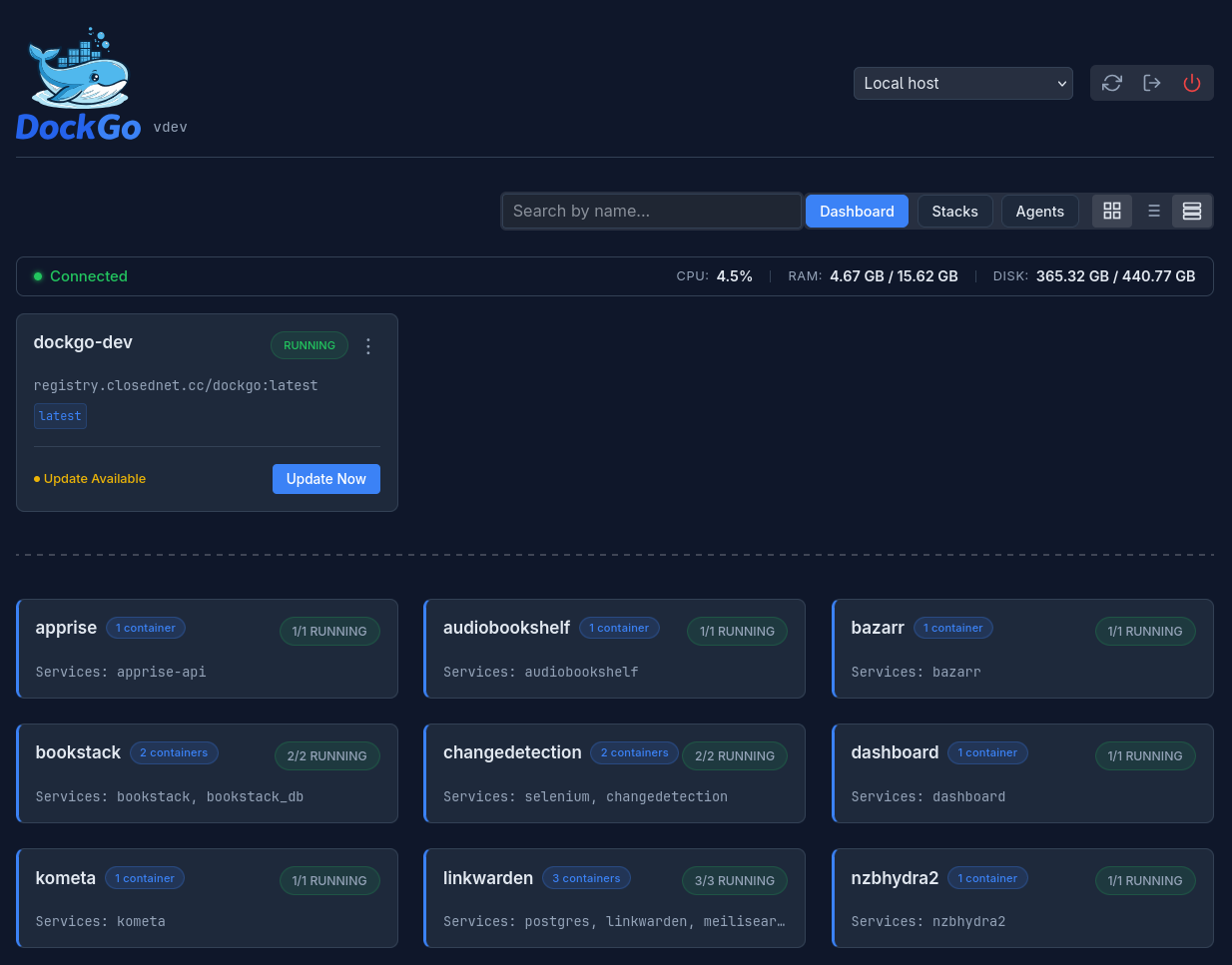
DockGo is a simple, single-binary application that monitors your Docker containers for updates. It focuses on visibility and control rather than automatic unattended updates and it provides:
- A Web Dashboard to see container status and available updates at a glance.
- A CLI for scripting and manual checks.
- Smart Updates that handle standard containers, private registries, and Docker Compose services.
Why DockGo?
Most Docker update tools (like Watchtower or Ouroboros) are great, but can be:
- Heavy: Running complex logical loops or requiring root.
- Insecure: Often demanding full root access to the socket without dropping privileges or providing authentication.
- Opaque: Updating things silently without a clear UI to see what is happening.
DockGo is different:
- Security-focused by default: Runs as a non-root user (
dockgo). - Transparent: You decide when to update (via UI or CLI), or automate it with scripts.
- Lightweight: Written in Go, typically very low memory footprint (~10–30MB).
Quick Start
The fastest way to run DockGo is via Docker:
docker run -d \
  --name dockgo \
  -p 3131:3131 \
  -v /var/run/docker.sock:/var/run/docker.sock \
  -e AUTH_USERNAME=admin \
  -e AUTH_PASSWORD=changeme \
  ghcr.io/jisevind/dockgo:latest
Visit http://localhost:3131 to see your dashboard!
Security Model
DockGo takes security seriously.
- Non-Root Execution: Inside the container, the process runs as the
dockgouser (UID 1000), not root. - Socket Permissions: The entrypoint script creates a
dockergroup matching the host's socket GID, allowing thedockgouser to talk to the engine without being root. - Authentication:
- User Login: Set
AUTH_USERNAMEand map eitherAUTH_PASSWORD_HASH(recommended) orAUTH_PASSWORD(convenience/testing) to enable a secure login flow with HttpOnly cookies.- Generate hashes using the built-in CLI command, e.g.,
dockgo hash-password secret.
- Generate hashes using the built-in CLI command, e.g.,
- Legacy Token: Set
API_TOKENfor simple script integrations. - CORS: Disabled by default. Only enabled if you specifically set
CORS_ORIGIN.
- User Login: Set
- Compose Path Restrictions: The
ALLOWED_COMPOSE_PATHSenvironment variable lets you restrict which Docker Compose working directories can be updated. This is a defense-in-depth measure to prevent accidental or malicious updates outside your intended container environments. The restriction applies to both native Compose updates and fallback to standalone API recreation for Compose-managed containers. Note: This restriction only applies to updates, not discovery—DockGo will still discover and monitor all containers on your system, but will only allow updating those whose compose files are within the allowed paths. - Log Redaction: Sensitive errors and login failures are redacted in logs.
- Hardened SSE Streams: All real-time progress events are strictly JSON-marshaled and HTML-escaped to prevent XSS and stream-breaking injections.
- Deep RNG Validation: Fail-fast architecture that terminates the application immediately if the host operating system's entropy pool (
crypto/rand) fails to provide secure random bytes. - Strict Credential Omission: Sensitive fields (passwords/tokens) are cryptographically tagged to be omitted from all JSON serialization at the compiler level.
[!CAUTION] CRITICAL SECURITY WARNING: Docker Socket Exposure
Mounting
/var/run/docker.sockexplicitly grants full root-level access to your host machine. This is an unavoidable requirement for any tool that manages Docker containers, but it comes with severe security implications.You MUST:
- Never expose DockGo publicly to the internet without robust authentication.
- Use Network Isolation: Run DockGo on a trusted, private local network.
- Implement a Reverse Proxy: If you must expose it, place it behind a secure reverse proxy (like Nginx, Traefik, or Caddy) equipped with SSL/TLS and preferably external Single Sign-On (SSO) or robust reverse-proxy-level authentication, in addition to DockGo's built-in authentication.
Failing to secure this endpoint is effectively equivalent to giving an attacker root-level control over the host.
Features
- Web Dashboard: Real-time status, "Update" buttons, and progress tracking.
- Server Stats: Live CPU, RAM, and disk usage of the selected host in the dashboard header.
- Container Actions: Start, stop, and restart directly from the UI.
- Real-time Logs: View container logs with ANSI color support inline seamlessly.
- Smart Discovery:
- Checks standard Docker Hub images.
- Supports Private Registries (using your host's credentials).
- Works for most standard Docker Compose setups.
- Apprise Notifications: Sends instant automated alerts for newly discovered updates and container upgrade status to over 100+ supported services (Discord, Slack, Telegram, Gotify, etc.).
- Autonomous Scheduler: Periodically checks for container updates in the background without needing the UI open (default: 24h).
- Safe Mode: Use
--safeto pull images without restarting running containers (CLI only). - Network Preservation: Keeps static IPs and MAC addresses when recreating containers.
- Registry Caching: Caches registry digests for 10 minutes to prevent rate-limiting.
- Log Level Control: adjustable verbosity via
LOG_LEVEL.
Configuration
Configure DockGo using environment variables:
| Variable | Description | Default |
|---|---|---|
PORT | Web server port | 3131 |
LOG_LEVEL | Log verbosity (debug, info, warn, error) | info |
LOG_FORMAT | Log format (json or text) | json (Docker) / text (CLI) |
DOCKGO_DEBUG | Enable internal debug endpoints (e.g., /api/debug/cache) | false |
AUTH_USERNAME | Username for web login | (empty) |
AUTH_PASSWORD_HASH | Pre-hashed bcrypt string (Recommended for production) | (empty) |
AUTH_PASSWORD | Plaintext password (Convenience/Testing) | (empty) |
AUTH_SECRET | Secret for signing session cookies | (random) |
AUTH_BCRYPT_COST | Configurable bcrypt hashing cost (min 4, max 31) | 10 |
API_TOKEN | Legacy token for API updates | (empty) |
DOCKGO_STOP_TIMEOUT | Grace period in seconds when stopping a container before it is recreated. | 10 |
DOCKGO_INITIAL_RUNTIME_CHECK | Initial verification wait in seconds for containers without healthchecks. | 10 |
DOCKGO_HEALTH_TIMEOUT | Max wait time in seconds for a container to become healthy after recreation. | 60 |
DOCKGO_STABILITY_WINDOW | Stability monitoring window in seconds post-healthcheck. | 20 |
CORS_ORIGIN | Allowed Origin for CORS (e.g. https://mydomain.com) | (disabled) |
ALLOWED_COMPOSE_PATHS | Comma-separated list of allowed base paths for Compose working directories (e.g., /opt/docker,/srv/compose) | (empty) |
COMPOSE_PATH_MAPPING | Comma-separated map of host paths to container paths (e.g. D:\Docker:/compose or /home/user/docker:/compose) when DockGo sees Compose projects at a different path than the host. | (empty) |
SESSION_STORE_PATH | Path to session persistence file | /app/data/sessions.json |
STACK_STORE_PATH | JSON file persisting registered stack definitions | /app/data/stacks.json (server) / /app/data/agent_stacks.json (agent) |
STACK_HISTORY_PATH | JSON file persisting stack action history | /app/data/stack_history.json |
LOG_FILE_PATH | Path to write persistent rotating logs (e.g., /app/data/logs/dockgo.log) | (Stdout only) |
LOG_MAX_SIZE | Maximum size in MB before a log file is rotated | 10 |
LOG_MAX_BACKUPS | Maximum number of old rotated log files to retain | 5 |
LOG_MAX_AGE | Maximum number of days to retain old log files | 28 |
LOG_COMPRESS | Compress rotated log files using gzip (true/false) | true |
APPRISE_API_HOST | Custom Apprise API connection host (e.g. http://my-notifier:8000) | http://apprise:8000 |
APPRISE_URL | Apprise notification endpoint (e.g., ntfy://...) | (empty) |
APPRISE_QUEUE_SIZE | Buffer size for outbound notification events | 100 |
SCAN_INTERVAL | Background update polling schedule (s, m, h) | 24h |
AGENT_STORE_PATH | JSON file persisting registered agent records | /app/data/agents.json |
AGENT_MAX_CONCURRENT | Per-agent concurrent operation cap | 8 |
AGENT_JWT_TTL | Lifetime of the agent channel JWT | 1h |
AGENT_JWT_SECRET | JWT signing secret for agent channels | AUTH_SECRET |
DOCKGO_SERVER_URL | Agent WebSocket endpoint (e.g. wss://dockgo.example.com/api/ws/agent) | (required) |
AGENT_KEY | One-time agent registration key (dg_...) | (required) |
AGENT_NAME | Agent display name in the dashboard | hostname |
AGENT_RECONNECT_MIN | Agent reconnect backoff floor | 5s |
AGENT_RECONNECT_MAX | Agent reconnect backoff ceiling | 60s |
AGENT_RECONNECT_MULT | Agent reconnect backoff multiplier | 2.0 |
AGENT_HEARTBEAT_INTERVAL | Agent keepalive ping interval | 30s |
Multi-Host Management (Agents)
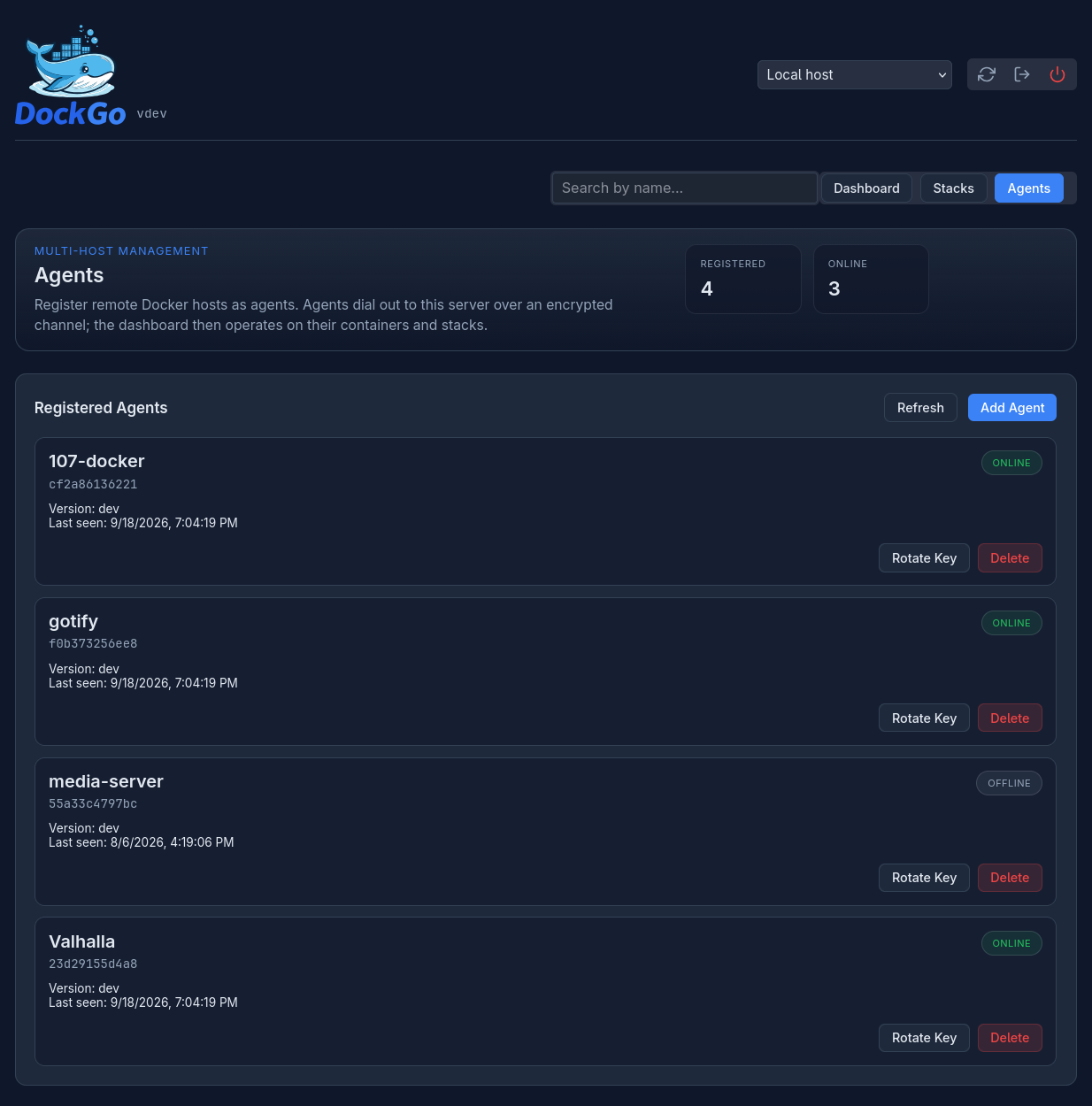
DockGo can manage containers and Compose stacks on multiple remote hosts from one dashboard. A lightweight agent runs on each managed host, dials out to the server over a secure WebSocket channel, and the server relays the dashboard operations to it. No inbound ports are required on agent hosts.
- Create agents on the dashboard's Agents view; the server returns a
one-time key (
AGENT_KEY) for the remote host. - Use the host selector in the dashboard header to switch between the local host and each agent.
- Containers, stats, scans, updates, logs, and stacks all operate on the selected host.
- Run the agent with the
ghcr.io/jisevind/dockgo:agent-latestimage (bundles the Docker CLI and Compose plugin). - Git-kind stacks are not supported on remote agents.
The agent is deployed separately from the server: one
docker-compose.agent.yml.example per
managed host, never co-located with the DockGo server compose file. You only
need an agent on hosts whose Docker daemon you cannot (or do not want to) give
the DockGo server direct socket access to.
See Multi-Host Management with DockGo Agents for full setup, security, and key-rotation instructions.
Documentation
Start with the new user documentation:
- Documentation Index
- Quickstart
- Installation
- Configuration
- Dashboard and Updates
- Stacks
- Multi-Host Management (Agents)
- Notifications
- Backup and Restore
- Troubleshooting
- Internals
Additional reference material:
- Notifications covers the Apprise integration and example targets.
- Configuration covers API Token authentication.
- Internals covers the GitHub Actions release flow and the registered-stacks design.
Example docker-compose.yml:
services:
  dockgo:
    image: ghcr.io/jisevind/dockgo:latest
    volumes:
      - /var/run/docker.sock:/var/run/docker.sock
    ports:
      - "3131:3131"
    environment:
      - LOG_LEVEL=info
      - AUTH_USERNAME=admin
      # Generate with: dockgo hash-password your_password
      - AUTH_PASSWORD_HASH=$$2a$$10$$YOUR_GENERATED_HASH_HERE
      # Optional: Restrict updates to specific Compose directories
      - ALLOWED_COMPOSE_PATHS=/opt/docker,/srv/compose
      # Optional: Map host paths when DockGo sees Compose projects at a
      # different path than the Docker host (common on Windows).
      # - COMPOSE_PATH_MAPPING=D:\Docker:/compose
Compose Stacks: Linux vs Windows
If you want reliable Compose stack updates from the DockGo container, the mount layout matters.
Linux: prefer same-path mounts and Host Native
On Linux, the recommended setup is to mount the Compose root into DockGo at the exact same absolute path as the host:
volumes:
  - /var/run/docker.sock:/var/run/docker.sock
  - ./data:/app/data
  - /home/johan/docker:/home/johan/docker
With that setup:
- do not set
COMPOSE_PATH_MAPPING - register Linux stacks as
Host Native
This is the most reliable option because DockGo and the Docker host resolve paths the same way, including relative bind mounts like ./app_data.
Windows, or any different mount path: use Mapped
If DockGo sees the Compose project at a different path than the host, use a path mapping instead. This is the normal setup on Windows with a Linux DockGo container:
volumes:
  - /var/run/docker.sock:/var/run/docker.sock
  - ./data:/app/data
  - D:\Docker:/compose
COMPOSE_PATH_MAPPING=D:\Docker:/compose
With that setup:
- register those stacks as
Mapped - keep the canonical stack paths as host paths like
D:\Docker\bazarr
You can also use Mapped on Linux if you deliberately mount the Compose root to a different internal path such as /compose, but Host Native is preferred on Linux whenever possible.
CLI Usage
You can use the dockgo binary directly for scripting or manual checks.
# Check all containers
dockgo check

# Check with JSON output (great for scripts)
dockgo check -json

# Generate a password hash for the dashboard server configuration
dockgo hash-password supersecretpassword
dockgo check -json

# Update a specific container
dockgo update -y my-container

# Update ALL containers
dockgo update -a

# Safe Mode: Pull only, don't restart running containers
dockgo update -safe -a

# Force Mode: Restart even if running
dockgo update -force -y my-container
# Typical workflow:
dockgo check
dockgo update -a
Flags
-y <name>: Target specific container.-a: Target all containers with updates.-json: Output standard JSON.-stream: Output SSE-compatible line-delimited JSON.-preserve-network: Preserve network settings (IP/MAC) during recreation.
Building from Source
git clone https://github.com/Jisevind/dockgo.git
cd dockgo
go build -o dockgo ./cmd/dockgo
Building for Windows
If you want to run the DockGo binary natively on Windows (e.g. as a background service or CLI tool), you can build the .exe directly:
git clone https://github.com/Jisevind/dockgo.git
cd dockgo
$env:GOOS="windows"
$env:GOARCH="amd64"
go build -o dockgo.exe ./cmd/dockgo
Troubleshooting
Windows Connection Issues
If you see an error like failed to connect to Docker, ensure Docker Desktop is running. You may need to set the DOCKER_HOST environment variable if the default connection fails:
$env:DOCKER_HOST = "npipe:////./pipe/docker_engine"
Docker Container "no such file or directory"
If the container crashes with exec ./entrypoint.sh: no such file or directory, it likely has Windows line endings (CRLF). Ensure entrypoint.sh uses Unix line endings (LF). The build process should handle this, but if you are mounting the file locally, you may need to convert it.
Similar repos


A standalone web GUI for Docker container management. Monitor container statuses, receive automated Apprise notifications, and seamlessly pull new image updates.
Go
0
351 commits
updated Oct 5, 2026
See what people are saying
README
DockGo
A lightweight, secure Docker update agent — single binary, no fuss.
What is DockGo?
DockGo is a simple, single-binary application that monitors your Docker containers for updates. It focuses on visibility and control rather than automatic unattended updates and it provides:
- A Web Dashboard to see container status and available updates at a glance.
- A CLI for scripting and manual checks.
- Smart Updates that handle standard containers, private registries, and Docker Compose services.
Why DockGo?
Most Docker update tools (like Watchtower or Ouroboros) are great, but can be:
- Heavy: Running complex logical loops or requiring root.
- Insecure: Often demanding full root access to the socket without dropping privileges or providing authentication.
- Opaque: Updating things silently without a clear UI to see what is happening.
DockGo is different:
- Security-focused by default: Runs as a non-root user (
dockgo). - Transparent: You decide when to update (via UI or CLI), or automate it with scripts.
- Lightweight: Written in Go, typically very low memory footprint (~10–30MB).
Quick Start
The fastest way to run DockGo is via Docker:
docker run -d \
  --name dockgo \
  -p 3131:3131 \
  -v /var/run/docker.sock:/var/run/docker.sock \
  -e AUTH_USERNAME=admin \
  -e AUTH_PASSWORD=changeme \
  ghcr.io/jisevind/dockgo:latest
Visit http://localhost:3131 to see your dashboard!
Security Model
DockGo takes security seriously.
- Non-Root Execution: Inside the container, the process runs as the
dockgouser (UID 1000), not root. - Socket Permissions: The entrypoint script creates a
dockergroup matching the host's socket GID, allowing thedockgouser to talk to the engine without being root. - Authentication:
- User Login: Set
AUTH_USERNAMEand map eitherAUTH_PASSWORD_HASH(recommended) orAUTH_PASSWORD(convenience/testing) to enable a secure login flow with HttpOnly cookies.- Generate hashes using the built-in CLI command, e.g.,
dockgo hash-password secret.
- Generate hashes using the built-in CLI command, e.g.,
- Legacy Token: Set
API_TOKENfor simple script integrations. - CORS: Disabled by default. Only enabled if you specifically set
CORS_ORIGIN.
- User Login: Set
- Compose Path Restrictions: The
ALLOWED_COMPOSE_PATHSenvironment variable lets you restrict which Docker Compose working directories can be updated. This is a defense-in-depth measure to prevent accidental or malicious updates outside your intended container environments. The restriction applies to both native Compose updates and fallback to standalone API recreation for Compose-managed containers. Note: This restriction only applies to updates, not discovery—DockGo will still discover and monitor all containers on your system, but will only allow updating those whose compose files are within the allowed paths. - Log Redaction: Sensitive errors and login failures are redacted in logs.
- Hardened SSE Streams: All real-time progress events are strictly JSON-marshaled and HTML-escaped to prevent XSS and stream-breaking injections.
- Deep RNG Validation: Fail-fast architecture that terminates the application immediately if the host operating system's entropy pool (
crypto/rand) fails to provide secure random bytes. - Strict Credential Omission: Sensitive fields (passwords/tokens) are cryptographically tagged to be omitted from all JSON serialization at the compiler level.
[!CAUTION] CRITICAL SECURITY WARNING: Docker Socket Exposure
Mounting
/var/run/docker.sockexplicitly grants full root-level access to your host machine. This is an unavoidable requirement for any tool that manages Docker containers, but it comes with severe security implications.You MUST:
- Never expose DockGo publicly to the internet without robust authentication.
- Use Network Isolation: Run DockGo on a trusted, private local network.
- Implement a Reverse Proxy: If you must expose it, place it behind a secure reverse proxy (like Nginx, Traefik, or Caddy) equipped with SSL/TLS and preferably external Single Sign-On (SSO) or robust reverse-proxy-level authentication, in addition to DockGo's built-in authentication.
Failing to secure this endpoint is effectively equivalent to giving an attacker root-level control over the host.
Features
- Web Dashboard: Real-time status, "Update" buttons, and progress tracking.
- Server Stats: Live CPU, RAM, and disk usage of the selected host in the dashboard header.
- Container Actions: Start, stop, and restart directly from the UI.
- Real-time Logs: View container logs with ANSI color support inline seamlessly.
- Smart Discovery:
- Checks standard Docker Hub images.
- Supports Private Registries (using your host's credentials).
- Works for most standard Docker Compose setups.
- Apprise Notifications: Sends instant automated alerts for newly discovered updates and container upgrade status to over 100+ supported services (Discord, Slack, Telegram, Gotify, etc.).
- Autonomous Scheduler: Periodically checks for container updates in the background without needing the UI open (default: 24h).
- Safe Mode: Use
--safeto pull images without restarting running containers (CLI only). - Network Preservation: Keeps static IPs and MAC addresses when recreating containers.
- Registry Caching: Caches registry digests for 10 minutes to prevent rate-limiting.
- Log Level Control: adjustable verbosity via
LOG_LEVEL.
Configuration
Configure DockGo using environment variables:
| Variable | Description | Default |
|---|---|---|
PORT | Web server port | 3131 |
LOG_LEVEL | Log verbosity (debug, info, warn, error) | info |
LOG_FORMAT | Log format (json or text) | json (Docker) / text (CLI) |
DOCKGO_DEBUG | Enable internal debug endpoints (e.g., /api/debug/cache) | false |
AUTH_USERNAME | Username for web login | (empty) |
AUTH_PASSWORD_HASH | Pre-hashed bcrypt string (Recommended for production) | (empty) |
AUTH_PASSWORD | Plaintext password (Convenience/Testing) | (empty) |
AUTH_SECRET | Secret for signing session cookies | (random) |
AUTH_BCRYPT_COST | Configurable bcrypt hashing cost (min 4, max 31) | 10 |
API_TOKEN | Legacy token for API updates | (empty) |
DOCKGO_STOP_TIMEOUT | Grace period in seconds when stopping a container before it is recreated. | 10 |
DOCKGO_INITIAL_RUNTIME_CHECK | Initial verification wait in seconds for containers without healthchecks. | 10 |
DOCKGO_HEALTH_TIMEOUT | Max wait time in seconds for a container to become healthy after recreation. | 60 |
DOCKGO_STABILITY_WINDOW | Stability monitoring window in seconds post-healthcheck. | 20 |
CORS_ORIGIN | Allowed Origin for CORS (e.g. https://mydomain.com) | (disabled) |
ALLOWED_COMPOSE_PATHS | Comma-separated list of allowed base paths for Compose working directories (e.g., /opt/docker,/srv/compose) | (empty) |
COMPOSE_PATH_MAPPING | Comma-separated map of host paths to container paths (e.g. D:\Docker:/compose or /home/user/docker:/compose) when DockGo sees Compose projects at a different path than the host. | (empty) |
SESSION_STORE_PATH | Path to session persistence file | /app/data/sessions.json |
STACK_STORE_PATH | JSON file persisting registered stack definitions | /app/data/stacks.json (server) / /app/data/agent_stacks.json (agent) |
STACK_HISTORY_PATH | JSON file persisting stack action history | /app/data/stack_history.json |
LOG_FILE_PATH | Path to write persistent rotating logs (e.g., /app/data/logs/dockgo.log) | (Stdout only) |
LOG_MAX_SIZE | Maximum size in MB before a log file is rotated | 10 |
LOG_MAX_BACKUPS | Maximum number of old rotated log files to retain | 5 |
LOG_MAX_AGE | Maximum number of days to retain old log files | 28 |
LOG_COMPRESS | Compress rotated log files using gzip (true/false) | true |
APPRISE_API_HOST | Custom Apprise API connection host (e.g. http://my-notifier:8000) | http://apprise:8000 |
APPRISE_URL | Apprise notification endpoint (e.g., ntfy://...) | (empty) |
APPRISE_QUEUE_SIZE | Buffer size for outbound notification events | 100 |
SCAN_INTERVAL | Background update polling schedule (s, m, h) | 24h |
AGENT_STORE_PATH | JSON file persisting registered agent records | /app/data/agents.json |
AGENT_MAX_CONCURRENT | Per-agent concurrent operation cap | 8 |
AGENT_JWT_TTL | Lifetime of the agent channel JWT | 1h |
AGENT_JWT_SECRET | JWT signing secret for agent channels | AUTH_SECRET |
DOCKGO_SERVER_URL | Agent WebSocket endpoint (e.g. wss://dockgo.example.com/api/ws/agent) | (required) |
AGENT_KEY | One-time agent registration key (dg_...) | (required) |
AGENT_NAME | Agent display name in the dashboard | hostname |
AGENT_RECONNECT_MIN | Agent reconnect backoff floor | 5s |
AGENT_RECONNECT_MAX | Agent reconnect backoff ceiling | 60s |
AGENT_RECONNECT_MULT | Agent reconnect backoff multiplier | 2.0 |
AGENT_HEARTBEAT_INTERVAL | Agent keepalive ping interval | 30s |
Multi-Host Management (Agents)
DockGo can manage containers and Compose stacks on multiple remote hosts from one dashboard. A lightweight agent runs on each managed host, dials out to the server over a secure WebSocket channel, and the server relays the dashboard operations to it. No inbound ports are required on agent hosts.
- Create agents on the dashboard's Agents view; the server returns a
one-time key (
AGENT_KEY) for the remote host. - Use the host selector in the dashboard header to switch between the local host and each agent.
- Containers, stats, scans, updates, logs, and stacks all operate on the selected host.
- Run the agent with the
ghcr.io/jisevind/dockgo:agent-latestimage (bundles the Docker CLI and Compose plugin). - Git-kind stacks are not supported on remote agents.
The agent is deployed separately from the server: one
docker-compose.agent.yml.example per
managed host, never co-located with the DockGo server compose file. You only
need an agent on hosts whose Docker daemon you cannot (or do not want to) give
the DockGo server direct socket access to.
See Multi-Host Management with DockGo Agents for full setup, security, and key-rotation instructions.
Documentation
Start with the new user documentation:
- Documentation Index
- Quickstart
- Installation
- Configuration
- Dashboard and Updates
- Stacks
- Multi-Host Management (Agents)
- Notifications
- Backup and Restore
- Troubleshooting
- Internals
Additional reference material:
- Notifications covers the Apprise integration and example targets.
- Configuration covers API Token authentication.
- Internals covers the GitHub Actions release flow and the registered-stacks design.
Example docker-compose.yml:
services:
  dockgo:
    image: ghcr.io/jisevind/dockgo:latest
    volumes:
      - /var/run/docker.sock:/var/run/docker.sock
    ports:
      - "3131:3131"
    environment:
      - LOG_LEVEL=info
      - AUTH_USERNAME=admin
      # Generate with: dockgo hash-password your_password
      - AUTH_PASSWORD_HASH=$$2a$$10$$YOUR_GENERATED_HASH_HERE
      # Optional: Restrict updates to specific Compose directories
      - ALLOWED_COMPOSE_PATHS=/opt/docker,/srv/compose
      # Optional: Map host paths when DockGo sees Compose projects at a
      # different path than the Docker host (common on Windows).
      # - COMPOSE_PATH_MAPPING=D:\Docker:/compose
Compose Stacks: Linux vs Windows
If you want reliable Compose stack updates from the DockGo container, the mount layout matters.
Linux: prefer same-path mounts and Host Native
On Linux, the recommended setup is to mount the Compose root into DockGo at the exact same absolute path as the host:
volumes:
  - /var/run/docker.sock:/var/run/docker.sock
  - ./data:/app/data
  - /home/johan/docker:/home/johan/docker
With that setup:
- do not set
COMPOSE_PATH_MAPPING - register Linux stacks as
Host Native
This is the most reliable option because DockGo and the Docker host resolve paths the same way, including relative bind mounts like ./app_data.
Windows, or any different mount path: use Mapped
If DockGo sees the Compose project at a different path than the host, use a path mapping instead. This is the normal setup on Windows with a Linux DockGo container:
volumes:
  - /var/run/docker.sock:/var/run/docker.sock
  - ./data:/app/data
  - D:\Docker:/compose
COMPOSE_PATH_MAPPING=D:\Docker:/compose
With that setup:
- register those stacks as
Mapped - keep the canonical stack paths as host paths like
D:\Docker\bazarr
You can also use Mapped on Linux if you deliberately mount the Compose root to a different internal path such as /compose, but Host Native is preferred on Linux whenever possible.
CLI Usage
You can use the dockgo binary directly for scripting or manual checks.
# Check all containers
dockgo check

# Check with JSON output (great for scripts)
dockgo check -json

# Generate a password hash for the dashboard server configuration
dockgo hash-password supersecretpassword
dockgo check -json

# Update a specific container
dockgo update -y my-container

# Update ALL containers
dockgo update -a

# Safe Mode: Pull only, don't restart running containers
dockgo update -safe -a

# Force Mode: Restart even if running
dockgo update -force -y my-container
# Typical workflow:
dockgo check
dockgo update -a
Flags
-y <name>: Target specific container.-a: Target all containers with updates.-json: Output standard JSON.-stream: Output SSE-compatible line-delimited JSON.-preserve-network: Preserve network settings (IP/MAC) during recreation.
Building from Source
git clone https://github.com/Jisevind/dockgo.git
cd dockgo
go build -o dockgo ./cmd/dockgo
Building for Windows
If you want to run the DockGo binary natively on Windows (e.g. as a background service or CLI tool), you can build the .exe directly:
git clone https://github.com/Jisevind/dockgo.git
cd dockgo
$env:GOOS="windows"
$env:GOARCH="amd64"
go build -o dockgo.exe ./cmd/dockgo
Troubleshooting
Windows Connection Issues
If you see an error like failed to connect to Docker, ensure Docker Desktop is running. You may need to set the DOCKER_HOST environment variable if the default connection fails:
$env:DOCKER_HOST = "npipe:////./pipe/docker_engine"
Docker Container "no such file or directory"
If the container crashes with exec ./entrypoint.sh: no such file or directory, it likely has Windows line endings (CRLF). Ensure entrypoint.sh uses Unix line endings (LF). The build process should handle this, but if you are mounting the file locally, you may need to convert it.