Desktop2Stereo: 2D desktop to 3D for VR/AR (Support AMD/NVIDIA/Intel/Qualcomm GPUs and Apple Silicon Chips, powered by Depth AI Models)
Python
166
411 commits
updated Jul 31, 2026



A universal real-time 2D to 3D App that supports AMD/NVIDIA/Intel/Qualcomm GPU/Apple Silicon devices on Windows/Mac/Ubuntu, powered by Depth Estimation AI Models
1vcnmr64Install latest GPU driver
AMD GPU:
Windows: Recommend to download the 25.9.2 driver for stable ROCm7 performance: AMD Software: Adrenalin Edition 25.9.2 Windows Download.Ubuntu: Download latest GPU driver from AMD Drivers and Support for Processors and Graphics.NVIDIA GPU: Download latest GPU driver from NVIDIA Official GeForce Drivers.
Intel GPU: Download latest GPU driver from Download Intel Drivers and Software.
Qualcomm GPU: Download latest GPU driver from Qualcomm® Adreno™ Windows Graphics Drivers for Snapdragon® X Platform.
Other DirectML devices: Please install the latest hardware driver accordingly.
Install Microsoft Visual C++ Redistributable
Download Visual Studio 2017–2026 C++ Redistributable and install (restart Windows).
Enable Long Path
Double click the long_path.reg in the Desktop2Stereo folder and confirm the warning.
Deploy Desktop2Stereo Environment
Method 1 (Recommended): Use Portable Version
Download: Quark NetDrive (Access code: 1vcn)
AMD 7000/9000/Ryzen AI (Max)/etc. Series GPUs with ROCm7 Support: Portable Version is not available due to special deployment process, please refer to Method2.
Older AMD/Intel/Qualcomm GPU and other DirectML devices: Download and unzip the Desktop2Stereo_vX.X.X_AMD_etc_Windows.zip to local disk.
NVIDIA GPU: Download and unzip Desktop2Stereo_vX.X.X_NVIDIA_Windows.zip to local disk.
Intel GPU: Download and unzip Desktop2Stereo_vX.X.X_Intel_Windows.zip to local disk.
Method 2: Manual Deployment with embedded Python
Download and unzip Desktop2Stereo_vX.X.X_python3_Windows.zip to local disk.
Install Python environment
AMD 6000/7000/9000/Ryzen AI (Max)/etc. Series GPUs with ROCm7 Support: Double click install-rocm7_standalone.bat. (Check compatibility here: https://rocm.docs.amd.com/en/latest/compatibility/compatibility-matrix.html)
Older AMD/Intel/Qualcomm GPU and other DirectML devices: Double click install-dml_standalone.bat.
NVIDIA GPU: Double click install-cuda_standalone.bat.
Intel GPU: Double click install-xpu_standalone.bat.
Method 3: Manual Deployment with system Python
Install Python 3.11
Download from Python.org and install.
Download Desktop2Stereo app
Download the Desktop2Stereo.zip and unzip it to local disk.
Install Python environment
AMD 6000/7000/9000/Ryzen AI (Max)/etc. Series GPUs with ROCm7 Support: Double click install-rocm7.bat.
Older AMD/Intel/Qualcomm GPU and other DirectML devices: Double click install-dml.bat.
NVIDIA GPU: Double click install-cuda.bat.
Intel GPU: Double click install-xpu.bat.
Install Python 3.11
Download from Python.org and install.
Download Desktop2Stereo app
Download the Desktop2Stereo.zip and unzip it to local disk.
Install Python environment
Double click install-mps executable. (Please allow open in Privacy and Security Settings). If you cannot run the executable, do the following first:
chmod a+x install-mps
chmod a+x run_mac
chmod a+x update_mac_linux
Install latest GPU driver
AMD GPU: Download latest GPU driver and ROCm from AMD Drivers and Support for Processors and Graphics.
NVIDIA GPU: Download latest GPU driver from NVIDIA Official GeForce Drivers.
Install Python 3.11-dev
sudo add-apt-repository ppa:savoury1/python
sudo apt update
sudo apt-get install python3.11-dev python3.11-venv
Download Desktop2Stereo app
Download the Desktop2Stereo_vX.X.X.zip and unzip it to local disk.
Install Python environment
AMD 7000/9000/Ryzen AI (Max)/etc. Series GPU with ROCm7 Support: Check compatibility here: https://rocm.docs.amd.com/en/latest/compatibility/compatibility-matrix.html
bash install-rocm7.bash
Older AMD GPU: Run install-rocm.bash:
bash install-rocm.bash
NVIDIA GPU: Run install-cuda.bash:
bash install-cuda.bash
OpenXR Link (default), Local Viewer, MJPEG Streamer, RTMP Streamer, Legacy Streamer, 3D Monitor (Windows Only)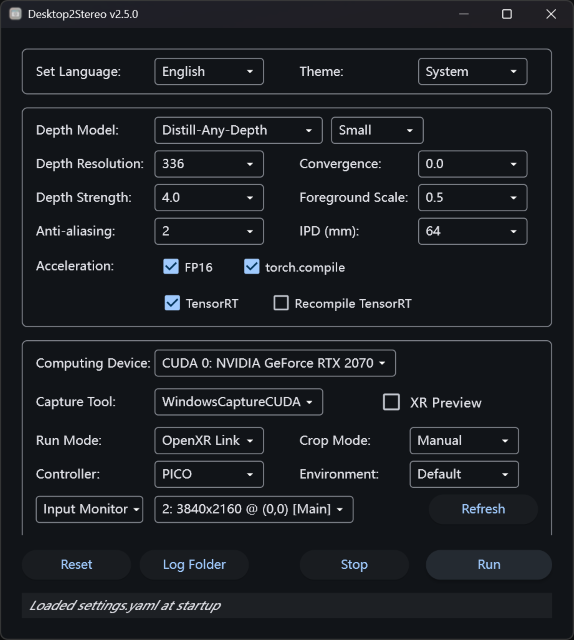
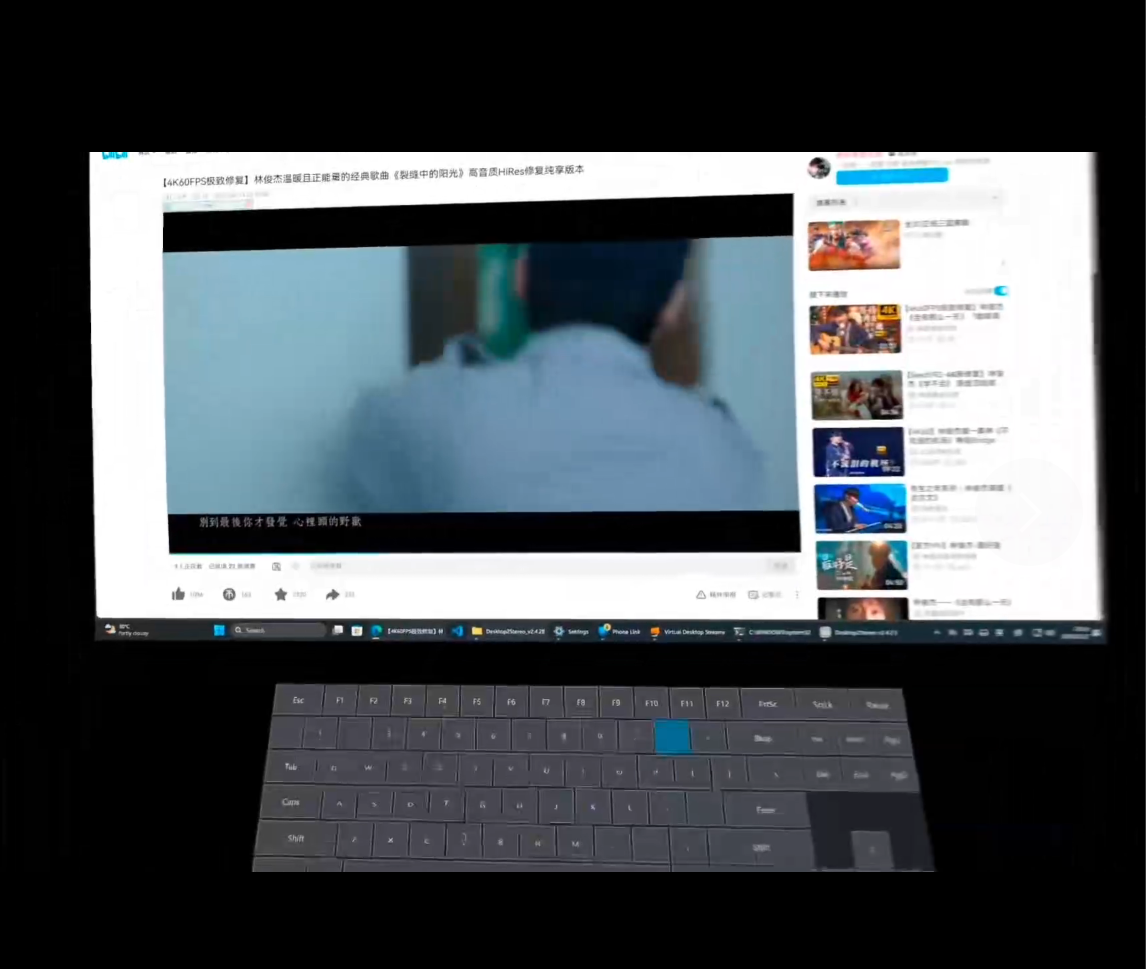
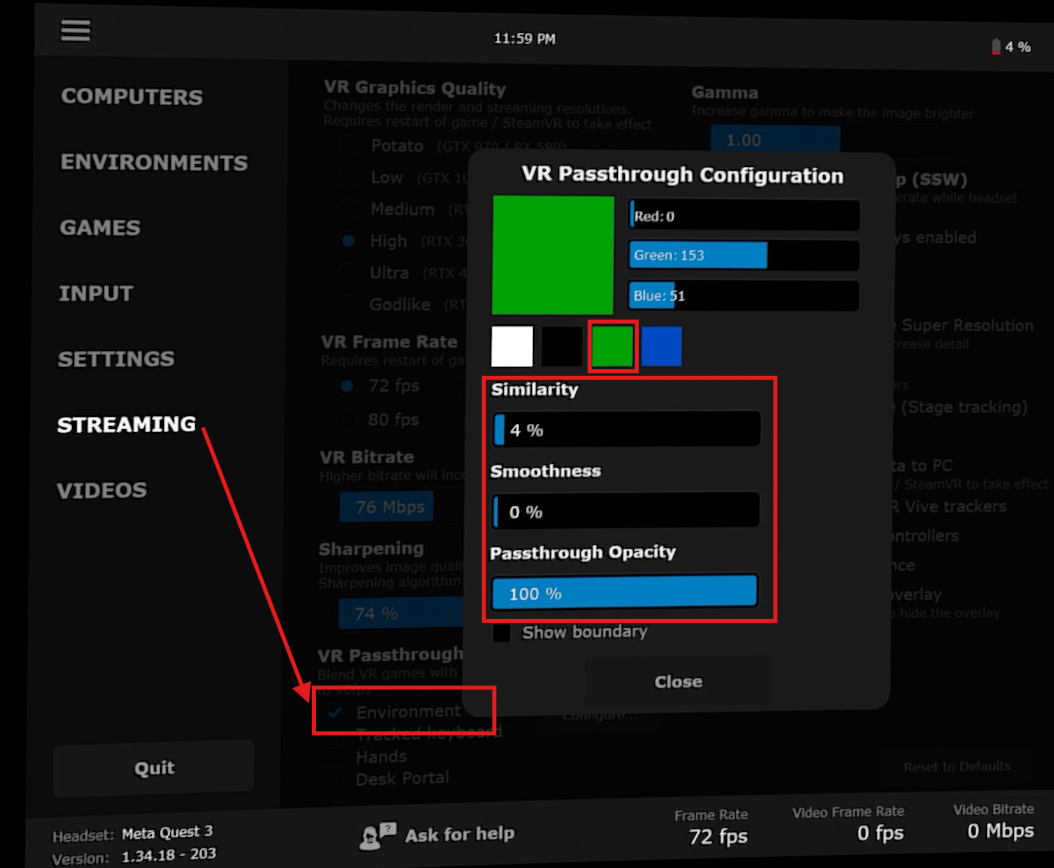
Tip: OpenXR Link mode (Windows/Ubuntu) is best for wireless streaming to OpenXR compatible client devices/apps with video and audio together, like Virtual Desktop VDXR Meta Horizon Link or Pico Connect with OpenXR support.
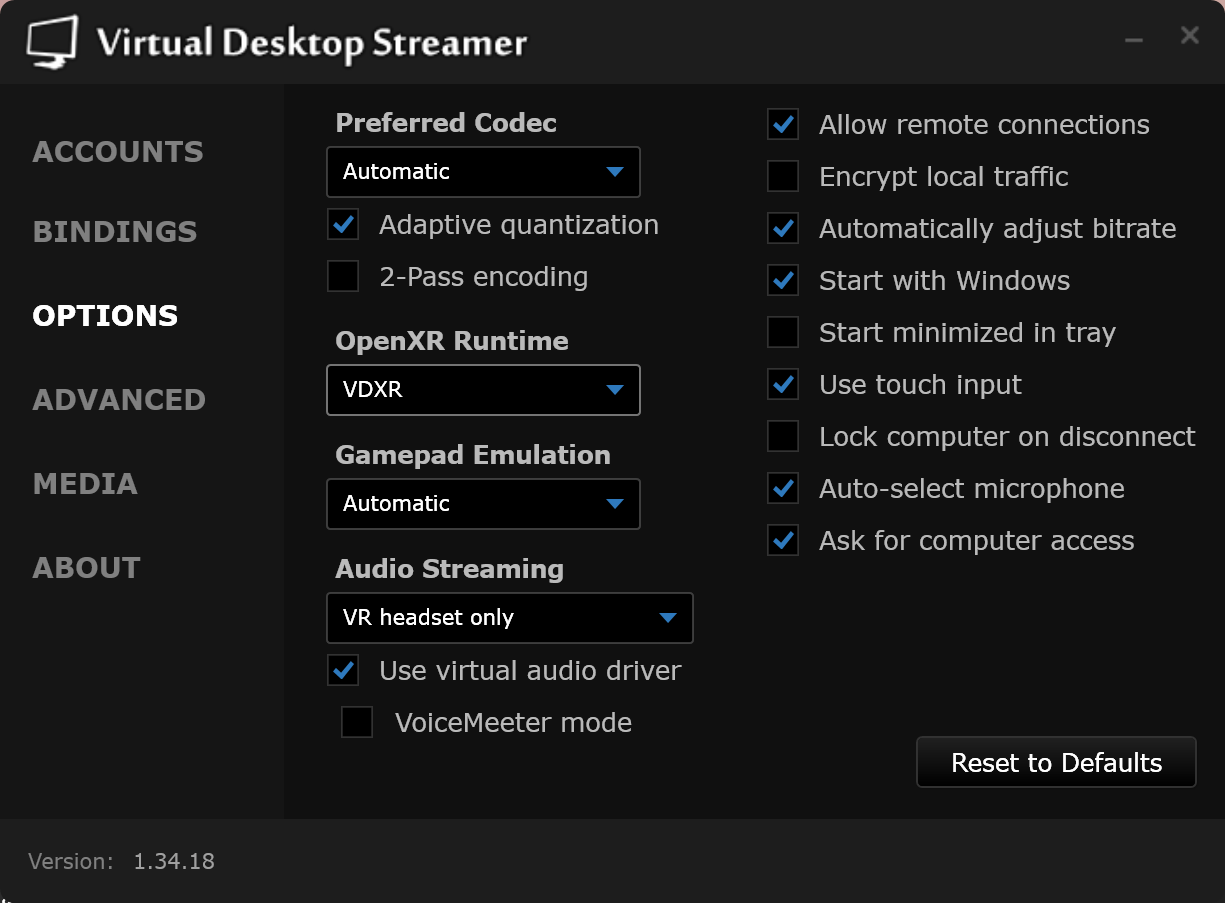
Run button to run, the 3D display will be launched on your OpenXR device.button X on the Left VR Controller to toggle the passthrough view on/off.
| Button / Combination | Action | Description |
|---|---|---|
| Screen Control | ||
| Left/Right grip (hold) | Drag screen | Move screen with laser anchor |
| Right grip + Right stick X | Left/Right | Adjust screen width |
| Right grip + Right stick Y | Up/Down | Adjust screen distance (accelerated) |
| Right stick button (short press) | Toggle | Flat / Curved screen |
| Right stick button (long press) | Reset | Reset screen orientation (preserve distance/size) |
| Left grip + Left stick X/Y | Push direction | Translate screen position |
| Left grip + Right stick X | Left/Right | Screen horizontal rotation (Yaw) |
| Left grip + Right stick Y | Up/Down | Screen tilt (Pitch) |
| Left Y button (short press) | Reset | Reset screen position and orientation |
| Left Y button (long press) | Cycle | Cycle screen presets |
| Left stick button (short press) | Cycle | Cycle background color (5 options) |
| Left stick button (long press) | Toggle | FPS / Help panel overlay |
| Left X button (quick tap <1s) | Toggle | Show / Hide virtual keyboard |
| Left X button (hold >1s, release) | Toggle | Toggle light / glow mode |
| Left X button (hold >4s) | Toggle | VDXR Passthrough mode |
| Left menu button (short press) | Toggle | FPS overlay |
| Left menu button (long press) | Reset | Reset depth ratio to default |
| Right grip + Left stick L/R | Left/Right | Adjust effect transparency (0–1) |
| Manual Crop | ||
| Left trigger (laser off screen, hold 3s) | Cycle | Crop mode: Auto / Manual / Off |
| Left trigger (off screen, Manual mode, double-tap) | Toggle | Crop-adjust pause (freeze frame + OSD) |
| Left stick (crop-adjust active, no grip) | Direction | Crop sides (X) or top/bottom (Y), dominant axis only |
| Depth Adjustment | ||
| Right grip + Left stick Y | Up/Down | Adjust depth scale (0–10) |
| Right grip + Left stick X | Left/Right | Adjust effect transparency (0–1) |
| Right grip + Left stick button (short press) | Toggle | Reset depth intensity to zero / restore |
| Right grip + Right stick button (short press) | Reset | Reset depth scale to 2.0 |
| Right grip + A/B (hold) | Increase/Decrease | Fine-tune depth ratio |
| Mouse Control | ||
| Left/Right laser point at screen | Move | Control mouse cursor (right priority) |
| Left/Right trigger (on screen) | Click | Left mouse button click |
| Right stick X/Y | Left/Right / Up/Down | Horizontal / vertical mouse scroll |
| Left stick Y | Up/Down | Keyboard Up / Down arrows |
| Left stick X | Left/Right | Keyboard Left / Right arrows |
| Right A button (short press) | Click | Left mouse button click |
| Right B button (short press) | Click | Right mouse button click |
| A double press | Toggle | Hide / Show all overlays |
| Virtual Keyboard | ||
| Left/Right laser + trigger (on keyboard) | Press | Key input (press and release) |
| Shift / Ctrl / Alt / Win | Single / Double press | Momentary / Locked modifier key |
| Left grip + Left stick (on keyboard) | Direction | Translate keyboard position |
| Right grip + Right stick (on keyboard) | Direction | Adjust keyboard size / distance |
| Controller Model | ||
| Right A + B (hold 0.5s) | Toggle | Switch controller model brand |
| Left menu + Right A + B (hold 1s) | Toggle | Enter / Exit controller calibration mode |
Crop Mode removes unwanted borders (e.g. movie letterbox black bars) from the captured frame so the video fills the virtual screen. Choose the mode from the Crop Mode dropdown in the GUI, or cycle it in VR.
Manual crop gestures (left controller, laser pointed off the screen):
Auto → Manual → Off. An on-screen indicator shows the current mode.Manual crop rectangle and the selected crop mode are saved with your runtime settings.
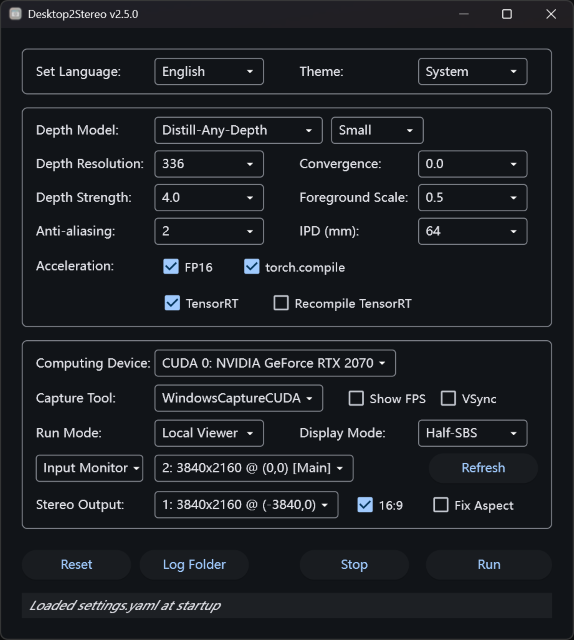
Tip: Local Viewer mode is best for low-latency usage with SteamVR/Virtual Desktop/AR Glasses as wired display.
Choose Run Mode as Local Viewer.
Choose capture target by Monitor or Window mode. You can use Refresh button to update to the latest list of Monitor or Window.
Click the Stereo Viewer window. Use ← Left or → Right arrow keys to switch the Stereo Viewer window to second (virtual) monitor display.
Press Space or Enter or XBOX game controller button A to toggle fullscreen mode (On MacOS you may have to quickly press twice).
Now you can use AR/VR to view the SBS or TAB output.
AR needs to switch to 3D mode to connect as a 3840×1080 (Full Side-by-Side, Full-SBS) display.
!Full-SBS
VR needs to use 2nd Display/Virtual Display (VDD) with Desktop+[Steam VR] or Virtual Desktop[PC/Standalone VR] or OBS + Wolvic Browser [Standalone VR] to compose the Half-SBS (Half Side-by-Side) / Full-SBS (Full Side-by-Side) / TAB (Top-and-Bottom) display to 3D.
Tab key to toggle Half-SBS/Full-SBS/TAB/Depth Map mode.!Half-SBS !TAB
Real-time modification of depth strength.
Use ↑ Up or ↓ Down arrow keys to increase/decrease the depth strength by a step of 0.5. To reset press 0 key.
The definition of depth strength is in the detailed settings section.
Press Esc to exit the Stereo Viewer.
TIP: The Depth value will show below the FPS indicator if
Show FPSis ON.
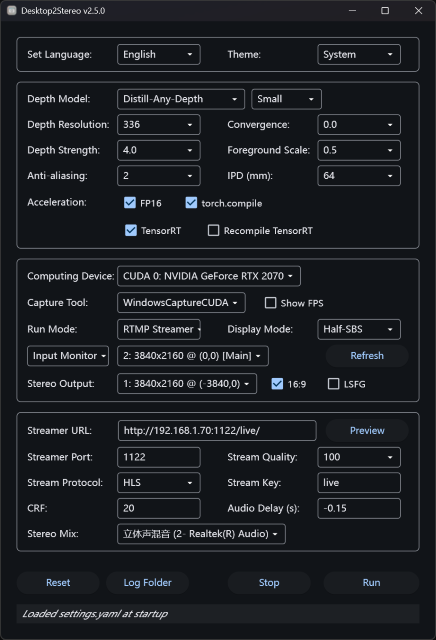
Tip: RTMP Streamer mode is best for wireless streaming with video and audio together to client devices/apps by capturing the local Stereo Viewer window, like VLC Player, Wolvic Browser, etc., but it may have a latency of
1~3seconds.
Choose run mode as RTMP Streamer.
Choose a Stream Protocol: recommended to use HLS.
Select an audio device
Windows
Select the Stereo Mix as Stereo Mix (Realtek(R)), and select Realtek(R) HD Audio as the system Sound Output device.
If your Windows device does not have the Stereo Mix (Realtek(R)), please install the Screen Capture Recorder and select the Stereo Mix as virtual-audio-capturer.
MacOS
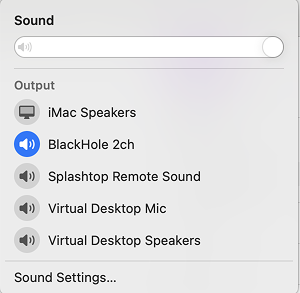
Install one of the following software containing the audio capture driver:
a. BlackHole: https://existential.audio/blackhole/
b. Virtual Desktop Streamer: https://www.vrdesktop.net/
c. Loopback: https://rogueamoeba.com/loopback/ (Commercial)
d. Or other virtual audio devices
Select the Stereo Mix as BlackHole 2ch or Virtual Desktop Speakers or Loopback Audio or other virtual audio devices accordingly, and select the system Output device with same name.
Ubuntu
Select the Stereo Mix device name ended with stereo.monitor i.e. alsa_output.pci-xxxx_xx_1x.x.analog-stereo.monitor, and select Output Device as Digital Output (S/PDIF)-xxxx in system sound settings.
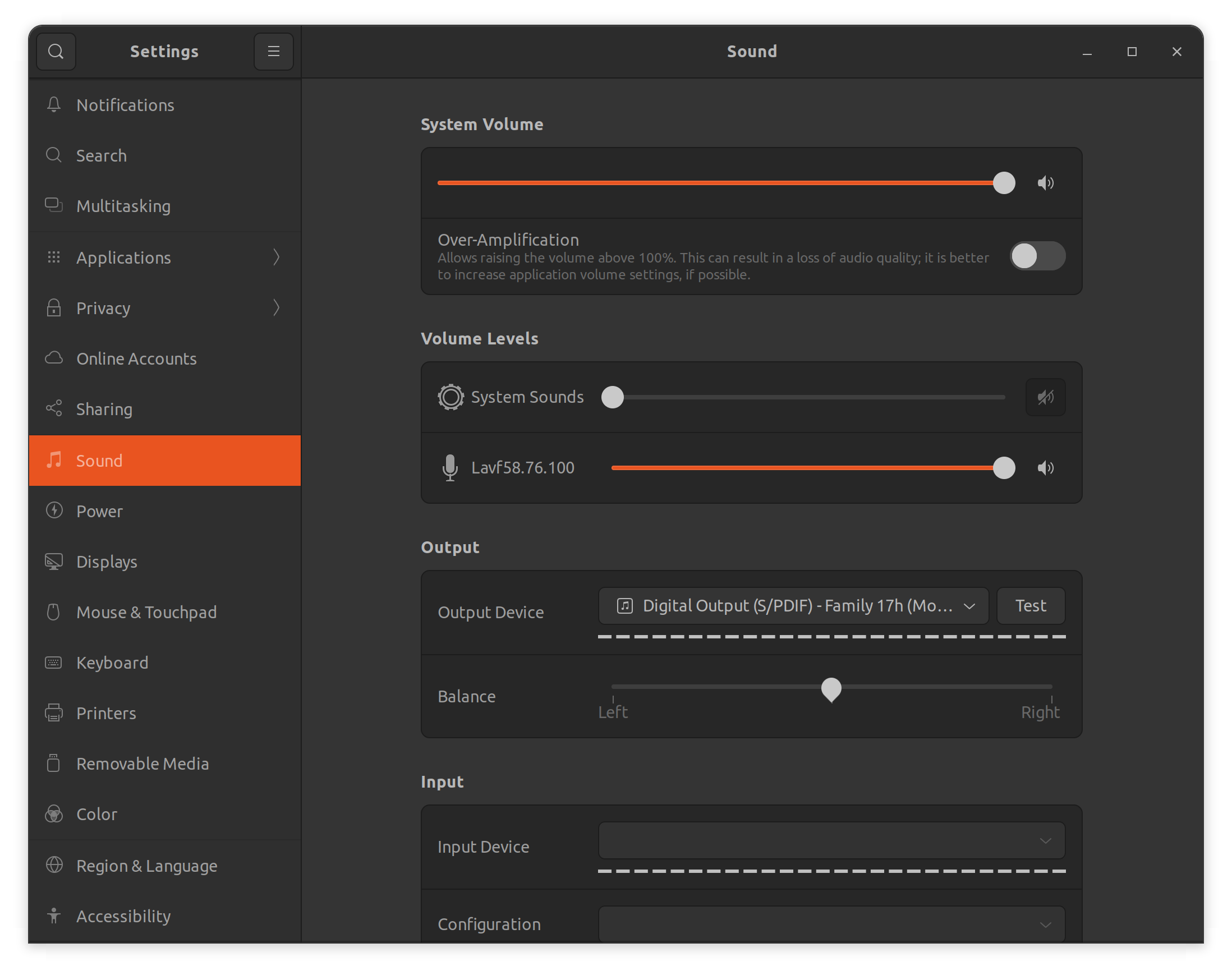
Set a Stream Key, default is live.
(Optional) Adjust the Audio Delay. negative value means play the audio in advance before the video, positive value means delay the audio play after the video.
(Optional) It is recommended to use a second (virtual) screen with a resolution equal to or larger than the main screen to place the Stereo Viewer window.
The other settings are the same as the Local Viewer, click Run button to run.
On client device, key in the streaming URL according to the Stream Protocol.
Tip:
- AR: Use VLC Player to open the
HLS M3U8URL directly withFull-SBSmode.- VR / Huawei AR: Use Wolvic Browser to open the
HLSURL directly withHalf_SBS/TABmode.- For MacOS, you can also use
WebRTCURL.- Other
RTSP, RTMP,HLS M3U8protocol may be chosen for VLC Player [i.e. extend screen mode for AR glasses] / VR Video Apps (DeoVR) on client devices.
If using
Full-SBSoutput at the same resolution as the main screen, you will need a screen with twice the width of the original screen. For example, if the main screen is4K (3840x2160), the second (virtual) screen needs to be8K (7680x2160).
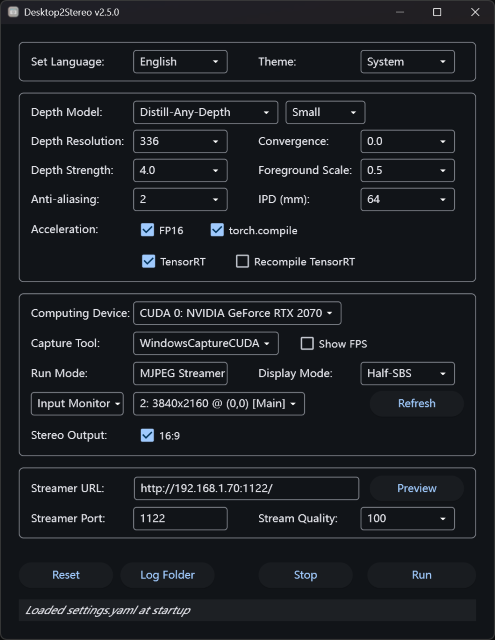
Tip: MJPEG Streamer mode is wireless streaming with video only to client devices/apps with lower latency, like Wolvic Browser, etc. For VR or Huawei AR: Wolvic Browser (Chromium Based) is recommended to open the HTTP MJPEG link.
1122.Run button.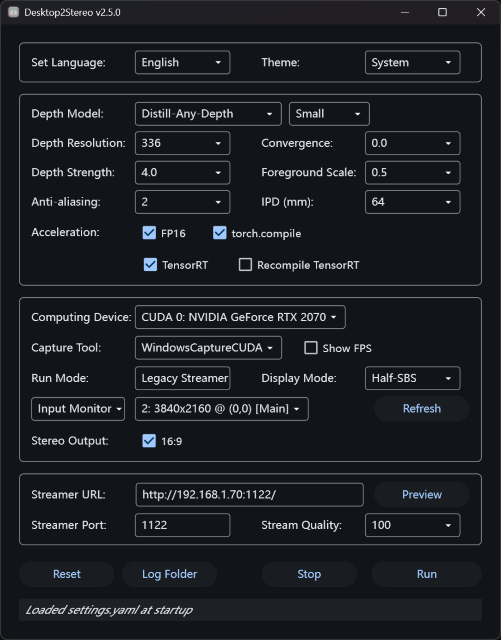
Tip: Legacy Streamer mode is a legacy MJPEG streaming mode, which uses PyTorch method to generate left and right eye scenes. The main usage is the same as the MJPEG Streamer mode.
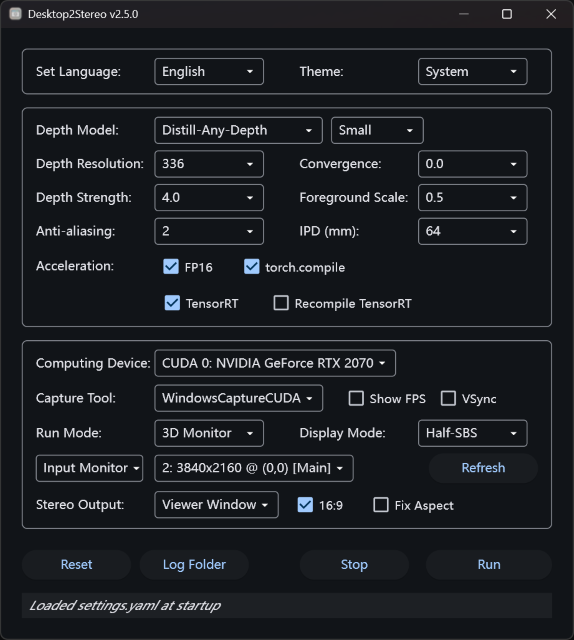
Tip: 3D Monitor mode is a special Local Viewer mode dedicated for a 3D Monitor, no virtual display driver needed for this mode. It can only run as fullscreen and be used locally as the screen capture attribute for the Stereo Viewer window is
disabledglobally. In 3D Monitor mode, please use the passthrough cursor on either left or right scene to control your PC.
Tip: Need to click the Stereo Viewer window/tab first to use.
| Key | Action Description | Supported Run Mode(s) |
|---|---|---|
| Enter/Space | Toggle fullscreen | Local Viewer |
| ← Left | Move window to adjacent monitor (previous) | Local Viewer / RTMP Streamer / 3D Monitor |
| → Right | Move window to adjacent monitor (next) | Local Viewer / RTMP Streamer / 3D Monitor |
| Esc | Close the application window | Local Viewer / RTMP Streamer / 3D Monitor |
| ↑ Up | Increase depth strength by 0.5 (max 10) | Local Viewer / RTMP Streamer / 3D Monitor |
| ↓ Down | Decrease depth strength by 0.5 (min 0) | Local Viewer / RTMP Streamer / 3D Monitor |
| 0 | Reset depth strength to original value | Local Viewer / RTMP Streamer / 3D Monitor |
| Tab | Cycle to the next display mode | Local Viewer / RTMP Streamer / 3D Monitor |
| D | Toggle between depth map and original RGB | Local Viewer / RTMP Streamer / 3D Monitor |
| F | Toggle FPS display | Local Viewer / RTMP Streamer / 3D Monitor |
| B | Toggle edge feathering | Local Viewer / RTMP Streamer / 3D Monitor |
| A | Toggle “fill 16:9” mode | Local Viewer / RTMP Streamer / 3D Monitor |
| L | Toggle lock Stereo Viewer window aspect ratio lock | Local Viewer |
| M | Toggle mouse pass-through mode | Local Viewer / RTMP Streamer / 3D Monitor |
All optional settings can be modified on the GUI window and saved to the settings.yaml. Each time you click Run, the settings will be saved automatically, and clicking Reset will restore the default settings.
Run Mode
6 Run Modes on Windows, 5 on other platforms. The default is OpenXR Link. Available modes: OpenXR Link, Local Viewer, MJPEG Streamer, RTMP Streamer, Legacy Streamer, 3D Monitor (Windows Only).
Set Language
English (EN) and Simplified Chinese (CN) are supported.
Monitor or Window mode
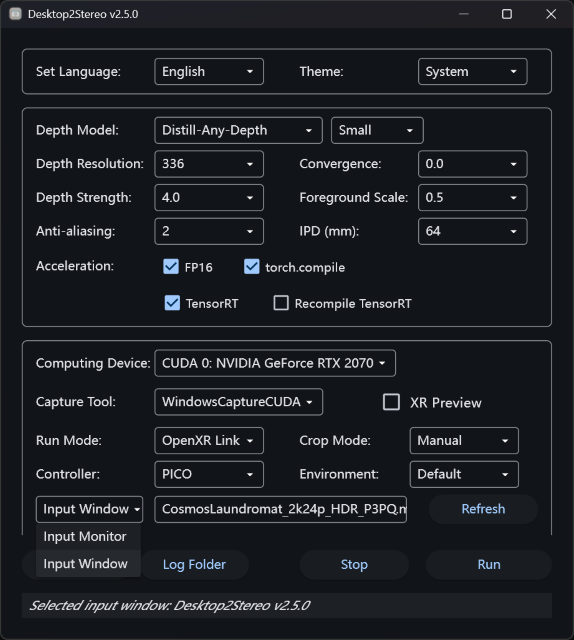
Default is your Primary Monitor (mostly shall follow the monitor numbers in your system settings). You can toggle to Window capture mode as well, the optional menus will include all the active window names.
Computing Device
Default shall be your GPU (CUDA/DirectML/MPS), or CPU if you don't have a compatible computing device.
FP16
Recommended for most computing devices for better performance. If your device does not support FP16 DataType, disable it.
Show FPS
Show FPS on the titlebar of the Stereo Viewer and as an on-screen indicator on the output left and right eye scenes. The capture FPS is auto-detected from your monitor's refresh rate.
Capture Tool (Windows Only)
DXGI Desktop Duplication API, it has the highest FPS but higher CPU temperature.Graphics Capture API, it has slightly lower FPS but lower CPU usage and temperature.Fill 16:9
Enabled by default. If the aspect of input source is not 16:9, the black background will be applied to fill it to 16:9.
Fix Viewer Aspect (Local Viewer mode Only)
Disabled by default. This option is to lock the window of Stereo Viewer, which may be useful for the upscaling and frame generation apps like Lossless Scaling.
Depth Resolution
Higher Depth Resolution can give better depth details but cause higher GPU usage, which is also related to the model training settings. Default Depth Resolution is set to 336 for balanced performance on Depth-Anything-V2 models. The Depth Resolution options vary among different depth models.
Depth Strength
With higher Depth Strength, 3D depth effect of the object would be stronger. However, higher value can induce visible artifacts and distortion. Default is set to 2.0. The recommended depth strength range is (1, 5).
Anti-Aliasing
This can be effective to reduce jagged edges and artifacts under high Depth Strength, default value is set as 2 for most cases. Higher value may reduce the depth details.
Foreground Scale
Default value is 0.5. Positive value means foreground closer, background further. Negative value means foreground flatter, background closer. 0 is no change of foreground and background strength.
Display Mode
It determines how the left and right eye scenes are arranged in the output. Default is Half-SBS for most VR devices, TAB is also an alternative; Full-SBS is mainly for AR glasses.
Full-SBS (Full Side-by-Side, 32:9)
Two full-resolution images are placed side by side: one for the left eye, one for the right. Requires a display capable of handling double-width input. Offers higher image quality but demands more bandwidth and processing.
Half-SBS (Side-by-Side Half, 16:9)
Two images are placed side by side, but each is compressed horizontally to fit into a single frame. More compatible with standard displays and media players. Slightly lower image quality due to reduced resolution per eye.
TAB (Top-and-Bottom, 16:9)
Left and right eye images are stacked vertically: one on top, one on bottom. Each image is compressed vertically to fit the frame. Common in streaming and broadcast formats; quality similar to Half-SBS.
Depth Map (16:9)
Visualizes the depth estimation output as a color-mapped image (blue = far, red = near). Press D key to toggle between depth map and original RGB view. Useful for debugging depth model accuracy.
IPD (Interpupillary Distance)
IPD is the distance between the centers of your pupils, it affects how your brain interprets stereoscopic 3D. The default IPD is 0.064 meter (m), which is the average human IPD value.
Convergence Point
The convergence point refers to the point where the lines of sight from both eyes intersect, affecting the depth perception in stereoscopic vision. A smaller convergence point enhances the "out-of-screen" effect but may cause blurriness or ghosting at the screen edges.
The default convergence point is set to 0.5 for a balanced 3D effect and screen-edge clarity.
Controller Model (OpenXR Link Only)
Select the VR controller 3D model to display in-headset. Default is PICO. Supported models are auto-detected from the controllers/ folder.
Stereo Output (Local Viewer / RTMP Streamer / 3D Monitor)
When multiple monitors are connected, select which monitor the Stereo Viewer window should appear on. Default is the first external monitor (not the capture input). Set to Viewer Window to use the default window placement.
Stream Protocol (RTMP Streamer Only)
Default is HLS for best compatibility, and HLS M3U8 can be used in mobile VLC Player. RTMP, RTSP, HLS, HLS M3U8, WebRTC are provided. You can toggle the protocol to show the target URL, all URLs are ready to use when the RTMP Streamer is working.
Streamer URL (RTMP Streamer, MJPEG Streamer, Legacy Streamer Only)
Read only, dynamically determined by the streaming protocol and your local IP.
Stream Key (RTMP Streamer Only)
The private key string set for RTMP Streamer, which will be applied in the Streamer URL.
Stream Quality (MJPEG Streamer / Legacy Streamer Only)
JPEG encoding quality for MJPEG streaming. Range 50–100, default is 100.
CRF (RTMP Streamer Only)
Default is 20, you can set it in the range of 16~27. It refers to Constant Rate Factor that controls the video bitrate. A lower value is a higher quality.
Stereo Mix (RTMP Streamer Only)
This is the Stereo Mix device to capture the system playback audio.
Stereo Mix (Realtek(R)) to be used with Realtek(R) HD Audio as the output device in Windows audio settings. Or use the virtual audio device from Screen Capture Recorder.Audio Delay (RTMP Streamer Only)
Default is -0.15 seconds, which is used to align the processed audio and video timestamp. A negative value will make the audio earlier than the video, whereas a positive value will make the audio later than the video.
Lossless Scaling Support (RTMP Streamer Only, Windows Only)
When enabled, uses precise window-crop capture via gfxcapture to frame only the Stereo Viewer window instead of the full monitor. Useful when using Lossless Scaling for frame generation.
Download Path
Default download path is the models folder under the working directory.
Depth Model
Modify the depth model id from HuggingFace, the model id under depth_model mostly shall end with -hf. Large model can cause higher GPU usage and latency. Default depth model: depth-anything/Depth-Anything-V2-Small-hf. You can also manually add the hugging face models in the settings.yaml which include model.safetensors, config.json, preprocessor_config.json files on HuggingFace.
Currently supported models include (partial list):
HF Endpoint (Hugging Face)
HF-Mirror is a mirror site of the original Hugging Face site hosting AI models. The depth model will automatically be downloaded to Download Path from Hugging Face at the first run.
Inference Optimizer (Windows/Ubuntu Only)
These optimizers can typically increase the output FPS by 30%~50%. However, not all models support Inference Optimizer, if the optimization fails, the inference process will fall back to PyTorch.
Use the Recompile checkbox to force regeneration of cached optimized models.
AMD GPUs (ROCm7):
NVIDIA GPUs:
Apple Silicon (MPS):
Intel GPUs:
AMD GPUs, etc. DirectML devices:
Warning: Unlock Threads (Legacy Streamer) sometimes fails with
UTF-8 errorunder Python3.11 due to the limitations of torch-directml libraries. You may try stop and run multiple times for a successful streaming process. Warning: torch.compile currently is not compatible with AMD RX6000 Series GPU.
@article{depthanything3,
  title={Depth Anything 3: Recovering the visual space from any views},
  author={Haotong Lin and Sili Chen and Jun Hao Liew and Donny Y. Chen and Zhenyu Li and Guang Shi and Jiashi Feng and Bingyi Kang},
  journal={arXiv preprint arXiv:2511.10647},
  year={2025}
}

@article{video_depth_anything,
  title={Video Depth Anything: Consistent Depth Estimation for Super-Long Videos},
  author={Chen, Sili and Guo, Hengkai and Zhu, Shengnan and Zhang, Feihu and Huang, Zilong and Feng, Jiashi and Kang, Bingyi},
  journal={arXiv:2501.12375},
  year={2025}
}

@article{depth_anything_v2,
  title={Depth Anything V2},
  author={Yang, Lihe and Kang, Bingyi and Huang, Zilong and Zhao, Zhen and Xu, Xiaogang and Feng, Jiashi and Zhao, Hengshuang},
  journal={arXiv:2406.09414},
  year={2024}
}

@inproceedings{depth_anything_v1,
  title={Depth Anything: Unleashing the Power of Large-Scale Unlabeled Data},
  author={Yang, Lihe and Kang, Bingyi and Huang, Zilong and Xu, Xiaogang and Feng, Jiashi and Zhao, Hengshuang},
  booktitle={CVPR},
  year={2024}
}

@article{li2024amodaldepthanything,
  title={Amodal Depth Anything: Amodal Depth Estimation in the Wild},
  author={Li, Zhenyu and Lavreniuk, Mykola and Shi, Jian and Bhat, Shariq Farooq and Wonka, Peter},
  year={2024},
  journal={arXiv preprint arXiv:x},
  primaryClass={cs.CV}}

@article{he2025distill,
  title   = {Distill Any Depth: Distillation Creates a Stronger Monocular Depth Estimator},
  author  = {Xiankang He and Dongyan Guo and Hongji Li and Ruibo Li and Ying Cui and Chi Zhang},
  year    = {2025},
  journal = {arXiv preprint arXiv: 2502.19204}
}

@article {Ranftl2022,
    author  = "Ren\'{e} Ranftl and Katrin Lasinger and David Hafner and Konrad Schindler and Vladlen Koltun",
    title   = "Towards Robust Monocular Depth Estimation: Mixing Datasets for Zero-Shot Cross-Dataset Transfer",
    journal = "IEEE Transactions on Pattern Analysis and Machine Intelligence",
    year    = "2022",
    volume  = "44",
    number  = "3"
}

@article{birkl2023midas,
      title={MiDaS v3.1 -- A Model Zoo for Robust Monocular Relative Depth Estimation},
      author={Reiner Birkl and Diana Wofk and Matthias M{\"u}ller},
      journal={arXiv preprint arXiv:2307.14460},
      year={2023}
}

@article{bhat2023zoedepth,
  title={Zoedepth: Zero-shot transfer by combining relative and metric depth},
  author={Bhat, Shariq Farooq and Birkl, Reiner and Wofk, Diana and Wonka, Peter and M{\"u}ller, Matthias},
  journal={arXiv preprint arXiv:2302.12288},
  year={2023}
}

@inproceedings{Bochkovskii2024:arxiv,
  author     = {Aleksei Bochkovskii and Ama\"{e}l Delaunoy and Hugo Germain and Marcel Santos and Yichao Zhou and Stephan R. Richter and Vladlen Koltun},
  title      = {Depth Pro: Sharp Monocular Metric Depth in Less Than a Second},
  booktitle  = {International Conference on Learning Representations},
  year       = {2025},
  url        = {https://arxiv.org/abs/2410.02073},
}

@article{Ranftl2020,
	author    = {Ren\'{e} Ranftl and Katrin Lasinger and David Hafner and Konrad Schindler and Vladlen Koltun},
	title     = {Towards Robust Monocular Depth Estimation: Mixing Datasets for Zero-shot Cross-dataset Transfer},
	journal   = {IEEE Transactions on Pattern Analysis and Machine Intelligence (TPAMI)},
	year      = {2020},
}

@misc{oquab2023dinov2,
      title={DINOv2: Learning Robust Visual Features without Supervision},
      author={Maxime Oquab and Timothée Darcet and Théo Moutakanni and Huy Vo and Marc Szafraniec and Vasil Khalidov and Pierre Fernandez and Daniel Haziza and Francisco Massa and Alaaeldin El-Nouby and Mahmoud Assran and Nicolas Ballas and Wojciech Galuba and Russell Howes and Po-Yao Huang and Shang-Wen Li and Ishan Misra and Michael Rabbat and Vasu Sharma and Gabriel Synnaeve and Hu Xu and Hervé Jegou and Julien Mairal and Patrick Labatut and Armand Joulin and Piotr Bojanowski},
      year={2023},
      eprint={2304.07193},
      archivePrefix={arXiv},
      primaryClass={cs.CV}
}
Desktop2Stereo: 2D desktop to 3D for VR/AR (Support AMD/NVIDIA/Intel/Qualcomm GPUs and Apple Silicon Chips, powered by Depth AI Models)
Python
166
411 commits
updated Jul 31, 2026
A universal real-time 2D to 3D App that supports AMD/NVIDIA/Intel/Qualcomm GPU/Apple Silicon devices on Windows/Mac/Ubuntu, powered by Depth Estimation AI Models
1vcnmr64Install latest GPU driver
AMD GPU:
Windows: Recommend to download the 25.9.2 driver for stable ROCm7 performance: AMD Software: Adrenalin Edition 25.9.2 Windows Download.Ubuntu: Download latest GPU driver from AMD Drivers and Support for Processors and Graphics.NVIDIA GPU: Download latest GPU driver from NVIDIA Official GeForce Drivers.
Intel GPU: Download latest GPU driver from Download Intel Drivers and Software.
Qualcomm GPU: Download latest GPU driver from Qualcomm® Adreno™ Windows Graphics Drivers for Snapdragon® X Platform.
Other DirectML devices: Please install the latest hardware driver accordingly.
Install Microsoft Visual C++ Redistributable
Download Visual Studio 2017–2026 C++ Redistributable and install (restart Windows).
Enable Long Path
Double click the long_path.reg in the Desktop2Stereo folder and confirm the warning.
Deploy Desktop2Stereo Environment
Method 1 (Recommended): Use Portable Version
Download: Quark NetDrive (Access code: 1vcn)
AMD 7000/9000/Ryzen AI (Max)/etc. Series GPUs with ROCm7 Support: Portable Version is not available due to special deployment process, please refer to Method2.
Older AMD/Intel/Qualcomm GPU and other DirectML devices: Download and unzip the Desktop2Stereo_vX.X.X_AMD_etc_Windows.zip to local disk.
NVIDIA GPU: Download and unzip Desktop2Stereo_vX.X.X_NVIDIA_Windows.zip to local disk.
Intel GPU: Download and unzip Desktop2Stereo_vX.X.X_Intel_Windows.zip to local disk.
Method 2: Manual Deployment with embedded Python
Download and unzip Desktop2Stereo_vX.X.X_python3_Windows.zip to local disk.
Install Python environment
AMD 6000/7000/9000/Ryzen AI (Max)/etc. Series GPUs with ROCm7 Support: Double click install-rocm7_standalone.bat. (Check compatibility here: https://rocm.docs.amd.com/en/latest/compatibility/compatibility-matrix.html)
Older AMD/Intel/Qualcomm GPU and other DirectML devices: Double click install-dml_standalone.bat.
NVIDIA GPU: Double click install-cuda_standalone.bat.
Intel GPU: Double click install-xpu_standalone.bat.
Method 3: Manual Deployment with system Python
Install Python 3.11
Download from Python.org and install.
Download Desktop2Stereo app
Download the Desktop2Stereo.zip and unzip it to local disk.
Install Python environment
AMD 6000/7000/9000/Ryzen AI (Max)/etc. Series GPUs with ROCm7 Support: Double click install-rocm7.bat.
Older AMD/Intel/Qualcomm GPU and other DirectML devices: Double click install-dml.bat.
NVIDIA GPU: Double click install-cuda.bat.
Intel GPU: Double click install-xpu.bat.
Install Python 3.11
Download from Python.org and install.
Download Desktop2Stereo app
Download the Desktop2Stereo.zip and unzip it to local disk.
Install Python environment
Double click install-mps executable. (Please allow open in Privacy and Security Settings). If you cannot run the executable, do the following first:
chmod a+x install-mps
chmod a+x run_mac
chmod a+x update_mac_linux
Install latest GPU driver
AMD GPU: Download latest GPU driver and ROCm from AMD Drivers and Support for Processors and Graphics.
NVIDIA GPU: Download latest GPU driver from NVIDIA Official GeForce Drivers.
Install Python 3.11-dev
sudo add-apt-repository ppa:savoury1/python
sudo apt update
sudo apt-get install python3.11-dev python3.11-venv
Download Desktop2Stereo app
Download the Desktop2Stereo_vX.X.X.zip and unzip it to local disk.
Install Python environment
AMD 7000/9000/Ryzen AI (Max)/etc. Series GPU with ROCm7 Support: Check compatibility here: https://rocm.docs.amd.com/en/latest/compatibility/compatibility-matrix.html
bash install-rocm7.bash
Older AMD GPU: Run install-rocm.bash:
bash install-rocm.bash
NVIDIA GPU: Run install-cuda.bash:
bash install-cuda.bash
OpenXR Link (default), Local Viewer, MJPEG Streamer, RTMP Streamer, Legacy Streamer, 3D Monitor (Windows Only)
Tip: OpenXR Link mode (Windows/Ubuntu) is best for wireless streaming to OpenXR compatible client devices/apps with video and audio together, like Virtual Desktop VDXR Meta Horizon Link or Pico Connect with OpenXR support.
Run button to run, the 3D display will be launched on your OpenXR device.button X on the Left VR Controller to toggle the passthrough view on/off.
| Button / Combination | Action | Description |
|---|---|---|
| Screen Control | ||
| Left/Right grip (hold) | Drag screen | Move screen with laser anchor |
| Right grip + Right stick X | Left/Right | Adjust screen width |
| Right grip + Right stick Y | Up/Down | Adjust screen distance (accelerated) |
| Right stick button (short press) | Toggle | Flat / Curved screen |
| Right stick button (long press) | Reset | Reset screen orientation (preserve distance/size) |
| Left grip + Left stick X/Y | Push direction | Translate screen position |
| Left grip + Right stick X | Left/Right | Screen horizontal rotation (Yaw) |
| Left grip + Right stick Y | Up/Down | Screen tilt (Pitch) |
| Left Y button (short press) | Reset | Reset screen position and orientation |
| Left Y button (long press) | Cycle | Cycle screen presets |
| Left stick button (short press) | Cycle | Cycle background color (5 options) |
| Left stick button (long press) | Toggle | FPS / Help panel overlay |
| Left X button (quick tap <1s) | Toggle | Show / Hide virtual keyboard |
| Left X button (hold >1s, release) | Toggle | Toggle light / glow mode |
| Left X button (hold >4s) | Toggle | VDXR Passthrough mode |
| Left menu button (short press) | Toggle | FPS overlay |
| Left menu button (long press) | Reset | Reset depth ratio to default |
| Right grip + Left stick L/R | Left/Right | Adjust effect transparency (0–1) |
| Manual Crop | ||
| Left trigger (laser off screen, hold 3s) | Cycle | Crop mode: Auto / Manual / Off |
| Left trigger (off screen, Manual mode, double-tap) | Toggle | Crop-adjust pause (freeze frame + OSD) |
| Left stick (crop-adjust active, no grip) | Direction | Crop sides (X) or top/bottom (Y), dominant axis only |
| Depth Adjustment | ||
| Right grip + Left stick Y | Up/Down | Adjust depth scale (0–10) |
| Right grip + Left stick X | Left/Right | Adjust effect transparency (0–1) |
| Right grip + Left stick button (short press) | Toggle | Reset depth intensity to zero / restore |
| Right grip + Right stick button (short press) | Reset | Reset depth scale to 2.0 |
| Right grip + A/B (hold) | Increase/Decrease | Fine-tune depth ratio |
| Mouse Control | ||
| Left/Right laser point at screen | Move | Control mouse cursor (right priority) |
| Left/Right trigger (on screen) | Click | Left mouse button click |
| Right stick X/Y | Left/Right / Up/Down | Horizontal / vertical mouse scroll |
| Left stick Y | Up/Down | Keyboard Up / Down arrows |
| Left stick X | Left/Right | Keyboard Left / Right arrows |
| Right A button (short press) | Click | Left mouse button click |
| Right B button (short press) | Click | Right mouse button click |
| A double press | Toggle | Hide / Show all overlays |
| Virtual Keyboard | ||
| Left/Right laser + trigger (on keyboard) | Press | Key input (press and release) |
| Shift / Ctrl / Alt / Win | Single / Double press | Momentary / Locked modifier key |
| Left grip + Left stick (on keyboard) | Direction | Translate keyboard position |
| Right grip + Right stick (on keyboard) | Direction | Adjust keyboard size / distance |
| Controller Model | ||
| Right A + B (hold 0.5s) | Toggle | Switch controller model brand |
| Left menu + Right A + B (hold 1s) | Toggle | Enter / Exit controller calibration mode |
Crop Mode removes unwanted borders (e.g. movie letterbox black bars) from the captured frame so the video fills the virtual screen. Choose the mode from the Crop Mode dropdown in the GUI, or cycle it in VR.
Manual crop gestures (left controller, laser pointed off the screen):
Auto → Manual → Off. An on-screen indicator shows the current mode.Manual crop rectangle and the selected crop mode are saved with your runtime settings.
Tip: Local Viewer mode is best for low-latency usage with SteamVR/Virtual Desktop/AR Glasses as wired display.
Choose Run Mode as Local Viewer.
Choose capture target by Monitor or Window mode. You can use Refresh button to update to the latest list of Monitor or Window.
Click the Stereo Viewer window. Use ← Left or → Right arrow keys to switch the Stereo Viewer window to second (virtual) monitor display.
Press Space or Enter or XBOX game controller button A to toggle fullscreen mode (On MacOS you may have to quickly press twice).
Now you can use AR/VR to view the SBS or TAB output.
AR needs to switch to 3D mode to connect as a 3840×1080 (Full Side-by-Side, Full-SBS) display.
!Full-SBS
VR needs to use 2nd Display/Virtual Display (VDD) with Desktop+[Steam VR] or Virtual Desktop[PC/Standalone VR] or OBS + Wolvic Browser [Standalone VR] to compose the Half-SBS (Half Side-by-Side) / Full-SBS (Full Side-by-Side) / TAB (Top-and-Bottom) display to 3D.
Tab key to toggle Half-SBS/Full-SBS/TAB/Depth Map mode.!Half-SBS !TAB
Real-time modification of depth strength.
Use ↑ Up or ↓ Down arrow keys to increase/decrease the depth strength by a step of 0.5. To reset press 0 key.
The definition of depth strength is in the detailed settings section.
Press Esc to exit the Stereo Viewer.
TIP: The Depth value will show below the FPS indicator if
Show FPSis ON.
Tip: RTMP Streamer mode is best for wireless streaming with video and audio together to client devices/apps by capturing the local Stereo Viewer window, like VLC Player, Wolvic Browser, etc., but it may have a latency of
1~3seconds.
Choose run mode as RTMP Streamer.
Choose a Stream Protocol: recommended to use HLS.
Select an audio device
Windows
Select the Stereo Mix as Stereo Mix (Realtek(R)), and select Realtek(R) HD Audio as the system Sound Output device.
If your Windows device does not have the Stereo Mix (Realtek(R)), please install the Screen Capture Recorder and select the Stereo Mix as virtual-audio-capturer.
MacOS
Install one of the following software containing the audio capture driver:
a. BlackHole: https://existential.audio/blackhole/
b. Virtual Desktop Streamer: https://www.vrdesktop.net/
c. Loopback: https://rogueamoeba.com/loopback/ (Commercial)
d. Or other virtual audio devices
Select the Stereo Mix as BlackHole 2ch or Virtual Desktop Speakers or Loopback Audio or other virtual audio devices accordingly, and select the system Output device with same name.
Ubuntu
Select the Stereo Mix device name ended with stereo.monitor i.e. alsa_output.pci-xxxx_xx_1x.x.analog-stereo.monitor, and select Output Device as Digital Output (S/PDIF)-xxxx in system sound settings.
Set a Stream Key, default is live.
(Optional) Adjust the Audio Delay. negative value means play the audio in advance before the video, positive value means delay the audio play after the video.
(Optional) It is recommended to use a second (virtual) screen with a resolution equal to or larger than the main screen to place the Stereo Viewer window.
The other settings are the same as the Local Viewer, click Run button to run.
On client device, key in the streaming URL according to the Stream Protocol.
Tip:
- AR: Use VLC Player to open the
HLS M3U8URL directly withFull-SBSmode.- VR / Huawei AR: Use Wolvic Browser to open the
HLSURL directly withHalf_SBS/TABmode.- For MacOS, you can also use
WebRTCURL.- Other
RTSP, RTMP,HLS M3U8protocol may be chosen for VLC Player [i.e. extend screen mode for AR glasses] / VR Video Apps (DeoVR) on client devices.
If using
Full-SBSoutput at the same resolution as the main screen, you will need a screen with twice the width of the original screen. For example, if the main screen is4K (3840x2160), the second (virtual) screen needs to be8K (7680x2160).
Tip: MJPEG Streamer mode is wireless streaming with video only to client devices/apps with lower latency, like Wolvic Browser, etc. For VR or Huawei AR: Wolvic Browser (Chromium Based) is recommended to open the HTTP MJPEG link.
1122.Run button.
Tip: Legacy Streamer mode is a legacy MJPEG streaming mode, which uses PyTorch method to generate left and right eye scenes. The main usage is the same as the MJPEG Streamer mode.
Tip: 3D Monitor mode is a special Local Viewer mode dedicated for a 3D Monitor, no virtual display driver needed for this mode. It can only run as fullscreen and be used locally as the screen capture attribute for the Stereo Viewer window is
disabledglobally. In 3D Monitor mode, please use the passthrough cursor on either left or right scene to control your PC.
Tip: Need to click the Stereo Viewer window/tab first to use.
| Key | Action Description | Supported Run Mode(s) |
|---|---|---|
| Enter/Space | Toggle fullscreen | Local Viewer |
| ← Left | Move window to adjacent monitor (previous) | Local Viewer / RTMP Streamer / 3D Monitor |
| → Right | Move window to adjacent monitor (next) | Local Viewer / RTMP Streamer / 3D Monitor |
| Esc | Close the application window | Local Viewer / RTMP Streamer / 3D Monitor |
| ↑ Up | Increase depth strength by 0.5 (max 10) | Local Viewer / RTMP Streamer / 3D Monitor |
| ↓ Down | Decrease depth strength by 0.5 (min 0) | Local Viewer / RTMP Streamer / 3D Monitor |
| 0 | Reset depth strength to original value | Local Viewer / RTMP Streamer / 3D Monitor |
| Tab | Cycle to the next display mode | Local Viewer / RTMP Streamer / 3D Monitor |
| D | Toggle between depth map and original RGB | Local Viewer / RTMP Streamer / 3D Monitor |
| F | Toggle FPS display | Local Viewer / RTMP Streamer / 3D Monitor |
| B | Toggle edge feathering | Local Viewer / RTMP Streamer / 3D Monitor |
| A | Toggle “fill 16:9” mode | Local Viewer / RTMP Streamer / 3D Monitor |
| L | Toggle lock Stereo Viewer window aspect ratio lock | Local Viewer |
| M | Toggle mouse pass-through mode | Local Viewer / RTMP Streamer / 3D Monitor |
All optional settings can be modified on the GUI window and saved to the settings.yaml. Each time you click Run, the settings will be saved automatically, and clicking Reset will restore the default settings.
Run Mode
6 Run Modes on Windows, 5 on other platforms. The default is OpenXR Link. Available modes: OpenXR Link, Local Viewer, MJPEG Streamer, RTMP Streamer, Legacy Streamer, 3D Monitor (Windows Only).
Set Language
English (EN) and Simplified Chinese (CN) are supported.
Monitor or Window mode
Default is your Primary Monitor (mostly shall follow the monitor numbers in your system settings). You can toggle to Window capture mode as well, the optional menus will include all the active window names.
Computing Device
Default shall be your GPU (CUDA/DirectML/MPS), or CPU if you don't have a compatible computing device.
FP16
Recommended for most computing devices for better performance. If your device does not support FP16 DataType, disable it.
Show FPS
Show FPS on the titlebar of the Stereo Viewer and as an on-screen indicator on the output left and right eye scenes. The capture FPS is auto-detected from your monitor's refresh rate.
Capture Tool (Windows Only)
DXGI Desktop Duplication API, it has the highest FPS but higher CPU temperature.Graphics Capture API, it has slightly lower FPS but lower CPU usage and temperature.Fill 16:9
Enabled by default. If the aspect of input source is not 16:9, the black background will be applied to fill it to 16:9.
Fix Viewer Aspect (Local Viewer mode Only)
Disabled by default. This option is to lock the window of Stereo Viewer, which may be useful for the upscaling and frame generation apps like Lossless Scaling.
Depth Resolution
Higher Depth Resolution can give better depth details but cause higher GPU usage, which is also related to the model training settings. Default Depth Resolution is set to 336 for balanced performance on Depth-Anything-V2 models. The Depth Resolution options vary among different depth models.
Depth Strength
With higher Depth Strength, 3D depth effect of the object would be stronger. However, higher value can induce visible artifacts and distortion. Default is set to 2.0. The recommended depth strength range is (1, 5).
Anti-Aliasing
This can be effective to reduce jagged edges and artifacts under high Depth Strength, default value is set as 2 for most cases. Higher value may reduce the depth details.
Foreground Scale
Default value is 0.5. Positive value means foreground closer, background further. Negative value means foreground flatter, background closer. 0 is no change of foreground and background strength.
Display Mode
It determines how the left and right eye scenes are arranged in the output. Default is Half-SBS for most VR devices, TAB is also an alternative; Full-SBS is mainly for AR glasses.
Full-SBS (Full Side-by-Side, 32:9)
Two full-resolution images are placed side by side: one for the left eye, one for the right. Requires a display capable of handling double-width input. Offers higher image quality but demands more bandwidth and processing.
Half-SBS (Side-by-Side Half, 16:9)
Two images are placed side by side, but each is compressed horizontally to fit into a single frame. More compatible with standard displays and media players. Slightly lower image quality due to reduced resolution per eye.
TAB (Top-and-Bottom, 16:9)
Left and right eye images are stacked vertically: one on top, one on bottom. Each image is compressed vertically to fit the frame. Common in streaming and broadcast formats; quality similar to Half-SBS.
Depth Map (16:9)
Visualizes the depth estimation output as a color-mapped image (blue = far, red = near). Press D key to toggle between depth map and original RGB view. Useful for debugging depth model accuracy.
IPD (Interpupillary Distance)
IPD is the distance between the centers of your pupils, it affects how your brain interprets stereoscopic 3D. The default IPD is 0.064 meter (m), which is the average human IPD value.
Convergence Point
The convergence point refers to the point where the lines of sight from both eyes intersect, affecting the depth perception in stereoscopic vision. A smaller convergence point enhances the "out-of-screen" effect but may cause blurriness or ghosting at the screen edges.
The default convergence point is set to 0.5 for a balanced 3D effect and screen-edge clarity.
Controller Model (OpenXR Link Only)
Select the VR controller 3D model to display in-headset. Default is PICO. Supported models are auto-detected from the controllers/ folder.
Stereo Output (Local Viewer / RTMP Streamer / 3D Monitor)
When multiple monitors are connected, select which monitor the Stereo Viewer window should appear on. Default is the first external monitor (not the capture input). Set to Viewer Window to use the default window placement.
Stream Protocol (RTMP Streamer Only)
Default is HLS for best compatibility, and HLS M3U8 can be used in mobile VLC Player. RTMP, RTSP, HLS, HLS M3U8, WebRTC are provided. You can toggle the protocol to show the target URL, all URLs are ready to use when the RTMP Streamer is working.
Streamer URL (RTMP Streamer, MJPEG Streamer, Legacy Streamer Only)
Read only, dynamically determined by the streaming protocol and your local IP.
Stream Key (RTMP Streamer Only)
The private key string set for RTMP Streamer, which will be applied in the Streamer URL.
Stream Quality (MJPEG Streamer / Legacy Streamer Only)
JPEG encoding quality for MJPEG streaming. Range 50–100, default is 100.
CRF (RTMP Streamer Only)
Default is 20, you can set it in the range of 16~27. It refers to Constant Rate Factor that controls the video bitrate. A lower value is a higher quality.
Stereo Mix (RTMP Streamer Only)
This is the Stereo Mix device to capture the system playback audio.
Stereo Mix (Realtek(R)) to be used with Realtek(R) HD Audio as the output device in Windows audio settings. Or use the virtual audio device from Screen Capture Recorder.Audio Delay (RTMP Streamer Only)
Default is -0.15 seconds, which is used to align the processed audio and video timestamp. A negative value will make the audio earlier than the video, whereas a positive value will make the audio later than the video.
Lossless Scaling Support (RTMP Streamer Only, Windows Only)
When enabled, uses precise window-crop capture via gfxcapture to frame only the Stereo Viewer window instead of the full monitor. Useful when using Lossless Scaling for frame generation.
Download Path
Default download path is the models folder under the working directory.
Depth Model
Modify the depth model id from HuggingFace, the model id under depth_model mostly shall end with -hf. Large model can cause higher GPU usage and latency. Default depth model: depth-anything/Depth-Anything-V2-Small-hf. You can also manually add the hugging face models in the settings.yaml which include model.safetensors, config.json, preprocessor_config.json files on HuggingFace.
Currently supported models include (partial list):
HF Endpoint (Hugging Face)
HF-Mirror is a mirror site of the original Hugging Face site hosting AI models. The depth model will automatically be downloaded to Download Path from Hugging Face at the first run.
Inference Optimizer (Windows/Ubuntu Only)
These optimizers can typically increase the output FPS by 30%~50%. However, not all models support Inference Optimizer, if the optimization fails, the inference process will fall back to PyTorch.
Use the Recompile checkbox to force regeneration of cached optimized models.
AMD GPUs (ROCm7):
NVIDIA GPUs:
Apple Silicon (MPS):
Intel GPUs:
AMD GPUs, etc. DirectML devices:
Warning: Unlock Threads (Legacy Streamer) sometimes fails with
UTF-8 errorunder Python3.11 due to the limitations of torch-directml libraries. You may try stop and run multiple times for a successful streaming process. Warning: torch.compile currently is not compatible with AMD RX6000 Series GPU.
@article{depthanything3,
  title={Depth Anything 3: Recovering the visual space from any views},
  author={Haotong Lin and Sili Chen and Jun Hao Liew and Donny Y. Chen and Zhenyu Li and Guang Shi and Jiashi Feng and Bingyi Kang},
  journal={arXiv preprint arXiv:2511.10647},
  year={2025}
}

@article{video_depth_anything,
  title={Video Depth Anything: Consistent Depth Estimation for Super-Long Videos},
  author={Chen, Sili and Guo, Hengkai and Zhu, Shengnan and Zhang, Feihu and Huang, Zilong and Feng, Jiashi and Kang, Bingyi},
  journal={arXiv:2501.12375},
  year={2025}
}

@article{depth_anything_v2,
  title={Depth Anything V2},
  author={Yang, Lihe and Kang, Bingyi and Huang, Zilong and Zhao, Zhen and Xu, Xiaogang and Feng, Jiashi and Zhao, Hengshuang},
  journal={arXiv:2406.09414},
  year={2024}
}

@inproceedings{depth_anything_v1,
  title={Depth Anything: Unleashing the Power of Large-Scale Unlabeled Data},
  author={Yang, Lihe and Kang, Bingyi and Huang, Zilong and Xu, Xiaogang and Feng, Jiashi and Zhao, Hengshuang},
  booktitle={CVPR},
  year={2024}
}

@article{li2024amodaldepthanything,
  title={Amodal Depth Anything: Amodal Depth Estimation in the Wild},
  author={Li, Zhenyu and Lavreniuk, Mykola and Shi, Jian and Bhat, Shariq Farooq and Wonka, Peter},
  year={2024},
  journal={arXiv preprint arXiv:x},
  primaryClass={cs.CV}}

@article{he2025distill,
  title   = {Distill Any Depth: Distillation Creates a Stronger Monocular Depth Estimator},
  author  = {Xiankang He and Dongyan Guo and Hongji Li and Ruibo Li and Ying Cui and Chi Zhang},
  year    = {2025},
  journal = {arXiv preprint arXiv: 2502.19204}
}

@article {Ranftl2022,
    author  = "Ren\'{e} Ranftl and Katrin Lasinger and David Hafner and Konrad Schindler and Vladlen Koltun",
    title   = "Towards Robust Monocular Depth Estimation: Mixing Datasets for Zero-Shot Cross-Dataset Transfer",
    journal = "IEEE Transactions on Pattern Analysis and Machine Intelligence",
    year    = "2022",
    volume  = "44",
    number  = "3"
}

@article{birkl2023midas,
      title={MiDaS v3.1 -- A Model Zoo for Robust Monocular Relative Depth Estimation},
      author={Reiner Birkl and Diana Wofk and Matthias M{\"u}ller},
      journal={arXiv preprint arXiv:2307.14460},
      year={2023}
}

@article{bhat2023zoedepth,
  title={Zoedepth: Zero-shot transfer by combining relative and metric depth},
  author={Bhat, Shariq Farooq and Birkl, Reiner and Wofk, Diana and Wonka, Peter and M{\"u}ller, Matthias},
  journal={arXiv preprint arXiv:2302.12288},
  year={2023}
}

@inproceedings{Bochkovskii2024:arxiv,
  author     = {Aleksei Bochkovskii and Ama\"{e}l Delaunoy and Hugo Germain and Marcel Santos and Yichao Zhou and Stephan R. Richter and Vladlen Koltun},
  title      = {Depth Pro: Sharp Monocular Metric Depth in Less Than a Second},
  booktitle  = {International Conference on Learning Representations},
  year       = {2025},
  url        = {https://arxiv.org/abs/2410.02073},
}

@article{Ranftl2020,
	author    = {Ren\'{e} Ranftl and Katrin Lasinger and David Hafner and Konrad Schindler and Vladlen Koltun},
	title     = {Towards Robust Monocular Depth Estimation: Mixing Datasets for Zero-shot Cross-dataset Transfer},
	journal   = {IEEE Transactions on Pattern Analysis and Machine Intelligence (TPAMI)},
	year      = {2020},
}

@misc{oquab2023dinov2,
      title={DINOv2: Learning Robust Visual Features without Supervision},
      author={Maxime Oquab and Timothée Darcet and Théo Moutakanni and Huy Vo and Marc Szafraniec and Vasil Khalidov and Pierre Fernandez and Daniel Haziza and Francisco Massa and Alaaeldin El-Nouby and Mahmoud Assran and Nicolas Ballas and Wojciech Galuba and Russell Howes and Po-Yao Huang and Shang-Wen Li and Ishan Misra and Michael Rabbat and Vasu Sharma and Gabriel Synnaeve and Hu Xu and Hervé Jegou and Julien Mairal and Patrick Labatut and Armand Joulin and Piotr Bojanowski},
      year={2023},
      eprint={2304.07193},
      archivePrefix={arXiv},
      primaryClass={cs.CV}
}





