Control multiple computers (Windows + macOS) with a single keyboard and mouse over your local network — like Synergy or Mouse without Borders, with a local desktop control panel that includes a native placement editor and a browser-based dashboard.
Move your mouse off the edge of the server's screen and it appears on another machine. Keyboard, mouse, and the text clipboard follow. Arrange machines visually in a 3×3 grid from the desktop panel or a browser.
        ┌─────────────────────────┐         ┌──────────────────────────┐
        │   SERVER  (Windows)     │         │   CLIENT  (macOS / Win)  │
        │  physical mouse + kbd   │         │   receives & injects     │
        │  ┌───────────────────┐  │   WS    │  ┌────────────────────┐  │
        │  │ Raw Input capture │──┼────────▶│  │ Quartz / pynput    │  │
        │  │ pynput suppress   │  │  9090   │  │ injection          │  │
        │  └───────────────────┘  │         │  └────────────────────┘  │
        │  Web UI (FastAPI) ◀─────┼─ browser┘                          │
        └─────────────────────────┘         └──────────────────────────┘
Server OS: Windows is the recommended server. It uses the Win32 Raw Input API to read true relative mouse motion while the local cursor stays frozen (no drift, no click-leak). A macOS server currently falls back to a less precise capture path.
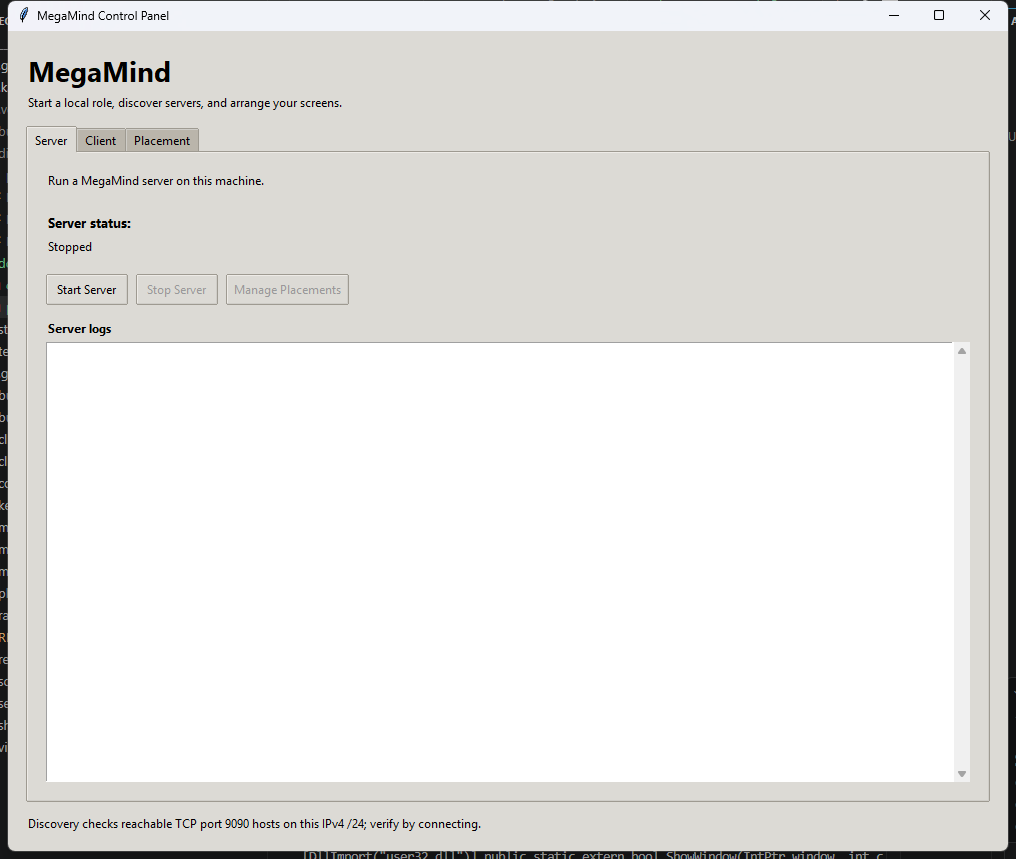
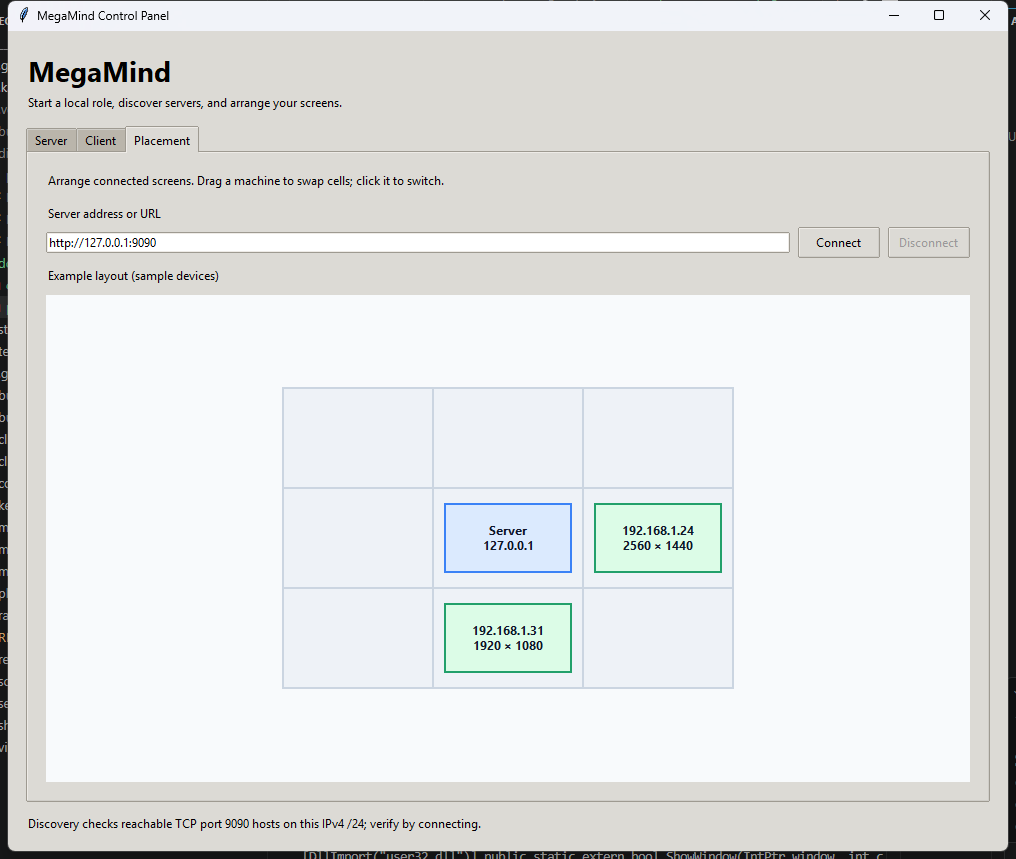
The placement screenshot uses sample device addresses; a live connection shows the machines registered with the selected server.
If you don't want to install Python, grab the standalone binaries from the dist/ folder:
| File | Platform | Role |
|---|---|---|
MegaMind_Server.exe | Windows | Server — run on the machine with your keyboard/mouse |
MegaMind_Client.exe | Windows | Client — run on every other machine |
MegaMind_Control_Panel.exe | Windows | Desktop GUI to manage local roles and screen placements |
MegaMind_Control_Panel.pkg | macOS | Installer for /Applications/MegaMind_Control_Panel.app |
MegaMind_Client.pkg | macOS | Installer for the command-line client |
.\dist\MegaMind_Server.exe
No arguments needed. It auto-detects your LAN IP and starts on port 9090.
.\dist\MegaMind_Client.exe http://<server-ip>:9090
Replace <server-ip> with the IP printed by the server on startup.
dist\MegaMind_Control_Panel.exe (or double-click it). The packaged app requests Administrator permission because local input capture/injection may require elevation.dist/MegaMind_Control_Panel.pkg, then open /Applications/MegaMind_Control_Panel.app. Grant Accessibility permission to the app in System Settings → Privacy & Security → Accessibility and relaunch it.In the Server tab, use Start Server / Stop Server to manage the server on this computer; stopping it waits for input-capture cleanup. Manage Placements opens the native Placement tab and connects it to the local server.
In the Client tab, Scan LAN probes other hosts in the local IPv4 /24 for reachable TCP port 9090. Choose a result or enter a host/IP/HTTP(S) URL yourself, then use Connect or Disconnect. An open port is only a candidate: the client confirms MegaMind registration before reporting connected. Manage Placements opens the native editor for the selected server. In the Placement tab, you can also enter a server URL directly, drag machine cards to swap screen locations, and click a card to switch control. These controls start and stop only the local instance, not remote machines.
Each tab also includes a live, scrollable log for its local role: server output appears in the Server tab and client output in the Client tab. Both standard output and errors are shown. Log history remains available until the Control Panel closes and is not saved between sessions.
macOS: Grant Accessibility permission to the terminal or app bundle that runs the executable (
System Settings → Privacy & Security → Accessibility), then re-run.
Windows firewall: Allow inbound port 9090 on the server machine (one-time, elevated PowerShell):
New-NetFirewallRule -DisplayName "MegaMind" -Direction Inbound -Protocol TCP -LocalPort 9090 -Action Allow
Once both are running, use the desktop panel's Placement tab or open http://<server-ip>:9090 in any browser to arrange your machines.
pip (see below)websockets.exeThere is no websockets.exe to download. websockets is a Python library that MegaMind installs with pip (it's listed in requirements.txt).
When you pip install websockets, pip automatically creates a small websockets.exe launcher in your Python Scripts\ folder — that's just the package's optional command-line client, and MegaMind does not use it. You never need to download or run it.
⚠️ Do not download a file called
websockets.exefrom any website. Sites offering random.exedownloads for Python packages are a common malware vector. The only correct way to getwebsocketsispip install.
On each machine:
# 1. Get the code (copy the folder, clone, or download a zip)
cd megamind

# 2. Install dependencies
pip install -r requirements.txt
requirements.txt contains:
| Package | Purpose |
|---|---|
fastapi, uvicorn[standard] | web server + WebSocket transport |
websockets | WebSocket client (on the client side) |
pynput | keyboard/mouse capture + injection |
pyperclip | clipboard read/write |
pyobjc-framework-Quartz | macOS only — smooth, native mouse injection |
macOS (as a client, or server):
System Settings → Privacy & Security → Accessibility → add Terminal (or iTerm/VS Code), then restart the app.MegaMind_Control_Panel.app and relaunch it.pyobjc-framework-Quartz installs automatically from requirements.txt.Windows (as the server):
New-NetFirewallRule -DisplayName "MegaMind" -Direction Inbound -Protocol TCP -LocalPort 9090 -Action Allow
To launch the native panel from source, run:
python control_panel.py
Use its Server, Client, and Placement tabs to manage the local role and screens. The server tab starts/stops the local server and opens its placement editor; the client tab scans or accepts a manual address and connects/disconnects; the Placement tab connects to a server and provides a native 3×3 grid. Scan results indicate a reachable port, not a verified MegaMind server; a successful registration is required for the Connected status.
On Windows, run the source version as Administrator if input capture/injection is denied. On macOS, grant Accessibility permission to the Python executable or packaged app before connecting.
python server.py
It prints a banner like:
============================================================
MegaMind Server
  Local IP     : 192.168.0.129
  Desktop      : 3840x1083 @ (0,-3)
  Web UI       : http://192.168.0.129:9090
  Port         : 9090
  Mouse capture: Raw Input (frozen cursor)
============================================================
Note the Local IP — clients need it.
python client.py http://192.168.0.129:9090
(Use your server's actual IP.) The client auto-registers and appears in the web UI. On macOS confirm the banner says Inject mode : Quartz CGEvent (smooth).
Use the Placement tab in the desktop panel, or visit http://<server-ip>:9090 in any browser.
Now move your mouse to the configured screen edge — control crosses to that machine. Move to the opposite edge on that machine to return.
Run the control-panel and local server/client integration checks with:
python -m unittest discover -s tests -v
Standalone diagnostics are included:
| Command | What it checks |
|---|---|
python screens.py | Prints the detected virtual-desktop bounds (all monitors) |
python rawinput_win.py | (Windows) Prints raw relative mouse deltas — confirms capture works |
python test_capture.py | (Windows) Shows the server's capture/recenter behavior |
python test_inject.py | (macOS) Confirms Quartz cursor injection is smooth |
The automated checks for discovery, connection validation, lifecycle cleanup, native placement interactions, WebSocket layout/force-switch updates, and disconnect behavior are in tests/ (see the command above).
Common issues
[client] Disconnected ([WinError 1225] ... refused) — the server isn't running/reachable. Confirm server.py is running, the URL uses the server's real LAN IP, port 9090 is open, and both machines are on the same subnet. Test from the client: open http://<server-ip>:9090 in a browser.pyobjc-framework-Quartz not installed; the client banner will say pynput FALLBACK. Run pip install pyobjc-framework-Quartz.Clipboard : unavailable if pyperclip can't reach the clipboard. Run pip install pyperclip. (Linux also needs xclip or xsel.)| File | Role |
|---|---|
server.py | Server: input capture, edge detection, WebSocket + web server |
client.py | Client: connects, injects mouse/keyboard, watches return edge |
control_panel.py | Local desktop GUI for server/client lifecycle, discovery, connection, and native placement editing |
placement_grid.py | Pure helpers for the desktop 3×3 placement editor |
rawinput_win.py | Windows Raw Input mouse capture (relative motion while cursor is frozen) |
screens.py | Cross-platform virtual-desktop bounds (multi-monitor) |
clipboard_sync.py | Cross-platform text clipboard monitor + apply |
static/index.html | Web control panel (3×3 grid UI) |
megamind_control_panel.spec | PyInstaller target for the desktop control panel |
tests/ | Discovery, connection, process-lifecycle, placement, and integration checks |
requirements.txt | Python dependencies |
test_*.py | Standalone diagnostics |
Control multiple computers (Windows + macOS) with a single keyboard and mouse over your local network — like Synergy or Mouse without Borders, with a local desktop control panel that includes a native placement editor and a browser-based dashboard.
Move your mouse off the edge of the server's screen and it appears on another machine. Keyboard, mouse, and the text clipboard follow. Arrange machines visually in a 3×3 grid from the desktop panel or a browser.
        ┌─────────────────────────┐         ┌──────────────────────────┐
        │   SERVER  (Windows)     │         │   CLIENT  (macOS / Win)  │
        │  physical mouse + kbd   │         │   receives & injects     │
        │  ┌───────────────────┐  │   WS    │  ┌────────────────────┐  │
        │  │ Raw Input capture │──┼────────▶│  │ Quartz / pynput    │  │
        │  │ pynput suppress   │  │  9090   │  │ injection          │  │
        │  └───────────────────┘  │         │  └────────────────────┘  │
        │  Web UI (FastAPI) ◀─────┼─ browser┘                          │
        └─────────────────────────┘         └──────────────────────────┘
Server OS: Windows is the recommended server. It uses the Win32 Raw Input API to read true relative mouse motion while the local cursor stays frozen (no drift, no click-leak). A macOS server currently falls back to a less precise capture path.
The placement screenshot uses sample device addresses; a live connection shows the machines registered with the selected server.
If you don't want to install Python, grab the standalone binaries from the dist/ folder:
| File | Platform | Role |
|---|---|---|
MegaMind_Server.exe | Windows | Server — run on the machine with your keyboard/mouse |
MegaMind_Client.exe | Windows | Client — run on every other machine |
MegaMind_Control_Panel.exe | Windows | Desktop GUI to manage local roles and screen placements |
MegaMind_Control_Panel.pkg | macOS | Installer for /Applications/MegaMind_Control_Panel.app |
MegaMind_Client.pkg | macOS | Installer for the command-line client |
.\dist\MegaMind_Server.exe
No arguments needed. It auto-detects your LAN IP and starts on port 9090.
.\dist\MegaMind_Client.exe http://<server-ip>:9090
Replace <server-ip> with the IP printed by the server on startup.
dist\MegaMind_Control_Panel.exe (or double-click it). The packaged app requests Administrator permission because local input capture/injection may require elevation.dist/MegaMind_Control_Panel.pkg, then open /Applications/MegaMind_Control_Panel.app. Grant Accessibility permission to the app in System Settings → Privacy & Security → Accessibility and relaunch it.In the Server tab, use Start Server / Stop Server to manage the server on this computer; stopping it waits for input-capture cleanup. Manage Placements opens the native Placement tab and connects it to the local server.
In the Client tab, Scan LAN probes other hosts in the local IPv4 /24 for reachable TCP port 9090. Choose a result or enter a host/IP/HTTP(S) URL yourself, then use Connect or Disconnect. An open port is only a candidate: the client confirms MegaMind registration before reporting connected. Manage Placements opens the native editor for the selected server. In the Placement tab, you can also enter a server URL directly, drag machine cards to swap screen locations, and click a card to switch control. These controls start and stop only the local instance, not remote machines.
Each tab also includes a live, scrollable log for its local role: server output appears in the Server tab and client output in the Client tab. Both standard output and errors are shown. Log history remains available until the Control Panel closes and is not saved between sessions.
macOS: Grant Accessibility permission to the terminal or app bundle that runs the executable (
System Settings → Privacy & Security → Accessibility), then re-run.
Windows firewall: Allow inbound port 9090 on the server machine (one-time, elevated PowerShell):
New-NetFirewallRule -DisplayName "MegaMind" -Direction Inbound -Protocol TCP -LocalPort 9090 -Action Allow
Once both are running, use the desktop panel's Placement tab or open http://<server-ip>:9090 in any browser to arrange your machines.
pip (see below)websockets.exeThere is no websockets.exe to download. websockets is a Python library that MegaMind installs with pip (it's listed in requirements.txt).
When you pip install websockets, pip automatically creates a small websockets.exe launcher in your Python Scripts\ folder — that's just the package's optional command-line client, and MegaMind does not use it. You never need to download or run it.
⚠️ Do not download a file called
websockets.exefrom any website. Sites offering random.exedownloads for Python packages are a common malware vector. The only correct way to getwebsocketsispip install.
On each machine:
# 1. Get the code (copy the folder, clone, or download a zip)
cd megamind

# 2. Install dependencies
pip install -r requirements.txt
requirements.txt contains:
| Package | Purpose |
|---|---|
fastapi, uvicorn[standard] | web server + WebSocket transport |
websockets | WebSocket client (on the client side) |
pynput | keyboard/mouse capture + injection |
pyperclip | clipboard read/write |
pyobjc-framework-Quartz | macOS only — smooth, native mouse injection |
macOS (as a client, or server):
System Settings → Privacy & Security → Accessibility → add Terminal (or iTerm/VS Code), then restart the app.MegaMind_Control_Panel.app and relaunch it.pyobjc-framework-Quartz installs automatically from requirements.txt.Windows (as the server):
New-NetFirewallRule -DisplayName "MegaMind" -Direction Inbound -Protocol TCP -LocalPort 9090 -Action Allow
To launch the native panel from source, run:
python control_panel.py
Use its Server, Client, and Placement tabs to manage the local role and screens. The server tab starts/stops the local server and opens its placement editor; the client tab scans or accepts a manual address and connects/disconnects; the Placement tab connects to a server and provides a native 3×3 grid. Scan results indicate a reachable port, not a verified MegaMind server; a successful registration is required for the Connected status.
On Windows, run the source version as Administrator if input capture/injection is denied. On macOS, grant Accessibility permission to the Python executable or packaged app before connecting.
python server.py
It prints a banner like:
============================================================
MegaMind Server
  Local IP     : 192.168.0.129
  Desktop      : 3840x1083 @ (0,-3)
  Web UI       : http://192.168.0.129:9090
  Port         : 9090
  Mouse capture: Raw Input (frozen cursor)
============================================================
Note the Local IP — clients need it.
python client.py http://192.168.0.129:9090
(Use your server's actual IP.) The client auto-registers and appears in the web UI. On macOS confirm the banner says Inject mode : Quartz CGEvent (smooth).
Use the Placement tab in the desktop panel, or visit http://<server-ip>:9090 in any browser.
Now move your mouse to the configured screen edge — control crosses to that machine. Move to the opposite edge on that machine to return.
Run the control-panel and local server/client integration checks with:
python -m unittest discover -s tests -v
Standalone diagnostics are included:
| Command | What it checks |
|---|---|
python screens.py | Prints the detected virtual-desktop bounds (all monitors) |
python rawinput_win.py | (Windows) Prints raw relative mouse deltas — confirms capture works |
python test_capture.py | (Windows) Shows the server's capture/recenter behavior |
python test_inject.py | (macOS) Confirms Quartz cursor injection is smooth |
The automated checks for discovery, connection validation, lifecycle cleanup, native placement interactions, WebSocket layout/force-switch updates, and disconnect behavior are in tests/ (see the command above).
Common issues
[client] Disconnected ([WinError 1225] ... refused) — the server isn't running/reachable. Confirm server.py is running, the URL uses the server's real LAN IP, port 9090 is open, and both machines are on the same subnet. Test from the client: open http://<server-ip>:9090 in a browser.pyobjc-framework-Quartz not installed; the client banner will say pynput FALLBACK. Run pip install pyobjc-framework-Quartz.Clipboard : unavailable if pyperclip can't reach the clipboard. Run pip install pyperclip. (Linux also needs xclip or xsel.)| File | Role |
|---|---|
server.py | Server: input capture, edge detection, WebSocket + web server |
client.py | Client: connects, injects mouse/keyboard, watches return edge |
control_panel.py | Local desktop GUI for server/client lifecycle, discovery, connection, and native placement editing |
placement_grid.py | Pure helpers for the desktop 3×3 placement editor |
rawinput_win.py | Windows Raw Input mouse capture (relative motion while cursor is frozen) |
screens.py | Cross-platform virtual-desktop bounds (multi-monitor) |
clipboard_sync.py | Cross-platform text clipboard monitor + apply |
static/index.html | Web control panel (3×3 grid UI) |
megamind_control_panel.spec | PyInstaller target for the desktop control panel |
tests/ | Discovery, connection, process-lifecycle, placement, and integration checks |
requirements.txt | Python dependencies |
test_*.py | Standalone diagnostics |



