Automate repetitive terminal workflows with a GUI, global hotkeys and scheduling and manage aliases
See the codeEasyAlias is a small desktop app project for creating, viewing, and managing local terminal shortcuts through a UI.
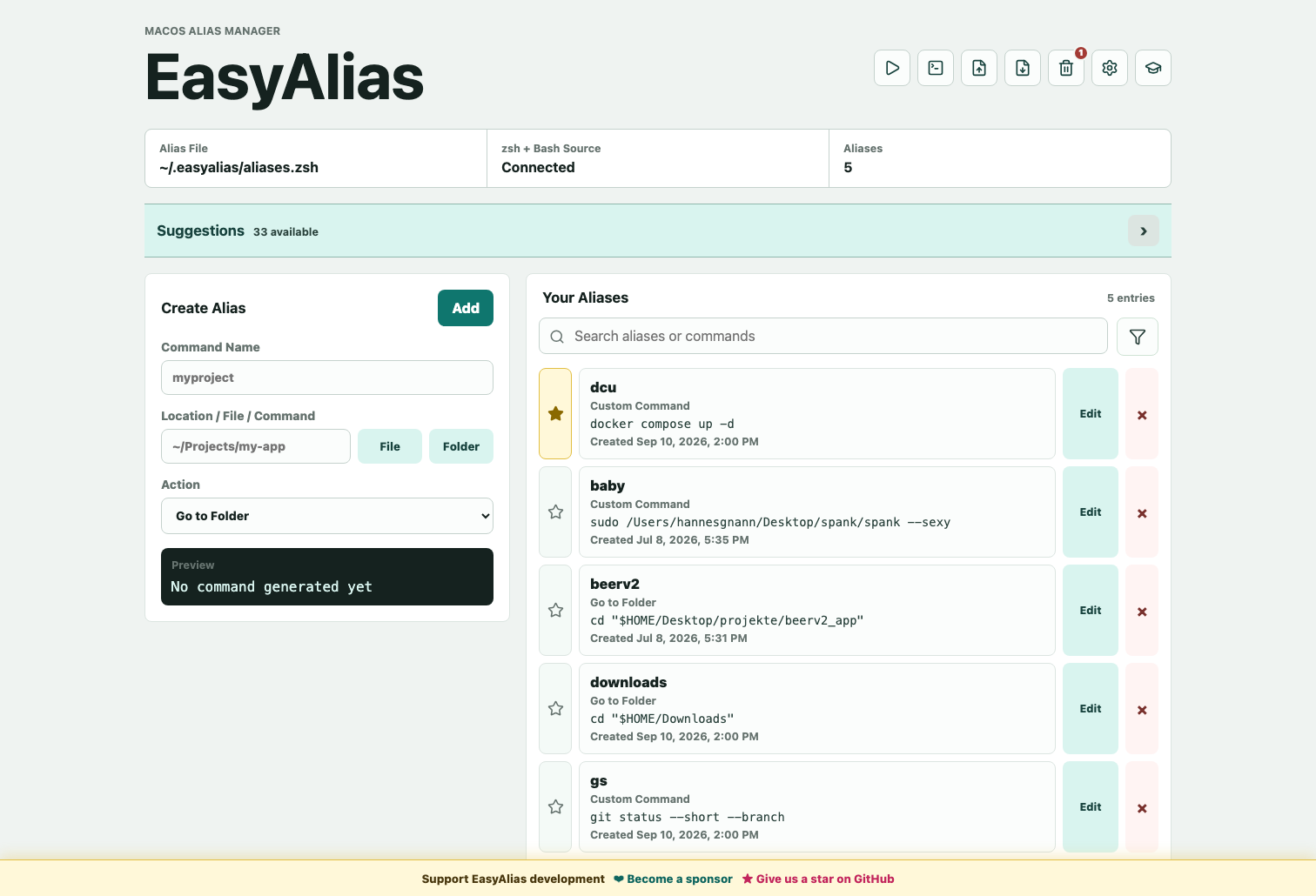
The idea: instead of manually editing shell files or hand-maintaining command scripts, EasyAlias gives you a simple interface. You enter a command name, choose a file or folder, select what should happen from a dropdown, and the app generates the matching platform-specific command.
Website | Mac App Store | GitHub | Reddit
Hi, I'm Hannes, the creator of EasyAlias and a Software Engineering student.
If EasyAlias saves you time, consider supporting its development.
Your sponsorship helps me fix bugs, develop new features, and keep EasyAlias free and open source.
Install the sandboxed edition from the Mac App Store, or install the direct desktop edition as a Homebrew cask:
brew tap hannesgnann-hub/tap
brew trust hannesgnann-hub/tap
brew install --cask easyalias
The current Homebrew formula supports ARM64 Linux systems:
brew tap hannesgnann-hub/tap
brew trust hannesgnann-hub/tap
brew install easyalias
Small terminal shortcuts tend to pile up over time:
Normally, these shortcuts end up scattered across shell config files, random .cmd folders, notes, and terminal history. EasyAlias keeps this cleaner:
flowchart LR
  A["Manual shortcuts in shell files or .cmd folders"] --> B["Hard to scan and easy to break"]
  B --> C["EasyAlias UI"]
  C --> D["Structured shortcut data"]
  D --> E["Generated platform files"]
  E --> F["Terminal uses short commands"]
EasyAlias has separate Tauri source projects for direct macOS distribution, the sandboxed Mac App Store edition, Windows, and Linux. They share the same product direction while using the native terminal integration and security model for each platform.
The direct macOS, direct Windows, Linux, and Mac App Store source trees share the current day-to-day management tools:
The direct macOS, direct Windows, and Linux editions also share the automation and app-shell tools (the sandboxed Mac App Store edition intentionally omits these):
The macOS version can:
.zshrc, .bash_profile, and .bashrc on first start or from the header import buttoncreatedAt and updatedAt~/.easyalias/aliases.zsh to .zshrc, .bash_profile, and .bashrceasya if the app is installed at /Applications/EasyAlias.applaunchd, and trigger them with a global keyboard shortcutThe Mac App Store version can:
.zshrc, .bash_profile, and .bashrc.app and installer-signed .pkg for App Store ConnectThe Windows version can:
.cmd/.bat aliases from user-owned PATH folders on first start or on demand.cmd files under ~/.easyalias/binPATH, so aliases work in cmd.exeThe Linux version can:
.bashrc or .zshrc on first start or on demand$SHELL~/.easyalias/aliases.sh~/.bashrc or ~/.zshrc.deb, .rpm, and .AppImage packagesThe screenshots show the current direct macOS edition. Windows and Linux share these workflows with platform-specific commands and storage locations. The sandboxed Mac App Store edition shares the alias-management screens but intentionally omits automations, schedules, global shortcuts, menu-bar controls, and start-at-login.
Click the star beside an alias to pin it above regular entries. Favorites and non-favorites are each sorted alphabetically.
The alias list is paginated so large collections stay compact. Search matches both alias names and command contents; the filter menu narrows the list by category.
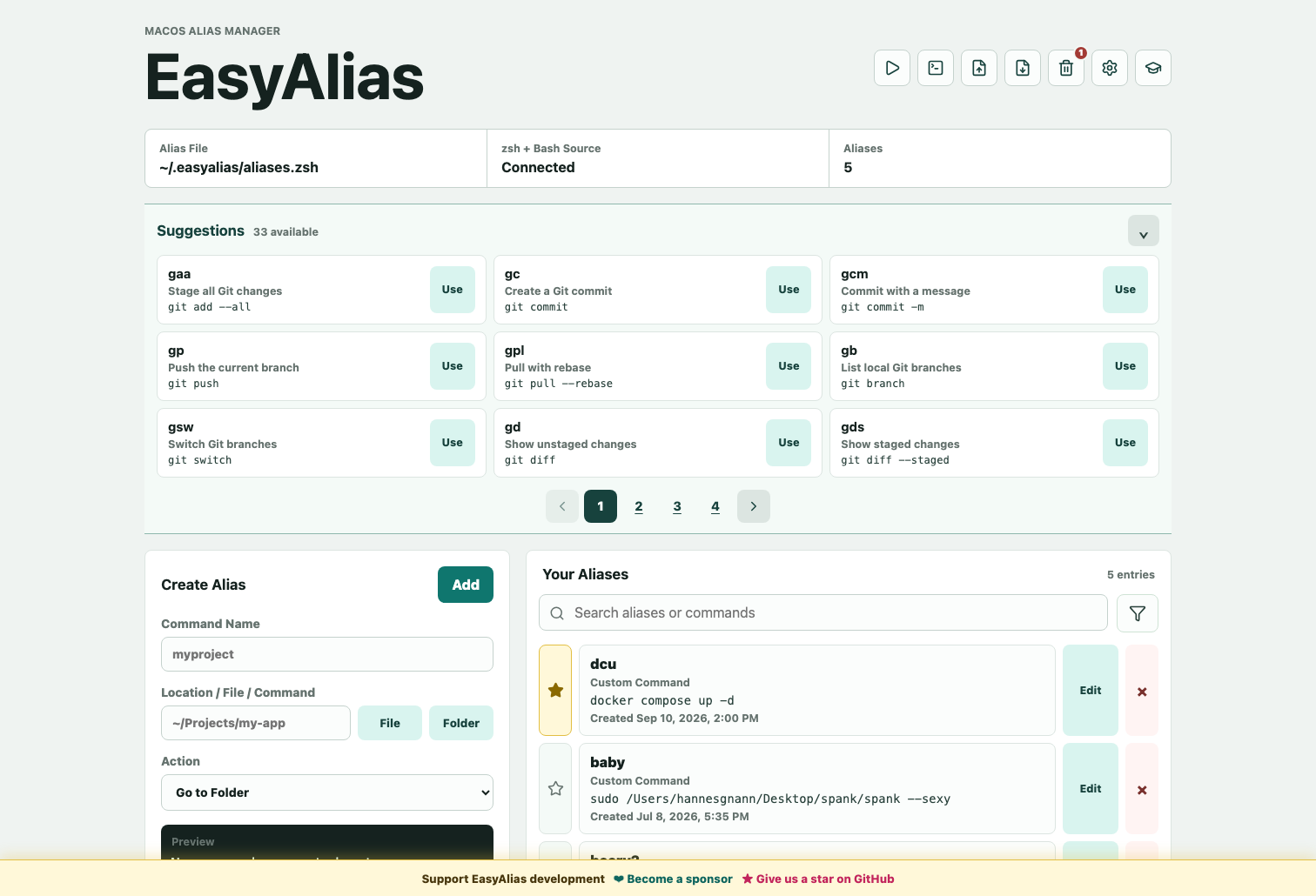
Suggestions start collapsed. Open the section to browse Git, Docker, build-tool, networking, and filesystem shortcuts. Nine suggestions are shown per page; Use saves one immediately.
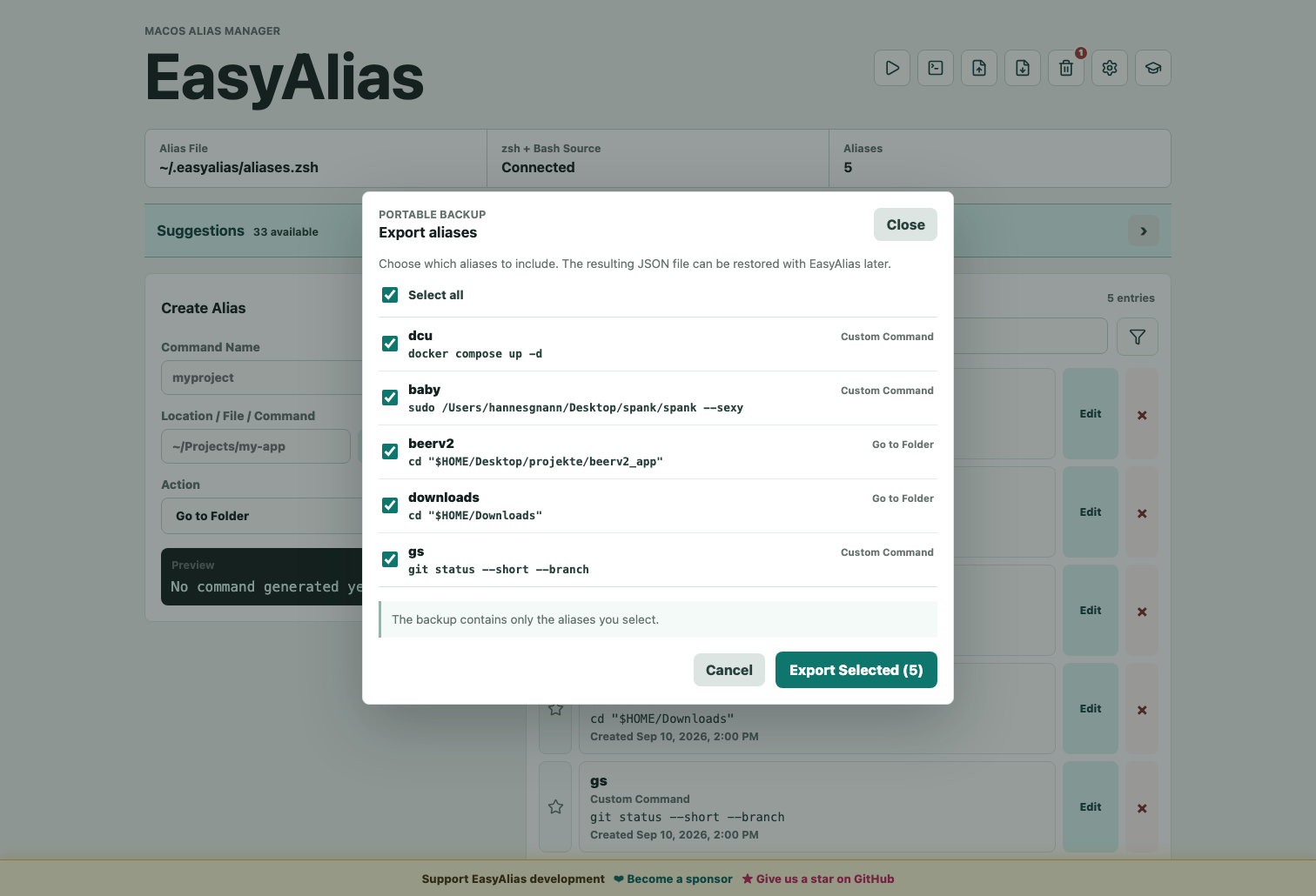
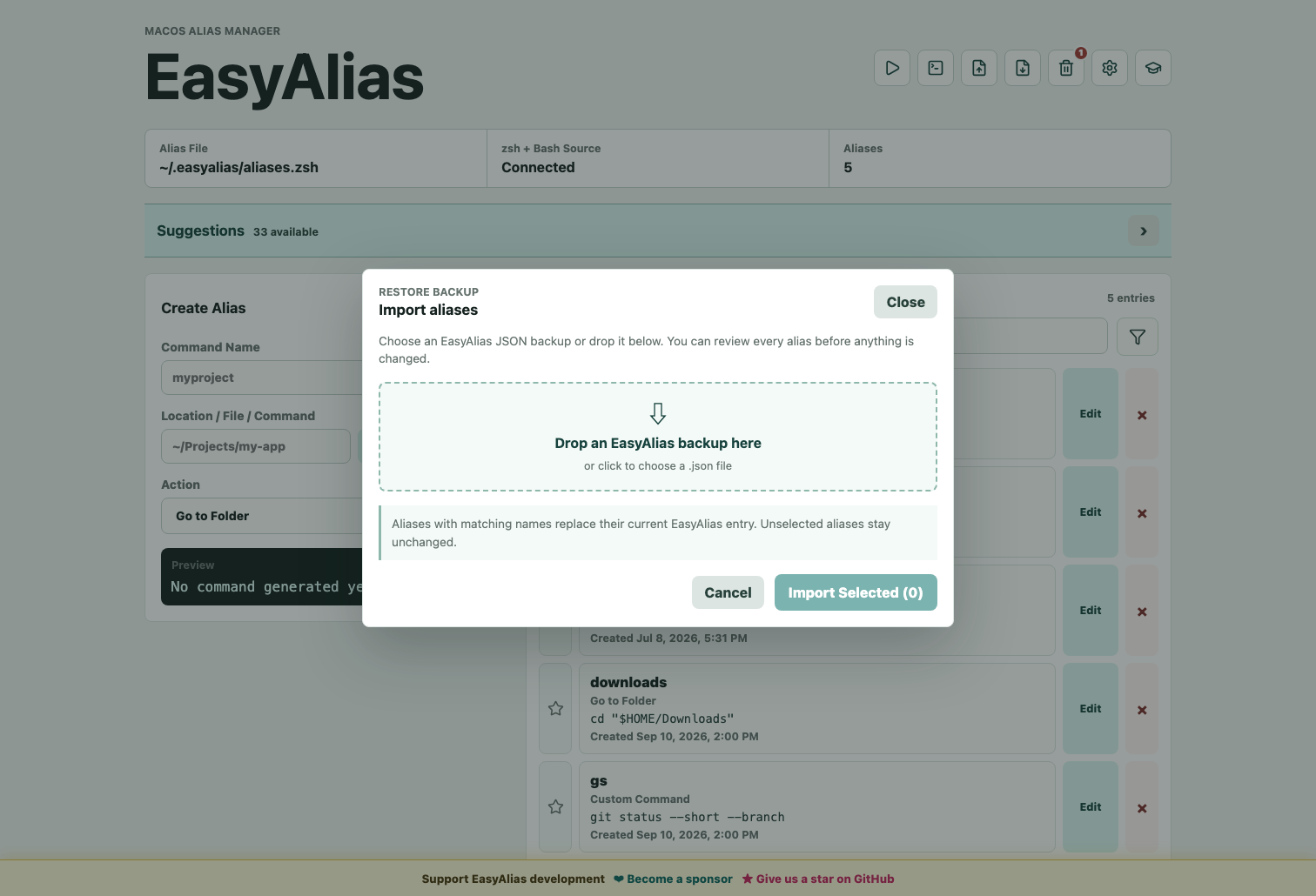
The export dialog writes only the selected aliases to a portable .json file. The import dialog accepts that file through the picker or drag and drop, validates it before showing its contents, and lets you choose exactly what to restore.
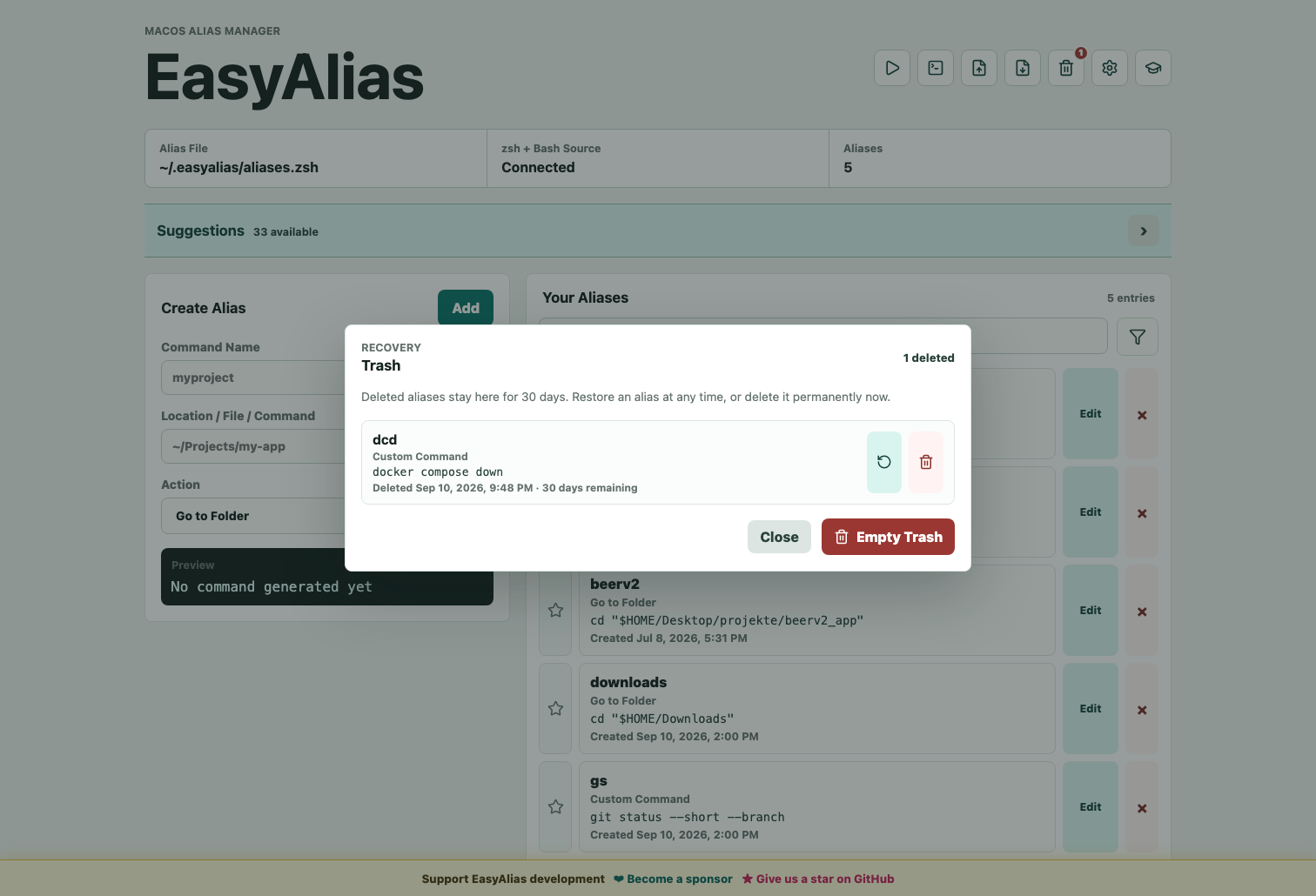
Deleting an alias moves it to Trash instead of removing it immediately. Deleted aliases remain recoverable for 30 days and can be restored, permanently deleted, or cleared together.
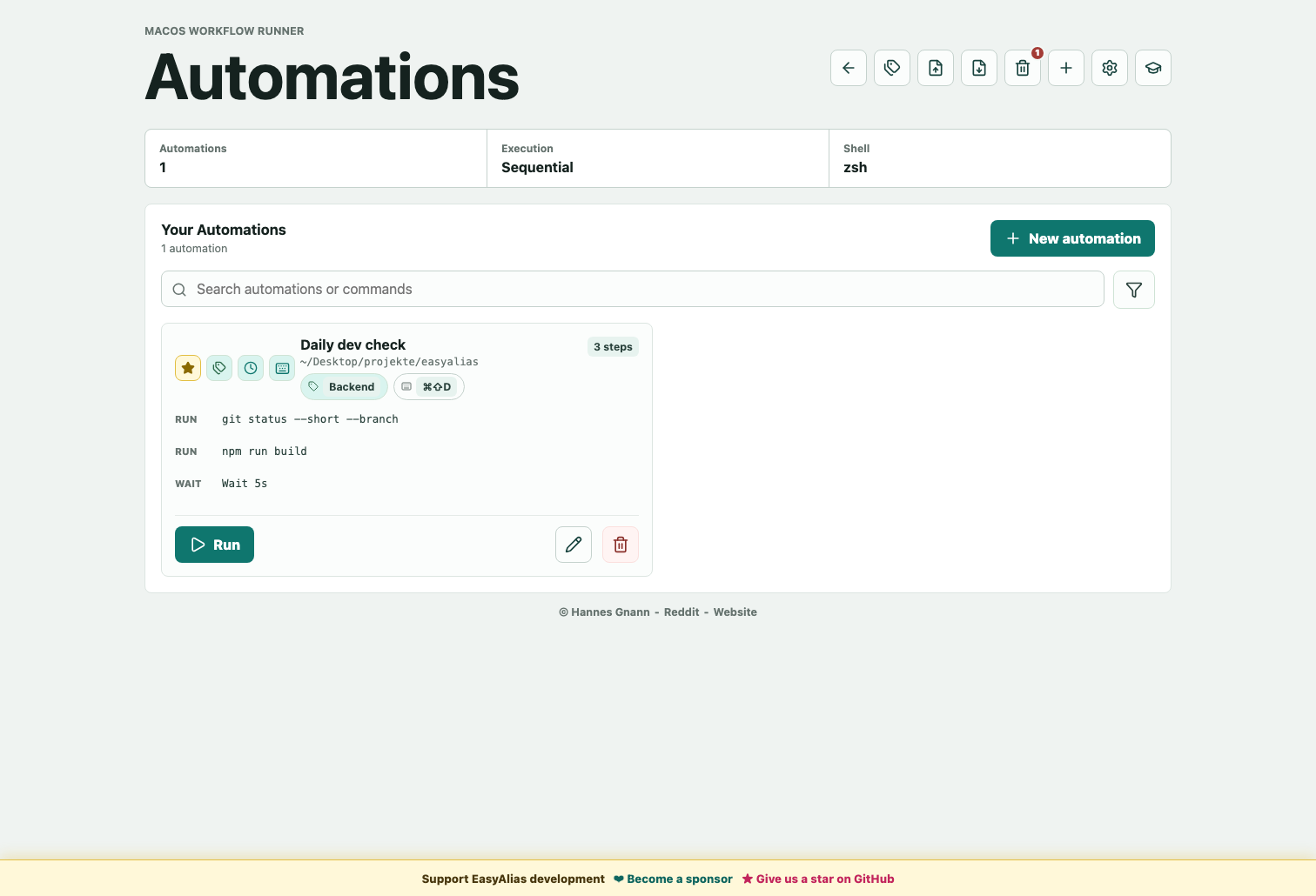
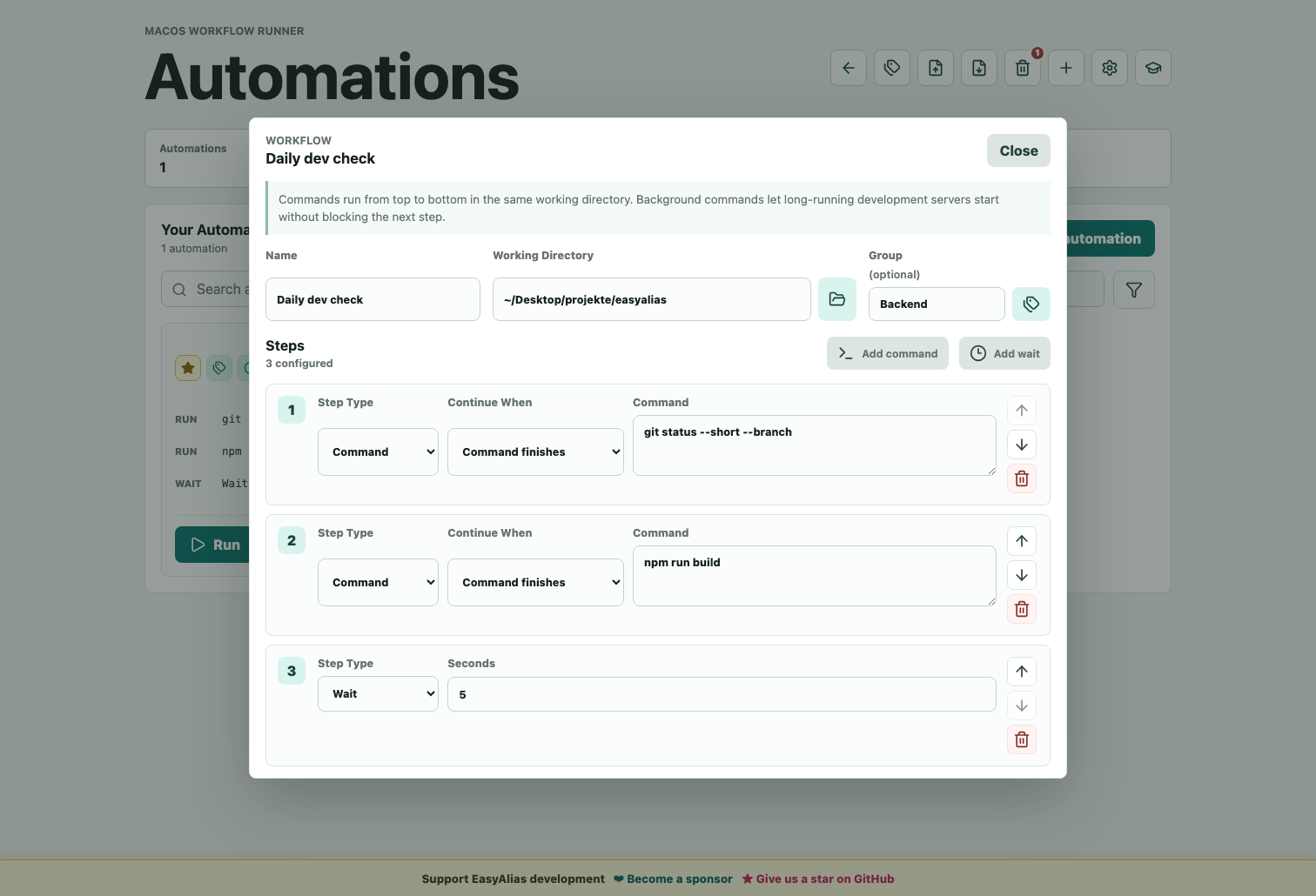
The automations view (top-right play icon) is a separate workspace for repeatable, multi-step workflows. An automation has a name, a working directory, and an ordered list of Command and Wait steps that all share one shell session, so a cd or exported variable carries across steps. Automations have their own favorites, free-text group labels, search/filter, a 30-day Trash, and portable JSON backup. If the working directory field points at a file, the run uses the folder that contains it.
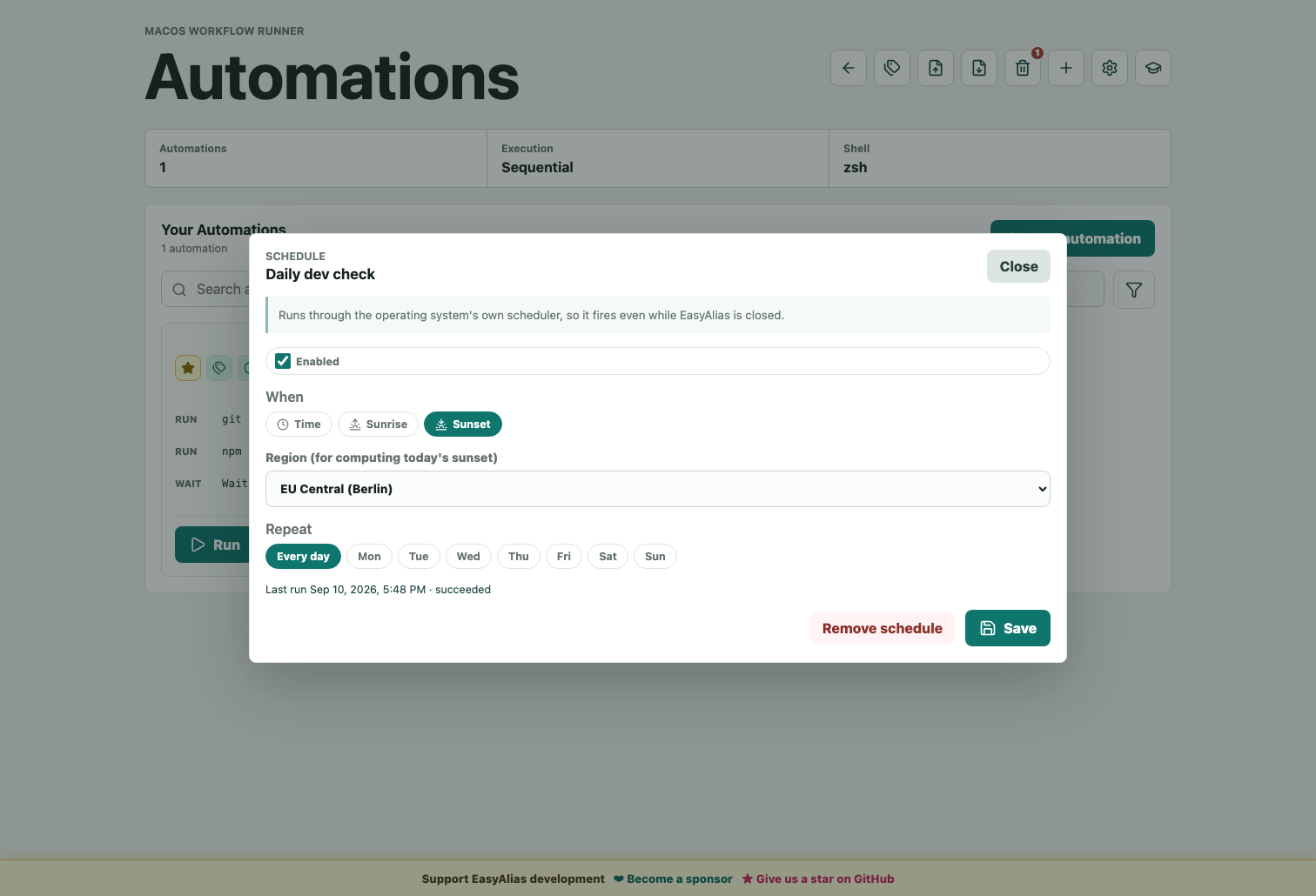
The clock icon on an automation card opens its schedule. Pick a trigger:
HH:MM.Optionally restrict it to specific weekdays. EasyAlias registers the schedule with the operating system's own scheduler (launchd on macOS, systemd --user timers on Linux, Task Scheduler on Windows), so a timed automation still fires when EasyAlias itself is not running. Clock-time entries get an exact-fire job each; sunrise/sunset entries ride a shared periodic checker. The card and modal show the outcome of the most recent run.
flowchart LR
  Card["Automation card"] --> Schedule["Schedule modal"]
  Schedule --> Kind{"Trigger"}
  Kind -- "Time HH:MM" --> ClockJob["Exact-fire OS job"]
  Kind -- "Sunrise / Sunset" --> SunCheck["Shared periodic checker + region"]
  ClockJob --> Runs["Automation runs (app open or closed)"]
  SunCheck --> Runs
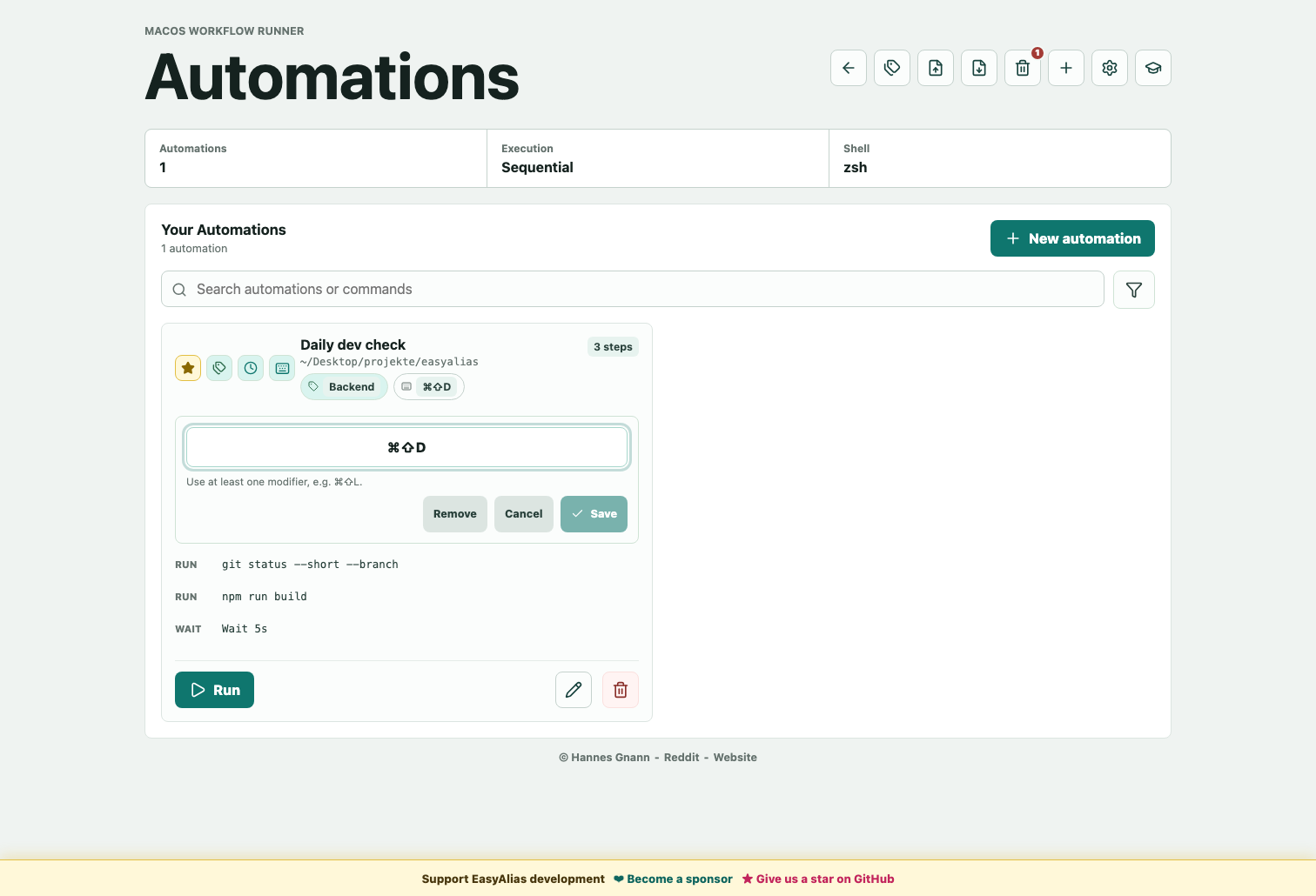
The keyboard icon on an automation card records a global shortcut (for example Cmd+Shift+L). While EasyAlias is running it fires that automation from anywhere. The Settings view chooses what a press does: bring the run window forward with live output, or run it silently in the background. A shortcut already claimed by the system or another app is rejected without being saved. Global shortcuts need a running process — see Menu Bar & Startup below.
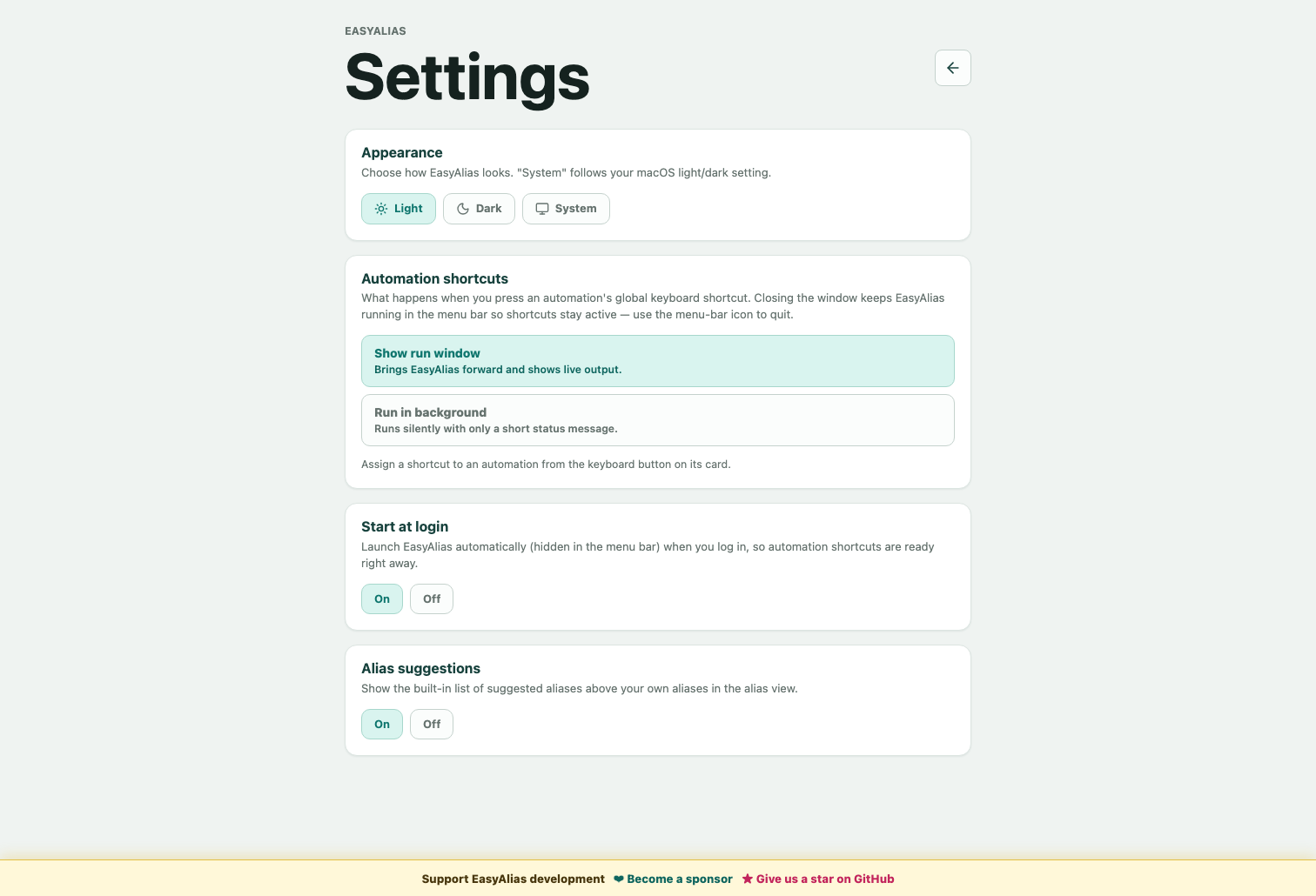
The gear icon (far right of the header) opens Settings:
| Setting | Options | Default |
|---|---|---|
| Appearance | Light / Dark / System | System |
| Automation shortcut behavior | Show run window / Run in background | Show run window |
| Alias suggestions | On / Off | On |
| Start at login | On / Off | Off |
Preferences are stored in ~/.easyalias/settings.json.
Closing the window no longer quits EasyAlias — it hides the window and the app keeps running in the menu bar (macOS) or system tray (Windows/Linux), so scheduled and shortcut triggers stay available. The tray menu has Show EasyAlias and Quit EasyAlias; a left click also reveals the window. Turning on Start at login launches EasyAlias hidden in the tray when you sign in.
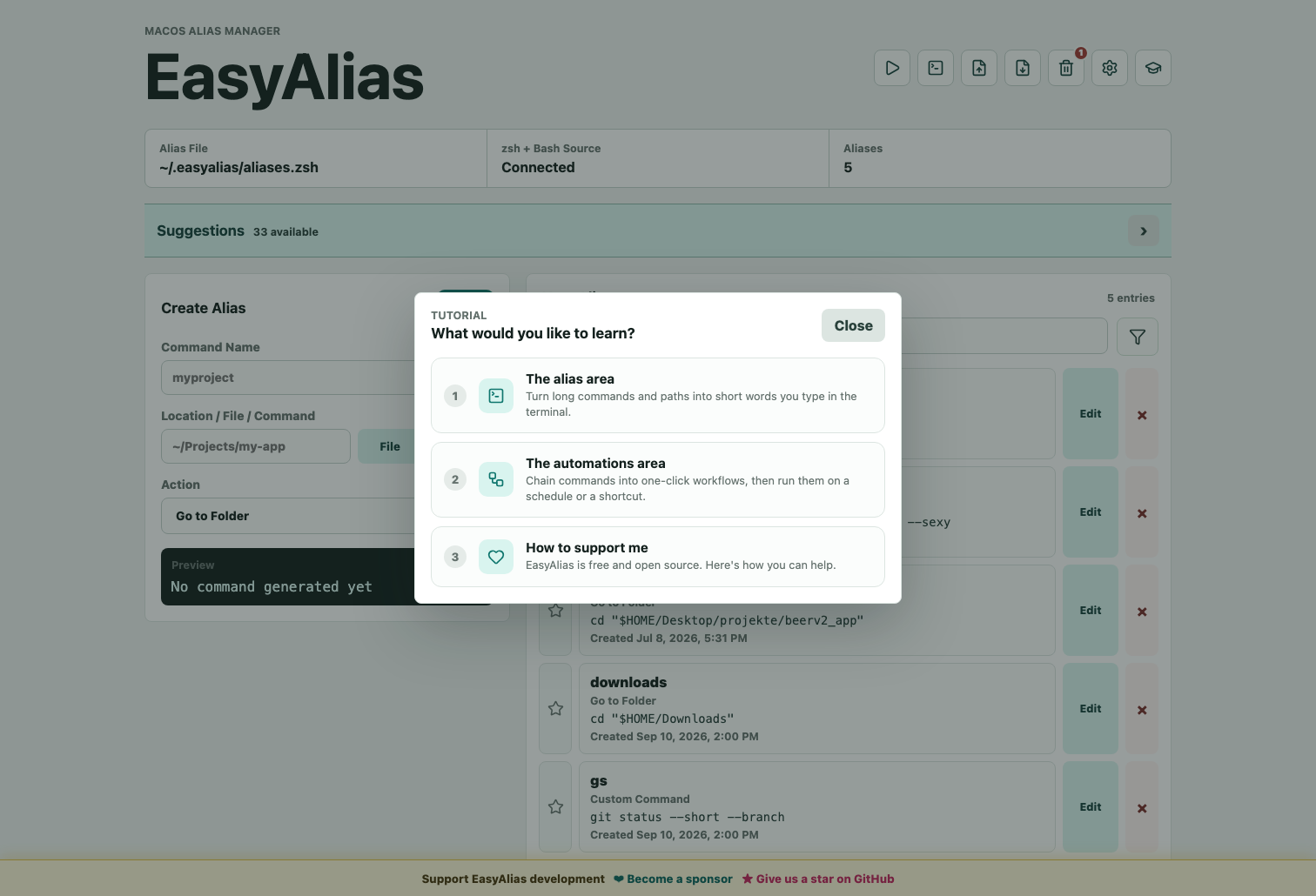
The graduation-cap button at the far right of the header opens a built-in tutorial: pick the alias area, the automations area, or how to support me, then step through an illustrated walkthrough.
easyalias/
  mac_src/          macOS source code for the Tauri app
  mac_export/       built macOS export, e.g. EasyAlias.zip
  mac_src_app_store/ sandboxed macOS source for Mac App Store distribution

  windows_src/      Windows source code for the Tauri app
  windows_export/   built Windows installer exports

  linux_src/        Linux source code for the Tauri app
  linux_export/     built Linux packages

  README.md         this project overview
Documentation is split by scope:
| Document | Scope |
|---|---|
README.md | shared project overview |
mac_src/README.md | macOS app usage |
mac_src/docs/ARCHITECTURE.md | macOS technical architecture |
mac_src_app_store/README.md | Mac App Store setup, signing, and upload guide |
mac_src_app_store/docs/ARCHITECTURE.md | App Sandbox and bookmark architecture |
windows_src/README.md | Windows app usage |
windows_src/docs/ARCHITECTURE.md | Windows technical architecture |
linux_src/README.md | Linux app usage and build guide |
linux_src/docs/ARCHITECTURE.md | Linux technical architecture |
flowchart TD
  Root["easyalias/"]
  Root --> MacSrc["mac_src/ macOS source"]
  Root --> MacExport["mac_export/ macOS export"]
  Root --> MacStore["mac_src_app_store/ sandboxed macOS source"]
  Root --> WinSrc["windows_src/ Windows source"]
  Root --> WinExport["windows_export/ Windows exports"]
  Root --> LinuxSrc["linux_src/ Linux source"]
  Root --> LinuxExport["linux_export/ Linux exports"]
  Root --> RootReadme["README.md project overview"]

  MacSrc --> MacFrontend["src/ macOS UI"]
  MacSrc --> MacBackend["src-tauri/ macOS backend"]
  MacSrc --> MacDocs["docs/ macOS architecture"]
  MacStore --> StoreFrontend["src/ Store UI"]
  MacStore --> StoreBackend["src-tauri/ sandbox backend"]
  MacStore --> StoreDocs["docs/ Store architecture"]
  WinSrc --> WinFrontend["src/ Windows UI"]
  WinSrc --> WinBackend["src-tauri/ Windows backend"]
  WinSrc --> WinDocs["docs/ Windows architecture"]
  LinuxSrc --> LinuxFrontend["src/ Linux UI"]
  LinuxSrc --> LinuxBackend["src-tauri/ Linux backend"]
  LinuxSrc --> LinuxDocs["docs/ Linux architecture"]
The macOS source lives in:
mac_src/
Install the released app with Homebrew:
brew tap hannesgnann-hub/tap
brew trust hannesgnann-hub/tap
brew install --cask easyalias
Typical workflow:
cd mac_src
npm install
npm run tauri dev
Build:
npm run tauri build
Export:
cp -R src-tauri/target/release/bundle/macos/EasyAlias.app /Applications/
ditto -c -k --keepParent src-tauri/target/release/bundle/macos/EasyAlias.app ../mac_export/EasyAlias.zip
The sandboxed edition is available on the Mac App Store.
The sandboxed Store source lives in:
mac_src_app_store/
It is intentionally separate from mac_src/. Before it can manage aliases, the user selects the Home folder once and macOS grants persistent access through a security-scoped bookmark. EasyAlias then works only with .zshrc, .bash_profile, and .bashrc inside that selected folder.
Run the source checks:
cd mac_src_app_store
npm install
npm run build
cargo test --manifest-path src-tauri/Cargo.toml
The final App Store build additionally requires Apple Distribution and Mac Installer Distribution certificates plus a Mac App Store Connect provisioning profile. See mac_src_app_store/README.md for the exact registration, signing, .pkg, and upload steps.
The Windows source lives in:
windows_src/
Typical workflow on Windows:
cd windows_src
npm install
npm run tauri dev
Build:
npm run tauri build
The Windows version uses the same UI and product idea, but integrates with cmd.exe instead of zsh.
The generated NSIS installer can also be hosted and submitted through the Microsoft Partner Center EXE or MSI app workflow. Use /S for unattended NSIS installation when the Store submission asks for a silent-install parameter.
The Linux source lives in:
linux_src/
Typical workflow on Linux:
cd linux_src
npm install
npm run tauri dev
Build .deb, .rpm, and .AppImage packages:
npm run tauri build
The Linux version detects bash or zsh, creates ~/.easyalias/aliases.sh, and connects it to the matching shell startup file. Full prerequisites and export commands are documented in linux_src/README.md.
Development can be coordinated from a Mac, but release packages should be produced on the operating system they target:
| Source project | Recommended build host | Configured output |
|---|---|---|
mac_src | macOS | .app bundle |
mac_src_app_store | macOS with Apple signing assets | universal sandboxed .app and signed .pkg |
windows_src | Windows | NSIS .exe installer |
linux_src | Linux | .deb, .rpm, and .AppImage packages |
A Windows or Linux VM works for occasional builds. For repeatable releases, use separate macOS, Windows, and Linux jobs in a CI matrix and upload their artifacts to one release. Tauri documents this pattern in its GitHub Actions guide. Windows MSI output requires Windows, while the configured NSIS target can also be cross-compiled with additional tooling; see the Windows installer guide. Linux packages should be built on Linux because their native libraries and compatibility baseline matter.
flowchart LR
  Shared["Shared idea and UI"]
  Shared --> Mac["macOS"]
  Shared --> MacStore["Mac App Store"]
  Shared --> Win["Windows"]
  Shared --> Linux["Linux"]

  Mac --> MacShell["zsh and Bash startup files"]
  MacShell --> ZshFile["~/.easyalias/aliases.zsh"]
  ZshFile --> MacStartup["source in .zshrc, .bash_profile, and .bashrc"]

  MacStore --> Bookmark["User-selected Home-folder bookmark"]
  Bookmark --> ManagedBlock["Managed blocks in three startup files"]

  Win --> Cmd["cmd.exe"]
  Cmd --> Bin["$HOME/.easyalias/bin/*.cmd"]
  Bin --> Path["folder in User PATH"]

  Linux --> Shell["bash or zsh"]
  Shell --> ShellFile["~/.easyalias/aliases.sh"]
  ShellFile --> ShellRc["source in ~/.bashrc or ~/.zshrc"]
macOS uses:
~/.easyalias/aliases.zsh
source ~/.easyalias/aliases.zsh
Windows uses:
%USERPROFILE%\.easyalias\bin
%USERPROFILE%\.easyalias\bin\beerv2.cmd
Instead of zsh alias lines, Windows generates .cmd files, for example:
@echo off
cd /d "%USERPROFILE%\Desktop\projects\beerv2_app"
After the first Windows app start, open a new cmd.exe window so the updated user PATH is visible. You can verify command resolution with:
where beerv2
Linux uses:
~/.easyalias/aliases.sh
source ~/.easyalias/aliases.sh
After the first Linux app start, open a new terminal or reload the detected shell startup file with source ~/.bashrc or source ~/.zshrc.
Fresh direct-install editions automatically detect existing aliases and offer a one-time selection dialog. The Mac App Store edition performs that scan only after the user explicitly connects the Home folder. After the prompt has been handled, the import icon in the top-right corner can rescan the same platform-specific source at any time. EasyAlias never imports silently and creates a backup before confirmed source data is changed.
| Platform | Detection source | Backup |
|---|---|---|
| macOS | safe, single-line aliases in ~/.zshrc, ~/.bash_profile, and ~/.bashrc | matching *.easyalias-backup-* files |
| Mac App Store | safe, single-line aliases in the three supported files of the selected Home folder | App Sandbox container backups/ |
| Linux | safe, single-line aliases in the detected ~/.bashrc or ~/.zshrc | matching .bashrc.easyalias-backup-* or .zshrc.easyalias-backup-* |
| Windows | simple .cmd/.bat alias files in user-owned PATH folders | ~/.easyalias/import-backup-* |
Complex, nested, repeated, multiline, malformed, or location-dependent definitions are skipped rather than guessed. Aliases already managed by EasyAlias are excluded from later rescans. Selecting Skip Import leaves existing aliases unchanged and closes only the automatic first-start prompt; the import icon remains available.
flowchart TD
  Start["Open EasyAlias"] --> Trigger{"First start with candidates?"}
  Trigger -- "yes" --> Review["Review detected aliases"]
  Trigger -- "no" --> Main["Alias manager"]
  Main -->|"click import icon"| Rescan["Rescan platform source"]
  Rescan --> Found{"New safe aliases found?"}
  Found -- "no" --> Message["Show no-new-aliases message"]
  Found -- "yes" --> Review
  Review --> Select["Select entries"]
  Select --> Backup["Create backup"]
  Backup --> Import["Store managed aliases"]
This legacy-import flow is separate from portable backup import. The legacy scanner migrates aliases already present in platform configuration files; the backup dialog restores EasyAlias JSON files created with the export button.
Portable backups use the same versioned JSON envelope in the direct macOS, Windows, Linux, and Mac App Store editions. This makes it possible to move selected aliases between those EasyAlias installations while reviewing every entry before it changes the destination configuration.
flowchart LR
  Managed["Managed EasyAlias aliases"] --> SelectExport["Select aliases to export"]
  SelectExport --> Json["Versioned EasyAlias JSON backup"]
  Json --> Validate["Validate and inspect backup"]
  Validate --> SelectImport["Select aliases to import"]
  SelectImport --> Merge["Replace matching names and add new aliases"]
The importer rejects unsupported formats, malformed entries, duplicate ids or names, and files larger than 5 MB. Unselected aliases remain unchanged.
| Action | macOS/zsh or Bash | Windows/cmd | Linux/bash or zsh |
|---|---|---|---|
| Navigate to folder | cd "<path>" | cd /d "<path>" | cd "<path>" |
| Open | open "<path>" | start "" "<path>" | xdg-open "<path>" |
| Execute | "<path>" | call "<path>" %* | "<path>" |
| Gradle Build | cd "<path>" && ./gradlew build | cd /d "<path>" && call gradlew.bat build | cd "<path>" && ./gradlew build |
| Maven Build | cd "<path>" && mvn clean package | cd /d "<path>" && call mvn clean package | cd "<path>" && mvn clean package |
| Custom Command | free-form | free-form | free-form |
EasyAlias should become a small, practical tool for recurring local developer commands:
The focus is not a cloud service or account system, but a local, fast helper for your own machine.
mindmap
  root((EasyAlias))
    Local
      No cloud
      Own files
      Fast access
    UI
      Create
      Edit
      Favorite
      Recover deleted aliases
      File picker
      Paged suggestions
      Settings and themes
    Shell
      zsh on macOS
      cmd on Windows
      bash or zsh on Linux
      Generated files
    Automations
      Multi-step workflows
      Timed by clock or sunrise/sunset
      OS scheduler runs them when closed
      Global keyboard shortcuts
      Menu bar / system tray
    Export
      Portable JSON backup
      macOS app
      Windows installer
      Linux packages
EasyAlias is available under the MIT License.
Automate repetitive terminal workflows with a GUI, global hotkeys and scheduling and manage aliases
See the codeEasyAlias is a small desktop app project for creating, viewing, and managing local terminal shortcuts through a UI.
The idea: instead of manually editing shell files or hand-maintaining command scripts, EasyAlias gives you a simple interface. You enter a command name, choose a file or folder, select what should happen from a dropdown, and the app generates the matching platform-specific command.
Website | Mac App Store | GitHub | Reddit
Hi, I'm Hannes, the creator of EasyAlias and a Software Engineering student.
If EasyAlias saves you time, consider supporting its development.
Your sponsorship helps me fix bugs, develop new features, and keep EasyAlias free and open source.
Install the sandboxed edition from the Mac App Store, or install the direct desktop edition as a Homebrew cask:
brew tap hannesgnann-hub/tap
brew trust hannesgnann-hub/tap
brew install --cask easyalias
The current Homebrew formula supports ARM64 Linux systems:
brew tap hannesgnann-hub/tap
brew trust hannesgnann-hub/tap
brew install easyalias
Small terminal shortcuts tend to pile up over time:
Normally, these shortcuts end up scattered across shell config files, random .cmd folders, notes, and terminal history. EasyAlias keeps this cleaner:
flowchart LR
  A["Manual shortcuts in shell files or .cmd folders"] --> B["Hard to scan and easy to break"]
  B --> C["EasyAlias UI"]
  C --> D["Structured shortcut data"]
  D --> E["Generated platform files"]
  E --> F["Terminal uses short commands"]
EasyAlias has separate Tauri source projects for direct macOS distribution, the sandboxed Mac App Store edition, Windows, and Linux. They share the same product direction while using the native terminal integration and security model for each platform.
The direct macOS, direct Windows, Linux, and Mac App Store source trees share the current day-to-day management tools:
The direct macOS, direct Windows, and Linux editions also share the automation and app-shell tools (the sandboxed Mac App Store edition intentionally omits these):
The macOS version can:
.zshrc, .bash_profile, and .bashrc on first start or from the header import buttoncreatedAt and updatedAt~/.easyalias/aliases.zsh to .zshrc, .bash_profile, and .bashrceasya if the app is installed at /Applications/EasyAlias.applaunchd, and trigger them with a global keyboard shortcutThe Mac App Store version can:
.zshrc, .bash_profile, and .bashrc.app and installer-signed .pkg for App Store ConnectThe Windows version can:
.cmd/.bat aliases from user-owned PATH folders on first start or on demand.cmd files under ~/.easyalias/binPATH, so aliases work in cmd.exeThe Linux version can:
.bashrc or .zshrc on first start or on demand$SHELL~/.easyalias/aliases.sh~/.bashrc or ~/.zshrc.deb, .rpm, and .AppImage packagesThe screenshots show the current direct macOS edition. Windows and Linux share these workflows with platform-specific commands and storage locations. The sandboxed Mac App Store edition shares the alias-management screens but intentionally omits automations, schedules, global shortcuts, menu-bar controls, and start-at-login.
Click the star beside an alias to pin it above regular entries. Favorites and non-favorites are each sorted alphabetically.
The alias list is paginated so large collections stay compact. Search matches both alias names and command contents; the filter menu narrows the list by category.
Suggestions start collapsed. Open the section to browse Git, Docker, build-tool, networking, and filesystem shortcuts. Nine suggestions are shown per page; Use saves one immediately.
The export dialog writes only the selected aliases to a portable .json file. The import dialog accepts that file through the picker or drag and drop, validates it before showing its contents, and lets you choose exactly what to restore.
Deleting an alias moves it to Trash instead of removing it immediately. Deleted aliases remain recoverable for 30 days and can be restored, permanently deleted, or cleared together.
The automations view (top-right play icon) is a separate workspace for repeatable, multi-step workflows. An automation has a name, a working directory, and an ordered list of Command and Wait steps that all share one shell session, so a cd or exported variable carries across steps. Automations have their own favorites, free-text group labels, search/filter, a 30-day Trash, and portable JSON backup. If the working directory field points at a file, the run uses the folder that contains it.
The clock icon on an automation card opens its schedule. Pick a trigger:
HH:MM.Optionally restrict it to specific weekdays. EasyAlias registers the schedule with the operating system's own scheduler (launchd on macOS, systemd --user timers on Linux, Task Scheduler on Windows), so a timed automation still fires when EasyAlias itself is not running. Clock-time entries get an exact-fire job each; sunrise/sunset entries ride a shared periodic checker. The card and modal show the outcome of the most recent run.
flowchart LR
  Card["Automation card"] --> Schedule["Schedule modal"]
  Schedule --> Kind{"Trigger"}
  Kind -- "Time HH:MM" --> ClockJob["Exact-fire OS job"]
  Kind -- "Sunrise / Sunset" --> SunCheck["Shared periodic checker + region"]
  ClockJob --> Runs["Automation runs (app open or closed)"]
  SunCheck --> Runs
The keyboard icon on an automation card records a global shortcut (for example Cmd+Shift+L). While EasyAlias is running it fires that automation from anywhere. The Settings view chooses what a press does: bring the run window forward with live output, or run it silently in the background. A shortcut already claimed by the system or another app is rejected without being saved. Global shortcuts need a running process — see Menu Bar & Startup below.
The gear icon (far right of the header) opens Settings:
| Setting | Options | Default |
|---|---|---|
| Appearance | Light / Dark / System | System |
| Automation shortcut behavior | Show run window / Run in background | Show run window |
| Alias suggestions | On / Off | On |
| Start at login | On / Off | Off |
Preferences are stored in ~/.easyalias/settings.json.
Closing the window no longer quits EasyAlias — it hides the window and the app keeps running in the menu bar (macOS) or system tray (Windows/Linux), so scheduled and shortcut triggers stay available. The tray menu has Show EasyAlias and Quit EasyAlias; a left click also reveals the window. Turning on Start at login launches EasyAlias hidden in the tray when you sign in.
The graduation-cap button at the far right of the header opens a built-in tutorial: pick the alias area, the automations area, or how to support me, then step through an illustrated walkthrough.
easyalias/
  mac_src/          macOS source code for the Tauri app
  mac_export/       built macOS export, e.g. EasyAlias.zip
  mac_src_app_store/ sandboxed macOS source for Mac App Store distribution

  windows_src/      Windows source code for the Tauri app
  windows_export/   built Windows installer exports

  linux_src/        Linux source code for the Tauri app
  linux_export/     built Linux packages

  README.md         this project overview
Documentation is split by scope:
| Document | Scope |
|---|---|
README.md | shared project overview |
mac_src/README.md | macOS app usage |
mac_src/docs/ARCHITECTURE.md | macOS technical architecture |
mac_src_app_store/README.md | Mac App Store setup, signing, and upload guide |
mac_src_app_store/docs/ARCHITECTURE.md | App Sandbox and bookmark architecture |
windows_src/README.md | Windows app usage |
windows_src/docs/ARCHITECTURE.md | Windows technical architecture |
linux_src/README.md | Linux app usage and build guide |
linux_src/docs/ARCHITECTURE.md | Linux technical architecture |
flowchart TD
  Root["easyalias/"]
  Root --> MacSrc["mac_src/ macOS source"]
  Root --> MacExport["mac_export/ macOS export"]
  Root --> MacStore["mac_src_app_store/ sandboxed macOS source"]
  Root --> WinSrc["windows_src/ Windows source"]
  Root --> WinExport["windows_export/ Windows exports"]
  Root --> LinuxSrc["linux_src/ Linux source"]
  Root --> LinuxExport["linux_export/ Linux exports"]
  Root --> RootReadme["README.md project overview"]

  MacSrc --> MacFrontend["src/ macOS UI"]
  MacSrc --> MacBackend["src-tauri/ macOS backend"]
  MacSrc --> MacDocs["docs/ macOS architecture"]
  MacStore --> StoreFrontend["src/ Store UI"]
  MacStore --> StoreBackend["src-tauri/ sandbox backend"]
  MacStore --> StoreDocs["docs/ Store architecture"]
  WinSrc --> WinFrontend["src/ Windows UI"]
  WinSrc --> WinBackend["src-tauri/ Windows backend"]
  WinSrc --> WinDocs["docs/ Windows architecture"]
  LinuxSrc --> LinuxFrontend["src/ Linux UI"]
  LinuxSrc --> LinuxBackend["src-tauri/ Linux backend"]
  LinuxSrc --> LinuxDocs["docs/ Linux architecture"]
The macOS source lives in:
mac_src/
Install the released app with Homebrew:
brew tap hannesgnann-hub/tap
brew trust hannesgnann-hub/tap
brew install --cask easyalias
Typical workflow:
cd mac_src
npm install
npm run tauri dev
Build:
npm run tauri build
Export:
cp -R src-tauri/target/release/bundle/macos/EasyAlias.app /Applications/
ditto -c -k --keepParent src-tauri/target/release/bundle/macos/EasyAlias.app ../mac_export/EasyAlias.zip
The sandboxed edition is available on the Mac App Store.
The sandboxed Store source lives in:
mac_src_app_store/
It is intentionally separate from mac_src/. Before it can manage aliases, the user selects the Home folder once and macOS grants persistent access through a security-scoped bookmark. EasyAlias then works only with .zshrc, .bash_profile, and .bashrc inside that selected folder.
Run the source checks:
cd mac_src_app_store
npm install
npm run build
cargo test --manifest-path src-tauri/Cargo.toml
The final App Store build additionally requires Apple Distribution and Mac Installer Distribution certificates plus a Mac App Store Connect provisioning profile. See mac_src_app_store/README.md for the exact registration, signing, .pkg, and upload steps.
The Windows source lives in:
windows_src/
Typical workflow on Windows:
cd windows_src
npm install
npm run tauri dev
Build:
npm run tauri build
The Windows version uses the same UI and product idea, but integrates with cmd.exe instead of zsh.
The generated NSIS installer can also be hosted and submitted through the Microsoft Partner Center EXE or MSI app workflow. Use /S for unattended NSIS installation when the Store submission asks for a silent-install parameter.
The Linux source lives in:
linux_src/
Typical workflow on Linux:
cd linux_src
npm install
npm run tauri dev
Build .deb, .rpm, and .AppImage packages:
npm run tauri build
The Linux version detects bash or zsh, creates ~/.easyalias/aliases.sh, and connects it to the matching shell startup file. Full prerequisites and export commands are documented in linux_src/README.md.
Development can be coordinated from a Mac, but release packages should be produced on the operating system they target:
| Source project | Recommended build host | Configured output |
|---|---|---|
mac_src | macOS | .app bundle |
mac_src_app_store | macOS with Apple signing assets | universal sandboxed .app and signed .pkg |
windows_src | Windows | NSIS .exe installer |
linux_src | Linux | .deb, .rpm, and .AppImage packages |
A Windows or Linux VM works for occasional builds. For repeatable releases, use separate macOS, Windows, and Linux jobs in a CI matrix and upload their artifacts to one release. Tauri documents this pattern in its GitHub Actions guide. Windows MSI output requires Windows, while the configured NSIS target can also be cross-compiled with additional tooling; see the Windows installer guide. Linux packages should be built on Linux because their native libraries and compatibility baseline matter.
flowchart LR
  Shared["Shared idea and UI"]
  Shared --> Mac["macOS"]
  Shared --> MacStore["Mac App Store"]
  Shared --> Win["Windows"]
  Shared --> Linux["Linux"]

  Mac --> MacShell["zsh and Bash startup files"]
  MacShell --> ZshFile["~/.easyalias/aliases.zsh"]
  ZshFile --> MacStartup["source in .zshrc, .bash_profile, and .bashrc"]

  MacStore --> Bookmark["User-selected Home-folder bookmark"]
  Bookmark --> ManagedBlock["Managed blocks in three startup files"]

  Win --> Cmd["cmd.exe"]
  Cmd --> Bin["$HOME/.easyalias/bin/*.cmd"]
  Bin --> Path["folder in User PATH"]

  Linux --> Shell["bash or zsh"]
  Shell --> ShellFile["~/.easyalias/aliases.sh"]
  ShellFile --> ShellRc["source in ~/.bashrc or ~/.zshrc"]
macOS uses:
~/.easyalias/aliases.zsh
source ~/.easyalias/aliases.zsh
Windows uses:
%USERPROFILE%\.easyalias\bin
%USERPROFILE%\.easyalias\bin\beerv2.cmd
Instead of zsh alias lines, Windows generates .cmd files, for example:
@echo off
cd /d "%USERPROFILE%\Desktop\projects\beerv2_app"
After the first Windows app start, open a new cmd.exe window so the updated user PATH is visible. You can verify command resolution with:
where beerv2
Linux uses:
~/.easyalias/aliases.sh
source ~/.easyalias/aliases.sh
After the first Linux app start, open a new terminal or reload the detected shell startup file with source ~/.bashrc or source ~/.zshrc.
Fresh direct-install editions automatically detect existing aliases and offer a one-time selection dialog. The Mac App Store edition performs that scan only after the user explicitly connects the Home folder. After the prompt has been handled, the import icon in the top-right corner can rescan the same platform-specific source at any time. EasyAlias never imports silently and creates a backup before confirmed source data is changed.
| Platform | Detection source | Backup |
|---|---|---|
| macOS | safe, single-line aliases in ~/.zshrc, ~/.bash_profile, and ~/.bashrc | matching *.easyalias-backup-* files |
| Mac App Store | safe, single-line aliases in the three supported files of the selected Home folder | App Sandbox container backups/ |
| Linux | safe, single-line aliases in the detected ~/.bashrc or ~/.zshrc | matching .bashrc.easyalias-backup-* or .zshrc.easyalias-backup-* |
| Windows | simple .cmd/.bat alias files in user-owned PATH folders | ~/.easyalias/import-backup-* |
Complex, nested, repeated, multiline, malformed, or location-dependent definitions are skipped rather than guessed. Aliases already managed by EasyAlias are excluded from later rescans. Selecting Skip Import leaves existing aliases unchanged and closes only the automatic first-start prompt; the import icon remains available.
flowchart TD
  Start["Open EasyAlias"] --> Trigger{"First start with candidates?"}
  Trigger -- "yes" --> Review["Review detected aliases"]
  Trigger -- "no" --> Main["Alias manager"]
  Main -->|"click import icon"| Rescan["Rescan platform source"]
  Rescan --> Found{"New safe aliases found?"}
  Found -- "no" --> Message["Show no-new-aliases message"]
  Found -- "yes" --> Review
  Review --> Select["Select entries"]
  Select --> Backup["Create backup"]
  Backup --> Import["Store managed aliases"]
This legacy-import flow is separate from portable backup import. The legacy scanner migrates aliases already present in platform configuration files; the backup dialog restores EasyAlias JSON files created with the export button.
Portable backups use the same versioned JSON envelope in the direct macOS, Windows, Linux, and Mac App Store editions. This makes it possible to move selected aliases between those EasyAlias installations while reviewing every entry before it changes the destination configuration.
flowchart LR
  Managed["Managed EasyAlias aliases"] --> SelectExport["Select aliases to export"]
  SelectExport --> Json["Versioned EasyAlias JSON backup"]
  Json --> Validate["Validate and inspect backup"]
  Validate --> SelectImport["Select aliases to import"]
  SelectImport --> Merge["Replace matching names and add new aliases"]
The importer rejects unsupported formats, malformed entries, duplicate ids or names, and files larger than 5 MB. Unselected aliases remain unchanged.
| Action | macOS/zsh or Bash | Windows/cmd | Linux/bash or zsh |
|---|---|---|---|
| Navigate to folder | cd "<path>" | cd /d "<path>" | cd "<path>" |
| Open | open "<path>" | start "" "<path>" | xdg-open "<path>" |
| Execute | "<path>" | call "<path>" %* | "<path>" |
| Gradle Build | cd "<path>" && ./gradlew build | cd /d "<path>" && call gradlew.bat build | cd "<path>" && ./gradlew build |
| Maven Build | cd "<path>" && mvn clean package | cd /d "<path>" && call mvn clean package | cd "<path>" && mvn clean package |
| Custom Command | free-form | free-form | free-form |
EasyAlias should become a small, practical tool for recurring local developer commands:
The focus is not a cloud service or account system, but a local, fast helper for your own machine.
mindmap
  root((EasyAlias))
    Local
      No cloud
      Own files
      Fast access
    UI
      Create
      Edit
      Favorite
      Recover deleted aliases
      File picker
      Paged suggestions
      Settings and themes
    Shell
      zsh on macOS
      cmd on Windows
      bash or zsh on Linux
      Generated files
    Automations
      Multi-step workflows
      Timed by clock or sunrise/sunset
      OS scheduler runs them when closed
      Global keyboard shortcuts
      Menu bar / system tray
    Export
      Portable JSON backup
      macOS app
      Windows installer
      Linux packages
EasyAlias is available under the MIT License.



