fatmachines/musify_frontend

Dart

2

95 commits

updated Oct 15, 2026

See the code

See what people are saying

SourceMessageScoreDate

Spotify-style player for my own music files (iPhone, Android, Mac). Works fully offline, with an optional self-hosted server for YouTube Music and syncing my devices. Open source. (r/SideProject)

To be clear up front: **this was made entirely by Claude**, working in Claude Code. That covers the app, the server, the tests and the README screenshots. I didn't write the code. I said what I wanted, used it every day on my iPhone and Mac, and sent back bugs and screen recordings until it felt…

1

Oct 15, 2026

README

Musify

A Spotify-style music player for iPhone, Android and the Mac that plays your own music files, with YouTube on top when you want it.
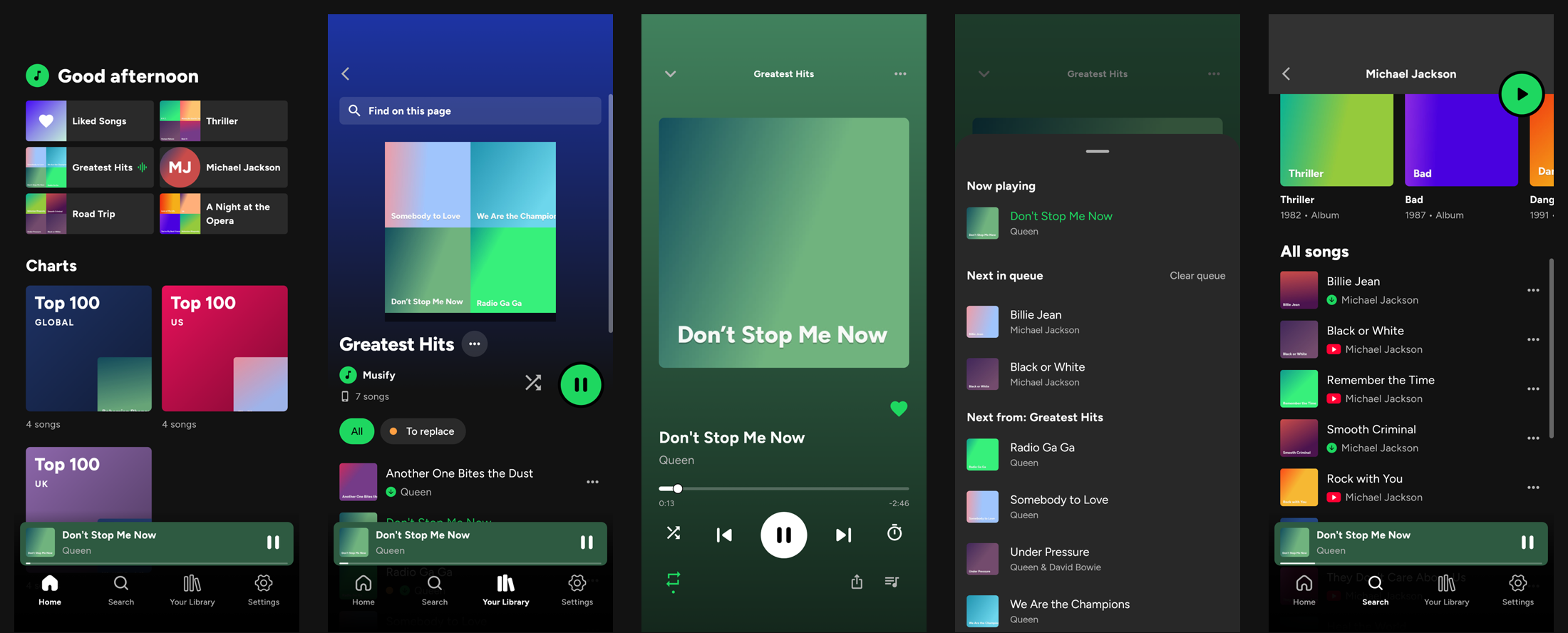
Home, a folder, the player, the queue and an artist

Made entirely by Claude. Every line of this app, its server, the tests, the screenshots and this README were written by Claude (Anthropic's AI) in Claude Code. A person decided what it should do, tried it on their iPhone and Mac, and reported back what to change; Claude did the rest.

There are two halves:

  • Offline, on its own: your folders, playlists, likes, tags, the queue, the equalizer, lock screen, Siri. No account, no server, nothing leaves the device.
  • With your own server (optional, musify_backend): YouTube Music search, artists, albums and charts, downloads into your folders, and sync between your devices: playlists, what's playing, and the music files themselves.

Download

  • Mac (.dmg) and Android (.apk): from Releases. On Android, allow installing from your browser or Files when it asks.
  • iPhone: build it yourself (below); Apple doesn't allow installing apps from outside the App Store.

Offline: your folders are your library

Add a folder (from Files on iPhone, the open panel on the Mac, the file picker on Android) and every folder in it that holds songs becomes a playlist. Folders inside folders become playlists of their own, not merged into their parent, so the way you already sort your music is the way it shows up:

Music/
├── Michael Jackson/
│   ├── Thriller/               → playlist "Thriller"
│   └── Bad/                    → playlist "Bad"
└── Queen/
    ├── A Night at the Opera/   → playlist "A Night at the Opera"
    └── Greatest Hits/          → playlist "Greatest Hits"
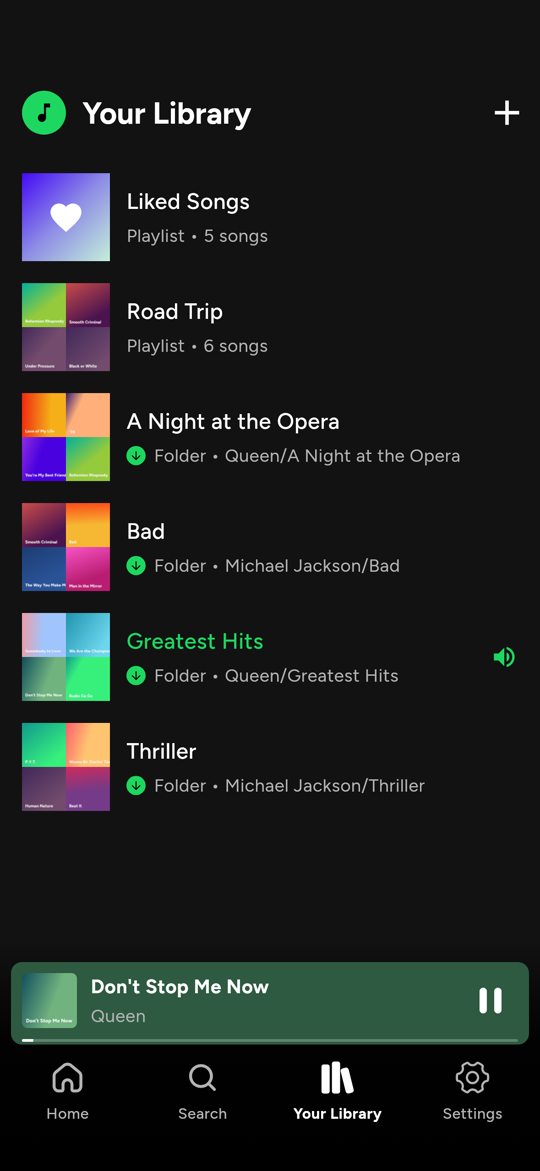
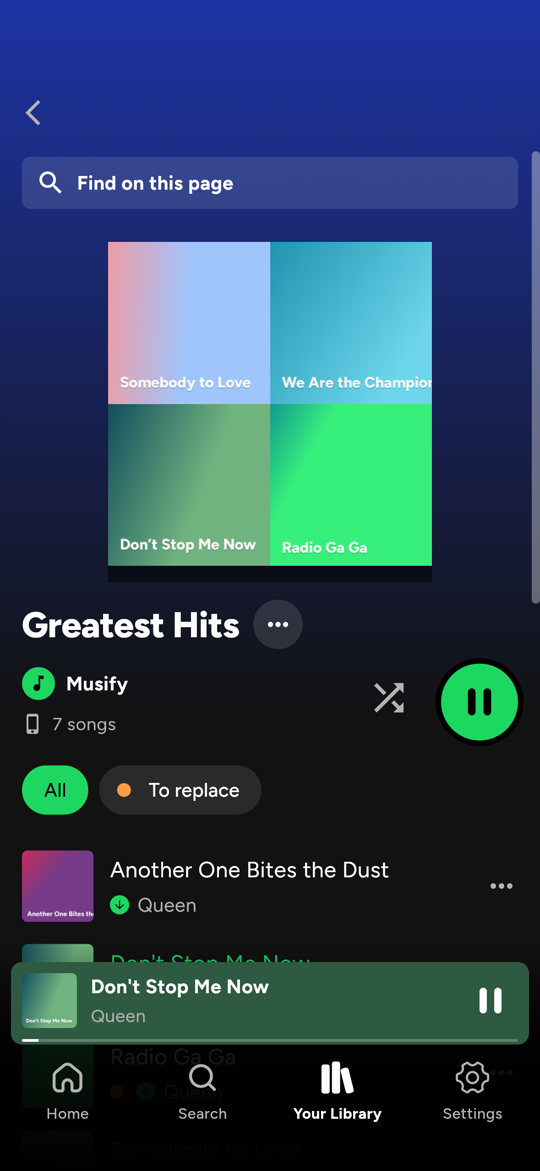
Your Library A folder playlist Home

  • Files stay files. Musify reads MP3, M4A/AAC, FLAC, WAV, OGG and more, with titles, artists, covers and lyrics from their tags. Nothing is copied or converted. Add as many folders as you like; Rescan (or pull down) picks up songs you add later.
  • Folders can be managed from the app: rename a folder (it's renamed on disk; its songs stay in your playlists, likes and tags, and what's playing carries on), hide a folder you don't want to see, move a song to another folder, or delete songs from the device.
  • Your own playlists mix songs from any folder (and YouTube songs, if you use the server). Liked Songs like Spotify's. Tags are coloured labels ("To replace", "Gym") that work as playlists of their own.
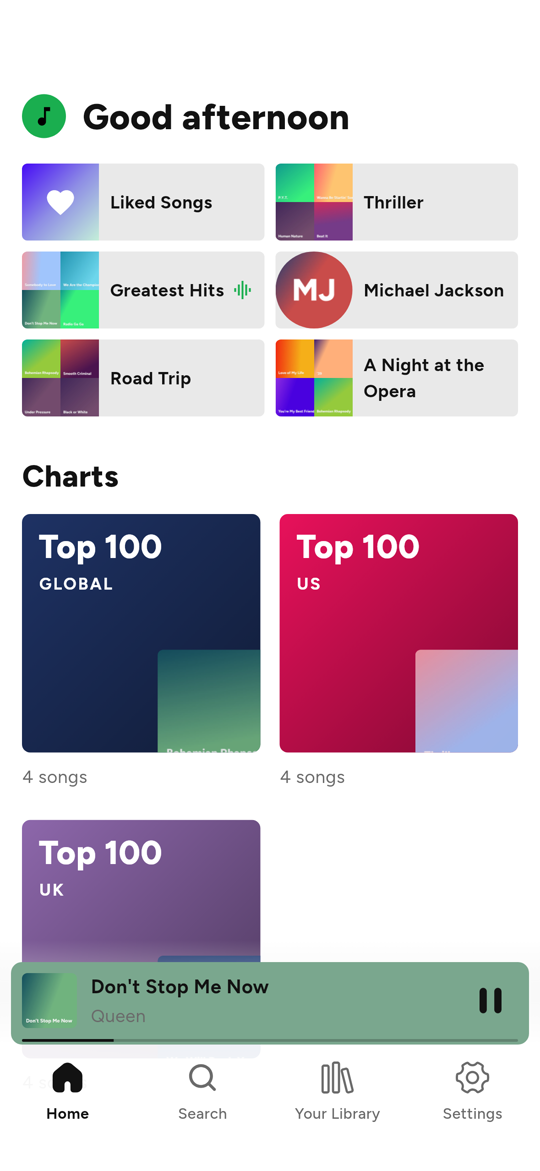
  • Home shows what you pinned: any playlist, folder, tag, Liked Songs, and (with the server) artists and albums.
  • Find on this page in every playlist (⌘F / Ctrl+F on the Mac).

The queue, the way Spotify does it

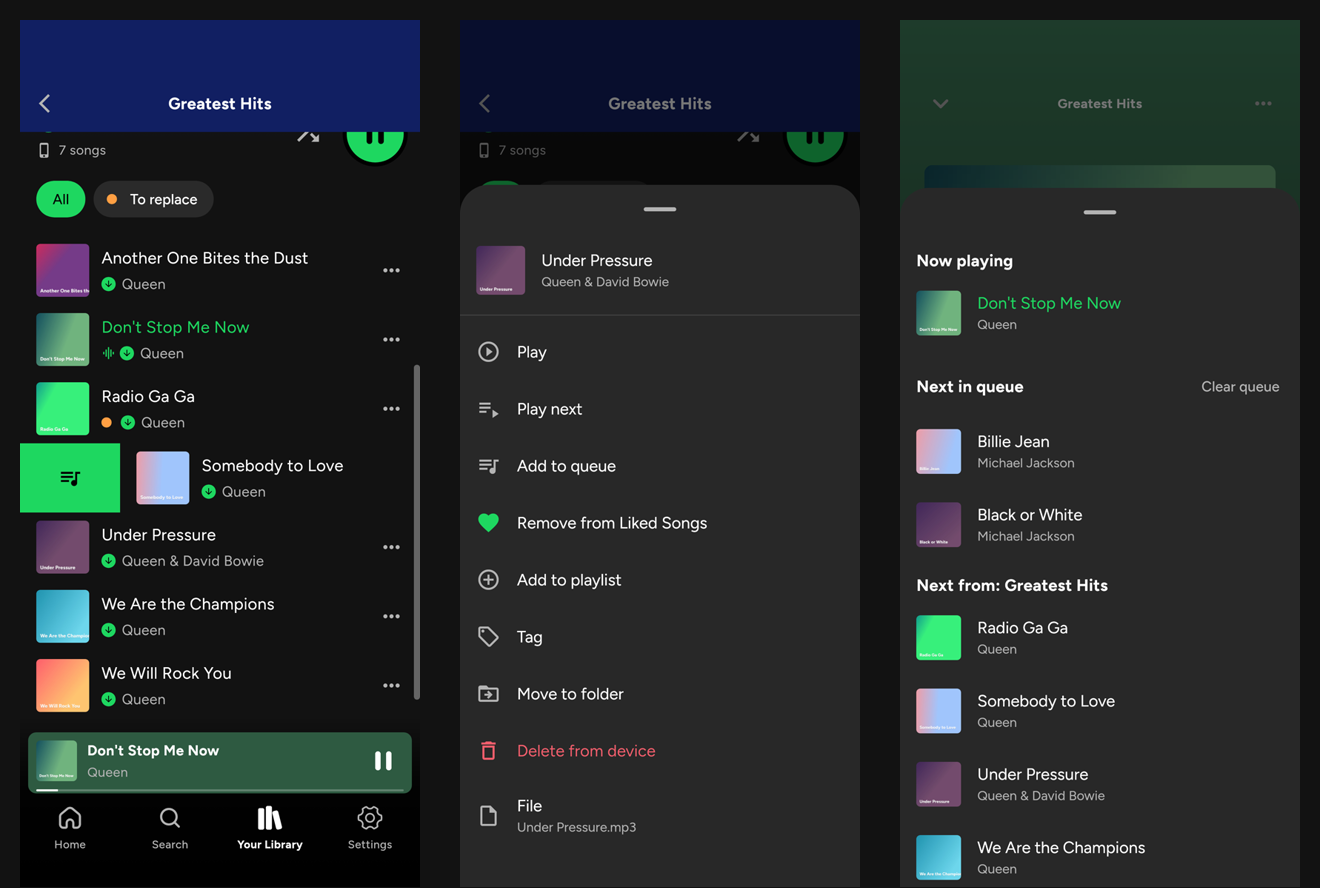
Swipe a song into the queue, the song menu, and the queue

  • Swipe a song to the right anywhere (a folder, a playlist, search results) and it's added to the queue, with a little bump so you feel it. Swipe left to tag it, or to take its tags off.
  • Play next puts a song right after the one playing: queue three with Play next and the last one you picked plays first. Add to queue puts it after the songs already queued. Both come before the rest of the playlist.
  • The queue is yours. Queued songs play once and leave. They survive skipping, going back, starting another playlist and turning shuffle on or off (shuffle only reorders the rest of the playlist, never your queue). Clear queue when you're done with it.
  • The queue sheet shows exactly what's coming: Now playing, Next in queue, then Next from: . Tap any song to jump to it.
  • Swipe the mini player or the cover sideways for the next or previous song, like Spotify. Drag the mini player up to open the player, the player down to close it.
  • YouTube songs (with the server) behave the same: queue them, swipe them, put them in playlists.

The player

Now playing Equalizer Light mode

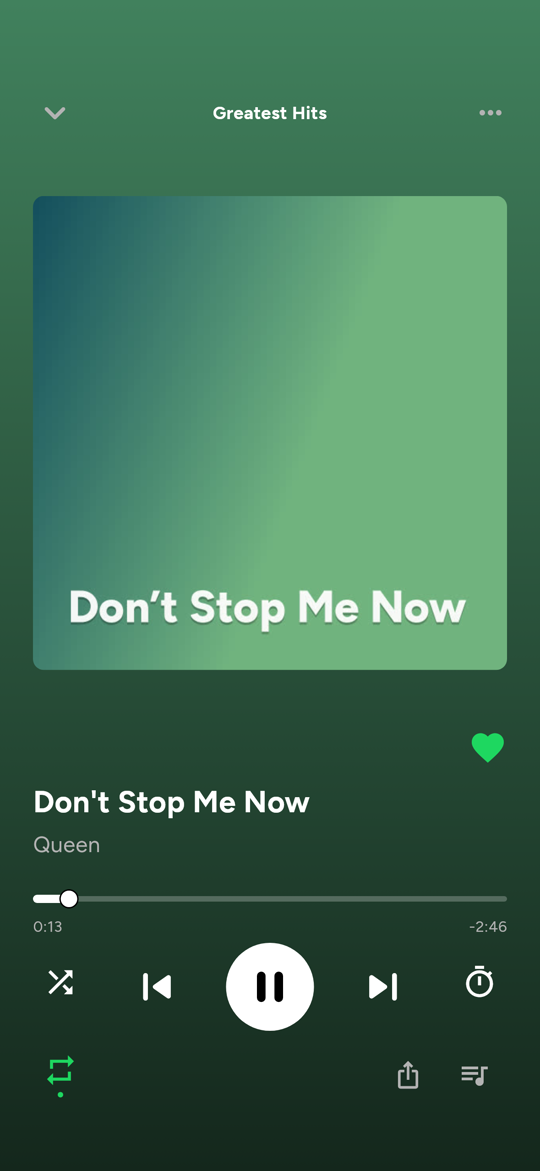
  • Shuffle, repeat (all, one, off), a sleep timer (minutes or the end of the song), lyrics from the file's tags, share.
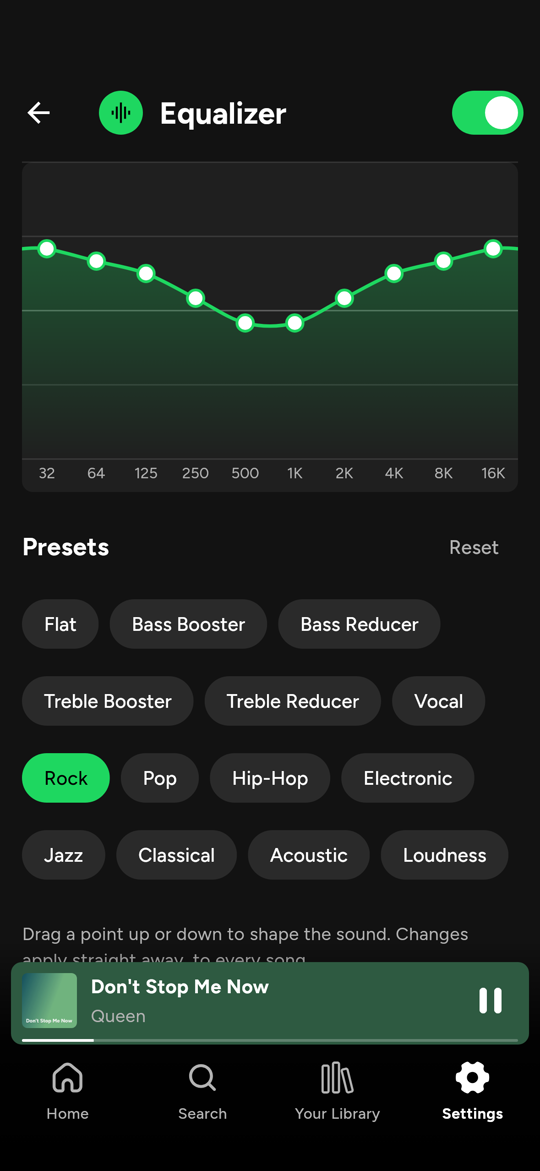
  • Equalizer: 10 bands you drag into shape, and presets (Rock, Bass Booster, Vocal and more), on iPhone, Mac and Android.
  • Lock screen and Control Center, AirPods and headphone buttons, Siri ("play Thriller on Musify"), Android Auto, and CarPlay's Now Playing.
  • Light or dark, or as the device is set.
  • Comes back after a restart paused where you left off, queue and all.

On the Mac

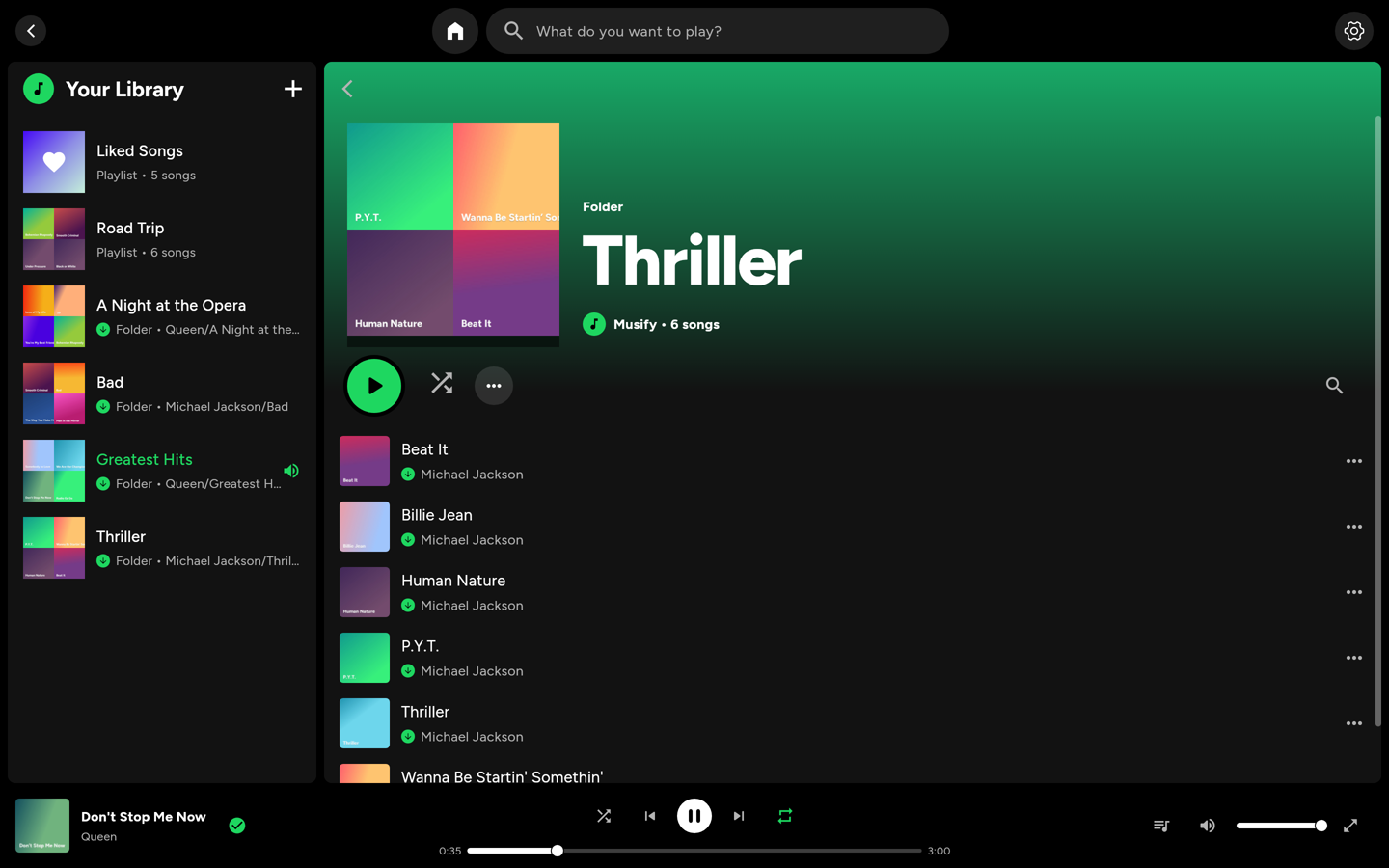
A desktop layout on a wide window: your library in a sidebar, search on top, the player across the bottom. Space plays and pauses.

Musify on the Mac

With your server: YouTube, downloads and sync

Run musify_backend (one small Docker container; its README walks through it), enter its address and key in Settings → Musify server, and you also get:

YouTube Music, but it plays like your own songs

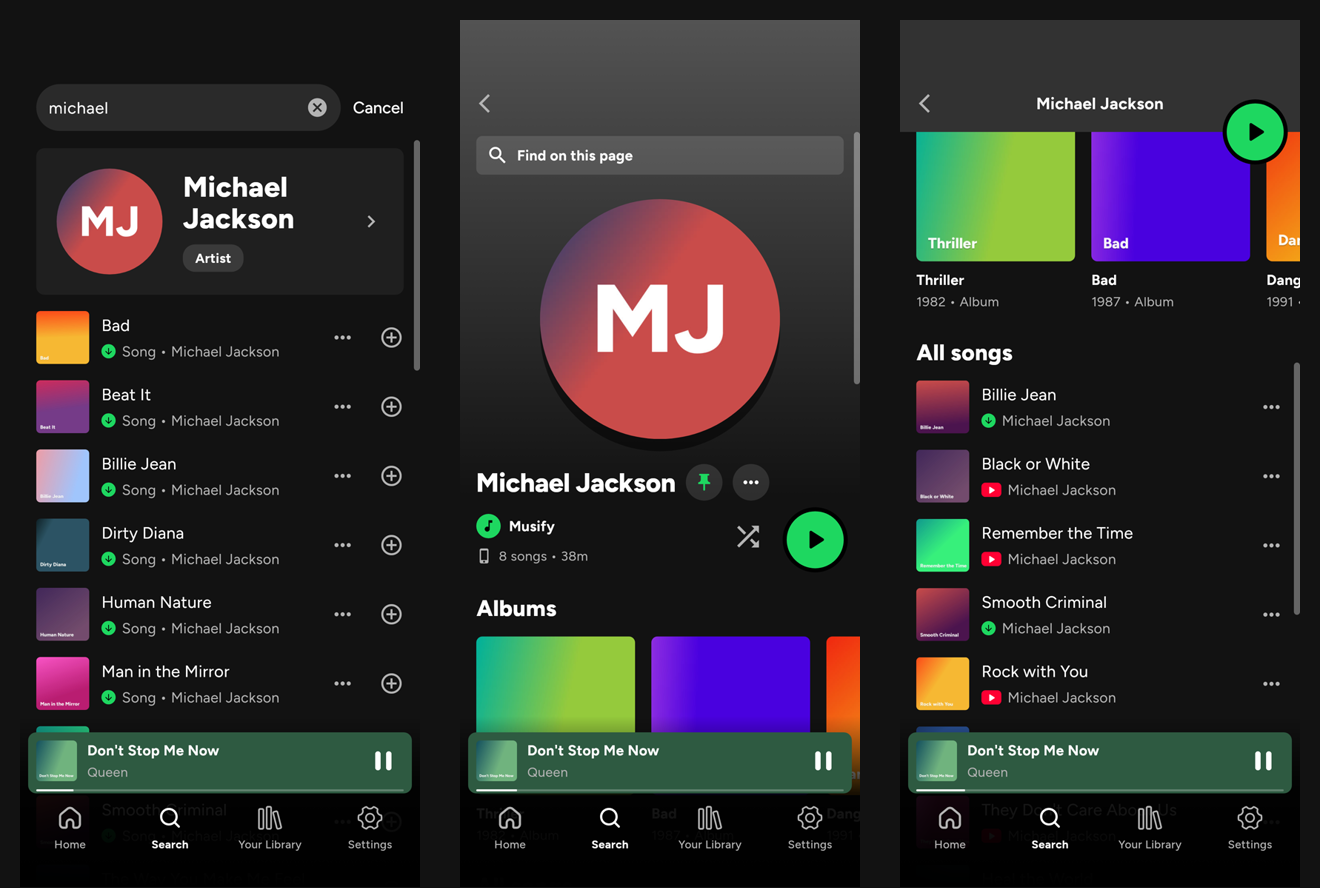
Search, an artist page and its songs

  • Search shows your own songs first, then the artist, then YouTube Music's songs (songs only: no videos, mixes or podcasts).
  • Artist pages with all their songs and their albums; album pages. Pin an artist or an album to Home.
  • Charts on Home: YouTube Music's Top 100 (Global, US, UK, Canada, Australia, India).
  • Import a playlist from YouTube or YouTube Music by its link (Your Library → + → Import playlist): it becomes one of your playlists, its songs on the device play from there, and it can be downloaded whole.
  • YouTube songs stream from your server and play like any other song (no ads): the queue, the lock screen, playlists and Liked Songs, in the background and after a call. The server fetches the next ones ahead, so they start right away.
  • Already on your device? It plays from the file. A YouTube song you downloaded, or one you already had (same title and artist, or the same length), plays from your folder and gets the green downloaded mark. An artist with 150 songs, 10 of them yours, plays those 10 from your files and the rest from YouTube.

Downloads

Save a YouTube song, or a whole playlist, artist or album, as M4A (AAC as YouTube has it, not re-encoded) with its title, artist and cover, into a folder of yours. Downloading one of your own playlists turns it into a folder playlist. Songs you already have are skipped.

Sync between your devices

Sync Playing on another device

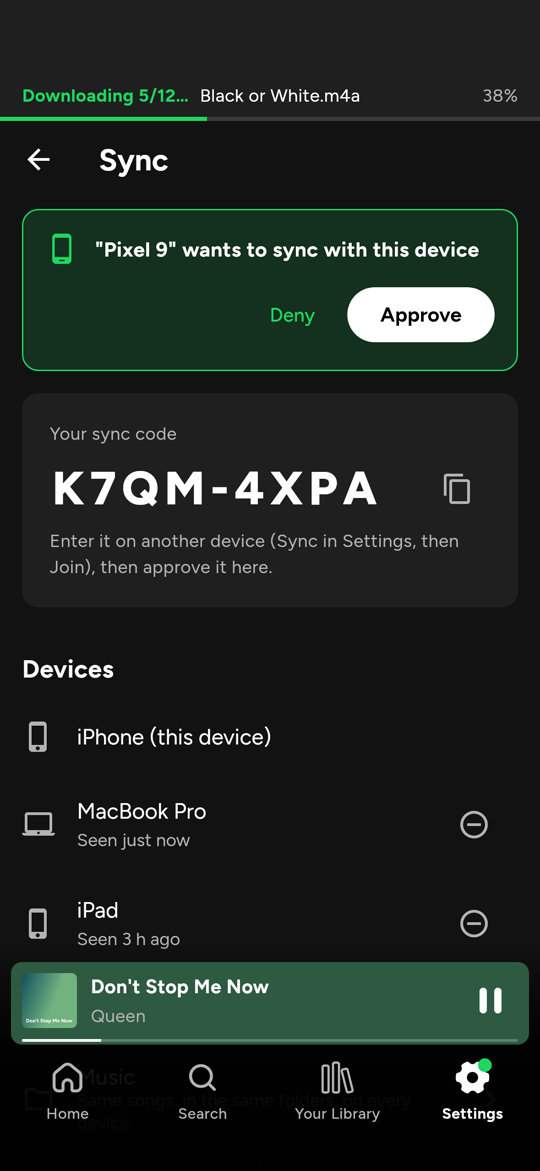
  • One device starts a sync group and shows a code; another device enters it and asks to join, and you approve it on a device that's already in. No accounts.
  • Your library everywhere: playlists, tags, Liked Songs and Home pins, merged item by item, so editing on two devices doesn't lose either change.
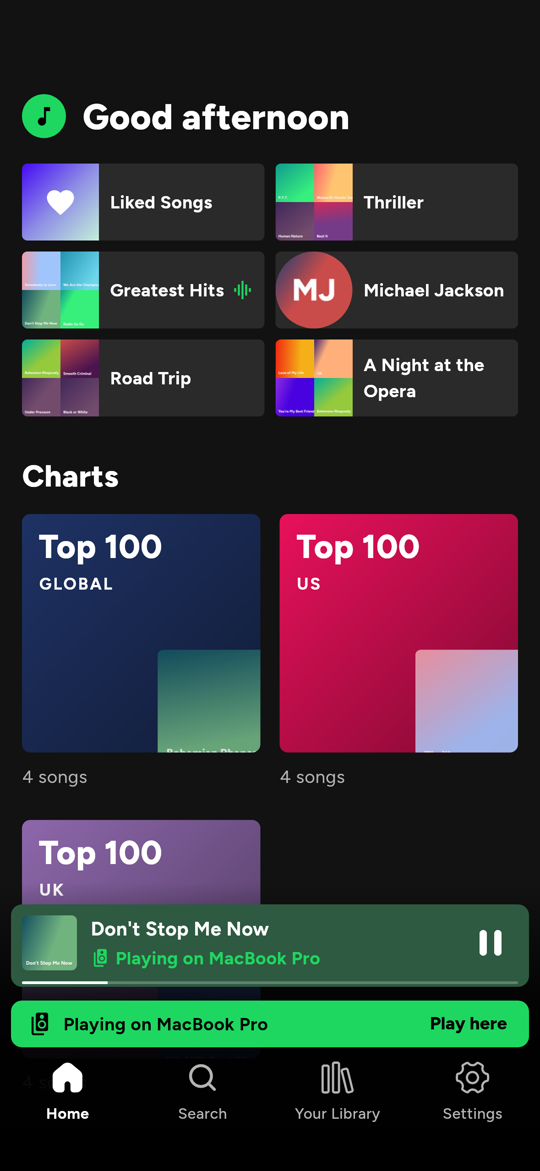
  • What's playing: pause on the Mac, open the iPhone, and it's on the same song at the same second. While one device plays, the others show "Playing on MacBook Pro" and their play, pause, skip and seek buttons control that device. Play here moves the music over.
  • Your music files (pick a folder on each device): songs are mirrored in the same subfolders, and moving, renaming or deleting them on one device does the same on the others. The server never keeps your library: devices tell it which songs they have, only a song another device lacks is uploaded, and it's deleted as soon as every device has it. Songs a device already has (a copied folder) never move at all.
  • It watches the folder, so songs you drop in (in Finder or Files) are picked up by themselves. If most of a folder suddenly goes missing (a drive not mounted), it refuses to delete them everywhere.

Build

You need Flutter 3.47 or newer (Dart 3.13), and Xcode for iPhone or Android Studio / the Android SDK for Android.

git clone https://github.com/fatmachines/musify_frontend.git
cd musify_frontend
flutter pub get
flutter run            # on a connected phone

iPhone

  1. Open ios/Runner.xcworkspace in Xcode.
  2. Runner → Signing & Capabilities: pick your team, and change the bundle identifier (com.fatmachines.musify) to one of your own.
  3. Keep the capabilities: Background Modes → Audio (playing with the screen locked) and Siri (voice requests, set in ios/Runner/Runner.entitlements). Siri needs a paid Apple Developer account; with a free one, remove it there (the app then simply skips Siri).
  4. flutter run, or Run in Xcode.

CarPlay needs Apple's CarPlay audio entitlement, which Apple gives on request; without it Musify shows in CarPlay's Now Playing only.

Mac

flutter run -d macos

or open macos/Runner.xcworkspace in Xcode, pick your team under Runner → Signing & Capabilities, and Run. On a wide window Musify switches to a desktop layout (library sidebar, search bar on top, player across the bottom; space plays and pauses). The app is sandboxed: music folders are added with the open panel and stay readable across launches. Debug builds (flutter run) are com.fatmachines.musify.dev, with their own data, so they don't clash with a signed release build installed on the same Mac.

To hand the Mac app to others, scripts/make_dmg.sh builds it, signs it with your Developer ID, packs dist/Musify-<version>.dmg and has Apple notarize it, so it opens without a warning. The script's header lists the one-time setup (certificate and notarization credentials).

Android

Change applicationId in android/app/build.gradle.kts if you publish your own build, then flutter run. scripts/make_apk.sh builds a release APK into dist/, signed with your key from android/key.properties (its header shows how to make one).

Connect your server

Deploy the backend (its README walks through it), then in the app: Settings → Musify server, and enter its address and key. Or build them in:

flutter run --dart-define=MUSIFY_SERVER=https://musify.example.com \
            --dart-define=MUSIFY_KEY=<your key>

Development

flutter analyze
flutter test
  • packages/just_audio is a copy of just_audio with Musify's iOS equalizer (MusifyEqualizer.m); otherwise unchanged.
  • ios/Runner/AppDelegate.swift holds the native parts: folder access (security-scoped bookmarks) and Siri.
  • YouTube playback: with a server, YouTube songs stream from its /audio/<id>.m4a. Without one (or if that fails), lib/services/youtube/youtube_web_player.dart keeps YouTube's mobile player in a hidden web view in step with the app's player, which plays silence of the same length for each YouTube song.

Made by Claude

Musify was built from start to finish by Claude, Anthropic's AI, working in Claude Code: the Flutter app (iPhone, Android, Mac), the native iOS and Mac parts (folder access, Siri, the equalizer), the Python server, the sync protocol, the tests that run both together, and the screenshots above (rendered by a test, with made-up sample files). The person behind it didn't write its code: they said what they wanted, used it every day, and sent back bugs and screen recordings.

Use responsibly

Musify is for your own listening. Download only what you have the right to, and respect YouTube's terms where you live.

fatmachines/musify_frontend

Dart

2

95 commits

updated Oct 15, 2026

See the code

See what people are saying

SourceMessageScoreDate

Spotify-style player for my own music files (iPhone, Android, Mac). Works fully offline, with an optional self-hosted server for YouTube Music and syncing my devices. Open source. (r/SideProject)

To be clear up front: **this was made entirely by Claude**, working in Claude Code. That covers the app, the server, the tests and the README screenshots. I didn't write the code. I said what I wanted, used it every day on my iPhone and Mac, and sent back bugs and screen recordings until it felt…

1

Oct 15, 2026

README

Musify

A Spotify-style music player for iPhone, Android and the Mac that plays your own music files, with YouTube on top when you want it.

Home, a folder, the player, the queue and an artist

Made entirely by Claude. Every line of this app, its server, the tests, the screenshots and this README were written by Claude (Anthropic's AI) in Claude Code. A person decided what it should do, tried it on their iPhone and Mac, and reported back what to change; Claude did the rest.

There are two halves:

  • Offline, on its own: your folders, playlists, likes, tags, the queue, the equalizer, lock screen, Siri. No account, no server, nothing leaves the device.
  • With your own server (optional, musify_backend): YouTube Music search, artists, albums and charts, downloads into your folders, and sync between your devices: playlists, what's playing, and the music files themselves.

Download

  • Mac (.dmg) and Android (.apk): from Releases. On Android, allow installing from your browser or Files when it asks.
  • iPhone: build it yourself (below); Apple doesn't allow installing apps from outside the App Store.

Offline: your folders are your library

Add a folder (from Files on iPhone, the open panel on the Mac, the file picker on Android) and every folder in it that holds songs becomes a playlist. Folders inside folders become playlists of their own, not merged into their parent, so the way you already sort your music is the way it shows up:

Music/
├── Michael Jackson/
│   ├── Thriller/               → playlist "Thriller"
│   └── Bad/                    → playlist "Bad"
└── Queen/
    ├── A Night at the Opera/   → playlist "A Night at the Opera"
    └── Greatest Hits/          → playlist "Greatest Hits"
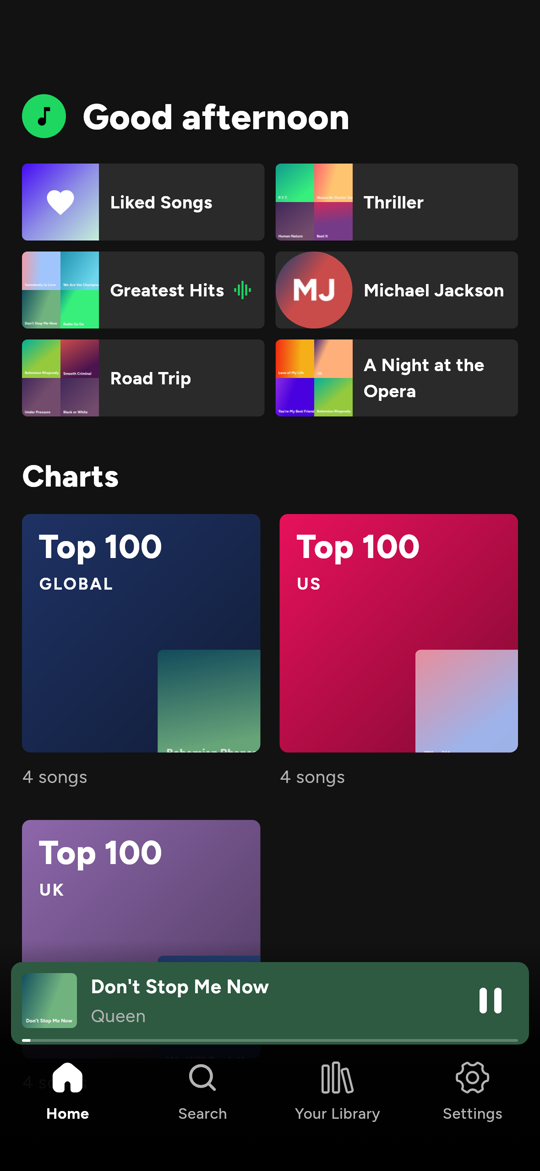
Your Library A folder playlist Home

  • Files stay files. Musify reads MP3, M4A/AAC, FLAC, WAV, OGG and more, with titles, artists, covers and lyrics from their tags. Nothing is copied or converted. Add as many folders as you like; Rescan (or pull down) picks up songs you add later.
  • Folders can be managed from the app: rename a folder (it's renamed on disk; its songs stay in your playlists, likes and tags, and what's playing carries on), hide a folder you don't want to see, move a song to another folder, or delete songs from the device.
  • Your own playlists mix songs from any folder (and YouTube songs, if you use the server). Liked Songs like Spotify's. Tags are coloured labels ("To replace", "Gym") that work as playlists of their own.
  • Home shows what you pinned: any playlist, folder, tag, Liked Songs, and (with the server) artists and albums.
  • Find on this page in every playlist (⌘F / Ctrl+F on the Mac).

The queue, the way Spotify does it

Swipe a song into the queue, the song menu, and the queue

  • Swipe a song to the right anywhere (a folder, a playlist, search results) and it's added to the queue, with a little bump so you feel it. Swipe left to tag it, or to take its tags off.
  • Play next puts a song right after the one playing: queue three with Play next and the last one you picked plays first. Add to queue puts it after the songs already queued. Both come before the rest of the playlist.
  • The queue is yours. Queued songs play once and leave. They survive skipping, going back, starting another playlist and turning shuffle on or off (shuffle only reorders the rest of the playlist, never your queue). Clear queue when you're done with it.
  • The queue sheet shows exactly what's coming: Now playing, Next in queue, then Next from: . Tap any song to jump to it.
  • Swipe the mini player or the cover sideways for the next or previous song, like Spotify. Drag the mini player up to open the player, the player down to close it.
  • YouTube songs (with the server) behave the same: queue them, swipe them, put them in playlists.

The player

Now playing Equalizer Light mode

  • Shuffle, repeat (all, one, off), a sleep timer (minutes or the end of the song), lyrics from the file's tags, share.
  • Equalizer: 10 bands you drag into shape, and presets (Rock, Bass Booster, Vocal and more), on iPhone, Mac and Android.
  • Lock screen and Control Center, AirPods and headphone buttons, Siri ("play Thriller on Musify"), Android Auto, and CarPlay's Now Playing.
  • Light or dark, or as the device is set.
  • Comes back after a restart paused where you left off, queue and all.

On the Mac

A desktop layout on a wide window: your library in a sidebar, search on top, the player across the bottom. Space plays and pauses.
Musify on the Mac

With your server: YouTube, downloads and sync

Run musify_backend (one small Docker container; its README walks through it), enter its address and key in Settings → Musify server, and you also get:
YouTube Music, but it plays like your own songs

Search, an artist page and its songs

  • Search shows your own songs first, then the artist, then YouTube Music's songs (songs only: no videos, mixes or podcasts).
  • Artist pages with all their songs and their albums; album pages. Pin an artist or an album to Home.
  • Charts on Home: YouTube Music's Top 100 (Global, US, UK, Canada, Australia, India).
  • Import a playlist from YouTube or YouTube Music by its link (Your Library → + → Import playlist): it becomes one of your playlists, its songs on the device play from there, and it can be downloaded whole.
  • YouTube songs stream from your server and play like any other song (no ads): the queue, the lock screen, playlists and Liked Songs, in the background and after a call. The server fetches the next ones ahead, so they start right away.
  • Already on your device? It plays from the file. A YouTube song you downloaded, or one you already had (same title and artist, or the same length), plays from your folder and gets the green downloaded mark. An artist with 150 songs, 10 of them yours, plays those 10 from your files and the rest from YouTube.

Downloads

Save a YouTube song, or a whole playlist, artist or album, as M4A (AAC as YouTube has it, not re-encoded) with its title, artist and cover, into a folder of yours. Downloading one of your own playlists turns it into a folder playlist. Songs you already have are skipped.
Sync between your devices

Sync Playing on another device

  • One device starts a sync group and shows a code; another device enters it and asks to join, and you approve it on a device that's already in. No accounts.
  • Your library everywhere: playlists, tags, Liked Songs and Home pins, merged item by item, so editing on two devices doesn't lose either change.
  • What's playing: pause on the Mac, open the iPhone, and it's on the same song at the same second. While one device plays, the others show "Playing on MacBook Pro" and their play, pause, skip and seek buttons control that device. Play here moves the music over.
  • Your music files (pick a folder on each device): songs are mirrored in the same subfolders, and moving, renaming or deleting them on one device does the same on the others. The server never keeps your library: devices tell it which songs they have, only a song another device lacks is uploaded, and it's deleted as soon as every device has it. Songs a device already has (a copied folder) never move at all.
  • It watches the folder, so songs you drop in (in Finder or Files) are picked up by themselves. If most of a folder suddenly goes missing (a drive not mounted), it refuses to delete them everywhere.

Build

You need Flutter 3.47 or newer (Dart 3.13), and Xcode for iPhone or Android Studio / the Android SDK for Android.

git clone https://github.com/fatmachines/musify_frontend.git
cd musify_frontend
flutter pub get
flutter run            # on a connected phone

iPhone

  1. Open ios/Runner.xcworkspace in Xcode.
  2. Runner → Signing & Capabilities: pick your team, and change the bundle identifier (com.fatmachines.musify) to one of your own.
  3. Keep the capabilities: Background Modes → Audio (playing with the screen locked) and Siri (voice requests, set in ios/Runner/Runner.entitlements). Siri needs a paid Apple Developer account; with a free one, remove it there (the app then simply skips Siri).
  4. flutter run, or Run in Xcode.

CarPlay needs Apple's CarPlay audio entitlement, which Apple gives on request; without it Musify shows in CarPlay's Now Playing only.

Mac

flutter run -d macos

or open macos/Runner.xcworkspace in Xcode, pick your team under Runner → Signing & Capabilities, and Run. On a wide window Musify switches to a desktop layout (library sidebar, search bar on top, player across the bottom; space plays and pauses). The app is sandboxed: music folders are added with the open panel and stay readable across launches. Debug builds (flutter run) are com.fatmachines.musify.dev, with their own data, so they don't clash with a signed release build installed on the same Mac.

To hand the Mac app to others, scripts/make_dmg.sh builds it, signs it with your Developer ID, packs dist/Musify-<version>.dmg and has Apple notarize it, so it opens without a warning. The script's header lists the one-time setup (certificate and notarization credentials).

Android

Change applicationId in android/app/build.gradle.kts if you publish your own build, then flutter run. scripts/make_apk.sh builds a release APK into dist/, signed with your key from android/key.properties (its header shows how to make one).

Connect your server

Deploy the backend (its README walks through it), then in the app: Settings → Musify server, and enter its address and key. Or build them in:

flutter run --dart-define=MUSIFY_SERVER=https://musify.example.com \
            --dart-define=MUSIFY_KEY=<your key>

Development

flutter analyze
flutter test
  • packages/just_audio is a copy of just_audio with Musify's iOS equalizer (MusifyEqualizer.m); otherwise unchanged.
  • ios/Runner/AppDelegate.swift holds the native parts: folder access (security-scoped bookmarks) and Siri.
  • YouTube playback: with a server, YouTube songs stream from its /audio/<id>.m4a. Without one (or if that fails), lib/services/youtube/youtube_web_player.dart keeps YouTube's mobile player in a hidden web view in step with the app's player, which plays silence of the same length for each YouTube song.

Made by Claude

Musify was built from start to finish by Claude, Anthropic's AI, working in Claude Code: the Flutter app (iPhone, Android, Mac), the native iOS and Mac parts (folder access, Siri, the equalizer), the Python server, the sync protocol, the tests that run both together, and the screenshots above (rendered by a test, with made-up sample files). The person behind it didn't write its code: they said what they wanted, used it every day, and sent back bugs and screen recordings.

Use responsibly

Musify is for your own listening. Download only what you have the right to, and respect YouTube's terms where you live.