A Windows desktop tool to adjust the brightness of multiple monitors with ease
See the codeMonitorian is a Windows desktop tool to adjust the brightness of multiple monitors with ease.
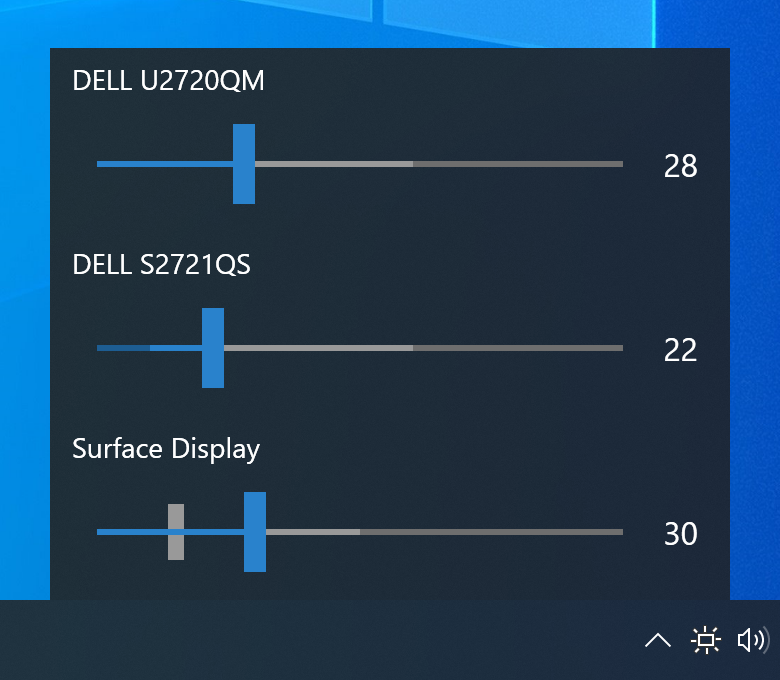
(DPI: 200%)
The user can change the brightness of monitors, including external ones, either individually or in unison. For the system with an ambient light sensor, the adjusted brightness can be shown along with configured one.
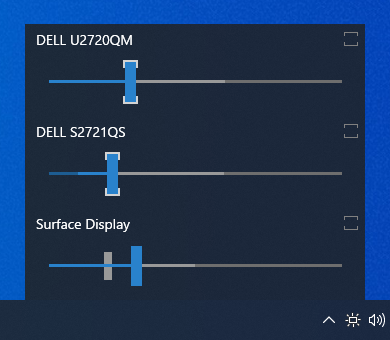
(DPI: 100%)
In addition, the user can change the adjustable range of brightness and contrast for each monitor seamlessly.
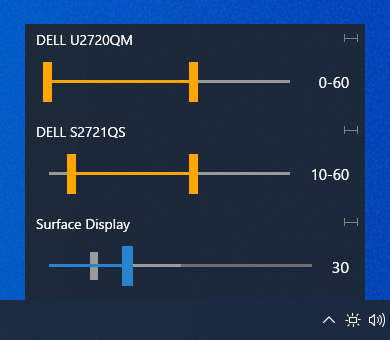
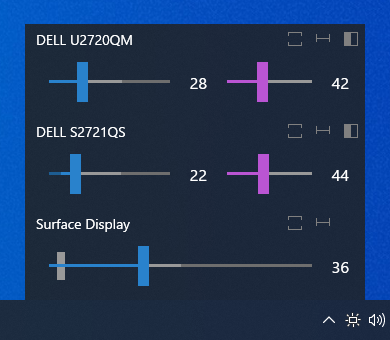
https://user-images.githubusercontent.com/7205690/210137118-66cfdd6e-9847-41b3-a836-d1ff8cf73f3d.mp4
Additional languages:
Microsoft Store (Windows 10 (1607) or newer):
Monitorian

Winget (a.k.a. Windows Package Manager, App Installer):
winget install Monitorian -s msstore
Other:
💾 Installer
If you wish to place executable files on your own, you can extract them from installer file (.msi) by the following command:
msiexec /a [source msi file path] targetdir=[destination folder path (absolute path)] /qn
In such case, please note the following:
[system drive]\Users\[user name]\AppData\Local\Monitorian\HKEY_CURRENT_USER\Software\Microsoft\Windows\CurrentVersion\RunAdd-on features are available for Microsoft Store version on a subscription basis.
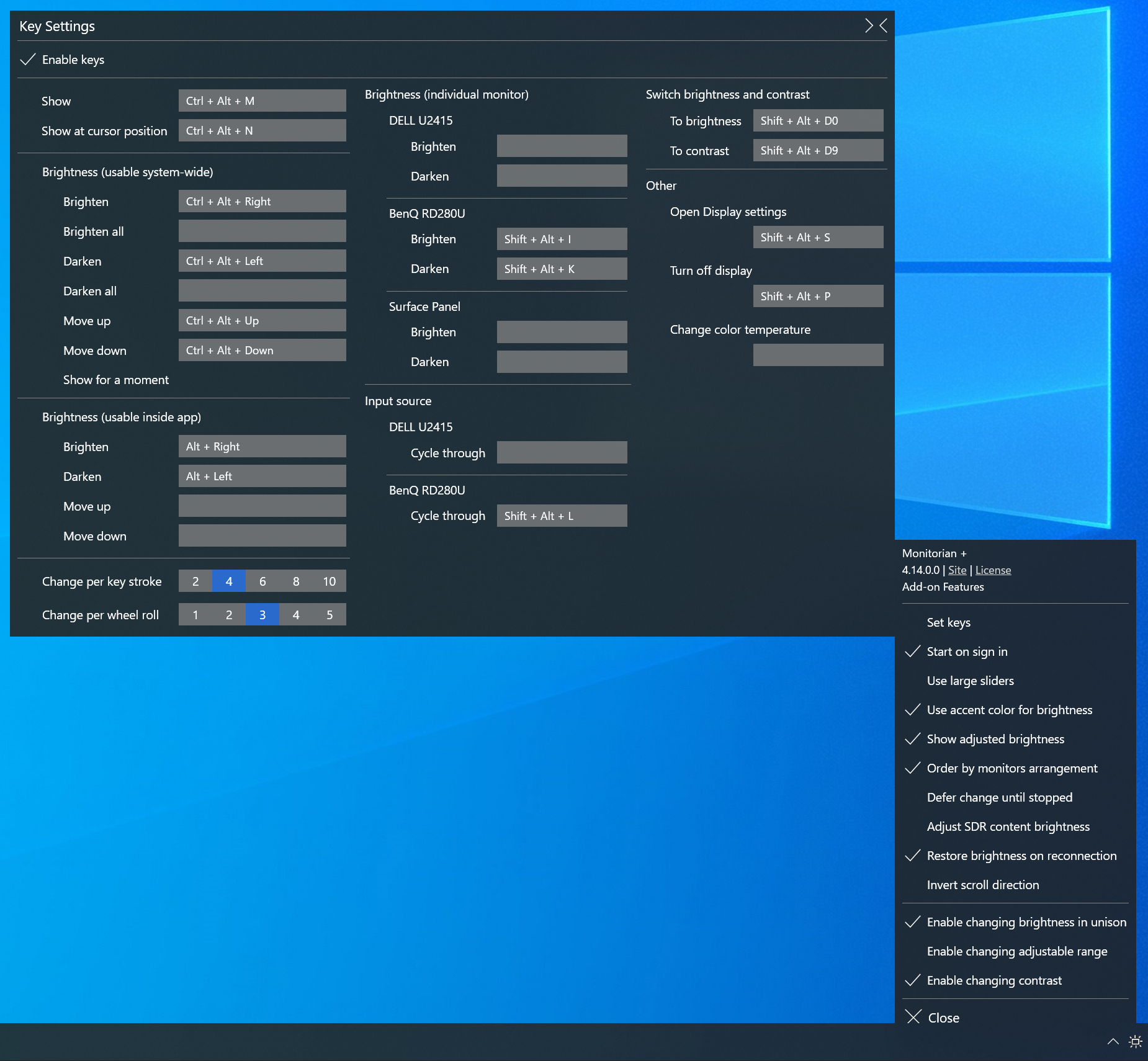
All hot keys for brightness can be switched to contrast by To contrast hot key. It can be switched back to brightness by To brightness hot key.
You can use command-line options to get/set the brightness or contrast.
| Actions | Options |
|---|---|
| Get brightness of a monitor. | /get |
| Get brightness of a specified monitor. | /get [Device Instance ID] |
| Get brightness of all monitors. | /get all |
| Set brightness of a monitor. | /set [Brightness] |
| Set brightness of a specified monitor. | /set [Device Instance ID] [Brightness] |
| Set brightness of all monitors. | /set all [Brightness] |
The device instance ID is an unique identifier given by the OS to each monitor. It must be enclosed in quotes.
You can switch to contrast by inserting contrast after /get or /set (e.g. /get contrast all).
If this app is called with /get or /set, it will return
[Device Instance ID] [Monitor name] [Brightness] B
'B' at the end indicates brightness. In addition, '*' will be added in the case of a selected monitor.
If this app is called with /get contrast or /set contrast, it will return
[Device Instance ID] [Monitor name] [Contrast] C
'C' at the end indicates contrast. If contrast is not supported by a monitor, '-' will be shown instead.
The brightness or contrast ranges from 0 to 100%. When you use /set option, it can be specified with the number itself (e.g. 20), increase (e.g. +10) or decrease (e.g. -10).
The options can be executed consecutively (e.g. monitorian /set 20 /set contrast 40, up to 10 options).
You can call this app by its name Monitorian in command prompt, bat file or desktop shortcut.
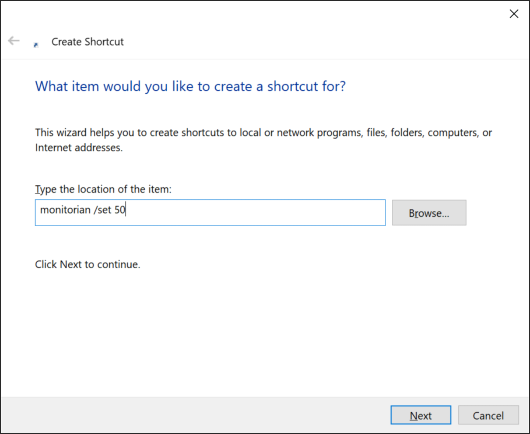
For example, creating a desktop shortcut to set brightness of a monitor to 50 will be the following.
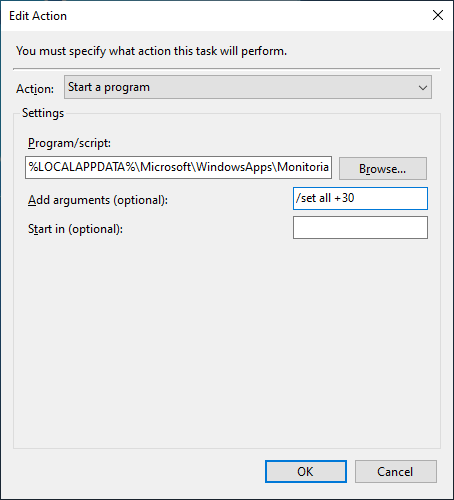
From Task Scheduler, it can be performed by the path to its alias %LOCALAPPDATA%\Microsoft\WindowsApps\Monitorian.exe. For example, to increase brightness of all monitors by 30%, the Action will be the following:
In addition, you can customize flexible and versatile commands for specific needs:
The code for add-on features is not included in this repository.
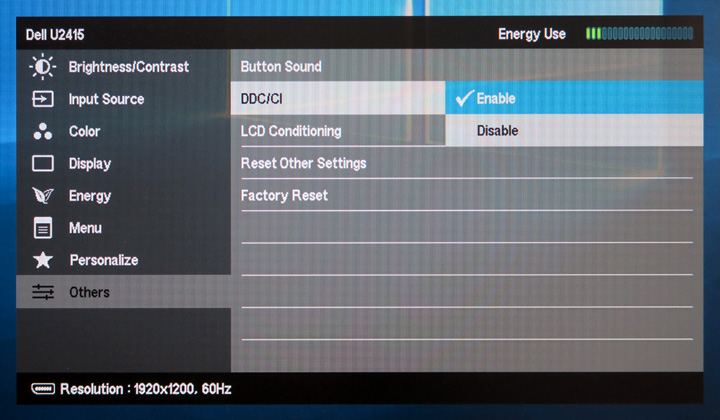
This app checks if each external monitor is controllable through DDC/CI and shows only controllable ones.
For this purpose, this app requests a monitor to send its capabilities information through DDC/CI and checks if it includes the capabilities to get/set the brightness. If capabilities information is not received or these capabilities are not included, such monitor will be regarded as not controllable through DDC/CI.
This function has been tested and worked well in most cases. Therefore, if a monitor is not shown, it is most likely caused by hardware-oriented reasons that cannot be solved by this app. Such reasons include:
The monitor model does not support DDC/CI.
The monitor's DDC/CI setting is OFF. You may need to change the setting by OSD menu.
The monitor's DDC/CI function is weird. Some monitors are found not to return correct capabilities information.
The PC's connector does not support DDC/CI.
The cable, converter, or docking station which connects the PC and the monitor is not compatible with DDC/CI. Thunderbolt/USB-C cables are generally compatible but converters aren't. Surface Dock and Surface Dock 2 are known to be compatible.
The monitor or the PC have issues including contact failure in connector. This is particularly the case for old monitors.
If you think it is worth to report, read reporting and then create an issue with logs and other relevant information.
To begin with, please read contributing guidelines.
This app is a WPF app developed and tested with Surface Pro series.
The controllability of an external monitor depends on whether the monitor successfully responds to DDC/CI commands. Even if a monitor is expected to be DDC/CI compatible, it may fail to respond typically when the system starts or resumes.
In any case, reporting on the controllability of a monitor MUST include probe.log and operation.log described below. The logs will be the starting point to look into the issue.
Probe into monitors in the hidden menu described below.Rescan monitors in the hidden menu. A system sound will be played when completed.Record operations to log in the hidden menu. After some information is recorded, you will be able to copy operation.log by Copy accumulated log.Command-line arguments in the hidden menu. They will be tested along with current arguments when this app starts./lang en in this box.| Components | Note |
|---|---|
| .NET Framework 4.8 SDK .NET Framework 4.8 targeting pack | The version must match TargetFrameworkVersion of project (.csproj) file of each project. |
| Windows 10 or 11 SDK | The version must be equal to or newer than 10.0.19041.0. |
In Visual Studio, open Extension Manager and make sure HeatWave for VS2022 is installed.
Load the solution by specifying /Source/Monitorian.sln. Then go to the solution explorer and right click the solution name and execute Restore NuGet Packages.
An alternative language can be shown by adding a Resources (.resx) file into /Source/Monitorian.Core/Properties folder. Each Resources file stores name/value pairs for a specific language and will be selected automatically depending on the user's environment.
Resources.[language-culture].resx format.Resources.resx file to override it.Ver 4.16 2026-9-21
Ver 4.15 2026-7-4
Ver 4.14 2026-3-22
Ver 4.13 2025-8-4
Ver 4.11 2025-6-11
Ver 4.10 2024-12-26
Ver 4.9 2024-11-16
Ver 4.8 2024-10-15
Ver 4.7 2024-7-21
Ver 4.6 2023-12-8
Ver 4.5 2023-9-29
Ver 4.4 2023-6-20
Ver 4.3 2023-4-21
Ver 4.2 2023-3-21
Ver 4.1 2023-3-13
Ver 4.0 2022-12-31
Ver 3.15 2022-12-4
Ver 3.14 2022-10-23
Ver 3.13 2022-8-29
Ver 3.12 2022-7-4
Ver 3.11 2022-6-2
Ver 3.10 2022-4-12
Ver 3.9 2022-1-20
Ver 3.8 2021-12-18
Ver 3.7 2021-12-3
Ver 3.6 2021-9-30
Ver 3.5 2021-9-9
Ver 3.4 2021-8-30
Ver 3.3 2021-8-20
Ver 3.2 2021-8-9
Ver 3.1 2021-8-4
Ver 3.0 2021-7-1
Ver 2.19 2021-6-16
Ver 2.18 2021-5-23
Ver 2.17 2021-5-19
Ver 2.16 2021-4-11
Ver 2.14 2021-3-26
Ver 2.13 2021-2-13
Ver 2.11 2021-1-26
Ver 2.9 2020-12-22
Ver 2.8 2020-11-23
Ver 2.7 2020-10-30
Ver 2.6 2020-8-10
Ver 2.5 2020-8-1
Ver 2.4 2019-12-30
Ver 2.3 2019-11-28
Ver 2.2 2019-11-18
Ver 2.1 2019-11-6
Ver 2.0 2019-8-6
Ver 1.12 2019-3-9
Ver 1.11 2019-2-7
Ver 1.10 2019-2-3
Ver 1.9 2018-12-5
Ver 1.8 2018-11-24
Ver 1.7 2018-8-22
Ver 1.6 2018-5-25
Ver 1.5 2018-2-12
Ver 1.4 2018-1-17
Ver 1.2 2017-10-12
Ver 1.0 2017-2-22
(top 24 of 32)
345 followers · starred Oct 2024
559 followers · starred Nov 2021
456 followers · starred Mar 2026
80 followers · starred Oct 2022
A Windows desktop tool to adjust the brightness of multiple monitors with ease
See the codeMonitorian is a Windows desktop tool to adjust the brightness of multiple monitors with ease.
(DPI: 200%)
The user can change the brightness of monitors, including external ones, either individually or in unison. For the system with an ambient light sensor, the adjusted brightness can be shown along with configured one.
(DPI: 100%)
In addition, the user can change the adjustable range of brightness and contrast for each monitor seamlessly.
https://user-images.githubusercontent.com/7205690/210137118-66cfdd6e-9847-41b3-a836-d1ff8cf73f3d.mp4
Additional languages:
Microsoft Store (Windows 10 (1607) or newer):
Monitorian
Winget (a.k.a. Windows Package Manager, App Installer):
winget install Monitorian -s msstore
Other:
💾 Installer
If you wish to place executable files on your own, you can extract them from installer file (.msi) by the following command:
msiexec /a [source msi file path] targetdir=[destination folder path (absolute path)] /qn
In such case, please note the following:
[system drive]\Users\[user name]\AppData\Local\Monitorian\HKEY_CURRENT_USER\Software\Microsoft\Windows\CurrentVersion\RunAdd-on features are available for Microsoft Store version on a subscription basis.
All hot keys for brightness can be switched to contrast by To contrast hot key. It can be switched back to brightness by To brightness hot key.
You can use command-line options to get/set the brightness or contrast.
| Actions | Options |
|---|---|
| Get brightness of a monitor. | /get |
| Get brightness of a specified monitor. | /get [Device Instance ID] |
| Get brightness of all monitors. | /get all |
| Set brightness of a monitor. | /set [Brightness] |
| Set brightness of a specified monitor. | /set [Device Instance ID] [Brightness] |
| Set brightness of all monitors. | /set all [Brightness] |
The device instance ID is an unique identifier given by the OS to each monitor. It must be enclosed in quotes.
You can switch to contrast by inserting contrast after /get or /set (e.g. /get contrast all).
If this app is called with /get or /set, it will return
[Device Instance ID] [Monitor name] [Brightness] B
'B' at the end indicates brightness. In addition, '*' will be added in the case of a selected monitor.
If this app is called with /get contrast or /set contrast, it will return
[Device Instance ID] [Monitor name] [Contrast] C
'C' at the end indicates contrast. If contrast is not supported by a monitor, '-' will be shown instead.
The brightness or contrast ranges from 0 to 100%. When you use /set option, it can be specified with the number itself (e.g. 20), increase (e.g. +10) or decrease (e.g. -10).
The options can be executed consecutively (e.g. monitorian /set 20 /set contrast 40, up to 10 options).
You can call this app by its name Monitorian in command prompt, bat file or desktop shortcut.
For example, creating a desktop shortcut to set brightness of a monitor to 50 will be the following.
From Task Scheduler, it can be performed by the path to its alias %LOCALAPPDATA%\Microsoft\WindowsApps\Monitorian.exe. For example, to increase brightness of all monitors by 30%, the Action will be the following:
In addition, you can customize flexible and versatile commands for specific needs:
The code for add-on features is not included in this repository.
This app checks if each external monitor is controllable through DDC/CI and shows only controllable ones.
For this purpose, this app requests a monitor to send its capabilities information through DDC/CI and checks if it includes the capabilities to get/set the brightness. If capabilities information is not received or these capabilities are not included, such monitor will be regarded as not controllable through DDC/CI.
This function has been tested and worked well in most cases. Therefore, if a monitor is not shown, it is most likely caused by hardware-oriented reasons that cannot be solved by this app. Such reasons include:
The monitor model does not support DDC/CI.
The monitor's DDC/CI setting is OFF. You may need to change the setting by OSD menu.
The monitor's DDC/CI function is weird. Some monitors are found not to return correct capabilities information.
The PC's connector does not support DDC/CI.
The cable, converter, or docking station which connects the PC and the monitor is not compatible with DDC/CI. Thunderbolt/USB-C cables are generally compatible but converters aren't. Surface Dock and Surface Dock 2 are known to be compatible.
The monitor or the PC have issues including contact failure in connector. This is particularly the case for old monitors.
If you think it is worth to report, read reporting and then create an issue with logs and other relevant information.
To begin with, please read contributing guidelines.
This app is a WPF app developed and tested with Surface Pro series.
The controllability of an external monitor depends on whether the monitor successfully responds to DDC/CI commands. Even if a monitor is expected to be DDC/CI compatible, it may fail to respond typically when the system starts or resumes.
In any case, reporting on the controllability of a monitor MUST include probe.log and operation.log described below. The logs will be the starting point to look into the issue.
Probe into monitors in the hidden menu described below.Rescan monitors in the hidden menu. A system sound will be played when completed.Record operations to log in the hidden menu. After some information is recorded, you will be able to copy operation.log by Copy accumulated log.Command-line arguments in the hidden menu. They will be tested along with current arguments when this app starts./lang en in this box.| Components | Note |
|---|---|
| .NET Framework 4.8 SDK .NET Framework 4.8 targeting pack | The version must match TargetFrameworkVersion of project (.csproj) file of each project. |
| Windows 10 or 11 SDK | The version must be equal to or newer than 10.0.19041.0. |
In Visual Studio, open Extension Manager and make sure HeatWave for VS2022 is installed.
Load the solution by specifying /Source/Monitorian.sln. Then go to the solution explorer and right click the solution name and execute Restore NuGet Packages.
An alternative language can be shown by adding a Resources (.resx) file into /Source/Monitorian.Core/Properties folder. Each Resources file stores name/value pairs for a specific language and will be selected automatically depending on the user's environment.
Resources.[language-culture].resx format.Resources.resx file to override it.Ver 4.16 2026-9-21
Ver 4.15 2026-7-4
Ver 4.14 2026-3-22
Ver 4.13 2025-8-4
Ver 4.11 2025-6-11
Ver 4.10 2024-12-26
Ver 4.9 2024-11-16
Ver 4.8 2024-10-15
Ver 4.7 2024-7-21
Ver 4.6 2023-12-8
Ver 4.5 2023-9-29
Ver 4.4 2023-6-20
Ver 4.3 2023-4-21
Ver 4.2 2023-3-21
Ver 4.1 2023-3-13
Ver 4.0 2022-12-31
Ver 3.15 2022-12-4
Ver 3.14 2022-10-23
Ver 3.13 2022-8-29
Ver 3.12 2022-7-4
Ver 3.11 2022-6-2
Ver 3.10 2022-4-12
Ver 3.9 2022-1-20
Ver 3.8 2021-12-18
Ver 3.7 2021-12-3
Ver 3.6 2021-9-30
Ver 3.5 2021-9-9
Ver 3.4 2021-8-30
Ver 3.3 2021-8-20
Ver 3.2 2021-8-9
Ver 3.1 2021-8-4
Ver 3.0 2021-7-1
Ver 2.19 2021-6-16
Ver 2.18 2021-5-23
Ver 2.17 2021-5-19
Ver 2.16 2021-4-11
Ver 2.14 2021-3-26
Ver 2.13 2021-2-13
Ver 2.11 2021-1-26
Ver 2.9 2020-12-22
Ver 2.8 2020-11-23
Ver 2.7 2020-10-30
Ver 2.6 2020-8-10
Ver 2.5 2020-8-1
Ver 2.4 2019-12-30
Ver 2.3 2019-11-28
Ver 2.2 2019-11-18
Ver 2.1 2019-11-6
Ver 2.0 2019-8-6
Ver 1.12 2019-3-9
Ver 1.11 2019-2-7
Ver 1.10 2019-2-3
Ver 1.9 2018-12-5
Ver 1.8 2018-11-24
Ver 1.7 2018-8-22
Ver 1.6 2018-5-25
Ver 1.5 2018-2-12
Ver 1.4 2018-1-17
Ver 1.2 2017-10-12
Ver 1.0 2017-2-22
(top 24 of 32)
345 followers · starred Oct 2024
559 followers · starred Nov 2021
456 followers · starred Mar 2026
80 followers · starred Oct 2022



