HDMI and DisplayPort volume control for macOS, with native system volume and mute
See the code
HDMI and DisplayPort volume control for macOS.
Website · Download
A native macOS audio app focused on HDMI and DisplayPort volume control. Software gain works even when a digital output has no hardware volume control. The optional system volume component also enables the macOS volume slider and native volume keys.
Melicum uses an independent SwiftUI interface, Core Audio routing, and C DSP. It requires macOS 14.2 or later. Building the app from source additionally requires Xcode 26 or later and Swift to compile the native layered icon. English is the default language; Italian, French, German, and Spanish are available under Presets → Language.
| Main window | App mixer | Spatial audio |
|---|---|---|
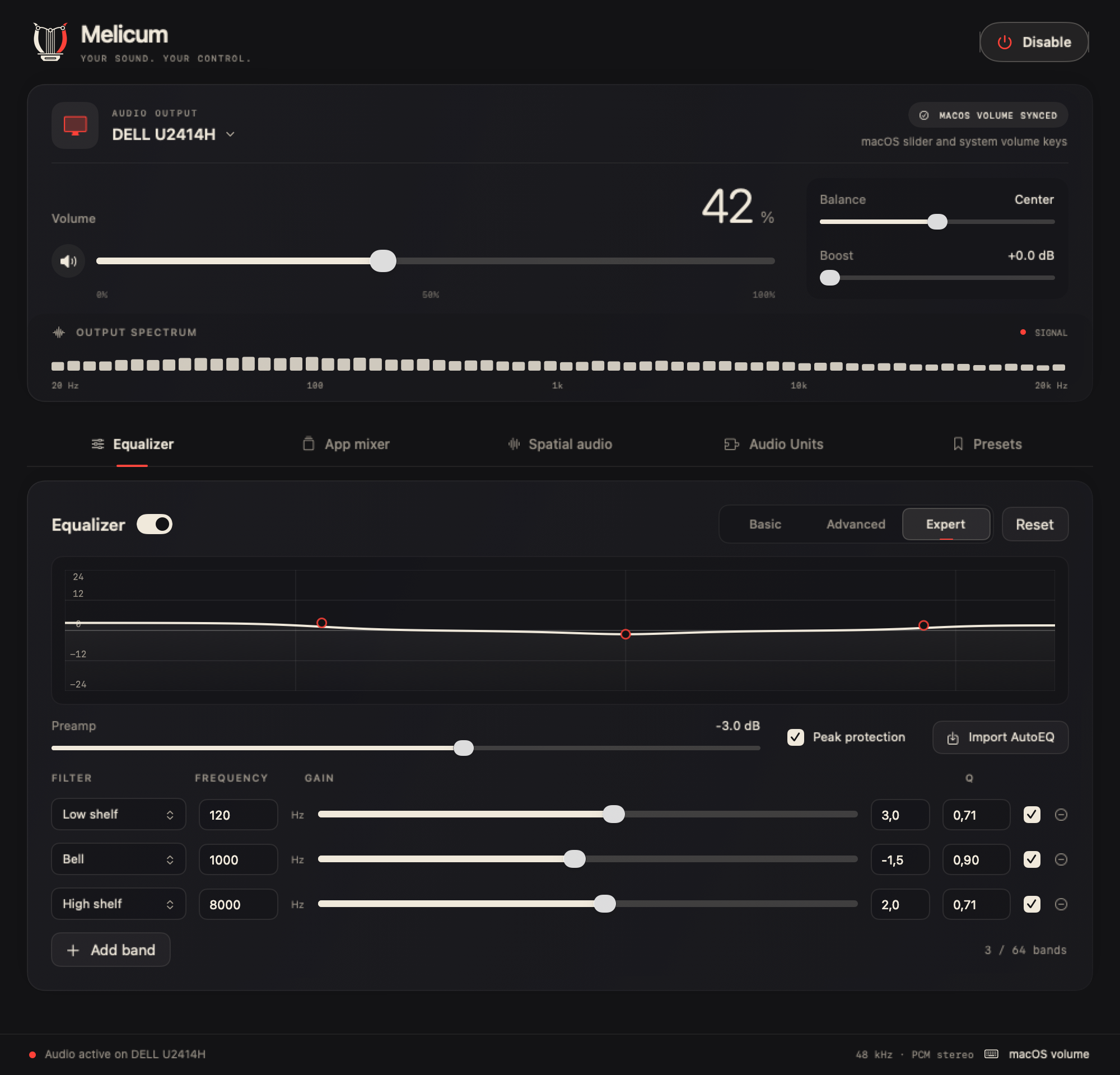 | 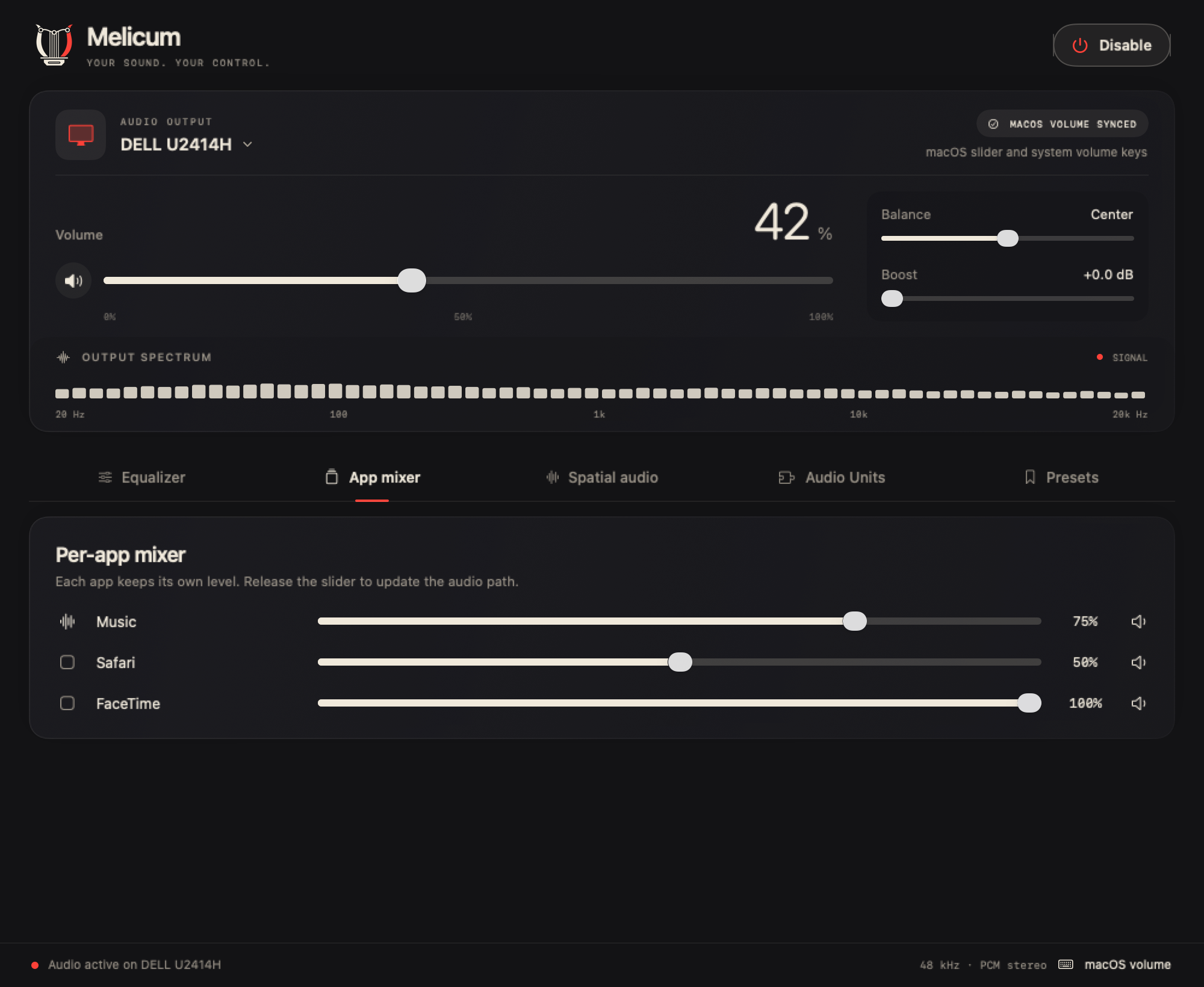 | 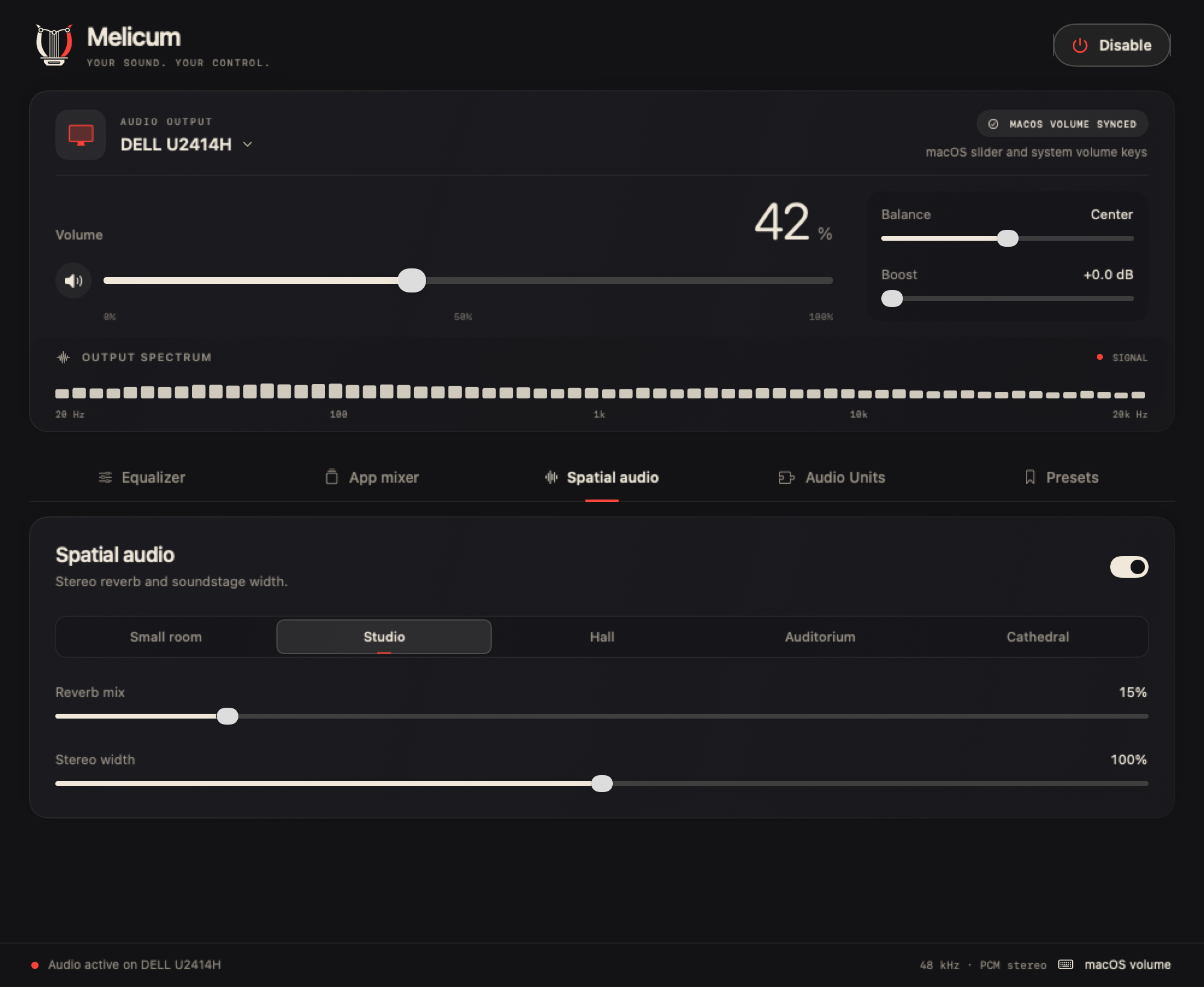 |
| Output, master controls and EQ | Independent application levels | Reverb and stereo width |
| Audio Units | Presets and settings | Quick menu |
|---|---|---|
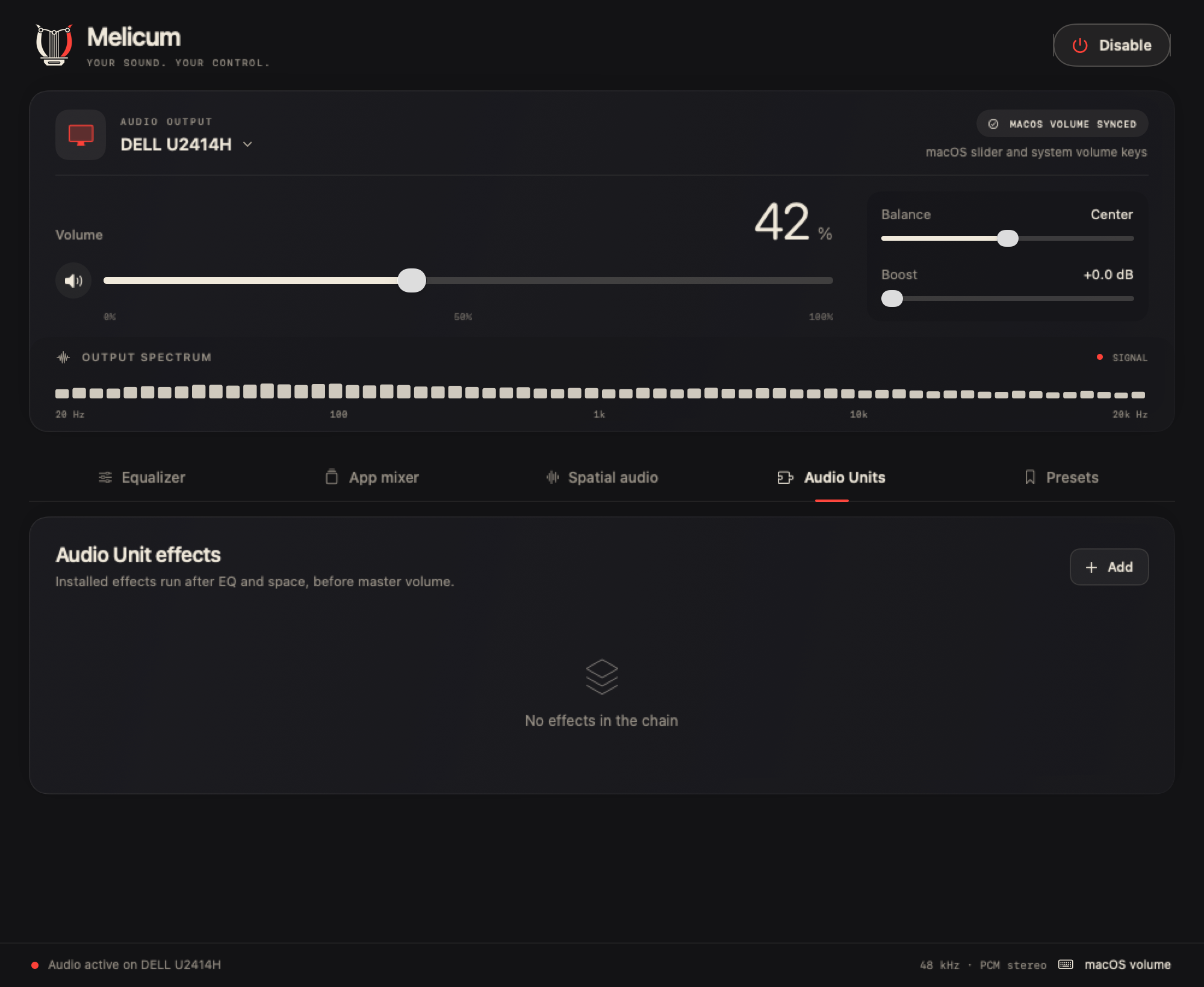 | 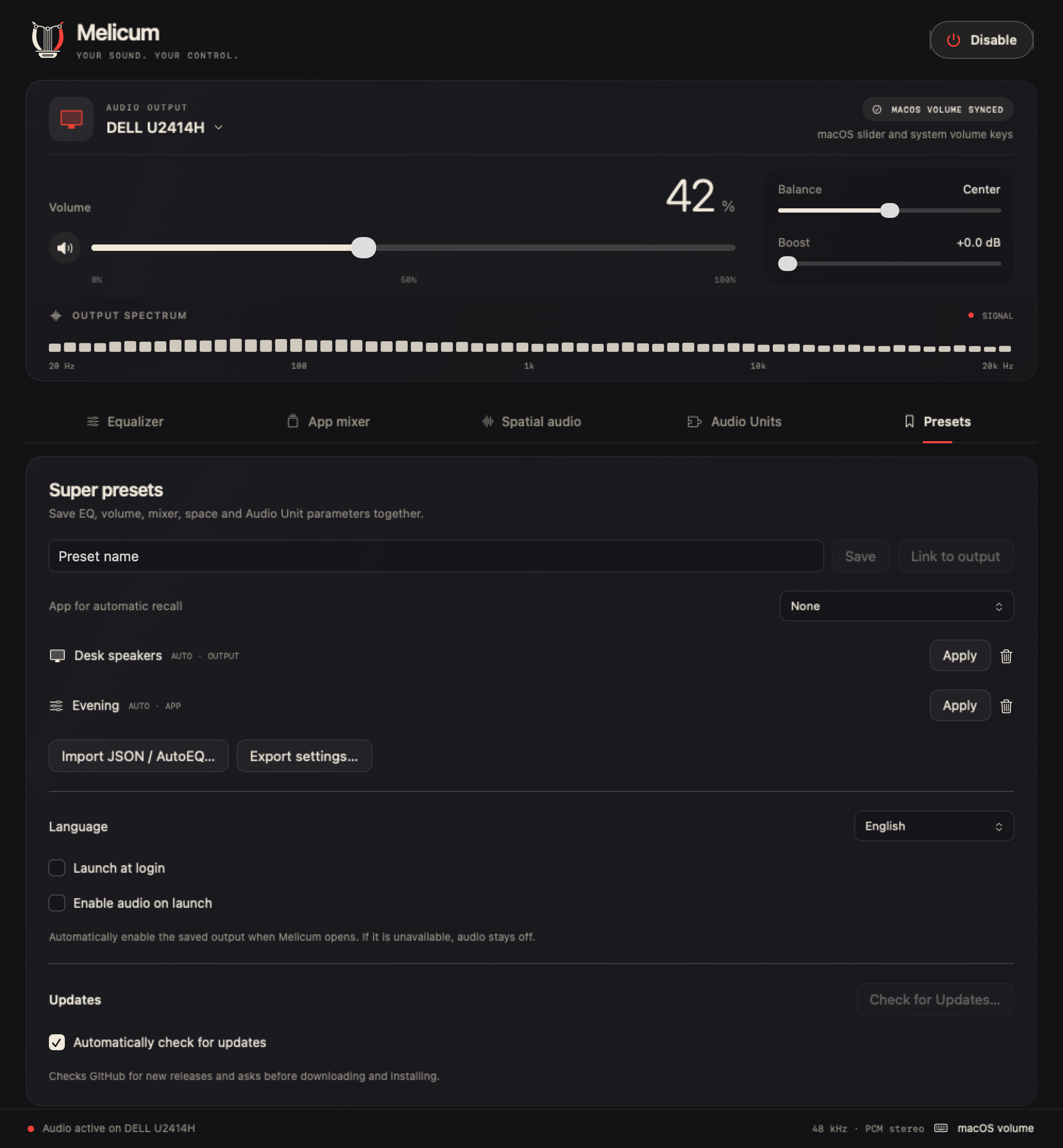 | 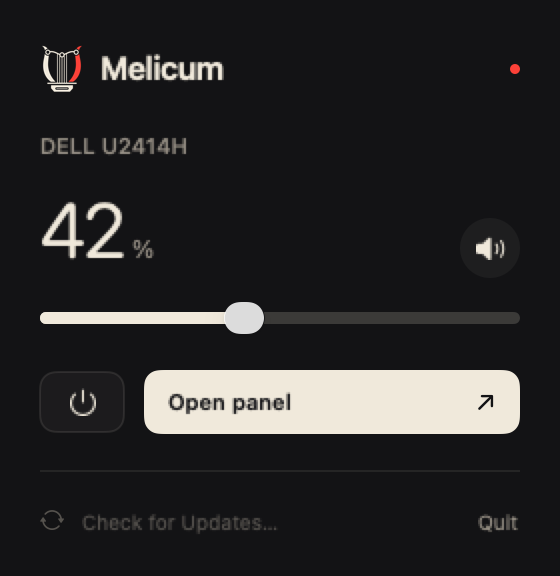 |
| Installed effect chains | Presets, startup, language and updates | Everyday volume controls |
Screenshots show the native SwiftUI interface with example devices, levels and presets. The original lyre logo and its graphite, cream and red palette are preserved. See the user guide for every control.
.dmg from Releases, drag Melicum to Applications, and open it. Release builds are signed with a Developer ID and notarized by Apple.MelicumSystemVolume.driver in /Library/Audio/Plug-Ins/HAL and restarts the audio service. Enable audio again after installation. The virtual output uses the selected physical output's name followed by (Melicum), for example DELL U2414H (Melicum), while playback continues on that physical output. Switching outputs updates the virtual device's name. Volume and mute stay synchronized between Melicum and macOS. Accessibility permission is unnecessary in this mode.The main console keeps output selection, master volume, mute, balance, boost and the live spectrum visible while you switch between EQ, app mixer, spatial audio, Audio Units and presets. Cream controls and small red indicators follow the original logo palette.
Under Presets, save or export your audio setup, associate a preset with an output or application, select one of five languages, and configure startup behavior:
Audio settings and presets are stored in ~/Library/Application Support/Melicum/settings.json. Language, startup and updater preferences are stored separately from audio presets. The user guide explains volume, EQ modes, app levels, effects, preset recall and all preferences.
Melicum checks for new stable GitHub releases automatically, approximately once a day by default. Configure this under Presets → Updates → Automatically check for updates. You can also select Check for Updates… in that panel, the Melicum menu or the menu bar panel.
Automatic checks do not silently install updates. Melicum asks before downloading and installing, preserves settings, and restores the physical output before quitting for installation. Sparkle verifies the signed feed, EdDSA archive signature and Apple code signing. Draft and prerelease versions are excluded from the stable update feed. Updating the app does not automatically replace the optional HAL component; when a release includes a component update, run its included Enable system volume… installer separately.
Disable and Quit close the taps and aggregate devices, restoring the previous output when available. Processing stops if the physical device disconnects, its sample rate changes, or macOS selects another output. Choose the desired output and enable audio again.
| Feature | Implementation |
|---|---|
| HDMI / DisplayPort volume | Software volume, mute, 0–12 dB boost, L/R balance, menu bar controls |
| Native system volume | Optional virtual output with bidirectional volume/mute synchronization and native volume keys |
| Basic EQ | Bass, mid, and treble |
| Advanced EQ | 10 fixed bands |
| Expert EQ | Up to 64 filters with independent frequency, gain, Q, and bypass; bell, low/high shelf, low/high pass, notch, and band pass |
| Spectrum | 2,048-sample FFT of processed audio, displayed in 64 logarithmic bins |
| Peak protection | Clamps output samples to ±0.98; this is not a true-peak limiter |
| App mixer | Separate taps for applications with custom volume, grouped by bundle identifier |
| Spatial audio | Original stereo reverb with five room sizes and mid/side width adjustment |
| Audio Units | Chain of up to 12 installed effects compatible with stereo float PCM; generic parameter editor |
| AutoEQ import | Local ParametricEQ .txt files in Equalizer APO / REW format |
| Super presets | Complete settings snapshots, JSON import/export, output associations, and app-triggered recall |
| Interface | Fixed graphite, cream and red palette from the logo, lyre menu bar icon and quick controls, launch at login, five languages |
This version supports mono/stereo PCM. Configure multichannel HDMI devices for two channels in Audio MIDI Setup. Dolby/DTS passthrough and protected streams unavailable to macOS process taps are unsupported. The online AutoEQ database and proprietary plugin interfaces are not included. Incompatible Audio Units cancel startup with an error; effects that fail during rendering are bypassed. Peak protection operates per stream, so the sum of multiple mixer streams can still exceed full scale.
Output presets are recalled when selecting an output in Melicum. App presets are recalled when the active playback application changes, preferring the foreground application and otherwise the first active application alphabetically. Changing the mixer or Audio Unit chain rebuilds the audio path and may briefly interrupt playback. Switching to Basic or Advanced EQ initializes that mode's bands; save a preset first to preserve an Expert configuration.
The optional system volume component builds on BlackHole, included as a submodule. Clone with:
git clone --recurse-submodules https://github.com/debba/melicum.git
swift test
./scripts/make-brand-icon.sh
./scripts/build-system-volume.sh
./scripts/build.sh
.build/release/Melicum --list-devices
To regenerate the documentation screenshots from the native views with isolated example data, run:
./scripts/make-screenshots.sh
The capture script uses a temporary test harness, starts no audio session and leaves personal audio settings untouched.
The system volume driver has its own C tests:
mkdir -p build
xcrun clang -std=c11 -fblocks Driver/Tests.c -framework CoreAudio -framework CoreFoundation -framework Accelerate -o build/driver-tests
./build/driver-tests
The app bundle is written to build/Melicum.app and signed locally with an ad hoc signature. To install it without administrator privileges, close the running app and use:
./scripts/install.sh
Pushing a v* tag, or running the Release workflow manually with a tag name, builds a universal Melicum.app on GitHub Actions. The workflow runs the tests, signs the app and the system volume driver with a Developer ID and the hardened runtime, notarizes and staples the app and the disk image, and attaches Melicum-<version>.dmg, Melicum-<version>.zip, appcast.xml, and SHA256SUMS.txt to a draft release. An identical copy named Melicum.dmg provides the website's direct download of the latest stable release. Tags with a - suffix are marked as prereleases. Publishing a stable release makes its signed appcast.xml available at the updater's latest-release URL; drafts and prereleases are not offered through that feed. CI build numbers use 1000 + github.run_number so they increase monotonically and remain above local development builds.
The workflow requires these repository secrets:
| Secret | Contents |
|---|---|
APPLE_CERTIFICATE | Base64-encoded .p12 with the Developer ID Application certificate and private key |
APPLE_CERTIFICATE_PASSWORD | Password of the .p12 |
APPLE_SIGNING_IDENTITY | Identity name, for example Developer ID Application: Name (TEAMID) |
APPLE_API_ISSUER | App Store Connect API issuer ID |
APPLE_API_KEY | App Store Connect API key ID |
APPLE_API_KEY_CONTENT | Base64-encoded .p8 API key |
APPLE_INSTALLER_SIGNING_IDENTITY | Optional. Developer ID Installer: Name (TEAMID) to sign the driver package; its certificate must be in the same .p12 |
SPARKLE_PRIVATE_KEY | Base64 EdDSA private key exported by Sparkle's generate_keys tool. It must match SUPublicEDKey in Resources/Info.plist. |
To reproduce a signed build locally, set MELICUM_SIGN_IDENTITY (and optionally MELICUM_INSTALLER_IDENTITY) before running the build scripts. MELICUM_ARCHS="arm64 x86_64" produces a universal binary.
An updated build may require macOS permissions to be approved again. Launch at login uses SMAppService and may require confirmation in System Settings.
The Swift tests cover gain, mute, balance, filter response, FFT, peak protection, interleaved/planar buffers, tap input selection, Audio Units, AutoEQ parsing, preset round trips, all five localizations, and isolation of live spectrum updates from editable controls. Driver/Tests.c covers output names, stable device identity, property validation, hidden startup, visibility notifications, heartbeat, owner validation, volume round trips, shutdown, heartbeat timeout, and unexpected owner exit. Automated tests do not replace listening on the physical output or validating macOS permissions.
On this Mac, manual checks verified actual audio through the virtual output to the selected DELL device, volume and mute synchronization in both directions, and restoration of the physical output when processing stops.
The optional component wraps BlackHole source pinned to commit 561d934c77a1fa64987e01ccabe890fed30e181f. It exposes a stereo output with standard volume/mute properties. Melicum captures application audio targeted at that output and forwards the processed signal to the selected physical device. The loopback input is unused. For fixed-volume outputs, master volume is applied in Melicum's DSP. For outputs with writable master or channel volume controls, the physical volume follows the virtual slider and DSP omits master attenuation, preserving the device's full volume range. Writable physical mute controls follow the virtual mute state. Stopping leaves these controls at the last requested level, so fallback playback uses that level as well.
The virtual device appears in the macOS output list only while Melicum is open and processing audio. Disabling audio or quitting restores the previous physical output and hides the virtual device. If the owner process exits unexpectedly or its heartbeat is missing for five seconds, the driver hides and disables the device so macOS can choose another output. The component stays installed between launches; updating an older component requires running the system volume installer included in the new app.
Routing follows Apple's Capturing system audio with Core Audio taps, local SDK headers, and the shared-clock aggregate model described by CoreAudioTapKit. The tap and physical output share a callback. The C callback uses preallocated memory and atomic controls; audio lifecycle and Audio Unit configuration run on a separate serial queue.
The original vector mark is a lyre drawn as an equalizer: the yoke is an EQ curve with three hollow nodes, the strings end on that curve, and the sound box has the profile of an HDMI receptacle. The name comes from the Latin melicus, "lyrical". Its "Vinyl and VU" palette pairs a graphite tile with cream and VU-needle red. SVG masters are in Resources/brand; Resources/AppIcon.icon supplies the native layered macOS icon, Resources/BrandIcon.png supplies the legacy icon, and Resources/BrandMark.png supplies the transparent header mark. Shared geometry in scripts/make-icon.swift generates the SVG and PNG artwork. See the identity notes.
Copyright © 2026 Andrea Debernardi.
Melicum and its modified BlackHole component are distributed under GPL-3.0. See LICENSE, ThirdParty/BlackHole/LICENSE, and Driver/UPSTREAM.md. Upstream source and license notices are preserved.
HDMI and DisplayPort volume control for macOS, with native system volume and mute
See the code
HDMI and DisplayPort volume control for macOS.
Website · Download
A native macOS audio app focused on HDMI and DisplayPort volume control. Software gain works even when a digital output has no hardware volume control. The optional system volume component also enables the macOS volume slider and native volume keys.
Melicum uses an independent SwiftUI interface, Core Audio routing, and C DSP. It requires macOS 14.2 or later. Building the app from source additionally requires Xcode 26 or later and Swift to compile the native layered icon. English is the default language; Italian, French, German, and Spanish are available under Presets → Language.
| Main window | App mixer | Spatial audio |
|---|---|---|
| | |
| Output, master controls and EQ | Independent application levels | Reverb and stereo width |
| Audio Units | Presets and settings | Quick menu |
|---|---|---|
| | |
| Installed effect chains | Presets, startup, language and updates | Everyday volume controls |
Screenshots show the native SwiftUI interface with example devices, levels and presets. The original lyre logo and its graphite, cream and red palette are preserved. See the user guide for every control.
.dmg from Releases, drag Melicum to Applications, and open it. Release builds are signed with a Developer ID and notarized by Apple.MelicumSystemVolume.driver in /Library/Audio/Plug-Ins/HAL and restarts the audio service. Enable audio again after installation. The virtual output uses the selected physical output's name followed by (Melicum), for example DELL U2414H (Melicum), while playback continues on that physical output. Switching outputs updates the virtual device's name. Volume and mute stay synchronized between Melicum and macOS. Accessibility permission is unnecessary in this mode.The main console keeps output selection, master volume, mute, balance, boost and the live spectrum visible while you switch between EQ, app mixer, spatial audio, Audio Units and presets. Cream controls and small red indicators follow the original logo palette.
Under Presets, save or export your audio setup, associate a preset with an output or application, select one of five languages, and configure startup behavior:
Audio settings and presets are stored in ~/Library/Application Support/Melicum/settings.json. Language, startup and updater preferences are stored separately from audio presets. The user guide explains volume, EQ modes, app levels, effects, preset recall and all preferences.
Melicum checks for new stable GitHub releases automatically, approximately once a day by default. Configure this under Presets → Updates → Automatically check for updates. You can also select Check for Updates… in that panel, the Melicum menu or the menu bar panel.
Automatic checks do not silently install updates. Melicum asks before downloading and installing, preserves settings, and restores the physical output before quitting for installation. Sparkle verifies the signed feed, EdDSA archive signature and Apple code signing. Draft and prerelease versions are excluded from the stable update feed. Updating the app does not automatically replace the optional HAL component; when a release includes a component update, run its included Enable system volume… installer separately.
Disable and Quit close the taps and aggregate devices, restoring the previous output when available. Processing stops if the physical device disconnects, its sample rate changes, or macOS selects another output. Choose the desired output and enable audio again.
| Feature | Implementation |
|---|---|
| HDMI / DisplayPort volume | Software volume, mute, 0–12 dB boost, L/R balance, menu bar controls |
| Native system volume | Optional virtual output with bidirectional volume/mute synchronization and native volume keys |
| Basic EQ | Bass, mid, and treble |
| Advanced EQ | 10 fixed bands |
| Expert EQ | Up to 64 filters with independent frequency, gain, Q, and bypass; bell, low/high shelf, low/high pass, notch, and band pass |
| Spectrum | 2,048-sample FFT of processed audio, displayed in 64 logarithmic bins |
| Peak protection | Clamps output samples to ±0.98; this is not a true-peak limiter |
| App mixer | Separate taps for applications with custom volume, grouped by bundle identifier |
| Spatial audio | Original stereo reverb with five room sizes and mid/side width adjustment |
| Audio Units | Chain of up to 12 installed effects compatible with stereo float PCM; generic parameter editor |
| AutoEQ import | Local ParametricEQ .txt files in Equalizer APO / REW format |
| Super presets | Complete settings snapshots, JSON import/export, output associations, and app-triggered recall |
| Interface | Fixed graphite, cream and red palette from the logo, lyre menu bar icon and quick controls, launch at login, five languages |
This version supports mono/stereo PCM. Configure multichannel HDMI devices for two channels in Audio MIDI Setup. Dolby/DTS passthrough and protected streams unavailable to macOS process taps are unsupported. The online AutoEQ database and proprietary plugin interfaces are not included. Incompatible Audio Units cancel startup with an error; effects that fail during rendering are bypassed. Peak protection operates per stream, so the sum of multiple mixer streams can still exceed full scale.
Output presets are recalled when selecting an output in Melicum. App presets are recalled when the active playback application changes, preferring the foreground application and otherwise the first active application alphabetically. Changing the mixer or Audio Unit chain rebuilds the audio path and may briefly interrupt playback. Switching to Basic or Advanced EQ initializes that mode's bands; save a preset first to preserve an Expert configuration.
The optional system volume component builds on BlackHole, included as a submodule. Clone with:
git clone --recurse-submodules https://github.com/debba/melicum.git
swift test
./scripts/make-brand-icon.sh
./scripts/build-system-volume.sh
./scripts/build.sh
.build/release/Melicum --list-devices
To regenerate the documentation screenshots from the native views with isolated example data, run:
./scripts/make-screenshots.sh
The capture script uses a temporary test harness, starts no audio session and leaves personal audio settings untouched.
The system volume driver has its own C tests:
mkdir -p build
xcrun clang -std=c11 -fblocks Driver/Tests.c -framework CoreAudio -framework CoreFoundation -framework Accelerate -o build/driver-tests
./build/driver-tests
The app bundle is written to build/Melicum.app and signed locally with an ad hoc signature. To install it without administrator privileges, close the running app and use:
./scripts/install.sh
Pushing a v* tag, or running the Release workflow manually with a tag name, builds a universal Melicum.app on GitHub Actions. The workflow runs the tests, signs the app and the system volume driver with a Developer ID and the hardened runtime, notarizes and staples the app and the disk image, and attaches Melicum-<version>.dmg, Melicum-<version>.zip, appcast.xml, and SHA256SUMS.txt to a draft release. An identical copy named Melicum.dmg provides the website's direct download of the latest stable release. Tags with a - suffix are marked as prereleases. Publishing a stable release makes its signed appcast.xml available at the updater's latest-release URL; drafts and prereleases are not offered through that feed. CI build numbers use 1000 + github.run_number so they increase monotonically and remain above local development builds.
The workflow requires these repository secrets:
| Secret | Contents |
|---|---|
APPLE_CERTIFICATE | Base64-encoded .p12 with the Developer ID Application certificate and private key |
APPLE_CERTIFICATE_PASSWORD | Password of the .p12 |
APPLE_SIGNING_IDENTITY | Identity name, for example Developer ID Application: Name (TEAMID) |
APPLE_API_ISSUER | App Store Connect API issuer ID |
APPLE_API_KEY | App Store Connect API key ID |
APPLE_API_KEY_CONTENT | Base64-encoded .p8 API key |
APPLE_INSTALLER_SIGNING_IDENTITY | Optional. Developer ID Installer: Name (TEAMID) to sign the driver package; its certificate must be in the same .p12 |
SPARKLE_PRIVATE_KEY | Base64 EdDSA private key exported by Sparkle's generate_keys tool. It must match SUPublicEDKey in Resources/Info.plist. |
To reproduce a signed build locally, set MELICUM_SIGN_IDENTITY (and optionally MELICUM_INSTALLER_IDENTITY) before running the build scripts. MELICUM_ARCHS="arm64 x86_64" produces a universal binary.
An updated build may require macOS permissions to be approved again. Launch at login uses SMAppService and may require confirmation in System Settings.
The Swift tests cover gain, mute, balance, filter response, FFT, peak protection, interleaved/planar buffers, tap input selection, Audio Units, AutoEQ parsing, preset round trips, all five localizations, and isolation of live spectrum updates from editable controls. Driver/Tests.c covers output names, stable device identity, property validation, hidden startup, visibility notifications, heartbeat, owner validation, volume round trips, shutdown, heartbeat timeout, and unexpected owner exit. Automated tests do not replace listening on the physical output or validating macOS permissions.
On this Mac, manual checks verified actual audio through the virtual output to the selected DELL device, volume and mute synchronization in both directions, and restoration of the physical output when processing stops.
The optional component wraps BlackHole source pinned to commit 561d934c77a1fa64987e01ccabe890fed30e181f. It exposes a stereo output with standard volume/mute properties. Melicum captures application audio targeted at that output and forwards the processed signal to the selected physical device. The loopback input is unused. For fixed-volume outputs, master volume is applied in Melicum's DSP. For outputs with writable master or channel volume controls, the physical volume follows the virtual slider and DSP omits master attenuation, preserving the device's full volume range. Writable physical mute controls follow the virtual mute state. Stopping leaves these controls at the last requested level, so fallback playback uses that level as well.
The virtual device appears in the macOS output list only while Melicum is open and processing audio. Disabling audio or quitting restores the previous physical output and hides the virtual device. If the owner process exits unexpectedly or its heartbeat is missing for five seconds, the driver hides and disables the device so macOS can choose another output. The component stays installed between launches; updating an older component requires running the system volume installer included in the new app.
Routing follows Apple's Capturing system audio with Core Audio taps, local SDK headers, and the shared-clock aggregate model described by CoreAudioTapKit. The tap and physical output share a callback. The C callback uses preallocated memory and atomic controls; audio lifecycle and Audio Unit configuration run on a separate serial queue.
The original vector mark is a lyre drawn as an equalizer: the yoke is an EQ curve with three hollow nodes, the strings end on that curve, and the sound box has the profile of an HDMI receptacle. The name comes from the Latin melicus, "lyrical". Its "Vinyl and VU" palette pairs a graphite tile with cream and VU-needle red. SVG masters are in Resources/brand; Resources/AppIcon.icon supplies the native layered macOS icon, Resources/BrandIcon.png supplies the legacy icon, and Resources/BrandMark.png supplies the transparent header mark. Shared geometry in scripts/make-icon.swift generates the SVG and PNG artwork. See the identity notes.
Copyright © 2026 Andrea Debernardi.
Melicum and its modified BlackHole component are distributed under GPL-3.0. See LICENSE, ThirdParty/BlackHole/LICENSE, and Driver/UPSTREAM.md. Upstream source and license notices are preserved.



