



Terminal user interface for Podman environment.
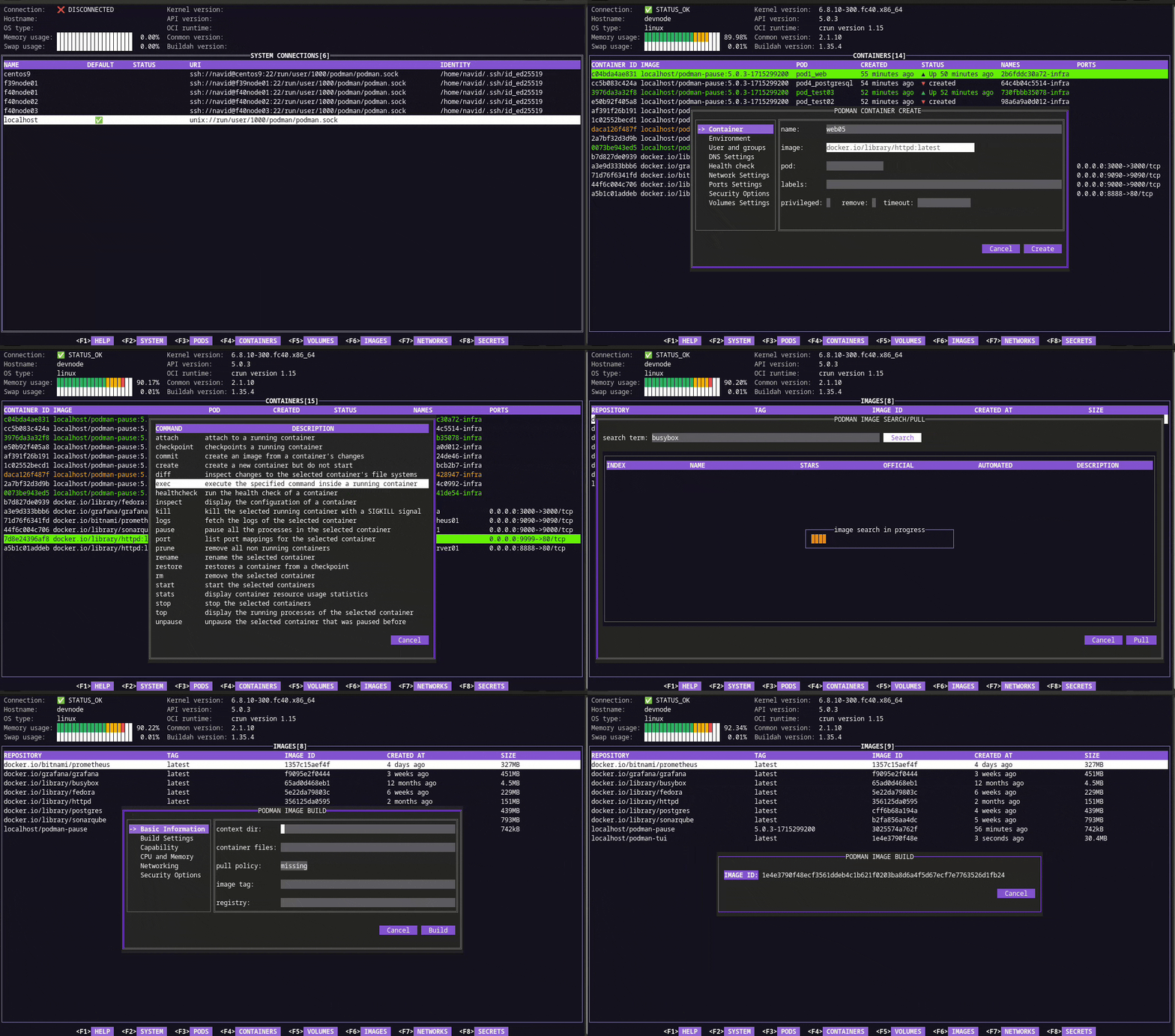
podman-tui is a terminal user interface for podman environment. It is using podman go bindings to communicate with local or remote podman machine (through SSH).
| Terminal User Interface | Podman |
|---|---|
| release-2.x | v6.x.y |
| release-1.x | v5.x.y |
| release-0.x | v4.x.y |
Building from source (Linux, Windows and MacOS) or installing packaged versions are detailed in install guide.
podman.socket service needs to be running on podman machine.
The recommended way to start Podman system service in production mode is via systemd socket-activation:
$ systemctl --user start podman.socket
For non-systemd distributions, the socket can be created using the below command. Add this command to your distro or window manager’s autostart to start the service automatically.
$ podman system service --time=0
Note: This command creates the socket only for the user who runs it.
See start podman system service for more details.
If the SSH key has a passphrase, then you need to set and export CONTAINER_PASSPHRASE=<password> variable.
$ export CONTAINER_PASSPHRASE=keypass
podman-tui uses 256 colors terminal mode on Nix system and standard ANSI colors on Windows system (use "command prompt" application).
podman-tui uses following keyboard keys for different actions:
| Action | Key |
|---|---|
| Display command menu | m |
| Display sort menu | s |
| Switch to next screen | l |
| Switch to previous screen | h |
| Move up | k |
| Move down | j |
| Exit application | Ctrl+c |
| Close the active dialog | Esc |
| Switch between interface widgets | Tab |
| Delete selected item | Delete |
| Move up/down | Up/Down |
| Previous/Next screen | Left/Right |
| Scroll Up | Page Up |
| Scroll Down | Page Down |
| Display help screen | F1 |
| Display system screen | F2 |
| Display pods screen | F3 |
| Display containers screen | F4 |
| Display volumes screen | F5 |
| Display images screen | F6 |
| Display networks screen | F7 |
| Display secrets screen | F8 |
podman-tui uses its own colors by default. To use your terminal's colors
instead, run it with --theme terminal or set PODMAN_TUI_THEME=terminal.
podman-tui then follows your terminal's color scheme, light or dark, even if
you change it while podman-tui is running. See the
color theme guide for details and screenshots.
This project is using the Containers Community Code of Conduct
Licensed under the Apache 2.0 license.
999 followers · starred Feb 2022
186 followers · starred Jul 2024
883 followers · starred Feb 2024
973 followers · starred Apr 2022
Terminal user interface for Podman environment.
podman-tui is a terminal user interface for podman environment. It is using podman go bindings to communicate with local or remote podman machine (through SSH).
| Terminal User Interface | Podman |
|---|---|
| release-2.x | v6.x.y |
| release-1.x | v5.x.y |
| release-0.x | v4.x.y |
Building from source (Linux, Windows and MacOS) or installing packaged versions are detailed in install guide.
podman.socket service needs to be running on podman machine.
The recommended way to start Podman system service in production mode is via systemd socket-activation:
$ systemctl --user start podman.socket
For non-systemd distributions, the socket can be created using the below command. Add this command to your distro or window manager’s autostart to start the service automatically.
$ podman system service --time=0
Note: This command creates the socket only for the user who runs it.
See start podman system service for more details.
If the SSH key has a passphrase, then you need to set and export CONTAINER_PASSPHRASE=<password> variable.
$ export CONTAINER_PASSPHRASE=keypass
podman-tui uses 256 colors terminal mode on Nix system and standard ANSI colors on Windows system (use "command prompt" application).
podman-tui uses following keyboard keys for different actions:
| Action | Key |
|---|---|
| Display command menu | m |
| Display sort menu | s |
| Switch to next screen | l |
| Switch to previous screen | h |
| Move up | k |
| Move down | j |
| Exit application | Ctrl+c |
| Close the active dialog | Esc |
| Switch between interface widgets | Tab |
| Delete selected item | Delete |
| Move up/down | Up/Down |
| Previous/Next screen | Left/Right |
| Scroll Up | Page Up |
| Scroll Down | Page Down |
| Display help screen | F1 |
| Display system screen | F2 |
| Display pods screen | F3 |
| Display containers screen | F4 |
| Display volumes screen | F5 |
| Display images screen | F6 |
| Display networks screen | F7 |
| Display secrets screen | F8 |
podman-tui uses its own colors by default. To use your terminal's colors
instead, run it with --theme terminal or set PODMAN_TUI_THEME=terminal.
podman-tui then follows your terminal's color scheme, light or dark, even if
you change it while podman-tui is running. See the
color theme guide for details and screenshots.
This project is using the Containers Community Code of Conduct
Licensed under the Apache 2.0 license.
999 followers · starred Feb 2022
186 followers · starred Jul 2024
883 followers · starred Feb 2024
973 followers · starred Apr 2022



