Web SSH Client using ssh2, socket.io, xterm.js, and express. webssh webssh2
TypeScript
2,777
872 commits
updated Oct 6, 2026



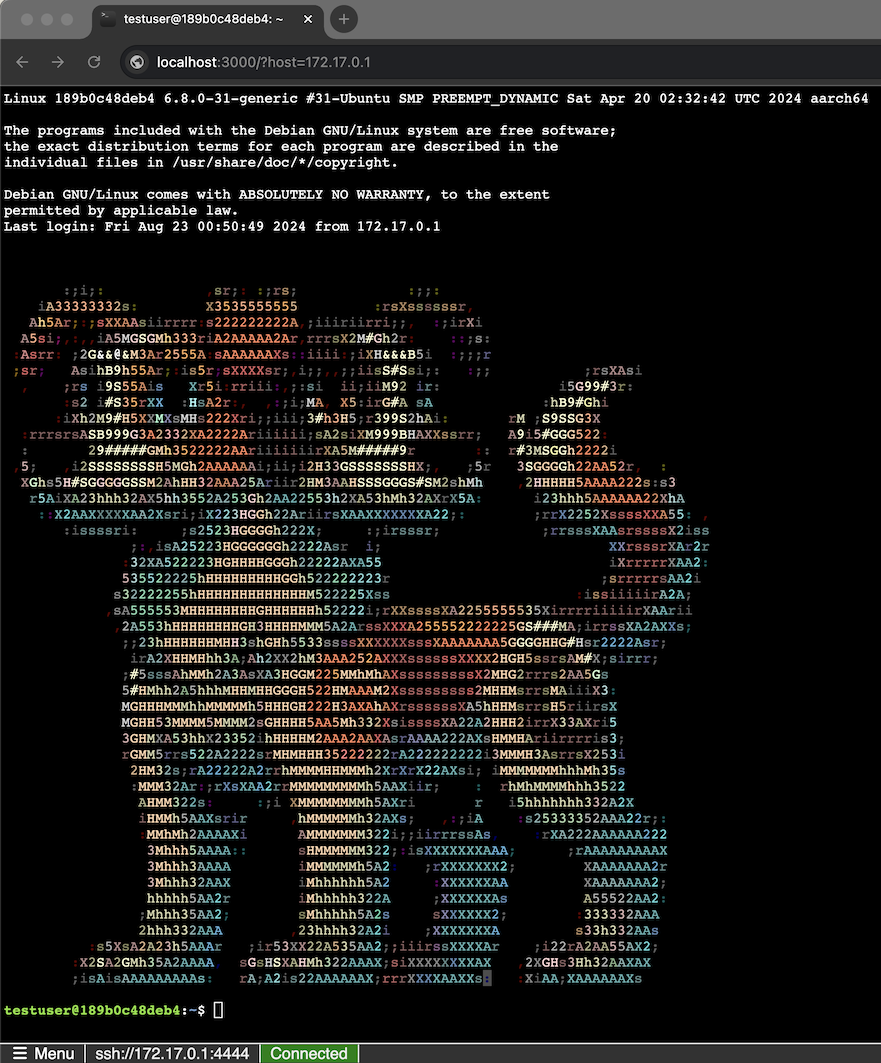
WebSSH2 is an HTML5 web-based terminal emulator and SSH client with optional telnet support. It uses SSH2 as a client on a host to proxy a Websocket / Socket.io connection to an SSH2 server.
WebSSH2 development is supported by Tailwind Resource Group, an engineering-led IT services firm specializing in application delivery, zero trust security, and identity for federal and commercial customers.
WebSSH2 server bundles a matching version of the webssh2_client browser bundle as an npm dependency. The compatibility matrix below tracks which client major each server major ships with.
Server (webssh2) | Client (webssh2_client) | Notes |
|---|---|---|
| 5.x | ^4.0.0 | headerStyle / header.color removed (#102) |
| 4.x | ^3.x | Theming UI support (3.7.0+) |
Operators using the published Docker image or installing webssh2 from npm get the correct client automatically. The matrix matters if you self-build the client, link a local fork, or pin to a different client version than the server's dependency declares.
# Clone repository
git clone https://github.com/billchurch/webssh2.git
cd webssh2

# Install dependencies
npm install --production

# Start server
npm start
Access WebSSH2 at: http://localhost:2222/ssh (or http://localhost:2222/telnet if telnet is enabled)
ghcr.io/billchurch/webssh2docker.io/billchurch/webssh2linux/amd64, linux/arm64Pull the latest build from GitHub Container Registry:
docker pull ghcr.io/billchurch/webssh2:latest
Run the container exposing the default port:
docker run --rm -p 2222:2222 ghcr.io/billchurch/webssh2:latest
To pin to a specific release (example: webssh2-server-v2.3.2):
docker run --rm -p 2222:2222 \
  ghcr.io/billchurch/webssh2:2.3.2
The same tags are available on Docker Hub if you prefer the legacy namespace:
docker run --rm -p 2222:2222 docker.io/billchurch/webssh2:2.3.2
WebSSH2 prefers environment variables for configuration (following 12-factor app principles):
# Basic configuration
export WEBSSH2_LISTEN_PORT=2222
export WEBSSH2_SSH_HOST=ssh.example.com
export WEBSSH2_HEADER_TEXT="My WebSSH2"
# Allow only password and keyboard-interactive authentication methods (default allows all)
export WEBSSH2_AUTH_ALLOWED=password,keyboard-interactive

npm start
For detailed configuration options, see Configuration Documentation.
http://localhost:2222/ssh/host/192.168.1.100
http://localhost:2222/ssh?port=2244&sshterm=xterm-256color
docker run --rm -it \
  -p 2222:2222 \
  -e WEBSSH2_SSH_HOST=ssh.example.com \
  -e WEBSSH2_SSH_ALGORITHMS_PRESET=modern \
  -e WEBSSH2_AUTH_ALLOWED=password,publickey \
  ghcr.io/billchurch/webssh2:latest
Need the Docker Hub mirror instead? Use docker.io/billchurch/webssh2:latest.
Host key verification protects SSH connections against man-in-the-middle (MITM) attacks by validating the public key presented by the remote SSH server. When enabled, WebSSH2 compares the server's host key against a known-good key before allowing the connection to proceed. This is the same trust-on-first-use (TOFU) model used by OpenSSH.
The feature is disabled by default and must be explicitly enabled in configuration.
Add the hostKeyVerification block under ssh in config.json:
{
  "ssh": {
    "hostKeyVerification": {
      "enabled": true,
      "mode": "hybrid",
      "unknownKeyAction": "prompt",
      "serverStore": {
        "enabled": true,
        "dbPath": "/data/hostkeys.db"
      },
      "clientStore": {
        "enabled": true
      }
    }
  }
}
The mode setting is a shorthand that controls which key stores are active. Explicit serverStore.enabled and clientStore.enabled flags override the mode defaults when set.
| Mode | Server Store | Client Store | Description |
|---|---|---|---|
server | on | off | Keys are verified exclusively against the server-side SQLite database. The client is never prompted. Best for locked-down environments where an administrator pre-seeds all host keys. |
client | off | on | The server delegates verification to the browser client. The client stores accepted keys locally (e.g. in IndexedDB). Useful when no server-side database is available. |
hybrid | on | on | The server store is checked first. If the key is unknown there, the client is asked. Provides server-enforced trust with client-side fallback for new hosts. (default) |
When a host key is not found in any enabled store, the unknownKeyAction setting determines what happens:
| Action | Behavior |
|---|---|
prompt | Emit a hostkey:verify event to the client and wait for the user to accept or reject the key. Connection is blocked until the user responds or the 30-second timeout expires. (default) |
alert | Emit a hostkey:alert event to the client as a notification, but allow the connection to proceed. The key is not stored; the alert will appear again on the next connection. |
reject | Emit a hostkey:rejected event and refuse the connection immediately. Only pre-seeded keys in the server store will be accepted. |
All host key settings can be configured via environment variables. Environment variables override config.json values.
| Variable | Config Path | Type | Default | Description |
|---|---|---|---|---|
WEBSSH2_SSH_HOSTKEY_ENABLED | ssh.hostKeyVerification.enabled | boolean | false | Enable or disable host key verification |
WEBSSH2_SSH_HOSTKEY_MODE | ssh.hostKeyVerification.mode | string | hybrid | Verification mode: server, client, or hybrid |
WEBSSH2_SSH_HOSTKEY_UNKNOWN_ACTION | ssh.hostKeyVerification.unknownKeyAction | string | prompt | Action for unknown keys: prompt, alert, or reject |
WEBSSH2_SSH_HOSTKEY_DB_PATH | ssh.hostKeyVerification.serverStore.dbPath | string | /data/hostkeys.db | Path to the SQLite host key database |
WEBSSH2_SSH_HOSTKEY_SERVER_ENABLED | ssh.hostKeyVerification.serverStore.enabled | boolean | true | Enable the server-side SQLite store |
WEBSSH2_SSH_HOSTKEY_CLIENT_ENABLED | ssh.hostKeyVerification.clientStore.enabled | boolean | true | Enable the client-side (browser) store |
The server store uses a SQLite database that is opened in read-only mode at runtime. You must create and populate the database ahead of time using the seeding script (see below).
Creating the database:
# Probe a host to create and populate the database
npm run hostkeys -- --host ssh.example.com
The script automatically creates the database file (and parent directories) at the configured dbPath if it does not exist.
Bulk seeding from a hosts file (capped at 1000 entries by default):
# Probe each line of hosts.txt; refuses files with more than 1000 entries.
npm run hostkeys -- --hosts hosts.txt
# Override the cap for a legitimate large rollout:
npm run hostkeys -- --hosts hosts.txt --max-hosts 5000
Importing from an OpenSSH known_hosts file:
The --known-hosts command is a dry-run by default — it prints a
preview of the parsed entries and exits without touching the database.
This is a deliberate safety gate because every entry in the trust store
is trusted unconditionally by the server at startup. Inspect the preview,
verify the source is what you expected, then re-run with --commit:
# Preview only (no writes)
npm run hostkeys -- --known-hosts ~/.ssh/known_hosts

# After verifying the preview, commit:
npm run hostkeys -- --known-hosts ~/.ssh/known_hosts --commit
Docker volume mounting:
When running in Docker, mount a volume to the directory containing your database so it persists across container restarts. The mount path must match the dbPath value in your configuration:
docker run --rm -p 2222:2222 \
  -v /path/to/local/hostkeys:/data \
  -e WEBSSH2_SSH_HOSTKEY_ENABLED=true \
  -e WEBSSH2_SSH_HOSTKEY_DB_PATH=/data/hostkeys.db \
  ghcr.io/billchurch/webssh2:latest
Where can the database file live?
For safety, the seeding CLI refuses to create new parent directories outside an allowlist:
/data (the documented default)WEBSSH2_SSH_HOSTKEY_DB_PATH if setssh.hostKeyVerification.serverStore.dbPath in config.json if setPointing --db at a path whose parent directory already exists is
always allowed. The restriction only applies when the seeder would have
to create new directories outside the allowlist.
WARNING: You must mount
/data(named volume or bind mount) before running any seeding commands inside a production container. The image deliberately does not declareVOLUME /data— without an operator- provided mount, the seededhostkeys.dbis written to the container's writable layer and is destroyed bydocker rm. The absentVOLUMEdirective is intentional: silent anonymous-volume data loss (which is what Docker does when aVOLUMEis declared but unmounted) is a worse failure mode than container-fs loss, because the latter is an obvious operator mistake while the former looks like everything is working until the container is removed.
The production image ships the compiled CLI at dist/scripts/host-key-seed.js
and exposes it via npm run hostkeys:prod. The dev-only npm run hostkeys
script uses tsx (a devDependency that is not present in the image), so
inside the container you must always use :prod.
Seed against a running container (most common):
docker exec <container> npm run hostkeys:prod -- --host ssh.example.com
One-shot pre-seed before the first container start:
docker run --rm \
  -v hostkeys-data:/data \
  -e WEBSSH2_SSH_HOSTKEY_DB_PATH=/data/hostkeys.db \
  ghcr.io/billchurch/webssh2:latest \
  npm run hostkeys:prod -- --host ssh.example.com
Troubleshooting:
EACCES: permission denied writing /data/hostkeys.db — the
bind-mounted host directory is not writable by uid 1000 (the node user
inside the container). Either chown 1000:1000 /path/on/host/hostkeys on
the host before mounting, or switch to a named volume managed by the
Docker daemon (named volumes inherit image ownership and avoid this)./data. Verify with docker inspect <container>
that /data is listed under Mounts as a bind or volume source, not
a container-local path. The examples/docker-compose.yml file shows the
expected named-volume setup.The npm run hostkeys command manages the SQLite host key database. It probes remote hosts via SSH to capture their public keys and stores them for later verification.
npm run hostkeys -- --help
Probe a single host (default port 22):
npm run hostkeys -- --host ssh.example.com
Probe a host on a non-standard port:
npm run hostkeys -- --host ssh.example.com --port 2222
Bulk import from a hosts file (one host[:port] per line, # comments
allowed; capped at 1000 entries by default — see --max-hosts):
npm run hostkeys -- --hosts servers.txt
Import from an OpenSSH known_hosts file (dry-run by default — add
--commit to actually write):
# Preview only (no writes)
npm run hostkeys -- --known-hosts ~/.ssh/known_hosts

# After verifying the preview, commit:
npm run hostkeys -- --known-hosts ~/.ssh/known_hosts --commit
List all stored keys:
npm run hostkeys -- --list
Remove all keys for a host:port pair:
npm run hostkeys -- --remove ssh.example.com:22
Use a custom database path:
npm run hostkeys -- --list --db /custom/path/hostkeys.db
If --db is not specified, the script reads dbPath from config.json, falling back to /data/hostkeys.db.
The following Socket.IO events are used for host key verification. This reference is intended for CLI clients and third-party implementors integrating with the WebSSH2 WebSocket protocol.
Server to Client:
| Event | Payload | Description |
|---|---|---|
hostkey:verify | { host, port, algorithm, fingerprint, key } | Server is requesting the client to verify an unknown host key. The client must respond with hostkey:verify-response. key is the base64-encoded public key; fingerprint is the SHA256:... hash. |
hostkey:verified | { host, port, algorithm, fingerprint, source } | The host key was successfully verified. source is "server" or "client" indicating which store matched. Informational only; no response required. |
hostkey:mismatch | { host, port, algorithm, presentedFingerprint, storedFingerprint, source } | The presented key does not match the stored key. The connection is refused. source indicates which store detected the mismatch. |
hostkey:alert | { host, port, algorithm, fingerprint } | An unknown key was encountered and unknownKeyAction is set to alert. The connection proceeds. Informational only. |
hostkey:rejected | { host, port, algorithm, fingerprint } | An unknown key was encountered and unknownKeyAction is set to reject. The connection is refused. |
Client to Server:
| Event | Payload | Description |
|---|---|---|
hostkey:verify-response | { action } | Client response to a hostkey:verify prompt. action must be "accept", "reject", or "trusted" (key was already known to the client). If no response is received within 30 seconds, the connection is refused. |
Feature appears to have no effect:
Host key verification is disabled by default (enabled: false). Set WEBSSH2_SSH_HOSTKEY_ENABLED=true or "enabled": true in config.json to activate it.
Database not found at runtime:
The server store opens the database in read-only mode. If the file at dbPath does not exist, all lookups return "unknown" and the store operates in degraded mode. Run npm run hostkeys to create and seed the database before starting the server.
Host key mismatch:
A hostkey:mismatch event means the SSH server is presenting a different key than what is stored in the database. This can happen after a legitimate server reinstall or key rotation. To resolve:
npm run hostkeys -- --remove host:portnpm run hostkeys -- --host <hostname> --port <port>If you receive frequent mismatches for hosts you did not change, investigate for potential MITM attacks.
Client verification times out:
When using prompt mode, the client has 30 seconds to respond to a hostkey:verify event. If the client does not respond in time, the connection is refused. Ensure the client application handles the hostkey:verify Socket.IO event.
WebSSH2 includes optional telnet protocol support for connecting to legacy devices such as network switches, routers, and older systems that don't support SSH. Telnet is disabled by default and must be explicitly enabled.
Security Warning: Telnet transmits all data in plain text, including credentials. Only use on trusted, isolated networks.
# Via environment variable
docker run --rm -p 2222:2222 \
  -e WEBSSH2_TELNET_ENABLED=true \
  ghcr.io/billchurch/webssh2:latest
Or in config.json:
{
  "telnet": {
    "enabled": true
  }
}
Once enabled, access telnet at http://localhost:2222/telnet or connect to a specific host at http://localhost:2222/telnet/host/192.168.1.1.
For full configuration options, see Environment Variables and Config JSON.
npm install (or npm ci) and continue using scripts such as npm run dev and npm run build. The TypeScript sources remain the source of truth.npm ci --omit=dev, npm run build, then node dist/scripts/create-release-artifact.js to produce webssh2-<version>.tar.gz, manifest.json, and a .sha256 checksum. GNU tar is required to guarantee deterministic archives.npm ci --omit=dev from the extracted root (alongside package.json), and start with NODE_ENV=production npm start. The prestart script detects the precompiled bundle and skips rebuilding.If you like what I do and want to support me, you can buy me a coffee!

Overall
Maintained
Code review
npm
Latest release
Releases this year
213 followers · starred Nov 2025
74 followers · starred Mar 2021
126 followers · starred Dec 2017
29 followers · starred Dec 2021
Web SSH Client using ssh2, socket.io, xterm.js, and express. webssh webssh2
TypeScript
2,777
872 commits
updated Oct 6, 2026
WebSSH2 is an HTML5 web-based terminal emulator and SSH client with optional telnet support. It uses SSH2 as a client on a host to proxy a Websocket / Socket.io connection to an SSH2 server.
WebSSH2 development is supported by Tailwind Resource Group, an engineering-led IT services firm specializing in application delivery, zero trust security, and identity for federal and commercial customers.
WebSSH2 server bundles a matching version of the webssh2_client browser bundle as an npm dependency. The compatibility matrix below tracks which client major each server major ships with.
Server (webssh2) | Client (webssh2_client) | Notes |
|---|---|---|
| 5.x | ^4.0.0 | headerStyle / header.color removed (#102) |
| 4.x | ^3.x | Theming UI support (3.7.0+) |
Operators using the published Docker image or installing webssh2 from npm get the correct client automatically. The matrix matters if you self-build the client, link a local fork, or pin to a different client version than the server's dependency declares.
# Clone repository
git clone https://github.com/billchurch/webssh2.git
cd webssh2

# Install dependencies
npm install --production

# Start server
npm start
Access WebSSH2 at: http://localhost:2222/ssh (or http://localhost:2222/telnet if telnet is enabled)
ghcr.io/billchurch/webssh2docker.io/billchurch/webssh2linux/amd64, linux/arm64Pull the latest build from GitHub Container Registry:
docker pull ghcr.io/billchurch/webssh2:latest
Run the container exposing the default port:
docker run --rm -p 2222:2222 ghcr.io/billchurch/webssh2:latest
To pin to a specific release (example: webssh2-server-v2.3.2):
docker run --rm -p 2222:2222 \
  ghcr.io/billchurch/webssh2:2.3.2
The same tags are available on Docker Hub if you prefer the legacy namespace:
docker run --rm -p 2222:2222 docker.io/billchurch/webssh2:2.3.2
WebSSH2 prefers environment variables for configuration (following 12-factor app principles):
# Basic configuration
export WEBSSH2_LISTEN_PORT=2222
export WEBSSH2_SSH_HOST=ssh.example.com
export WEBSSH2_HEADER_TEXT="My WebSSH2"
# Allow only password and keyboard-interactive authentication methods (default allows all)
export WEBSSH2_AUTH_ALLOWED=password,keyboard-interactive

npm start
For detailed configuration options, see Configuration Documentation.
http://localhost:2222/ssh/host/192.168.1.100
http://localhost:2222/ssh?port=2244&sshterm=xterm-256color
docker run --rm -it \
  -p 2222:2222 \
  -e WEBSSH2_SSH_HOST=ssh.example.com \
  -e WEBSSH2_SSH_ALGORITHMS_PRESET=modern \
  -e WEBSSH2_AUTH_ALLOWED=password,publickey \
  ghcr.io/billchurch/webssh2:latest
Need the Docker Hub mirror instead? Use docker.io/billchurch/webssh2:latest.
Host key verification protects SSH connections against man-in-the-middle (MITM) attacks by validating the public key presented by the remote SSH server. When enabled, WebSSH2 compares the server's host key against a known-good key before allowing the connection to proceed. This is the same trust-on-first-use (TOFU) model used by OpenSSH.
The feature is disabled by default and must be explicitly enabled in configuration.
Add the hostKeyVerification block under ssh in config.json:
{
  "ssh": {
    "hostKeyVerification": {
      "enabled": true,
      "mode": "hybrid",
      "unknownKeyAction": "prompt",
      "serverStore": {
        "enabled": true,
        "dbPath": "/data/hostkeys.db"
      },
      "clientStore": {
        "enabled": true
      }
    }
  }
}
The mode setting is a shorthand that controls which key stores are active. Explicit serverStore.enabled and clientStore.enabled flags override the mode defaults when set.
| Mode | Server Store | Client Store | Description |
|---|---|---|---|
server | on | off | Keys are verified exclusively against the server-side SQLite database. The client is never prompted. Best for locked-down environments where an administrator pre-seeds all host keys. |
client | off | on | The server delegates verification to the browser client. The client stores accepted keys locally (e.g. in IndexedDB). Useful when no server-side database is available. |
hybrid | on | on | The server store is checked first. If the key is unknown there, the client is asked. Provides server-enforced trust with client-side fallback for new hosts. (default) |
When a host key is not found in any enabled store, the unknownKeyAction setting determines what happens:
| Action | Behavior |
|---|---|
prompt | Emit a hostkey:verify event to the client and wait for the user to accept or reject the key. Connection is blocked until the user responds or the 30-second timeout expires. (default) |
alert | Emit a hostkey:alert event to the client as a notification, but allow the connection to proceed. The key is not stored; the alert will appear again on the next connection. |
reject | Emit a hostkey:rejected event and refuse the connection immediately. Only pre-seeded keys in the server store will be accepted. |
All host key settings can be configured via environment variables. Environment variables override config.json values.
| Variable | Config Path | Type | Default | Description |
|---|---|---|---|---|
WEBSSH2_SSH_HOSTKEY_ENABLED | ssh.hostKeyVerification.enabled | boolean | false | Enable or disable host key verification |
WEBSSH2_SSH_HOSTKEY_MODE | ssh.hostKeyVerification.mode | string | hybrid | Verification mode: server, client, or hybrid |
WEBSSH2_SSH_HOSTKEY_UNKNOWN_ACTION | ssh.hostKeyVerification.unknownKeyAction | string | prompt | Action for unknown keys: prompt, alert, or reject |
WEBSSH2_SSH_HOSTKEY_DB_PATH | ssh.hostKeyVerification.serverStore.dbPath | string | /data/hostkeys.db | Path to the SQLite host key database |
WEBSSH2_SSH_HOSTKEY_SERVER_ENABLED | ssh.hostKeyVerification.serverStore.enabled | boolean | true | Enable the server-side SQLite store |
WEBSSH2_SSH_HOSTKEY_CLIENT_ENABLED | ssh.hostKeyVerification.clientStore.enabled | boolean | true | Enable the client-side (browser) store |
The server store uses a SQLite database that is opened in read-only mode at runtime. You must create and populate the database ahead of time using the seeding script (see below).
Creating the database:
# Probe a host to create and populate the database
npm run hostkeys -- --host ssh.example.com
The script automatically creates the database file (and parent directories) at the configured dbPath if it does not exist.
Bulk seeding from a hosts file (capped at 1000 entries by default):
# Probe each line of hosts.txt; refuses files with more than 1000 entries.
npm run hostkeys -- --hosts hosts.txt
# Override the cap for a legitimate large rollout:
npm run hostkeys -- --hosts hosts.txt --max-hosts 5000
Importing from an OpenSSH known_hosts file:
The --known-hosts command is a dry-run by default — it prints a
preview of the parsed entries and exits without touching the database.
This is a deliberate safety gate because every entry in the trust store
is trusted unconditionally by the server at startup. Inspect the preview,
verify the source is what you expected, then re-run with --commit:
# Preview only (no writes)
npm run hostkeys -- --known-hosts ~/.ssh/known_hosts

# After verifying the preview, commit:
npm run hostkeys -- --known-hosts ~/.ssh/known_hosts --commit
Docker volume mounting:
When running in Docker, mount a volume to the directory containing your database so it persists across container restarts. The mount path must match the dbPath value in your configuration:
docker run --rm -p 2222:2222 \
  -v /path/to/local/hostkeys:/data \
  -e WEBSSH2_SSH_HOSTKEY_ENABLED=true \
  -e WEBSSH2_SSH_HOSTKEY_DB_PATH=/data/hostkeys.db \
  ghcr.io/billchurch/webssh2:latest
Where can the database file live?
For safety, the seeding CLI refuses to create new parent directories outside an allowlist:
/data (the documented default)WEBSSH2_SSH_HOSTKEY_DB_PATH if setssh.hostKeyVerification.serverStore.dbPath in config.json if setPointing --db at a path whose parent directory already exists is
always allowed. The restriction only applies when the seeder would have
to create new directories outside the allowlist.
WARNING: You must mount
/data(named volume or bind mount) before running any seeding commands inside a production container. The image deliberately does not declareVOLUME /data— without an operator- provided mount, the seededhostkeys.dbis written to the container's writable layer and is destroyed bydocker rm. The absentVOLUMEdirective is intentional: silent anonymous-volume data loss (which is what Docker does when aVOLUMEis declared but unmounted) is a worse failure mode than container-fs loss, because the latter is an obvious operator mistake while the former looks like everything is working until the container is removed.
The production image ships the compiled CLI at dist/scripts/host-key-seed.js
and exposes it via npm run hostkeys:prod. The dev-only npm run hostkeys
script uses tsx (a devDependency that is not present in the image), so
inside the container you must always use :prod.
Seed against a running container (most common):
docker exec <container> npm run hostkeys:prod -- --host ssh.example.com
One-shot pre-seed before the first container start:
docker run --rm \
  -v hostkeys-data:/data \
  -e WEBSSH2_SSH_HOSTKEY_DB_PATH=/data/hostkeys.db \
  ghcr.io/billchurch/webssh2:latest \
  npm run hostkeys:prod -- --host ssh.example.com
Troubleshooting:
EACCES: permission denied writing /data/hostkeys.db — the
bind-mounted host directory is not writable by uid 1000 (the node user
inside the container). Either chown 1000:1000 /path/on/host/hostkeys on
the host before mounting, or switch to a named volume managed by the
Docker daemon (named volumes inherit image ownership and avoid this)./data. Verify with docker inspect <container>
that /data is listed under Mounts as a bind or volume source, not
a container-local path. The examples/docker-compose.yml file shows the
expected named-volume setup.The npm run hostkeys command manages the SQLite host key database. It probes remote hosts via SSH to capture their public keys and stores them for later verification.
npm run hostkeys -- --help
Probe a single host (default port 22):
npm run hostkeys -- --host ssh.example.com
Probe a host on a non-standard port:
npm run hostkeys -- --host ssh.example.com --port 2222
Bulk import from a hosts file (one host[:port] per line, # comments
allowed; capped at 1000 entries by default — see --max-hosts):
npm run hostkeys -- --hosts servers.txt
Import from an OpenSSH known_hosts file (dry-run by default — add
--commit to actually write):
# Preview only (no writes)
npm run hostkeys -- --known-hosts ~/.ssh/known_hosts

# After verifying the preview, commit:
npm run hostkeys -- --known-hosts ~/.ssh/known_hosts --commit
List all stored keys:
npm run hostkeys -- --list
Remove all keys for a host:port pair:
npm run hostkeys -- --remove ssh.example.com:22
Use a custom database path:
npm run hostkeys -- --list --db /custom/path/hostkeys.db
If --db is not specified, the script reads dbPath from config.json, falling back to /data/hostkeys.db.
The following Socket.IO events are used for host key verification. This reference is intended for CLI clients and third-party implementors integrating with the WebSSH2 WebSocket protocol.
Server to Client:
| Event | Payload | Description |
|---|---|---|
hostkey:verify | { host, port, algorithm, fingerprint, key } | Server is requesting the client to verify an unknown host key. The client must respond with hostkey:verify-response. key is the base64-encoded public key; fingerprint is the SHA256:... hash. |
hostkey:verified | { host, port, algorithm, fingerprint, source } | The host key was successfully verified. source is "server" or "client" indicating which store matched. Informational only; no response required. |
hostkey:mismatch | { host, port, algorithm, presentedFingerprint, storedFingerprint, source } | The presented key does not match the stored key. The connection is refused. source indicates which store detected the mismatch. |
hostkey:alert | { host, port, algorithm, fingerprint } | An unknown key was encountered and unknownKeyAction is set to alert. The connection proceeds. Informational only. |
hostkey:rejected | { host, port, algorithm, fingerprint } | An unknown key was encountered and unknownKeyAction is set to reject. The connection is refused. |
Client to Server:
| Event | Payload | Description |
|---|---|---|
hostkey:verify-response | { action } | Client response to a hostkey:verify prompt. action must be "accept", "reject", or "trusted" (key was already known to the client). If no response is received within 30 seconds, the connection is refused. |
Feature appears to have no effect:
Host key verification is disabled by default (enabled: false). Set WEBSSH2_SSH_HOSTKEY_ENABLED=true or "enabled": true in config.json to activate it.
Database not found at runtime:
The server store opens the database in read-only mode. If the file at dbPath does not exist, all lookups return "unknown" and the store operates in degraded mode. Run npm run hostkeys to create and seed the database before starting the server.
Host key mismatch:
A hostkey:mismatch event means the SSH server is presenting a different key than what is stored in the database. This can happen after a legitimate server reinstall or key rotation. To resolve:
npm run hostkeys -- --remove host:portnpm run hostkeys -- --host <hostname> --port <port>If you receive frequent mismatches for hosts you did not change, investigate for potential MITM attacks.
Client verification times out:
When using prompt mode, the client has 30 seconds to respond to a hostkey:verify event. If the client does not respond in time, the connection is refused. Ensure the client application handles the hostkey:verify Socket.IO event.
WebSSH2 includes optional telnet protocol support for connecting to legacy devices such as network switches, routers, and older systems that don't support SSH. Telnet is disabled by default and must be explicitly enabled.
Security Warning: Telnet transmits all data in plain text, including credentials. Only use on trusted, isolated networks.
# Via environment variable
docker run --rm -p 2222:2222 \
  -e WEBSSH2_TELNET_ENABLED=true \
  ghcr.io/billchurch/webssh2:latest
Or in config.json:
{
  "telnet": {
    "enabled": true
  }
}
Once enabled, access telnet at http://localhost:2222/telnet or connect to a specific host at http://localhost:2222/telnet/host/192.168.1.1.
For full configuration options, see Environment Variables and Config JSON.
npm install (or npm ci) and continue using scripts such as npm run dev and npm run build. The TypeScript sources remain the source of truth.npm ci --omit=dev, npm run build, then node dist/scripts/create-release-artifact.js to produce webssh2-<version>.tar.gz, manifest.json, and a .sha256 checksum. GNU tar is required to guarantee deterministic archives.npm ci --omit=dev from the extracted root (alongside package.json), and start with NODE_ENV=production npm start. The prestart script detects the precompiled bundle and skips rebuilding.If you like what I do and want to support me, you can buy me a coffee!
Overall
Maintained
Code review
npm
Latest release
Releases this year
213 followers · starred Nov 2025
74 followers · starred Mar 2021
126 followers · starred Dec 2017
29 followers · starred Dec 2021





