Offline Gemini image watermark restoration with reverse alpha blending. Native C++ GUI/CLI, batch processing, and optional GPU denoise.
C++
3,130
94 commits
updated Jul 28, 2026







🆕 Free-tier half-scale watermarks supported (v0.3.2) — free Gemini accounts now emit half-scale images (e.g. 1376x768) carrying a 48x48 logo with the current opacity profile. Detection and removal handle them automatically; custom 48x48 regions follow the selected profile instead of always assuming legacy. Detection is also more robust on busy backgrounds, and --threshold / the GUI slider are honored above 0.35 (thanks to Gerardo Leiserson, PR #41).
Gemini 3.5 watermark profile supported, with automatic legacy fallback (v0.3.1) — the CLI tries the current Gemini 3.5+ profile first; if detection skips, it automatically retries with the legacy (pre-3.5) profile. Disable with --no-legacy, or pin legacy directly with --legacy. Details below.
🎬 Veo Video Watermark Remover v0.6.1 is out — full Gemini 3.5 video watermark removal across Windows / Linux / macOS. Auto-detect for 1080p + 720p (standard and compact diamond variants), adaptive per-frame alpha via bisection feedback, tick-exact transcoder timing, audio passthrough + AI denoise. Drag-and-drop simple, no cloud, no AI hallucination — just the same reverse alpha blending math, evolved for video. Details below.
▶️ Watch: GeminiWatermarkTool — Quick Start & Feature Overview
📌 Original Author Notice (Reverse Alpha Blending)
I am the original author of GeminiWatermarkTool and the reverse alpha-blending restoration method used to remove the visible "Gemini" watermark while preserving image detail (Allen Kuo / allenk).
This project achieves high-precision restoration by using my calibrated 48×48 and 96×96 Reverse-Alpha Masks to invert the blending equation. Since I published this work and these assets, many derivative tools (desktop apps, websites, browser extensions, etc.) have appeared using the same approach and/or directly reusing the masks produced by this project — because the method is deterministic and highly effective.
✅ MIT License reminder
This project is released under the MIT License. Commercial use and ports are allowed.
However, if you redistribute any substantial portion of this project (including code or mask assets), you must:
- Preserve the original copyright notice
- Include the full MIT license text
- (Recommended) Provide attribution with a link back to this repository
📖 For the full technical write-up (including how the Reverse-Alpha Masks were derived and calibrated), see:
Removing Gemini AI Watermarks: A Deep Dive into Reverse Alpha Blending
https://allenkuo.medium.com/removing-gemini-ai-watermarks-a-deep-dive-into-reverse-alpha-blending-bbbd83af2a3f
Gemini Watermark Tool removes Gemini visible watermarks from images using a mathematically accurate reverse alpha blending algorithm.
Unlike many tools that rely entirely on generative inpainting, this project focuses on deterministic reconstruction combined with lightweight AI-assisted cleanup.
The design philosophy is simple:
small, standalone, fast, and reliable.
The entire toolkit is distributed as a portable executable with zero runtime dependencies, making it easy to install, automate, and integrate into scripts or pipelines without complex setup.
Key capabilities include:
GeminiWatermarkTool now supports the new Gemini 3.5 watermark layout out of the box. Starting with Gemini 3.5, Google shifted the watermark position and updated its alpha map relative to legacy Gemini outputs. The tool targets the new profile by default and ships a one-click Legacy toggle for pre-3.5 outputs — no command-line flags or re-calibration needed.
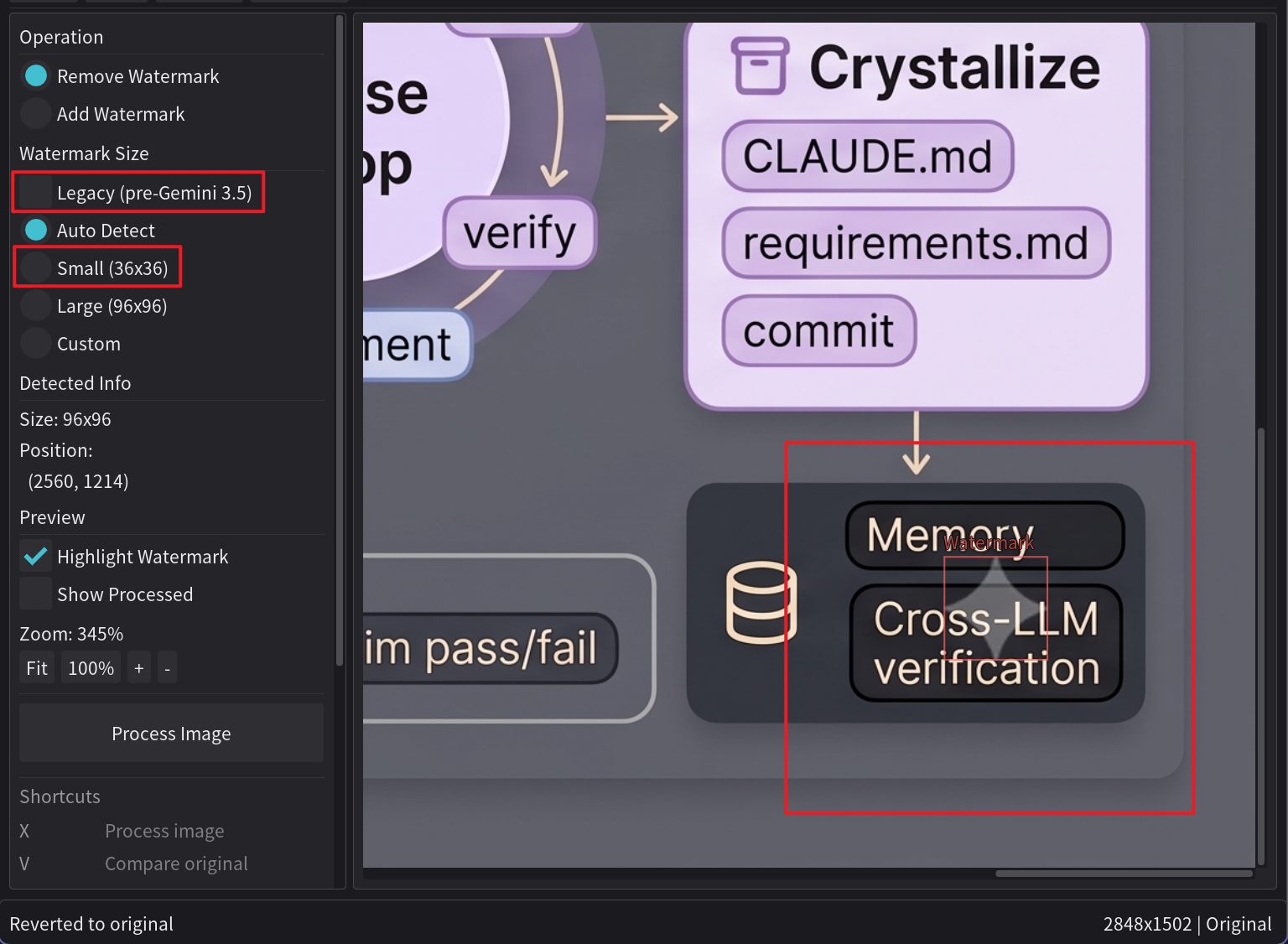
| Gemini 3.5+ (default) | Legacy (pre-Gemini 3.5) | |
|---|---|---|
| Profile | V2 | V1 |
| Small logo | 36×36 | 48×48 |
| Large logo | 96×96 | 96×96 |
| Margin | shifted (per-aspect calibrated) | original |
| GUI | "Auto Detect" / "Small" / "Large" radios | tick "Legacy (pre-Gemini 3.5)" checkbox |
| CLI | default | pass --legacy |
Both profiles use the same deterministic reverse alpha blending pipeline — switching profiles only changes the alpha map and position formula, not the math.
The CLI default now handles mixed Gemini-3.5+ and pre-3.5 inputs without the user having to script the retry. When the current-profile detector returns skipped (confidence below threshold), the CLI automatically runs the same image through the legacy profile before reporting the final outcome. Behaviour matrix:
| Invocation | First attempt | Fallback | Notes |
|---|---|---|---|
GeminiWatermarkTool image.png | V2 (current) | V1 if V2 skips | new v0.3.1 default |
GeminiWatermarkTool --legacy image.png | V1 only | — | pin legacy, no fallback |
GeminiWatermarkTool --no-legacy image.png | V2 only | — | matches v0.3.0 default |
GeminiWatermarkTool --legacy --no-legacy … | — | — | conflict, exits 2 |
The safety contract is unchanged: each profile attempt is still gated by the confidence threshold, so non-Gemini images skip on both V2 and V1 and remain untouched. The GUI is unchanged — its Legacy checkbox is explicit, no automatic fallback.
The CLI now returns distinct exit codes so scripts can chain retries without inspecting stdout or checking for an output file:
| Code | Meaning |
|---|---|
| 0 | File processed (or batch directory completed with no errors) |
| 1 | Single-file invocation skipped — no watermark detected on any tried profile |
| 2 | Real failure — bad arguments, missing input, IO/write error |
Batch directory mode (-i somedir -o somedir) keeps lenient semantics:
exit 0 unless something actually fails, since partial skips are normal
when scanning a folder.
Example Windows shell chain:
GeminiWatermarkTool.exe -i image.png -o clean.png
if %ERRORLEVEL% equ 1 (
    rem auto-fallback tried both V2 and V1 and skipped; user may want --force
    GeminiWatermarkTool.exe -i image.png -o clean.png --force
)
GeminiWatermarkTool now supports removing Google Veo and Gemini 3.5 video watermarks across Windows, Linux, and macOS. The same reverse alpha blending engine, evolved for video — direct mp4-to-mp4, with audio preserved, mathematically deterministic.
VeoWatermarkRemover v0.6.1-demo — Download →
--legacy) — pre-Gemini-3.5 outputs still supported--variant 720p-1 / --variant 720p-2 escape hatch when auto-detect can't lock on (very rare with the multi-frame probe).--sigma tuning — --sigma 15 for anime / illustration content, --sigma 25 when default AI denoise feels too aggressive.# Default — Gemini 3.5 diamond removal (1080p + 720p auto-detected)
GeminiWatermarkTool-Video video.mp4
# Pre-Gemini-3.5 video with "Veo" text watermark
GeminiWatermarkTool-Video --legacy old_veo_video.mp4
# Anime / illustration content (lighter AI denoise)
GeminiWatermarkTool-Video --sigma 15 video.mp4
Some content with very strong per-frame motion or foreground objects overlapping the watermark region can still leave a small residue on a few frames. For those, the manual touch-up workflow (ffmpeg decompose → GUI hand-fix the problem frames → ffmpeg recompose) covers the gap; most clips need only a handful of touch-ups.
The Veo feature is currently distributed via the standalone VeoWatermarkRemover demo repo. When the pipeline is fully stable across all observed content classes, it will be merged into GeminiWatermarkTool as a unified release supporting both image and video watermark removal.
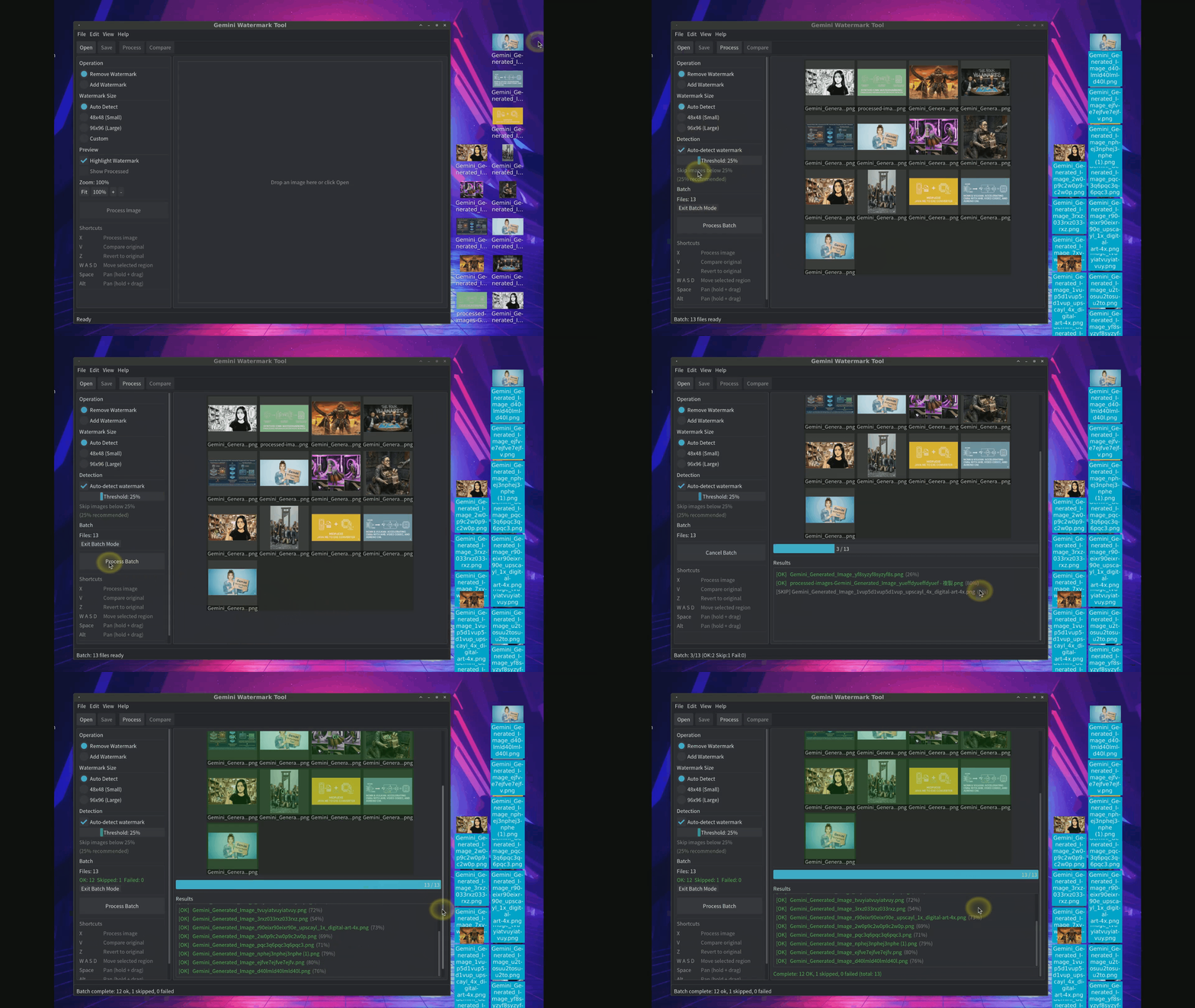
GeminiWatermarkTool now comes with a full graphical desktop application. No command line needed — just open, drag & drop, and process. Supports single-image editing with real-time preview, and batch processing with smart watermark detection.
The desktop GUI provides an interactive workflow for both single-image and batch operations.
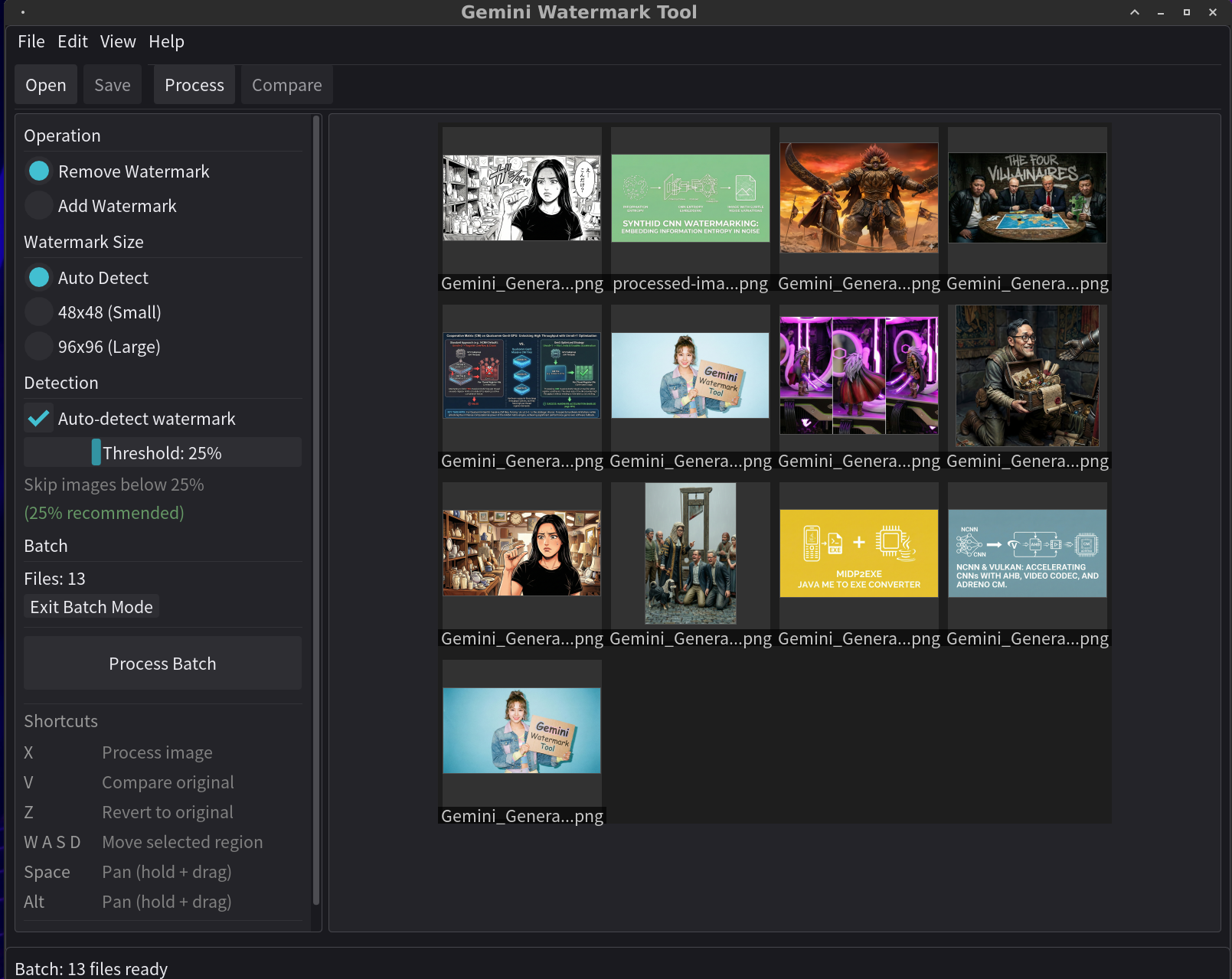
GeminiWatermarkTool can now be integrated into AI-agent workflows via MCP server and Claude Code skills. This enables automated watermark processing inside agent-based pipelines.
gwt-integrations — Claude Code Skill + MCP Server for GeminiWatermarkTool
Enable AI coding agents (Claude Code, Cursor, Windsurf, etc.) to use GeminiWatermarkTool directly:
| Component | Description |
|---|---|
| Claude Code Skill | Teaches AI agents GWT's full CLI syntax, region/snap/denoise options, and best practices — agents can remove watermarks from images without manual guidance |
| MCP Server | Exposes GWT as 4 tools via Model Context Protocol — remove_watermark, detect_watermark, batch_process, get_tool_info — any MCP-compatible client can call them |
| install.py | Cross-platform installer (stdlib only) — auto-detects GWT binary, configures Claude Code skill and MCP server in one command |
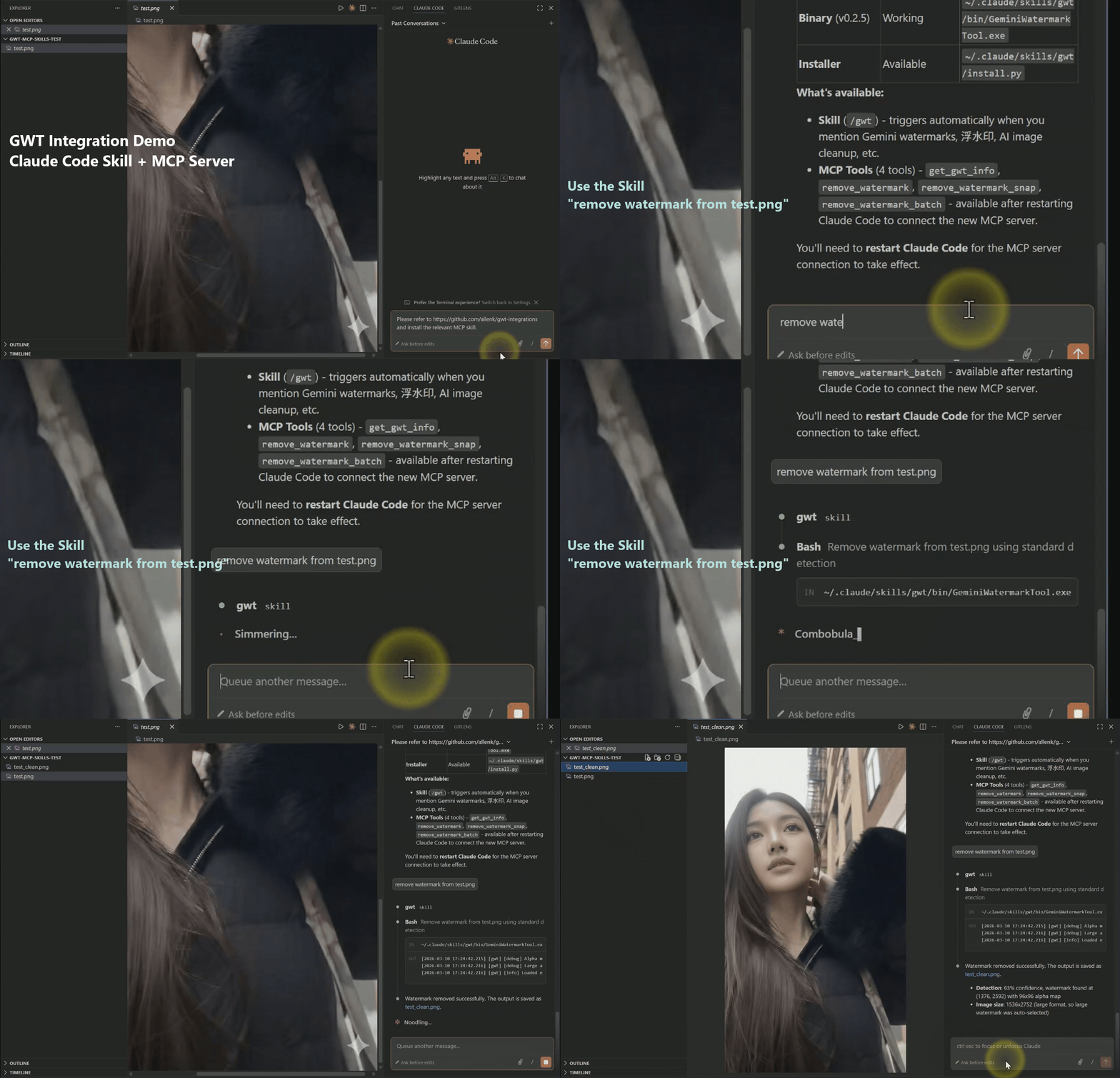
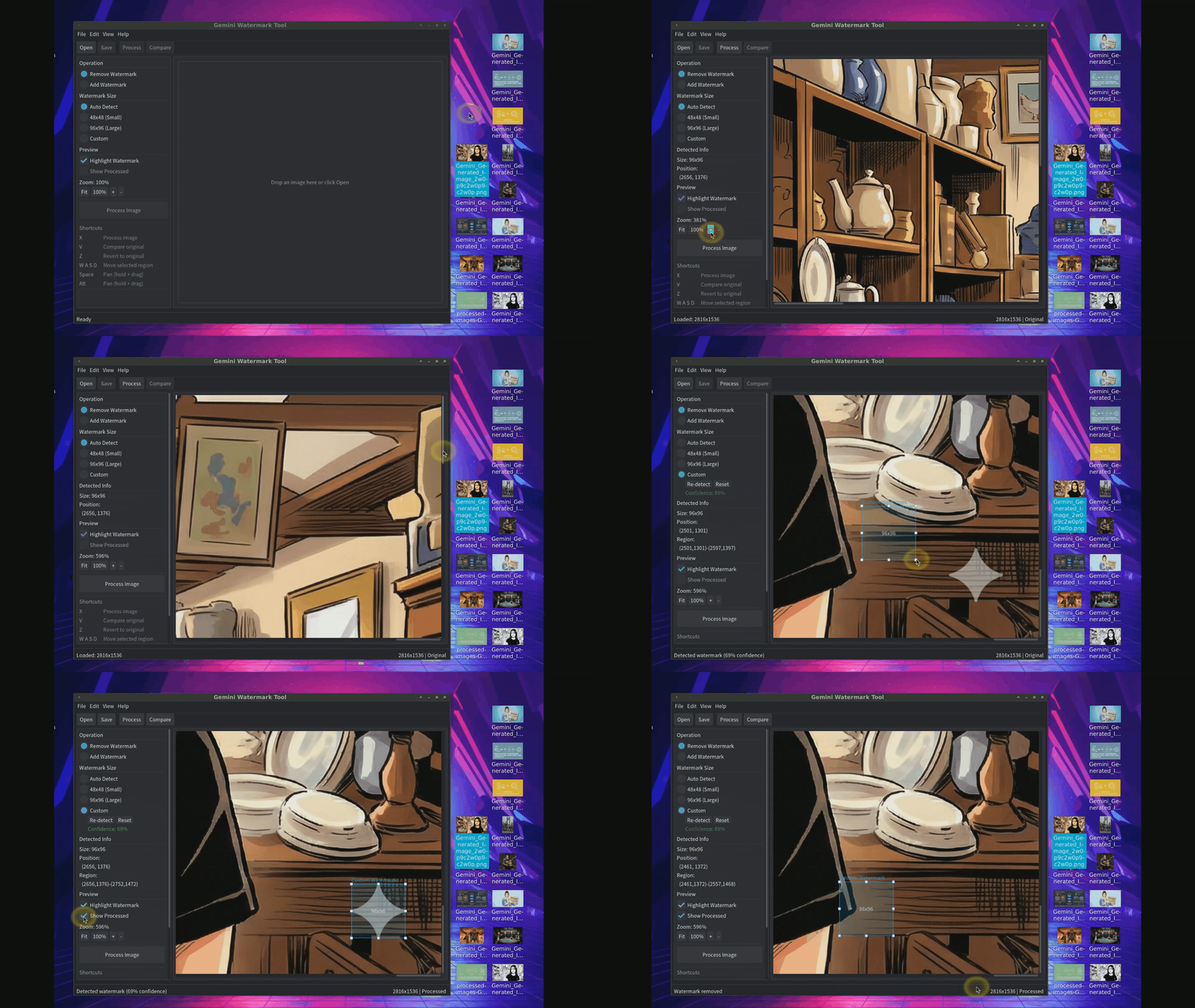
Reverse alpha blending is mathematically exact — but only when the image hasn't been resized, recompressed, or processed after watermarking. In practice, many images go through post-processing that breaks the pixel-perfect math, leaving faint residual artifacts after removal.
Software Inpainting addresses this by applying a lightweight cleanup pass after the reverse blending step. It uses gradient-weighted masks derived from the watermark's own alpha channel to target only the residual pixels, leaving the rest of the image untouched.
Three built-in methods are available:
| Method | Description | Best for |
|---|---|---|
| NS | Navier-Stokes based inpainting — propagates surrounding pixel flow into the damaged region | General-purpose cleanup with smooth results |
| TELEA | Fast marching method — fills inward from boundary pixels based on distance weighting | Quick processing, good for small residuals |
| Soft Inpaint | Gradient-weighted Gaussian blend — uses the watermark alpha as a soft mask for weighted blending | Preserving fine texture in photographic content |
The cleanup controls appear automatically in Custom mode under the Detected Info panel. You can adjust the method, strength (0–100%), and inpaint radius (1–25 px) to fine-tune the result.
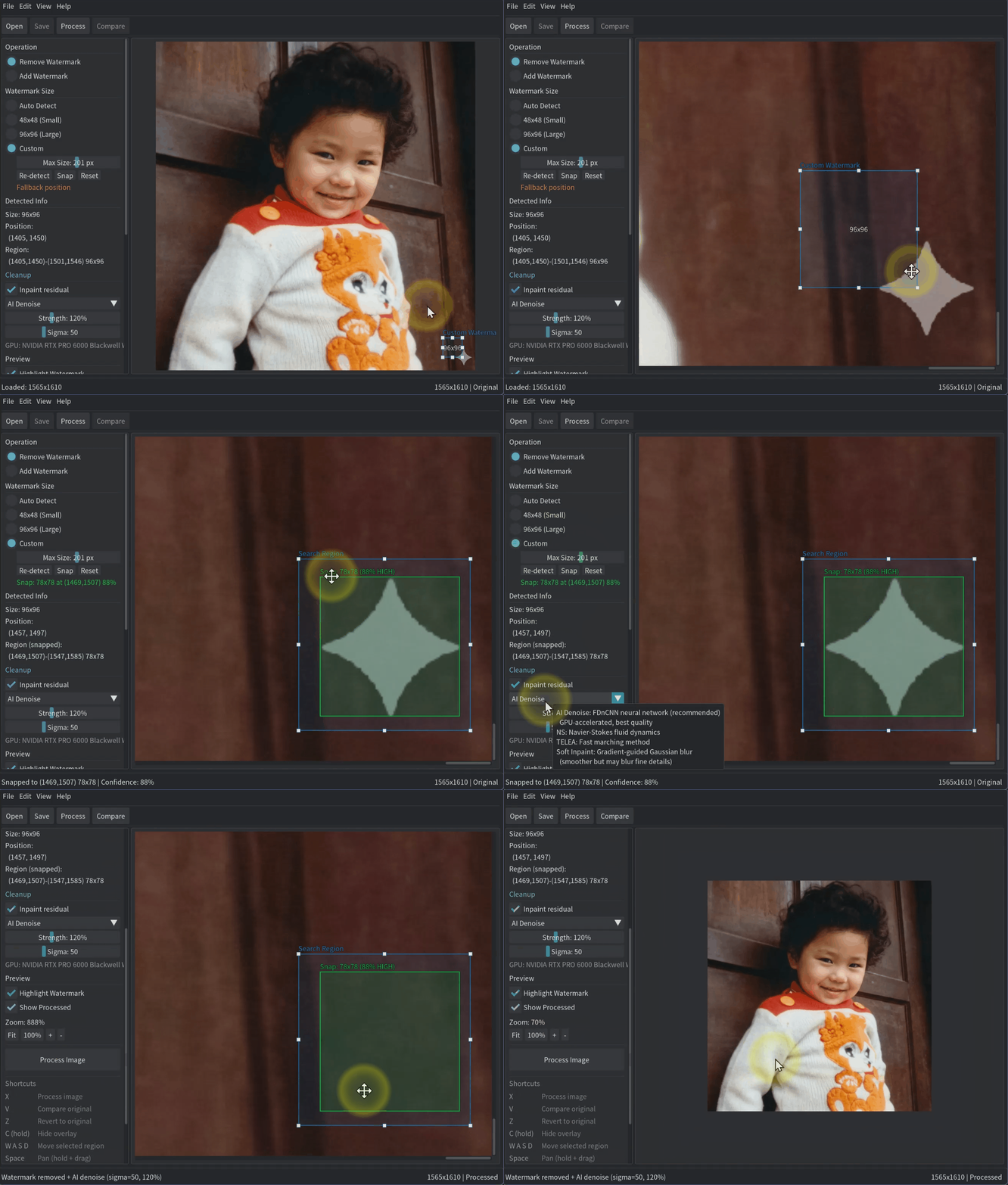
AI Denoise uses a GPU-accelerated neural network (FDnCNN) to clean up watermark residuals that conventional inpainting methods struggle with — particularly the faint sparkle edges and corner artifacts left after reverse alpha blending on resized images.
Unlike NS/TELEA which require a binary mask to know which pixels are damaged, AI Denoise examines a 41×41 pixel neighborhood around each point and learns from training data what "normal" image content looks like. Combined with gradient-masked blending from the alpha map, it repairs only the artifact pixels while preserving clean background detail.
| Parameter | Range | Default | Description |
|---|---|---|---|
| Strength | 0–300% | 120% | Controls mask coverage — values above 100% expand repair to weaker gradient edges |
| Sigma | 1–150 | 50 | Noise level estimation — higher values denoise more aggressively |
Technical details:
AI Denoise is the recommended default when available. The GPU device name is displayed below the controls. If GPU initialization fails, the tool automatically falls back to NS inpainting.
| Key | Action |
|---|---|
| X | Process image |
| V | Compare with original |
| Z | Revert to original |
| C (hold) | Hide overlay |
| W A S D | Move custom watermark region |
| Space / Alt | Pan (hold + drag) |
| Scroll | Zoom to cursor |
| Ctrl +/- | Zoom in / out |
| Ctrl 0 | Zoom fit |
| Ctrl+W | Close / exit batch mode |
The GUI supports multiple render backends for maximum compatibility:
| Backend | Description | Use Case |
|---|---|---|
| D3D11 (default) | Direct3D 11 with WARP fallback | Best for Windows — works in Hyper-V, Docker, RDP |
| OpenGL | OpenGL 3.3 Core | Cross-platform, requires GPU drivers |
Why D3D11?
# Auto-select (D3D11 on Windows, OpenGL elsewhere)
GeminiWatermarkTool

# Force specific backend
GeminiWatermarkTool --backend=d3d11
GeminiWatermarkTool --backend=opengl
In addition to the GUI, the command line has been significantly enhanced.
# Process multiple files at once (new!)
GeminiWatermarkTool img1.jpg img2.png img3.webp
Watermark detection is enabled by default in simple mode — images without a detectable watermark are automatically skipped to prevent accidental damage.
# Force processing without detection
GeminiWatermarkTool --force image.jpg

# Custom detection threshold (default: 25%)
GeminiWatermarkTool --threshold 0.40 image.jpg
# Single file with explicit output
GeminiWatermarkTool -i input.jpg -o output.jpg

# Batch directory processing
GeminiWatermarkTool -i ./watermarked_images/ -o ./clean_images/
Inspired by @dannycreations's contribution on watermark presence detection. We took the concept further with a production-grade three-stage algorithm deeply integrated into both CLI and GUI workflows.
Batch processing watermark-free images can cause unnecessary pixel damage. The tool now uses a three-stage NCC (Normalized Cross-Correlation) algorithm to detect watermarks before processing, ensuring only watermarked images are modified:
A combined confidence score determines whether a watermark is present. The default threshold is 25% — images below this score are skipped. This eliminates false positives from white backgrounds or similar-looking content that plagued simpler correlation-based approaches.
| Flag | Effect |
|---|---|
--force | Skip detection, process all images unconditionally |
--threshold 0.40 | Set custom confidence threshold (0.0–1.0) |
--no-banner | Hide ASCII banner (for scripts and AI agents) |
--banner | Force show ASCII banner |
Detection is enabled by default in simple/drag-and-drop mode and disabled by default in standard (-i / -o) mode. In the GUI, the threshold is adjustable via a slider (0–100%, 5% steps) with a recommended 25% default.
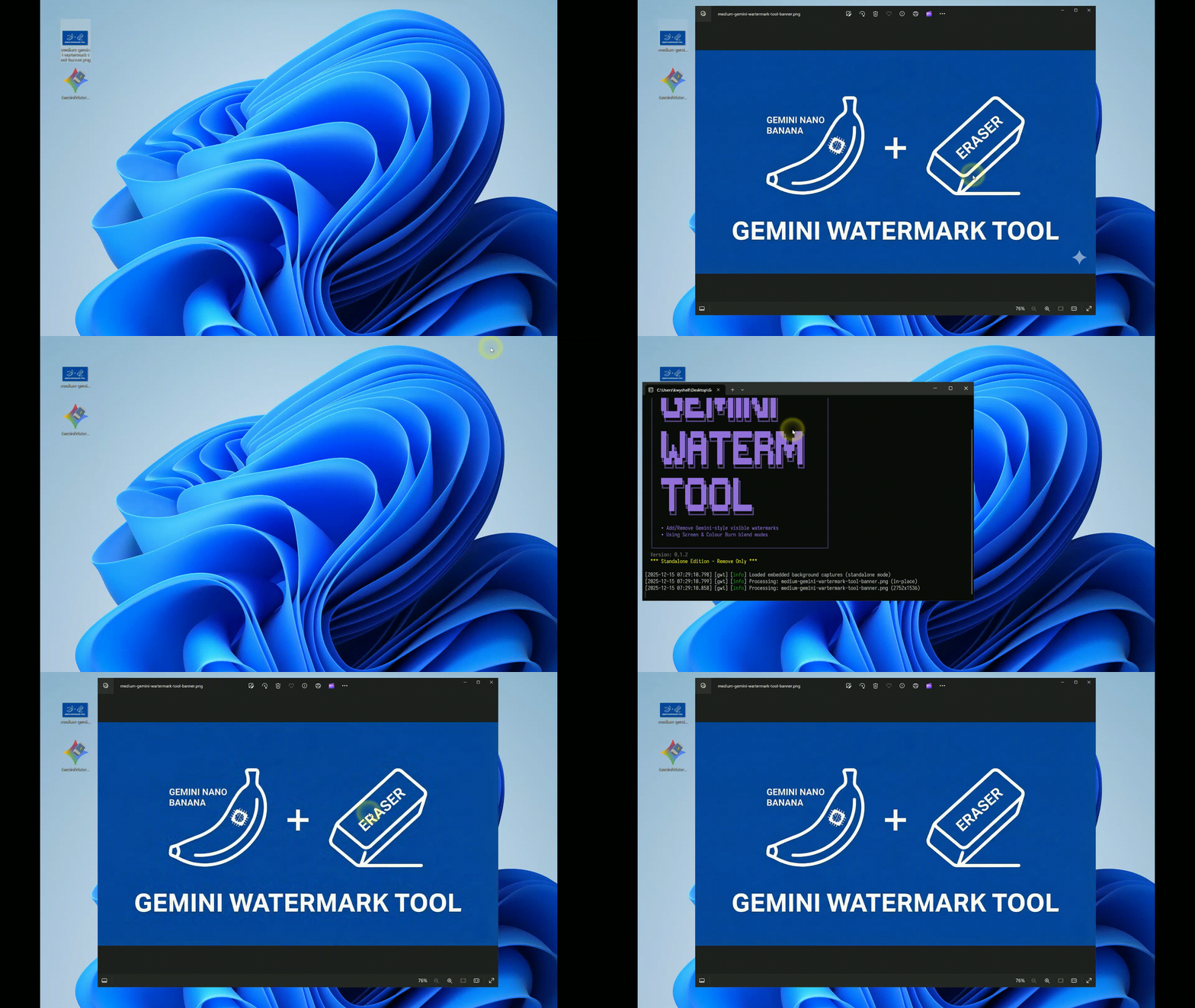
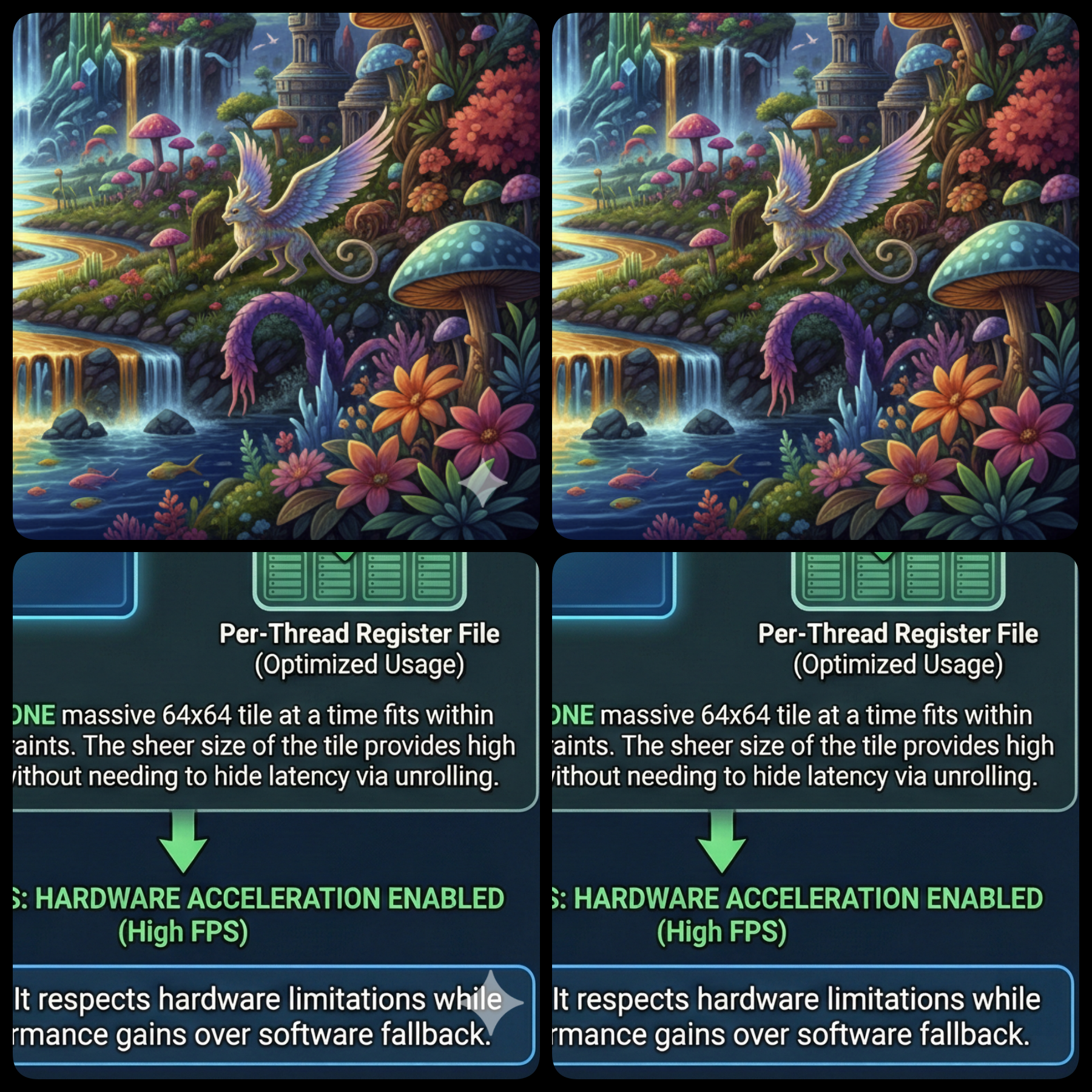 Best for: slides, documents, UI screenshots, diagrams, logos.
Focus on the bottom example (text-heavy slide).
Generative inpainting often breaks text: warped edges, wrong spacing, invented strokes.
GeminiWatermarkTool reverses the blending equation to recover pixels, keeping text crisp.
Important: This tool removes visible watermarks only. It does NOT remove SynthID.
SynthID is Google DeepMind's invisible watermarking technology, deployed across Google services including Gemini, Imagen, Lyria, and Veo.
It is best understood as a family of technologies rather than a single algorithm — text, image, audio, and video each use different underlying mechanisms. For images specifically, according to Gowal et al. (2025), SynthID-Image is a post-hoc, model-independent encoder-decoder approach: the watermark is added by a trained encoder after the image has been generated.
Key properties:
Even though the watermark is technically "added" by the encoder, the encoder is a deep neural network trained adversarially. The perturbation it adds is distributed in a high-dimensional learned representation, not as a fixed pixel pattern. As a result:
In practice, removing SynthID without significantly degrading image quality is currently not feasible with publicly available tools.
| Approach | Trade-off | Feasibility |
|---|---|---|
| Extreme Quantization (binarization) | Image becomes unusable skeleton | Works |
| AI Re-generation (Stable Diffusion, etc.) | Style and details change | Works |
| Adversarial / Surrogate Attacks | Requires decoder access or paired data | Not currently practical |
📄 Full SynthID Research Report →
Download the latest release from the Releases page.
| Platform | File | Architecture |
|---|---|---|
| Windows | GeminiWatermarkTool-Windows-x64.exe | x64 |
| Linux | GeminiWatermarkTool-Linux-x64 | x64 |
| macOS | GeminiWatermarkTool-macOS-Universal | Intel + Apple Silicon |
| Android | GeminiWatermarkTool-Android-arm64 | ARM64 |
A separate, much smaller CLI-only build is published alongside each release for users
who do not need the desktop GUI (servers, CI pipelines, scripted batch processing).
gwt-mini keeps full functionality — reverse alpha blending, three-stage NCC
detection, snap search, and AI denoise (NCNN + embedded FDnCNN weights) — and drops
only the ImGui / SDL3 / GPU-backend stack. Windows and Linux builds are additionally
UPX-compressed.
| Platform | File | Approx. size |
|---|---|---|
| Windows | gwt-mini-windows-x64.zip | ~5 MB (UPX) |
| Linux | gwt-mini-linux-x64.zip | ~7 MB (UPX) |
| macOS | gwt-mini-macos-universal.zip | ~23 MB (universal, no UPX) |
CLI flags are identical to the full build — see CLI — Quick Start.
Caveats:
GeminiWatermarkTool
binary instead — it is not packed.To build gwt-mini yourself, see Build — gwt-mini (minimal CLI) below.
Downloaded binaries are not code-signed, so your OS may show a security warning on first launch. This is normal for open-source software distributed outside app stores.
Option A (recommended): Right-click the binary → Open → click Open in the dialog. You only need to do this once.
Option B (terminal):
xattr -dr com.apple.quarantine GeminiWatermarkTool
chmod +x GeminiWatermarkTool
Option A: Click More info → Run anyway.
Option B (PowerShell):
Unblock-File .\GeminiWatermarkTool.exe
Linux does not quarantine downloaded binaries. Just ensure the file is executable:
chmod +x GeminiWatermarkTool
./GeminiWatermarkTool
USE AT YOUR OWN RISK
This tool modifies image files. While it is designed to work reliably, unexpected results may occur due to:
- Variations in Gemini's watermark implementation
- Corrupted or unusual image formats
- Edge cases not covered by testing
Always back up your original images before processing.
The author assumes no responsibility for any data loss, image corruption, or unintended modifications. By using this tool, you acknowledge that you understand these risks.

Don't need the GUI? The CLI is designed for maximum simplicity — one drag, one drop, done.
GeminiWatermarkTool-Windows-x64.exe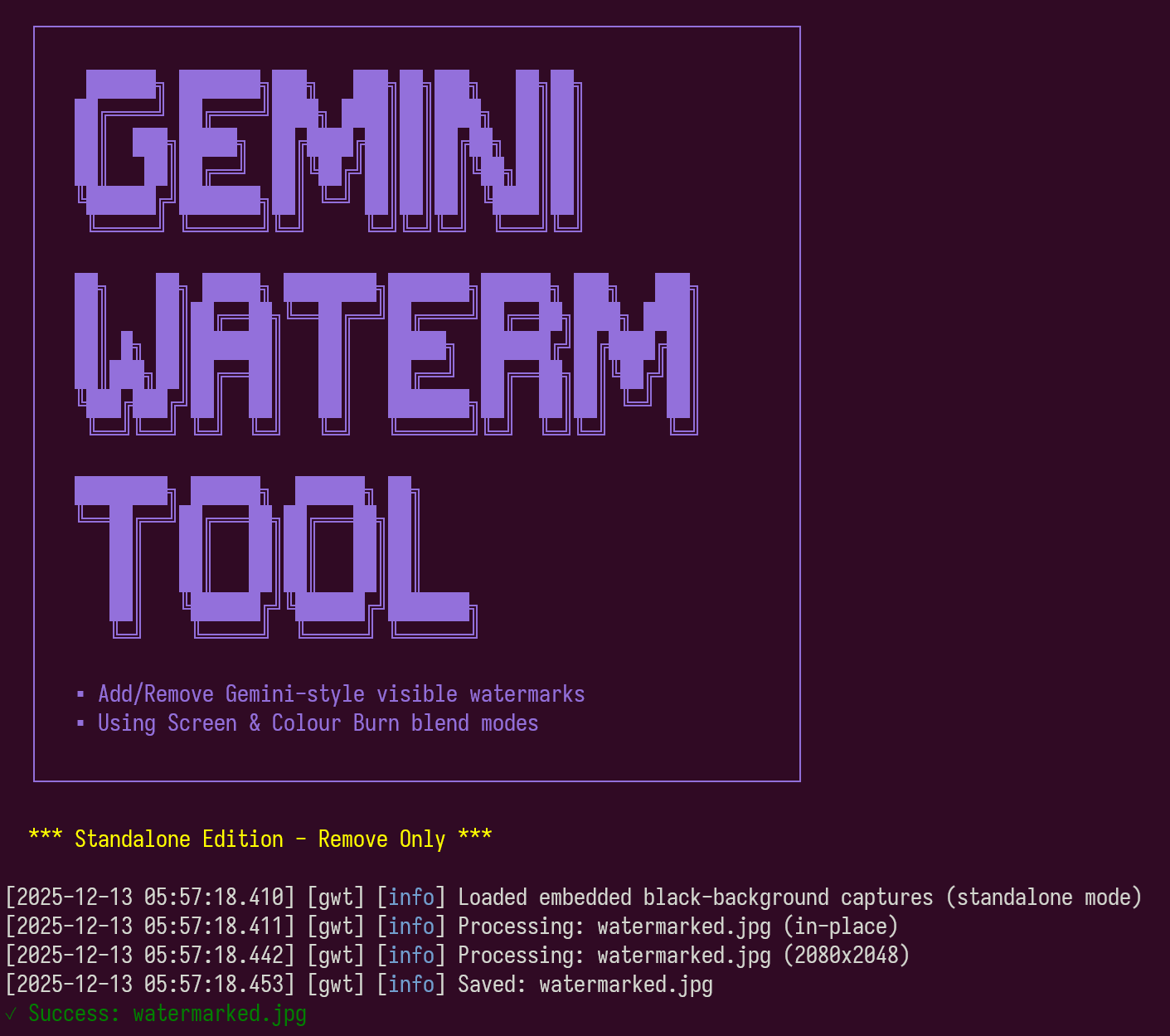
# Simple mode - just provide a filename
GeminiWatermarkTool watermarked.jpg

# Specify output file (preserves original)
GeminiWatermarkTool -i watermarked.jpg -o clean.jpg

# Batch processing - entire directory
GeminiWatermarkTool -i ./input_folder/ -o ./output_folder/
Supported formats: .jpg, .jpeg, .png, .webp, .bmp
⚠️ Warning: Simple mode overwrites the original file permanently. Always back up important images before processing.
| Option | Short | Description |
|---|---|---|
--input <path> | -i | Input image file or directory |
--output <path> | -o | Output image file or directory |
--remove | -r | Remove watermark (default behavior) |
--force | -f | Force processing (skip watermark detection) |
--threshold <val> | -t | Detection confidence threshold, 0.0–1.0 (default: 0.25) |
--force-small | Force 48×48 watermark size | |
--force-large | Force 96×96 watermark size | |
--verbose | -v | Enable verbose output |
--quiet | -q | Suppress all output except errors |
--banner | -b | Show full ASCII banner |
--version | -V | Show version information |
--help | -h | Show help message |
| Option | Description |
|---|---|
--region <spec> | Explicit watermark region (see Region Syntax below) |
--fallback-region <spec> | Search region when standard detection fails |
--snap | Enable multi-scale snap search within region |
--snap-min-size <N> | Min snap search size, 8–64 (default: 16) |
--snap-max-size <N> | Max snap search size, 32–320 (default: 160) |
--snap-threshold <N> | Min snap confidence to accept, 0.0–1.0 (default: 0.60) |
--denoise <method> | Cleanup after removal: ai, ns, telea, soft, off |
--sigma <N> | AI denoise noise level, 1–150 (default: 50) |
--strength <N> | Denoise strength %, 0–300 (default: 120 for AI, 85 for others) |
--radius <N> | Inpaint radius for NS/TELEA/Soft, 1–25 (default: 10) |
Region syntax:
| Format | Description |
|---|---|
x,y,w,h | Absolute coordinates |
br:mx,my,w,h | Bottom-right corner (margin_x, margin_y, width, height) |
bl:mx,my,w,h | Bottom-left corner |
tr:mx,my,w,h | Top-right corner |
tl:mx,my,w,h | Top-left (same as absolute) |
br:auto | Use Gemini default position based on image size |
Examples:
# Standard removal with AI denoise cleanup
GeminiWatermarkTool -i input.jpg -o clean.jpg --denoise ai

# Batch with AI denoise (all files)
GeminiWatermarkTool -i ./photos/ -o ./clean/ --denoise ai

# Fallback for images that fail detection: search bottom-right area with snap
GeminiWatermarkTool -i ./photos/ -o ./clean/ \
    --fallback-region br:auto --snap --denoise ai

# Resized watermarks: expand snap search to 320px
GeminiWatermarkTool -i ./photos/ -o ./clean/ \
    --fallback-region br:80,80,200,200 --snap --snap-max-size 320 --denoise ai

# Gemini preview images (small ~28px watermark): use lower snap-threshold
GeminiWatermarkTool -i preview.jpg -o clean.jpg \
    --fallback-region br:auto --snap --snap-threshold 0.30 --denoise ai --sigma 13 --strength 175

# Force process at explicit region (all images have watermark at same spot)
GeminiWatermarkTool -i ./photos/ -o ./clean/ \
    --force --region 500,800,160,160 --snap --denoise ai --sigma 75
Note: When no
--denoiseis specified, the CLI behaves identically to previous versions (no cleanup pass). All existing scripts and agent integrations continue to work unchanged.
The tool automatically detects the appropriate watermark size based on image dimensions:
| Image Size | Watermark | Position |
|---|---|---|
| W ≤ 1024 or H ≤ 1024 | 48×48 | Bottom-right, 32px margin |
| W > 1024 and H > 1024 | 96×96 | Bottom-right, 64px margin |
Use --force-small or --force-large to override automatic detection.
| Platform | Requirements |
|---|---|
| Windows | Windows 10/11 x64 |
| Linux | x64, glibc 2.35+ (Ubuntu 22.04+, Debian 12+) |
| macOS | macOS 11.0+ (Intel or Apple Silicon) |
| Android | ARM64, Android 10+ (API 29+) |
All binaries are statically linked with no external runtime dependencies.
AI Denoise uses Vulkan for GPU acceleration. Most modern GPUs (NVIDIA, AMD, Intel) with up-to-date drivers support Vulkan. If no Vulkan GPU is detected, inference automatically falls back to CPU (OpenMP multi-threaded).
The watermark is semi-transparent. If the original background was similar to the watermark color, the difference may be subtle. Try viewing at 100% zoom in the watermark area (bottom-right corner).
Use --force-small or --force-large to manually specify:
GeminiWatermarkTool -i image.jpg -o output.jpg --force-small
Make sure the output path is writable and the file isn't open in another program.
| Tool | Version | Notes |
|---|---|---|
| CMake | 3.21+ | For CMakePresets support |
| C++ Compiler | C++20 | MSVC 2022, GCC 12+, Clang 14+ |
| vcpkg | Latest | Package manager |
| Ninja | Latest | Recommended build system |
# Clone vcpkg
git clone https://github.com/microsoft/vcpkg.git
cd vcpkg

# Bootstrap
./bootstrap-vcpkg.sh    # Linux/macOS
.\bootstrap-vcpkg.bat   # Windows

# Set environment variable
export VCPKG_ROOT="$HOME/vcpkg"       # Linux/macOS (add to .bashrc)
$env:VCPKG_ROOT = "C:\vcpkg"          # Windows PowerShell
The project uses CMakePresets.json for cross-platform configuration.
# Clone with submodules (NCNN source)
git clone --recursive https://github.com/allenk/GeminiWatermarkTool.git

# Or if already cloned:
git submodule update --init --recursive

# List available presets
cmake --list-presets
cmake --preset windows-x64-Release
cmake --build --preset windows-x64-Release
cmake --preset linux-x64-Release
cmake --build --preset linux-x64-Release
macOS requires separate builds for each architecture:
# Build x64
cmake -B build-x64 -G Ninja \
  -DCMAKE_BUILD_TYPE=Release \
  -DCMAKE_TOOLCHAIN_FILE=$VCPKG_ROOT/scripts/buildsystems/vcpkg.cmake \
  -DVCPKG_TARGET_TRIPLET=x64-osx \
  -DCMAKE_OSX_ARCHITECTURES=x86_64
cmake --build build-x64

# Build arm64
cmake -B build-arm64 -G Ninja \
  -DCMAKE_BUILD_TYPE=Release \
  -DCMAKE_TOOLCHAIN_FILE=$VCPKG_ROOT/scripts/buildsystems/vcpkg.cmake \
  -DVCPKG_TARGET_TRIPLET=arm64-osx \
  -DCMAKE_OSX_ARCHITECTURES=arm64
cmake --build build-arm64

# Create Universal Binary
lipo -create build-x64/GeminiWatermarkTool build-arm64/GeminiWatermarkTool \
  -output GeminiWatermarkTool
Requires Android NDK:
export ANDROID_NDK_HOME="/path/to/android-ndk"

cmake --preset android-arm64-Release
cmake --build --preset android-arm64-Release
| Preset | Platform | Backend | Notes |
|---|---|---|---|
windows-x64-Release | Windows | D3D11 + OpenGL | Default, includes AI Denoise |
windows-x64-OpenGL-Release | Windows | OpenGL only | Includes AI Denoise |
linux-x64-Release | Linux | OpenGL | Includes AI Denoise |
mac-universal-Release | macOS | OpenGL | Intel + Apple Silicon, includes AI Denoise |
android-arm64-Release | Android | — | CLI only, includes AI Denoise |
All presets enable ENABLE_AI_DENOISE=ON by default. To build without AI, set -DENABLE_AI_DENOISE=OFF manually.
cmake -B build -G Ninja \
  -DCMAKE_BUILD_TYPE=Release \
  -DCMAKE_TOOLCHAIN_FILE=$VCPKG_ROOT/scripts/buildsystems/vcpkg.cmake \
  -DVCPKG_TARGET_TRIPLET=x64-linux

cmake --build build
For the published gwt-mini variant: GUI off, AI denoise on, no video pipeline.
# Linux
cmake -B build-mini -G Ninja \
  -DCMAKE_BUILD_TYPE=Release \
  -DBUILD_GUI=OFF \
  -DENABLE_AI_DENOISE=ON \
  -DENABLE_VIDEO=OFF \
  -DVCPKG_MANIFEST_FEATURES="ai-denoise" \
  -DCMAKE_TOOLCHAIN_FILE=$VCPKG_ROOT/scripts/buildsystems/vcpkg.cmake
cmake --build build-mini
strip build-mini/GeminiWatermarkTool
# Optional: shrink further with UPX
upx --best --lzma build-mini/GeminiWatermarkTool
On Windows add -DVCPKG_TARGET_TRIPLET=x64-windows-static -DCMAKE_MSVC_RUNTIME_LIBRARY=MultiThreaded.
On macOS build x86_64 and arm64 separately, then lipo -create them into a universal binary
(same recipe as mac-universal-Release, just with the flags above).
gemini-watermark-tool/
├── CMakeLists.txt              # Main build configuration
├── CMakePresets.json           # Cross-platform build presets
├── vcpkg.json                  # Dependencies manifest
├── src/
│   ├── core/                   # Core engine (CLI + GUI shared)
│   │   ├── watermark_engine.hpp/cpp
│   │   ├── watermark_detector.hpp/cpp
│   │   ├── blend_modes.hpp/cpp
│   │   ├── ai_denoise.hpp/cpp         # NCNN FDnCNN denoiser
│   │   ├── ai_denoise_model.cpp       # Embedded model weights (isolated TU)
│   │   ├── ncnn_shim.hpp              # Vulkan loader shim for NCNN
│   │   └── types.hpp
│   ├── cli/                    # CLI application
│   │   └── cli_app.hpp/cpp
│   ├── utils/                  # Utilities
│   │   ├── ascii_logo.hpp
│   │   └── path_formatter.hpp
│   ├── main.cpp                # Entry point (CLI/GUI dispatcher)
│   └── gui/                    # Desktop GUI (ImGui + SDL3)
│       ├── gui_app.hpp/cpp           # GUI entry point
│       ├── app/
│       │   ├── app_state.hpp         # Application state
│       │   └── app_controller.hpp/cpp # Logic controller
│       ├── widgets/
│       │   ├── main_window.hpp/cpp   # Main window + menus
│       │   └── image_preview.hpp/cpp # Image viewer + batch view
│       ├── backend/
│       │   ├── render_backend.hpp/cpp  # Backend interface + factory
│       │   ├── opengl_backend.hpp/cpp  # OpenGL 3.3 implementation
│       │   └── d3d11_backend.hpp/cpp   # Direct3D 11 implementation (Windows)
│       └── resources/
│           └── style.hpp             # Theme and layout constants
├── external/
│   └── ncnn/                         # NCNN source (git submodule)
│       └── model-convert/output/     # Converted FDnCNN model headers
├── report/
│   └── synthid_research.md     # SynthID research documentation
└── resources/
    ├── app.ico                 # Windows application icon
    └── app.rc.in               # Windows resource template
All dependencies are managed via vcpkg and statically linked:
| Package | Purpose |
|---|---|
| OpenCV | Image I/O and pixel operations |
| fmt | Modern string formatting |
| CLI11 | Command line argument parsing |
| spdlog | Logging framework |
| SDL3 | Window management and input (GUI) |
| Dear ImGui | Immediate mode GUI framework (GUI) |
| ImPlot | Plotting widgets (GUI) |
| glad | OpenGL loader (GUI) |
| nativefiledialog-extended | Native file dialogs (GUI) |
| WIL | Windows Implementation Libraries (D3D11 backend, Windows only) |
| NCNN | Neural network inference runtime (AI Denoise, git submodule) |
| volk | Vulkan meta-loader for dynamic dispatch (AI Denoise, vcpkg) |
Gemini applies visible watermarks using alpha blending:
watermarked = α × logo + (1 - α) × original
By statistically analyzing and comparing values related to Alpha, we can reconstruct an Alpha Map that is either correct or very close to it.
Solving for the original pixel:
original = (watermarked - α × logo) / (1 - α)
         = (watermarked - alpha_map) / (1 - α)
This mathematical inversion produces exact restoration of the original pixels.
When images have been resized or recompressed after watermarking, the exact math no longer holds perfectly. Two approaches are available for cleaning up residual artifacts:
Software Inpainting (NS / TELEA / Gaussian):
1. Compute gradient magnitude from watermark alpha channel
2. Build soft weight mask: stronger where alpha gradient is high
3. Apply selected inpainting method (NS / TELEA / Gaussian blend)
4. Blend result using weight mask — only affected pixels are modified
AI Denoise (FDnCNN, recommended):
1. Compute gradient mask from alpha map (locate sparkle edges)
2. Run FDnCNN inference on padded ROI (Vulkan GPU or CPU)
   Input:  [R, G, B, sigma/255] → Output: denoised clean image
3. Per-pixel masked blend: mask × denoised + (1-mask) × original
   → Only edge artifacts repaired, clean background untouched
This tool is provided for personal and educational use only.
The removal of watermarks may have legal implications depending on your jurisdiction and the intended use of the images. Users are solely responsible for ensuring their use of this tool complies with applicable laws, terms of service, and intellectual property rights.
The author does not condone or encourage the misuse of this tool for copyright infringement, misrepresentation, or any other unlawful purposes.
THE SOFTWARE IS PROVIDED "AS IS", WITHOUT WARRANTY OF ANY KIND, EXPRESS OR IMPLIED. IN NO EVENT SHALL THE AUTHOR BE LIABLE FOR ANY CLAIM, DAMAGES, OR OTHER LIABILITY ARISING FROM THE USE OF THIS SOFTWARE.
If GeminiWatermarkTool saved you time and you'd like to help keep it going, you can support via Ko-fi or PayPal — both go to the same place; pick whichever works for you (a few users have reported Ko-fi checkout issues from their region, so PayPal is the dependable fallback). Every public release goes through GitHub Actions CI on Windows / Linux / macOS / Android, and the binaries live in the Releases section — small contributions help cover runner minutes and storage so the project can keep building cross-platform binaries for free. Not required, just appreciated.
Bug reports, sample images / videos, and pull requests remain the most valuable contributions and always will be — opening an issue with content the tool can't handle is often more useful than a one-off donation.
MIT License
Allen Kuo (@allenk)
Quick start:
# Install the integration (after GeminiWatermarkTool is on PATH)
git clone https://github.com/allenk/gwt-integrations.git
cd gwt-integrations
python install.py
After installation, AI agents can process watermarks conversationally:
"Remove the Gemini watermark from screenshot.png using AI denoise"
"Batch process all images in ./photos/ with fallback snap detection"
See gwt-integrations README for full setup instructions and MCP configuration.
This project incorporates the following open-source components:
| Component | License | Usage |
|---|---|---|
| NCNN | BSD-3-Clause | Neural network inference runtime (Vulkan GPU + CPU) |
| FDnCNN model weights (KAIR) | MIT | Pre-trained denoising model (embedded FP16 weights) |
| volk | MIT | Vulkan meta-loader for dynamic dispatch |
Full license texts for these components are available in their respective repositories.
If this tool helped you, consider giving it a ⭐
8,396 followers · starred Mar 2026
681 followers · starred Dec 2025
324 followers · starred Mar 2026
688 followers · starred Jan 2026
Offline Gemini image watermark restoration with reverse alpha blending. Native C++ GUI/CLI, batch processing, and optional GPU denoise.
C++
3,130
94 commits
updated Jul 28, 2026
🆕 Free-tier half-scale watermarks supported (v0.3.2) — free Gemini accounts now emit half-scale images (e.g. 1376x768) carrying a 48x48 logo with the current opacity profile. Detection and removal handle them automatically; custom 48x48 regions follow the selected profile instead of always assuming legacy. Detection is also more robust on busy backgrounds, and --threshold / the GUI slider are honored above 0.35 (thanks to Gerardo Leiserson, PR #41).
Gemini 3.5 watermark profile supported, with automatic legacy fallback (v0.3.1) — the CLI tries the current Gemini 3.5+ profile first; if detection skips, it automatically retries with the legacy (pre-3.5) profile. Disable with --no-legacy, or pin legacy directly with --legacy. Details below.
🎬 Veo Video Watermark Remover v0.6.1 is out — full Gemini 3.5 video watermark removal across Windows / Linux / macOS. Auto-detect for 1080p + 720p (standard and compact diamond variants), adaptive per-frame alpha via bisection feedback, tick-exact transcoder timing, audio passthrough + AI denoise. Drag-and-drop simple, no cloud, no AI hallucination — just the same reverse alpha blending math, evolved for video. Details below.
▶️ Watch: GeminiWatermarkTool — Quick Start & Feature Overview
📌 Original Author Notice (Reverse Alpha Blending)
I am the original author of GeminiWatermarkTool and the reverse alpha-blending restoration method used to remove the visible "Gemini" watermark while preserving image detail (Allen Kuo / allenk).
This project achieves high-precision restoration by using my calibrated 48×48 and 96×96 Reverse-Alpha Masks to invert the blending equation. Since I published this work and these assets, many derivative tools (desktop apps, websites, browser extensions, etc.) have appeared using the same approach and/or directly reusing the masks produced by this project — because the method is deterministic and highly effective.
✅ MIT License reminder
This project is released under the MIT License. Commercial use and ports are allowed.
However, if you redistribute any substantial portion of this project (including code or mask assets), you must:
- Preserve the original copyright notice
- Include the full MIT license text
- (Recommended) Provide attribution with a link back to this repository
📖 For the full technical write-up (including how the Reverse-Alpha Masks were derived and calibrated), see:
Removing Gemini AI Watermarks: A Deep Dive into Reverse Alpha Blending
https://allenkuo.medium.com/removing-gemini-ai-watermarks-a-deep-dive-into-reverse-alpha-blending-bbbd83af2a3f
Gemini Watermark Tool removes Gemini visible watermarks from images using a mathematically accurate reverse alpha blending algorithm.
Unlike many tools that rely entirely on generative inpainting, this project focuses on deterministic reconstruction combined with lightweight AI-assisted cleanup.
The design philosophy is simple:
small, standalone, fast, and reliable.
The entire toolkit is distributed as a portable executable with zero runtime dependencies, making it easy to install, automate, and integrate into scripts or pipelines without complex setup.
Key capabilities include:
GeminiWatermarkTool now supports the new Gemini 3.5 watermark layout out of the box. Starting with Gemini 3.5, Google shifted the watermark position and updated its alpha map relative to legacy Gemini outputs. The tool targets the new profile by default and ships a one-click Legacy toggle for pre-3.5 outputs — no command-line flags or re-calibration needed.
| Gemini 3.5+ (default) | Legacy (pre-Gemini 3.5) | |
|---|---|---|
| Profile | V2 | V1 |
| Small logo | 36×36 | 48×48 |
| Large logo | 96×96 | 96×96 |
| Margin | shifted (per-aspect calibrated) | original |
| GUI | "Auto Detect" / "Small" / "Large" radios | tick "Legacy (pre-Gemini 3.5)" checkbox |
| CLI | default | pass --legacy |
Both profiles use the same deterministic reverse alpha blending pipeline — switching profiles only changes the alpha map and position formula, not the math.
The CLI default now handles mixed Gemini-3.5+ and pre-3.5 inputs without the user having to script the retry. When the current-profile detector returns skipped (confidence below threshold), the CLI automatically runs the same image through the legacy profile before reporting the final outcome. Behaviour matrix:
| Invocation | First attempt | Fallback | Notes |
|---|---|---|---|
GeminiWatermarkTool image.png | V2 (current) | V1 if V2 skips | new v0.3.1 default |
GeminiWatermarkTool --legacy image.png | V1 only | — | pin legacy, no fallback |
GeminiWatermarkTool --no-legacy image.png | V2 only | — | matches v0.3.0 default |
GeminiWatermarkTool --legacy --no-legacy … | — | — | conflict, exits 2 |
The safety contract is unchanged: each profile attempt is still gated by the confidence threshold, so non-Gemini images skip on both V2 and V1 and remain untouched. The GUI is unchanged — its Legacy checkbox is explicit, no automatic fallback.
The CLI now returns distinct exit codes so scripts can chain retries without inspecting stdout or checking for an output file:
| Code | Meaning |
|---|---|
| 0 | File processed (or batch directory completed with no errors) |
| 1 | Single-file invocation skipped — no watermark detected on any tried profile |
| 2 | Real failure — bad arguments, missing input, IO/write error |
Batch directory mode (-i somedir -o somedir) keeps lenient semantics:
exit 0 unless something actually fails, since partial skips are normal
when scanning a folder.
Example Windows shell chain:
GeminiWatermarkTool.exe -i image.png -o clean.png
if %ERRORLEVEL% equ 1 (
    rem auto-fallback tried both V2 and V1 and skipped; user may want --force
    GeminiWatermarkTool.exe -i image.png -o clean.png --force
)
GeminiWatermarkTool now supports removing Google Veo and Gemini 3.5 video watermarks across Windows, Linux, and macOS. The same reverse alpha blending engine, evolved for video — direct mp4-to-mp4, with audio preserved, mathematically deterministic.
VeoWatermarkRemover v0.6.1-demo — Download →
--legacy) — pre-Gemini-3.5 outputs still supported--variant 720p-1 / --variant 720p-2 escape hatch when auto-detect can't lock on (very rare with the multi-frame probe).--sigma tuning — --sigma 15 for anime / illustration content, --sigma 25 when default AI denoise feels too aggressive.# Default — Gemini 3.5 diamond removal (1080p + 720p auto-detected)
GeminiWatermarkTool-Video video.mp4
# Pre-Gemini-3.5 video with "Veo" text watermark
GeminiWatermarkTool-Video --legacy old_veo_video.mp4
# Anime / illustration content (lighter AI denoise)
GeminiWatermarkTool-Video --sigma 15 video.mp4
Some content with very strong per-frame motion or foreground objects overlapping the watermark region can still leave a small residue on a few frames. For those, the manual touch-up workflow (ffmpeg decompose → GUI hand-fix the problem frames → ffmpeg recompose) covers the gap; most clips need only a handful of touch-ups.
The Veo feature is currently distributed via the standalone VeoWatermarkRemover demo repo. When the pipeline is fully stable across all observed content classes, it will be merged into GeminiWatermarkTool as a unified release supporting both image and video watermark removal.
GeminiWatermarkTool now comes with a full graphical desktop application. No command line needed — just open, drag & drop, and process. Supports single-image editing with real-time preview, and batch processing with smart watermark detection.
The desktop GUI provides an interactive workflow for both single-image and batch operations.
GeminiWatermarkTool can now be integrated into AI-agent workflows via MCP server and Claude Code skills. This enables automated watermark processing inside agent-based pipelines.
gwt-integrations — Claude Code Skill + MCP Server for GeminiWatermarkTool
Enable AI coding agents (Claude Code, Cursor, Windsurf, etc.) to use GeminiWatermarkTool directly:
| Component | Description |
|---|---|
| Claude Code Skill | Teaches AI agents GWT's full CLI syntax, region/snap/denoise options, and best practices — agents can remove watermarks from images without manual guidance |
| MCP Server | Exposes GWT as 4 tools via Model Context Protocol — remove_watermark, detect_watermark, batch_process, get_tool_info — any MCP-compatible client can call them |
| install.py | Cross-platform installer (stdlib only) — auto-detects GWT binary, configures Claude Code skill and MCP server in one command |
Reverse alpha blending is mathematically exact — but only when the image hasn't been resized, recompressed, or processed after watermarking. In practice, many images go through post-processing that breaks the pixel-perfect math, leaving faint residual artifacts after removal.
Software Inpainting addresses this by applying a lightweight cleanup pass after the reverse blending step. It uses gradient-weighted masks derived from the watermark's own alpha channel to target only the residual pixels, leaving the rest of the image untouched.
Three built-in methods are available:
| Method | Description | Best for |
|---|---|---|
| NS | Navier-Stokes based inpainting — propagates surrounding pixel flow into the damaged region | General-purpose cleanup with smooth results |
| TELEA | Fast marching method — fills inward from boundary pixels based on distance weighting | Quick processing, good for small residuals |
| Soft Inpaint | Gradient-weighted Gaussian blend — uses the watermark alpha as a soft mask for weighted blending | Preserving fine texture in photographic content |
The cleanup controls appear automatically in Custom mode under the Detected Info panel. You can adjust the method, strength (0–100%), and inpaint radius (1–25 px) to fine-tune the result.
AI Denoise uses a GPU-accelerated neural network (FDnCNN) to clean up watermark residuals that conventional inpainting methods struggle with — particularly the faint sparkle edges and corner artifacts left after reverse alpha blending on resized images.
Unlike NS/TELEA which require a binary mask to know which pixels are damaged, AI Denoise examines a 41×41 pixel neighborhood around each point and learns from training data what "normal" image content looks like. Combined with gradient-masked blending from the alpha map, it repairs only the artifact pixels while preserving clean background detail.
| Parameter | Range | Default | Description |
|---|---|---|---|
| Strength | 0–300% | 120% | Controls mask coverage — values above 100% expand repair to weaker gradient edges |
| Sigma | 1–150 | 50 | Noise level estimation — higher values denoise more aggressively |
Technical details:
AI Denoise is the recommended default when available. The GPU device name is displayed below the controls. If GPU initialization fails, the tool automatically falls back to NS inpainting.
| Key | Action |
|---|---|
| X | Process image |
| V | Compare with original |
| Z | Revert to original |
| C (hold) | Hide overlay |
| W A S D | Move custom watermark region |
| Space / Alt | Pan (hold + drag) |
| Scroll | Zoom to cursor |
| Ctrl +/- | Zoom in / out |
| Ctrl 0 | Zoom fit |
| Ctrl+W | Close / exit batch mode |
The GUI supports multiple render backends for maximum compatibility:
| Backend | Description | Use Case |
|---|---|---|
| D3D11 (default) | Direct3D 11 with WARP fallback | Best for Windows — works in Hyper-V, Docker, RDP |
| OpenGL | OpenGL 3.3 Core | Cross-platform, requires GPU drivers |
Why D3D11?
# Auto-select (D3D11 on Windows, OpenGL elsewhere)
GeminiWatermarkTool

# Force specific backend
GeminiWatermarkTool --backend=d3d11
GeminiWatermarkTool --backend=opengl
In addition to the GUI, the command line has been significantly enhanced.
# Process multiple files at once (new!)
GeminiWatermarkTool img1.jpg img2.png img3.webp
Watermark detection is enabled by default in simple mode — images without a detectable watermark are automatically skipped to prevent accidental damage.
# Force processing without detection
GeminiWatermarkTool --force image.jpg

# Custom detection threshold (default: 25%)
GeminiWatermarkTool --threshold 0.40 image.jpg
# Single file with explicit output
GeminiWatermarkTool -i input.jpg -o output.jpg

# Batch directory processing
GeminiWatermarkTool -i ./watermarked_images/ -o ./clean_images/
Inspired by @dannycreations's contribution on watermark presence detection. We took the concept further with a production-grade three-stage algorithm deeply integrated into both CLI and GUI workflows.
Batch processing watermark-free images can cause unnecessary pixel damage. The tool now uses a three-stage NCC (Normalized Cross-Correlation) algorithm to detect watermarks before processing, ensuring only watermarked images are modified:
A combined confidence score determines whether a watermark is present. The default threshold is 25% — images below this score are skipped. This eliminates false positives from white backgrounds or similar-looking content that plagued simpler correlation-based approaches.
| Flag | Effect |
|---|---|
--force | Skip detection, process all images unconditionally |
--threshold 0.40 | Set custom confidence threshold (0.0–1.0) |
--no-banner | Hide ASCII banner (for scripts and AI agents) |
--banner | Force show ASCII banner |
Detection is enabled by default in simple/drag-and-drop mode and disabled by default in standard (-i / -o) mode. In the GUI, the threshold is adjustable via a slider (0–100%, 5% steps) with a recommended 25% default.
Best for: slides, documents, UI screenshots, diagrams, logos.
Focus on the bottom example (text-heavy slide).
Generative inpainting often breaks text: warped edges, wrong spacing, invented strokes.
GeminiWatermarkTool reverses the blending equation to recover pixels, keeping text crisp.
Important: This tool removes visible watermarks only. It does NOT remove SynthID.
SynthID is Google DeepMind's invisible watermarking technology, deployed across Google services including Gemini, Imagen, Lyria, and Veo.
It is best understood as a family of technologies rather than a single algorithm — text, image, audio, and video each use different underlying mechanisms. For images specifically, according to Gowal et al. (2025), SynthID-Image is a post-hoc, model-independent encoder-decoder approach: the watermark is added by a trained encoder after the image has been generated.
Key properties:
Even though the watermark is technically "added" by the encoder, the encoder is a deep neural network trained adversarially. The perturbation it adds is distributed in a high-dimensional learned representation, not as a fixed pixel pattern. As a result:
In practice, removing SynthID without significantly degrading image quality is currently not feasible with publicly available tools.
| Approach | Trade-off | Feasibility |
|---|---|---|
| Extreme Quantization (binarization) | Image becomes unusable skeleton | Works |
| AI Re-generation (Stable Diffusion, etc.) | Style and details change | Works |
| Adversarial / Surrogate Attacks | Requires decoder access or paired data | Not currently practical |
📄 Full SynthID Research Report →
Download the latest release from the Releases page.
| Platform | File | Architecture |
|---|---|---|
| Windows | GeminiWatermarkTool-Windows-x64.exe | x64 |
| Linux | GeminiWatermarkTool-Linux-x64 | x64 |
| macOS | GeminiWatermarkTool-macOS-Universal | Intel + Apple Silicon |
| Android | GeminiWatermarkTool-Android-arm64 | ARM64 |
A separate, much smaller CLI-only build is published alongside each release for users
who do not need the desktop GUI (servers, CI pipelines, scripted batch processing).
gwt-mini keeps full functionality — reverse alpha blending, three-stage NCC
detection, snap search, and AI denoise (NCNN + embedded FDnCNN weights) — and drops
only the ImGui / SDL3 / GPU-backend stack. Windows and Linux builds are additionally
UPX-compressed.
| Platform | File | Approx. size |
|---|---|---|
| Windows | gwt-mini-windows-x64.zip | ~5 MB (UPX) |
| Linux | gwt-mini-linux-x64.zip | ~7 MB (UPX) |
| macOS | gwt-mini-macos-universal.zip | ~23 MB (universal, no UPX) |
CLI flags are identical to the full build — see CLI — Quick Start.
Caveats:
GeminiWatermarkTool
binary instead — it is not packed.To build gwt-mini yourself, see Build — gwt-mini (minimal CLI) below.
Downloaded binaries are not code-signed, so your OS may show a security warning on first launch. This is normal for open-source software distributed outside app stores.
Option A (recommended): Right-click the binary → Open → click Open in the dialog. You only need to do this once.
Option B (terminal):
xattr -dr com.apple.quarantine GeminiWatermarkTool
chmod +x GeminiWatermarkTool
Option A: Click More info → Run anyway.
Option B (PowerShell):
Unblock-File .\GeminiWatermarkTool.exe
Linux does not quarantine downloaded binaries. Just ensure the file is executable:
chmod +x GeminiWatermarkTool
./GeminiWatermarkTool
USE AT YOUR OWN RISK
This tool modifies image files. While it is designed to work reliably, unexpected results may occur due to:
- Variations in Gemini's watermark implementation
- Corrupted or unusual image formats
- Edge cases not covered by testing
Always back up your original images before processing.
The author assumes no responsibility for any data loss, image corruption, or unintended modifications. By using this tool, you acknowledge that you understand these risks.
Don't need the GUI? The CLI is designed for maximum simplicity — one drag, one drop, done.
GeminiWatermarkTool-Windows-x64.exe
# Simple mode - just provide a filename
GeminiWatermarkTool watermarked.jpg

# Specify output file (preserves original)
GeminiWatermarkTool -i watermarked.jpg -o clean.jpg

# Batch processing - entire directory
GeminiWatermarkTool -i ./input_folder/ -o ./output_folder/
Supported formats: .jpg, .jpeg, .png, .webp, .bmp
⚠️ Warning: Simple mode overwrites the original file permanently. Always back up important images before processing.
| Option | Short | Description |
|---|---|---|
--input <path> | -i | Input image file or directory |
--output <path> | -o | Output image file or directory |
--remove | -r | Remove watermark (default behavior) |
--force | -f | Force processing (skip watermark detection) |
--threshold <val> | -t | Detection confidence threshold, 0.0–1.0 (default: 0.25) |
--force-small | Force 48×48 watermark size | |
--force-large | Force 96×96 watermark size | |
--verbose | -v | Enable verbose output |
--quiet | -q | Suppress all output except errors |
--banner | -b | Show full ASCII banner |
--version | -V | Show version information |
--help | -h | Show help message |
| Option | Description |
|---|---|
--region <spec> | Explicit watermark region (see Region Syntax below) |
--fallback-region <spec> | Search region when standard detection fails |
--snap | Enable multi-scale snap search within region |
--snap-min-size <N> | Min snap search size, 8–64 (default: 16) |
--snap-max-size <N> | Max snap search size, 32–320 (default: 160) |
--snap-threshold <N> | Min snap confidence to accept, 0.0–1.0 (default: 0.60) |
--denoise <method> | Cleanup after removal: ai, ns, telea, soft, off |
--sigma <N> | AI denoise noise level, 1–150 (default: 50) |
--strength <N> | Denoise strength %, 0–300 (default: 120 for AI, 85 for others) |
--radius <N> | Inpaint radius for NS/TELEA/Soft, 1–25 (default: 10) |
Region syntax:
| Format | Description |
|---|---|
x,y,w,h | Absolute coordinates |
br:mx,my,w,h | Bottom-right corner (margin_x, margin_y, width, height) |
bl:mx,my,w,h | Bottom-left corner |
tr:mx,my,w,h | Top-right corner |
tl:mx,my,w,h | Top-left (same as absolute) |
br:auto | Use Gemini default position based on image size |
Examples:
# Standard removal with AI denoise cleanup
GeminiWatermarkTool -i input.jpg -o clean.jpg --denoise ai

# Batch with AI denoise (all files)
GeminiWatermarkTool -i ./photos/ -o ./clean/ --denoise ai

# Fallback for images that fail detection: search bottom-right area with snap
GeminiWatermarkTool -i ./photos/ -o ./clean/ \
    --fallback-region br:auto --snap --denoise ai

# Resized watermarks: expand snap search to 320px
GeminiWatermarkTool -i ./photos/ -o ./clean/ \
    --fallback-region br:80,80,200,200 --snap --snap-max-size 320 --denoise ai

# Gemini preview images (small ~28px watermark): use lower snap-threshold
GeminiWatermarkTool -i preview.jpg -o clean.jpg \
    --fallback-region br:auto --snap --snap-threshold 0.30 --denoise ai --sigma 13 --strength 175

# Force process at explicit region (all images have watermark at same spot)
GeminiWatermarkTool -i ./photos/ -o ./clean/ \
    --force --region 500,800,160,160 --snap --denoise ai --sigma 75
Note: When no
--denoiseis specified, the CLI behaves identically to previous versions (no cleanup pass). All existing scripts and agent integrations continue to work unchanged.
The tool automatically detects the appropriate watermark size based on image dimensions:
| Image Size | Watermark | Position |
|---|---|---|
| W ≤ 1024 or H ≤ 1024 | 48×48 | Bottom-right, 32px margin |
| W > 1024 and H > 1024 | 96×96 | Bottom-right, 64px margin |
Use --force-small or --force-large to override automatic detection.
| Platform | Requirements |
|---|---|
| Windows | Windows 10/11 x64 |
| Linux | x64, glibc 2.35+ (Ubuntu 22.04+, Debian 12+) |
| macOS | macOS 11.0+ (Intel or Apple Silicon) |
| Android | ARM64, Android 10+ (API 29+) |
All binaries are statically linked with no external runtime dependencies.
AI Denoise uses Vulkan for GPU acceleration. Most modern GPUs (NVIDIA, AMD, Intel) with up-to-date drivers support Vulkan. If no Vulkan GPU is detected, inference automatically falls back to CPU (OpenMP multi-threaded).
The watermark is semi-transparent. If the original background was similar to the watermark color, the difference may be subtle. Try viewing at 100% zoom in the watermark area (bottom-right corner).
Use --force-small or --force-large to manually specify:
GeminiWatermarkTool -i image.jpg -o output.jpg --force-small
Make sure the output path is writable and the file isn't open in another program.
| Tool | Version | Notes |
|---|---|---|
| CMake | 3.21+ | For CMakePresets support |
| C++ Compiler | C++20 | MSVC 2022, GCC 12+, Clang 14+ |
| vcpkg | Latest | Package manager |
| Ninja | Latest | Recommended build system |
# Clone vcpkg
git clone https://github.com/microsoft/vcpkg.git
cd vcpkg

# Bootstrap
./bootstrap-vcpkg.sh    # Linux/macOS
.\bootstrap-vcpkg.bat   # Windows

# Set environment variable
export VCPKG_ROOT="$HOME/vcpkg"       # Linux/macOS (add to .bashrc)
$env:VCPKG_ROOT = "C:\vcpkg"          # Windows PowerShell
The project uses CMakePresets.json for cross-platform configuration.
# Clone with submodules (NCNN source)
git clone --recursive https://github.com/allenk/GeminiWatermarkTool.git

# Or if already cloned:
git submodule update --init --recursive

# List available presets
cmake --list-presets
cmake --preset windows-x64-Release
cmake --build --preset windows-x64-Release
cmake --preset linux-x64-Release
cmake --build --preset linux-x64-Release
macOS requires separate builds for each architecture:
# Build x64
cmake -B build-x64 -G Ninja \
  -DCMAKE_BUILD_TYPE=Release \
  -DCMAKE_TOOLCHAIN_FILE=$VCPKG_ROOT/scripts/buildsystems/vcpkg.cmake \
  -DVCPKG_TARGET_TRIPLET=x64-osx \
  -DCMAKE_OSX_ARCHITECTURES=x86_64
cmake --build build-x64

# Build arm64
cmake -B build-arm64 -G Ninja \
  -DCMAKE_BUILD_TYPE=Release \
  -DCMAKE_TOOLCHAIN_FILE=$VCPKG_ROOT/scripts/buildsystems/vcpkg.cmake \
  -DVCPKG_TARGET_TRIPLET=arm64-osx \
  -DCMAKE_OSX_ARCHITECTURES=arm64
cmake --build build-arm64

# Create Universal Binary
lipo -create build-x64/GeminiWatermarkTool build-arm64/GeminiWatermarkTool \
  -output GeminiWatermarkTool
Requires Android NDK:
export ANDROID_NDK_HOME="/path/to/android-ndk"

cmake --preset android-arm64-Release
cmake --build --preset android-arm64-Release
| Preset | Platform | Backend | Notes |
|---|---|---|---|
windows-x64-Release | Windows | D3D11 + OpenGL | Default, includes AI Denoise |
windows-x64-OpenGL-Release | Windows | OpenGL only | Includes AI Denoise |
linux-x64-Release | Linux | OpenGL | Includes AI Denoise |
mac-universal-Release | macOS | OpenGL | Intel + Apple Silicon, includes AI Denoise |
android-arm64-Release | Android | — | CLI only, includes AI Denoise |
All presets enable ENABLE_AI_DENOISE=ON by default. To build without AI, set -DENABLE_AI_DENOISE=OFF manually.
cmake -B build -G Ninja \
  -DCMAKE_BUILD_TYPE=Release \
  -DCMAKE_TOOLCHAIN_FILE=$VCPKG_ROOT/scripts/buildsystems/vcpkg.cmake \
  -DVCPKG_TARGET_TRIPLET=x64-linux

cmake --build build
For the published gwt-mini variant: GUI off, AI denoise on, no video pipeline.
# Linux
cmake -B build-mini -G Ninja \
  -DCMAKE_BUILD_TYPE=Release \
  -DBUILD_GUI=OFF \
  -DENABLE_AI_DENOISE=ON \
  -DENABLE_VIDEO=OFF \
  -DVCPKG_MANIFEST_FEATURES="ai-denoise" \
  -DCMAKE_TOOLCHAIN_FILE=$VCPKG_ROOT/scripts/buildsystems/vcpkg.cmake
cmake --build build-mini
strip build-mini/GeminiWatermarkTool
# Optional: shrink further with UPX
upx --best --lzma build-mini/GeminiWatermarkTool
On Windows add -DVCPKG_TARGET_TRIPLET=x64-windows-static -DCMAKE_MSVC_RUNTIME_LIBRARY=MultiThreaded.
On macOS build x86_64 and arm64 separately, then lipo -create them into a universal binary
(same recipe as mac-universal-Release, just with the flags above).
gemini-watermark-tool/
├── CMakeLists.txt              # Main build configuration
├── CMakePresets.json           # Cross-platform build presets
├── vcpkg.json                  # Dependencies manifest
├── src/
│   ├── core/                   # Core engine (CLI + GUI shared)
│   │   ├── watermark_engine.hpp/cpp
│   │   ├── watermark_detector.hpp/cpp
│   │   ├── blend_modes.hpp/cpp
│   │   ├── ai_denoise.hpp/cpp         # NCNN FDnCNN denoiser
│   │   ├── ai_denoise_model.cpp       # Embedded model weights (isolated TU)
│   │   ├── ncnn_shim.hpp              # Vulkan loader shim for NCNN
│   │   └── types.hpp
│   ├── cli/                    # CLI application
│   │   └── cli_app.hpp/cpp
│   ├── utils/                  # Utilities
│   │   ├── ascii_logo.hpp
│   │   └── path_formatter.hpp
│   ├── main.cpp                # Entry point (CLI/GUI dispatcher)
│   └── gui/                    # Desktop GUI (ImGui + SDL3)
│       ├── gui_app.hpp/cpp           # GUI entry point
│       ├── app/
│       │   ├── app_state.hpp         # Application state
│       │   └── app_controller.hpp/cpp # Logic controller
│       ├── widgets/
│       │   ├── main_window.hpp/cpp   # Main window + menus
│       │   └── image_preview.hpp/cpp # Image viewer + batch view
│       ├── backend/
│       │   ├── render_backend.hpp/cpp  # Backend interface + factory
│       │   ├── opengl_backend.hpp/cpp  # OpenGL 3.3 implementation
│       │   └── d3d11_backend.hpp/cpp   # Direct3D 11 implementation (Windows)
│       └── resources/
│           └── style.hpp             # Theme and layout constants
├── external/
│   └── ncnn/                         # NCNN source (git submodule)
│       └── model-convert/output/     # Converted FDnCNN model headers
├── report/
│   └── synthid_research.md     # SynthID research documentation
└── resources/
    ├── app.ico                 # Windows application icon
    └── app.rc.in               # Windows resource template
All dependencies are managed via vcpkg and statically linked:
| Package | Purpose |
|---|---|
| OpenCV | Image I/O and pixel operations |
| fmt | Modern string formatting |
| CLI11 | Command line argument parsing |
| spdlog | Logging framework |
| SDL3 | Window management and input (GUI) |
| Dear ImGui | Immediate mode GUI framework (GUI) |
| ImPlot | Plotting widgets (GUI) |
| glad | OpenGL loader (GUI) |
| nativefiledialog-extended | Native file dialogs (GUI) |
| WIL | Windows Implementation Libraries (D3D11 backend, Windows only) |
| NCNN | Neural network inference runtime (AI Denoise, git submodule) |
| volk | Vulkan meta-loader for dynamic dispatch (AI Denoise, vcpkg) |
Gemini applies visible watermarks using alpha blending:
watermarked = α × logo + (1 - α) × original
By statistically analyzing and comparing values related to Alpha, we can reconstruct an Alpha Map that is either correct or very close to it.
Solving for the original pixel:
original = (watermarked - α × logo) / (1 - α)
         = (watermarked - alpha_map) / (1 - α)
This mathematical inversion produces exact restoration of the original pixels.
When images have been resized or recompressed after watermarking, the exact math no longer holds perfectly. Two approaches are available for cleaning up residual artifacts:
Software Inpainting (NS / TELEA / Gaussian):
1. Compute gradient magnitude from watermark alpha channel
2. Build soft weight mask: stronger where alpha gradient is high
3. Apply selected inpainting method (NS / TELEA / Gaussian blend)
4. Blend result using weight mask — only affected pixels are modified
AI Denoise (FDnCNN, recommended):
1. Compute gradient mask from alpha map (locate sparkle edges)
2. Run FDnCNN inference on padded ROI (Vulkan GPU or CPU)
   Input:  [R, G, B, sigma/255] → Output: denoised clean image
3. Per-pixel masked blend: mask × denoised + (1-mask) × original
   → Only edge artifacts repaired, clean background untouched
This tool is provided for personal and educational use only.
The removal of watermarks may have legal implications depending on your jurisdiction and the intended use of the images. Users are solely responsible for ensuring their use of this tool complies with applicable laws, terms of service, and intellectual property rights.
The author does not condone or encourage the misuse of this tool for copyright infringement, misrepresentation, or any other unlawful purposes.
THE SOFTWARE IS PROVIDED "AS IS", WITHOUT WARRANTY OF ANY KIND, EXPRESS OR IMPLIED. IN NO EVENT SHALL THE AUTHOR BE LIABLE FOR ANY CLAIM, DAMAGES, OR OTHER LIABILITY ARISING FROM THE USE OF THIS SOFTWARE.
If GeminiWatermarkTool saved you time and you'd like to help keep it going, you can support via Ko-fi or PayPal — both go to the same place; pick whichever works for you (a few users have reported Ko-fi checkout issues from their region, so PayPal is the dependable fallback). Every public release goes through GitHub Actions CI on Windows / Linux / macOS / Android, and the binaries live in the Releases section — small contributions help cover runner minutes and storage so the project can keep building cross-platform binaries for free. Not required, just appreciated.
Bug reports, sample images / videos, and pull requests remain the most valuable contributions and always will be — opening an issue with content the tool can't handle is often more useful than a one-off donation.
MIT License
Allen Kuo (@allenk)
Quick start:
# Install the integration (after GeminiWatermarkTool is on PATH)
git clone https://github.com/allenk/gwt-integrations.git
cd gwt-integrations
python install.py
After installation, AI agents can process watermarks conversationally:
"Remove the Gemini watermark from screenshot.png using AI denoise"
"Batch process all images in ./photos/ with fallback snap detection"
See gwt-integrations README for full setup instructions and MCP configuration.
This project incorporates the following open-source components:
| Component | License | Usage |
|---|---|---|
| NCNN | BSD-3-Clause | Neural network inference runtime (Vulkan GPU + CPU) |
| FDnCNN model weights (KAIR) | MIT | Pre-trained denoising model (embedded FP16 weights) |
| volk | MIT | Vulkan meta-loader for dynamic dispatch |
Full license texts for these components are available in their respective repositories.
If this tool helped you, consider giving it a ⭐
8,396 followers · starred Mar 2026
681 followers · starred Dec 2025
324 followers · starred Mar 2026
688 followers · starred Jan 2026