
Configuration files to turn vim into a modeless editor.
Shell
291
5 commits
updated Jan 18, 2024
README
Modeless vim
The config files in this repository turn vim into a modeless editor.
Instead of remembering cryptic commands, you can use standard key binds,
like Ctrl+S to save, select text using Shift+←/→/↑/↓, and copy/paste using
Ctrl+C/V.
This configuration is not meant for the aficionado who prefers vim over
graphical editors. This is meant for people who normally use GUI editors
(like VSCode), but sometimes need an editor that can run in a terminal.
Note:
A modeless editor is a normal editor in which the letter keys will let you
directly type text, and commands like saving files are performed via key binds.
This applies to basically all editors with a GUI and
some editors meant for terminals like nano.
A modeful editor like vim in its default configuration has several modes
(e.g. 'command mode' for executing commands like saving ('w'), 'insert mode'
for actually typing, 'visual mode' for selecting text, ...).
Q: Why don't you just learn the vim commands?
A: I did, but if you don't use vim regularly, you keep forgetting them.
Q: Why don't you use a modeless editor like nano?
A: The capabilities of vim (e.g. the syntax highlighting support for many
languages) outclass any modeless terminal editor like nano.
The configuration files in this repository turn vim
into a modeless editor, while preserving its amazing features!
The configuration has been tested using vim version 8.2 running on
Debian 11 (Bullseye) running in WSL2 on Windows 10 21H2, displayed using the
'Windows Terminal' application.
Some features
- Support for standard key binds.
- Show an infobar at the top of the screen that reminds you of the key binds.
- Show a statusbar at the bottom with the file, the cursor position, and some other information.
- Sane default settings for many options.
Screenshots
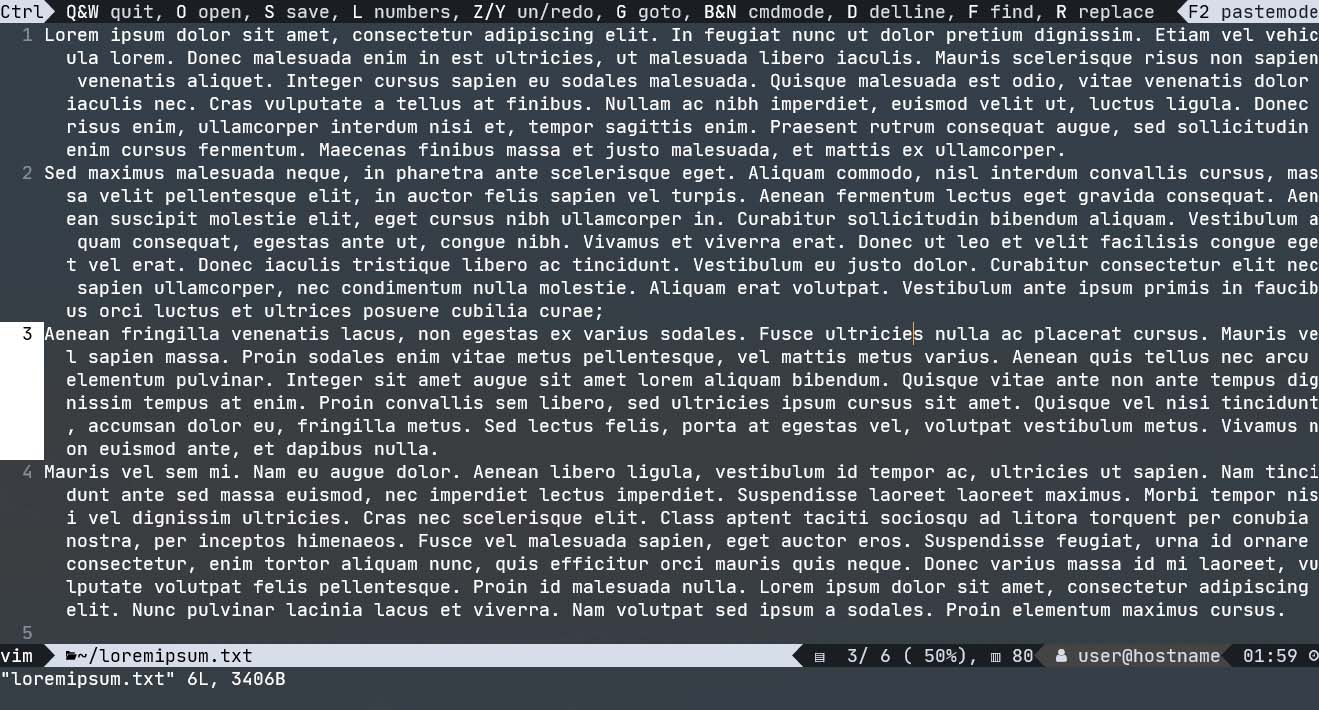 Modeless
 vim using a nerd font.
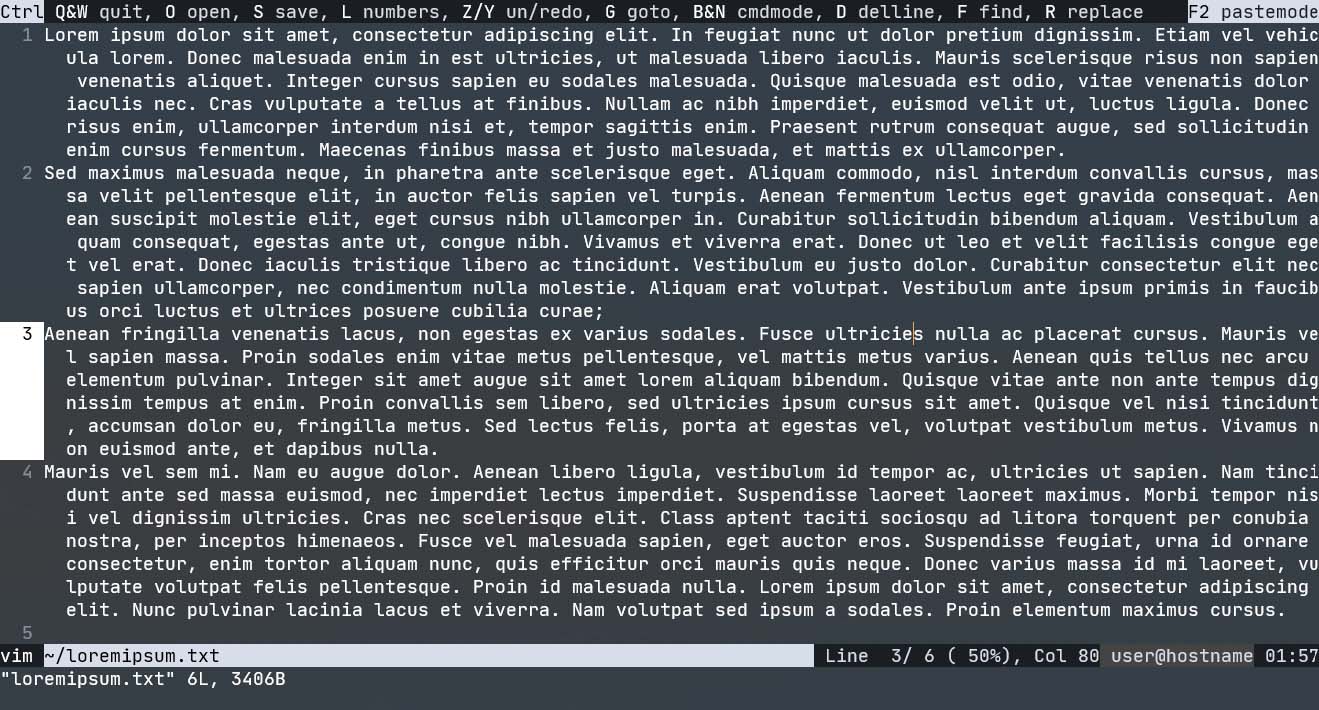 Modeless
 vim with the _ascii version of the config files.
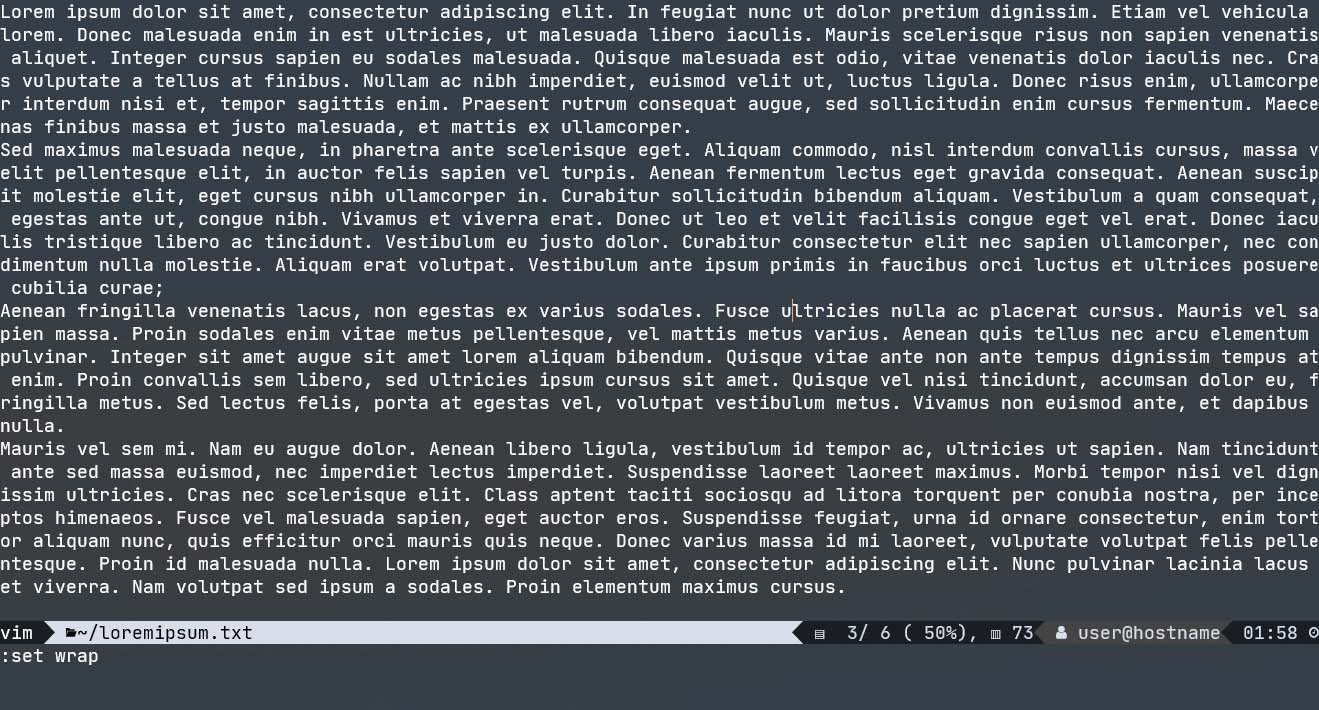
vi aka modeful vim using modeless.vimrc.
Contents
Installation
- Clone this repository to
~/.vim. You may want to use the following command to avoid cloning the screenshots in theimgfolder.git clone --sparse \ https://github.com/SebastianMuskalla/ModelessVim.git \ ~/.vim vimshould autodetect thevimrcfile in~/.vim.- If it does not, you can create a symbolic link
from
~/.vimrcto e.g.~/.vim/modeless.vimrc:ln -s ~/.vim/modeless.vimrc ~/.vimrc
Using vim for sudoedit
In order to use modeless vim when calling sudoedit, put
export EDITOR=vim
into your .bashrc/.zshrc/... file.
Using modeful vim as vi
You may want to preserve the option to use the normal modeful version of vim.
I recommend a setup in which the vi command is set up to execute the modeful
version of vim.
Find out what your vi command does
$ which vi
> /usr/bin/vi
$ ll /usr/bin/vi
> /usr/bin/vi -> /etc/alternatives/vi
$ ll /etc/alternatives/vi
>  /etc/alternatives/vi /usr/bin/vim.basic
The symlink /usr/bin/vi can be safely replaced by a shell script,
e.g. the file vi in this repository
#!/bin/sh

if [ -e "$HOME/.vim/virc" ]
then
    vim -u "$HOME/.vim/virc" "$@"
else
    vim "$@"
fi
Nerd font
The default configuration requires a nerd font (https://www.nerdfonts.com.) (A nerd font is a monospace font that has additional icons inserted.) To be precise, the infobar at the top and the statusbar at the bottom of the terminal window use some of these custom icons. Additionally, your terminal should support displaying unicode characters.
I recommend using a Nerd Font; I am using the nerd font version of JetBrainsMono.
If you don't want or cannot use a custom font, this repository contains
the files statusline_ascii.vimrc and infoline_ascii.vimrc
that implement the statusbar/infobar just using ASCII characters.
Follow the instructions inside the file modeless.vimrc (or modeful.vimrc)
to use the _ascii version.
Key bindings
Modeless vim supports the following file
Open, Save, Quit
Ctrl+Q- Close all tabs, ask for saving each (Saving will not work if a file has no name)Ctrl+W- Close current tab, ask for saving (Saving will not work if a file has no name)Ctrl+O- Open file (enter file name)Ctrl+S- Save current file (enter file name if needed)
Search and replace
Ctrl+F- FindF3- Next search resultF4- Previous search resultCtrl+R- Replace all occurrences of a text.
Replace the textFINDby the text you want to replace, and the textREPLACEby the text you want to replace it with.
Select, cut, copy, paste
Ctrl+A- Select all.Shift+Left,Shift+Right,Shift+Down,Shift+Up
Select in the corresponding direction. Leave selection mode with arrow keys or Escape.Ctrl+C- Copy current selection (or current line if nothing is selected)Ctrl+X- Cut current selection (or current line if nothing is selected)Ctrl+D- Cut current line (which can be used to simply delete the line)Ctrl+V- Paste
Other
-
Ctrl+Z- Undo -
Ctrl+Y- Redo -
Shift+Tab- De-tab (go back 4 spaces) -
Ctrl+L- Toggle line numbers (helpful when copying from terminal window) -
Ctrl+N,Ctrl+B- Next commands in "normal" vim mode
This key bind allows the user to inputvimcommands like:q!. -
F2- Toggle pastemode.
In pastemode,vimwill not try to reformat text that is pasted into vim. This is useful when copying text from another editor into vim.
Files in this repository
-
modeless.vimrc
Loads the settings for modelessvim. -
modeful.vimrc
Loads some settings for modefulvim. -
colorscheme.vimrc
Color scheme (meant for white text on a dark background). -
keybinds.vimrc
Key binds. -
infoline_nerdfont.vimrc
Infoline on top that shows the keybinds. -
infoline_ascii.vimrc
Version ofinfoline_nerdfont.vimrcthat only uses ASCII. -
statusline_nerdfont.vimrc
Statusline at the bottom that shows file name, cursor location, user, hostname, clock. -
statusline_ascii.vimrc
Version ofstatusline_nerdfont.vimrcthat only uses ASCII. -
options_basic.vimrc
Basic options for modeful and modelessvim. -
options_modeless.vimrc
Options for modelessvim. -
vimrc
Vimrc file that simply loadsmodeless.vimrc. Should be auto-detected byvimif placed inside~/.vim. -
virc
Vimrc file that simply loadsmodeful.vimrc. -
vi
Script that tries to load~/.vim/modeless.vimrc. -
LICENSE
MIT License. -
README.md
This README file.
License
This collection of configuration files is free and open-source software, licensed under the MIT license, see LICENSE.
Contributors

5 commits
Similar repos


Languages
Shell
97.6%
Vim Script
2.4%
Configuration files to turn vim into a modeless editor.
Shell
291
5 commits
updated Jan 18, 2024
README
Modeless vim
The config files in this repository turn vim into a modeless editor.
Instead of remembering cryptic commands, you can use standard key binds,
like Ctrl+S to save, select text using Shift+←/→/↑/↓, and copy/paste using
Ctrl+C/V.
This configuration is not meant for the aficionado who prefers vim over
graphical editors. This is meant for people who normally use GUI editors
(like VSCode), but sometimes need an editor that can run in a terminal.
Note:
A modeless editor is a normal editor in which the letter keys will let you
directly type text, and commands like saving files are performed via key binds.
This applies to basically all editors with a GUI and
some editors meant for terminals like nano.
A modeful editor like vim in its default configuration has several modes
(e.g. 'command mode' for executing commands like saving ('w'), 'insert mode'
for actually typing, 'visual mode' for selecting text, ...).
Q: Why don't you just learn the vim commands?
A: I did, but if you don't use vim regularly, you keep forgetting them.
Q: Why don't you use a modeless editor like nano?
A: The capabilities of vim (e.g. the syntax highlighting support for many
languages) outclass any modeless terminal editor like nano.
The configuration files in this repository turn vim
into a modeless editor, while preserving its amazing features!
The configuration has been tested using vim version 8.2 running on
Debian 11 (Bullseye) running in WSL2 on Windows 10 21H2, displayed using the
'Windows Terminal' application.
Some features
- Support for standard key binds.
- Show an infobar at the top of the screen that reminds you of the key binds.
- Show a statusbar at the bottom with the file, the cursor position, and some other information.
- Sane default settings for many options.
Screenshots
Modeless vim using a nerd font.
Modeless vim with the _ascii version of the config files.
vi aka modeful vim using modeless.vimrc.
Contents
Installation
- Clone this repository to
~/.vim. You may want to use the following command to avoid cloning the screenshots in theimgfolder.git clone --sparse \ https://github.com/SebastianMuskalla/ModelessVim.git \ ~/.vim vimshould autodetect thevimrcfile in~/.vim.- If it does not, you can create a symbolic link
from
~/.vimrcto e.g.~/.vim/modeless.vimrc:ln -s ~/.vim/modeless.vimrc ~/.vimrc
Using vim for sudoedit
In order to use modeless vim when calling sudoedit, put
export EDITOR=vim
into your .bashrc/.zshrc/... file.
Using modeful vim as vi
You may want to preserve the option to use the normal modeful version of vim.
I recommend a setup in which the vi command is set up to execute the modeful
version of vim.
Find out what your vi command does
$ which vi
> /usr/bin/vi
$ ll /usr/bin/vi
> /usr/bin/vi -> /etc/alternatives/vi
$ ll /etc/alternatives/vi
>  /etc/alternatives/vi /usr/bin/vim.basic
The symlink /usr/bin/vi can be safely replaced by a shell script,
e.g. the file vi in this repository
#!/bin/sh

if [ -e "$HOME/.vim/virc" ]
then
    vim -u "$HOME/.vim/virc" "$@"
else
    vim "$@"
fi
Nerd font
The default configuration requires a nerd font (https://www.nerdfonts.com.) (A nerd font is a monospace font that has additional icons inserted.) To be precise, the infobar at the top and the statusbar at the bottom of the terminal window use some of these custom icons. Additionally, your terminal should support displaying unicode characters.
I recommend using a Nerd Font; I am using the nerd font version of JetBrainsMono.
If you don't want or cannot use a custom font, this repository contains
the files statusline_ascii.vimrc and infoline_ascii.vimrc
that implement the statusbar/infobar just using ASCII characters.
Follow the instructions inside the file modeless.vimrc (or modeful.vimrc)
to use the _ascii version.
Key bindings
Modeless vim supports the following file
Open, Save, Quit
Ctrl+Q- Close all tabs, ask for saving each (Saving will not work if a file has no name)Ctrl+W- Close current tab, ask for saving (Saving will not work if a file has no name)Ctrl+O- Open file (enter file name)Ctrl+S- Save current file (enter file name if needed)
Search and replace
Ctrl+F- FindF3- Next search resultF4- Previous search resultCtrl+R- Replace all occurrences of a text.
Replace the textFINDby the text you want to replace, and the textREPLACEby the text you want to replace it with.
Select, cut, copy, paste
Ctrl+A- Select all.Shift+Left,Shift+Right,Shift+Down,Shift+Up
Select in the corresponding direction. Leave selection mode with arrow keys or Escape.Ctrl+C- Copy current selection (or current line if nothing is selected)Ctrl+X- Cut current selection (or current line if nothing is selected)Ctrl+D- Cut current line (which can be used to simply delete the line)Ctrl+V- Paste
Other
-
Ctrl+Z- Undo -
Ctrl+Y- Redo -
Shift+Tab- De-tab (go back 4 spaces) -
Ctrl+L- Toggle line numbers (helpful when copying from terminal window) -
Ctrl+N,Ctrl+B- Next commands in "normal" vim mode
This key bind allows the user to inputvimcommands like:q!. -
F2- Toggle pastemode.
In pastemode,vimwill not try to reformat text that is pasted into vim. This is useful when copying text from another editor into vim.
Files in this repository
-
modeless.vimrc
Loads the settings for modelessvim. -
modeful.vimrc
Loads some settings for modefulvim. -
colorscheme.vimrc
Color scheme (meant for white text on a dark background). -
keybinds.vimrc
Key binds. -
infoline_nerdfont.vimrc
Infoline on top that shows the keybinds. -
infoline_ascii.vimrc
Version ofinfoline_nerdfont.vimrcthat only uses ASCII. -
statusline_nerdfont.vimrc
Statusline at the bottom that shows file name, cursor location, user, hostname, clock. -
statusline_ascii.vimrc
Version ofstatusline_nerdfont.vimrcthat only uses ASCII. -
options_basic.vimrc
Basic options for modeful and modelessvim. -
options_modeless.vimrc
Options for modelessvim. -
vimrc
Vimrc file that simply loadsmodeless.vimrc. Should be auto-detected byvimif placed inside~/.vim. -
virc
Vimrc file that simply loadsmodeful.vimrc. -
vi
Script that tries to load~/.vim/modeless.vimrc. -
LICENSE
MIT License. -
README.md
This README file.
License
This collection of configuration files is free and open-source software, licensed under the MIT license, see LICENSE.
Similar repos
Contributors
5 commits
Languages
Shell
97.6%
Vim Script
2.4%