[!IMPORTANT] In development - not released yet. The redesigned interface shown here is planned for release soon. We are still refining and testing it; these screenshots preview the upcoming release, not the version currently available to download. Release timing may change while testing continues.
We are actively improving the desktop interface so that getting started, finding settings, and spending time with your companion feel more natural. The upcoming native Qt Quick interface brings setup, conversation, personas, and visual tools into dedicated workspaces, with clearer navigation and guidance inside the app.
Development work focuses on:
This work is ongoing. The screenshots below show the development installation on September 30, 2026; details may differ from your installed version. Click any image to see it at full size.
These are real replies from a short demo conversation in the running app, using the configured language model and speech pipeline. Here, Nixie helps write a tiny story about a robot running a midnight cafe on the Moon.
Chat with the console split: follow the conversation, speech activity, and runtime output side by side.

Chat without the console: give the conversation the full workspace. Toggle the split from the console header or the conversation's Controls menu.

 Welcome and guided setup. See what is ready and choose something useful to try. |  Session setup. Input modes, reusable presets, and the active provider stack are grouped together. |
 Quick personas. Switch companions and manage the prompt and voice that belong to each one. |  Visual identity. Keep a companion's reference appearance and mood portraits together. |
 Interactive guides. Preview what a guide teaches, then follow it inside the app. |  Appearance and themes. Choose a preset or preview your own colors before saving. |
The project is intended to grow through community feedback, addon development, and shared workflows. Join the setup/help Discord here:

Support your friendly NeuralCompanion devs!


Watch the NeuralCompanion overview video
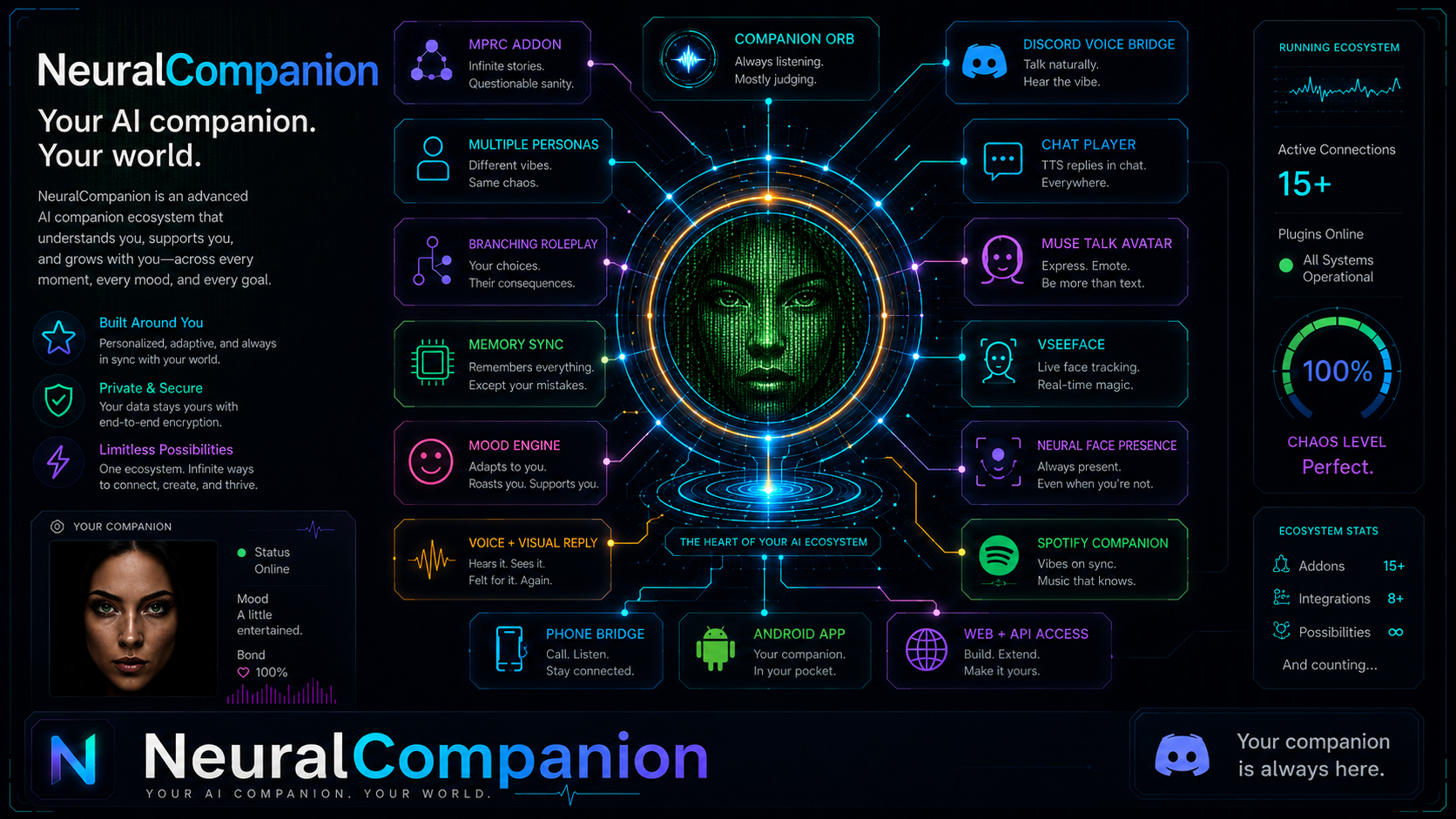
Neural Companion is a local desktop AI companion for realtime chat, speech, avatars, visual replies, and addon-driven workflows. This release targets Windows, and a Linux version is available at Rakile/NeuralCompanion-Linux.
It is designed for users who want a configurable AI companion that can talk, listen, roleplay, use local or API models, drive avatars, and grow through addons.
Skip the feature tour and jump to Requirements and Install
For release history, see CHANGELOG.md.
The detailed feature tour below shows the earlier interface. For a preview of the upcoming redesign, see Coming Soon. The screenshots below are clickable thumbnails. Click a thumbnail to open the full-size image.

This page controls the active runtime preset: avatar mode, input mode, streaming, and the selected visual-reply provider.
What to do on this page:

This page enables the hidden PING/PONG loop that can feed screen, webcam, clipboard, orb target, heart-rate, and Spotify context into replies.
What to do on this page:

This page manages proactive replies, context-window size, continuity summaries, and long-term archive retrieval.
What to do on this page:

This page lets you switch the shell color palette between light, gray, forest, ocean, midnight, and other preview themes.
What to do on this page:

This page controls visual-reply behavior for story mode, including image count, style selection, continuity, and master style anchors.
What to do on this page:

This page builds a local retrieval database from selected text or PDF files and injects matching chunks into chat requests.
What to do on this page:

This page shows live chat output, console events, buffer status, audio input/output selection, and runtime action buttons.
What to do on this page:

This addon page connects Spotify, reads current-track context, controls playback, and supports music-aware companion behavior.
What to do on this page:

This page enables or disables addon categories and shows which addons are loaded, initialized, or active on next launch.
What to do on this page:

This page tunes system-wide response chunking for standard, MuseTalk, and streaming playback pipelines.
What to do on this page:

This page runs safe reply-generation tests and recommends machine-specific startup and chunking values without changing the live pipeline.
What to do on this page:

This page lists built-in walkthroughs loaded from JSON files and starts guided setup or feature tutorials.
What to do on this page:

This page adjusts VSeeFace body and face movement values such as eye activity, breathing speed, shoulder lift, and body sway.
What to do on this page:

This page imports audiobook or story audio, transcribes it through Whisper, and generates visual story images from the transcript.
What to do on this page:

This page prepares source video, image, or frame folders into MuseTalk avatar packs with optional emotion-tag mapping.
What to do on this page:

This page configures the full-screen or floating AI presence overlay, including breathing orb style, mood colors, particles, and audio sync.
What to do on this page:

This page shows the Companion Orb overlay sitting on top of a work area, useful for confirming placement, click-through behavior, and target focus.
What to do on this page:

This page controls the wireframe face overlay, including style, lip sync, blink, emotion reaction, glow, and reduced-animation options.
What to do on this page:

This page controls the desktop Companion Orb: visibility, position, click-through mode, movement, effects, colors, and voice-reactive animation.
What to do on this page:

This page runs the Multi Persona Roleplay Companion play view, with story feed, scene state, cast, events, choices, director tools, and player input.
What to do on this page:

This page creates and edits Scenic Avatar packs by assigning images to tags that can be used as still-image avatar states.
What to do on this page:

This page shows Spotify Sense while connected, including the current track, song-change monitor, ducking, queue options, and playback controls.
What to do on this page:

This page configures the Virt-A-Mate bridge path, target atom, plugin storables, VMC connection, audio bridge, and launch buttons.
What to do on this page:

This page manages global and UI hotkeys for push-to-talk, regenerate, retry input, pause speech, skip speech, replay, reset memory, and launch actions.
What to do on this page:

This page replays saved or loaded chat sessions through the active TTS and avatar pipeline without generating fresh LLM responses.
What to do on this page:

This page displays generated visual replies, lets you browse stored images, load story images, caption images, reuse image style, and clear old outputs.
What to do on this page:
Neural Companion currently requires:
Python 3.11 is required. Python 3.12+ is not currently supported by the full runtime stack, and older Python versions may fail during dependency installation.
Useful external tools:
For most users, use the graphical installer:
INSTALL_NEURAL_COMPANION.bat
The installer should be run with Python 3.11 available on the system. If Python 3.11 is not your default Python, choose or provide the Python 3.11 executable when installing.
For the detailed public install guide, see:
Advanced command-line install options are documented in the manual. They are intended for users who already know which runtime components they want to install.
Start Neural Companion with:
run_neural_companion.bat
This is the recommended launch method because it uses the installed Neural Companion environment.
If you need to run the app manually from the project folder, use the installed environment explicitly:
.venv\Scripts\python.exe qt_app.py
Or activate the environment first:
.venv\Scripts\activate.bat
python qt_app.py
The simplest first run is to follow the tutorial displayed at first launch.
If you want to start manually:
LM Studio as Chat Provider.None as Avatar Engine.Initialize System.Once that works, enable MuseTalk, VSeeFace, VaM, visual replies, or sensory addons one at a time.
The public repo ships with two voice samples.
If you want Chatterbox or another backend to clone a reference voice, place your
own .wav files under:
voices/
Only use voice files you have the right to use.
MuseTalk avatar packs belong in:
avatar_packs/<pack_id>/
Large avatar packs and frame caches are intentionally not stored in the main repository. Demo packs live in the separate NeuralCompanion-AvatarPacks repository.
Useful docs:
Most runtime capabilities are implemented as addons under addons/.
Useful docs:

Discord Voice Bridge runs one or more isolated voice companions through the selected Neural Companion STT, chat, and TTS providers. Its room context and audio playback remain separate from the normal Chat tab.
Two bridge modes are available:
If the addon is disabled in the Addons tab, enable it there and restart NC once
so it can initialize. Then choose a bridge mode, configure the Discord channel
or TinyMVP room, add any bot instances and personas, save the settings, and
press Start Bridge. Enable Start bridge when NC launches only when you want
the configured bridge to start automatically with NC. The Bots and Moderator
tabs provide multi-bot voices, speaker routing, floor control, and dead-air
recovery.
Keep Discord bot tokens private and prefer environment variables for normal use. See the complete Discord Voice Bridge guide for Discord permissions, Node dependency setup, TinyMVP instructions, multi-bot configuration, privacy guidance, and troubleshooting.
Identity Relay can import continuity exported from an external LLM conversation.
View Export Protocol or
Copy Export Protocol.NC_IDENTITY_EXPORT JSON response without rewriting it,
either by pasting it or selecting the saved file.The export reflects only what the source LLM can honestly derive from the conversation and memory available to it. A richer source history can therefore produce a richer artifact.
See the Neural Companion Manual for installation, first-run, avatar, TTS, PocketTTS, MuseTalk, addon, and troubleshooting guidance.
For development and repository details, see:
Neural Companion is released under the MIT License. See LICENSE.
Bundled third-party components may carry their own licenses. MuseTalk is included under its upstream MIT license in MuseTalk/LICENSE.
You are responsible for complying with the terms of any external model, provider, voice, avatar, or generated asset you use with the app.
[!IMPORTANT] In development - not released yet. The redesigned interface shown here is planned for release soon. We are still refining and testing it; these screenshots preview the upcoming release, not the version currently available to download. Release timing may change while testing continues.
We are actively improving the desktop interface so that getting started, finding settings, and spending time with your companion feel more natural. The upcoming native Qt Quick interface brings setup, conversation, personas, and visual tools into dedicated workspaces, with clearer navigation and guidance inside the app.
Development work focuses on:
This work is ongoing. The screenshots below show the development installation on September 30, 2026; details may differ from your installed version. Click any image to see it at full size.
These are real replies from a short demo conversation in the running app, using the configured language model and speech pipeline. Here, Nixie helps write a tiny story about a robot running a midnight cafe on the Moon.
Chat with the console split: follow the conversation, speech activity, and runtime output side by side.
Chat without the console: give the conversation the full workspace. Toggle the split from the console header or the conversation's Controls menu.
Welcome and guided setup. See what is ready and choose something useful to try. | Session setup. Input modes, reusable presets, and the active provider stack are grouped together. |
Quick personas. Switch companions and manage the prompt and voice that belong to each one. | Visual identity. Keep a companion's reference appearance and mood portraits together. |
Interactive guides. Preview what a guide teaches, then follow it inside the app. | Appearance and themes. Choose a preset or preview your own colors before saving. |
The project is intended to grow through community feedback, addon development, and shared workflows. Join the setup/help Discord here:
Support your friendly NeuralCompanion devs!
Watch the NeuralCompanion overview video
Neural Companion is a local desktop AI companion for realtime chat, speech, avatars, visual replies, and addon-driven workflows. This release targets Windows, and a Linux version is available at Rakile/NeuralCompanion-Linux.
It is designed for users who want a configurable AI companion that can talk, listen, roleplay, use local or API models, drive avatars, and grow through addons.
Skip the feature tour and jump to Requirements and Install
For release history, see CHANGELOG.md.
The detailed feature tour below shows the earlier interface. For a preview of the upcoming redesign, see Coming Soon. The screenshots below are clickable thumbnails. Click a thumbnail to open the full-size image.
This page controls the active runtime preset: avatar mode, input mode, streaming, and the selected visual-reply provider.
What to do on this page:
This page enables the hidden PING/PONG loop that can feed screen, webcam, clipboard, orb target, heart-rate, and Spotify context into replies.
What to do on this page:
This page manages proactive replies, context-window size, continuity summaries, and long-term archive retrieval.
What to do on this page:
This page lets you switch the shell color palette between light, gray, forest, ocean, midnight, and other preview themes.
What to do on this page:
This page controls visual-reply behavior for story mode, including image count, style selection, continuity, and master style anchors.
What to do on this page:
This page builds a local retrieval database from selected text or PDF files and injects matching chunks into chat requests.
What to do on this page:
This page shows live chat output, console events, buffer status, audio input/output selection, and runtime action buttons.
What to do on this page:
This addon page connects Spotify, reads current-track context, controls playback, and supports music-aware companion behavior.
What to do on this page:
This page enables or disables addon categories and shows which addons are loaded, initialized, or active on next launch.
What to do on this page:
This page tunes system-wide response chunking for standard, MuseTalk, and streaming playback pipelines.
What to do on this page:
This page runs safe reply-generation tests and recommends machine-specific startup and chunking values without changing the live pipeline.
What to do on this page:
This page lists built-in walkthroughs loaded from JSON files and starts guided setup or feature tutorials.
What to do on this page:
This page adjusts VSeeFace body and face movement values such as eye activity, breathing speed, shoulder lift, and body sway.
What to do on this page:
This page imports audiobook or story audio, transcribes it through Whisper, and generates visual story images from the transcript.
What to do on this page:
This page prepares source video, image, or frame folders into MuseTalk avatar packs with optional emotion-tag mapping.
What to do on this page:
This page configures the full-screen or floating AI presence overlay, including breathing orb style, mood colors, particles, and audio sync.
What to do on this page:
This page shows the Companion Orb overlay sitting on top of a work area, useful for confirming placement, click-through behavior, and target focus.
What to do on this page:
This page controls the wireframe face overlay, including style, lip sync, blink, emotion reaction, glow, and reduced-animation options.
What to do on this page:
This page controls the desktop Companion Orb: visibility, position, click-through mode, movement, effects, colors, and voice-reactive animation.
What to do on this page:
This page runs the Multi Persona Roleplay Companion play view, with story feed, scene state, cast, events, choices, director tools, and player input.
What to do on this page:
This page creates and edits Scenic Avatar packs by assigning images to tags that can be used as still-image avatar states.
What to do on this page:
This page shows Spotify Sense while connected, including the current track, song-change monitor, ducking, queue options, and playback controls.
What to do on this page:
This page configures the Virt-A-Mate bridge path, target atom, plugin storables, VMC connection, audio bridge, and launch buttons.
What to do on this page:
This page manages global and UI hotkeys for push-to-talk, regenerate, retry input, pause speech, skip speech, replay, reset memory, and launch actions.
What to do on this page:
This page replays saved or loaded chat sessions through the active TTS and avatar pipeline without generating fresh LLM responses.
What to do on this page:
This page displays generated visual replies, lets you browse stored images, load story images, caption images, reuse image style, and clear old outputs.
What to do on this page:
Neural Companion currently requires:
Python 3.11 is required. Python 3.12+ is not currently supported by the full runtime stack, and older Python versions may fail during dependency installation.
Useful external tools:
For most users, use the graphical installer:
INSTALL_NEURAL_COMPANION.bat
The installer should be run with Python 3.11 available on the system. If Python 3.11 is not your default Python, choose or provide the Python 3.11 executable when installing.
For the detailed public install guide, see:
Advanced command-line install options are documented in the manual. They are intended for users who already know which runtime components they want to install.
Start Neural Companion with:
run_neural_companion.bat
This is the recommended launch method because it uses the installed Neural Companion environment.
If you need to run the app manually from the project folder, use the installed environment explicitly:
.venv\Scripts\python.exe qt_app.py
Or activate the environment first:
.venv\Scripts\activate.bat
python qt_app.py
The simplest first run is to follow the tutorial displayed at first launch.
If you want to start manually:
LM Studio as Chat Provider.None as Avatar Engine.Initialize System.Once that works, enable MuseTalk, VSeeFace, VaM, visual replies, or sensory addons one at a time.
The public repo ships with two voice samples.
If you want Chatterbox or another backend to clone a reference voice, place your
own .wav files under:
voices/
Only use voice files you have the right to use.
MuseTalk avatar packs belong in:
avatar_packs/<pack_id>/
Large avatar packs and frame caches are intentionally not stored in the main repository. Demo packs live in the separate NeuralCompanion-AvatarPacks repository.
Useful docs:
Most runtime capabilities are implemented as addons under addons/.
Useful docs:
Discord Voice Bridge runs one or more isolated voice companions through the selected Neural Companion STT, chat, and TTS providers. Its room context and audio playback remain separate from the normal Chat tab.
Two bridge modes are available:
If the addon is disabled in the Addons tab, enable it there and restart NC once
so it can initialize. Then choose a bridge mode, configure the Discord channel
or TinyMVP room, add any bot instances and personas, save the settings, and
press Start Bridge. Enable Start bridge when NC launches only when you want
the configured bridge to start automatically with NC. The Bots and Moderator
tabs provide multi-bot voices, speaker routing, floor control, and dead-air
recovery.
Keep Discord bot tokens private and prefer environment variables for normal use. See the complete Discord Voice Bridge guide for Discord permissions, Node dependency setup, TinyMVP instructions, multi-bot configuration, privacy guidance, and troubleshooting.
Identity Relay can import continuity exported from an external LLM conversation.
View Export Protocol or
Copy Export Protocol.NC_IDENTITY_EXPORT JSON response without rewriting it,
either by pasting it or selecting the saved file.The export reflects only what the source LLM can honestly derive from the conversation and memory available to it. A richer source history can therefore produce a richer artifact.
See the Neural Companion Manual for installation, first-run, avatar, TTS, PocketTTS, MuseTalk, addon, and troubleshooting guidance.
For development and repository details, see:
Neural Companion is released under the MIT License. See LICENSE.
Bundled third-party components may carry their own licenses. MuseTalk is included under its upstream MIT license in MuseTalk/LICENSE.
You are responsible for complying with the terms of any external model, provider, voice, avatar, or generated asset you use with the app.



