
Completely local print support for VS Code with syntax-colouring and line numbering
TypeScript
91
870 commits
updated Jun 16, 2026
README
Print code. Print rendered Markdown. Local or remote. Windows, Mac or Linux.
Hot preview
When you launch a preview of a Markdown document from the active editor, if you edit that file and stop making changes for three seconds, the proview will update in the browser. Hot preview also supports find-in-source. If you're proof-reading the rendered document and you find an error, double-clicking the paragraph will find and highlight the first line in the editor. You can adjust the settling delay in settings.
Important - if you intend to use hot preview while editing diagrams in Markdown, set up a local Kroki server and configure Print to use it. If you fail to do this you will very quickly find yourself rate-limited by the public server.
Cross-platform printing
Print-jobs are rendered as styled HTML and served from an embedded webserver. Your local web browser is launched to load the print-job and give you printing options like paper size, page orientation and margin size.
So if you have a local browser that can print, and VS Code can launch it, you can print.
Interactive Markdown content
SPOILER fenced code blocks let you create interactive content that hides answers, explanations, or solutions until clicked. Perfect for tutorials, exercises, and educational materials.
show: Teaser, label or spoiler warning here
hide: Hidden content goes here. The butler did it!
Your hidden content goes here - code examples, explanations, or any markdown content.
When printing, spoiler content is displayed with clear labeling so nothing is lost in the printed output.
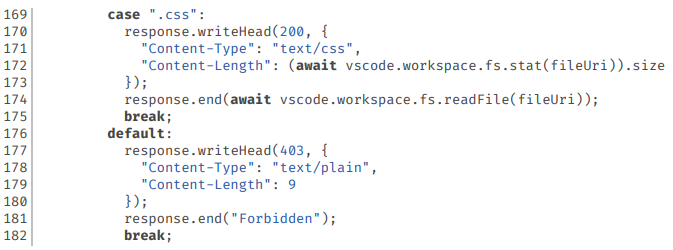
Source code
Classic user experience
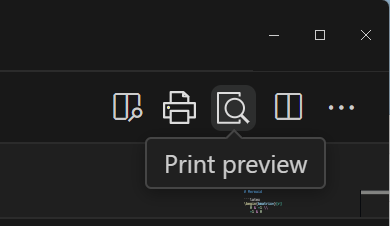
The print and print preview icon are on the toolbar when there is an active editor. VS Code shows extension contributions according to the language of the active editor. No active editor means no icons (someone thought we should "fix" this).
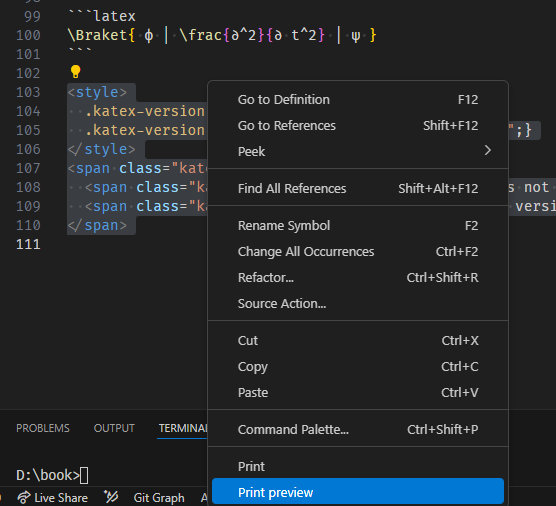
If you have a text selection that crosses at least one line-break you can right click and choose Print or Print preview from the context menu to send just the selection to the printer. In the absence of a multi-line selection the entire document is printed. You can control the position of Print and Print preview in this menu, or remove it altogether.
Or you can right-click on a file in the file explorer pane and choose Print or Print preview from the context menu.
Highly configurable
There are a number of settings. Most of them you just need to read the descriptions on the settings page, but we're old school and we wrote a manual. If things aren't going well, consider reading it. If you have first-use problems, the manual contains a troubleshooting guide.
Some things you can configure:
- the colour scheme used for syntax colouring
- whether or not you want line numbers
- alternate browser for printing
- line spacing (leave yourself more room for handwritten annotation of code)
Planned changes
- External resources for Markdown documents - a fenced block with a language of
externalcontaining a URL and metadata, allowing a wide range of external resources to be linked into a Markdown document - The manual needs a rewrite,
- how to embed diagrams
- how to control the flow of text around embedded diagrams
- summary extracts of documentation so you don't have to hunt
- Machine translation to support major languages. This has already been applied to the extension and its settings, but high quality automated translation of documentation is proving more difficult.
Contributors


Similar repos


Languages
TypeScript
80.6%
JavaScript
11.6%
Go Template
4.6%
CSS
2.5%
Completely local print support for VS Code with syntax-colouring and line numbering
TypeScript
91
870 commits
updated Jun 16, 2026
README
Print code. Print rendered Markdown. Local or remote. Windows, Mac or Linux.
Hot preview
When you launch a preview of a Markdown document from the active editor, if you edit that file and stop making changes for three seconds, the proview will update in the browser. Hot preview also supports find-in-source. If you're proof-reading the rendered document and you find an error, double-clicking the paragraph will find and highlight the first line in the editor. You can adjust the settling delay in settings.
Important - if you intend to use hot preview while editing diagrams in Markdown, set up a local Kroki server and configure Print to use it. If you fail to do this you will very quickly find yourself rate-limited by the public server.
Cross-platform printing
Print-jobs are rendered as styled HTML and served from an embedded webserver. Your local web browser is launched to load the print-job and give you printing options like paper size, page orientation and margin size.
So if you have a local browser that can print, and VS Code can launch it, you can print.
Interactive Markdown content
SPOILER fenced code blocks let you create interactive content that hides answers, explanations, or solutions until clicked. Perfect for tutorials, exercises, and educational materials.
show: Teaser, label or spoiler warning here
hide: Hidden content goes here. The butler did it!
Your hidden content goes here - code examples, explanations, or any markdown content.
When printing, spoiler content is displayed with clear labeling so nothing is lost in the printed output.
Source code
Classic user experience
The print and print preview icon are on the toolbar when there is an active editor. VS Code shows extension contributions according to the language of the active editor. No active editor means no icons (someone thought we should "fix" this).
If you have a text selection that crosses at least one line-break you can right click and choose Print or Print preview from the context menu to send just the selection to the printer. In the absence of a multi-line selection the entire document is printed. You can control the position of Print and Print preview in this menu, or remove it altogether.
Or you can right-click on a file in the file explorer pane and choose Print or Print preview from the context menu.
Highly configurable
There are a number of settings. Most of them you just need to read the descriptions on the settings page, but we're old school and we wrote a manual. If things aren't going well, consider reading it. If you have first-use problems, the manual contains a troubleshooting guide.
Some things you can configure:
- the colour scheme used for syntax colouring
- whether or not you want line numbers
- alternate browser for printing
- line spacing (leave yourself more room for handwritten annotation of code)
Planned changes
- External resources for Markdown documents - a fenced block with a language of
externalcontaining a URL and metadata, allowing a wide range of external resources to be linked into a Markdown document - The manual needs a rewrite,
- how to embed diagrams
- how to control the flow of text around embedded diagrams
- summary extracts of documentation so you don't have to hunt
- Machine translation to support major languages. This has already been applied to the extension and its settings, but high quality automated translation of documentation is proving more difficult.
Similar repos
Contributors
Languages
TypeScript
80.6%
JavaScript
11.6%
Go Template
4.6%
CSS
2.5%