
README
Deep Translation
English | 한국어
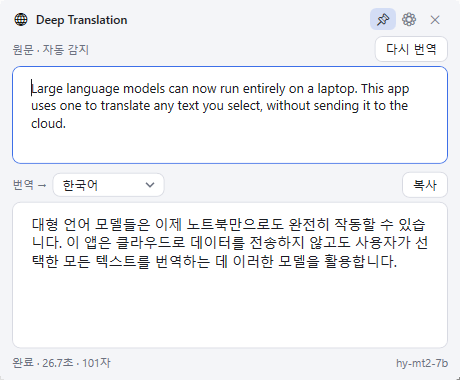
Select text anywhere, press Ctrl+C, C (twice, quickly), and a translation popup appears. Translation runs on a local LLM inside your PC, so your text never leaves the machine.

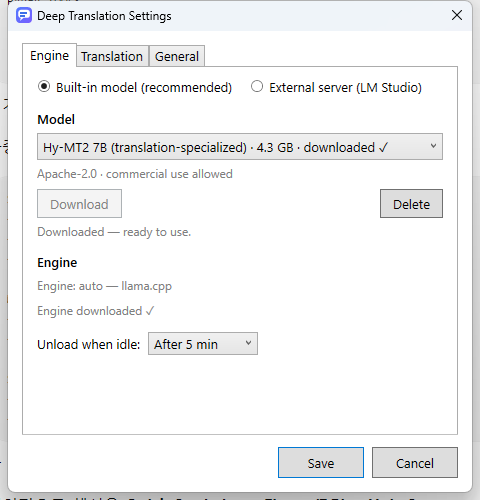
- No extra software needed. Download a model once from Settings
- Default: any language → Korean; Korean source → English (switchable right in the popup)
- Streams the result token by token. Edit the source text and it re-translates automatically
- Custom hotkey, glossary, light/dark theme, run at Windows startup
- Unloads the engine when idle (default 5 min) to free RAM/VRAM
- Can switch to any external OpenAI-compatible server (LM Studio, Ollama, llama.cpp, vLLM)
Installation
Download DeepTranslation-Setup-<version>.exe from
Releases and run it.
For a portable setup, run DeepTranslation.exe from the same page.
The binaries are not code-signed. If SmartScreen warns you, click More info → Run anyway.
System requirements
| Minimum | Recommended | |
|---|---|---|
| OS | Windows 10/11 x64 | Windows 11 x64 |
| RAM | 8 GB (with the 1.5B model) | 16 GB |
| GPU | None (runs on CPU) | Any Vulkan-capable GPU with 6 GB+ VRAM |
| Disk | 2 GB | 6 GB (room for a 7B model) |
Without a GPU, translation works but is noticeably slower. Rough working-memory needs per model, counting the model file plus the default 8K context:
| Model | Download | RAM/VRAM while running |
|---|---|---|
| HyperCLOVA X SEED 1.5B | 1.1 GB | ~2 GB |
| EXAONE 3.5 2.4B | 1.6 GB | ~2.5 GB |
| Qwen3 4B / Qwen3.5 4B | 2.5–2.7 GB | ~4 GB |
| Hy-MT2 7B | 4.6 GB | ~6 GB |
| Gemma 4 E4B | 5.0 GB | ~6.5 GB |
Getting started
- Right-click the tray icon → Settings → Download a model (default: Qwen3.5 4B, 2.7 GB)
- Select some text and press Ctrl+C, C
The translation engine (~33 MB) is downloaded automatically on the first translation. If a GPU is not available, it falls back to CPU.
Models
All models run as 4-bit GGUF (Q4_K_M) files. Pick one in Settings → Engine.
| Model | Best for | Notes |
|---|---|---|
| Qwen3.5 4B (default) | General use, widest language coverage | Supports "201 languages and dialects" (Qwen). Apache 2.0 |
| Hy-MT2 7B | Highest translation quality | Tencent's dedicated translation model, "translation among 33 languages" (Hy-MT2). Apache 2.0 |
| Gemma 4 E4B | Strong general quality | Google, "over 140 languages", 4.5B effective parameters (Gemma 4). Apache 2.0 |
| Qwen3 4B Instruct | Alternative to Qwen3.5 | Previous Qwen generation (Qwen). Apache 2.0 |
| EXAONE 3.5 2.4B | Korean ↔ English on smaller PCs | LG AI Research, bilingual "English and Korean" (EXAONE). Non-commercial license |
| HyperCLOVA X SEED 1.5B | Lowest memory, Korean-focused | NAVER, tuned for "Korean language and culture" (HyperCLOVA X). Commercial use allowed under its own license |
License terms are also shown in the Settings window. Check them before commercial use.
Usage
| Action | How |
|---|---|
| Translate | Select text, press Ctrl+C, C (hotkey configurable in Settings) |
| Change target language | "Translate →" dropdown in the popup |
| Re-translate | Edit the source text, or press Ctrl+Enter |
| Copy result | Copy button |
| Close | Esc or click outside (📌 pins the window) |
| Translate typed text | Double-click the tray icon |
| Glossary | Settings → Glossary, one source = target per line |
| Update | Checked once a day, or tray right-click → Check for updates |
External server
Switch the engine to External server (OpenAI-compatible) in Settings to use your own server.
Only LM Studio has been tested: start its server from the Developer tab and
enter http://localhost:1234. Other OpenAI-compatible servers (Ollama, llama.cpp, vLLM) may work
but are unverified. If the server requires authentication, enter the key in the API key field.
Known issues
| Issue | Note |
|---|---|
| "Failed to start the embedded engine" | Usually out of memory. Pick a smaller model |
| "Cannot connect to the translation server" | Check that the external server is running and the address/API key are correct |
| Slow translation | The first request loads the model. If it stays slow, use a smaller model or a GPU |
| Ctrl+C, C does nothing | The hotkey cannot reach windows running as administrator |
| Smart App Control (SAC) enabled | The app automatically uses the signed Ollama engine. Forcing llama.cpp in Settings will be blocked |
Settings file: %APPDATA%\DeepTranslation\settings.json
Model files: %LOCALAPPDATA%\DeepTranslation\models
Similar repos


Languages
C#
94.3%
PowerShell
4.8%
README
Deep Translation
English | 한국어
Select text anywhere, press Ctrl+C, C (twice, quickly), and a translation popup appears. Translation runs on a local LLM inside your PC, so your text never leaves the machine.
- No extra software needed. Download a model once from Settings
- Default: any language → Korean; Korean source → English (switchable right in the popup)
- Streams the result token by token. Edit the source text and it re-translates automatically
- Custom hotkey, glossary, light/dark theme, run at Windows startup
- Unloads the engine when idle (default 5 min) to free RAM/VRAM
- Can switch to any external OpenAI-compatible server (LM Studio, Ollama, llama.cpp, vLLM)
Installation
Download DeepTranslation-Setup-<version>.exe from
Releases and run it.
For a portable setup, run DeepTranslation.exe from the same page.
The binaries are not code-signed. If SmartScreen warns you, click More info → Run anyway.
System requirements
| Minimum | Recommended | |
|---|---|---|
| OS | Windows 10/11 x64 | Windows 11 x64 |
| RAM | 8 GB (with the 1.5B model) | 16 GB |
| GPU | None (runs on CPU) | Any Vulkan-capable GPU with 6 GB+ VRAM |
| Disk | 2 GB | 6 GB (room for a 7B model) |
Without a GPU, translation works but is noticeably slower. Rough working-memory needs per model, counting the model file plus the default 8K context:
| Model | Download | RAM/VRAM while running |
|---|---|---|
| HyperCLOVA X SEED 1.5B | 1.1 GB | ~2 GB |
| EXAONE 3.5 2.4B | 1.6 GB | ~2.5 GB |
| Qwen3 4B / Qwen3.5 4B | 2.5–2.7 GB | ~4 GB |
| Hy-MT2 7B | 4.6 GB | ~6 GB |
| Gemma 4 E4B | 5.0 GB | ~6.5 GB |
Getting started
- Right-click the tray icon → Settings → Download a model (default: Qwen3.5 4B, 2.7 GB)
- Select some text and press Ctrl+C, C
The translation engine (~33 MB) is downloaded automatically on the first translation. If a GPU is not available, it falls back to CPU.
Models
All models run as 4-bit GGUF (Q4_K_M) files. Pick one in Settings → Engine.
| Model | Best for | Notes |
|---|---|---|
| Qwen3.5 4B (default) | General use, widest language coverage | Supports "201 languages and dialects" (Qwen). Apache 2.0 |
| Hy-MT2 7B | Highest translation quality | Tencent's dedicated translation model, "translation among 33 languages" (Hy-MT2). Apache 2.0 |
| Gemma 4 E4B | Strong general quality | Google, "over 140 languages", 4.5B effective parameters (Gemma 4). Apache 2.0 |
| Qwen3 4B Instruct | Alternative to Qwen3.5 | Previous Qwen generation (Qwen). Apache 2.0 |
| EXAONE 3.5 2.4B | Korean ↔ English on smaller PCs | LG AI Research, bilingual "English and Korean" (EXAONE). Non-commercial license |
| HyperCLOVA X SEED 1.5B | Lowest memory, Korean-focused | NAVER, tuned for "Korean language and culture" (HyperCLOVA X). Commercial use allowed under its own license |
License terms are also shown in the Settings window. Check them before commercial use.
Usage
| Action | How |
|---|---|
| Translate | Select text, press Ctrl+C, C (hotkey configurable in Settings) |
| Change target language | "Translate →" dropdown in the popup |
| Re-translate | Edit the source text, or press Ctrl+Enter |
| Copy result | Copy button |
| Close | Esc or click outside (📌 pins the window) |
| Translate typed text | Double-click the tray icon |
| Glossary | Settings → Glossary, one source = target per line |
| Update | Checked once a day, or tray right-click → Check for updates |
External server
Switch the engine to External server (OpenAI-compatible) in Settings to use your own server.
Only LM Studio has been tested: start its server from the Developer tab and
enter http://localhost:1234. Other OpenAI-compatible servers (Ollama, llama.cpp, vLLM) may work
but are unverified. If the server requires authentication, enter the key in the API key field.
Known issues
| Issue | Note |
|---|---|
| "Failed to start the embedded engine" | Usually out of memory. Pick a smaller model |
| "Cannot connect to the translation server" | Check that the external server is running and the address/API key are correct |
| Slow translation | The first request loads the model. If it stays slow, use a smaller model or a GPU |
| Ctrl+C, C does nothing | The hotkey cannot reach windows running as administrator |
| Smart App Control (SAC) enabled | The app automatically uses the signed Ollama engine. Forcing llama.cpp in Settings will be blocked |
Settings file: %APPDATA%\DeepTranslation\settings.json
Model files: %LOCALAPPDATA%\DeepTranslation\models
Similar repos
Languages
C#
94.3%
PowerShell
4.8%