🎨 MS Paint in your terminal.
See the codeMS Paint in your terminal.
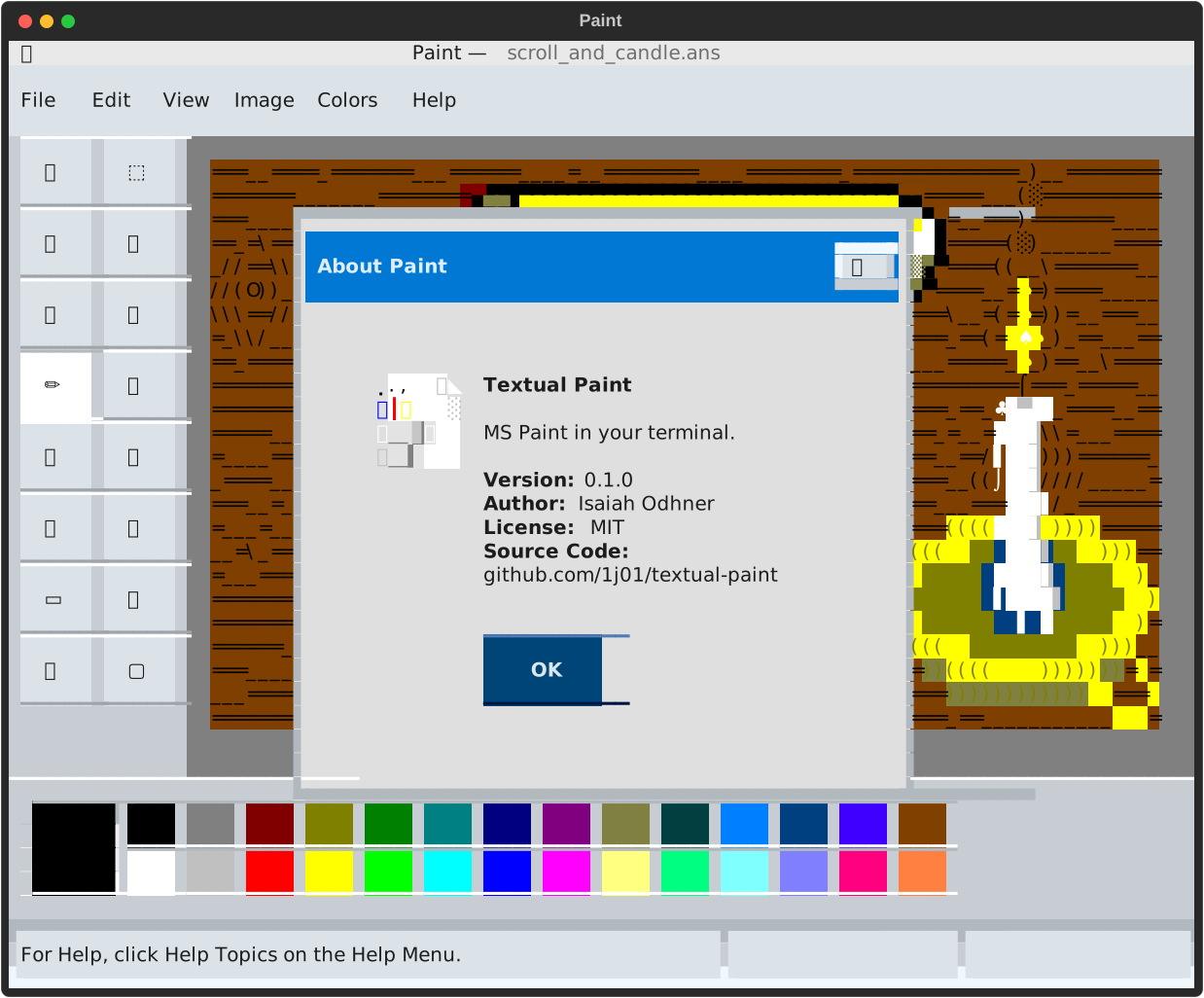
This is a TUI (Text User Interface) image editor, inspired by MS Paint, built with Textual.
.ans~ backup file alongside the file you're editing, for crash recoveryTextual Paint requires a Python version between 3.10 and 3.12 to run.
See Compatibility for details on terminals supported.
Python 3.13 is not yet supported, so please use Python 3.12 for now.
Use pipx to install globally, without installing dependencies globally:
pip install --upgrade pipx  # or in Arch Linux, sudo pacman -S python-pipx
pipx install textual-paint
Alternatively, you can install using pip:
pip install textual-paint
textual-paint
$ textual-paint --help
usage: textual-paint [options] [filename]

Paint in the terminal.

positional arguments:
  filename              Path to a file to open. File will be created if it
                        doesn't exist.

options:
  -h, --help            show this help message and exit
  --version             show program's version number and exit
  --theme {light,dark}  Theme to use, either "light" or "dark"
  --language {ar,cs,da,de,el,en,es,fi,fr,he,hu,it,ja,ko,nl,no,pl,pt,pt-br,ru,sk,sl,sv,tr,zh,zh-simplified}
                        Language to use
  --ascii-only-icons    Use only ASCII characters for tool icons, no emoji or
                        other Unicode symbols
  --ascii-only          Use only ASCII characters for the entire UI, for use in
                        older terminals. Implies --ascii-only-icons
  --backup-folder FOLDER
                        Folder to save backups to. By default a backup is saved
                        alongside the edited file.

development options:
  --inspect-layout      Enables DOM inspector (F12) and middle click highlight
  --clear-screen        Clear the screen before starting, to avoid seeing
                        outdated errors
  --restart-on-changes  Restart the app when the source code is changed
The rest match MS Paint's keyboard shortcuts:
Many file formats are supported, including ANSI art, raster images, SVG and HTML.
To choose a file format when saving, type its file extension. For example, to save a PNG, add .png to the end of the filename. The default is .ans.
| Format | Notes |
|---|---|
| ANSI (.ans) | Note that while it handles many more ANSI control codes when loading than those that it uses to save files, you may have limited success loading other ANSI files that you find on the web, or create with other tools. ANSI files can vary a lot and even encode animations! |
| mIRC codes (.irc, .mirc) | invented file extensions, and not to be confused with .mrc mIRC script files |
| Plain Text (.txt) | |
| SVG (.svg) | can open SVGs saved by Textual Paint, which embed ANSI data; can also open some other SVGs that consist of a grid of rectangles and text elements. For fun, as a challenge, I made it quite flexible; it can handle uneven grids of unsorted rectangles. But that's only used as a fallback, because it's not perfect. |
| HTML (.htm, html) | write-only (opening not supported) |
| PNG (.png) | opens first frame of an APNG file |
| Bitmap (.bmp) | |
| GIF (.gif) | opens first frame |
| TIFF (.tiff) | opens first frame |
| WebP (.webp) | opens first frame |
| JPEG (.jpg, .jpeg) | saving disabled because it's lossy (it would destroy your pixel art) |
| Windows Icon (.ico) | opens largest size in the file |
| Mac OS Icon (.icns) | opens largest size in the file; saving disabled because it requires specific sizes |
| Windows Cursor (.cur) | opens largest size in the file; saving not supported by Pillow (and it would need a defined hot spot) |
See Pillow's documentation for more supported formats.
Note that metadata is not preserved when opening and saving image files. This is however common for many image editors.
You can draw with a character by clicking the selected color display area in the palette and then typing the character, or by double clicking the same area to pick a character from a list.
You can set the text color by right clicking or holding Ctrl while clicking a color in the palette. Also, if you double right click or hold Ctrl while double clicking on a color to open the Edit Colors dialog, if will edit the text color when you click OK.
You can swap the foreground and background colors by right clicking or holding Ctrl while clicking the current colors area. This is a great convenience, especially when using the Color Eraser tool, or when using custom colors that may be hard to distinguish.
You can display a saved ANSI file in the terminal with cat:
cat samples/ship.ans
To browse the sample art, run:
python -m src.textual_paint.gallery
To preview ANSI art files in file managers like Nautilus, Thunar, Nemo, or Caja, you can install the ansi-art-thumbnailer program I made to go along with this project.
Leave event can come after closing, once the mouse moves.)A Python version between 3.10 and 3.12 is required.
Tested on Ubuntu 22, with GNOME Terminal, Kitty, XTerm, and VS Code's integrated terminal.
GNOME Terminal works best, with crisp triangles used for icons in dialogs, emoji support, and true color support.
Kitty works fine, supporting true color and emoji.
XTerm supports true color, but not emoji. Run with COLORTERM=truecolor textual-paint --ascii-only for XTerm compatibility.
Tested on OSX 10.14 (Mojave), with iTerm2, and VS Code's integrated terminal.
In VS Code, Free-Form Select shows as tofu (a missing character symbol).
The default Terminal has missing characters, causing misalignment of everything to the right of them, plus borders are not rendered nicely, giving it a sort of frayed fabric look, and it's limited to 256 colors.
Textual Paint works with the new Windows Terminal.
Ctrl+V does not work to paste by default, but Edit > Paste does work. You can unbind Ctrl+V to fix this:
// to the beginning of the lines:
// {
//     "command": "paste",
//     "keys": "ctrl+v"
// },
Alternatively, you can use the Actions tab of the Settings UI to remove the binding for Ctrl+V.
If you're wondering why removing the Paste binding fixes it, it's because Textual Paint needs to receive the literal Ctrl+V key presses in order to trigger its own Paste command.
Running in Powershell, you may run into a bug where the powershell prompt becomes active at the same time as the TUI. Moving the mouse will redraw parts of the TUI, and it becomes hard to click on things, but still possible. Commands can be entered, and the output will be interwoven with the TUI, including if you run a second instance of the program, in which case the two instances will vie for the screen. If this happens, I would recommend first messing around with it, since it's a fun glitch, then opening a new tab in Windows Terminal with the Command Prompt profile, available in the new tab dropdown menu.
Textual Paint will not work properly with the old Windows console (conhost.exe), which lacks emoji/Unicode support and true color support.
This program is commonly thought of as the "Command Prompt", but the Command Prompt (cmd.exe) is actually a shell (like bash) that can run in either the old console or the new Windows Terminal, which are both terminal emulators.
You can run with --ascii-only to limit the characters used in the UI to ASCII, but colors will still be limited and similar colors will appear confusingly identical.
Note that VS Code's integrated terminal tries to fix the contrast of text, including in the canvas, which is entirely inappropriate for an ANSI art editor, as it obscures the colors, and can indeed harm the contrast of the resulting document, by tricking you into thinking there's more contrast than there actually is.
To disable this, you can add this to your settings.json:
"terminal.integrated.minimumContrastRatio": 1
If this doesn't work, try increasing it to 1.1.
First, create a virtual environment, and activate it:
python -m venv .venv
# The activate script is in different places on different systems:
# Linux/macOS/WSL:
source .venv/bin/activate
# Windows (cmd.exe or PowerShell):
.venv\Scripts\activate
# Git Bash on Windows:
source .venv/Scripts/activate
Install Textual and other dependencies:
pip install -r requirements.txt
Run the app via Textual's CLI for live-reloading CSS support, and enable other development features:
textual run --dev "src.textual_paint.paint --clear-screen --inspect-layout --restart-on-changes"
Or run more basically:
python -m src.textual_paint.paint
Or install the CLI globally*:
pip install --editable .
Then run:
textual-paint
*If you use a virtual environment, it will only install within that environment.
--clear-screen is useful for development, because it's sometimes jarring or perplexing to see error messages that have actually been fixed, when exiting the program.
--inspect-layout enables a DOM inspector accessible with F12, which I built. It also lets you apply a rainbow highlight and labels to all ancestors under the mouse with middle click, but this is mostly obsolete/redundant with the DOM inspector now. The labels affect the layout, so you can also hold Ctrl to only colorize, and you can remember how the colors correspond to the labels, to build a mental model of the layout.
--restart-on-changes automatically restarts the program when any Python files change. This works by the program restarting itself directly. (Programs like modd or nodemon that run your program in a subprocess don't work well with a TUI's escape sequences.)
There are also launch tasks configured for VS Code, so you can run the program from the Run and Debug panel. Note that it runs slower in VS Code's debugger.
To see logs, run textual console and then run the program via textual run --dev.
This also makes it run slower.
Often it's useful to exclude events with textual console -x EVENT.
Unable to import 'app' from module 'src.textual_paint.paint'
ModuleNotFoundError: No module named 'src'
pip install -r requirements.txtfails withKeyError: '__version__'or other errors
KeyError: '__version__' is due to an incompatibility between Pillow 9.5.0 and Python 3.13. Please use Python 3.12 for now, until I can update Pillow and other dependencies for compatibility with the latest Python version.setup.py files.setup.py file, since packages are extracted to temporary folders, you need to pause early and find the newest temporary folder for the package.# Spell checking
# I use the VS Code extension "Code Spell Checker", and its associated CLI:
cspell-cli lint .
# Type checking
# I use the "Python" and "Pylance" VS Code extensions, and the Pyright CLI:
pyright
# I'm targeting zero errors at this version of Pyright:
PYRIGHT_PYTHON_FORCE_VERSION=1.1.345 pyright
# I also tried mypy and fixed some errors it reported, but I'm not targeting zero errors with mypy.
mypy src --no-namespace-packages --check-untyped-defs
# Visual Regression Testing (and a few other tests)
# I use pytest-textual-snapshot, which is a pytest plugin for comparing SVG screenshots of Textual apps over time.
pytest
# To accept differences, update the baseline with:
pytest --snapshot-update
# I also made a test recorder, which can generate test code, which is great for creating tests that interact with the canvas.
# Run with:
python tests/pilot_recorder.py
# Then interact with the app, and press Ctrl+C to stop recording.
# You can also hit Ctrl+R to replay what you have,
# or Ctrl+Z to remove the last step and replay the rest.
setup.cfg and src/textual_paint/__init__.py to a pre-release version (e.g. 0.3.0-pre.1)CHANGELOG.md below "Unreleased", and update version links at bottomgit commit -m "Prepare v0.3.0")python -m build --sdist --wheelpython -m twine upload --repository testpypi dist/textual_paint-0.3.0rc1-py3-none-any.whl dist/textual_paint-0.3.0rc1.tar.gzpipx uninstall textual-paint; pipx install textual-paint==0.3.0rc1 --pip-args "--index-url https://test.pypi.org/simple/ --extra-index-url https://pypi.org/simple textual-paint"-pre.N suffixesgit commit --amend --no-edit)python -m build --sdist --wheelpython -m twine upload dist/textual_paint-0.3.0-py3-none-any.whl dist/textual_paint-0.3.0.tar.gzmain branch (git push origin main)git tag v0.3.0 && git push origin v0.3.0)For a history of changes to the project, see the changelog.
The first thing I did in this project was to collect possible characters to represent all the tool icons in MS Paint, to gauge how good of a recreation it would be possible to achieve, starting from looks. As it turns out, I didn't run into any significant roadblocks, so I ended up recreating MS Paint. Again.
These are the symbols I've found so far:
The default symbols used may not be the best on your particular system, so I may add some kind of configuration for this in the future.
A crosshair cursor could use one of +✜✛⊹✚╋╬⁘⁛𖥔⌖⯐, but it might be better to show the pixel under the cursor, i.e. character cell, surrounded by dashes, like this:
 ╻
╺█╸
 ╹
945 followers · starred Aug 2023
1,021 followers · starred Jul 2023
50 followers · starred Jul 2023
32 followers · starred Aug 2023
🎨 MS Paint in your terminal.
See the codeMS Paint in your terminal.
This is a TUI (Text User Interface) image editor, inspired by MS Paint, built with Textual.
.ans~ backup file alongside the file you're editing, for crash recoveryTextual Paint requires a Python version between 3.10 and 3.12 to run.
See Compatibility for details on terminals supported.
Python 3.13 is not yet supported, so please use Python 3.12 for now.
Use pipx to install globally, without installing dependencies globally:
pip install --upgrade pipx  # or in Arch Linux, sudo pacman -S python-pipx
pipx install textual-paint
Alternatively, you can install using pip:
pip install textual-paint
textual-paint
$ textual-paint --help
usage: textual-paint [options] [filename]

Paint in the terminal.

positional arguments:
  filename              Path to a file to open. File will be created if it
                        doesn't exist.

options:
  -h, --help            show this help message and exit
  --version             show program's version number and exit
  --theme {light,dark}  Theme to use, either "light" or "dark"
  --language {ar,cs,da,de,el,en,es,fi,fr,he,hu,it,ja,ko,nl,no,pl,pt,pt-br,ru,sk,sl,sv,tr,zh,zh-simplified}
                        Language to use
  --ascii-only-icons    Use only ASCII characters for tool icons, no emoji or
                        other Unicode symbols
  --ascii-only          Use only ASCII characters for the entire UI, for use in
                        older terminals. Implies --ascii-only-icons
  --backup-folder FOLDER
                        Folder to save backups to. By default a backup is saved
                        alongside the edited file.

development options:
  --inspect-layout      Enables DOM inspector (F12) and middle click highlight
  --clear-screen        Clear the screen before starting, to avoid seeing
                        outdated errors
  --restart-on-changes  Restart the app when the source code is changed
The rest match MS Paint's keyboard shortcuts:
Many file formats are supported, including ANSI art, raster images, SVG and HTML.
To choose a file format when saving, type its file extension. For example, to save a PNG, add .png to the end of the filename. The default is .ans.
| Format | Notes |
|---|---|
| ANSI (.ans) | Note that while it handles many more ANSI control codes when loading than those that it uses to save files, you may have limited success loading other ANSI files that you find on the web, or create with other tools. ANSI files can vary a lot and even encode animations! |
| mIRC codes (.irc, .mirc) | invented file extensions, and not to be confused with .mrc mIRC script files |
| Plain Text (.txt) | |
| SVG (.svg) | can open SVGs saved by Textual Paint, which embed ANSI data; can also open some other SVGs that consist of a grid of rectangles and text elements. For fun, as a challenge, I made it quite flexible; it can handle uneven grids of unsorted rectangles. But that's only used as a fallback, because it's not perfect. |
| HTML (.htm, html) | write-only (opening not supported) |
| PNG (.png) | opens first frame of an APNG file |
| Bitmap (.bmp) | |
| GIF (.gif) | opens first frame |
| TIFF (.tiff) | opens first frame |
| WebP (.webp) | opens first frame |
| JPEG (.jpg, .jpeg) | saving disabled because it's lossy (it would destroy your pixel art) |
| Windows Icon (.ico) | opens largest size in the file |
| Mac OS Icon (.icns) | opens largest size in the file; saving disabled because it requires specific sizes |
| Windows Cursor (.cur) | opens largest size in the file; saving not supported by Pillow (and it would need a defined hot spot) |
See Pillow's documentation for more supported formats.
Note that metadata is not preserved when opening and saving image files. This is however common for many image editors.
You can draw with a character by clicking the selected color display area in the palette and then typing the character, or by double clicking the same area to pick a character from a list.
You can set the text color by right clicking or holding Ctrl while clicking a color in the palette. Also, if you double right click or hold Ctrl while double clicking on a color to open the Edit Colors dialog, if will edit the text color when you click OK.
You can swap the foreground and background colors by right clicking or holding Ctrl while clicking the current colors area. This is a great convenience, especially when using the Color Eraser tool, or when using custom colors that may be hard to distinguish.
You can display a saved ANSI file in the terminal with cat:
cat samples/ship.ans
To browse the sample art, run:
python -m src.textual_paint.gallery
To preview ANSI art files in file managers like Nautilus, Thunar, Nemo, or Caja, you can install the ansi-art-thumbnailer program I made to go along with this project.
Leave event can come after closing, once the mouse moves.)A Python version between 3.10 and 3.12 is required.
Tested on Ubuntu 22, with GNOME Terminal, Kitty, XTerm, and VS Code's integrated terminal.
GNOME Terminal works best, with crisp triangles used for icons in dialogs, emoji support, and true color support.
Kitty works fine, supporting true color and emoji.
XTerm supports true color, but not emoji. Run with COLORTERM=truecolor textual-paint --ascii-only for XTerm compatibility.
Tested on OSX 10.14 (Mojave), with iTerm2, and VS Code's integrated terminal.
In VS Code, Free-Form Select shows as tofu (a missing character symbol).
The default Terminal has missing characters, causing misalignment of everything to the right of them, plus borders are not rendered nicely, giving it a sort of frayed fabric look, and it's limited to 256 colors.
Textual Paint works with the new Windows Terminal.
Ctrl+V does not work to paste by default, but Edit > Paste does work. You can unbind Ctrl+V to fix this:
// to the beginning of the lines:
// {
//     "command": "paste",
//     "keys": "ctrl+v"
// },
Alternatively, you can use the Actions tab of the Settings UI to remove the binding for Ctrl+V.
If you're wondering why removing the Paste binding fixes it, it's because Textual Paint needs to receive the literal Ctrl+V key presses in order to trigger its own Paste command.
Running in Powershell, you may run into a bug where the powershell prompt becomes active at the same time as the TUI. Moving the mouse will redraw parts of the TUI, and it becomes hard to click on things, but still possible. Commands can be entered, and the output will be interwoven with the TUI, including if you run a second instance of the program, in which case the two instances will vie for the screen. If this happens, I would recommend first messing around with it, since it's a fun glitch, then opening a new tab in Windows Terminal with the Command Prompt profile, available in the new tab dropdown menu.
Textual Paint will not work properly with the old Windows console (conhost.exe), which lacks emoji/Unicode support and true color support.
This program is commonly thought of as the "Command Prompt", but the Command Prompt (cmd.exe) is actually a shell (like bash) that can run in either the old console or the new Windows Terminal, which are both terminal emulators.
You can run with --ascii-only to limit the characters used in the UI to ASCII, but colors will still be limited and similar colors will appear confusingly identical.
Note that VS Code's integrated terminal tries to fix the contrast of text, including in the canvas, which is entirely inappropriate for an ANSI art editor, as it obscures the colors, and can indeed harm the contrast of the resulting document, by tricking you into thinking there's more contrast than there actually is.
To disable this, you can add this to your settings.json:
"terminal.integrated.minimumContrastRatio": 1
If this doesn't work, try increasing it to 1.1.
First, create a virtual environment, and activate it:
python -m venv .venv
# The activate script is in different places on different systems:
# Linux/macOS/WSL:
source .venv/bin/activate
# Windows (cmd.exe or PowerShell):
.venv\Scripts\activate
# Git Bash on Windows:
source .venv/Scripts/activate
Install Textual and other dependencies:
pip install -r requirements.txt
Run the app via Textual's CLI for live-reloading CSS support, and enable other development features:
textual run --dev "src.textual_paint.paint --clear-screen --inspect-layout --restart-on-changes"
Or run more basically:
python -m src.textual_paint.paint
Or install the CLI globally*:
pip install --editable .
Then run:
textual-paint
*If you use a virtual environment, it will only install within that environment.
--clear-screen is useful for development, because it's sometimes jarring or perplexing to see error messages that have actually been fixed, when exiting the program.
--inspect-layout enables a DOM inspector accessible with F12, which I built. It also lets you apply a rainbow highlight and labels to all ancestors under the mouse with middle click, but this is mostly obsolete/redundant with the DOM inspector now. The labels affect the layout, so you can also hold Ctrl to only colorize, and you can remember how the colors correspond to the labels, to build a mental model of the layout.
--restart-on-changes automatically restarts the program when any Python files change. This works by the program restarting itself directly. (Programs like modd or nodemon that run your program in a subprocess don't work well with a TUI's escape sequences.)
There are also launch tasks configured for VS Code, so you can run the program from the Run and Debug panel. Note that it runs slower in VS Code's debugger.
To see logs, run textual console and then run the program via textual run --dev.
This also makes it run slower.
Often it's useful to exclude events with textual console -x EVENT.
Unable to import 'app' from module 'src.textual_paint.paint'
ModuleNotFoundError: No module named 'src'
pip install -r requirements.txtfails withKeyError: '__version__'or other errors
KeyError: '__version__' is due to an incompatibility between Pillow 9.5.0 and Python 3.13. Please use Python 3.12 for now, until I can update Pillow and other dependencies for compatibility with the latest Python version.setup.py files.setup.py file, since packages are extracted to temporary folders, you need to pause early and find the newest temporary folder for the package.# Spell checking
# I use the VS Code extension "Code Spell Checker", and its associated CLI:
cspell-cli lint .
# Type checking
# I use the "Python" and "Pylance" VS Code extensions, and the Pyright CLI:
pyright
# I'm targeting zero errors at this version of Pyright:
PYRIGHT_PYTHON_FORCE_VERSION=1.1.345 pyright
# I also tried mypy and fixed some errors it reported, but I'm not targeting zero errors with mypy.
mypy src --no-namespace-packages --check-untyped-defs
# Visual Regression Testing (and a few other tests)
# I use pytest-textual-snapshot, which is a pytest plugin for comparing SVG screenshots of Textual apps over time.
pytest
# To accept differences, update the baseline with:
pytest --snapshot-update
# I also made a test recorder, which can generate test code, which is great for creating tests that interact with the canvas.
# Run with:
python tests/pilot_recorder.py
# Then interact with the app, and press Ctrl+C to stop recording.
# You can also hit Ctrl+R to replay what you have,
# or Ctrl+Z to remove the last step and replay the rest.
setup.cfg and src/textual_paint/__init__.py to a pre-release version (e.g. 0.3.0-pre.1)CHANGELOG.md below "Unreleased", and update version links at bottomgit commit -m "Prepare v0.3.0")python -m build --sdist --wheelpython -m twine upload --repository testpypi dist/textual_paint-0.3.0rc1-py3-none-any.whl dist/textual_paint-0.3.0rc1.tar.gzpipx uninstall textual-paint; pipx install textual-paint==0.3.0rc1 --pip-args "--index-url https://test.pypi.org/simple/ --extra-index-url https://pypi.org/simple textual-paint"-pre.N suffixesgit commit --amend --no-edit)python -m build --sdist --wheelpython -m twine upload dist/textual_paint-0.3.0-py3-none-any.whl dist/textual_paint-0.3.0.tar.gzmain branch (git push origin main)git tag v0.3.0 && git push origin v0.3.0)For a history of changes to the project, see the changelog.
The first thing I did in this project was to collect possible characters to represent all the tool icons in MS Paint, to gauge how good of a recreation it would be possible to achieve, starting from looks. As it turns out, I didn't run into any significant roadblocks, so I ended up recreating MS Paint. Again.
These are the symbols I've found so far:
The default symbols used may not be the best on your particular system, so I may add some kind of configuration for this in the future.
A crosshair cursor could use one of +✜✛⊹✚╋╬⁘⁛𖥔⌖⯐, but it might be better to show the pixel under the cursor, i.e. character cell, surrounded by dashes, like this:
 ╻
╺█╸
 ╹
945 followers · starred Aug 2023
1,021 followers · starred Jul 2023
50 followers · starred Jul 2023
32 followers · starred Aug 2023



