A Wayland desktop drawn as a drafting sheet: a tiling compositor in Rust (Smithay) with no bar. A live title block, lettered margins, windows tiled on the zones and parked in the margins, its own lock and login screens.
See the codeA Wayland desktop drawn as a drafting sheet.
There is no bar. The wallpaper is a sheet of paper with a frame, a dot grid and zone ticks, and windows end exactly on the frame line. What a bar would show is lettered onto the sheet:
Everything is sized in millimetres of the screen (from the physical size the display reports), so the sheet looks the same on a laptop panel and a 4K monitor. Windows tile on the zones the margins number and letter: each takes a rectangle of whole zones, its edges on the ticks, and moves and resizes a zone at a time.
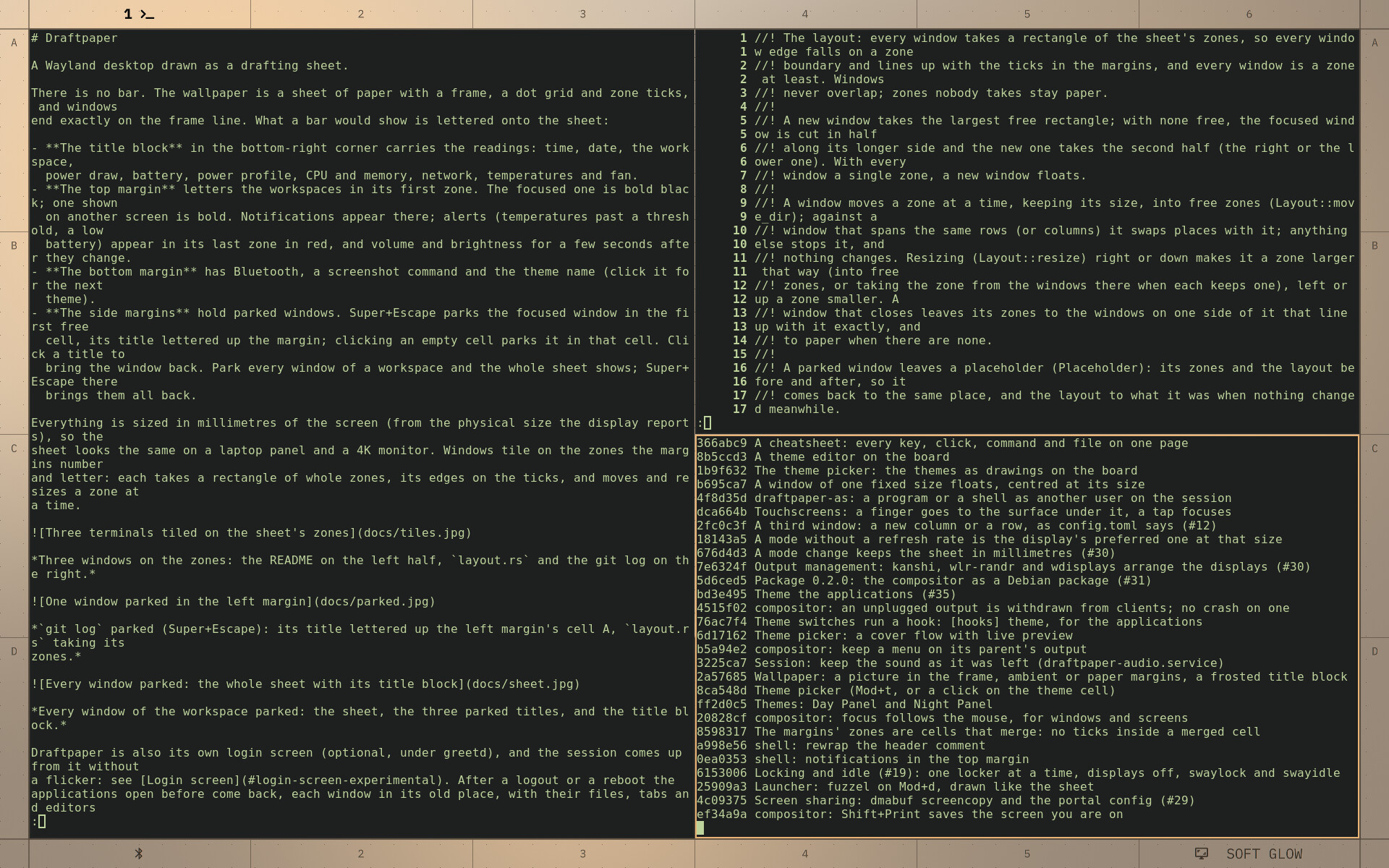
Three windows on the zones: the README on the left half, layout.rs and the git log on the right.
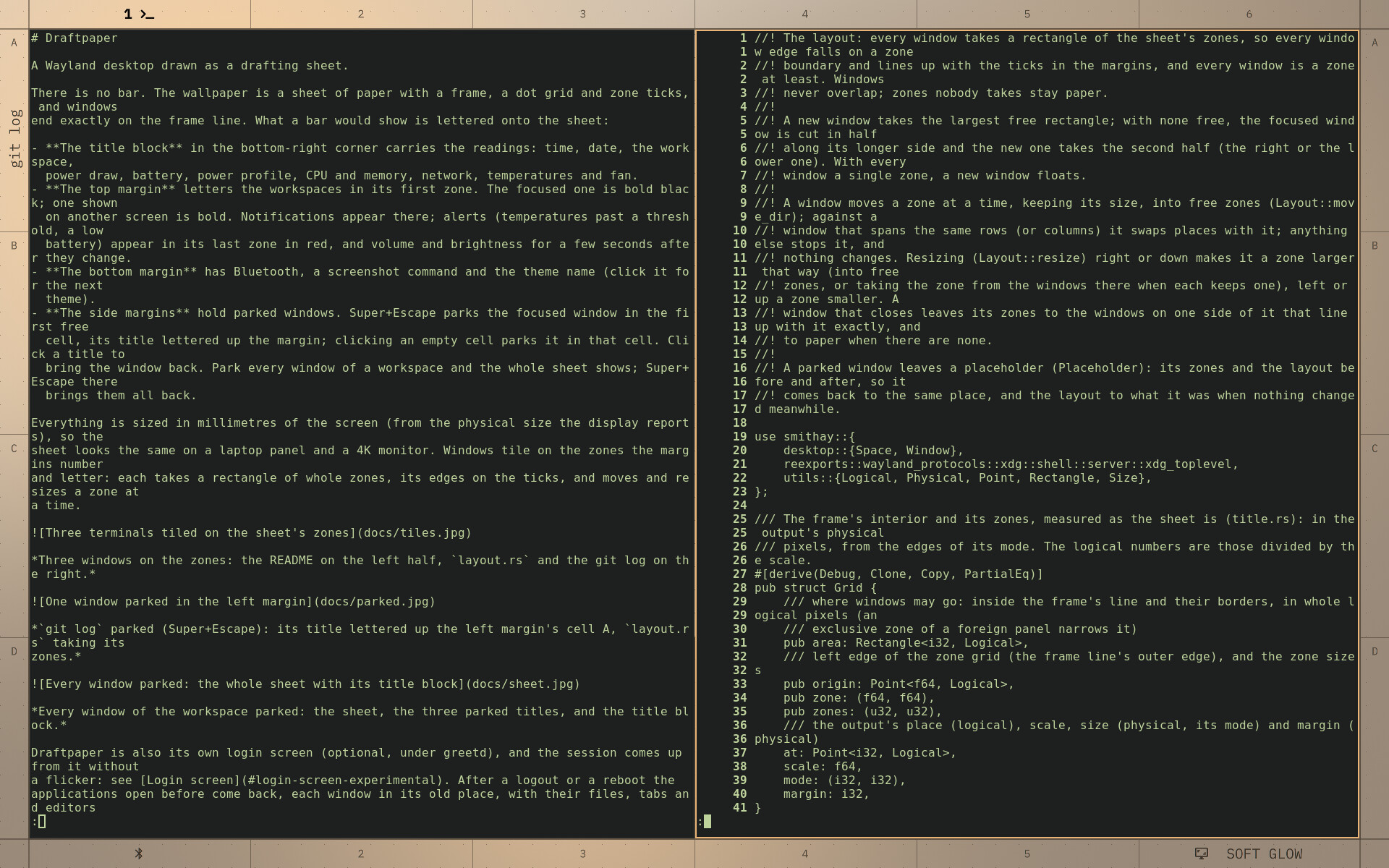
git log parked (Super+Escape): its title lettered up the left margin's cell A, layout.rs taking its
zones.
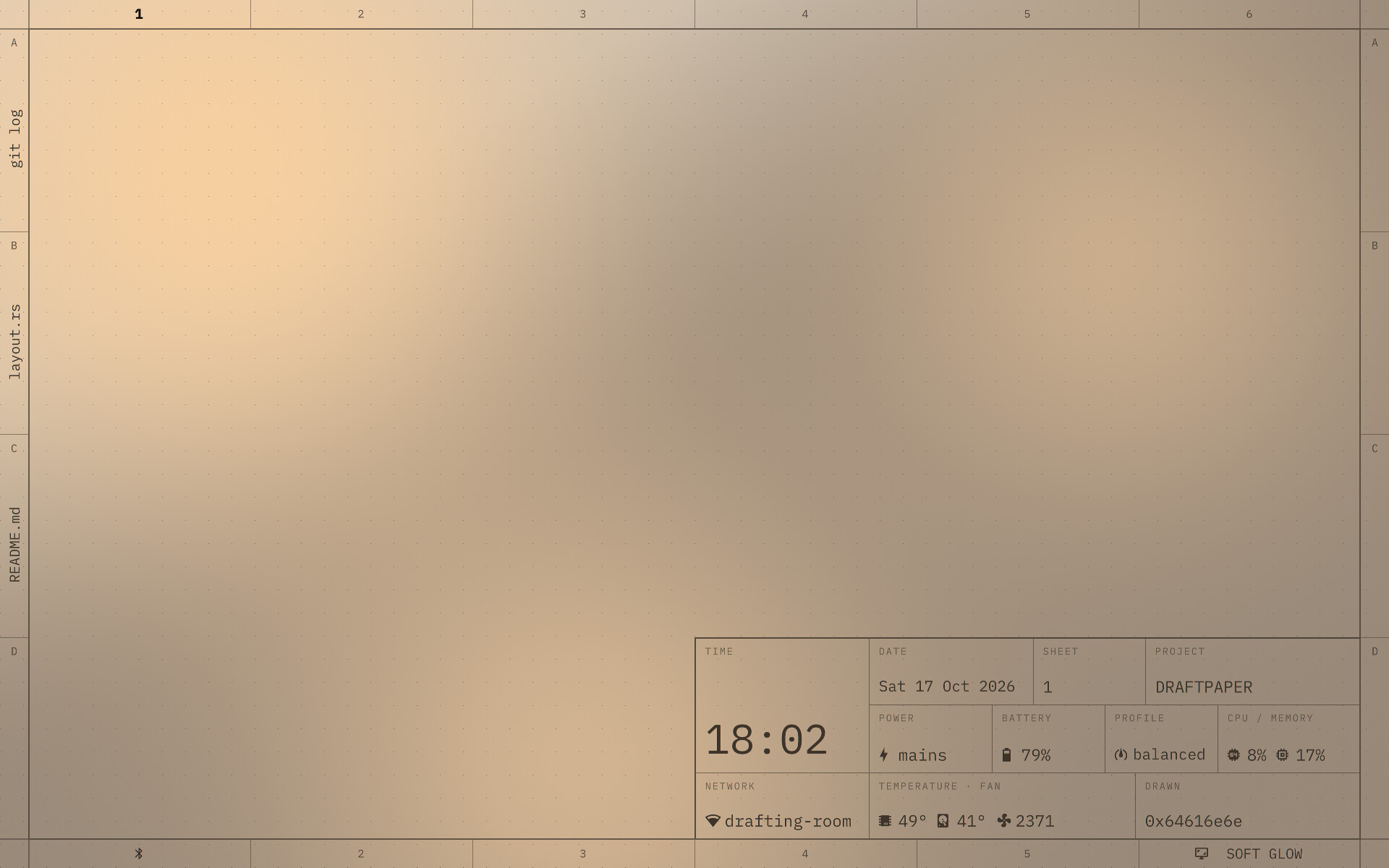
Every window of the workspace parked: the sheet, the three parked titles, and the title block.
Draftpaper is also its own login screen (optional, under greetd), and the session comes up from it without
a flicker: see Login screen. After a logout or a reboot the
applications open before come back, each window in its old place, with their files, tabs and editors
as they were ([session] under Configuration). What changed from release to release:
CHANGELOG.md.
Draftpaper is a Debian package (Debian 13, amd64). It needs Quickshell 0.3 or later, which Debian 13 provides in trixie-backports:
sudo apt install -t trixie-backports quickshell ./draftpaper_0.5.0_amd64.deb # from the latest release
Install both from backports in one go: Quickshell brings newer PipeWire libraries from there, and the recommended wireplumber has to come from the same place.
Log out and pick Draftpaper from the display manager's session menu (in GDM, the gear under the
password field). From a text console, run draftpaper-session.
The recommended packages are the defaults the keys run: alacritty (or foot), swayidle,
grim, slurp and swappy, wireplumber and brightnessctl. Screen sharing in browsers and calls goes through
xdg-desktop-portal-wlr. The sheet is lettered in IBM Plex Mono when it is installed, DejaVu Sans Mono
otherwise; Plex is in Debian's contrib section.
The 0.1 releases were an i3 edition (a sheet behind i3 on X11). It is frozen: 0.1.1 stays installable from the releases, and 0.2 replaces it.
Mod is Super (the Windows key). Every key, click and command on one page: docs/cheatsheet.md.
| Key | |
|---|---|
| Mod+Return | Terminal (alacritty) |
| Mod+d | Launcher: the applications as a register on the sheet (fuzzel stays an alternative) |
| Mod+h/j/k/l, Mod+Up/Down | Move the focus |
| Mod+Shift+h/j/k/l, Mod+Shift+arrows | Move the window a zone, keeping its size, into free zones; past a window of the same rows (or columns) they swap |
| Mod+Ctrl+h/j/k/l, Mod+Ctrl+arrows | Resize by a zone (hold to repeat): right and down larger, left and up smaller |
| Mod+1 … Mod+0 | Workspace 1 to 10 |
| Mod+Shift+1 … Mod+Shift+0 | Send the window to a workspace |
| Mod+f | Fullscreen |
| Mod+Shift+q | Close the window |
| Mod+Escape | Park the focused window in the side margin; with every window parked, bring them all back |
| Mod+Left / Mod+Right | Bring back the parked window in the first / last cell, parking the focused one; with nothing parked, move the focus |
| Mod+t | Settings: the colour scheme (presets, or one built from checked choices) |
| Mod+Shift+x | Lock the screen: the sheet blurred, the fingerprint reader first, then the password (draftpaper lock) |
| Mod+Shift+p | Lock before every suspend, until turned off or the next login |
| A region to swappy (slurp, grim) | |
| Shift+Print | The screen you are on to ~/Pictures |
| Mod+Print | Every screen to ~/Pictures |
| Mod+z | A magnifier on the pointer: scroll zooms, Shift+scroll sizes it, Escape closes |
| Volume, brightness keys | wpctl, brightnessctl |
| Mod+Shift+e | Leave the session (written first, to come back at the next login) |
| Ctrl+Alt+F1 … F12 | Switch virtual terminal |
Clicks: a workspace number switches to it; an empty side cell parks the focused window there and a parked window's title brings it back; the profile cell cycles the power profile; volume mutes on click and changes on scroll; the theme name switches theme.
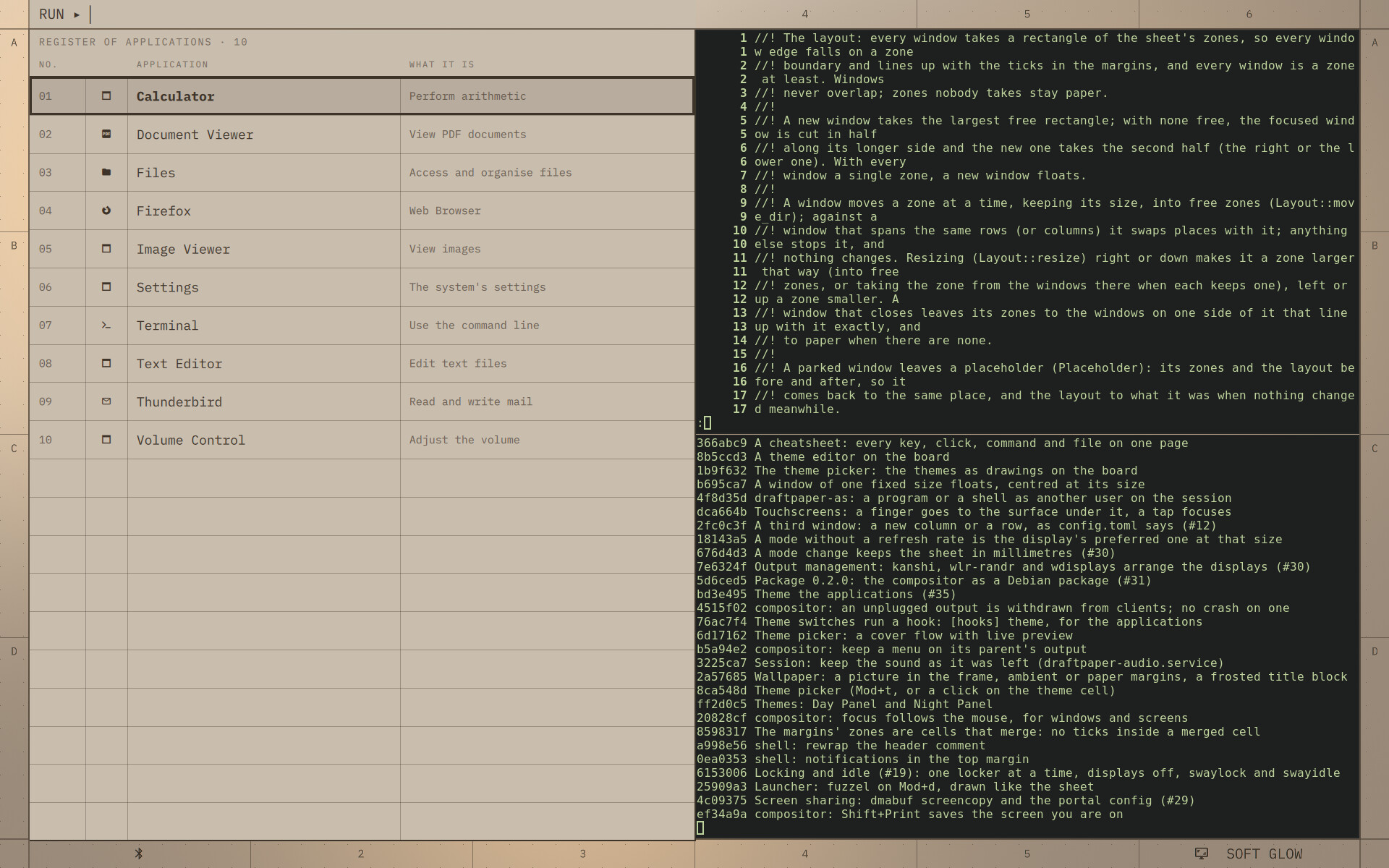
The launcher (Super+D): a register of the applications on whole zones, what you type lettered in the
margin above it; the most used come first. draftpaper menu shows any list of lines in it, for scripts.
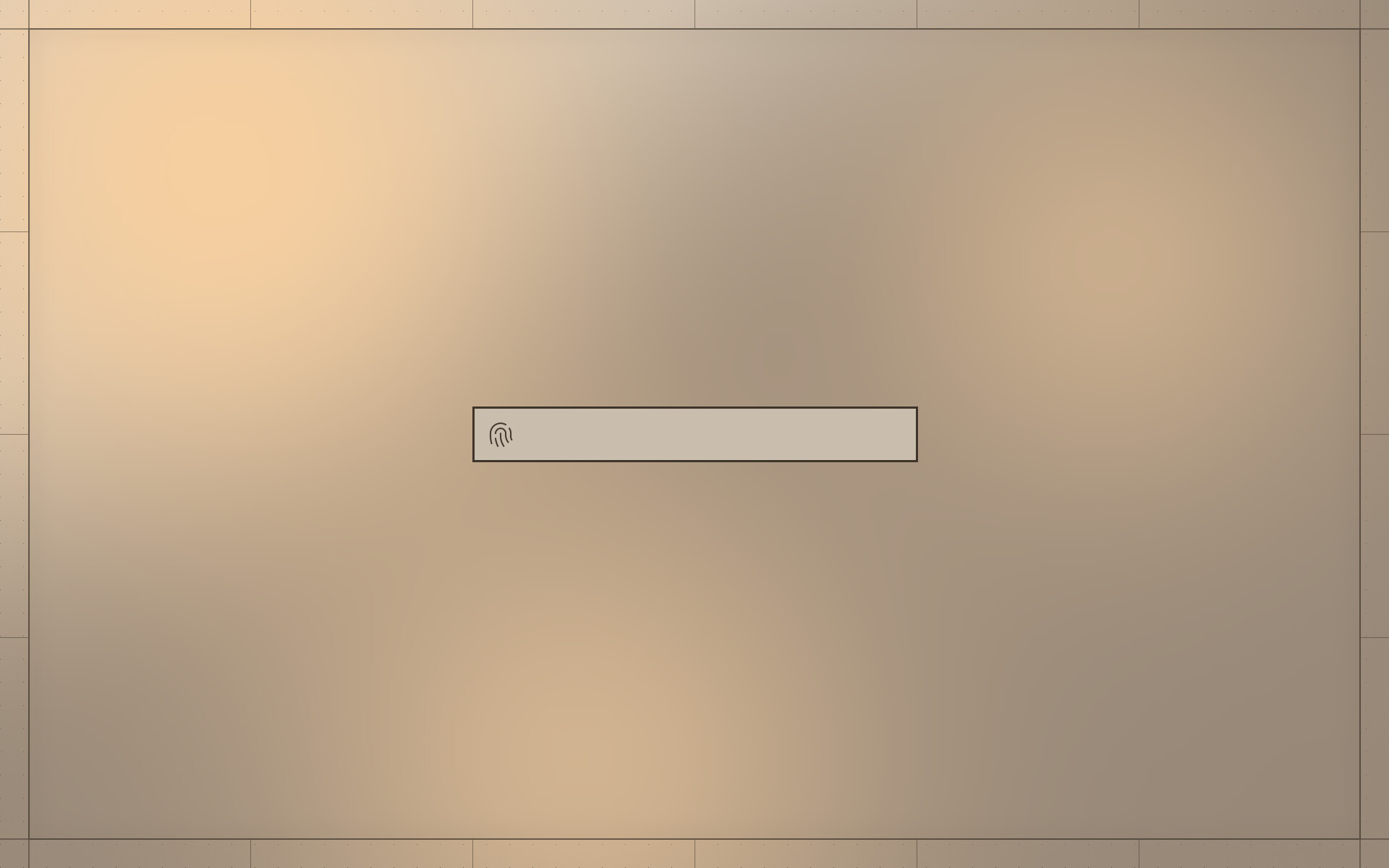
The lock screen (Super+Shift+X), as the login screen: the sheet blurred inside its frame, nothing of the windows, one field with the fingerprint reader listening, again and again until it knows your finger (one not recognised shakes the field). Start typing and the password's dots follow the glyph.
~/.config/draftpaper/config.toml, every key optional. It is read again when it changes.
theme = "softglow"
margin = 6                 # millimetres between the screen edge and the frame (3 to 20)
glyphs = true              # Nerd Font glyphs before the readings, when a Nerd Font is installed
wallpaper = "~/Pictures/sea.jpg"   # a picture in the frame (draftpaper wallpaper FILE | none)
margins = "paper"          # with a wallpaper: "paper", or "ambient" (the picture's colours)
title_tint = 0.7           # with a wallpaper: how much paper tints the picture under the title block
wallpaper_fit = "fill"     # "fill" (cropped to the frame), "fit" (whole, on the paper), "centre" (own size)
wallpaper_position = "centre"  # where it sits when cropped or smaller: centre, top, bottom, left, right
wallpaper_brightness = 1.0 # less darkens it
wallpaper_wash = 0.0       # how much paper is laid over it (0 to 1)
wallpaper_blur = 0.0       # millimetres
wallpaper_dirs = ["~/Pictures/Wallpapers", "/usr/share/backgrounds"]   # where the settings look

[title]
project = "WORKSTATION"    # default: the host name
drawn = "me"               # default: the user name (shown when there is no custom cell)

[[cell]]                   # cells of your own: the first in the title block's last row, the others
                           # in the bottom margin's free zones, one per zone
label = "TICKET"
command = ["my-timer"]     # its first line of output is the value
interval = 5               # seconds
left = ["my-timer", "toggle"]
right = ["my-timer", "pick"]

[alerts]                   # when temperatures and the battery turn red
cpu = 85                   # degrees Celsius
nvme = 60
fan = 5000                 # RPM
battery = 15               # percent

[idle]
screens_off = 15           # minutes until the screens turn off (0: never)
lock_after = 0             # minutes until the screen locks (0: never)
lock_on_sleep = false      # lock before every suspend

[apps]                     # the applications in the theme's colours
theme = true               # false: leave them alone
skip = []                  # or some of: alacritty foot tmux neovim emacs gtk qt firefox x11

[input]
keyboard_layout = "us"     # xkb layout(s), variant, options
keyboard_options = "ctrl:nocaps"
repeat_delay = 200         # ms
repeat_rate = 25           # per second
tap = true                 # touchpad: tap to click
natural_scroll = true
focus_follows_mouse = true  # the window the pointer enters takes the focus

[[rule]]                   # window rules, in order, later ones winning; match on any of:
app_id = "^pavucontrol$"   #   a pattern for the app id (X11: the class)
title = "Volume"           #   a pattern for the title
                           #   pip = true: a browser's picture-in-picture window
float = true               # then: float (at its own size, above the tiles)
sticky = false             #   follow you to every workspace of its screen
place = "centre"           #   or "corner": the frame's bottom-right, above the title block
focus = true               #   false: open without taking the keyboard

[animations]
enabled = true             # false: every change at once
duration_ms = 220

[session]                  # at login, the applications open at the last logout, each window back
restore = true             #   in its place (workspace, zones, floating, parked); false: none
apps = true                # the applications take up their own state (draftpaper apply): Firefox,
                           #   Chromium, Emacs, Neovim, tmux; false: only the windows come back
skip = ["org.gnome.Calculator"]   # app ids left out (and firefox, chromium, emacs, neovim, tmux)

[outputs.eDP-1]               # when the display is plugged in (see Displays)
scale = 1.5                # fractional scales work
position = [0, 0]          # logical pixels

[bindings]                 # key = action; "none" removes a default
"Mod+Return" = "spawn foot"
A display gets its preferred mode when it is plugged in, right of the others, unless
[outputs.<name>] in config.toml gives its scale and position (wlr-randr lists the names).
Tools that speak wlr-output-management arrange the displays while the session runs: wlr-randr from
a shell, wdisplays with a mouse, and kanshi, which switches between profiles as displays come and go
(docked, undocked). kanshi matches displays by name or by make, model and serial as wlr-randr shows
them:
# ~/.config/kanshi/config
profile undocked {
  output eDP-1 enable scale 1.5
}
profile docked {
  output eDP-1 disable
  output "DEL DELL U2720Q ABC123" mode 3840x2160 position 0,0 scale 1.5
}
Debian's kanshi has no service of its own; to start it with the session:
# ~/.config/systemd/user/kanshi.service
[Unit]
PartOf=graphical-session.target
After=graphical-session.target

[Service]
ExecStart=/usr/bin/kanshi
Restart=on-failure

[Install]
WantedBy=draftpaper-session.target
then systemctl --user enable kanshi. A display turned off stays off until it is turned on again or
unplugged; when every display left is off, they come on again.
Actions: focus|move|resize left|right|up|down, workspace N, send N, fullscreen, close, park,
park_next, park_prev, screenshot, zoom (the magnifier), pointer X Y (the pointer there, for
scripts), power off|on, reload, quit, session_save (the session written now), spawn COMMAND.
Draftpaper can be its own login screen under greetd:
draftpaper-greeter draws your sheet, blurred inside its frame (the margins sharp), with one field in
the middle of it and no words.
With your name known the session is asked for at once, so a fingerprint reader (pam_fprintd) listens
from the start, its glyph lit in the field, and keeps listening, again each time it gives up; a password
typed meanwhile is given when PAM asks for it; a refusal shakes the field.
Once you are in, your name appears in the field and slides into the title block's DRAWN cell, and the session
starts on the same VT without a flicker: the login screen leaves that frame on screen when it exits,
the session takes the displays over as they are, in the same mode, shows that very frame until its
shell is up, then fades it into the desktop as the blur goes (Linux 6.8 or later). After any display
manager the session opens the same way, from whatever was on screen.
The login screen: your name remembered, the fingerprint reader listening; type the password and Enter instead.
The login screen runs as greetd's own user and cannot read your home, so draftpaper apply (every
login, every theme change) copies what your sheet looks like (theme, margin, wallpaper, the outputs'
scales) to /var/lib/draftpaper/greeter/<you>/ when that directory exists. The copy is readable by
every local user, the wallpaper too. To set it up:
sudo apt install greetd
sudo install -d -m 1777 /var/lib/draftpaper/greeter
draftpaper apply
and in /etc/greetd/config.toml:
[terminal]
vt = 1

[default_session]
command = "draftpaper-greeter"
user = "_greetd"
greetd's package runs it on VT7, where a getty gives way to it; on VT1 the getty there has to as well
(/etc/systemd/system/greetd.service.d/draftpaper.conf):
[Unit]
[email protected]
[email protected]
Keep the text console off that VT, or it can flash up between the two: add fbcon=vc:2-63 to the
kernel command line (VT1 is the only one a single range can leave out; the others keep theirs, and
Ctrl+Alt+F2 still gives a text login). Then make greetd the display manager, from the next boot (it
takes over the display-manager.service link):
echo /usr/sbin/greetd | sudo tee /etc/X11/default-display-manager
sudo systemctl enable --force greetd
Back to GDM: the same with /usr/sbin/gdm3 and gdm3.
For work kept under a separate unix account, draftpaper-as USER [COMMAND...] runs a program as that
user on the session, or their login shell with no command:
draftpaper-as client chromium --ozone-platform=wayland --class=client-browser
alacritty --class client-term -e draftpaper-as client
It needs sudo to that user and setfacl (package acl). The user is let onto the display through an
access entry on the Wayland socket, which lasts until the session ends; as with xhost on X, that is no
security boundary between the two.
Four themes ship: Soft Glow (warm greige paper, above), Blueprint (a dark sheet: Prussian-blue paper drawn in pale blue-white), Day Panel (the CDE workstation palette: steel-blue paper, dark lettering, Saab amber as the accent) and Night Panel (a black instrument panel: unlit markings, only the focused workspace and window lit in amber, warnings in red).
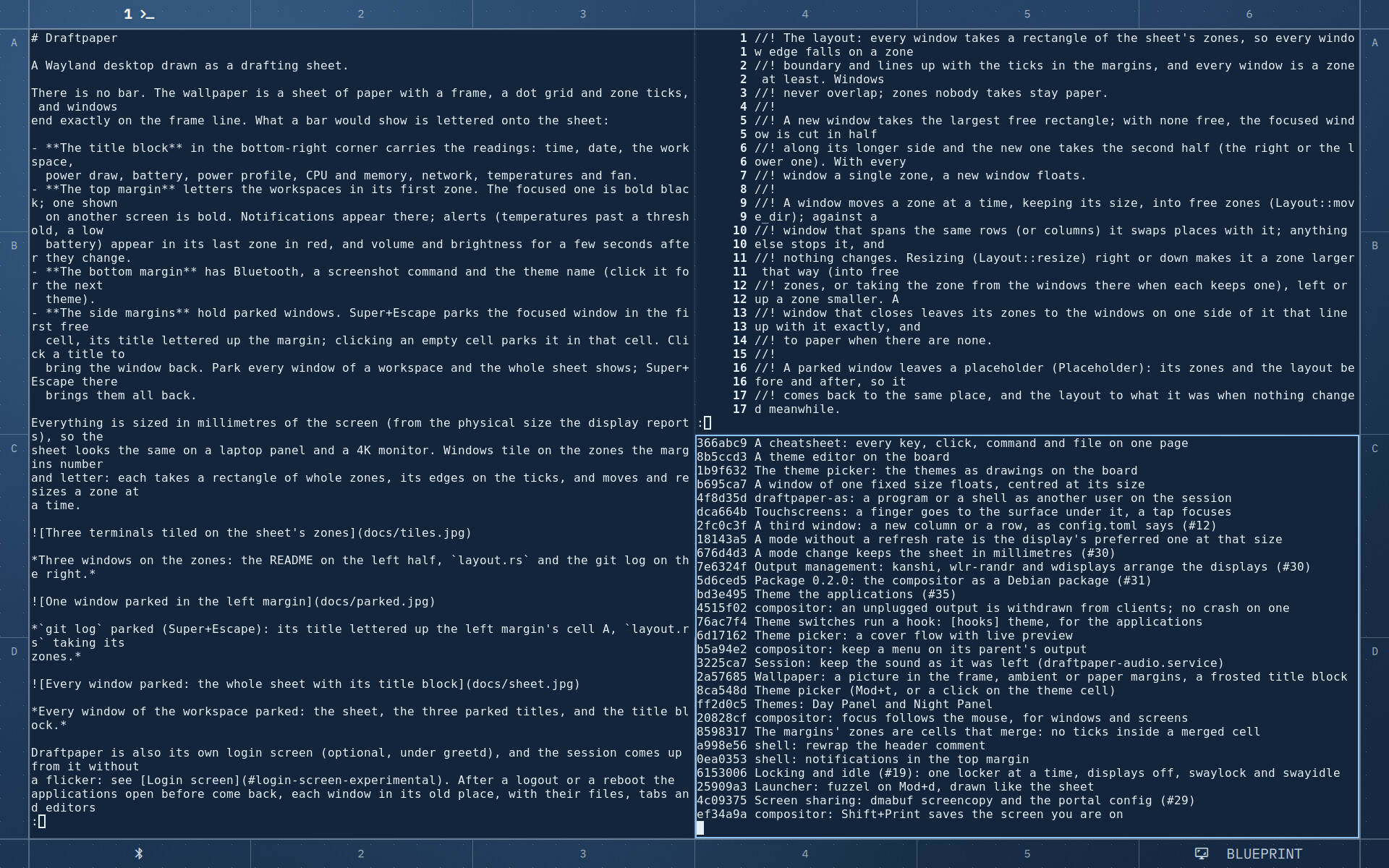
Blueprint, with the terminals in the theme's colours.
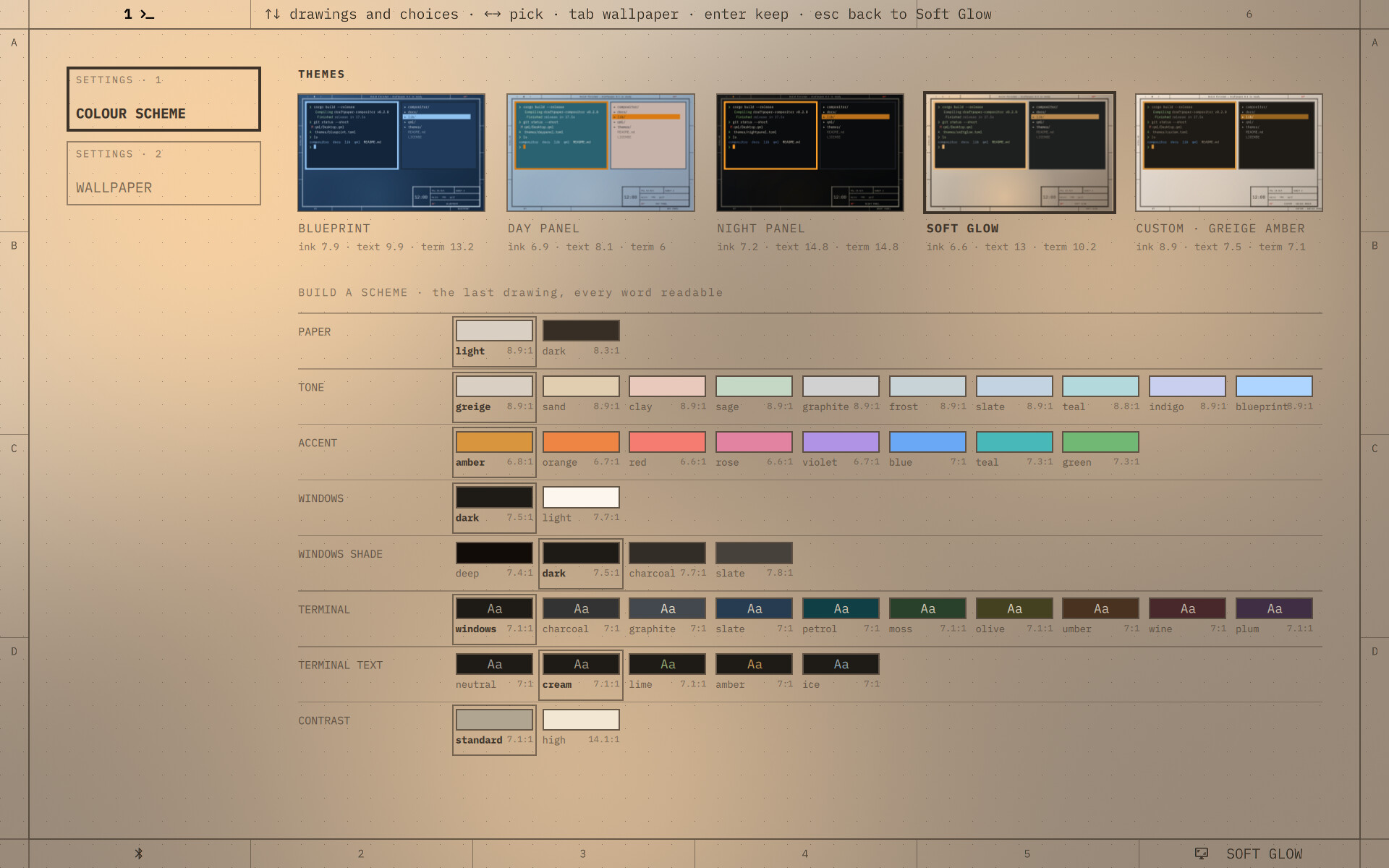
The settings (Super+T), on the colour scheme page: the themes along the top, the builder below; the pages down the left (Tab turns to the wallpaper). The sheet around them previews what is picked.
Super+T opens the settings on the board: the inside of the frame is cleared (with a wallpaper, the
picture blurred), and the colour scheme lies on it. Along the top, the themes as drawings, each lettered
with its main contrasts (or with how many of its words fall below 4.5:1); below them, a scheme built
from eight choices: paper light or dark, its tone, the accent, windows dark or light and their shade
(from the deepest to a mid grey: deep, dark, charcoal, slate; on the light side white, paper, mist,
grey), the terminal's background (as the windows, or one of nine mid tones: charcoal, graphite, slate,
petrol, moss, olive, umber, wine, plum) and its text, and the contrast (about 7:1, or 10:1 and more). The choices pick hues; the lightnesses are worked out so
that every word, the 16 terminal colours included, reads at 4.5:1 or more and dimmed text at 3:1. The
contrast between text and background carries legibility, its hue does not. The sheet previews what is
picked; Enter keeps it (a built scheme is written to [scheme] in config.toml and to the theme
custom), Escape goes back. R twice on your copy of a shipped theme brings the shipped one back
(draftpaper theme revert NAME). draftpaper theme check holds any theme to the same rules.
Tab (or a click on the page's cell) turns to the wallpaper: the pictures as drawings (put yours in
~/Pictures/Wallpapers; the system's backgrounds and the current picture are there too, and none
leaves the paper), the margin cells in the theme's paper or in the picture's colours (ambient), and
how much paper tints the picture under the title block (40 to 85%), how it is mounted (fill, fit
whole, or its own size) and where, its brightness, a wash of paper over it, and blur. Each change
shows on the sheet at once; Enter keeps the page's changes along with the colour scheme's, Escape puts both back.
draftpaper theme lists them and draftpaper theme <name>
switches; clicking the theme name in the bottom margin moves to the next. A theme is a TOML file naming
the paper, the ink, the focused workspace's colour (strong), the window colours and the applications'
palette ([apps]; see /usr/share/draftpaper/themes/softglow.toml); your own go in
~/.config/draftpaper/themes/.
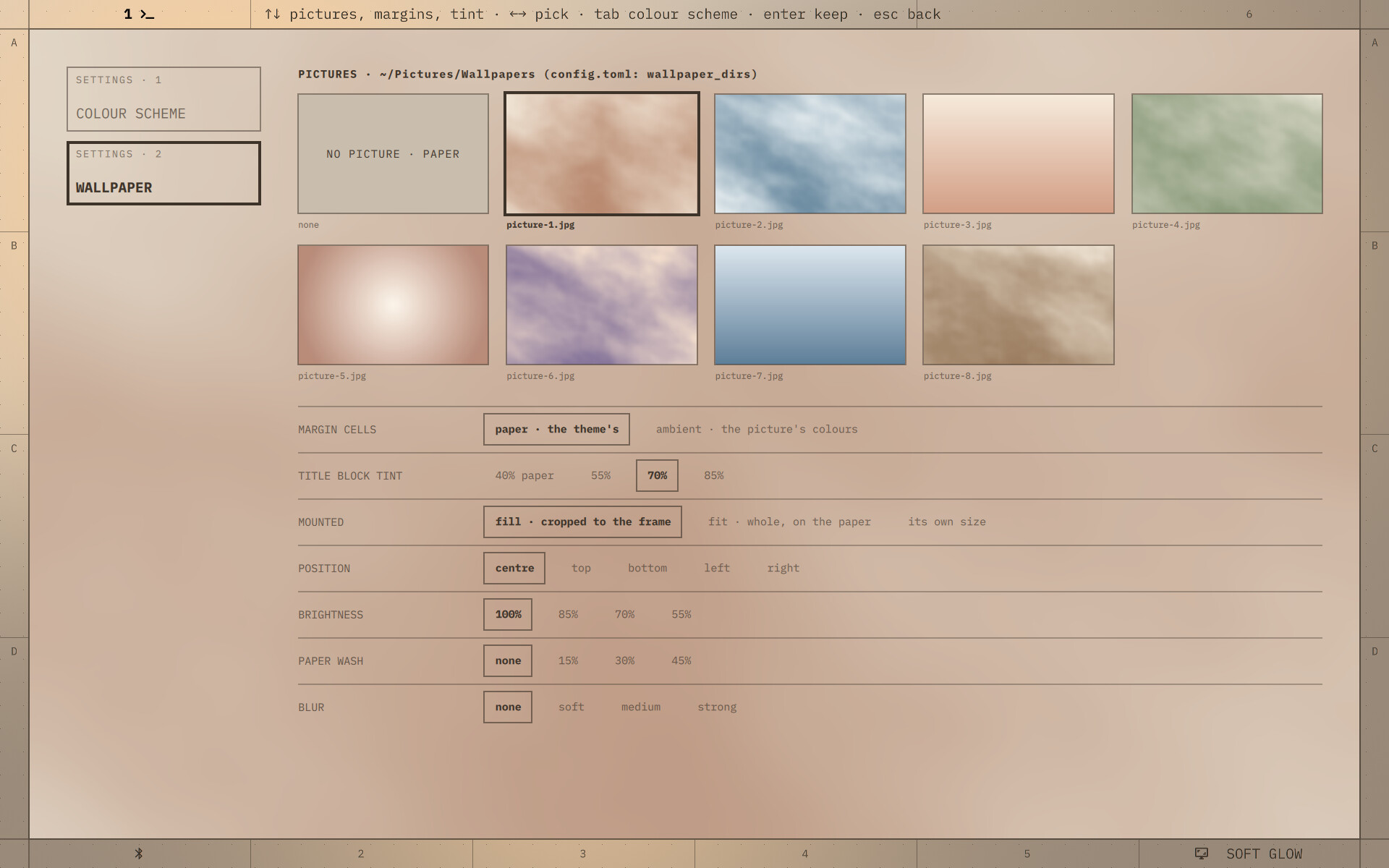
The wallpaper page: the pictures of ~/Pictures/Wallpapers as drawings, the one picked already
showing on the sheet around the board; below, the margins, the title block's tint, how it is mounted,
its brightness, a wash of paper and blur.
A theme also colours the applications, from its [apps] palette: alacritty, foot, tmux, Neovim,
Emacs, GTK 3 and 4, Qt (qt5ct, qt6ct), Firefox and X11 programs. Draftpaper writes files of its own
(~/.config/draftpaper/, ~/.local/share/themes/Draftpaper-<theme>, colors/draftpaper.*) and adds one
include line to each application's configuration, or a marked block where there is no include.
draftpaper-compositor is a tiling compositor built on Smithay. It
draws the sheet (paper, frame, dot grid, zone ticks, or the wallpaper), tiles the windows inside the
frame and keeps the parked windows. Once it is up it starts draftpaper-session.target: the shell
(Quickshell, /usr/share/draftpaper/qml), swayidle and the volume keeper, as systemd user services.
The shell letters the margins and the title block as layer-shell surfaces and talks to the compositor
over a JSON socket ($DRAFTPAPER_SOCKET; draftpaper-compositor msg … from a shell): the outputs and
their sheet's geometry, the workspaces and windows, any action a key can name, and ready once it has
lettered everything (the session's opening waits for it).
A compositor that takes over the displays from another (the login screen, the session, any display
manager) keeps them in their mode and opens on the very picture they show, read back from the display;
leaving, it keeps its last frame on screen. Between the two nothing goes dark (compositor/src/handoff.rs,
opening.rs). The compositors log to the journal: journalctl -t draftpaper -t draftpaper-greeter.
draftpaper (Rust, cli/) is the rest: themes and colour schemes, the generated files for the
launcher, the lock screen and the applications, the readings the shell polls.
make                         # the compositor and the draftpaper command (cargo; a recent Rust, e.g.
                             # from rustup), the shaders (qsb)
dpkg-buildpackage -us -uc -b # the package
make check                   # the unit tests
make pixels                  # the sheet pixel by pixel, the zones, the launcher, the login and lock
                             # screens, session restore, headless (nothing is shown on any display)
make screenshots             # the pictures in docs/ (needs foot and ImageMagick)
The build needs the development packages in debian/control and fetches the crates with cargo.
MIT. See LICENSE.
A Wayland desktop drawn as a drafting sheet: a tiling compositor in Rust (Smithay) with no bar. A live title block, lettered margins, windows tiled on the zones and parked in the margins, its own lock and login screens.
See the codeA Wayland desktop drawn as a drafting sheet.
There is no bar. The wallpaper is a sheet of paper with a frame, a dot grid and zone ticks, and windows end exactly on the frame line. What a bar would show is lettered onto the sheet:
Everything is sized in millimetres of the screen (from the physical size the display reports), so the sheet looks the same on a laptop panel and a 4K monitor. Windows tile on the zones the margins number and letter: each takes a rectangle of whole zones, its edges on the ticks, and moves and resizes a zone at a time.
Three windows on the zones: the README on the left half, layout.rs and the git log on the right.
git log parked (Super+Escape): its title lettered up the left margin's cell A, layout.rs taking its
zones.
Every window of the workspace parked: the sheet, the three parked titles, and the title block.
Draftpaper is also its own login screen (optional, under greetd), and the session comes up from it without
a flicker: see Login screen. After a logout or a reboot the
applications open before come back, each window in its old place, with their files, tabs and editors
as they were ([session] under Configuration). What changed from release to release:
CHANGELOG.md.
Draftpaper is a Debian package (Debian 13, amd64). It needs Quickshell 0.3 or later, which Debian 13 provides in trixie-backports:
sudo apt install -t trixie-backports quickshell ./draftpaper_0.5.0_amd64.deb # from the latest release
Install both from backports in one go: Quickshell brings newer PipeWire libraries from there, and the recommended wireplumber has to come from the same place.
Log out and pick Draftpaper from the display manager's session menu (in GDM, the gear under the
password field). From a text console, run draftpaper-session.
The recommended packages are the defaults the keys run: alacritty (or foot), swayidle,
grim, slurp and swappy, wireplumber and brightnessctl. Screen sharing in browsers and calls goes through
xdg-desktop-portal-wlr. The sheet is lettered in IBM Plex Mono when it is installed, DejaVu Sans Mono
otherwise; Plex is in Debian's contrib section.
The 0.1 releases were an i3 edition (a sheet behind i3 on X11). It is frozen: 0.1.1 stays installable from the releases, and 0.2 replaces it.
Mod is Super (the Windows key). Every key, click and command on one page: docs/cheatsheet.md.
| Key | |
|---|---|
| Mod+Return | Terminal (alacritty) |
| Mod+d | Launcher: the applications as a register on the sheet (fuzzel stays an alternative) |
| Mod+h/j/k/l, Mod+Up/Down | Move the focus |
| Mod+Shift+h/j/k/l, Mod+Shift+arrows | Move the window a zone, keeping its size, into free zones; past a window of the same rows (or columns) they swap |
| Mod+Ctrl+h/j/k/l, Mod+Ctrl+arrows | Resize by a zone (hold to repeat): right and down larger, left and up smaller |
| Mod+1 … Mod+0 | Workspace 1 to 10 |
| Mod+Shift+1 … Mod+Shift+0 | Send the window to a workspace |
| Mod+f | Fullscreen |
| Mod+Shift+q | Close the window |
| Mod+Escape | Park the focused window in the side margin; with every window parked, bring them all back |
| Mod+Left / Mod+Right | Bring back the parked window in the first / last cell, parking the focused one; with nothing parked, move the focus |
| Mod+t | Settings: the colour scheme (presets, or one built from checked choices) |
| Mod+Shift+x | Lock the screen: the sheet blurred, the fingerprint reader first, then the password (draftpaper lock) |
| Mod+Shift+p | Lock before every suspend, until turned off or the next login |
| A region to swappy (slurp, grim) | |
| Shift+Print | The screen you are on to ~/Pictures |
| Mod+Print | Every screen to ~/Pictures |
| Mod+z | A magnifier on the pointer: scroll zooms, Shift+scroll sizes it, Escape closes |
| Volume, brightness keys | wpctl, brightnessctl |
| Mod+Shift+e | Leave the session (written first, to come back at the next login) |
| Ctrl+Alt+F1 … F12 | Switch virtual terminal |
Clicks: a workspace number switches to it; an empty side cell parks the focused window there and a parked window's title brings it back; the profile cell cycles the power profile; volume mutes on click and changes on scroll; the theme name switches theme.
The launcher (Super+D): a register of the applications on whole zones, what you type lettered in the
margin above it; the most used come first. draftpaper menu shows any list of lines in it, for scripts.
The lock screen (Super+Shift+X), as the login screen: the sheet blurred inside its frame, nothing of the windows, one field with the fingerprint reader listening, again and again until it knows your finger (one not recognised shakes the field). Start typing and the password's dots follow the glyph.
~/.config/draftpaper/config.toml, every key optional. It is read again when it changes.
theme = "softglow"
margin = 6                 # millimetres between the screen edge and the frame (3 to 20)
glyphs = true              # Nerd Font glyphs before the readings, when a Nerd Font is installed
wallpaper = "~/Pictures/sea.jpg"   # a picture in the frame (draftpaper wallpaper FILE | none)
margins = "paper"          # with a wallpaper: "paper", or "ambient" (the picture's colours)
title_tint = 0.7           # with a wallpaper: how much paper tints the picture under the title block
wallpaper_fit = "fill"     # "fill" (cropped to the frame), "fit" (whole, on the paper), "centre" (own size)
wallpaper_position = "centre"  # where it sits when cropped or smaller: centre, top, bottom, left, right
wallpaper_brightness = 1.0 # less darkens it
wallpaper_wash = 0.0       # how much paper is laid over it (0 to 1)
wallpaper_blur = 0.0       # millimetres
wallpaper_dirs = ["~/Pictures/Wallpapers", "/usr/share/backgrounds"]   # where the settings look

[title]
project = "WORKSTATION"    # default: the host name
drawn = "me"               # default: the user name (shown when there is no custom cell)

[[cell]]                   # cells of your own: the first in the title block's last row, the others
                           # in the bottom margin's free zones, one per zone
label = "TICKET"
command = ["my-timer"]     # its first line of output is the value
interval = 5               # seconds
left = ["my-timer", "toggle"]
right = ["my-timer", "pick"]

[alerts]                   # when temperatures and the battery turn red
cpu = 85                   # degrees Celsius
nvme = 60
fan = 5000                 # RPM
battery = 15               # percent

[idle]
screens_off = 15           # minutes until the screens turn off (0: never)
lock_after = 0             # minutes until the screen locks (0: never)
lock_on_sleep = false      # lock before every suspend

[apps]                     # the applications in the theme's colours
theme = true               # false: leave them alone
skip = []                  # or some of: alacritty foot tmux neovim emacs gtk qt firefox x11

[input]
keyboard_layout = "us"     # xkb layout(s), variant, options
keyboard_options = "ctrl:nocaps"
repeat_delay = 200         # ms
repeat_rate = 25           # per second
tap = true                 # touchpad: tap to click
natural_scroll = true
focus_follows_mouse = true  # the window the pointer enters takes the focus

[[rule]]                   # window rules, in order, later ones winning; match on any of:
app_id = "^pavucontrol$"   #   a pattern for the app id (X11: the class)
title = "Volume"           #   a pattern for the title
                           #   pip = true: a browser's picture-in-picture window
float = true               # then: float (at its own size, above the tiles)
sticky = false             #   follow you to every workspace of its screen
place = "centre"           #   or "corner": the frame's bottom-right, above the title block
focus = true               #   false: open without taking the keyboard

[animations]
enabled = true             # false: every change at once
duration_ms = 220

[session]                  # at login, the applications open at the last logout, each window back
restore = true             #   in its place (workspace, zones, floating, parked); false: none
apps = true                # the applications take up their own state (draftpaper apply): Firefox,
                           #   Chromium, Emacs, Neovim, tmux; false: only the windows come back
skip = ["org.gnome.Calculator"]   # app ids left out (and firefox, chromium, emacs, neovim, tmux)

[outputs.eDP-1]               # when the display is plugged in (see Displays)
scale = 1.5                # fractional scales work
position = [0, 0]          # logical pixels

[bindings]                 # key = action; "none" removes a default
"Mod+Return" = "spawn foot"
A display gets its preferred mode when it is plugged in, right of the others, unless
[outputs.<name>] in config.toml gives its scale and position (wlr-randr lists the names).
Tools that speak wlr-output-management arrange the displays while the session runs: wlr-randr from
a shell, wdisplays with a mouse, and kanshi, which switches between profiles as displays come and go
(docked, undocked). kanshi matches displays by name or by make, model and serial as wlr-randr shows
them:
# ~/.config/kanshi/config
profile undocked {
  output eDP-1 enable scale 1.5
}
profile docked {
  output eDP-1 disable
  output "DEL DELL U2720Q ABC123" mode 3840x2160 position 0,0 scale 1.5
}
Debian's kanshi has no service of its own; to start it with the session:
# ~/.config/systemd/user/kanshi.service
[Unit]
PartOf=graphical-session.target
After=graphical-session.target

[Service]
ExecStart=/usr/bin/kanshi
Restart=on-failure

[Install]
WantedBy=draftpaper-session.target
then systemctl --user enable kanshi. A display turned off stays off until it is turned on again or
unplugged; when every display left is off, they come on again.
Actions: focus|move|resize left|right|up|down, workspace N, send N, fullscreen, close, park,
park_next, park_prev, screenshot, zoom (the magnifier), pointer X Y (the pointer there, for
scripts), power off|on, reload, quit, session_save (the session written now), spawn COMMAND.
Draftpaper can be its own login screen under greetd:
draftpaper-greeter draws your sheet, blurred inside its frame (the margins sharp), with one field in
the middle of it and no words.
With your name known the session is asked for at once, so a fingerprint reader (pam_fprintd) listens
from the start, its glyph lit in the field, and keeps listening, again each time it gives up; a password
typed meanwhile is given when PAM asks for it; a refusal shakes the field.
Once you are in, your name appears in the field and slides into the title block's DRAWN cell, and the session
starts on the same VT without a flicker: the login screen leaves that frame on screen when it exits,
the session takes the displays over as they are, in the same mode, shows that very frame until its
shell is up, then fades it into the desktop as the blur goes (Linux 6.8 or later). After any display
manager the session opens the same way, from whatever was on screen.
The login screen: your name remembered, the fingerprint reader listening; type the password and Enter instead.
The login screen runs as greetd's own user and cannot read your home, so draftpaper apply (every
login, every theme change) copies what your sheet looks like (theme, margin, wallpaper, the outputs'
scales) to /var/lib/draftpaper/greeter/<you>/ when that directory exists. The copy is readable by
every local user, the wallpaper too. To set it up:
sudo apt install greetd
sudo install -d -m 1777 /var/lib/draftpaper/greeter
draftpaper apply
and in /etc/greetd/config.toml:
[terminal]
vt = 1

[default_session]
command = "draftpaper-greeter"
user = "_greetd"
greetd's package runs it on VT7, where a getty gives way to it; on VT1 the getty there has to as well
(/etc/systemd/system/greetd.service.d/draftpaper.conf):
[Unit]
[email protected]
[email protected]
Keep the text console off that VT, or it can flash up between the two: add fbcon=vc:2-63 to the
kernel command line (VT1 is the only one a single range can leave out; the others keep theirs, and
Ctrl+Alt+F2 still gives a text login). Then make greetd the display manager, from the next boot (it
takes over the display-manager.service link):
echo /usr/sbin/greetd | sudo tee /etc/X11/default-display-manager
sudo systemctl enable --force greetd
Back to GDM: the same with /usr/sbin/gdm3 and gdm3.
For work kept under a separate unix account, draftpaper-as USER [COMMAND...] runs a program as that
user on the session, or their login shell with no command:
draftpaper-as client chromium --ozone-platform=wayland --class=client-browser
alacritty --class client-term -e draftpaper-as client
It needs sudo to that user and setfacl (package acl). The user is let onto the display through an
access entry on the Wayland socket, which lasts until the session ends; as with xhost on X, that is no
security boundary between the two.
Four themes ship: Soft Glow (warm greige paper, above), Blueprint (a dark sheet: Prussian-blue paper drawn in pale blue-white), Day Panel (the CDE workstation palette: steel-blue paper, dark lettering, Saab amber as the accent) and Night Panel (a black instrument panel: unlit markings, only the focused workspace and window lit in amber, warnings in red).
Blueprint, with the terminals in the theme's colours.
The settings (Super+T), on the colour scheme page: the themes along the top, the builder below; the pages down the left (Tab turns to the wallpaper). The sheet around them previews what is picked.
Super+T opens the settings on the board: the inside of the frame is cleared (with a wallpaper, the
picture blurred), and the colour scheme lies on it. Along the top, the themes as drawings, each lettered
with its main contrasts (or with how many of its words fall below 4.5:1); below them, a scheme built
from eight choices: paper light or dark, its tone, the accent, windows dark or light and their shade
(from the deepest to a mid grey: deep, dark, charcoal, slate; on the light side white, paper, mist,
grey), the terminal's background (as the windows, or one of nine mid tones: charcoal, graphite, slate,
petrol, moss, olive, umber, wine, plum) and its text, and the contrast (about 7:1, or 10:1 and more). The choices pick hues; the lightnesses are worked out so
that every word, the 16 terminal colours included, reads at 4.5:1 or more and dimmed text at 3:1. The
contrast between text and background carries legibility, its hue does not. The sheet previews what is
picked; Enter keeps it (a built scheme is written to [scheme] in config.toml and to the theme
custom), Escape goes back. R twice on your copy of a shipped theme brings the shipped one back
(draftpaper theme revert NAME). draftpaper theme check holds any theme to the same rules.
Tab (or a click on the page's cell) turns to the wallpaper: the pictures as drawings (put yours in
~/Pictures/Wallpapers; the system's backgrounds and the current picture are there too, and none
leaves the paper), the margin cells in the theme's paper or in the picture's colours (ambient), and
how much paper tints the picture under the title block (40 to 85%), how it is mounted (fill, fit
whole, or its own size) and where, its brightness, a wash of paper over it, and blur. Each change
shows on the sheet at once; Enter keeps the page's changes along with the colour scheme's, Escape puts both back.
draftpaper theme lists them and draftpaper theme <name>
switches; clicking the theme name in the bottom margin moves to the next. A theme is a TOML file naming
the paper, the ink, the focused workspace's colour (strong), the window colours and the applications'
palette ([apps]; see /usr/share/draftpaper/themes/softglow.toml); your own go in
~/.config/draftpaper/themes/.
The wallpaper page: the pictures of ~/Pictures/Wallpapers as drawings, the one picked already
showing on the sheet around the board; below, the margins, the title block's tint, how it is mounted,
its brightness, a wash of paper and blur.
A theme also colours the applications, from its [apps] palette: alacritty, foot, tmux, Neovim,
Emacs, GTK 3 and 4, Qt (qt5ct, qt6ct), Firefox and X11 programs. Draftpaper writes files of its own
(~/.config/draftpaper/, ~/.local/share/themes/Draftpaper-<theme>, colors/draftpaper.*) and adds one
include line to each application's configuration, or a marked block where there is no include.
draftpaper-compositor is a tiling compositor built on Smithay. It
draws the sheet (paper, frame, dot grid, zone ticks, or the wallpaper), tiles the windows inside the
frame and keeps the parked windows. Once it is up it starts draftpaper-session.target: the shell
(Quickshell, /usr/share/draftpaper/qml), swayidle and the volume keeper, as systemd user services.
The shell letters the margins and the title block as layer-shell surfaces and talks to the compositor
over a JSON socket ($DRAFTPAPER_SOCKET; draftpaper-compositor msg … from a shell): the outputs and
their sheet's geometry, the workspaces and windows, any action a key can name, and ready once it has
lettered everything (the session's opening waits for it).
A compositor that takes over the displays from another (the login screen, the session, any display
manager) keeps them in their mode and opens on the very picture they show, read back from the display;
leaving, it keeps its last frame on screen. Between the two nothing goes dark (compositor/src/handoff.rs,
opening.rs). The compositors log to the journal: journalctl -t draftpaper -t draftpaper-greeter.
draftpaper (Rust, cli/) is the rest: themes and colour schemes, the generated files for the
launcher, the lock screen and the applications, the readings the shell polls.
make                         # the compositor and the draftpaper command (cargo; a recent Rust, e.g.
                             # from rustup), the shaders (qsb)
dpkg-buildpackage -us -uc -b # the package
make check                   # the unit tests
make pixels                  # the sheet pixel by pixel, the zones, the launcher, the login and lock
                             # screens, session restore, headless (nothing is shown on any display)
make screenshots             # the pictures in docs/ (needs foot and ImageMagick)
The build needs the development packages in debian/control and fetches the crates with cargo.
MIT. See LICENSE.



