✨ Awesome Dropdown menu for iOS with Swift 5.0
See the code




See CHANGELOG for details
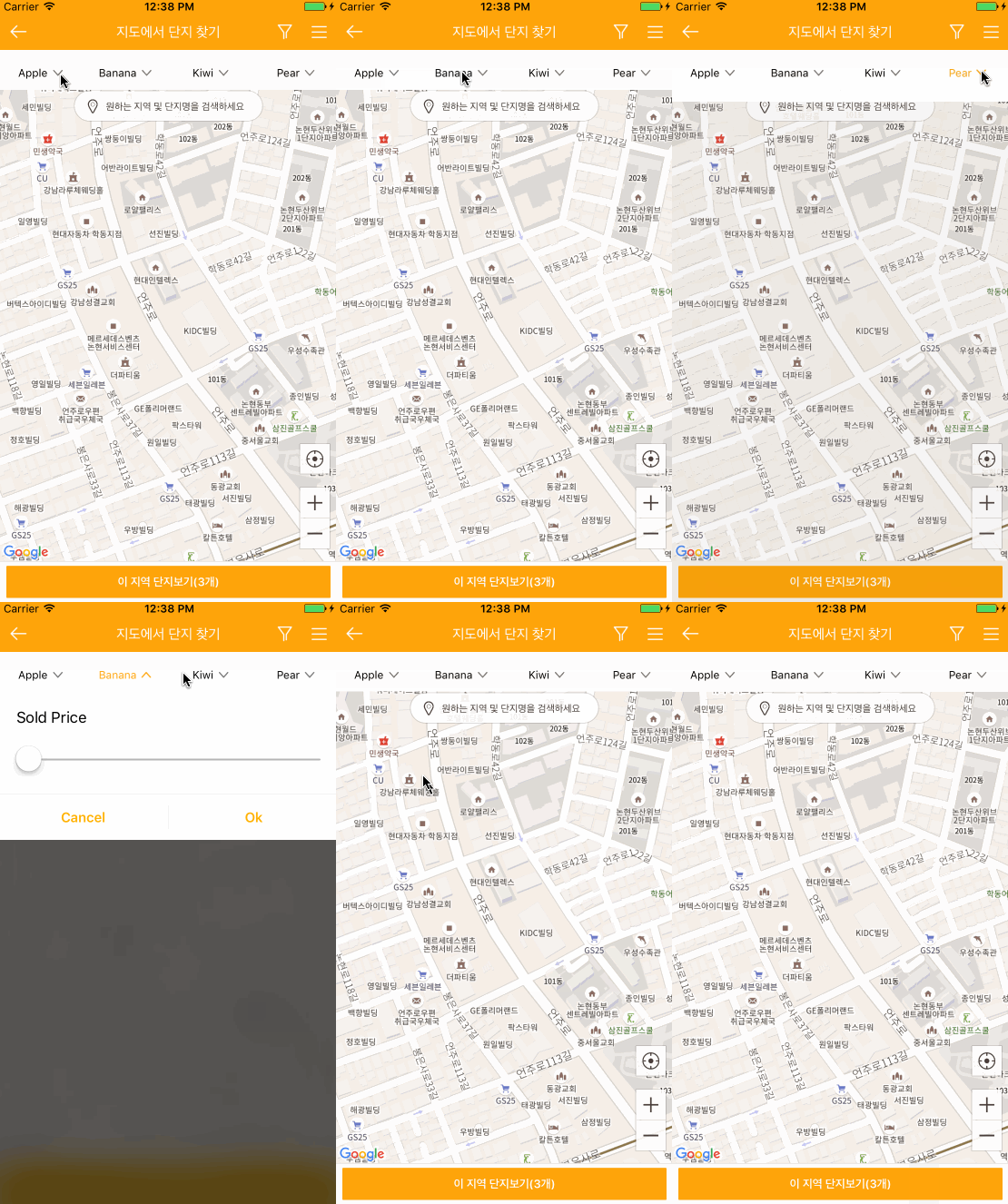
The eligible dropdown menu for iOS, written in Swift 6, appears dropdown menu to display a view of related items when a user click on the dropdown menu. You can customize dropdown view whatever you like (e.g. UITableView, UICollectionView... etc)

YNDropDownMenu is written in Swift 6.0 and requires iOS 13.0 or later. The package manifest uses Swift tools 6.0, and the CocoaPods deployment target is iOS 13.0.
In Xcode, choose File ▸ Add Package Dependencies… and enter:
https://github.com/younatics/YNDropDownMenu.git
Or add it to your Package.swift:
dependencies: [
    .package(url: "https://github.com/younatics/YNDropDownMenu.git", from: "4.0.0")
]
YNDropDownMenu is available through CocoaPods. To install it, simply add the following line to your Podfile:
pod 'YNDropDownMenu', '~> 4.0.0'
import YNDropDownMenu
Init view with a frame CGRect, views [UIView], and titles [String]
let dropDownMenu = YNDropDownMenu(
    frame: CGRect(x: 0, y: 64, width: view.bounds.width, height: 38),
    dropDownViews: dropDownViews,
    dropDownViewTitles: ["Apple", "Banana", "Kiwi", "Pear"]
)
view.addSubview(dropDownMenu)
done!
class DropDownView: YNDropDownView {
    // Override methods called when the menu opens and closes.
    override func dropDownViewOpened() {
        print("dropDownViewOpened")
    }

    override func dropDownViewClosed() {
        print("dropDownViewClosed")
    }

    func updateMenu() {
        // Hide Menu
        hideMenu()

        // Change Menu Title At Index
        changeMenu(title: "Changed", at: 1)
        changeMenu(title: "Changed", status: .selected, at: 1)

        // Change View At Index
        changeView(view: UIView(), at: 3)

        // Always Selected Menu
        alwaysSelected(at: 0)
        normalSelected(at: 0)
    }
}
Show & Hide Menu
dropDownMenu.showAndHideMenu(at: 1)

// When view is already opened
dropDownMenu.hideMenu()
Disable & Enable Menu
dropDownMenu.disabledMenu(at: 2)
dropDownMenu.enabledMenu(at: 3)
Always/Normal selected button label
dropDownMenu.alwaysSelected(at: 0)
dropDownMenu.normalSelected(at: 0)
Button Images with 3 situations (normal, selected, disabled)
Provide one image for each menu item in every array.
let normalImages = Array(repeating: UIImage(named: "arrow_nor"), count: 4)
let selectedImages = Array(repeating: UIImage(named: "arrow_sel"), count: 4)
let disabledImages = Array(repeating: UIImage(named: "arrow_dim"), count: 4)

dropDownMenu.setStatesImages(
    normalImages: normalImages,
    selectedImages: selectedImages,
    disabledImages: disabledImages
)
Label color with 3 situations
dropDownMenu.setLabelColorWhen(normal: .black, selected: .blue, disabled: .gray)
Label font with 3 situations
dropDownMenu.setLabelFontWhen(
    normal: .systemFont(ofSize: 12),
    selected: .boldSystemFont(ofSize: 12),
    disabled: .systemFont(ofSize: 12)
)
BlurEffectView
// Enadbled or Disabled first (Default true)
dropDownMenu.backgroundBlurEnabled = false

// Use this line if you want to change UIBlurEffectStyle
dropDownMenu.blurEffectStyle = .light

// Or customize blurEffectView(UIView)
let backgroundView = UIView()
backgroundView.backgroundColor = UIColor.black
dropDownMenu.blurEffectView = backgroundView

// Animation end alpha
dropDownMenu.blurEffectViewAlpha = 0.7
Animation duration
dropDownMenu.showMenuDuration = 0.5
dropDownMenu.hideMenuDuration = 0.3
Animation velocity, damping
dropDownMenu.showMenuSpringVelocity = 0.5
dropDownMenu.showMenuSpringWithDamping = 0.8

dropDownMenu.hideMenuSpringVelocity = 0.9
dropDownMenu.hideMenuSpringWithDamping = 0.8
Change Menu Title At Index
dropDownMenu.changeMenu(title: "Changed", at: 1)
dropDownMenu.changeMenu(title: "Changed", status: .selected, at: 1)
Change View At Index
dropDownMenu.changeView(view: UIView(), at: 3)
Change Bottom Line
dropDownMenu.bottomLine.backgroundColor = .black
dropDownMenu.bottomLine.isHidden = false
The following APIs remain available for source compatibility. Use their replacements in new code.
// Use alwaysSelected(at:) instead.
dropDownMenu.alwaysSelectedAt(index: 0)

// Use disabledMenu(at:) and enabledMenu(at:) instead.
dropDownMenu.disabledMenuAt(index: 1)
dropDownMenu.enabledMenuAt(index: 1)

// Use showAndHideMenu(at:) instead.
dropDownMenu.showAndHideMenuAt(index: 2)

// In a YNDropDownView subclass, use changeMenu(title:at:) instead.
changeMenuTitleAt(index: 0, title: "Changed")
YNDropDownMenu is available under the MIT license. See the LICENSE file for more info.
35 followers · starred Feb 2017
12 followers · starred Oct 2017
106 followers · starred Aug 2017
58 followers · starred Nov 2017
✨ Awesome Dropdown menu for iOS with Swift 5.0
See the code
See CHANGELOG for details
The eligible dropdown menu for iOS, written in Swift 6, appears dropdown menu to display a view of related items when a user click on the dropdown menu. You can customize dropdown view whatever you like (e.g. UITableView, UICollectionView... etc)
YNDropDownMenu is written in Swift 6.0 and requires iOS 13.0 or later. The package manifest uses Swift tools 6.0, and the CocoaPods deployment target is iOS 13.0.
In Xcode, choose File ▸ Add Package Dependencies… and enter:
https://github.com/younatics/YNDropDownMenu.git
Or add it to your Package.swift:
dependencies: [
    .package(url: "https://github.com/younatics/YNDropDownMenu.git", from: "4.0.0")
]
YNDropDownMenu is available through CocoaPods. To install it, simply add the following line to your Podfile:
pod 'YNDropDownMenu', '~> 4.0.0'
import YNDropDownMenu
Init view with a frame CGRect, views [UIView], and titles [String]
let dropDownMenu = YNDropDownMenu(
    frame: CGRect(x: 0, y: 64, width: view.bounds.width, height: 38),
    dropDownViews: dropDownViews,
    dropDownViewTitles: ["Apple", "Banana", "Kiwi", "Pear"]
)
view.addSubview(dropDownMenu)
done!
class DropDownView: YNDropDownView {
    // Override methods called when the menu opens and closes.
    override func dropDownViewOpened() {
        print("dropDownViewOpened")
    }

    override func dropDownViewClosed() {
        print("dropDownViewClosed")
    }

    func updateMenu() {
        // Hide Menu
        hideMenu()

        // Change Menu Title At Index
        changeMenu(title: "Changed", at: 1)
        changeMenu(title: "Changed", status: .selected, at: 1)

        // Change View At Index
        changeView(view: UIView(), at: 3)

        // Always Selected Menu
        alwaysSelected(at: 0)
        normalSelected(at: 0)
    }
}
Show & Hide Menu
dropDownMenu.showAndHideMenu(at: 1)

// When view is already opened
dropDownMenu.hideMenu()
Disable & Enable Menu
dropDownMenu.disabledMenu(at: 2)
dropDownMenu.enabledMenu(at: 3)
Always/Normal selected button label
dropDownMenu.alwaysSelected(at: 0)
dropDownMenu.normalSelected(at: 0)
Button Images with 3 situations (normal, selected, disabled)
Provide one image for each menu item in every array.
let normalImages = Array(repeating: UIImage(named: "arrow_nor"), count: 4)
let selectedImages = Array(repeating: UIImage(named: "arrow_sel"), count: 4)
let disabledImages = Array(repeating: UIImage(named: "arrow_dim"), count: 4)

dropDownMenu.setStatesImages(
    normalImages: normalImages,
    selectedImages: selectedImages,
    disabledImages: disabledImages
)
Label color with 3 situations
dropDownMenu.setLabelColorWhen(normal: .black, selected: .blue, disabled: .gray)
Label font with 3 situations
dropDownMenu.setLabelFontWhen(
    normal: .systemFont(ofSize: 12),
    selected: .boldSystemFont(ofSize: 12),
    disabled: .systemFont(ofSize: 12)
)
BlurEffectView
// Enadbled or Disabled first (Default true)
dropDownMenu.backgroundBlurEnabled = false

// Use this line if you want to change UIBlurEffectStyle
dropDownMenu.blurEffectStyle = .light

// Or customize blurEffectView(UIView)
let backgroundView = UIView()
backgroundView.backgroundColor = UIColor.black
dropDownMenu.blurEffectView = backgroundView

// Animation end alpha
dropDownMenu.blurEffectViewAlpha = 0.7
Animation duration
dropDownMenu.showMenuDuration = 0.5
dropDownMenu.hideMenuDuration = 0.3
Animation velocity, damping
dropDownMenu.showMenuSpringVelocity = 0.5
dropDownMenu.showMenuSpringWithDamping = 0.8

dropDownMenu.hideMenuSpringVelocity = 0.9
dropDownMenu.hideMenuSpringWithDamping = 0.8
Change Menu Title At Index
dropDownMenu.changeMenu(title: "Changed", at: 1)
dropDownMenu.changeMenu(title: "Changed", status: .selected, at: 1)
Change View At Index
dropDownMenu.changeView(view: UIView(), at: 3)
Change Bottom Line
dropDownMenu.bottomLine.backgroundColor = .black
dropDownMenu.bottomLine.isHidden = false
The following APIs remain available for source compatibility. Use their replacements in new code.
// Use alwaysSelected(at:) instead.
dropDownMenu.alwaysSelectedAt(index: 0)

// Use disabledMenu(at:) and enabledMenu(at:) instead.
dropDownMenu.disabledMenuAt(index: 1)
dropDownMenu.enabledMenuAt(index: 1)

// Use showAndHideMenu(at:) instead.
dropDownMenu.showAndHideMenuAt(index: 2)

// In a YNDropDownView subclass, use changeMenu(title:at:) instead.
changeMenuTitleAt(index: 0, title: "Changed")
YNDropDownMenu is available under the MIT license. See the LICENSE file for more info.
35 followers · starred Feb 2017
12 followers · starred Oct 2017
106 followers · starred Aug 2017
58 followers · starred Nov 2017



